
In CRM forms, you can control how fields appear to match different customer scenarios. If the rules are set up incorrectly, users may miss required fields or see fields they don’t need.
This article explains common issues with field display rules and how to fix them.
Select field show rules
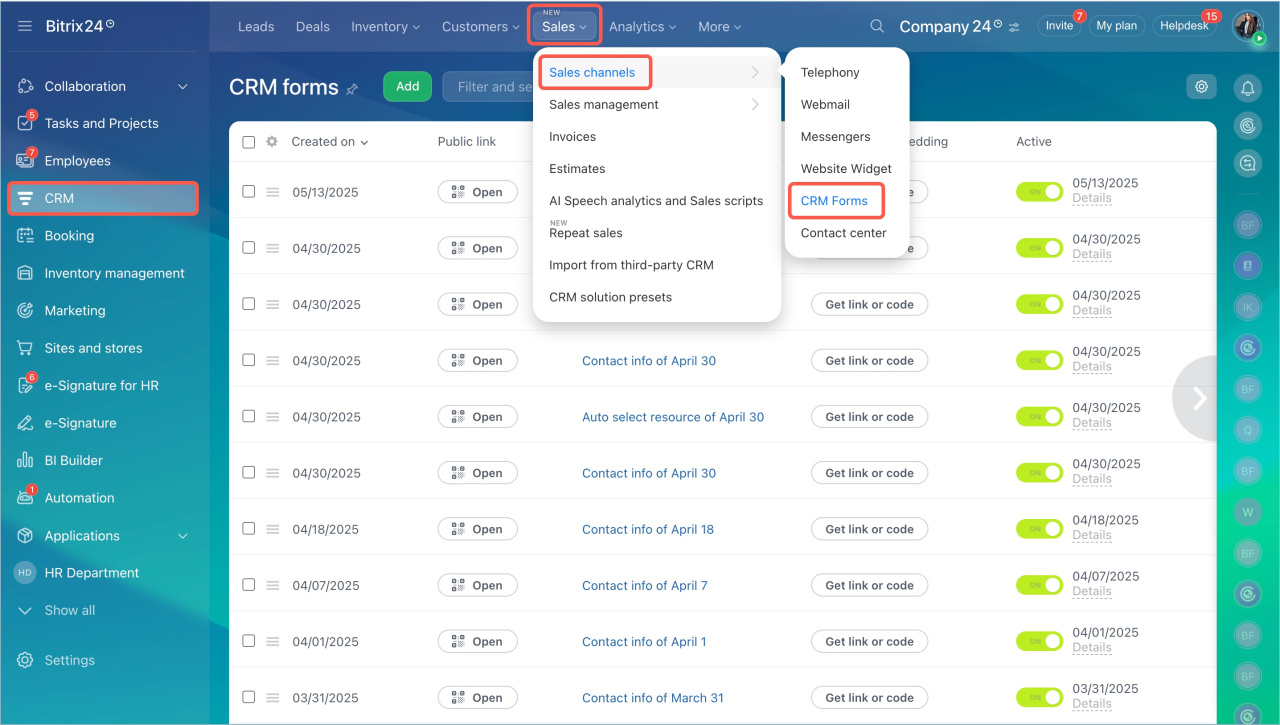
- Go to CRM > Sales > Sales channels > CRM Forms.
- Open a CRM form.
- Open the Field show rules tab and enable Expert mode.
- Select a rule and click Create. You can add multiple rules.
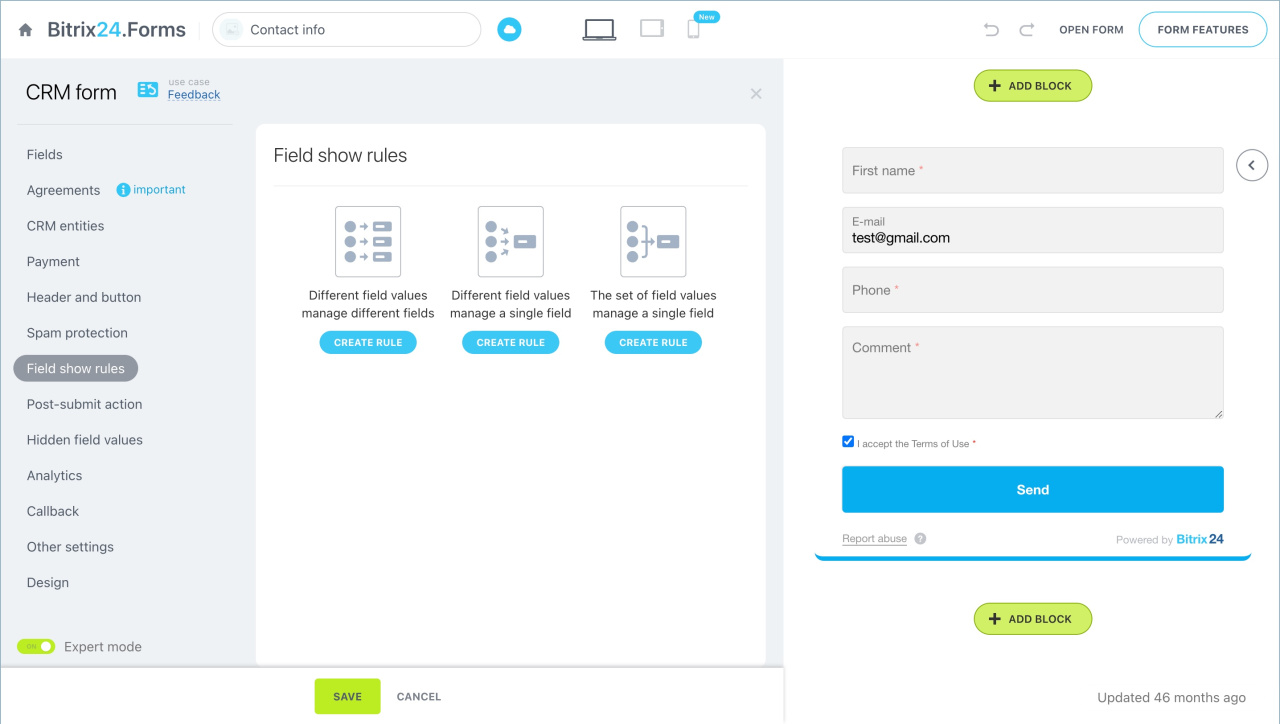
Different field values control different fields
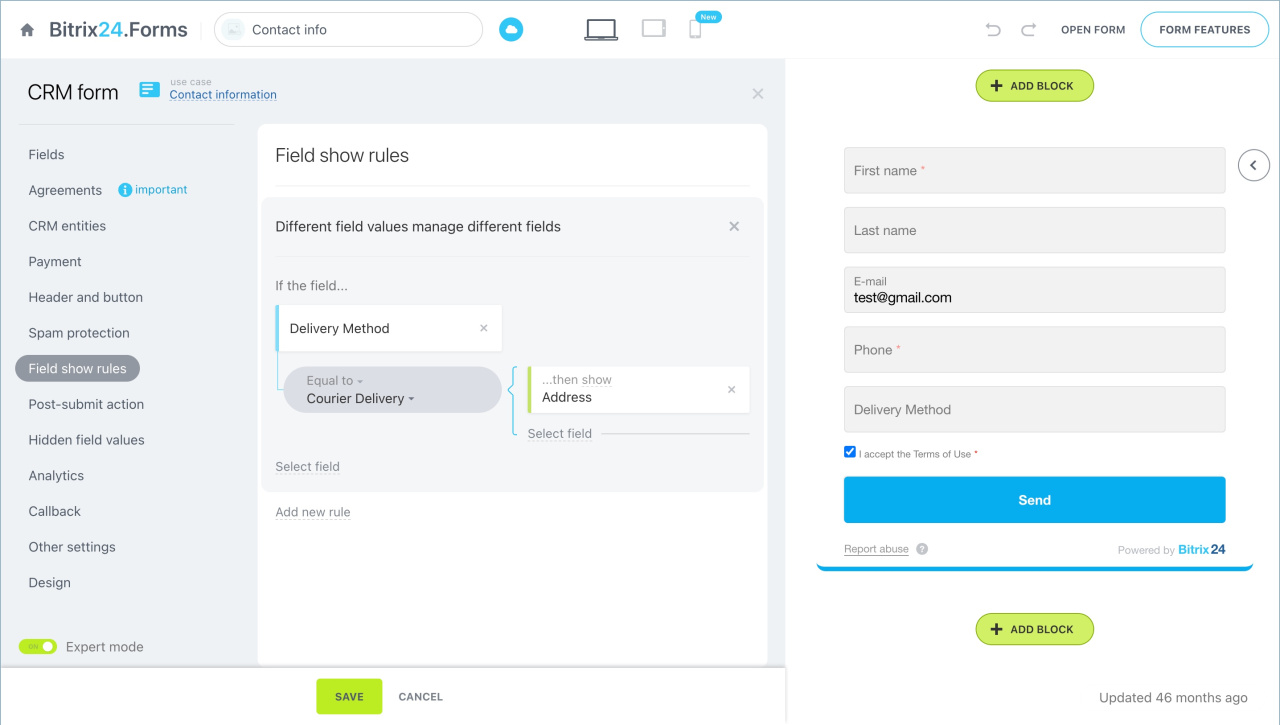
When a customer selects a value in one field, the form shows or hides another field.
Example: If the customer selects Courier delivery in Delivery method, the Delivery address field appears.
Different field values control one field
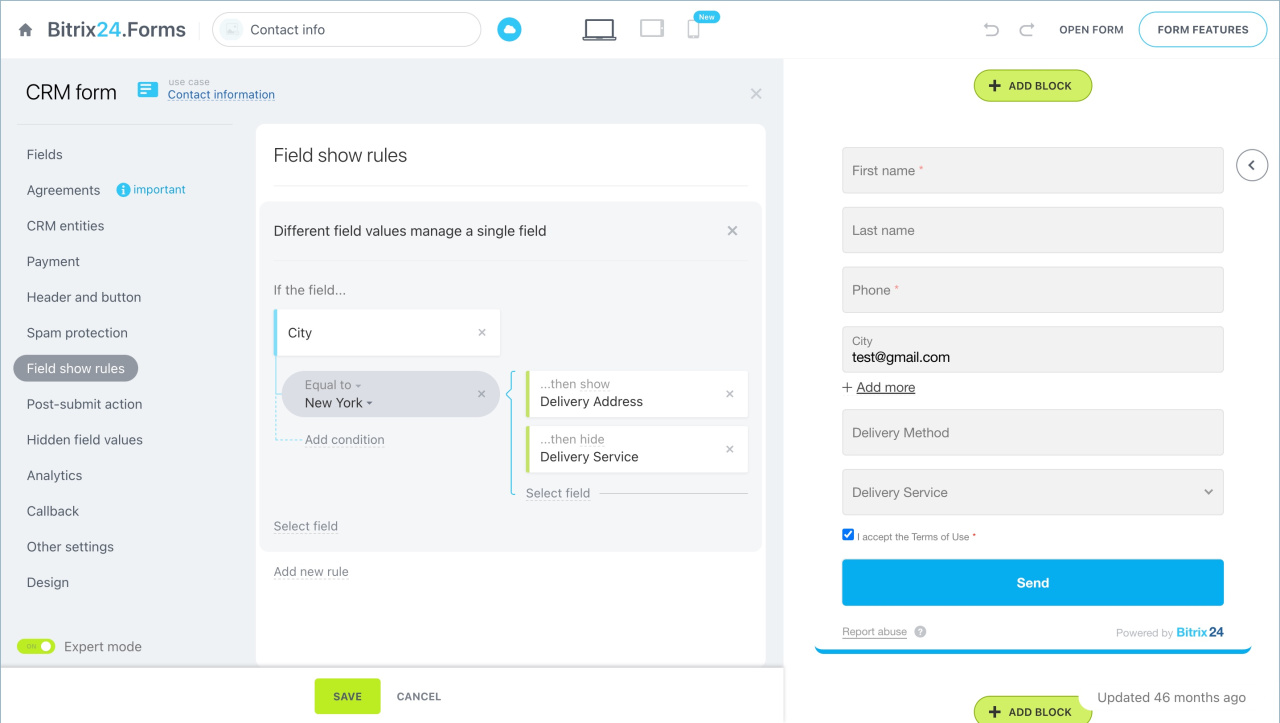
When a customer selects one of several values, the form shows or hides another field. The customer can choose any value defined in the condition.
Example: If the customer selects New York in City, the form shows Delivery address and hides Delivery service.
A set of field values controls one field
The form checks multiple fields at once. It shows or hides a field only if all conditions are met.
Example: If City is New York and Delivery method is Courier delivery, the form shows Delivery address. If any value changes, the field is hidden.
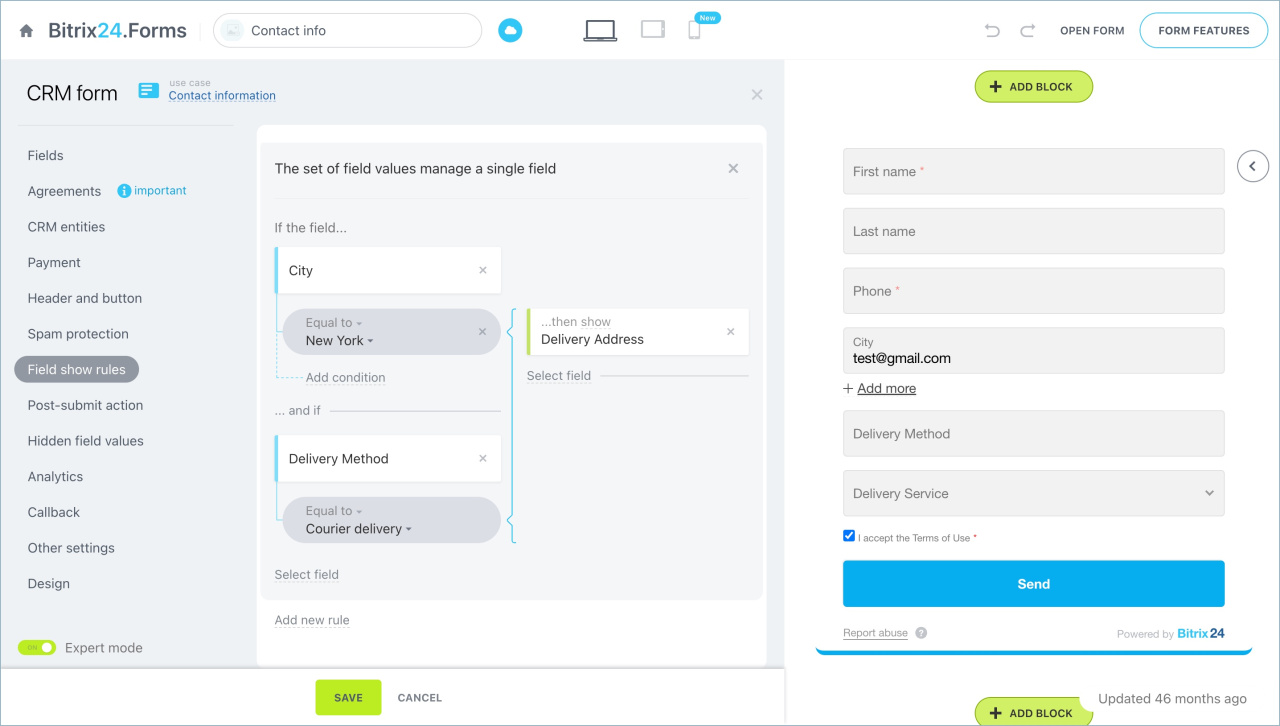
Configure field show rules
Choose the fields, set conditions, and define the action.
Select fields
Add the fields the rule applies to. Click Select Field and choose one or more fields.
Add a CRM form
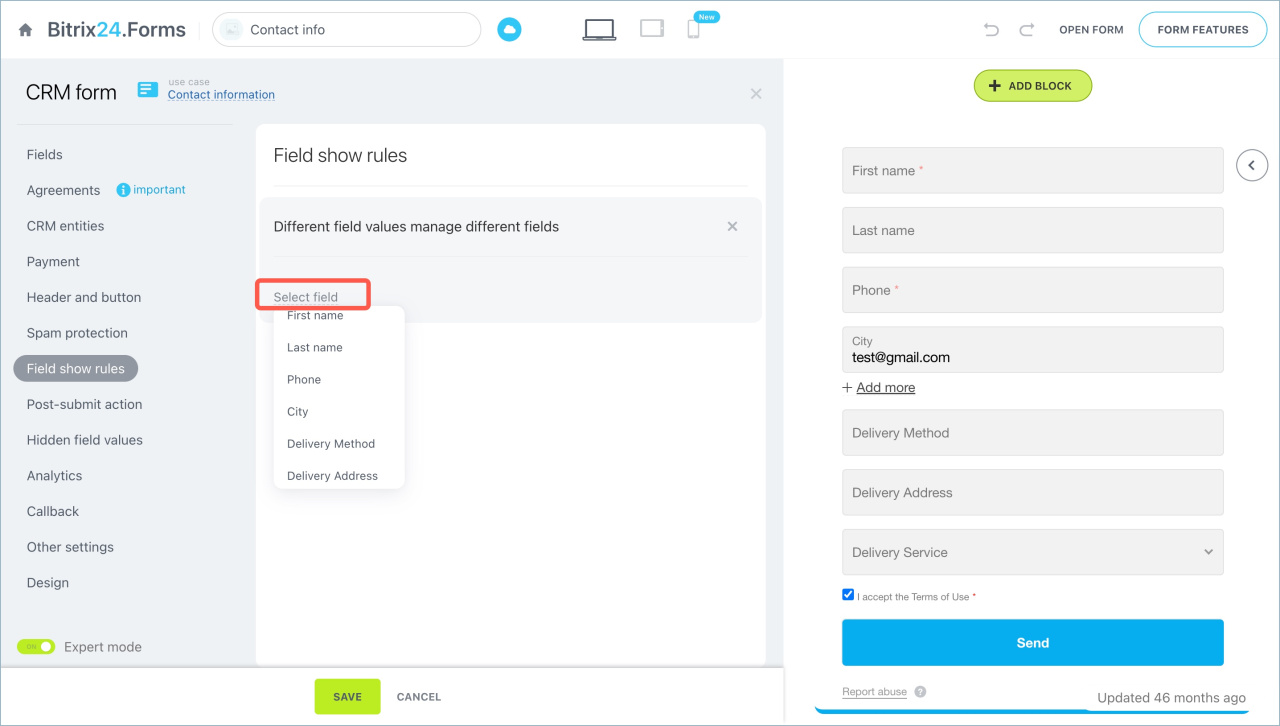
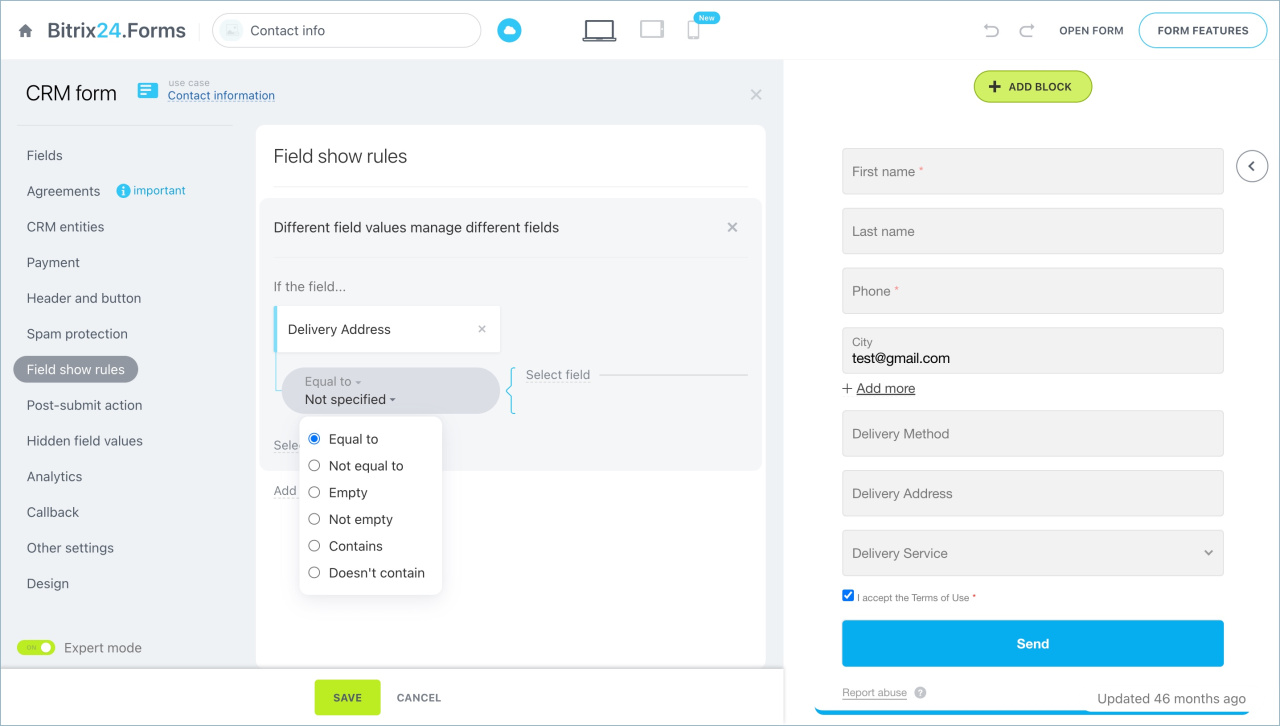
Select condition
Define when the rule applies. Click Equal to and choose a condition:
- Equal to — the field value matches the condition value.
- Not equal to — the field value does not match.
- Not empty — the field is filled in.
- Contains — the field value includes the condition value.
- Doesn’t contain — the field value does not include the condition value.
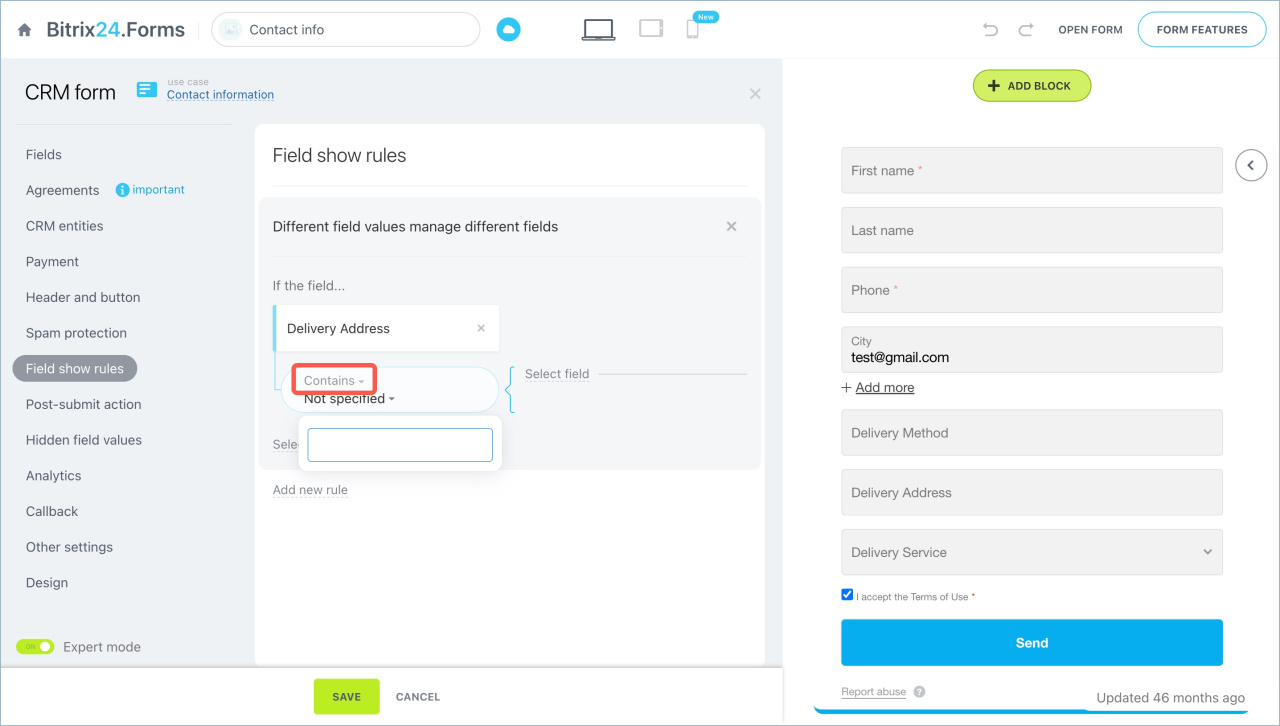
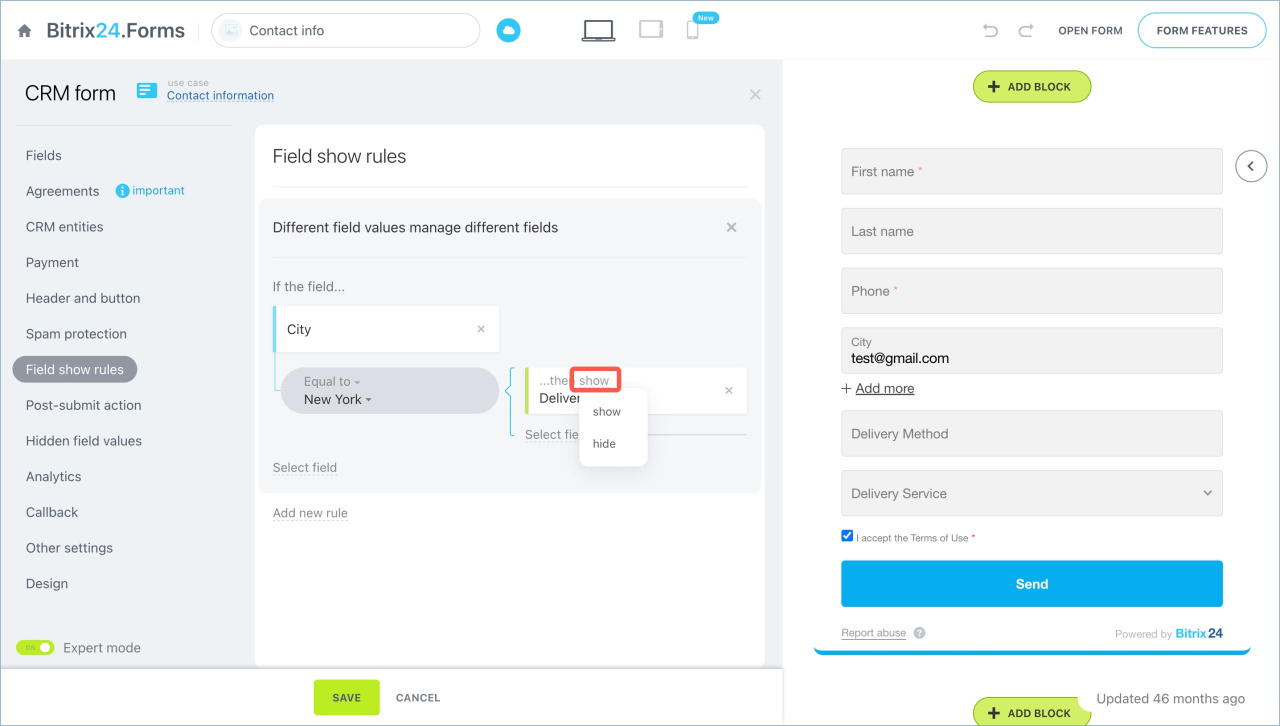
Select action
Choose what to do when the condition is met: show or hide the field.
You can create multiple rules to control how fields appear in the form.
In brief
- Use field show rules to adapt CRM forms for different customers.
- There are three rule types:
- Different values control different fields
- Different values control one field
- A set of values controls one field
- When conditions are met, choose whether to show or hide the field.