
In CRM forms, you can control how fields appear to match different customer scenarios. If the rules are set up incorrectly, users may miss required fields or see fields they don’t need.
This article explains common issues with field display rules and how to fix them.
Unnecessary condition
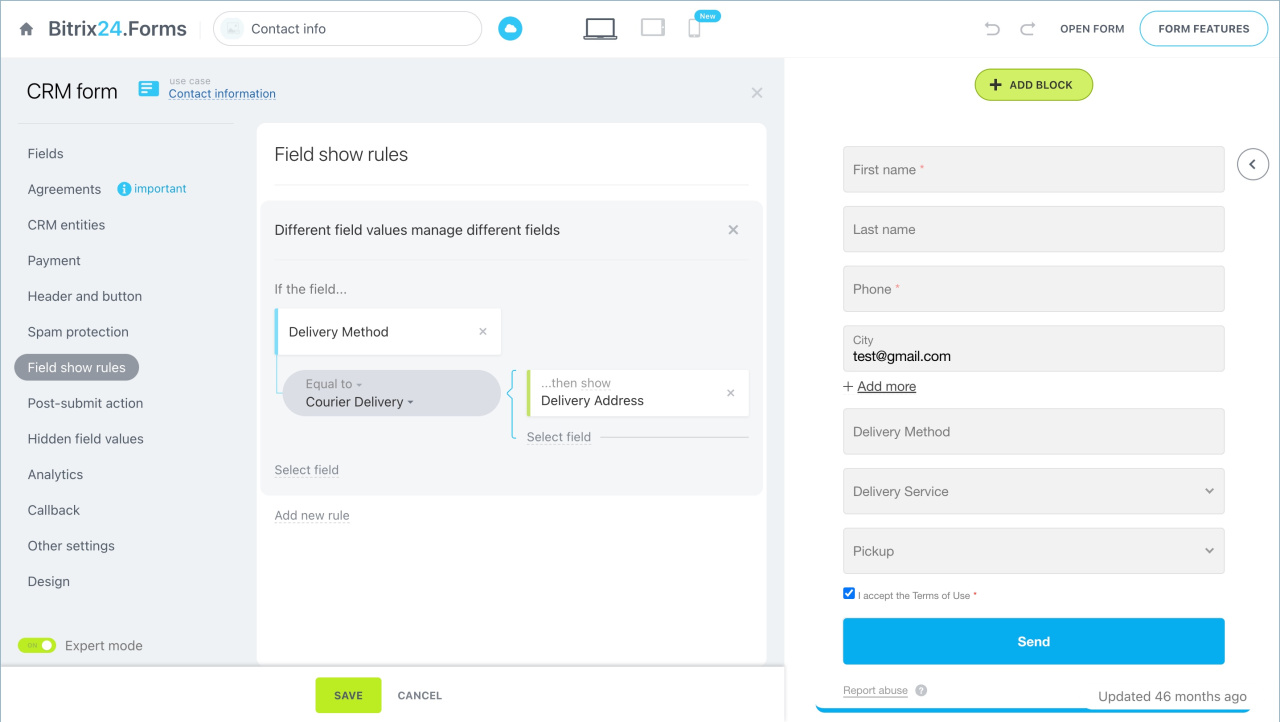
When you set a rule to show a field for a specific value, the field stays hidden for all other values by default. You don’t need extra conditions to hide it.
Example:
- If “Delivery method” = “Courier delivery”, show “Delivery address”.
- If “Delivery method” = “Pickup”, hide “Delivery address”.
The second condition is redundant. The field already hides when any value other than “Courier delivery” is selected.
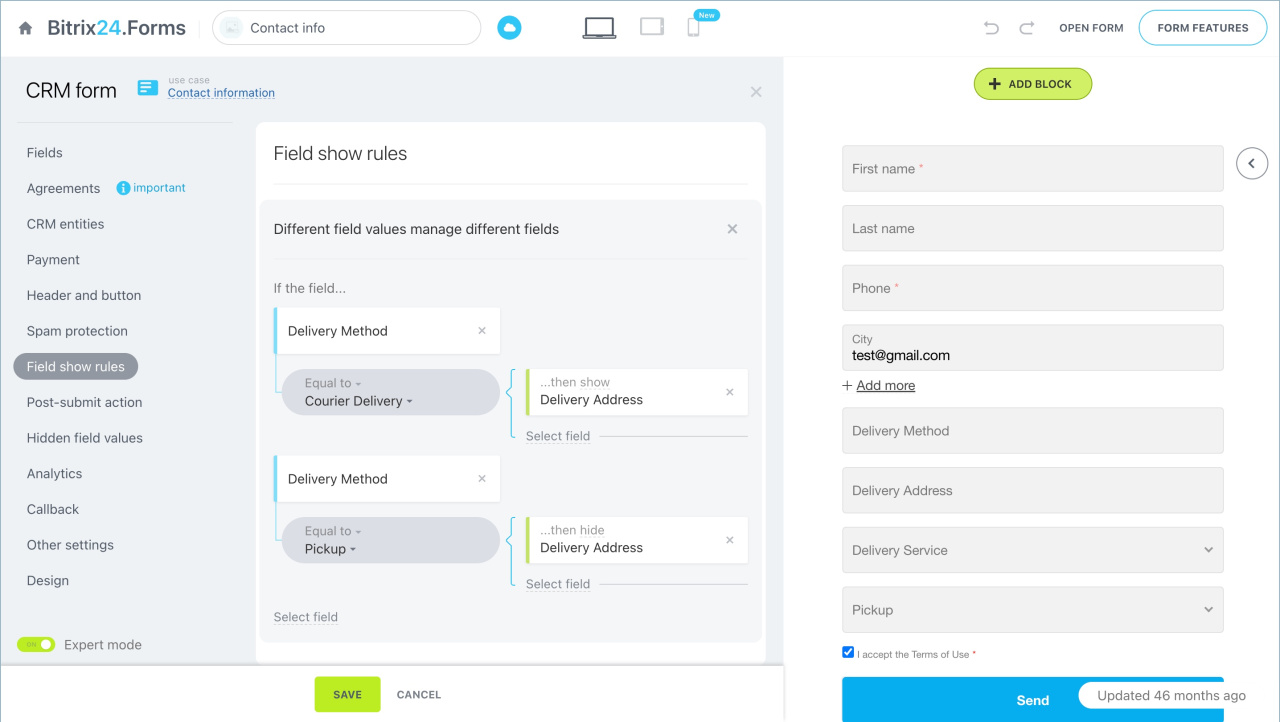
Fix. Keep only one rule: If “Delivery method” = “Courier delivery”, show “Delivery address”.
Conflicting conditions
If you add multiple conditions for the same field in the Different field values manage different fields rule, only the last condition applies.
Example:
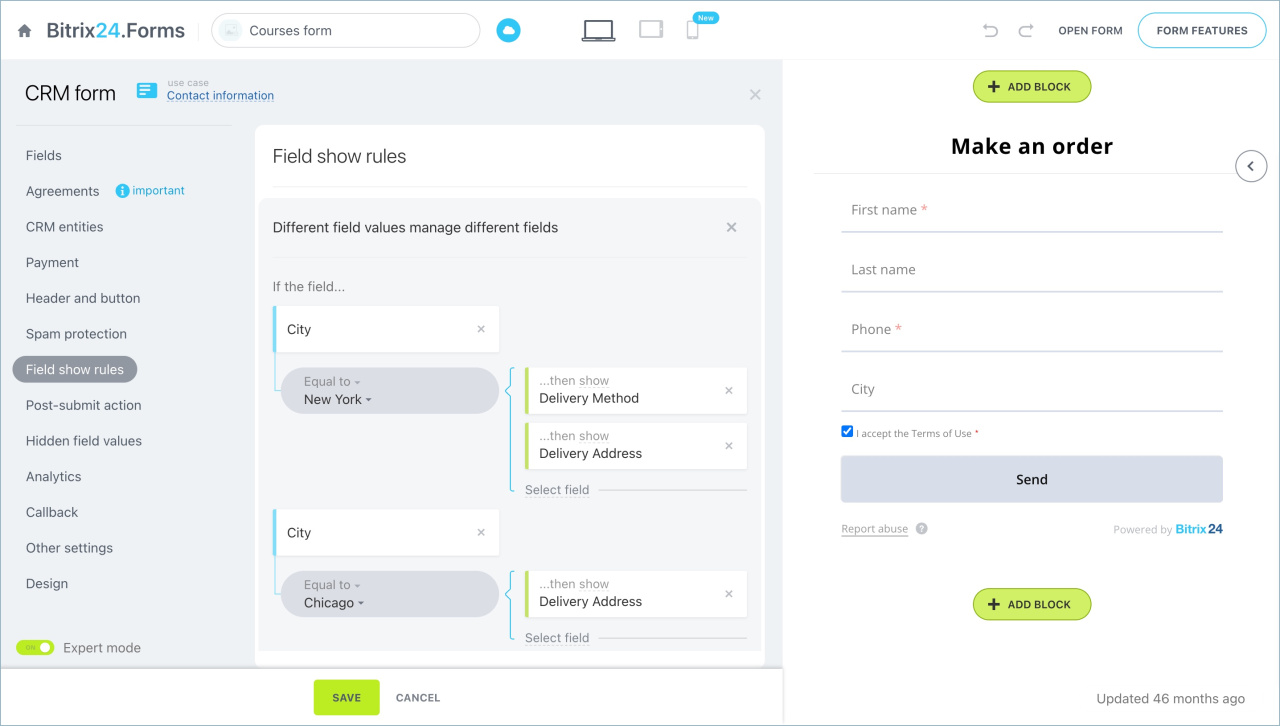
- If “City” = “New York”, show “Delivery method” and “Delivery address”.
- If “City” = “Chicago”, show “Delivery address”.
Result: “Delivery address” appears only for “Chicago”. It won’t appear for “New York”.
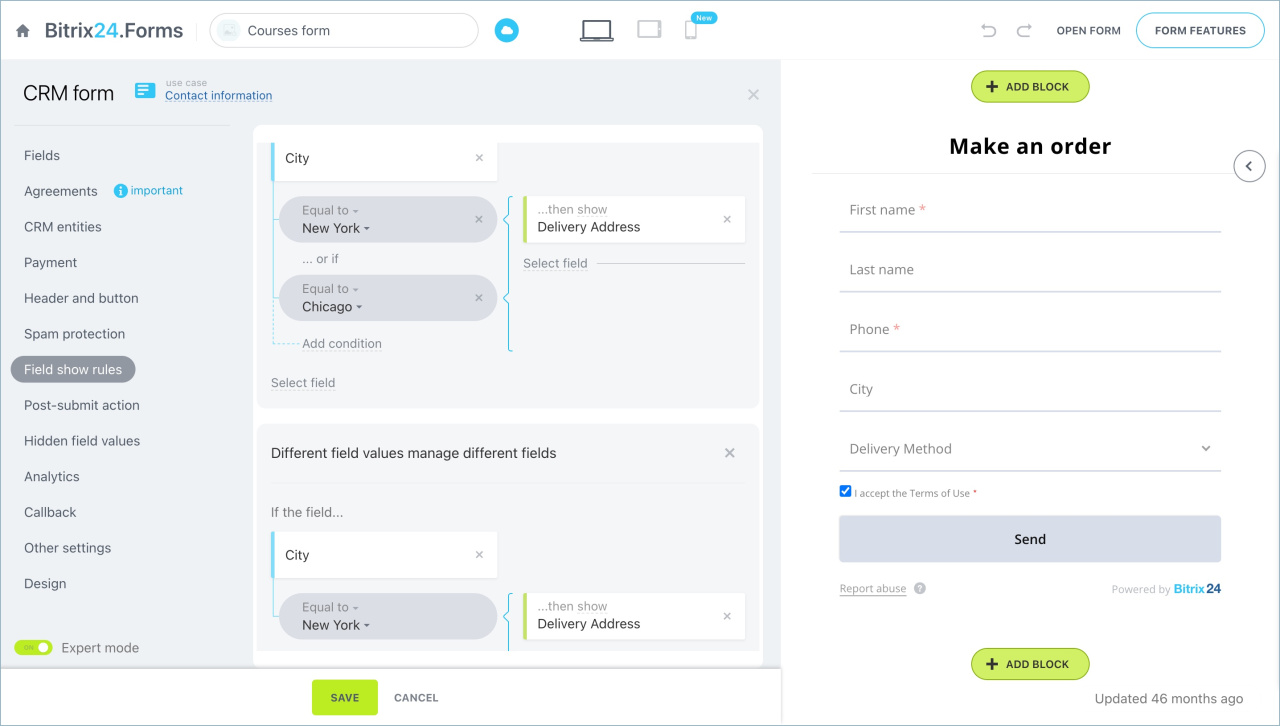
Fix. Use two separate rules:
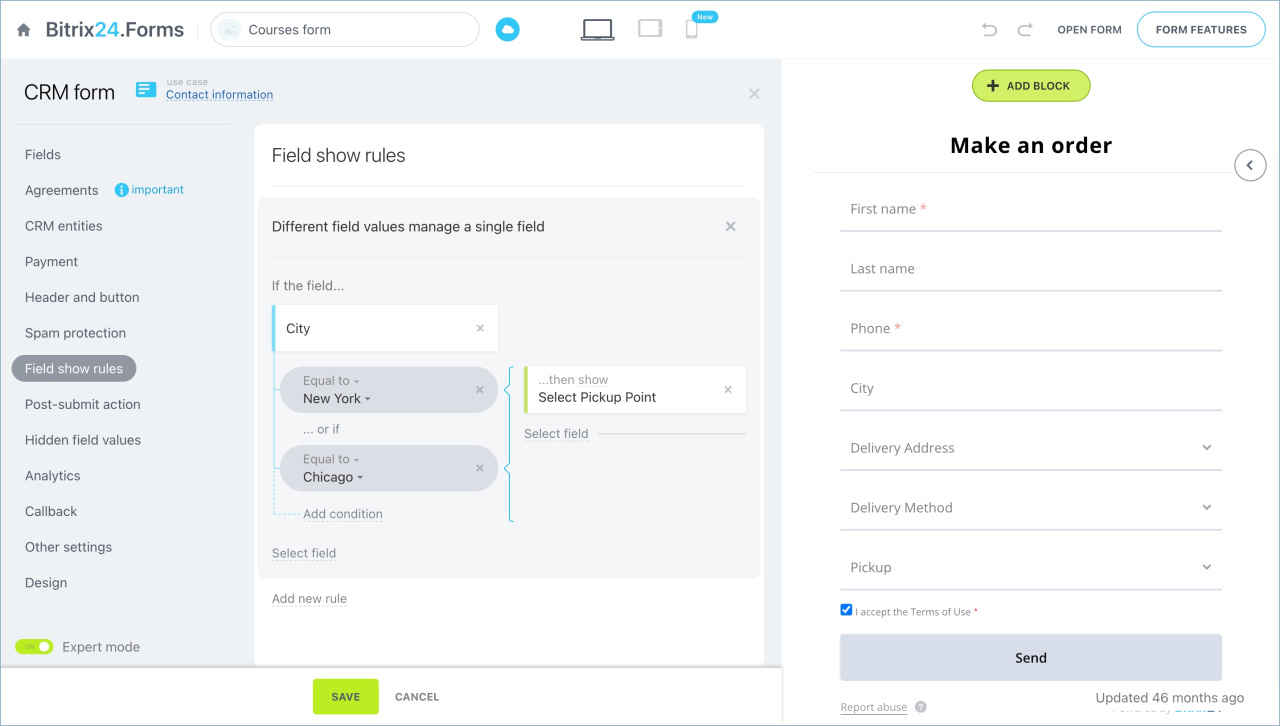
- Different field values manage a single field: If “City” = “New York” OR “Chicago”, show “Delivery address”.
- Different field values manage different fields: If “City” = “New York”, show “Delivery method”.
Overlapping conditions
If you add multiple The set of field values manage a single field rules with overlapping values, only the last rule works.
Example:
- If “Delivery method” = “Pickup” AND “City” = “New York”, show “Select pickup point”.
- If “Delivery method” = “Pickup” AND “City” = “Chicago”, show “Select pickup point”.
Result: the field appears only for “Chicago”.
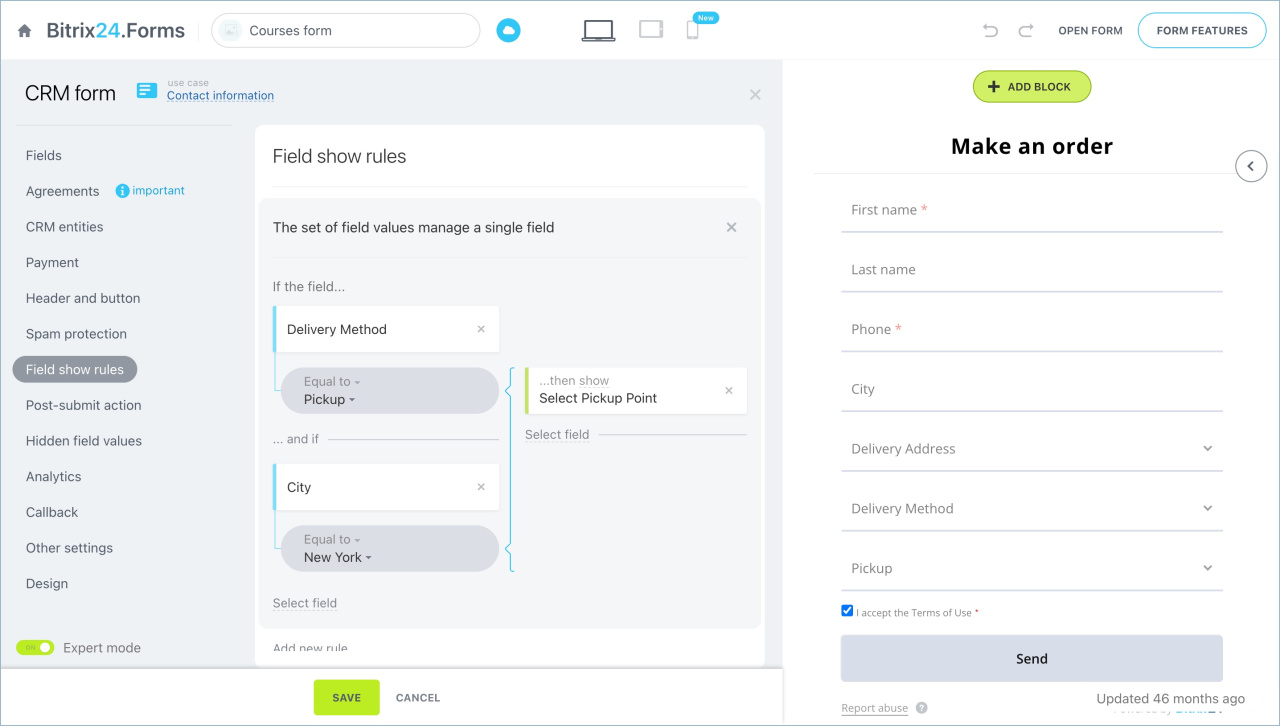
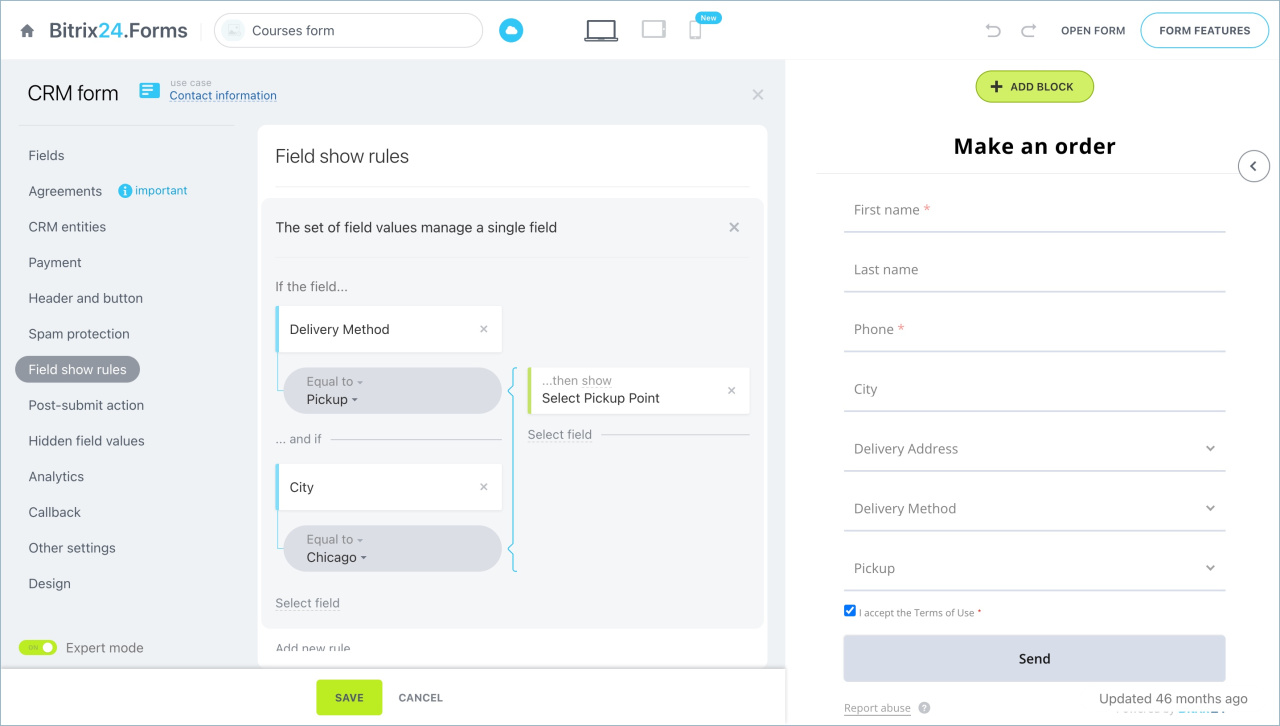
Fix. You can’t use this rule type for multiple cities with the same delivery method. Instead, simplify the logic: base the rule on a single field, such as city or delivery method, or use Different field values manage the same fields.
In brief
- Field display rules help tailor forms for different users. Incorrect setup can hide required fields or show unnecessary ones.
- If a rule shows a field for a specific value, it hides automatically for all other values.
- In Different field values manage different fields, only the last condition applies.
- In The set of field values manage a single field, overlapping rules override each other, and only the last one works.