
Use polls to collect employee opinions and get feedback from your team directly in the Feed.
In this article:
Add questions and answer options
Open the Feed section and select the Poll message type.
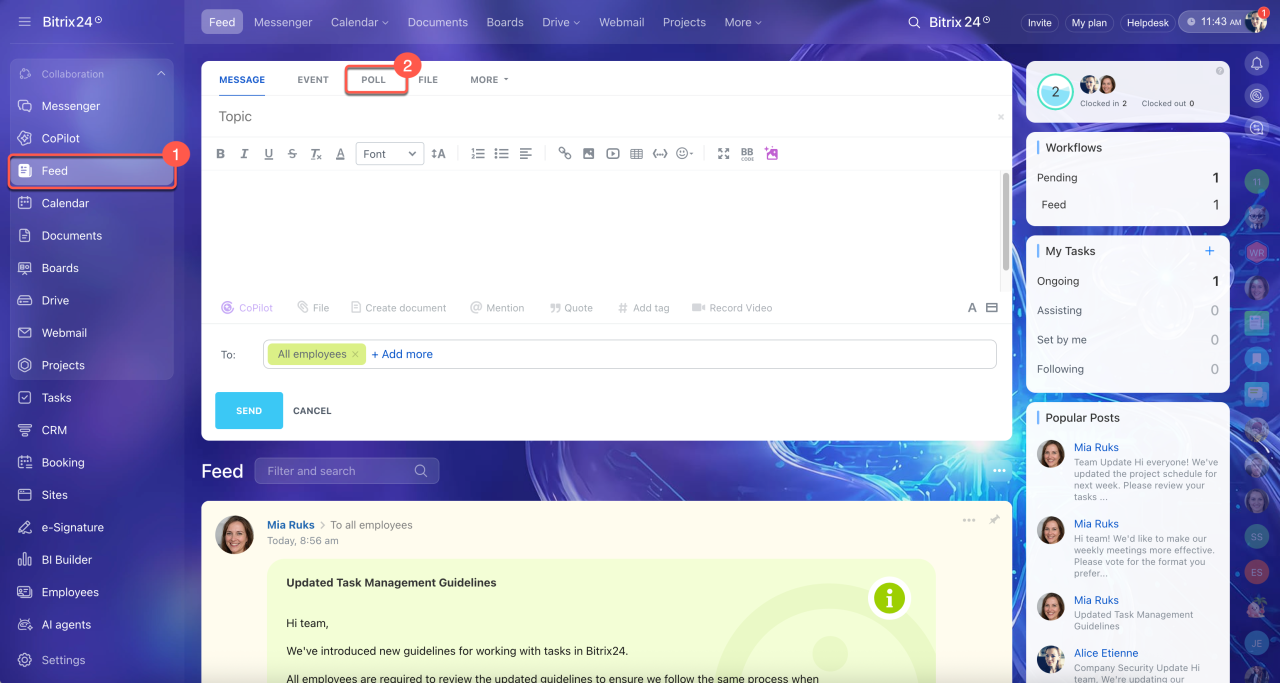
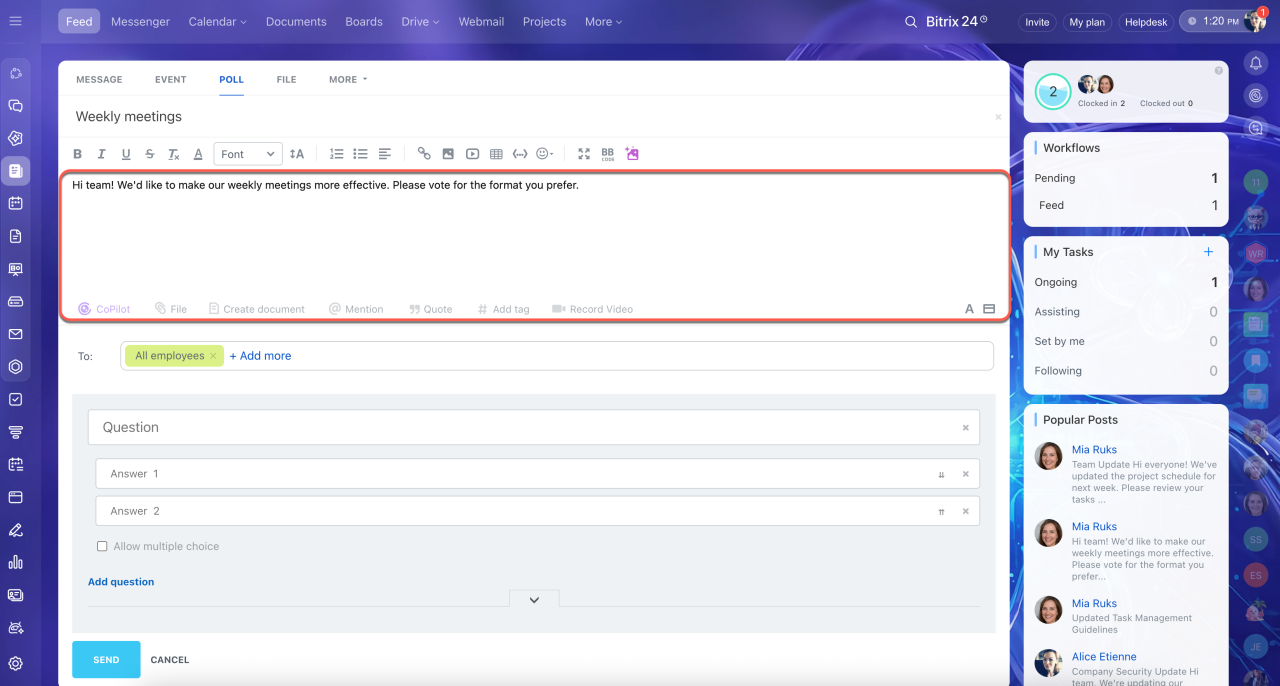
Specify the poll context. Add a topic and description to help employees understand the poll’s purpose and provide more accurate answers. If needed, attach files, add a tag, or mention an employee.
Add messages to Feed
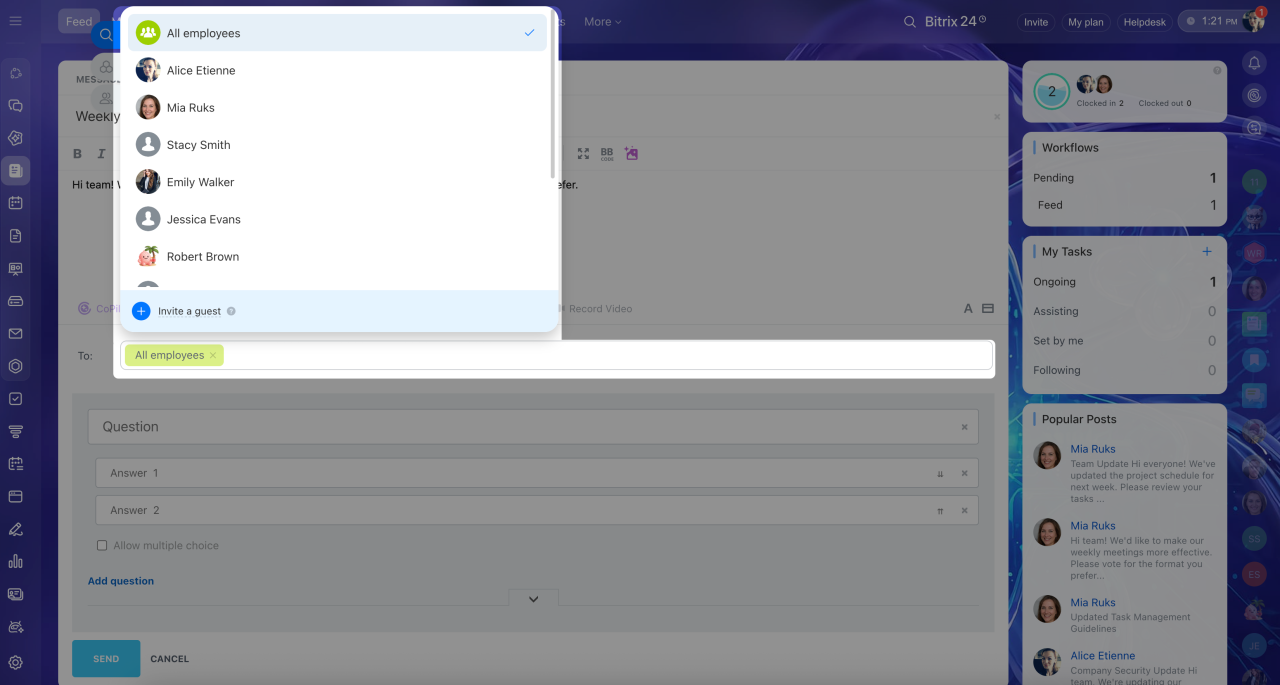
Select recipients. You can send the poll to a department, a project, or specific employees. Click the To field and select the recipients.
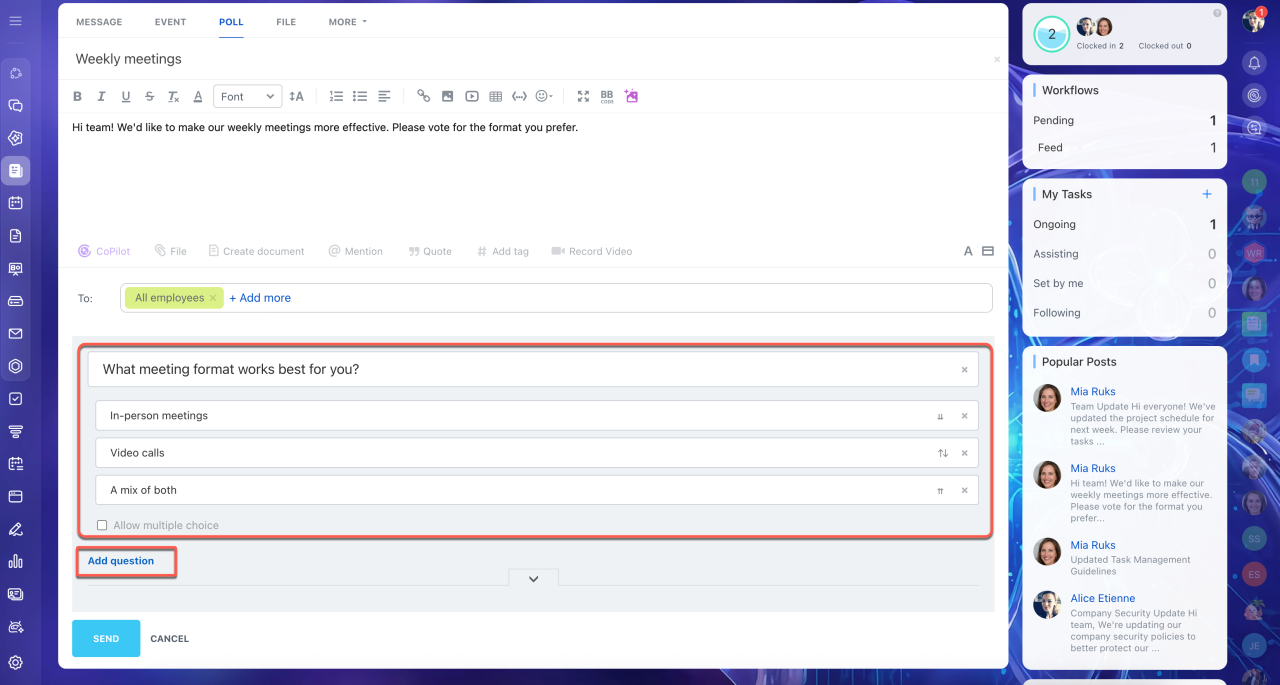
Add questions and answer options. Enter a question and add answer options. To remove an option, click the X icon next to it. To let employees select multiple options, select the Allow multiple choice checkbox.
To add more questions, click Add Question.
Set up a poll
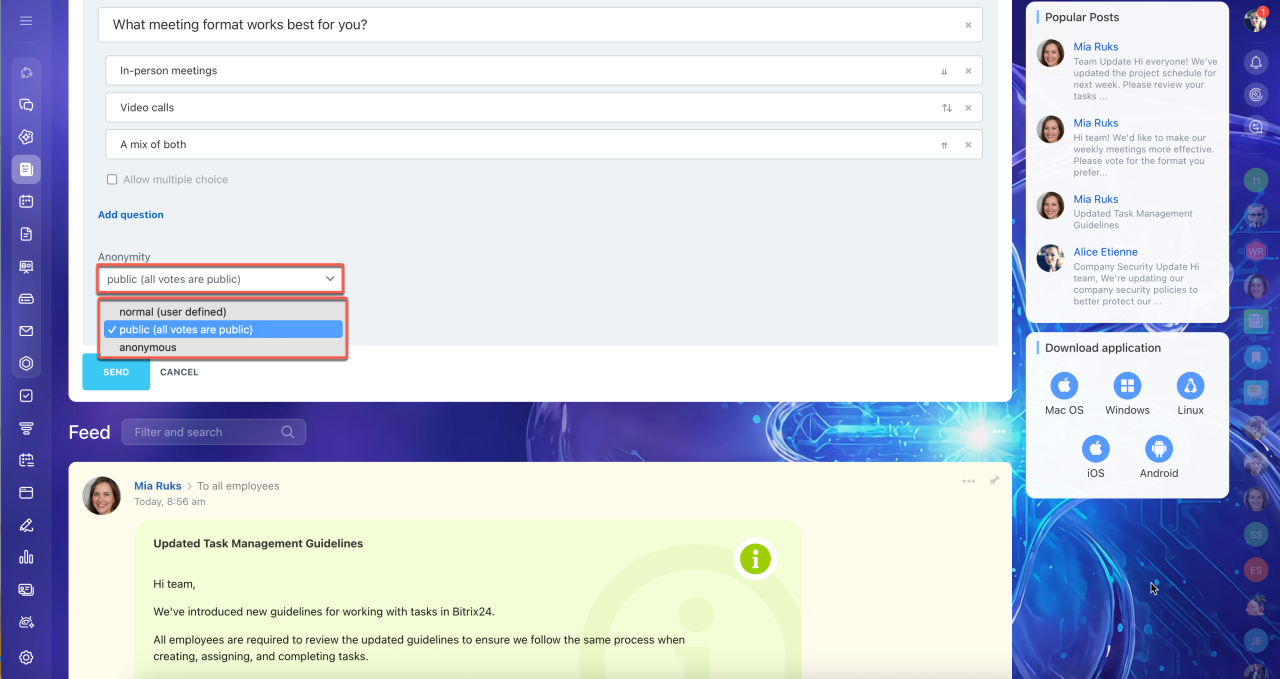
Set the anonymity level. In the Anonymity section, select the poll type:
- Normal — Each employee decides whether to make their vote anonymous or public.
- Public — All votes are visible.
- Anonymous — Votes are anonymous. Other employees cannot see who voted for each option.
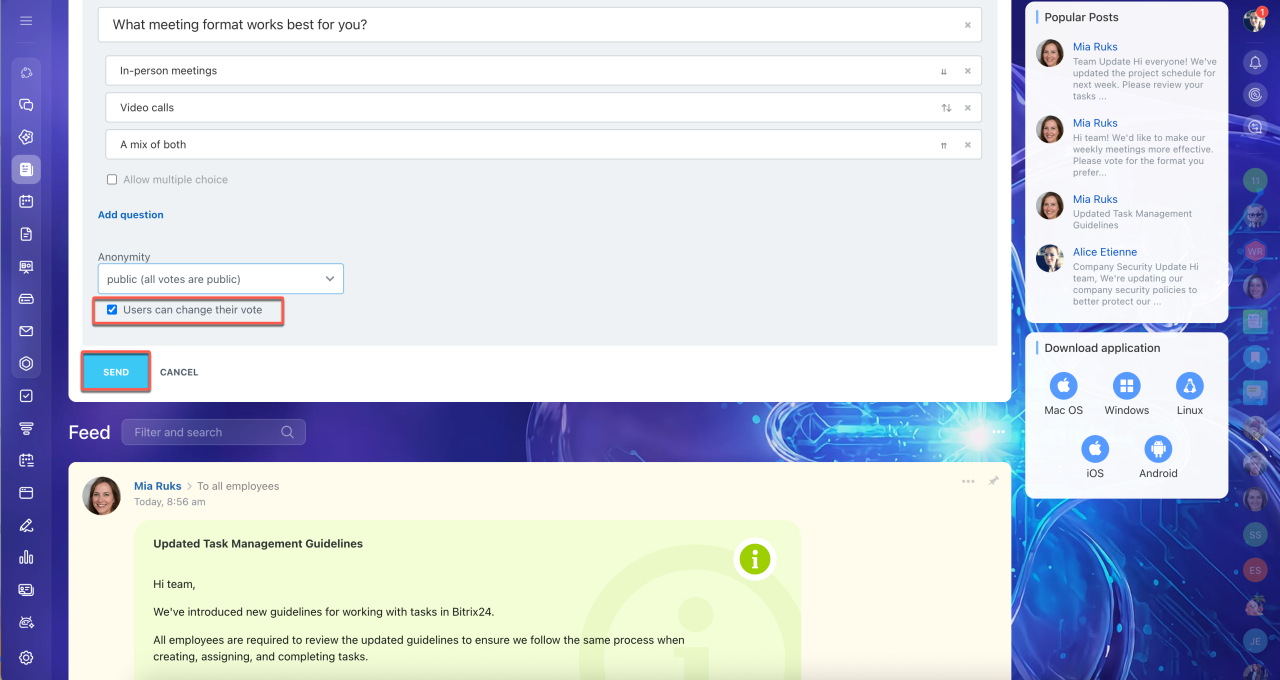
Allow employees to change their answers. Enable Allow changing opinion to let employees change their votes. This is useful if they change their mind or select an option by mistake.
When the poll is ready, click Send.
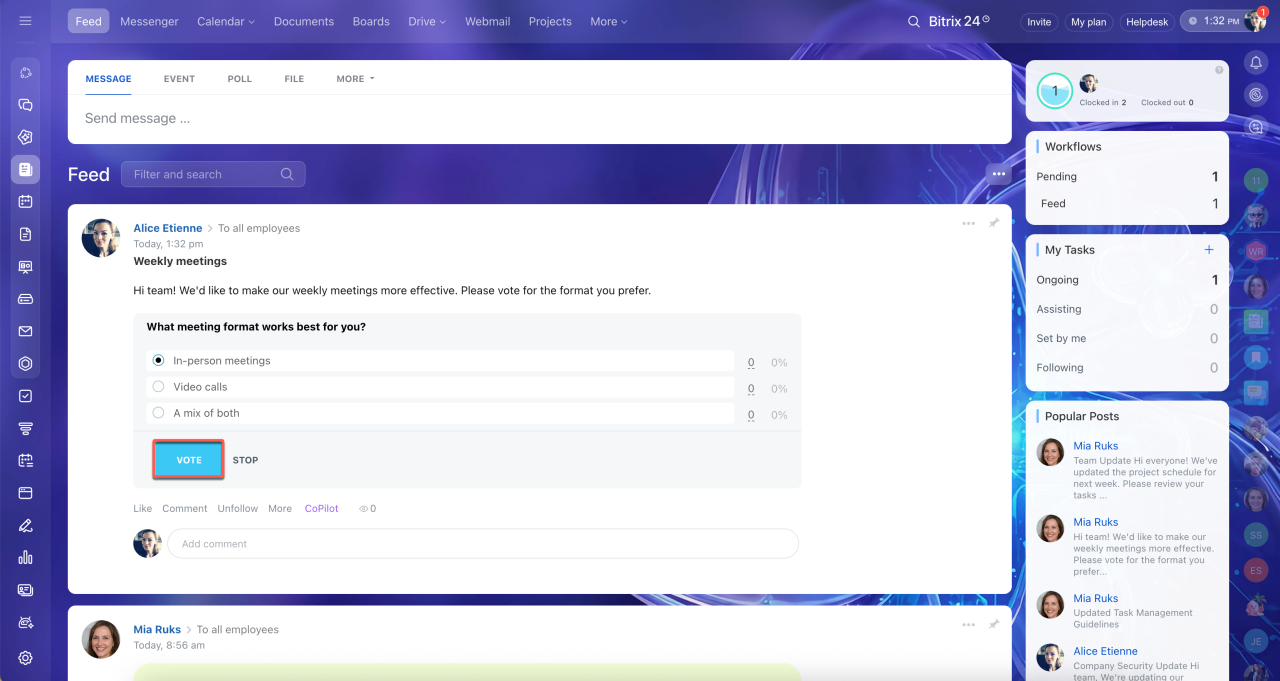
Once published, the poll appears in the Feed. Employees select an answer and click Vote.
View poll results
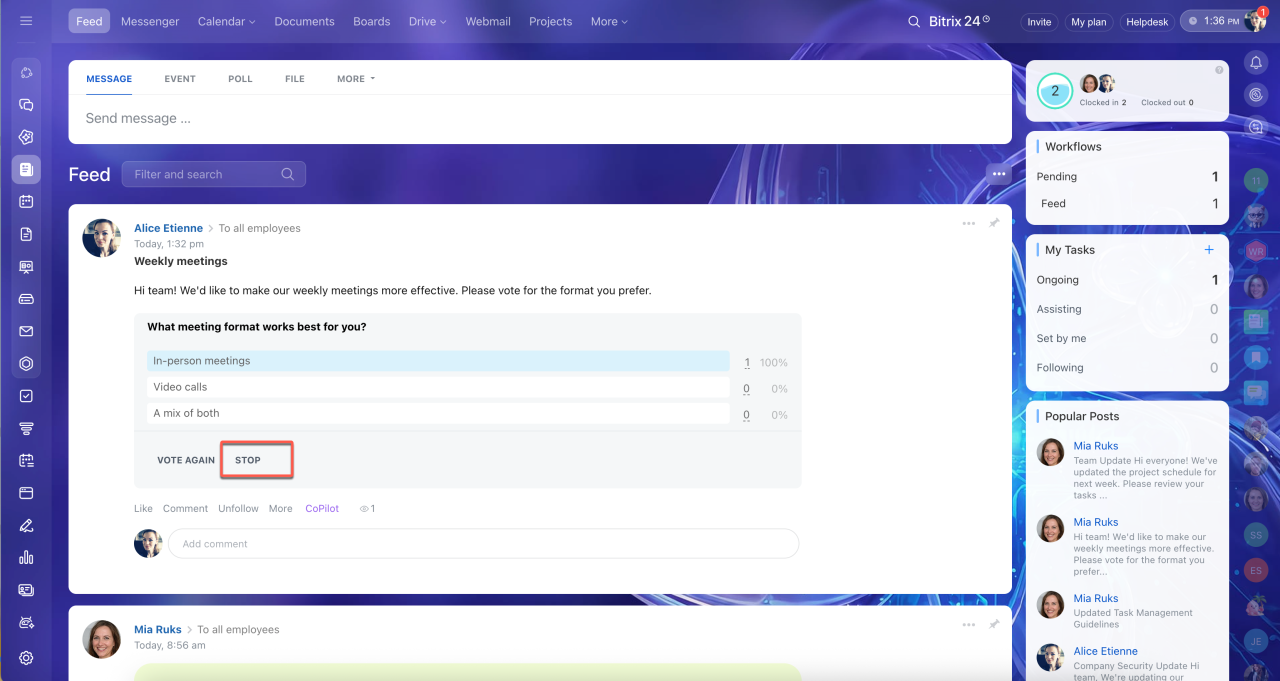
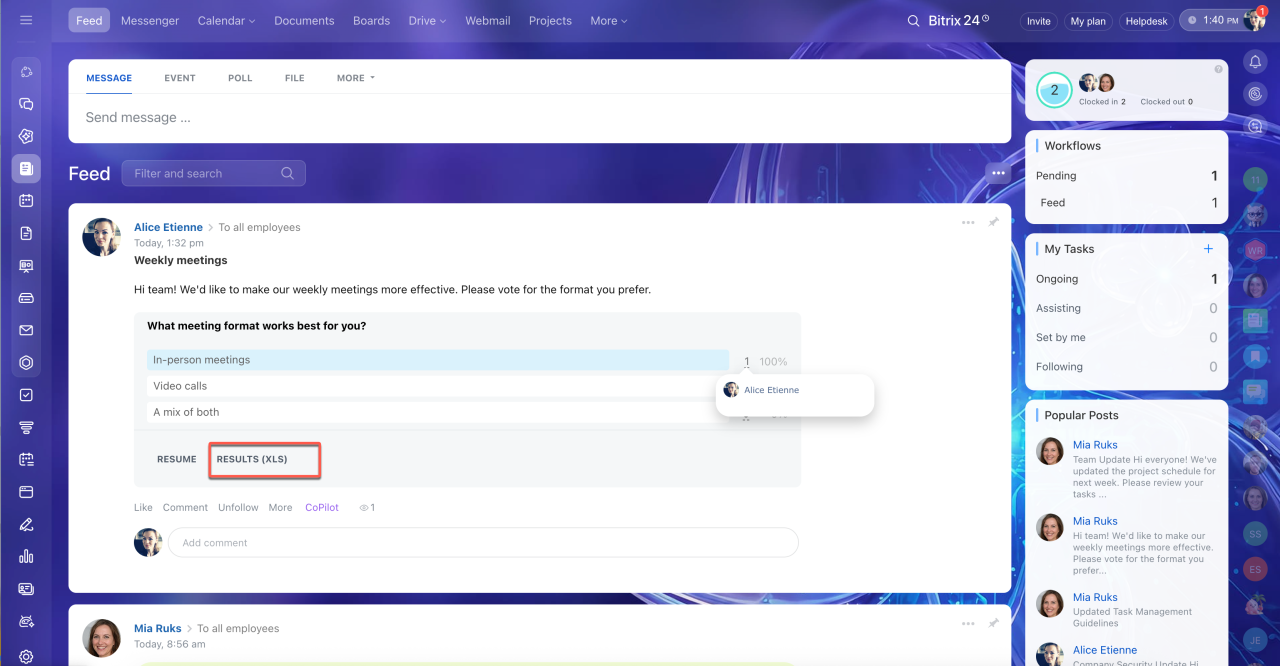
Once the poll is published, the number of votes appears next to each answer option. In a public poll, you can see who voted for each option by clicking the number next to it.
Click Stop to close the poll. Employees can no longer vote or change their answers.
To download the results in Excel format, click Results (XLS). This lets you keep a copy of the results even if you later delete the poll post.
In brief
- A poll helps you quickly collect employee opinions directly in the Feed.
- Create a poll from Feed > Poll.
- Select recipients, then add questions and answer options.
- Set the anonymity level: regular, public, or anonymous.
- Allow employees to change their answers if needed.
- When voting is complete, stop the poll and download the results in XLS format.