
CoPilot in CRM helps sales managers handle client emails faster and spend less time on routine work.
Without CoPilot, after a conversation with a client, you need to:
- Reread emails to remember the details.
- Note the order details, payment method, and delivery address.
- Enter that information into the deal form.
CoPilot takes over part of this work:
- It highlights the key points. The email summary helps you remember what you agreed on with the client and get ready for the next contact.
- After it analyzes the conversation, CoPilot automatically fills CRM form fields with data from the email.
Email processing with CoPilot is available on commercial plans. Availability depends on your Bitrix24 domain zone.
In this article:
Set up CRM for email processing
To let an employee process emails with CoPilot, enable the required AI scenarios, check access permissions, and choose a processing mode.
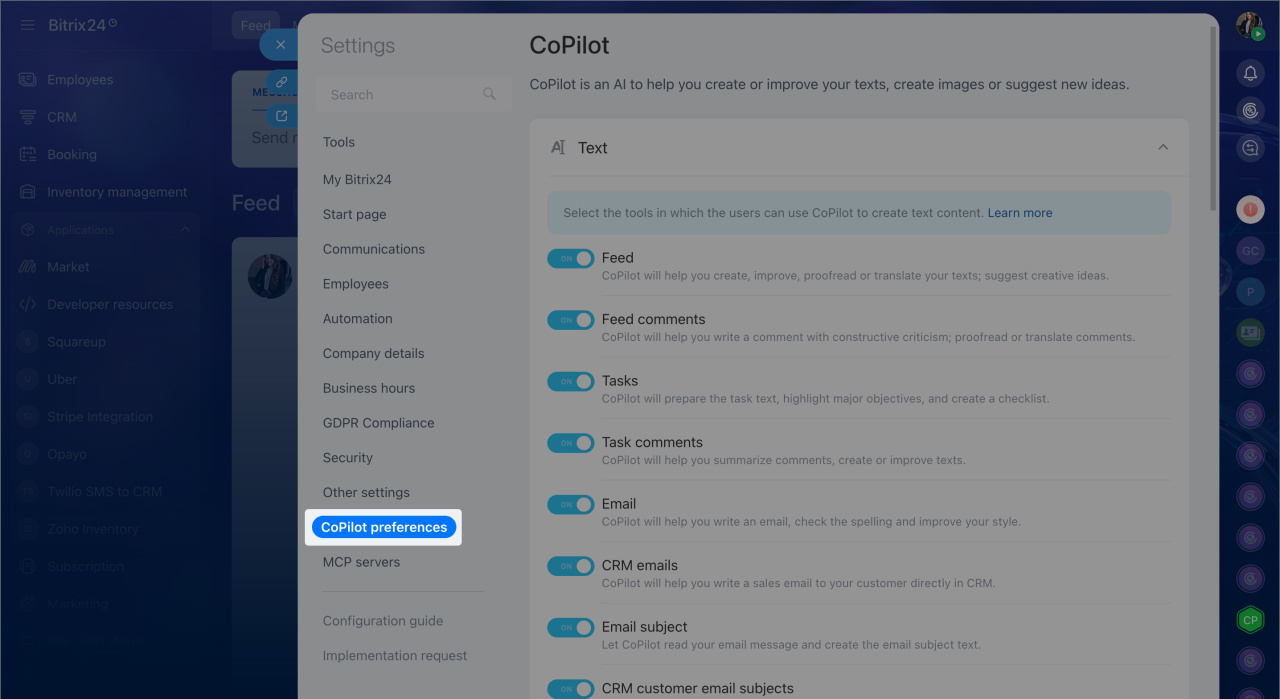
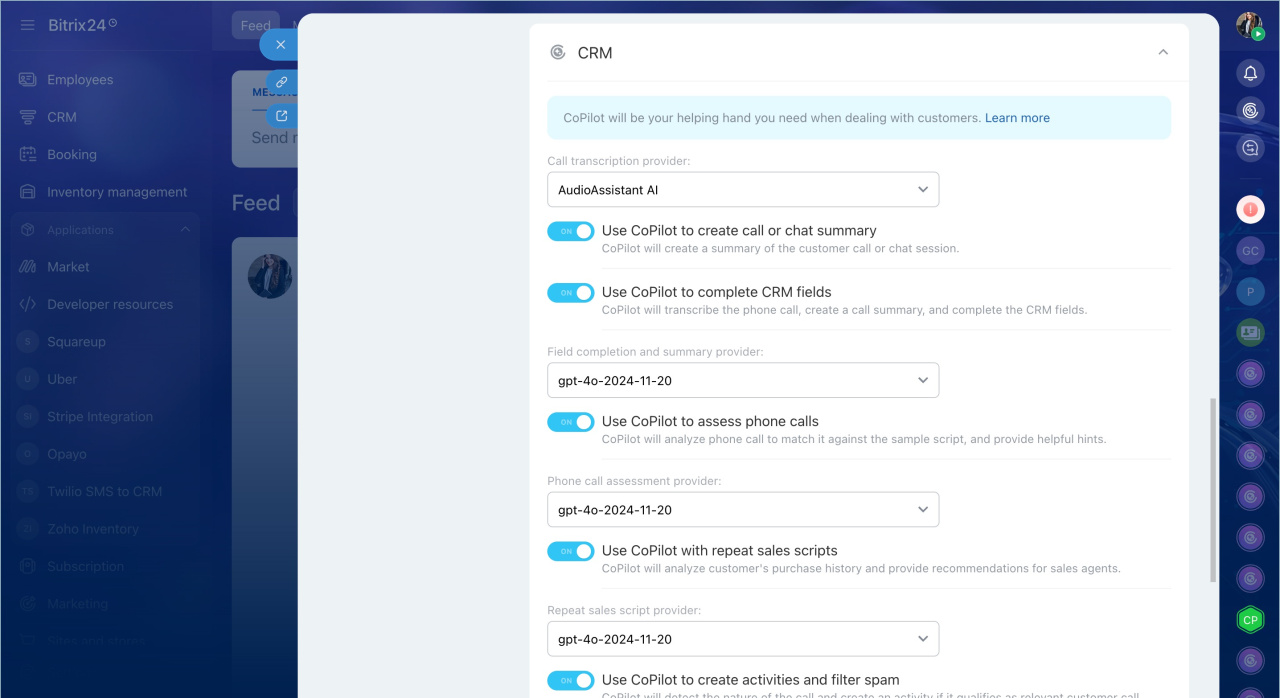
Enable CoPilot in CRM. Turn on the AI scenarios in Bitrix24 settings. For example, if you want CoPilot to summarize emails and fill fields, enable CoPilot to create call or chat summary and CoPilot to complete CRM fields.
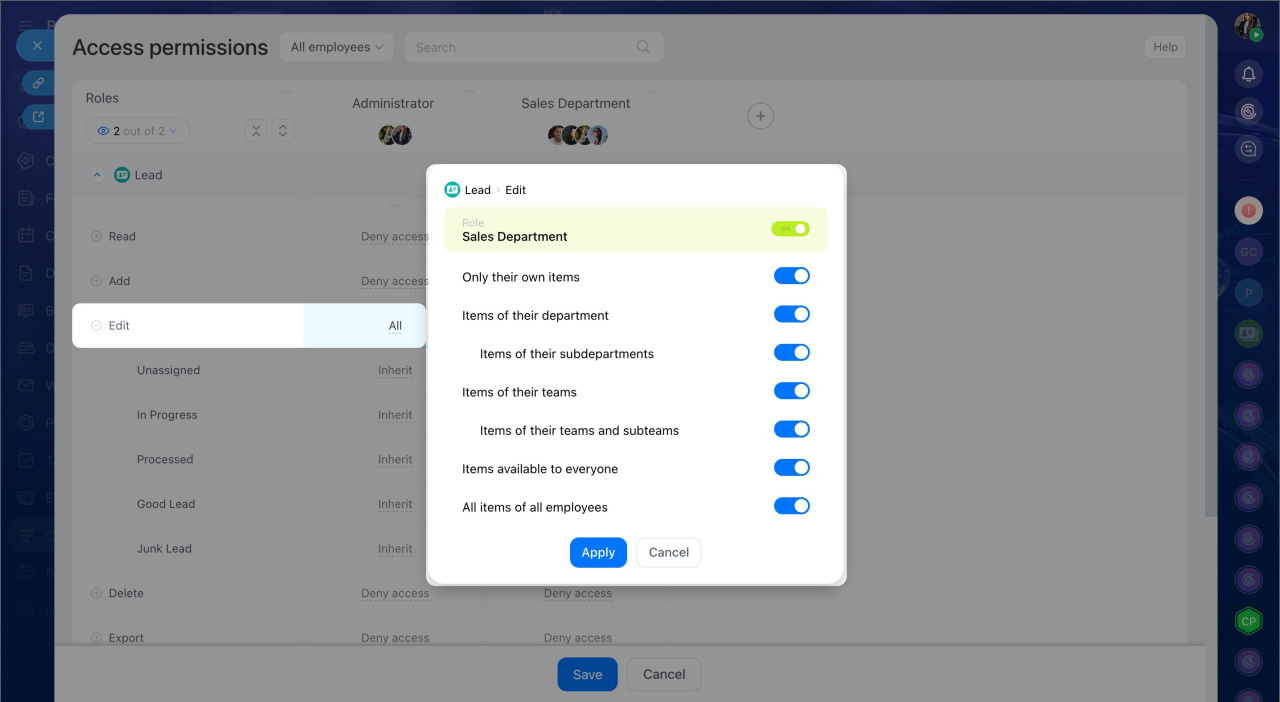
Check access permissions. Make sure the employee has permission to edit CRM items. For example, to process an email in a deal, the employee must have permission to edit deals.
Role-based access permissions in CRM
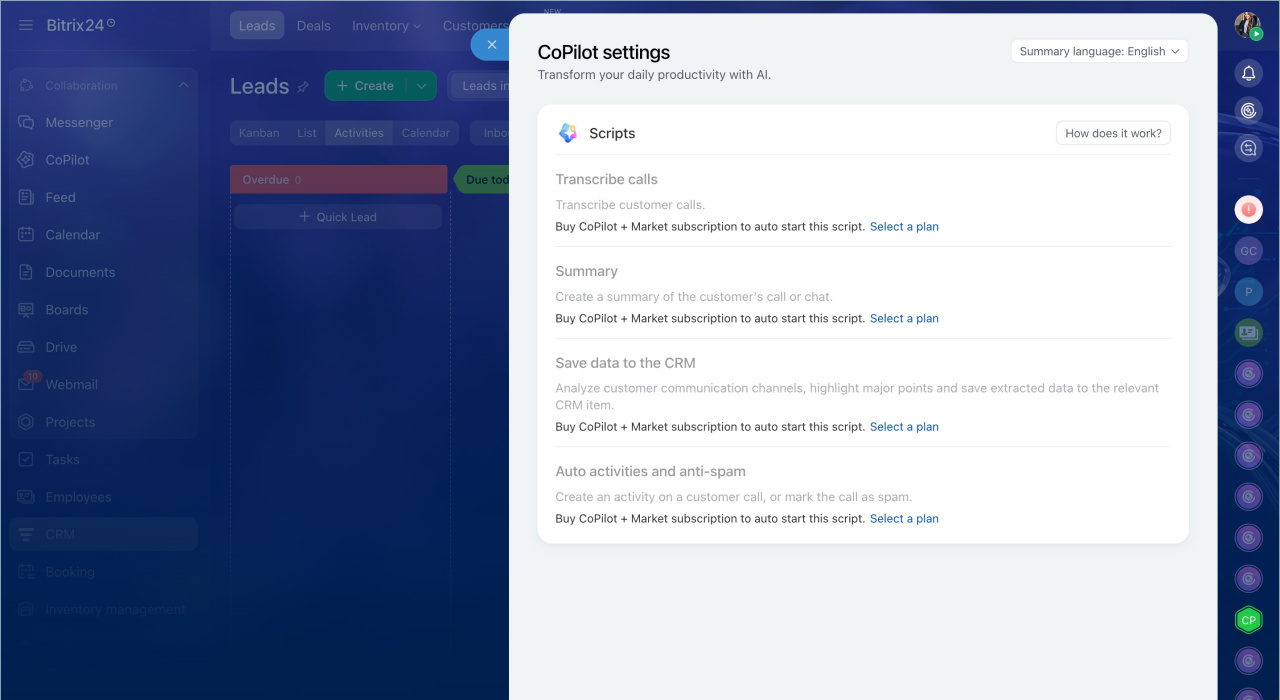
Configure the email processing mode in CRM. By default, CoPilot automatically processes the first incoming email in leads and deals. It creates a summary and fills form fields. In settings, you can choose another option: manual launch, automatic processing of all incoming emails, all outgoing emails, or all emails.
Process an email manually with CoPilot
CoPilot processes emails that appear in the Timeline of a CRM form. If one email is linked to several deals, start processing from the most recently created deal. If an email is linked to both a lead and a deal, start CoPilot from the deal form.
Manage emails with CRM
Start email processing. CoPilot processes emails in two steps: it creates a summary and fills CRM form fields. It uses the language selected in CoPilot settings in CRM.
1. In the left menu, open CRM and go to the needed section, for example, Deals.
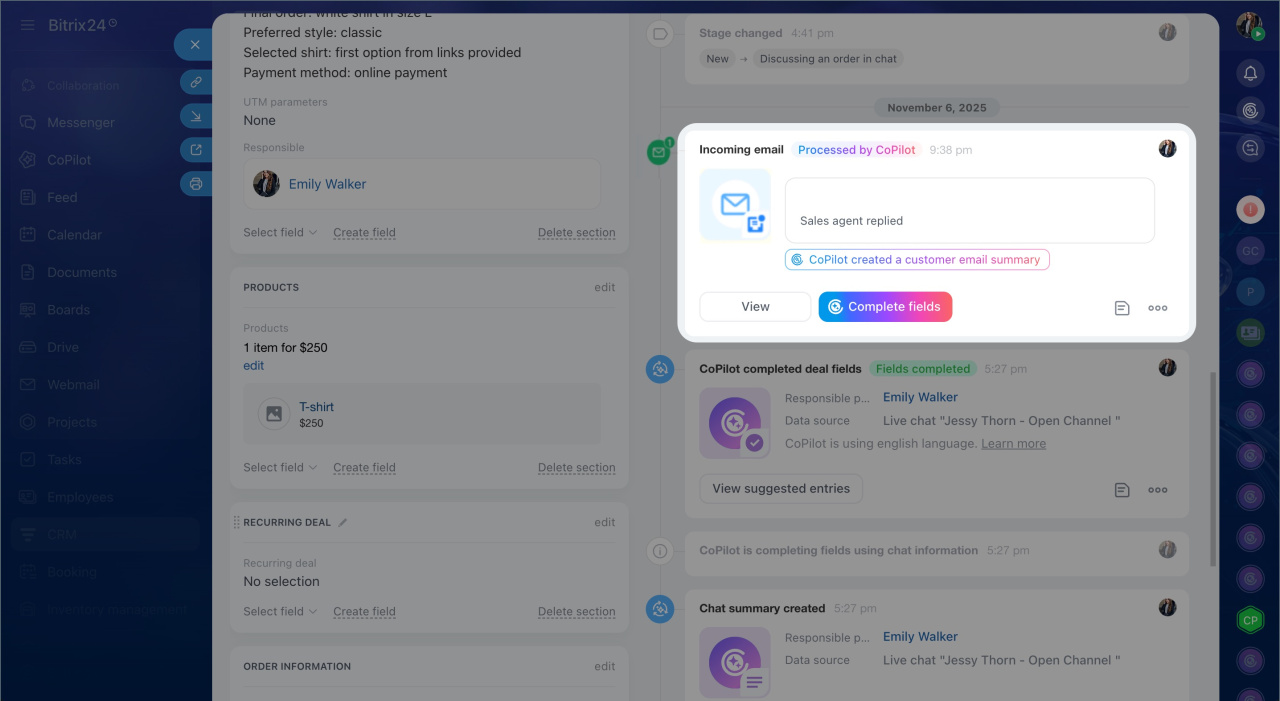
2. Open the CRM form and click Complete fields in any email block.
3. After analysis, the email block shows the Processed by CoPilot label, and the Complete fields button is no longer available.
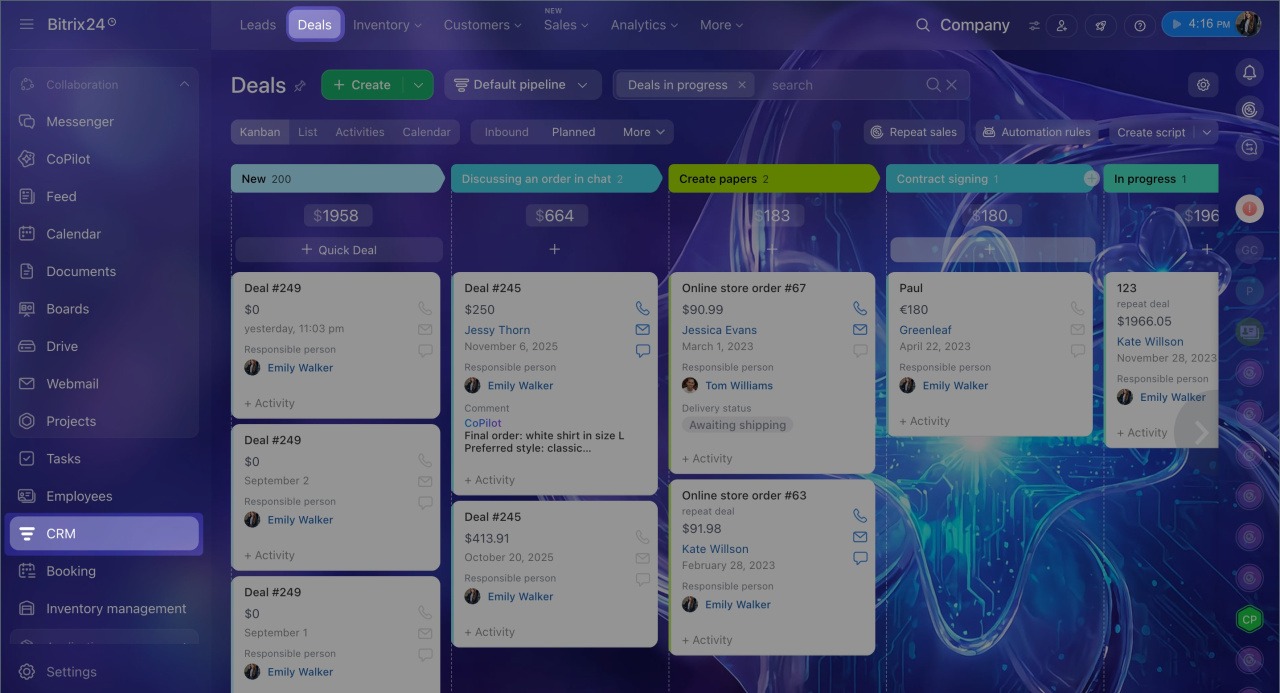
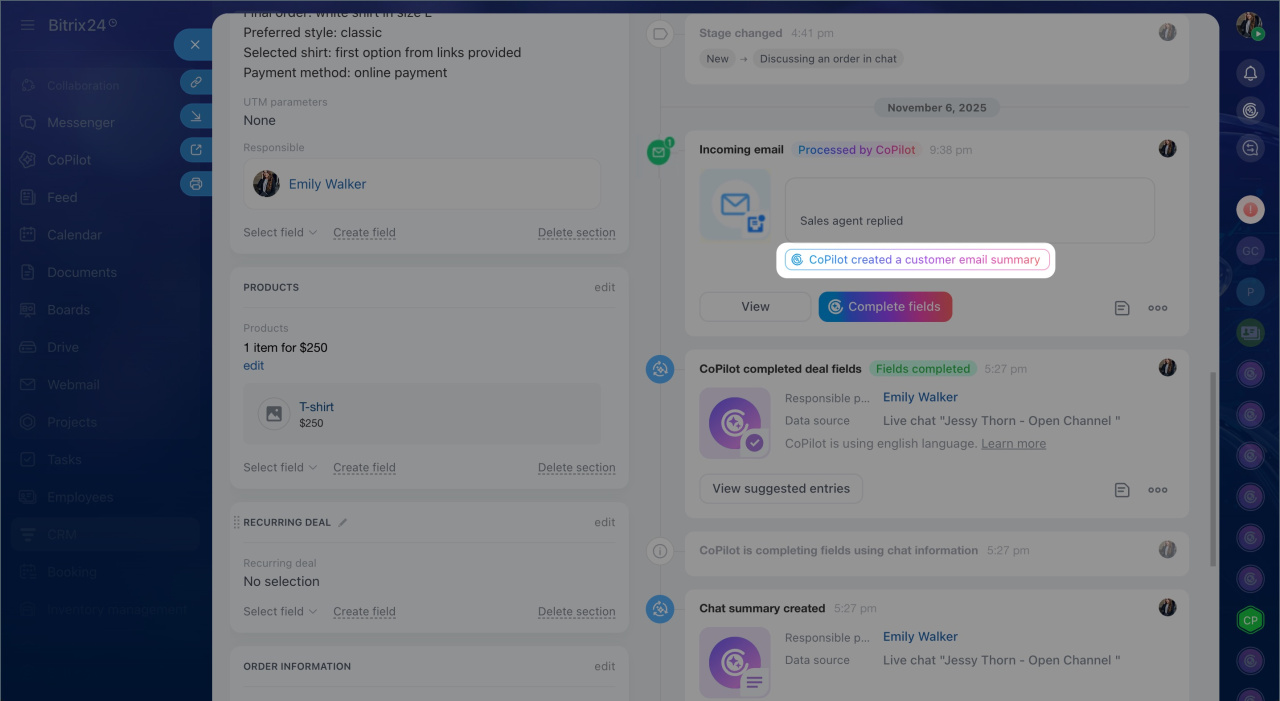
View the summary. While processing the email, CoPilot highlights the key points from the conversation.
To open the summary, click the CoPilot created an email summary label in the Timeline. A new tab opens with a short overview of what was agreed on with the client.
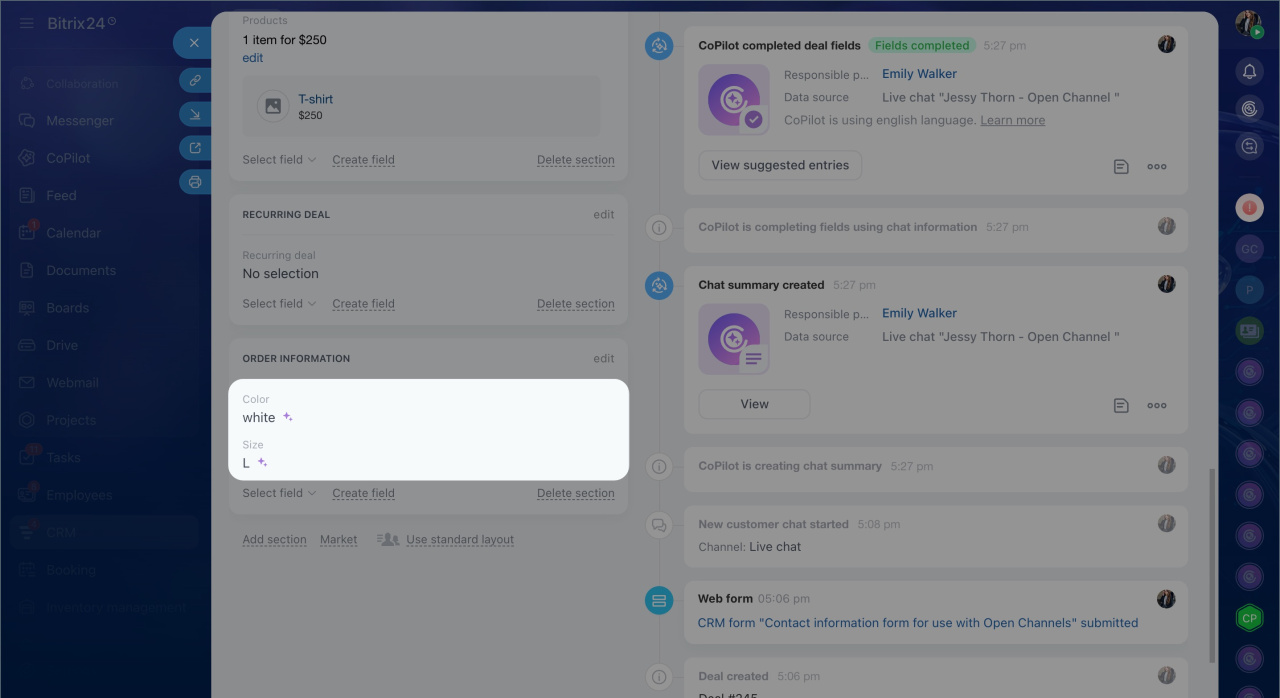
Review filled fields. CoPilot fills empty form fields with data from the conversation and marks them with a star icon.
In contacts and companies, CoPilot fills only fields in those forms, such as phone number, email, address, job title, or company details. It does not fill deal fields such as amount or payment method. To fill those fields, run processing from the deal form.
Confirm field replacements. If a field already has a value, CoPilot lets you keep the current value or replace it with a new one. The Timeline shows the Awaiting approval status. Click Confirm fields and choose the option you want. If you are not sure, open the conversation summary and check the details.
View statuses in Project Kanban.
- Fields filled — CoPilot added the data, and you can keep working with the deal.
- Awaiting approval — CoPilot suggests replacing field values. Open the form and confirm the option you want.
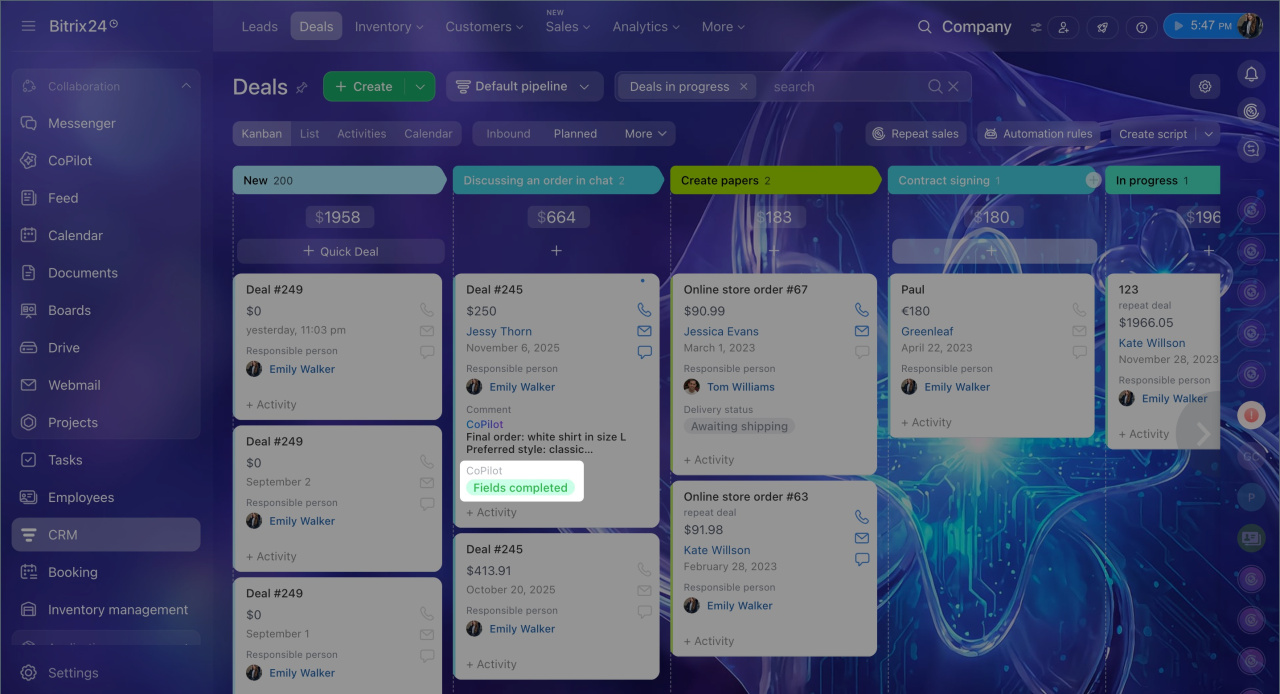
Run a single CoPilot action
From a CRM form, you can run one CoPilot action, such as creating a conversation summary or filling fields. CoPilot analyzes all emails in the form.
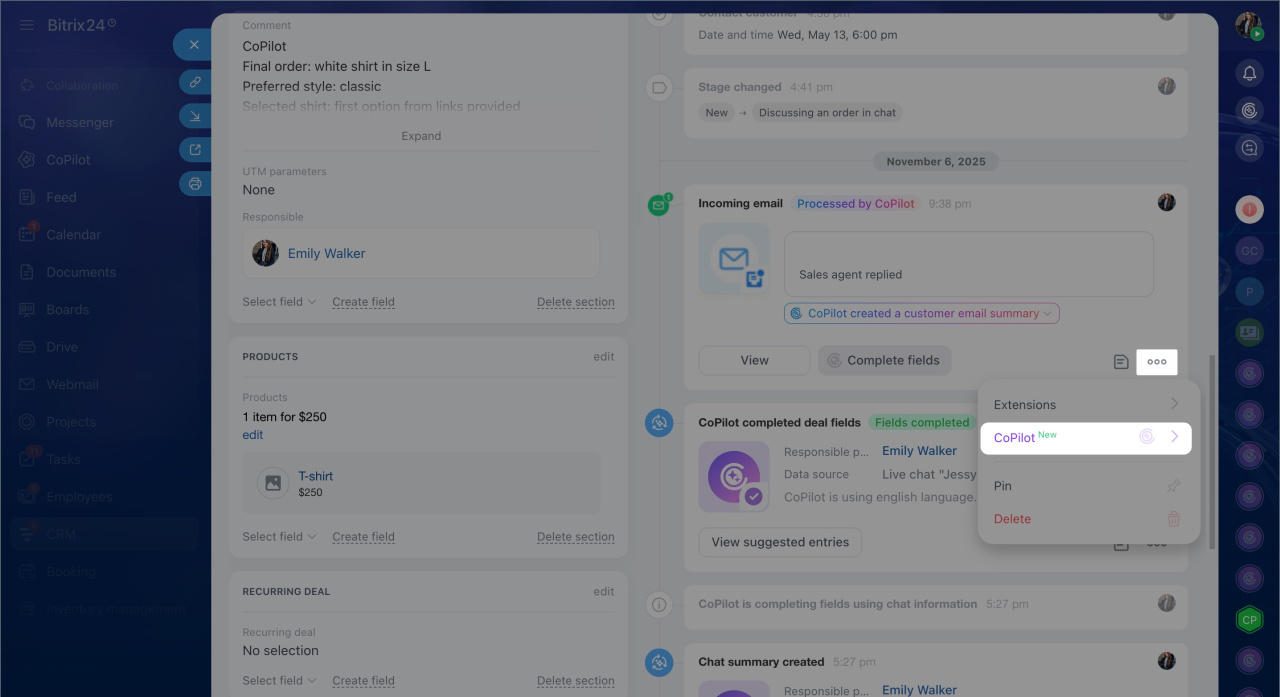
1. In the Timeline of the CRM form, open the email menu — click Three dots (...) > CoPilot.
2. Choose the action you need:
- Email summary — create a summary of all emails in the form.
- Fill in fields — fill CRM form fields with data from the email.
- Create an activity from an email — analyze the email and create an activity based on it. Available in lead and deal forms.
- Full email processing — run all actions in sequence: create a summary, fill fields, and create an activity. Activity creation is available in lead and deal forms.
A completed action disappears from the menu.
Create an activity from an email
If automatic activity creation after a conversation is not configured, you can run this scenario manually from a lead or deal form. CoPilot analyzes all emails.
1. In the Timeline of the lead or deal form, open the email menu — click Three dots (...) > CoPilot.
2. Choose an option:
- Create an activity from an email — CoPilot analyzes all emails in the form and creates an activity without running other actions.
- Full email processing — CoPilot automatically analyzes all emails in the form, creates a summary, fills form fields, and creates an activity.
The type of activity depends on how relevant the email is.
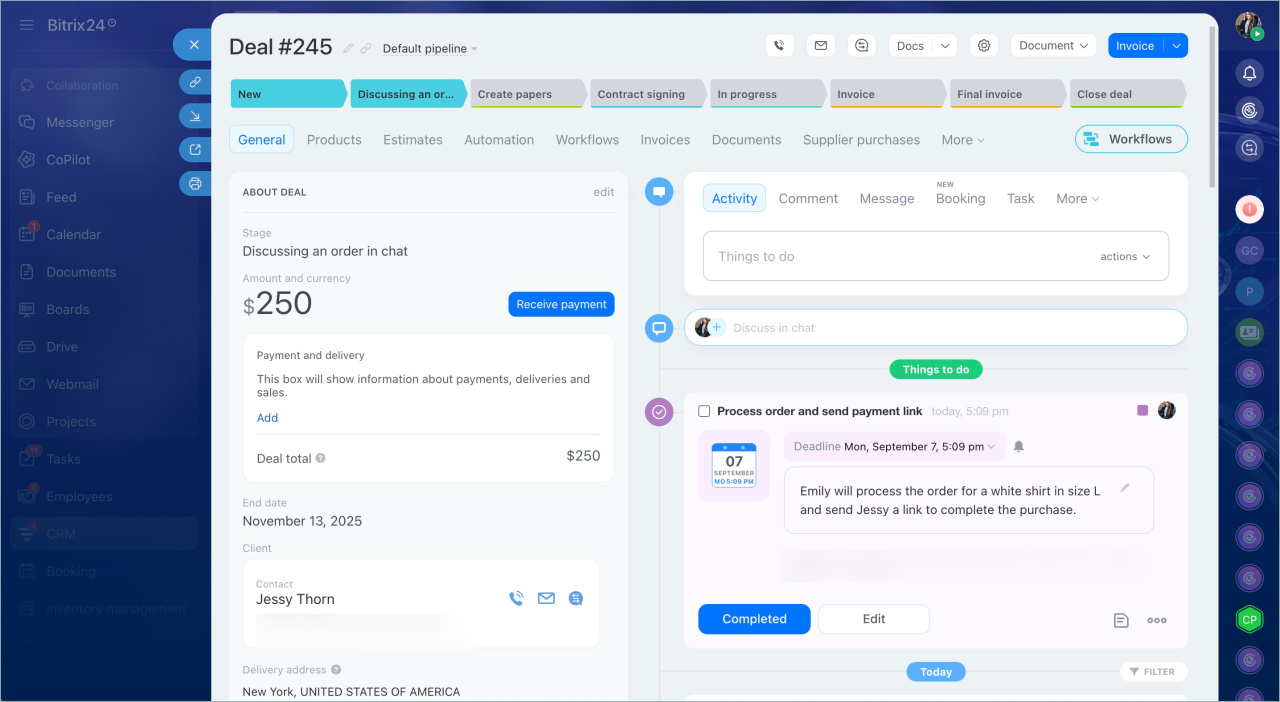
Purple activity — the conversation is meaningful. CoPilot creates an activity with a brief description so the manager knows what to do next.
When the task is done, close the activity — click Done. If you need to edit the activity content, click Edit.
Yellow activity — the email is not relevant: spam or a mailing list. CoPilot creates an activity with a Needs attention label and suggests adding the contact to a stop list.
Exceptions in CRM
Choose what to do:
1. Click Decline — the activity is closed, and the lead or deal remains. When a new email arrives, you can start processing again.
2. Click Yes, add > Continue — the contact is added to the stop list, and the lead or deal is deleted.
In brief
- CoPilot in CRM helps managers process emails: it highlights the key points and automatically fills CRM form fields.
- CoPilot is available in leads, deals, contacts, and companies.
- You can choose how emails are processed: automatically or manually. In contacts and companies, only manual launch is available.
- To process an email manually, find it in the CRM form Timeline and click Complete fields.
- From the email menu, you can run individual CoPilot actions or run full processing — summary, field filling, and activity creation.
- CoPilot automatically fills empty CRM form fields with data from the email. If fields already have values, you can choose whether to replace them or keep the existing ones.
- CoPilot creates an activity based on the email: purple if the email is meaningful, yellow if the email is not relevant, with a suggestion to add the contact to the stop list.