
Role-based access permissions in CRM let you control who can access and manage CRM data. Create roles with different permission levels for teams and employees. For example, a sales manager can have full access, while sales reps can work only with their own deals.
Bitrix24 plans and pricing
This article explains how to set up access permissions in CRM.
For other sections, see:
Only administrators and users with permission to edit CRM settings can configure access permissions.
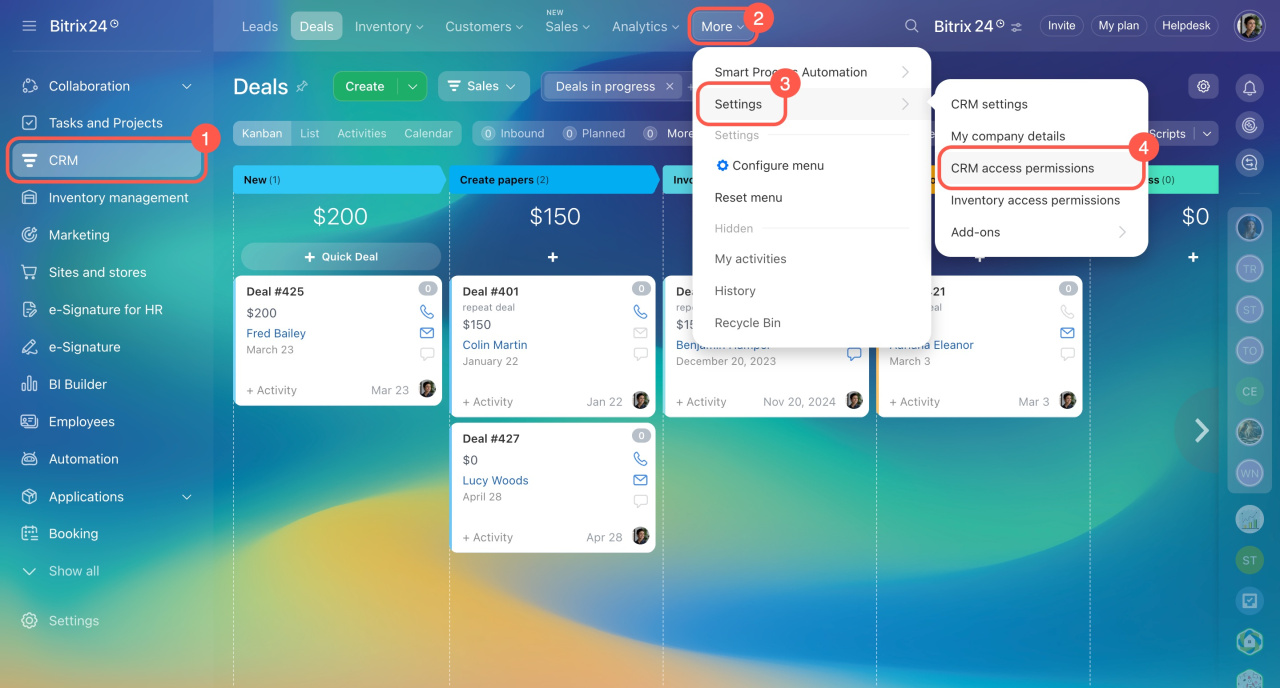
To get started:
- Go to CRM.
- Click More.
- Open Settings.
- Select CRM access permissions.
Default roles
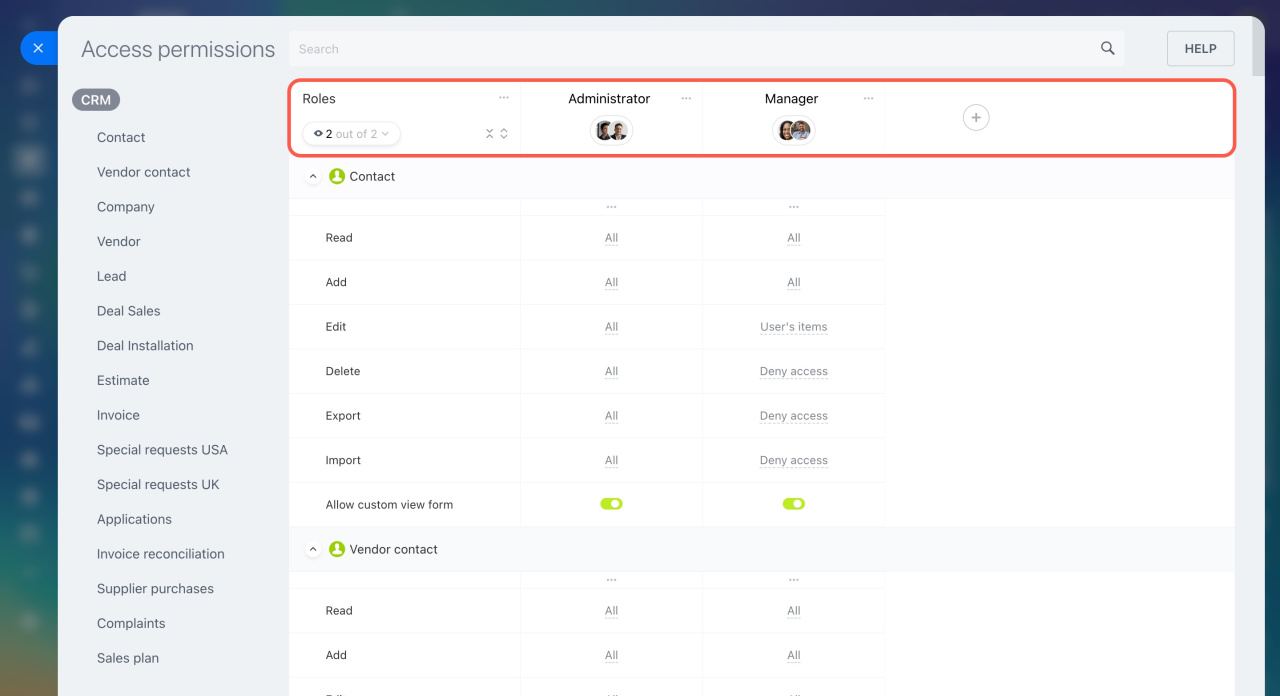
CRM includes two roles by default:
- Administrator: Full access to all CRM items and settings.
- Manager: Can view, create, and edit their own CRM items.
Create and manage roles
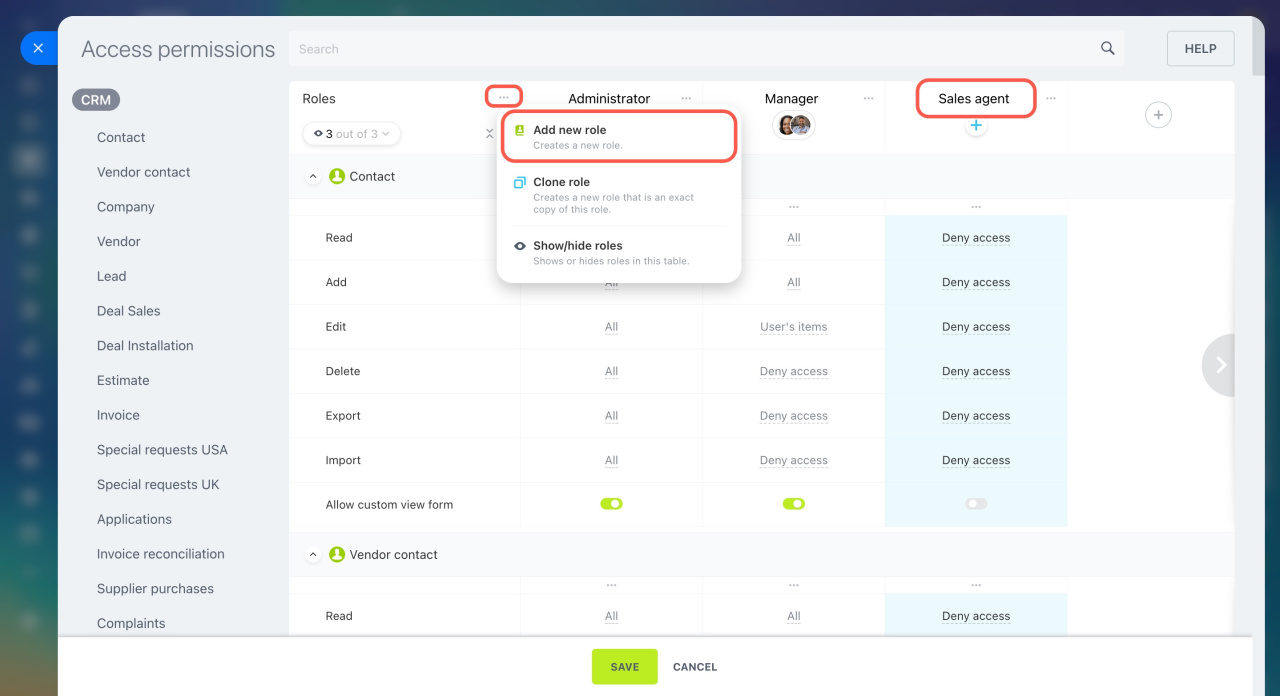
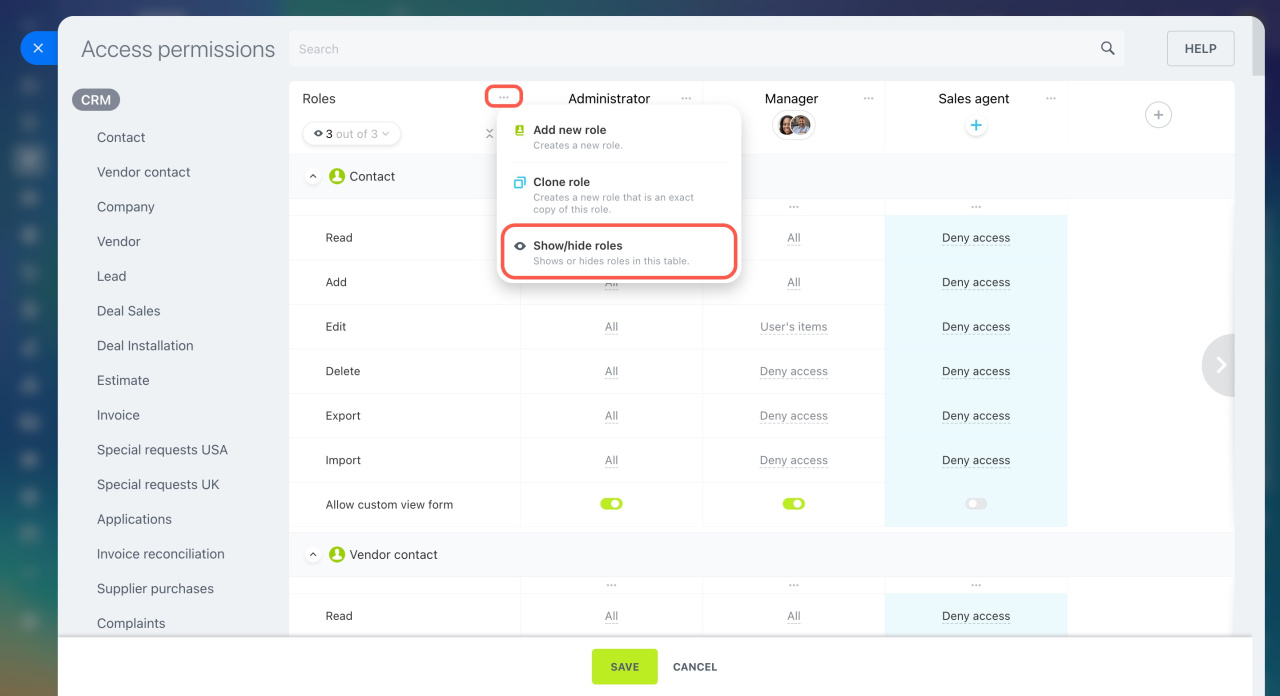
If default roles don’t meet your needs, you can create or edit roles. Open the menu (three dots) and choose an action.
Create a role. Click Add new role and enter a name.
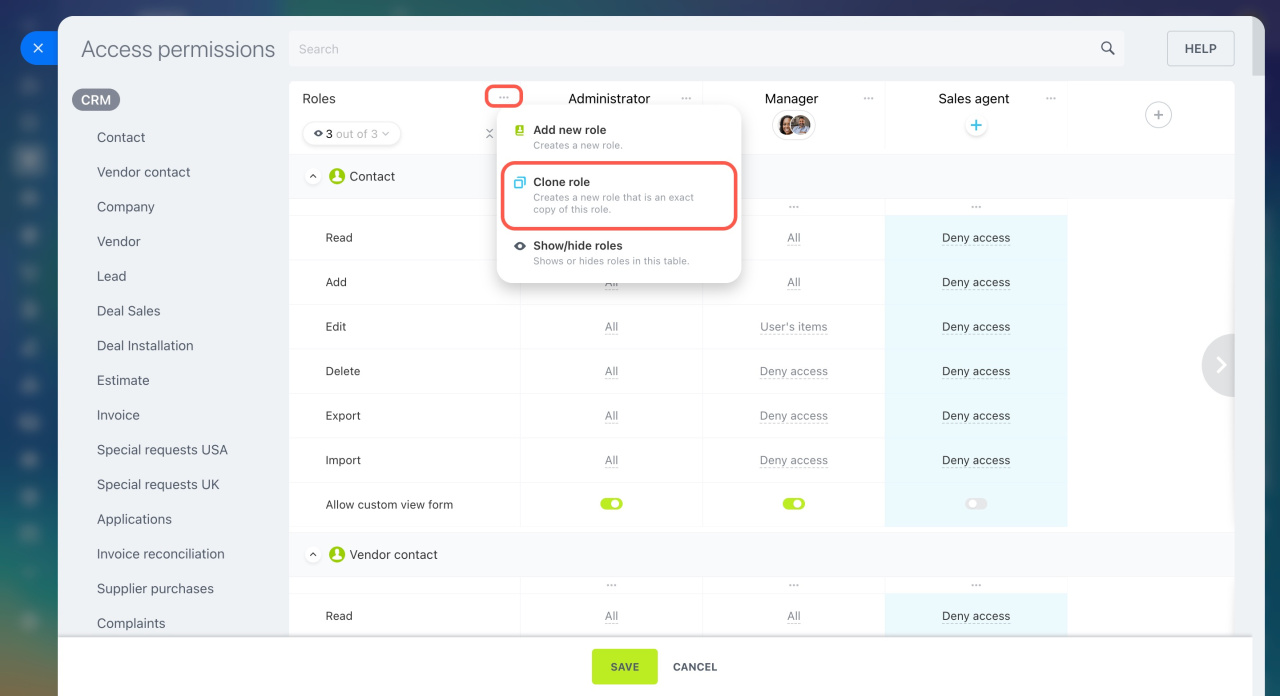
Clone a role. Use this option to copy an existing role and make small changes.
- Click Clone role.
- Select the role you want to copy.
- The system copies all permission settings to the new role.

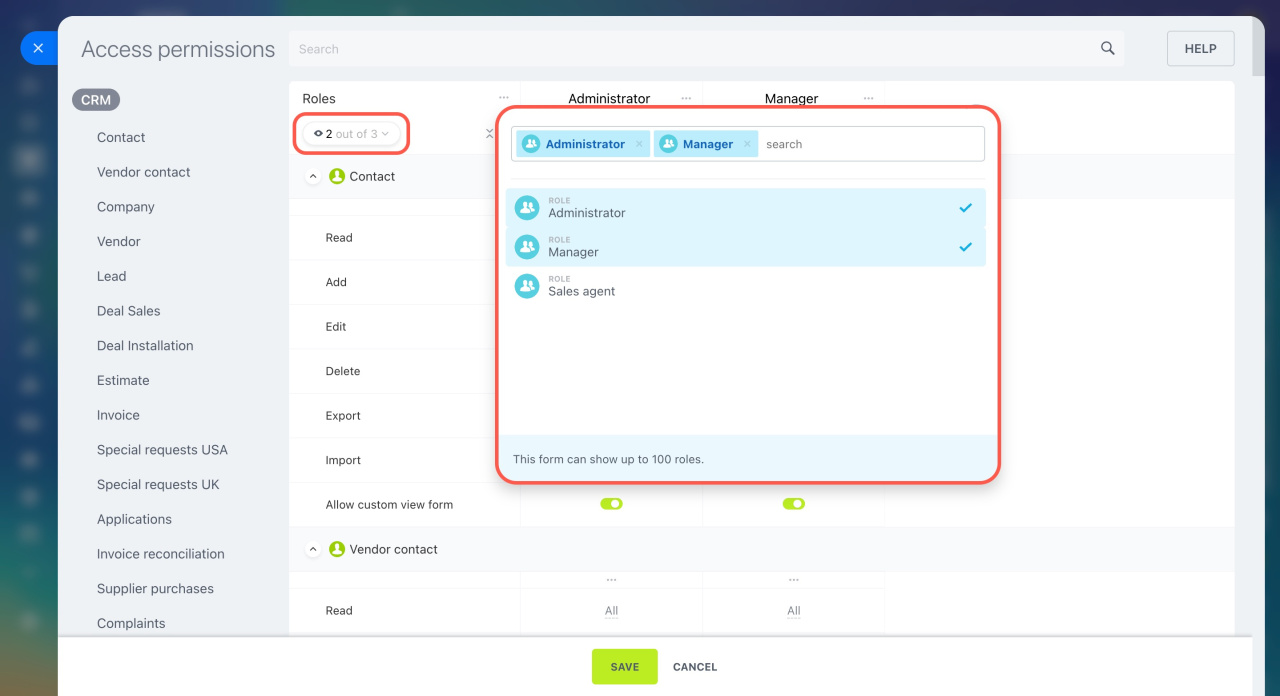
Show or hide roles. Keep only the roles you need visible. Hide the rest to make comparison and editing easier.
Click Show/hide roles and select the roles to display.
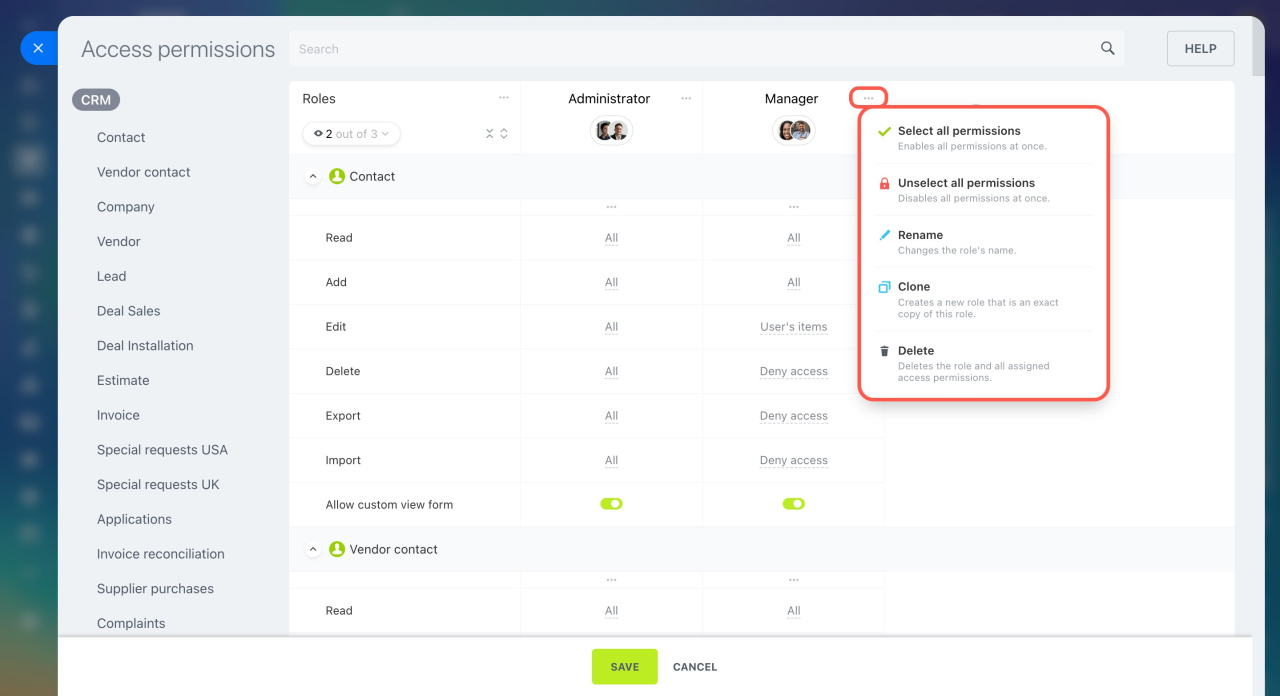
Set up a role. Open the menu (three dots) next to a role and choose an action:
- Select all permissions: Gives full access to all CRM sections.
- Unselect all permissions: Remove access to all CRM sections.
- Rename: Change the role name.
- Clone: Create a copy of the role.
- Delete: Remove the role and its settings.
Set up permissions
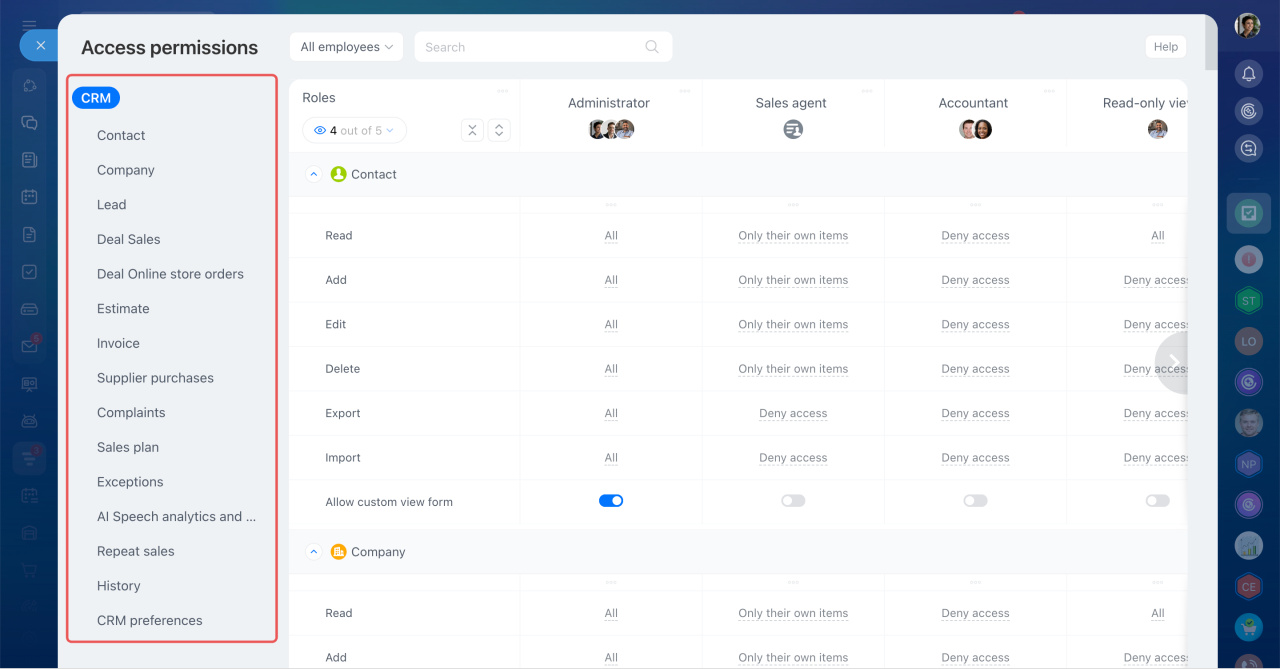
For each role, configure access to specific CRM items and actions.
You can set permissions for:
- Contacts
- Vendors and vendor contacts
- Companies
- Leads
- Deals in multiple pipelines
- Estimates
- Invoices
- SPA
- Sales plan
- Exceptions
- AI Speech analytics and Sales scripts
- Repeat sales
- History
- CRM preferences
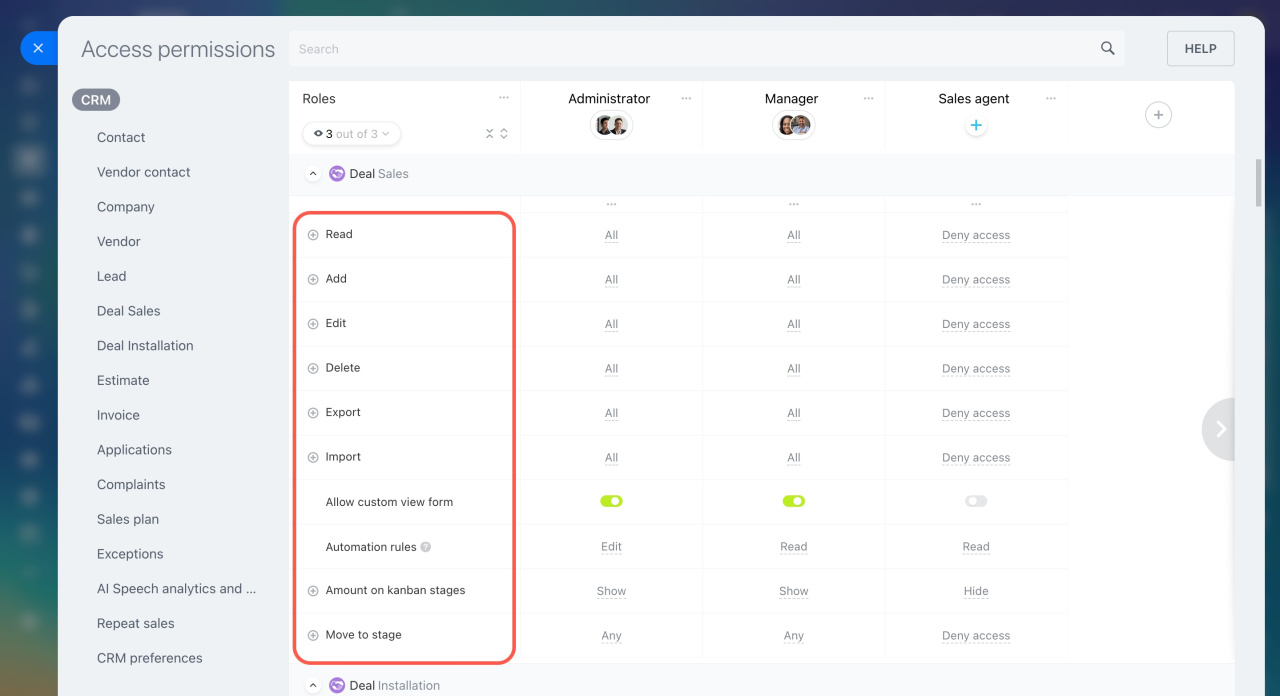
Actions for CRM items
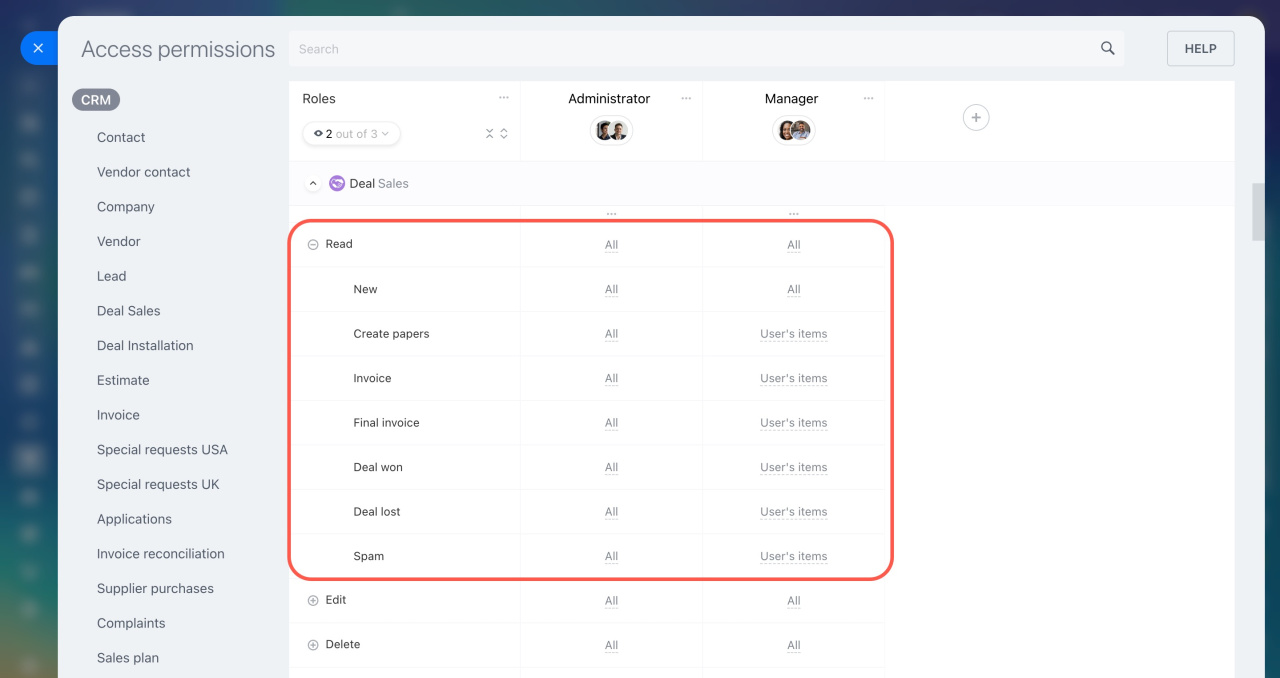
- Read: View CRM items.
- Add: Create CRM items. Users need Read permission to see items after creation.
- Edit: Update CRM items.
- Delete: Remove CRM items.
- Export: Download CRM data.
Export CRM data - Import: Upload CRM data
Import to Bitrix24 CRM - Allow custom view form: Change the CRM item form layout. Without this permission, users can only use the form layout set by an administrator.
CRM item form features and settings - Automation rules: Create, edit, or view automation rules.
Automation rules in CRM - Amount on kanban stages: Show or hide totals in stages. For example, you can allow users to see the amount of deals only at the In progress stage.
- Move to stage: Allow moving items to any or selected stages.
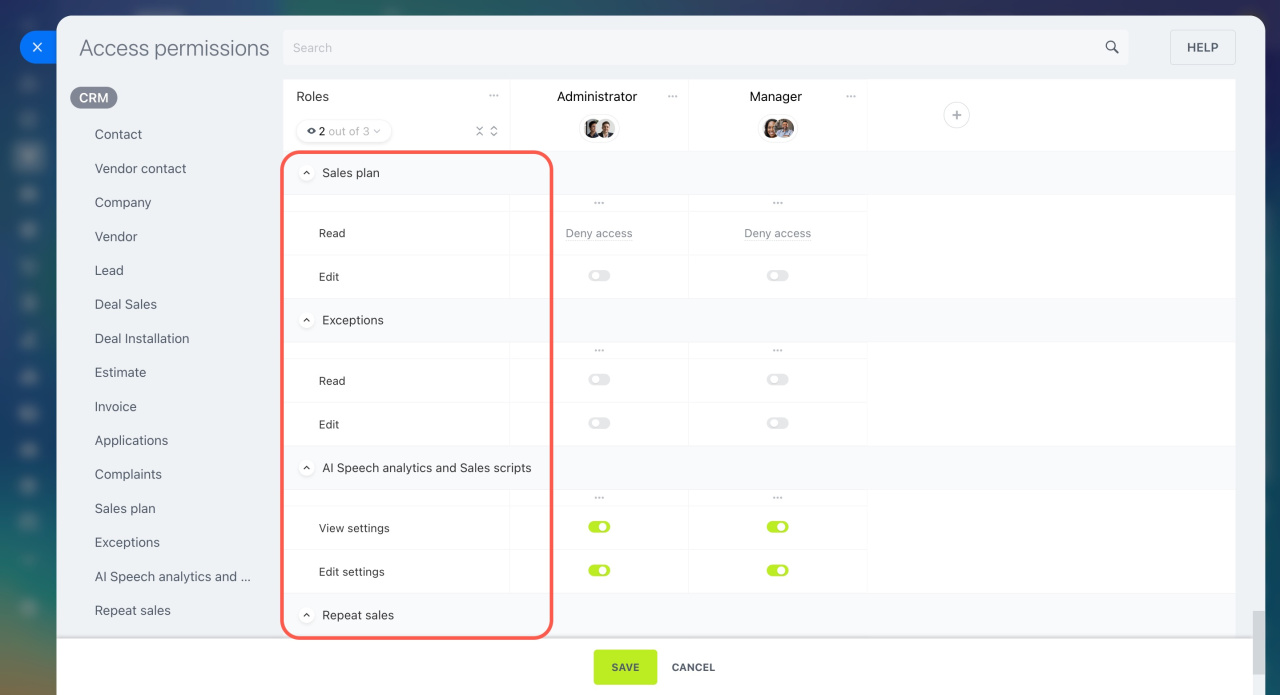
Sales plan permissions
- Read: View the sales plan.
- Edit: Change sales plan settings.
Sales plan
Exceptions permissions
- Read: View the exceptions list.
- Edit: Add or remove phone numbers and emails.
Exceptions
AI Speech analytics and Sales scripts permissions
- View settings: View scripts and settings.
- Edit settings: Create, edit, or delete scripts.
AI Speech analytics and Sales scripts in CRM
Repeat sales permissions
- View settings: View repeat sales data.
- Edit settings: Manage repeat sales settings and scripts.
AI-powered repeat sales in CRM
History permissions
- View: View records in History. If this permission is enabled, the History section appears in the CRM menu, and the History tab appears in the CRM item form. If this permission is disabled, both are hidden.
CRM preferences permissions
- User can edit preferences: Full access to CRM settings and permissions.
Access levels
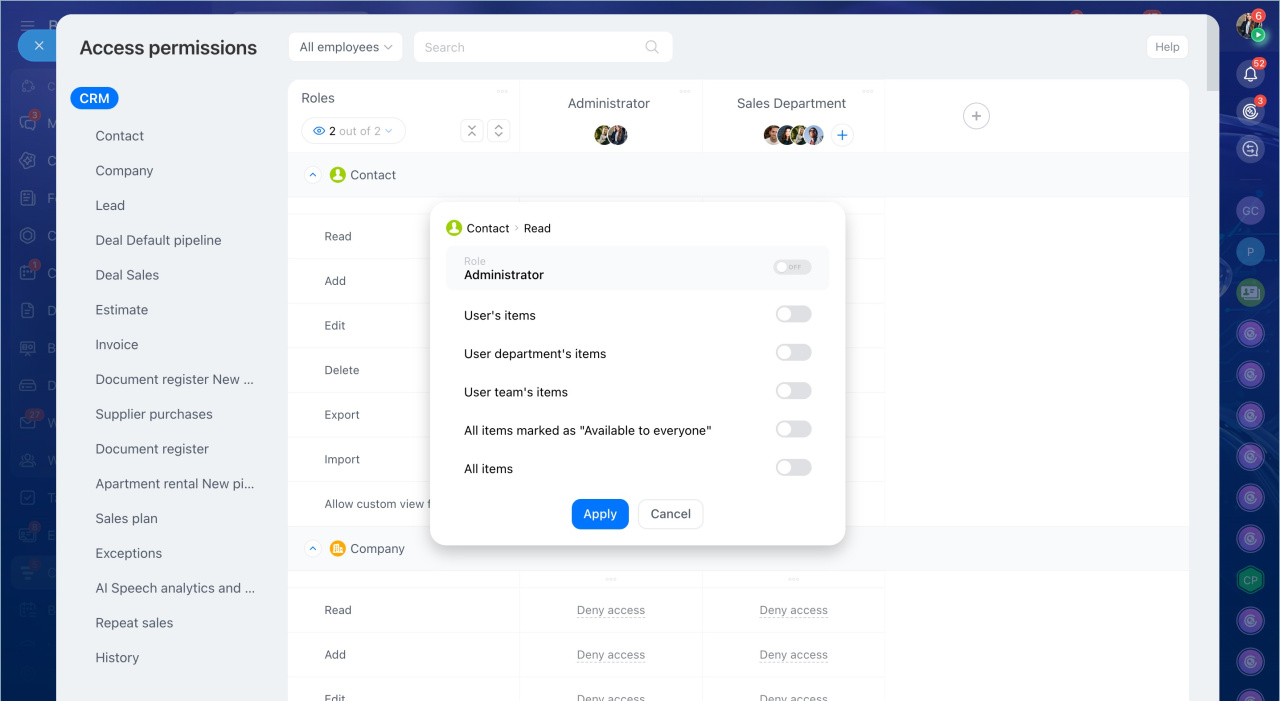
Choose an access level for each CRM action:
- Full access: Grant full access or block the action completely, for example, editing all deals.
- User's items: Allow access only to items where the user is responsible.
- User department's items: Allow access to items owned by users in the same department.
- User dept. subdepartment's items: Allow access to items owned by users in the department and all subdepartments.
- User team's items: Access to employee records in your teams.
- User team's and subordinate team's items: access to employee records in all subordinate teams.
- All items marked as "Available to everyone": Allow access to items with the Available to everyone option enabled.
Standard fields in CRM - All items: Allow access to all items of a specific type, such as all contacts.
Assign employees to roles
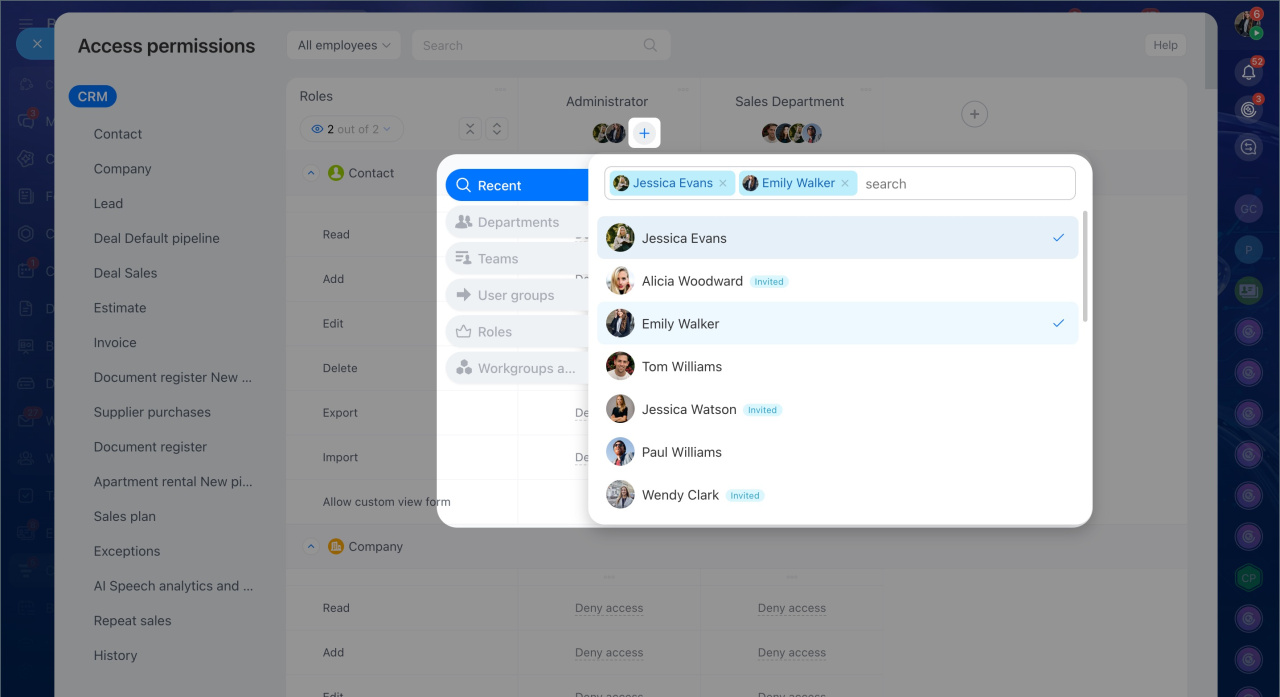
Click the Plus (+) icon under a role and select users to assign it to.
You can choose from:
- Recent: Shows employees, departments, and workgroups you searched for in Bitrix24. Use the search bar to find an employee by name.
- Departments: Select a department from the company structure.
- Teams: Select a team and assign a role only to its members, or to members of that team and its subteams.
- User groups: Select a workgroup or project. Choose to add all members or only the owner or moderator.
- User groups: Select from preset groups such as Administrators, All employees, or Bitrix24 partners.
- Roles: Select a role within the company structure, such as department or team leaders.
- Workgroups and projects: You can add all members of a group or project, or select a specific role: group owner or moderator, project manager, or project assistants.
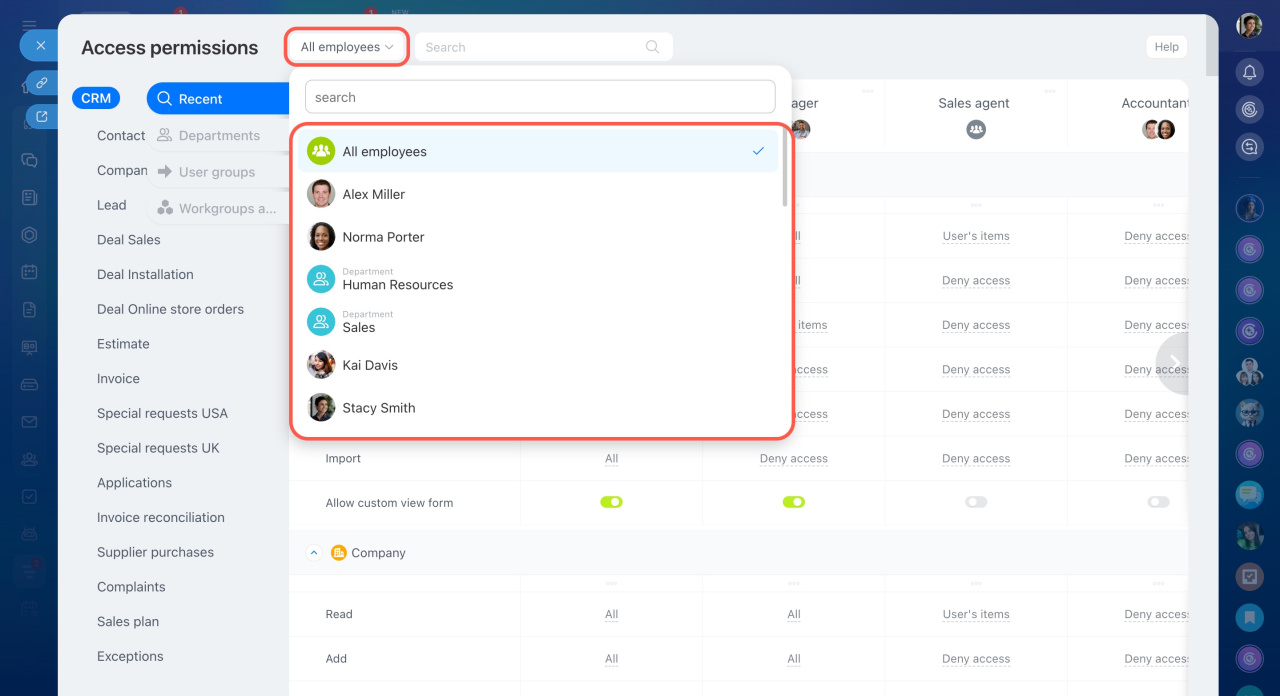
To check overlapping permissions, select an employee next to the search bar. A panel shows all roles assigned to that user. Use it to review and adjust access if needed.
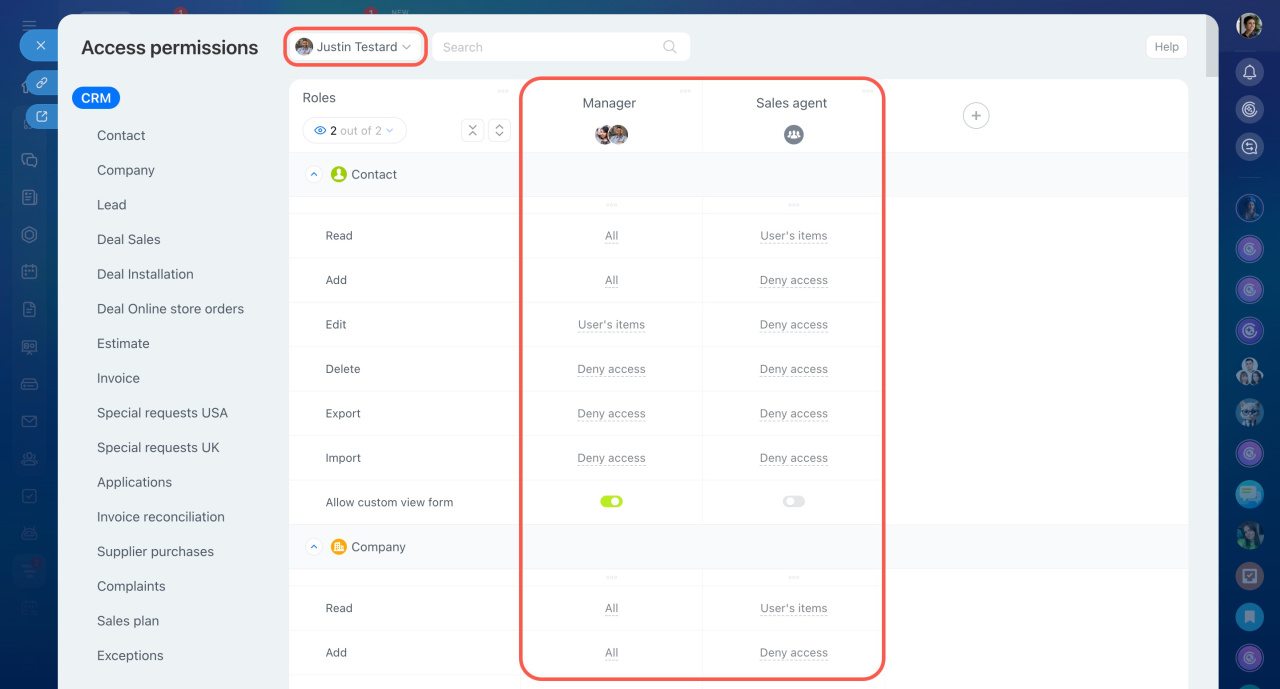 In this example, an employee has two types of roles with different access levels.
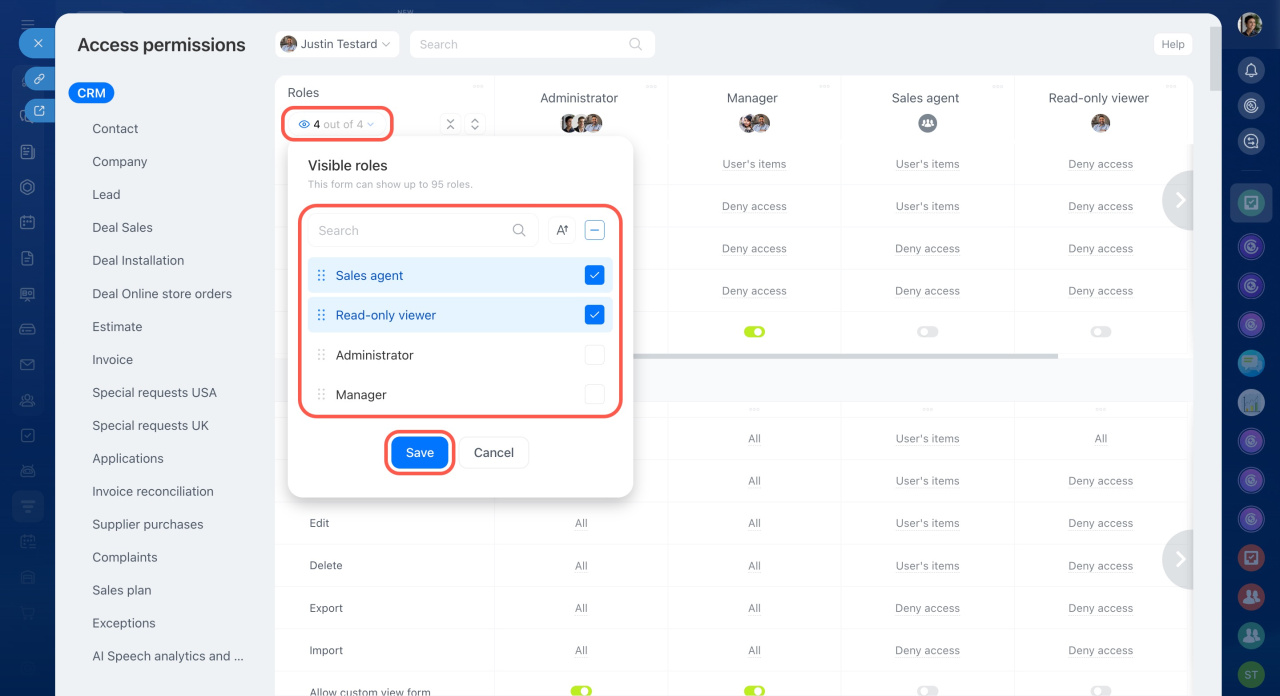
If an employee has multiple roles, click the role counter (for example, 4 out of 4) to open the full list.
In this window, you can:
- Search for a role by name
- Sort roles alphabetically by clicking the A↑ icon
- Select roles to compare their permissions
Click Save.
This view is helpful when an employee has many roles. You can quickly find the ones you need and compare their access. For example, if an employee has 8–10 roles, it may be difficult to identify which roles include the required permissions. Use this window to filter roles and review them one by one.
Use search
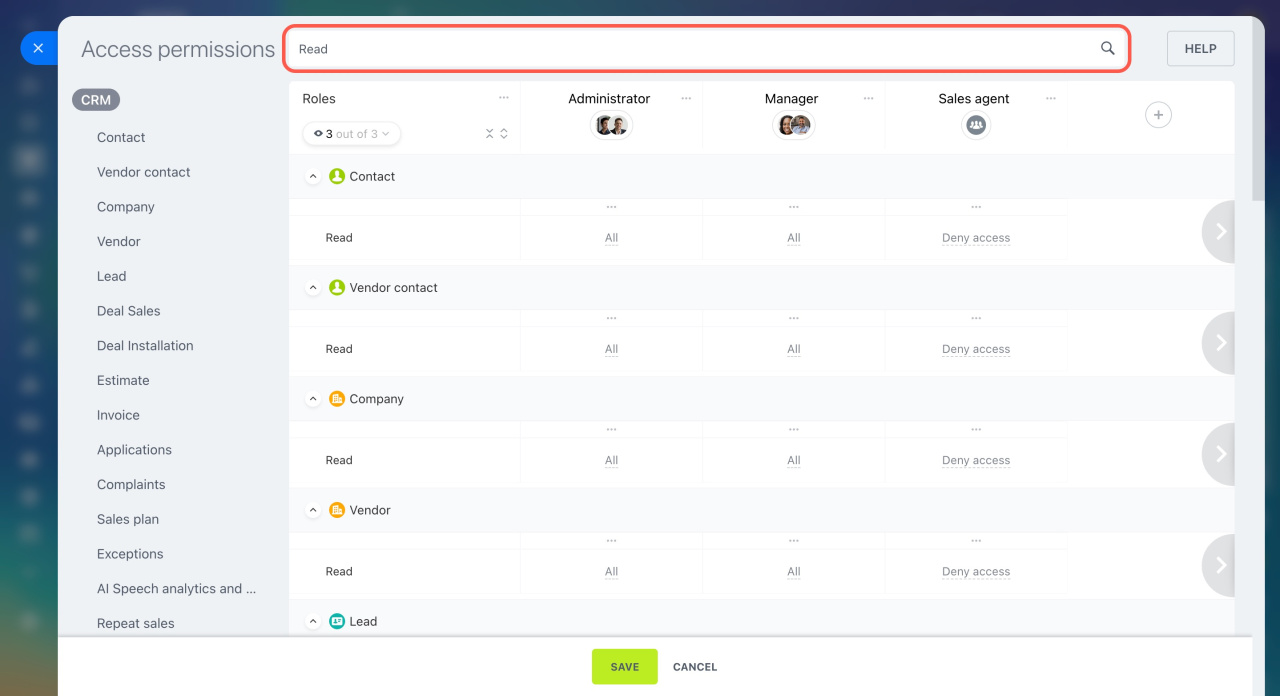
Use the search bar to quickly find items or permissions.
- CRM items: Enter the item name, such as lead or company. The system shows all available permissions for that item.
- CRM item stages: Enter a stage name to set permissions for it. For example, find all items in the In progress stage.
- Actions with CRM items: Search for a specific permission, such as Read, to view it across all CRM items.
In brief
- Role-based access permissions let you control access to CRM data. Create roles with different access levels for teams and employees.
- You can manage permissions separately for CRM, CRM forms, widgets, and automated solutions.
- By default, CRM includes two roles: Administrator and Manager.
- If these roles don’t fit your needs, you can create, copy, or edit your own.
- For each role, define what users can do with CRM items. For example, allow users to view all items but edit only their own.
- If a user has multiple roles, the system applies the role with the highest level of access.