
Auto numbering templates assign a unique number to each document. Numbers can include digits, dates, prefixes, and other values. This helps you avoid duplicates, find documents faster, and keep records organized.
You can set up separate numbering for documents, invoices, and estimates. Leads and deals use a default numbering format that you can’t change.
Role-based access permissions in CRM
In this article:
- Create an auto numbering template
- Configure an auto numbering template
- Edit or delete an auto numbering template
- Check and change the next number
- Fix numbering issues
Create an auto numbering template
You can create a template in CRM settings or from a document template.
In CRM settings
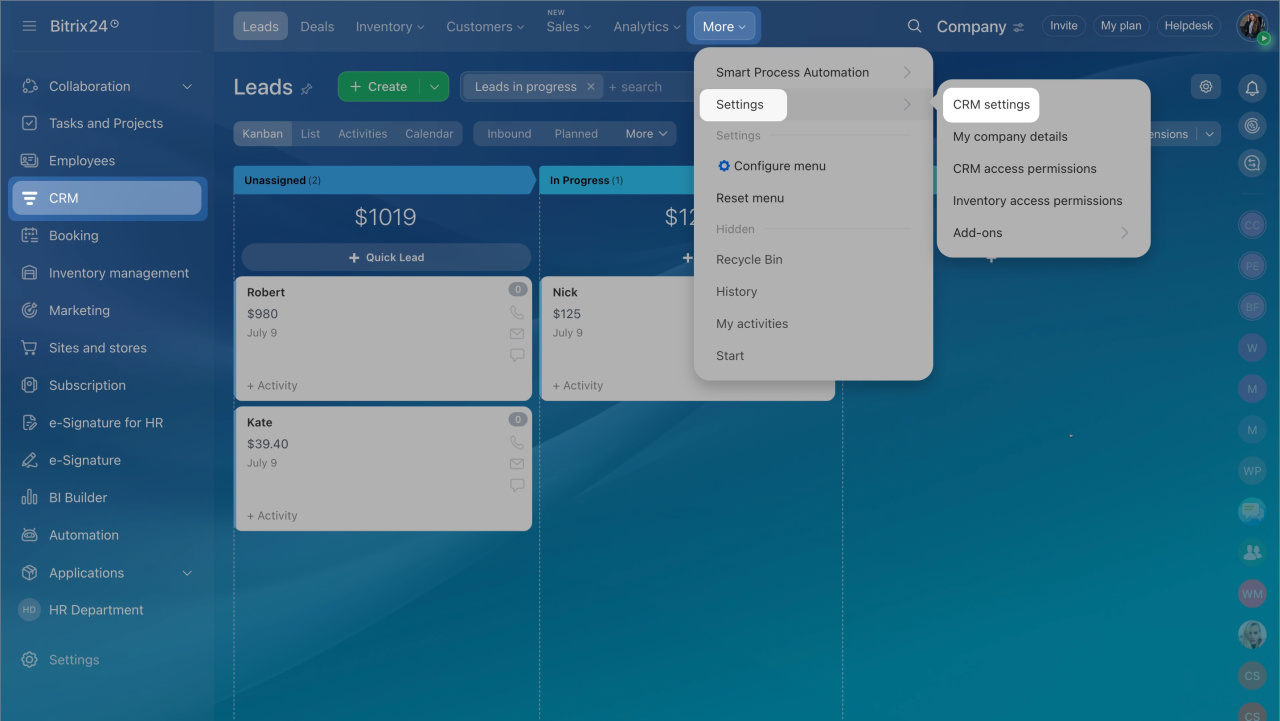
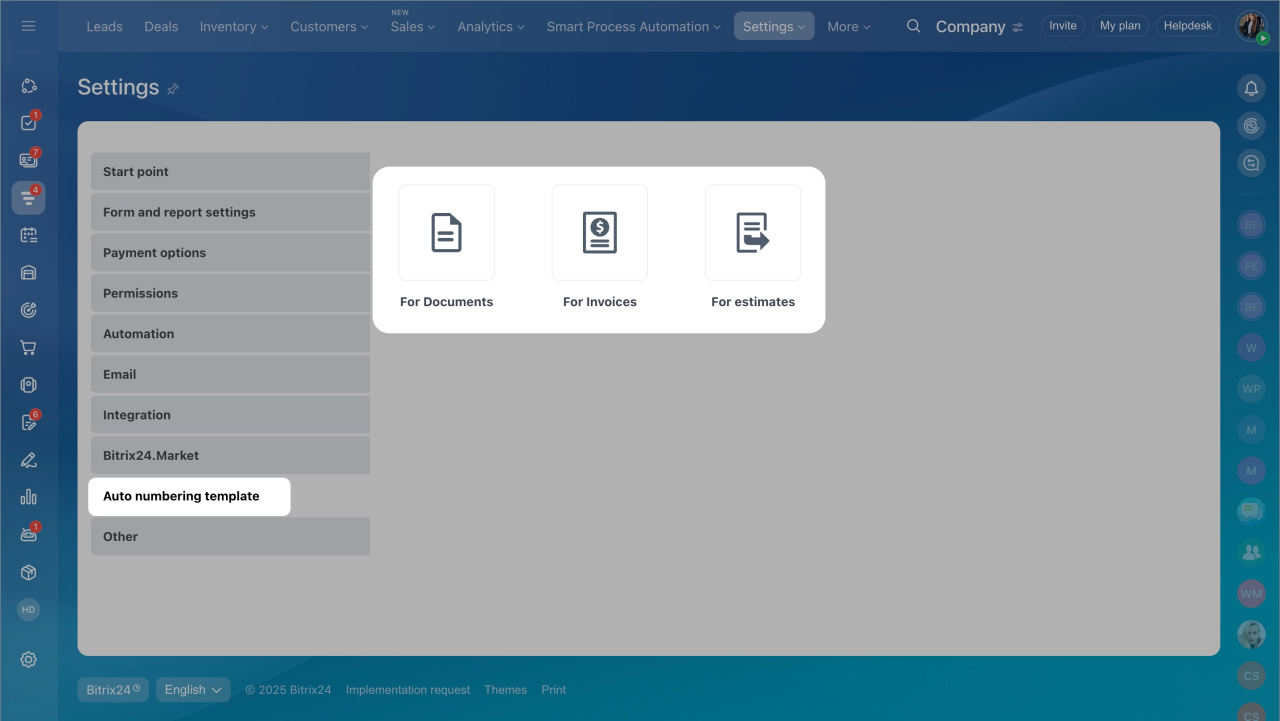
- Go to CRM > More > Settings > CRM settings > Auto numbering template.
- Select the item: documents, invoices, or estimates.
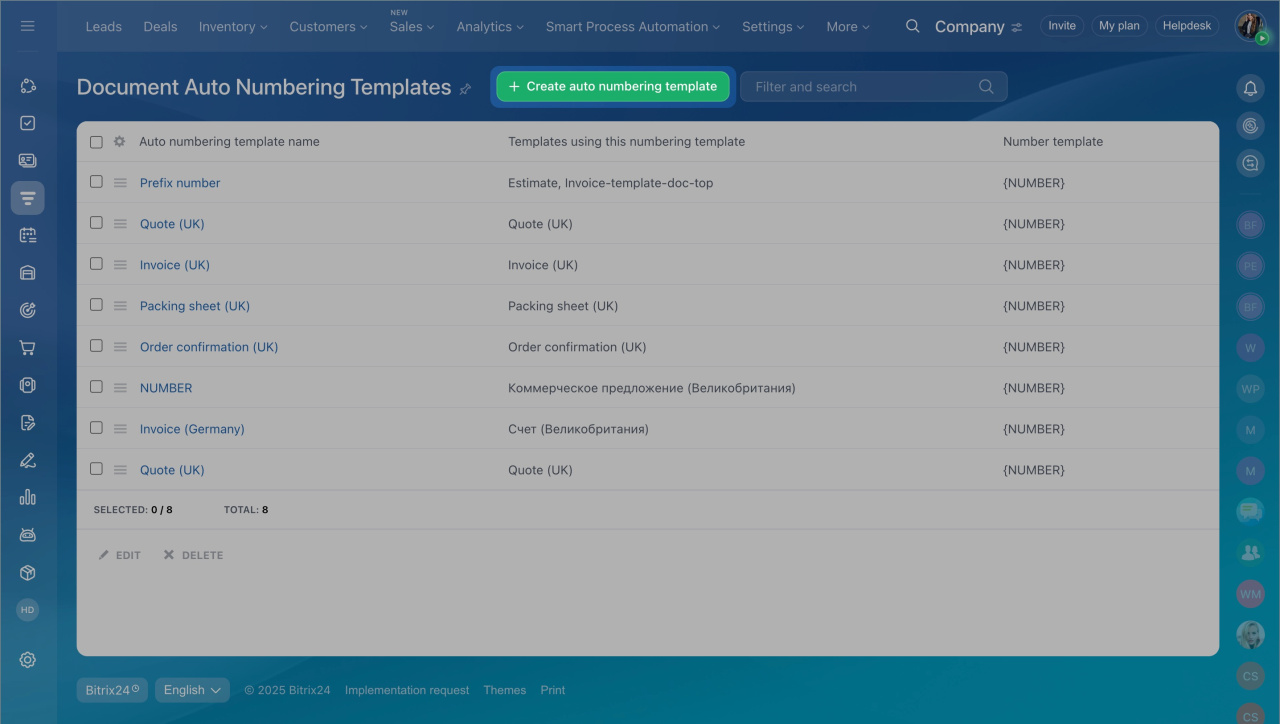
- Click Create auto numbering template.
In a document template
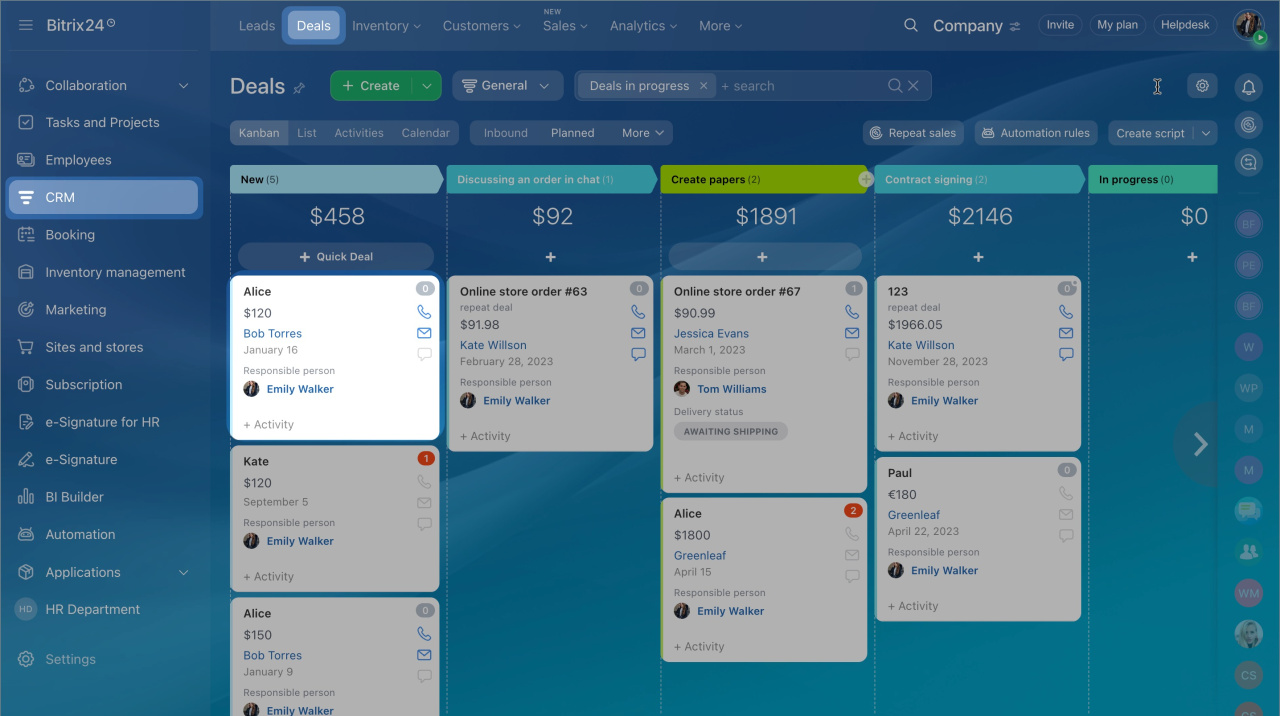
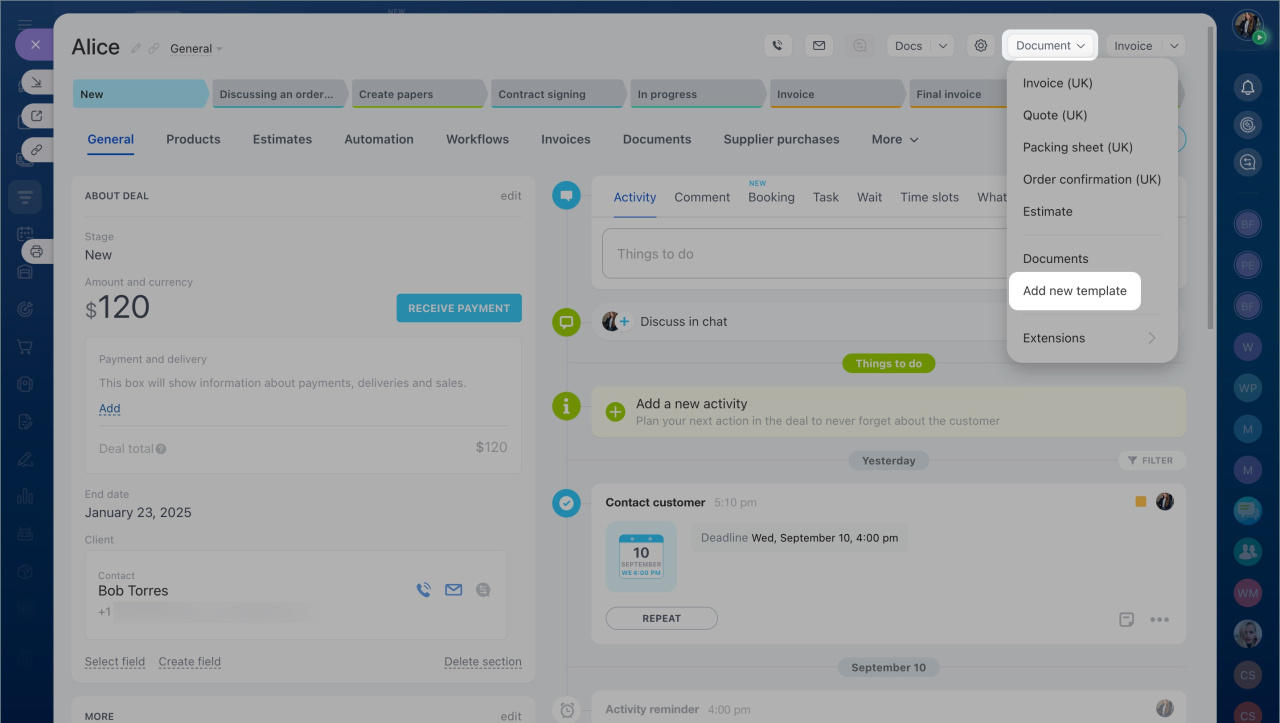
- Go to CRM > Deals and open any deal.
- Click Document > Add new template.
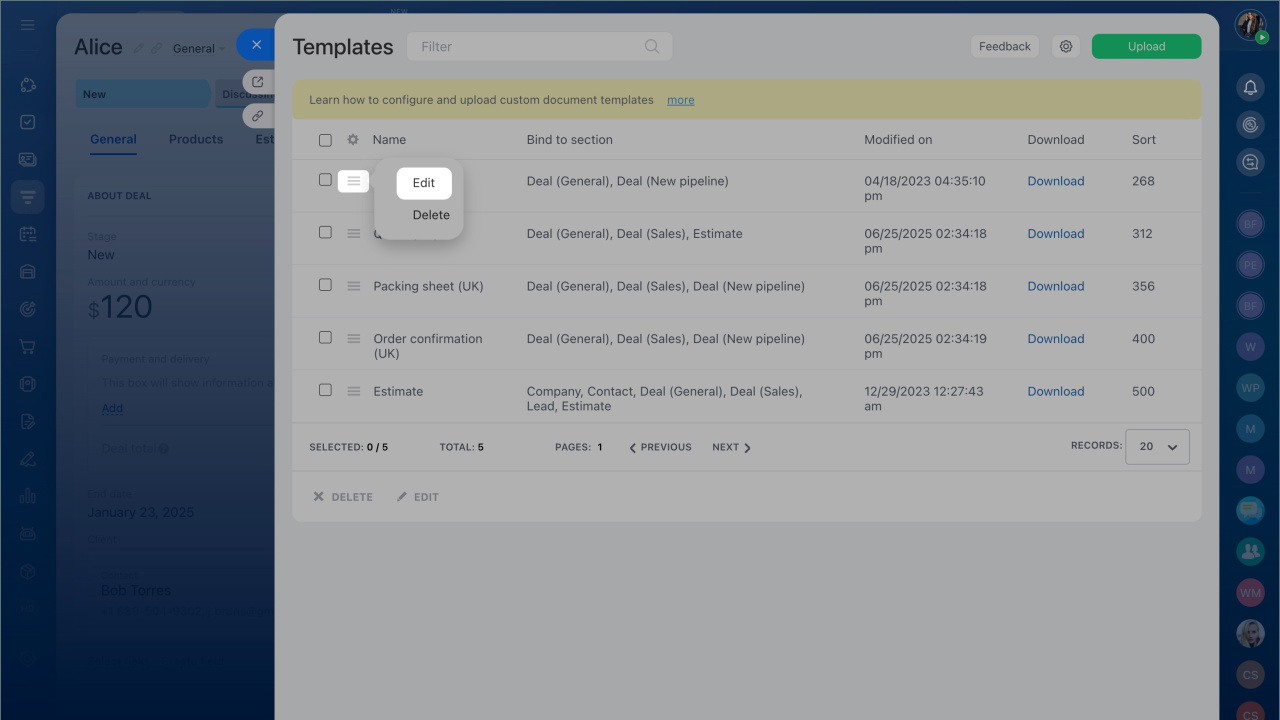
- Select a template and click Edit.
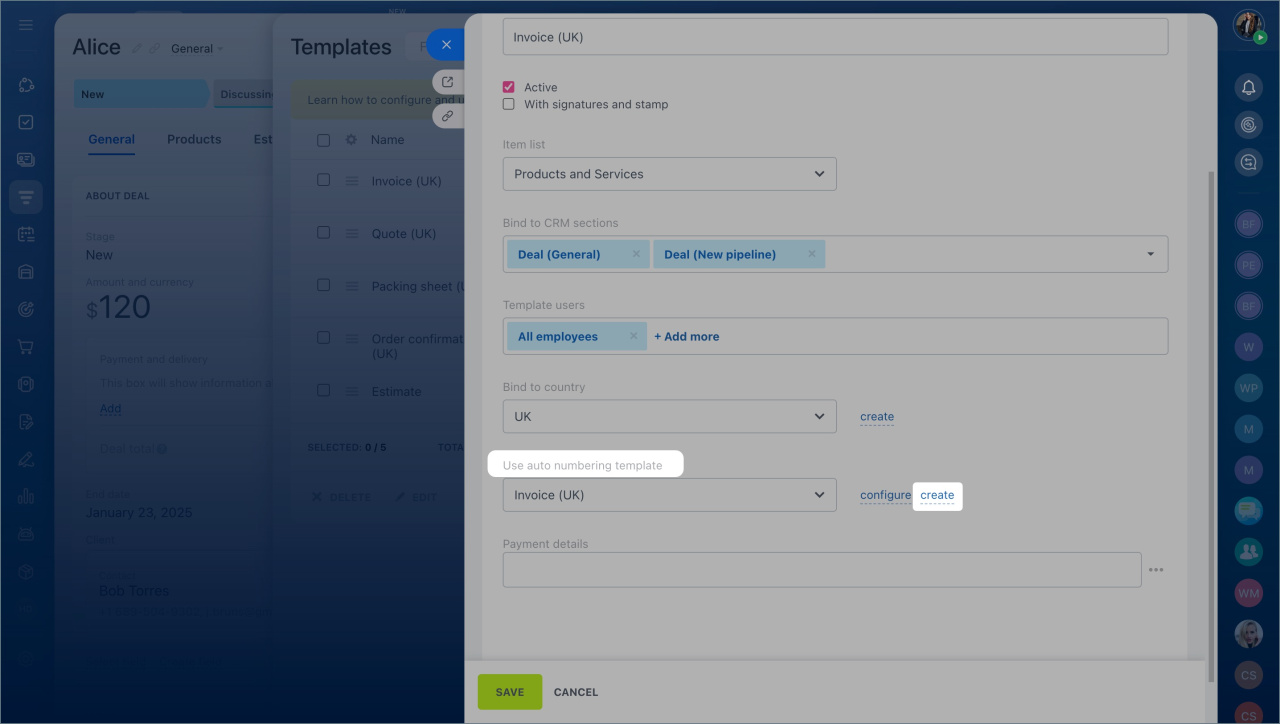
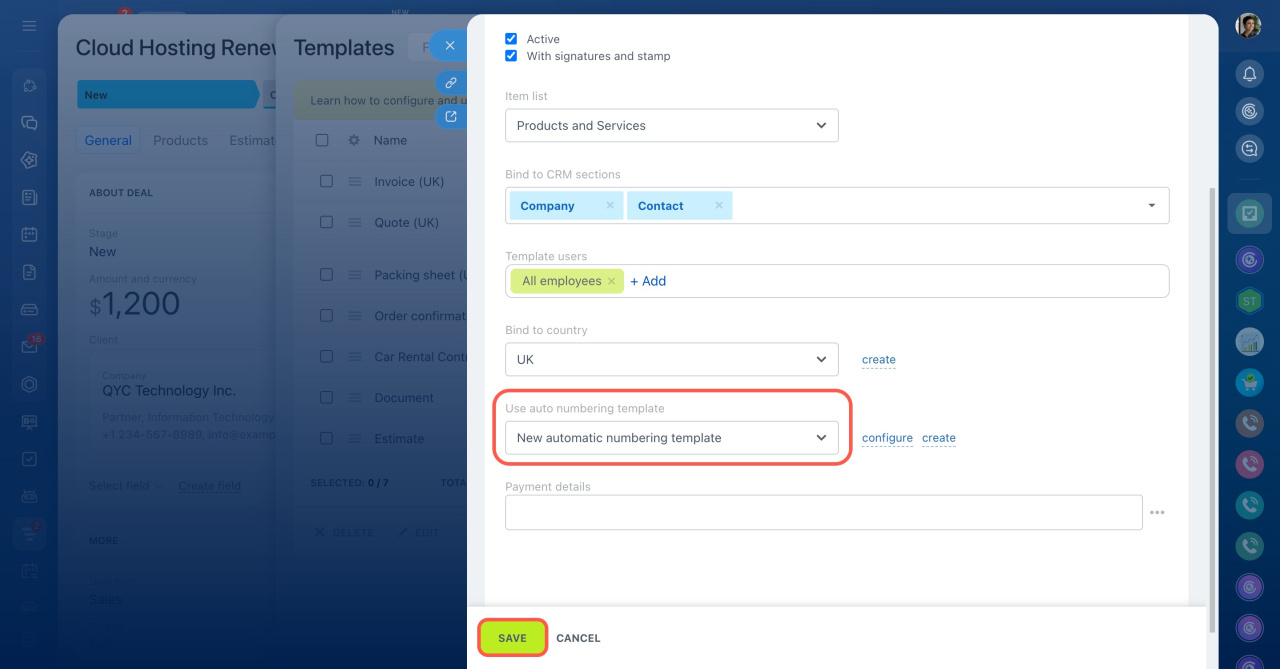
- Click Create next to Use auto numbering template.
Configure an auto numbering template
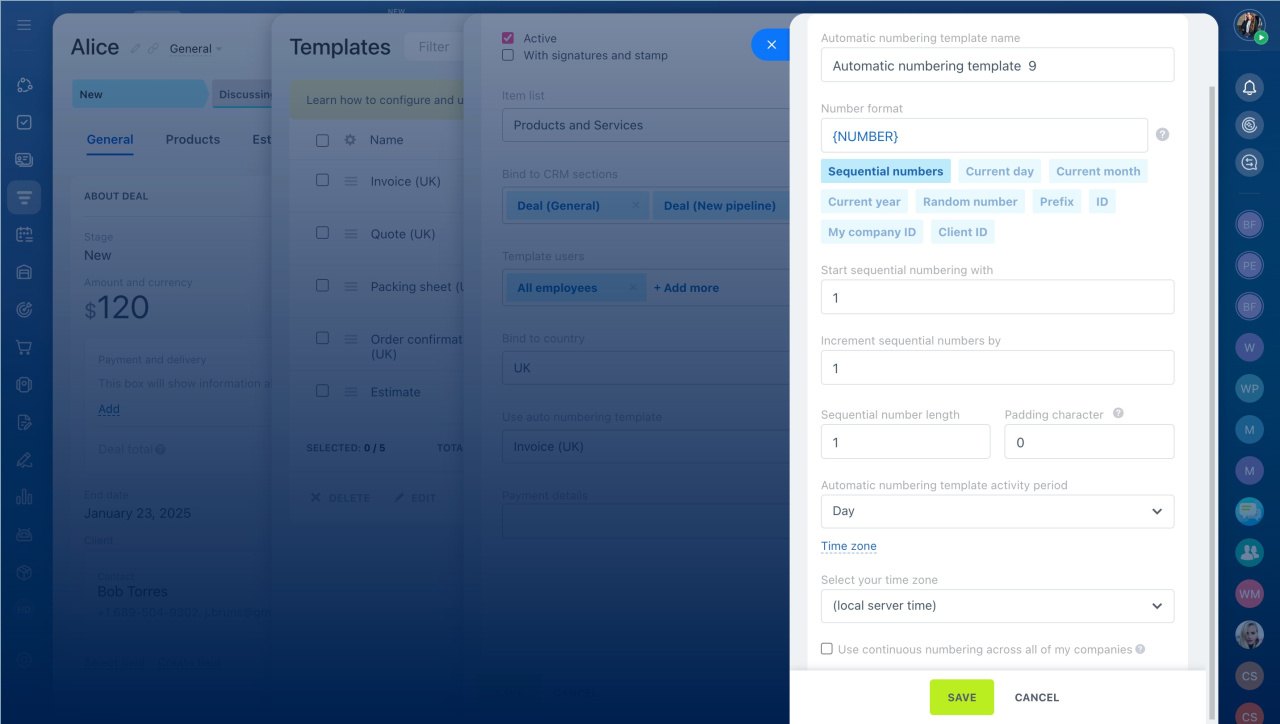
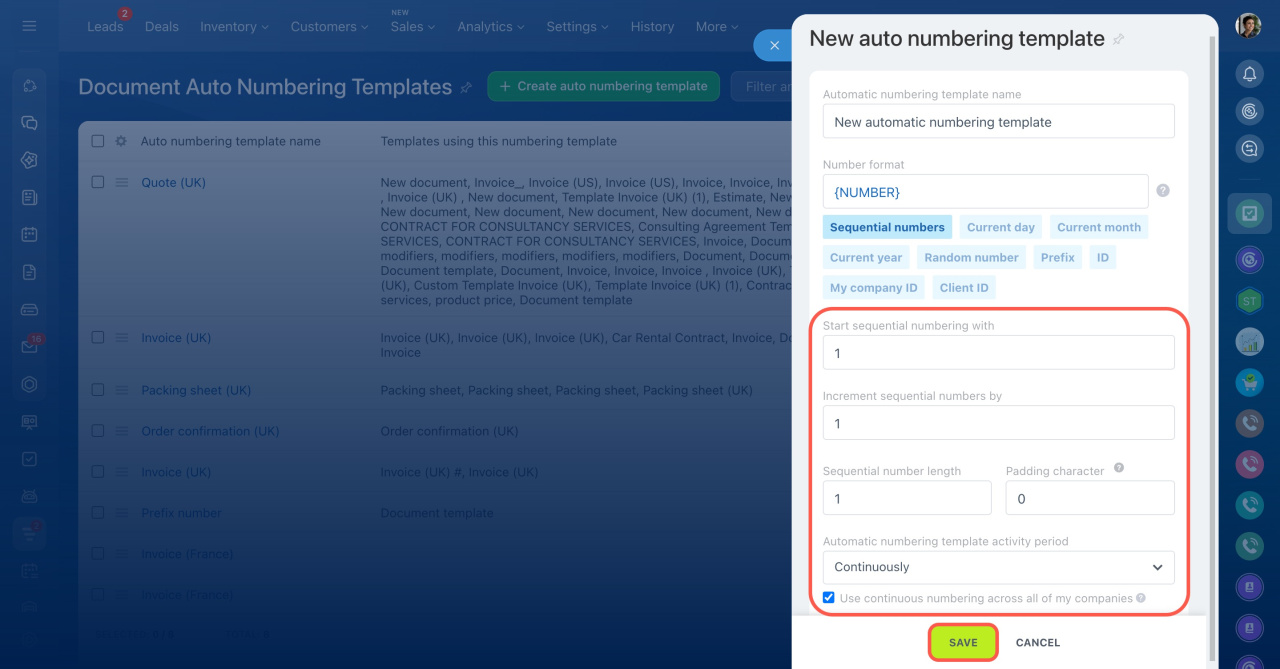
Set basic parameters. Give the template a clear name. Then add and arrange the elements you want in the number.
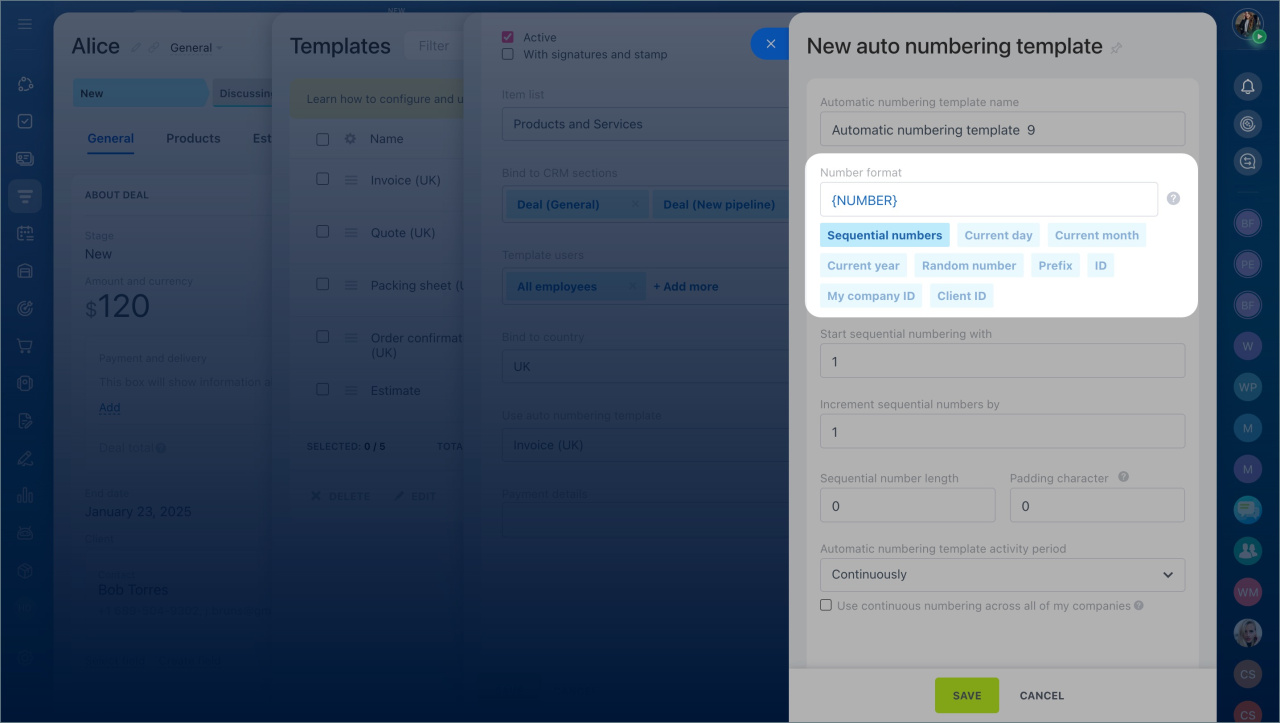
Sequential numbers. A sequential number increases with each new document (1, 2, 3, and so on). Use it when you need a simple numbering system based on the order documents are created.
Sequential number settings
If you choose Sequential numbers in a template, configure these options:
Start sequential numbering with — Set the first number in the sequence (for example, 101).
Increment sequential numbers by — Set how much the number increases each time. For example, if you set it to 3, the sequence goes 101, 104, 107.
Sequential number length — Set the total number of digits. For example, a length of 3 formats numbers as 001, 002.
Padding character — Add a leading character if the number is shorter than the set length. For example, with a length of 2 and padding set to 0, numbers appear as 01, 02, 03.
Automatic numbering template activity period — Choose when numbering resets: continuously, daily, monthly, or yearly.
If you reset numbers regularly, include the date (Current day, month, and year + Sequential number) to avoid duplicates.
Time zone — By default, the system uses server time. Select your time zone to control when numbering resets and avoid overlaps.
Use continuous numbering across all of my companies — Enable this to share one sequence across all companies. Disable it to keep separate sequences for each company.
Additional elements
You can combine sequential numbers with other elements:
Current day, month, or year — Adds the document creation date. Use this to track when documents were created.
Random number — Adds a random mix of digits and uppercase letters (for example, 4C2FW). Use this when you need less predictable numbers.
Prefix — Adds text or numbers at the beginning (for example, DOC). Use it to identify document types, projects, or departments.
ID — Uses the ID of the related CRM item (such as a deal or lead). This helps link documents to specific records.
My company ID — Adds your company’s ID. Useful if you manage multiple legal entities.
Add company details
Client ID — Adds the ID of the selected contact or company. Use it to quickly find documents for a specific client.
Edit or delete an auto numbering template
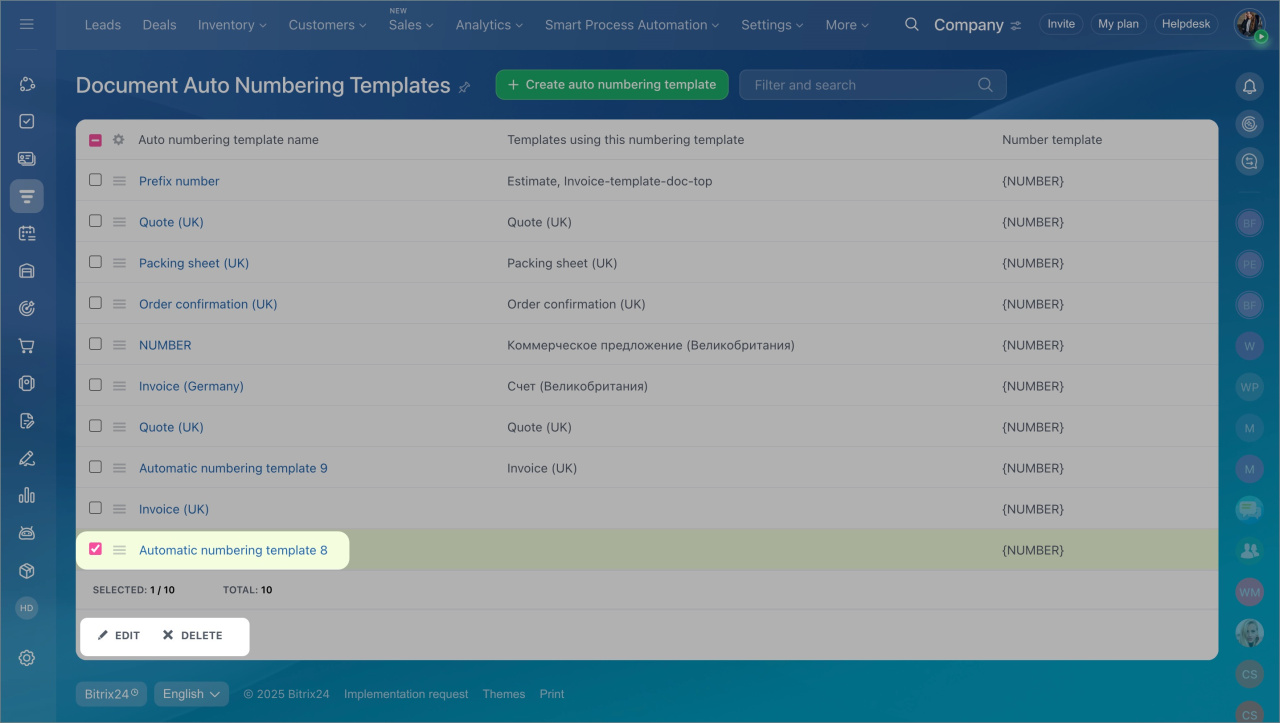
You can manage auto numbering templates in CRM settings. To edit or delete a template, select it from the list and click Edit or Delete.
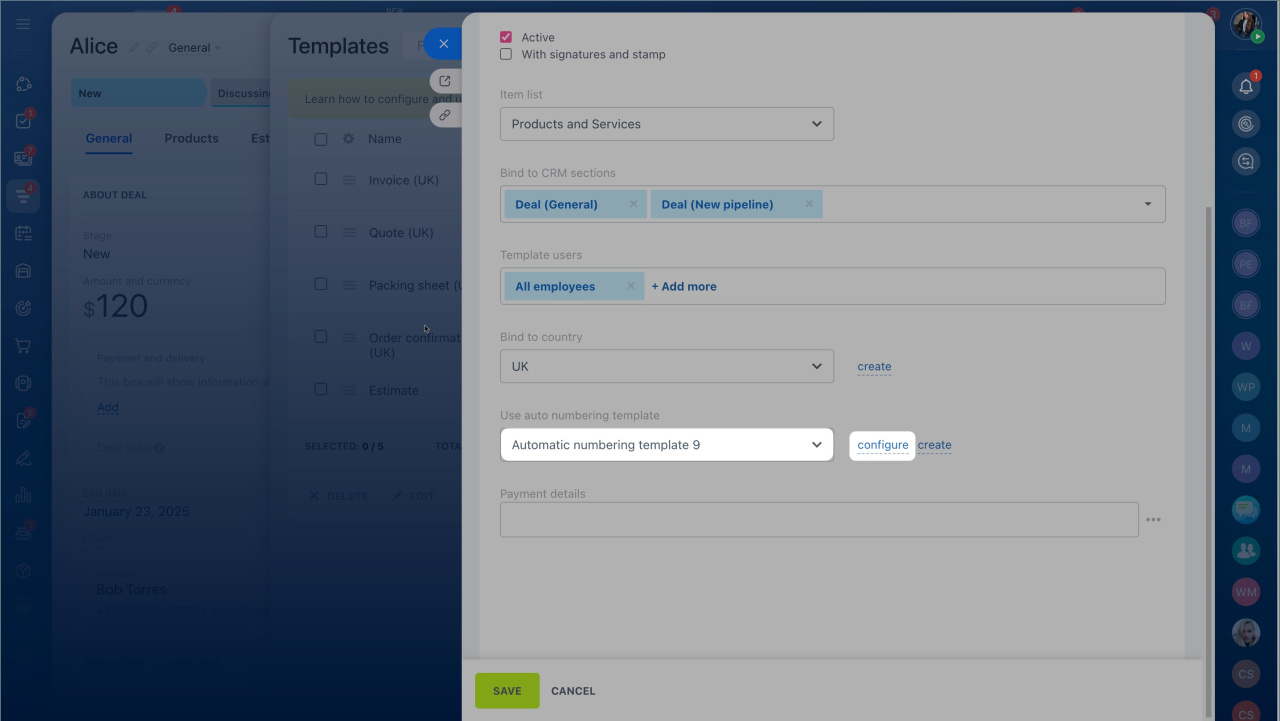
In a document template, you can only edit a template:
- Select the template from the list.
- Click Configure.
Check and change the next number
If you need to continue numbering from another system or set your own sequence, you can manually update the next document number.
For templates shared across multiple companies:
- Open the template in edit mode.
- Click Edit current number.
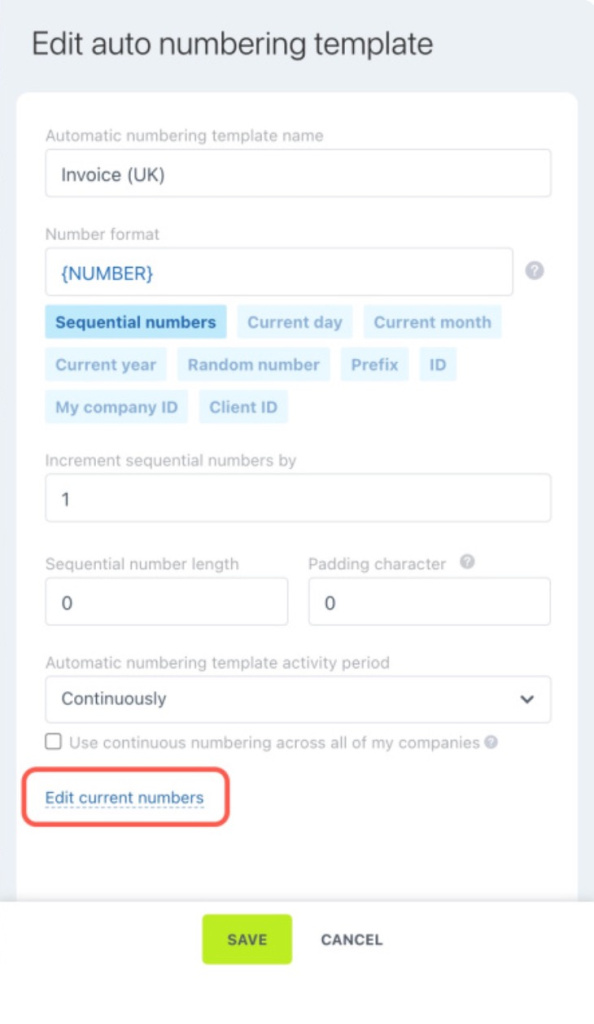
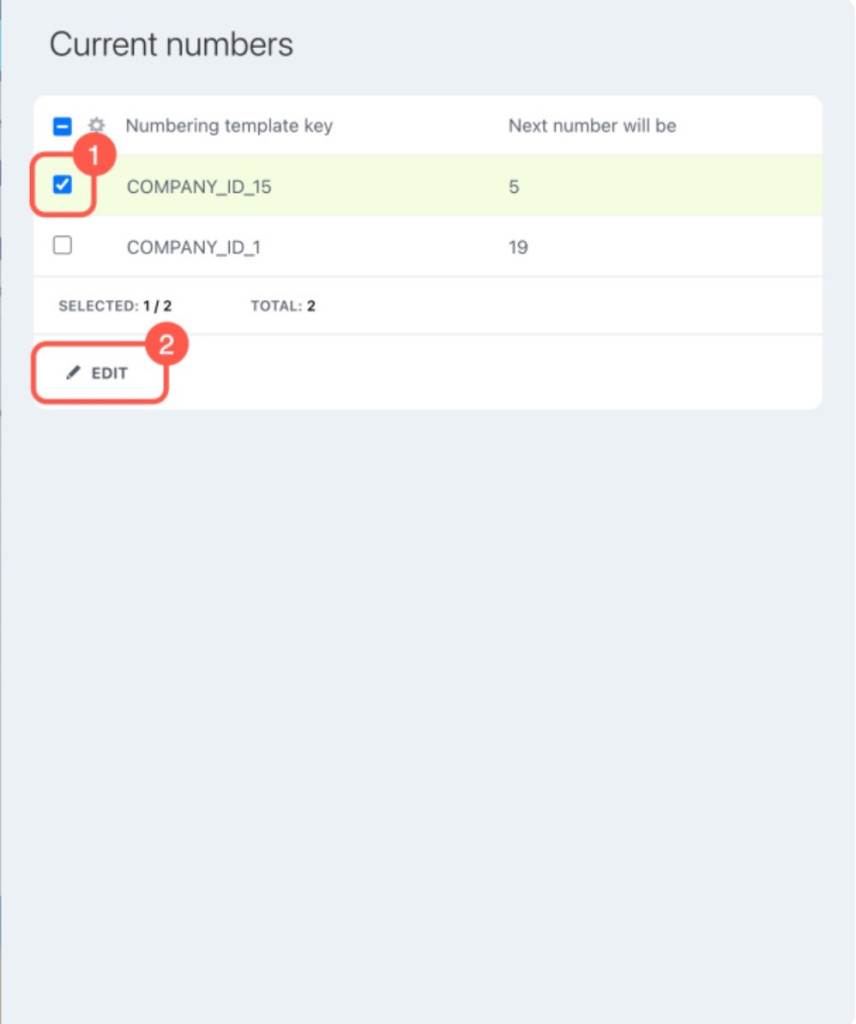
A panel opens on the right. It shows the next number for each company.
The Numbering template key column displays company IDs:
Company_ID_— documents without a linked company.Company_ID_1— documents for the company with ID 1.
Company details
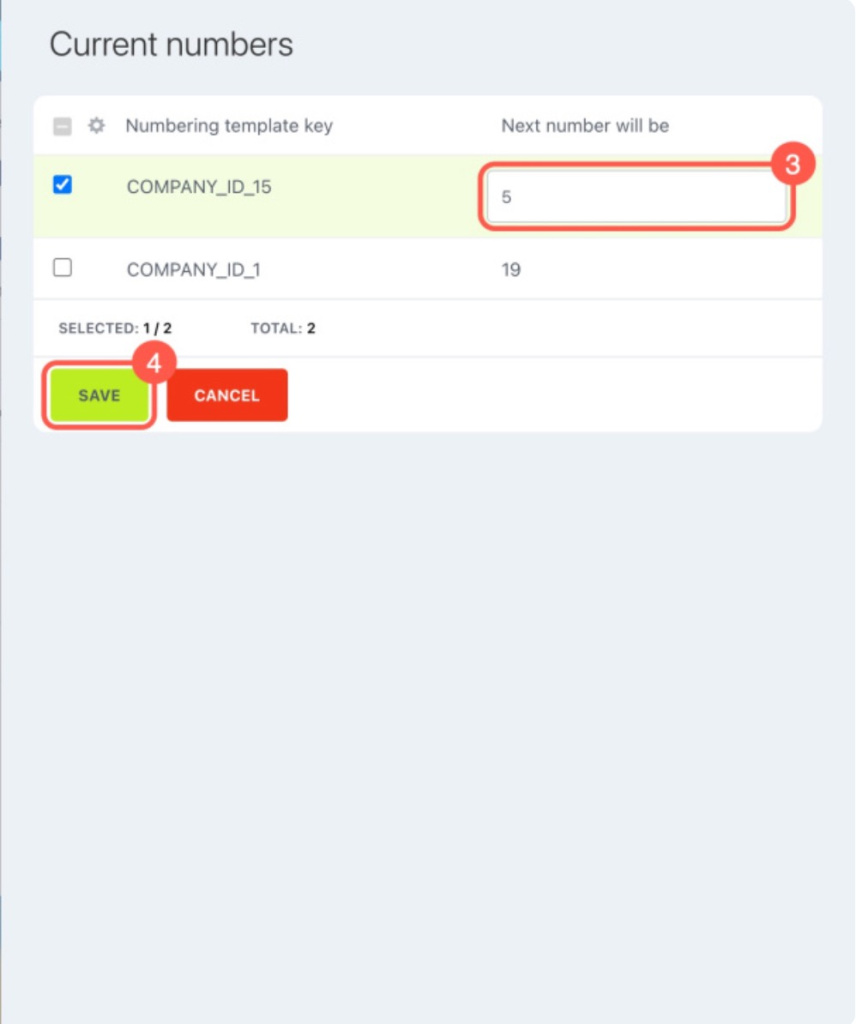
To update the next number:
- Select a company.
- Click Edit.
- Enter a new number in the Next number will be column.
- Save the changes.
Fix incorrect document numbering
If you see unexpected numbers when creating documents, the numbering setup may be incorrect.
Common reasons
- Use continuous numbering across all of my companies is not enabled.
- You added a company after setting up numbering. This resets the sequence.
- You switched the default seller to another company. This also resets numbering.
- You added a company and then deleted it.
- You enabled Use continuous numbering across all of my companies after creating templates.
How to fix it
Create a new template, set the correct starting number, and enable Use continuous numbering across all of my companies if needed.
In brief
- Auto numbering templates can include numbers, dates, and other values. Customize them for documents, invoices, and estimates.
- You can create and edit templates in CRM settings and document templates.
- Combine different elements to match your company’s needs.
- If numbering breaks, create a new template, set the correct starting number, and enable Use continuous numbering across all of my companies.