
Use Other settings to customize CRM for your company's needs. You can choose how CRM items appear, manage activities and emails, set rules for duplicates, and control which items go to the Recycle bin.
In this article:
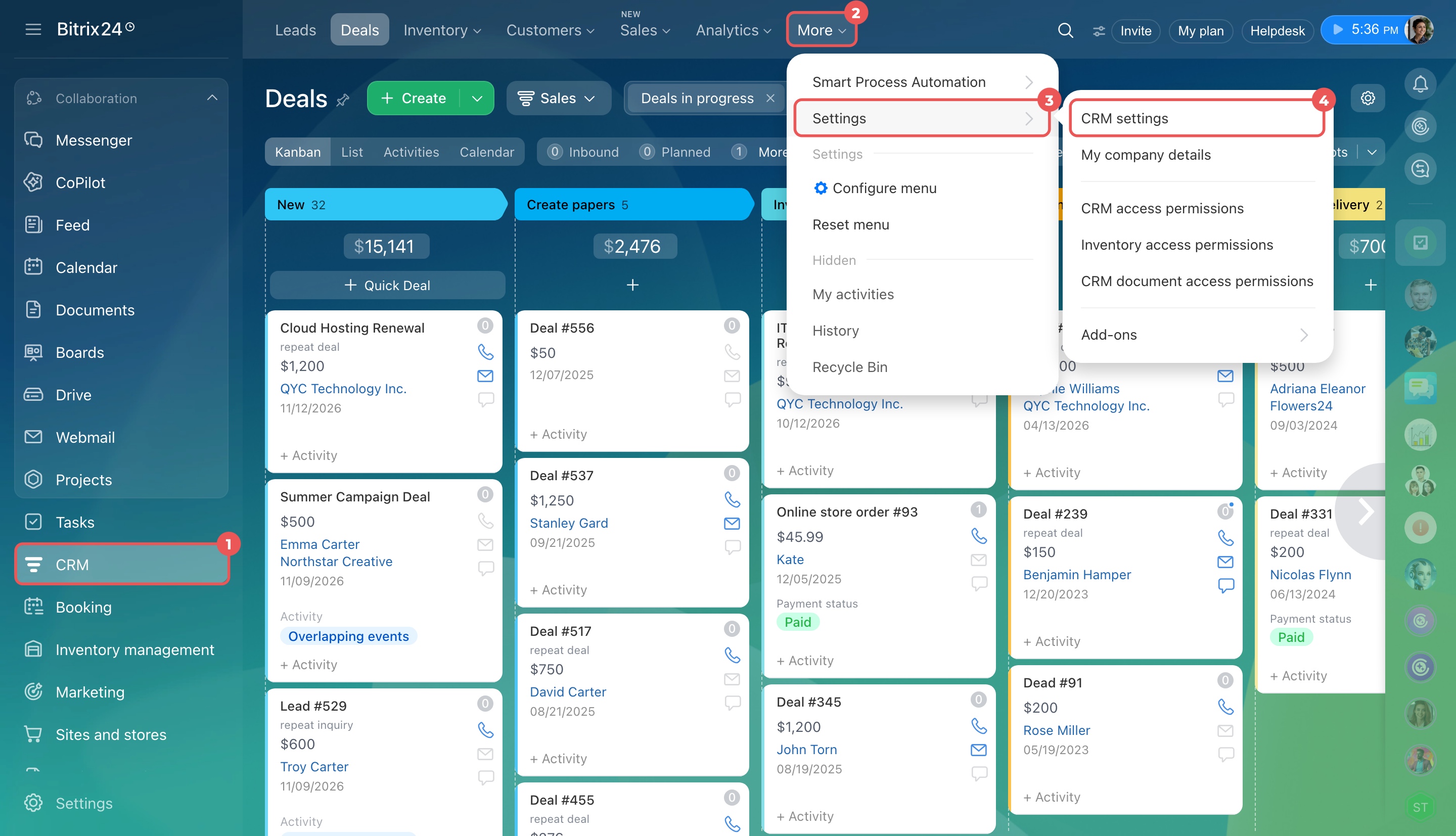
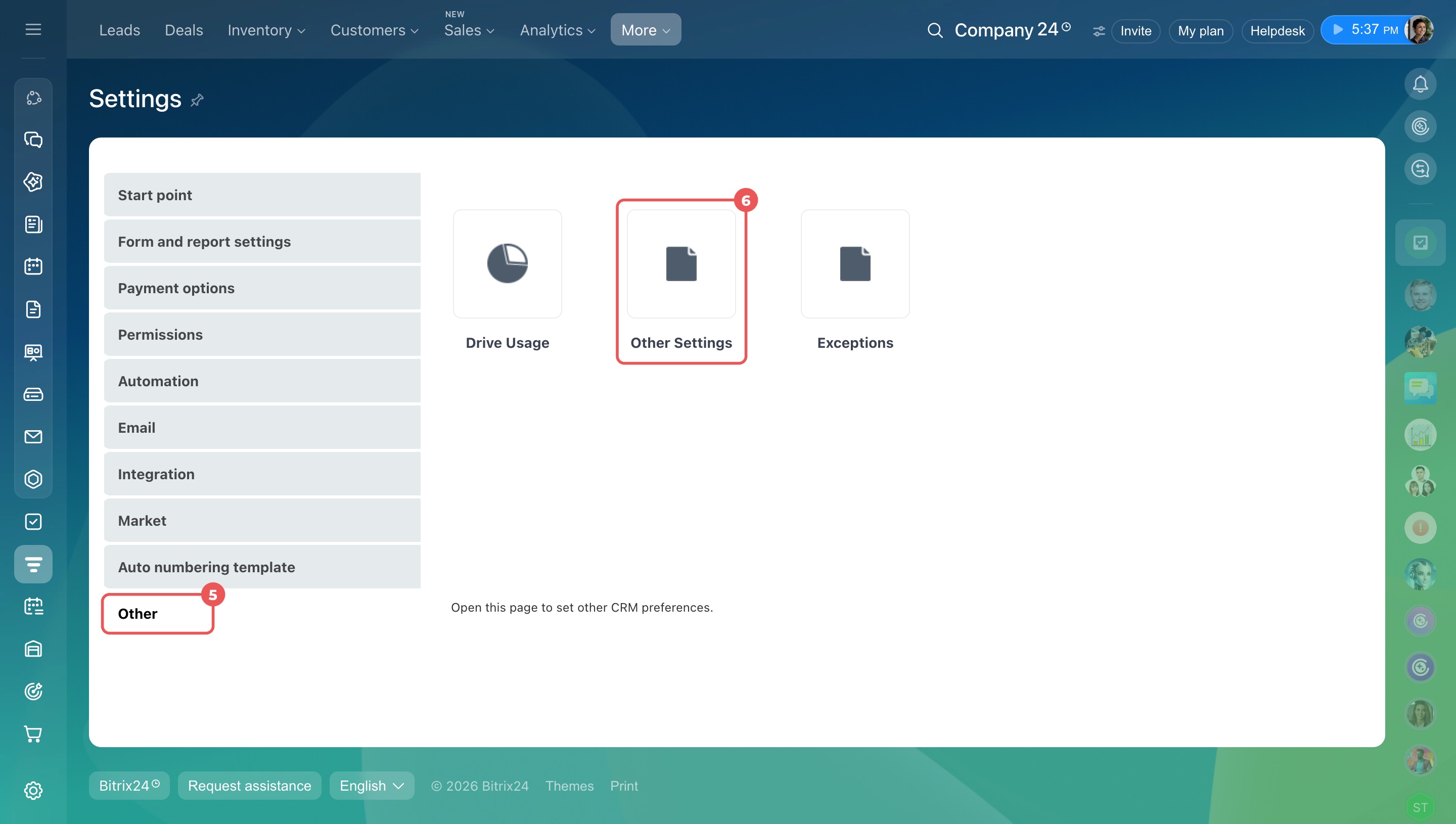
Open CRM > More > Settings > CRM settings > Other > Other Settings.
Role-based access permissions in CRM
Why CRM settings aren't displayed
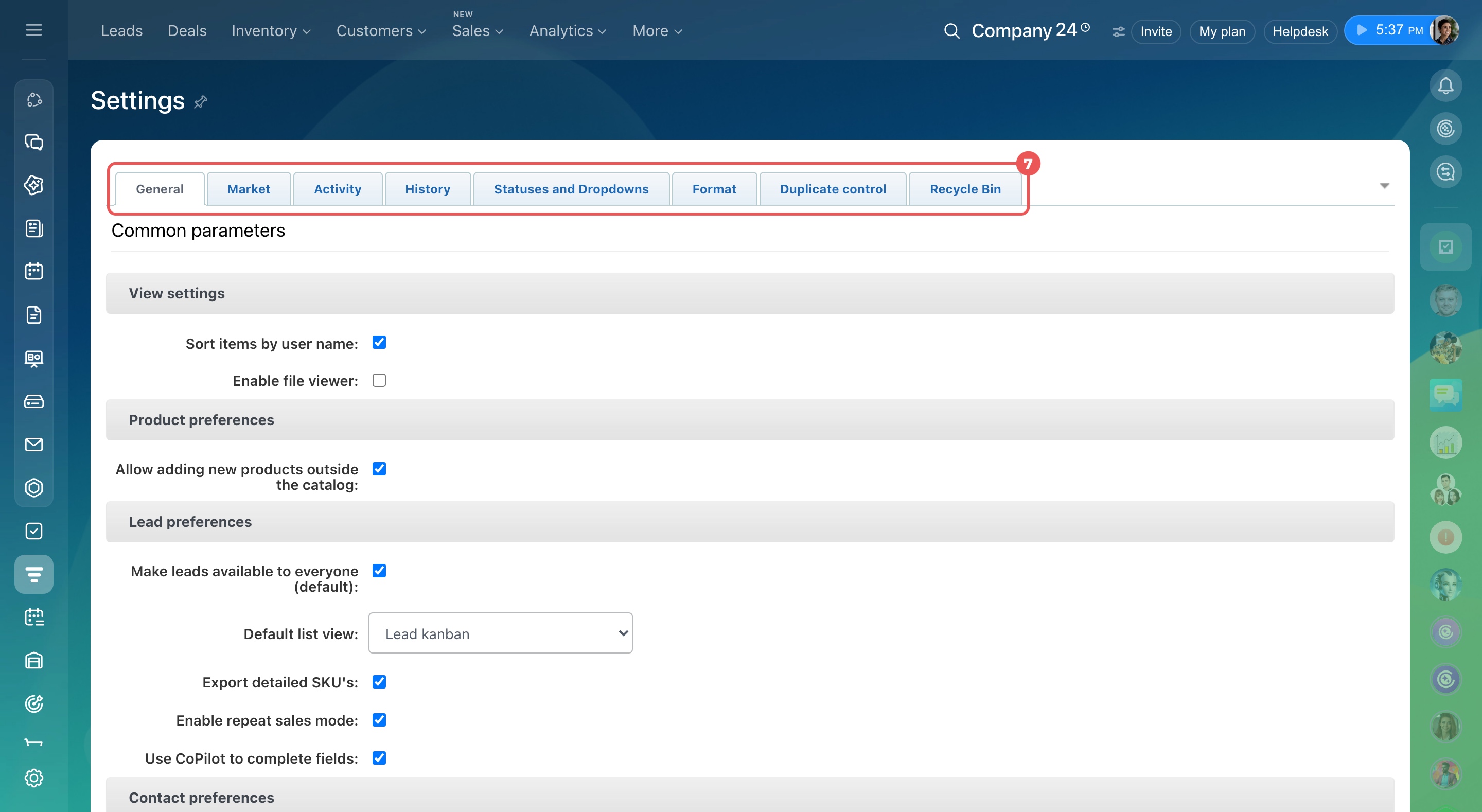
General settings
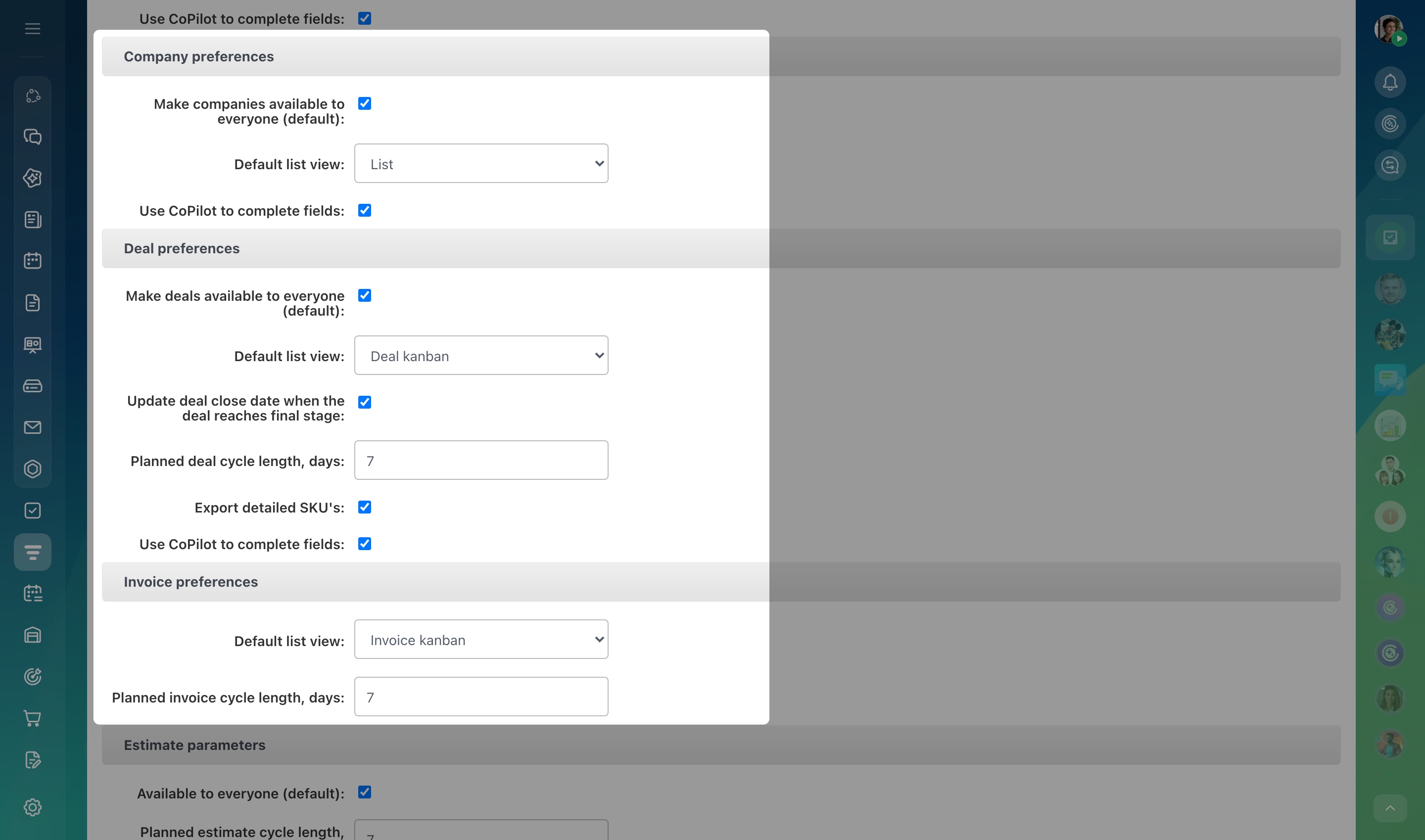
Sort items by user name. Turn on this option to sort employees alphabetically in lists and filters. This makes it easier to find employees by name rather than by internal ID, especially in large companies.
Allow adding new products outside the catalog. Products created directly in a CRM item form won't be added to the product catalog. Use this option for one-time sales or custom services you don't plan to offer again.
Create and configure product catalog
Make available to everyone (default). Turn on this option to make CRM items available to employees with the All open access permission. They can view their own items and those assigned to colleagues in their department and subdepartments.
This option applies to leads, contacts, companies, deals, and estimates.
Role-based access permissions in CRM
Default list view. Choose whether leads, deals, and invoices open in List or Kanban view by default.
Kanban view in CRM
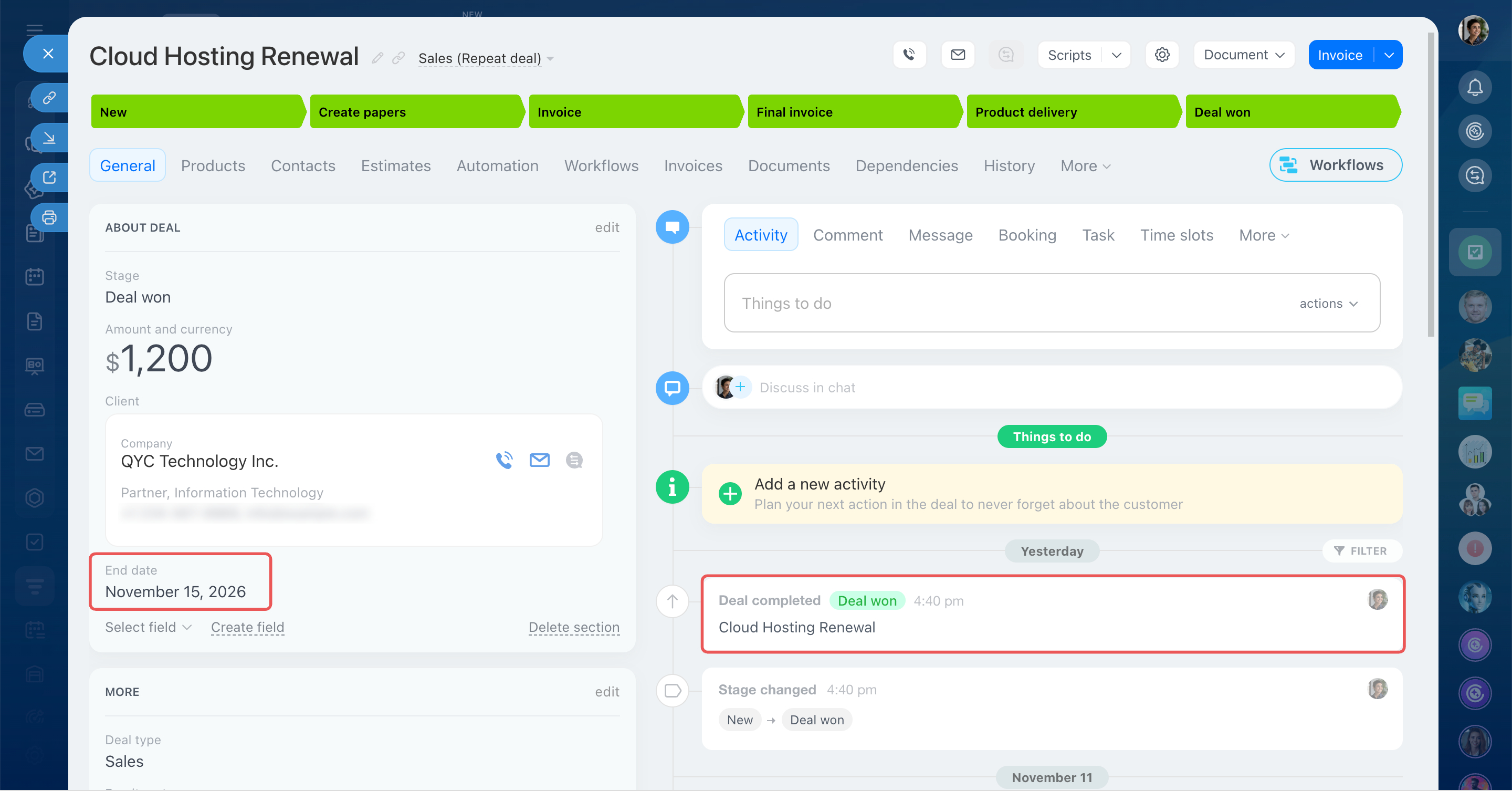
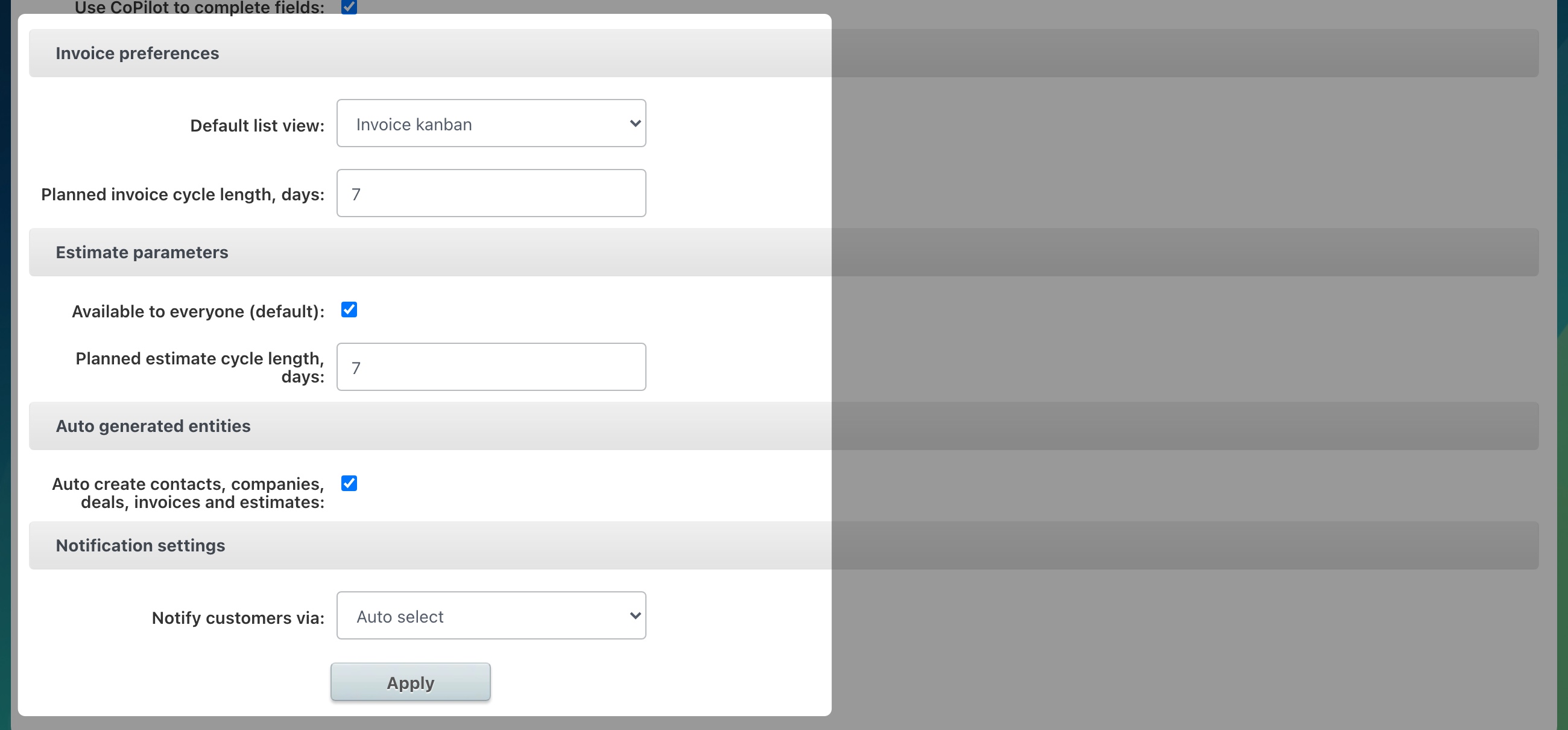
Update deal close date when the deal reaches final stage. Turn on this option to automatically set the End date to the current date when a deal reaches its final stage.
If you turn it off, Bitrix24 sets the close date to seven days after the deal was created.
Use this option when you want the date to reflect when a deal actually closes rather than its estimated close date.
Planned deal cycle length, days. Set how many days an item should take to complete. Bitrix24 uses this value to calculate the close date automatically.
You can set a timeframe for deals, invoices, estimates, and SPA items. For example, if your company follows a standard sales process, employees won't need to enter the close date each time.
Export detailed SKU's. Turn on this option to export each product on a separate row. For example, if a deal contains three products, the exported file will have three rows, one for each product. This option is available for leads and deals.
Export CRM data
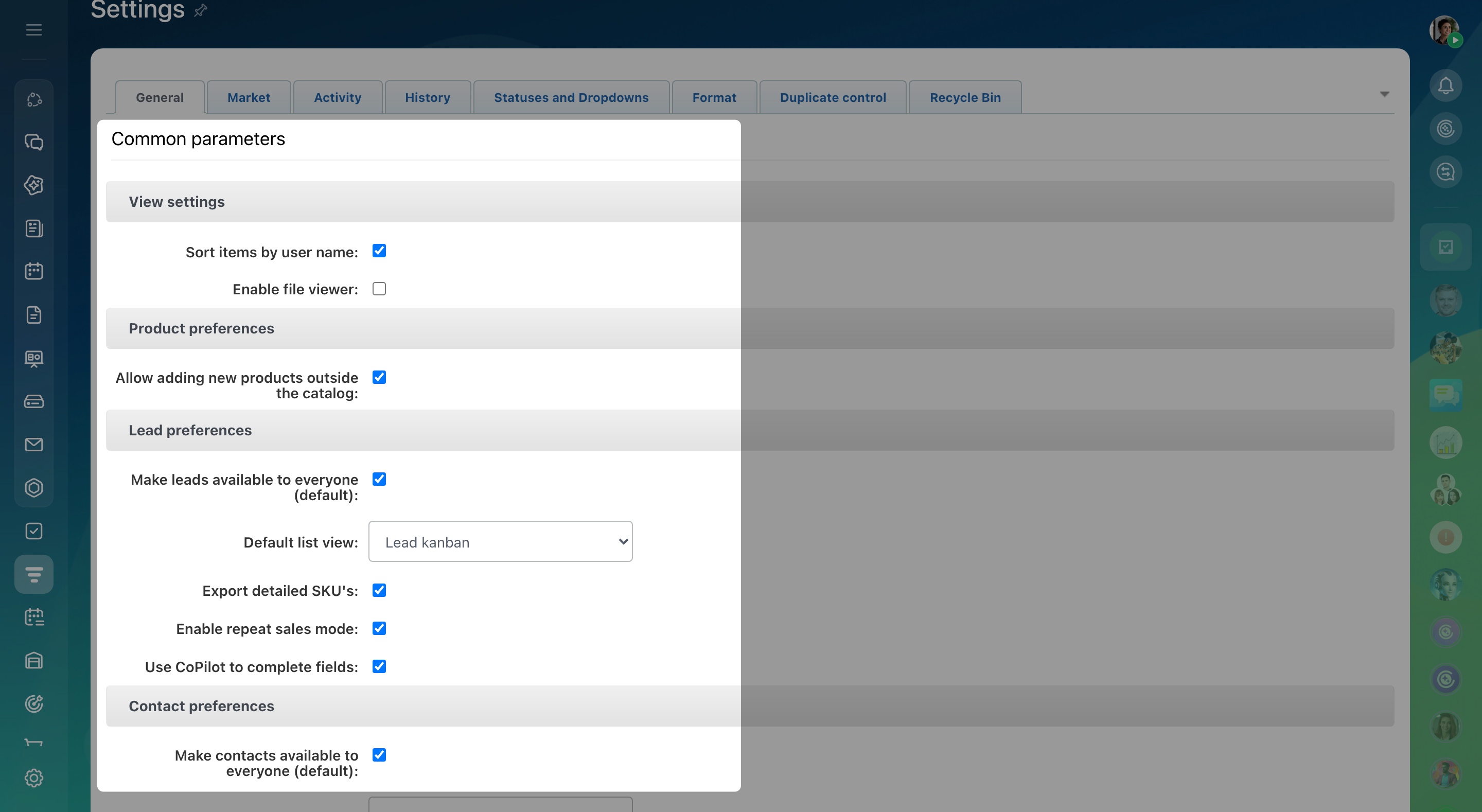
Auto create contacts, companies, deals, invoices, and estimates. This option is enabled by default. It allows Bitrix24 to create and save CRM items automatically, without asking for confirmation.
For example, when you convert a lead, Bitrix24 creates and saves the selected deal, contact, or company. You don't need to save each item separately.
Notify customers via. Choose whether to send SMS notifications through Bitrix24 or a connected SMS provider. For example, you can notify customers when their order is paid or sent for delivery.
Enable repeat sales mode. When a customer contacts you again after their previous lead was closed, Bitrix24 automatically creates a new lead. This helps you track new inquiries from existing customers.
Repeat leads and deals in CRM
Market
Bitrix24 Market offers ready-made apps and integrations that add features to your account. For example, you can connect an accounting system or delivery service.
Bitrix24 Market overview
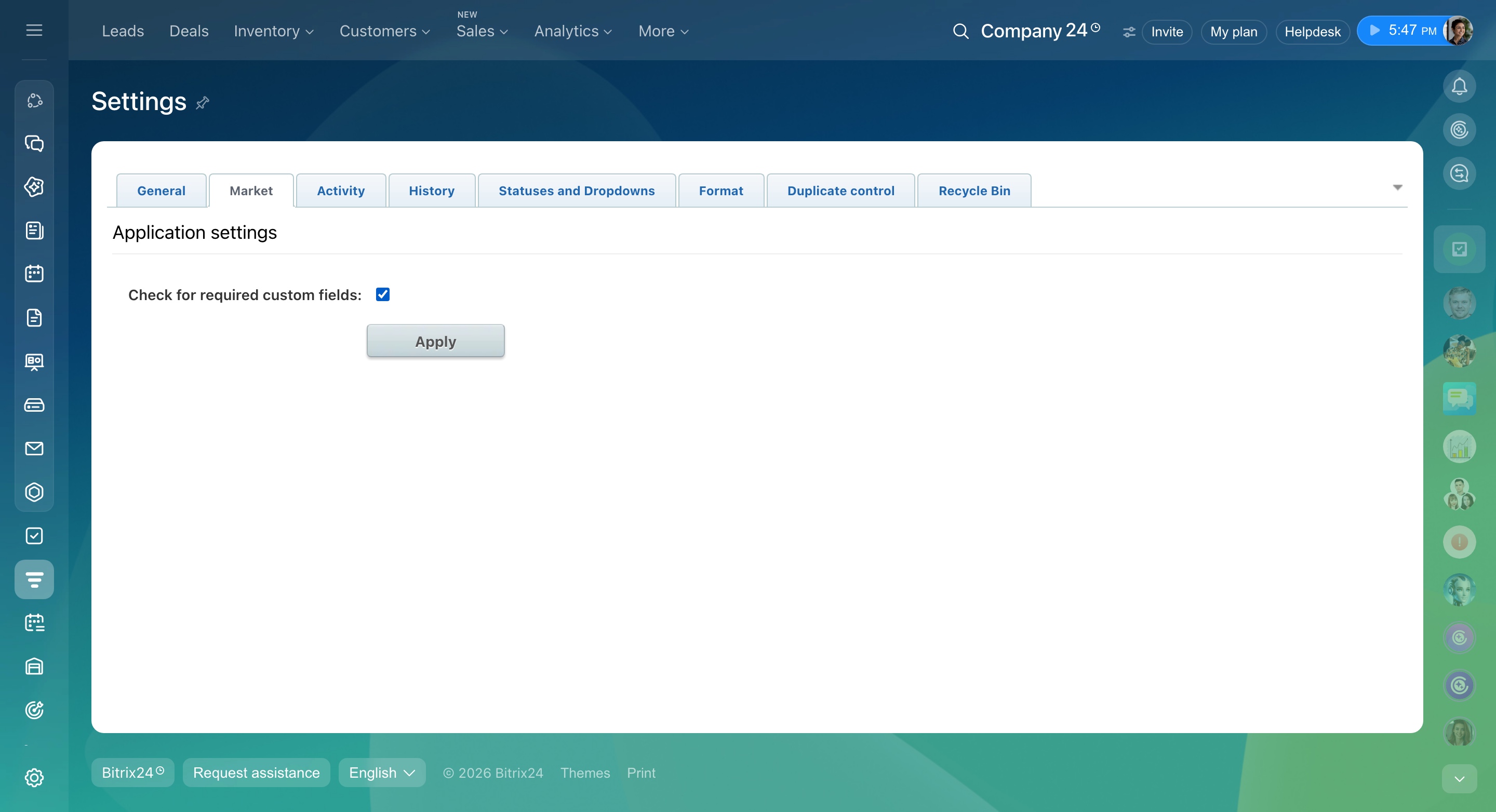
Check for required custom fields. Turn on this option to prevent external apps from creating or editing CRM items unless all required custom fields are filled in.
Make a field required in a CRM form
Custom fields in CRM
Activities
Create calendar events for all calls. Turn on this option to automatically add scheduled CRM calls to your calendar. This helps you keep track of upcoming calls alongside other events.
Save finished calls to the calendar. Save completed calls as past calendar events. You can then check when a call took place and who you spoke with.
Save completed meetings to calendar. Keep completed meetings in your calendar so you can review past meetings with customers.
Save reassigned calls/meetings to calendar. When you reassign a call or meeting, choose whether to keep the event in both employees' calendars. If this option is enabled, both employees can see the event. If disabled, only the new responsible person sees it. This helps preserve the history of customer interactions when you transfer responsibility to a colleague.
Keep tasks when deleting CRM entities. Turn on this option to keep related tasks when you delete a lead, deal, or contact.
For example, tasks related to payments, deliveries, or projects will remain available.
Counter mode. Counters show how many activities need attention. You can count them by activity responsible person or item responsible person.
If you need to see the full picture, such as all of your colleagues' activities for a client, choose the item responsible person option. If you only need to see your own tasks, choose the activity responsible person option.
Counter modes in CRM
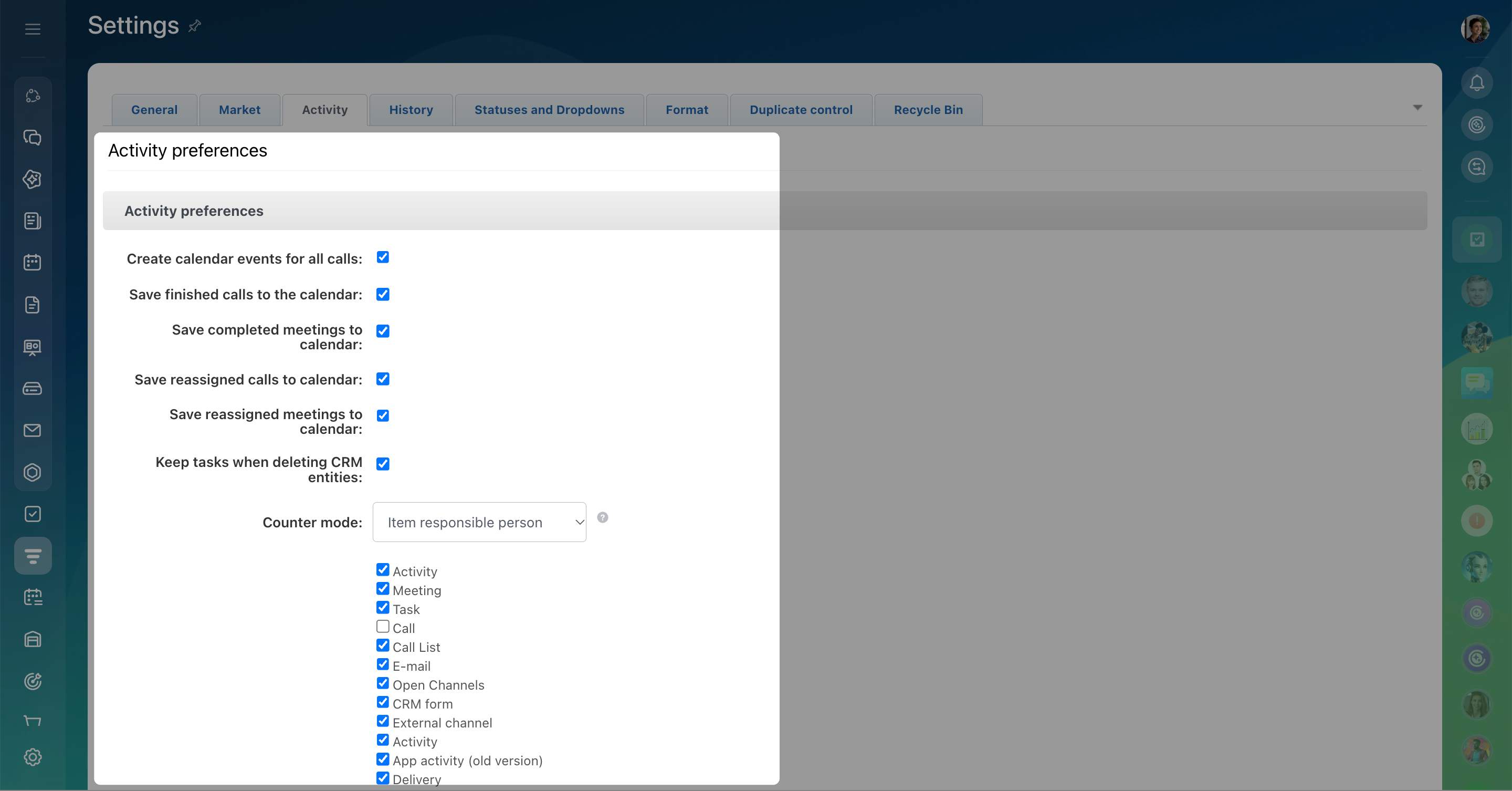
Auto close activities when converting leads. Choose which activities Bitrix24 should close automatically when you convert a lead into a contact, company, or deal.
For example, you can close completed calls and meetings while keeping other activities active. This helps remove unnecessary reminders for leads you've already processed.
Hide activity status on kanban tiles and list items. Choose when Bitrix24 should hide activity statuses from Kanban cards and list items: 30, 60, or 90 days after the status appears.
This keeps outdated statuses out of view without deleting the activities themselves.
Allow sending emails to any address. Allow employees to send emails to addresses that aren't saved in CRM or belong to another lead, contact, or company.
Create an entity when sending to non-CRM address. Choose whether Bitrix24 should create a lead or contact when you email an address that isn't in CRM.
Service code. A service code is a technical tag that helps Bitrix24 link an email to the correct customer and deal. Choose where to place the code: in the email subject, in the message body, or nowhere.
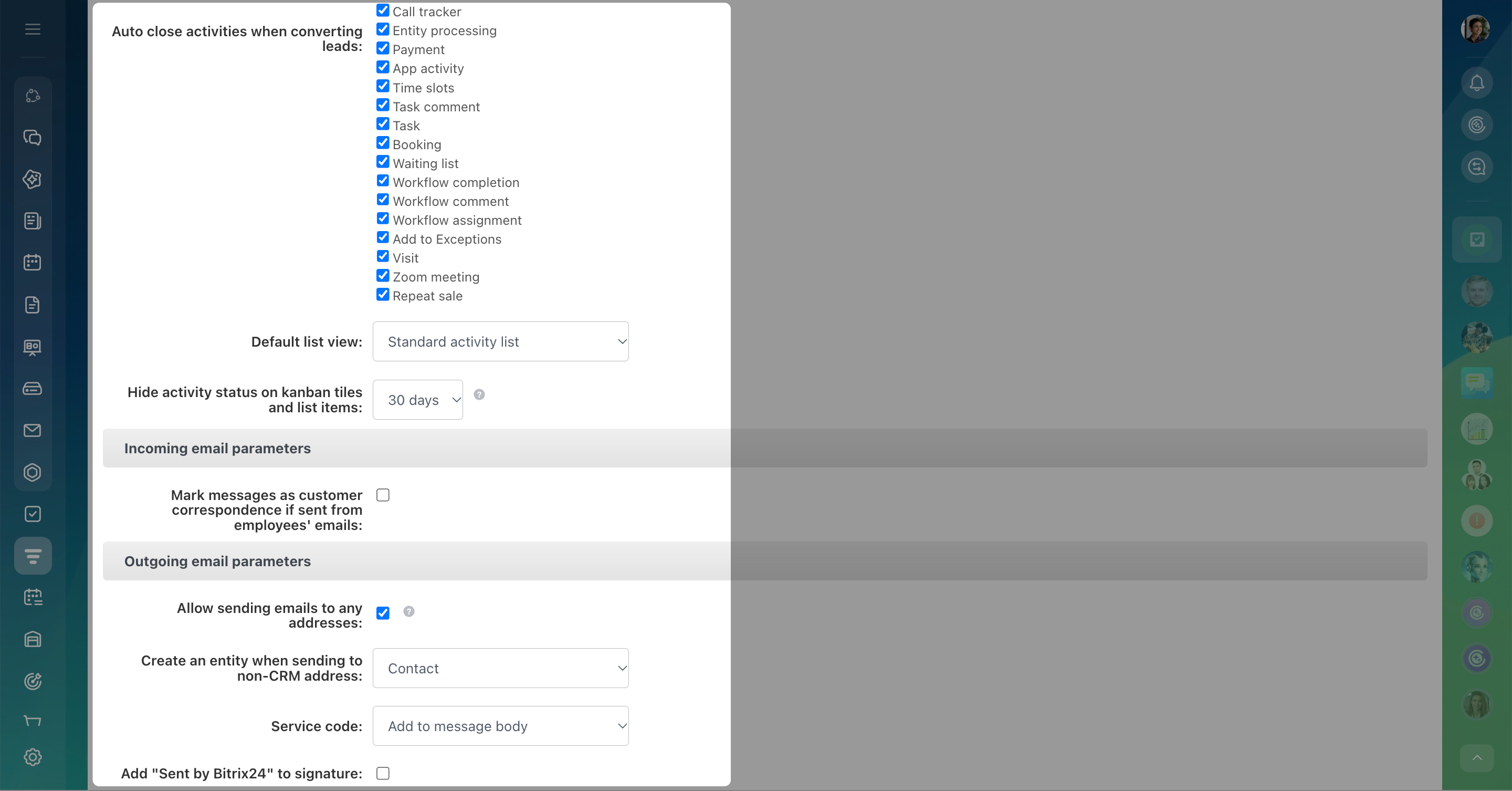
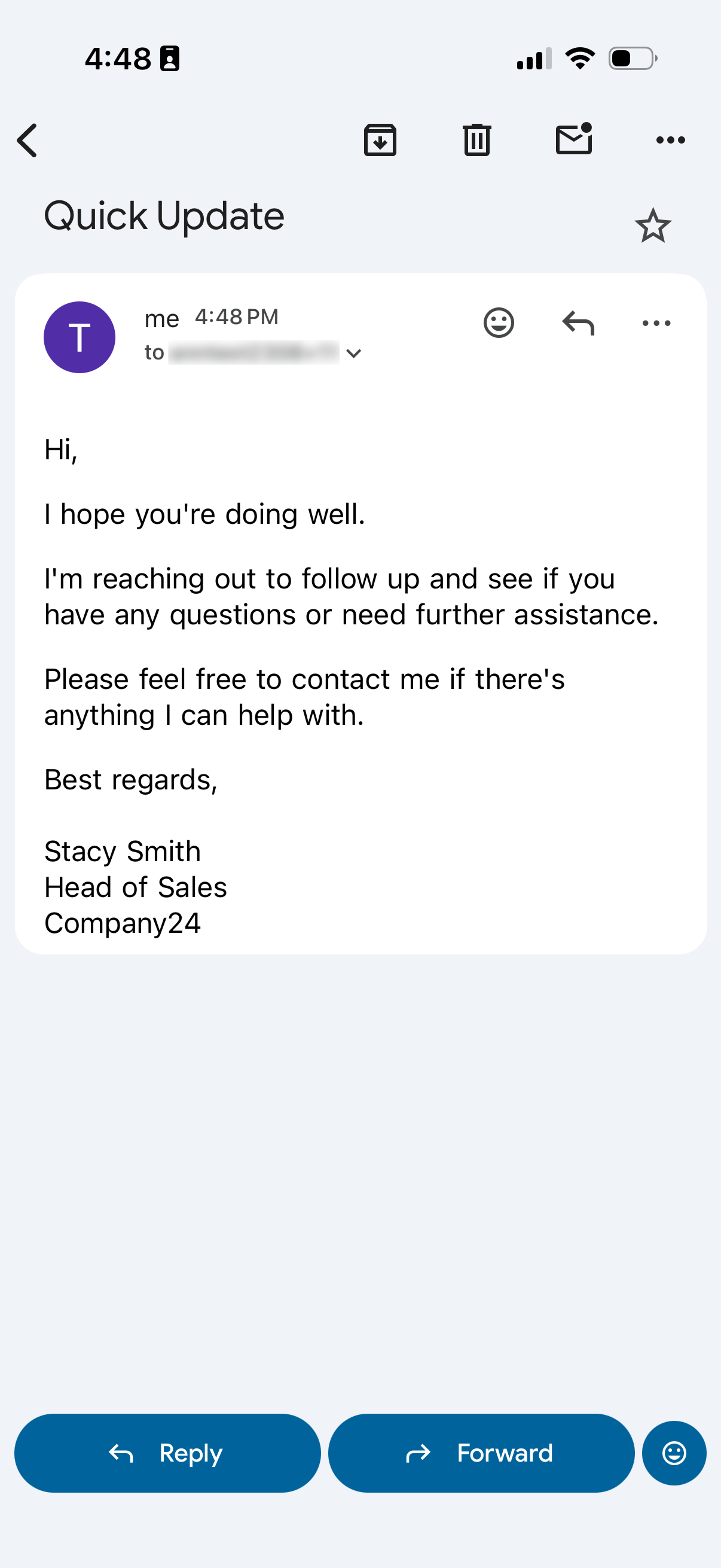
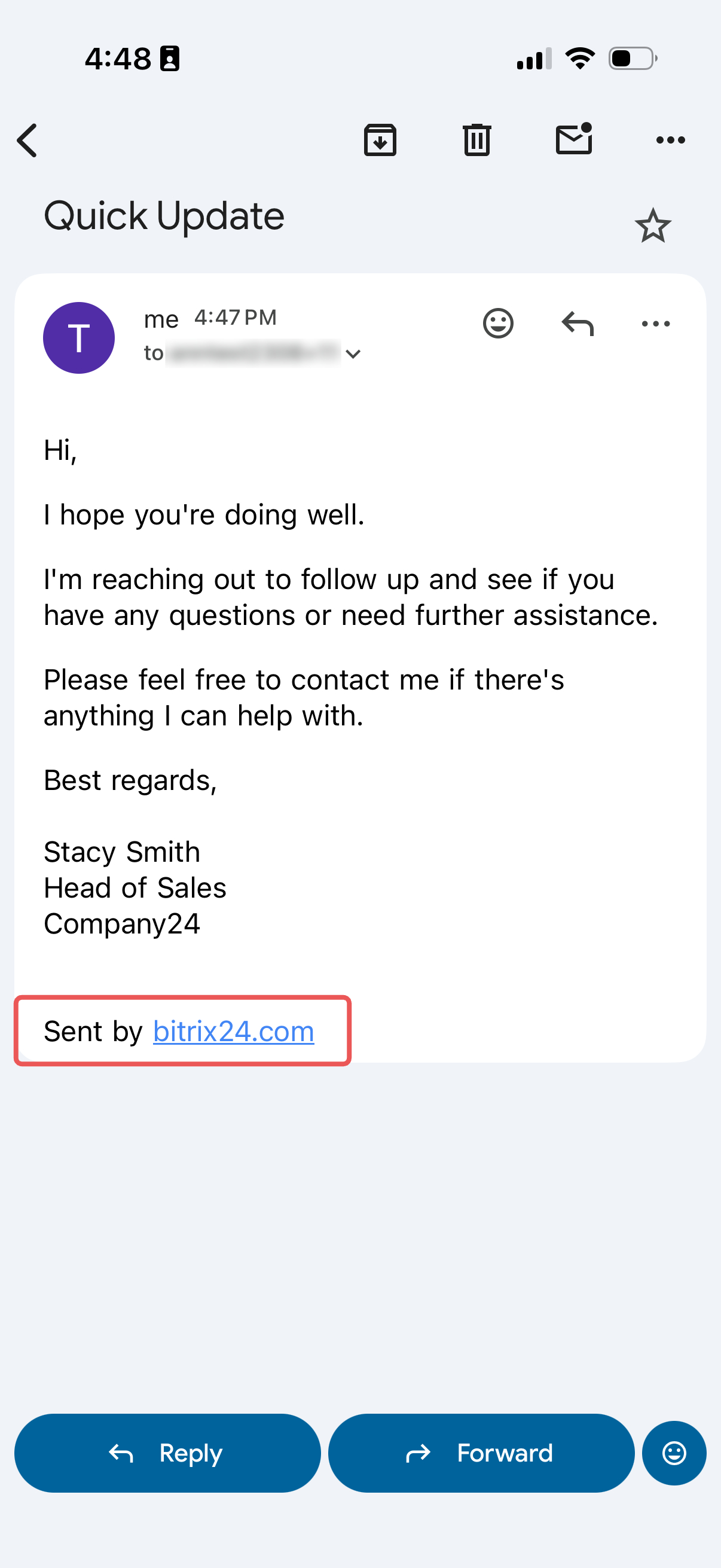
Add "Sent by Bitrix24" to signature. By default, Bitrix24 adds this text to emails sent from CRM. Turn off the option if you use a company email signature and don't want to include the Bitrix24 text.
Remove "Sent by Bitrix24" from outgoing emails
History
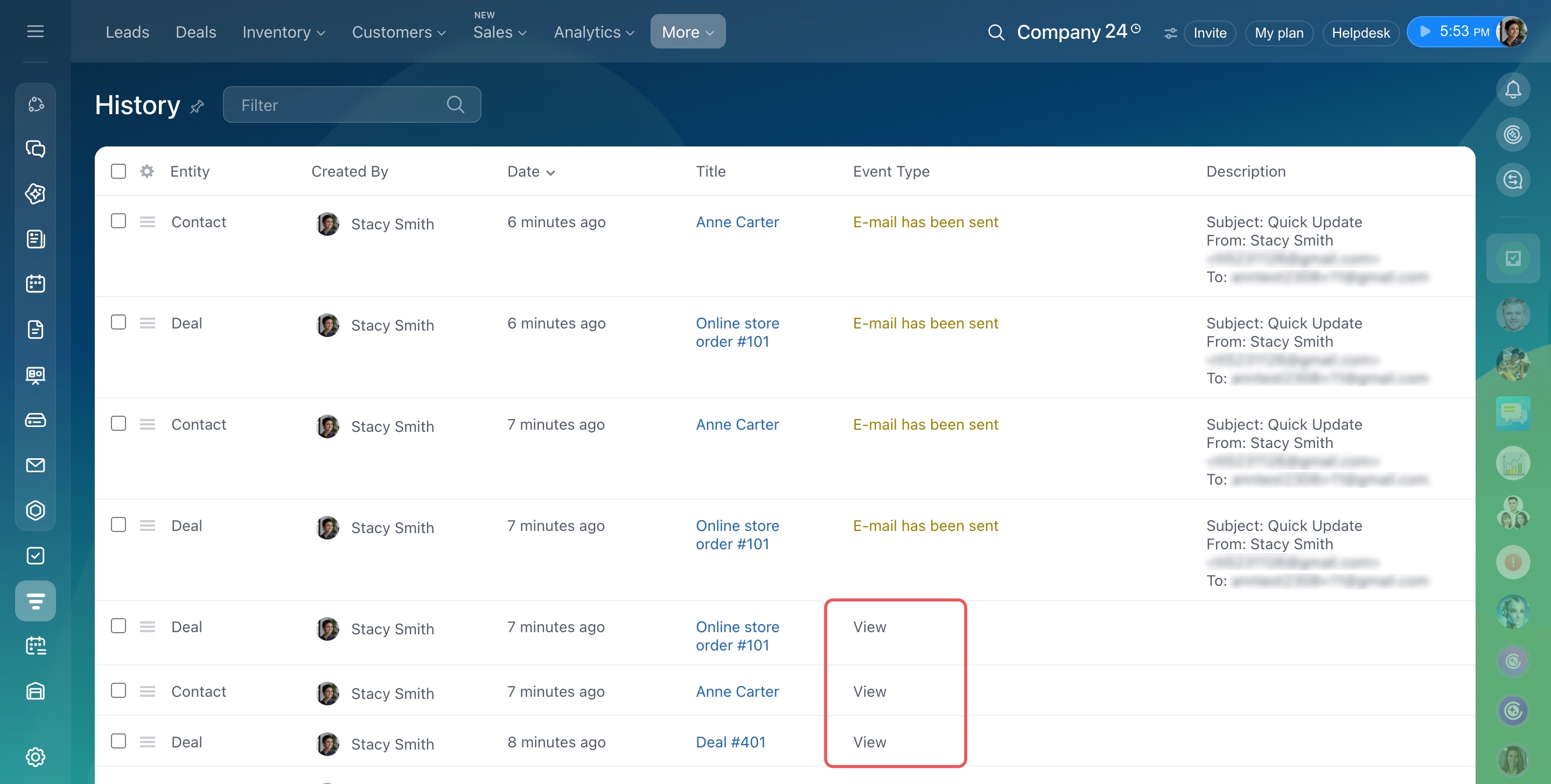
CRM history records important changes and actions. For example, you can check who deleted a contact or exported a list of deals.
CRM History
Choose which events to record:
- Export
- Viewing
- Deleting leads
- Deleting contacts
- Deleting companies
- Deleting deals
- Deleting estimates
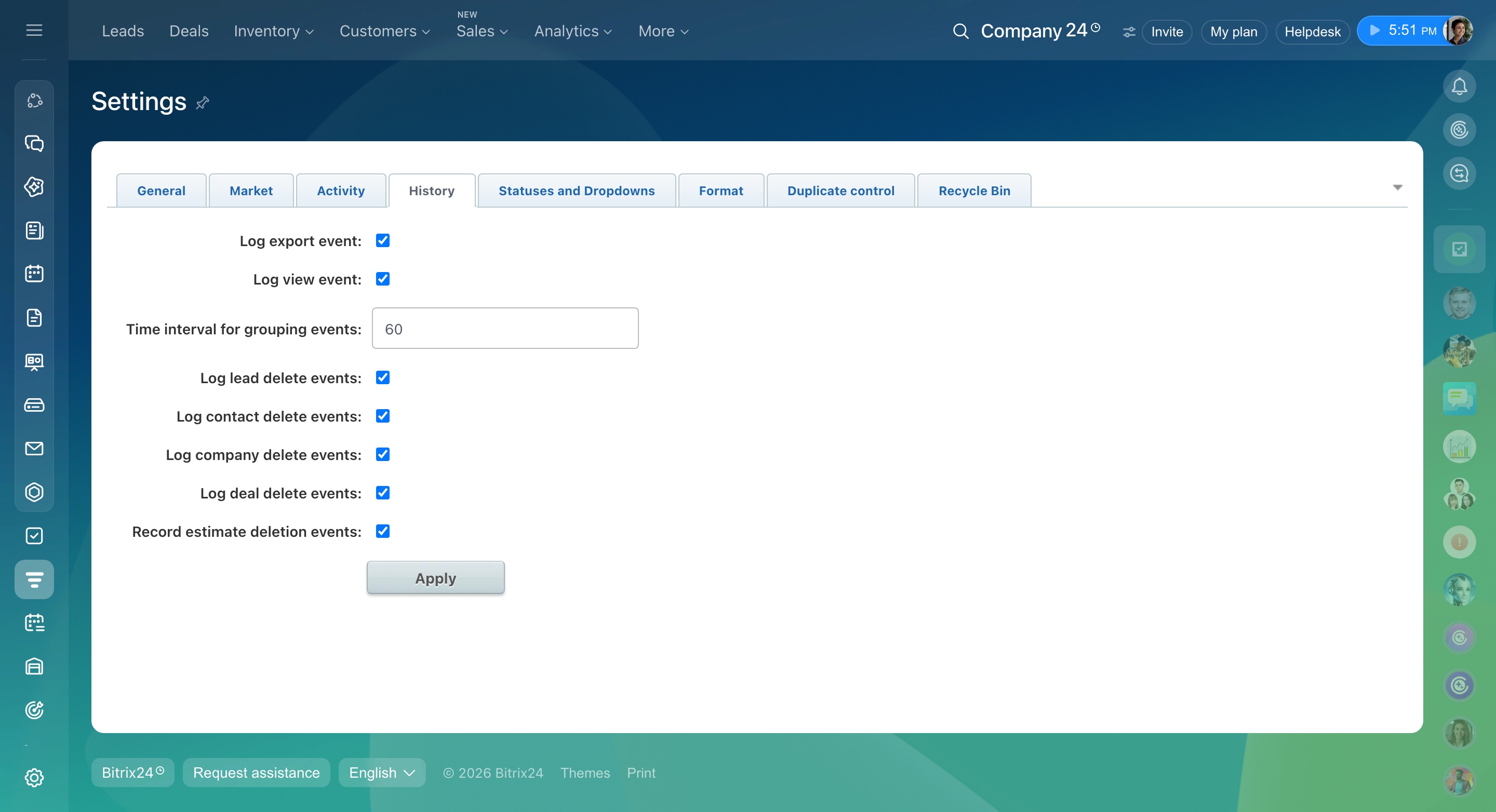
Time interval for grouping events. Set a time period during which Bitrix24 combines repeated views of the same CRM item into one history entry.
For example, if an employee opens the same deal several times within that period, CRM records only one view.
This reduces duplicate history entries and makes it easier to review activity.
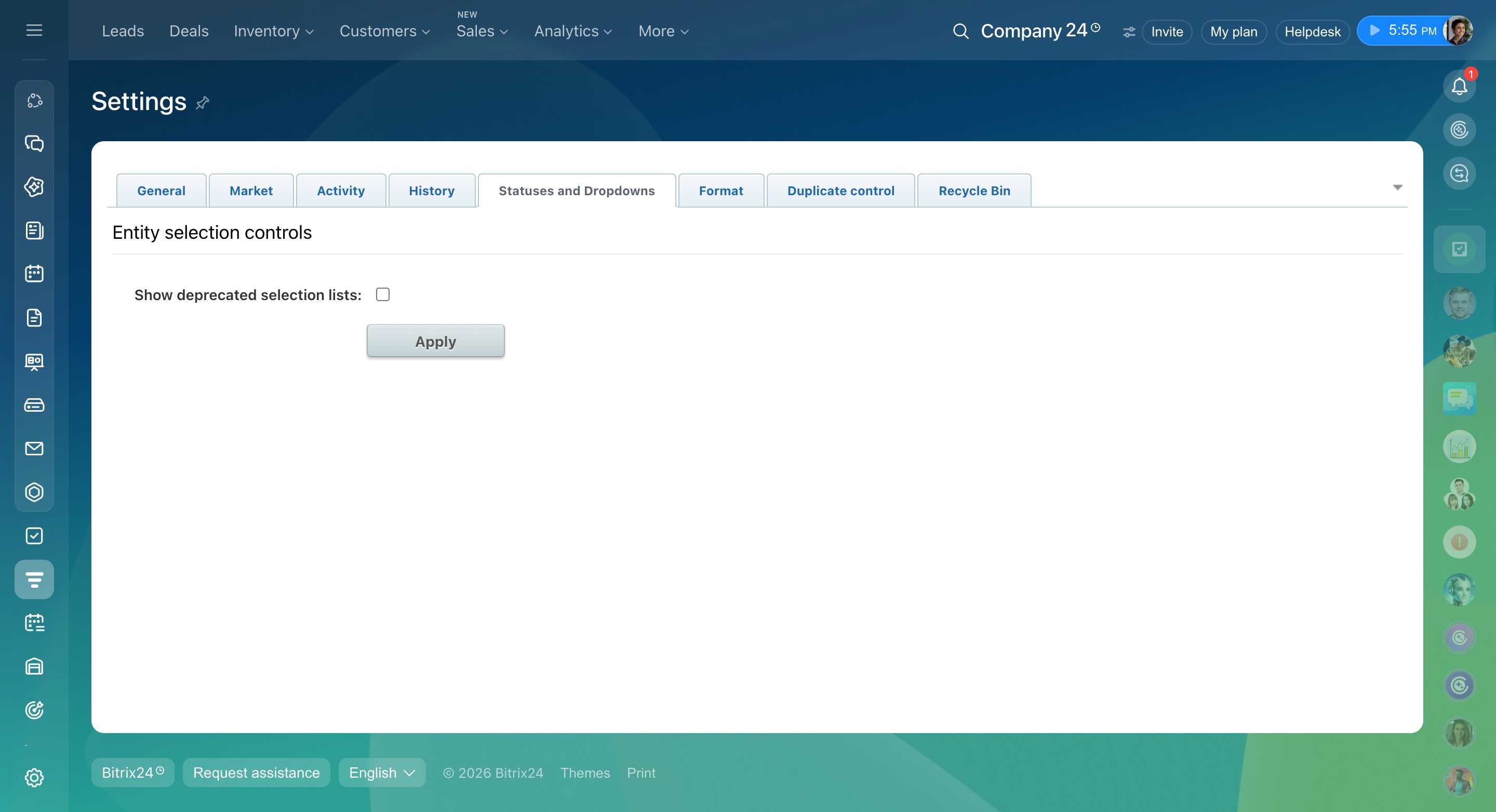
Statuses and dropdowns
Show deprecated selection lists. Turn on this option to access older CRM statuses and dropdown lists, such as Products. We recommend using the new Product catalog instead.
Product catalog
Format
Customer name format (for leads and contacts). Choose how customer names appear in CRM forms and lists. By default, Bitrix24 displays names as First name Last name, even when the Second name field is completed.
Configure customer name format
Choose one of these formats:
- Default — first name last name
- Title and last name — Mr. Smith
- First name last name — John Smith
- First name second name last name — John Michael Smith
- Last name first name second name — Smith John Michael
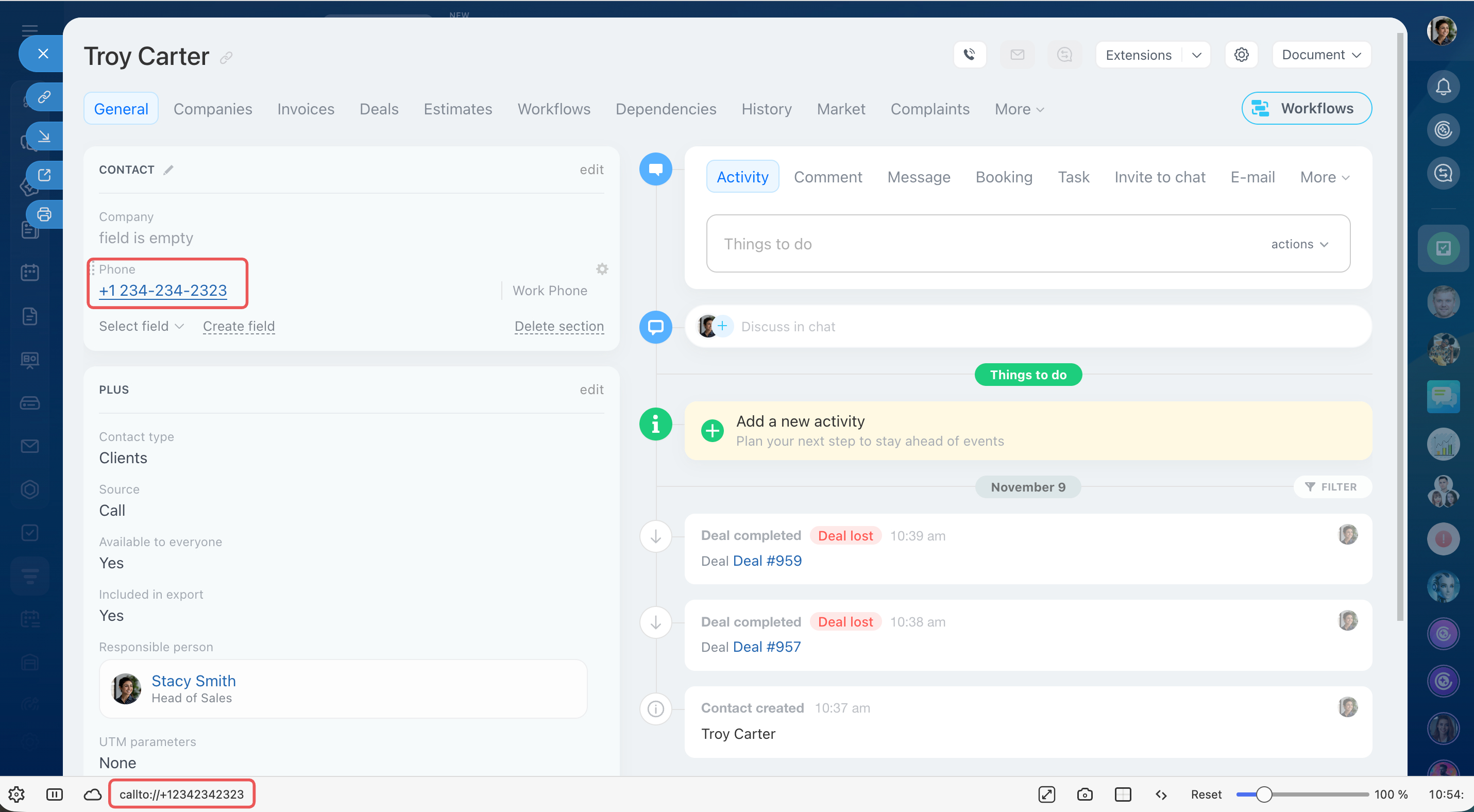
"Callto:" link format. Choose which app opens when you click a phone number in a CRM item form. Phone numbers in contact and company forms are clickable. By default, Bitrix24 uses its built-in telephony service to make calls.
If you use another calling app, change the link format. When you click a phone number, your browser will prompt you to open the call in that app.
Telephony connection options overview
Convert number to international format. Turn on this option to automatically convert phone numbers to international format when you make calls.
For example, Bitrix24 converts (555) 123-45-67 to +1 555 123-45-67 when dialing.
The phone number saved in the customer's CRM item form stays the same.
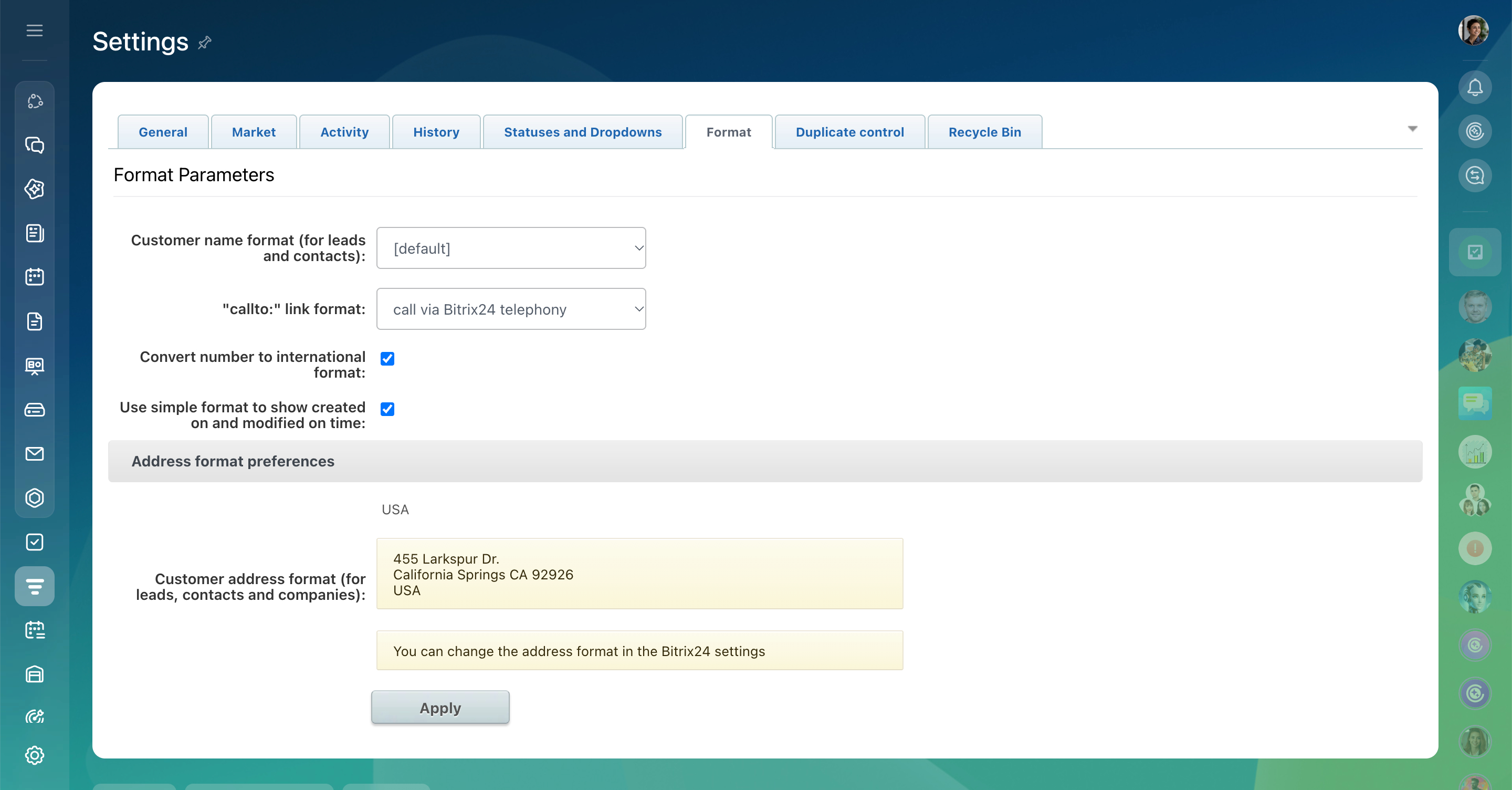
Use simple format to show created on and modified on time. Choose how Bitrix24 displays dates and times in CRM forms and lists.
When this option is enabled, Bitrix24 shows relative times, such as 13 seconds ago. When disabled, it shows the exact date and time.
This setting only changes how dates and times appear. It doesn't affect the saved data.
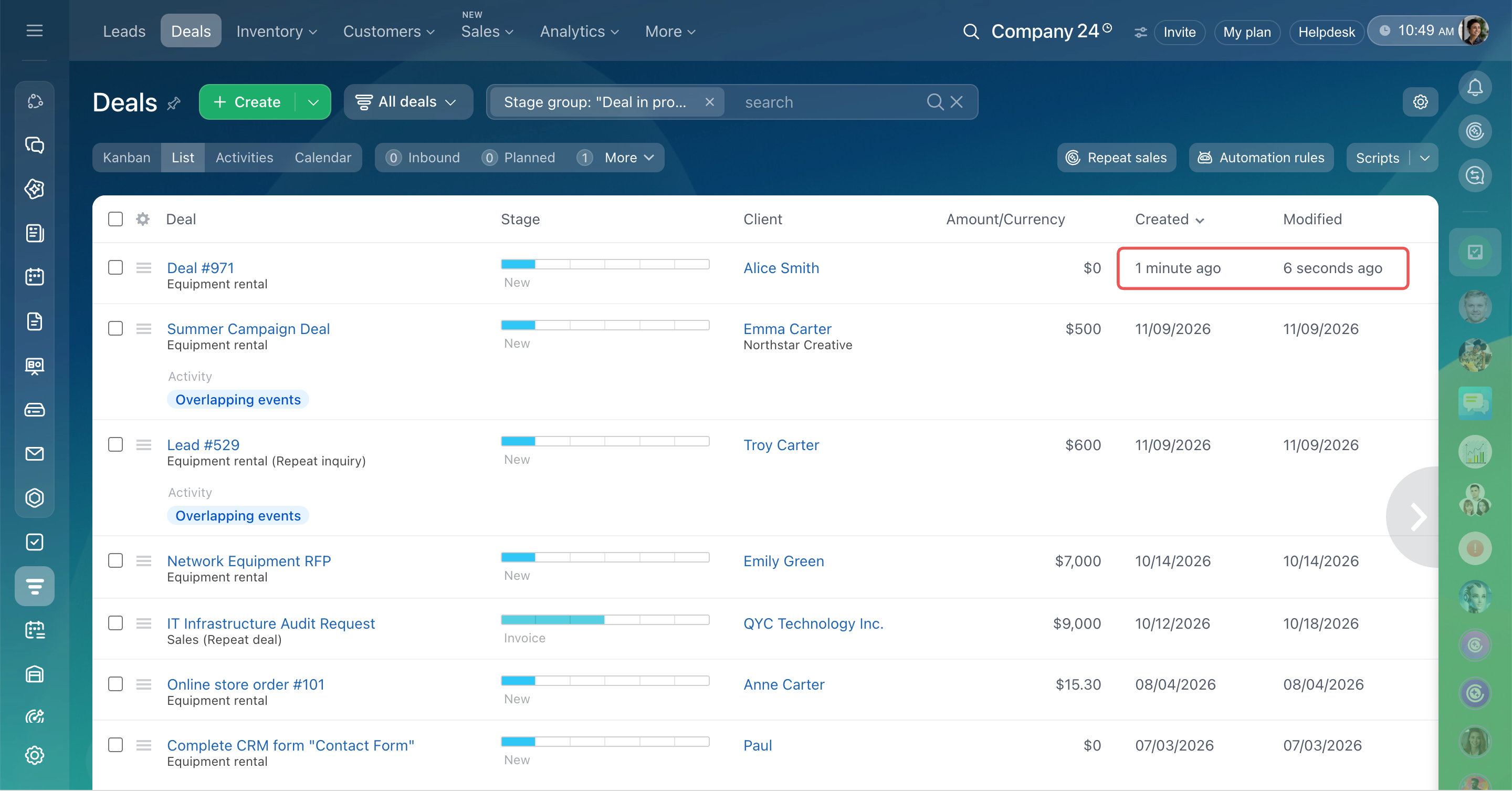 Setting enabled — time is displayed in a simplified format
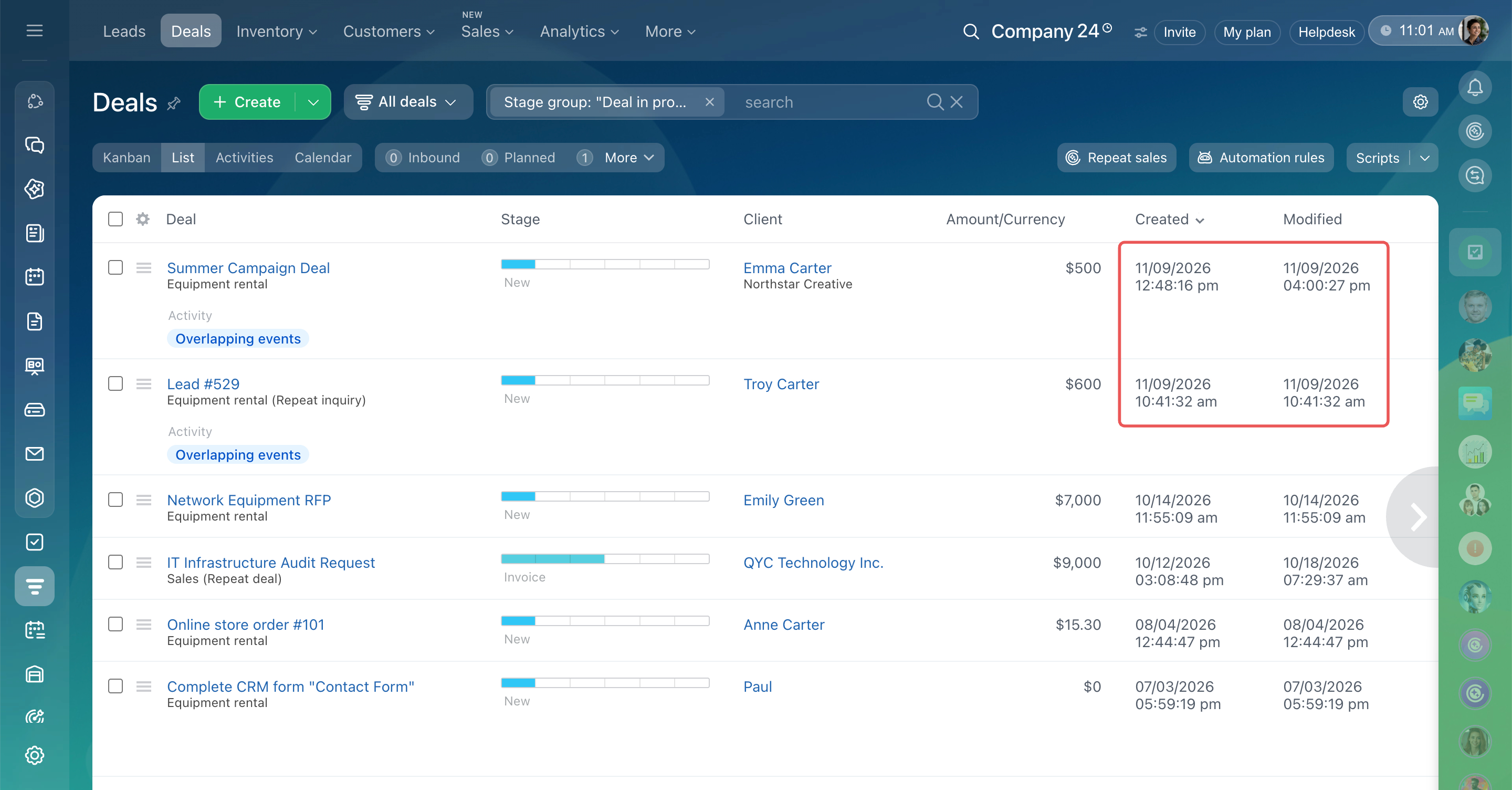 Setting disabled — the exact date and time are displayed
Customer address format (for leads, contacts, and companies). Choose how customer addresses appear, including the order of the country, city, and ZIP code.
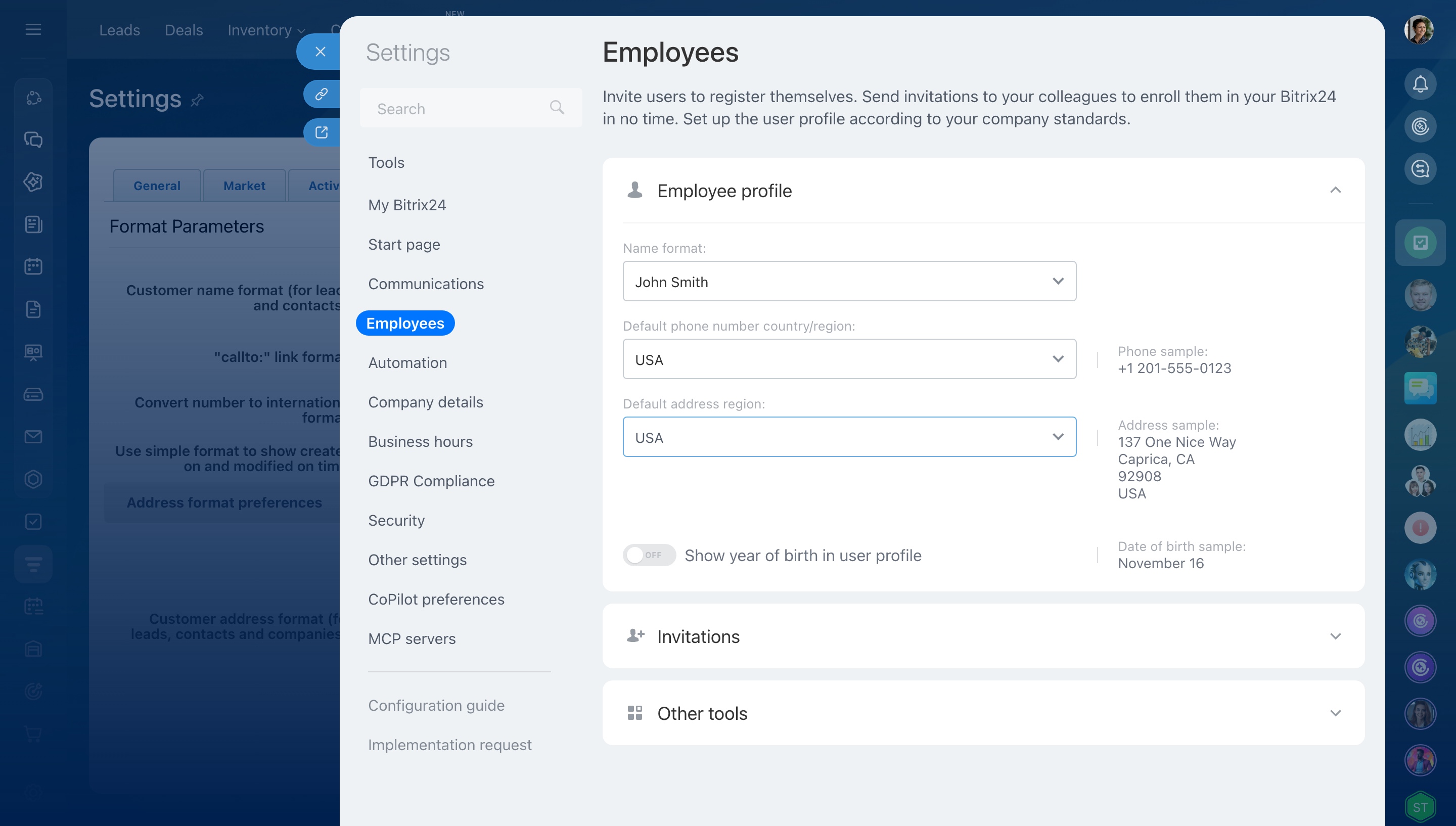
The address format depends on your Bitrix24 region settings. When you change the region, Bitrix24 automatically updates the address format for employees and customers.
To change the region, open Bitrix24 settings. Go to Employees > User profile and choose the default country for addresses.
Duplicate control
Use this setting to find CRM items with matching information and keep your customer database accurate.
Choose which CRM items Bitrix24 should check for duplicates, such as those with the same phone number or email address. You can then merge duplicates manually or automatically.
Automatic duplicate merging in CRM
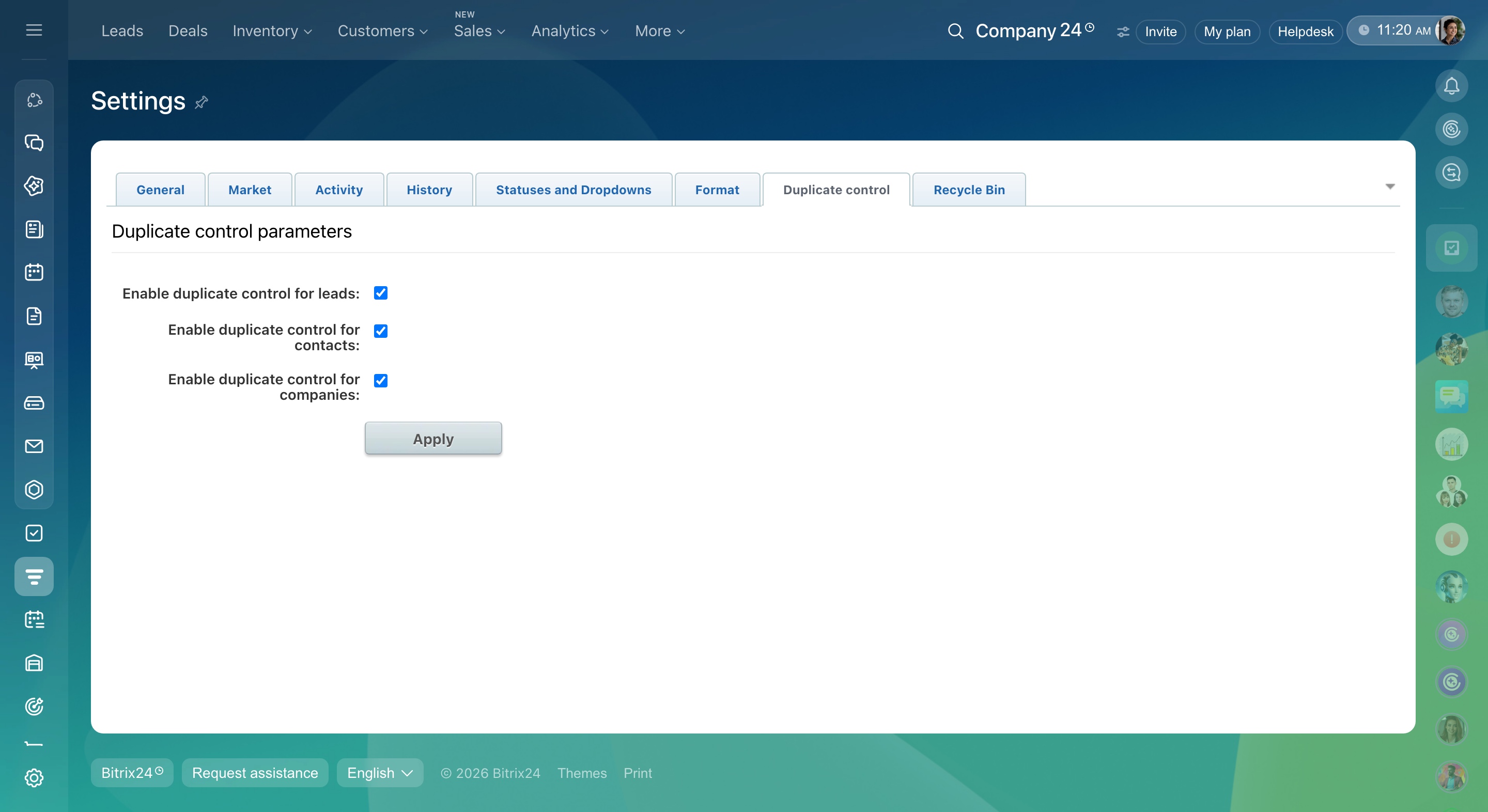
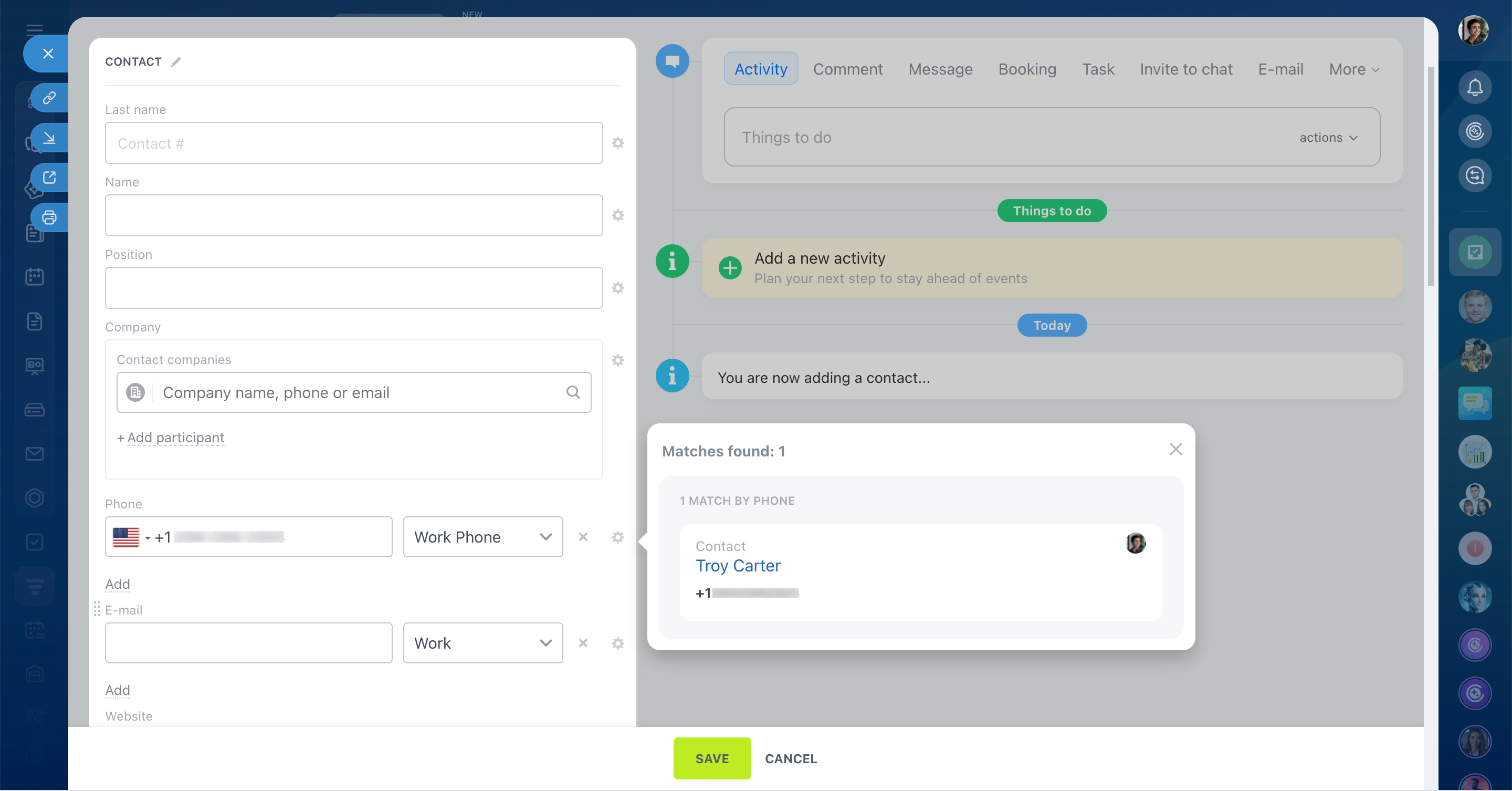 The Duplicate control setting is turned on
Recycle bin
The CRM Recycle bin stores deleted deals, contacts, companies, and other CRM items. Choose which types of deleted items Bitrix24 should keep in the Recycle bin.
Recycle bin in CRM
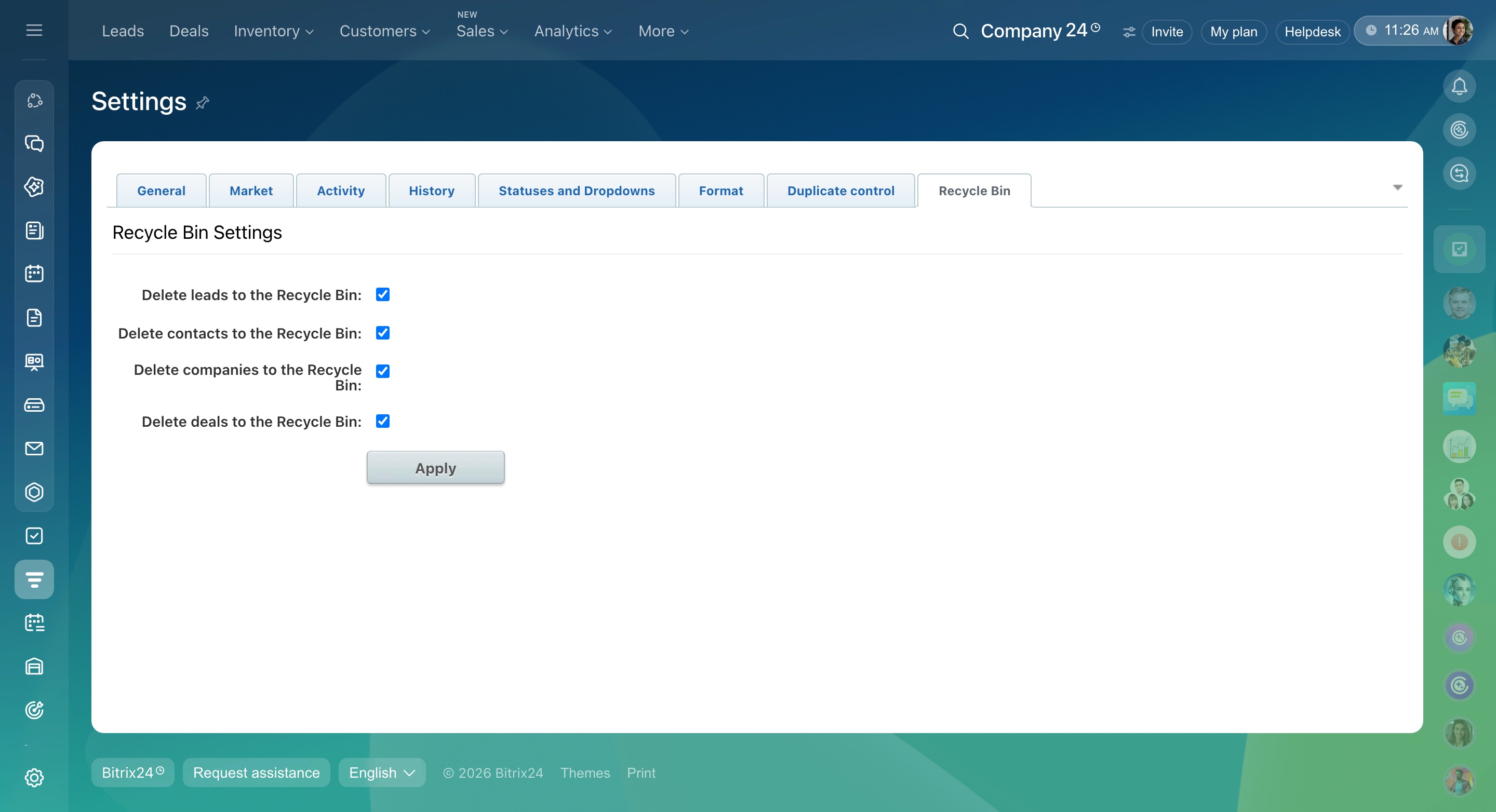
In brief
- Use Other CRM Settings to customize CRM for your company's needs.
- Choose how CRM items appear, manage activities and emails, and set rules for history, duplicates, and the Recycle bin.
- Account administrators and employees with permission to edit settings can configure this section.