
Export CRM data to move it from Bitrix24 to another system, create a backup, or analyze it in third-party tools.
Check if contact export is available on your Bitrix24 plan.
Pricing page
Pricing page
Export terms and conditions
You can export:
- Leads, deals, contacts, companies, estimates, invoices, and smart processes
- Items at specific stages in leads and invoices
- Each deal pipeline separately
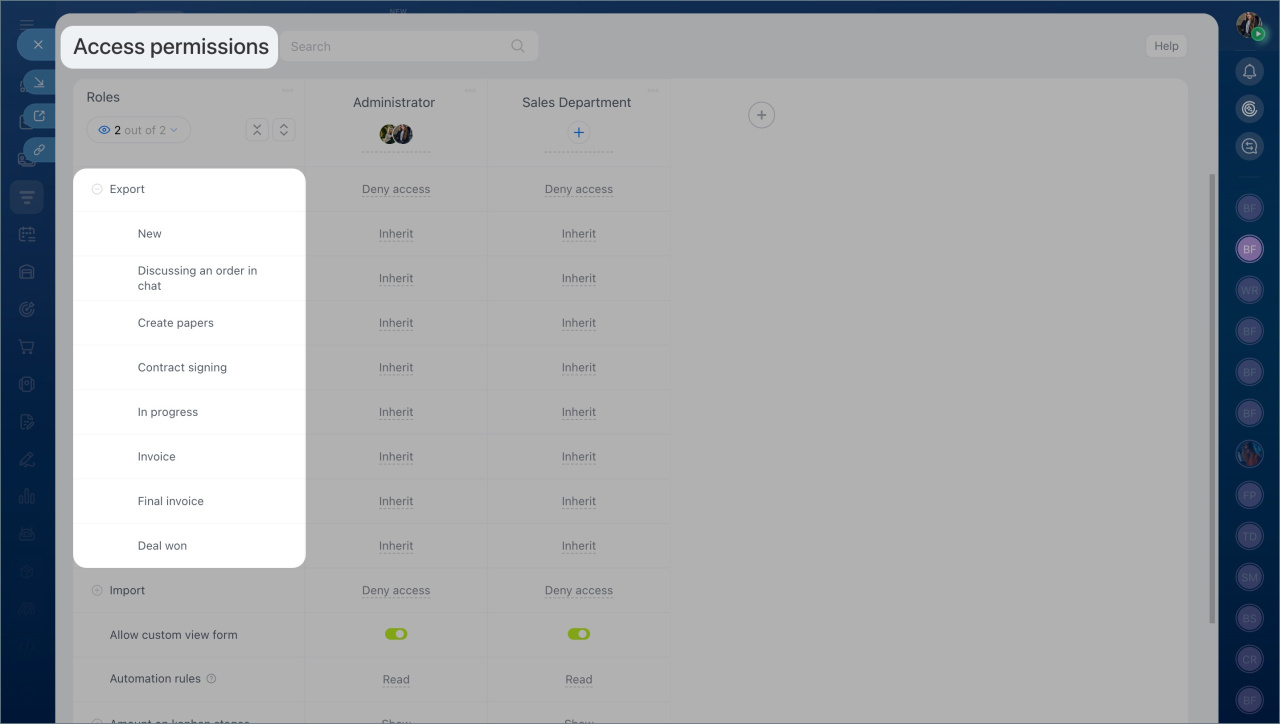
Only users with the required permissions can export CRM data.
Role-based access permissions in CRM
Role-based access permissions in CRM
You can export CRM data only from List view in these formats:
- xls — an Excel table format. Use it to analyze data and build charts.
- csv — a plain text file with comma-separated values. You can open it in any text editor.
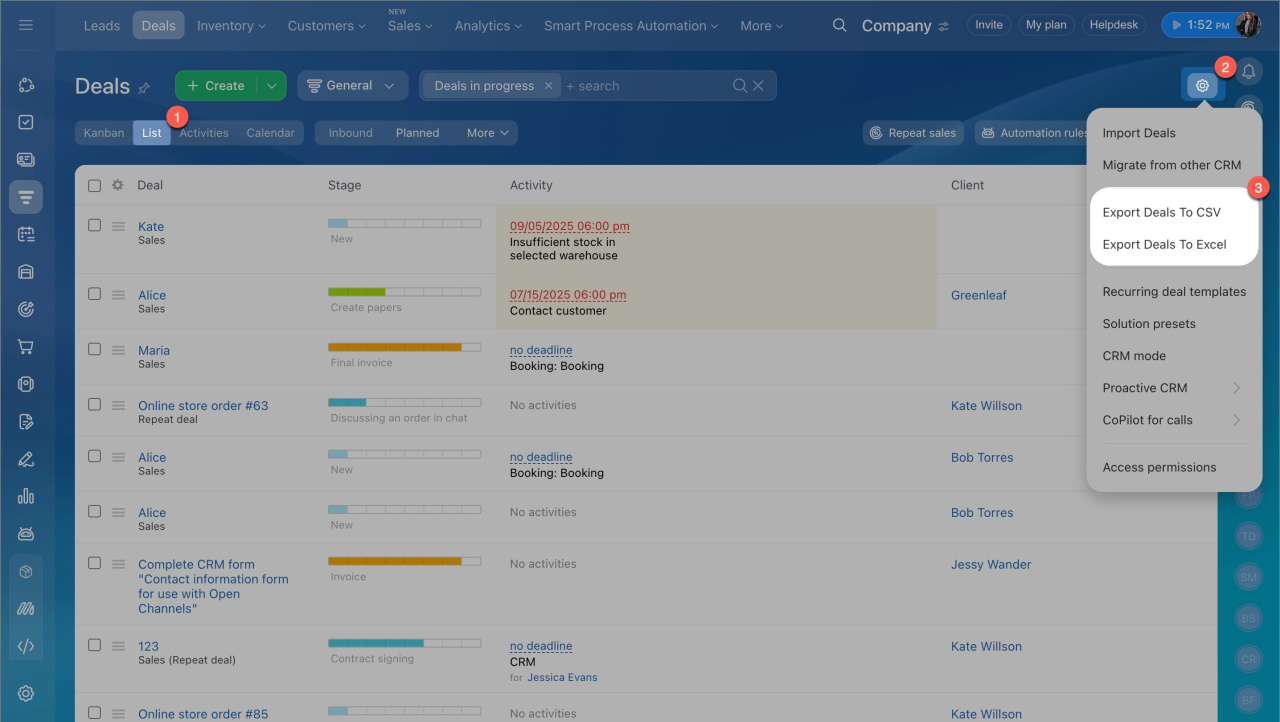
How it works
- Open the CRM section you want to export, such as Leads, Deals, or Contacts.
- Switch to List view.
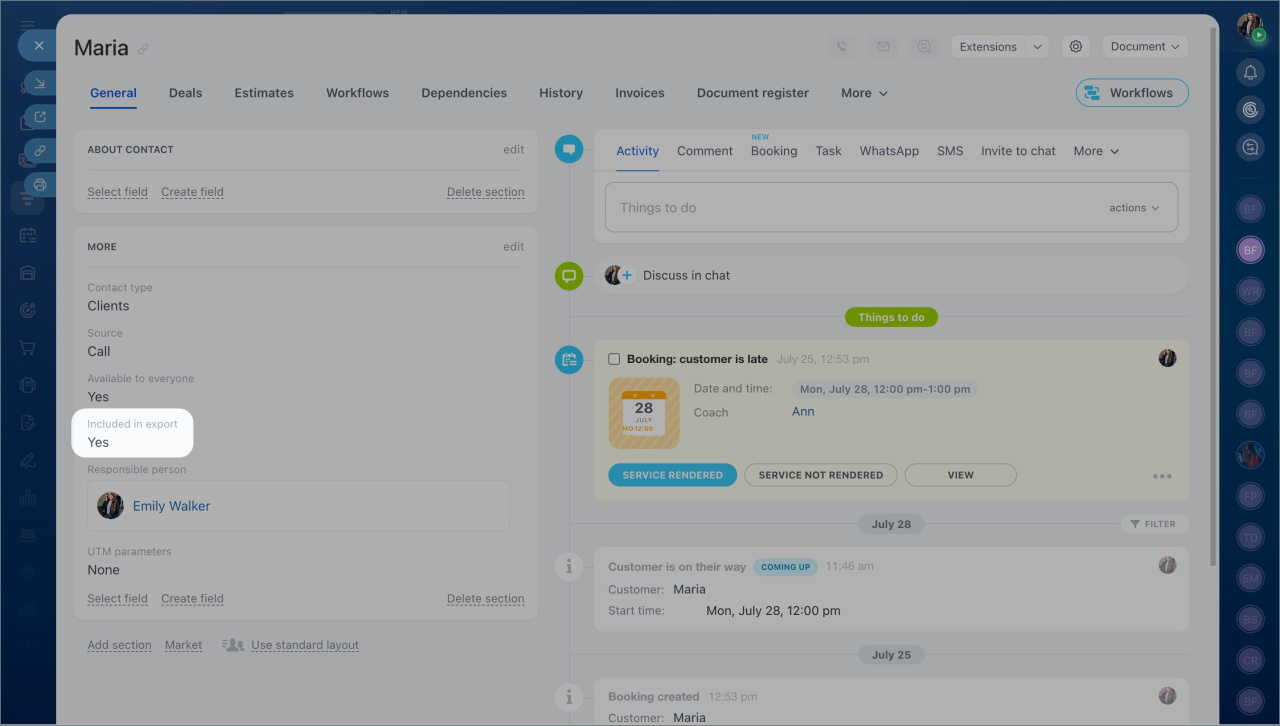
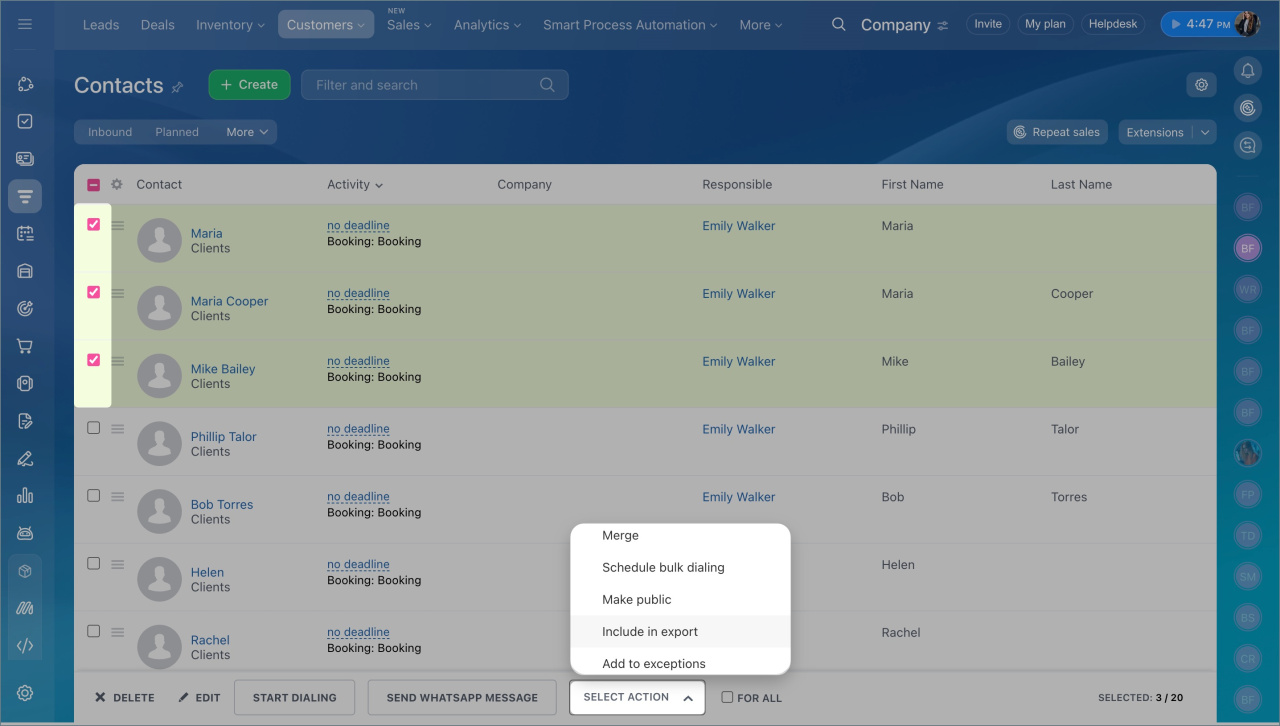
- In Contacts, use the Included in export option. Only contacts with this option enabled will be exported.
- To enable or disable this option, open the contact form or use group actions.
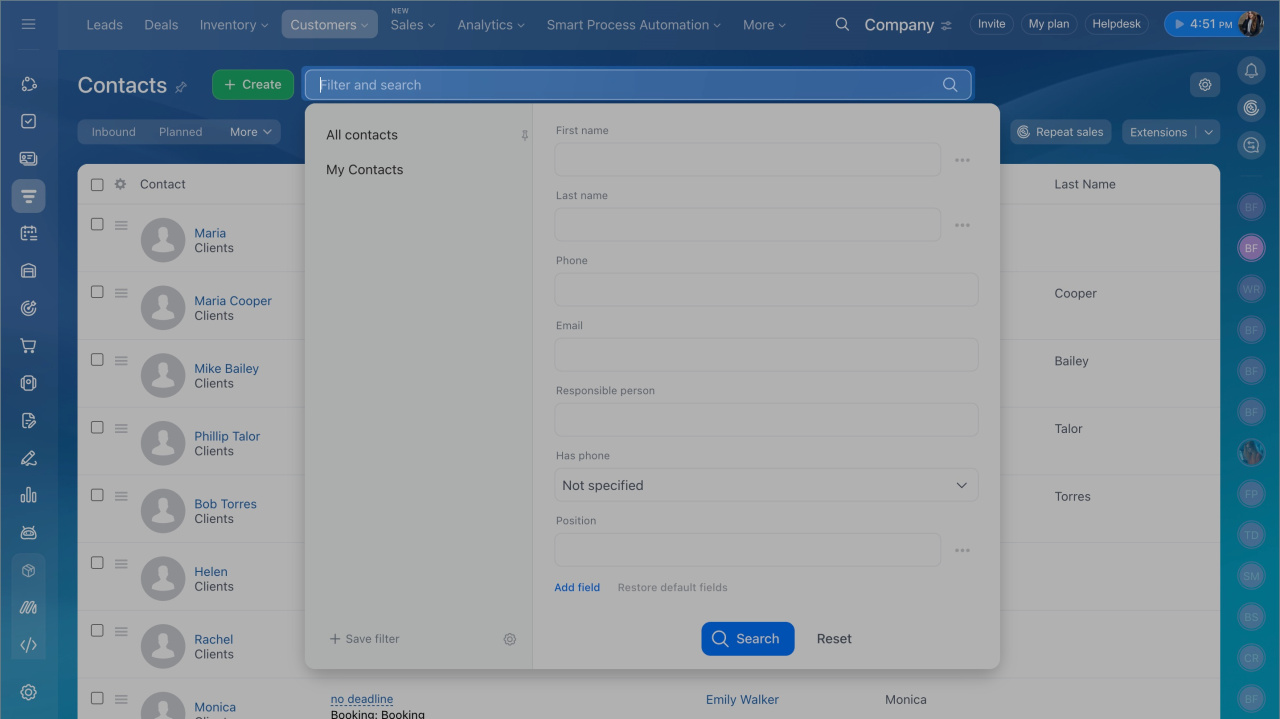
- Apply filters to export only the items you need. The export file includes all items in the current list.
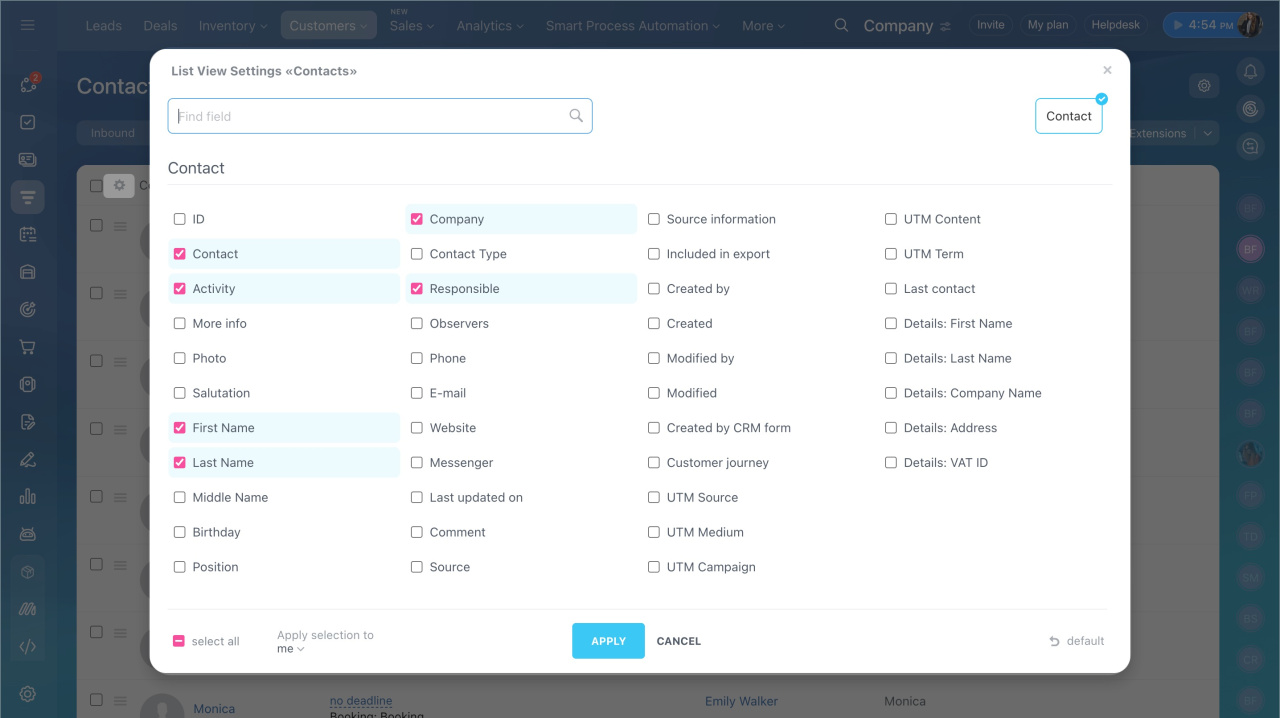
- Choose the fields to export. The file includes only the fields shown in the table. To change them, click the settings icon and select the fields you need.
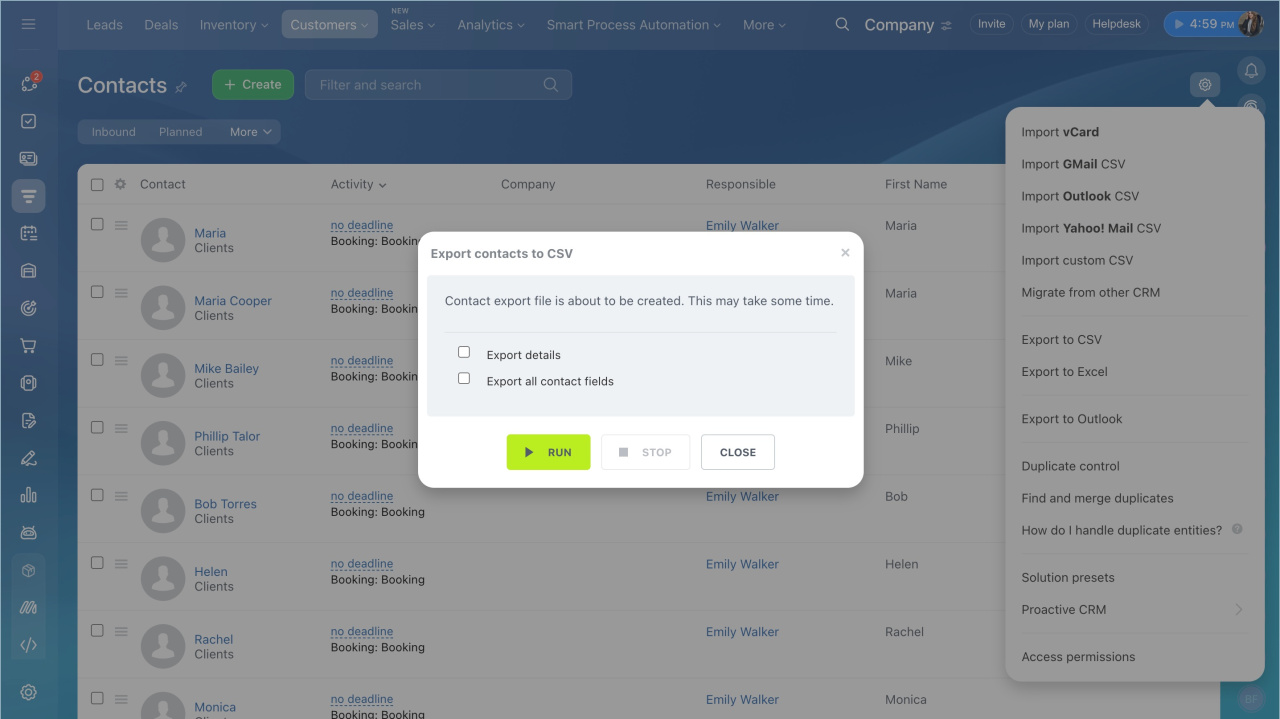
- Open Settings and choose the export format.
- Select any extra options you need:
- Export all deal fields and Export all contact and company fields — include all fields in the file.
- Export detailed SKUs — include product data.
- Click Run and wait for the export to finish.
In brief
- Go to CRM and open a section, for example, Leads or Deals.
- Switch to List view.
- Apply filters.
- Select fields in list settings.
- Open Settings and choose CSV or Excel.
- Click Run and wait for the export to complete.