CRM reports help you track company growth, measure profitability, and identify your most successful sales.
Add a new report
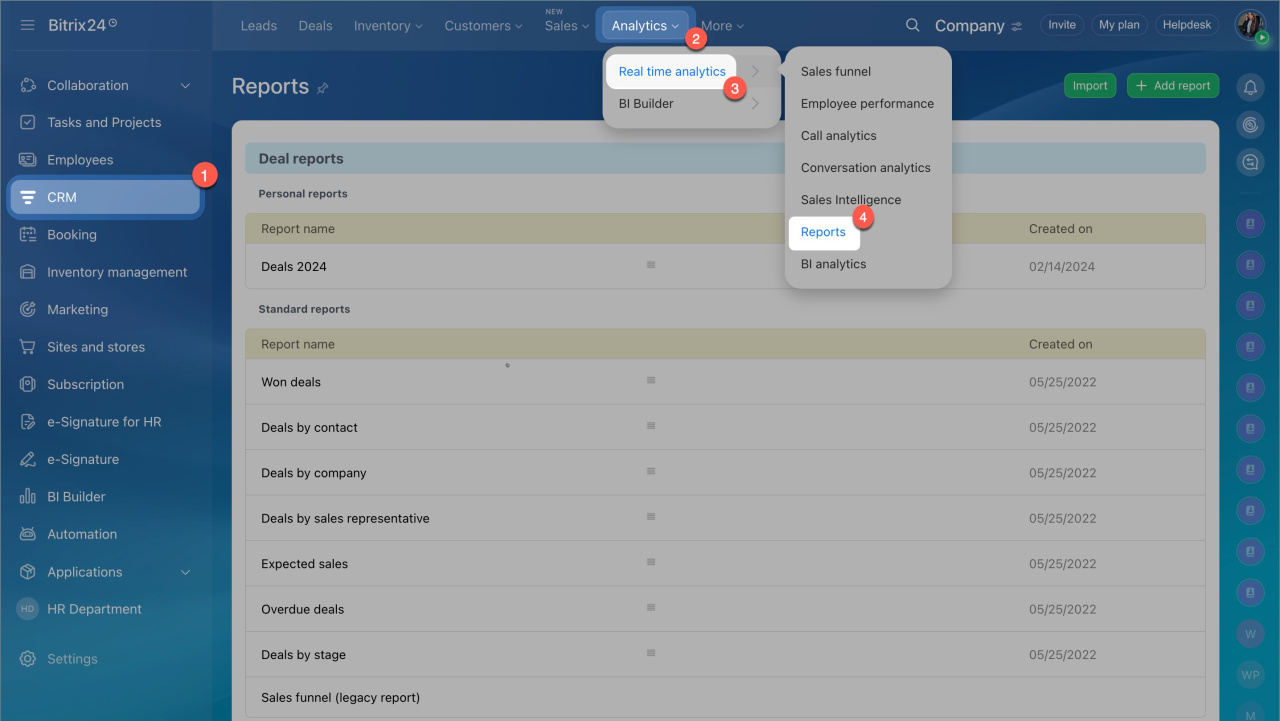
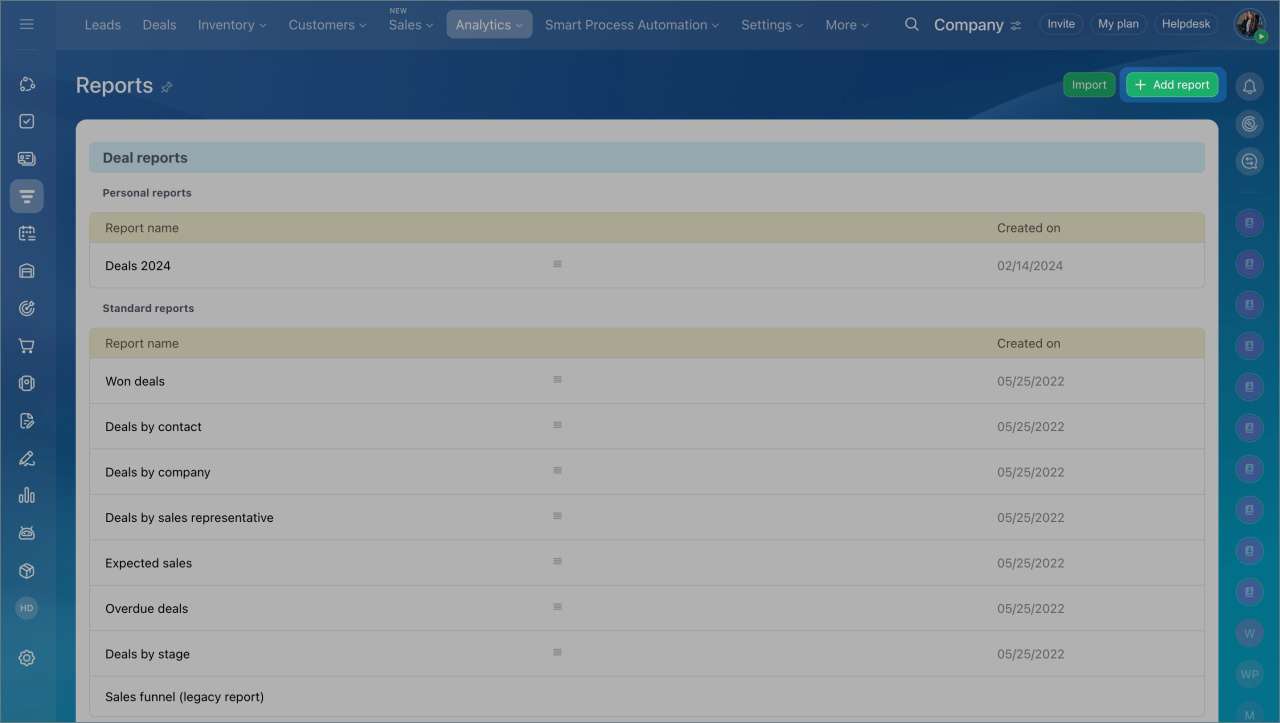
- Go to CRM > Analytics > Real-time analytics > Reports.
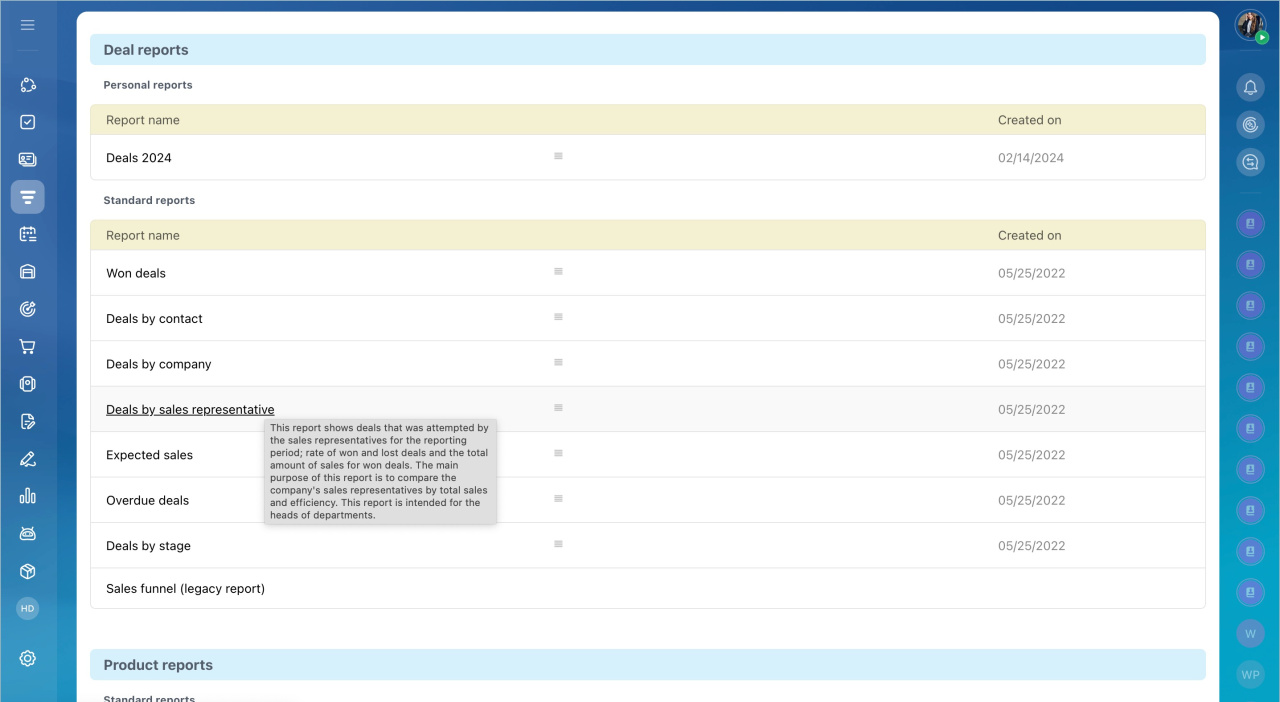
- Choose a report template from the list. Hover over a template to preview its details.
- Click Add Report.
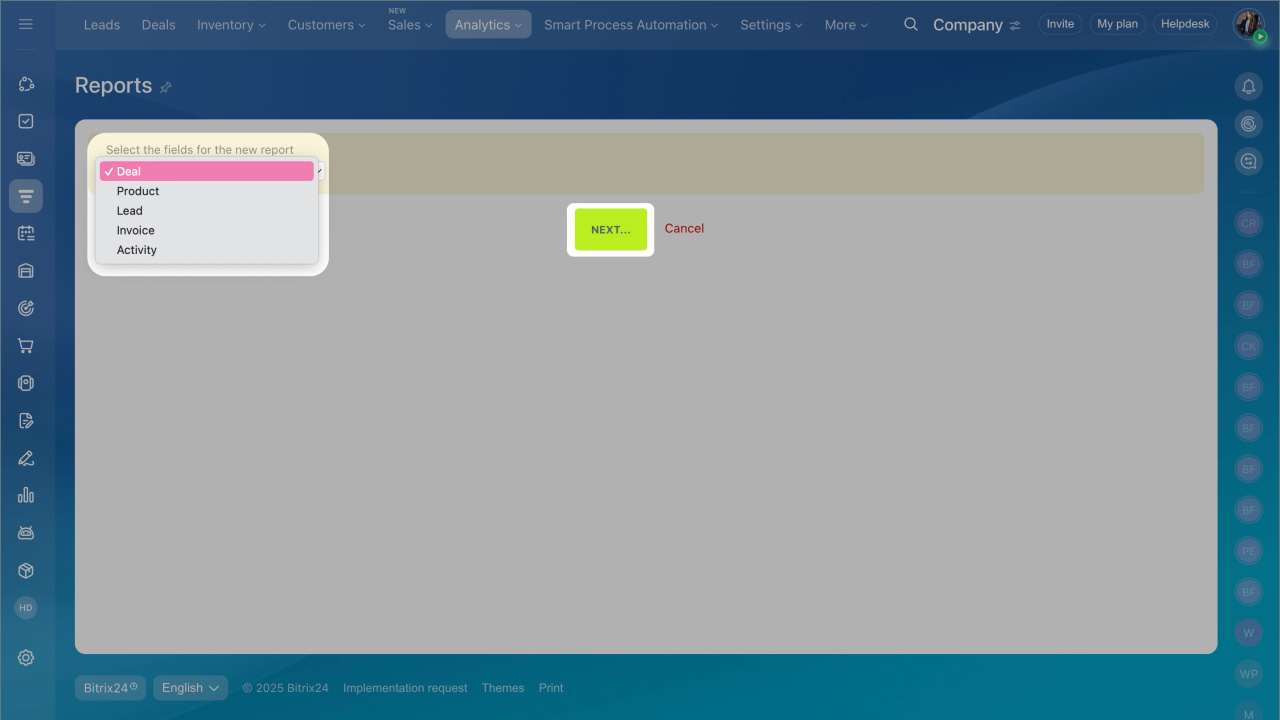
- Select the fields you want to include and click Next.
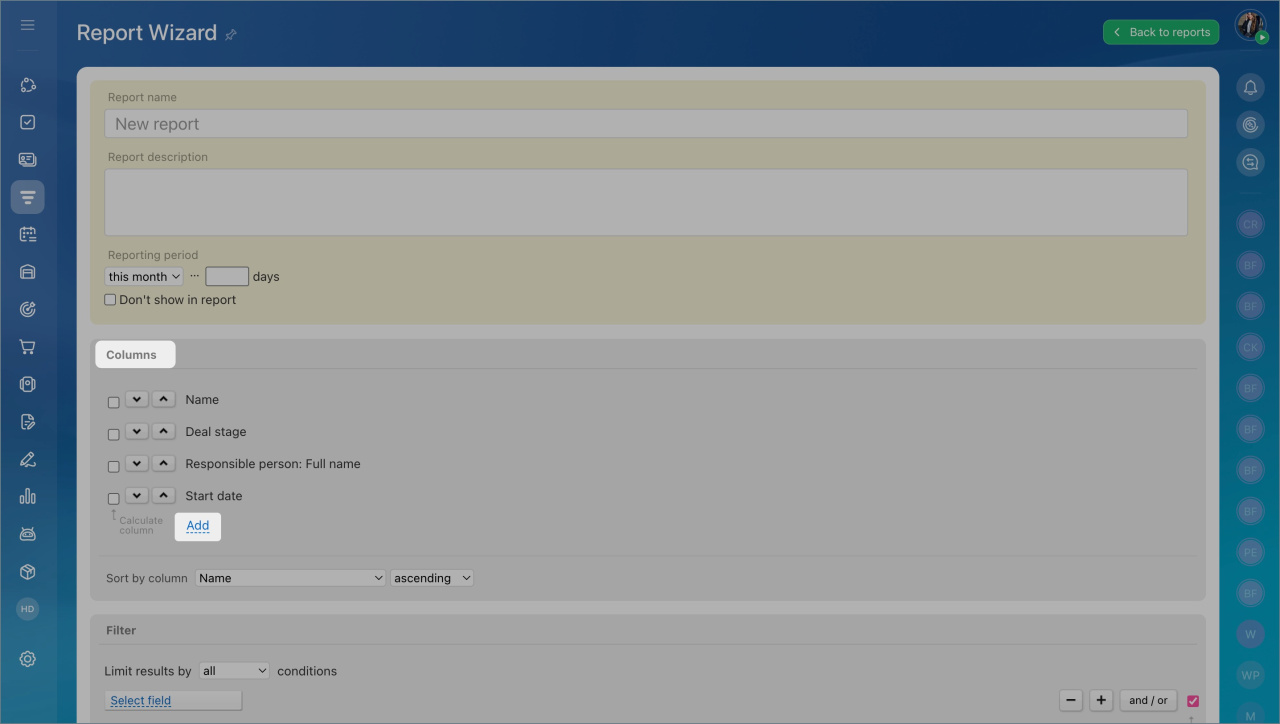
- Enter a report name, add a description, and set conditions and columns.
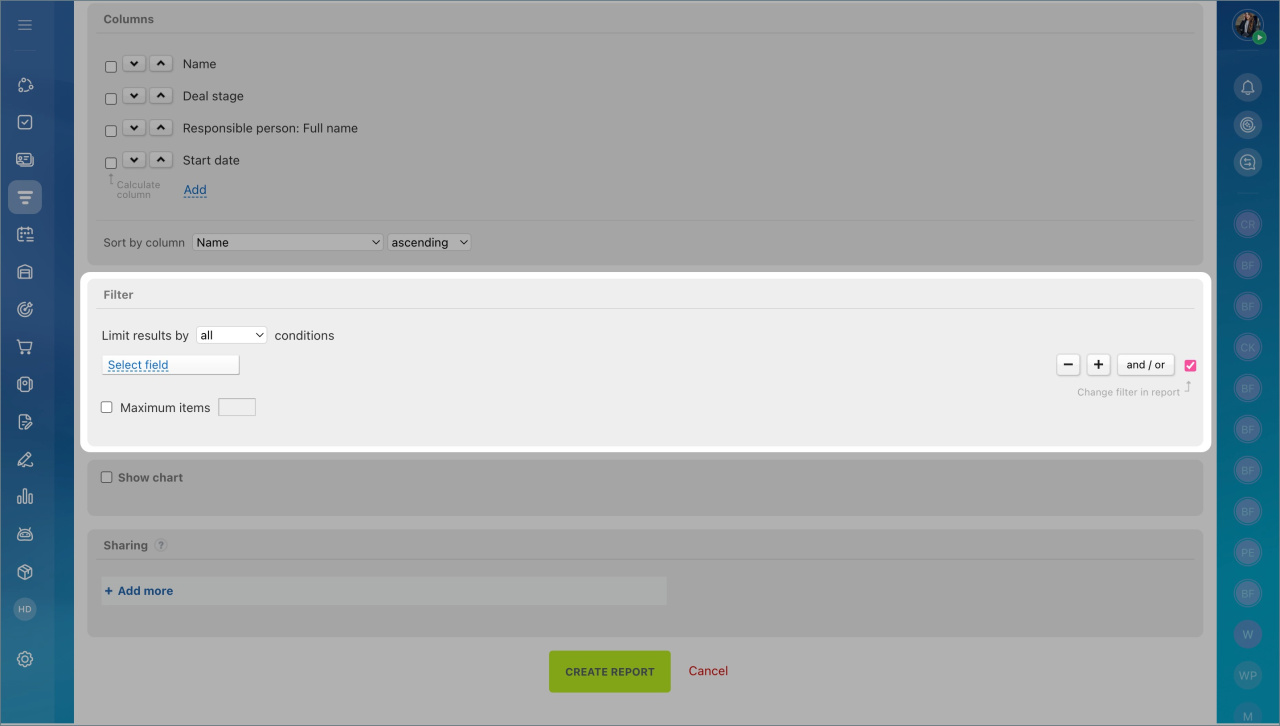
- Add report filters to narrow the results.
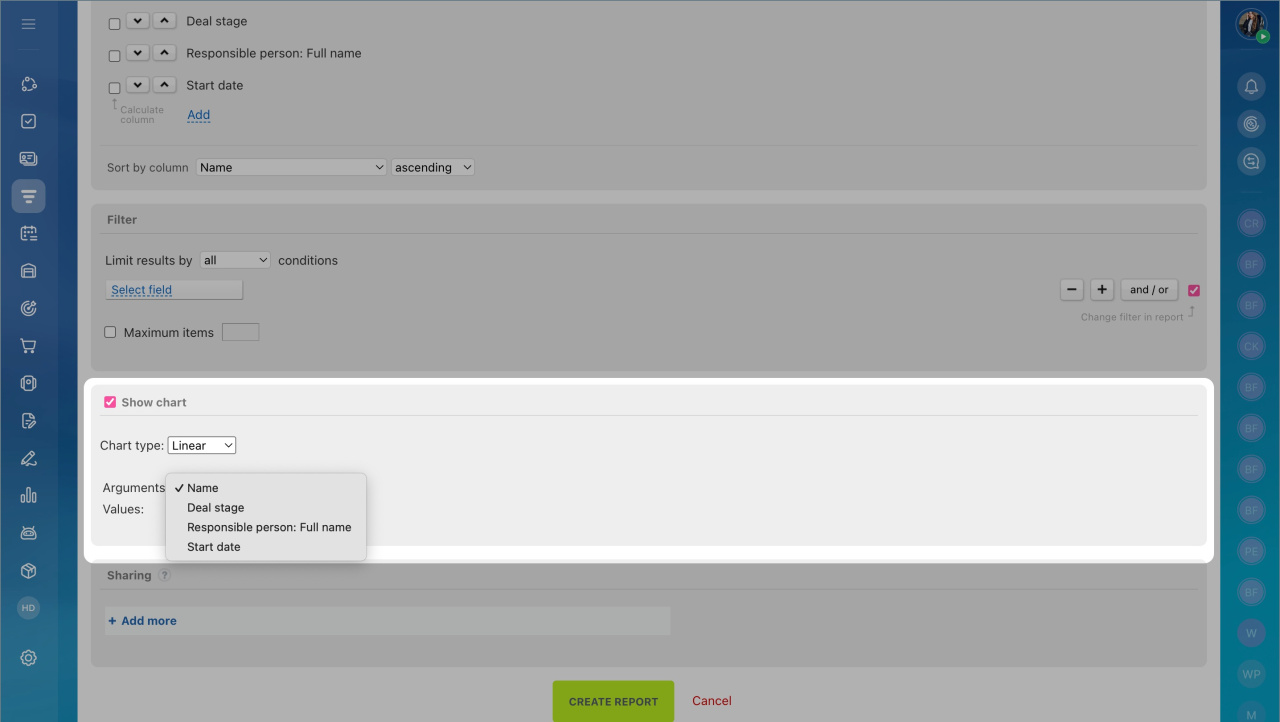
- Turn on Show Chart to display a chart based on the selected type.
Add custom fields to report columns
You can add custom fields of the string and list types to report columns. These fields appear at the end of the column list.
Share reports with other users
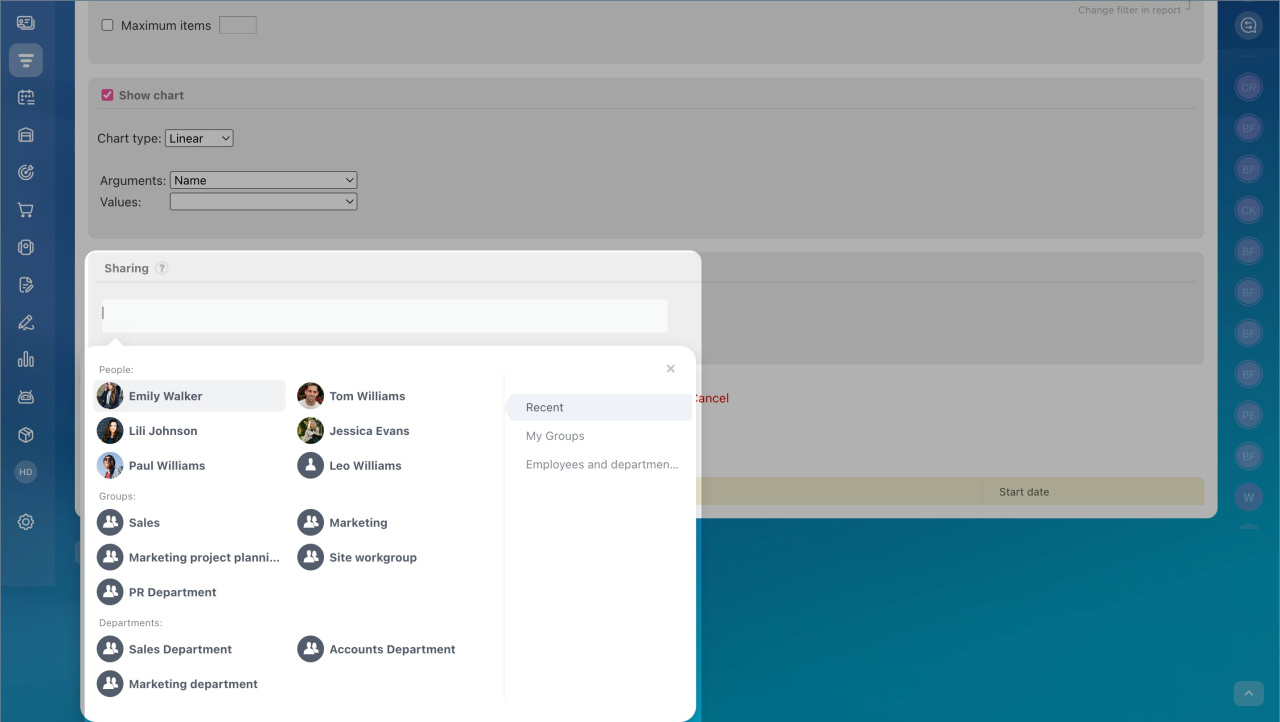
To share a report, click Add more and select the users who should have access.
The report will appear in their list of available reports. Only the report template is shared.
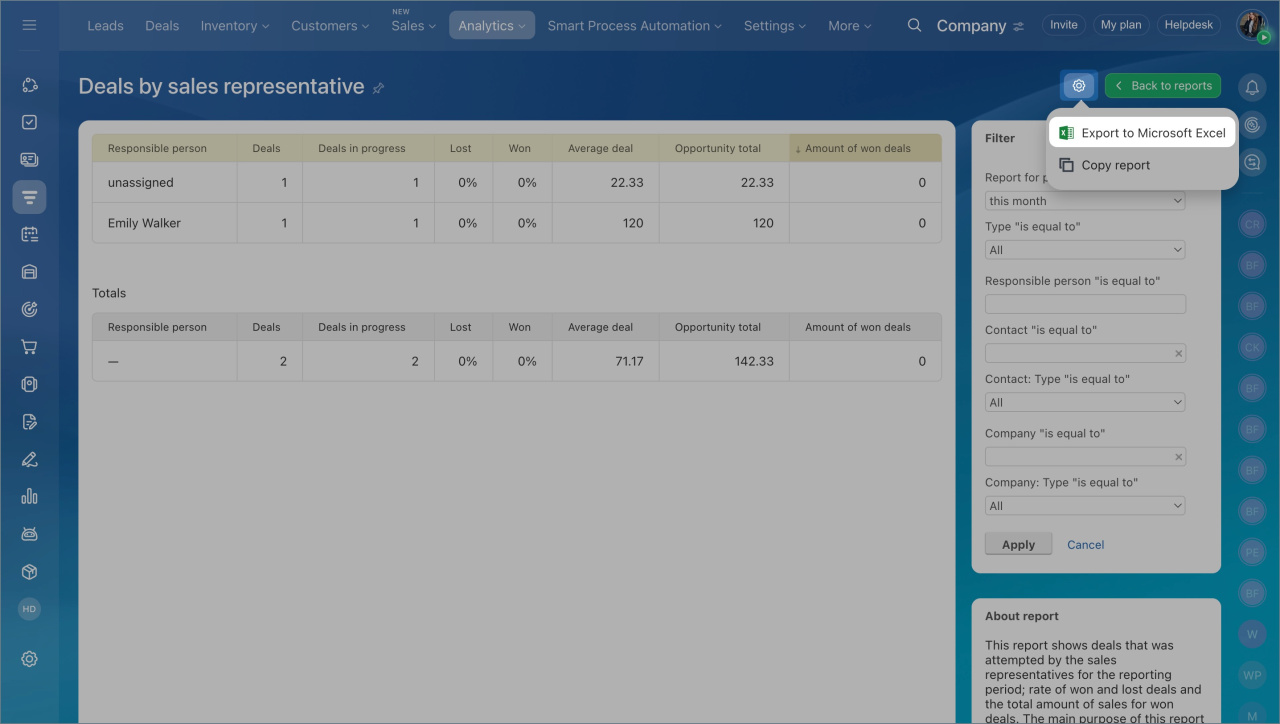
To share report data, export the report to Excel and send the file to your colleagues.