
Kanban is a board with columns and cards that helps you move clients through the sales funnel. Cards represent CRM items like leads, deals, and invoices. Columns show the steps in your workflow with a client. In Bitrix24, these steps are called stages.
In the deals, you can track the number and total value of deals at each stage, monitor manager workload, and see which deals have not been assigned yet.
Configure Kanban for deals
Go to CRM > Deals > Kanban.
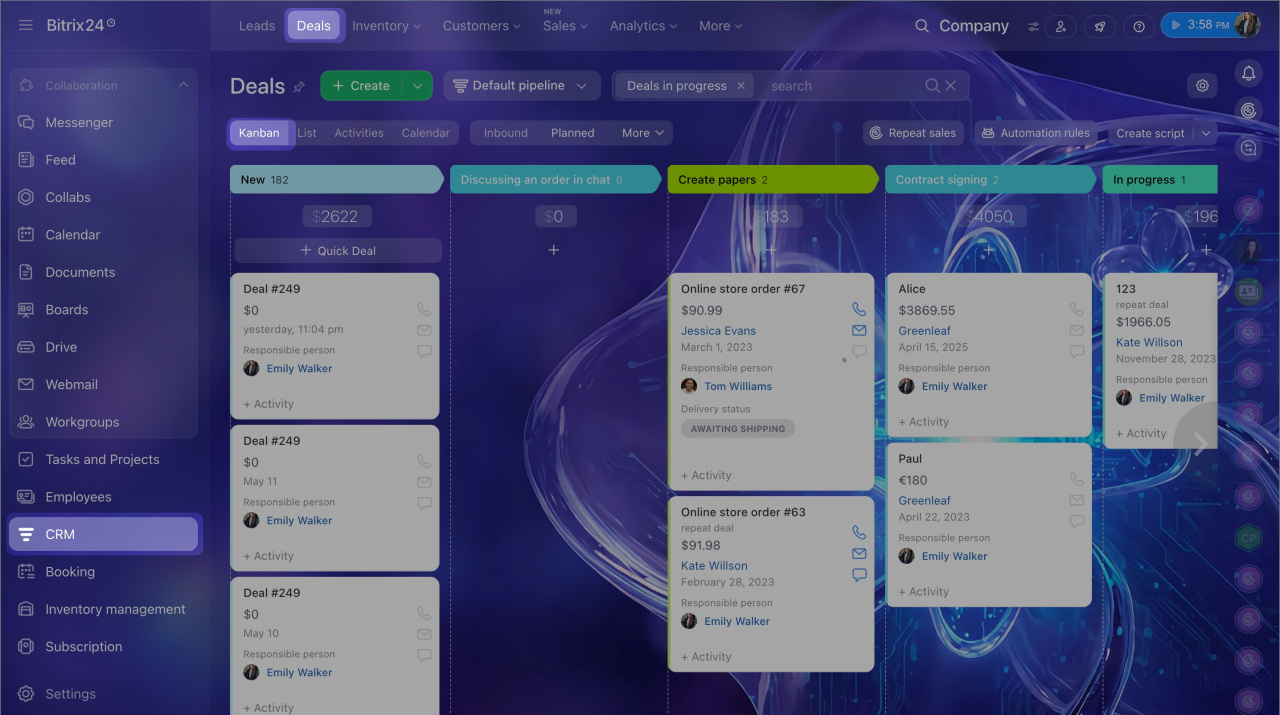
Configure stages
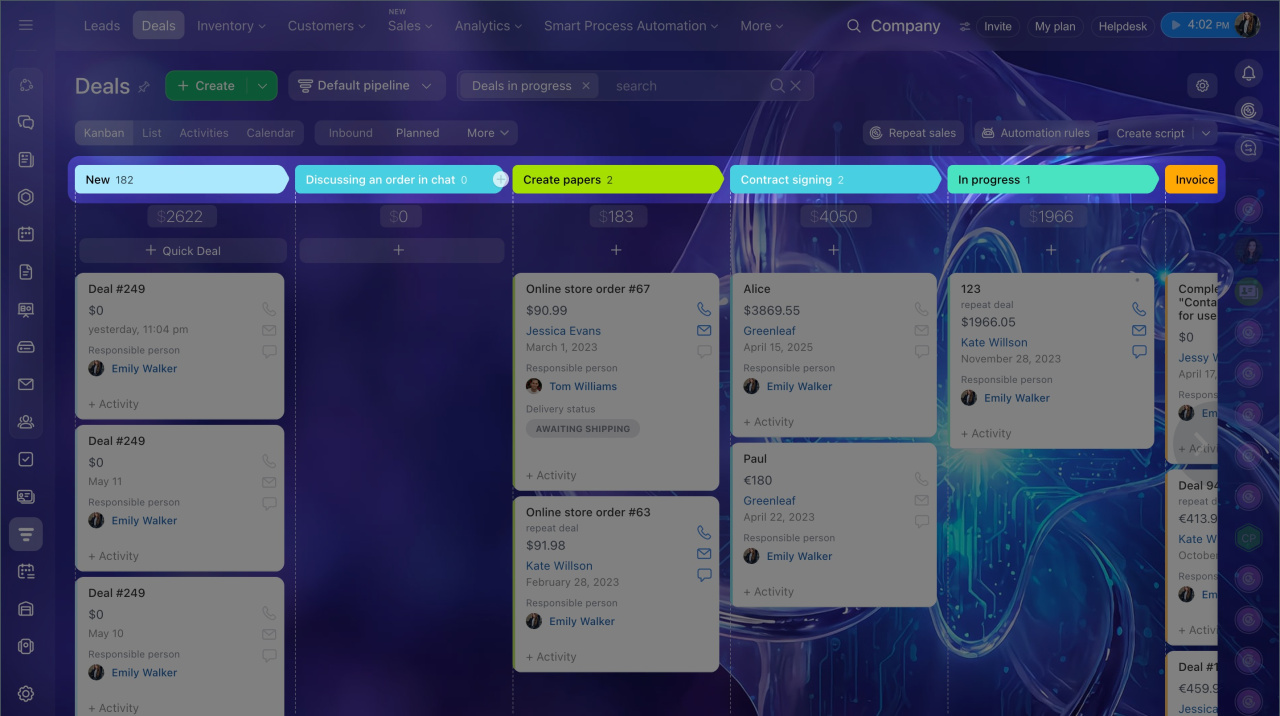
Stages are the steps in your workflow with clients. They help you track the sales process from first contact to closing the deal. You can set up stages directly in Kanban or in CRM directories.
Statuses and dropdowns in CRM
By default, deals include several stages. You can keep them, rename, or create new ones.
- Initial stage: the first step in working with a client. New deals appear here. You cannot delete the initial stage, but you can rename it.
- Additional stages: steps like preparing documents, sending an invoice, or signing a contract. You can create as many of these stages as you need.
- Final stages: successful or unsuccessful outcomes. You can create several unsuccessful stages to track why deals were lost.
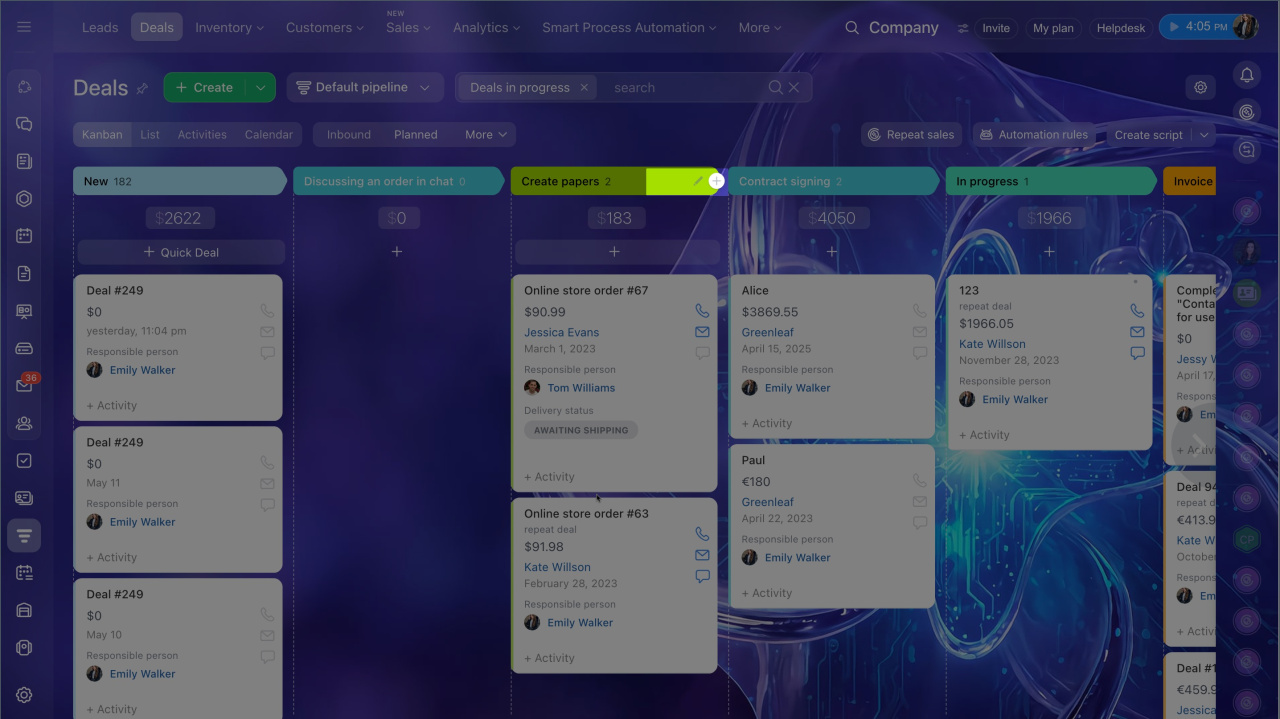
Click Pencil to rename a stage, change its color, or delete it.
To add a new stage, click Plus (+).
Configure the deal creation form
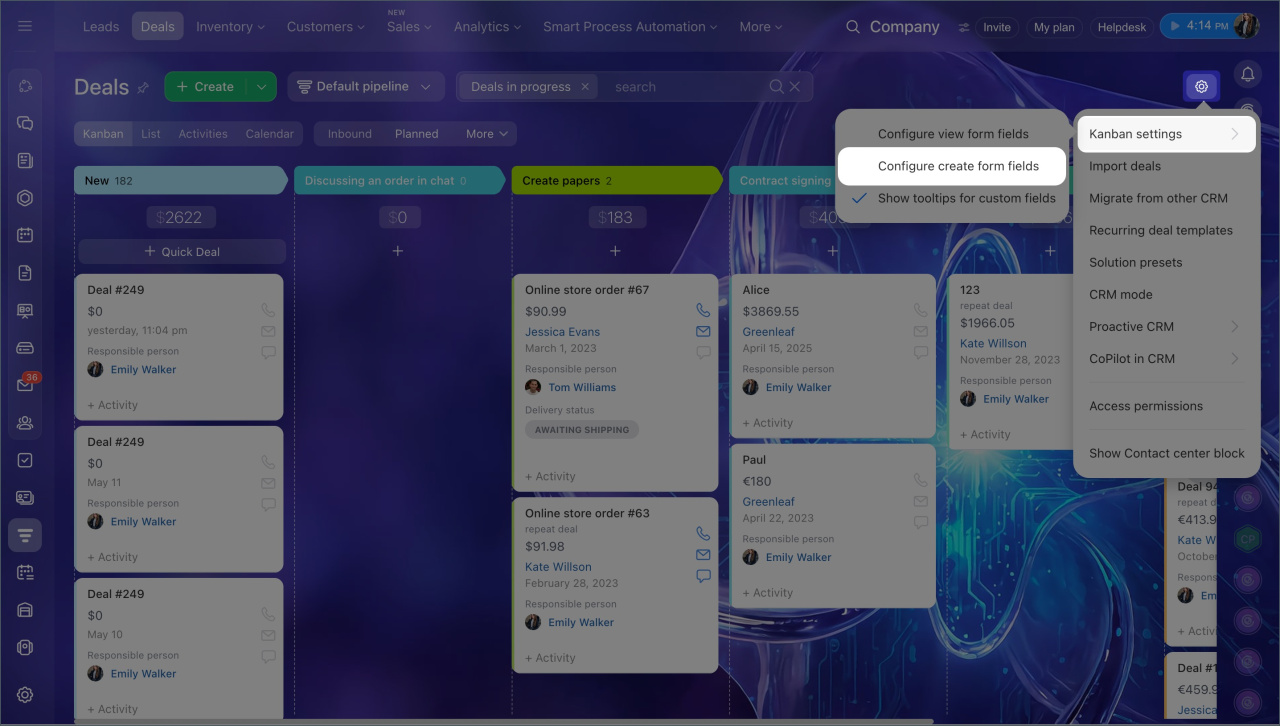
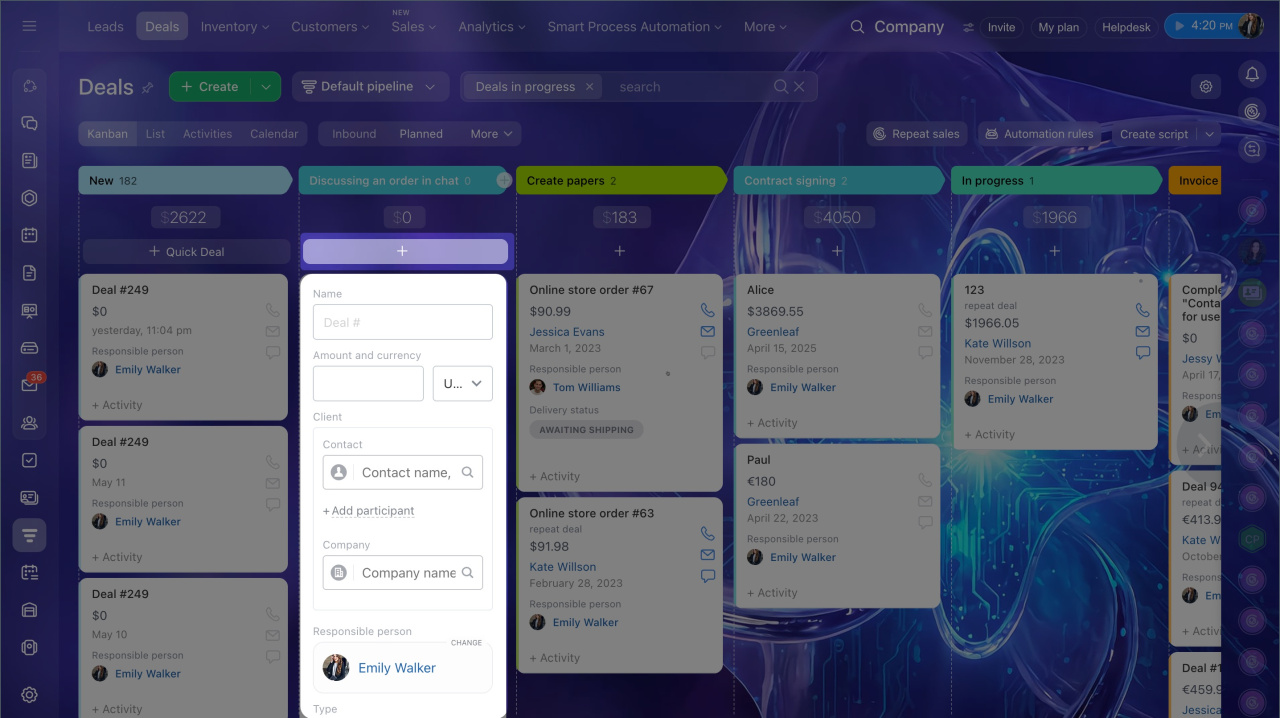
Deals can be created automatically, for example from a client's incoming email, or manually in Kanban. To help managers create deals faster, choose only the fields they need to fill out. They can fill in the other fields later.
- Click Settings (⚙️) > Kanban settings > Configure create form fields.
- Select fields.
- Save the changes.
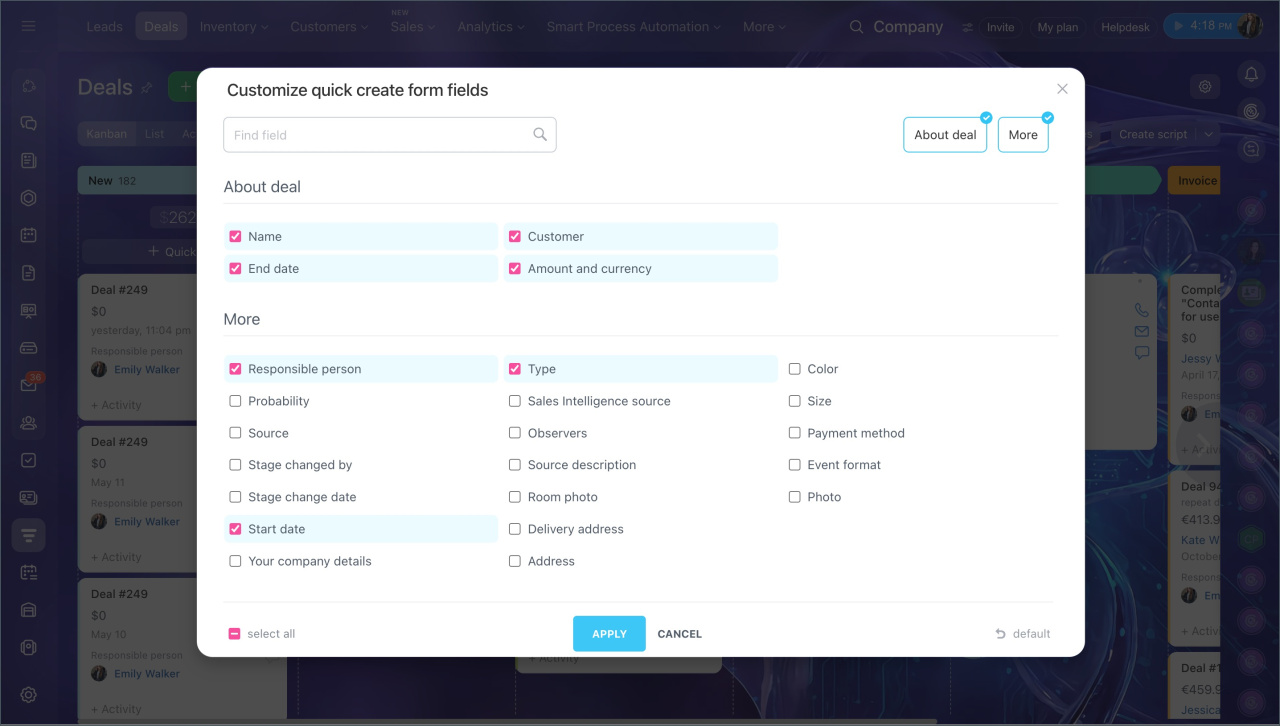
To quickly create a deal, click Plus (+) in the stage you need. Fill in the fields and click Save.
Deals overview
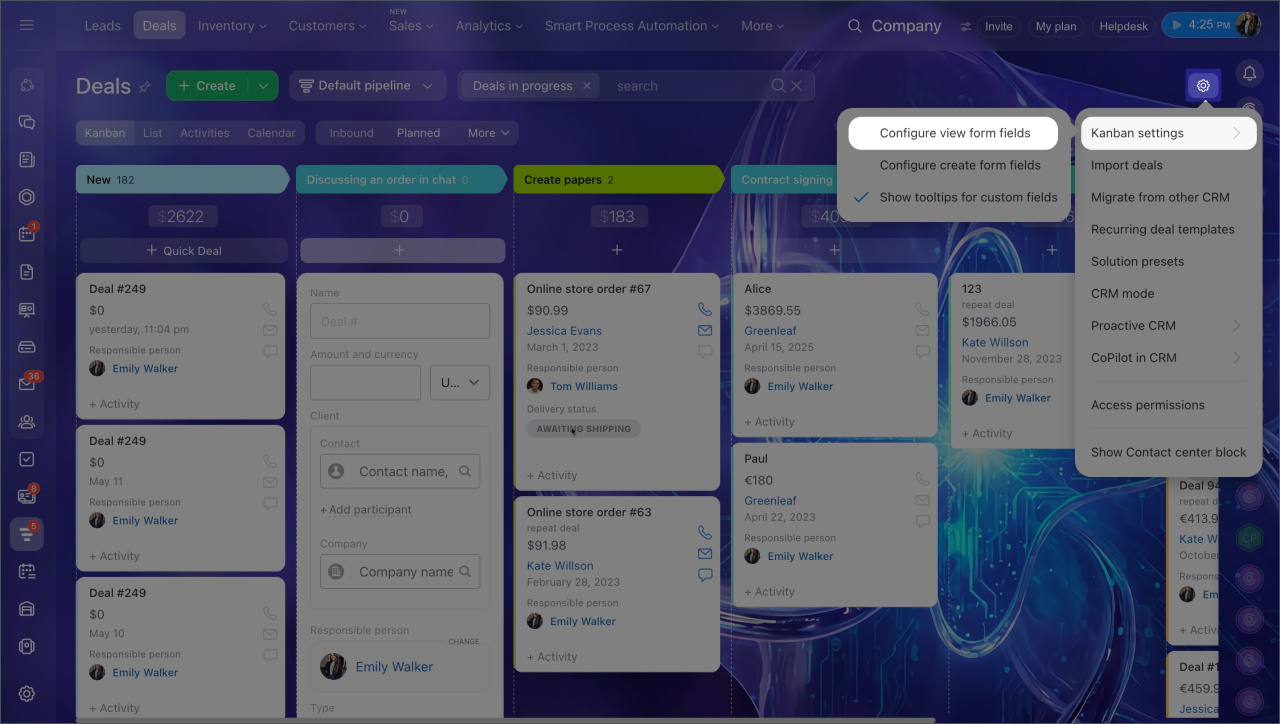
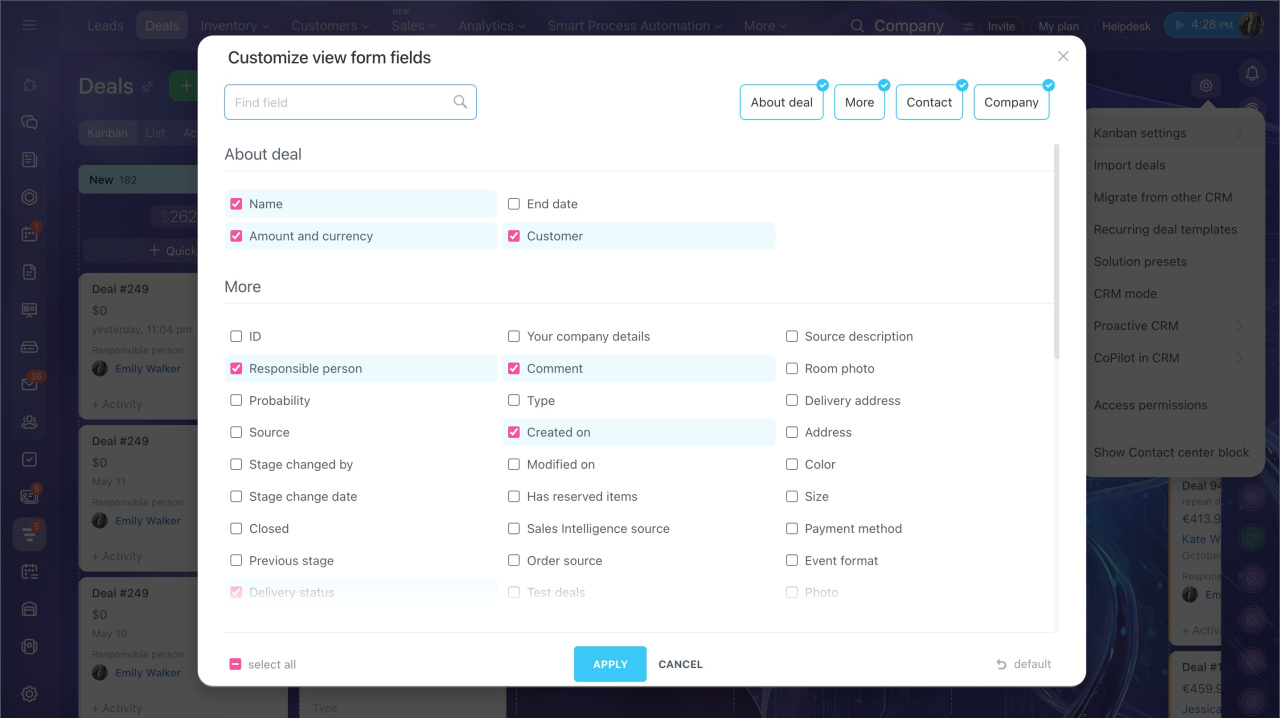
Configure the deal view form. If you want to show only key information in Kanban, set up the view form. Each employee can configure it for themselves. For example, a manager may want to see the client name, deal amount, and payment status. To see the rest of the details, open the deal.
- Click Settings (⚙️) > Kanban settings > Configure view form fields.
- Select fields.
- Save the changes.
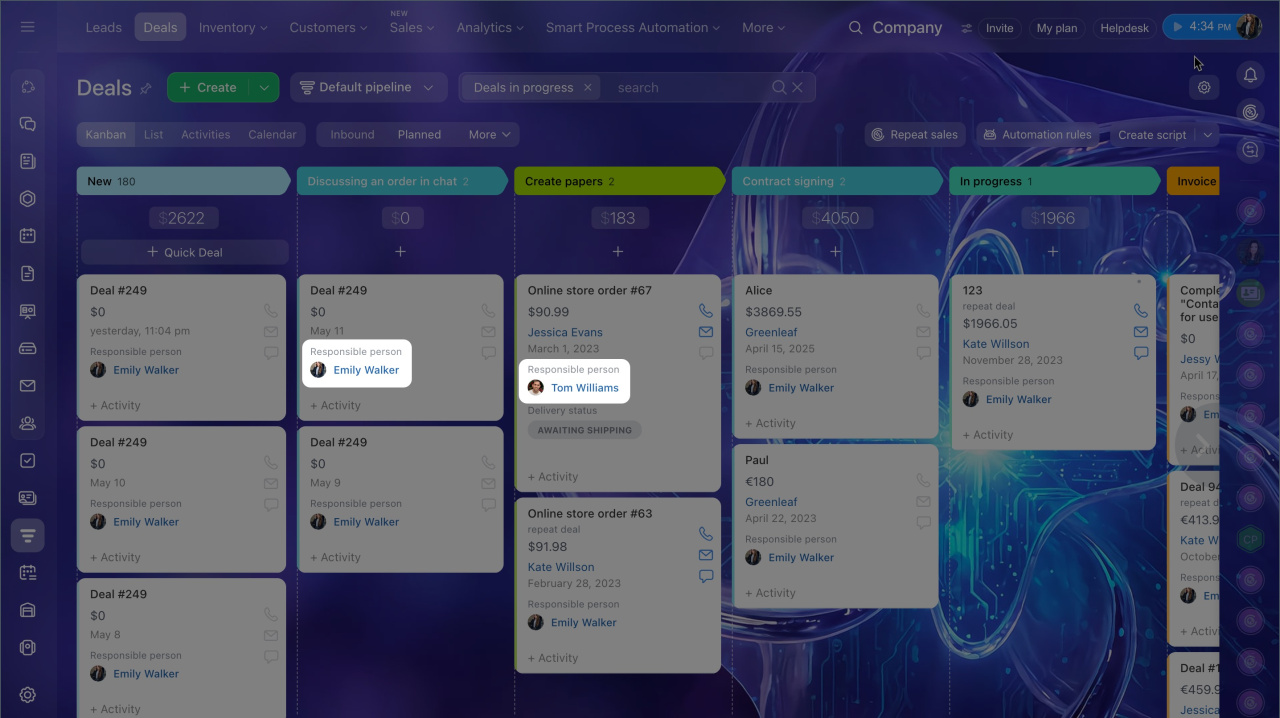
Employees' photos on deal forms. By default, Kanban shows a photo of the employee responsible for the deal. As work on the deal continues, the photo may switch automatically to another one if that employee:
- left a comment in the Timeline
- is responsible for an incoming or missed call, incoming email, or chat
- is responsible for an activity whose automatic reminder was triggered.
Work with deals in Kanban
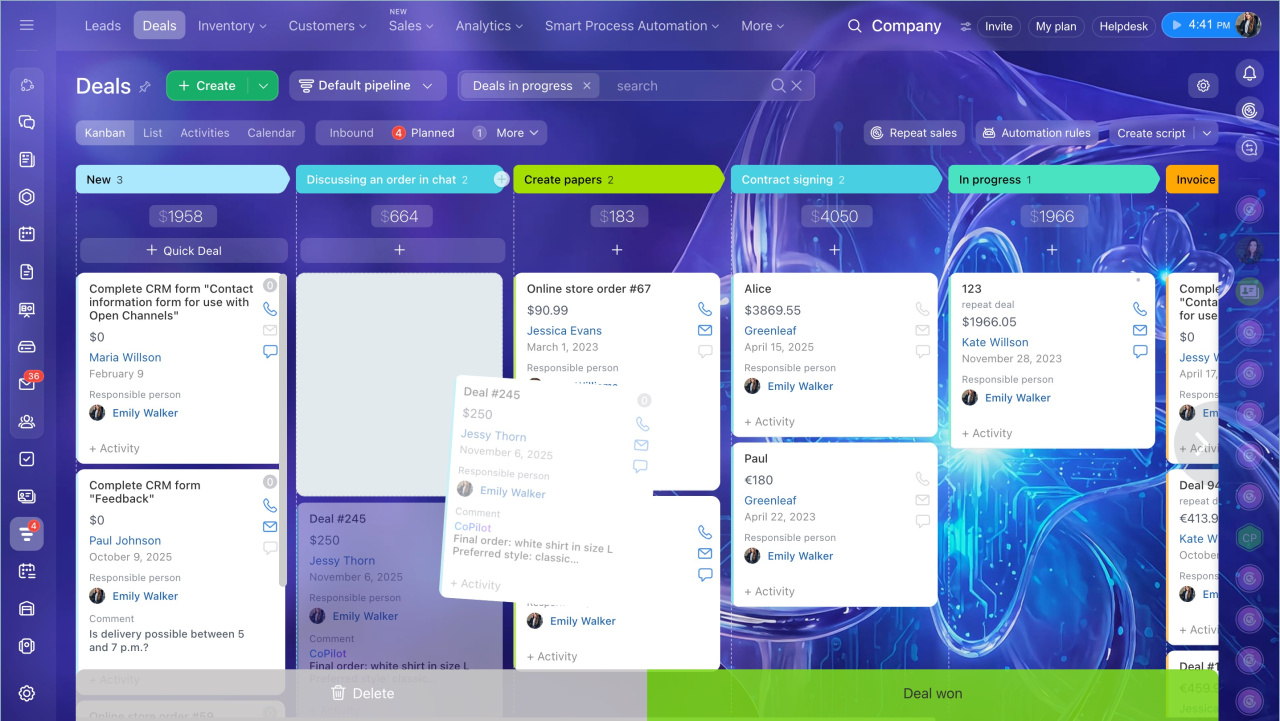
Move deals between stages. Move deals through stages as work with a client moves forward. For example, when you start working on a deal, move it from New deal to In progress. When the product is sold, move it to Deal won.
To do this, drag the deal to another column.
Plan activities
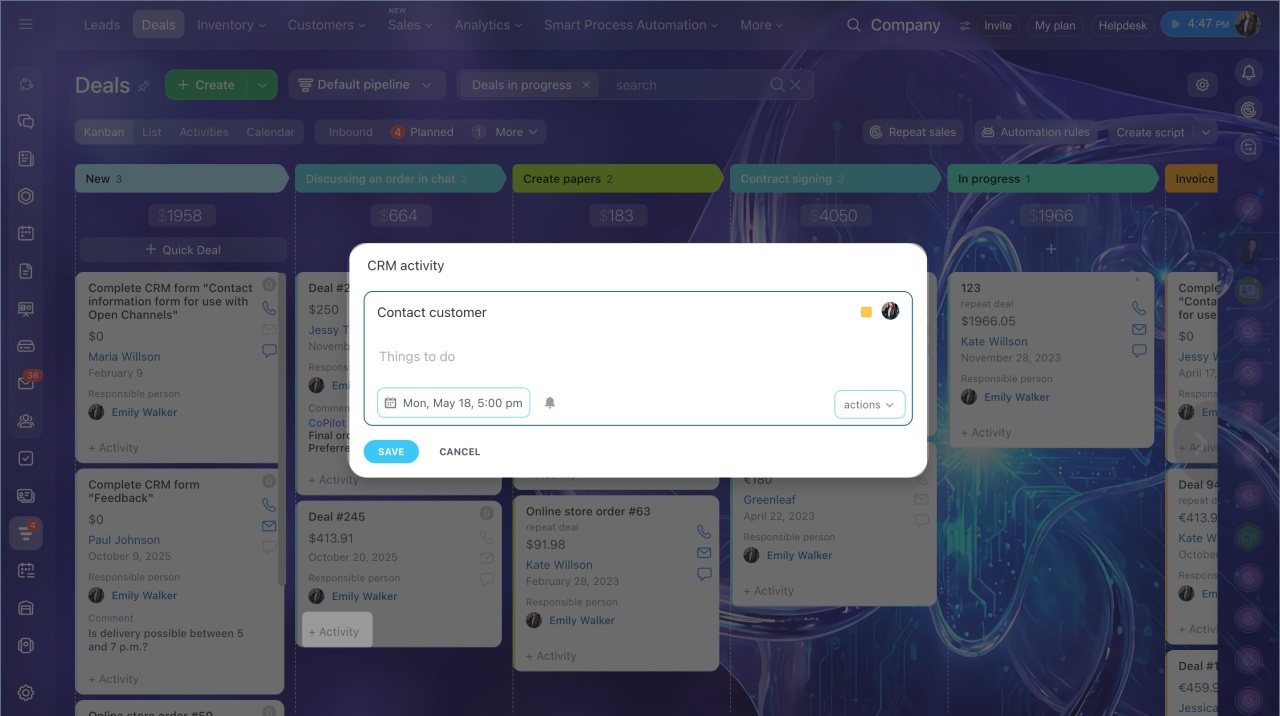
To avoid missing a follow-up, schedule an activity: a call, a meeting, or contract preparation.
- Click + Activity.
- Fill out the form.
- Click Save.
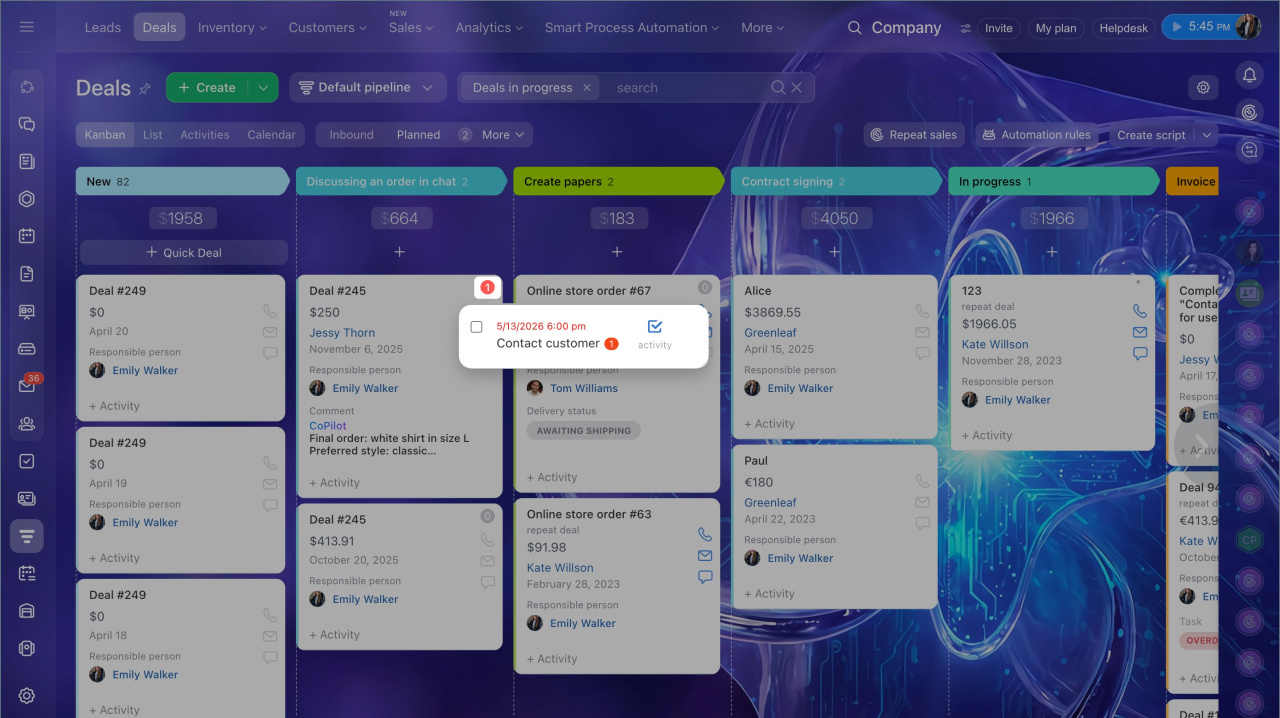
The deal form includes an activity counter. The number shows how many incoming and planned activities the deal has. The color shows their status. By default, the counter turns red 15 minutes before the activity deadline. You can change this time.
How counters work in CRM
To view activity details, click the counter.
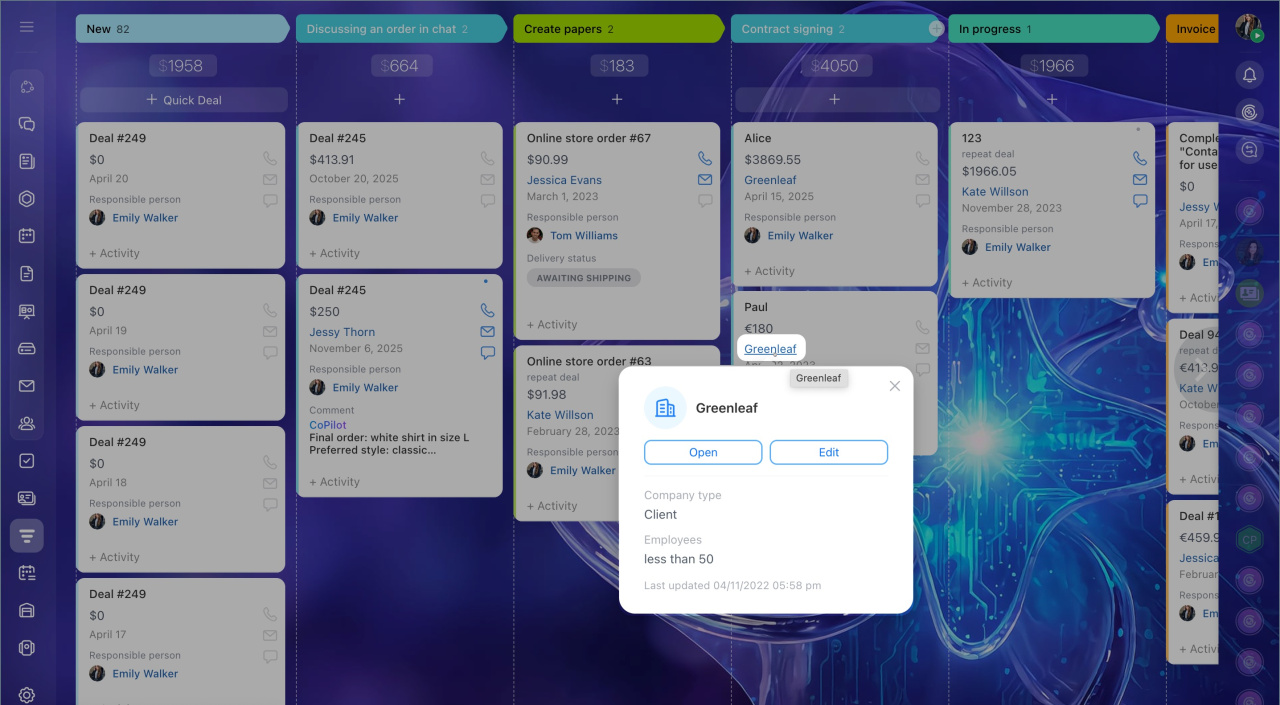
Contact a client. Hover over the client's name to quickly view contact details. A mini CRM item form opens with key details.
Bulk actions available in Kanban
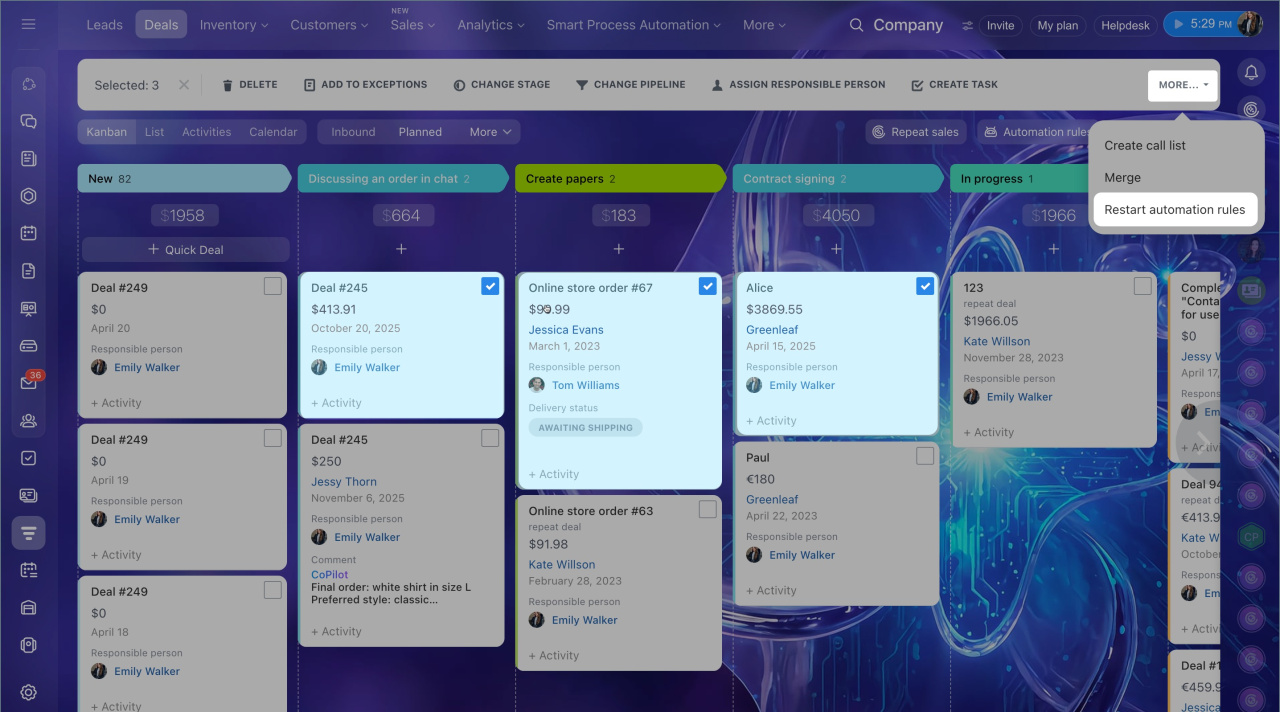
Bulk actions let you work with multiple CRM items at once. For example, you can change the responsible manager for two deals or restart automation rules. Select the deals you need, and an action bar will appear at the top.
Group actions in CRM
Delete. Deleted items stay in the recycle bin for 30 days. They are not included in analytics reports.
Add to stop list. Contacts from the selected items are added to the exclusion list. New leads and deals will no longer be created automatically for them. This is useful when unwanted data keeps appearing in CRM, such as advertising emails, non-targeted calls, or spam.
Exceptions in CRM
Change stage. This action moves items to a different stage, for example, from In progress to Final invoice.
Assign responsible person. Lets you change the responsible employee for multiple items at once. This is useful when redistributing workload.
Change a responsible person
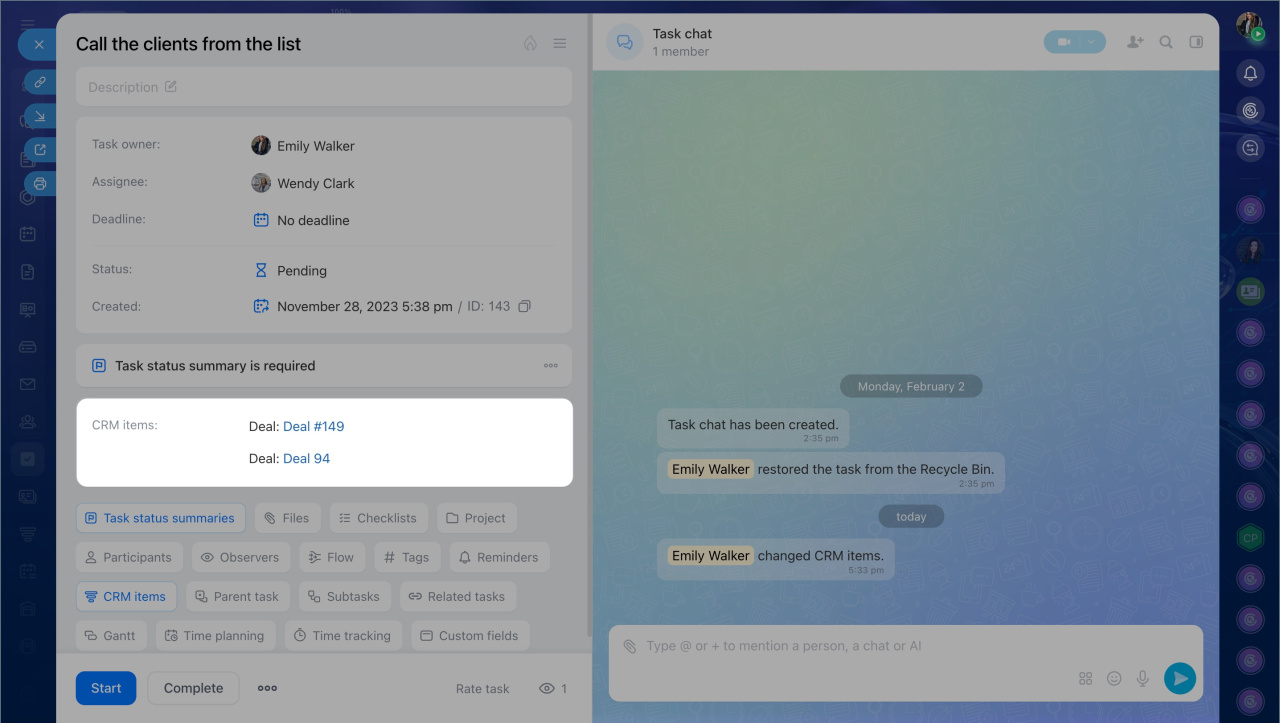
Create task. This action creates a task linked to the selected CRM items. It helps coordinate work across departments. For example, a sales manager can assign an accountant a task Prepare invoice for two deals.
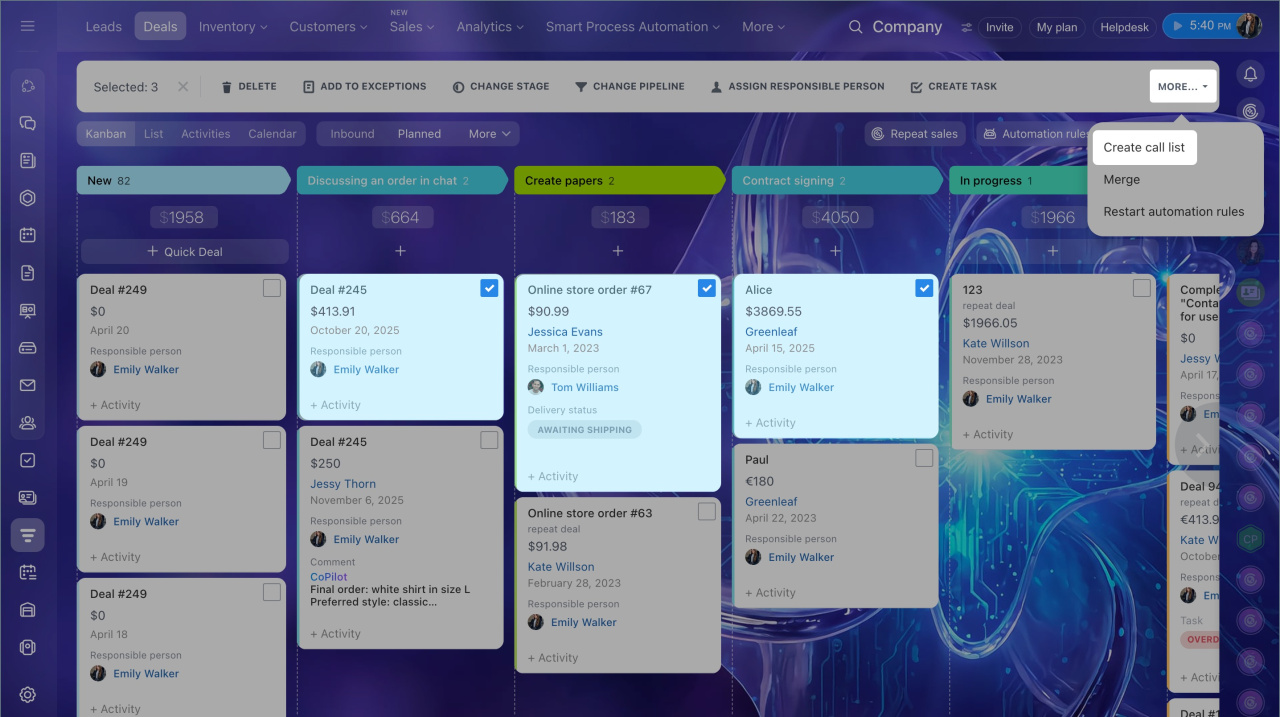
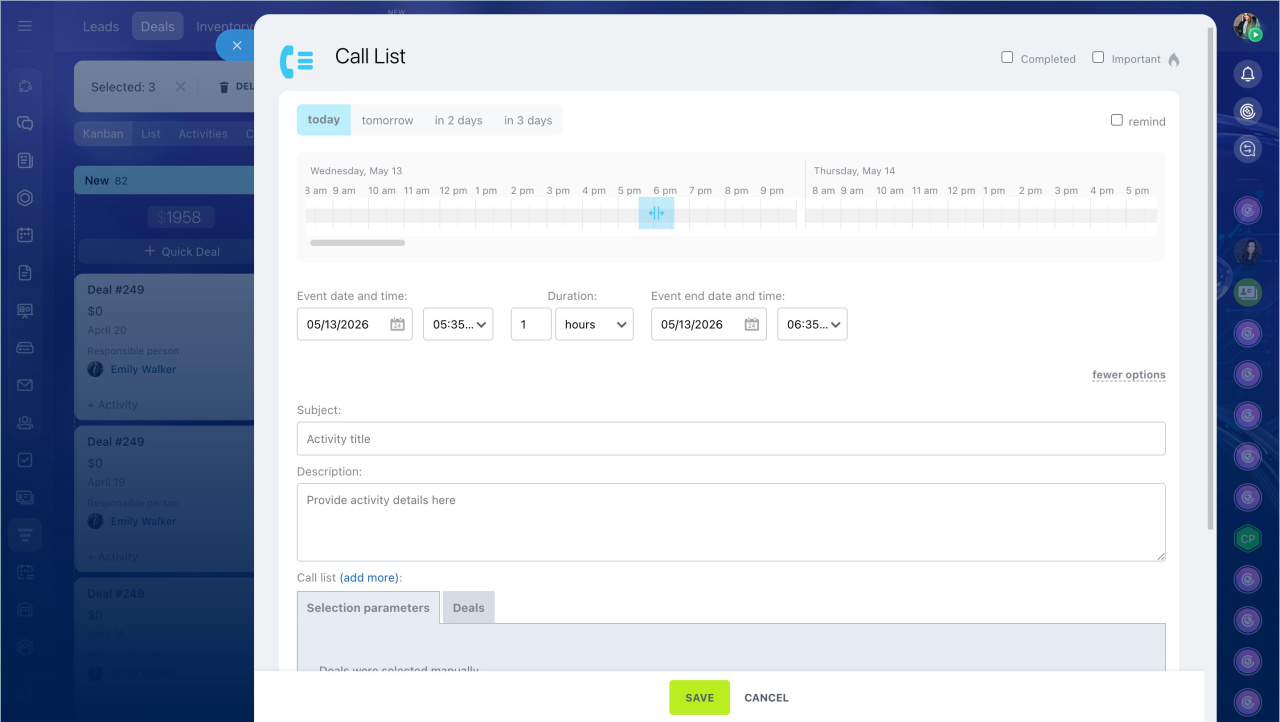
Create call list. Lets you schedule a call list for multiple deals. You can set a topic, instructions, time, and responsible employee.
Automatic dialer in CRM
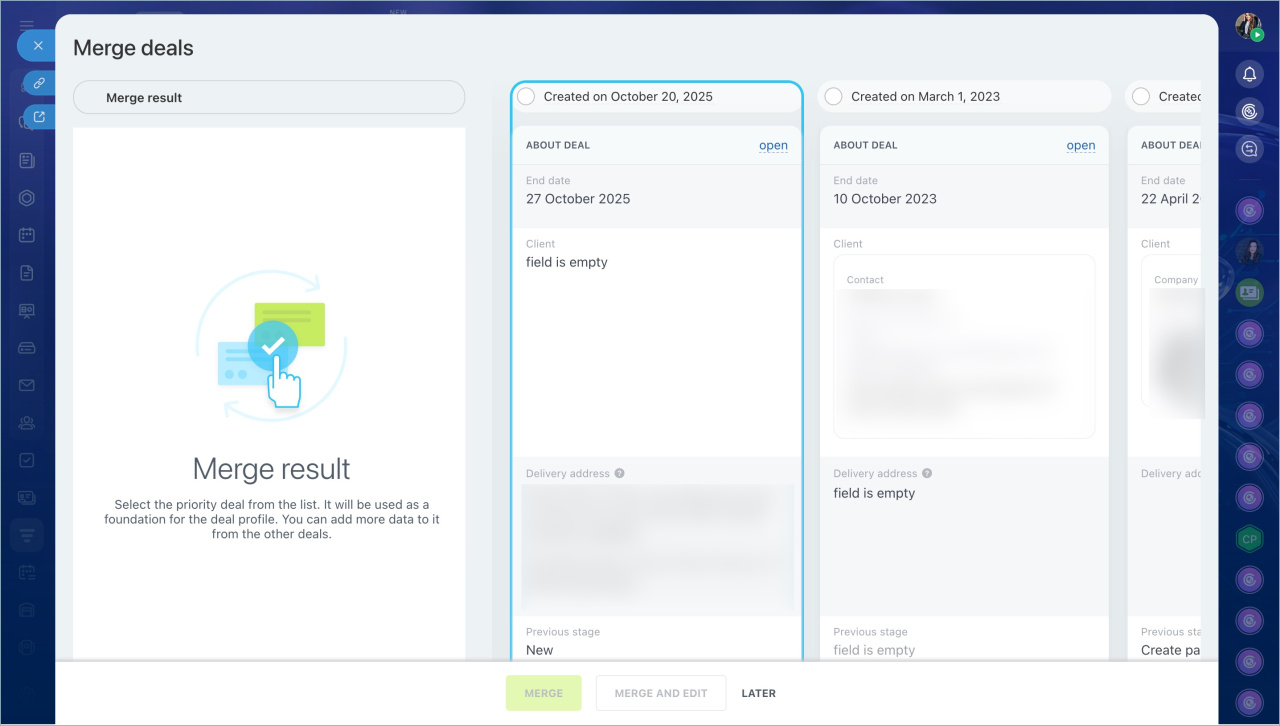
Merge. This action merges the selected items into one. Choose the main form that will receive all the data. If field values differ between forms, check the ones you want to keep in the main form.
Merge duplicates in CRM
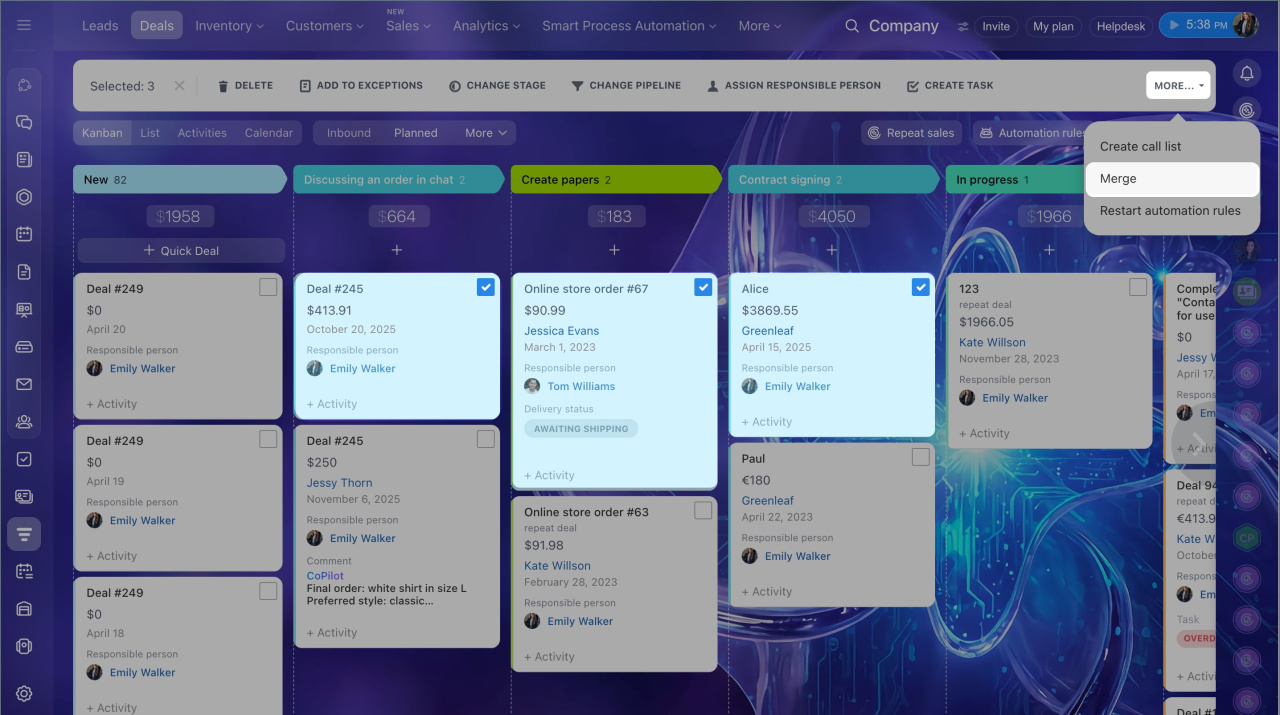
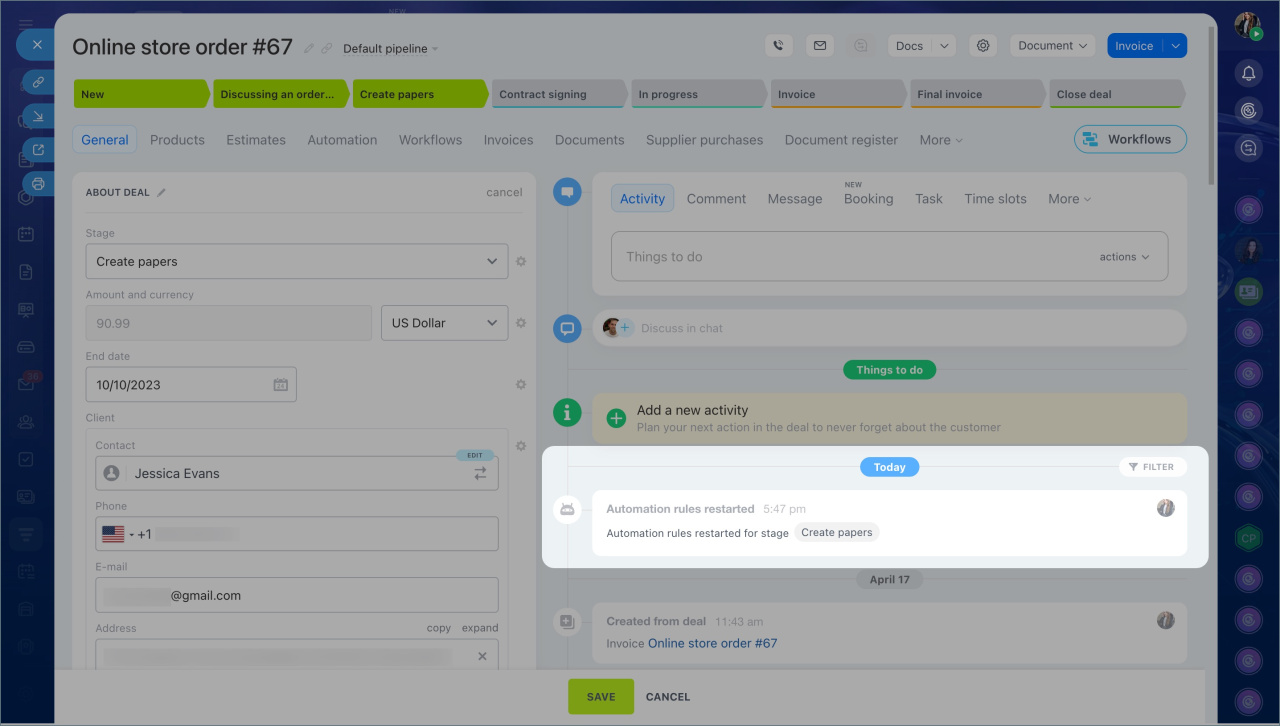
Restart automation rules. Automation rules will run again in the selected items, and a record of it will appear in the form.
Automation rules in CRM
In brief
- Kanban is a board with columns and cards that helps you move clients through the sales funnel.
- Cards represent CRM items: leads, deals, invoices, quotes, and SPAs. Columns represent the steps in your workflow with a client. In Bitrix24, these steps are called stages.
- In Kanban, you can track the number of deals and their total amount at each stage, monitor each manager's workload, and see which deals have not been assigned yet.
- Kanban is available for leads, deals, invoices, quotes, and SPAs.
- Set up stages in Kanban and move cards through them until you close the deal.
- To help employees create a deal faster in Kanban, set up the creation form.
- To show only the most important details instead of all fields, set up the deal view form.
- To perform an action on multiple items, select them with the checkbox. A panel with available actions will appear at the top. For example, you can change the assignee for two deals or restart automation rules for them.