
Bitrix24 CRM lets you call multiple customers directly from a list of contacts, companies, leads, or deals. You can manage calls in one place and automatically save results in customer records.
Check if the automatic dialer is available on your plan.
Bitrix24 plans and pricing
You need to set up telephony for calls.
Telephony connection options overview
Bitrix24 plans and pricing
You need to set up telephony for calls.
Telephony connection options overview
In this article:
Make customer calls
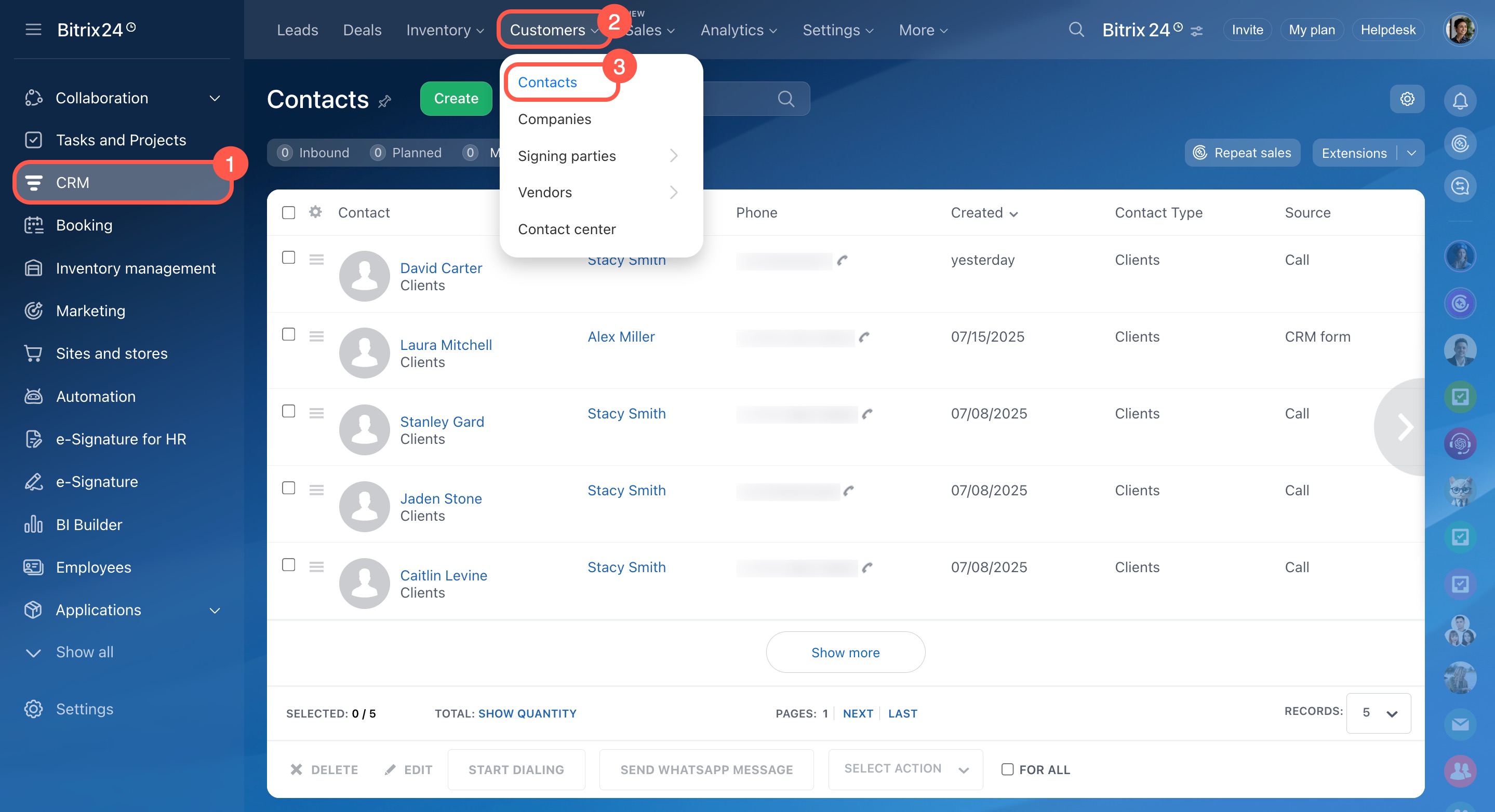
Use the Contacts section to start calling:
- Go to CRM.
- Open Customers.
- Select Contacts.
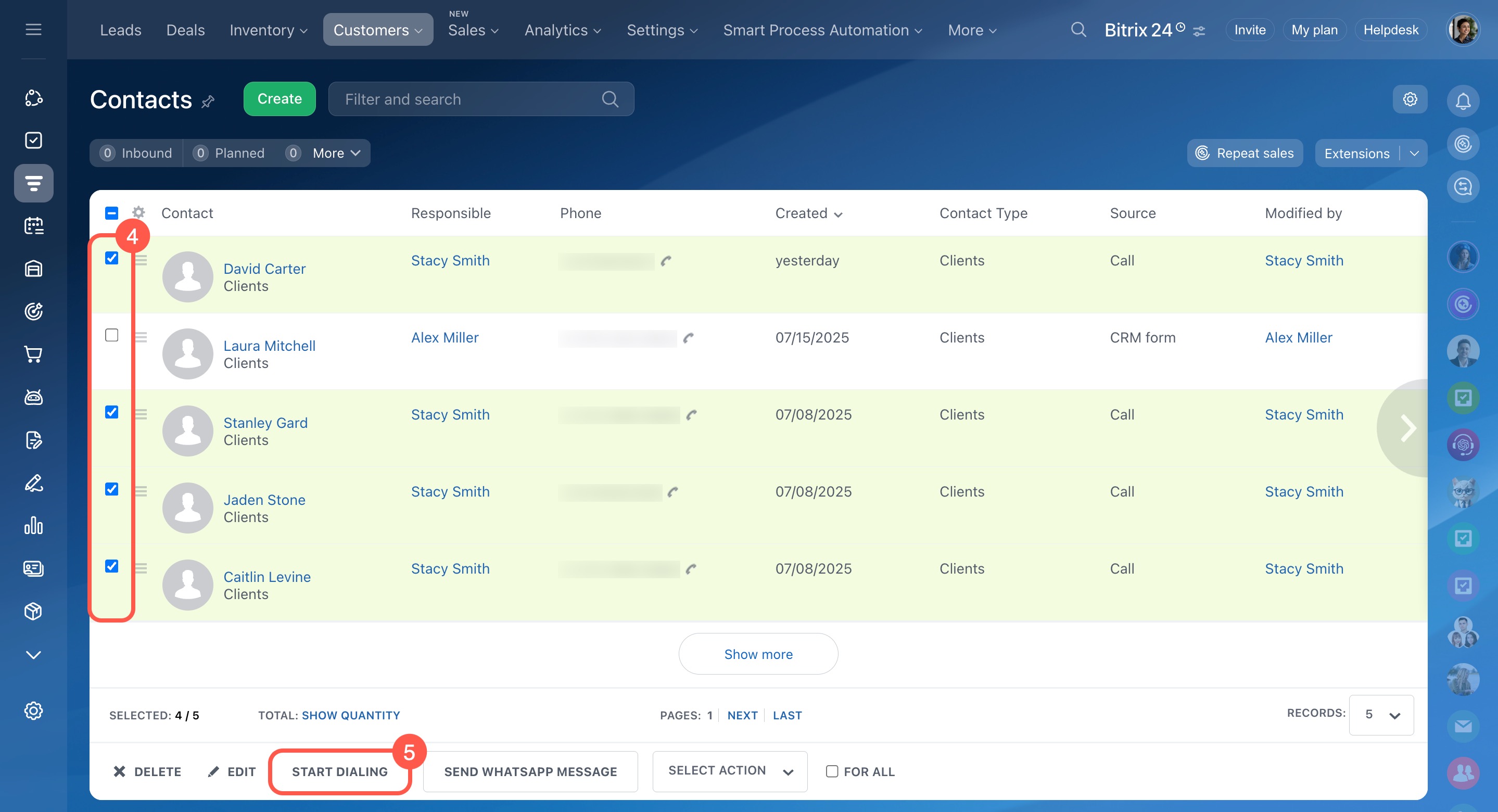
- Choose the contacts to call. You can apply filters or select all.
- Click Start dialing.
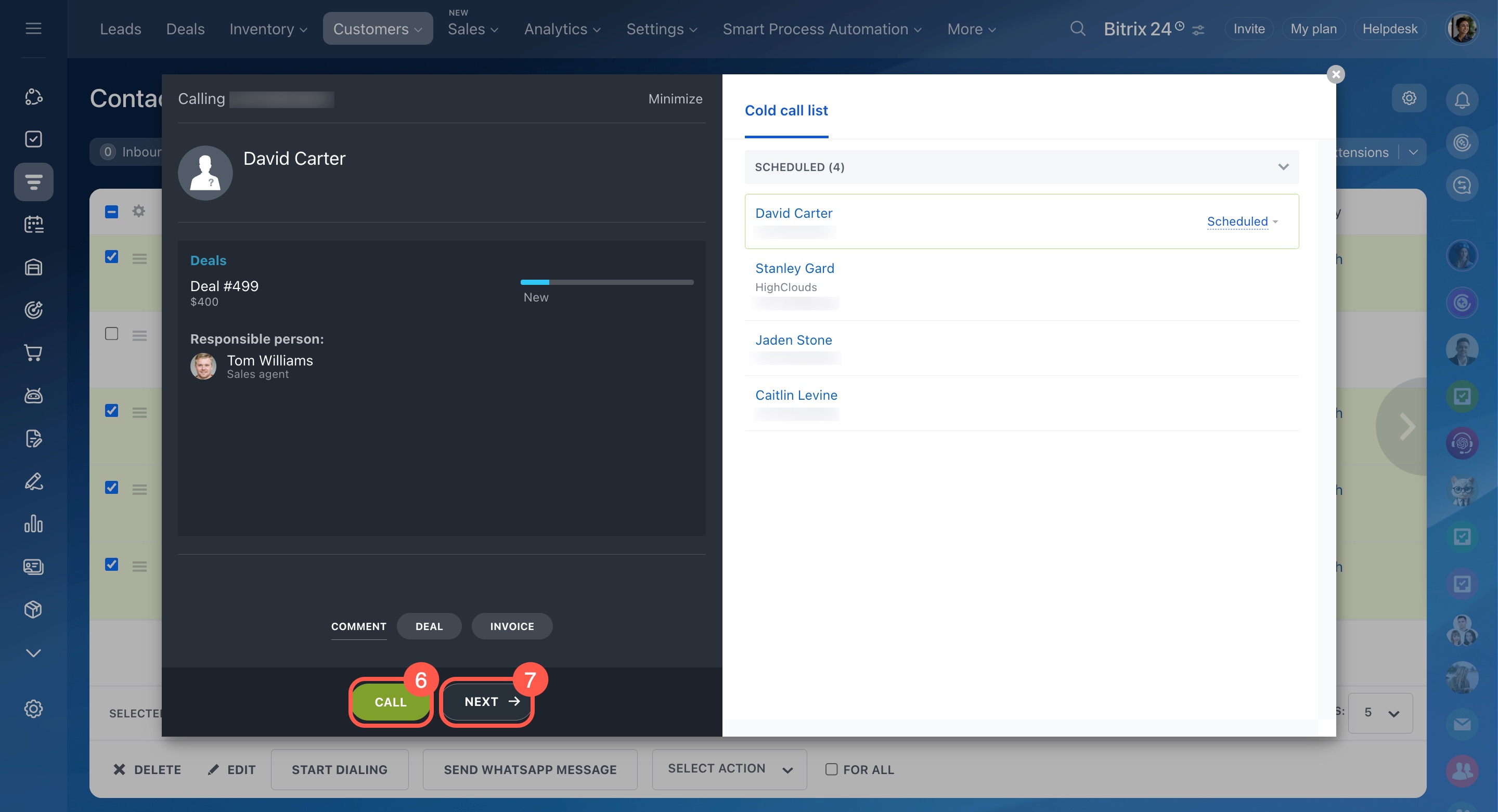
- In the pop-up, click Call.
- After each call, click Next to move to the next contact.
Record call results
After each call, record key details to keep your data accurate.
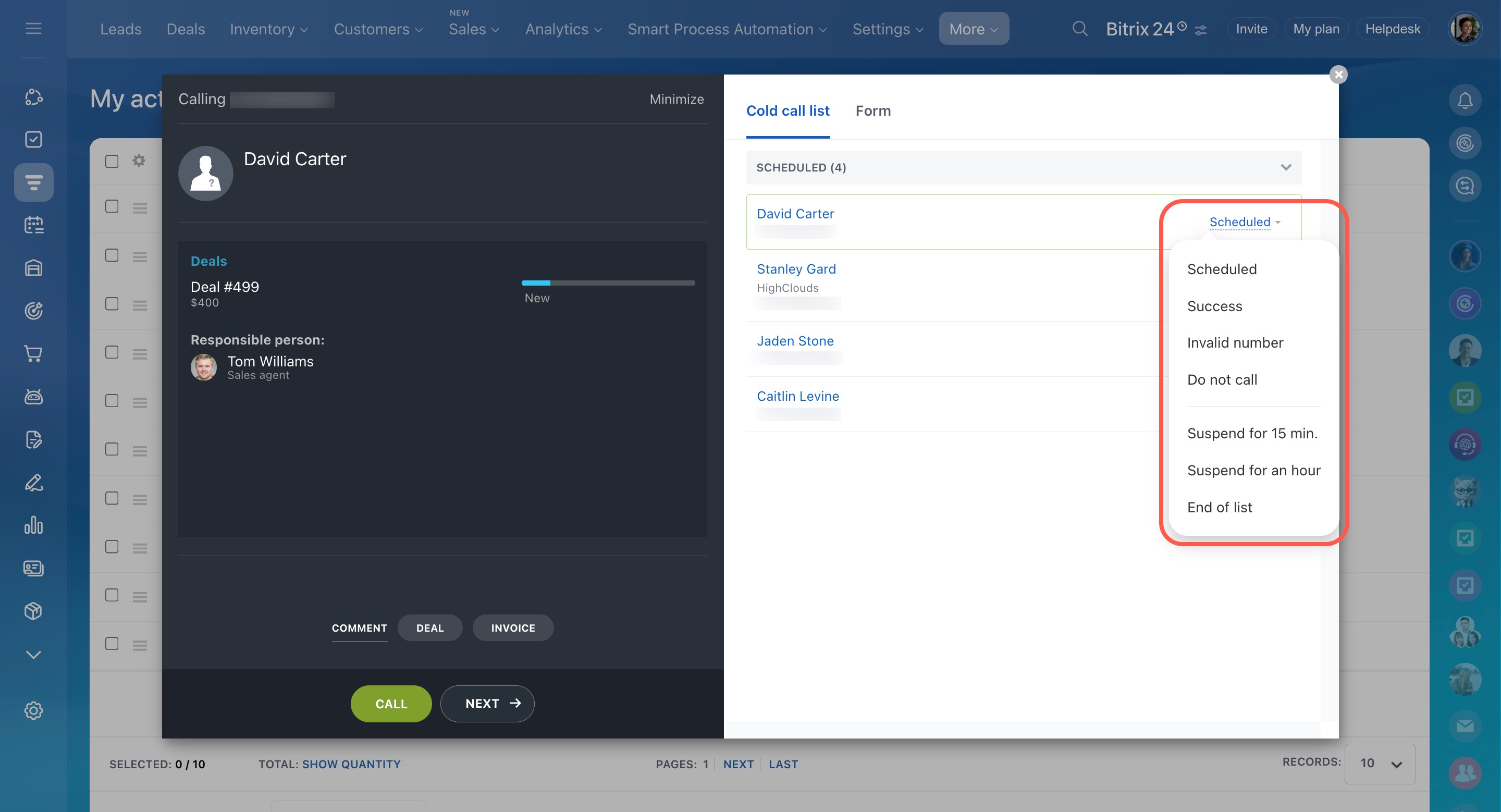
Select the call result
- Choose a result next to the contact.
- Set a status or postpone the call.
- The system moves you to the next contact automatically.
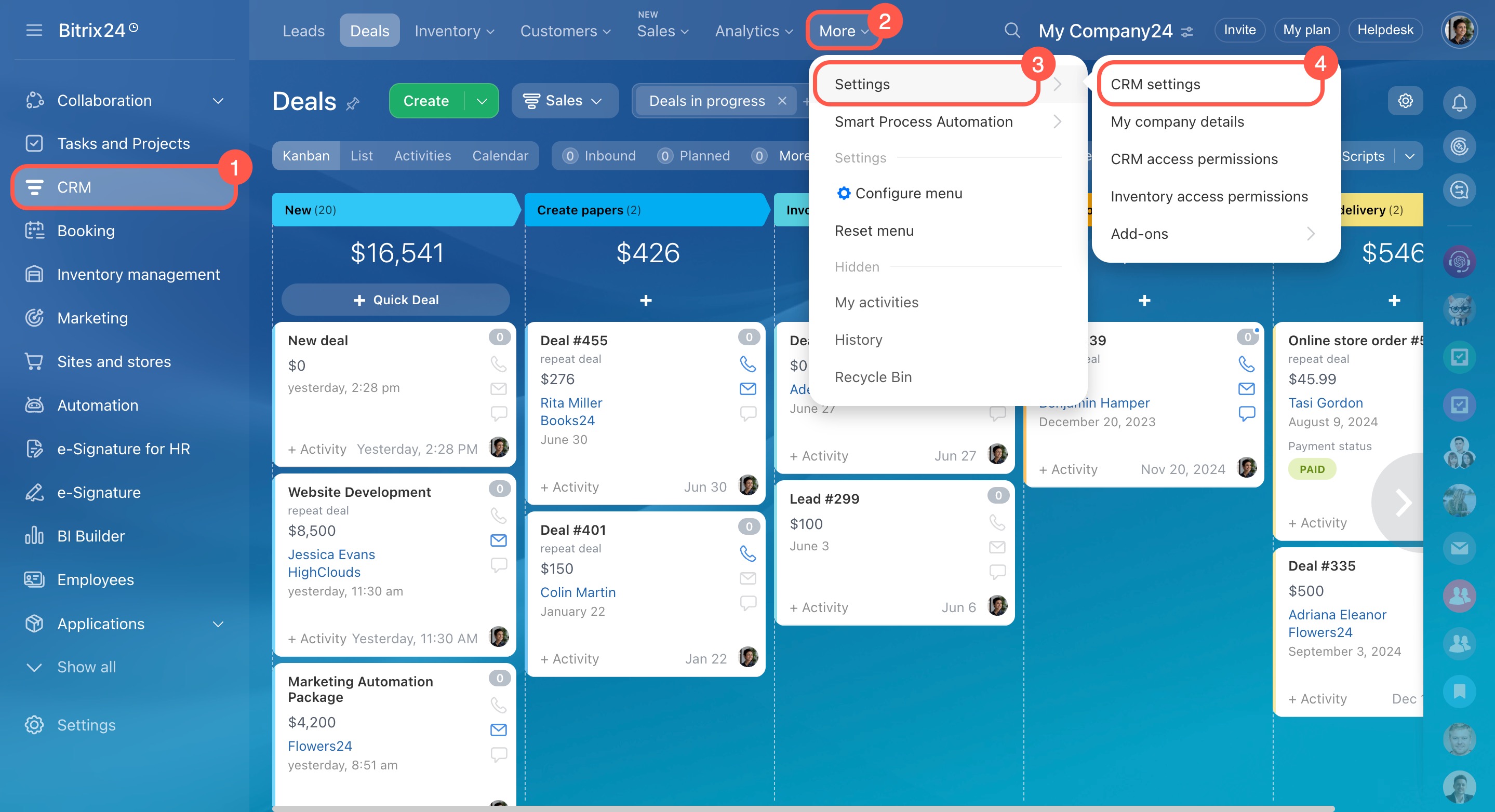
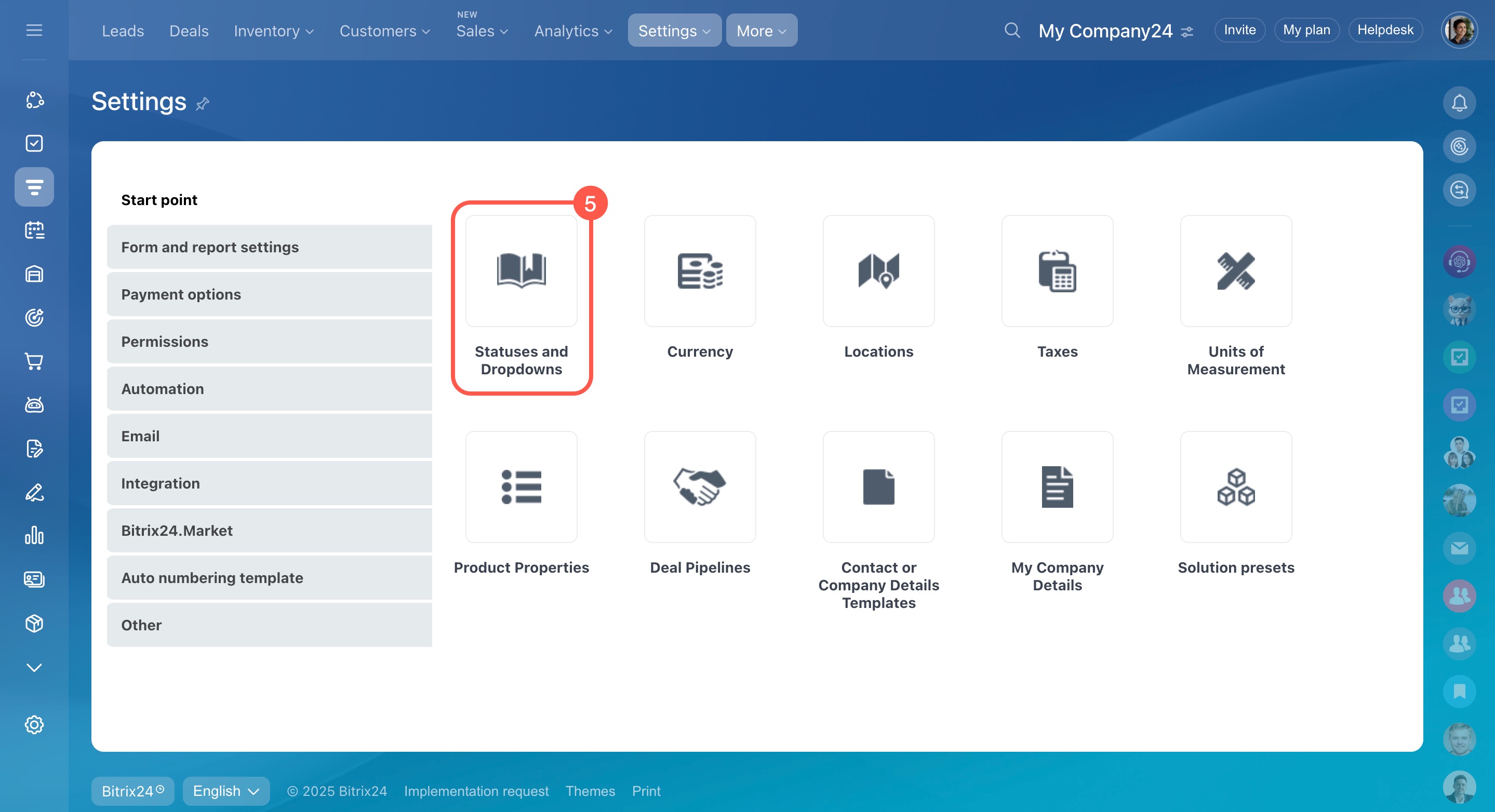
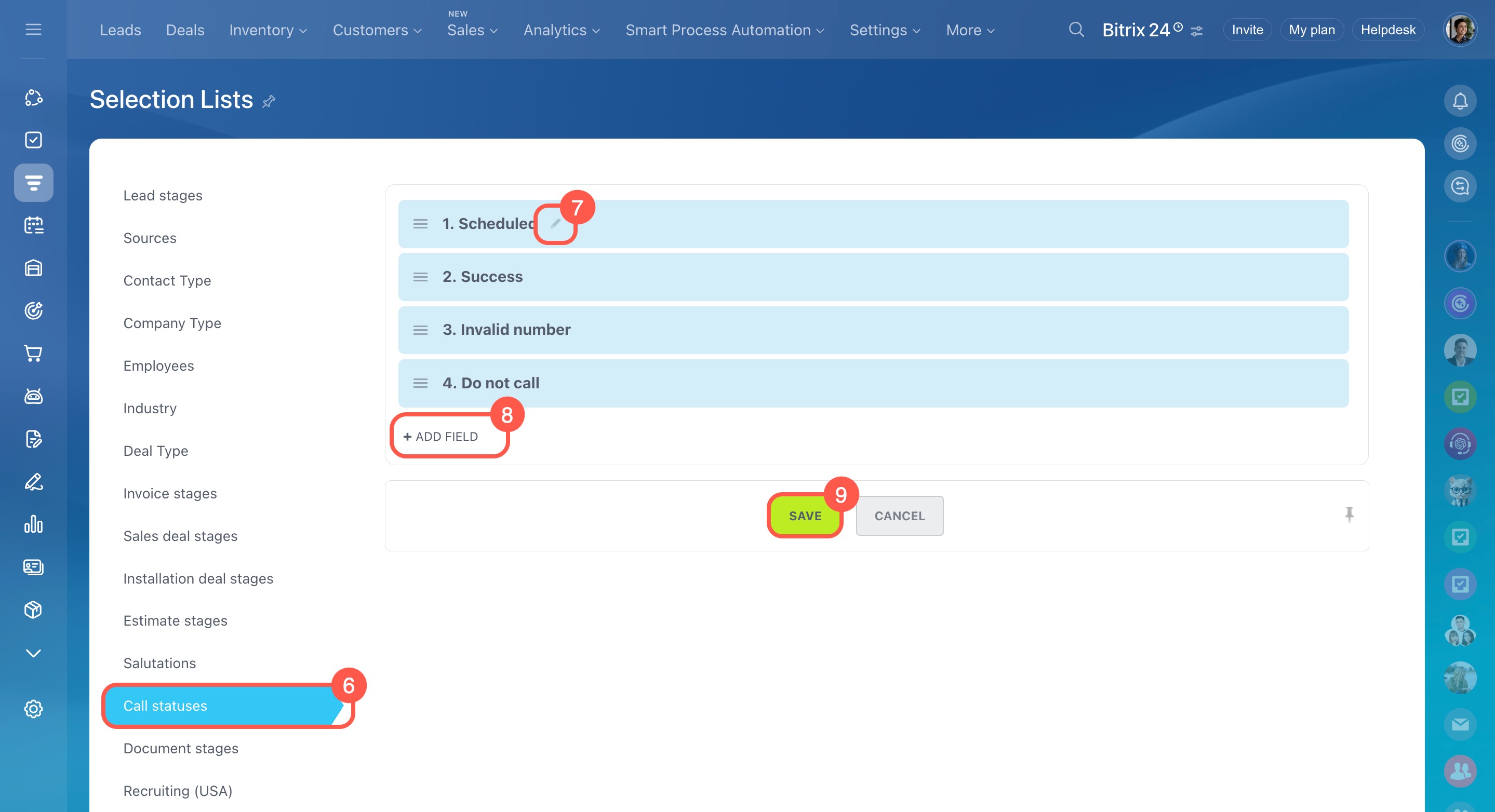
To customize call results:
- Go to CRM.
- Click More.
- Open Settings.
- Select CRM settings.
- Click Statuses and dropdowns.
- Open Call statuses.
- Edit existing statuses or add new ones.
- Click Save.
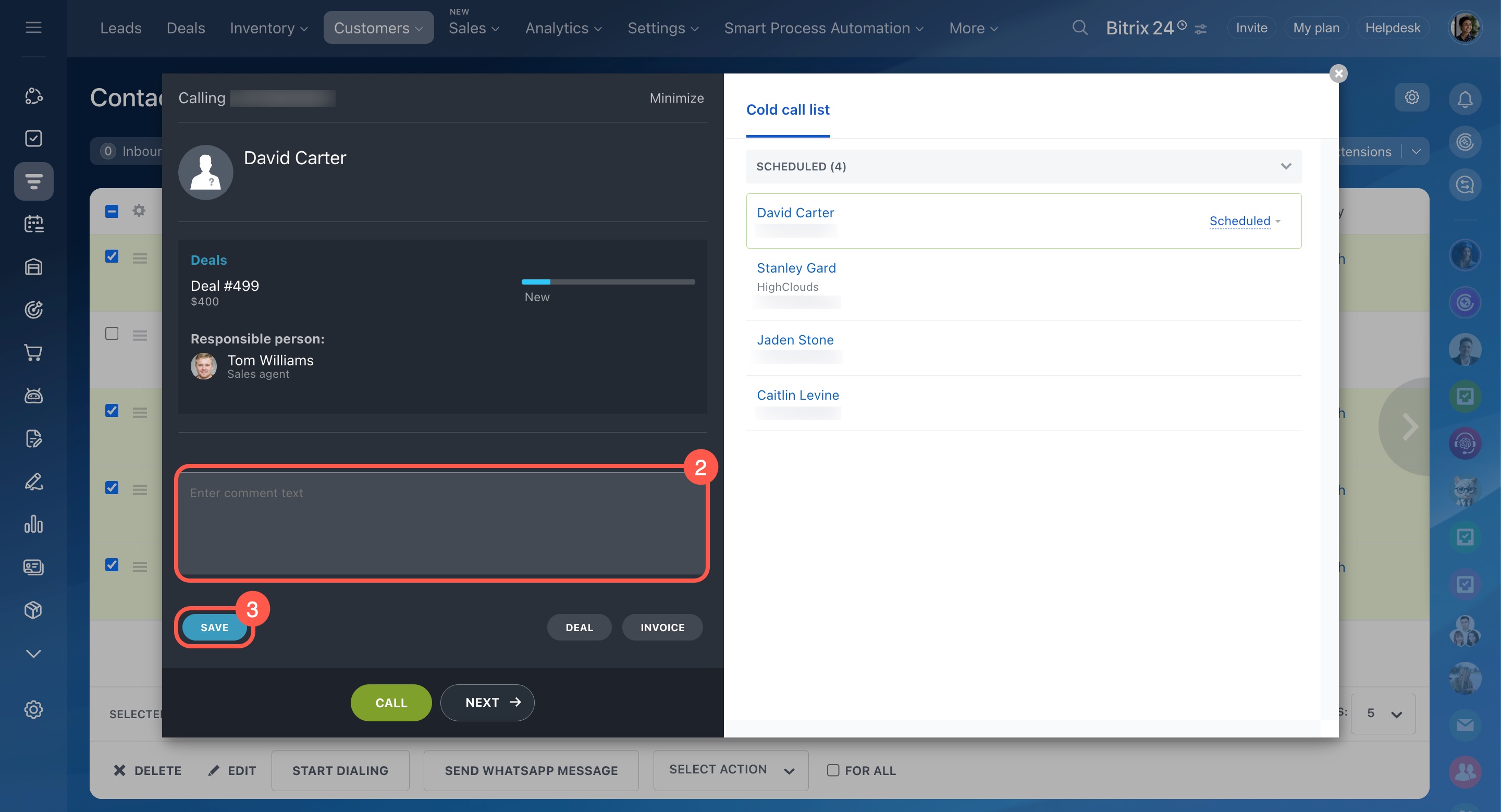
Add a comment
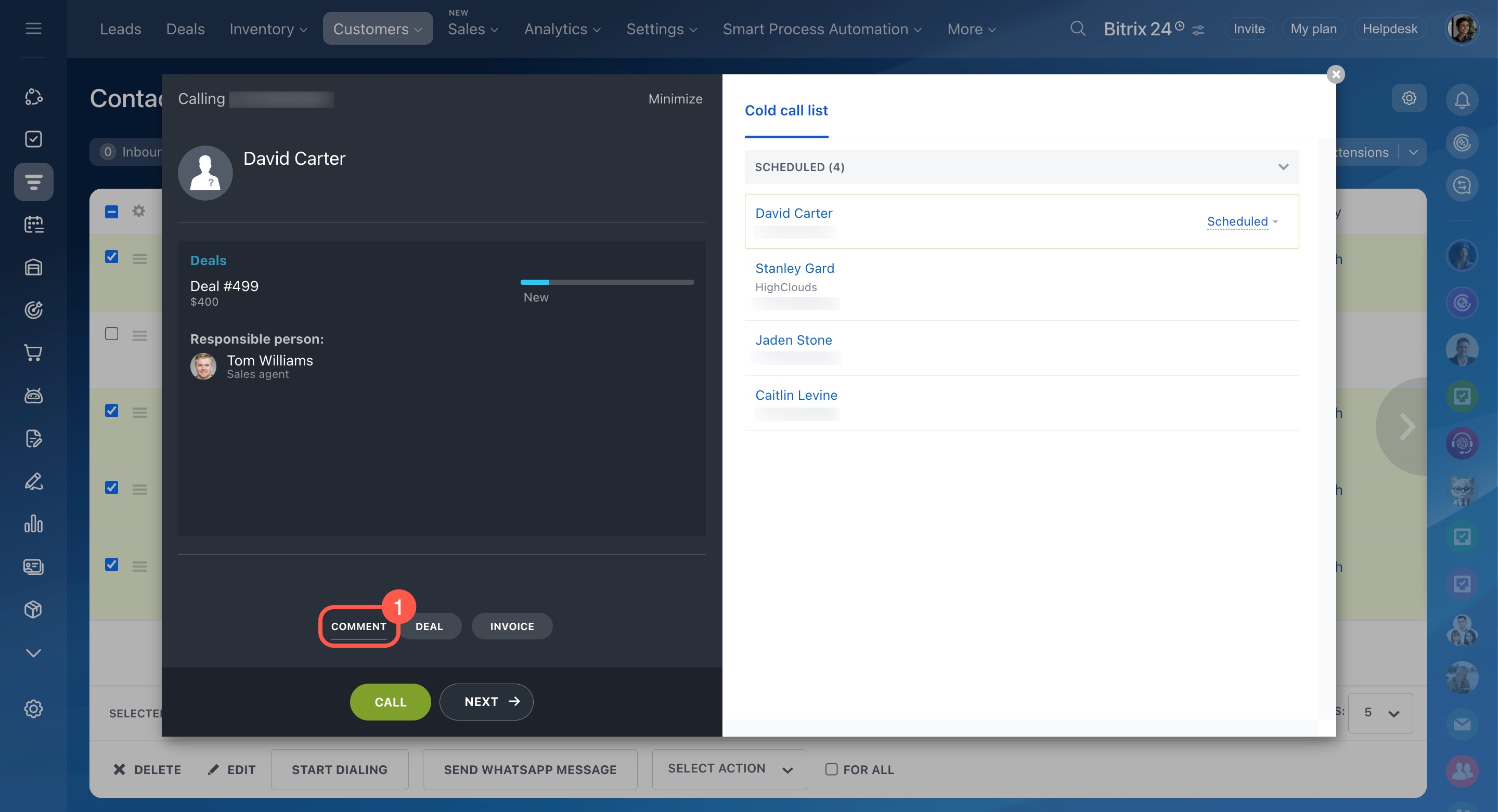
Save important details, such as follow-up timing.
- Click Comment.
- Enter your note.
- Click Save.
You can find the comment in the contact timeline.
To save the comment, leave it only after the call is completed.
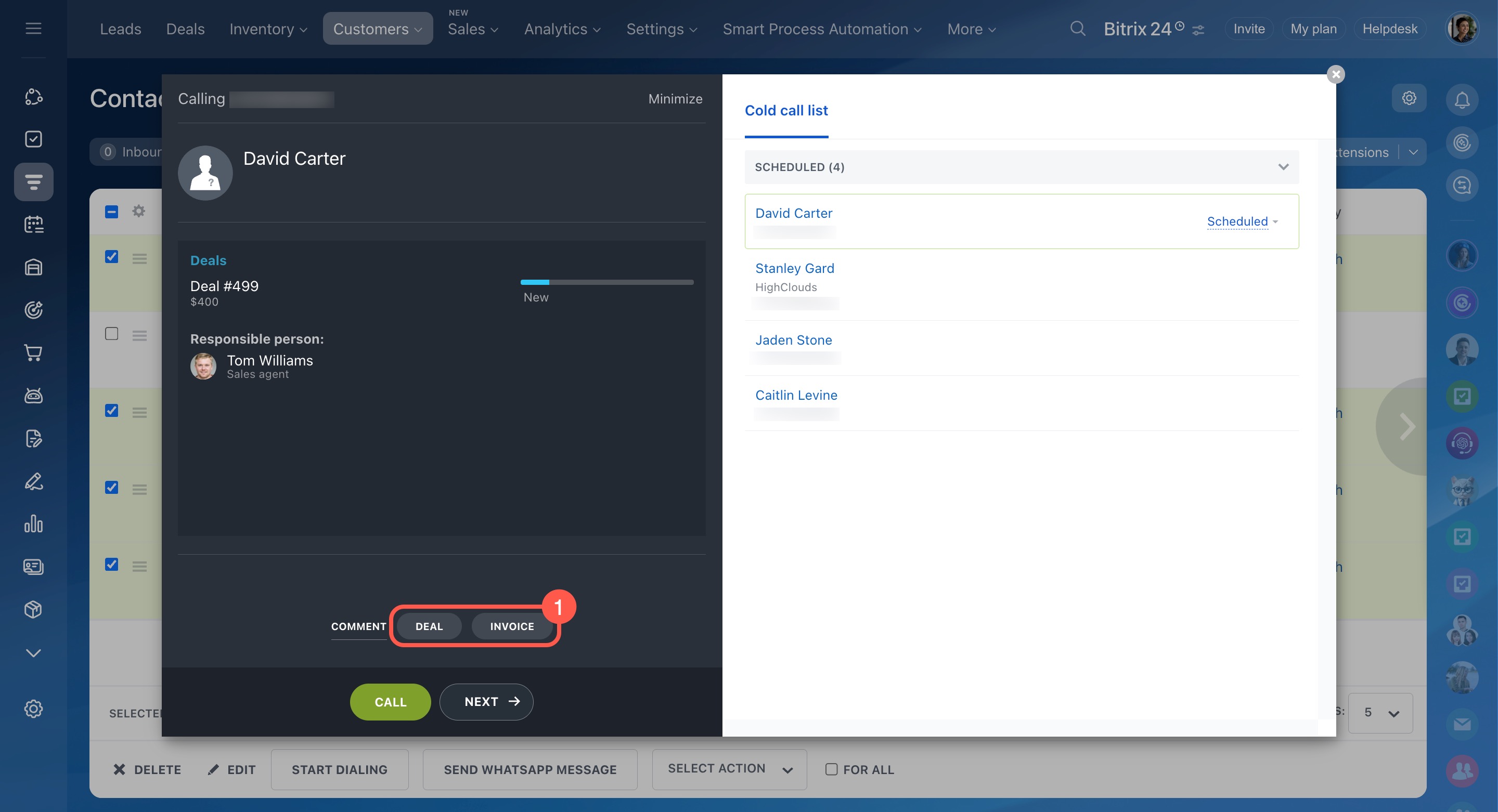
Create a deal or invoice
Move the customer forward and capture agreements.
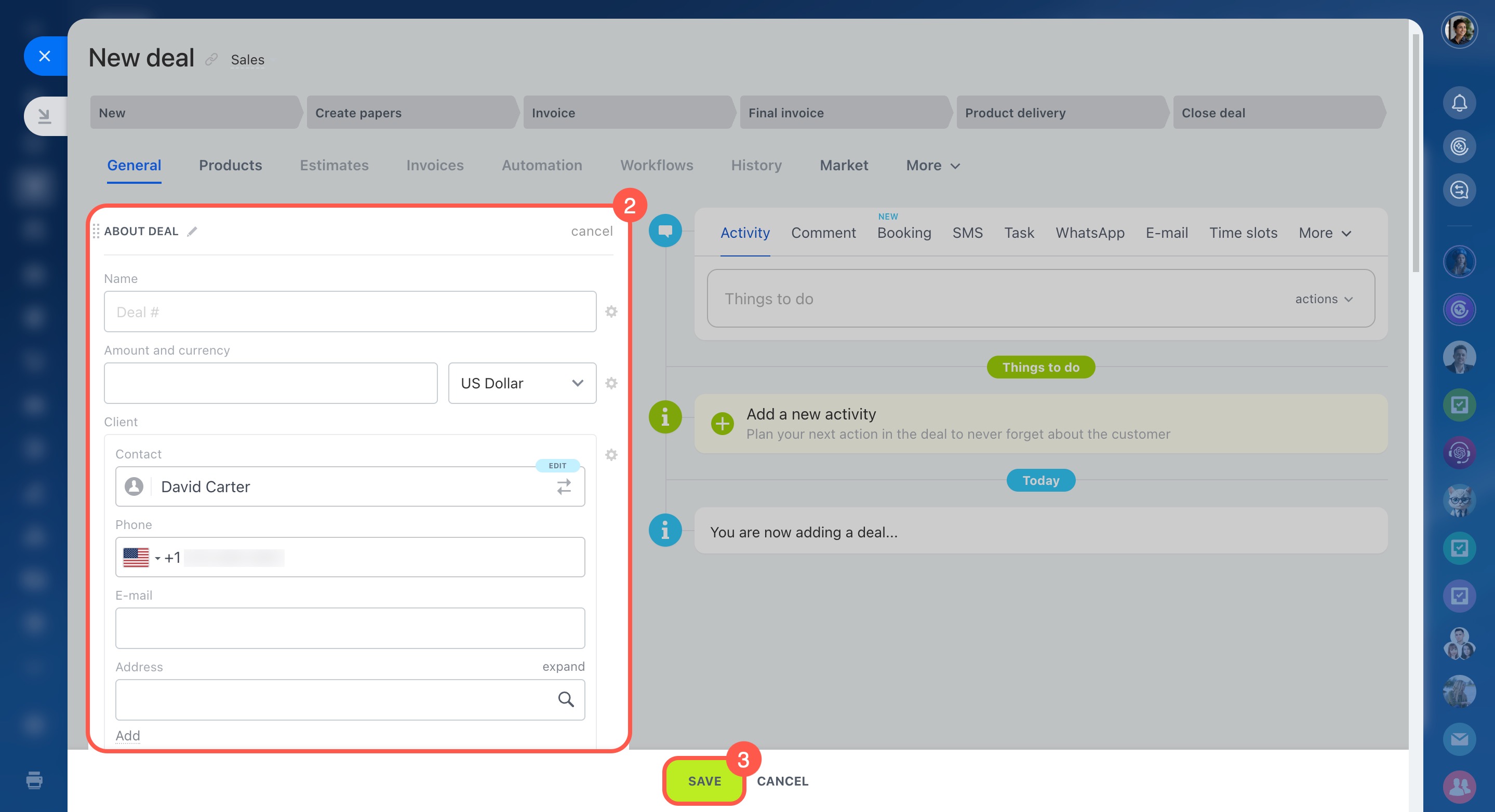
- Click Deal or Invoice.
- Fill in the required fields.
- Click Save.
Create and send an invoice to a customer
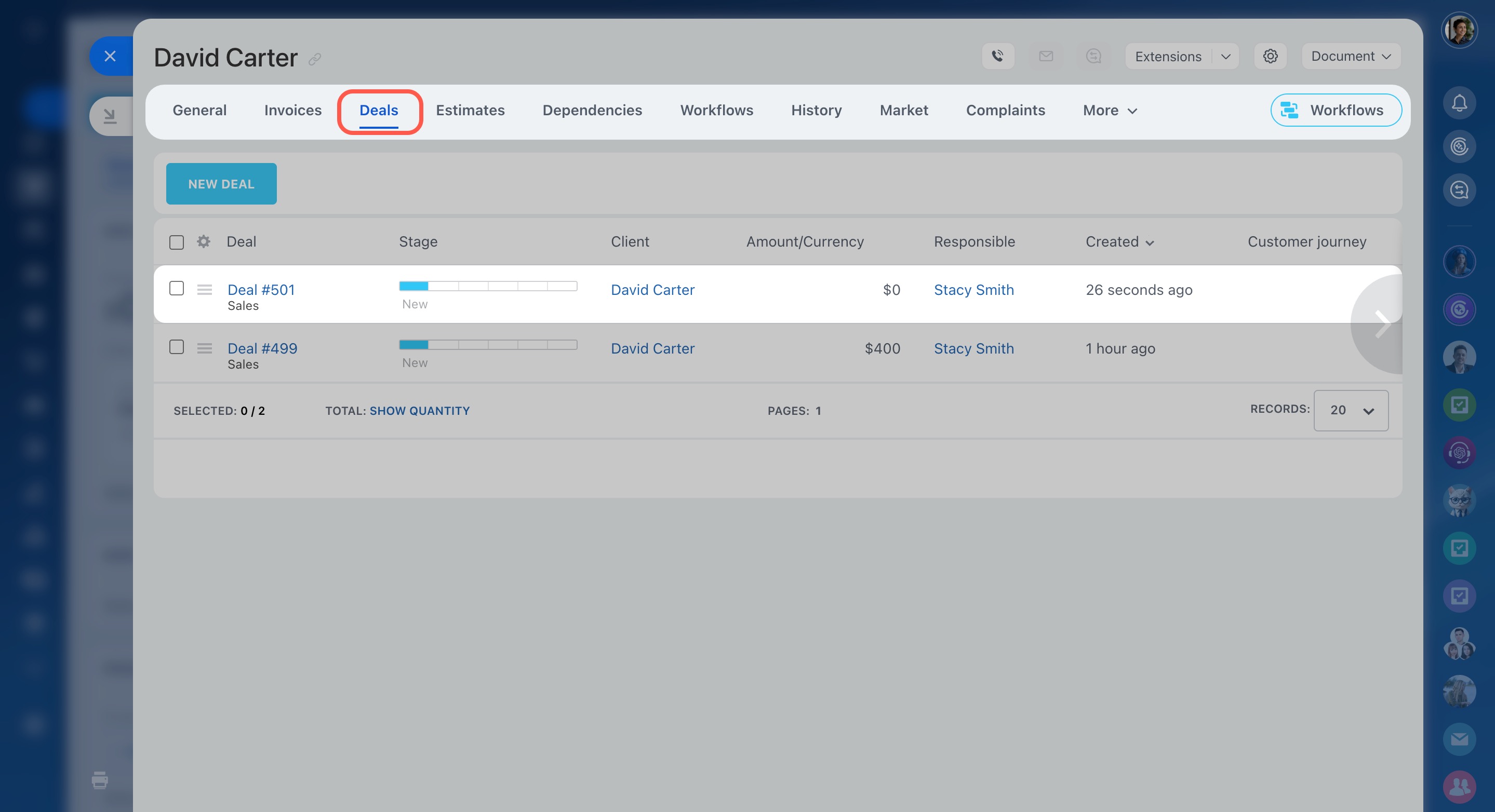
The new deal appears in the contact under the Deals tab.
Create a call activity
Schedule calls for later or assign them to another employee.
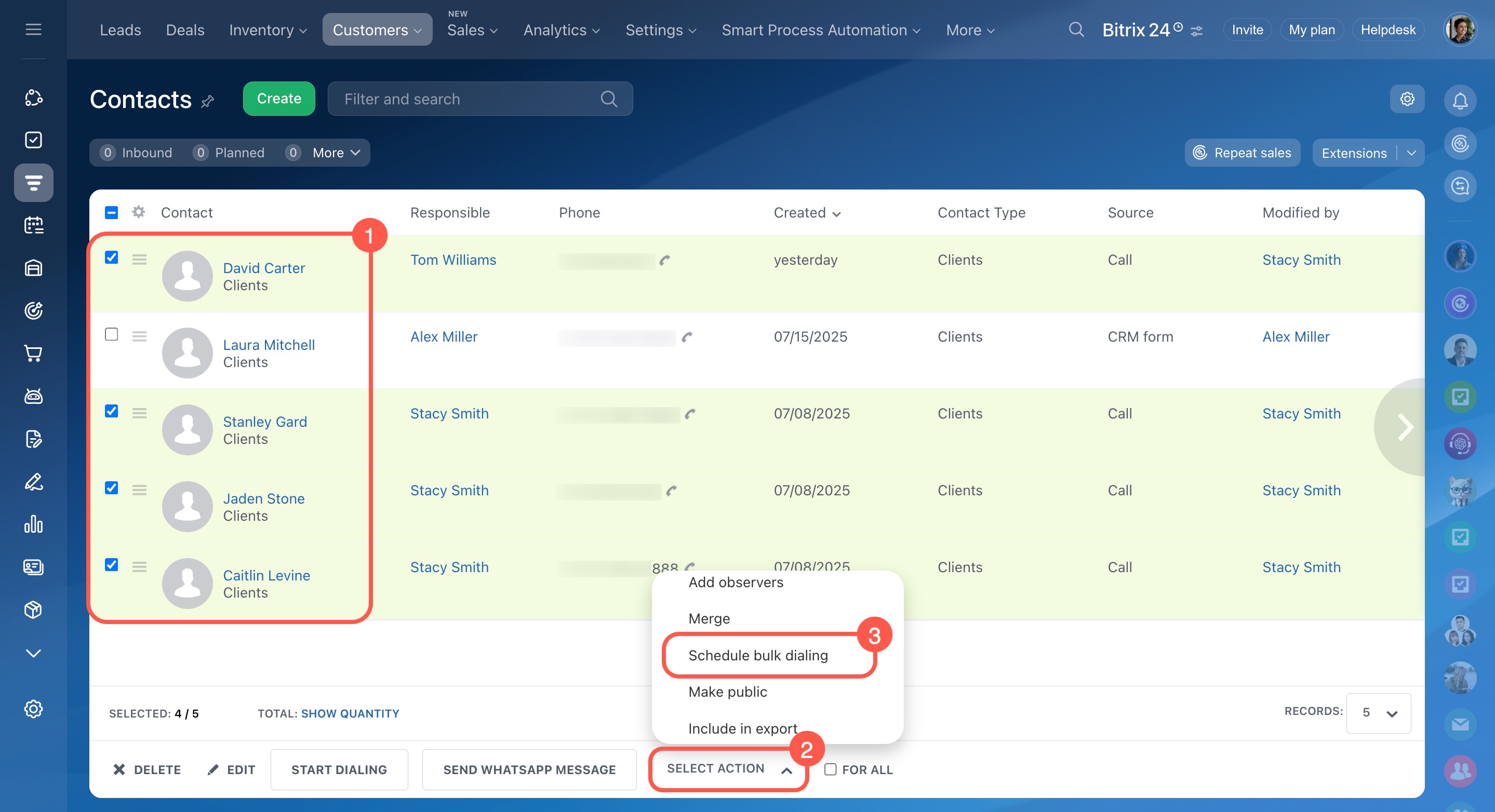
- Select contacts.
- Click Select action.
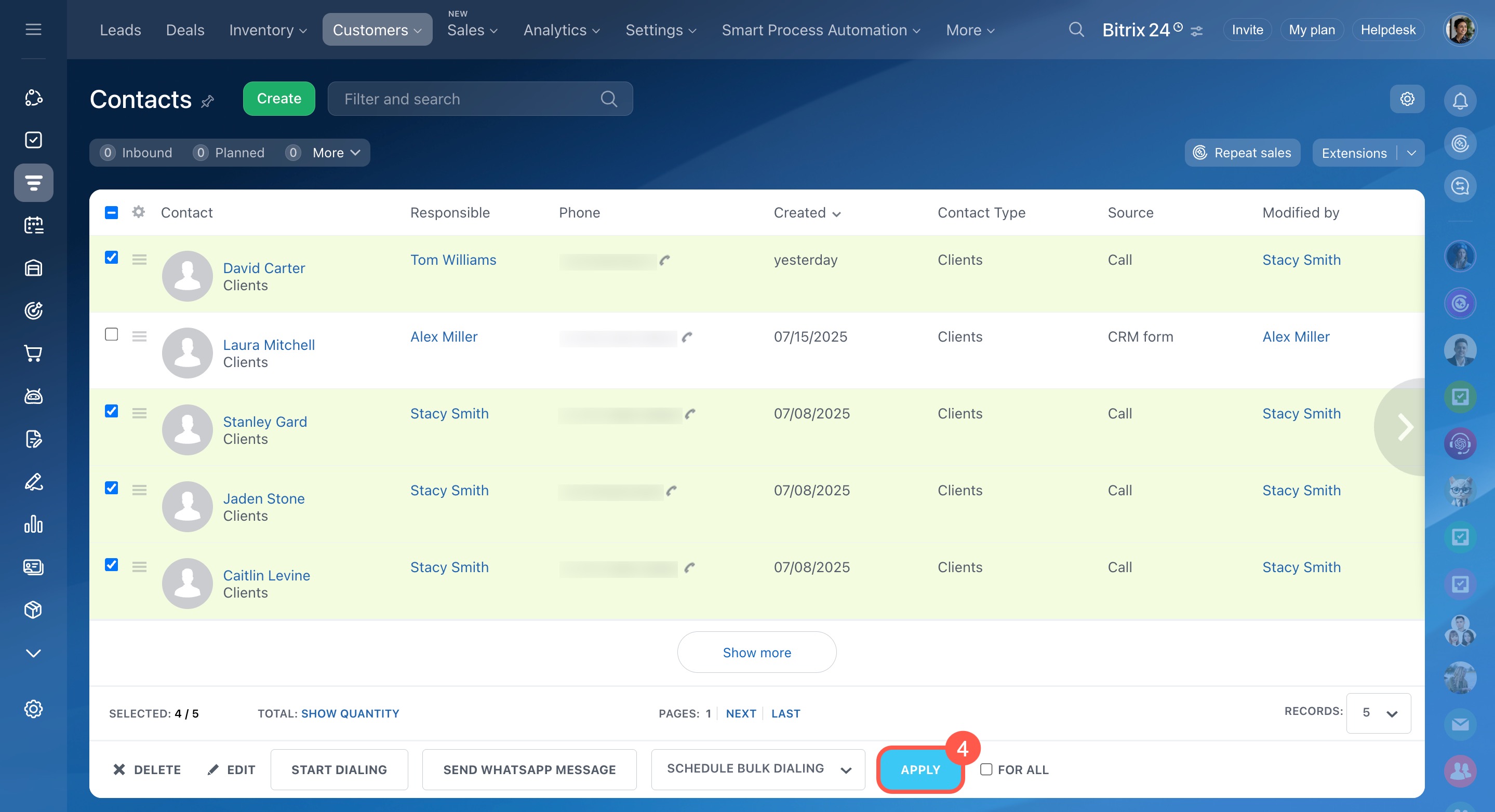
- Choose Schedule bulk dialing.
- Click Apply.
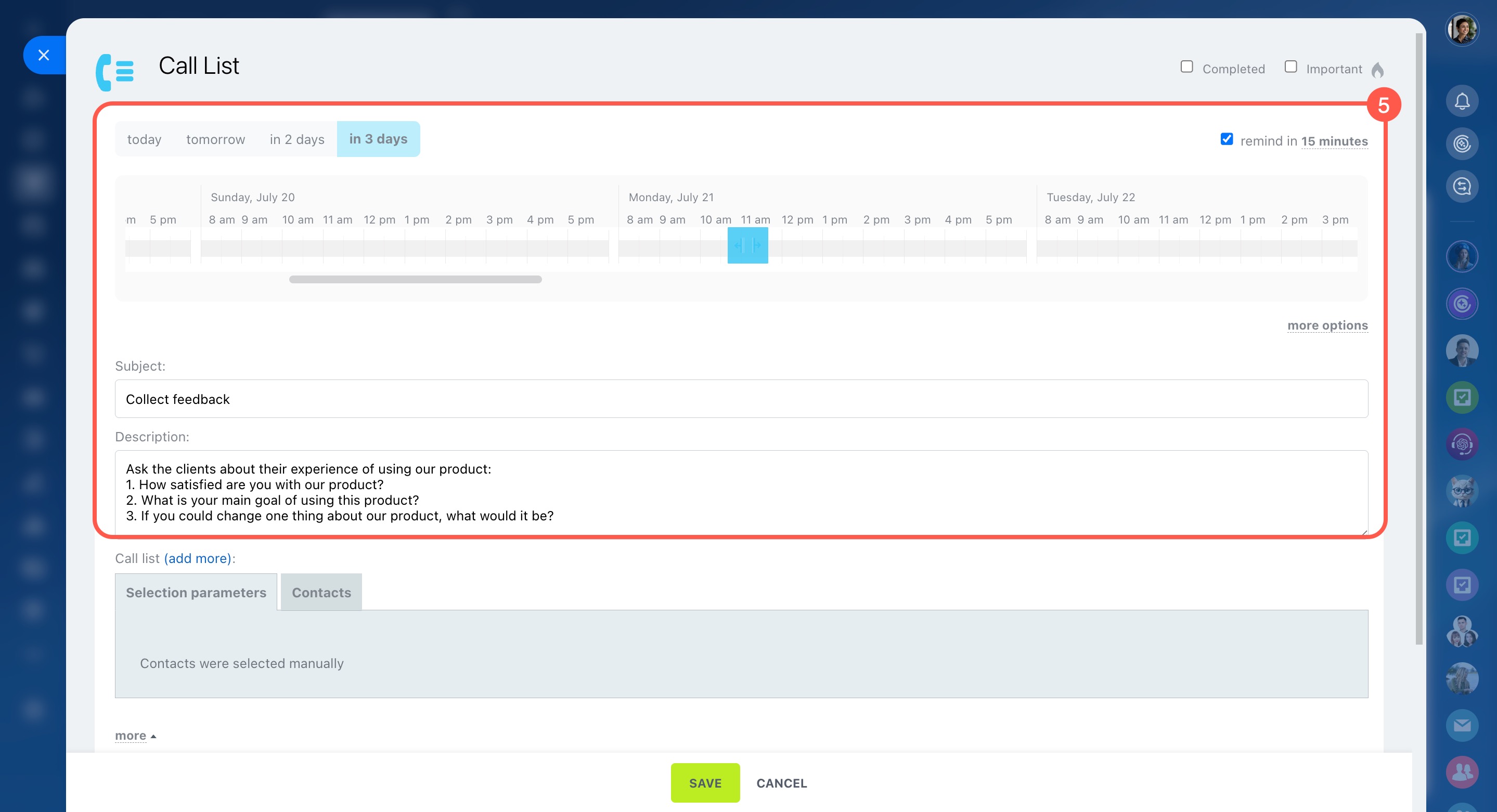
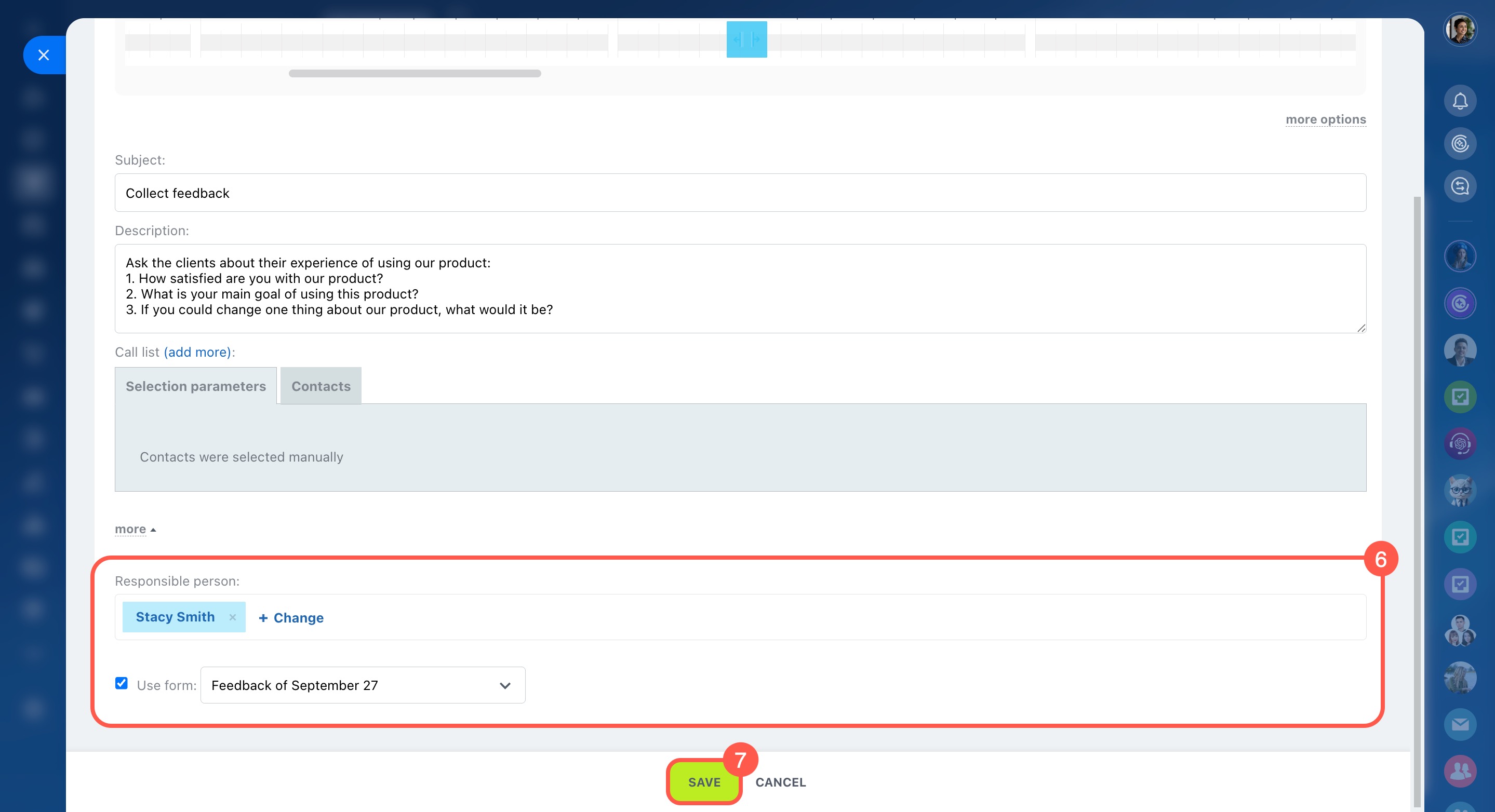
- Set the date, time, subject, and responsible user.
- (Optional) Select a CRM form to collect data.
- Click Save.
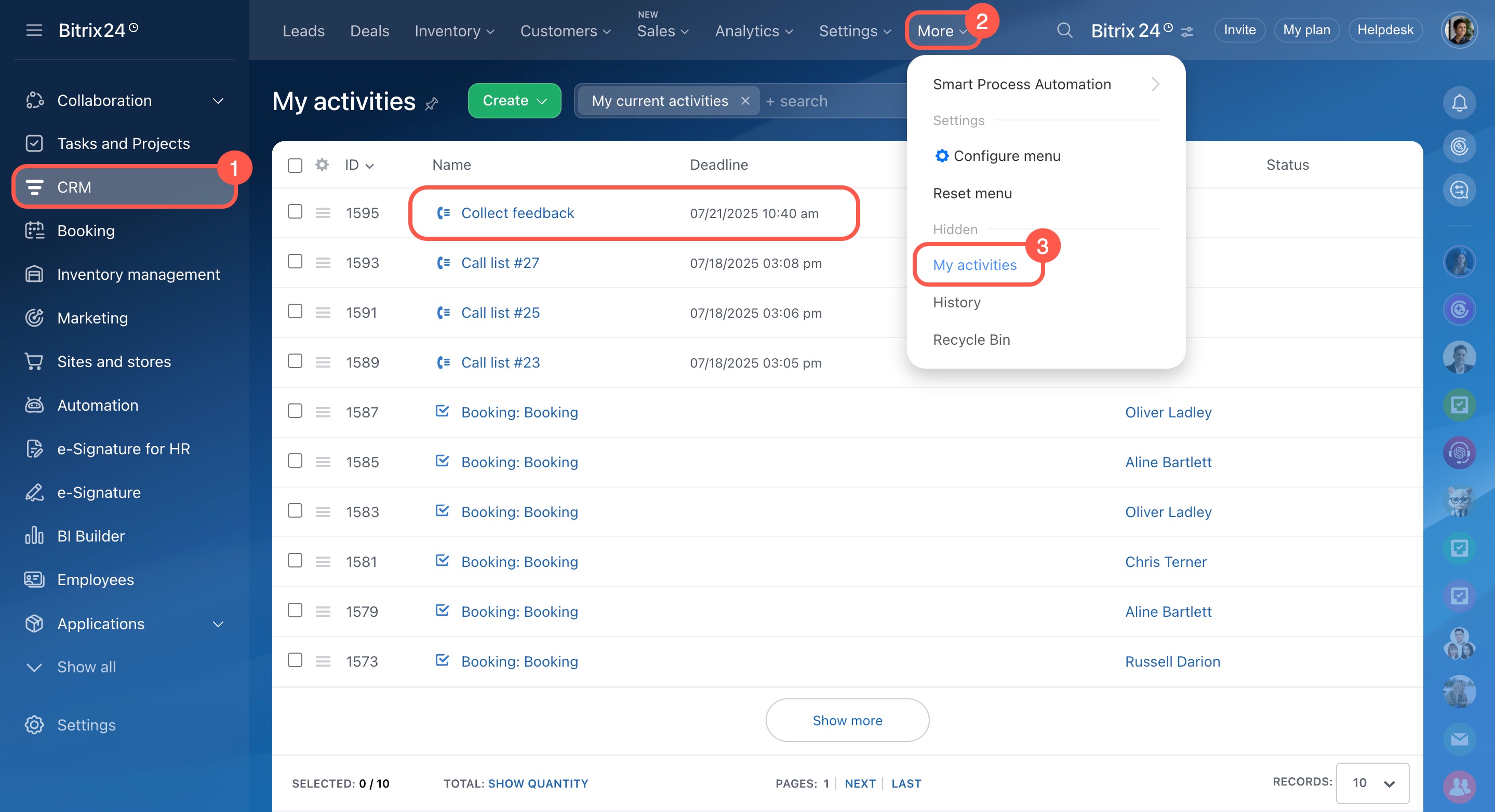
Find the activity in CRM > More > My activities.
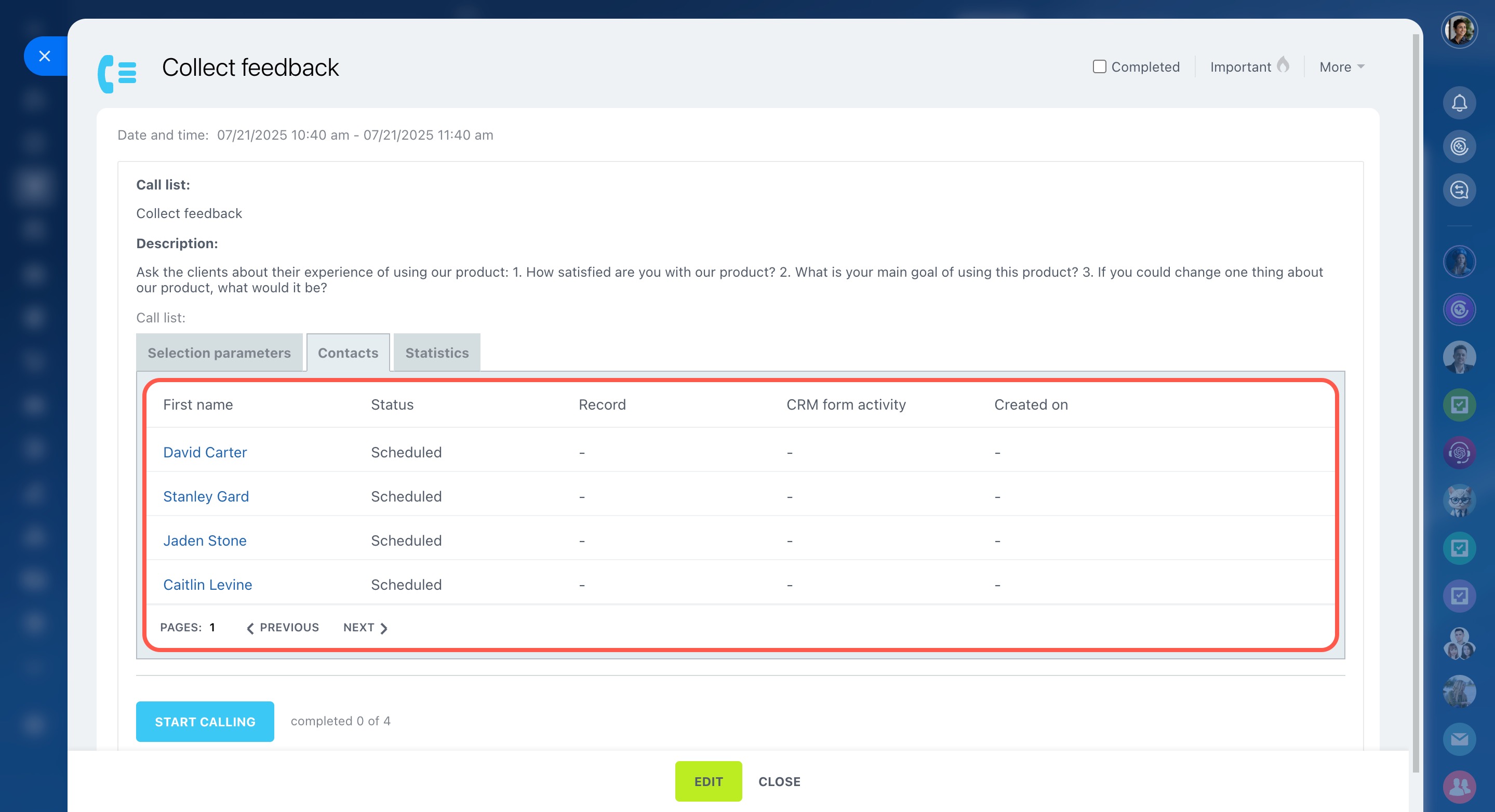
In the activity:
- Open the Contacts tab to review completed calls.
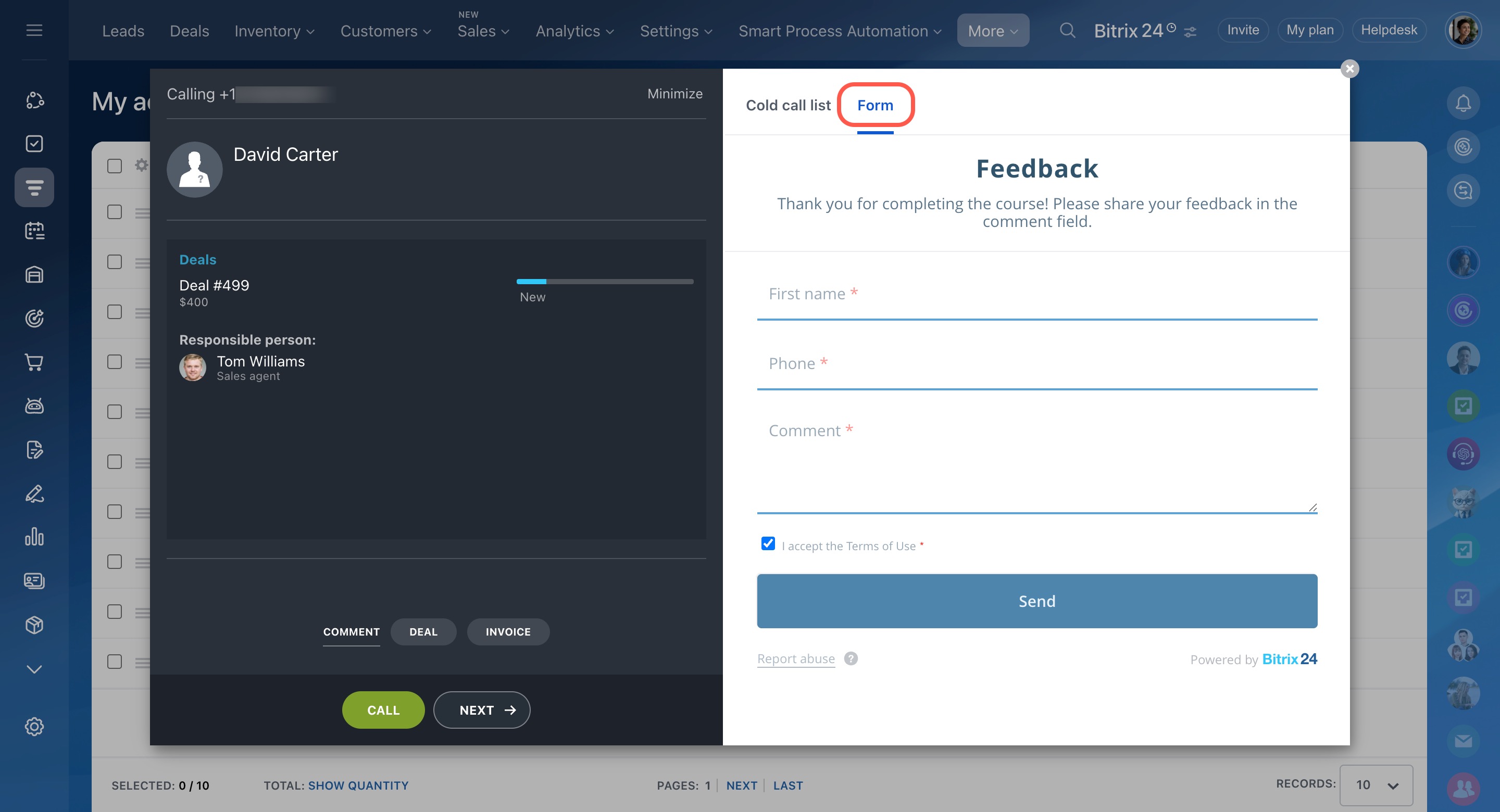
- The selected CRM form opens in a new tab when you start calling.
In brief
- Call multiple customers from a single list in CRM.
- Save time by handling calls and results in one place.
- After each call, log the result, add a comment, and create a deal or invoice if needed.
- Use call activities to schedule or assign calls.
- Access all activities under CRM > More > My activities.