
Set how customer names appear in your CRM item forms. This helps you tell similar contacts apart and find the right records faster.
In this article:
Configure the contact name format
By default, names appear as First Name Last Name format. To change this:
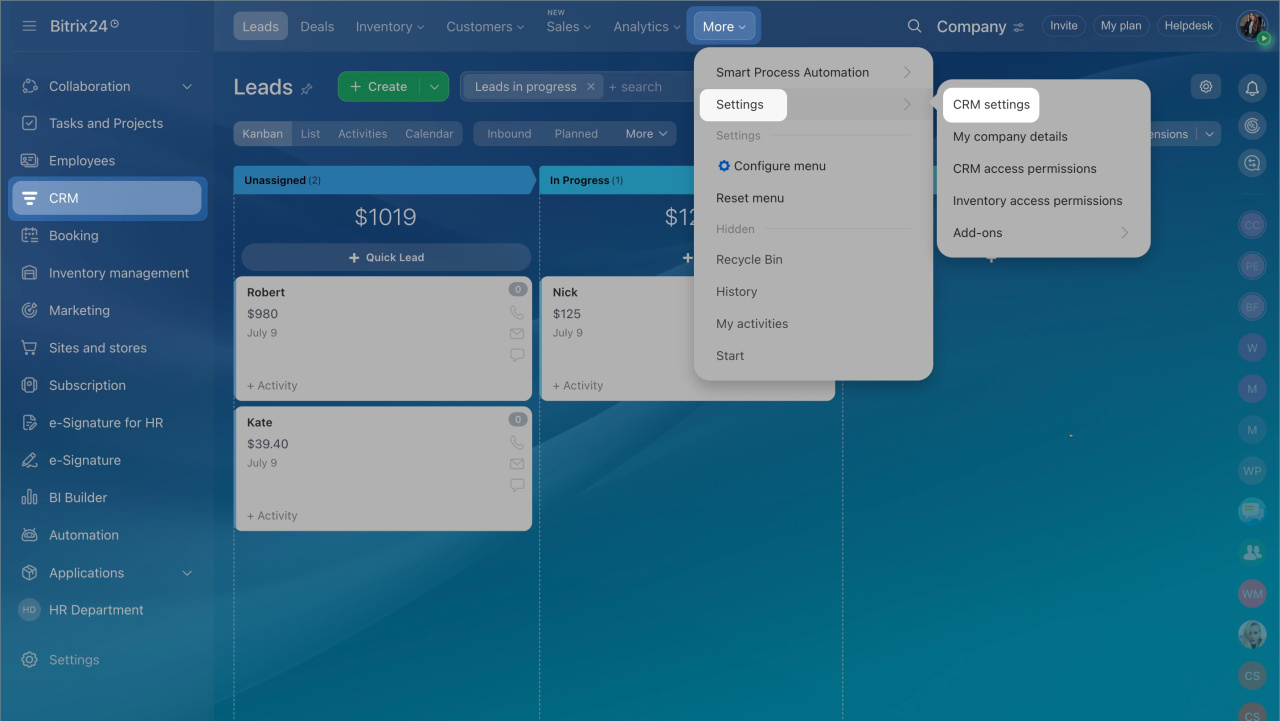
- Go to CRM > More > Settings > CRM Settings.
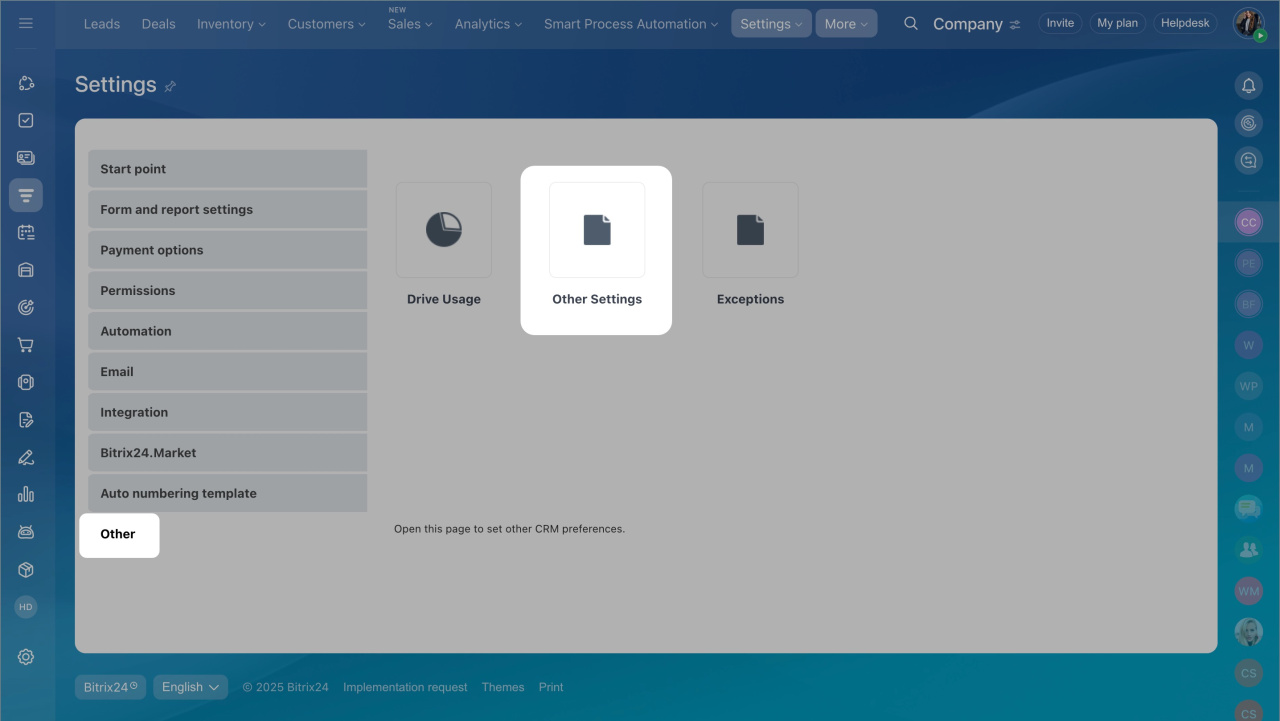
- Open Other > Other settings.
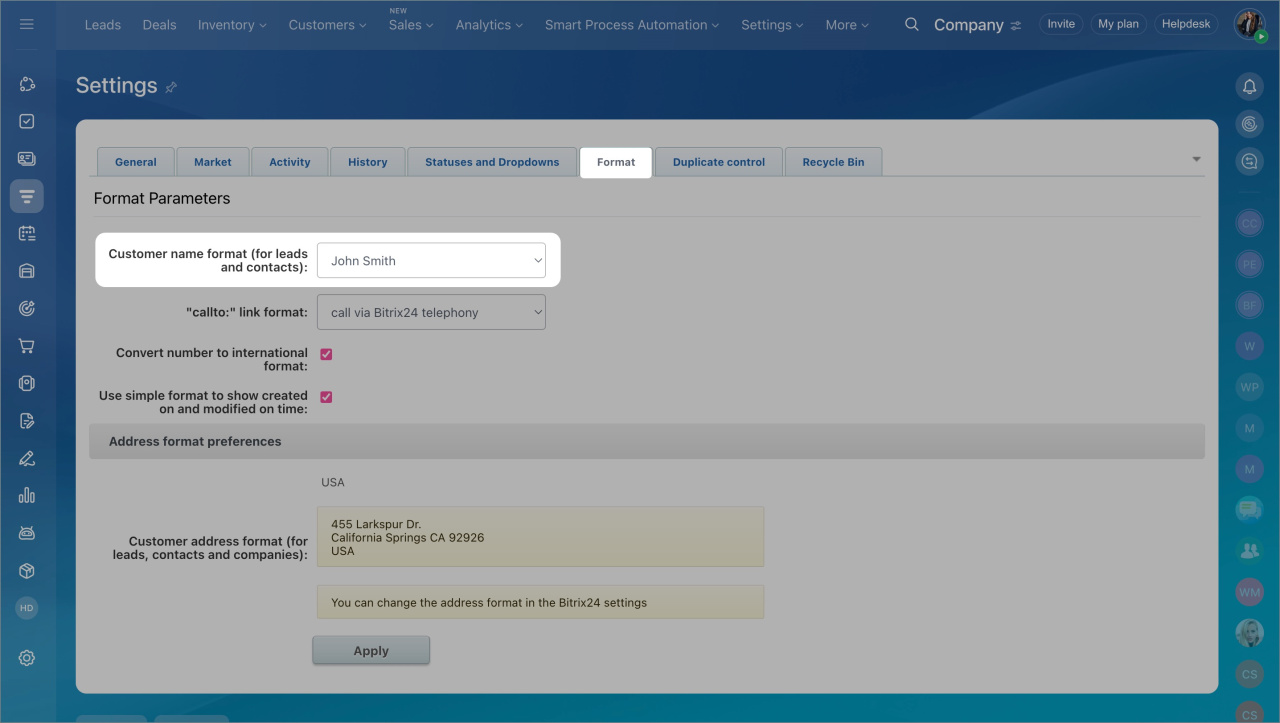
- Go to the Format tab.
- Choose a value in Customer name format.
The selected format applies to all CRM items.
Configure fields in the contact form
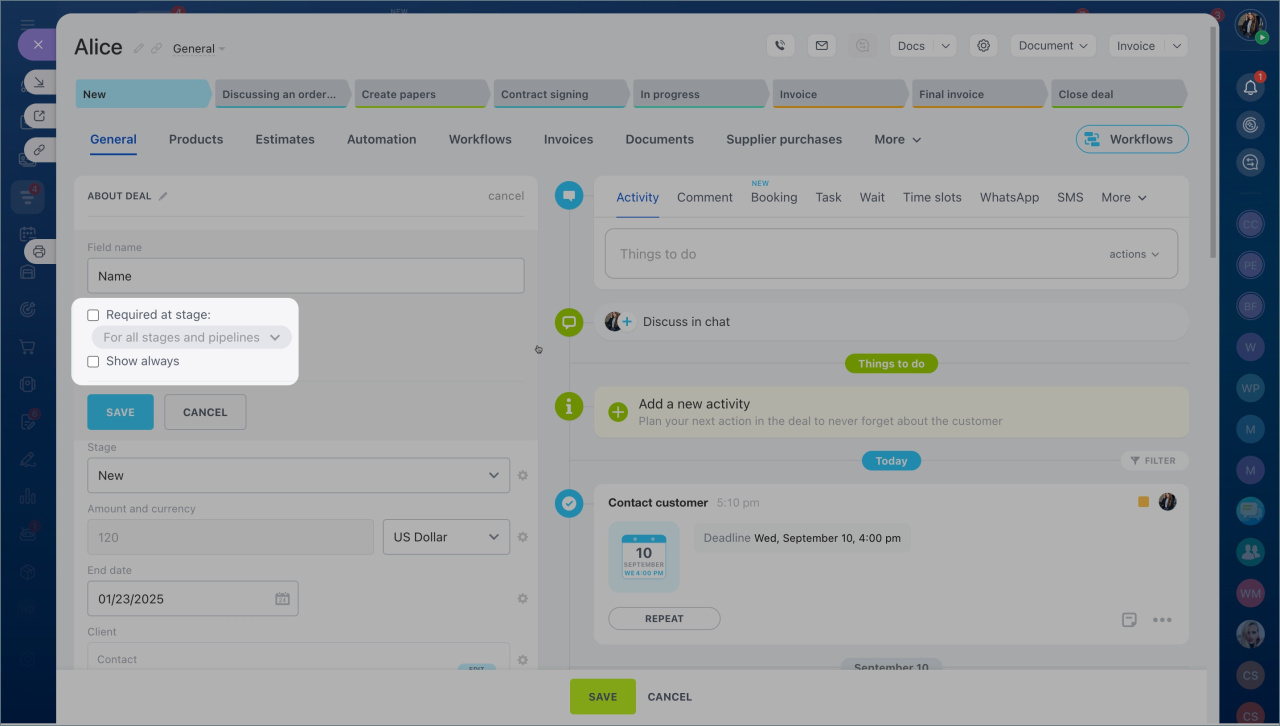
Make a field optionalSome fields don’t have to be required.
- Open the contact form.
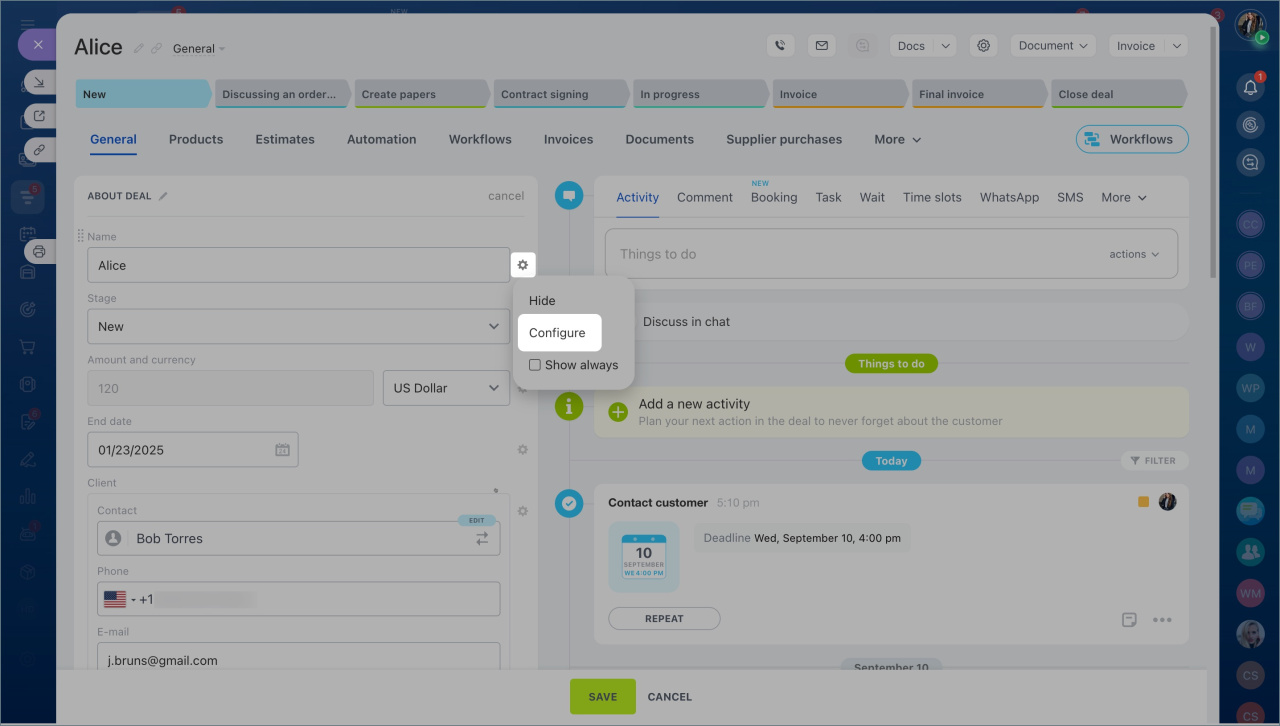
- Click Settings (⚙️) > Configure.
- Disable Required and click Save.
Hide a field
Hide fields you don’t use in the form.
- Open the contact form.
- Click Settings (⚙️).
- Select Hide.
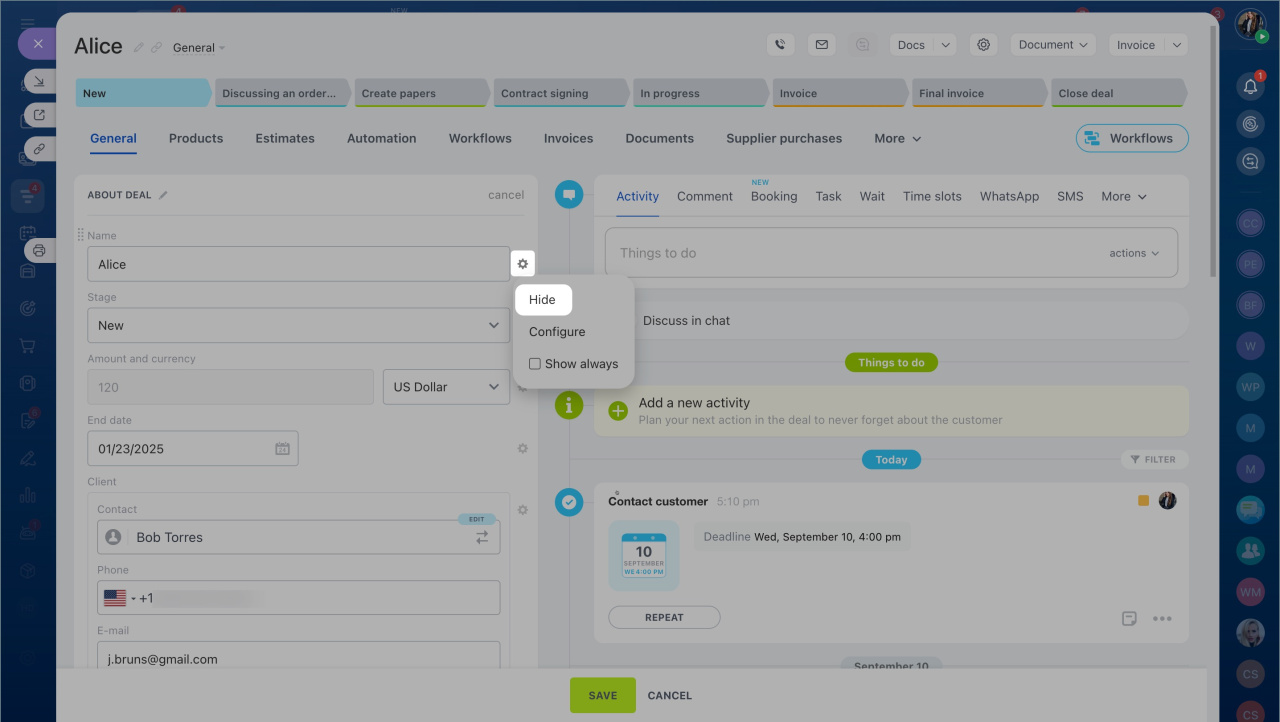
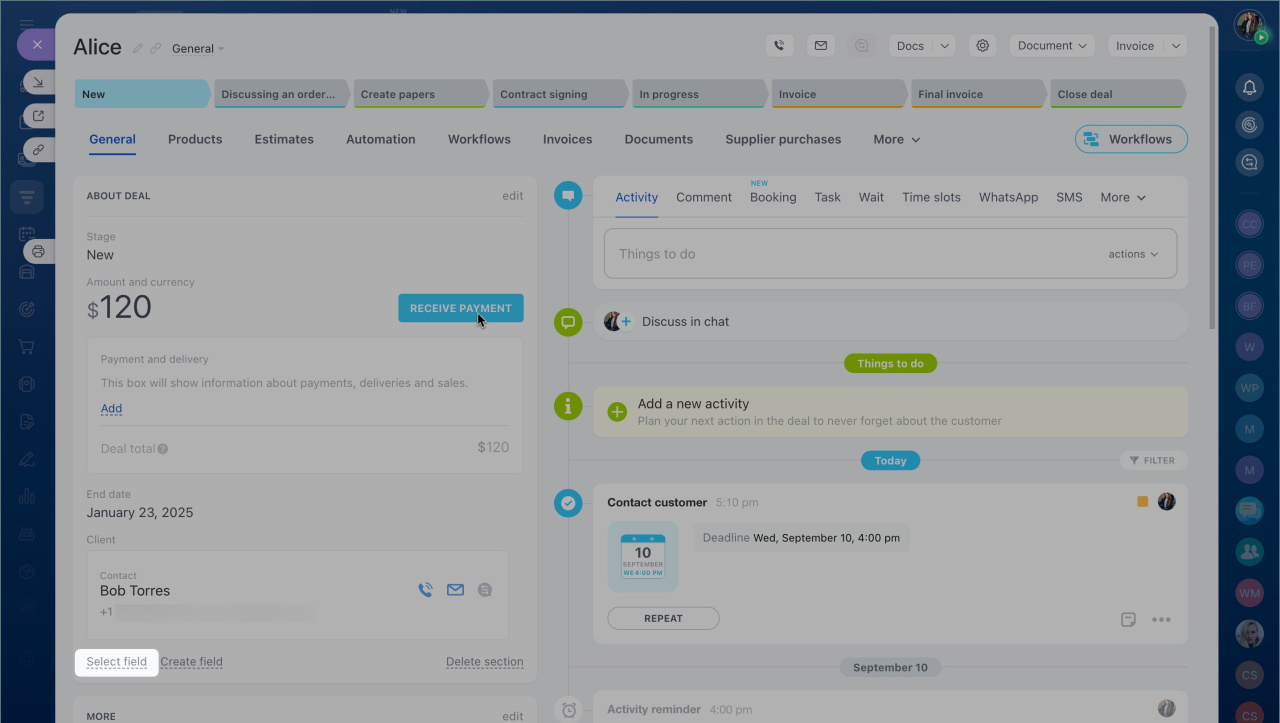
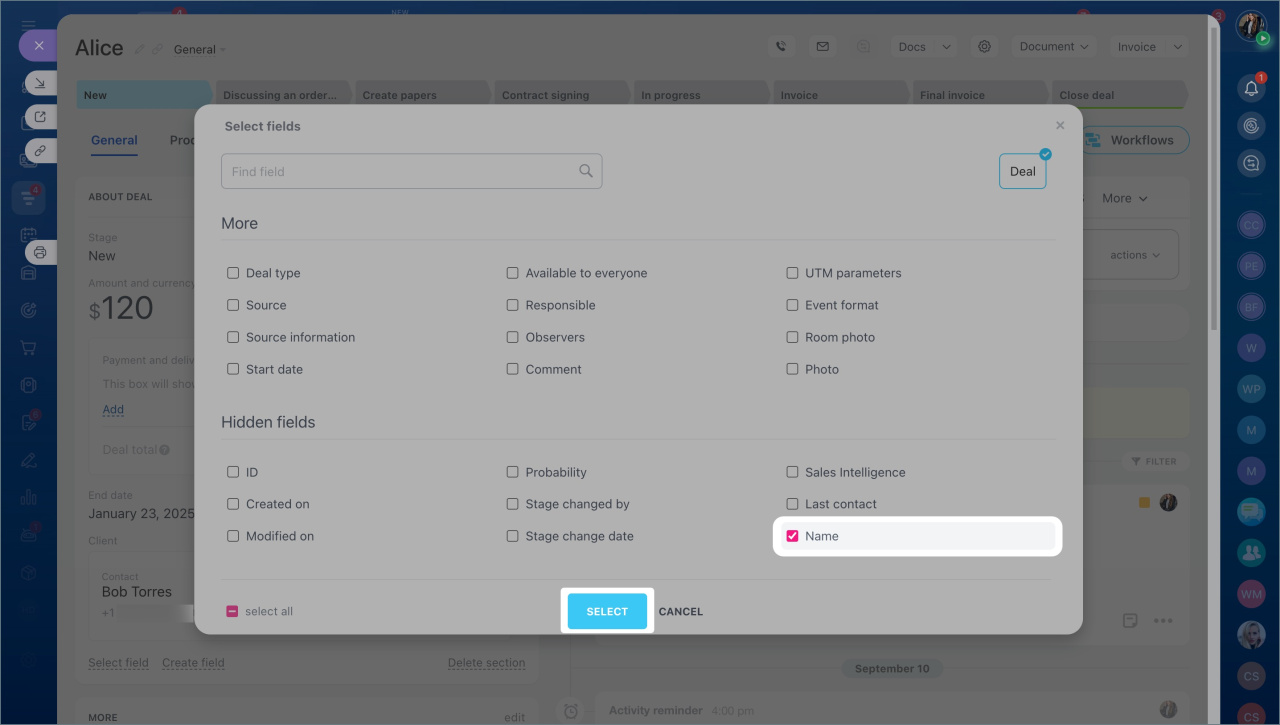
The field is removed from all contact forms. You can add it back at any time:
- Click Select field.
- Choose the field you want to show.
In brief:
- Set a contact name format to make records easier to scan and search.
- The default format is First Name Last Name.
- To change it, go to CRM > More > Settings > CRM Settings > Other > Other settings > Format.
- You can hide fields or make them optional in the contact form.