
In brief
To import linked CRM items, upload them in the correct order:
- Import companies
- Import contacts
- Import deals
Import companies
- Go to CRM > Customers > Companies.
- Click Settings (⚙️) and select Import companies.
- Download the template, fill it out, and upload the file.
- Make sure file fields match CRM fields (for example, Company name > Company name).
- Choose how to handle duplicates and complete the import.
Import contacts
- Go to CRM > Customers > Contacts.
- Click Settings (⚙️) and select Import custom CSV data.
- Download the template and fill it out. In the Company field, enter company names to link contacts.
- Upload the file.
- Make sure the Company field matches the same field in the CRM form.
- Choose how to handle duplicates and complete the import.
Import deals
- Go to CRM > Deals.
- Click Settings (⚙️) and select Import deals.
- Download the template and fill it out:
- Use the Company field to link companies
- Use the Contact field (first and last name) to link contacts
- Upload the file.
- Make sure Company and Contact fields match the CRM form.
- Complete the import.
Items are linked by name. Company names and contact names must match exactly.
To verify links, open a company, contact, or deal and check the Dependencies tab.
In detail
Import lets you upload CRM items to Bitrix24. You can:
- Populate the customer and deal database when starting in Bitrix24.
- Transfer data from another CRM without manual entry.
CRM items can be linked automatically during import, so you do not need to link them manually. You can easily navigate between related items.
Role-based access permissions in CRM
Existing deals cannot be updated during import. If a deal with the same name already exists in CRM, it will be imported again. When importing companies and contacts, choose how to handle duplicates.
What to know before import
Upload items in the correct order: companies → contacts → deals.
Items can only be linked to existing items in Bitrix24. For example, a deal cannot be linked to a company that has not been imported yet.
Items are matched by name. Enter customer names and company and deal names exactly as they appear in Bitrix24. Even small differences prevent items from linking. For example, the CRM contains Acme Corporation, but the import file contains Acme Corp.
Step 1. Import companies
Go to CRM > Customers > Companies. Click Settings (⚙️) on the right and select Import companies.
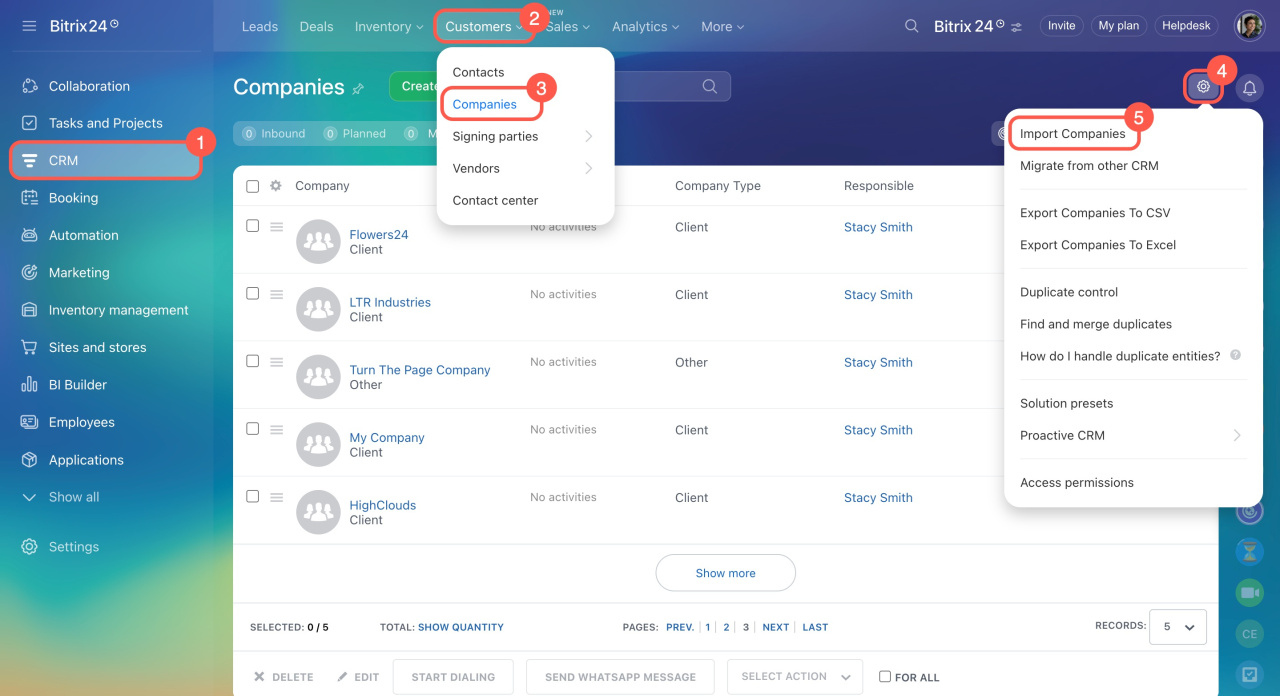
The import process includes several steps.
Prepare data. Download the template, a CSV file that contains all fields from the company form. Fill in the required fields. The Company name field is required.
Import contact and company details
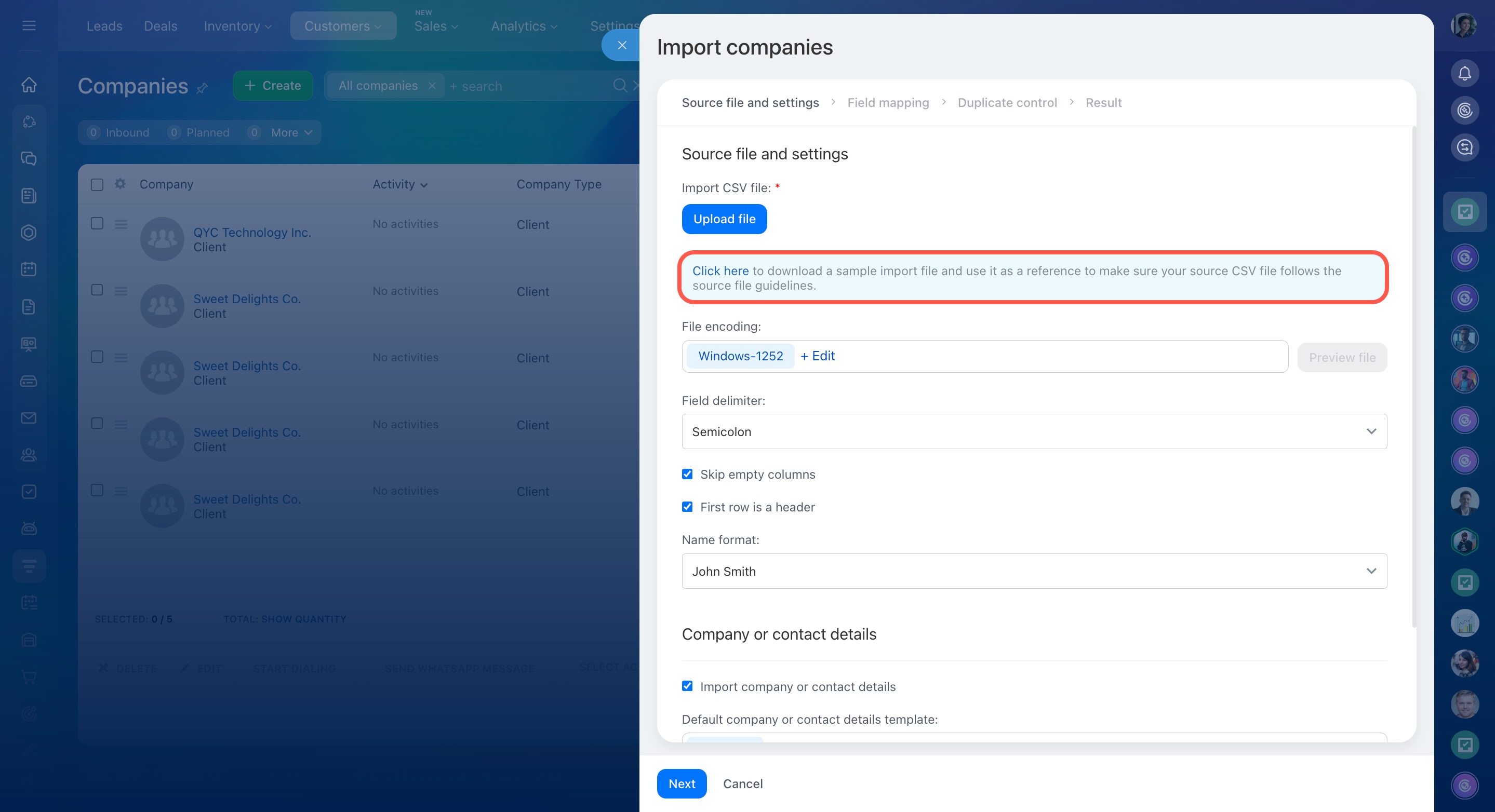
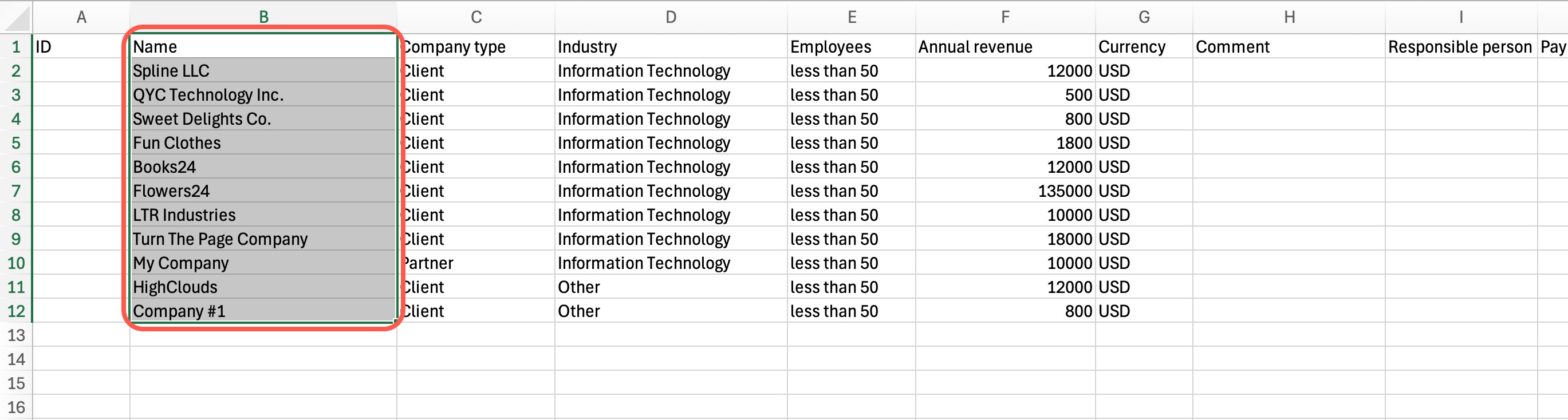
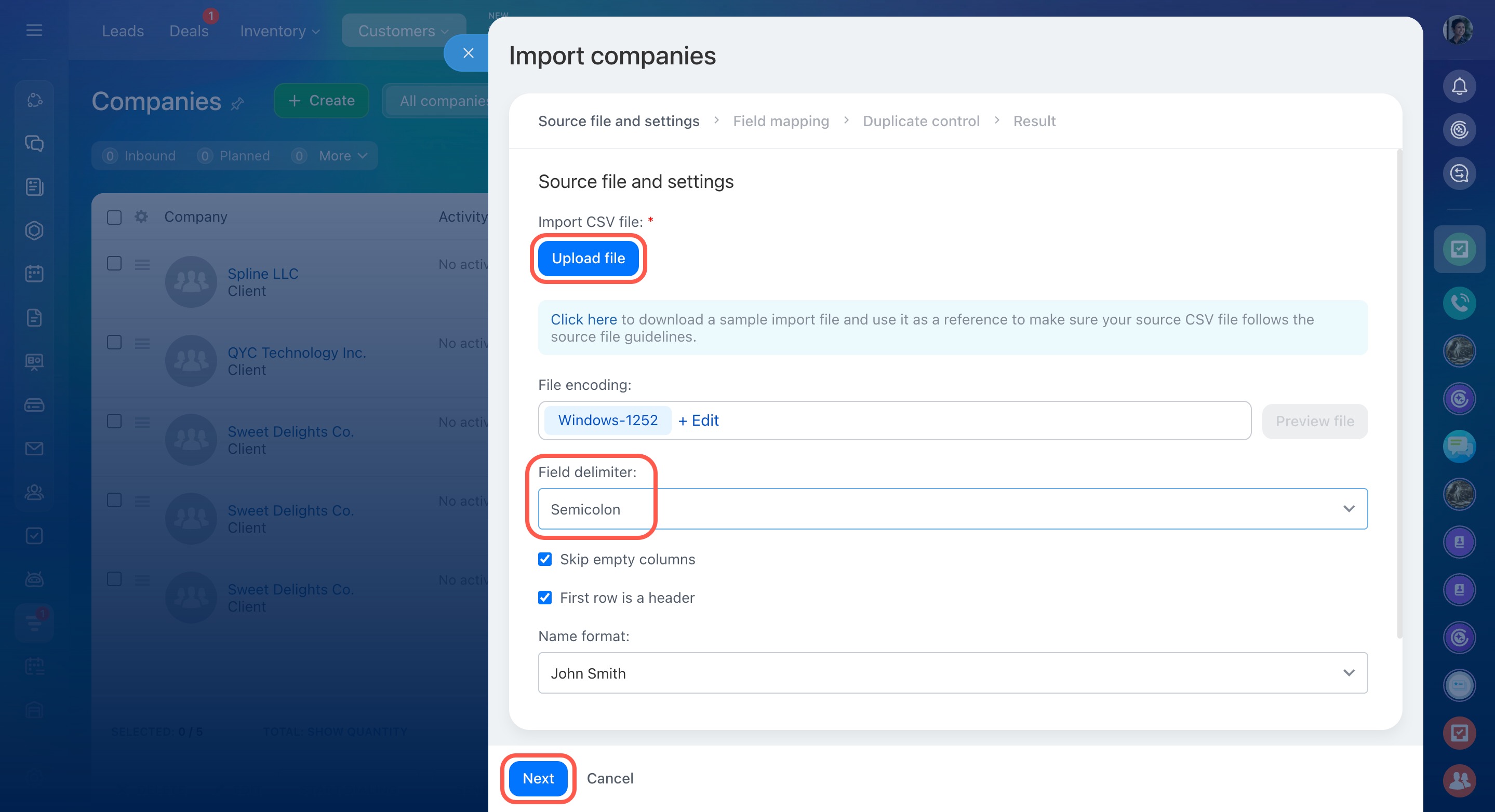
Upload the import file. The file must be in CSV format.
Make sure the Field delimiter uses the same character as the import file. Otherwise, fields may not be recognized correctly.
How to choose a field delimiter
The template uses a semicolon as the column separator. After editing the file, the separator may change depending on the program used.
To identify the separator, open the file in a text editor such as Notepad on Windows or TextEdit on Mac. Check which character separates values in the first row and select the same character in the Field delimiter field.
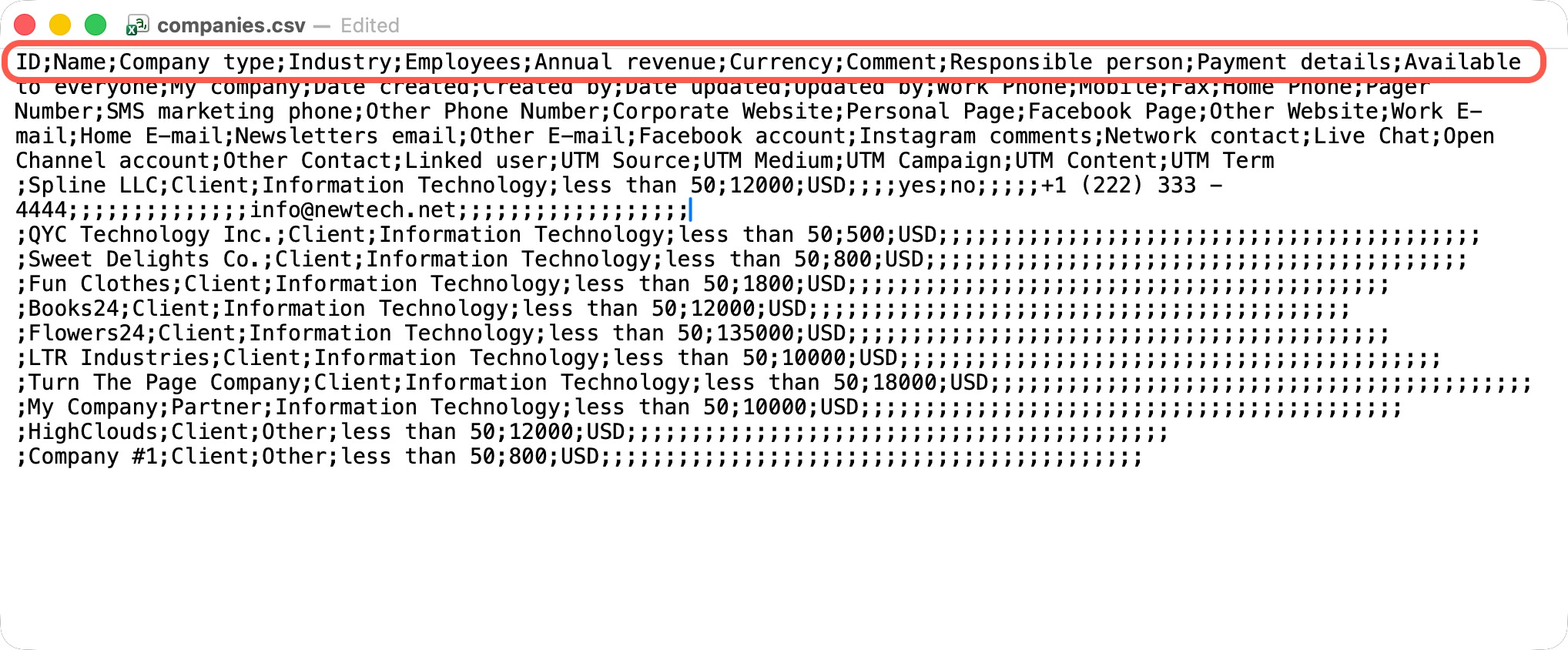 This file uses a semicolon as the separator
Click Next to proceed.
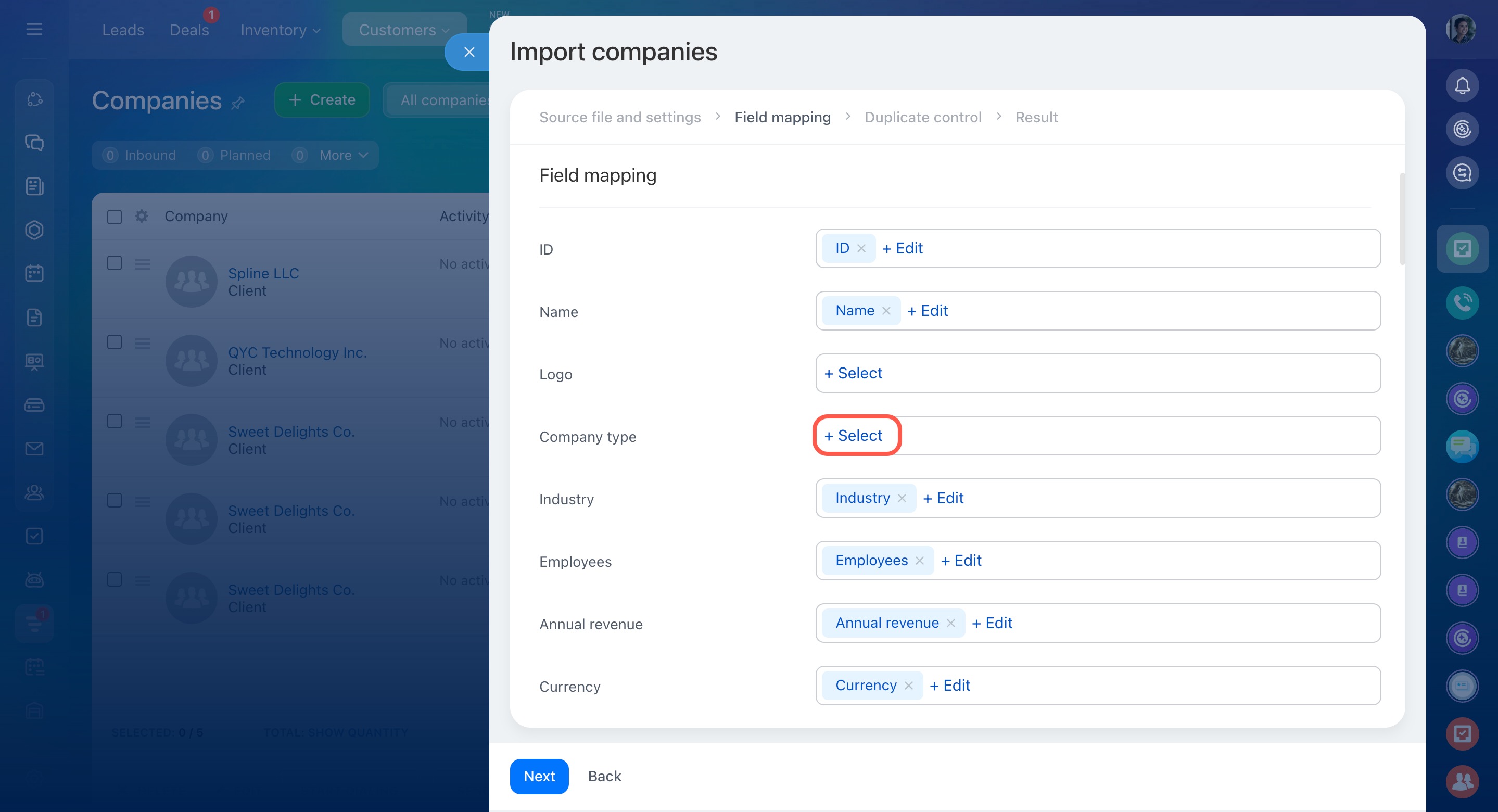
Check field mapping. Fields in the import file must correctly match fields in the CRM item form. For example, data from the Company name field in the file must map to the Company name field in the form.
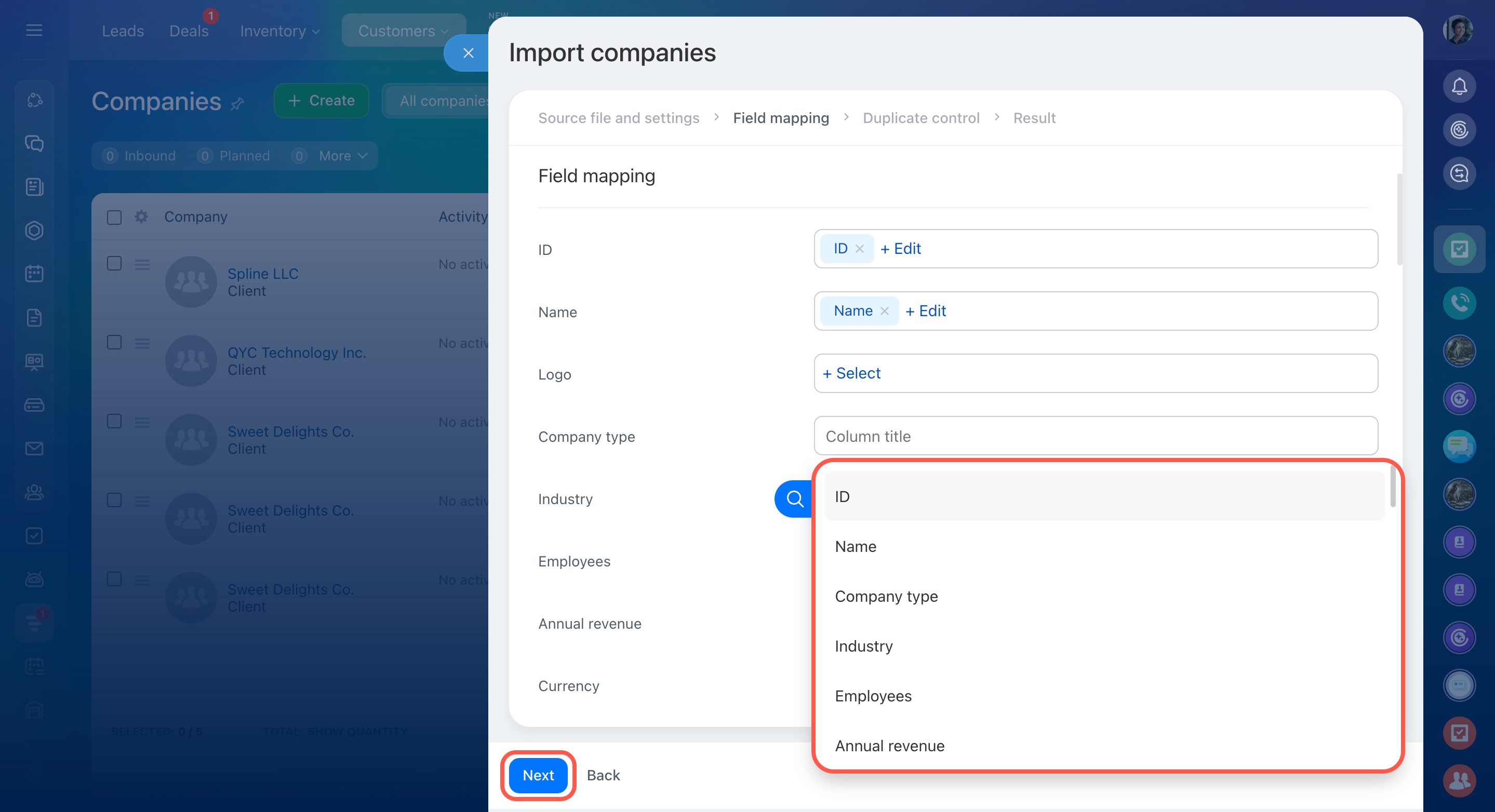
Company fields appear on the left, and file columns appear on the right. If a field is mapped incorrectly or left empty, click Select or Edit and choose the column you need.
Click Next.
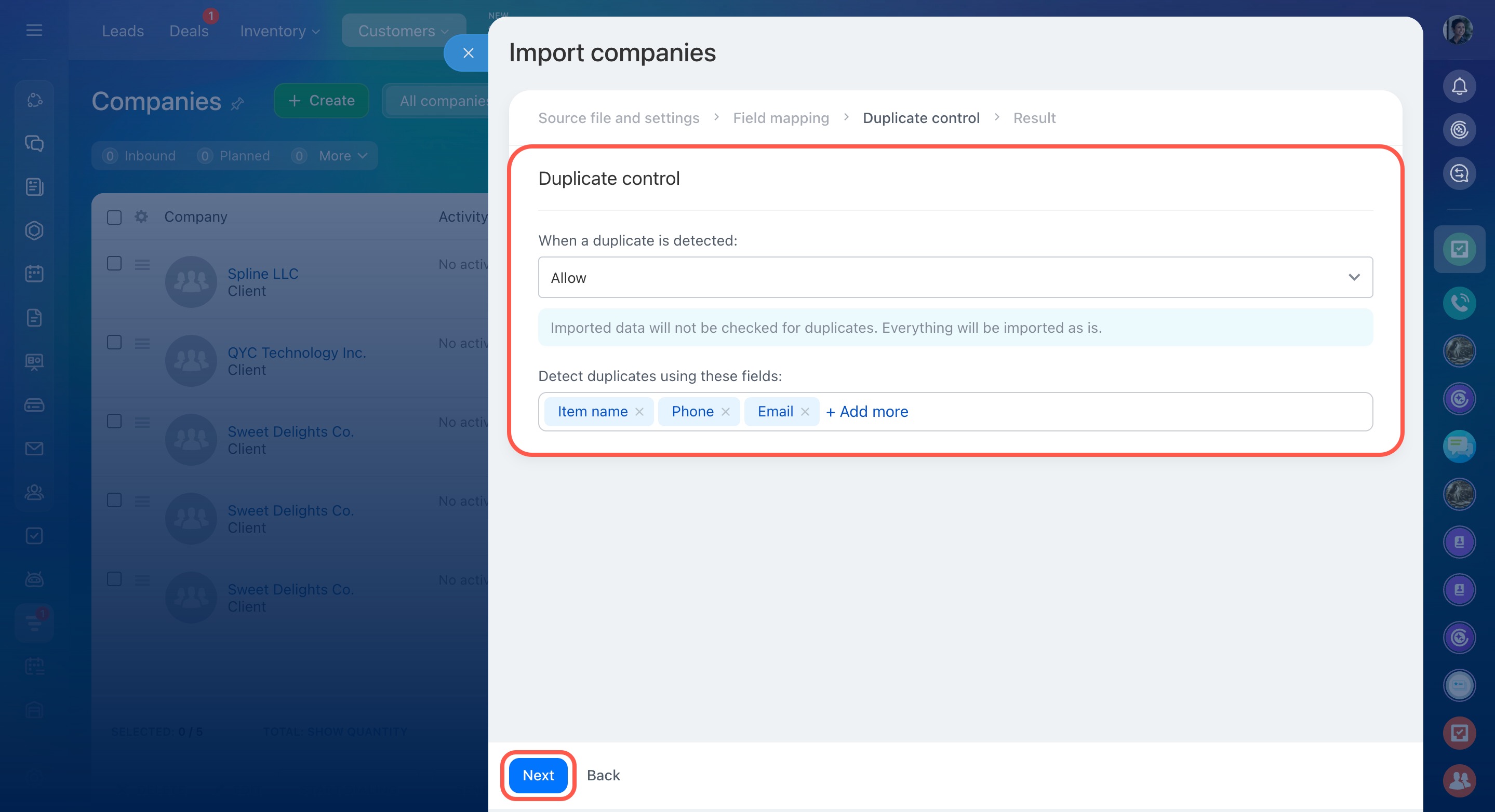
Choose how to handle duplicates.
- Allow: imports all data from the file.
- Replace with new data: if duplicates are found, values in CRM item forms are replaced with values from the file. For example, if the CRM contains the company Acme Corporation with the address 123 Main St, and the import file contains 456 Oak Ave, the old address will be replaced with the new one.
- Merge: if duplicates are found, only empty fields in CRM item forms are filled with data from the file. For example, if the Website field is empty in the company form but included in the file, the value is added. Existing values remain unchanged.
- Skip: duplicates are not imported. Bitrix24 provides a file with the list of duplicates.
Select fields used to detect duplicates, such as phone number or name.
Click Next.
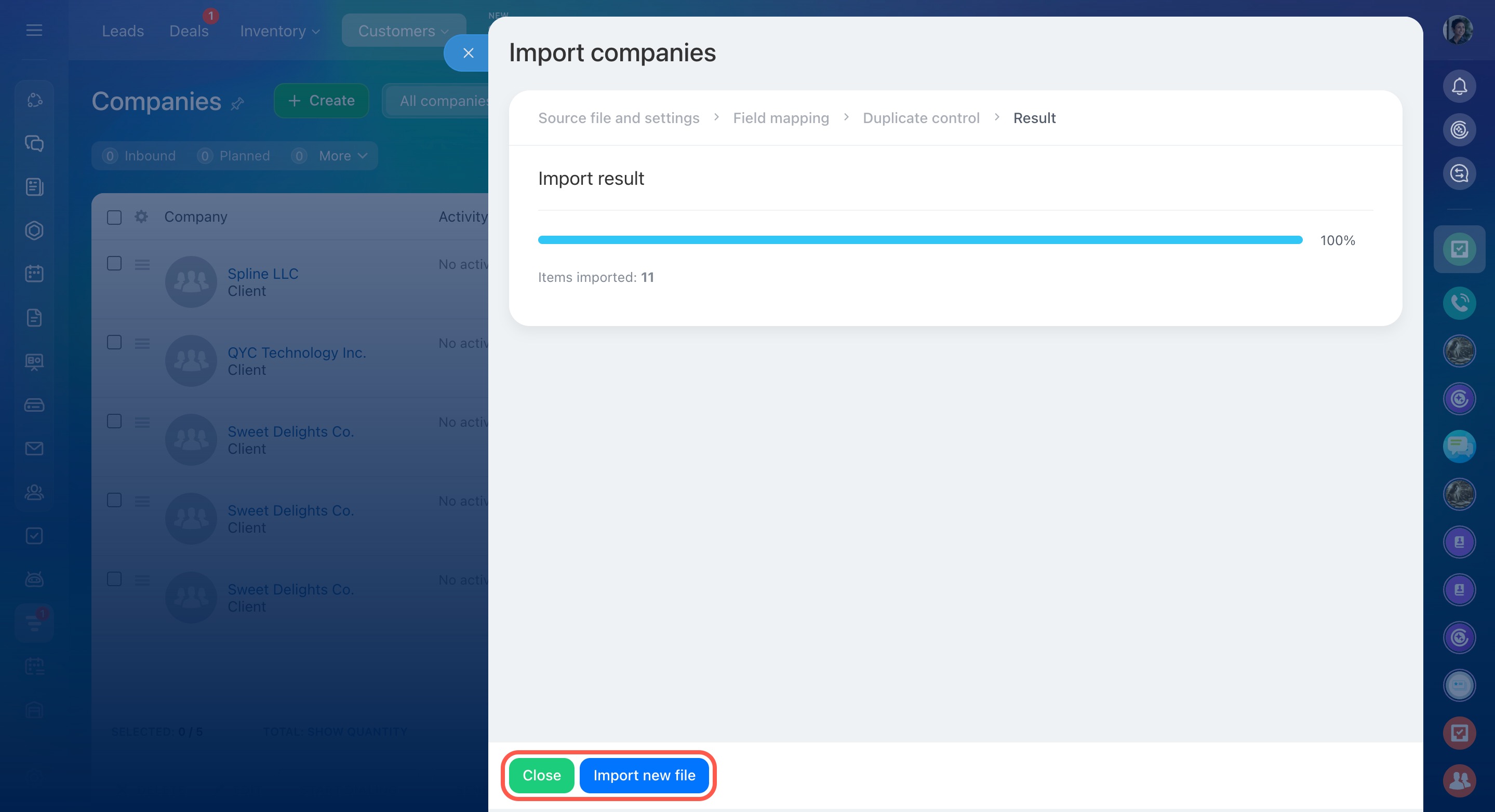
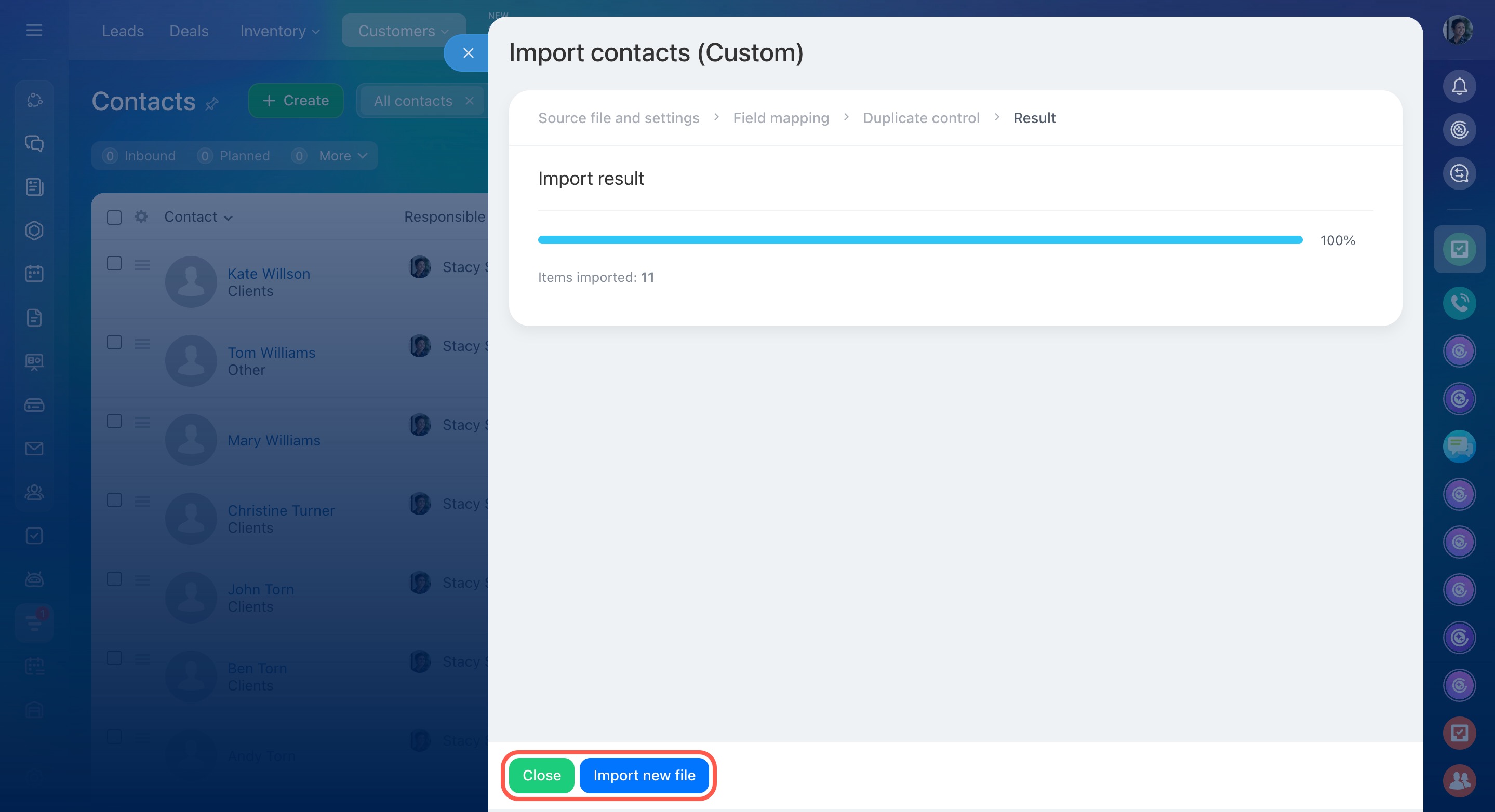
Wait for the import to finish. Click Close to complete the import. To upload another file, click Import new file. Companies appear under CRM > Customers > Companies.
Step 2. Import contacts and link them to companies
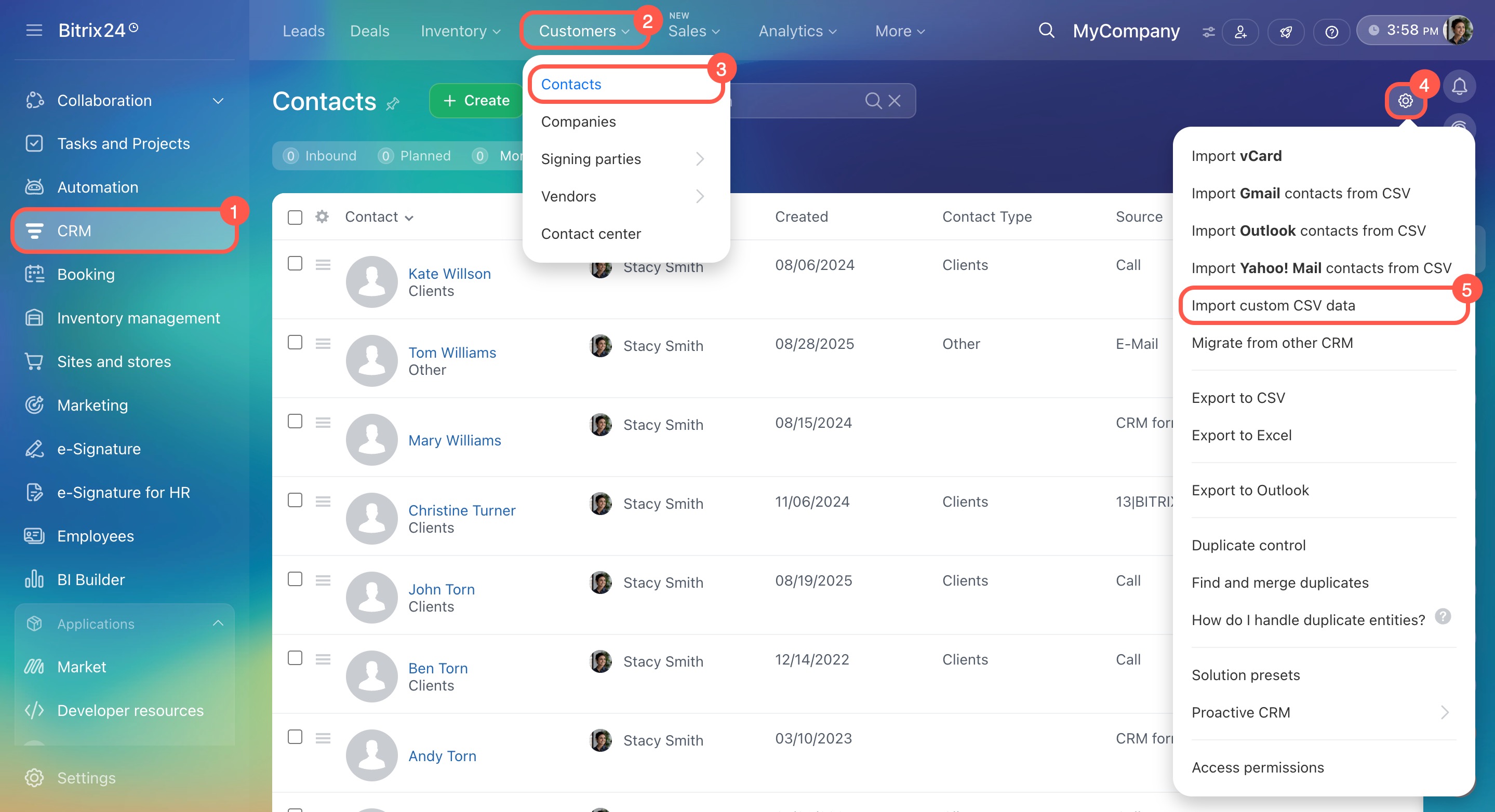
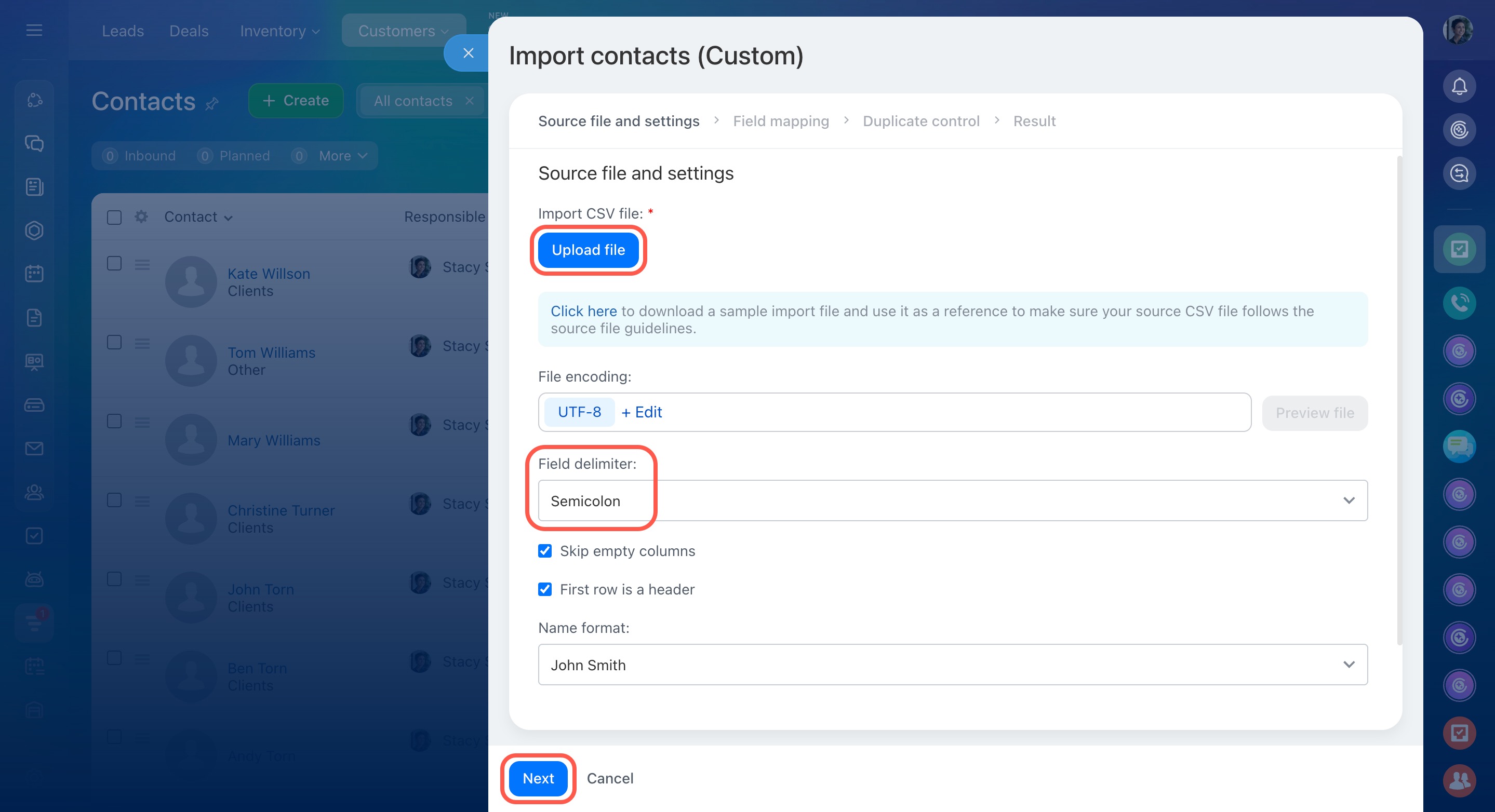
Go to CRM > Customers > Contacts. Click Settings (⚙️) on the right and select Import custom CSV data.
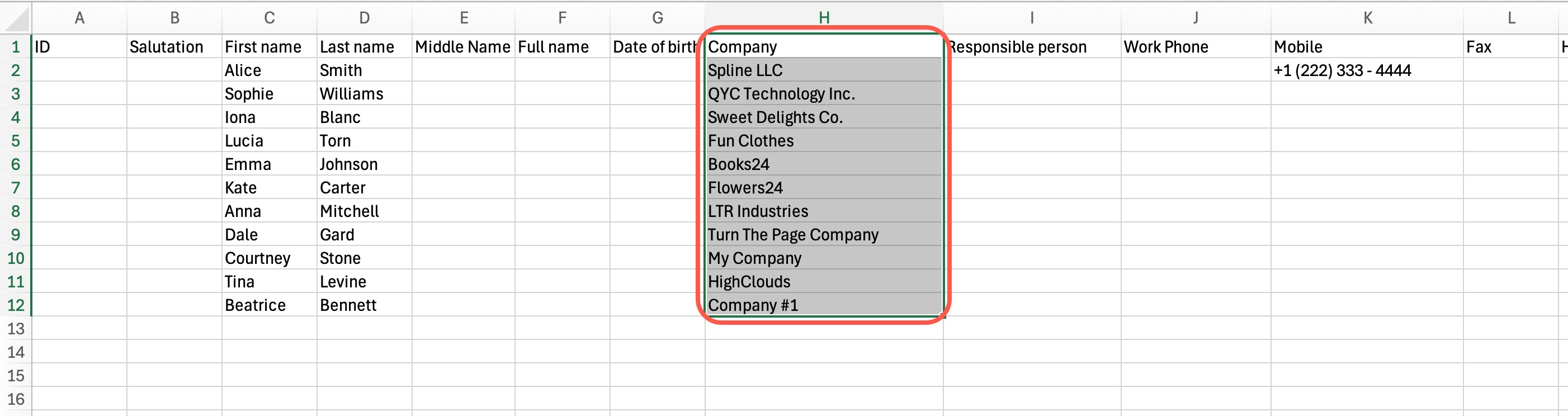
Prepare data. Download the import template and fill it in. In the Company field, enter the company names to link contacts.
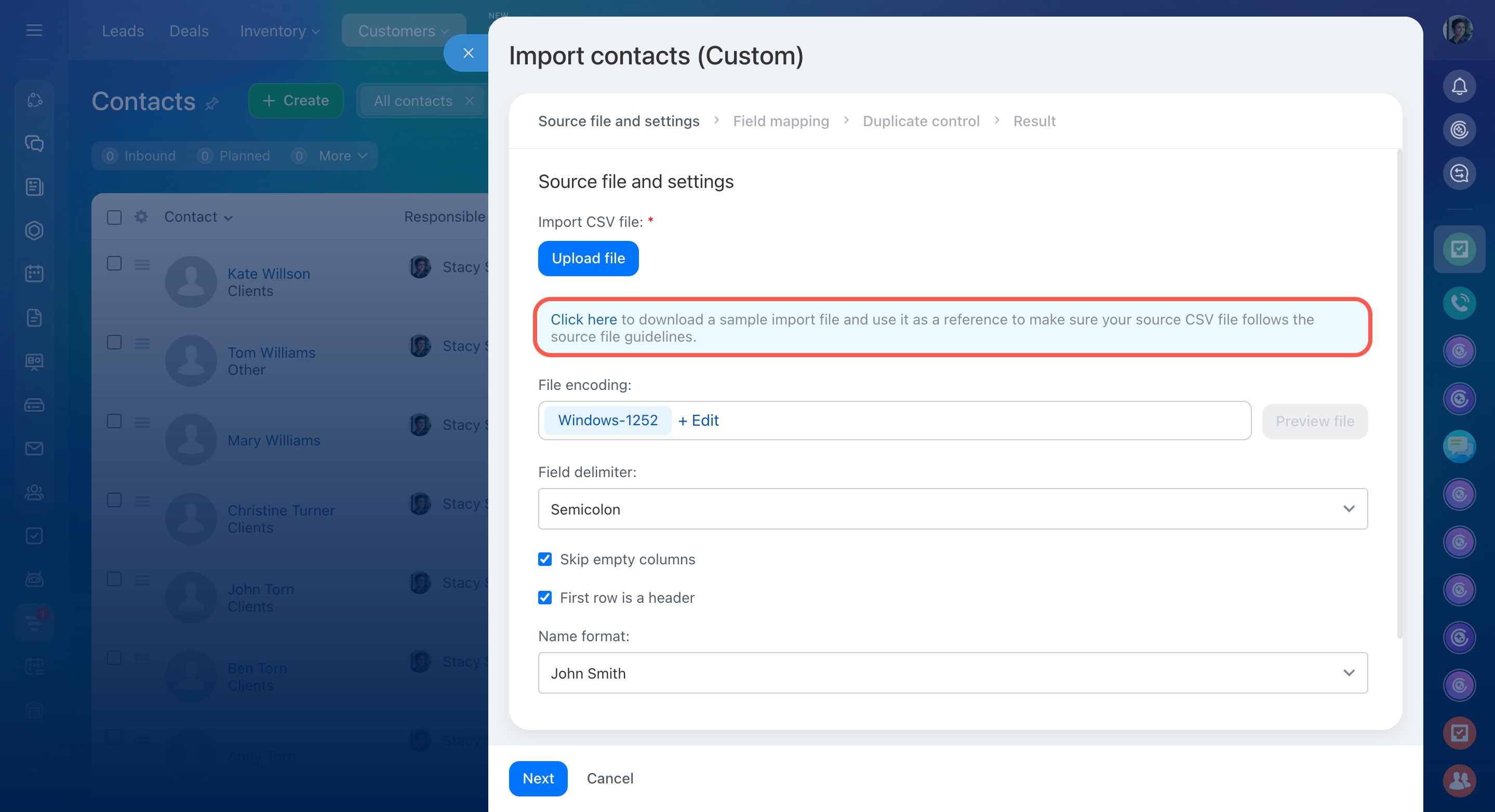
Upload the import file. The file must be in CSV format.
Make sure the Field delimiter uses the same character as the import file. Click Next.
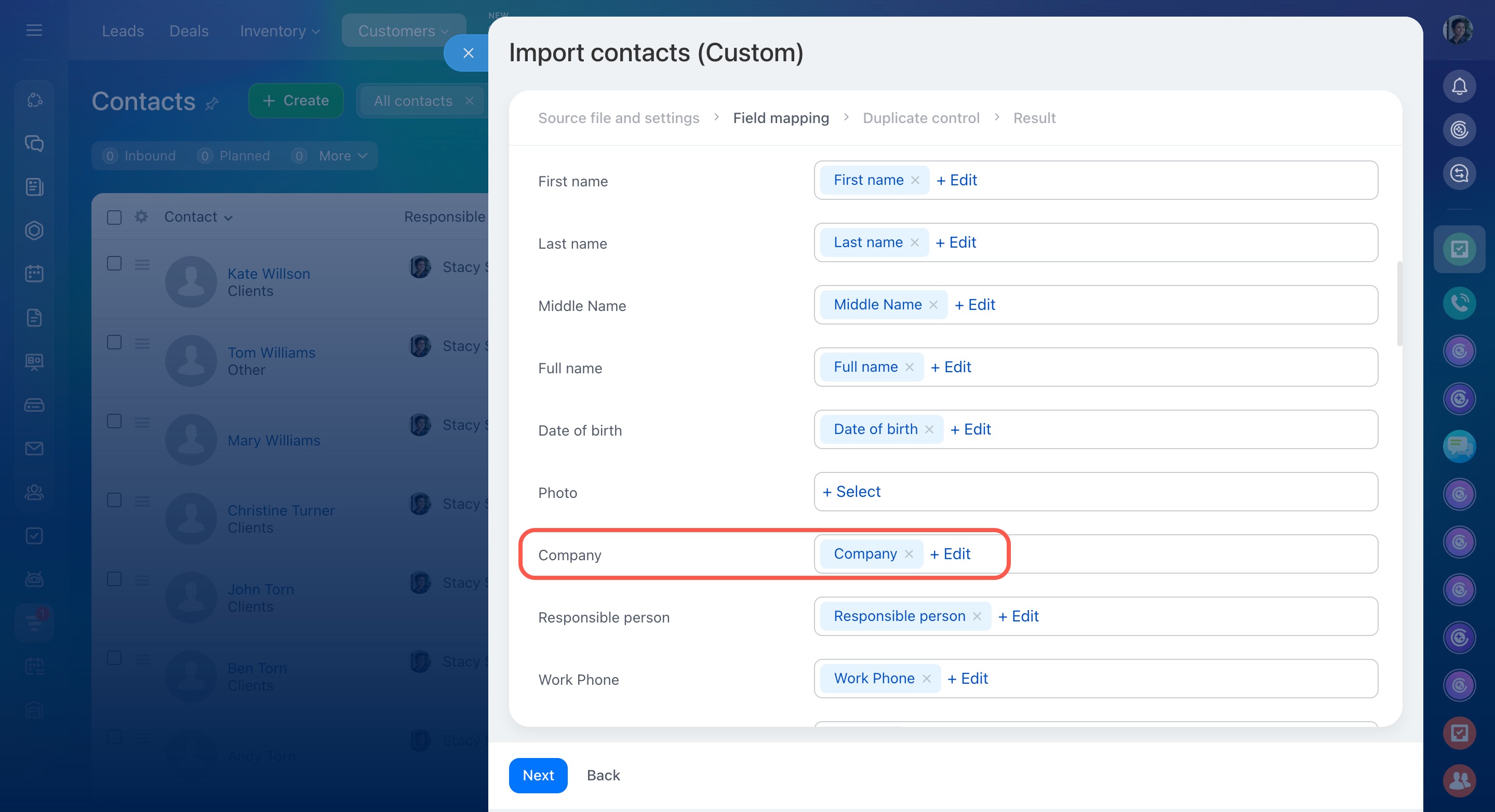
Check field mapping. For example, data from the Company field in the file must map to the Company field in the form.
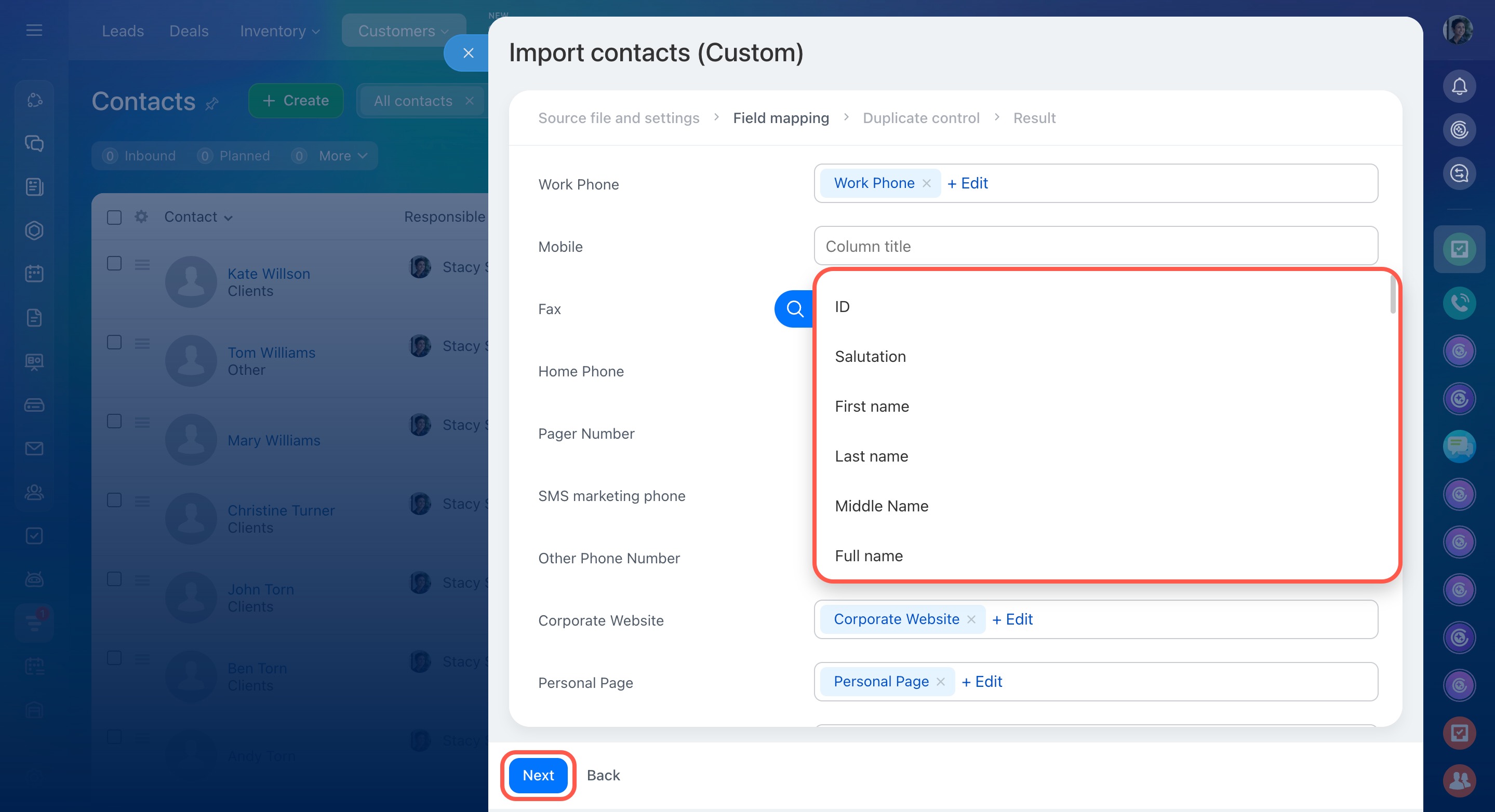
Contact fields appear on the left, and file columns appear on the right. If a field is mapped incorrectly or left empty, click Select or Edit and choose the column you need.
Click Next.
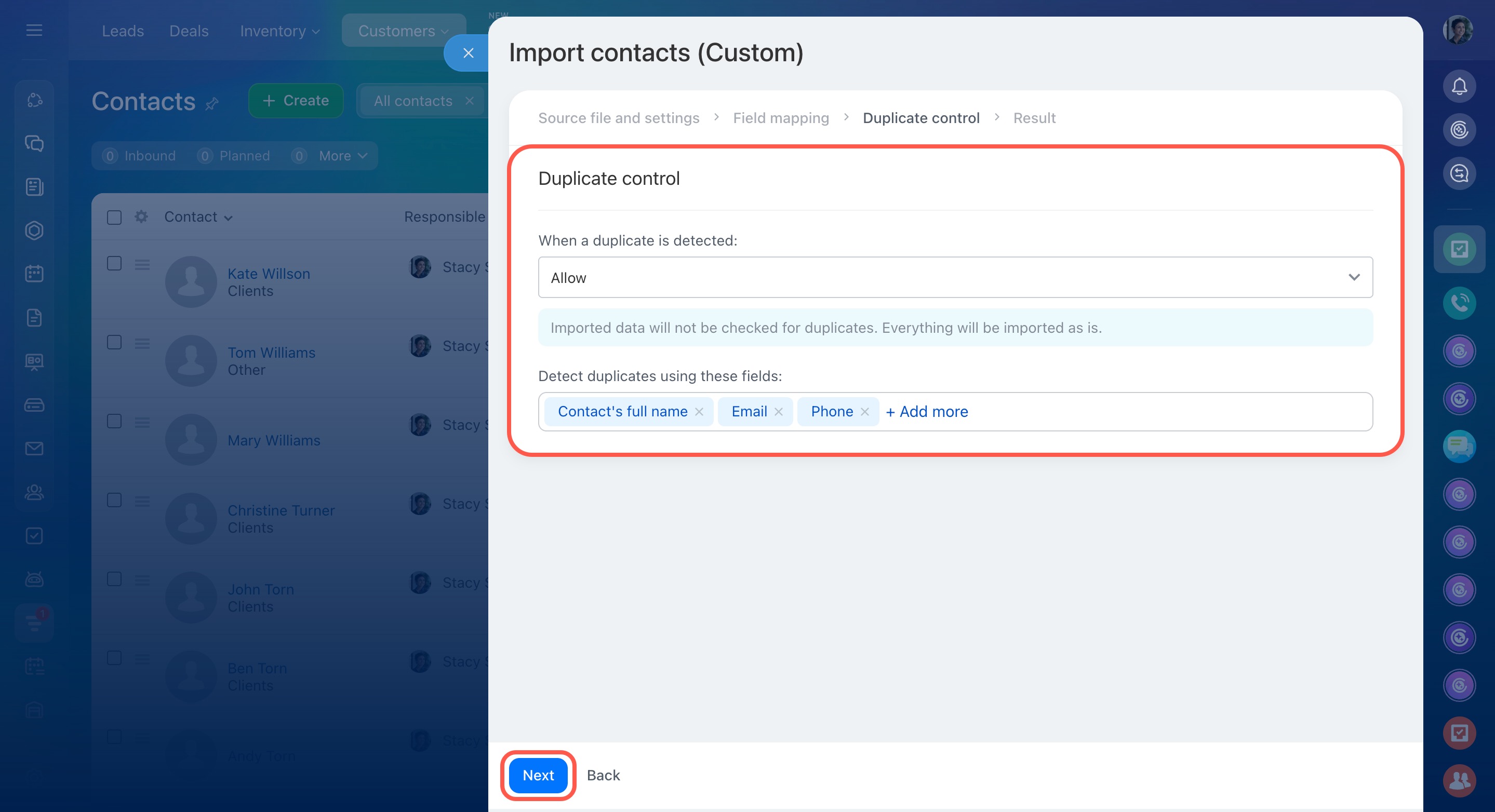
Choose how to handle duplicates and finish the import. To upload another file, click Import new file. Contacts appear under CRM > Customers > Contacts.
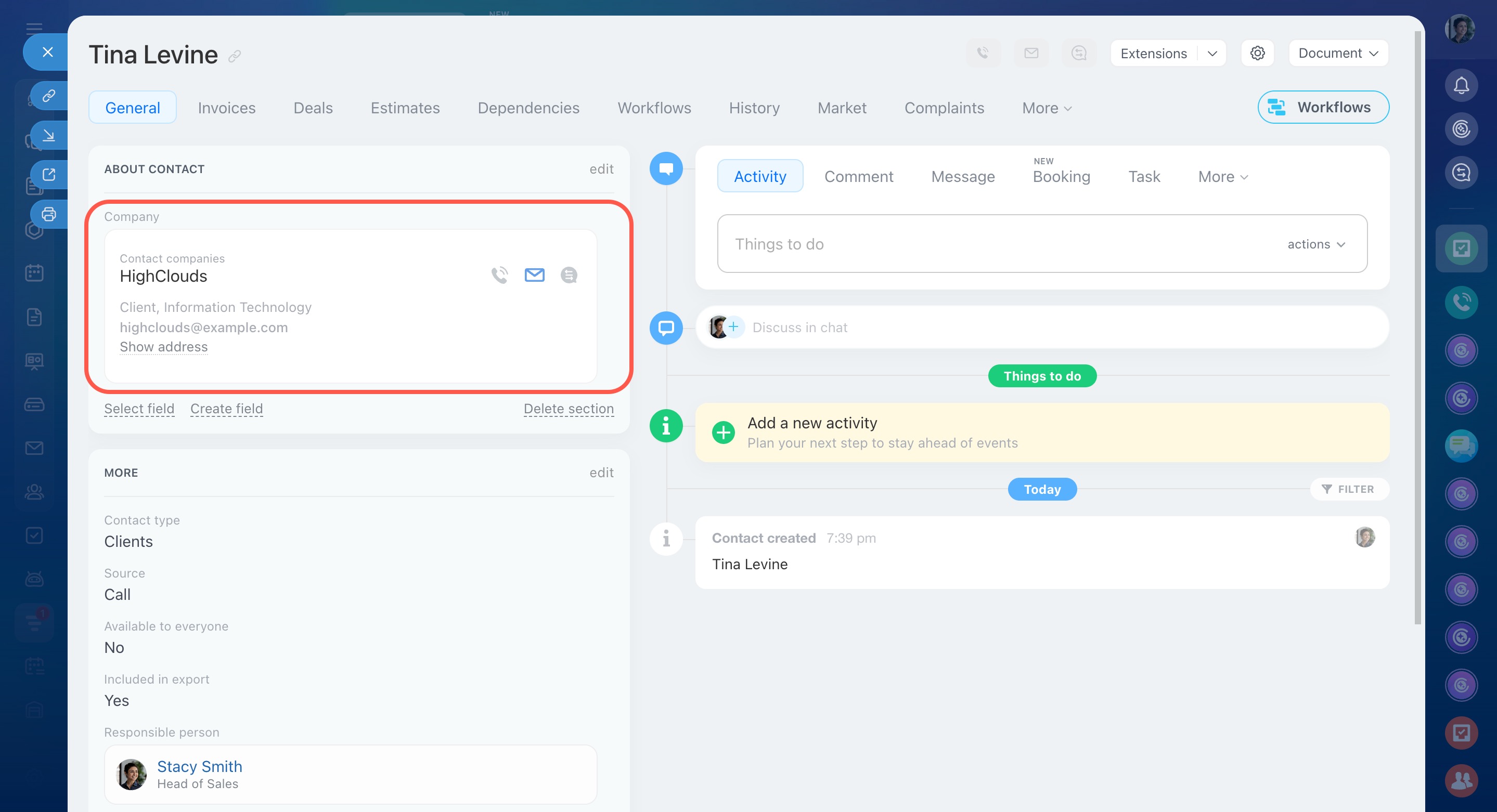
Check that the items are linked: the Company field should be filled in the contact form.
Step 3. Import deals and link them to companies and contacts
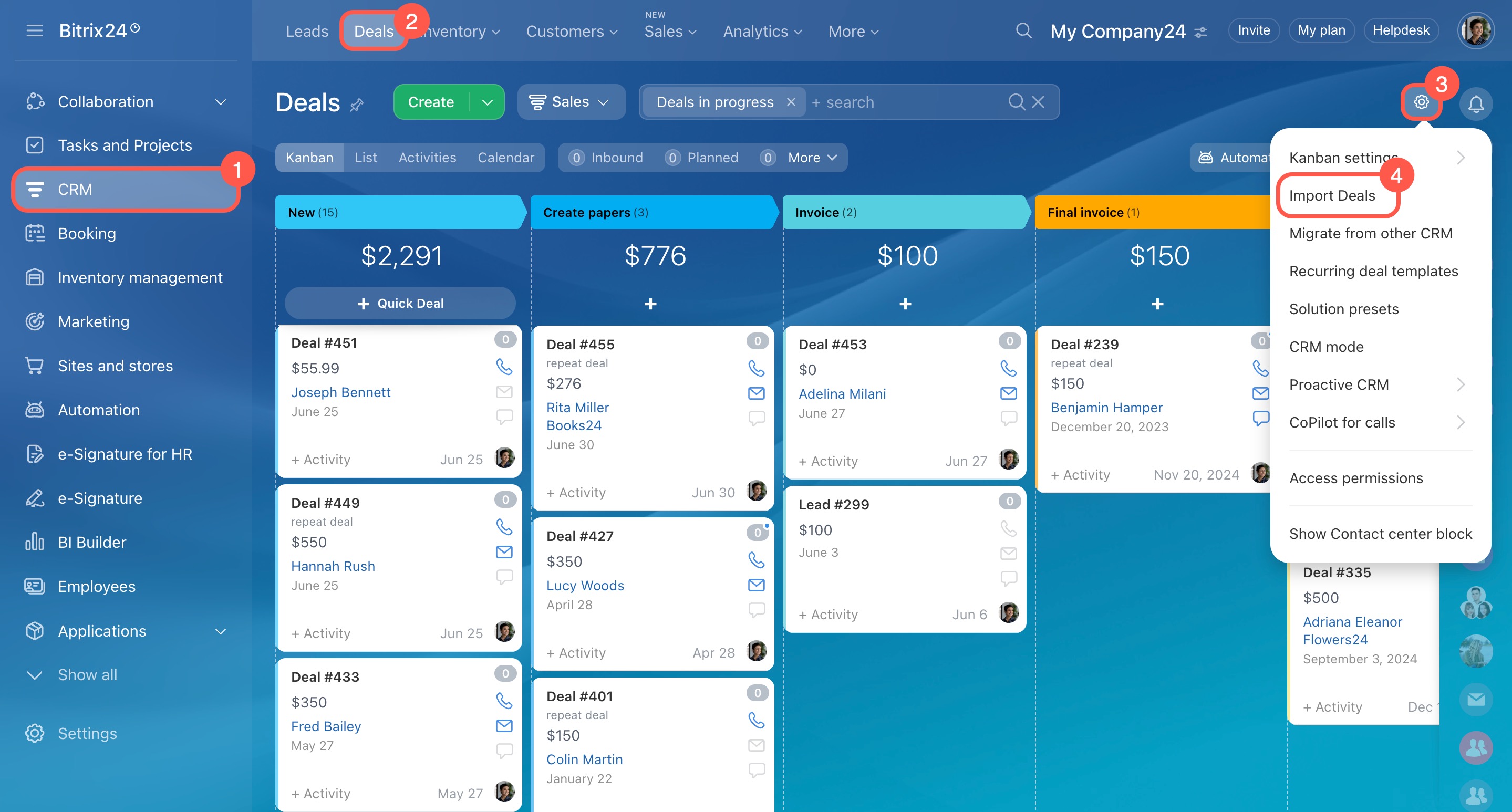
Go to CRM > Deals. Click Settings (⚙️) on the right and select Import deals.
Prepare data. Download the import template and fill it in. In the Company field, enter company names to link deals. In the Contact field, enter the contact’s first and last name.
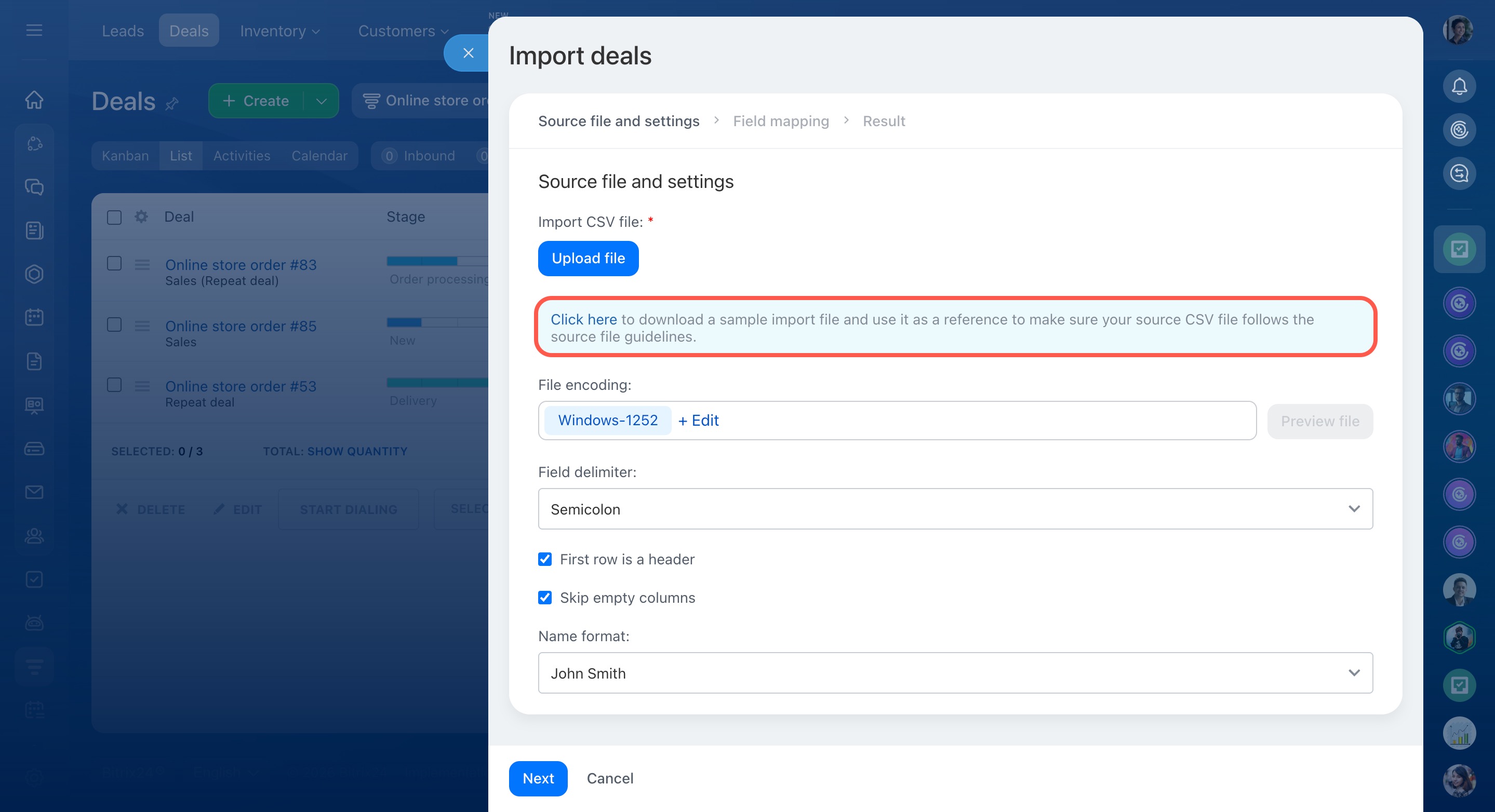
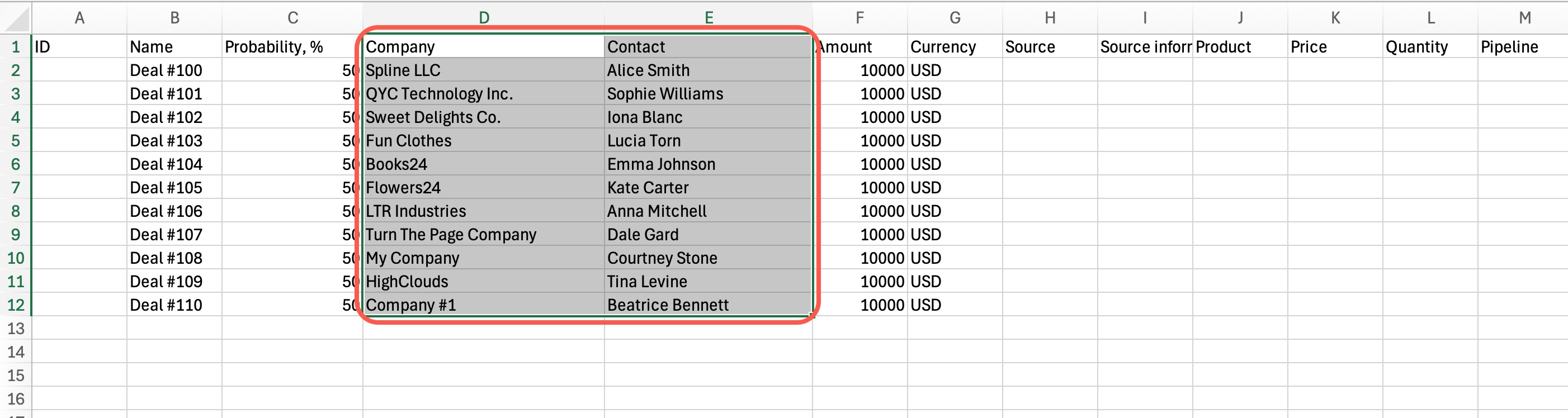
Upload the import file. The file must be in CSV format.
Make sure the Field delimiter uses the same character as the import file. Click Next.
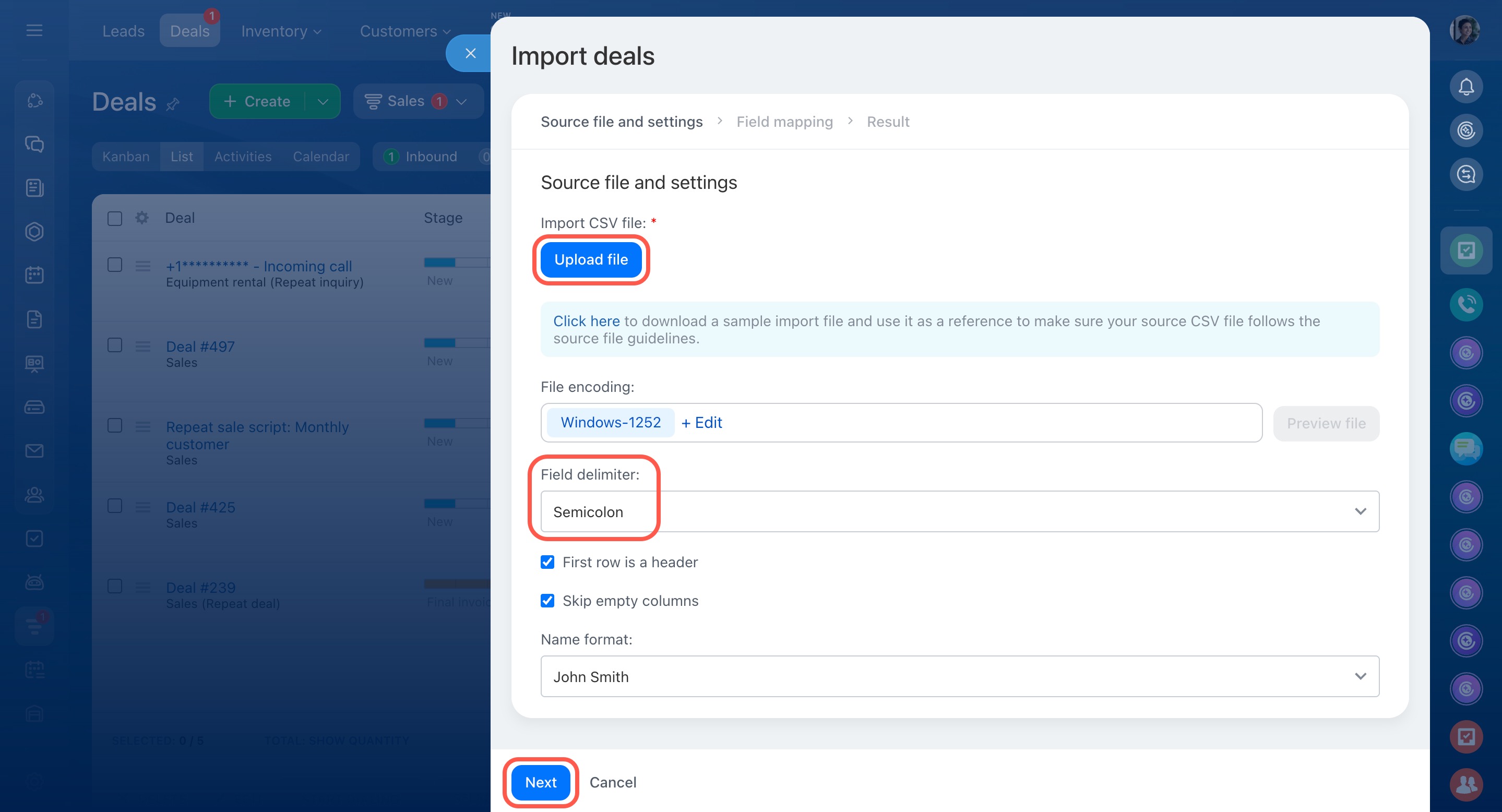
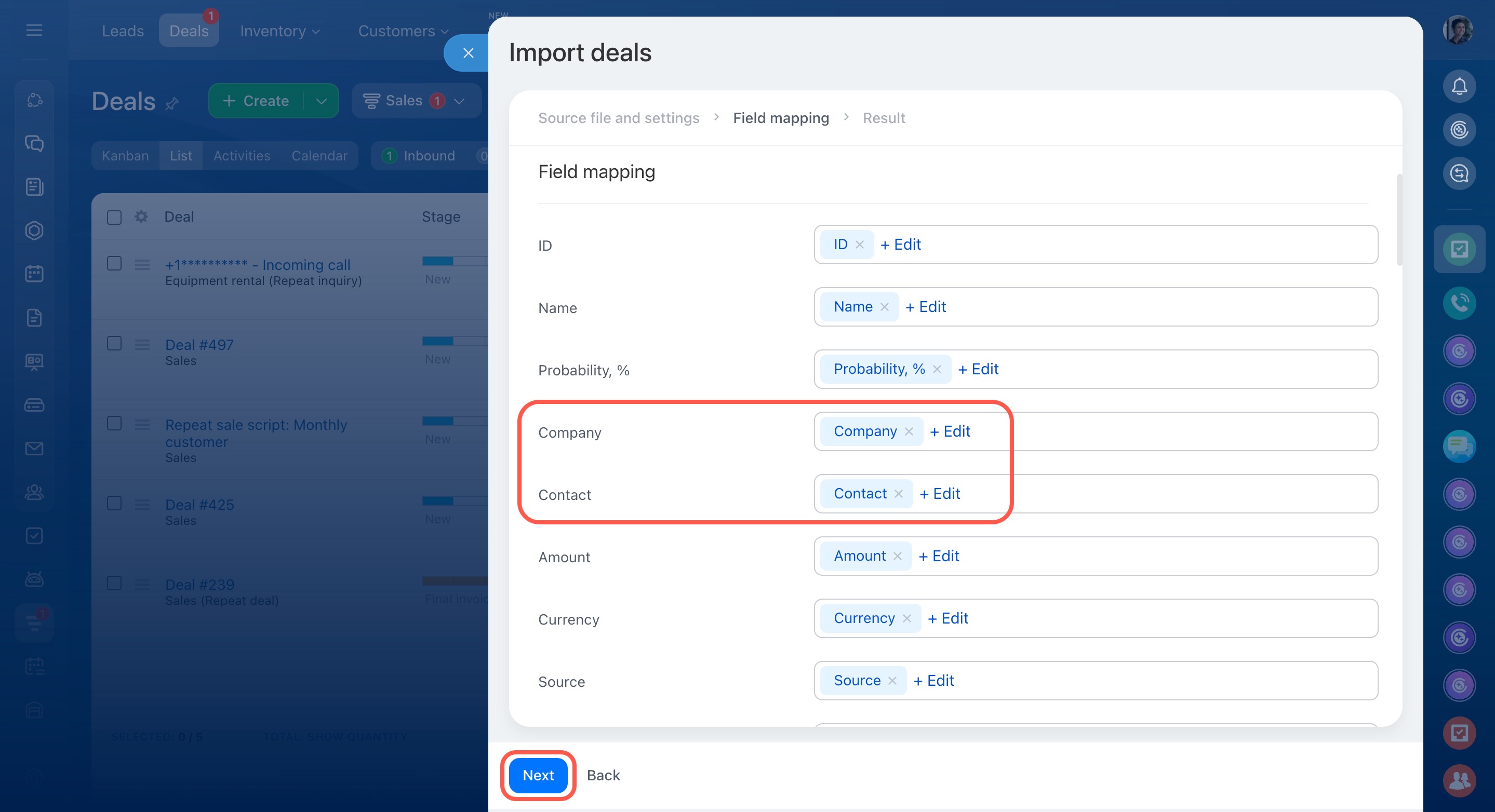
Check field mapping. For example, data from the Company field in the file must map to the Company field in the form, and data from the Contact field must map to the Contact field.
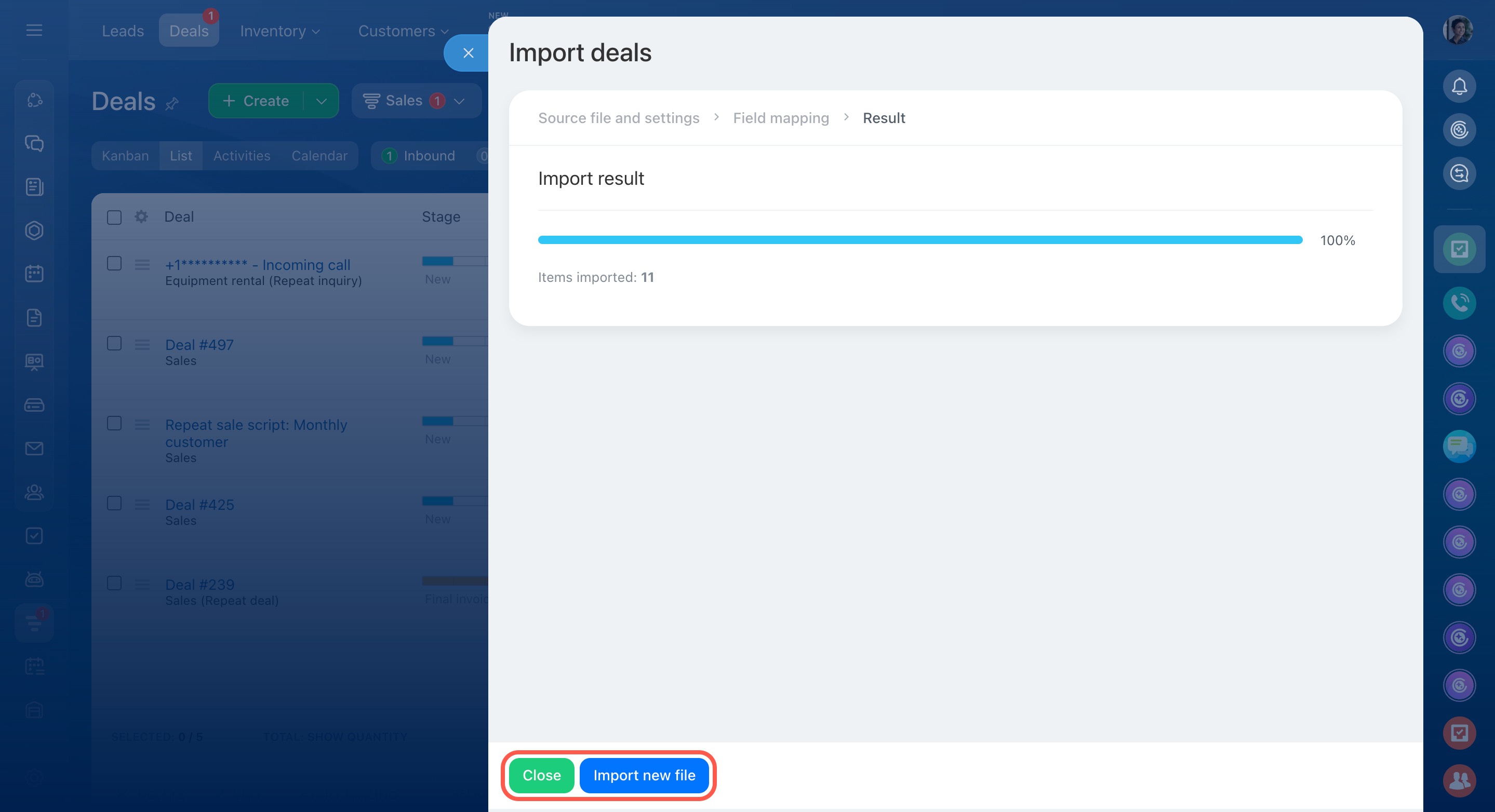
Complete the import. To upload another file, click Import another file. Deals appear under CRM > Deals.
Check that the items are linked: the Client field should be filled in the deal form.
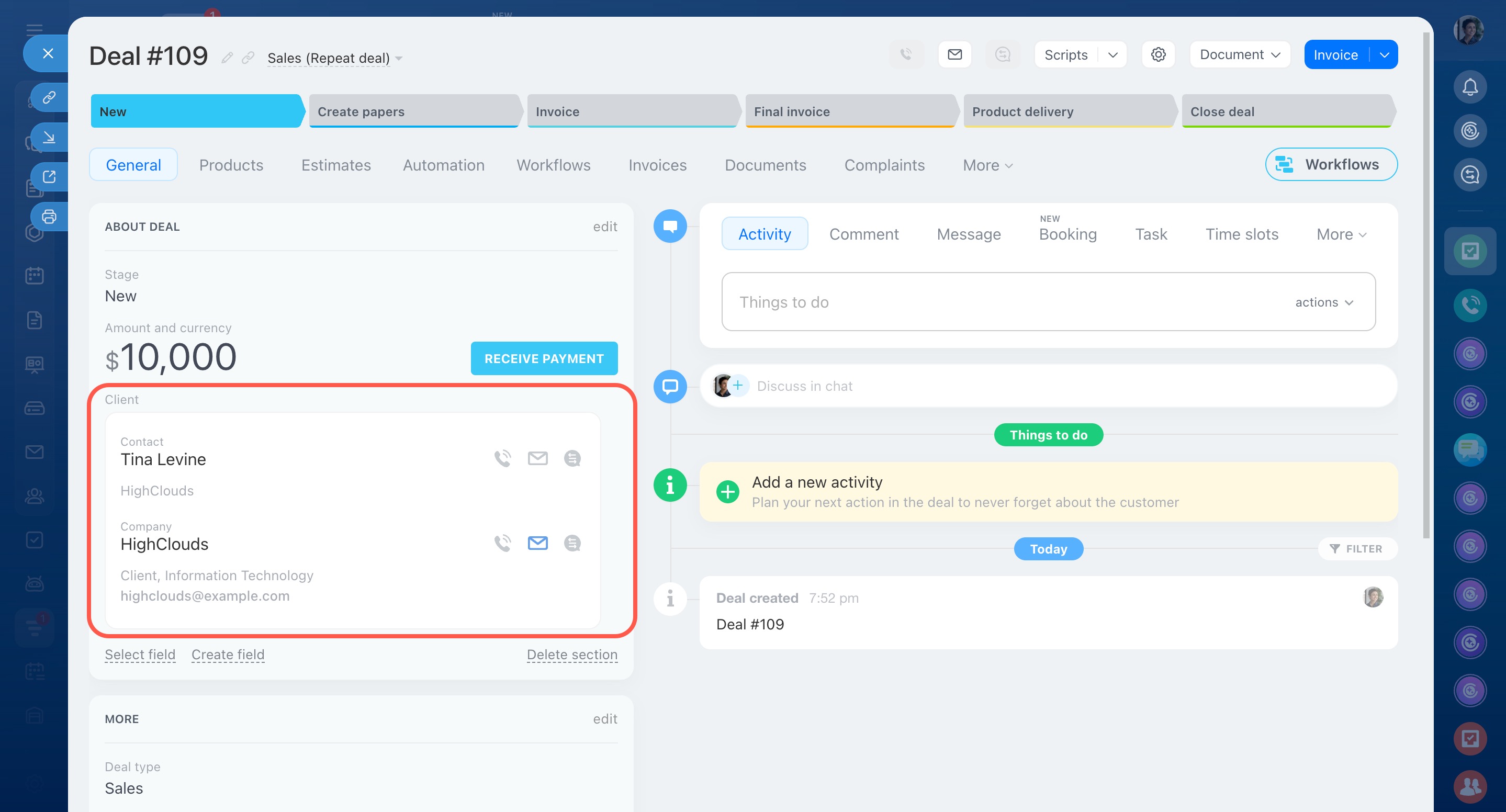
If items are not linked after import, check the following:
- The upload order
- Matching names of linked items in the import file
- Correct field mapping during import