
In Bitrix24 CRM, you can save customer information as contacts and companies. When a customer is ready to make a purchase or discuss terms, create a deal.
You can link contacts, companies, and deals to keep related information together. Each CRM item form shows the linked items, so you can see who represents a company, which deals are in progress, and the history of customer interactions.
For example, you can link a company to its director and accountant. Their names and contact details appear on the company form. You can also link the company to a deal to see the company and its contacts directly on the deal form.
- Add items: Link a new CRM item to other items when you create it.
- Edit items: Link existing CRM items to each other.
Role-based access permissions in CRM
Bitrix24 can also link CRM items automatically. For example, when you create a deal from a contact form, Bitrix24 automatically links the new deal to that contact.Сreate a CRM element based on another element in Bitrix24
Link contacts and companies
You can link one contact to multiple companies or one company to multiple contacts. For example, you might work with both the director and accountant of a company. Or the same person might work for two different companies.
To link a contact to companies, follow these steps. You can use the same steps to link a company to contacts.
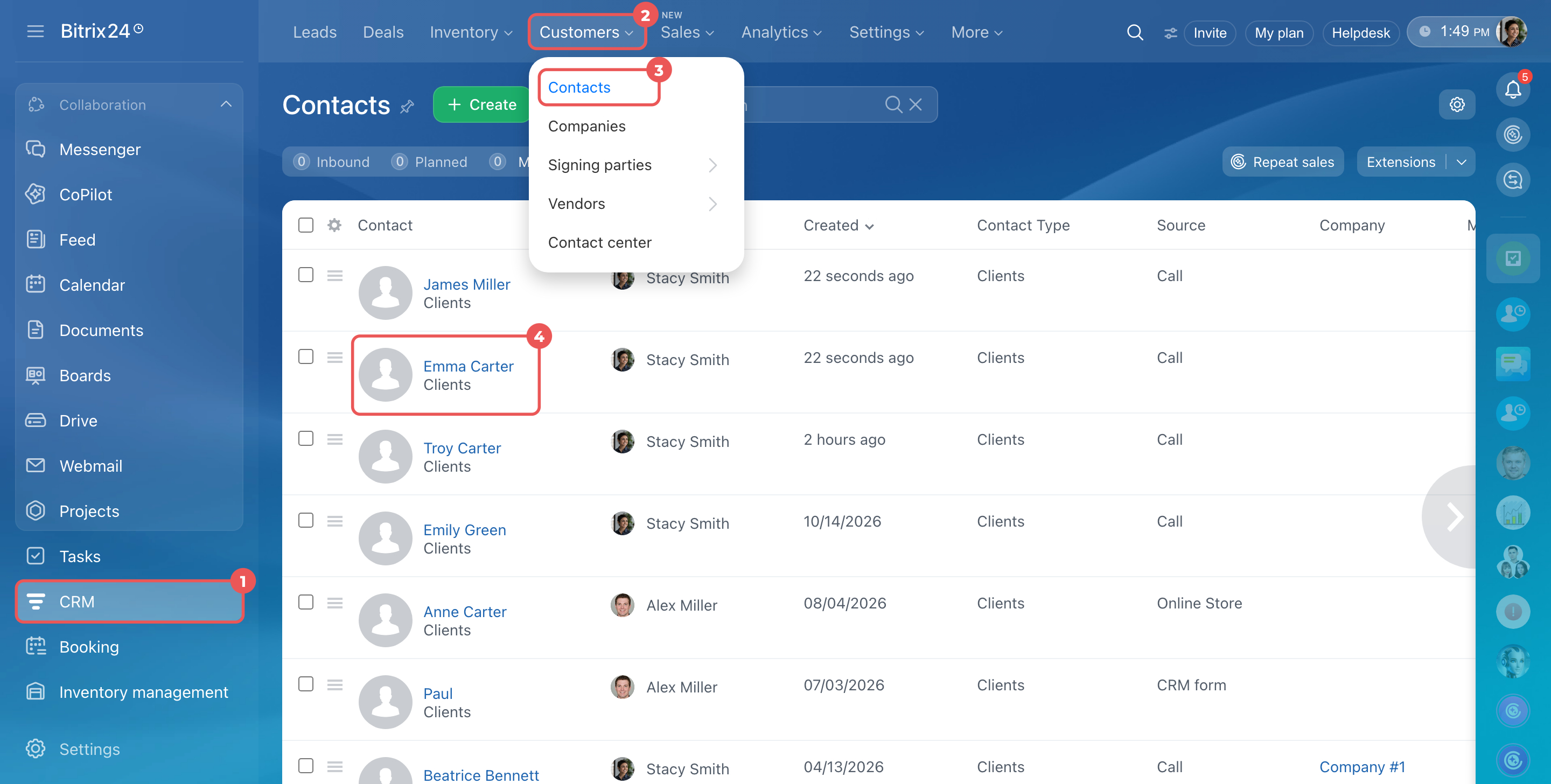
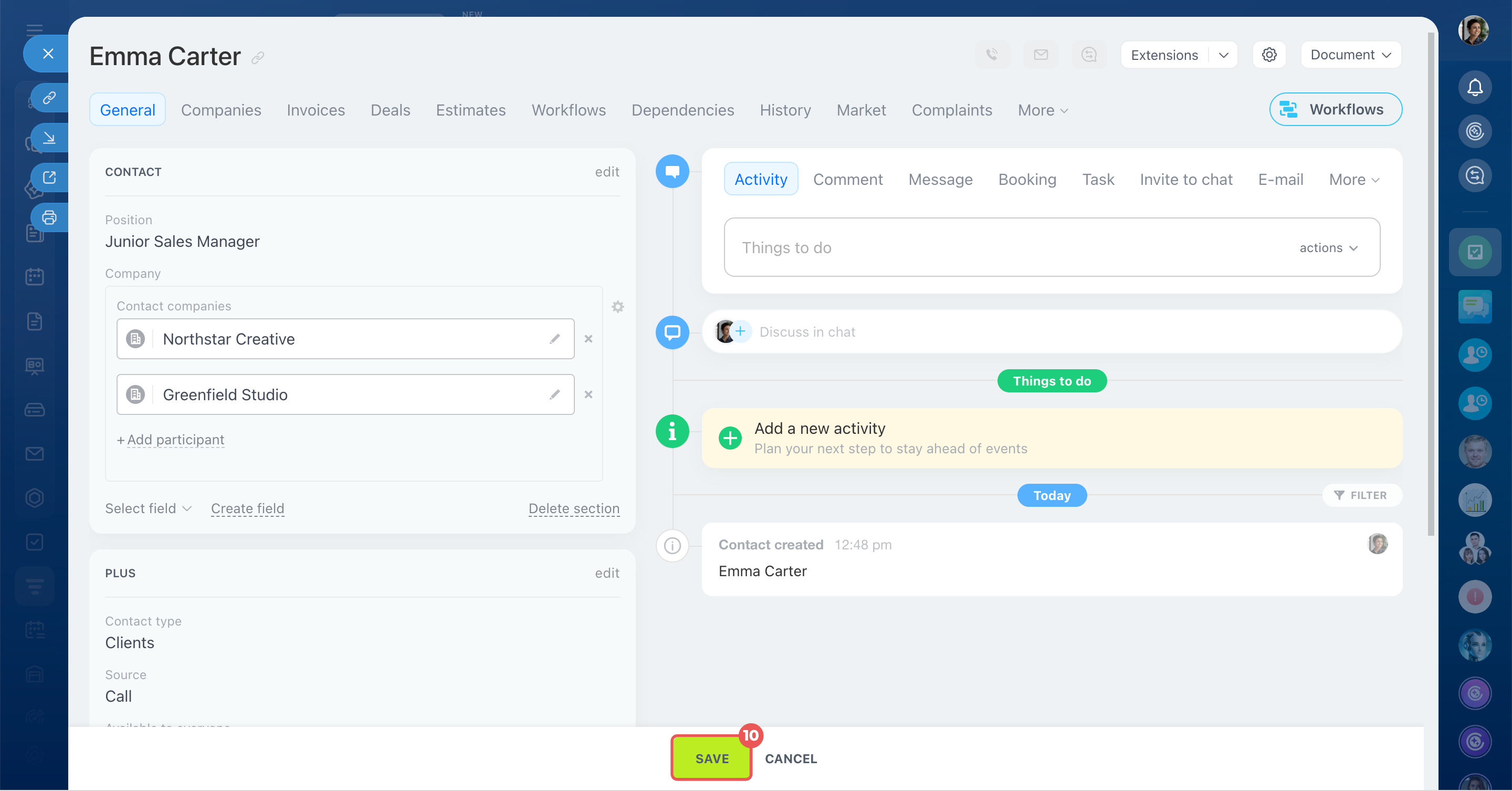
- Go to CRM > Customers > Contacts and open the required form.
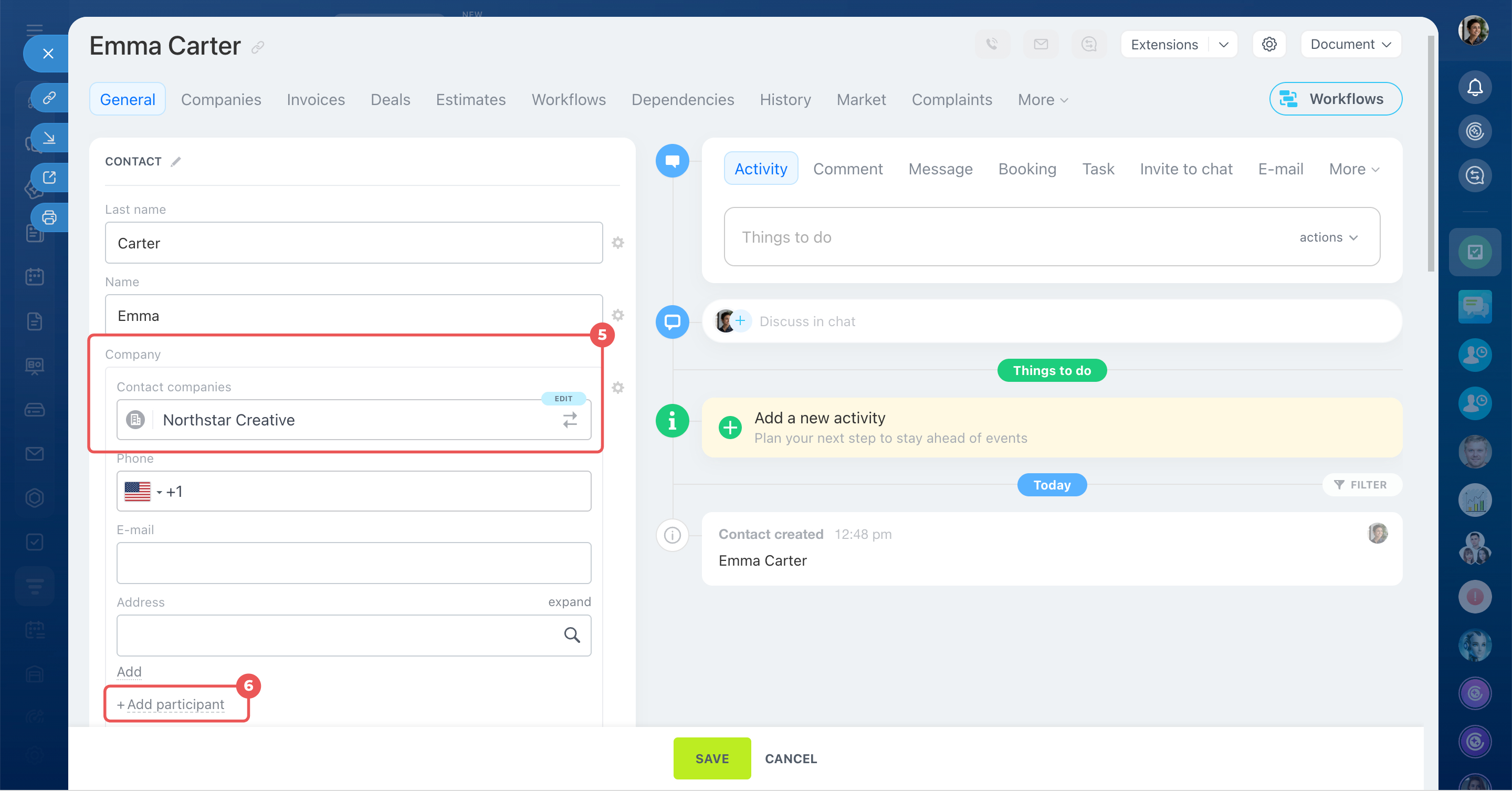
- Click the Company field and select a company from the list. To create a company, enter its name and click Create a new company. To add another company, click Add participant.
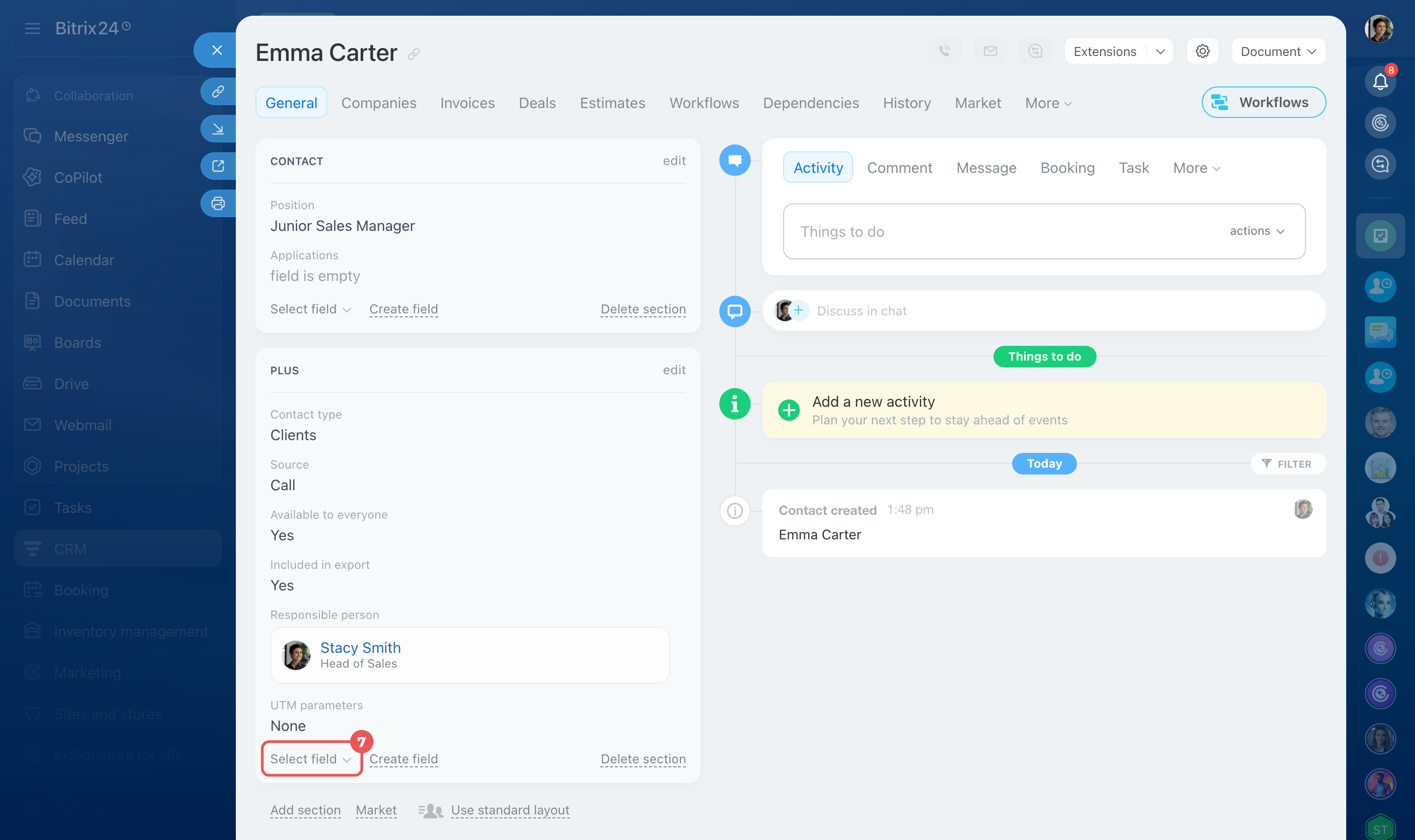
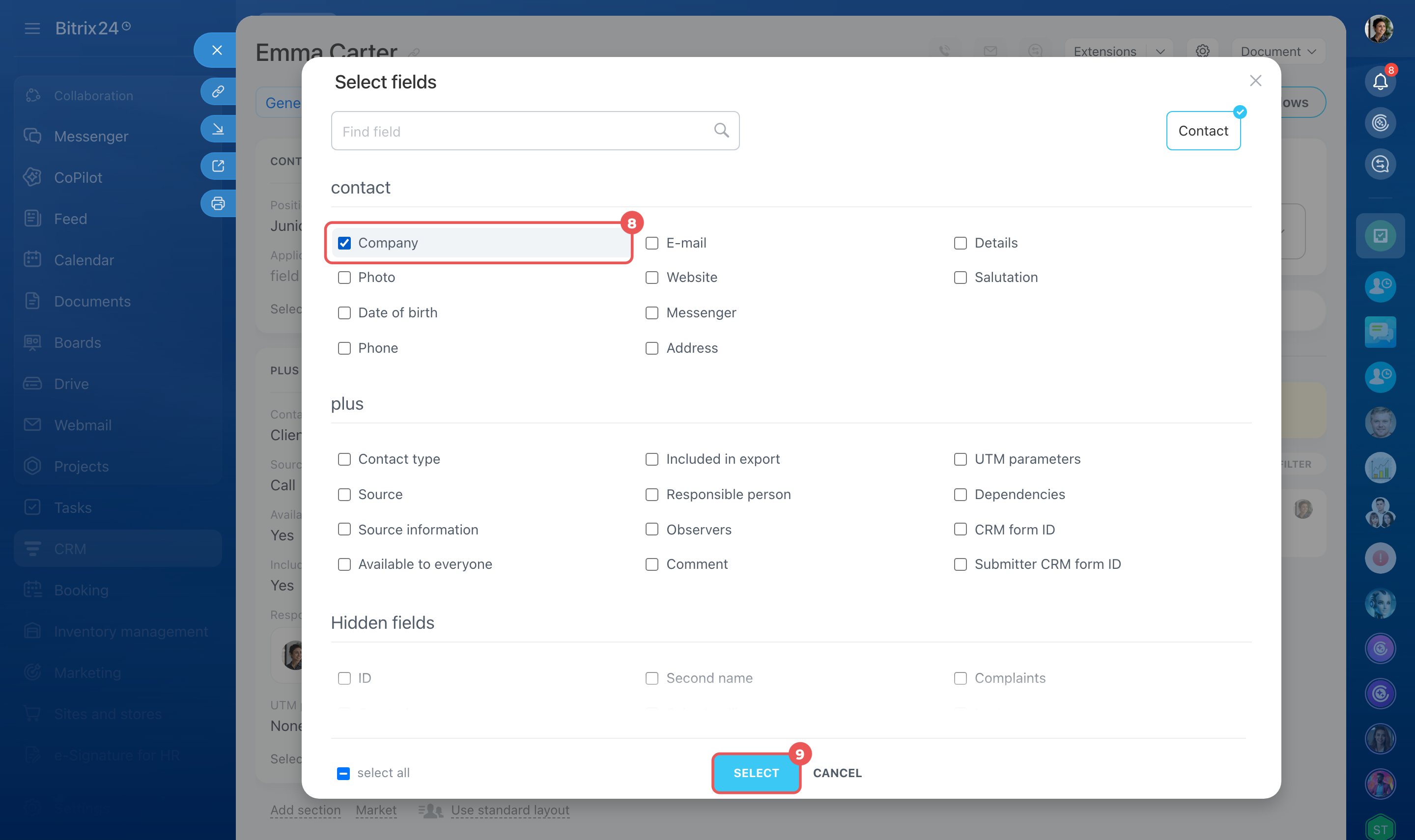
- If you don't see the Company field, you need to make it visible. Click Select field in any section of the form. Find the field in the list or use the search bar. Select its checkbox and click Select.
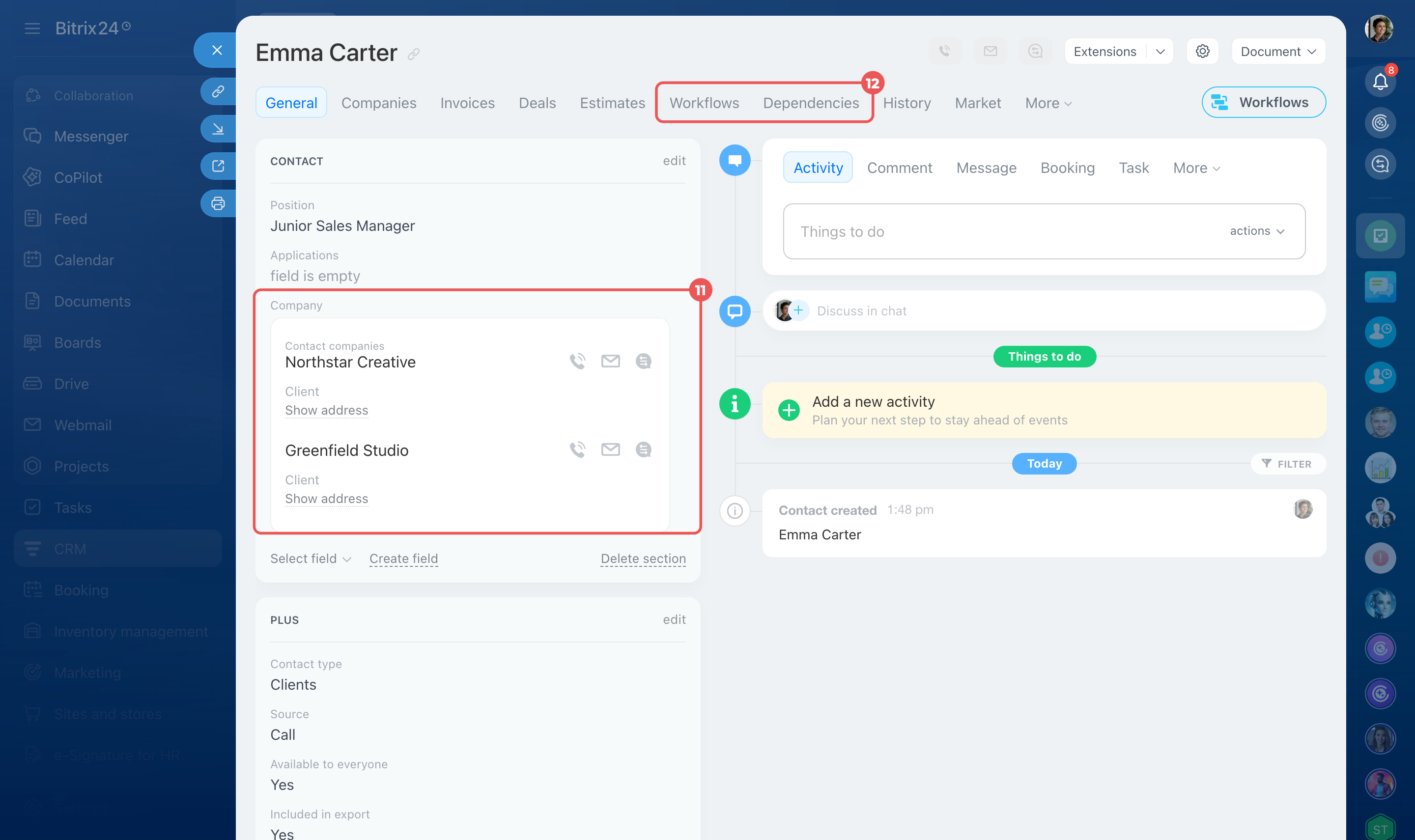
- Click Save. Bitrix24 links the contact to the selected companies and automatically adds it to the Contact field on each company form.
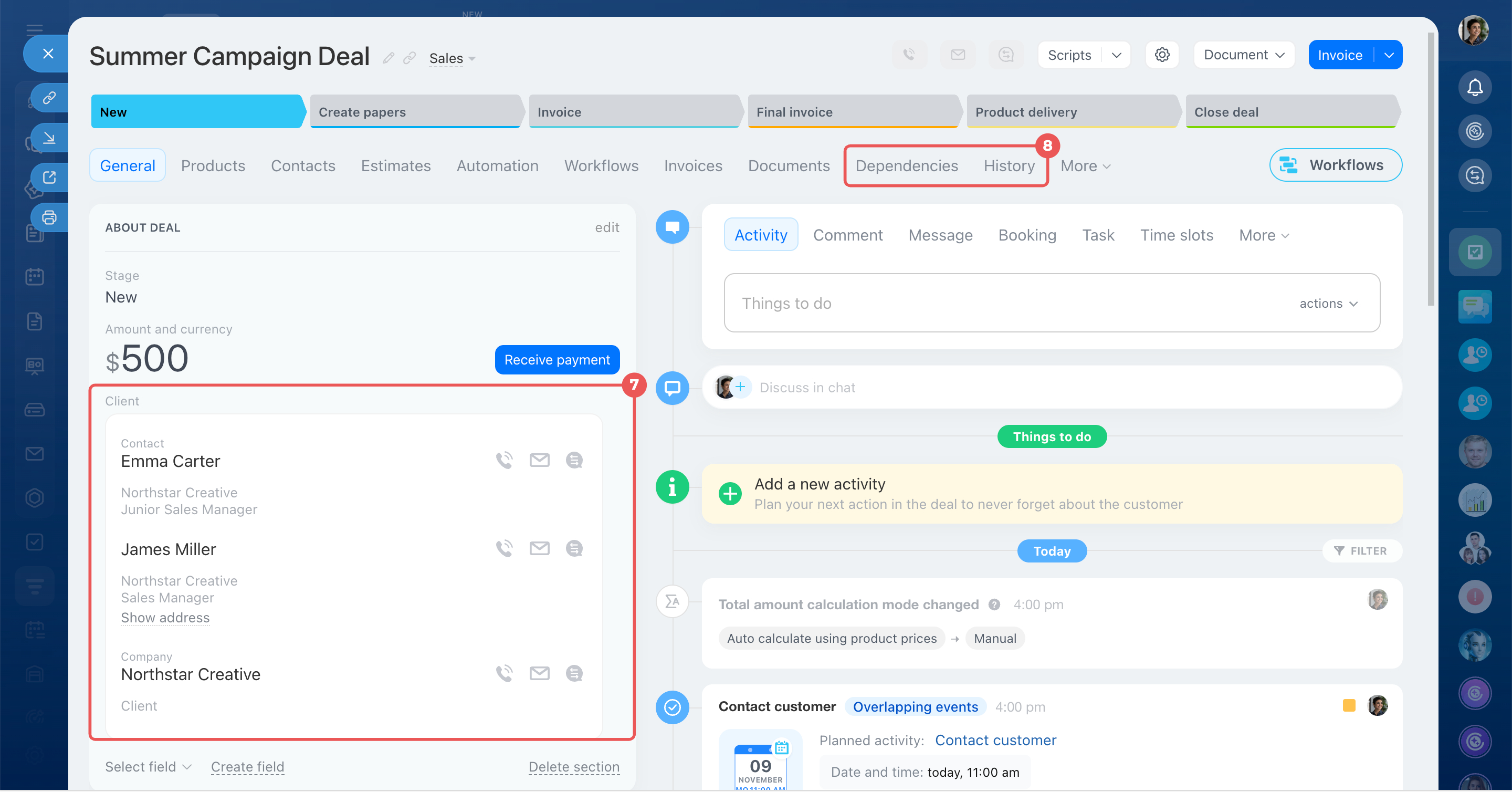
- To open a linked company's form, click its name in the Company field or on the Dependencies and History tabs.
Link companies, contacts, and deals
You can link a deal to multiple contacts, but only one company. For example, if you're negotiating with a company's director and accountant, you can add both contacts to the deal.
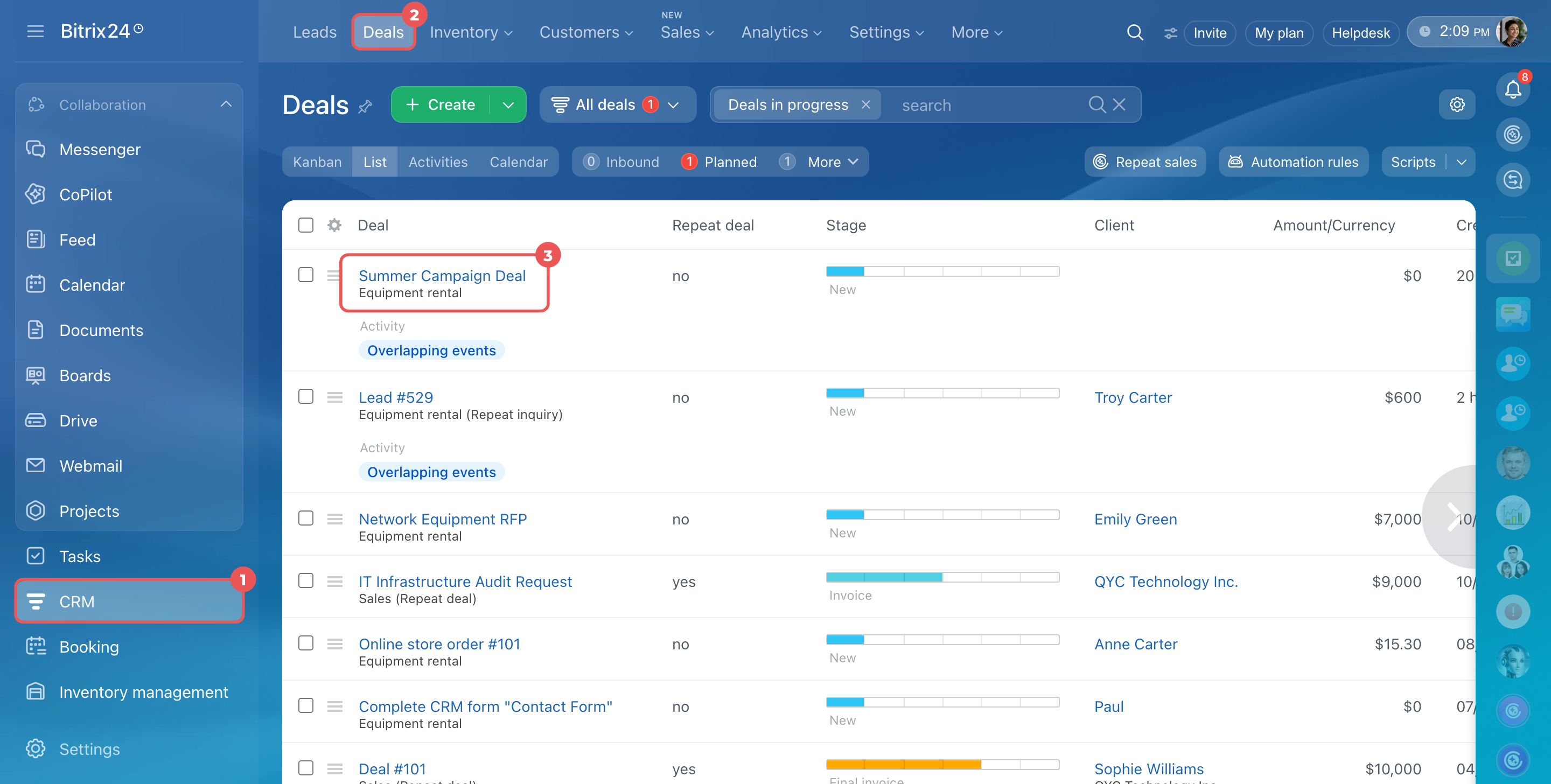
- Go to CRM > Deals and open the required form.
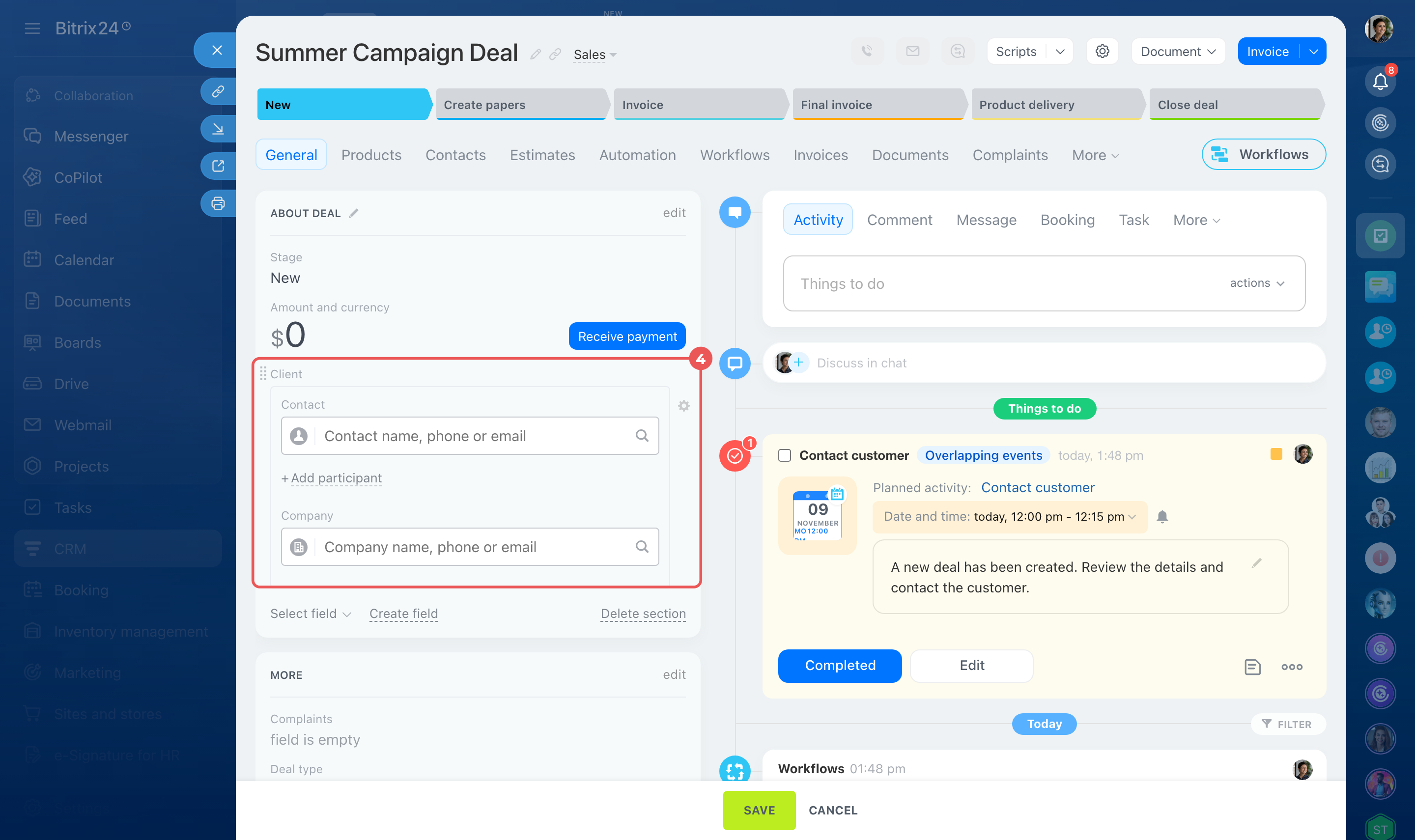
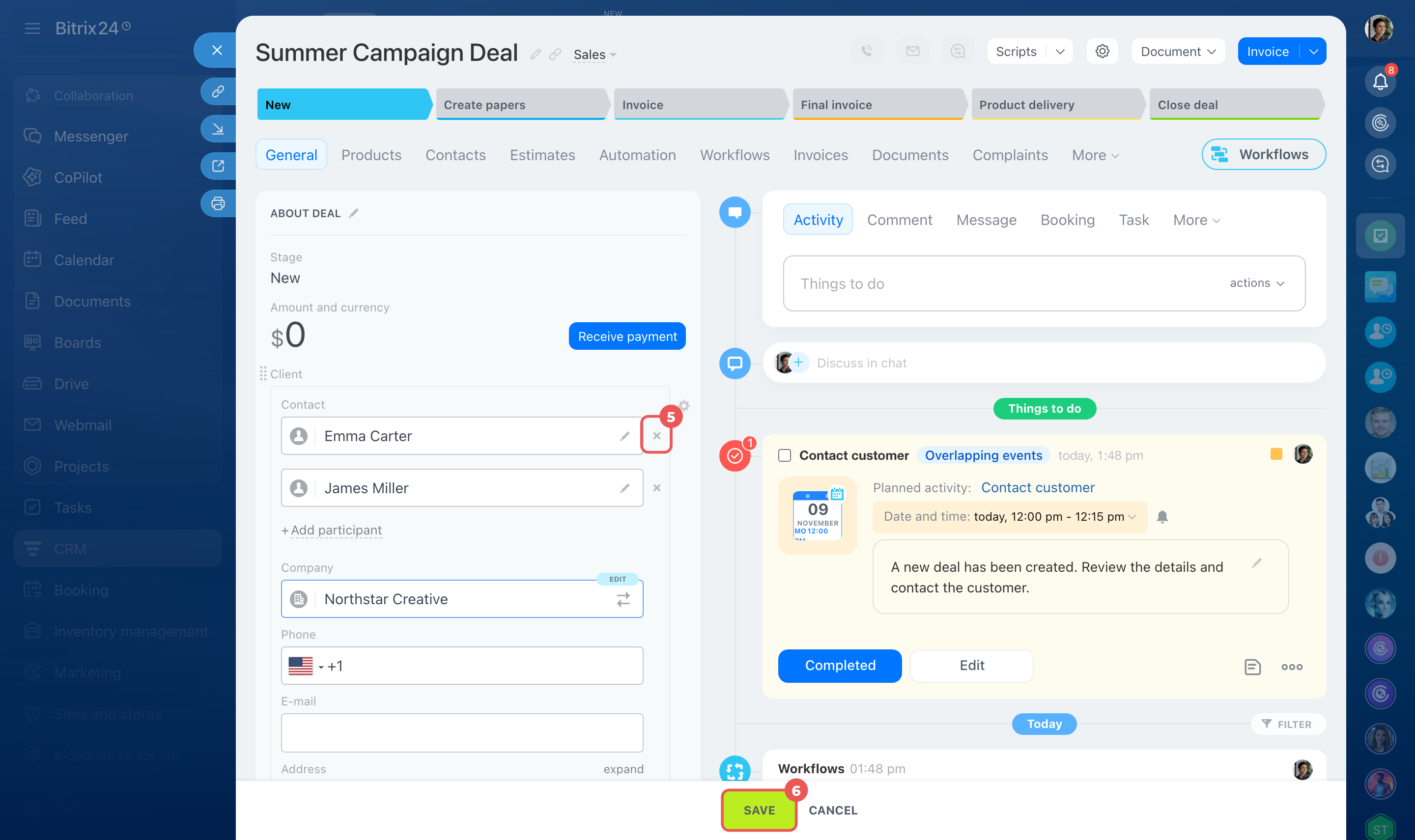
- Use the Client field to link contacts and a company to the deal.
- Add a contact. Click the Contact field and select a contact from the list. To create a contact, enter its name and click Create a new contact. To add another contact, click Add participant.
- Add a company. Click the Company field and select a company from the list. To create a company, enter its name and click Create a new company. Bitrix24 automatically adds the company's contacts to the deal, replacing any contacts you added manually.
- To remove a contact that Bitrix24 added automatically, click the × next to their name.
- Click Save. Bitrix24 links the deal to the selected company and contacts. To open a linked CRM item form, click its name in the Client field or on the Dependencies and History tabs.
When you create another deal for the same company, Bitrix24 uses the contact list from the previous deal. It automatically adds only the contacts you kept in that deal. Other contacts remain linked to the company, but you need to add them to the new deal manually.
For example, a company has three contacts, but you kept only two in the previous deal. When you create a new deal for that company, Bitrix24 automatically adds those two contacts. You can add the third contact manually if needed.
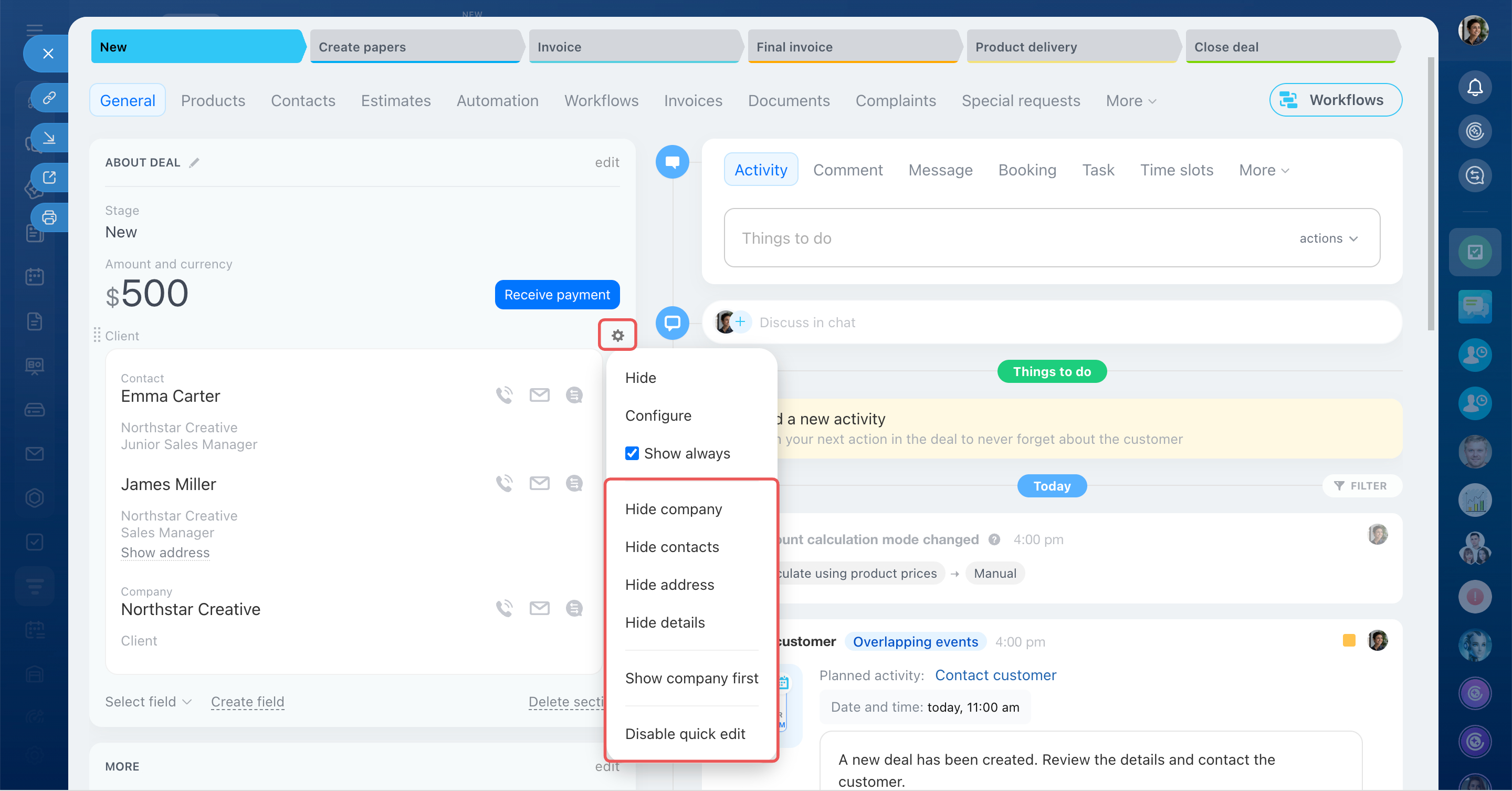
You can customize the Client field on the deal form. Hover over the field and click Settings (⚙️).
- Hide the company, contacts, address, or company details.
- Choose whether to show the contact or company first.
- Disable quick editing. By default, you can edit customer information directly on the deal form. If you disable quick editing, Bitrix24 opens the contact or company form when you want to change its information.
In brief
- Link companies, contacts, and deals to keep related customer information together. You can view linked CRM items and customer interaction history directly from their forms.
- Account administrators and employees with permission to add and edit CRM items can link them.
- You can link a contact to multiple companies and a company to multiple contacts.
- To link a contact to a company, go to CRM > Customers > Contacts and open the contact form. Select or create a company in the Company field. To add another company, click Add participant. Save your changes. Bitrix24 automatically adds the contact to the linked company forms.
- You can link a deal to multiple contacts, but only one company. Go to CRM > Deals, open the deal form, and add the contacts and company in the Client field.
- To open a linked CRM item form, click its name in the Company, Contact, or Client field, or on the Dependencies and History tabs.