
The CRM form includes two roles: Responsible person and Observers.
The responsible person manages the customer and sales process. To give other employees access to a CRM item, add them as observers. Each CRM item can have one responsible person and multiple observers.
Observers can:
- Open and view the CRM item
- Join and participate in discussion chats
You can add observers to all CRM items except estimates and signing documents. This includes leads, deals, contacts, companies, invoices, and SPA items.
Add observers to a CRM item
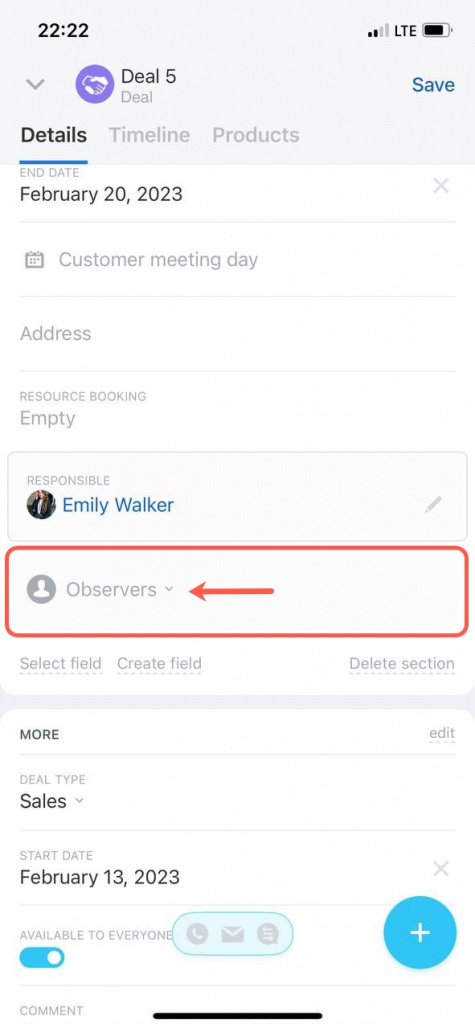
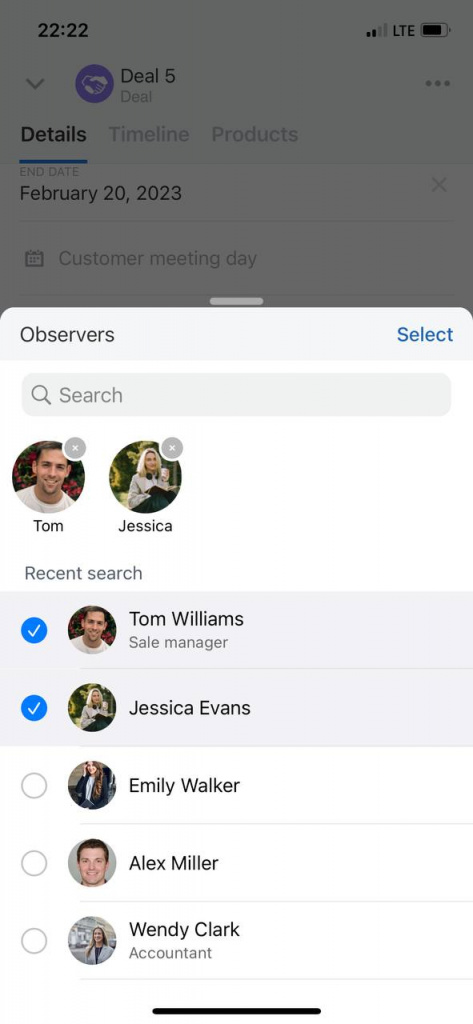
You can add observers in both the web version and the Bitrix24 mobile app.
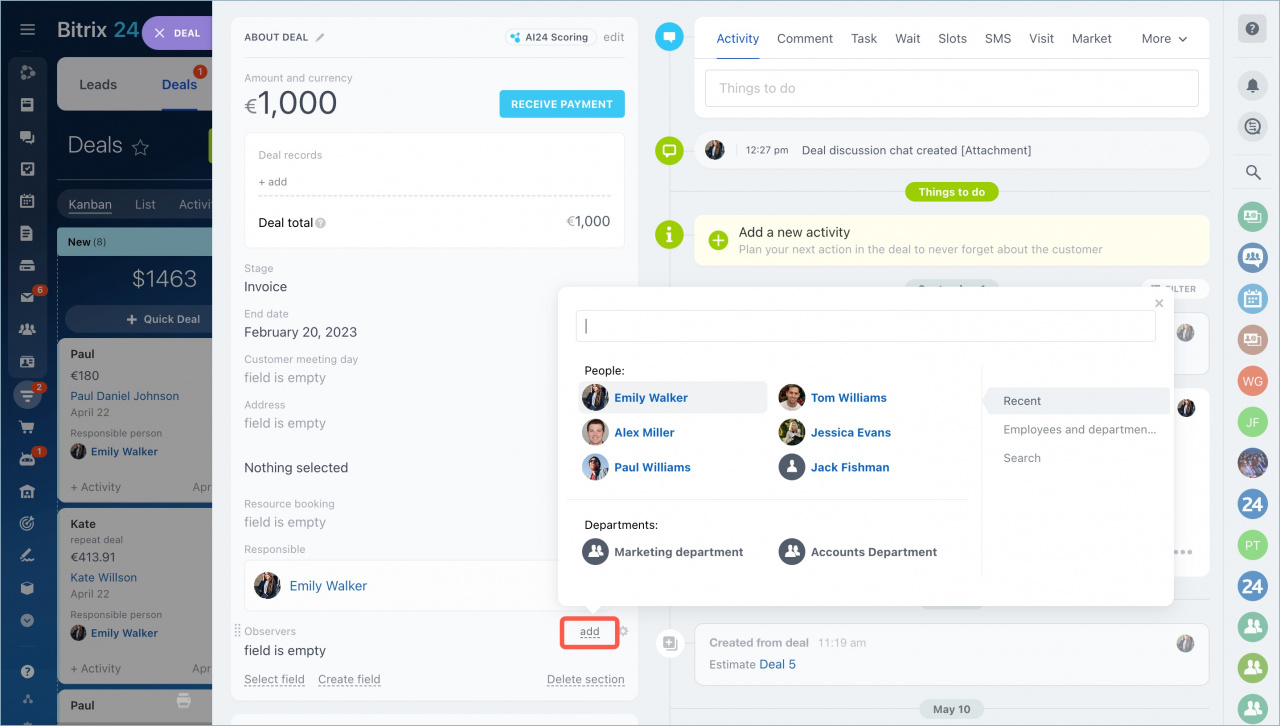
- Open the CRM item.
- Find the Observers field.
- Click Add.
- Select the employees you want to add.
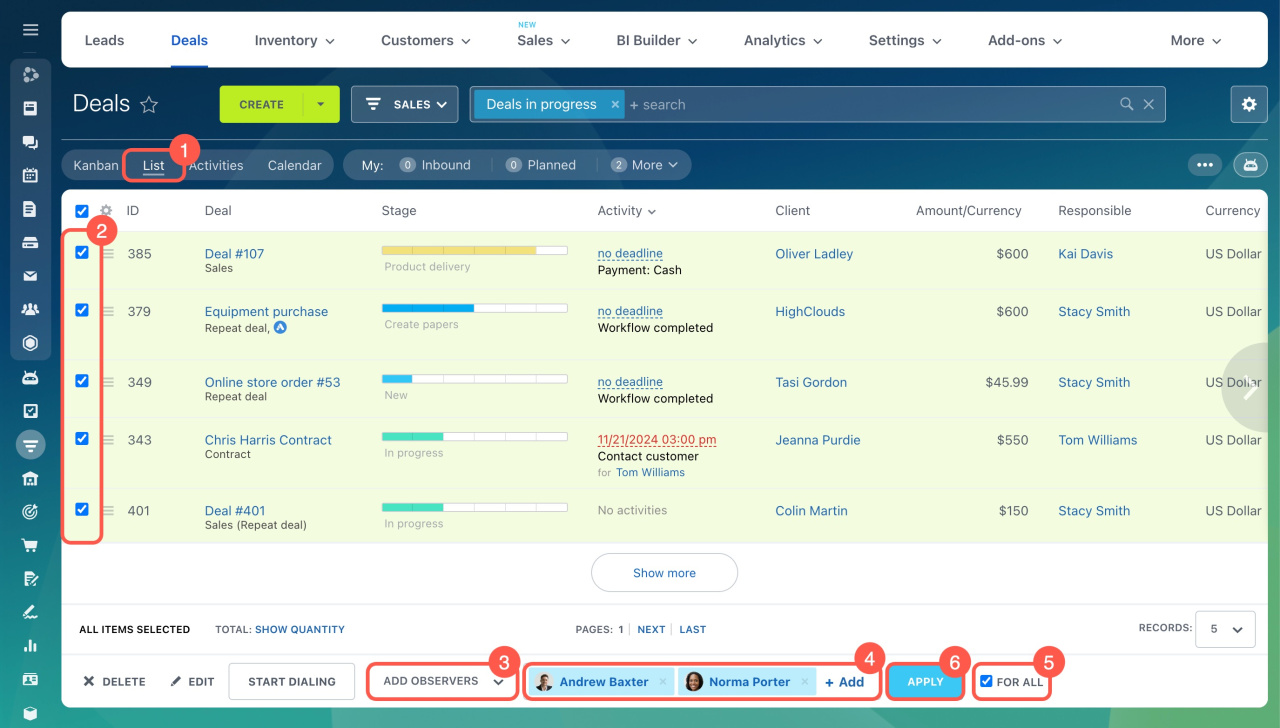
Use group actions to add observers to several CRM items at once.
Group actions in CRM
- Switch to List view.
- Select the CRM items.
- Choose Add observers.
- Select the employees.
- To apply the action to all items on every page, enable .
- Click Apply.
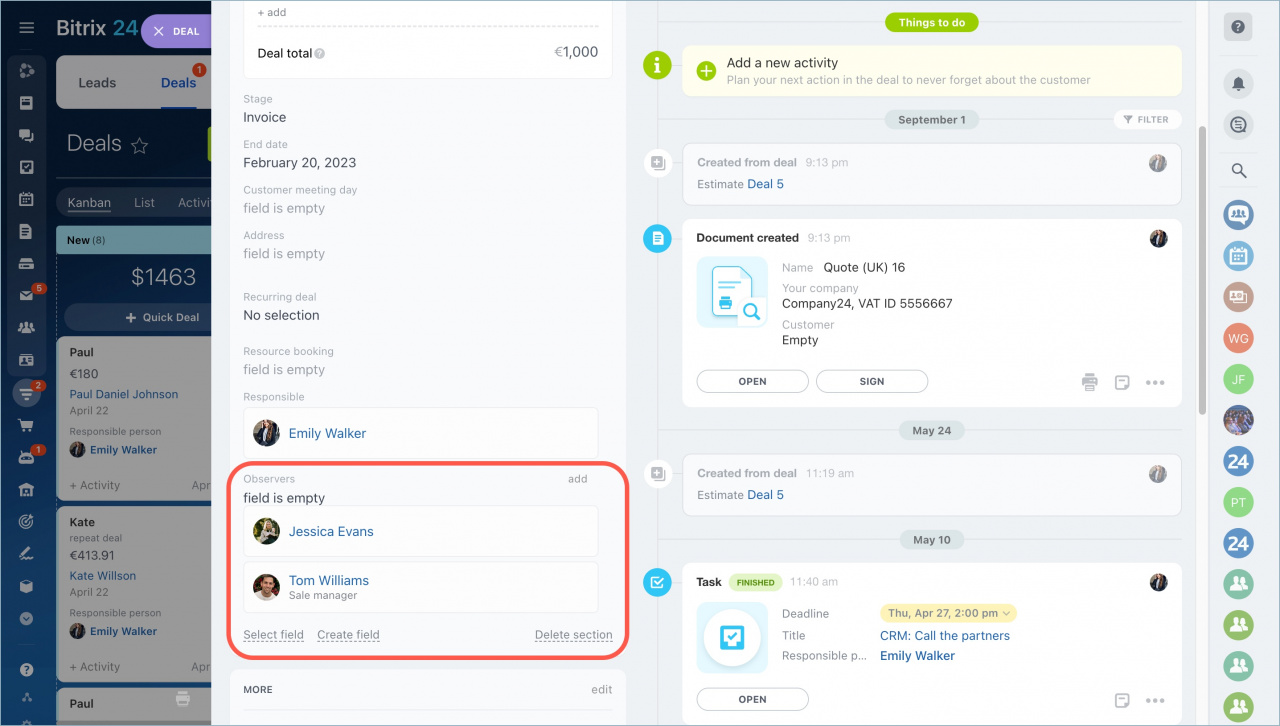
Employees added as observers can open and view the CRM item.
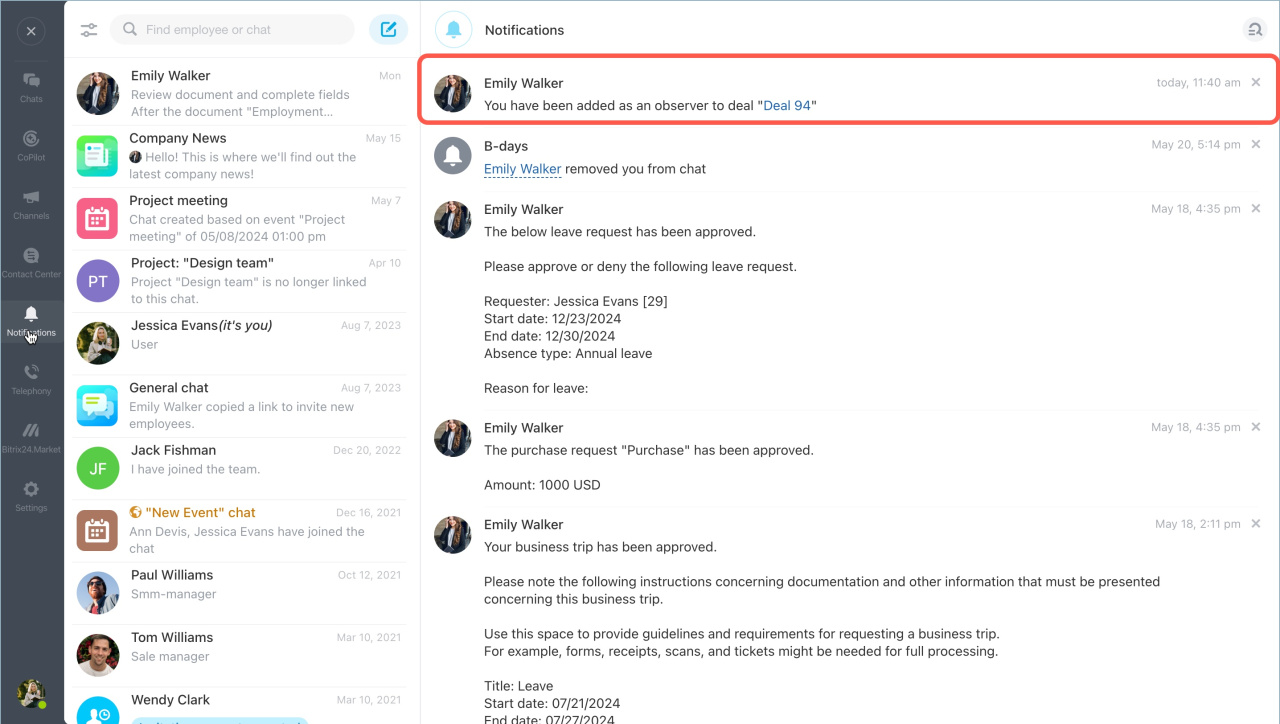
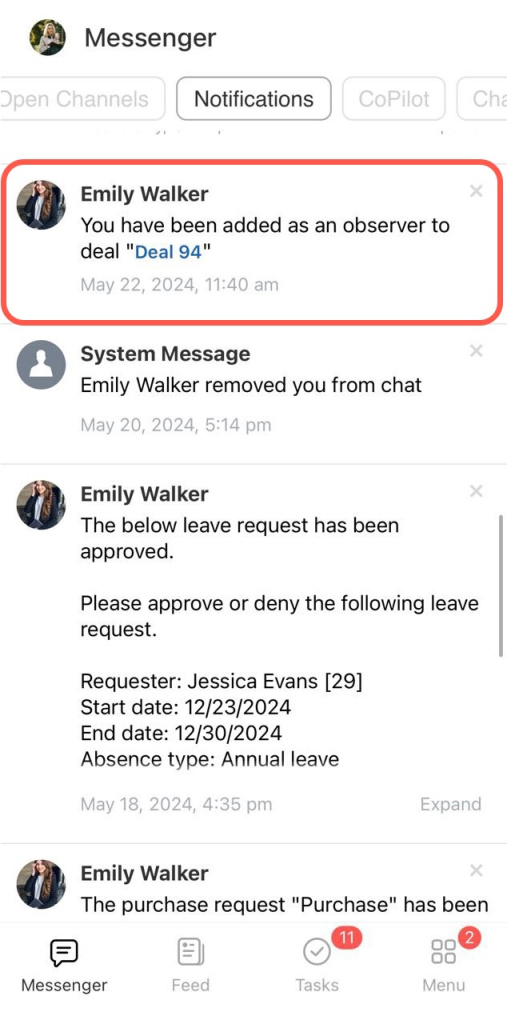
Employees receive a notification when they are added or removed as observers.
- Open the CRM item.
- Find the Observers field.
- Select the employees you want to add.
Employees receive a notification when they are added or removed as observers.
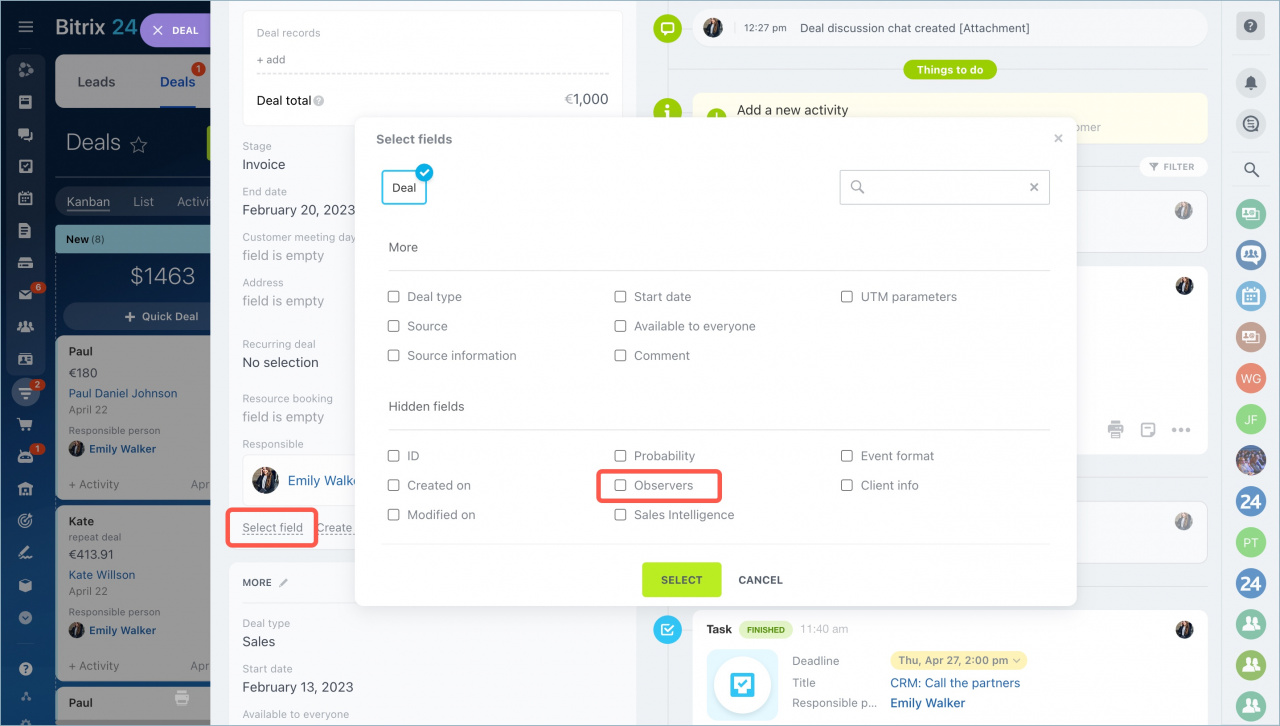
If the Observers field is missing
If the Observers field does not appear in the CRM item form, it is hidden.
- Click Select field.
- Select the Observers field.
- Save the changes.
The field will appear in the CRM item form.
Access Permissions in CRM
Create a chat from a CRM item
Create a chat directly from the CRM item to discuss the customer or deal. You do not need to add participants manually.
When you create the chat, Bitrix24 automatically adds the responsible person and all observers.
- Open the CRM item.
- In the Timeline, click Discuss in chat.
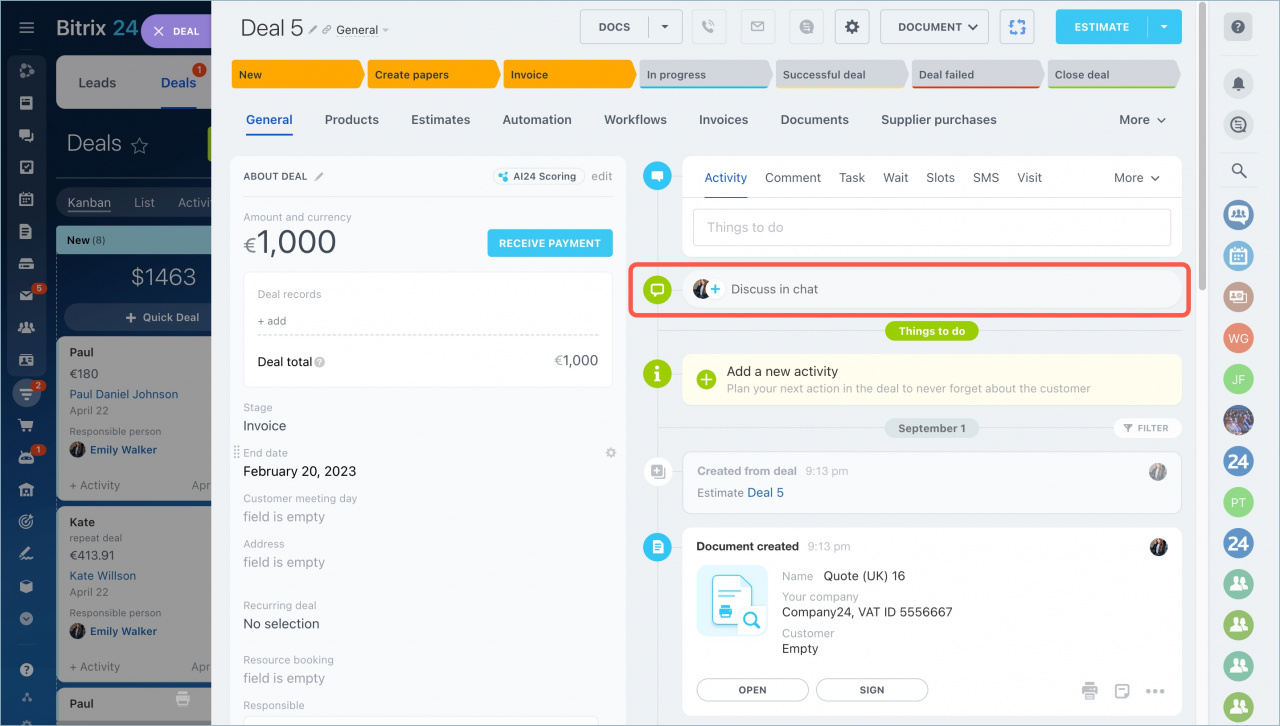
Bitrix24 opens the chat immediately.
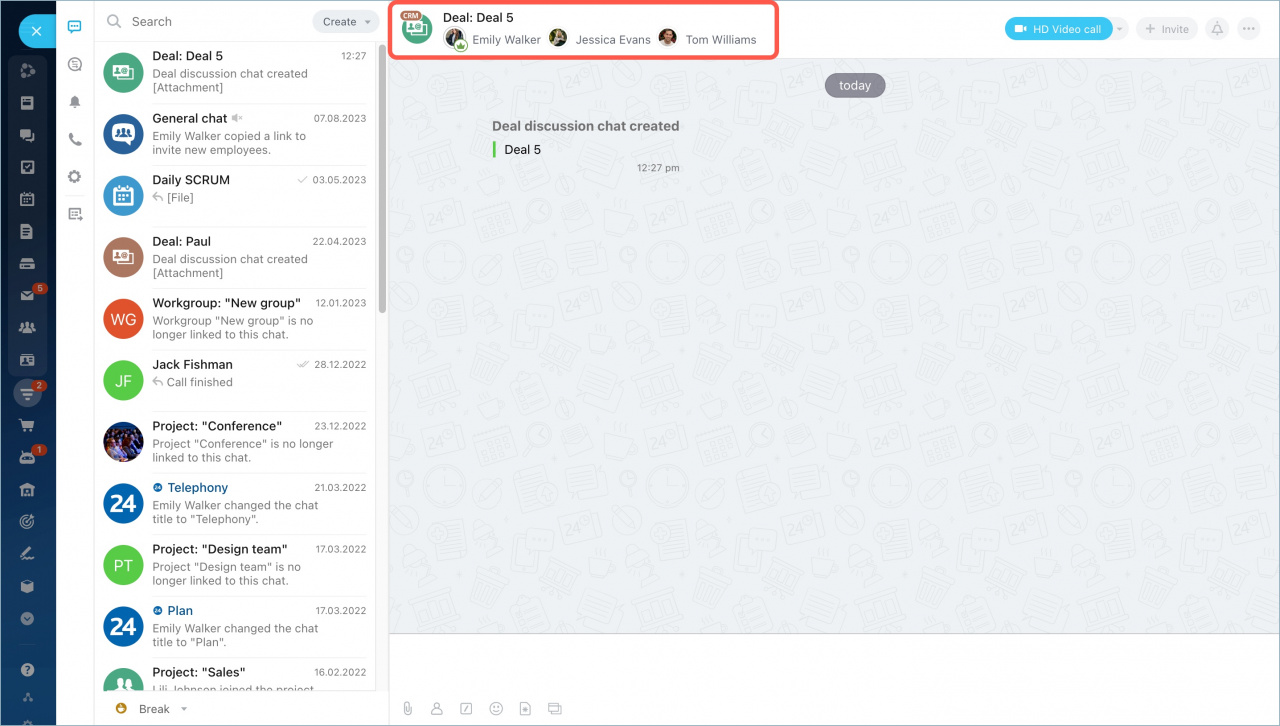
You can create a discussion chat from the CRM item list or directly from a CRM item.
- Open the CRM section.
- Tap the three-dot icon.
- Select Discuss in chat.
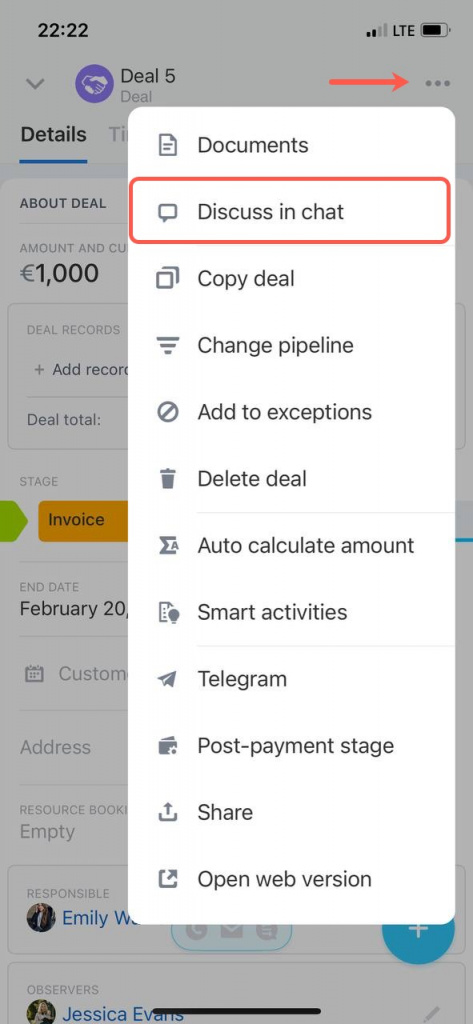

If the chat already exists, Bitrix24 will open it automatically.
The chat participant list and the observer list in the CRM item are linked:
- If you add an employee to a CRM item chat and they are not listed in the CRM form, Bitrix24 automatically adds them as an observer. If you later remove the employee from the chat, they will remain an observer in the CRM item.
- If you add an employee as an observer in a CRM item, Bitrix24 automatically adds them to the related chat. The employee will see all chat messages. If you remove the employee from the CRM form, Bitrix24 will also remove them from the chat.
- To hide previous chat messages from an employee, add them to the CRM item chat and clear the Show history option. The employee will only see new messages.
- If an employee should not see messages in the CRM item chat, add them as an observer in the CRM form and then remove them from the chat participants list.
Remove observers
Remove employees from observers when they no longer work with the customer.
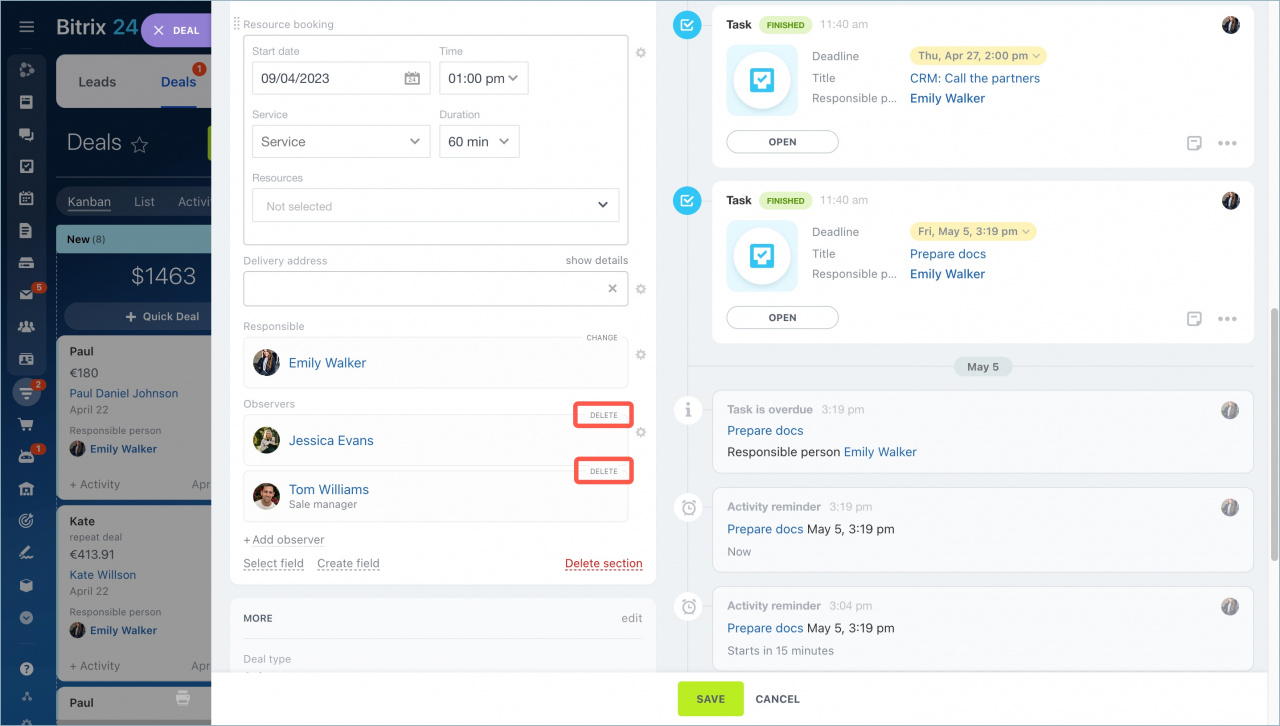
- Open the CRM item.
- Click Edit.
- Remove the employee from the Observers field.
- Save the changes.
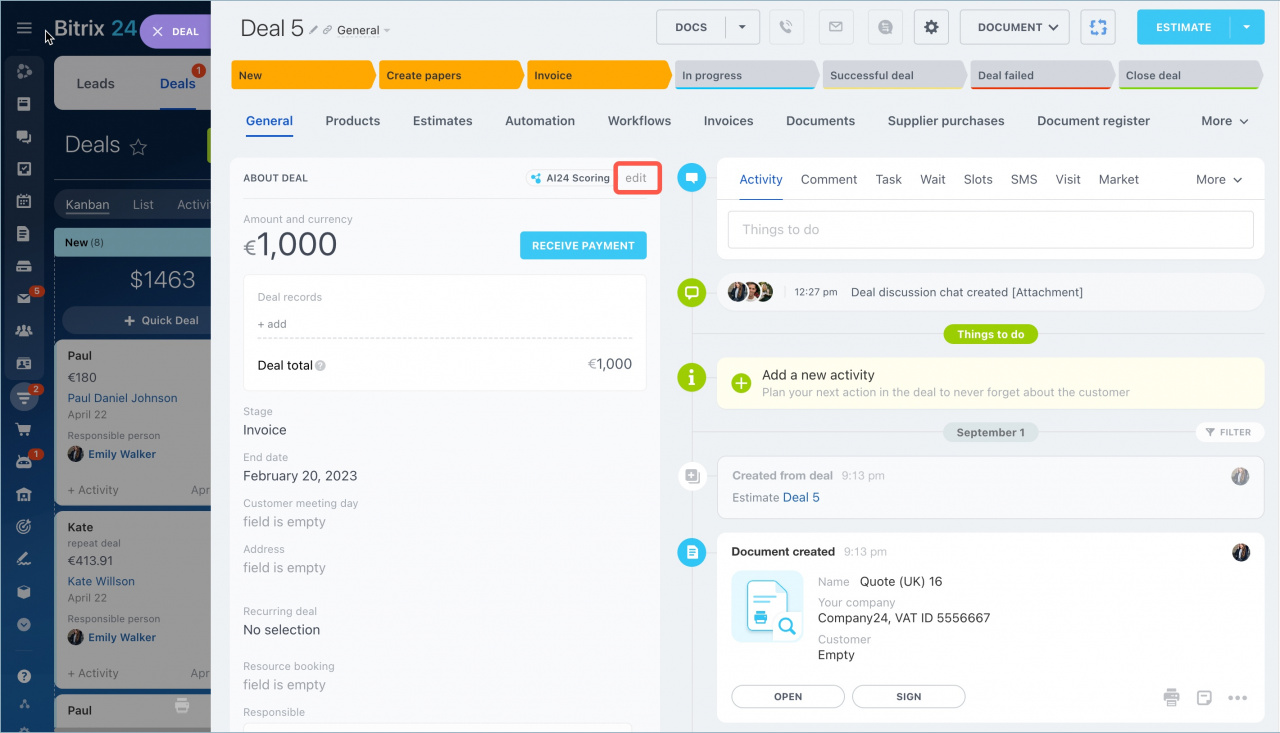
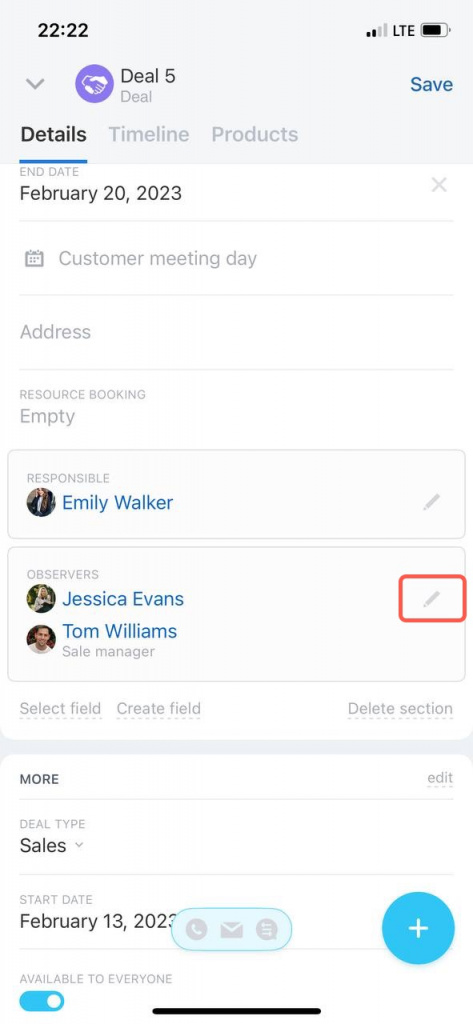
- Open the item form in the mobile app.
- Tap the pencil icon in the Observers field.
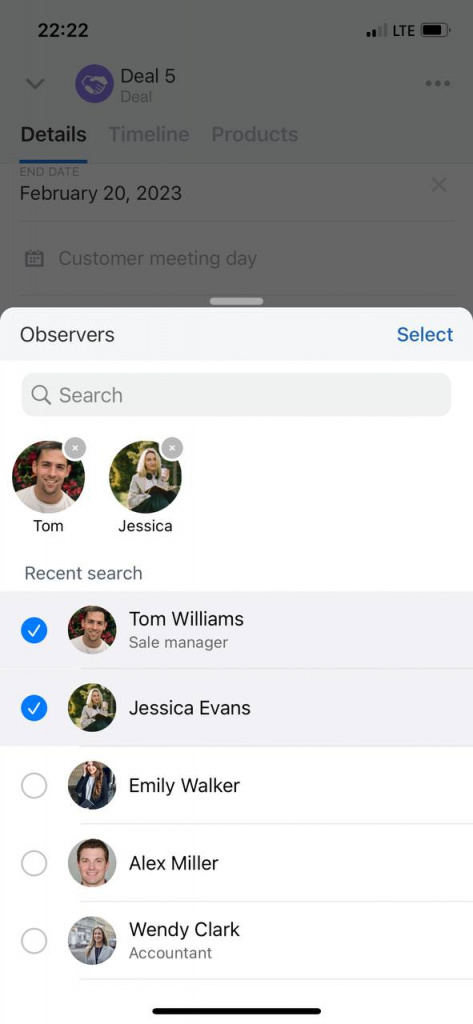
- Uncheck the employees you want to remove and tap Select.
- Save the changes.
In brief
- Add observers to give employees access to CRM items.
- Observers can view CRM items and participate in discussion chats.
- You can add observers in the web version and mobile app.
- When you create a chat from a CRM item, Bitrix24 automatically adds the responsible person and all observers.
- Removing an observer from a CRM item also removes them from the related chat.