
In CRM, a customer moves through several stages, from the first inquiry to payment. At each stage, you may create different items, such as a lead, deal, contact, company, estimate, or invoice.
To avoid copying data manually or linking items yourself, Bitrix24 lets you create one item based on another. The new CRM item form fills in automatically and stays linked to the source item. This helps you move customers through the sales funnel faster and keep the full history of your work in one place.
Bitrix24 administrators and employees with permission to edit the source item and create a new one can create items based on other items. For example, to create a deal from a lead, you need permission to create deals and edit leads.
Role-based access permissions in CRM
In this article:
Items you can create based on other items
From a lead, you can create:
- Deal + Contact + Company
- Deal + Contact
- Deal + Company
- Deal
- Contact + Company
- Contact
- Company
For example, when a potential customer is ready to discuss a purchase, a sales rep can create a contact and a deal directly from the lead.
Convert a lead
Based on a deal, you can create:
- Estimate
- Invoice
If a customer wants more information about products, you can create an estimate from the deal. Product information transfers automatically.
From a deal, you can create:
- Estimate
- Invoice
If a customer wants more information about products, you can create an estimate from the deal. Product information transfers automatically.
From an estimate, you can create:
- Deal
- Invoice
When a customer reviews the estimate and is ready to buy, the sales rep can create an invoice from the estimate. The new item appears in the estimate timeline.
Create an item based on a lead, deal, or estimate
Here is an example of how to create an invoice from a deal. You can use the same steps for other items.
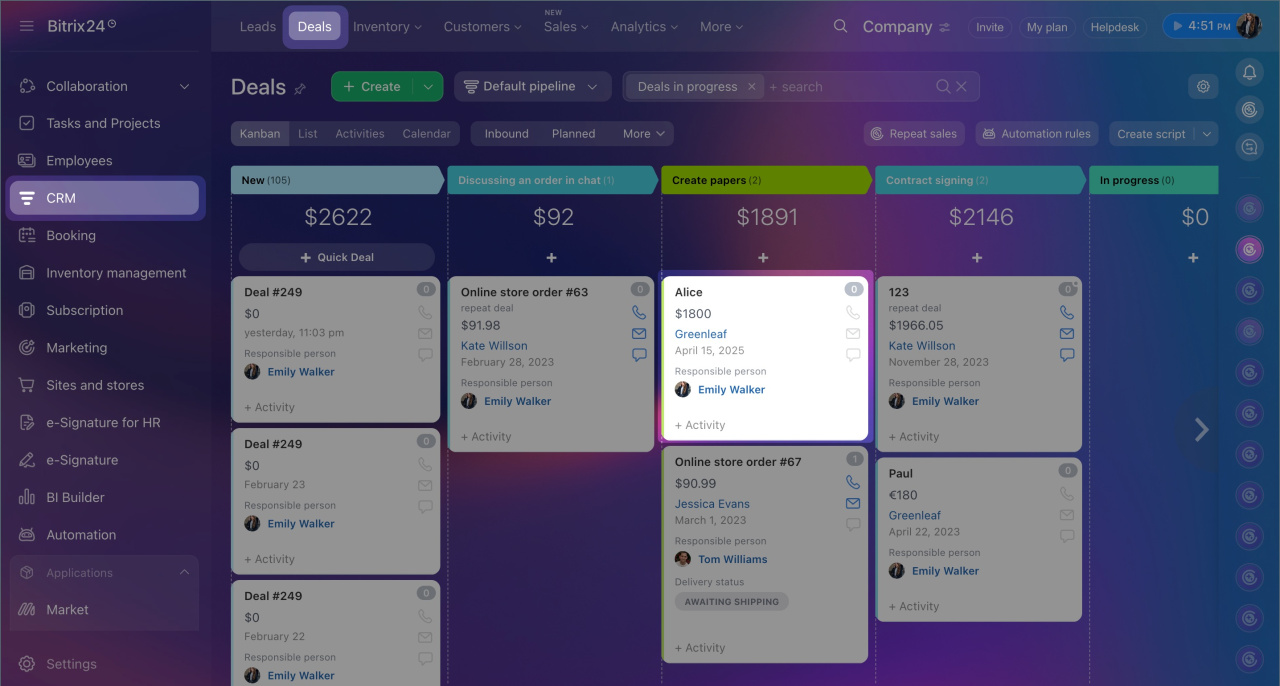
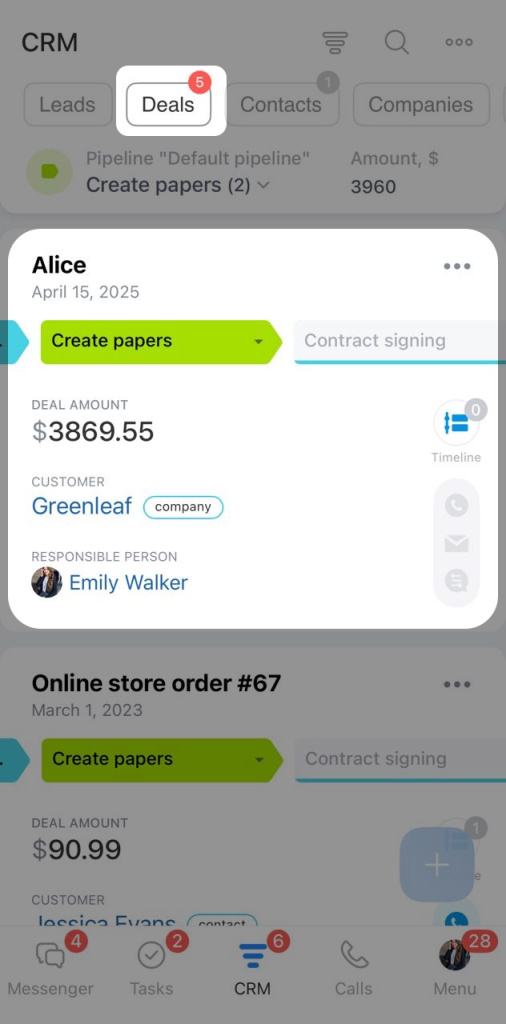
1. Go to CRM > Deals and open the deal you need.
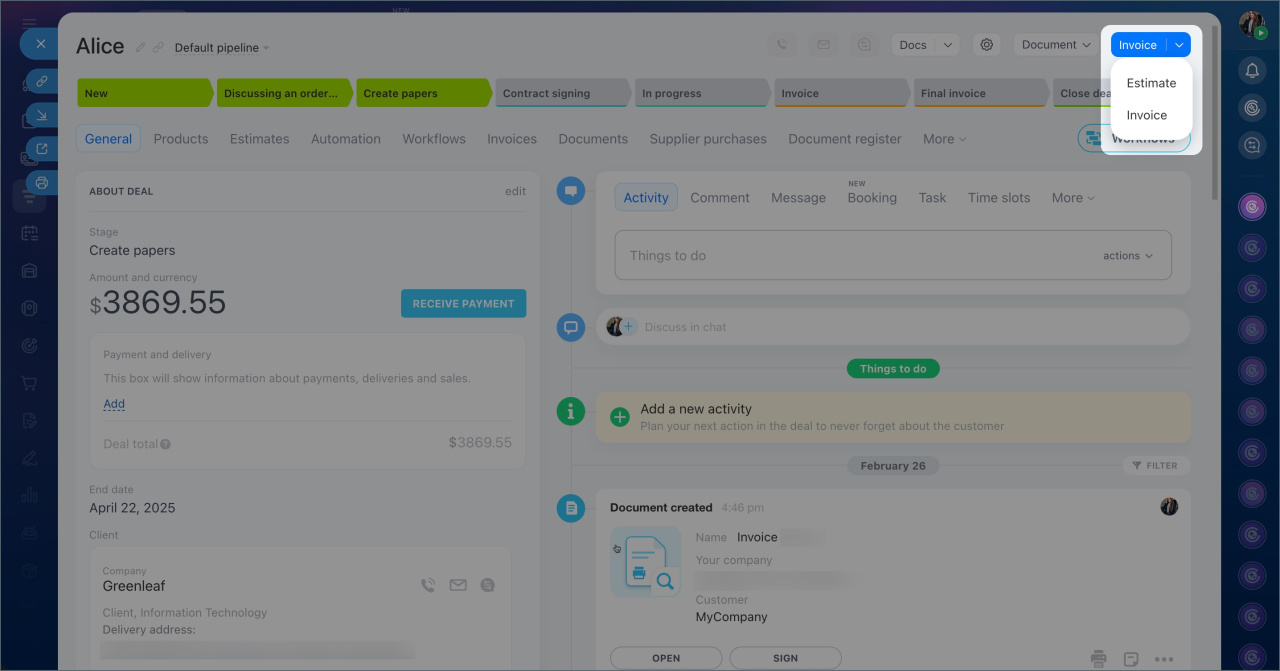
2. Click the arrow next to the item creation button in the upper-right corner.
3. Select Invoice.
4. If the source item has custom fields that the new item does not have, Bitrix24 will prompt you to create the same fields. Select the checkbox next to the item if you want to create the fields, then click Continue.
5. Bitrix24 creates an invoice from the deal and opens its CRM item form.
Custom fields in CRM
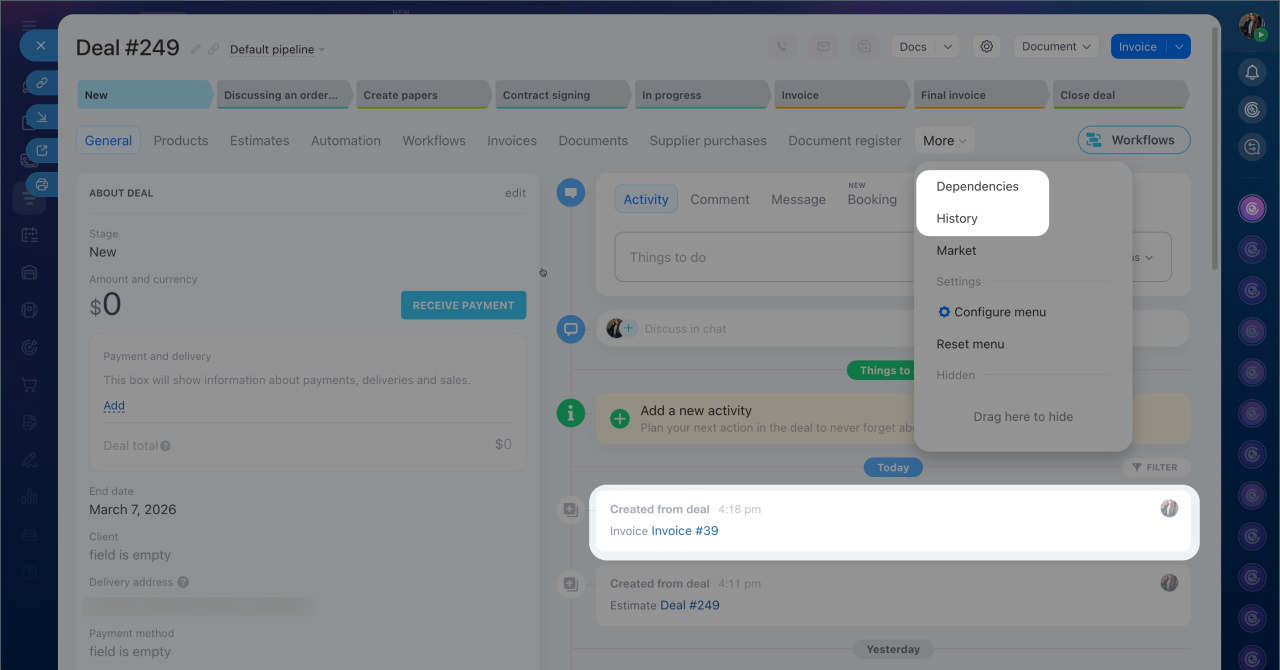
6. The new item appears in the source item form, in the timeline and on the History and Dependencies tabs.
7. To open the new item form, click its name.
CRM item form features and settings
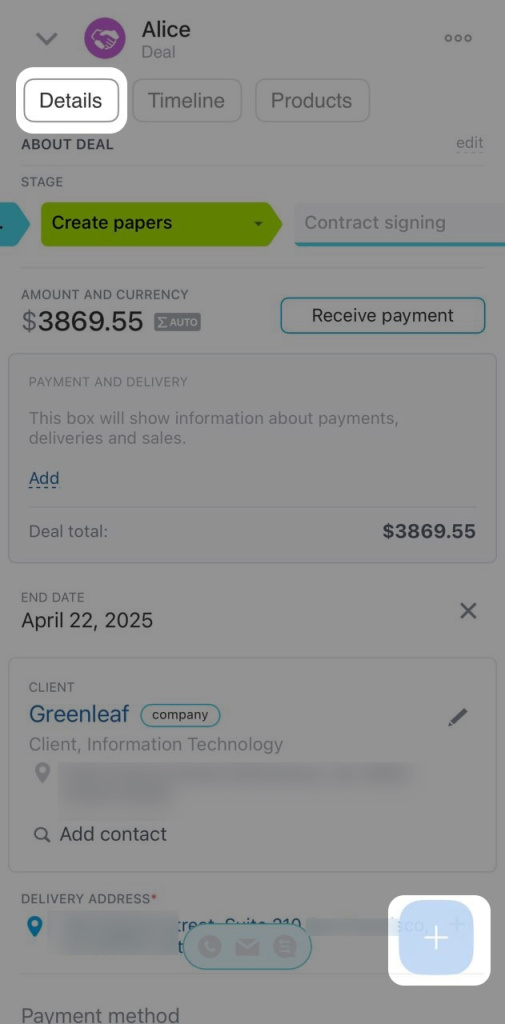
1. Go to CRM > Deals and open the deal you need.
2. Tap Plus (+) in the lower-right corner of the form.
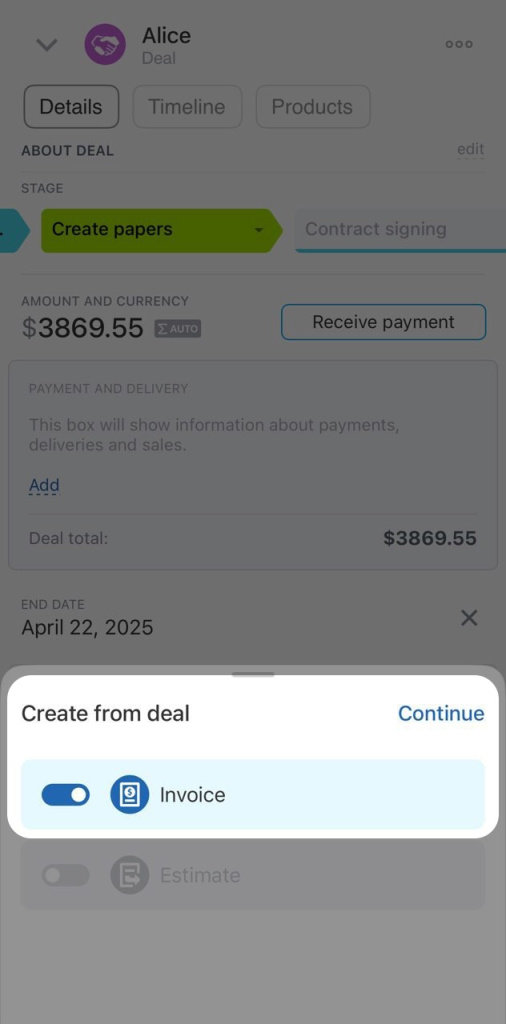
3. Tap Create based on > Invoice.
4. Tap Continue.
5. If the source item has custom fields that the new item does not have, Bitrix24 will prompt you to create the same fields. Turn on the switch next to the item if you want to create the fields, then tap Continue.
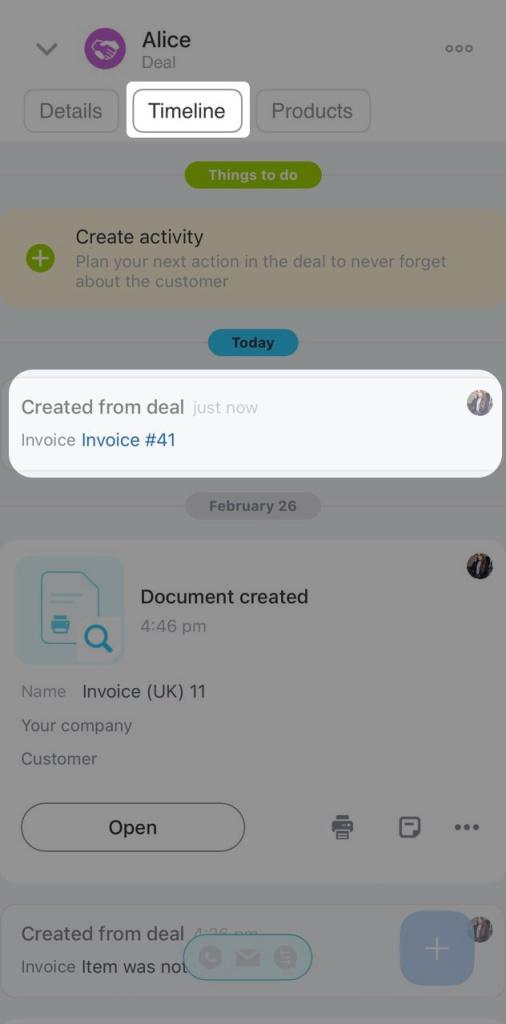
6. Bitrix24 creates an invoice from the deal and opens its form.
7. The new item appears in the timeline of the source item form.
8. To open the new item form, tap its name.
In brief
- In CRM, you can create items based on leads, deals, and estimates. The new CRM item form fills in automatically and stays linked to the source item.
- Bitrix24 administrators and employees with permission to edit the source item and create the new one can create items based on other items.
- To create an item based on another item in the web version, go to CRM > Deals, open the deal you need, click the arrow next to the item creation button in the upper-right corner, and select an item.
- To create an item based on another item in the mobile app, go to CRM > Deals, open the deal you need, tap Plus (+) in the lower-right corner, tap Create based on, and select an item.
- If the source item has custom fields that the new item does not have, Bitrix24 will prompt you to create the same fields.