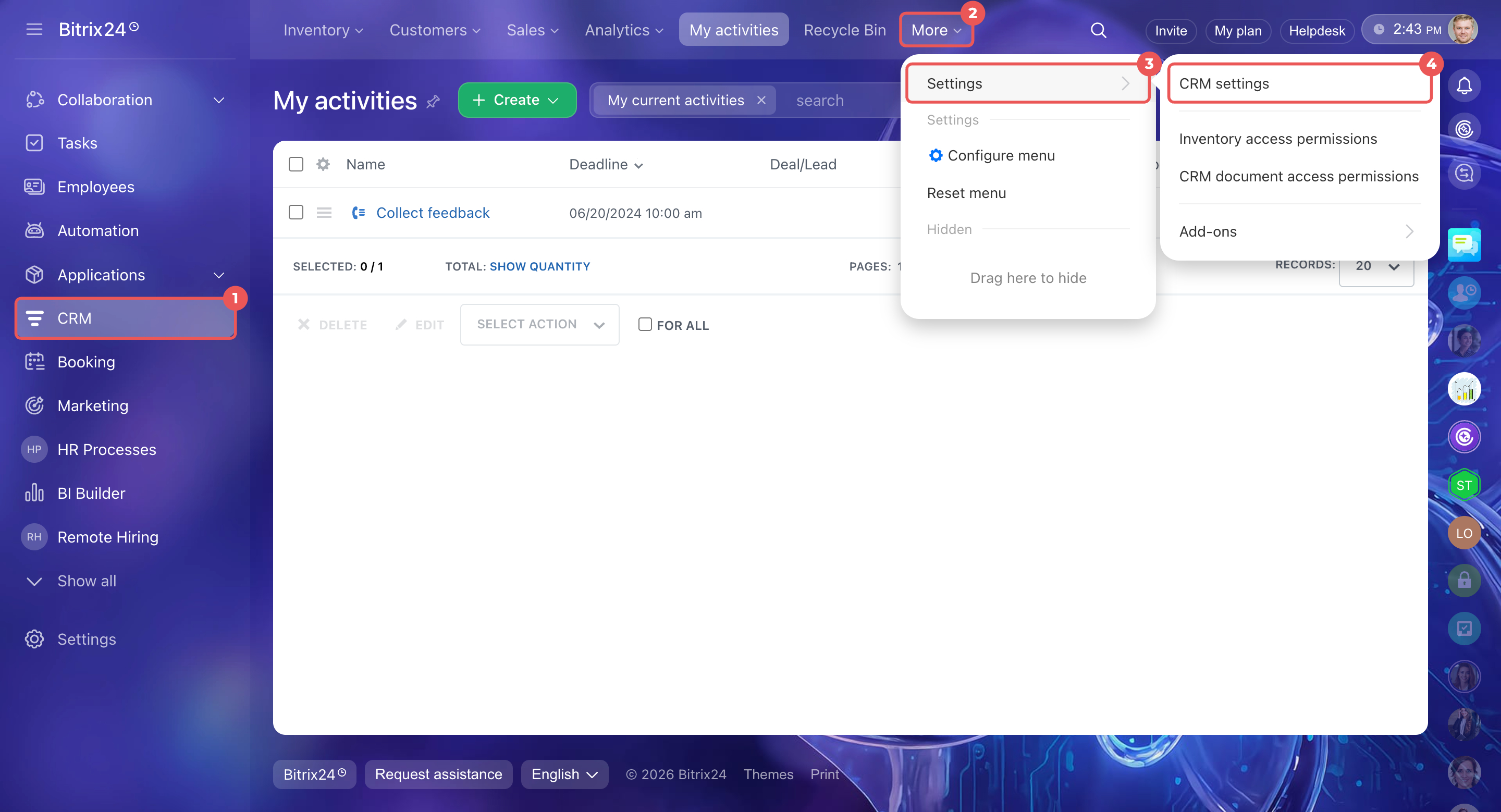
If you only see Email and Other under CRM > More > Settings > CRM settings, you don't have permission to change CRM settings.
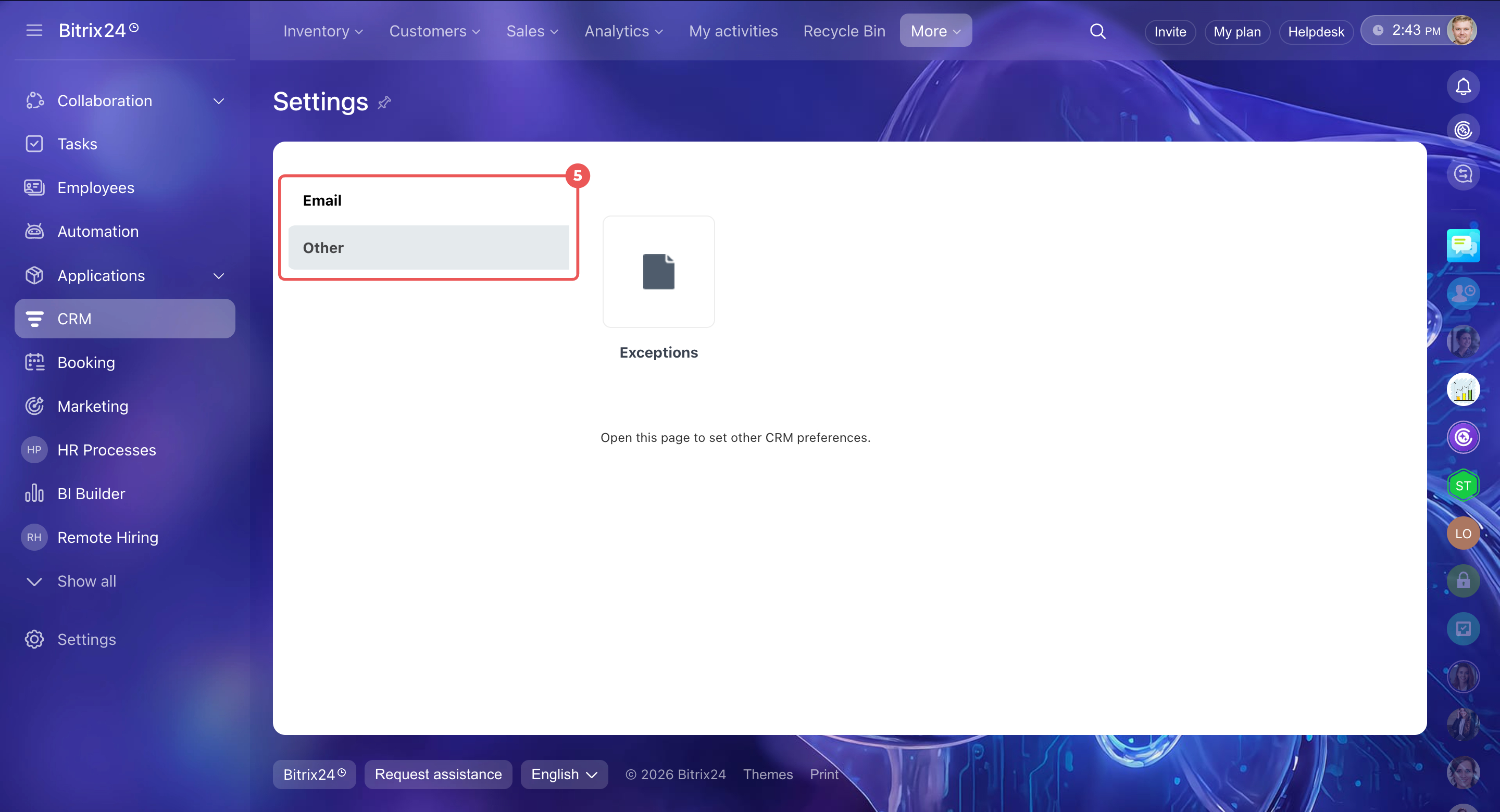
CRM settings are available only to account administrators and employees with permission to edit CRM settings. Other employees cannot see these options.
There are two ways to grant access, depending on what the employee needs to do.
Grant permission to edit CRM settings. Choose this option if the employee only needs to manage CRM settings, such as deal pipelines, stages, and fields.
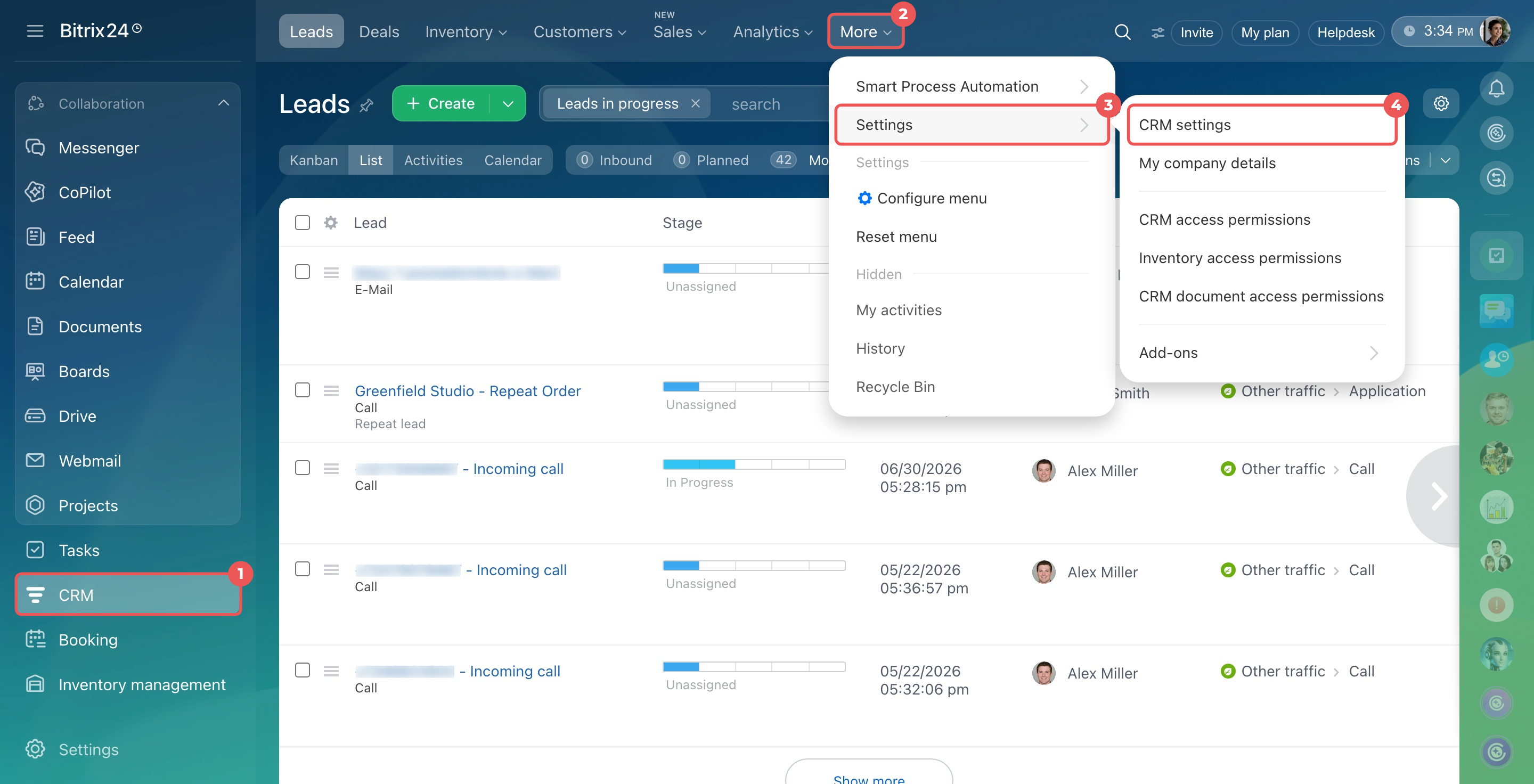
- Go to CRM > More > Settings > CRM access permissions.
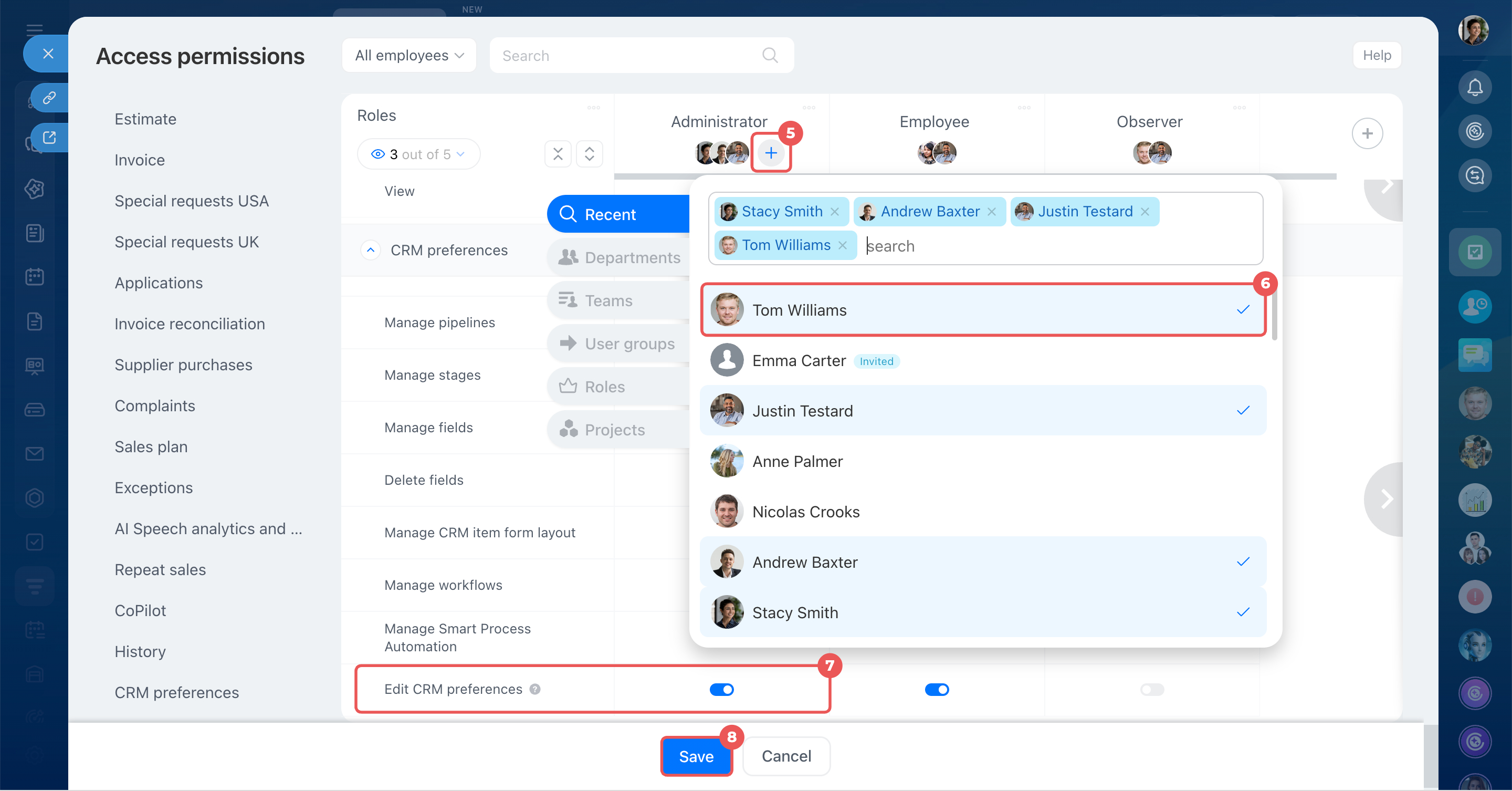
- Find the Edit CRM preferences permission. It is available for the Administrator role. You can also create a custom role if needed.
- To assign a role, click Plus (+) next to the role name and select the employee.
- Save your changes. The employee can now access CRM settings.
Role-based access permissions in CRM
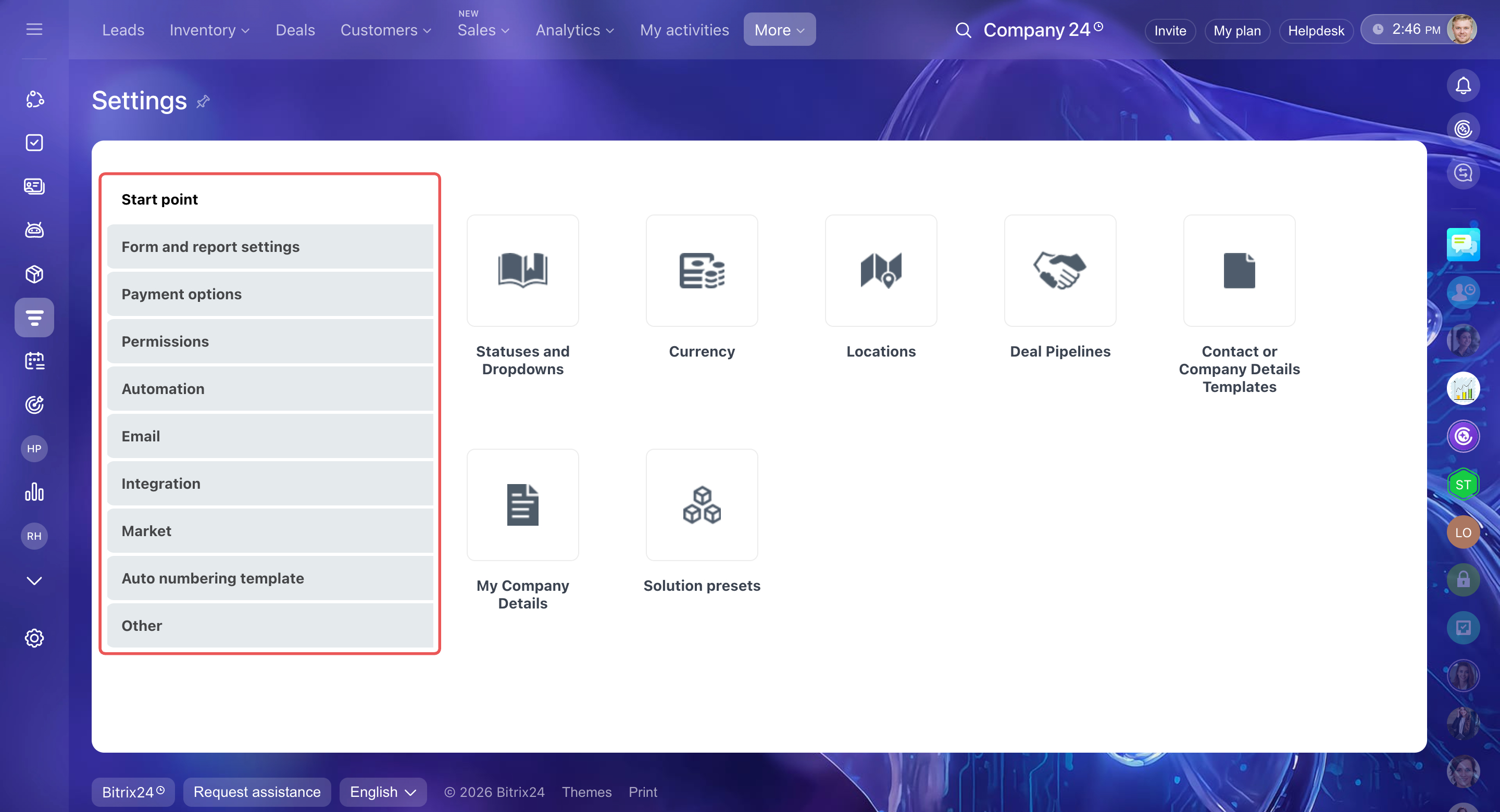
Grant account administrator permissions. Choose this option if the employee needs full access to Bitrix24 settings, including CRM, workflows, and employee access permissions.
Only grant administrator permissions to employees who who understand how Bitrix24 tools work.
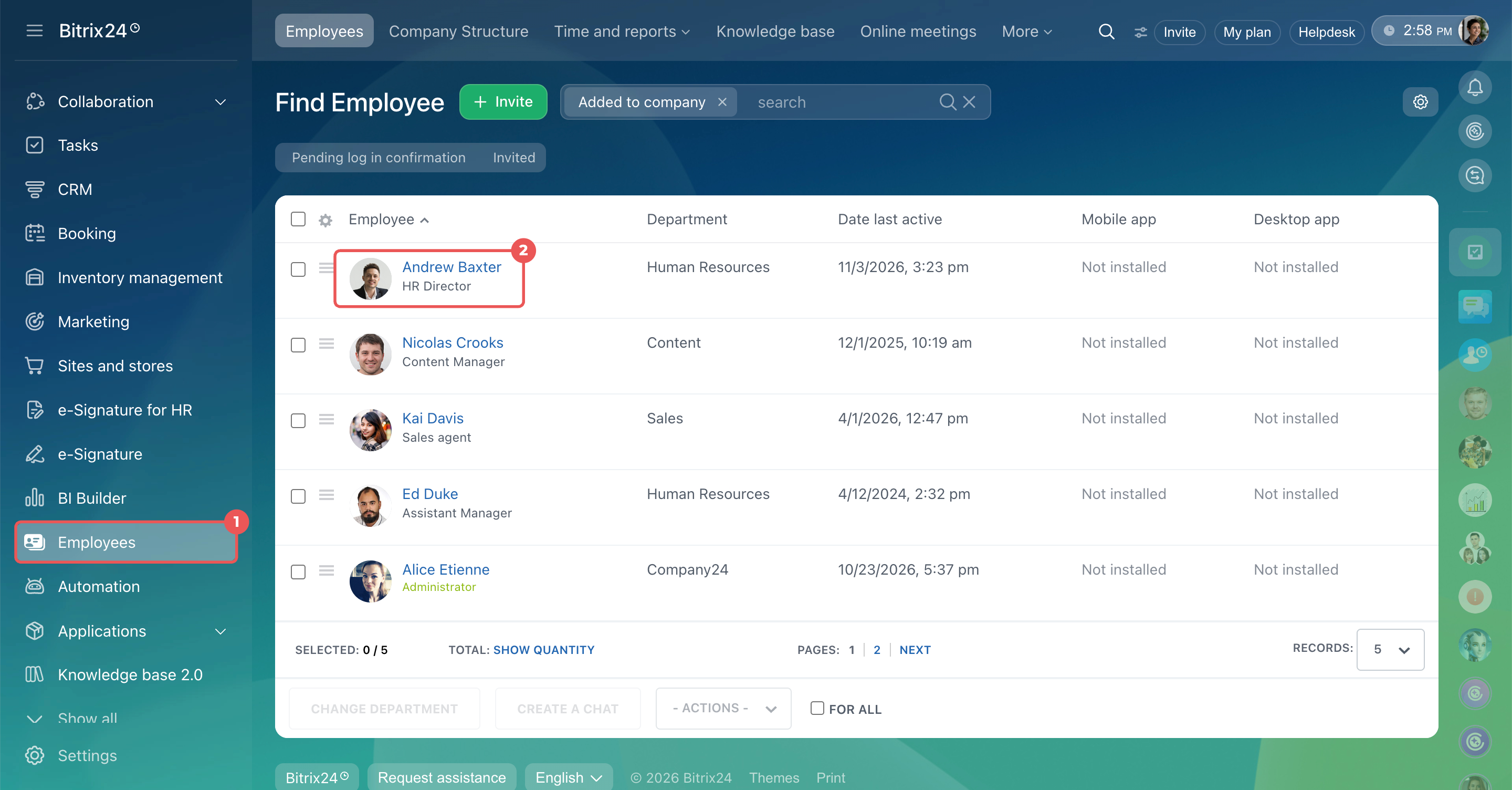
- Go to the Employees section.
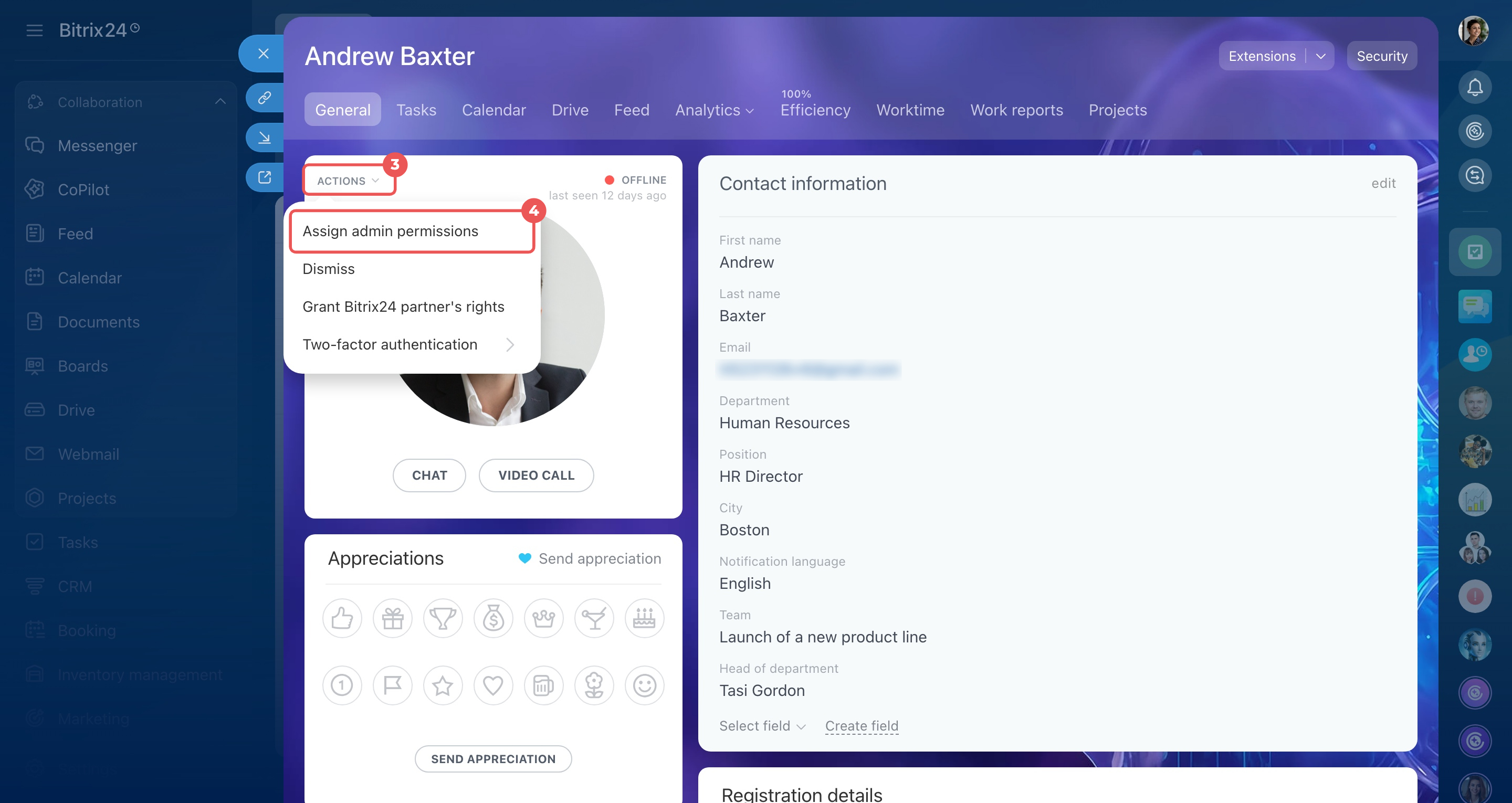
- Open the employee's profile.
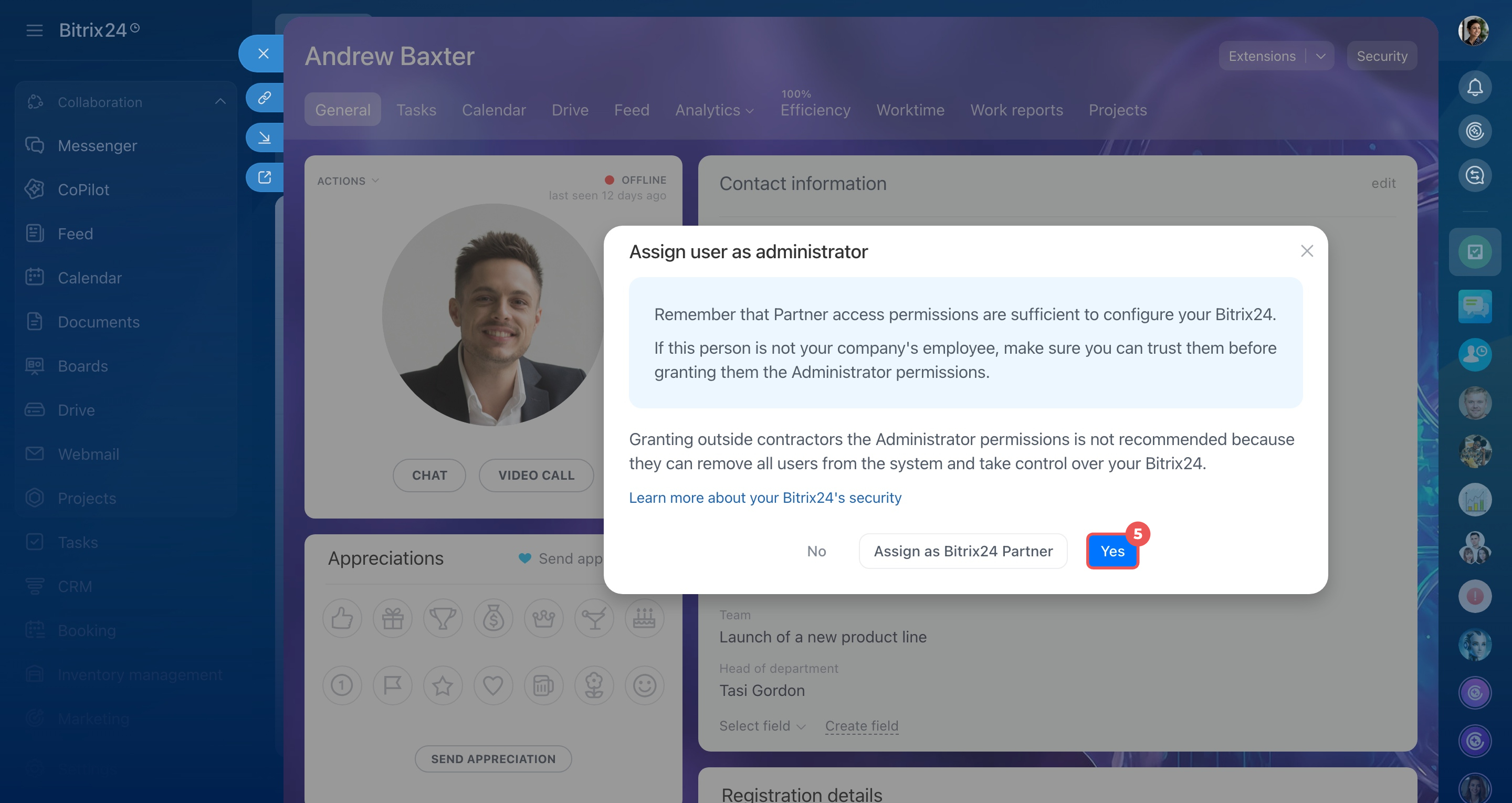
- Click Actions > Assign admin permissions > Yes.