
In Bitrix24, you can set up tax rates for products and services. The system calculates taxes automatically and applies them to deals, invoices, and other documents. Customers see the total amount with tax included, and your team avoids manual errors.
Role-based access permissions in CRM
In this article:
Choose a tax type
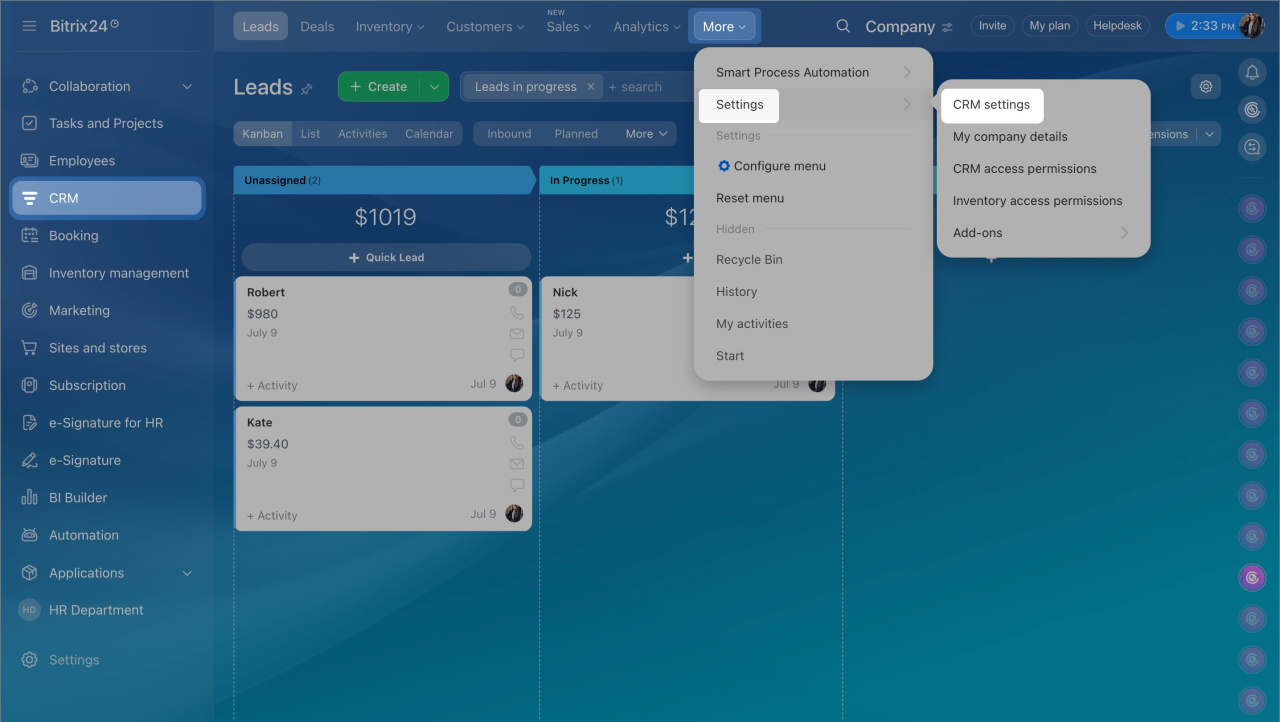
- Go to CRM > More > Settings > CRM settings.
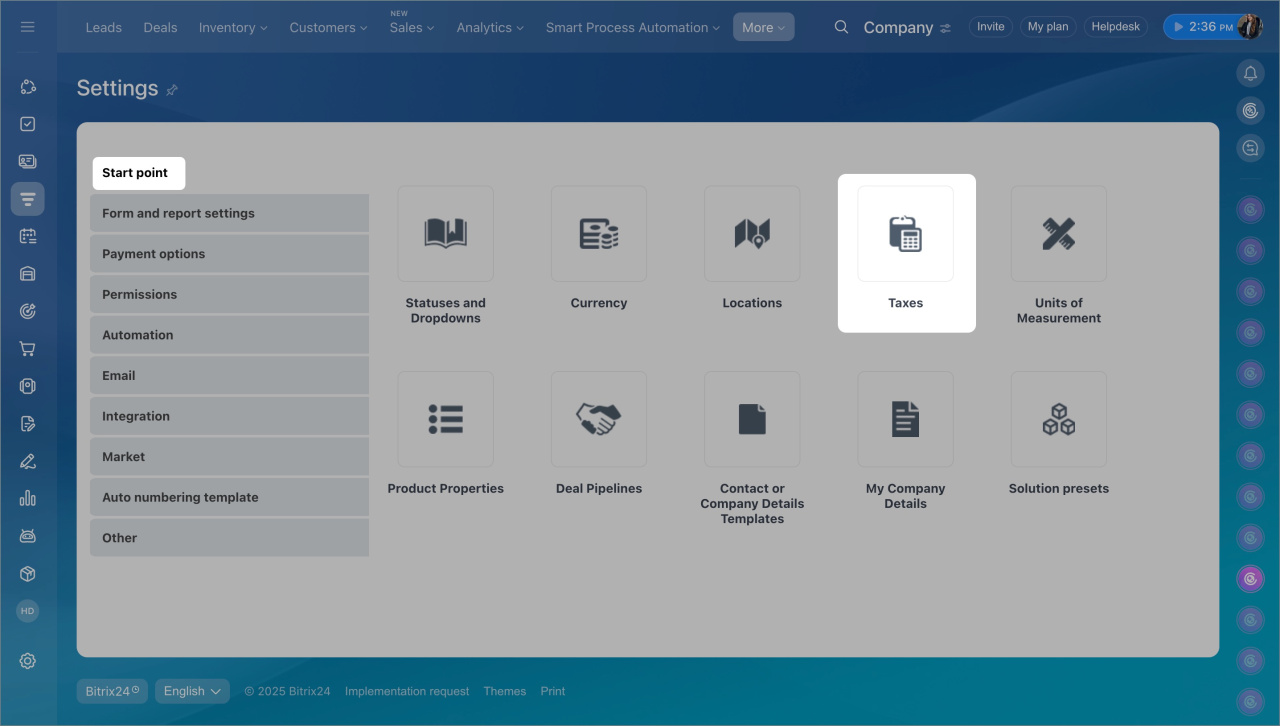
- Open Taxes.
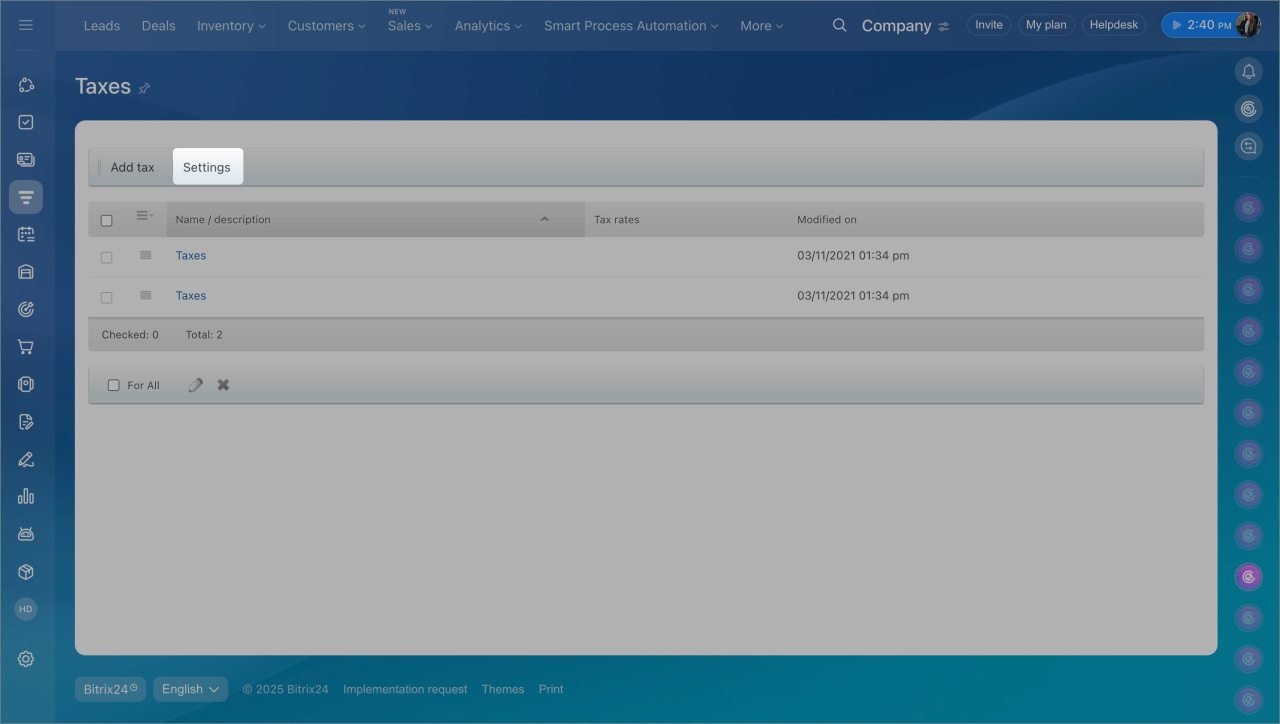
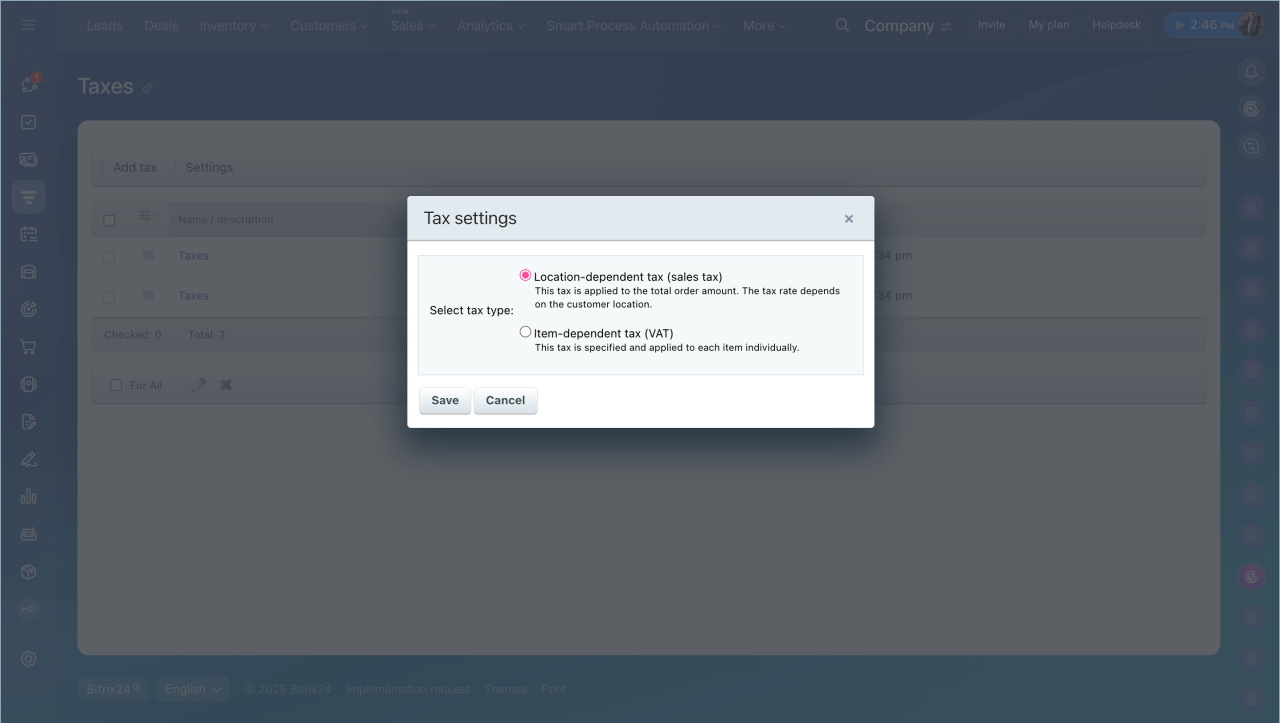
- Click Settings and select a tax type:
- Item-dependent tax (VAT) – applied to each product or service separately.
- Location-dependent tax (sales tax) – applied to the total order amount based on the customer’s location.
Locations
Location-dependent tax (sales tax)
To use this option, first add locations.
Add a tax:
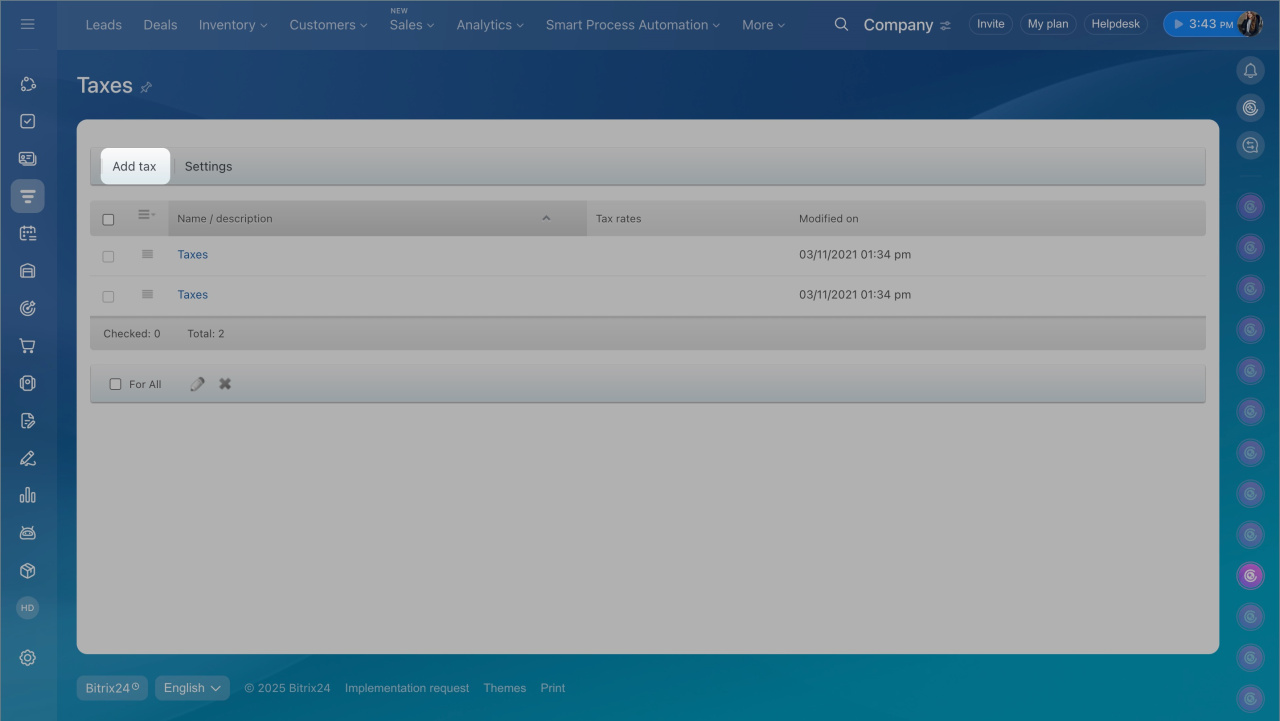
- Open Taxes in CRM settings.
- Click Add tax.
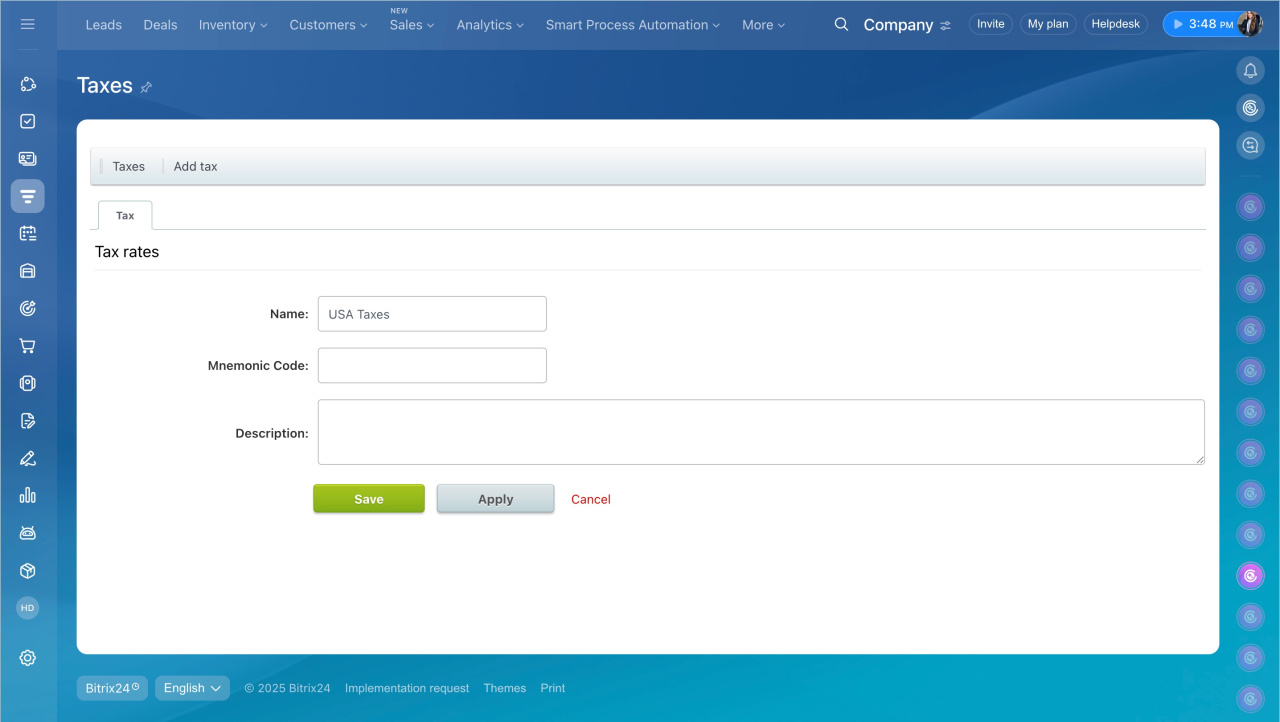
- Enter a name and description, then click Apply.
Set up tax rates:
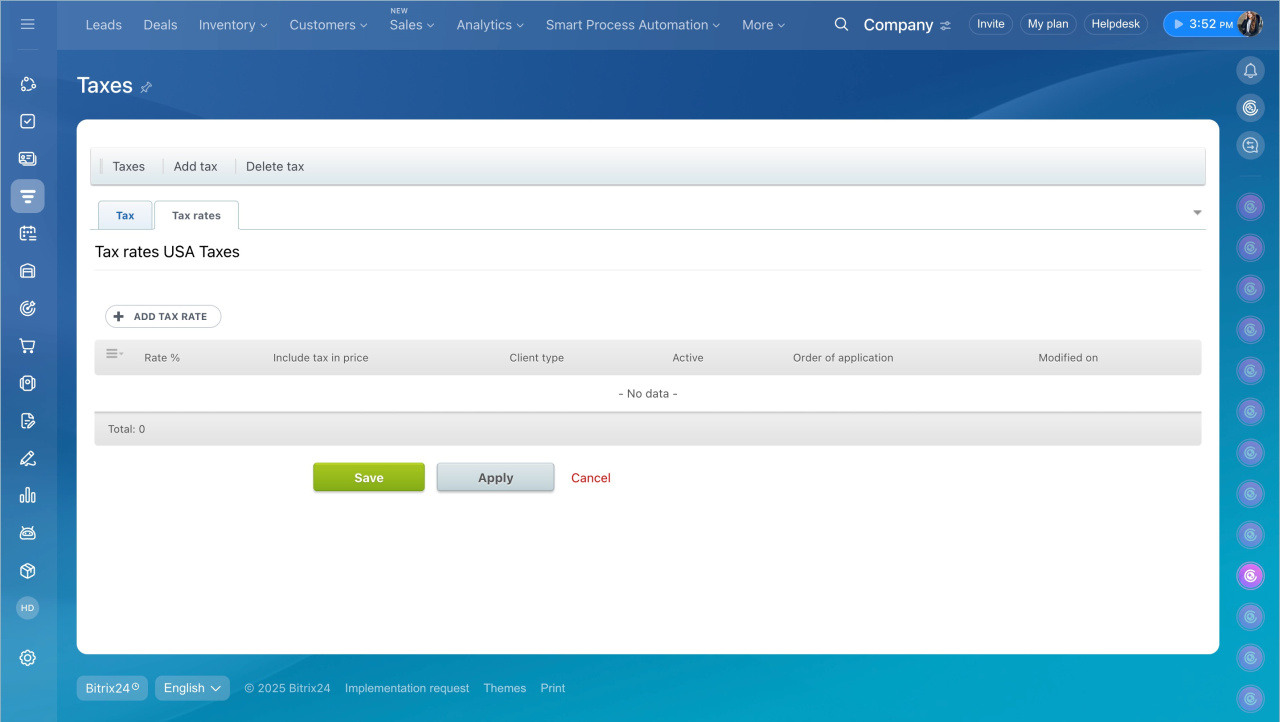
- Open the Tax rates tab.
- Click Add tax rate.
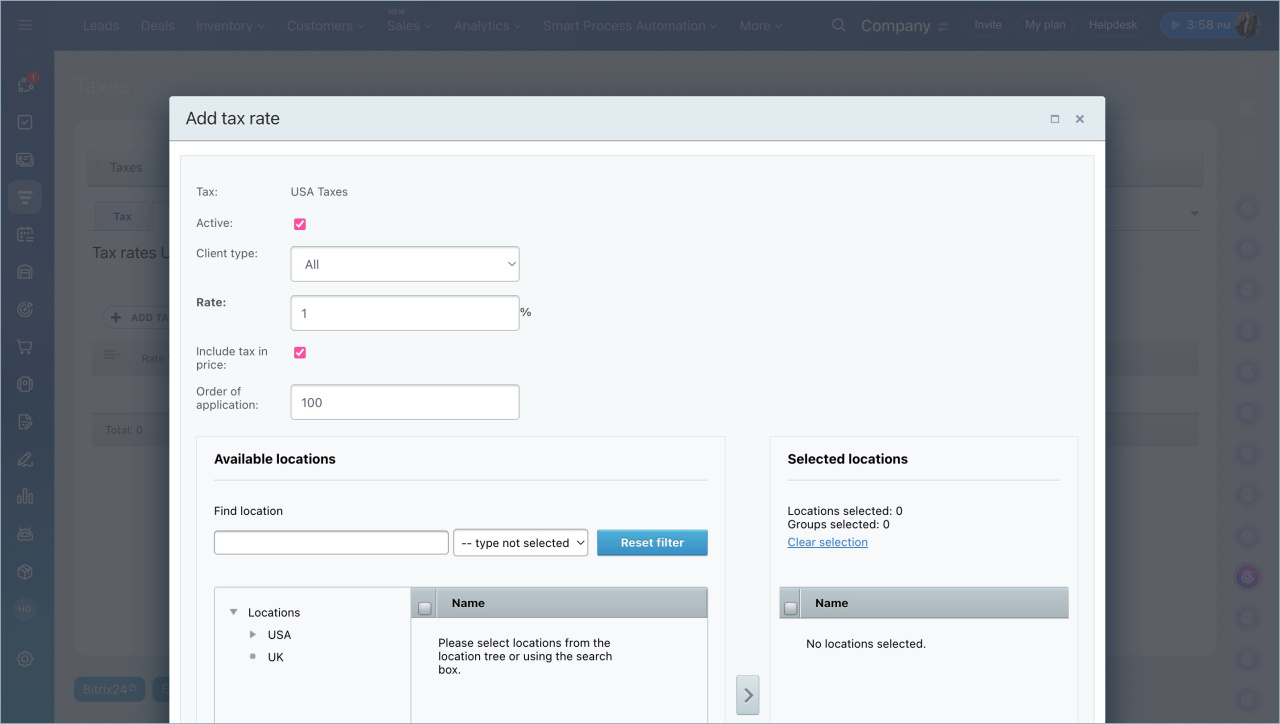
- Enter the rate and select a location.
- Mark the rate as Active.
- Enable Include tax in price (optional) .
- Save your changes.
When you create an invoice or estimate, specify the customer’s location.
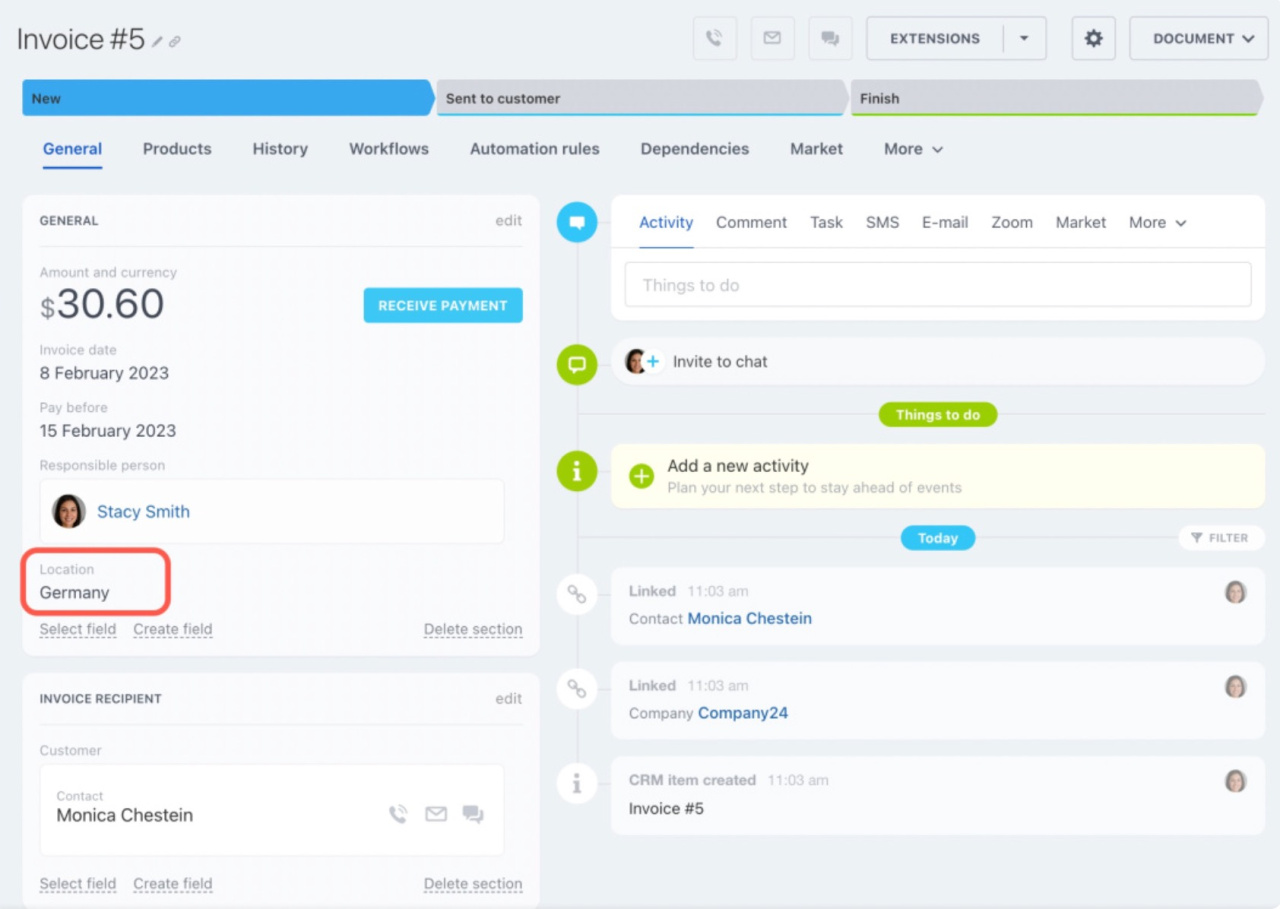
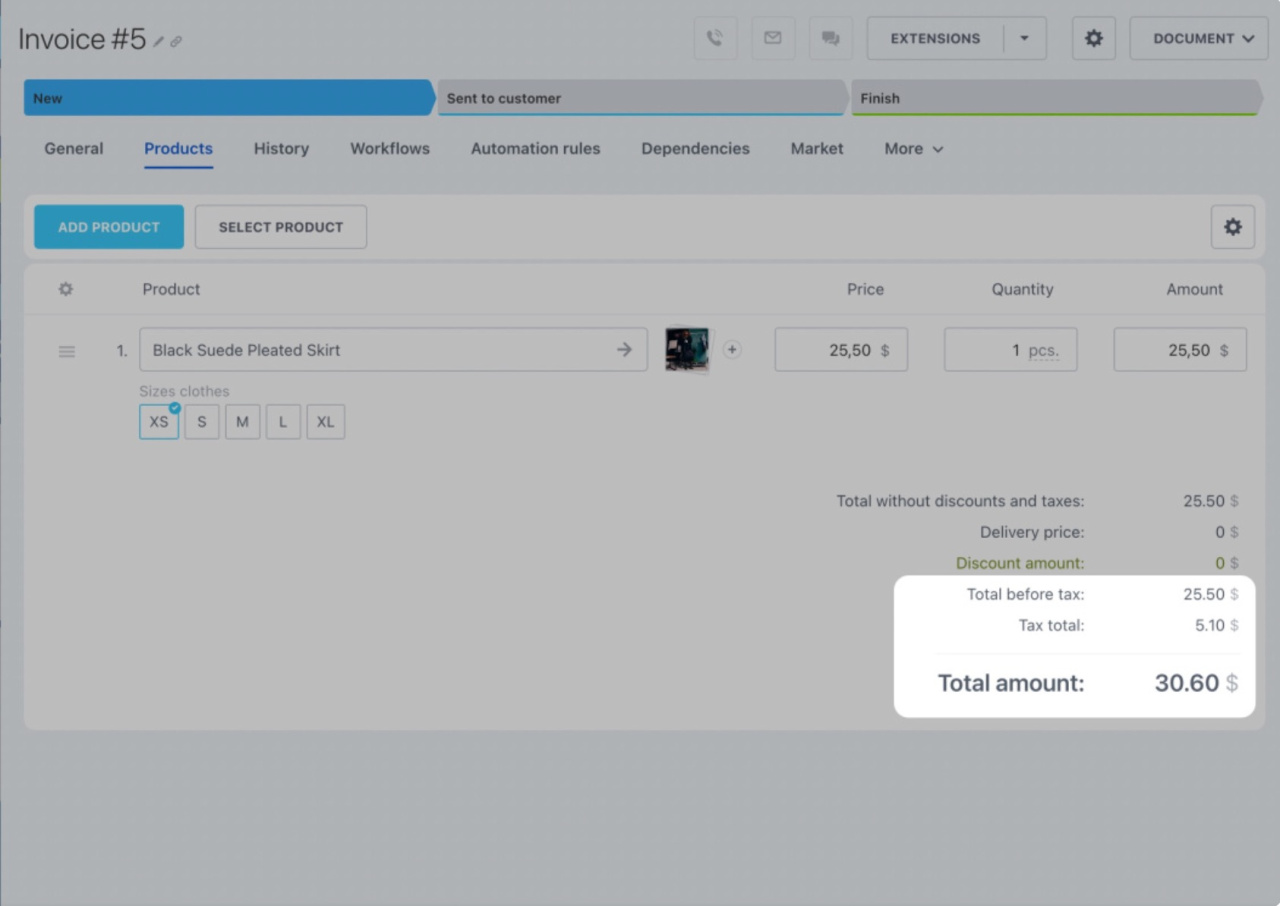
If a tax rate exists for that location, Bitrix24 applies it automatically.
Item-dependent tax (VAT)
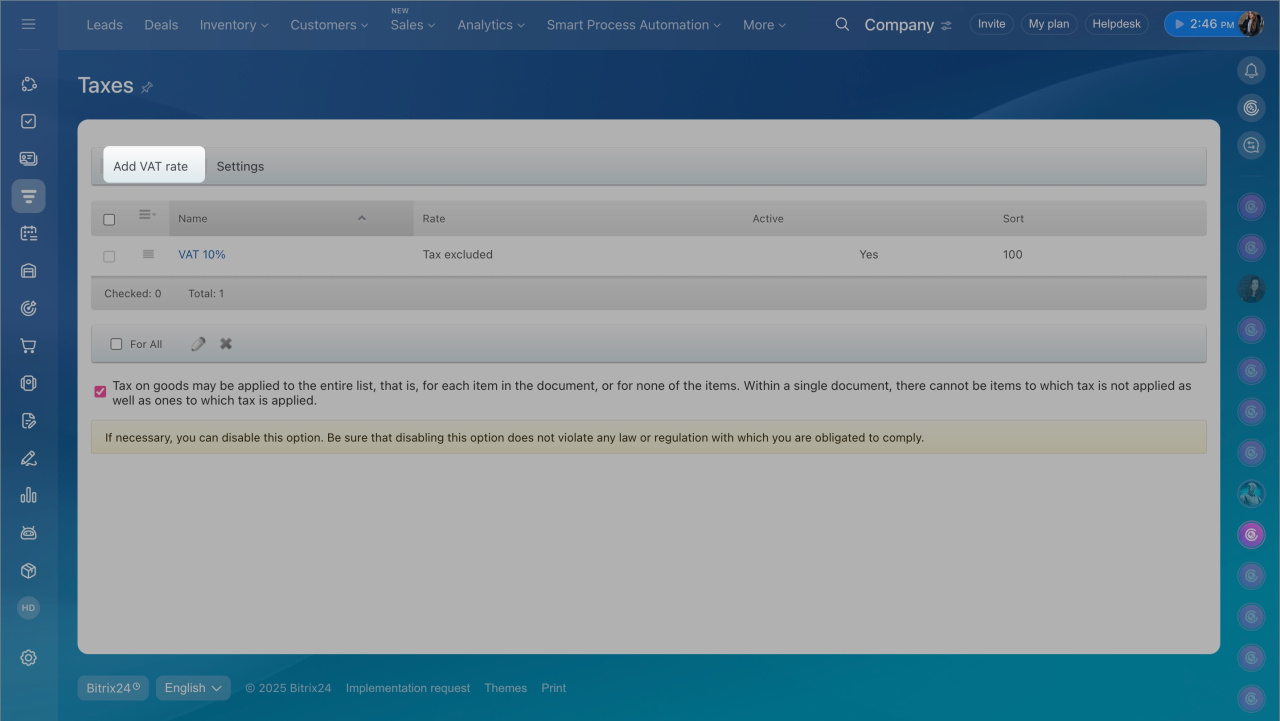
Add a VAT rate:
- Click Add VAT rate.
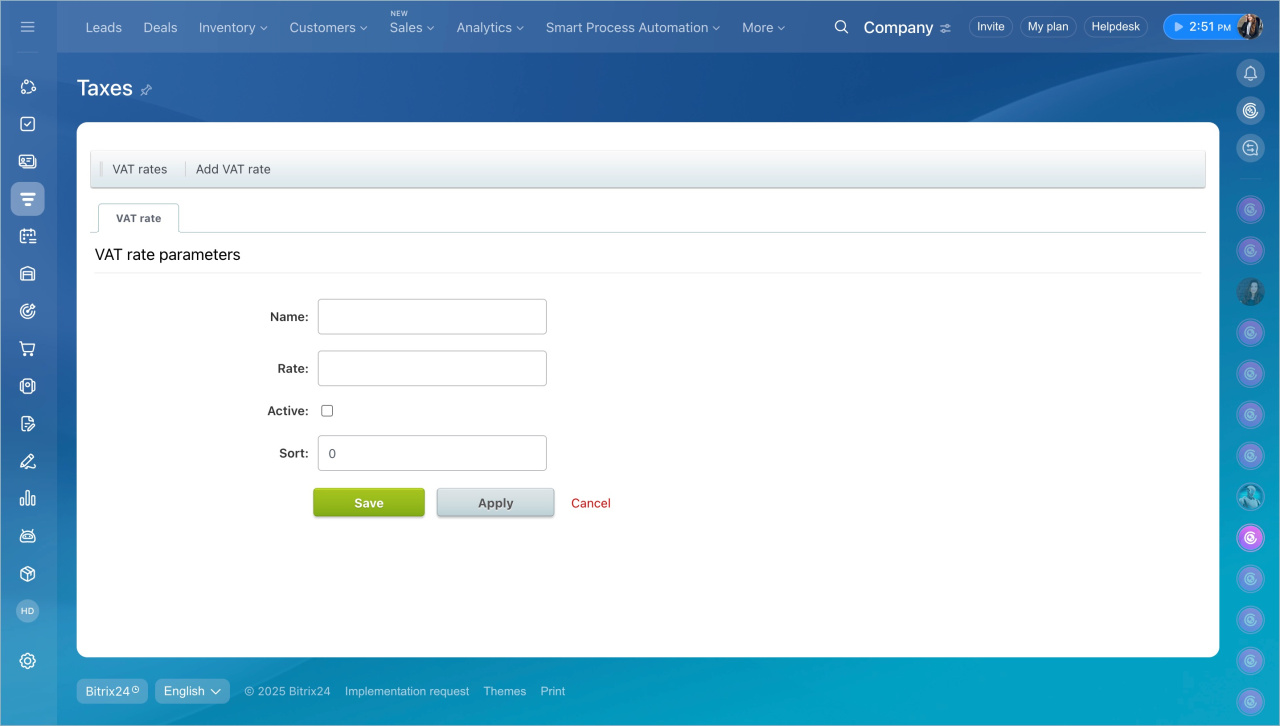
- Set up the VAT parameters:
- Name: For example, VAT 10%.
- Rate: Enter the percentage.
- Active: Enable this option to use the rate in deals and documents.
- Make sure the rate is marked as Active, then click Save.
You can choose how VAT is applied:
- Included in price: The tax is already part of the product price.
- Added on top: The system adds tax to the product price.
Example (10% VAT, $10,000 price):
- Included: $909.09 is already part of the total.
- Not included: Total becomes $11,000.
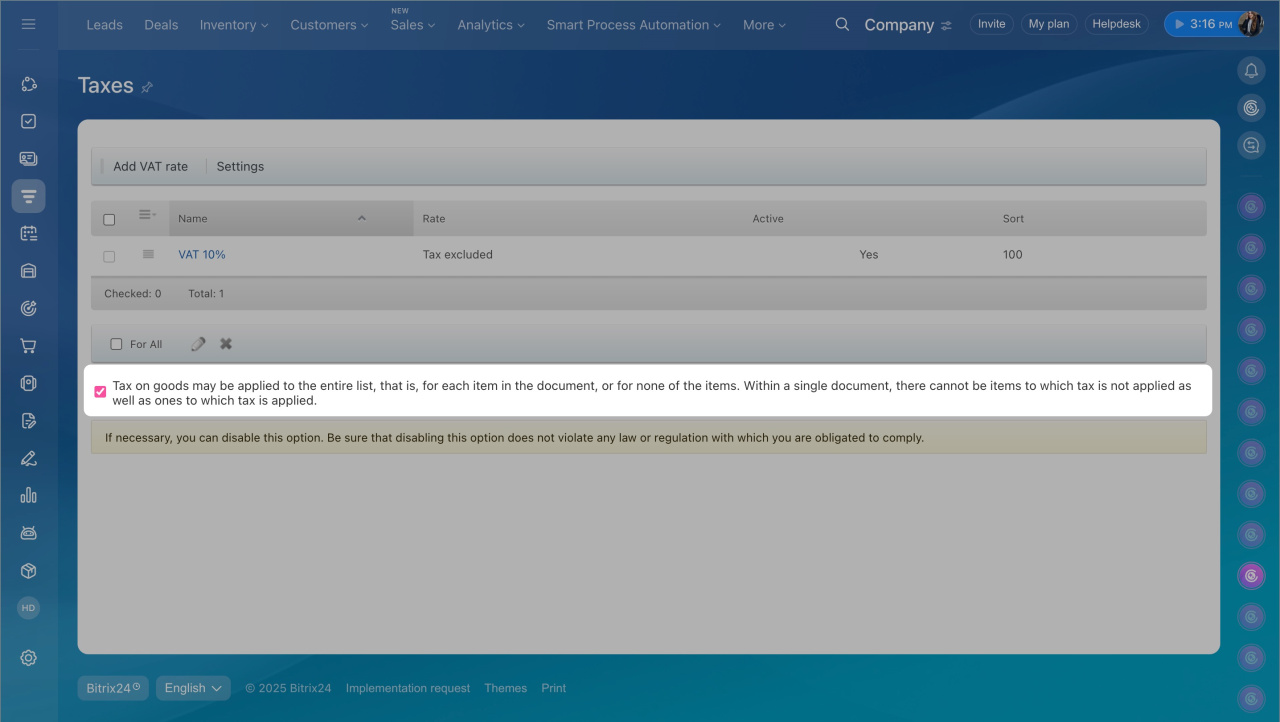
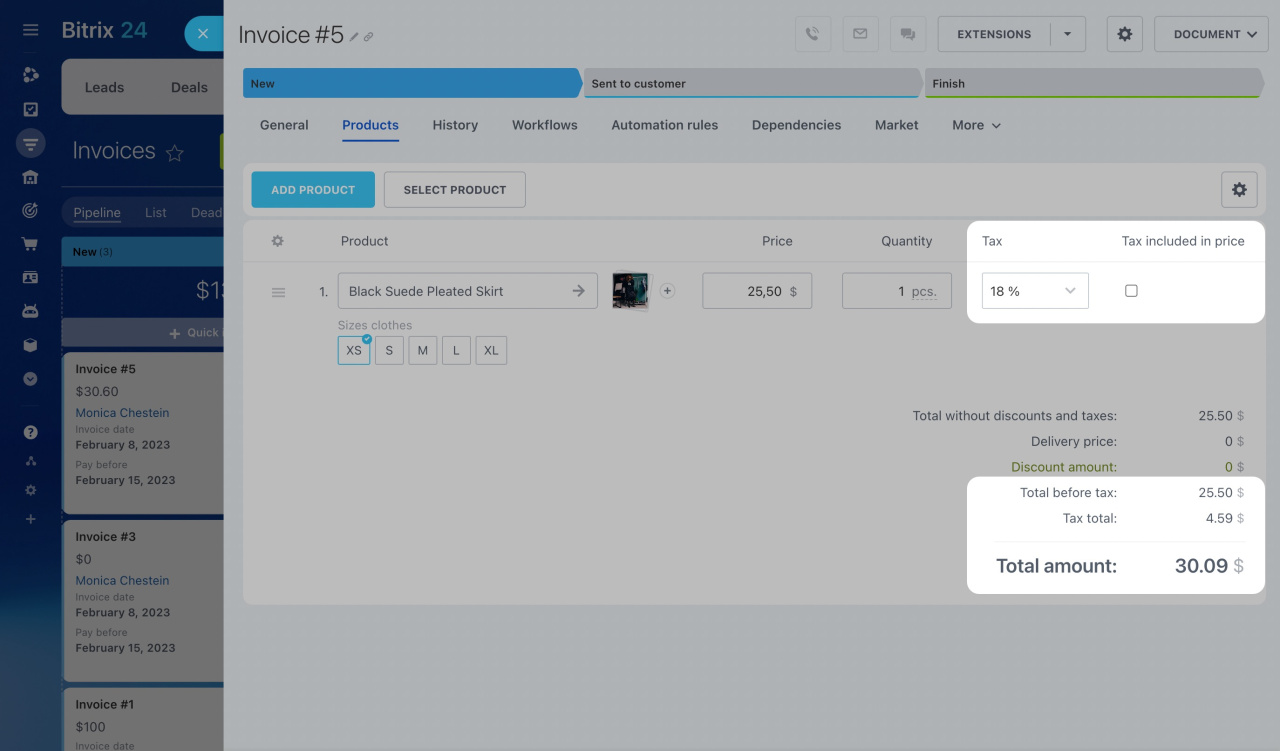
When creating an invoice or estimate, go to the Products tab and select a VAT rate for each item. You can also enable the Tax included in price option.
Edit VAT rate
If you use item-dependent tax, the default VAT rate is 20%. You can change it in several places.
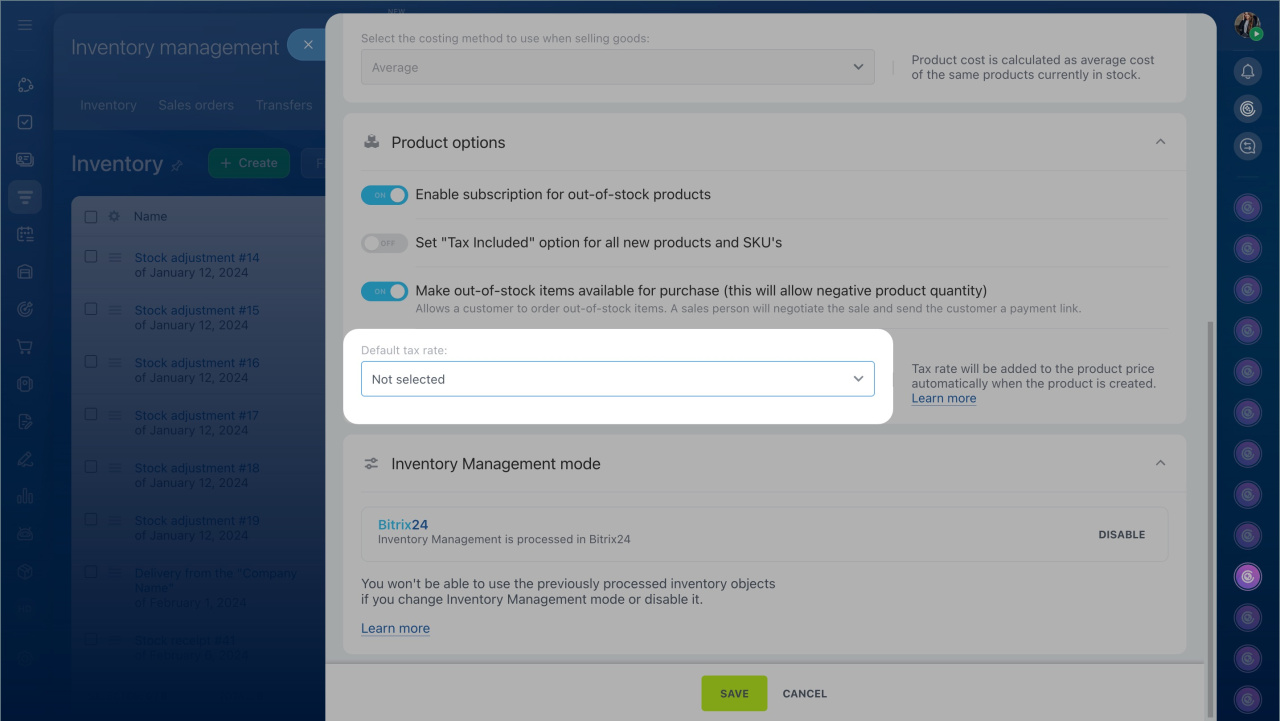
Inventory management settings:
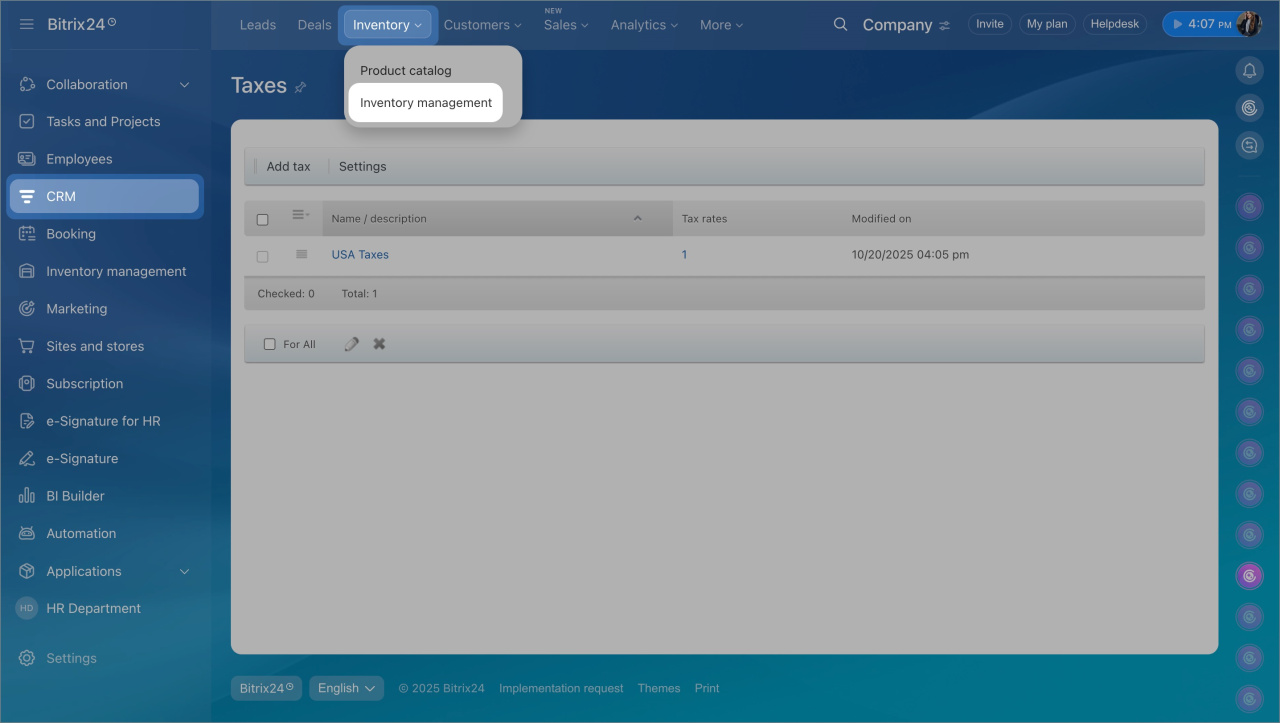
- Go to CRM > Inventory > Inventory management.
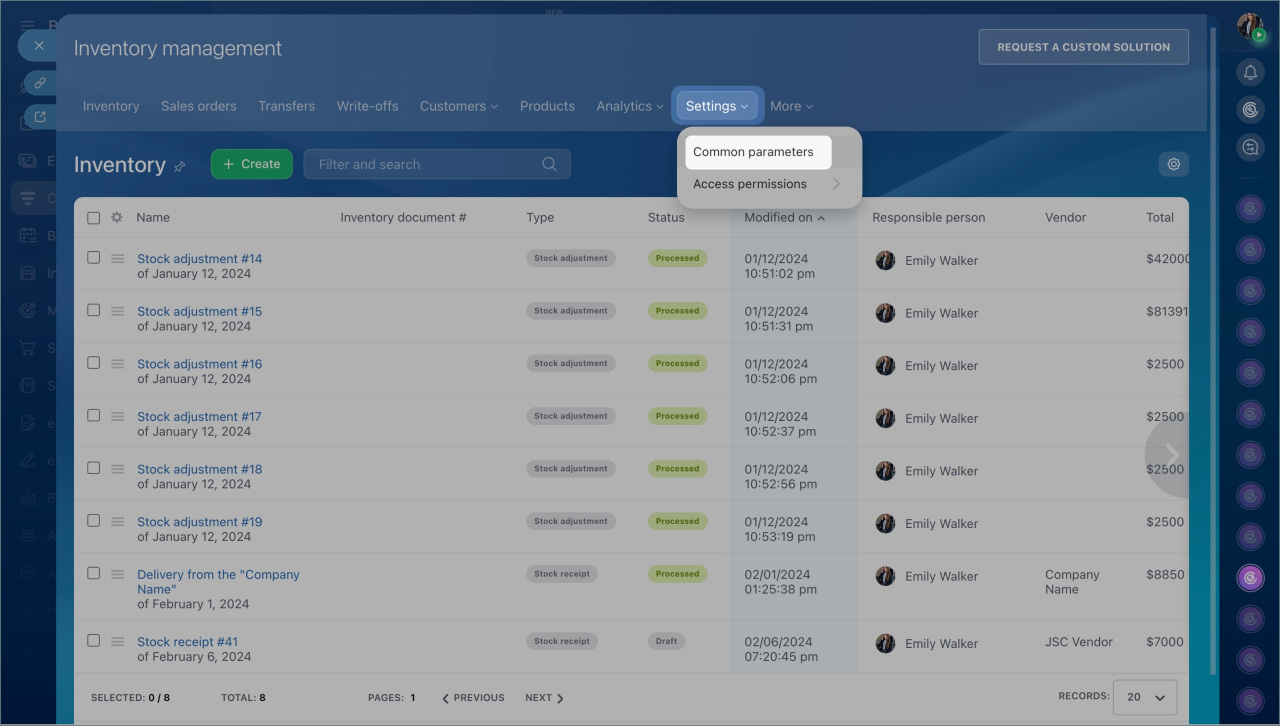
- Open Settings > Common parameters.
- In Product options, select a value in Default tax rate.
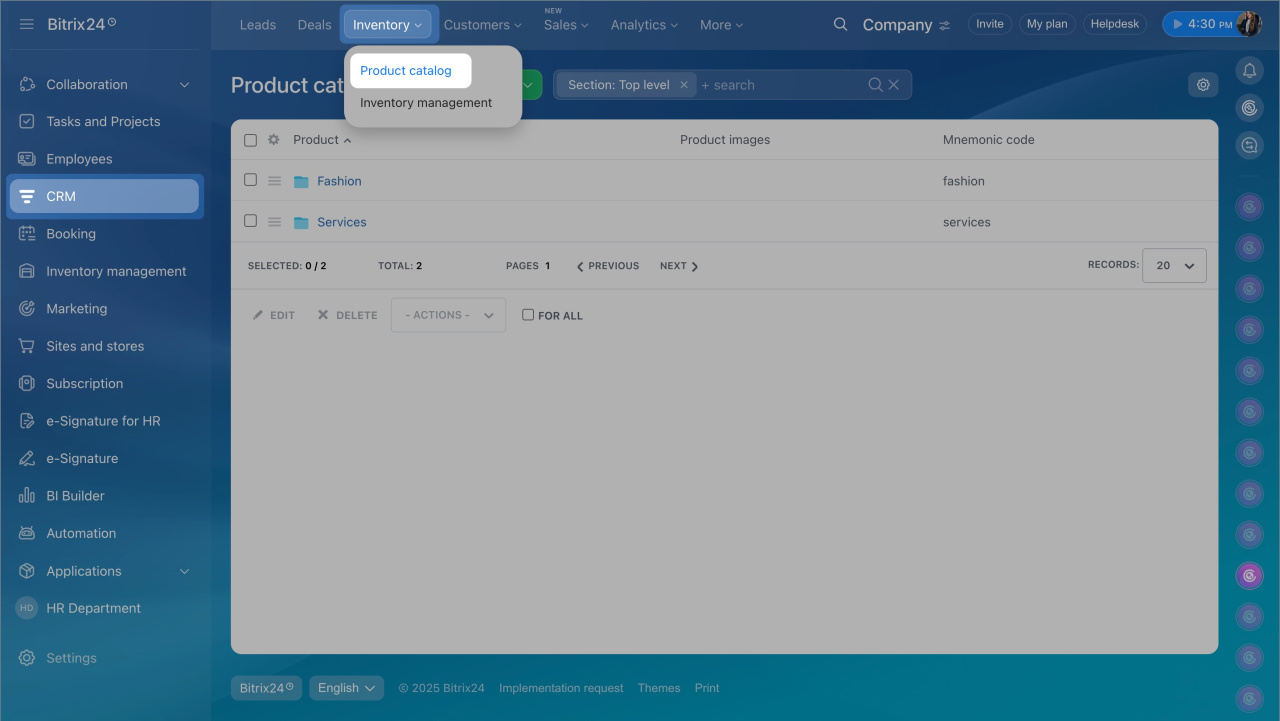
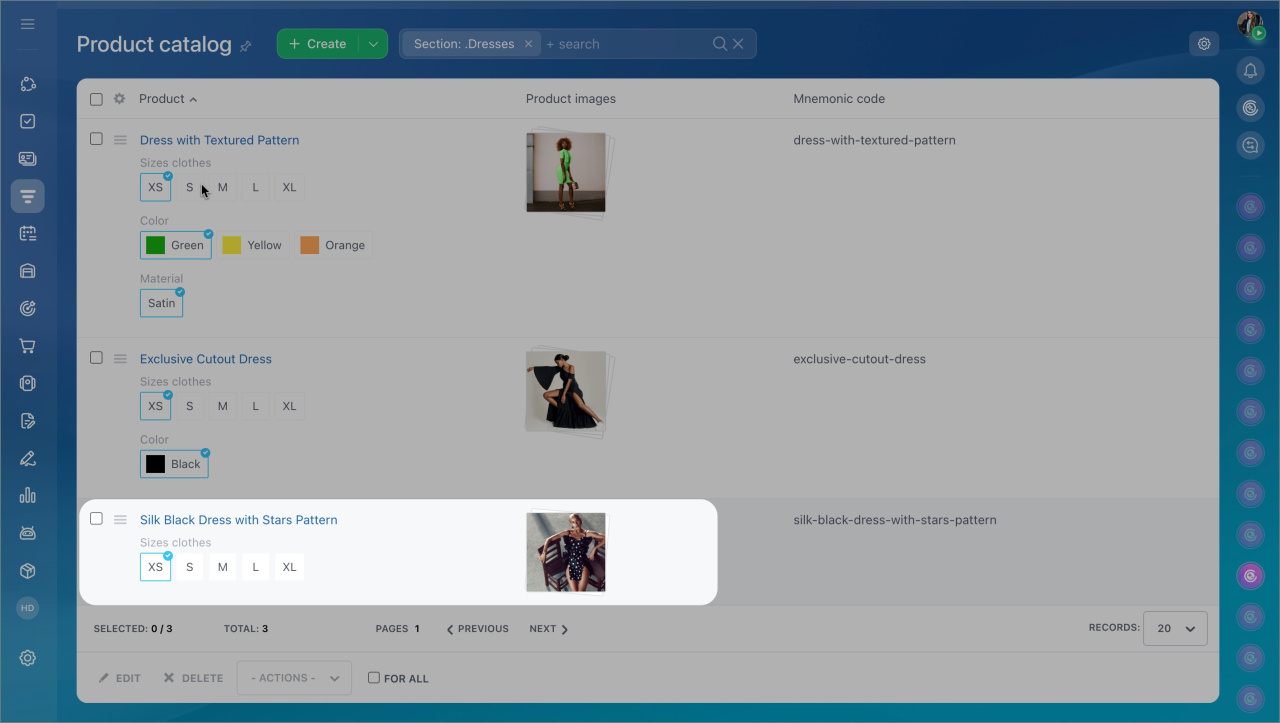
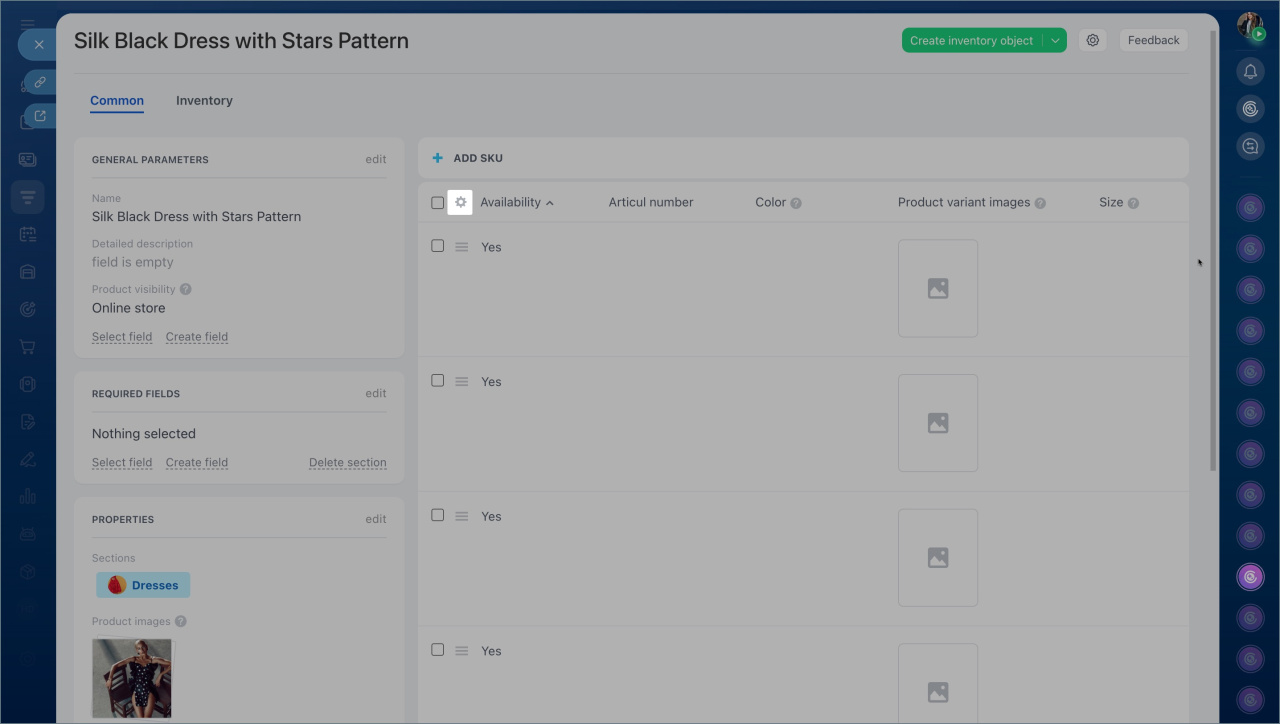
Product form:
- Go to CRM > Inventory > Product catalog.
- Open a product.
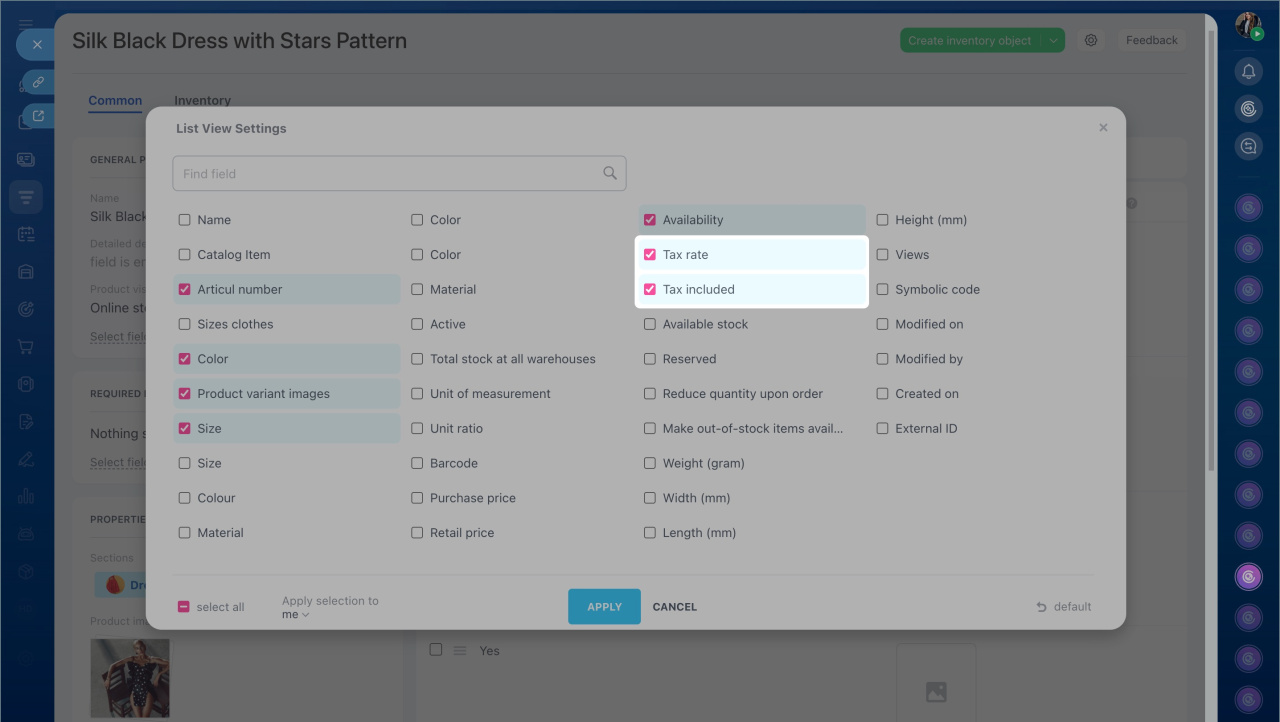
- Click Settings (⚙️).
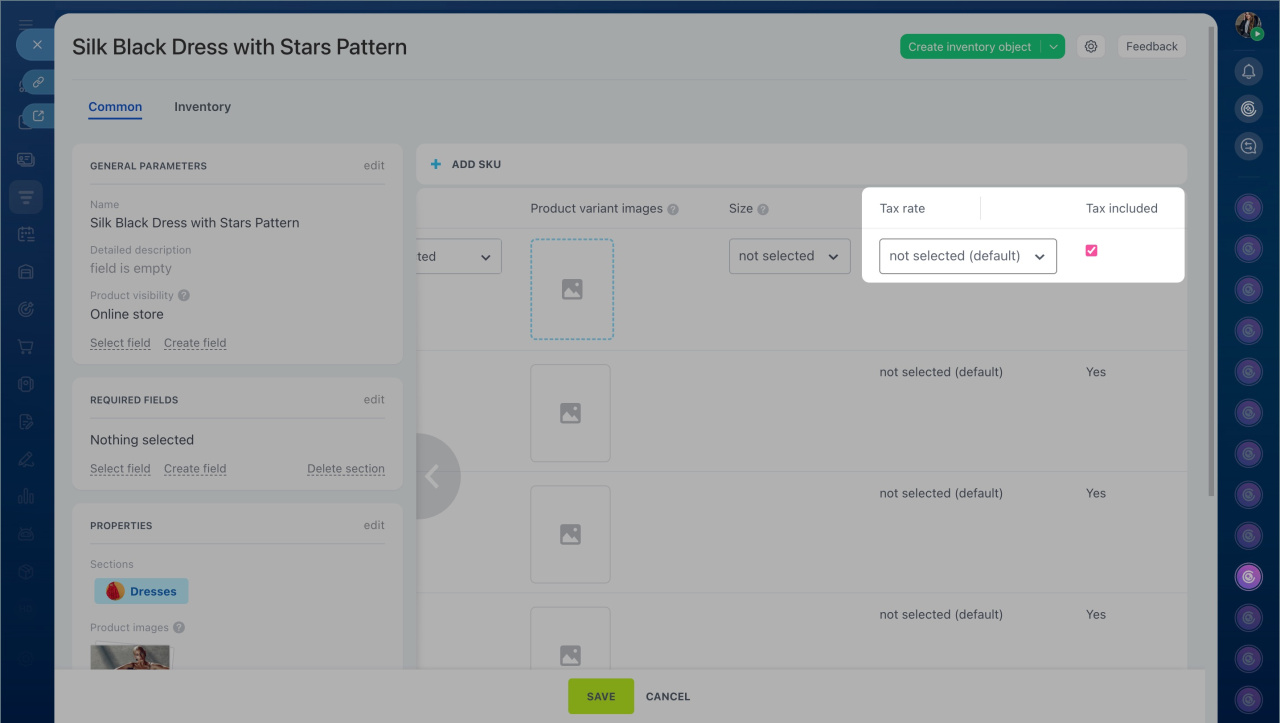
- Add VAT rate and VAT included in price fields.
- Select a rate and save.
Deal form:
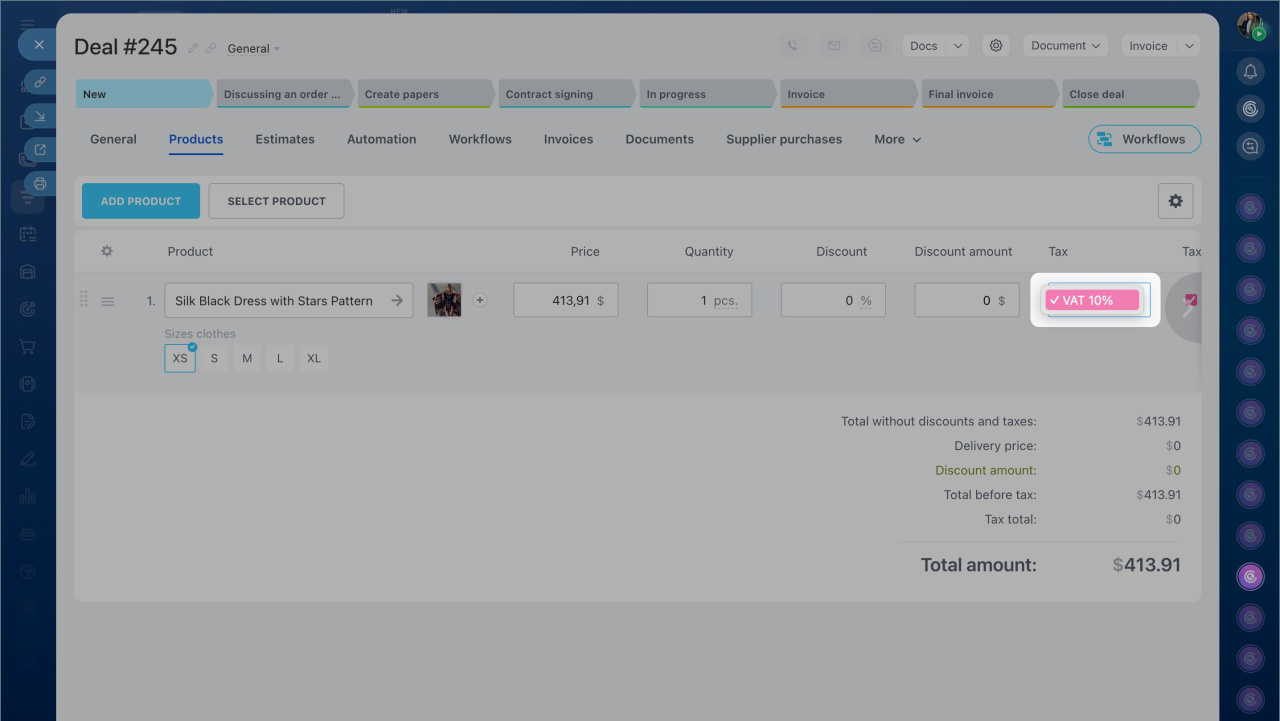
- Open the Products tab in a deal.
- Select a VAT rate for each item.
The system updates totals with and without tax automatically.
Edit or delete a tax rate
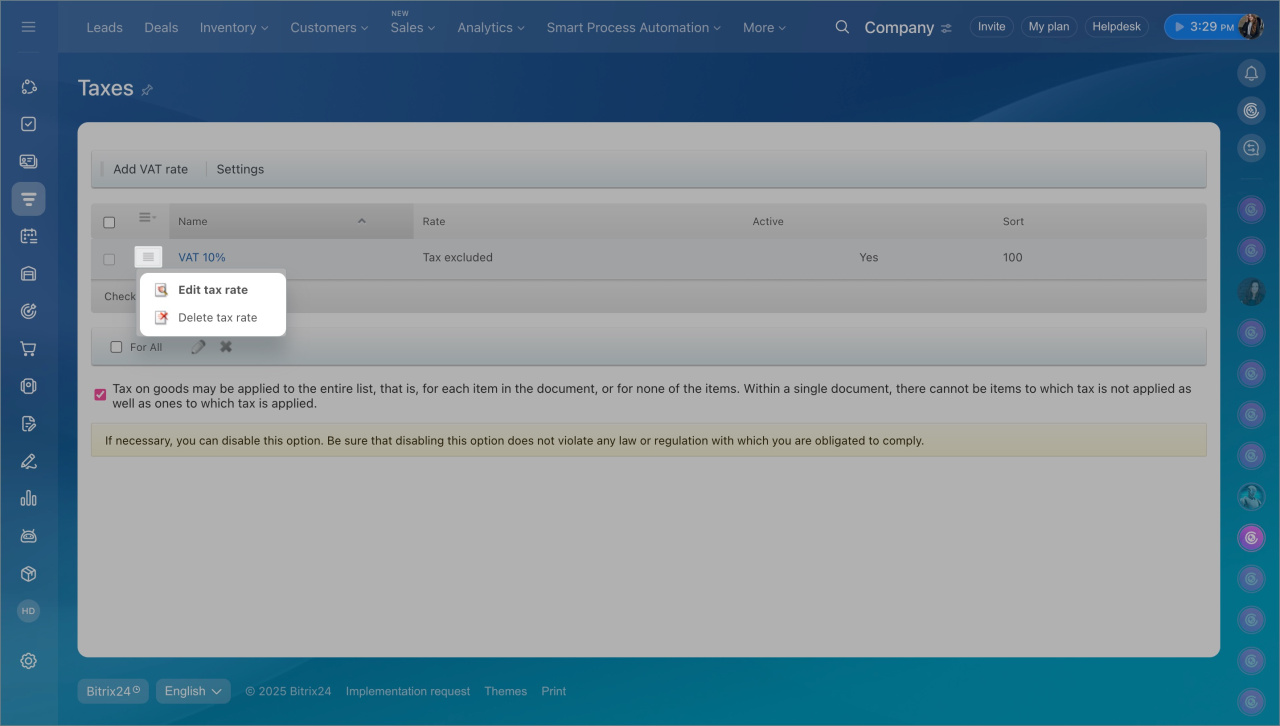
- Open the list of tax rates.
- Click Menu (≡) next to a rate.
- Choose Edit VAT rate or Delete VAT rate.
In brief
- In Bitrix24, you can set up tax rates for products and services. The system applies taxes automatically to deals, invoices, and other documents.
- CRM supports two tax types: location-dependent tax (sales tax) and item-dependent tax (VAT).
- To choose a tax type, go to CRM > More > Settings > CRM settings > Taxes.
- After selecting a tax type, add tax rates. By default, VAT for products is 20%, and sales tax depends on the Location field in the deal.
- You can manage VAT settings in inventory management, the product form, and the deal form.
- To edit or delete a tax rate, click Menu (≡) next to the rate and select the action you need.