
Company details store information about a contact or company, such as tax ID, registration code, legal address, and physical address. In CRM, this data is used to generate documents like invoices, contracts, and estimates. After you add customer details, Bitrix24 inserts them into documents automatically.
To save time, you can set up detail templates. Required fields will appear in customer forms automatically.
In this article:
Role-based access permissions in CRM
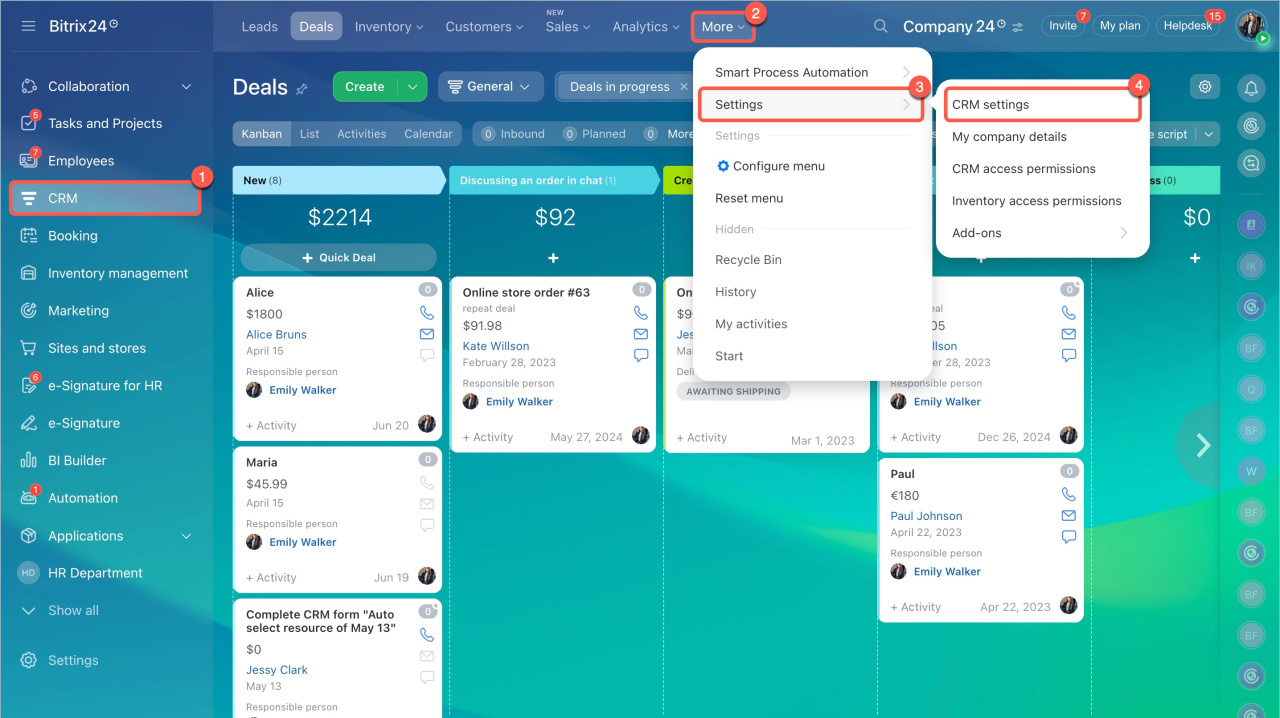
- Go to CRM > More > Settings > CRM settings.
- Select Contact or company details templates in the Start point tab.
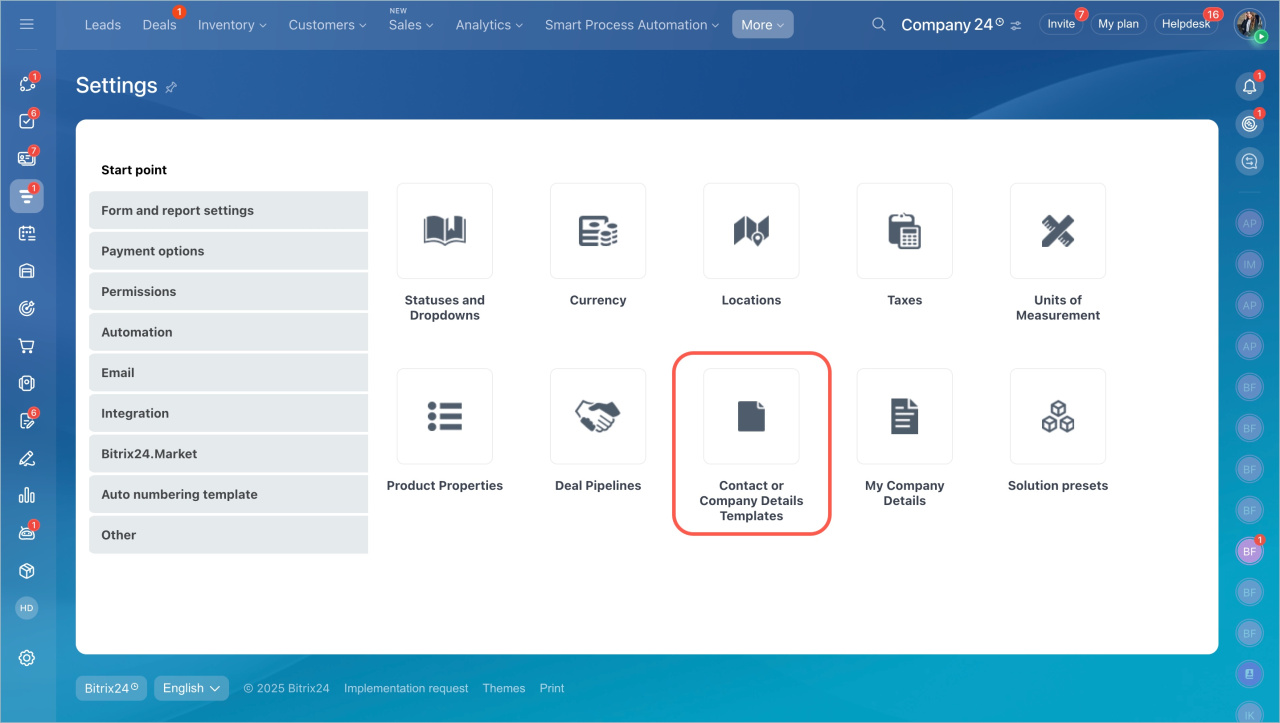
Configure templates
Bitrix24 includes ready-made templates for sole proprietors, legal entities, and individuals. These templates contain standard fields, but you can customize them for your business.
In the Detail templates section, you can:
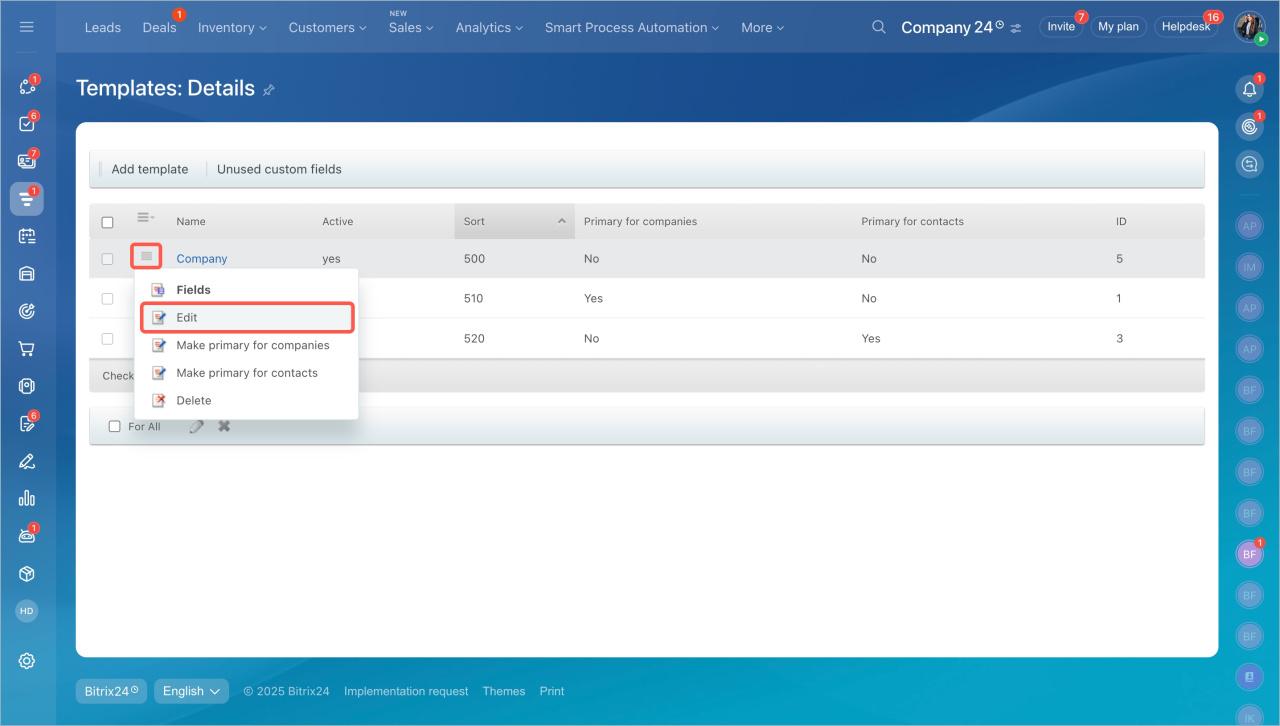
Edit a template. Show only relevant templates so users can find them faster.
- Click Menu (≡) > Edit.
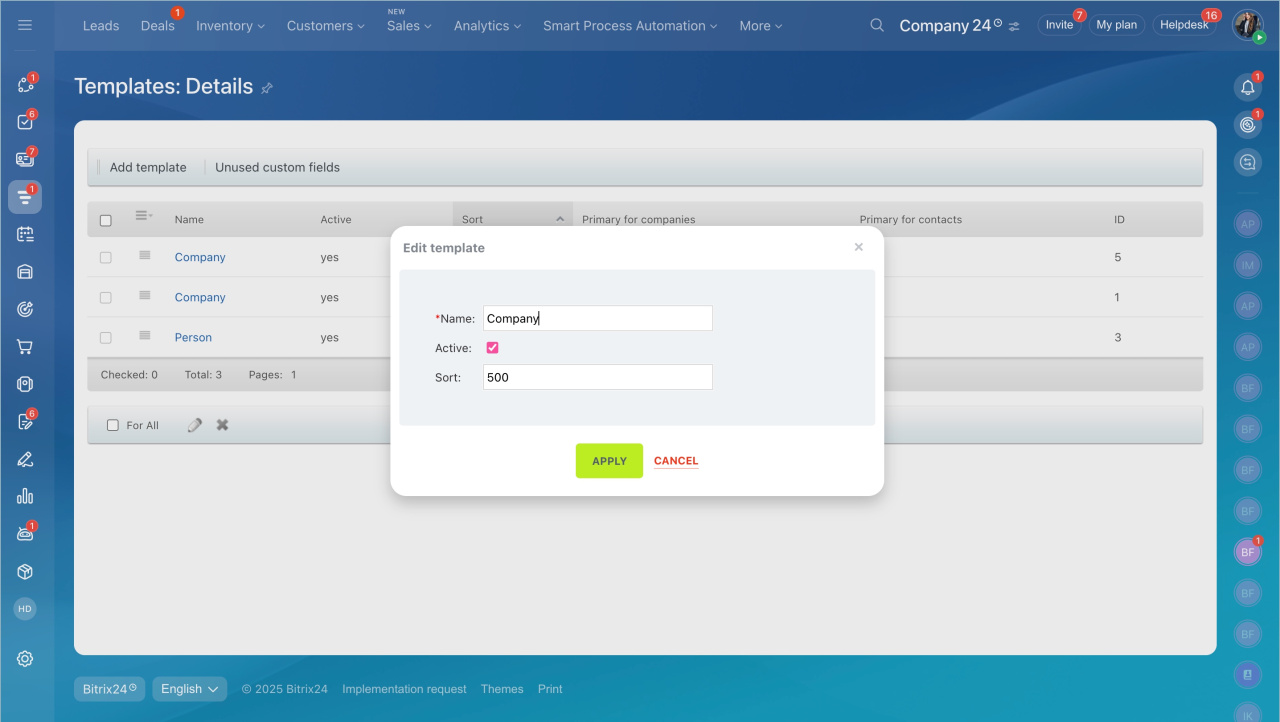
- Update the template:
- Change the name.
- Enable or disable it. This controls whether the template appears in CRM forms.
- Set the sort index. Lower values appear higher in the list. For example, if sole proprietors have index 510 and legal entities 520, sole proprietors appear first.
- Click Apply.
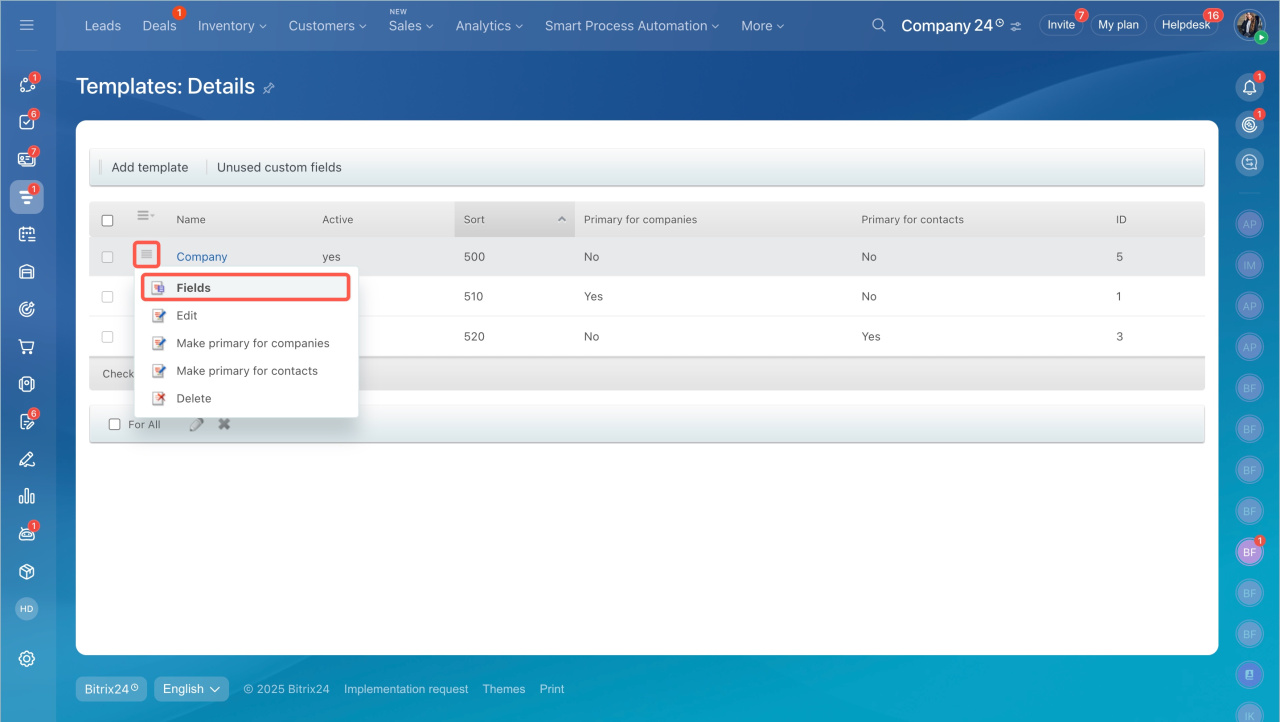
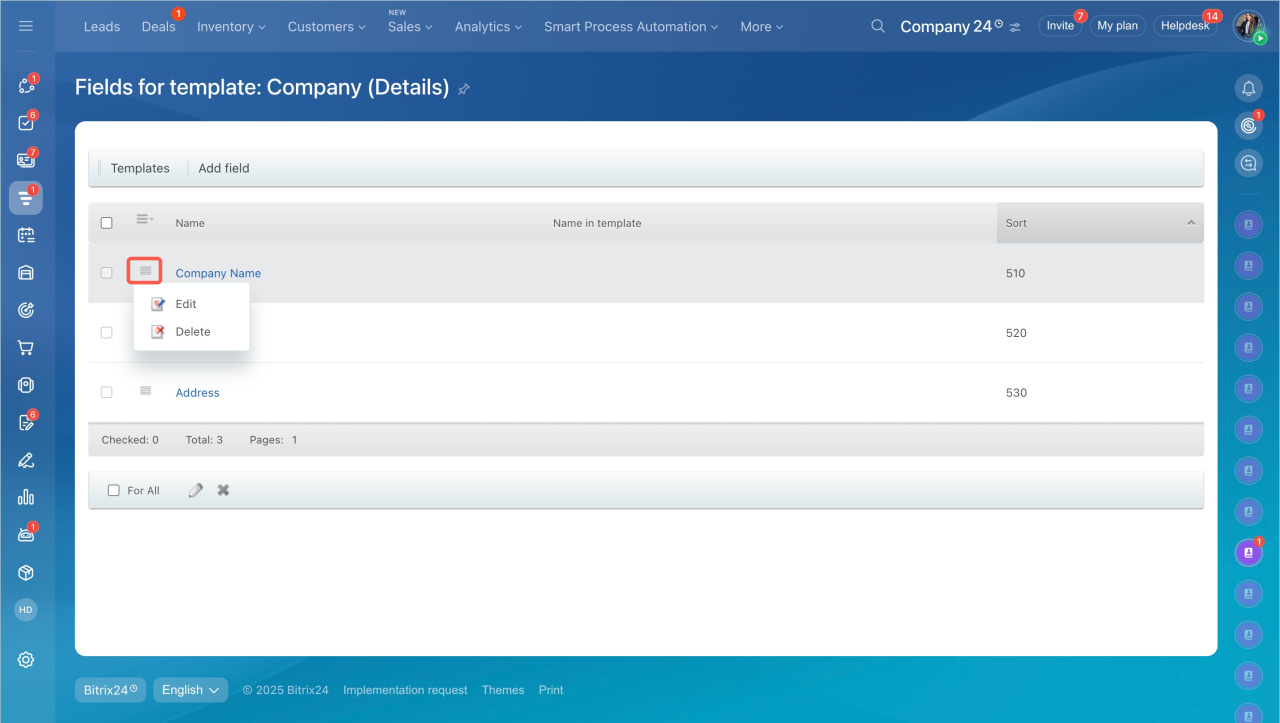
Edit or delete fields. Click Menu (≡) > Fields to rename, reorder, or remove fields. Deleted custom fields are stored in Unused custom fields.
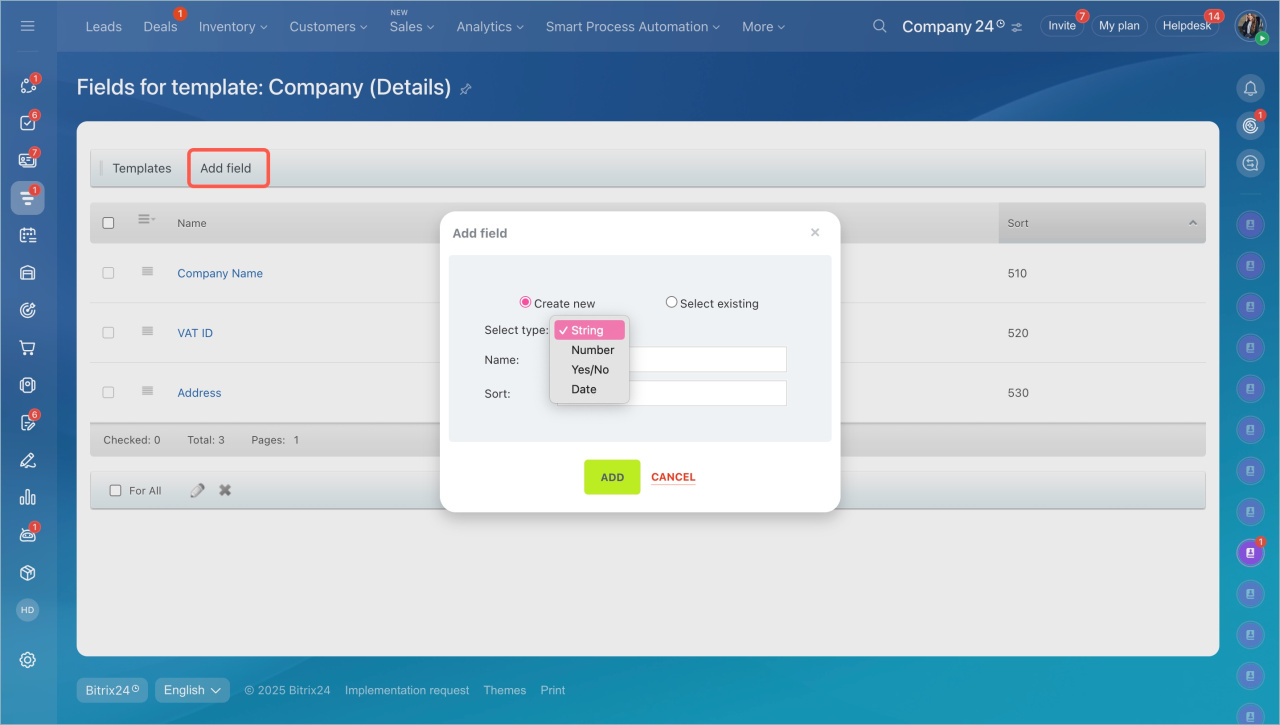
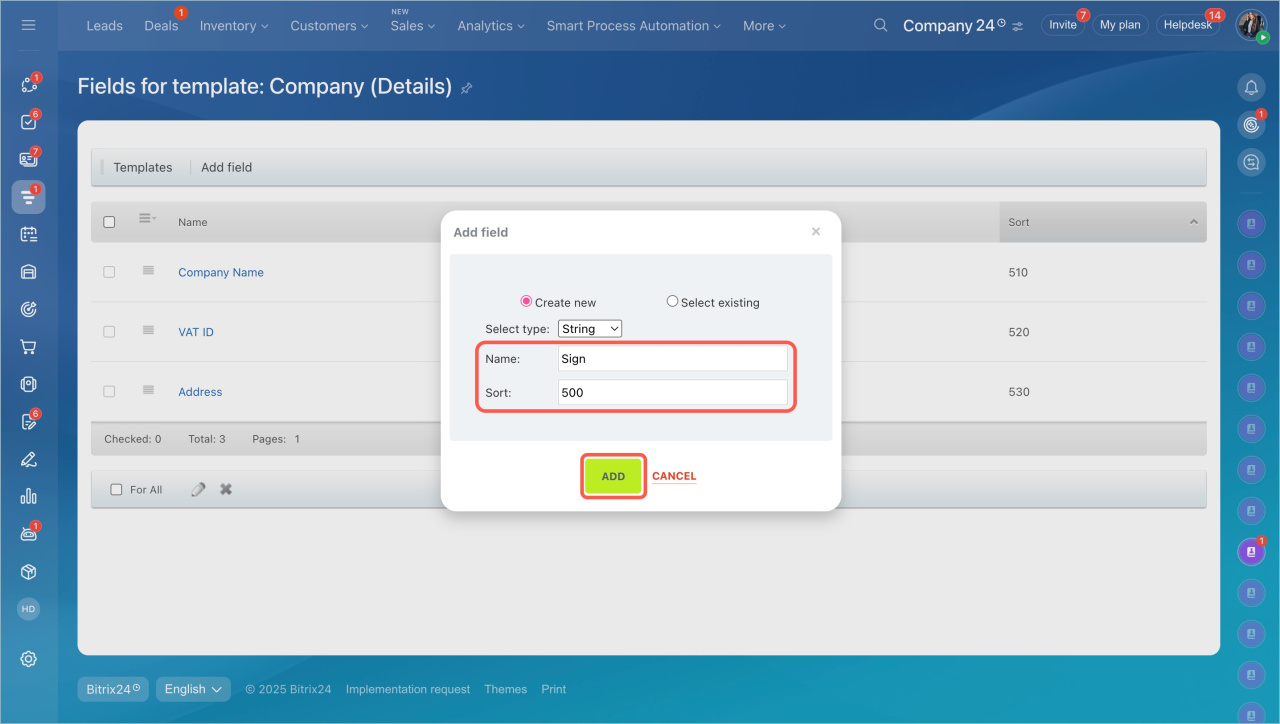
Add a new field. Create additional fields if the default ones are not enough.
- Click Add field and choose a type: text, number, yes/no, or date.
- Enter the name and sort index.
- Click Add.
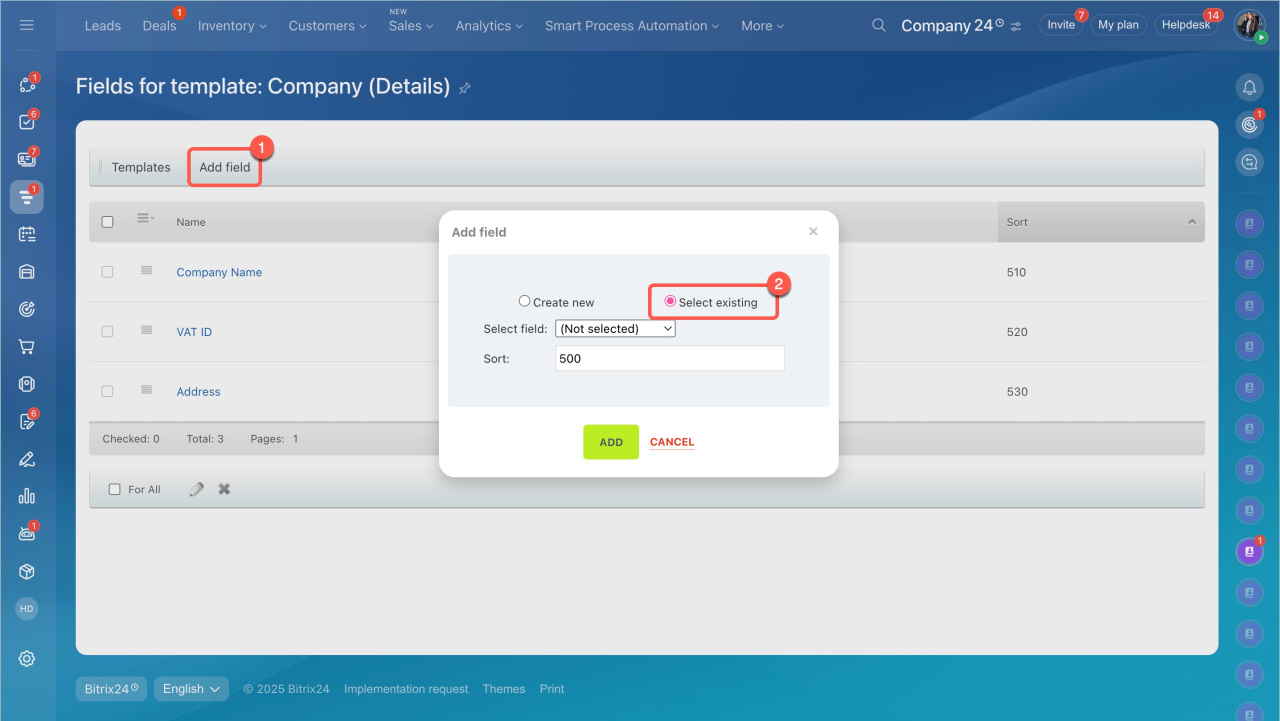
Add a field from another template. Reuse fields that already exist in other templates.
- Click Add field and enable Select existing.
- Select a field and set the sort index.
- Save your changes.
Create a new template
If the default templates do not meet your needs, create your own.
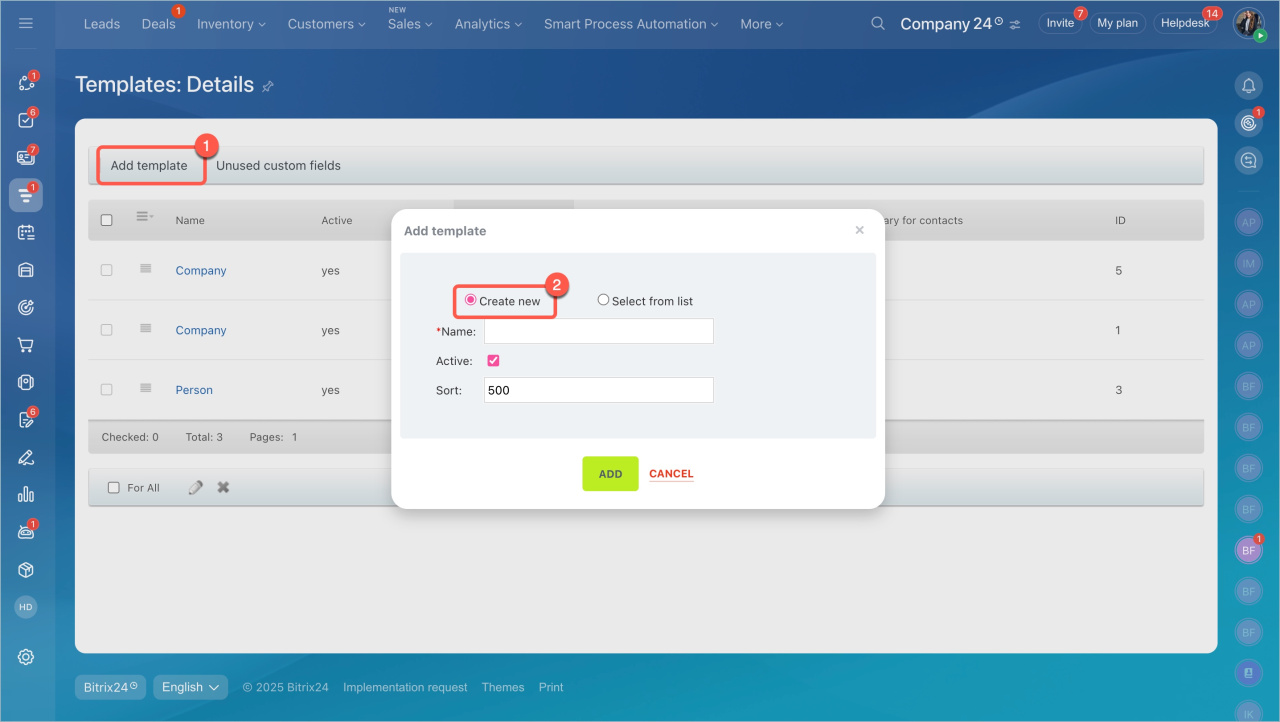
- Click Add template.
- Select Create new to build a template from scratch. Enter the name, sort index, and enable it.
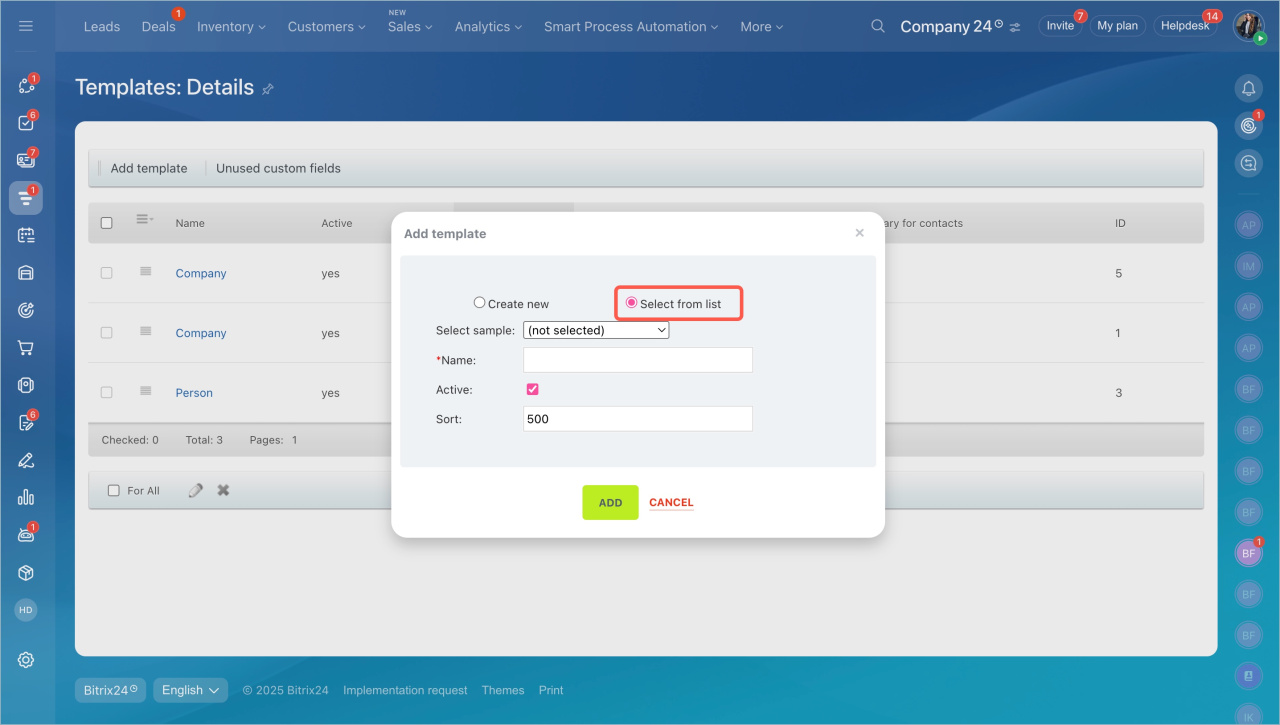
- Select Select from list to use a sample template. Choose from templates for individuals or legal entities in different countries. Enter the name, sort index, and enable it.
- Add the template.
Make primary
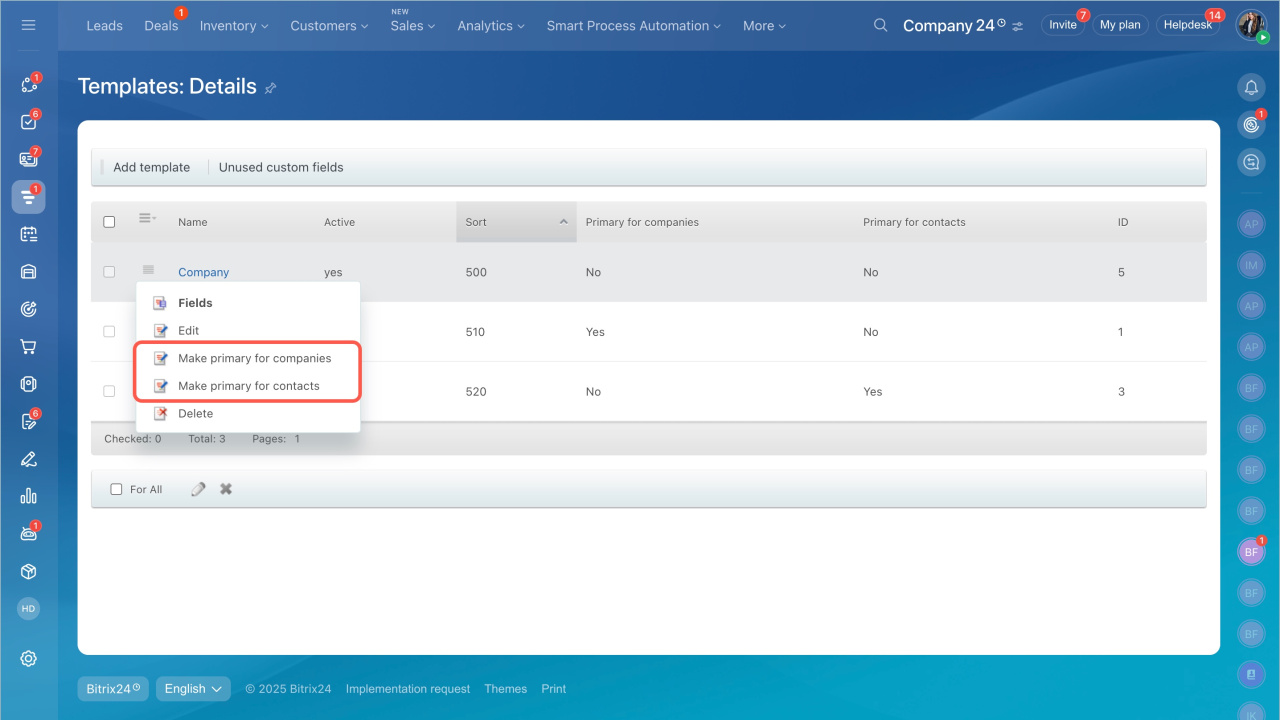
Set a template as primary for contacts or companies. Its fields will fill in automatically in CRM forms. For example, if most of your customers are sole proprietors, set that template as primary.
In a specific record, you can choose a different template.
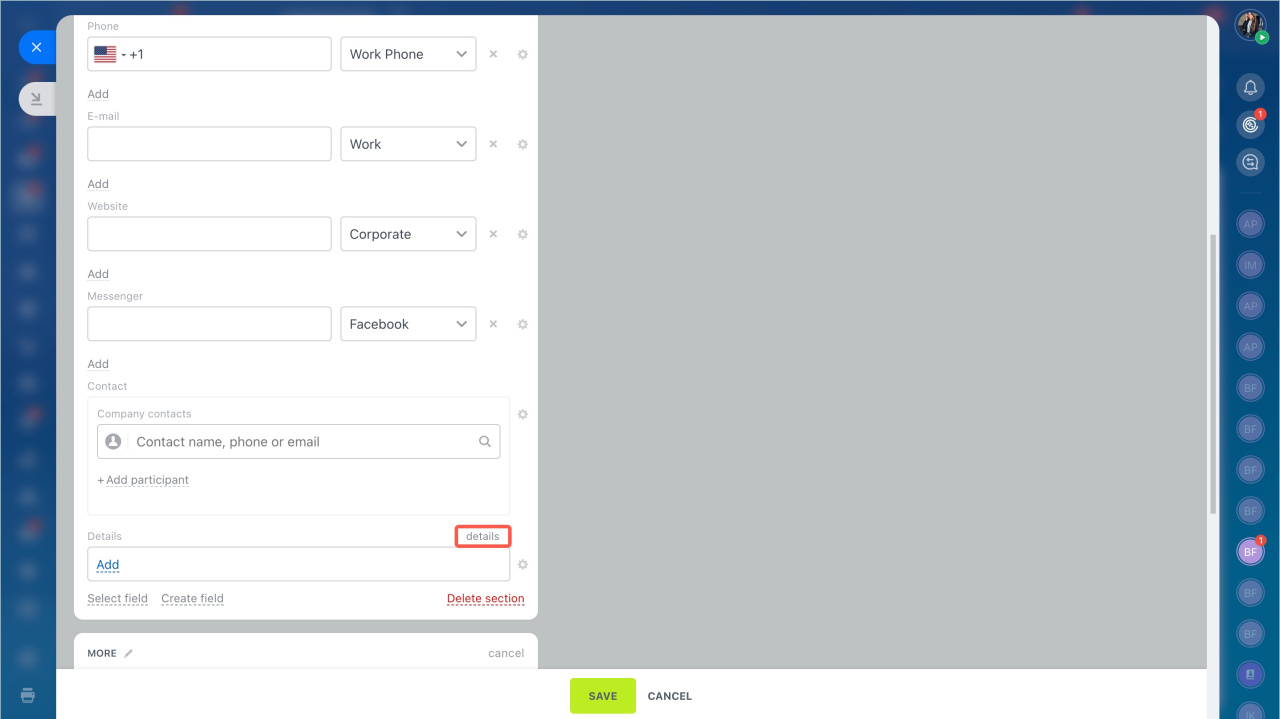
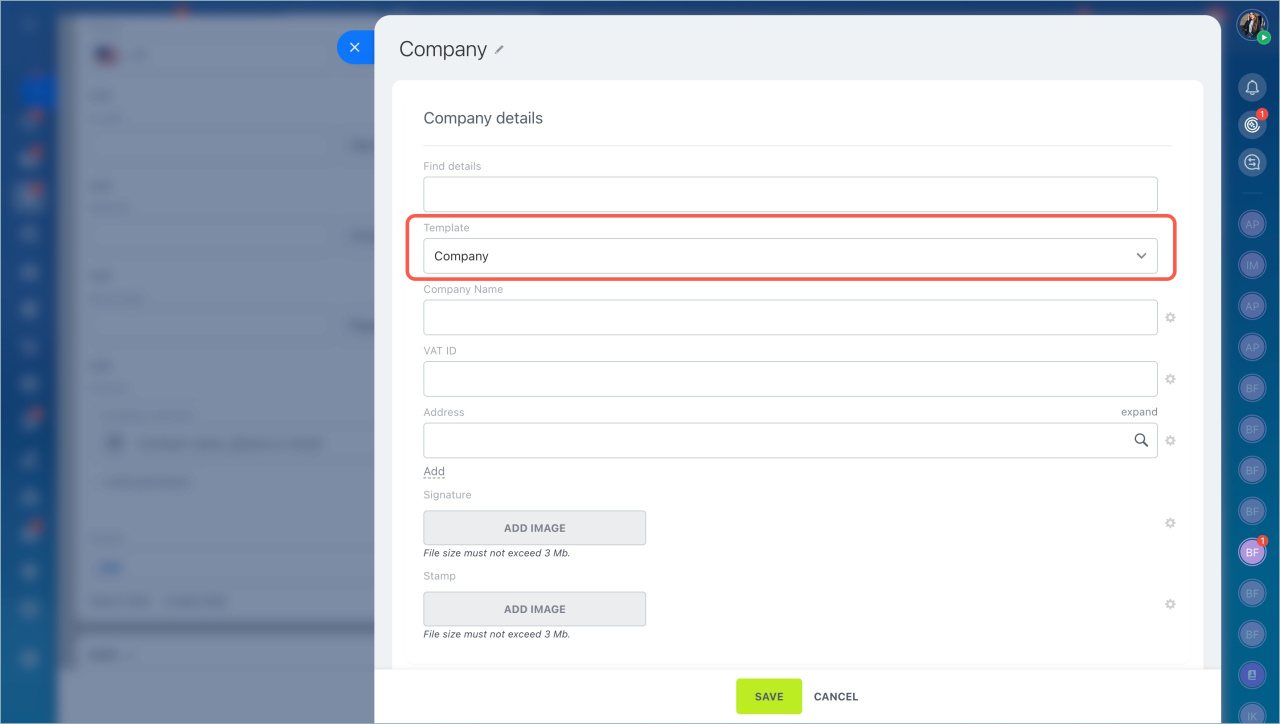
- Open the contact or company form. Click Details next to the Details field.
- If needed, select another template from the dropdown list.
In brief
- Company details store data about a contact or company, such as tax ID, registration code, and addresses.
- CRM uses these details to create documents like invoices, contracts, and estimates. The system fills in the data automatically.
- You can configure detail templates so required fields appear in forms automatically.
- Only administrators and users with the Allow CRM settings modification permission can manage templates.
- To manage templates, go to CRM > More > Settings > CRM settings > Detail templates.
- You can use ready-made templates or create your own. Customize fields to match your business needs.