
Repeat leads and deals are created for clients who have contacted your company or made a purchase before. Employees can review previous interactions and use that information when working with new inquiries. You can also filter repeat leads and deals to see how many customers return.
In this article:
When leads and deals are considered repeat
Repeat lead. A lead is considered repeat if it is linked to an existing contact or company. This can happen in two ways:
- Automatically. A customer submits another inquiry using the same contact details.
- Manually. An employee selects an existing contact or company in the Client field on the lead form
Exceptions in CRM
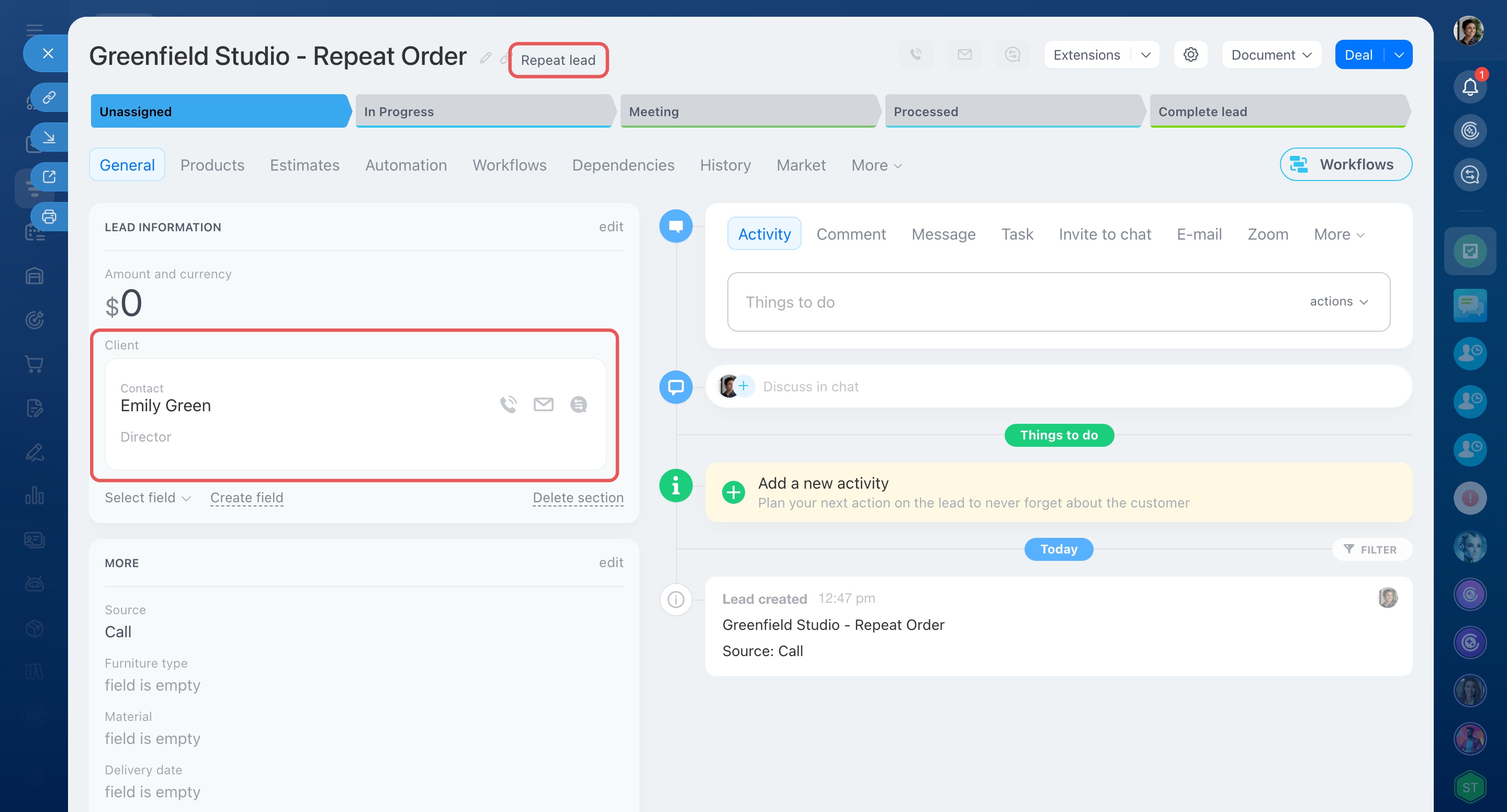
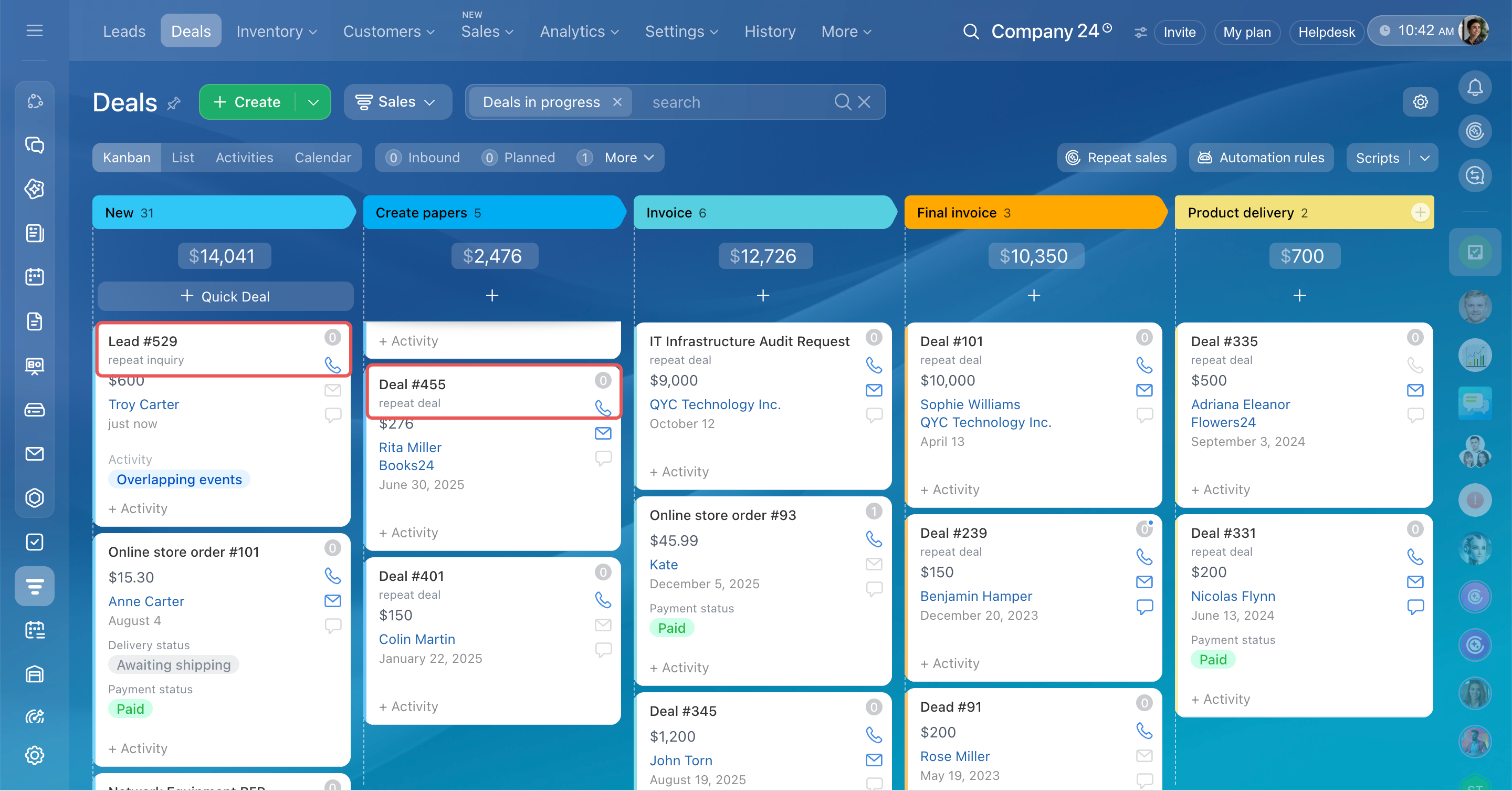
Repeat deal. Whether a deal is marked as repeat depends on the customer's purchase history:
- If the customer has no successful deals, the first deal created from a repeat lead is marked as a Repeat inquiry.
- If the customer has at least one successful deal, all new deals are marked as Repeat deals.
Choose a CRM mode
Find repeat leads and deals
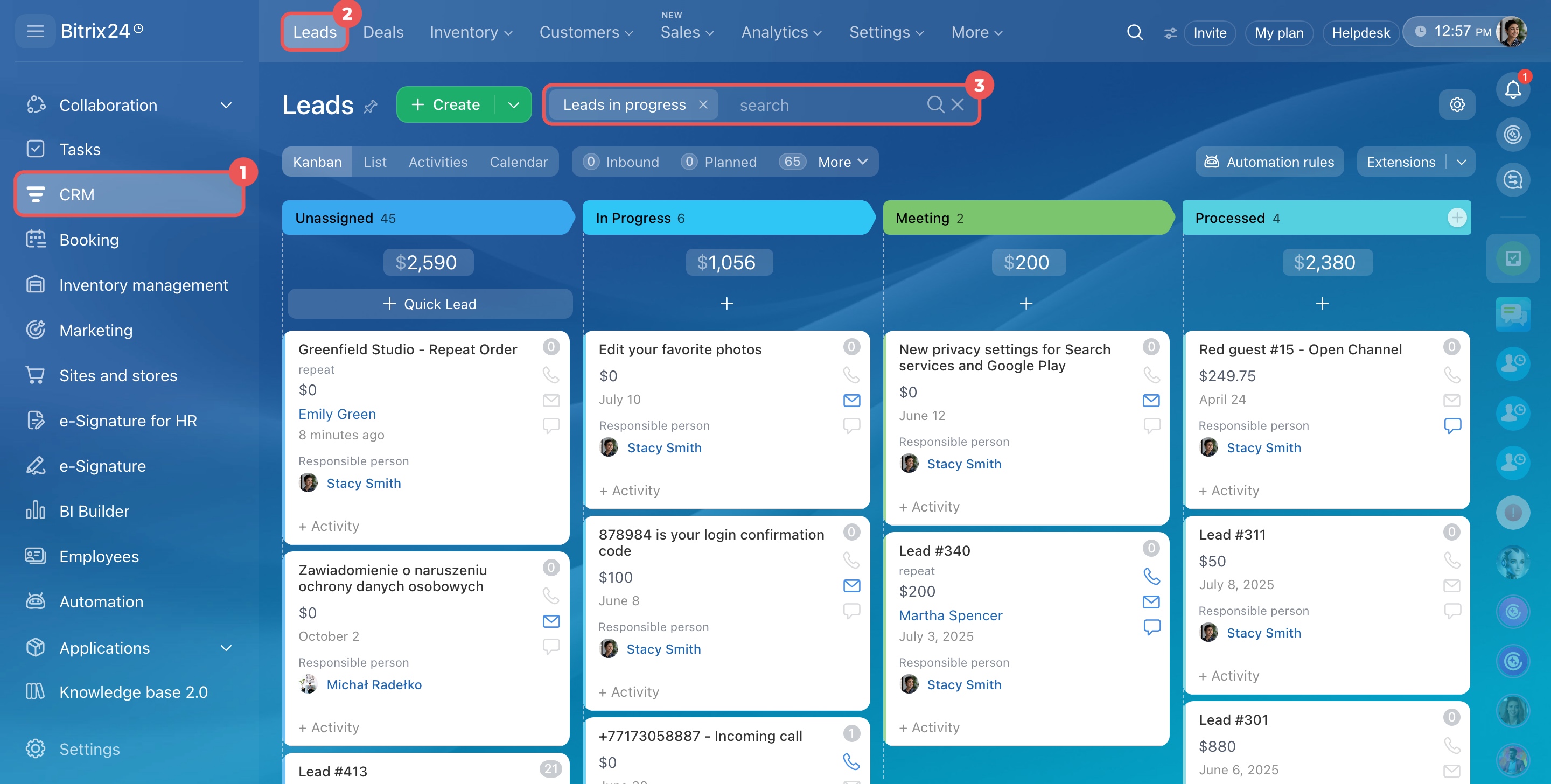
- Go to CRM > Leads or Deals. Click the search bar at the top.
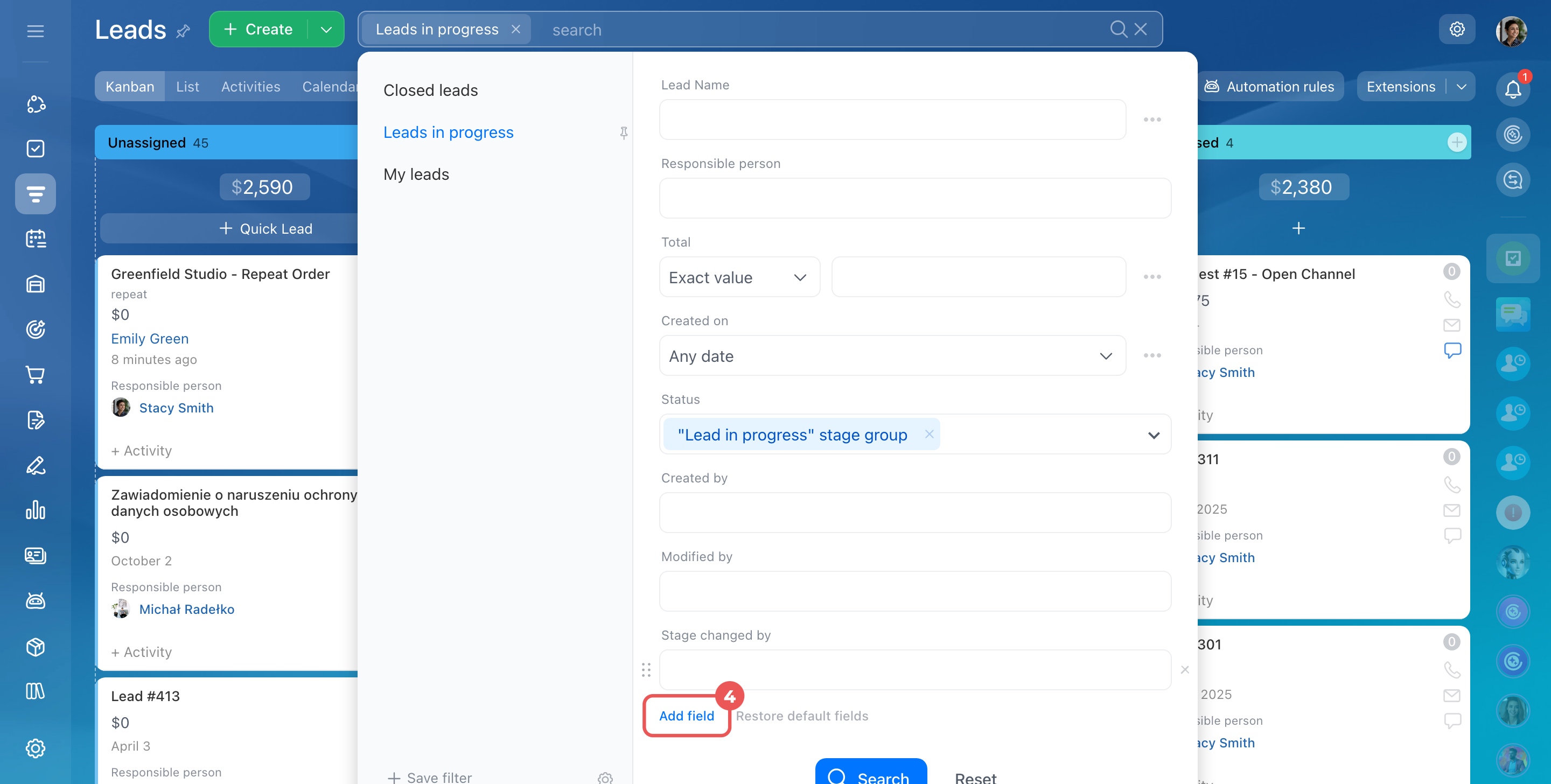
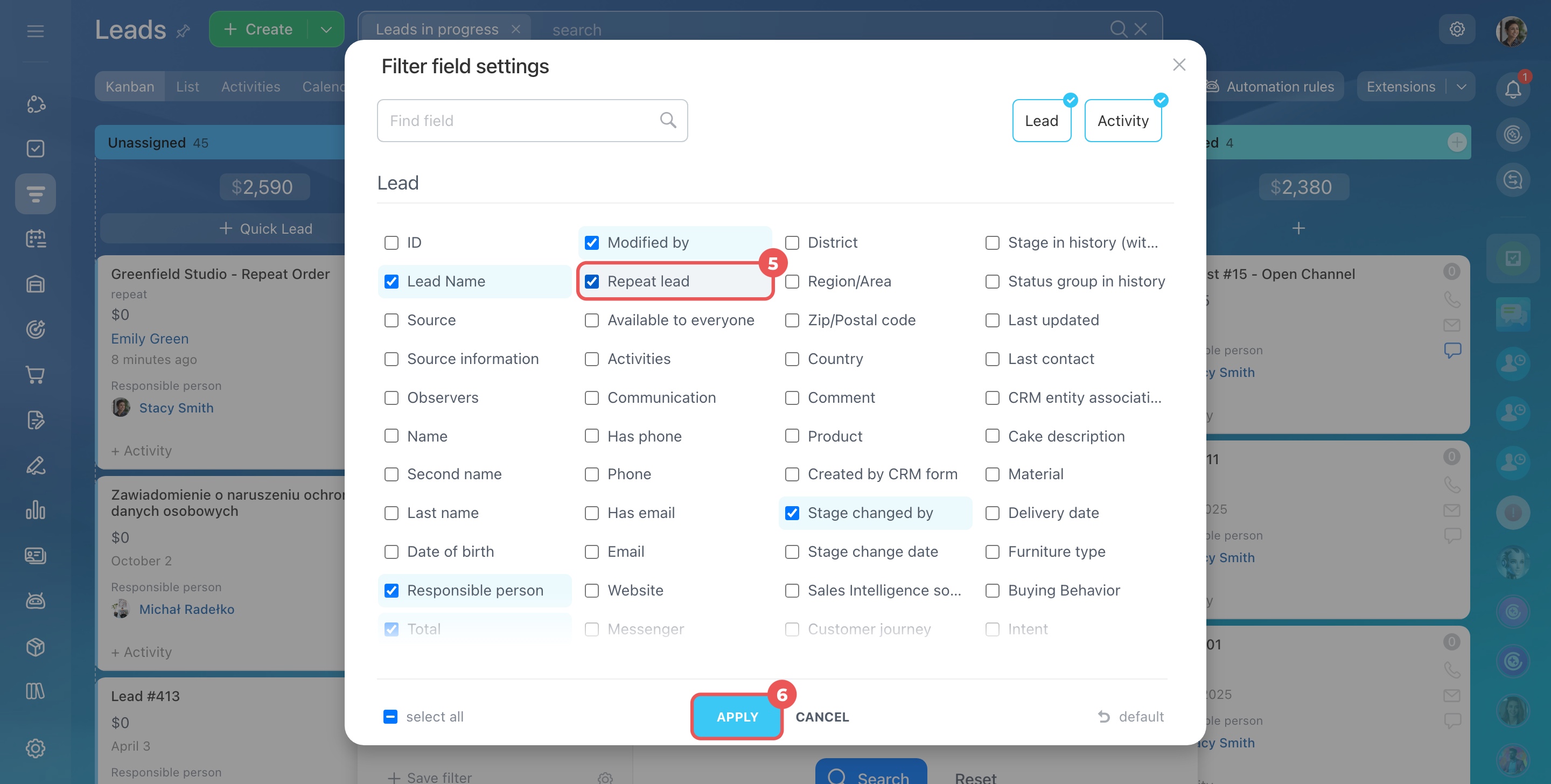
- In the filter window, click Add field.
- Select the fields you need:
- For leads: Repeat lead
- For deals: Repeat deal and Repeat inquiry
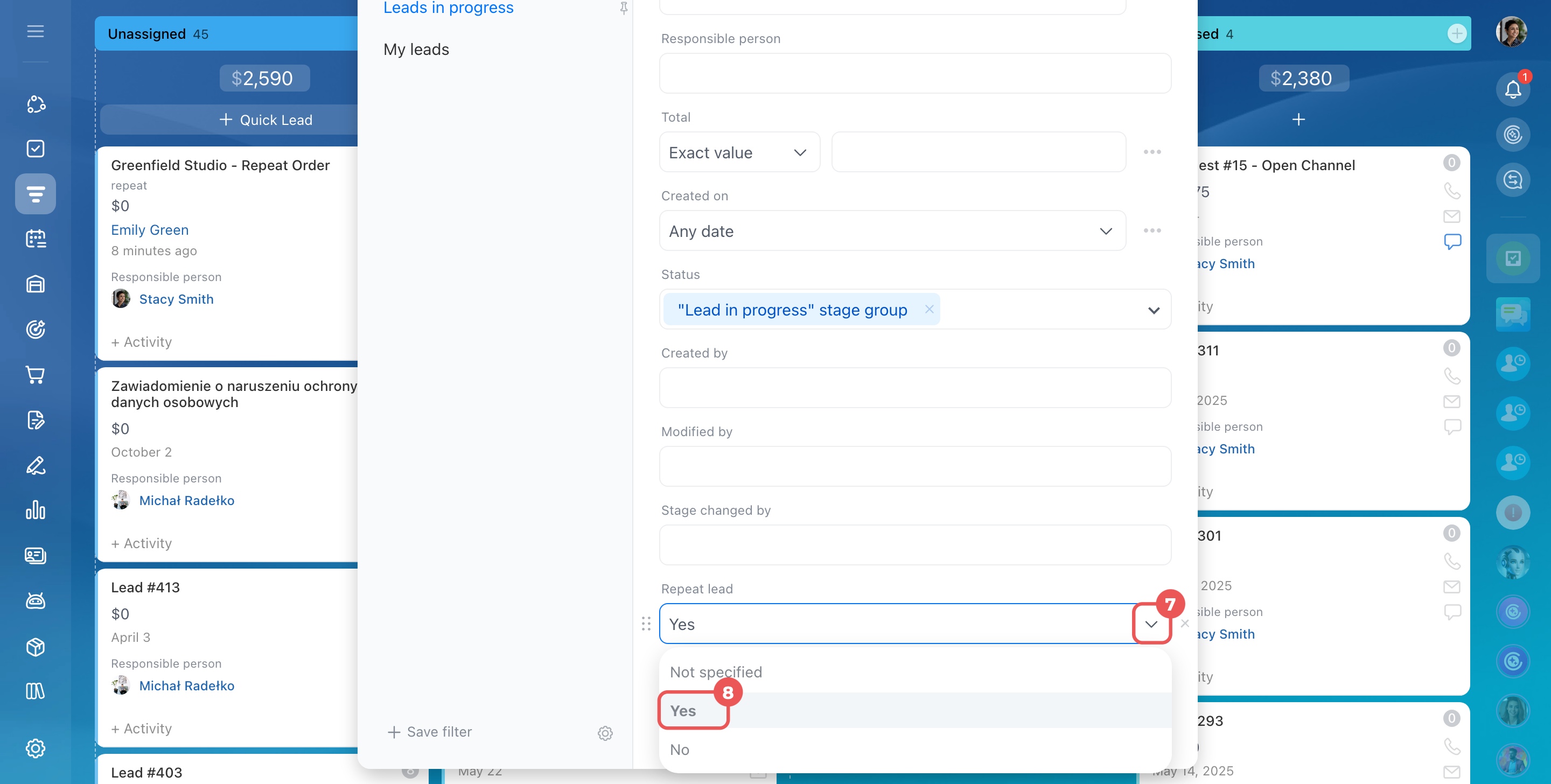
- Click Apply. A new field appears in the filters. Click the arrow to the right of its name and select Yes.
- Click Search.
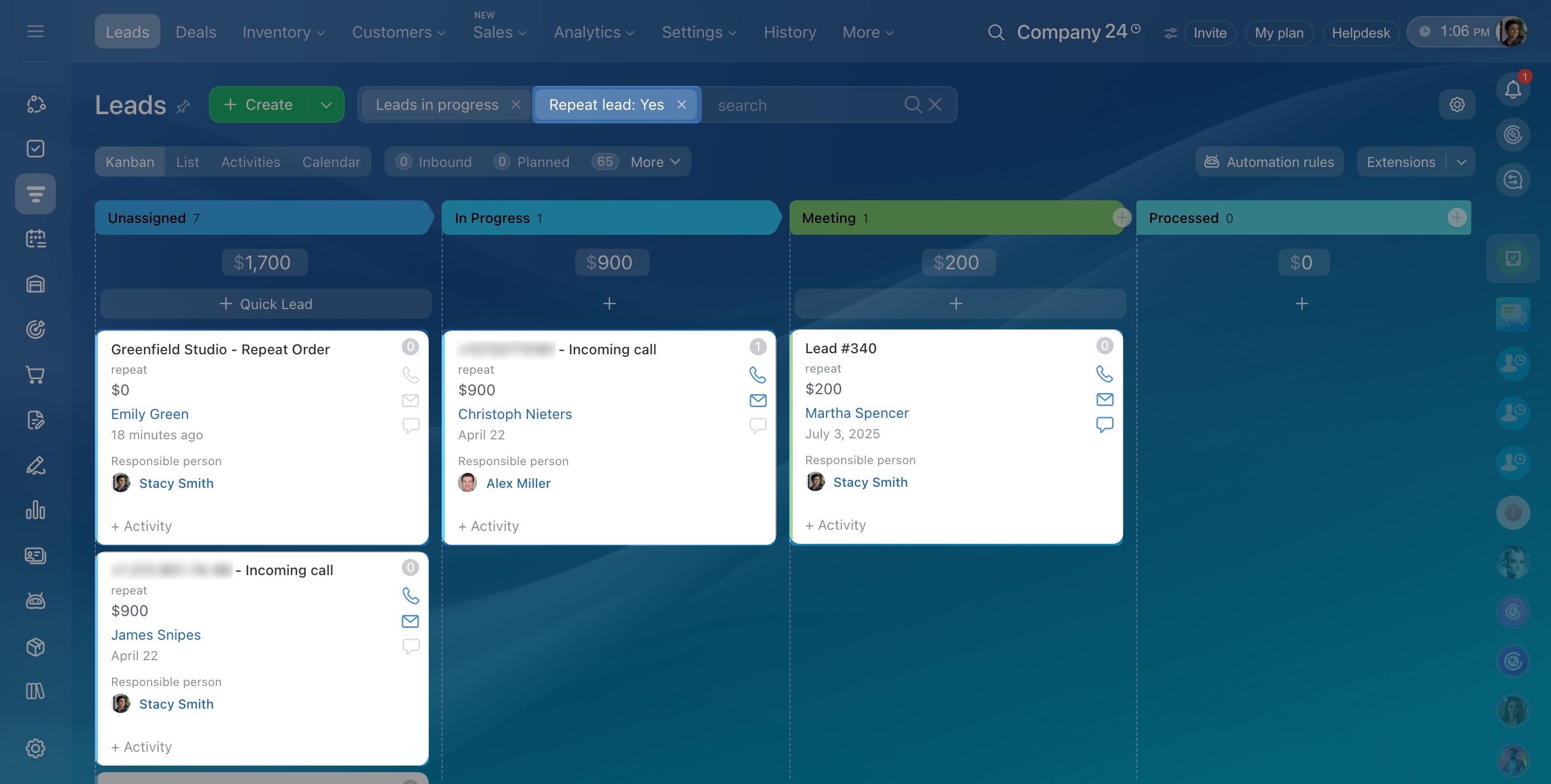
The list now shows only the repeat leads, deals, or inquiries that match your filter.
Set up repeat lead creation
By default, Bitrix24 creates a repeat lead when a customer contacts you again after their previous lead was closed.
You can change this behavior so that new inquiries are added to existing CRM item forms instead. This is useful if you don't need to track repeat inquiries separately and prefer to keep customer interactions in one place.
Role-based access permissions in CRM
You cannot change how repeat inquiries and deals are created.
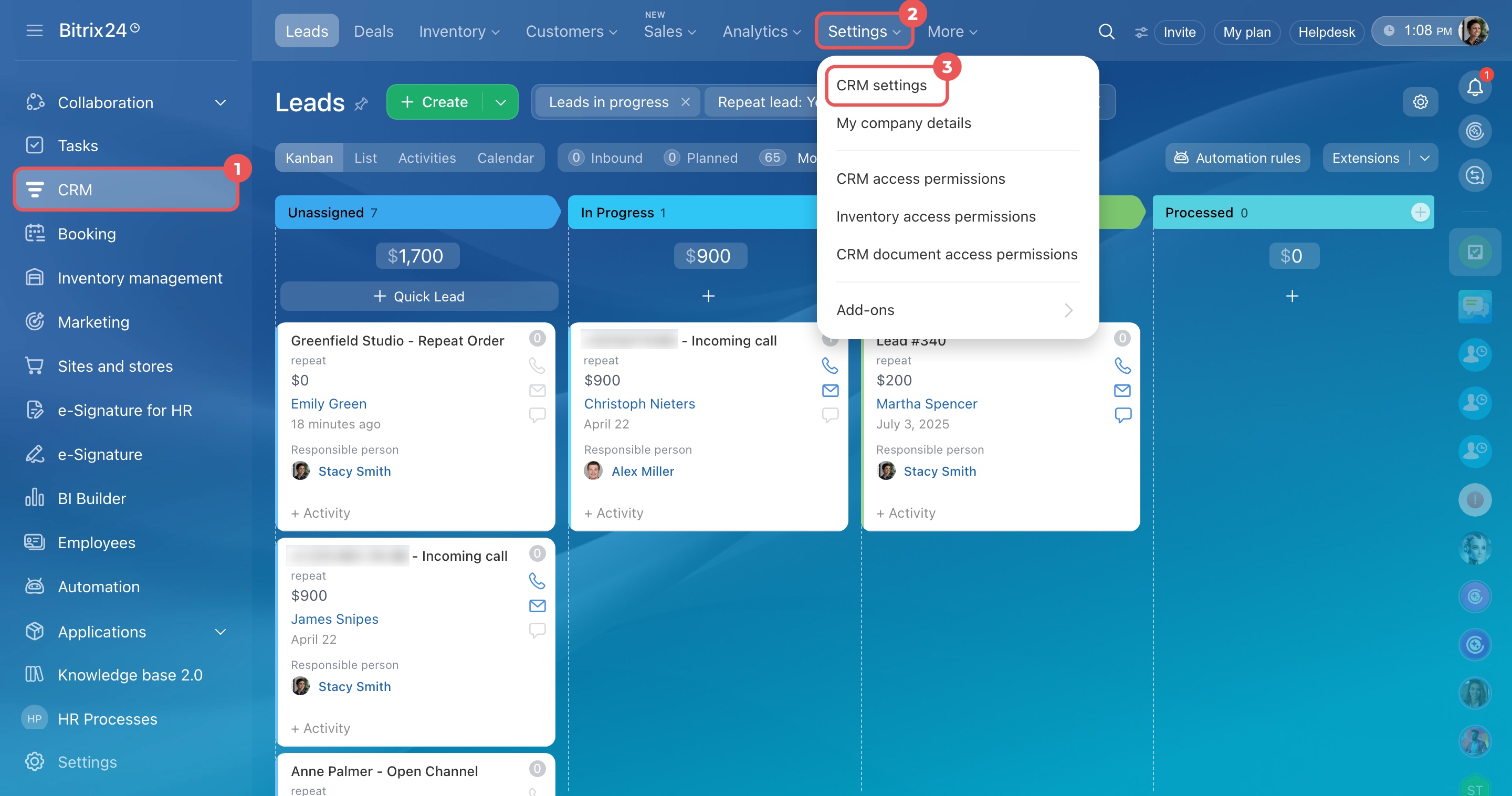
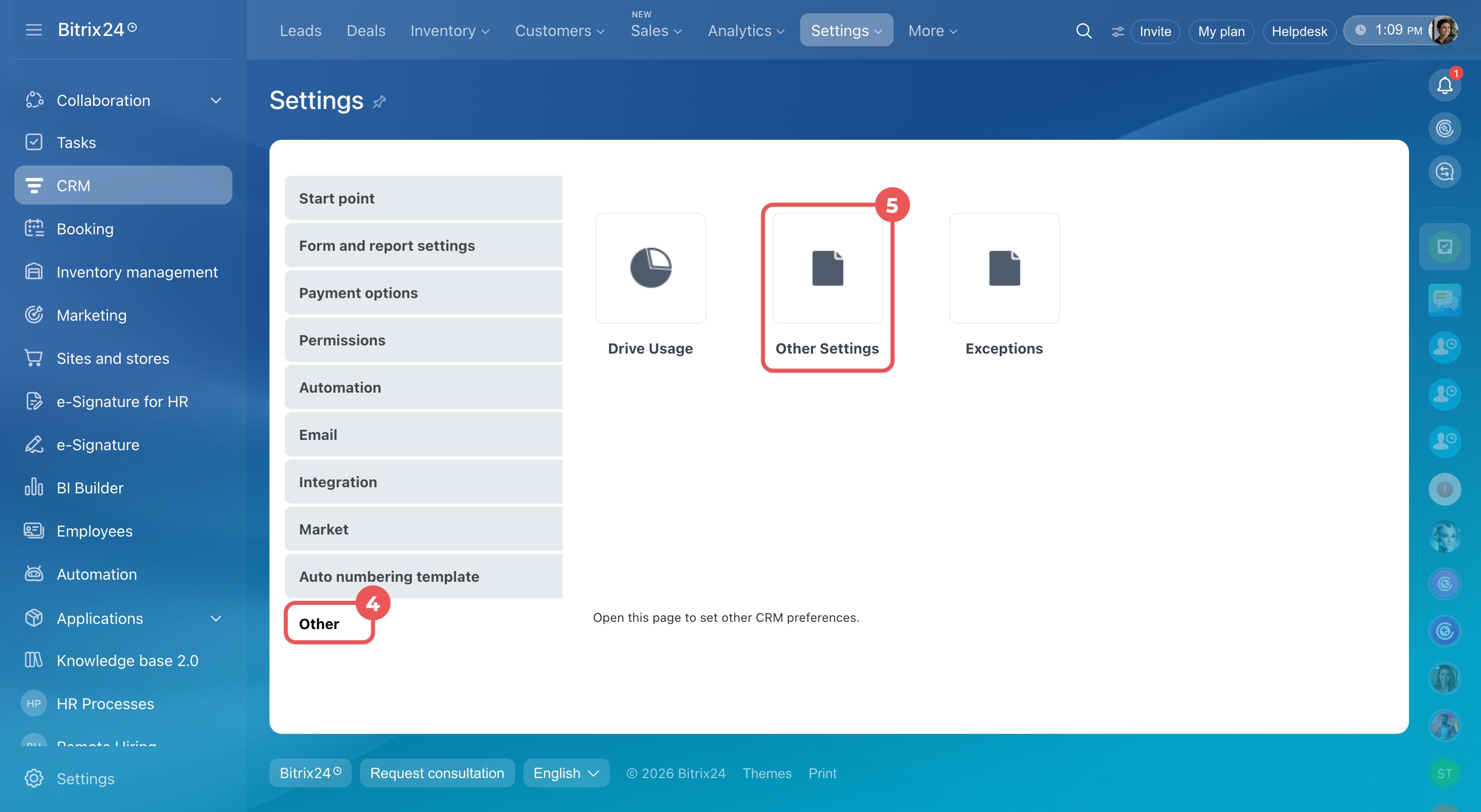
- Go to CRM > More > Settings > CRM Settings. Select the Other section from the list on the right and click Other Settings.
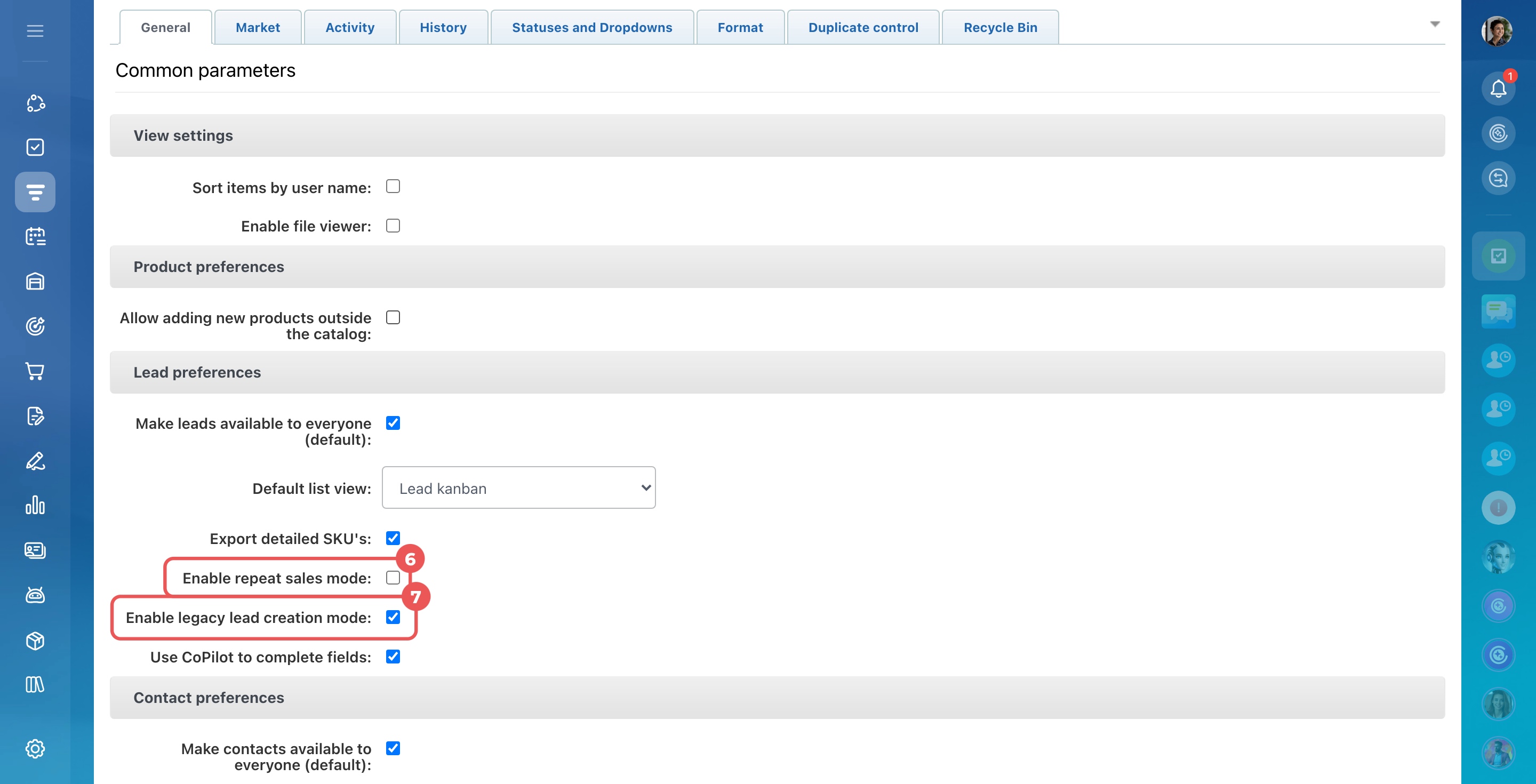
- Turn off the Enable automatic registration of repeat sales parameter in the Lead settings section. Then select the Enable legacy lead creation scenario parameter.
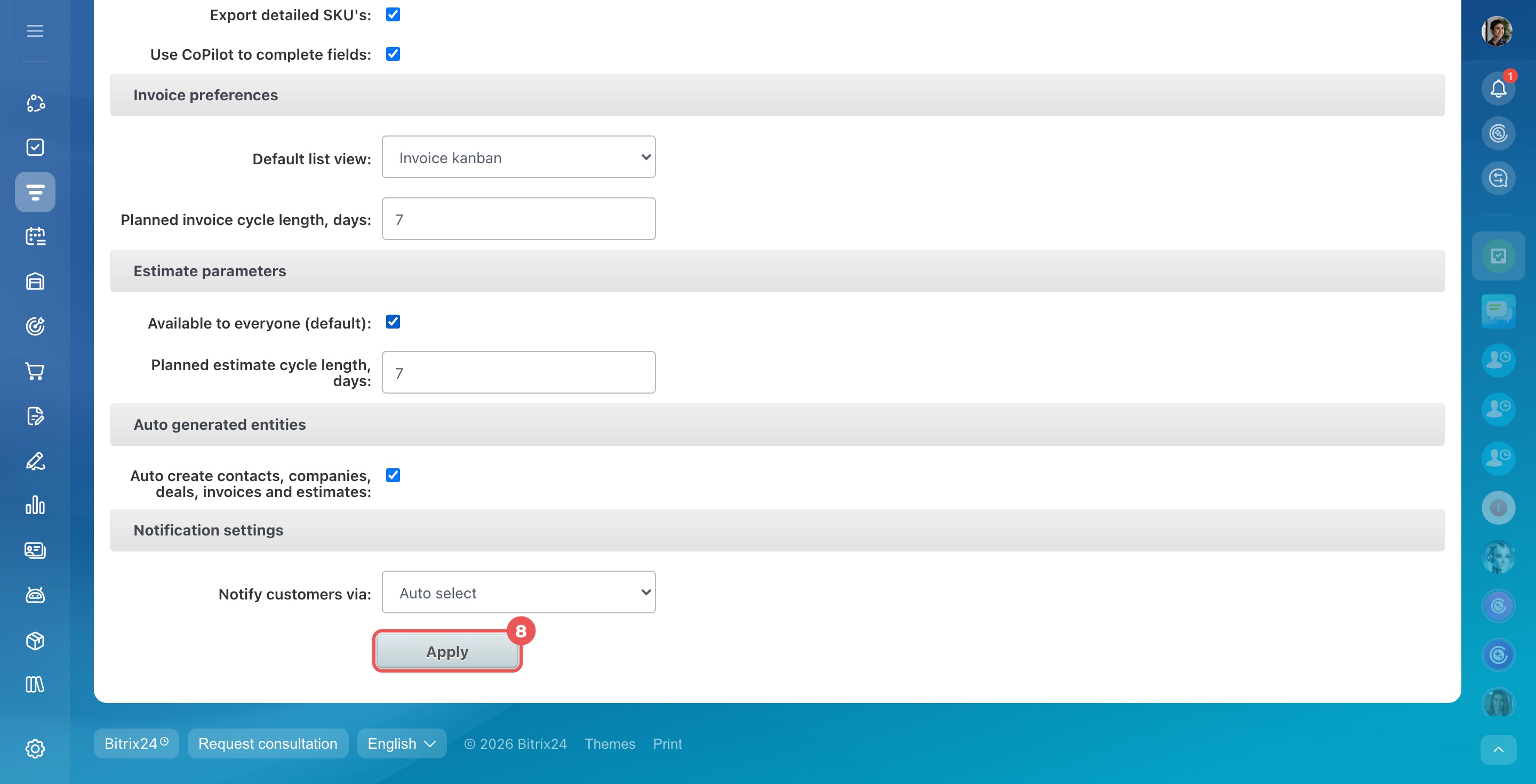
- Scroll to the bottom of the page and click Apply.
What happens when a customer contacts you again depends on these two settings.
Automatic registration of repeat sales is enabled. This is the default setting. When a customer contacts you again, Bitrix24 creates a repeat lead and links it to the existing contact or company.
Automatic registration is disabled, and the legacy scenario is enabled.
- If you closed the previous lead as qualified, Bitrix24 adds the new inquiry to the contact or company form created from that lead.
- If you closed the previous lead as junk, Bitrix24 adds the new inquiry to the same lead form.
Both settings are disabled.
- If you closed the previous lead as unsuccessful, Bitrix24 creates a new lead without marking it as repeat.
- If the customer already has a contact or company and an active deal, Bitrix24 adds the new inquiry to that deal.
- If the customer's previous deal is complete, Bitrix24 adds the new inquiry only to the contact or company form, not to the lead or deal.
In brief
- A lead is considered repeat if it is linked to an existing contact or company.
- If the customer has no successful deals, the first deal created from a repeat lead is marked as a repeat inquiry.
- If the customer has at least one successful deal, all new deals are marked as repeat.
- Use filters in CRM > Leads or Deals to find repeat leads, deals, and inquiries.
- To add new inquiries to existing CRM item forms instead of creating repeat leads, go to CRM > More > Settings > CRM Settings > Other > Other Settings and change the lead settings.
- Only administrators and employees with permission to change CRM settings can change how repeat leads are created.
- You cannot change how repeat inquiries and deals are created.