
Bitrix24 now offers new CoPilot features in CRM: AI Speech analytics and Sales scripts. With CoPilot, you can analyze your agents' customer calls, compare them to scripts, and get improvement tips.
CRM has ready-made sales scripts for various situations, such as talking to new customers, handling complaints, presenting new products, and more. You can use these scripts or create your own to quickly train your agents and improve service quality.
CoPilot helps supervisors by:
- Creating sales scripts
- Analyzing agent calls to find areas for improving customer communication
- Tracking each employee's performance without listening to calls or asking for reports
CoPilot supports agents by:
- Improving customer communication quality through feedback on each call
- Providing specific recommendations to improve customer communication skills
In this article:
Create a sales script
Bitrix24 has ready-made sales scripts. You can use them, edit them, or create your own.
To create a script:
- Go to CRM.
- Expand the Sales tab.
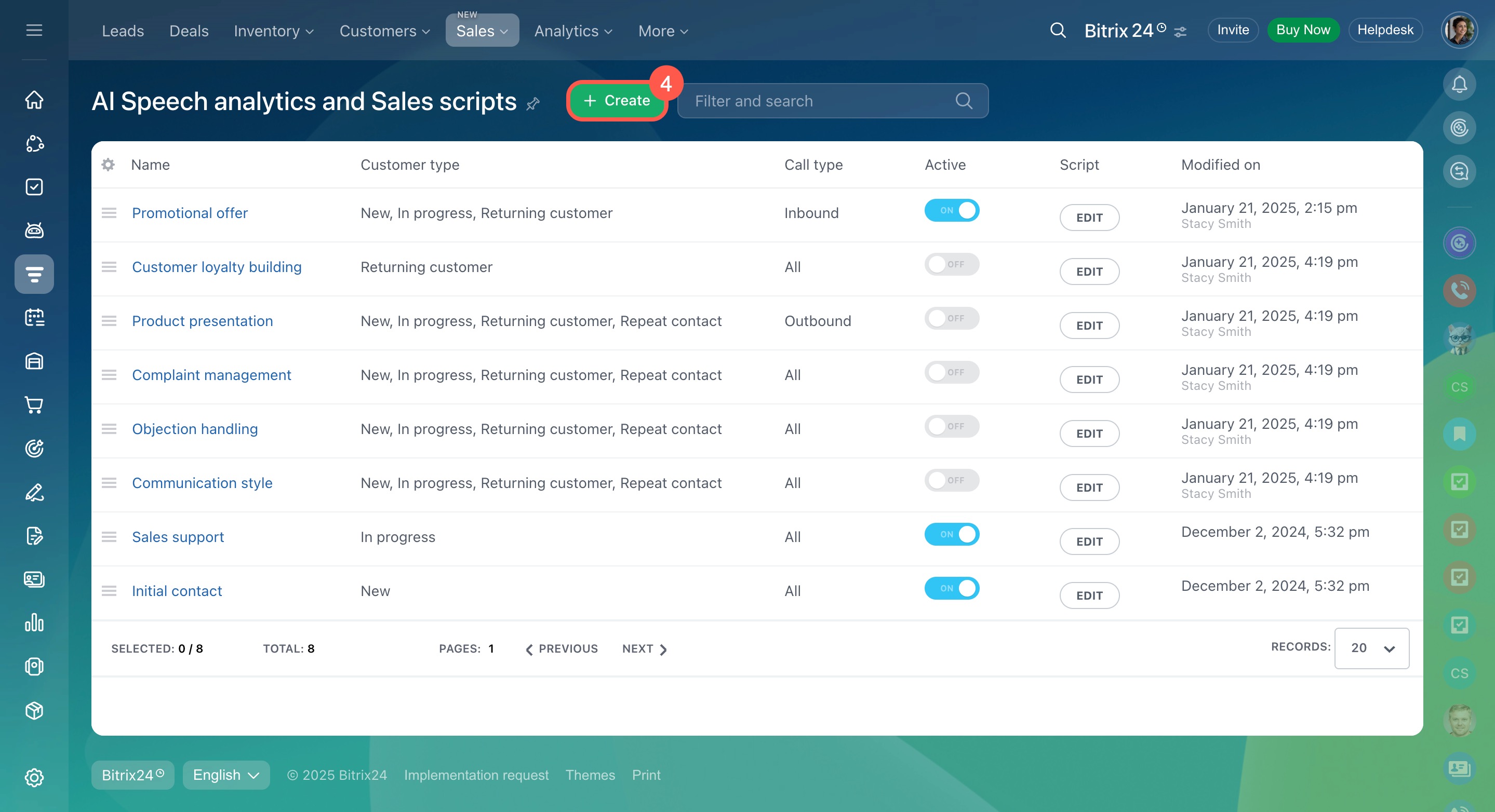
- Select AI Speech analytics and Sales scripts.
- Click Create.

Name your script. Click the pencil icon and enter the desired name.
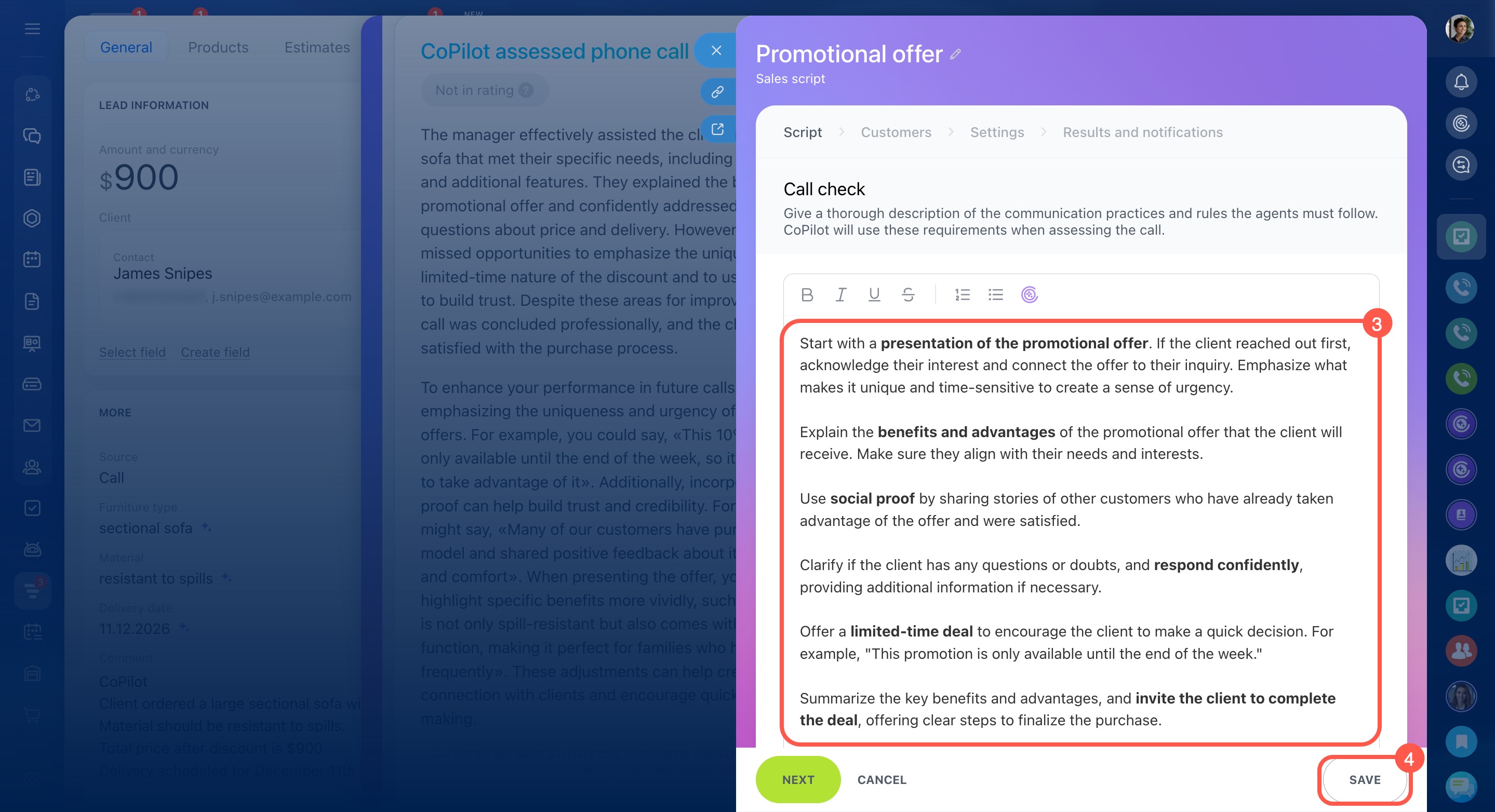
Enter the script text. Describe in detail how agents should communicate with customers. CoPilot will use these guidelines to assess calls based on your criteria. For example, the Initial contact script implies introducing yourself, stating your position, asking clarifying questions, and explaining your products or services.
You can also use CoPilot to create a script text. Just click the CoPilot icon and enter your query.

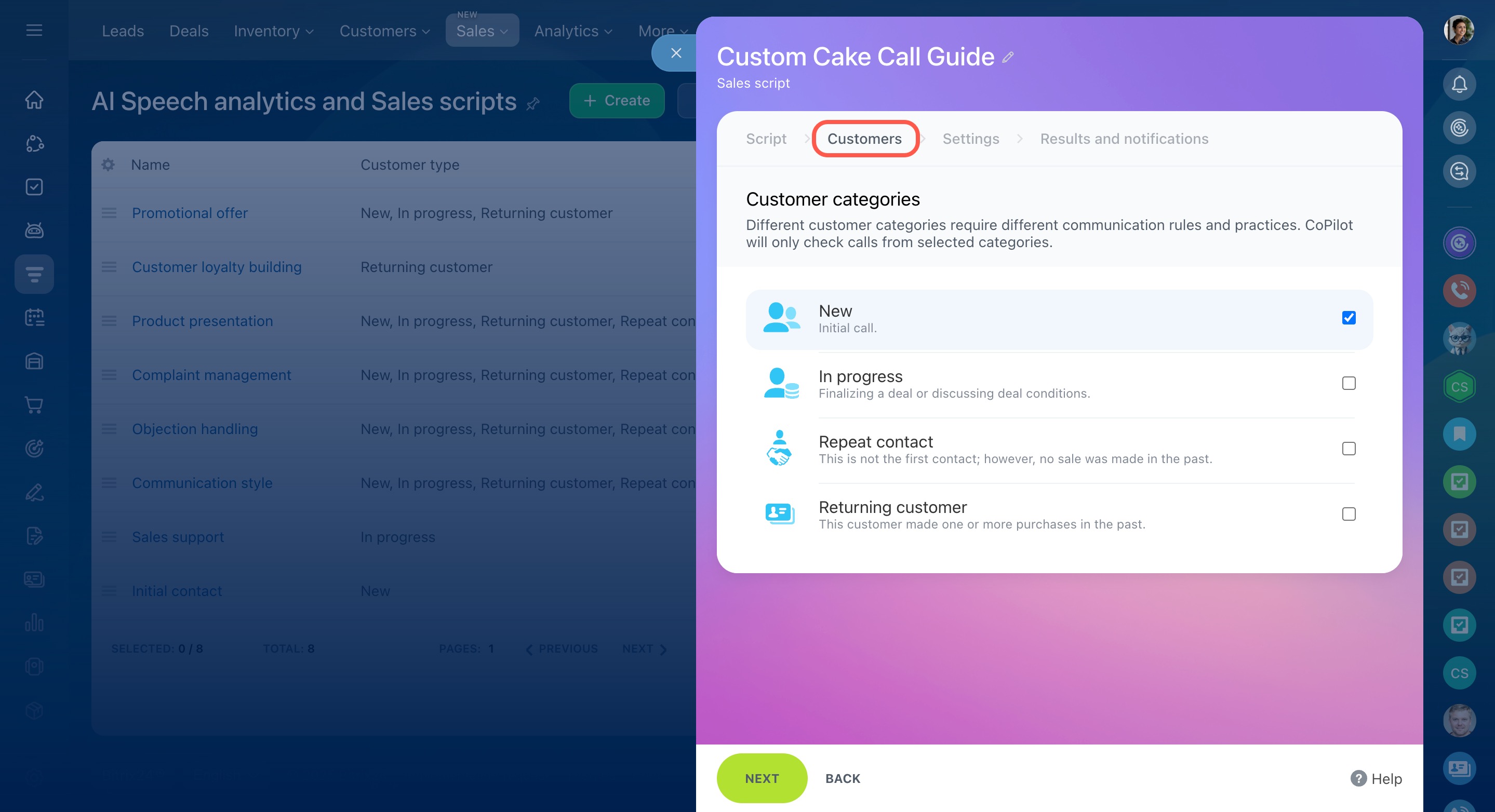
Select customer categories. Choose customer categories for which the script applies:
-
New: Customers not registered in CRM yet or added less than an hour ago.
-
In progress: Customers in CRM who haven't purchased anything yet but have active leads or deals.
-
Repeat contact: Customers who have contacted you before but haven't purchased anything, with lost deals.
-
Returning customer: Customers who have already made a purchase, with won deals.
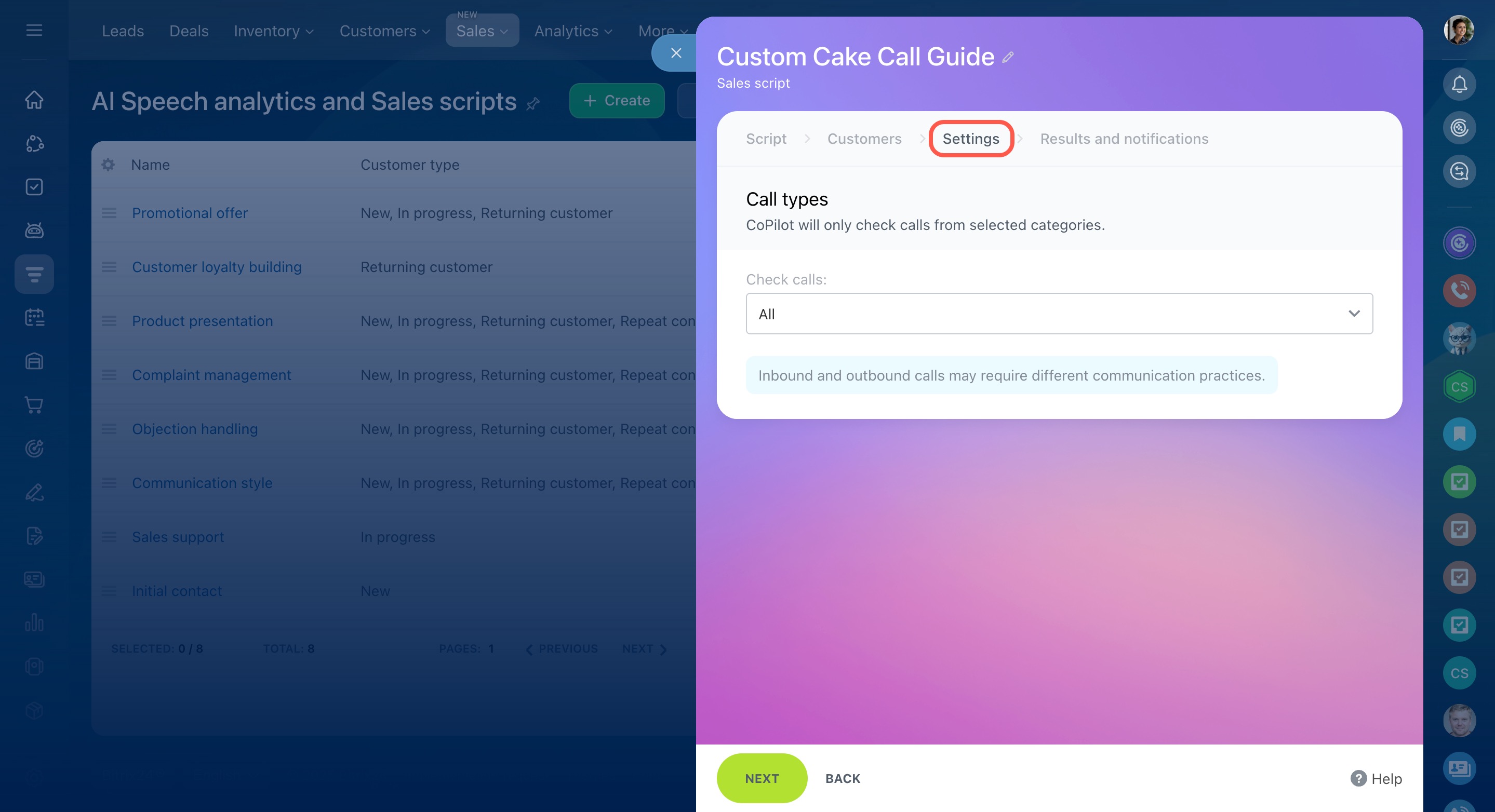
Select call categories. On the Settings tab, choose which calls CoPilot will check using the script:
- All calls
- Outbound only
- Inbound only
Once you set up the sales script, click Done.
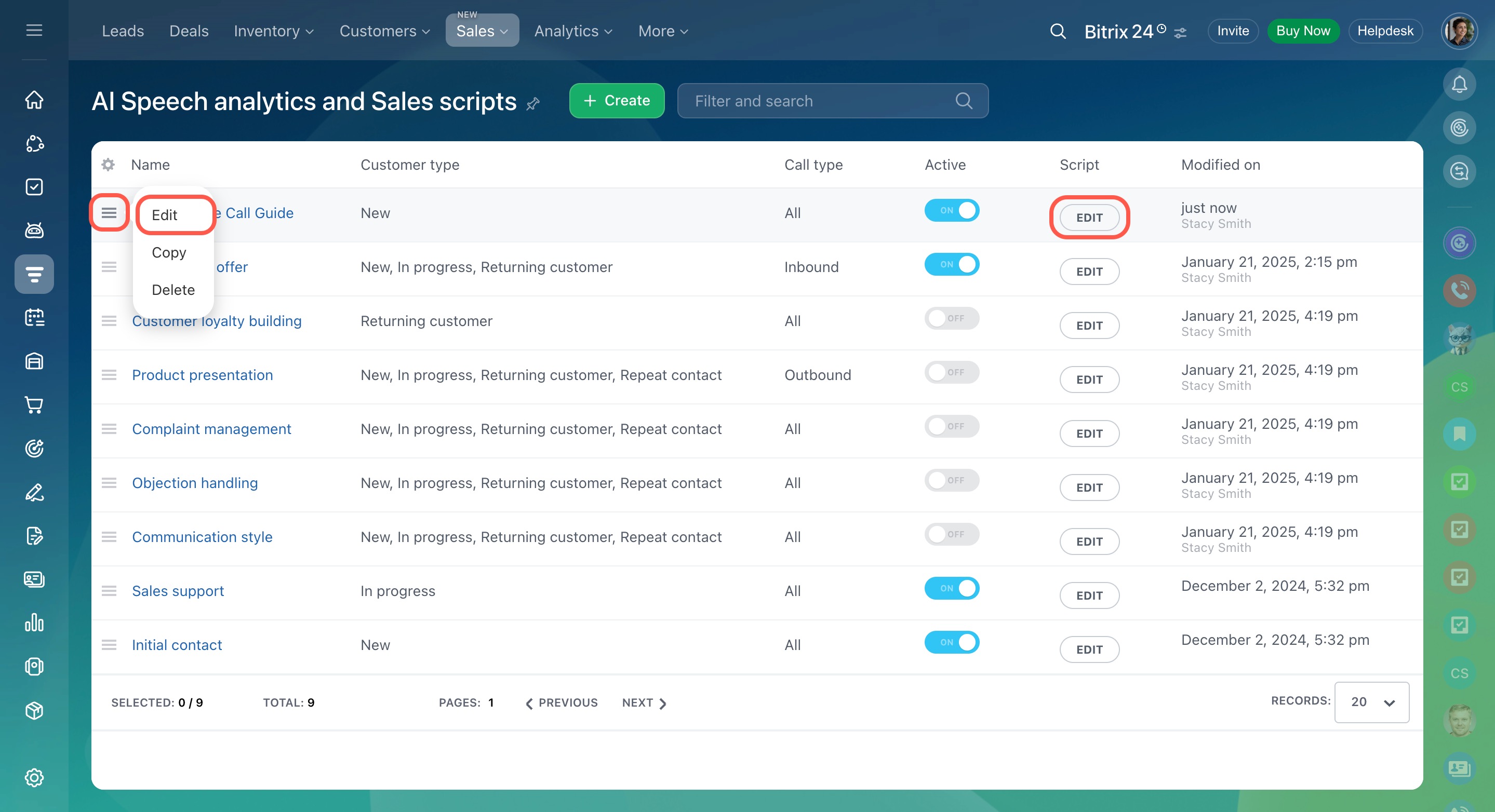
To edit a script:
- Click Edit in the Script column.
- Or, open the Menu (≡) and select Edit.
Select a script during a call
In the call window, the system automatically selects a script that matches the customer's category. If a customer is contacting you for the first time, the agent will see a script for new customers. You can choose a different script if an existing customer calls from a new number.
To change the script, click on its name and select another one.
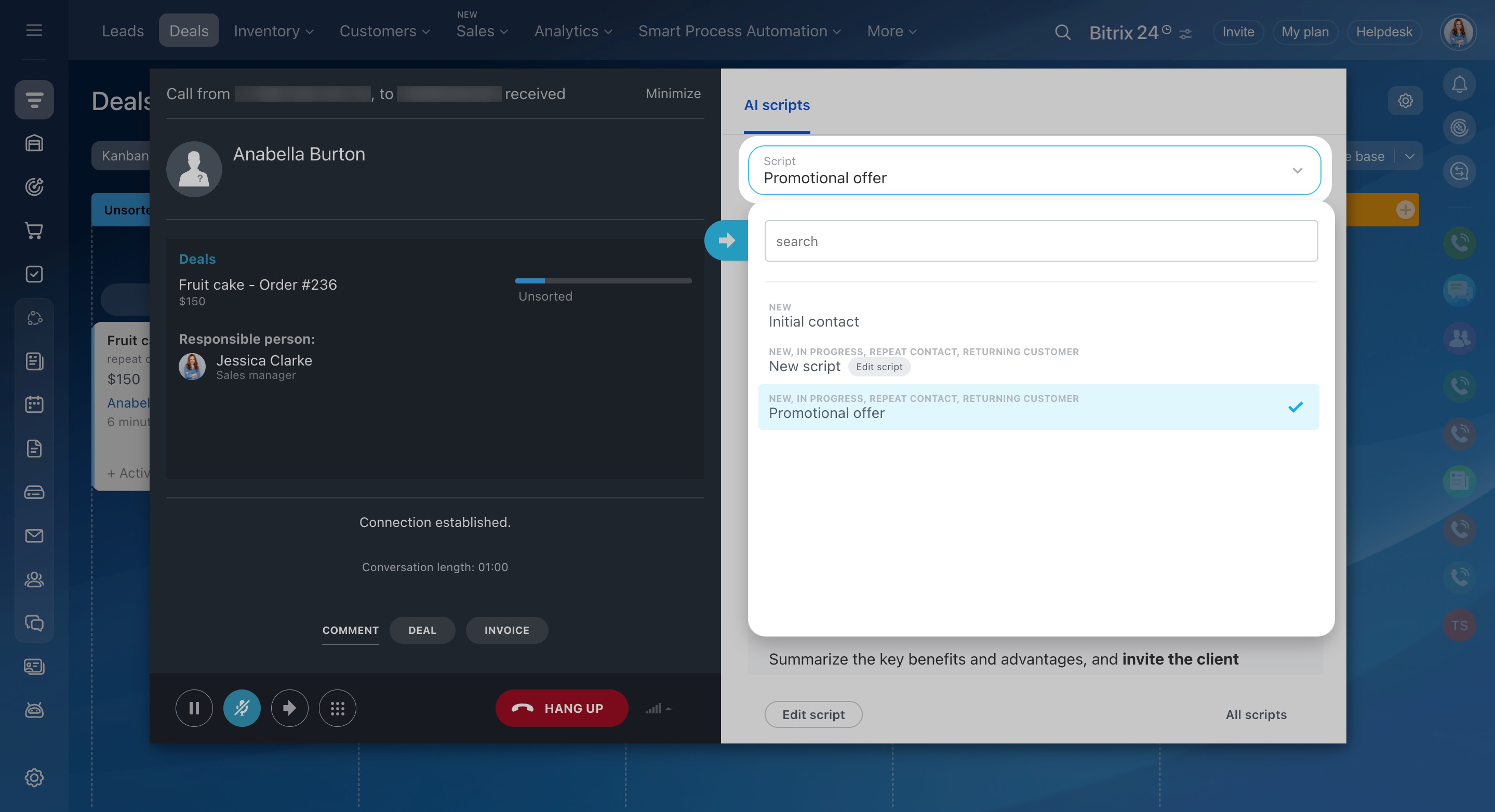
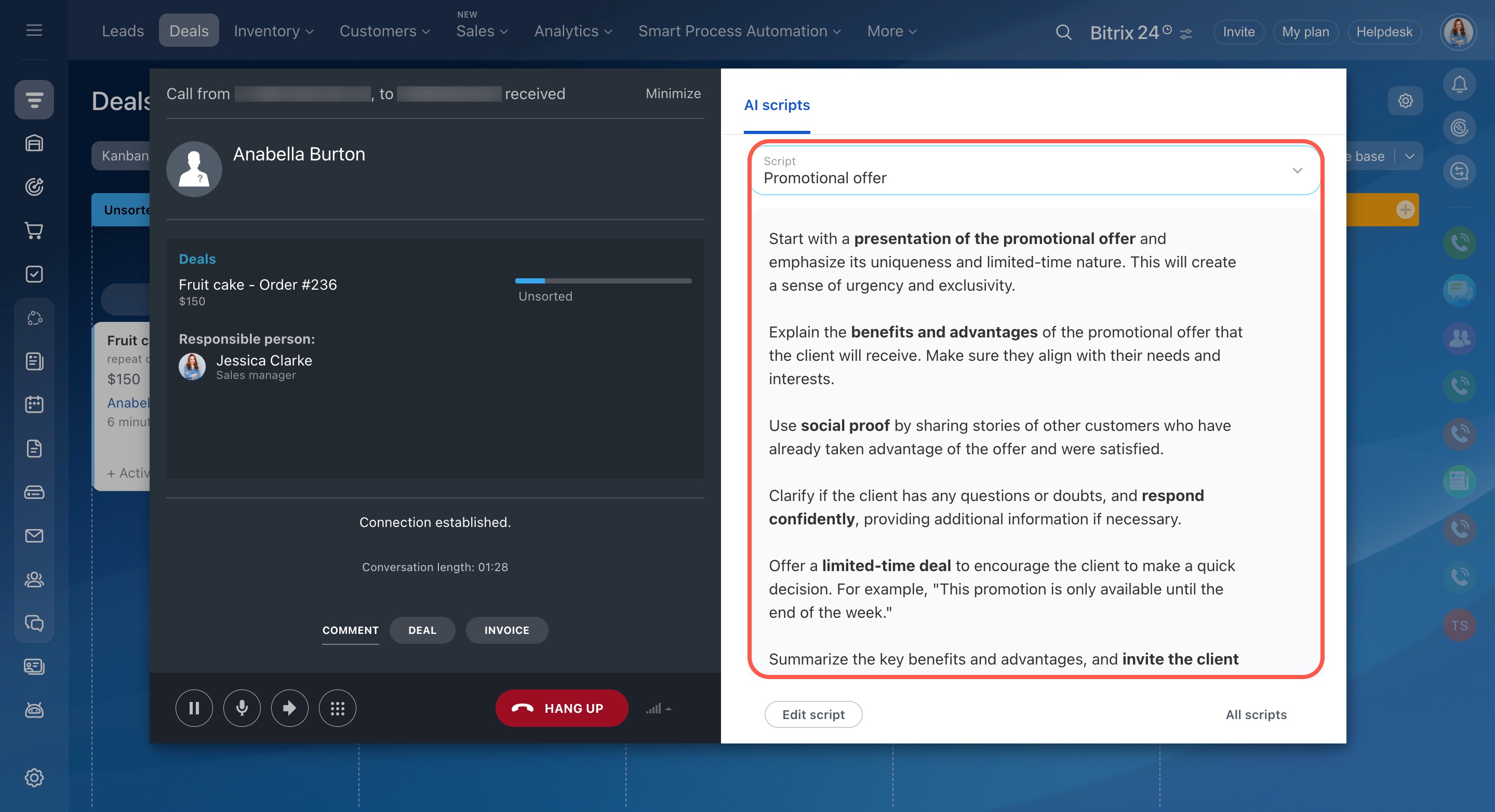
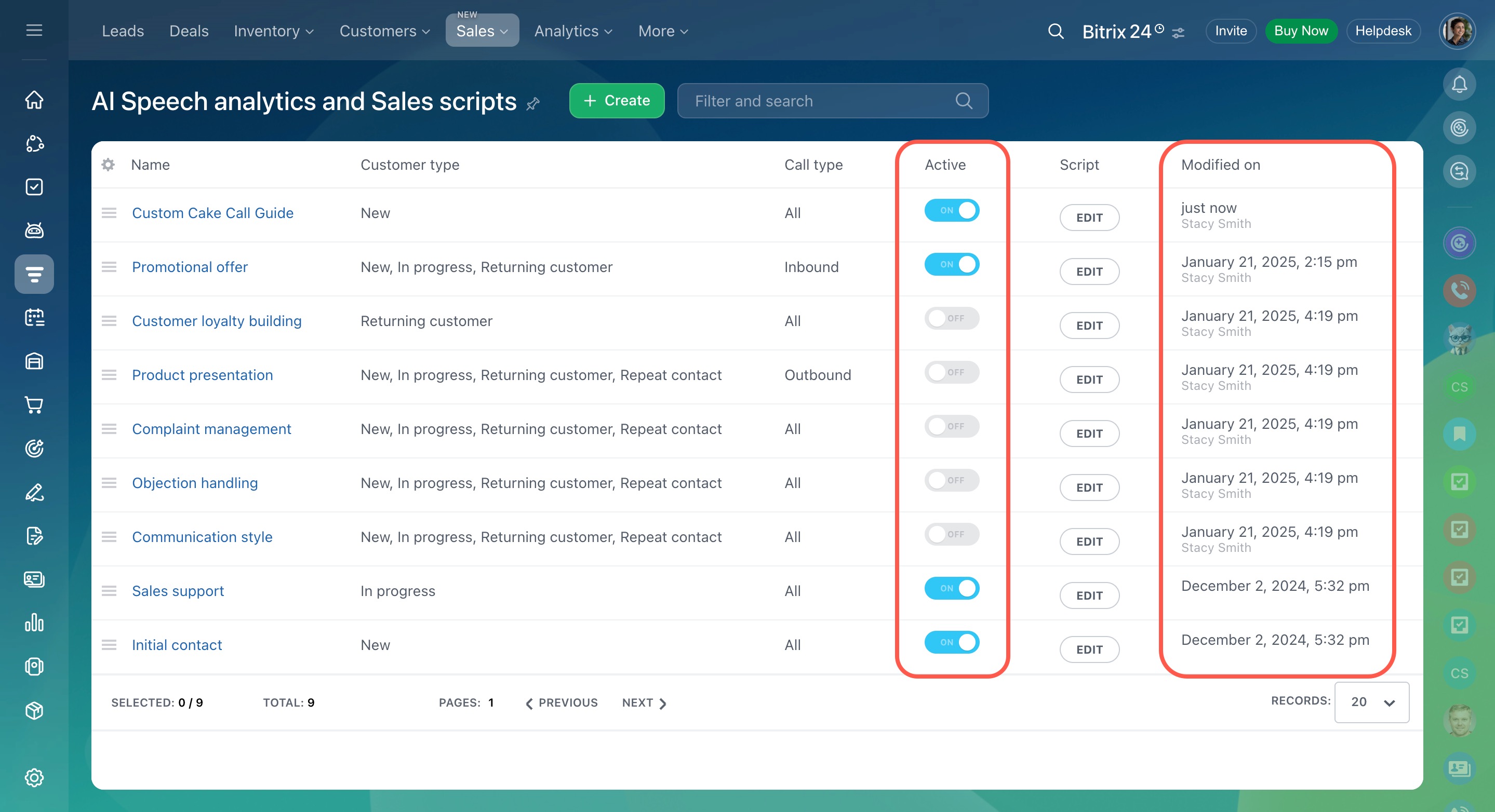
If there are multiple scripts for a specific customer category, the system will automatically choose the one that was last modified or created. The script's activity status is shown in the Status column, and the date of the last change is displayed under Modified on.
Run call analysis using CoPilot
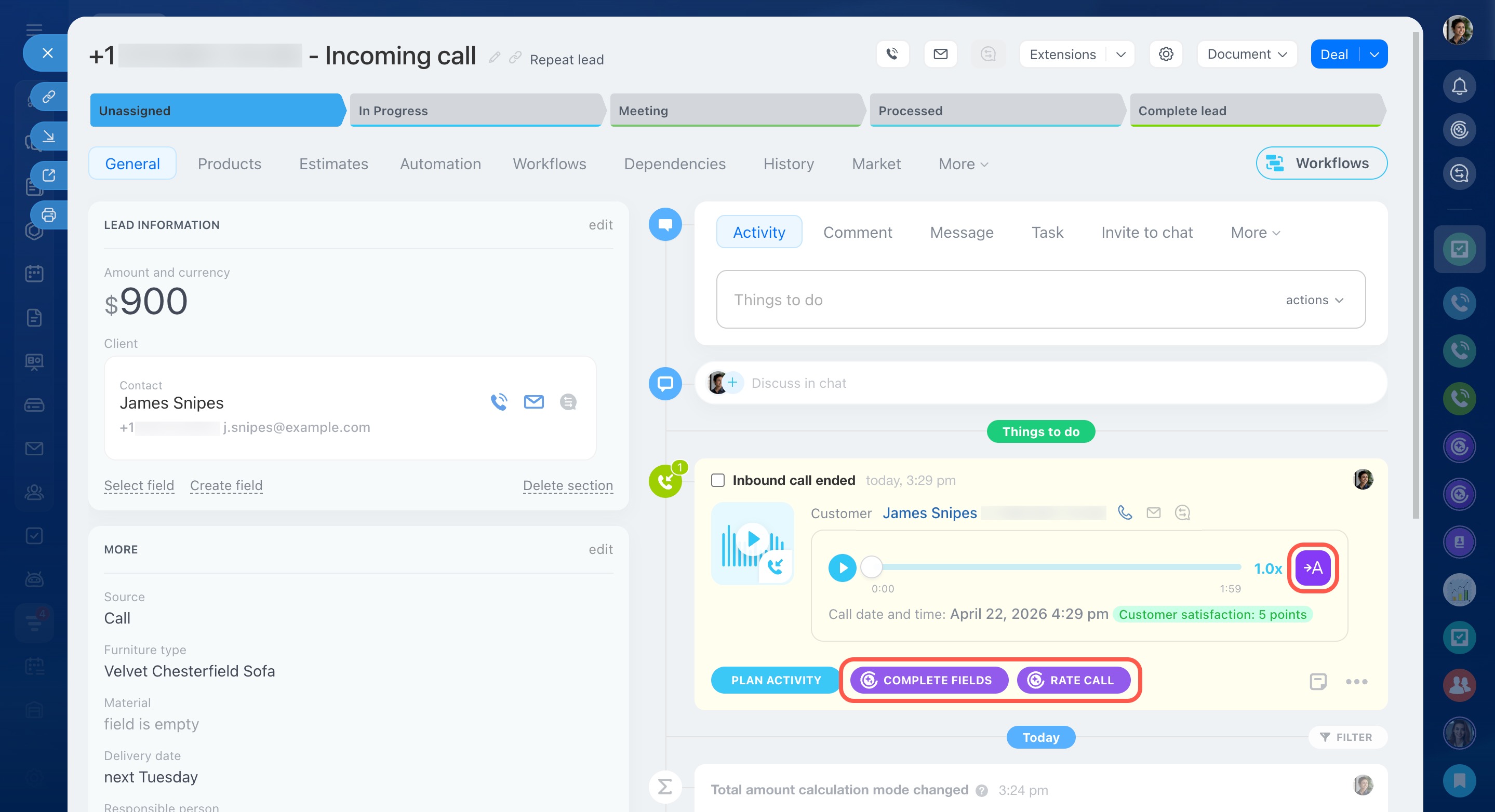
Open the CRM item form and find the call in the timeline. In the Call section, you can start analysis in three ways:
- Complete fields — CoPilot fills the form fields with data from the call.
- Rate call — CoPilot checks the conversation against the script.
- Icon
 — starts transcription of the call recording
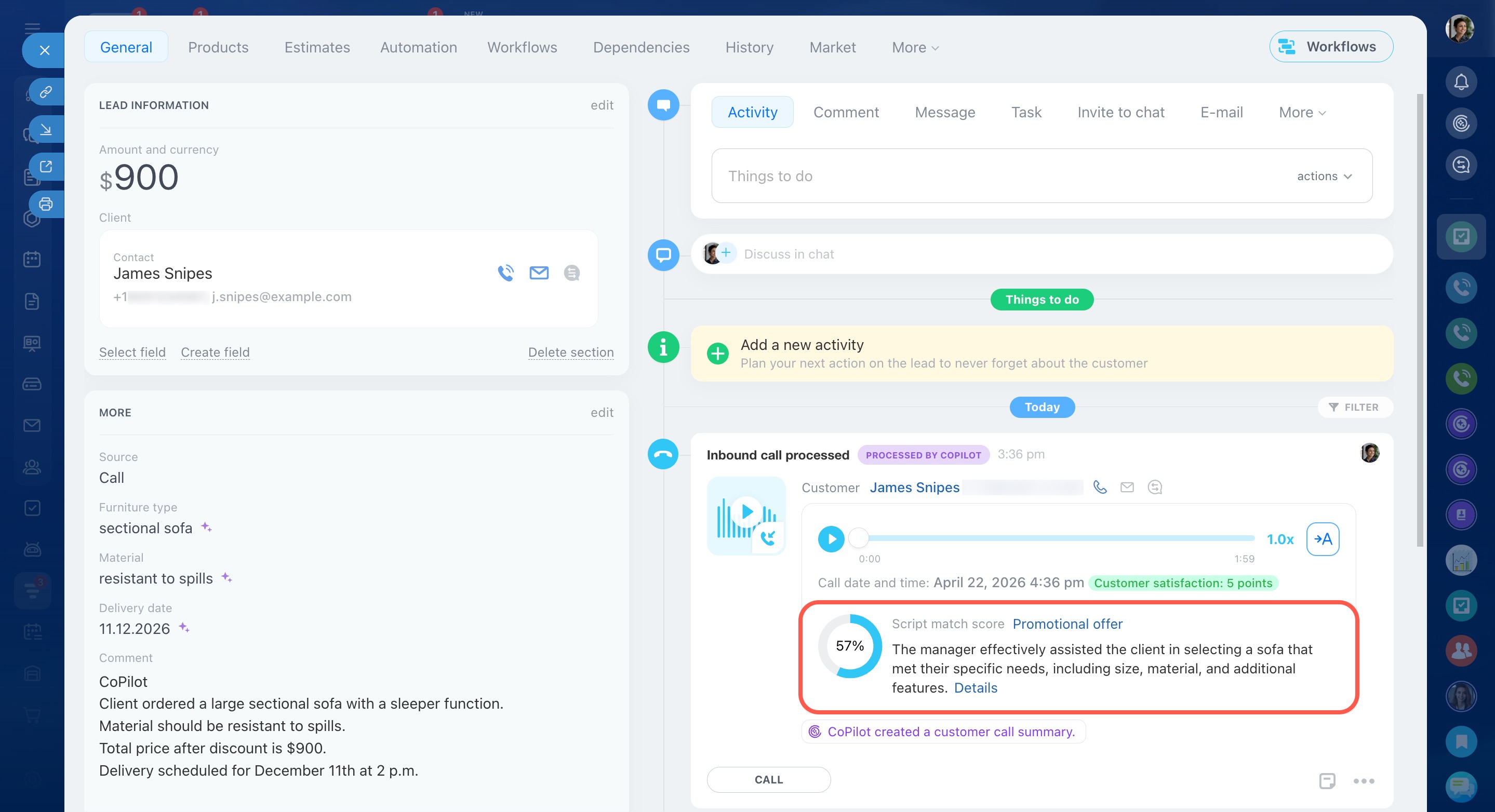
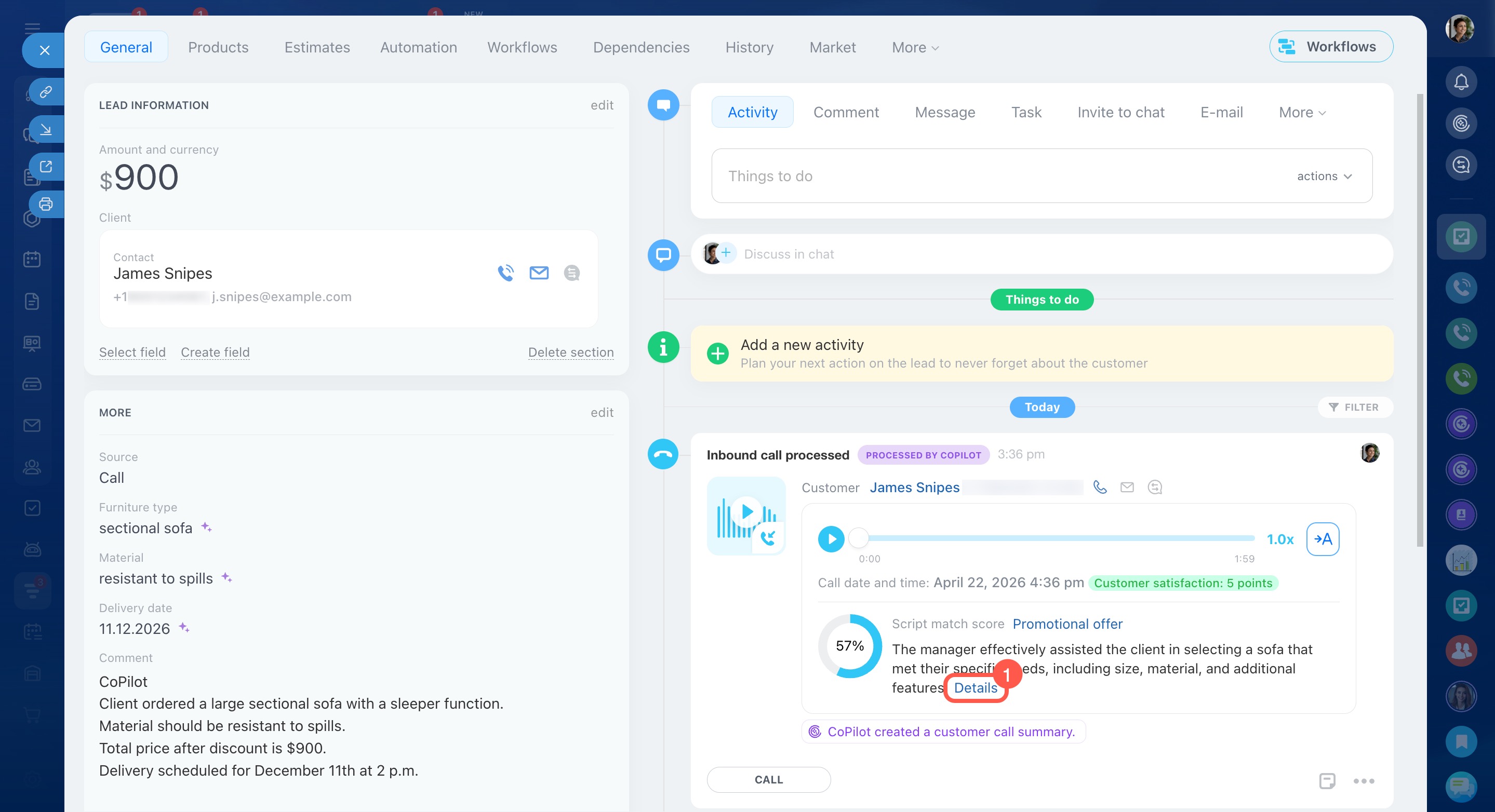
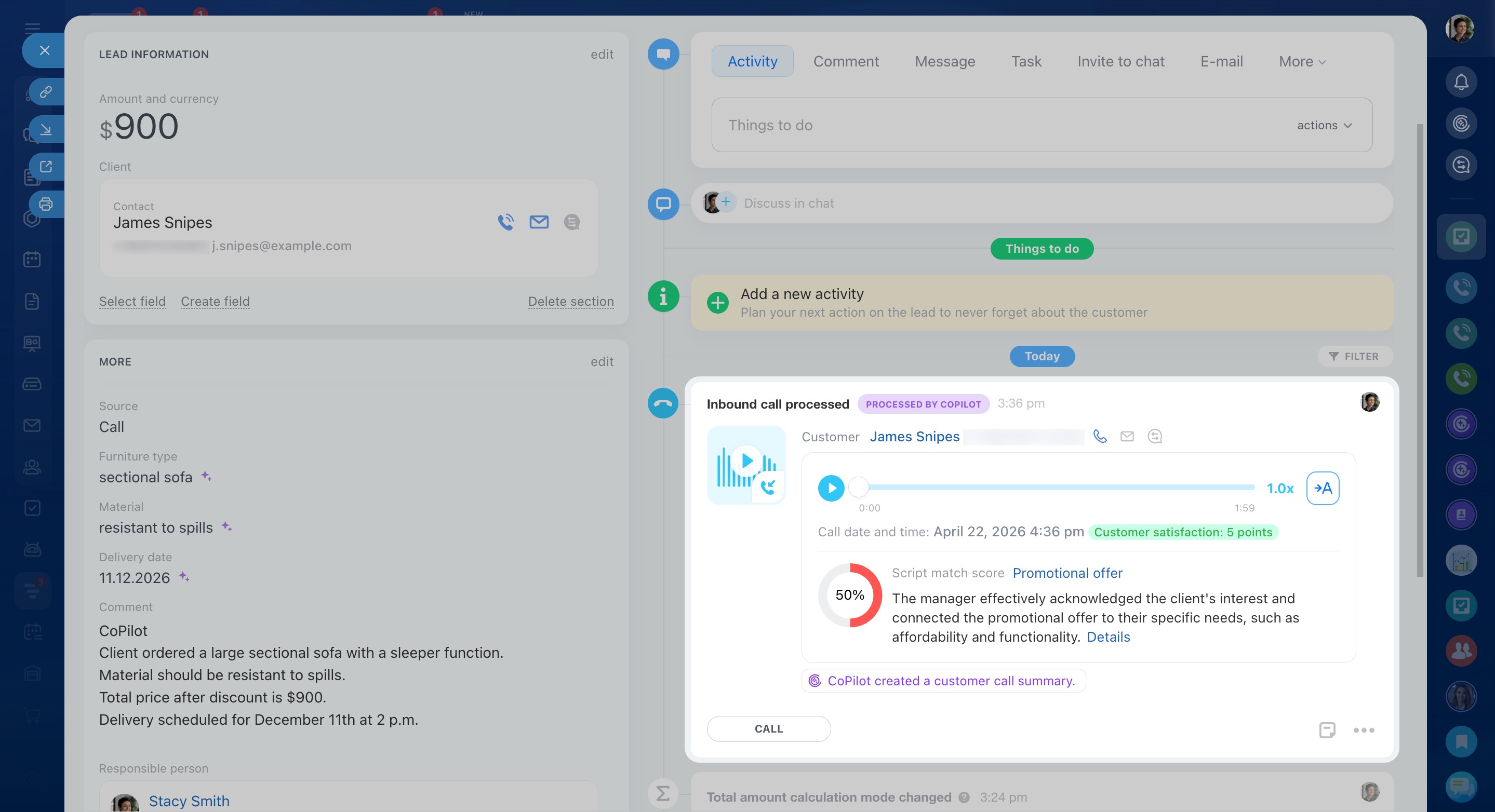
After CoPilot analyzes a call, an activity labeled Processed by CoPilot appears in the timeline. You can use it to view the score, see the selected script, and open the detailed call analysis.
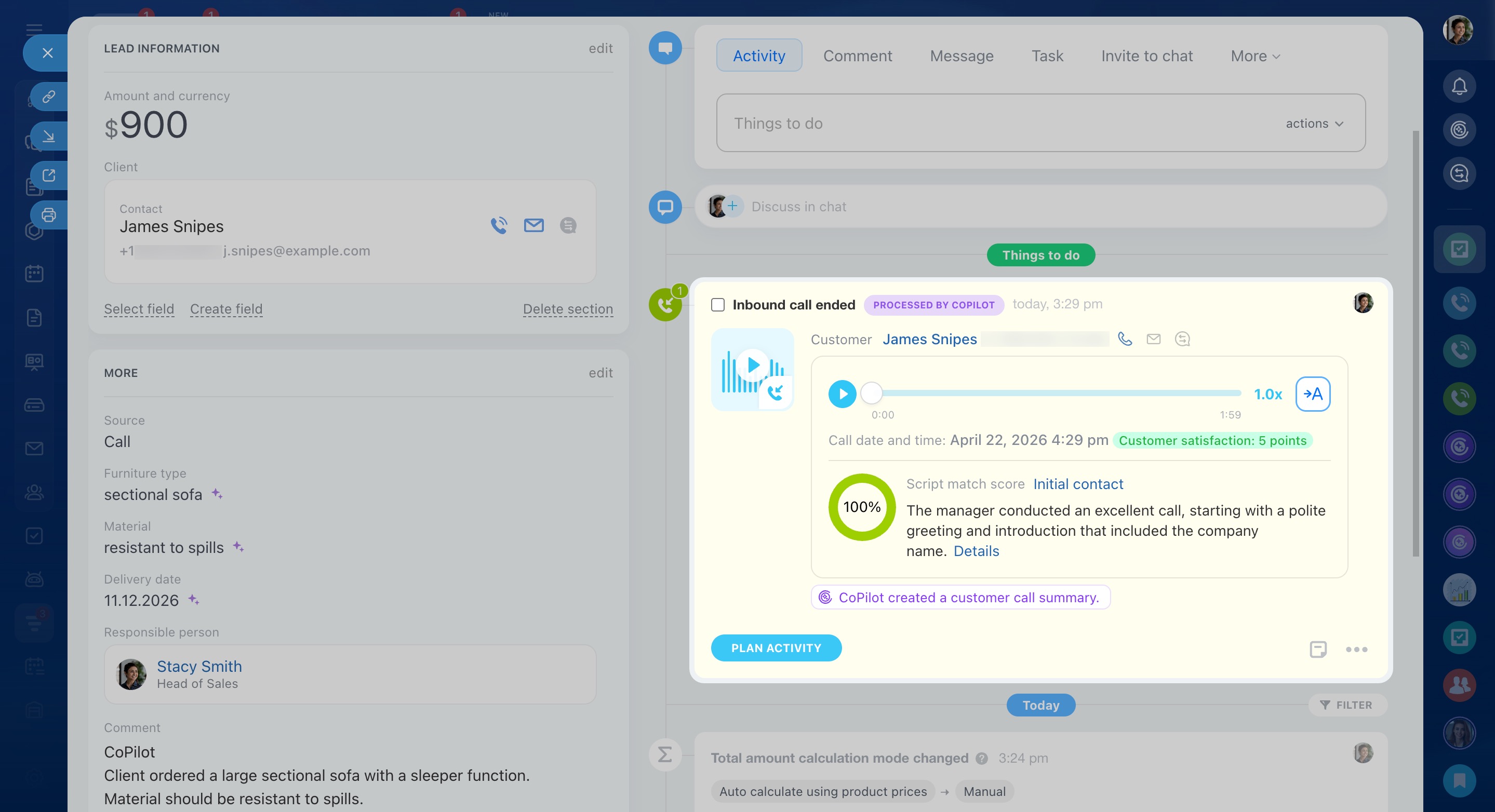
View call analysis
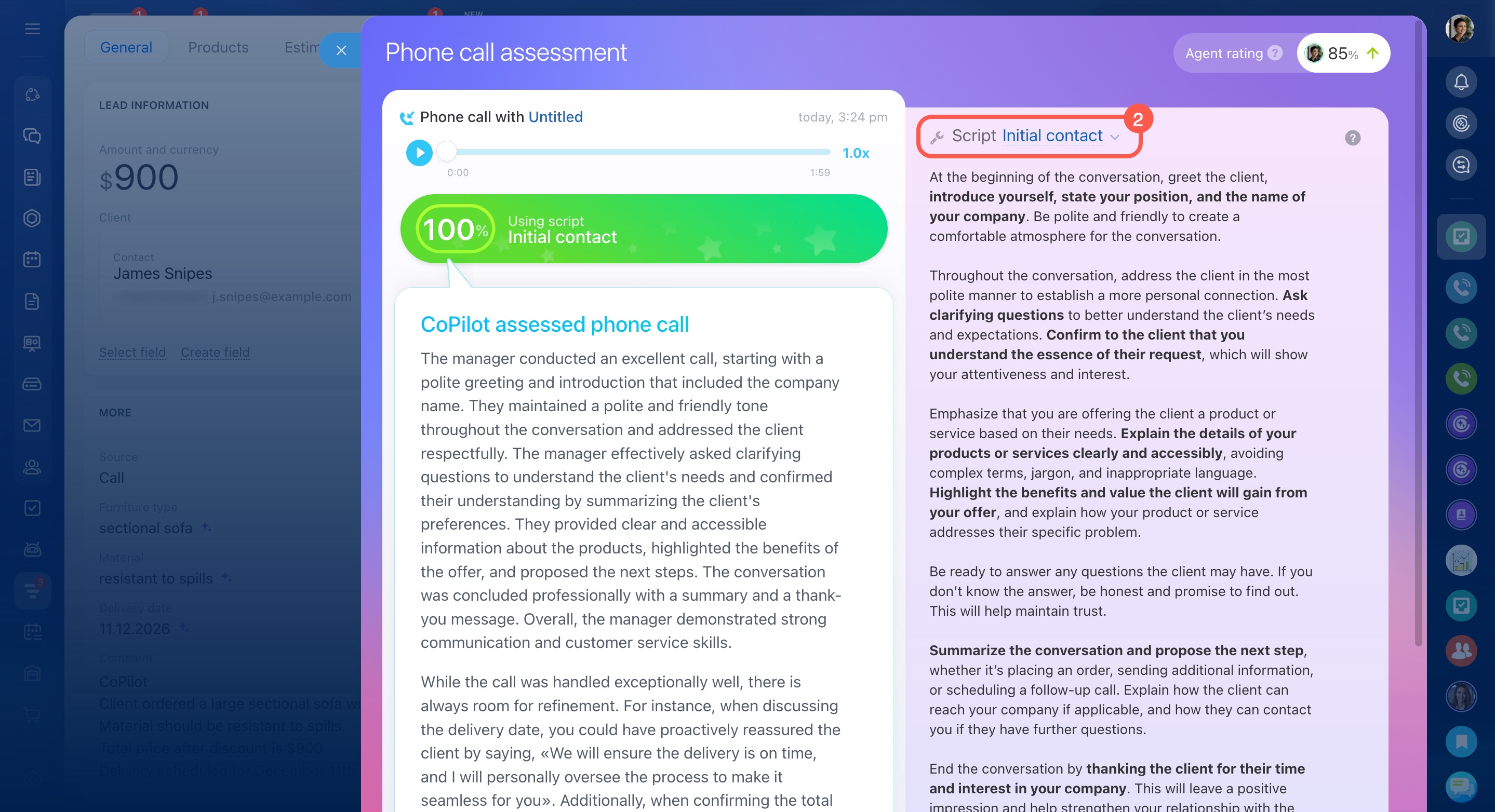
In the call activity, click Details.
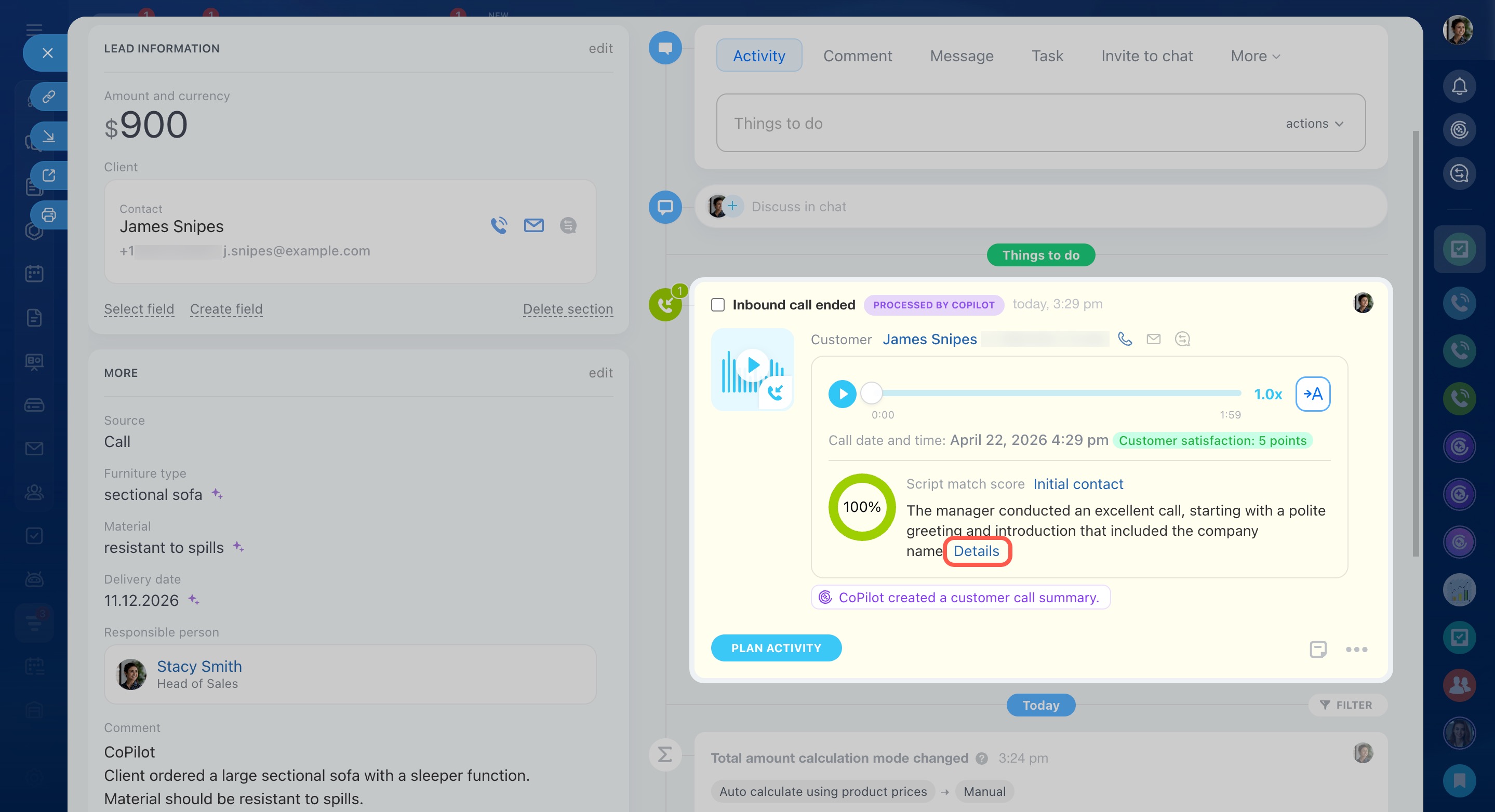
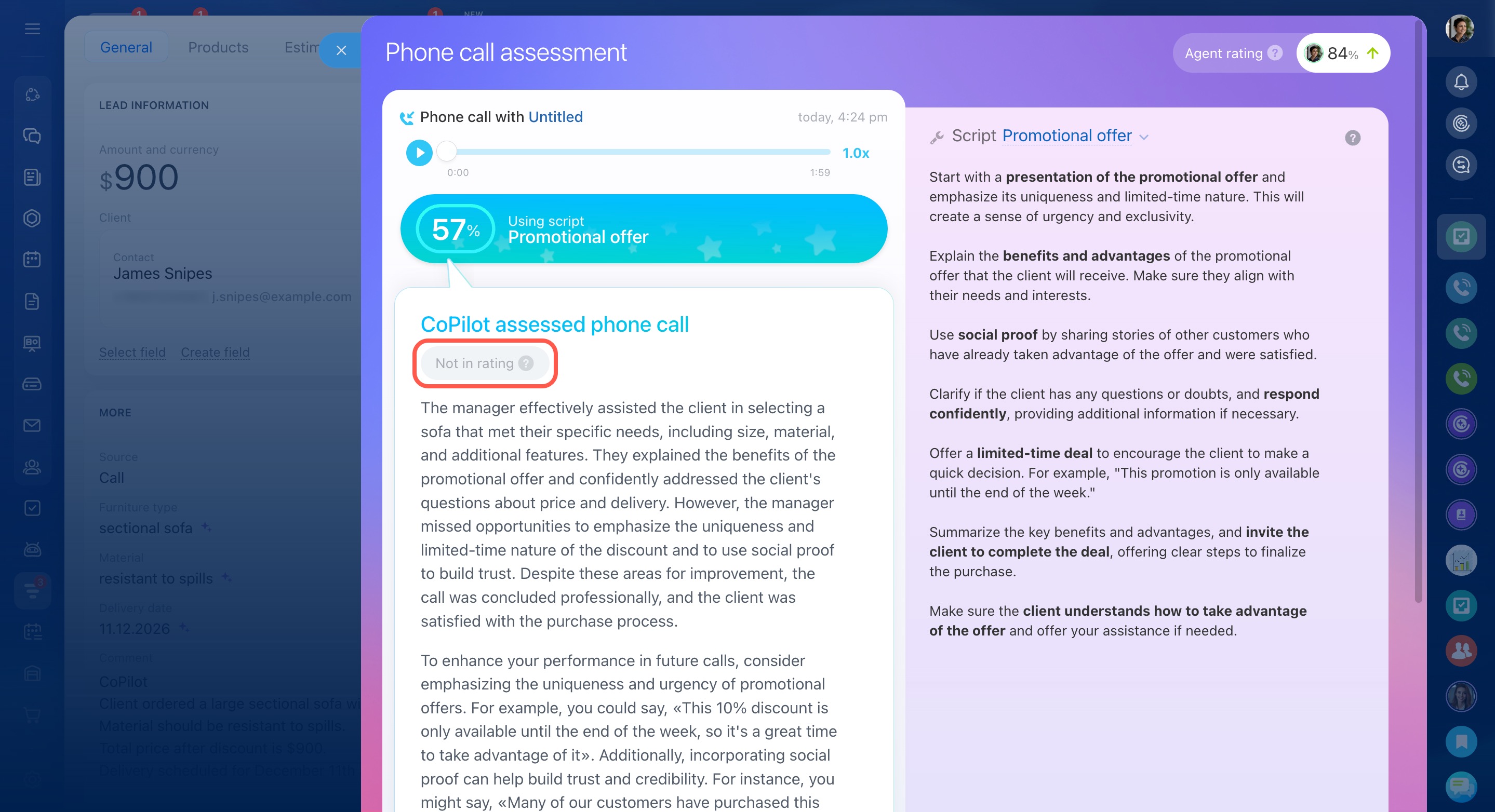
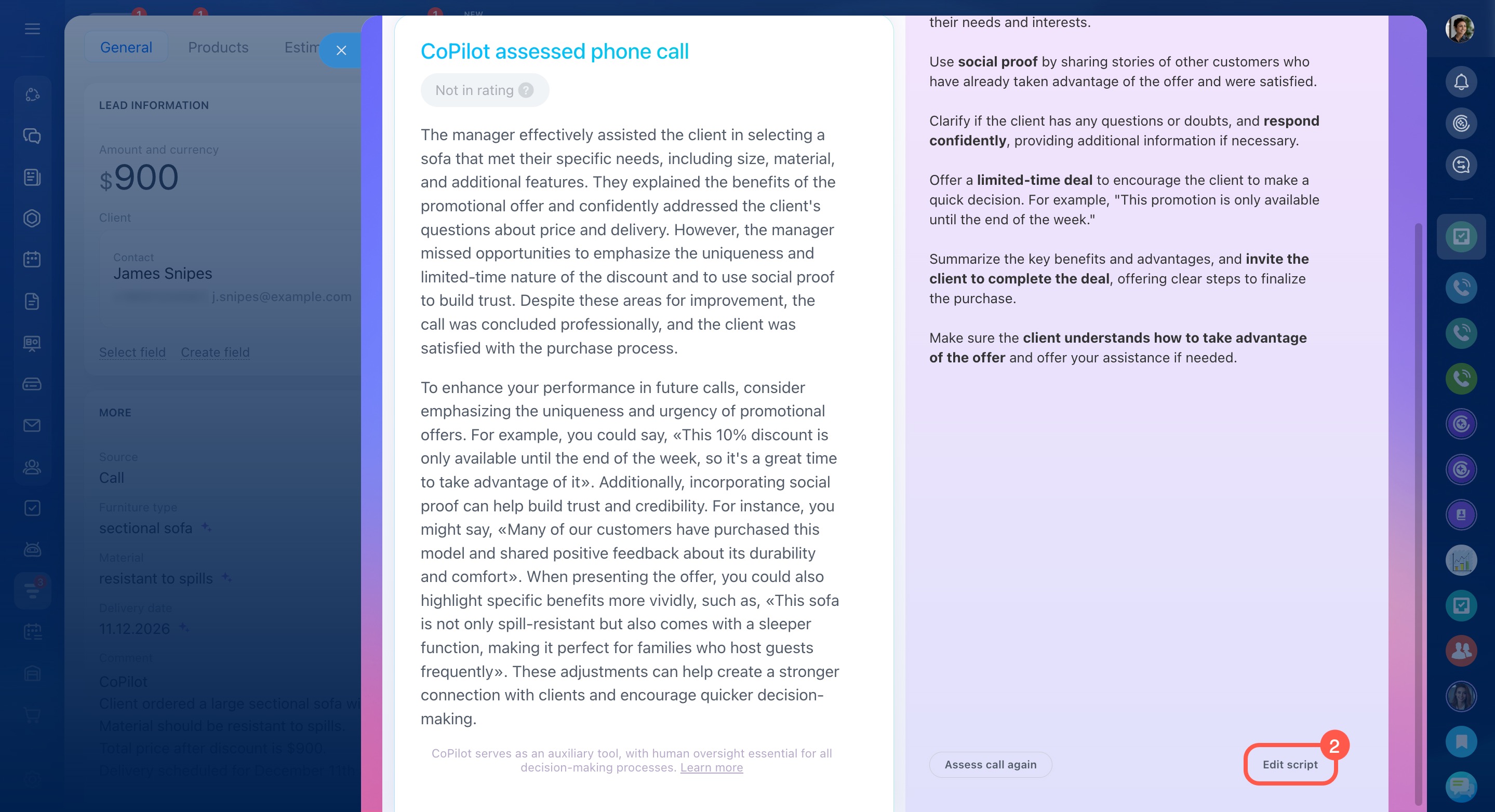
Call recording. You can listen to the call recording to understand CoPilot recommendations better.
Script match score. CoPilot checks how well the call follows the script.
CoPilot recommendations. CoPilot highlights parts of the call that match the script and points out any mistakes. For example, the agent might use the client's name but forget to introduce themselves. CoPilot gives tips on how to avoid these mistakes in future calls.
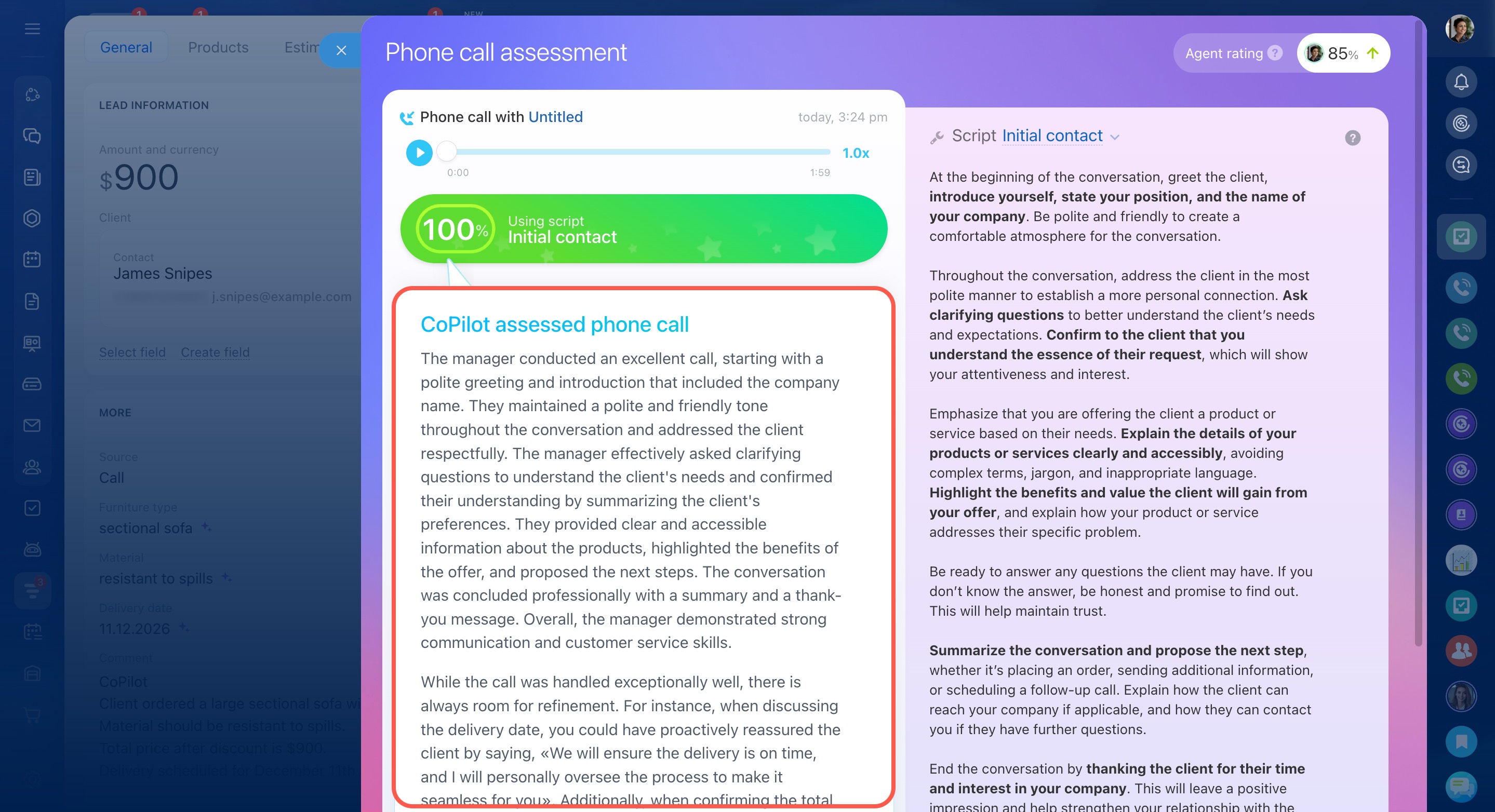
Sales script. CoPilot reviews the call using the chosen script. You can assess the same call with different scripts. To do this, select another script in the call analysis window and restart the assessment.
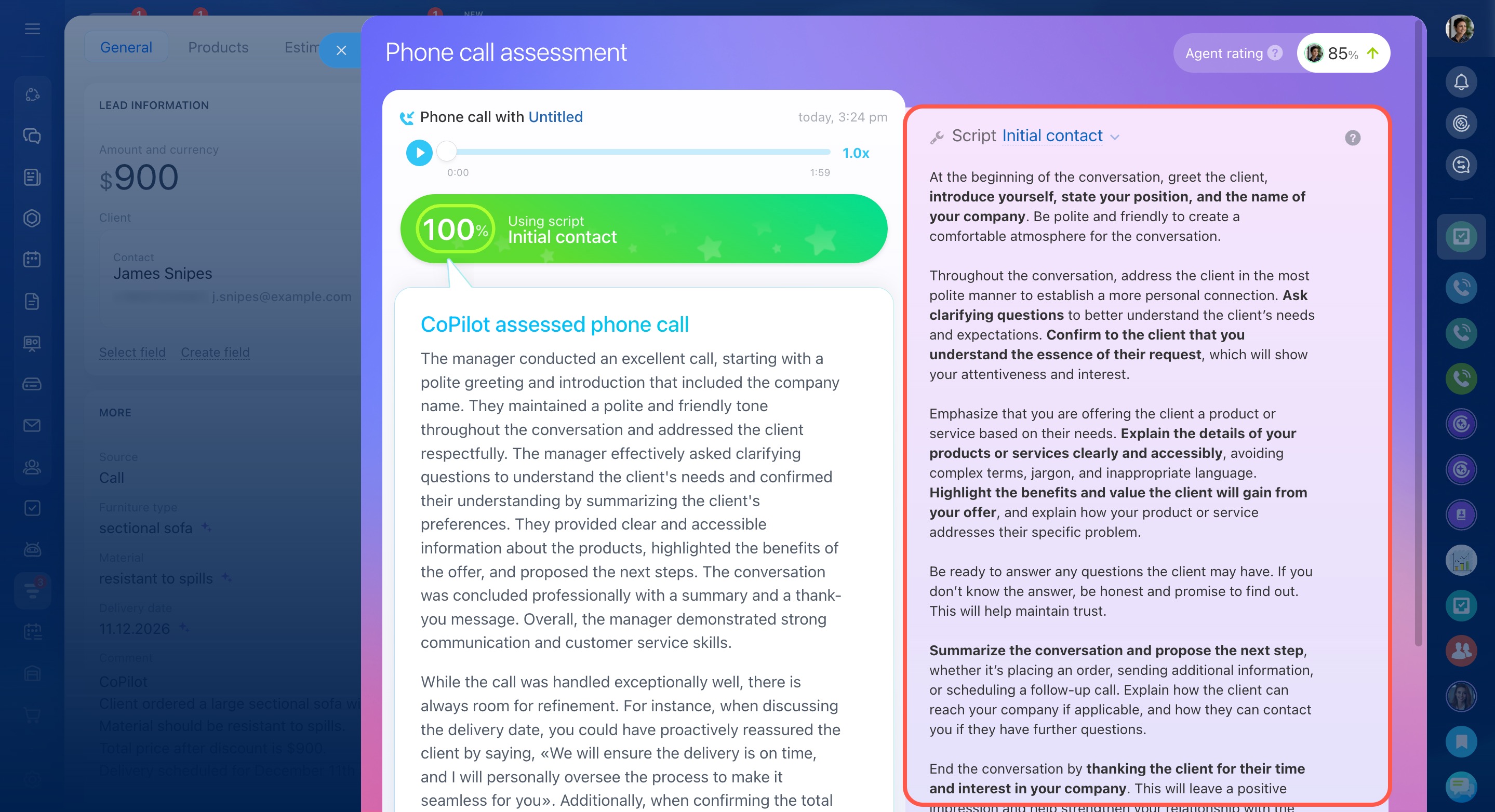
Agent rating. This is the average score of an agent's calls for all scripts. An arrow shows how the rating is changing. If CoPilot checks a call with different scripts, only the latest score counts.
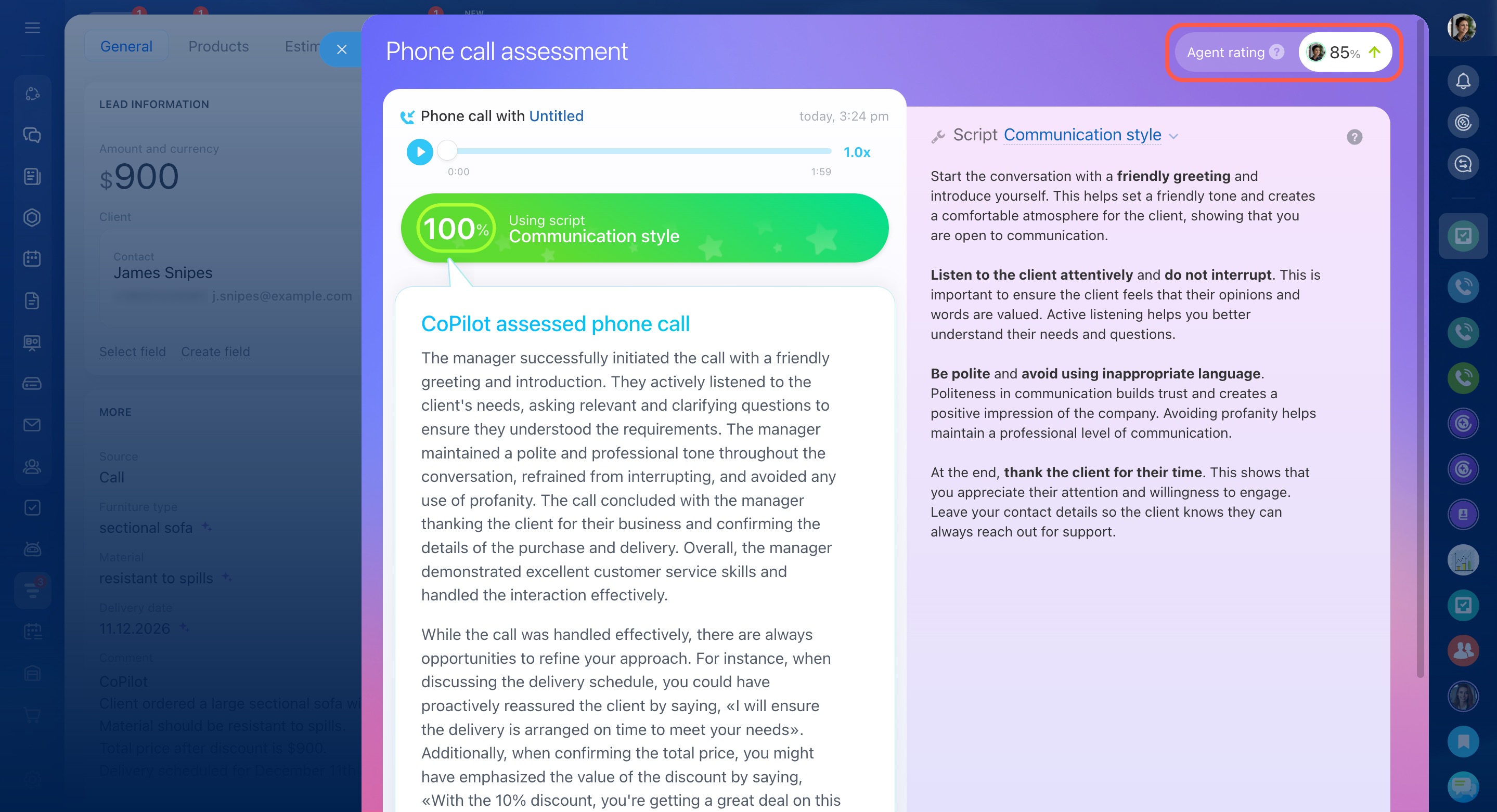
Recent calls affect the agent rating more than older ones. If an agent follows CoPilot recommendations and avoids mistakes, their rating improves.
Adjust a call assessment
An agent may receive a low score even if the call was handled correctly. This usually happens when the conversation goes beyond the standard script. For example, a customer may interrupt, raise objections, or ask about topics not covered in the script. In these cases, the manager may need to go off script, and CoPilot may lower the score.
You can’t delete a call assessment, but you can run it again.
Update the script and reassess the call
Use this option if the script needs changes. For example, you may want to add a missing step or remove something unnecessary.
- In the call activity, click Details.
- Click Edit script.
- Make your changes.
- Click Save.
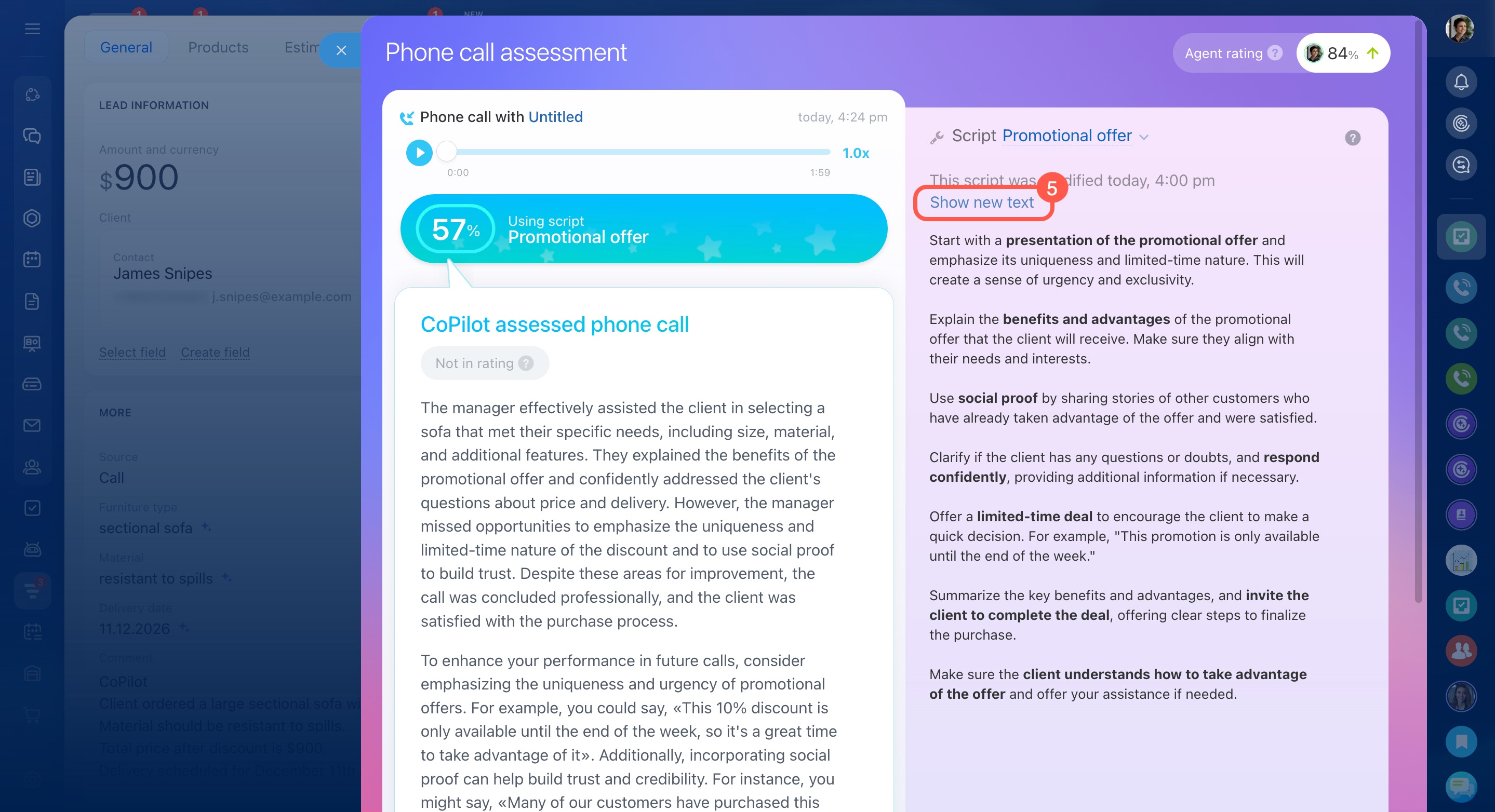
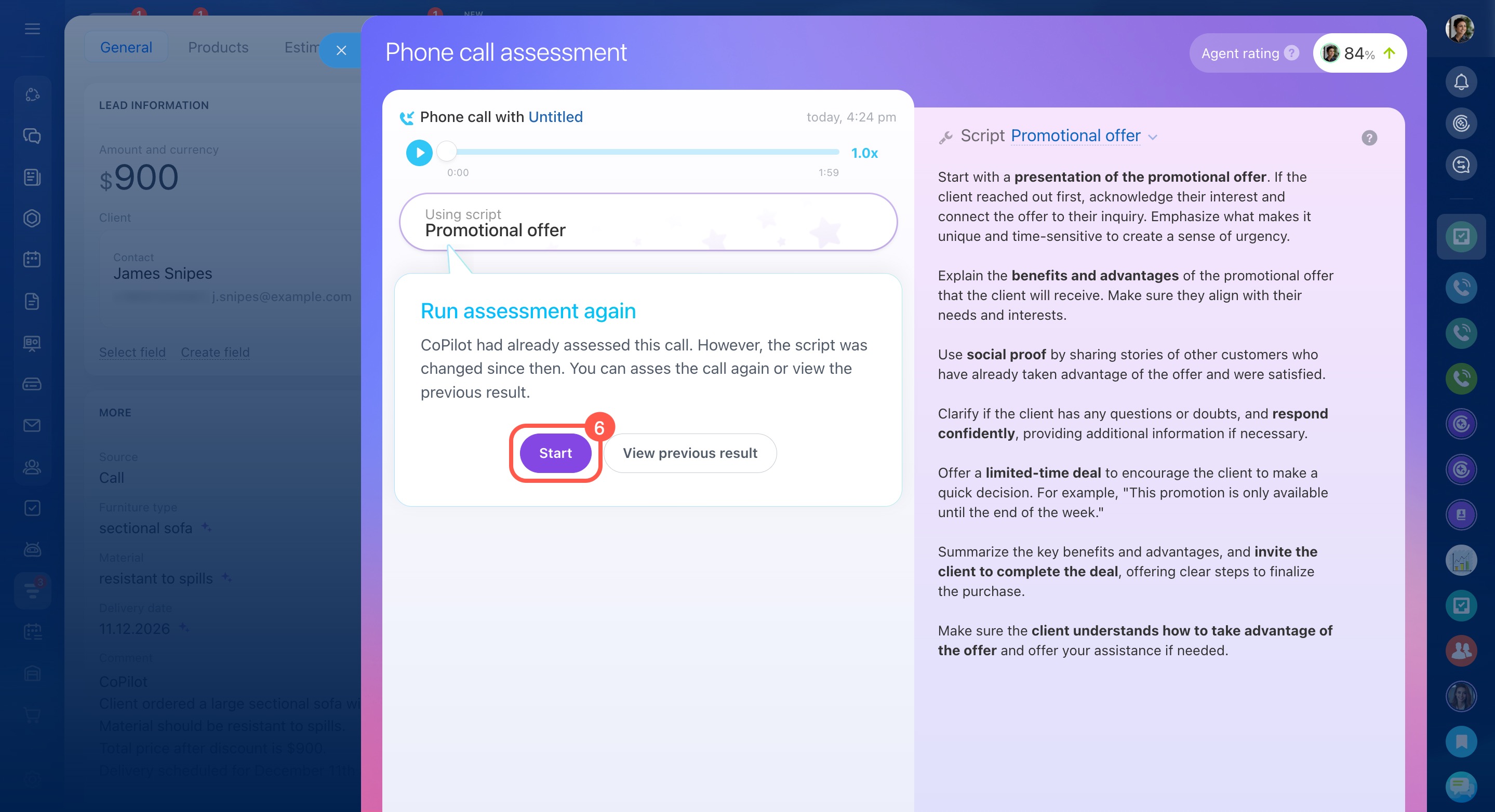
- Open Call analysis.
- Click Show new text.
- Click Start.
CoPilot will analyze the call again and recalculate the score.
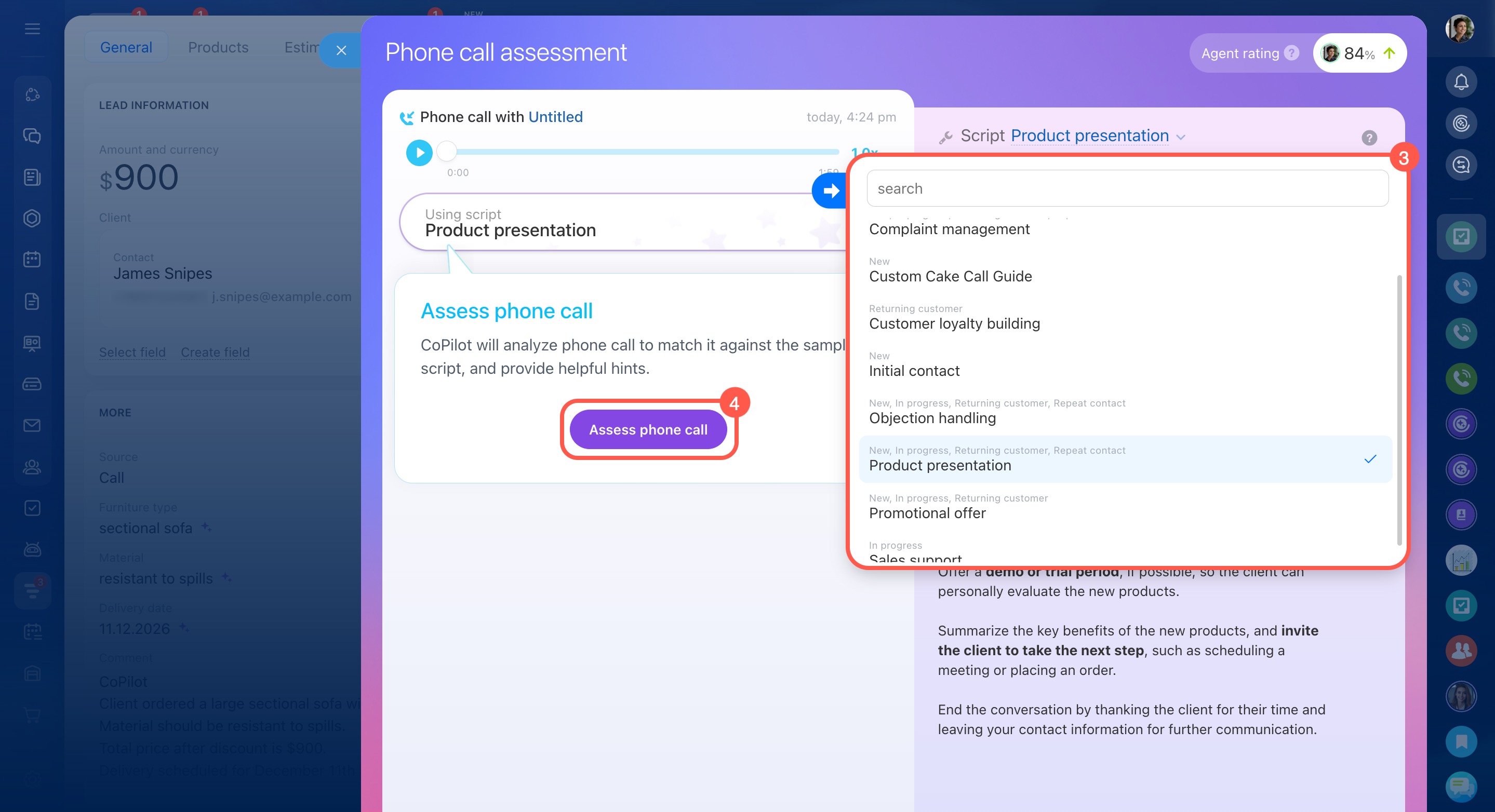
Use a different script for the call assessment
If the default script doesn’t match the situation, choose a different one.
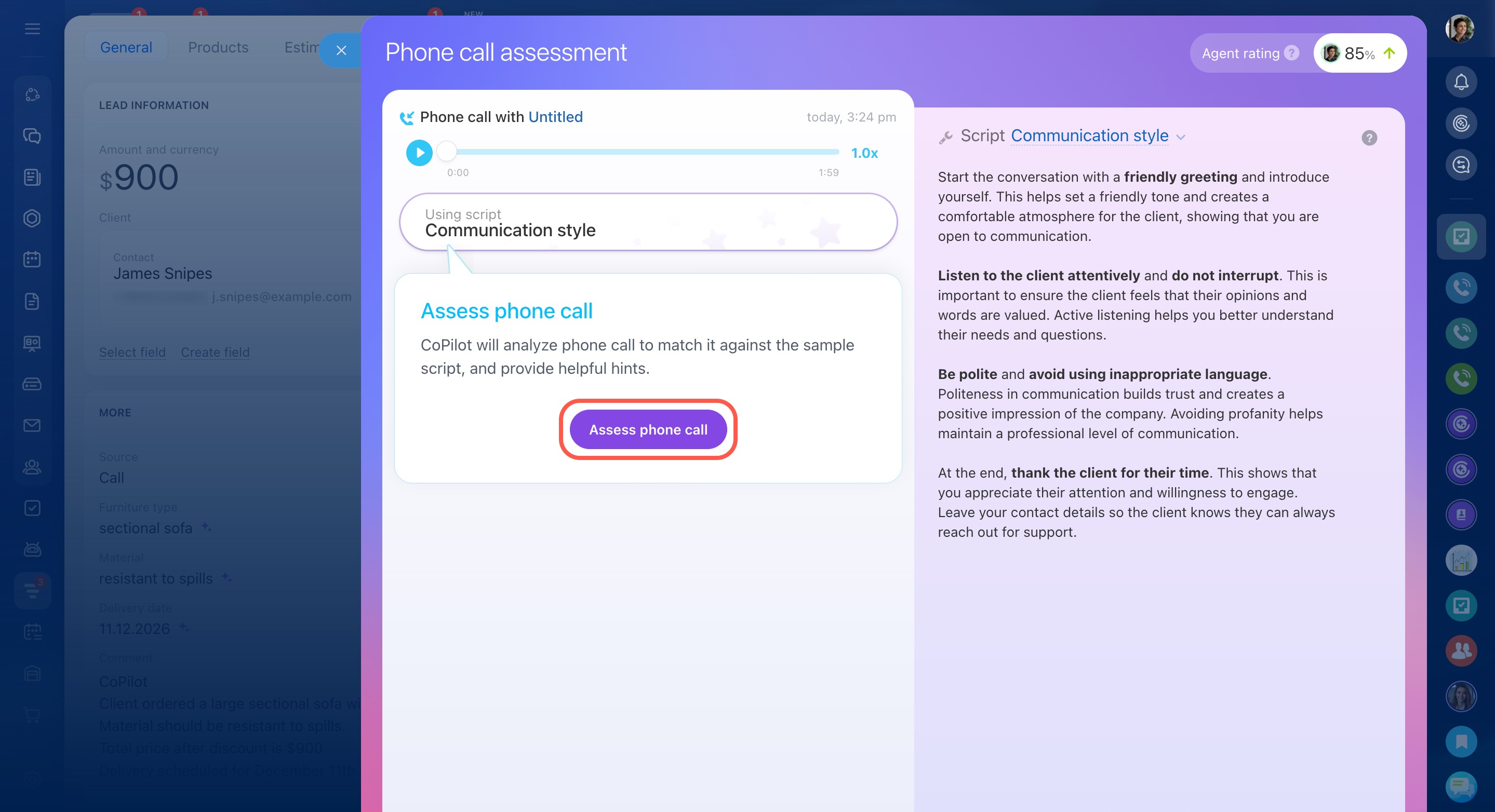
For example, if the customer is upset and the conversation shifts away from a sales script, use the Communication style script. This script evaluates general communication skills, such as tone, clarity, and professionalism.
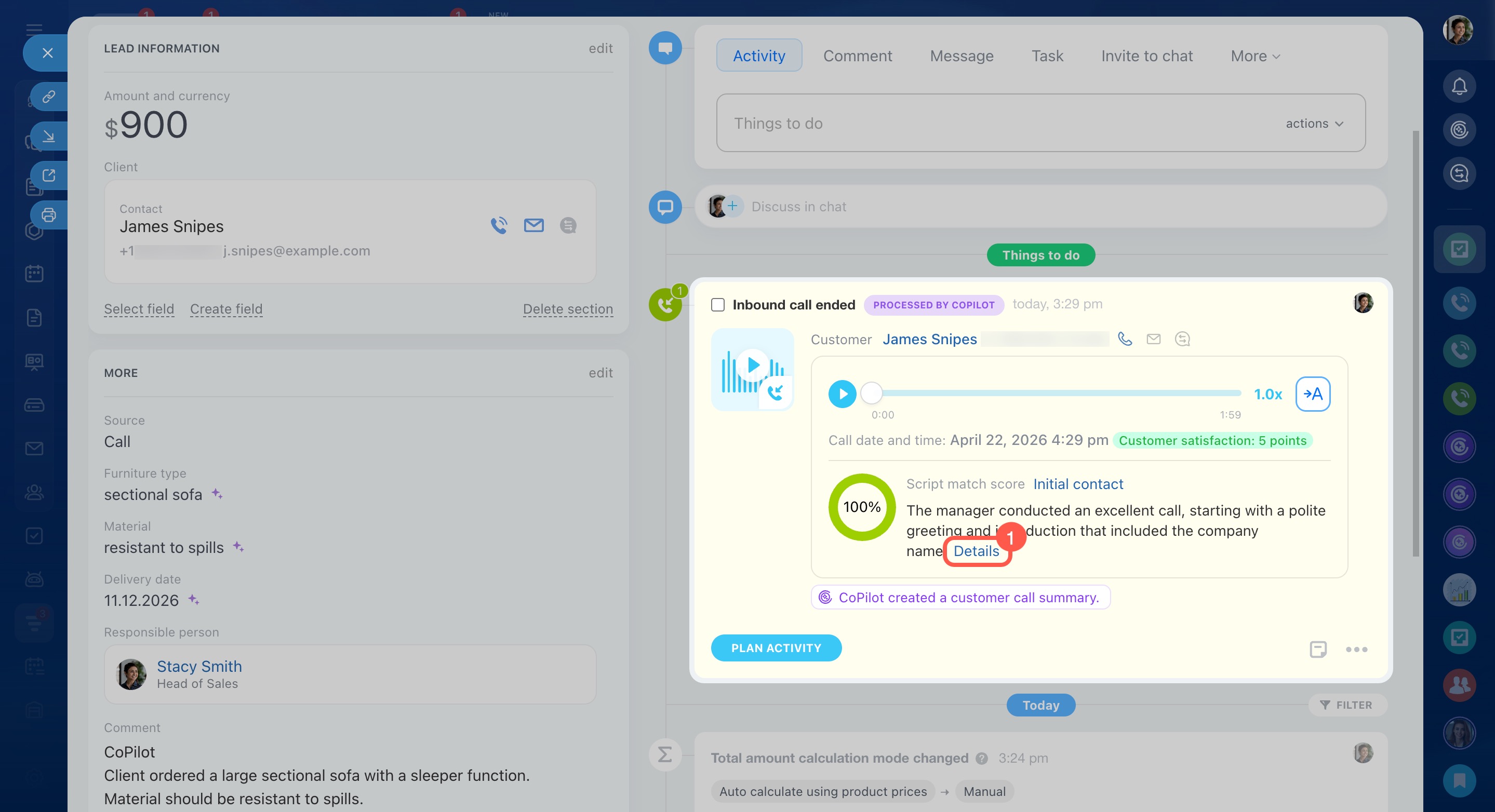
- In the call activity, click Details.
- Click the current script name.
- Select a different script.
- Click Assess phone call.
After the new analysis is complete, only the latest result counts toward the agent's overall score.
Configure access permissions for AI Speech analytics and Sales scripts
Access permissions for sales scripts and AI-powered speech analytics can be configured by a Bitrix24 administrator or an employee with the editing permission in CRM.
Role-based access permissions in CRM
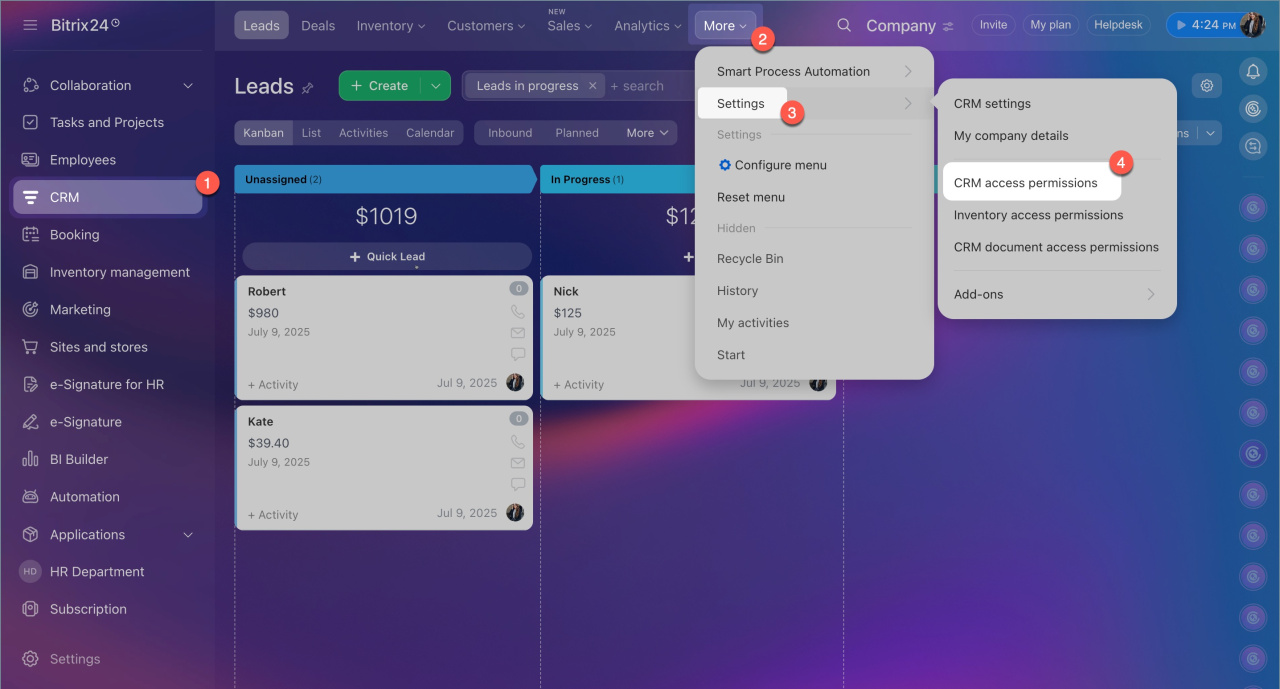
1. Go to CRM > More > Settings (⚙️) > CRM access permissions.
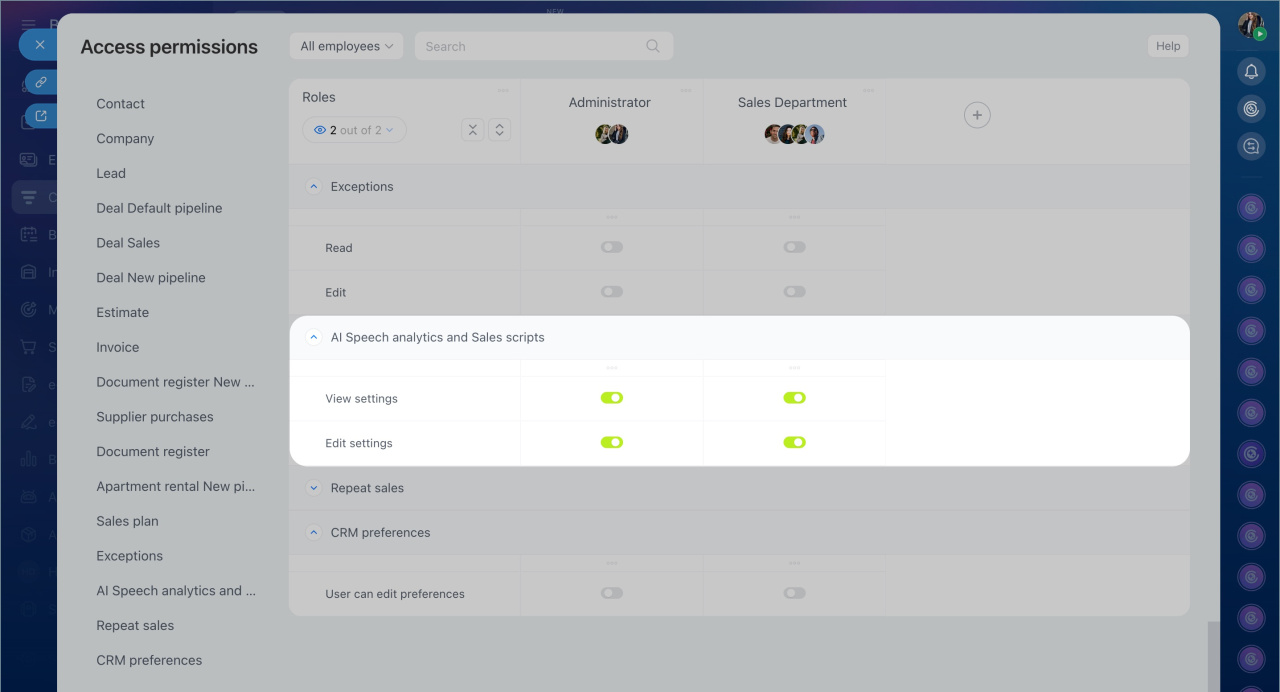
2. In the list of items, find AI Speech analytics and Sales scripts.
3. Configure permissions for the required roles:
- Allow viewing settings — employees can view the list of scripts and their settings but cannot edit them.
- Allow editing settings — employees can create, edit, and delete sales scripts.
4. To assign permissions to specific employees, click Plus (+) under the role name and add employees, groups, or departments.
5. Save the changes.
In brief
-
Bitrix24 now offers new CoPilot features in CRM: AI Speech analytics and Sales scripts. With CoPilot, you can analyze your agents' customer calls, compare them to scripts, and get improvement tips.
-
CRM has ready-made sales scripts for various situations. You can use these scripts or create your own to quickly train your agents and improve service quality.
-
You can start the call analysis using CoPilot manually in the CRM item form.
-
Once CoPilot analyzes the call, a new activity will appear in the timeline. It shows the call score, selected script, responsible person, and a detailed call analysis.
-
For each agent, you can see the rating based on call scores for all scripts.
- Access permissions for AI Speech analytics and Sales scripts can be configured by a Bitrix24 administrator or an employee with the Allow editing settings permission in CRM.