
CoPilot is an AI-powered assistant built into CRM. It helps your team handle calls faster and reduces manual work.
Without CoPilot, you typically need to:
- Listen to the full call recording.
- Identify key details (for example, payment method or delivery address).
- Manually enter data into the deal.
With CoPilot, you can:
- Read a full call transcript instead of listening to the recording.
- Review a short call summary.
- Automatically fill in CRM fields based on the call.
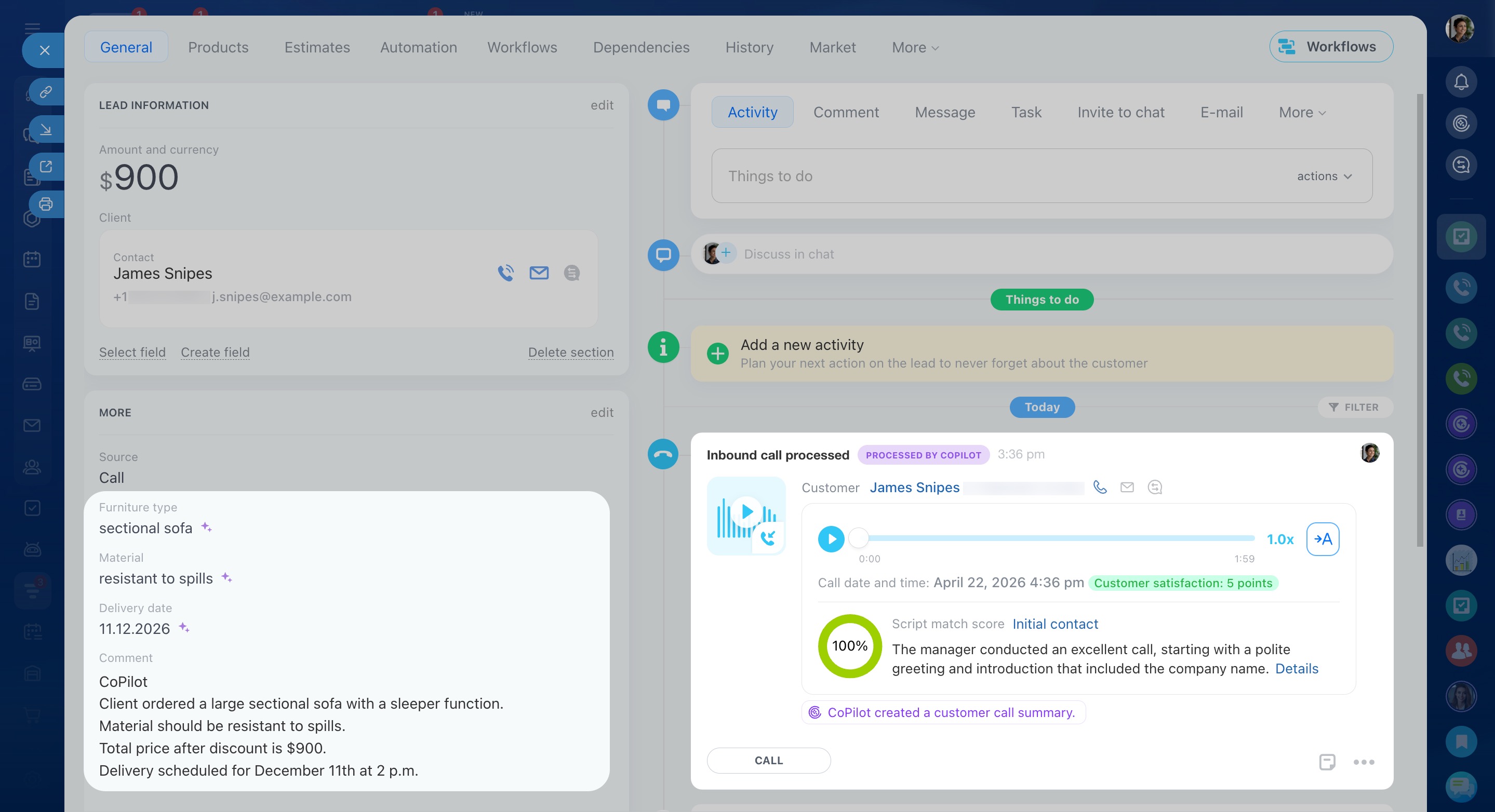 The call activity appears in the timeline on the right. Fields completed by CoPilot appear on the left.
Call processing with CoPilot
CoPilot processes calls in three steps:
Open the CRM item form and find the call in the timeline. In the Call section, you can start analysis in three ways:
- Complete fields — CoPilot fills the form fields with data from the call.
- Rate call — CoPilot checks the conversation against the script.
- Icon
 — starts transcription of the call recording
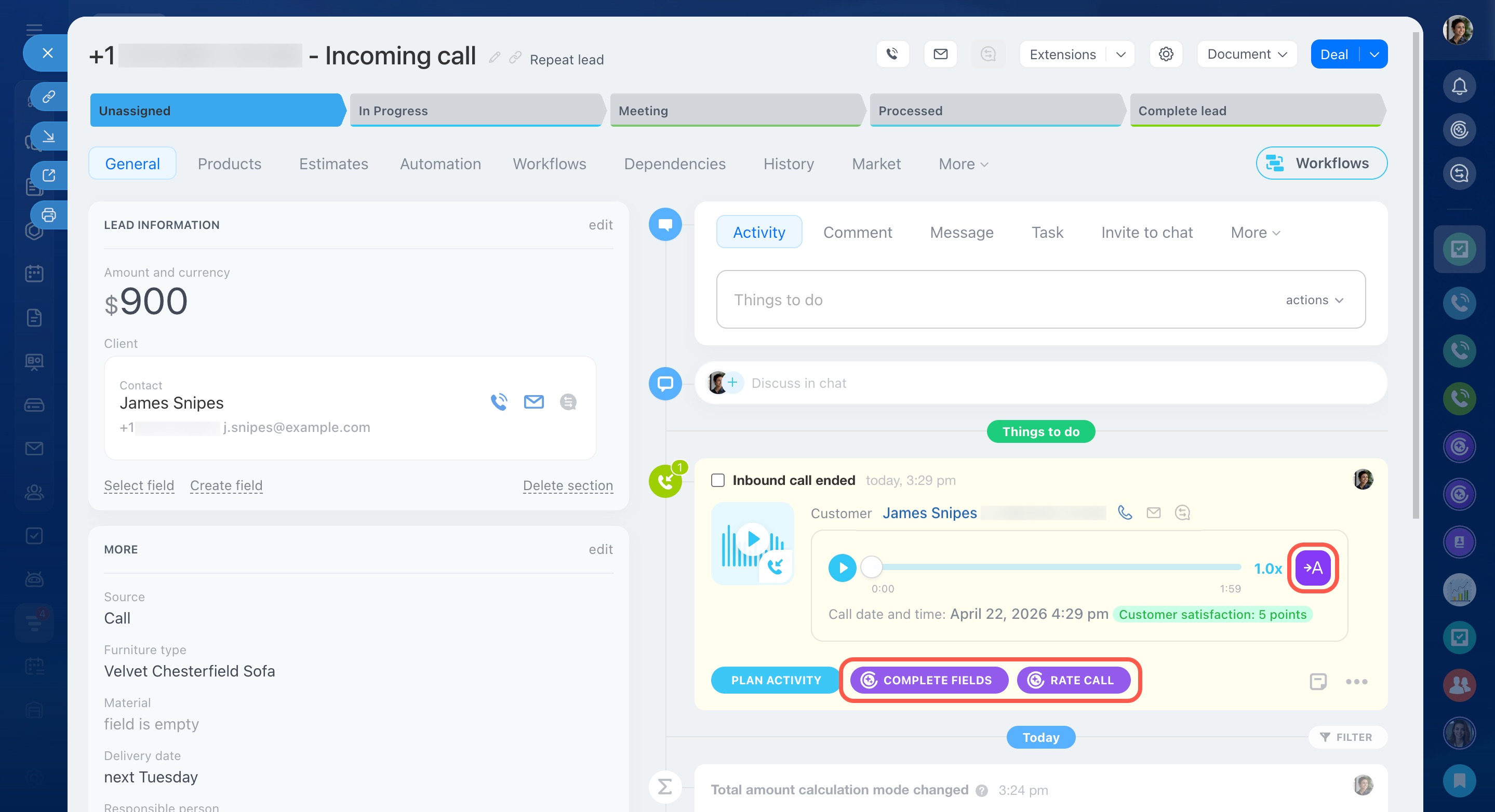
Call transcription
CoPilot records the call and converts speech to text. Open the transcript to review the full conversation. Use search to quickly find key details.
This is helpful for managers who need to review calls and confirm that employees ask the right questions.
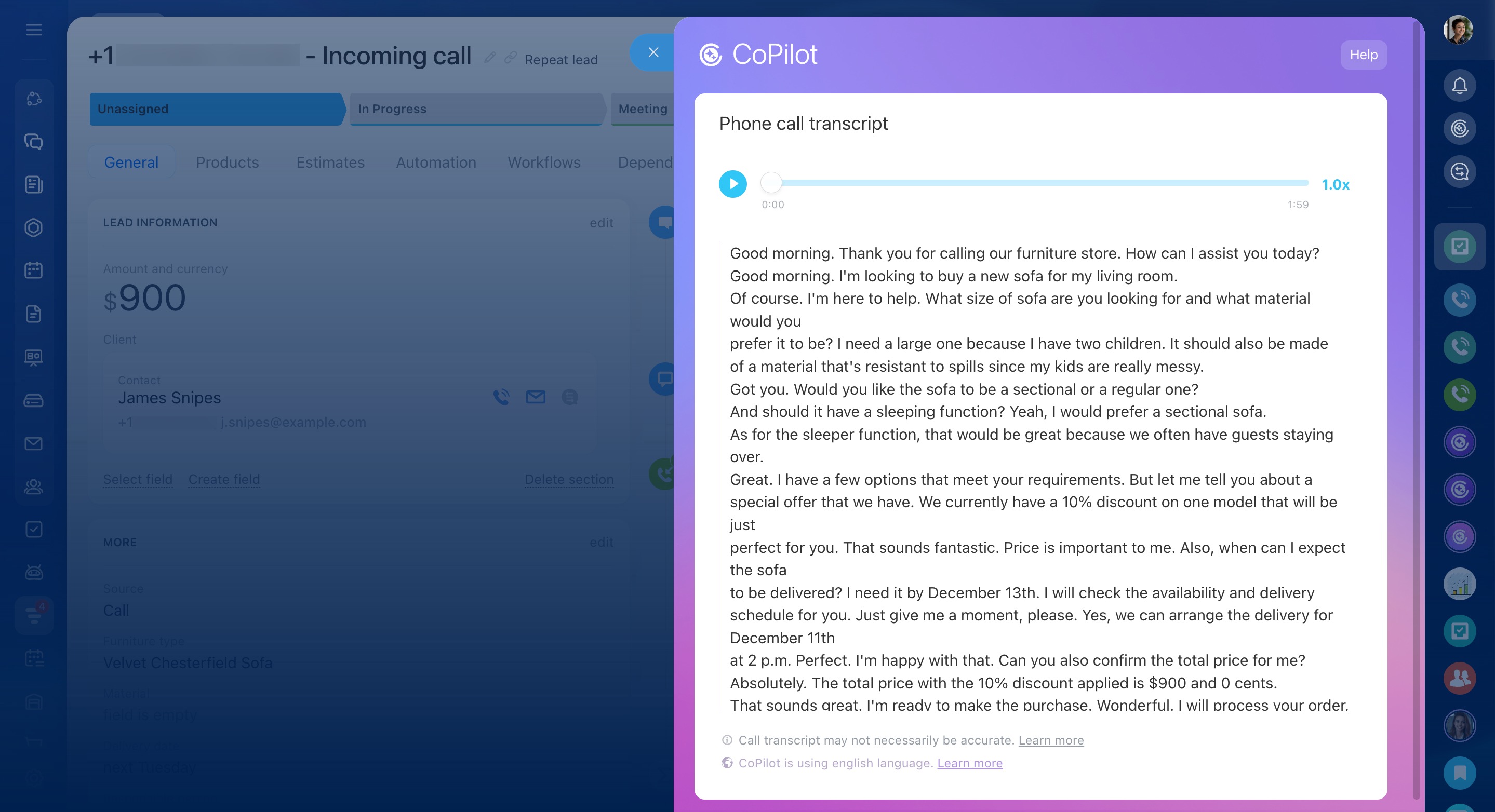
Call summary
CoPilot creates a short summary with the main points. You don’t need to listen to the full call.
Review the summary to quickly recall what you discussed with the customer.
Select summary language for CoPilot in CRM
To open a call summary, click CoPilot created a customer call summary in the timeline on the right.
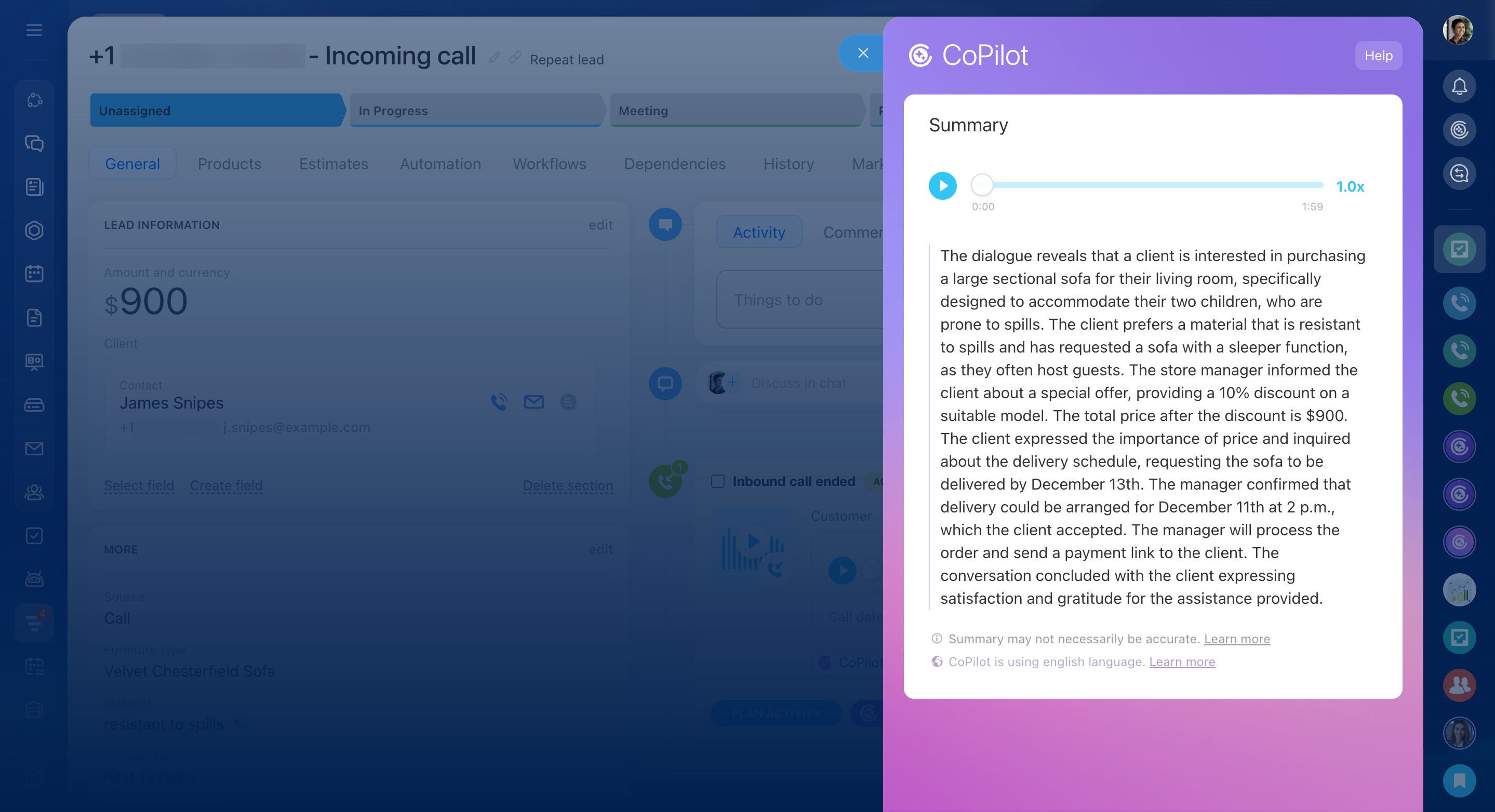
Automatic field updates
CoPilot fills in empty fields in the CRM form using data from the call. Updated fields are marked with the  icon.
icon.
In the deal form, completed fields appear on the left. The field status appears on the right.
If a field already has a value, CoPilot suggests a change instead of replacing it.
Example:
A customer calls to update the delivery date. CoPilot detects the change and suggests a new value. You’ll see the Action required status in the timeline. Click Confirm fields to review and confirm.
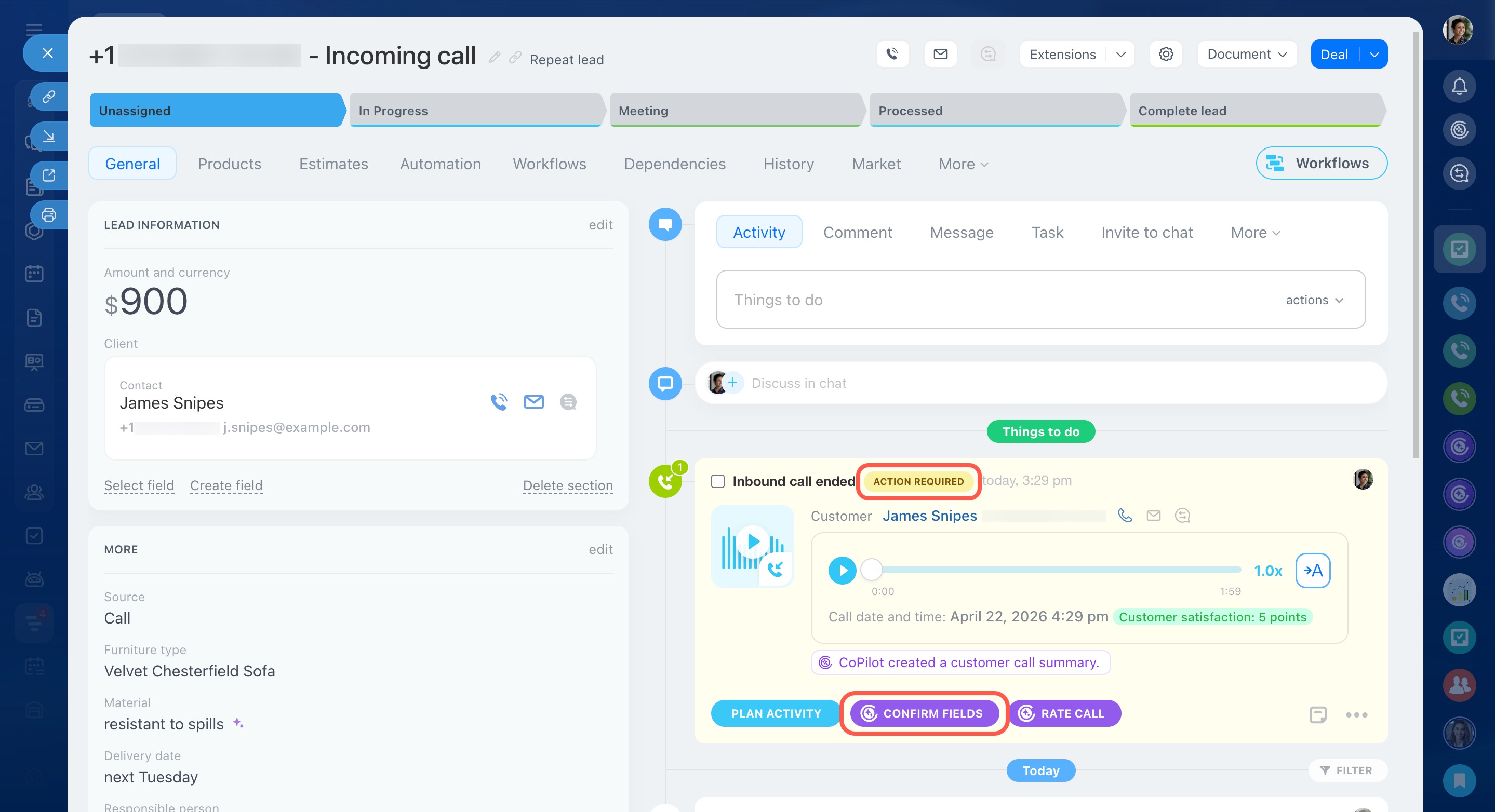
If you’re not sure which value to keep, check the transcript or summary before deciding.
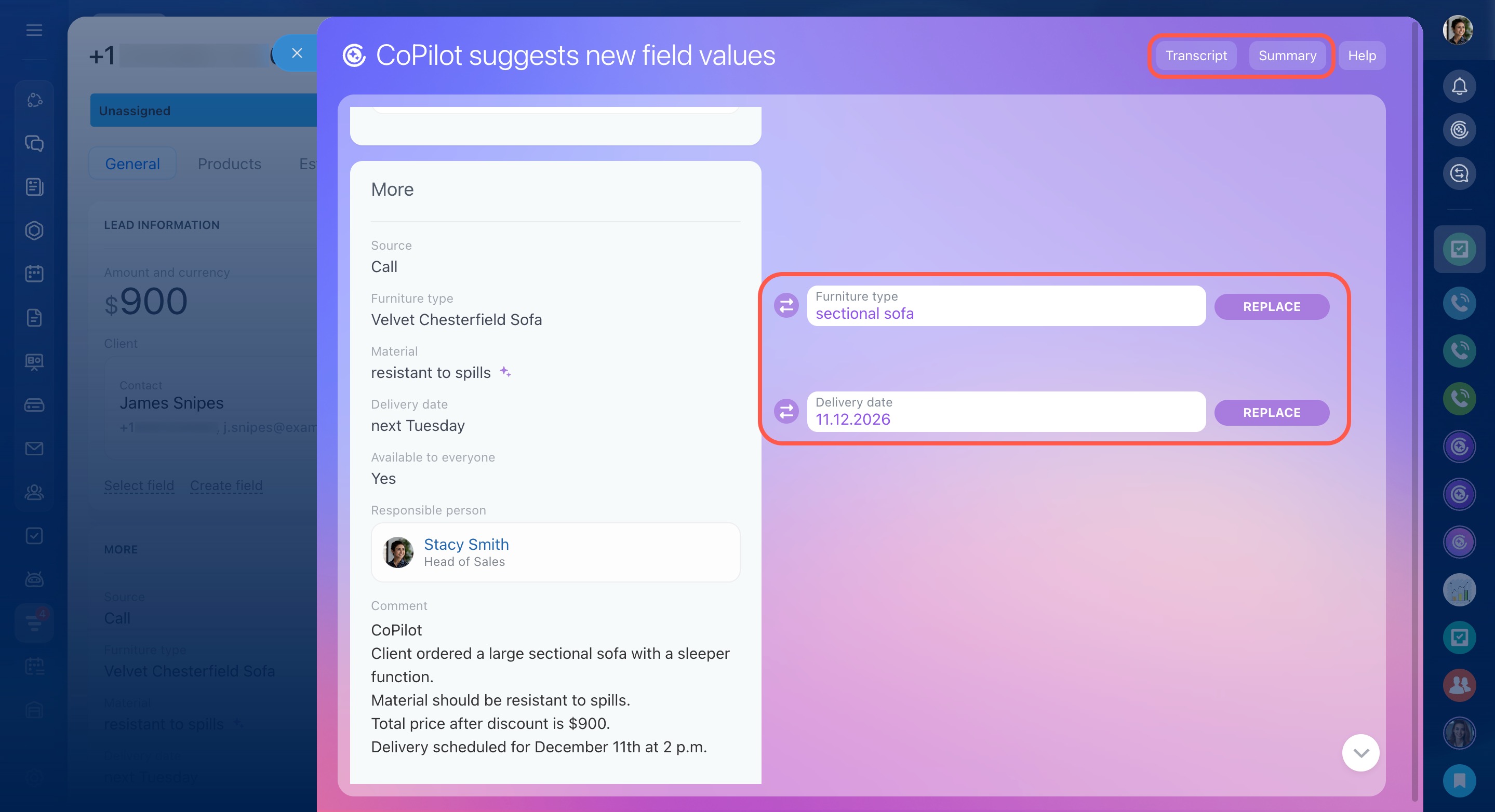 Use Replace, Restore, or the arrow buttons to choose a value.
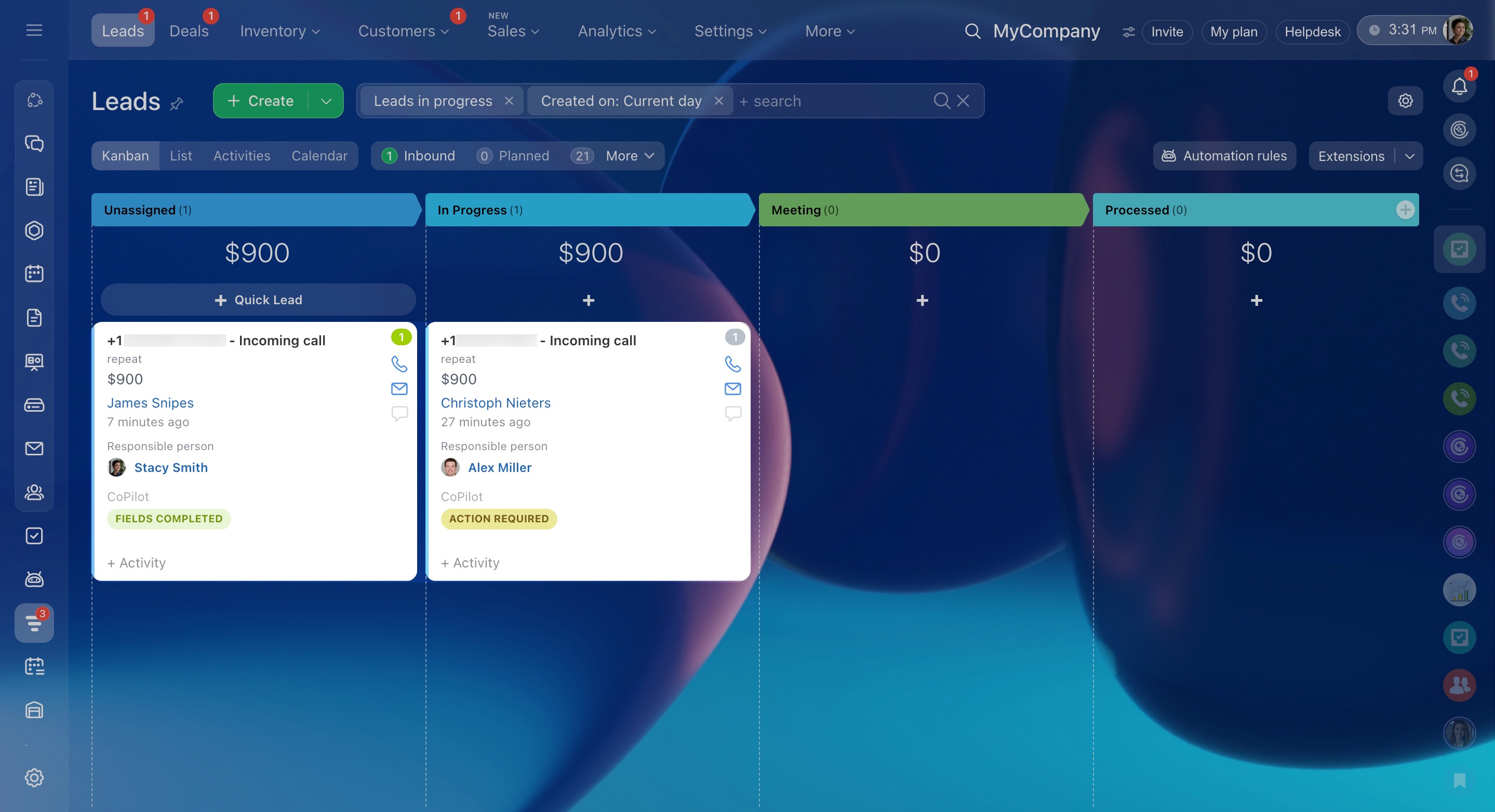
Switch to Kanban view to check field status:
- Fields completed: CoPilot filled in the fields. You can continue working.
- Action required: CoPilot suggests updates. Open the record and confirm the values.
CoPilot activity menu
CoPilot can process the entire call or run specific actions. For example, it can create only a summary or fill in fields only.
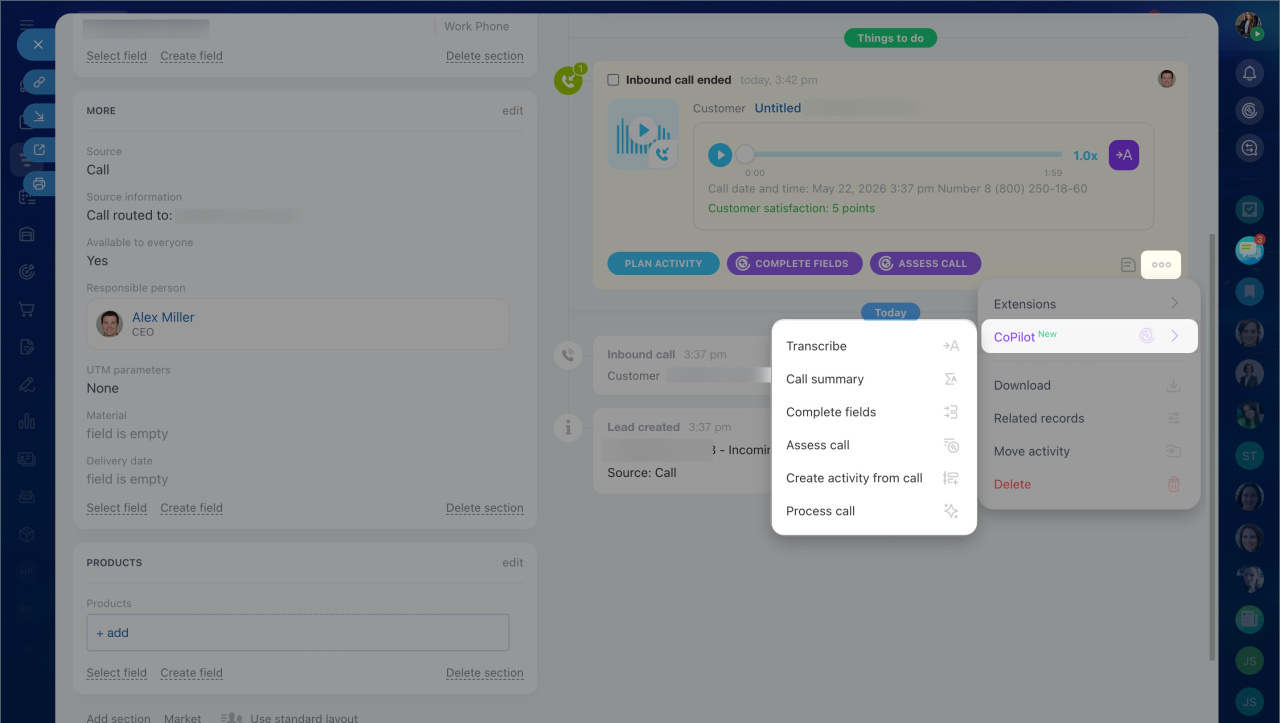
1. In the CRM form timeline, open the call menu — click Three dots (...) > CoPilot.
2. Select the action you need.
Available actions:
- Transcribe recording: It converts the call audio into text.
- Call summary: It creates a short summary of the conversation. CoPilot first transcribes the recording, then creates the summary.
- Complete fields: It adds data from the call to empty fields in the CRM form.
- Assess call: It gives the conversation a quality score.
- Create activity from call: It creates a follow-up activity based on the call.
- Process call: It runs all actions at once: transcription, summary, field filling, and activity creation.
After an action is complete, it no longer appears in the menu.
Activity from conversation
CoPilot can create an activity based on the call in two ways.
Using full call processing
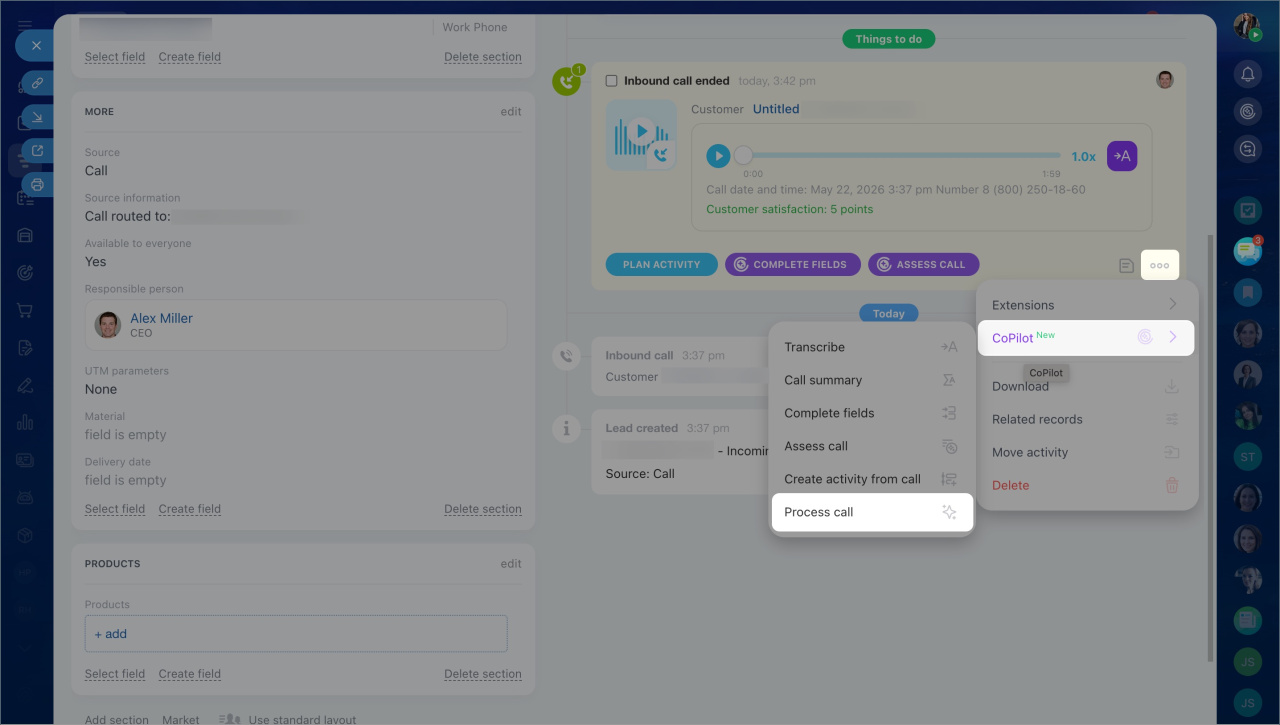
1. In the CRM form timeline, open the call menu — click Three dots (...) > CoPilot.
2. Select Process call.
CoPilot automatically transcribes the recording, creates a summary, fills in the form fields, and creates an activity.
Manually
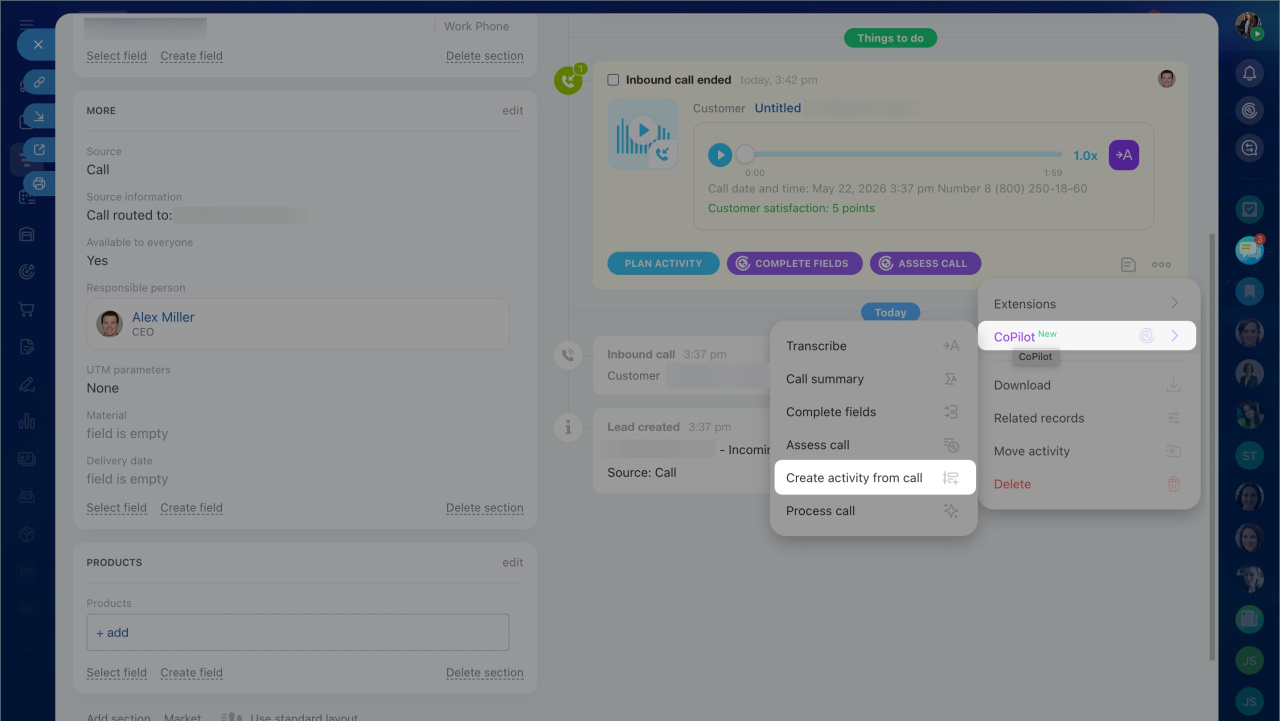
1. In the CRM form timeline, open the call menu — click Three dots (...) > CoPilot.
2. Select Create activity from call.
CoPilot analyzes the call and creates an activity.
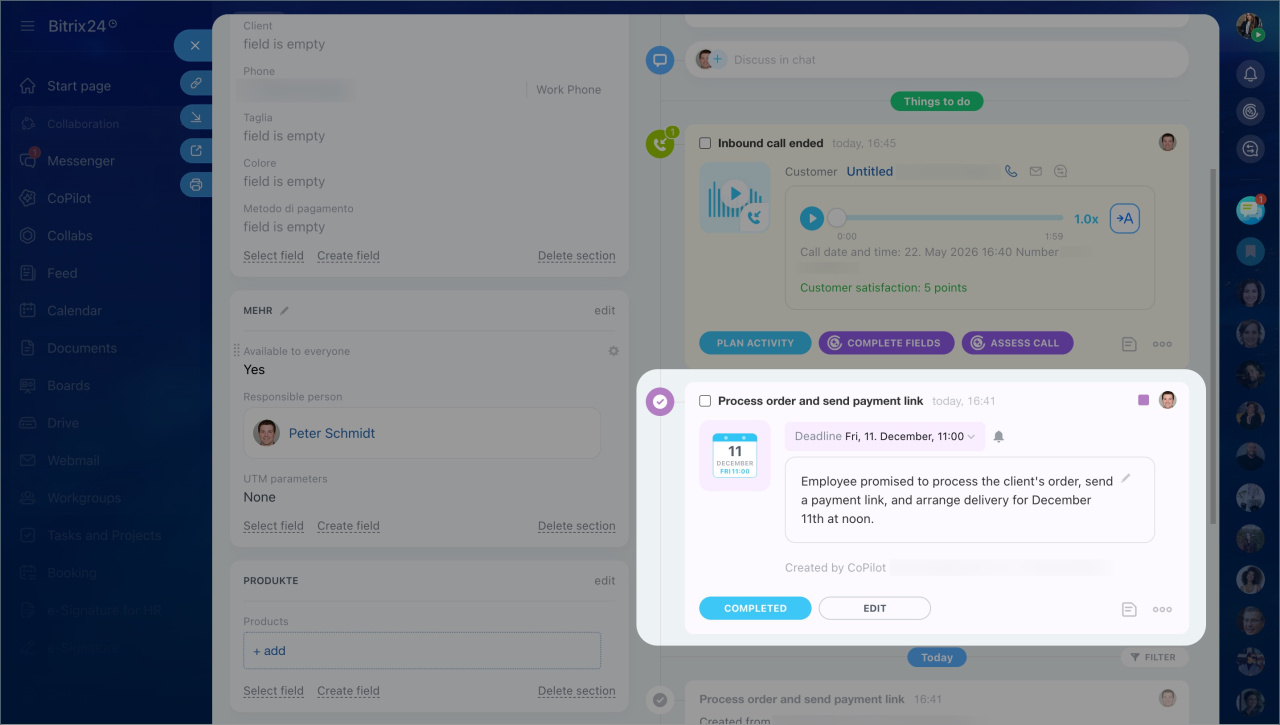
The type of activity depends on how relevant the conversation is.
Purple activity. If the conversation is meaningful, CoPilot creates an activity with a short description of the call outcome.
When the work is complete, click Completed to close the activity. To change the activity content, click Edit.
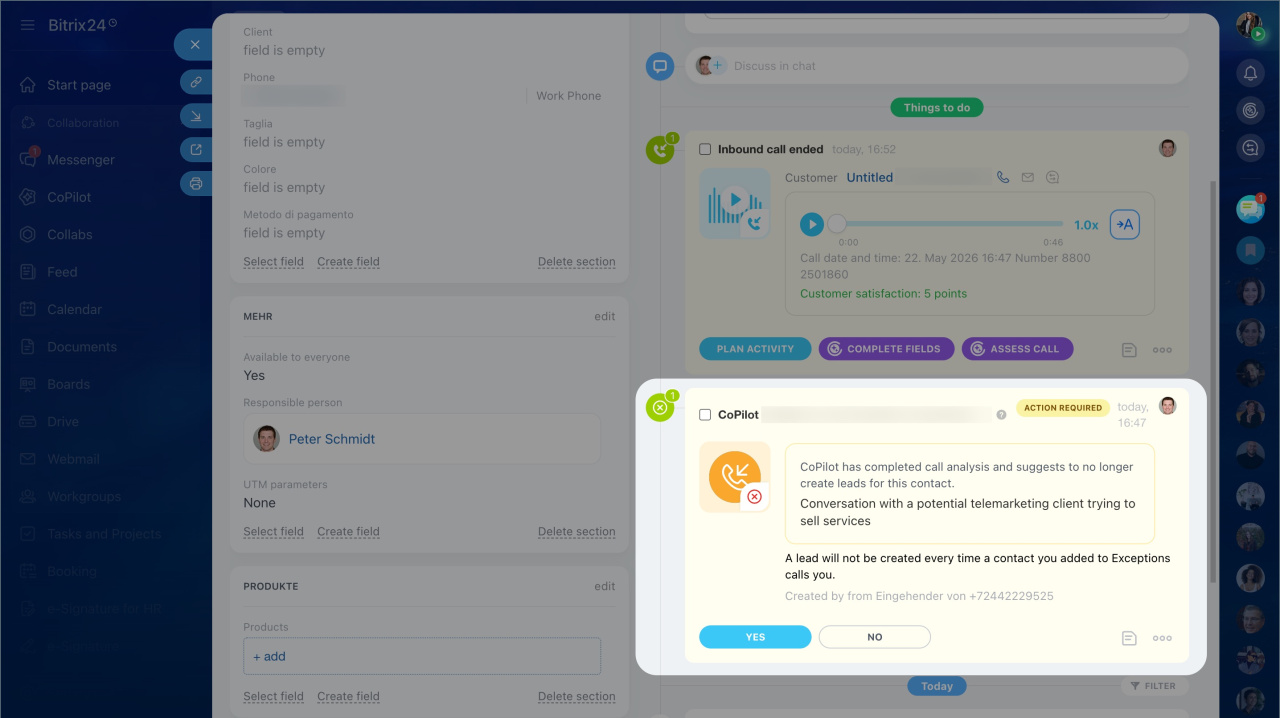
Yellow activity. If the conversation is not relevant, such as spam, an accidental call, or a meaningless call, CoPilot creates an activity marked Needs attention and suggests adding the contact to the stop list.
The yellow activity has two options:
- Yes: Adds the contact to the stop list and deletes the lead. If the contact does not have a phone number or email address, Bitrix24 cannot add it to the stop list.
- No: Closes the activity and keeps the lead. If a new call comes in, you can run processing again.
Call requirements
CoPilot can transcribe calls that:
- Last from 10 seconds to 1 hour.
- Have a file size of at least 60 KB.
To use CoPilot in CRM:
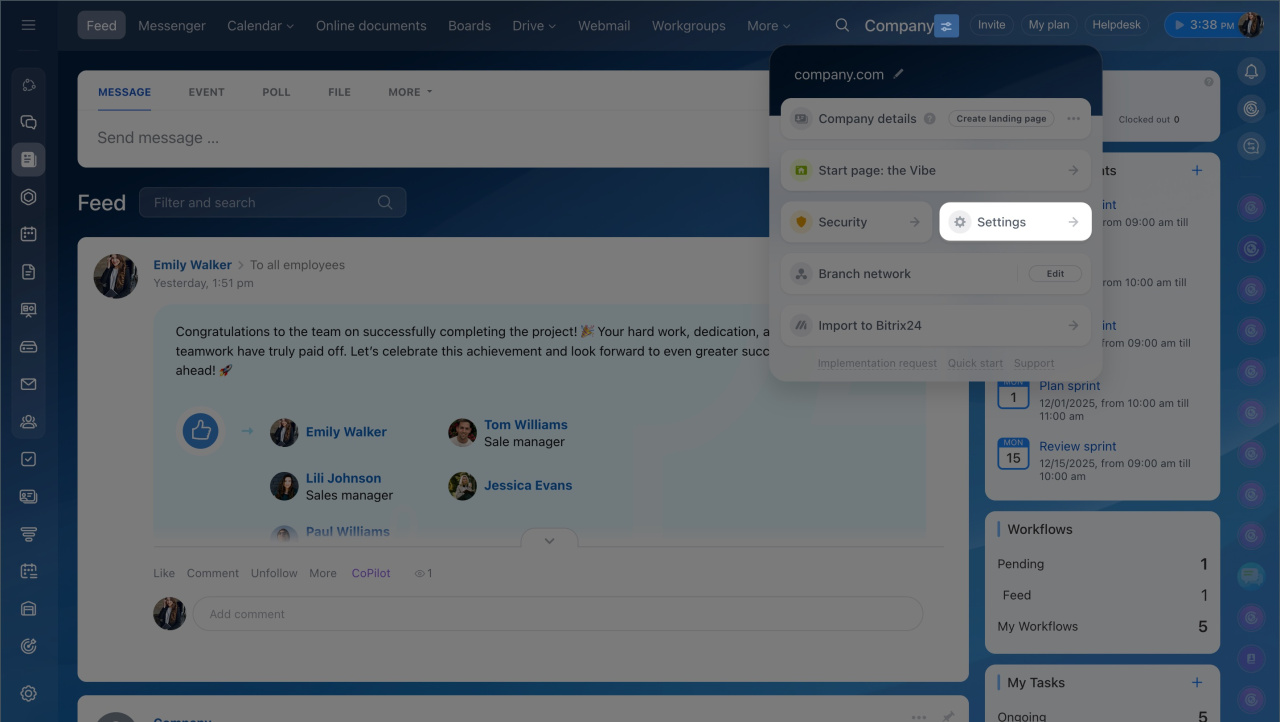
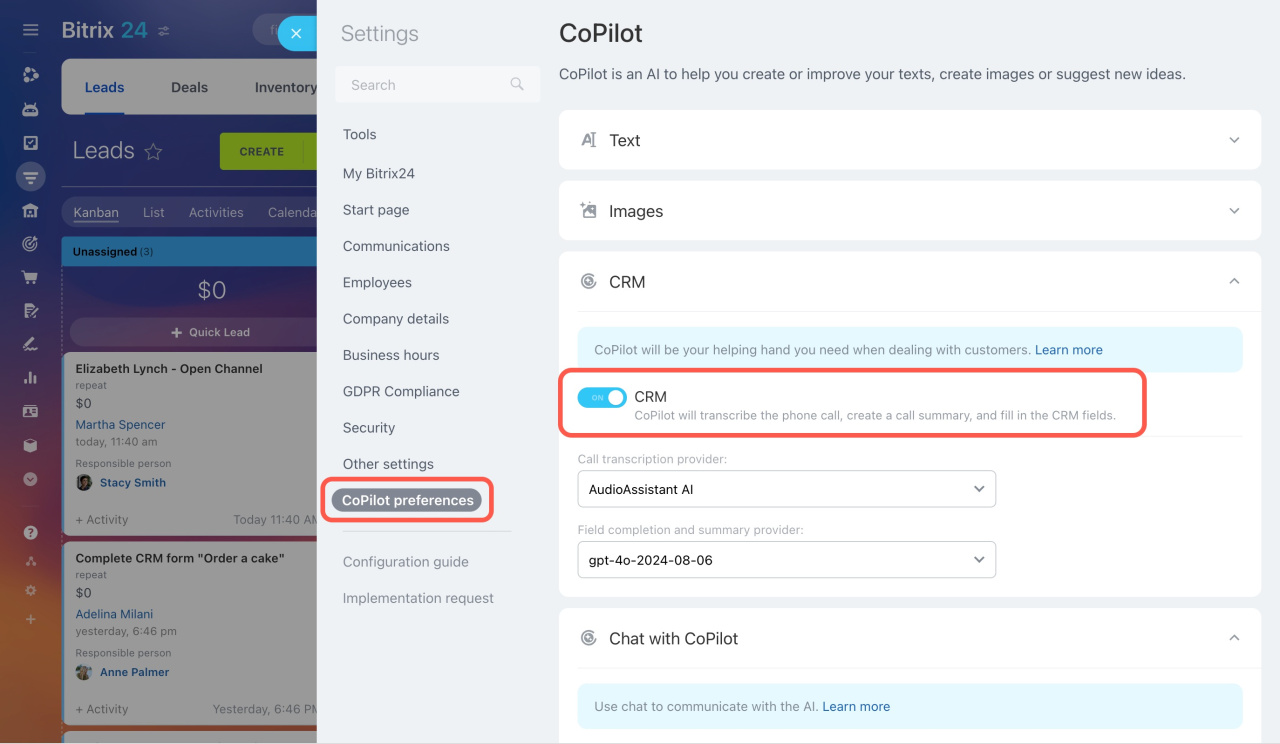
1. Enable CoPilot in CRM in the Bitrix24 settings.
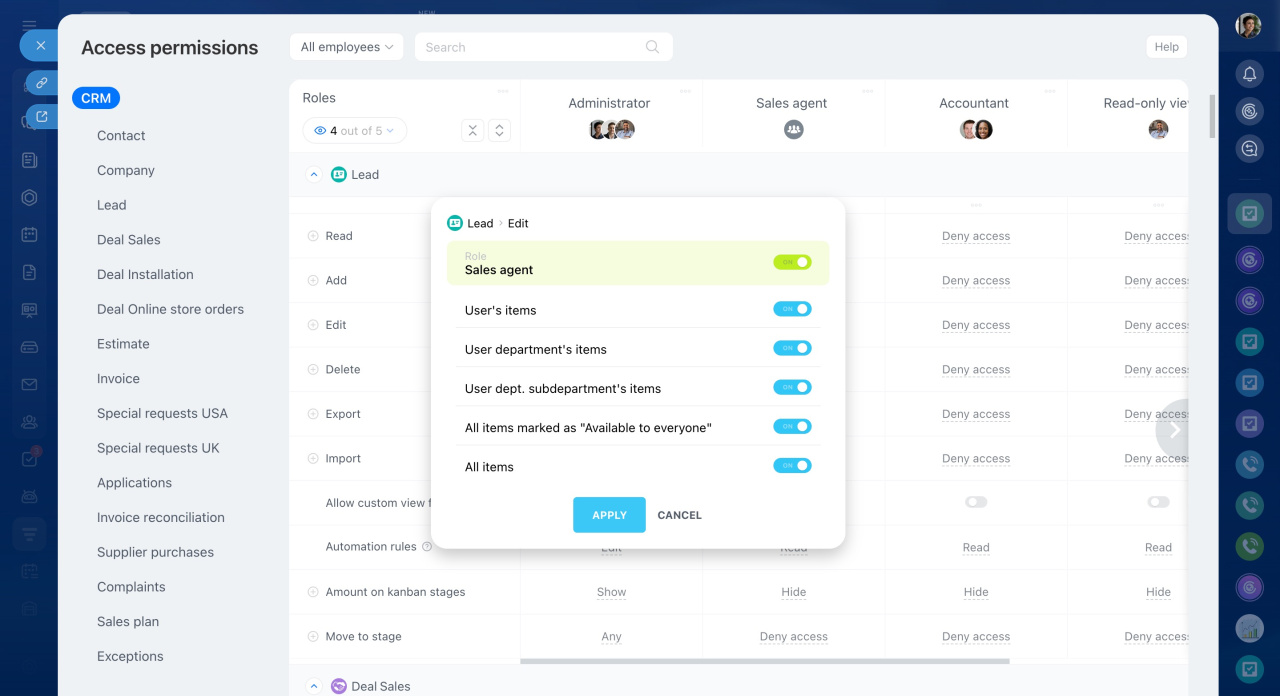
2. Give the employee permission to edit the relevant CRM items. For example, to process calls in leads, the employee needs permission to edit leads.
In brief
- CoPilot is an AI assistant in CRM. It helps teams handle calls faster and reduces manual work.
- Available in leads and deals.
- Start CoPilot from the call in the timeline using the Rate call button.
- Fills in empty fields with data from the call.
- Suggests updates if a field already has a value.
- Transcribes calls in the same language used during the conversation.
- Lets you choose a different language for summaries and field values.