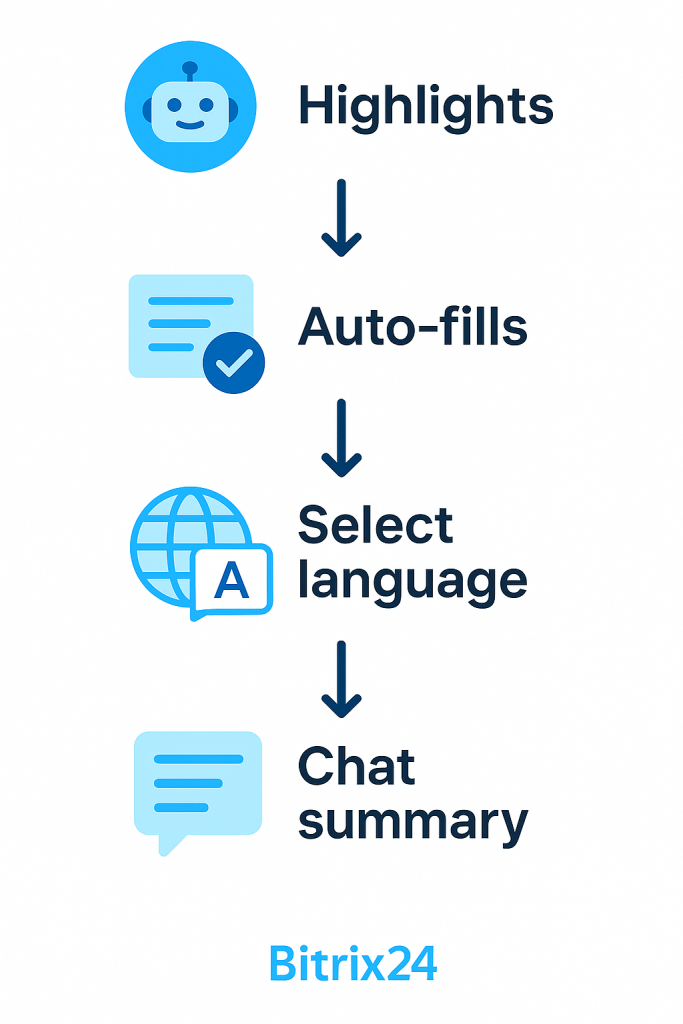
CoPilot in CRM helps managers review customer chats and reduce time spent on routine tasks.
Without CoPilot, managers often:
- Reopen chats to recall details
- Record order details, payment methods, and delivery addresses
- Manually enter this data into the CRM form
CoPilot handles part of this work for you:
- Highlights key points so you can quickly review agreements and prepare for the next step
- Automatically fills CRM fields based on chat data
You can use CoPilot to analyze chats in leads and deals.
Process a chat with CoPilot
Chat processing includes two steps:
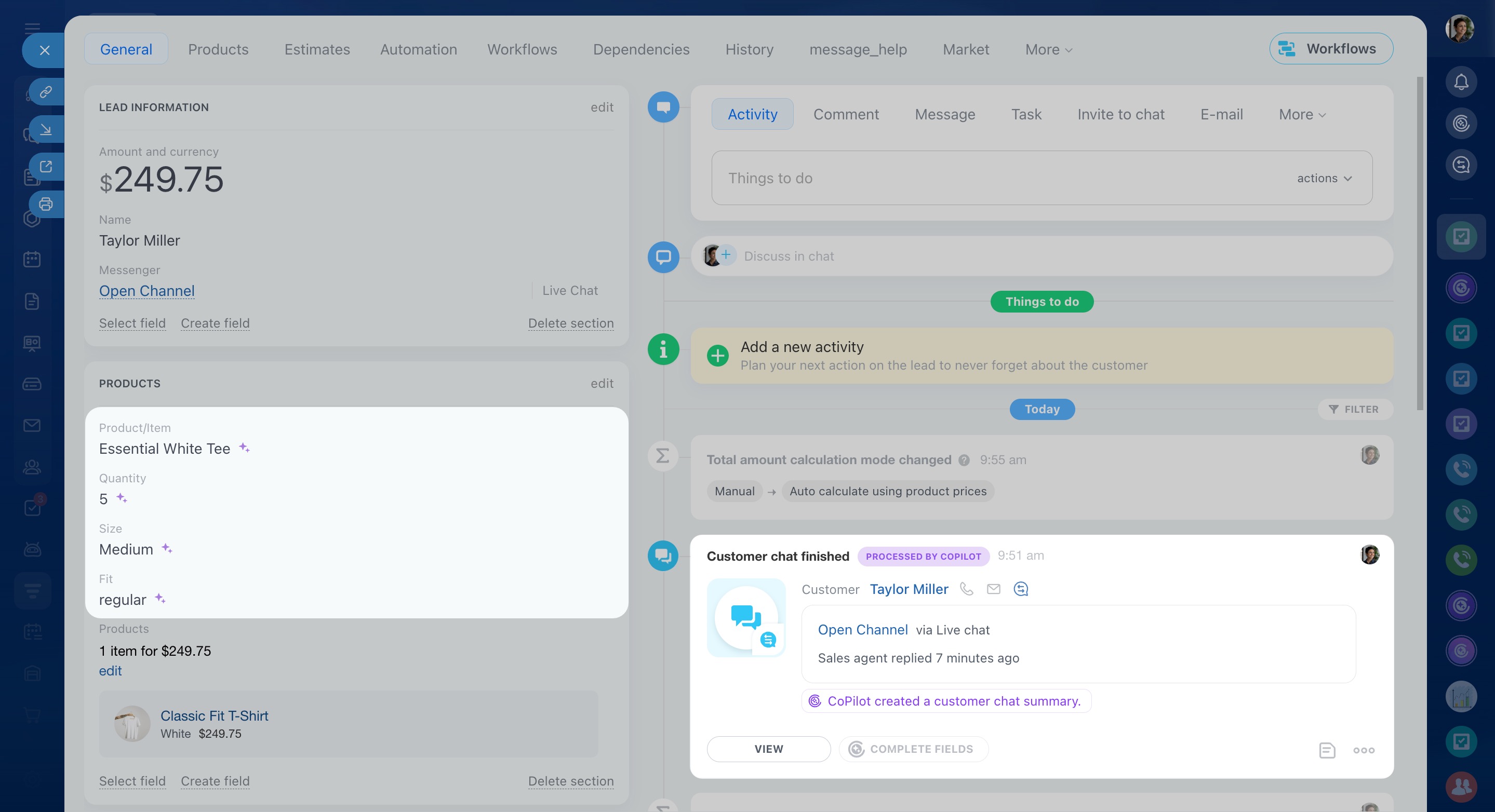
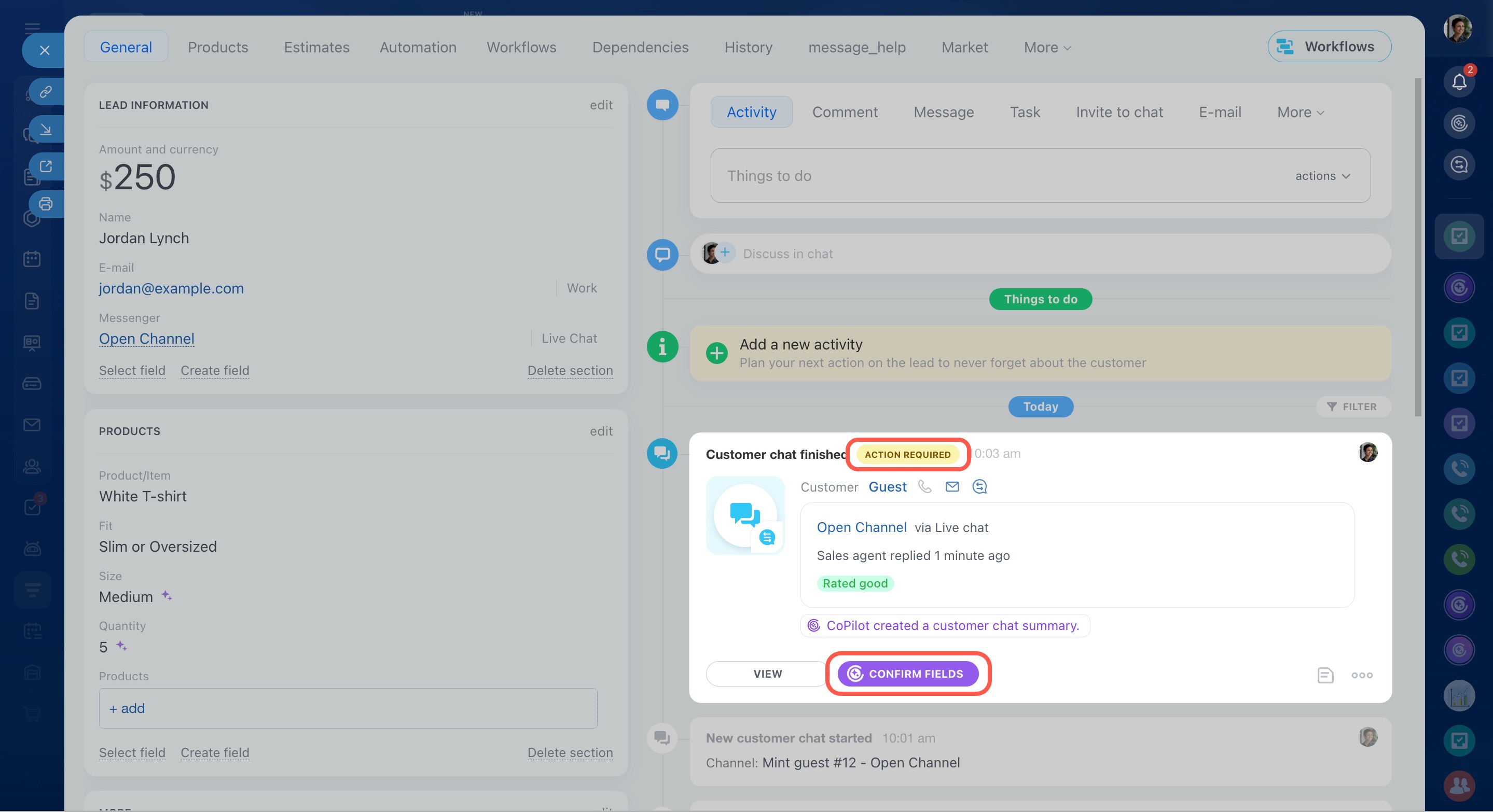
Open the CRM form, select the chat in the timeline that needs analysis, and click the Complete fields button.
If a chat is linked to multiple deals, run the analysis from the most recent deal. If it’s linked to both a lead and a deal, start it from the deal.
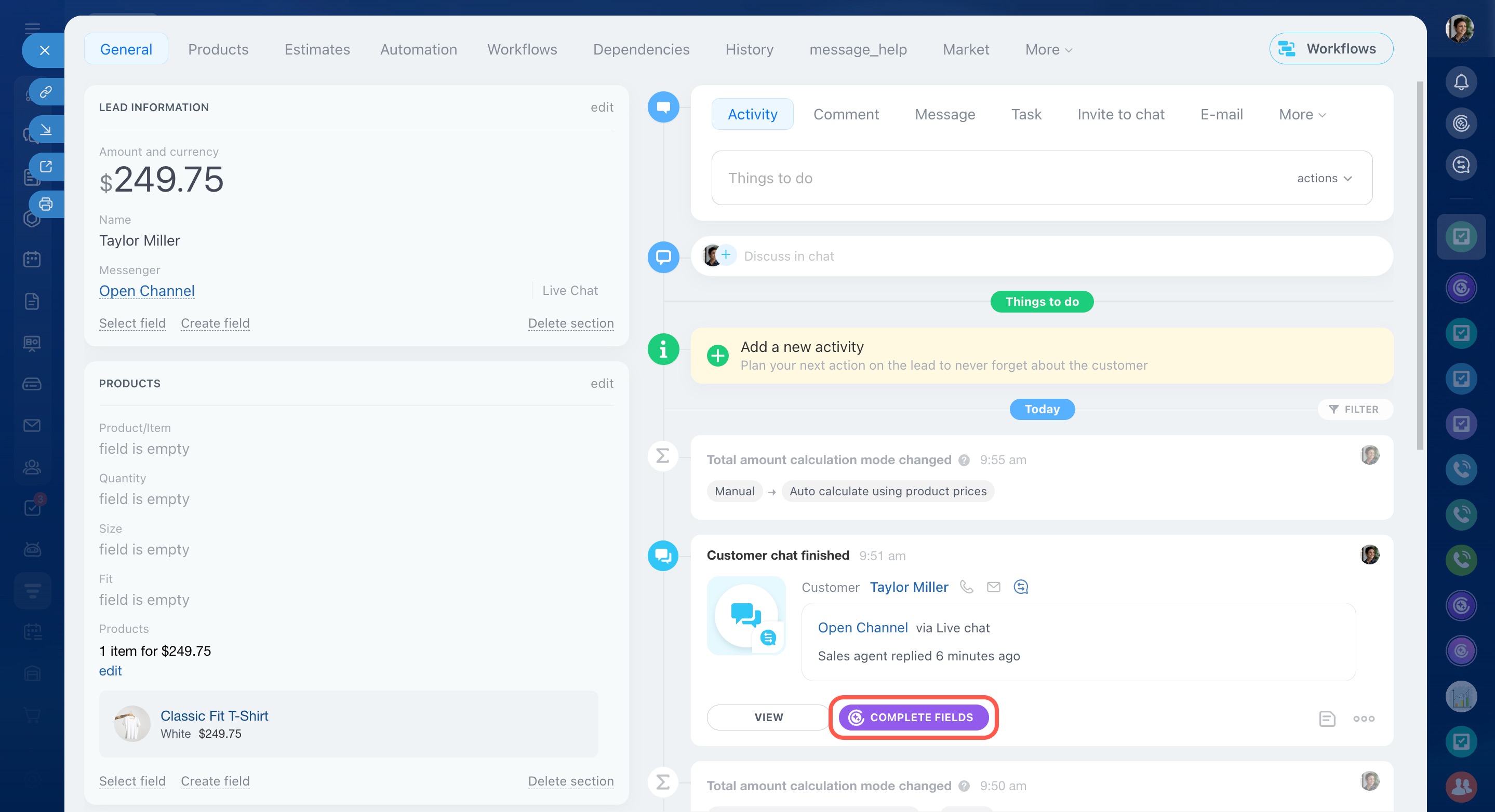
Creating a chat summary. CoPilot generates a short summary with key points from the conversation. You don’t need to scroll through the full chat.
You can also choose the language for summaries and field completion.
How to select CoPilot's response language
To read the summary, click CoPilot created a customer chat summary in the CRM form timeline.
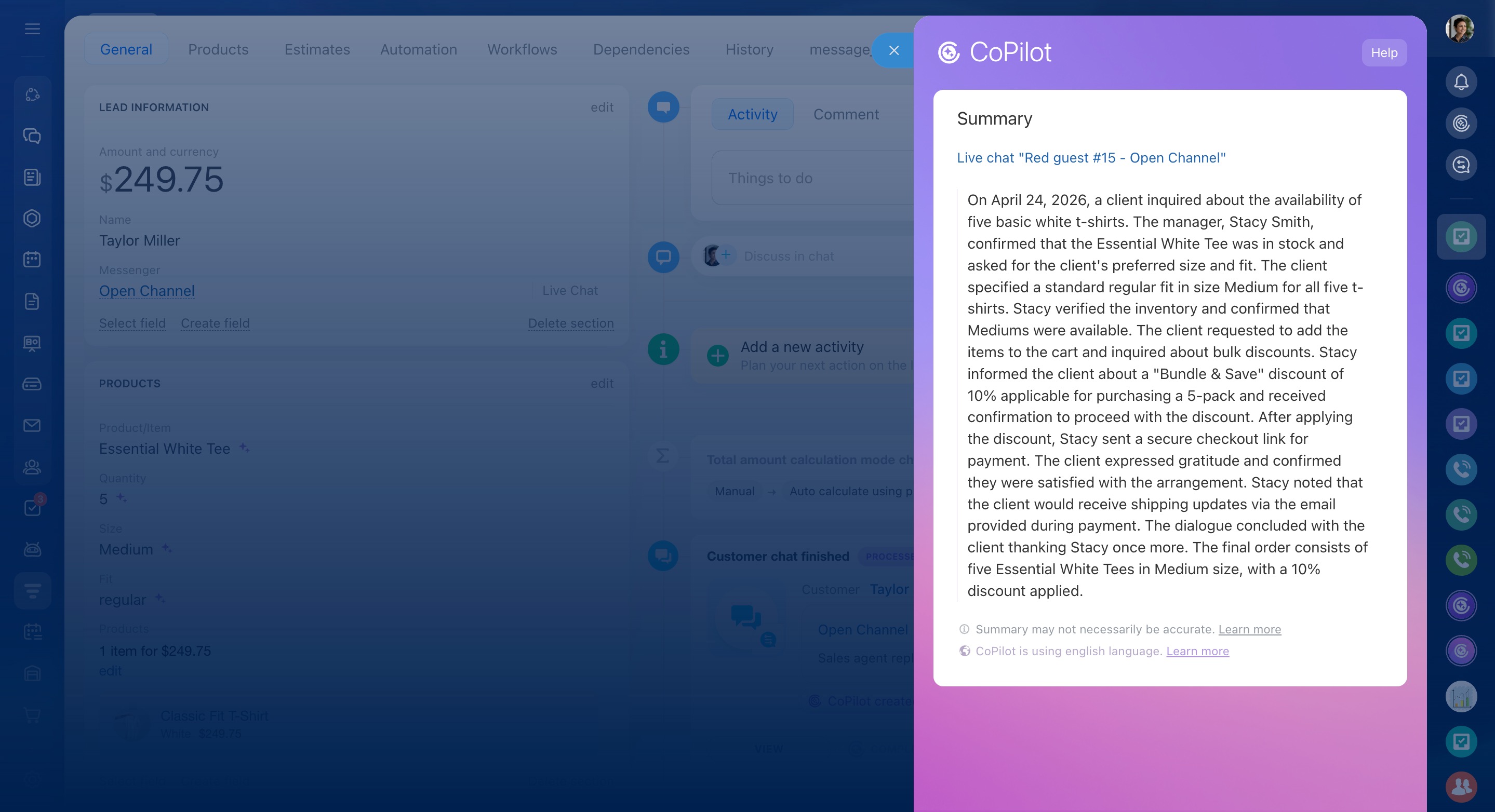
Filling in CRM form fields. CoPilot automatically fills empty fields with data from the chat. These fields are marked with a special icon.
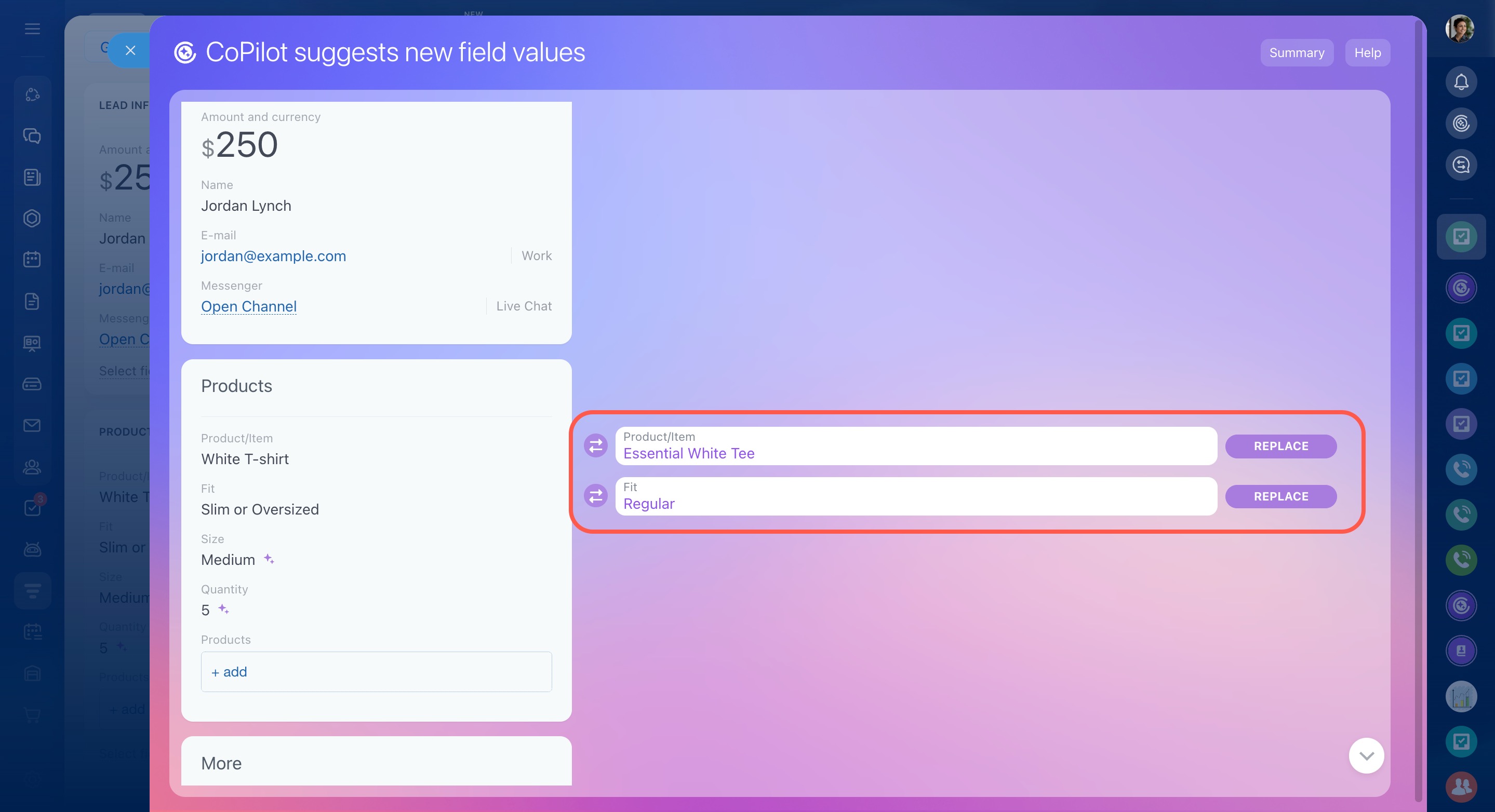
If a field already has a value, CoPilot suggests a change instead of replacing it.
Example:
A customer contacts you to update the delivery address. CoPilot reviews the chat and suggests saving the new address to the field. In the timeline, you'll see the Action required status. Click Confirm fields to review the change and confirm the replacement.
If you’re not sure which value to keep, open the chat summary. It can help you remember the details of the conversation and update the fields correctly.
Chat processing modes
You start chat analysis manually. You can run it at any time during or after a conversation. If new details appear, you can re-run the analysis.
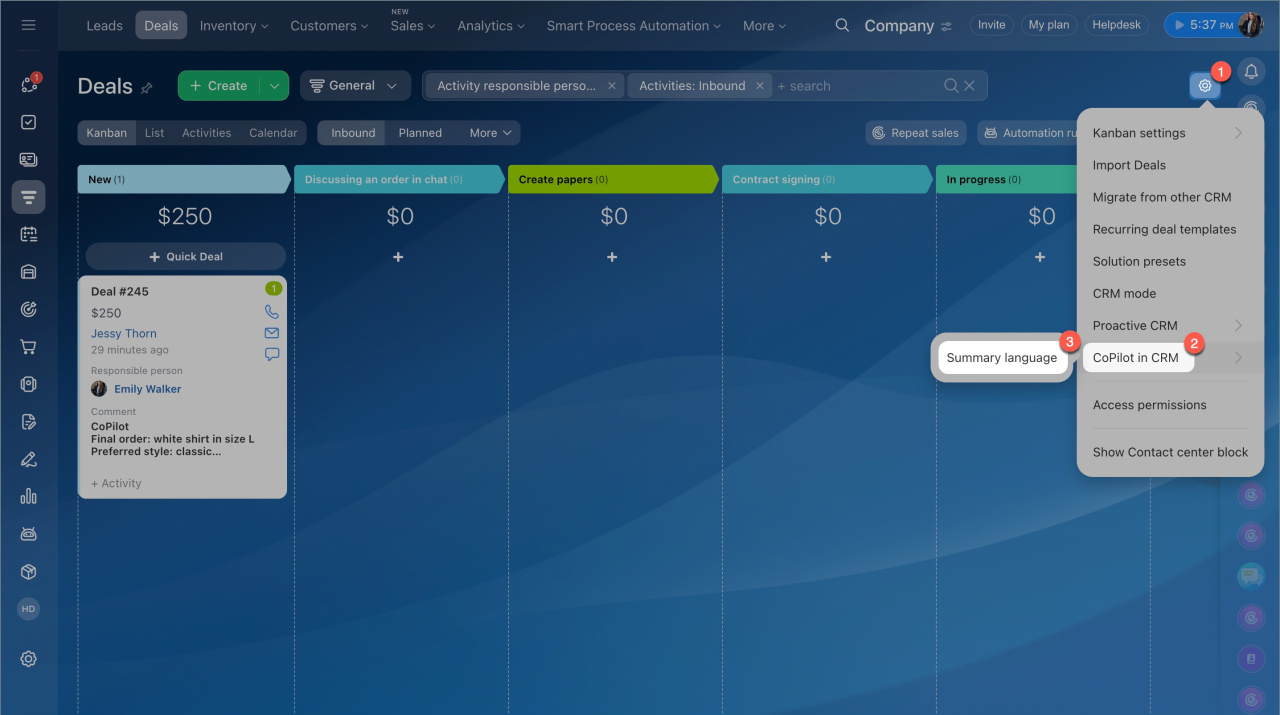
To change the summary language:
- Go to the CRM section > Settings > CoPilot in CRM.
- Select the language from the list.
Chat requirements
You can analyze a chat if:
- The total message length is at least 1,000 characters (excluding spaces)
- At least 30 seconds have passed since the last message
To allow an employee to use CoPilot:
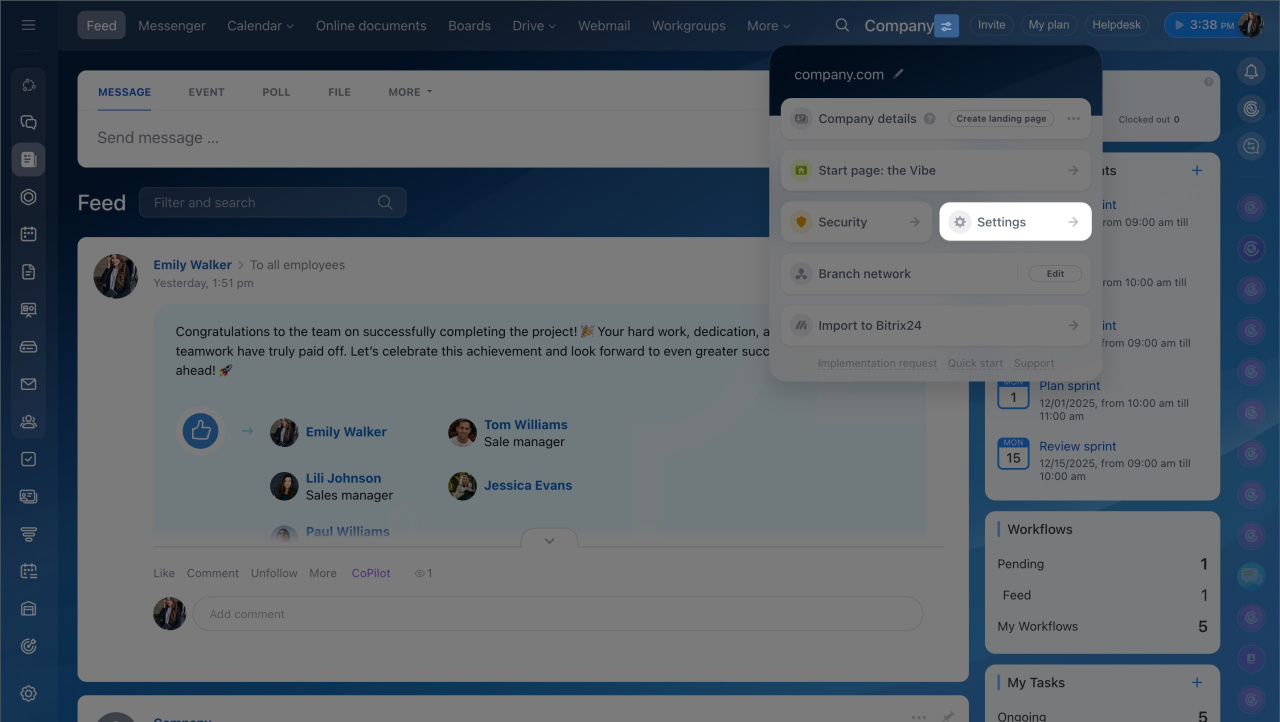
- Enable CoPilot in CRM in the Bitrix24 settings.
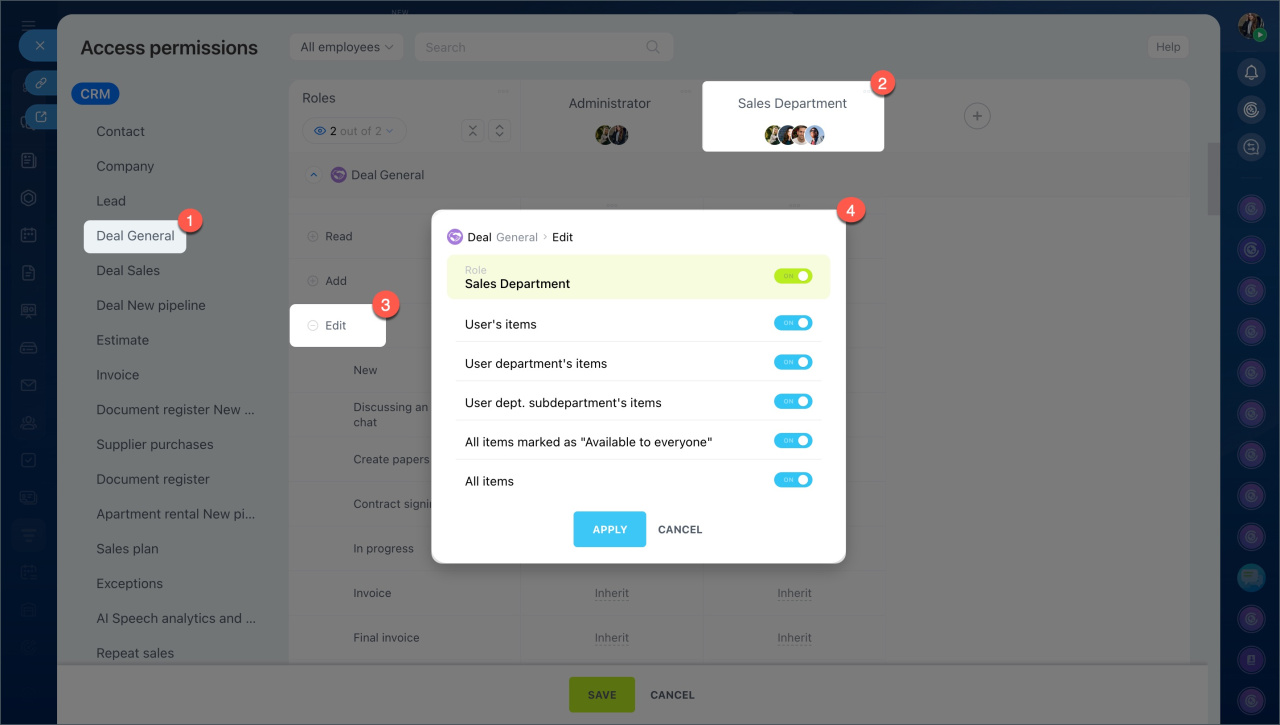
- Grant the employee access permissions to edit CRM items. For example, to process a chat in a deal, they must have permissions to edit deals.

In brief
- CoPilot in CRM helps managers process chats: highlights key points and automatically fills in CRM form fields.
- CoPilot is available in leads and deals.
- To analyze a chat, select it in the CRM form timeline and click the CoPilot button.
- CoPilot automatically fills empty fields in the CRM form with data from the chat.
- You can select the language for CoPilot to create the conversation summary and fill in CRM form fields. The chat summary will always be in the language used in the customer conversation.