
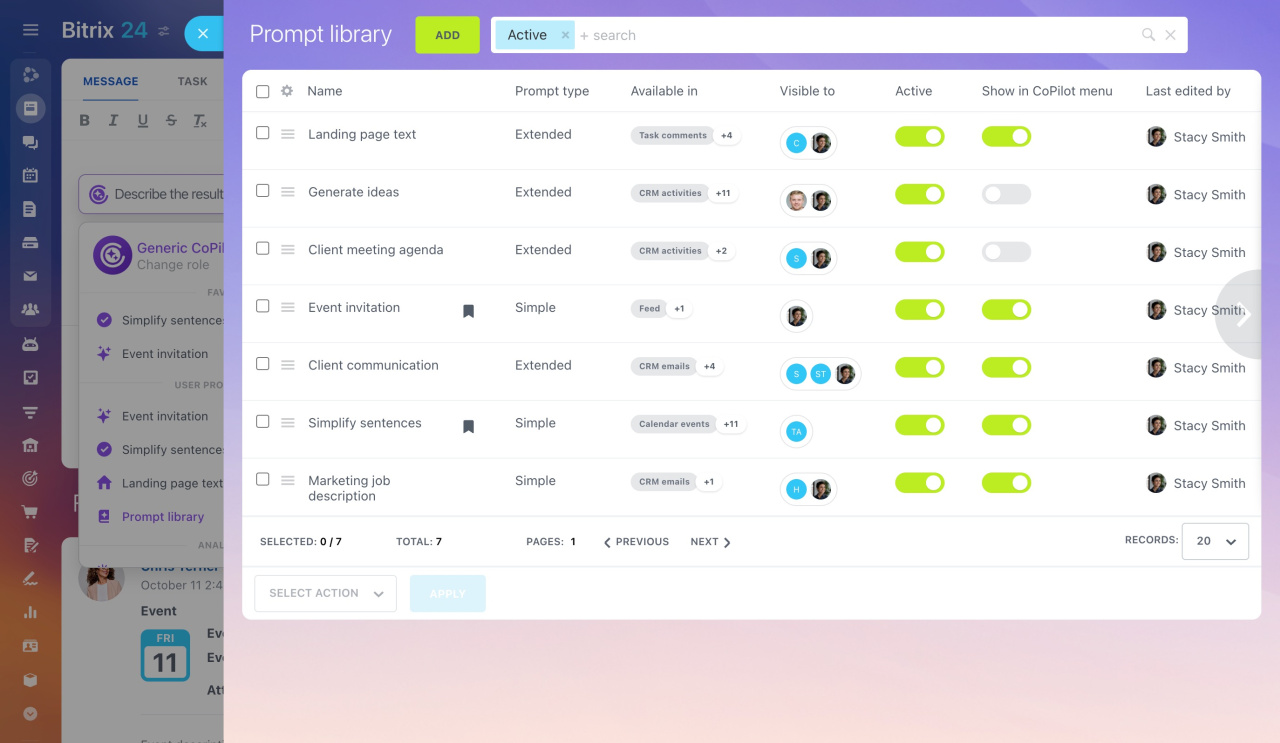
The prompt library is a central place to store CoPilot promptsA prompt is a query you give to the AI to get a specific response. The more detailed the prompt, the better the results. and share them with your team.
Create templates for common tasks such as job descriptions, event plans, or marketing ideas. Select a prompt from the library to save time and avoid rewriting queries.
You can use the prompt library in all tools where CoPilot is available, except chat:
- Feed
- Tasks
- Sites
- Webmail
- Calendar
- CRM item form (emails, activities, and comments)
Each employee can view their own prompts and any prompts shared with them.
Add a prompt to the library
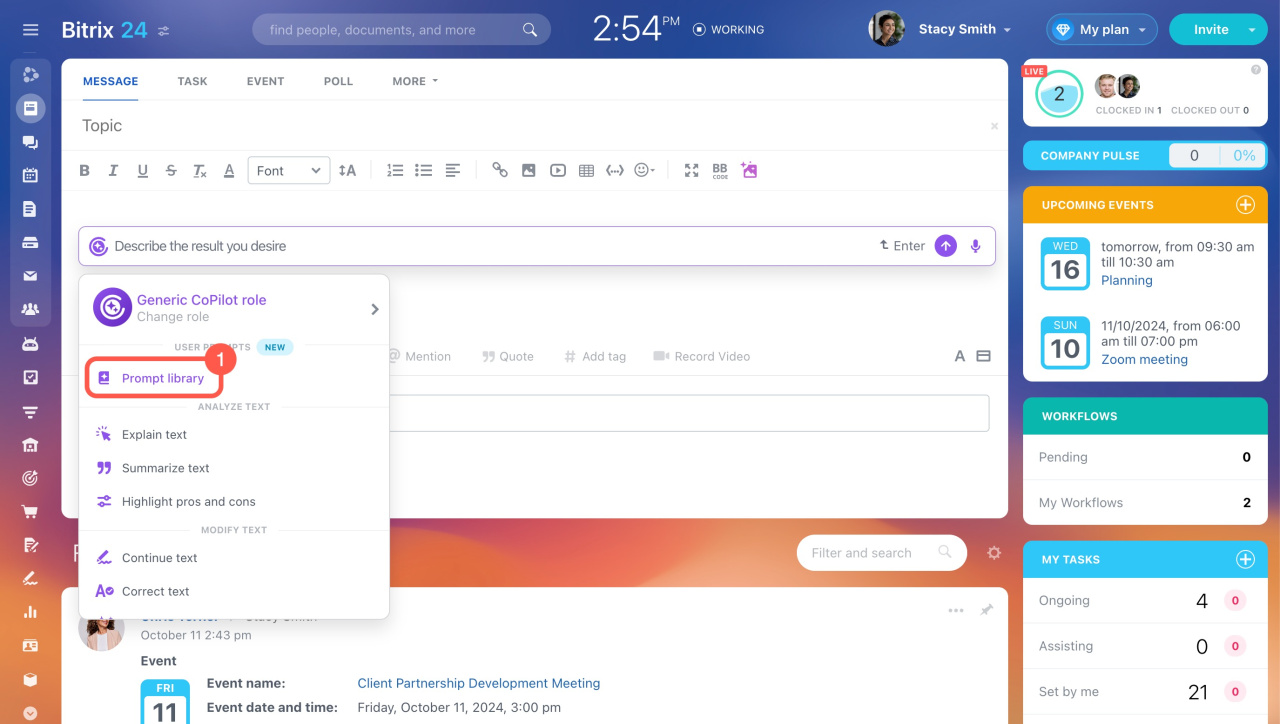
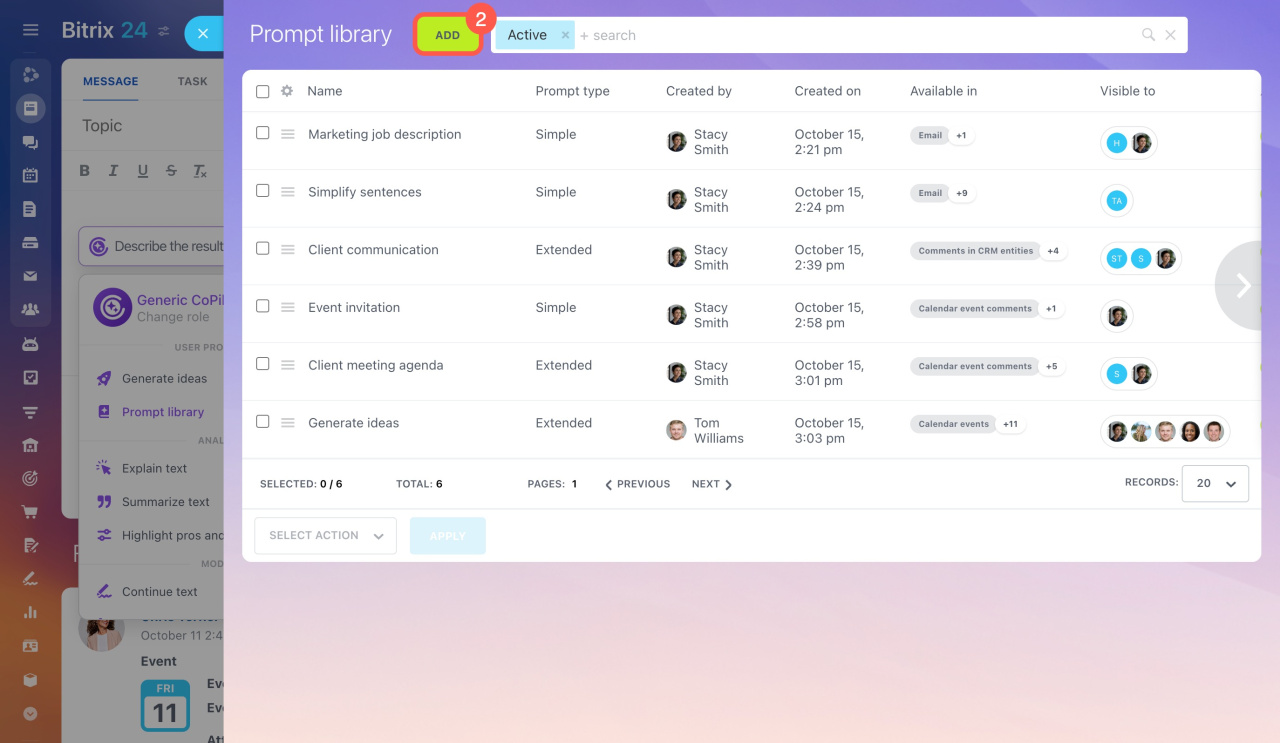
1. Open the prompt library. Go to any section where CoPilot is available and click CoPilot > Prompt library > Add.
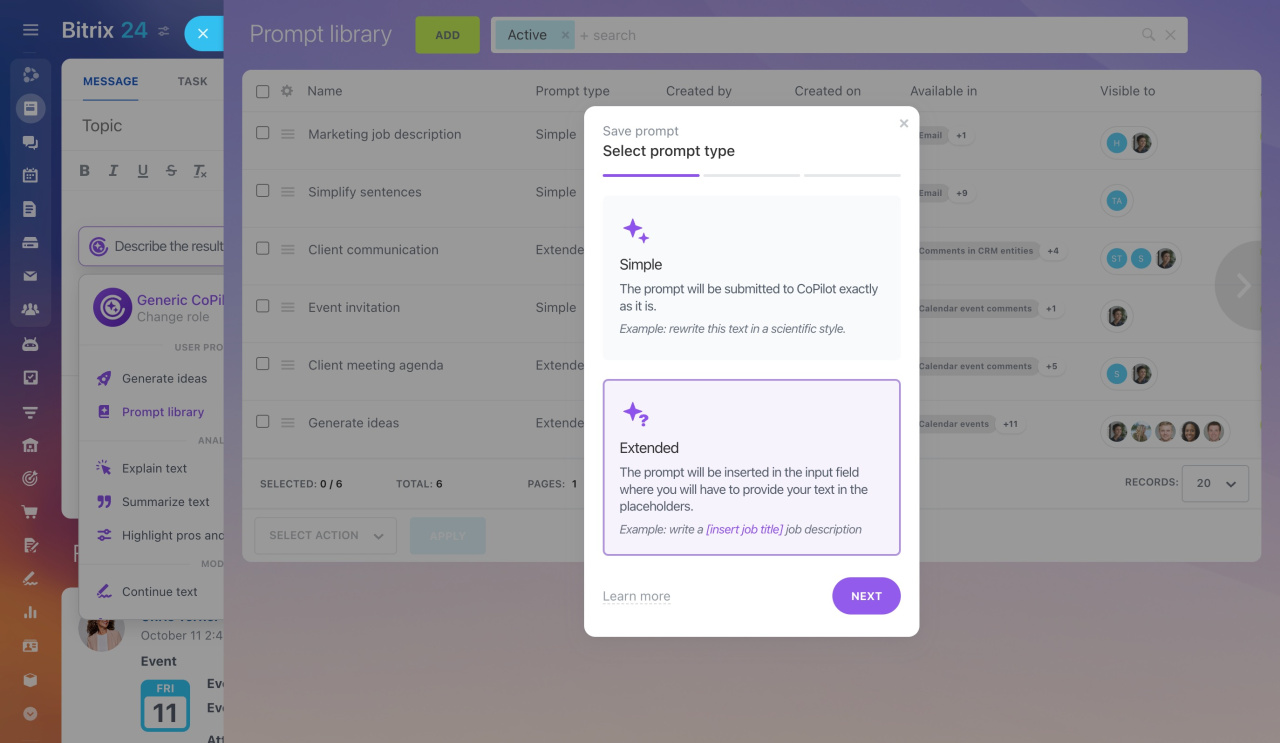
2. Select the prompt type.
-
Simple: A fixed prompt that CoPilot runs as is.
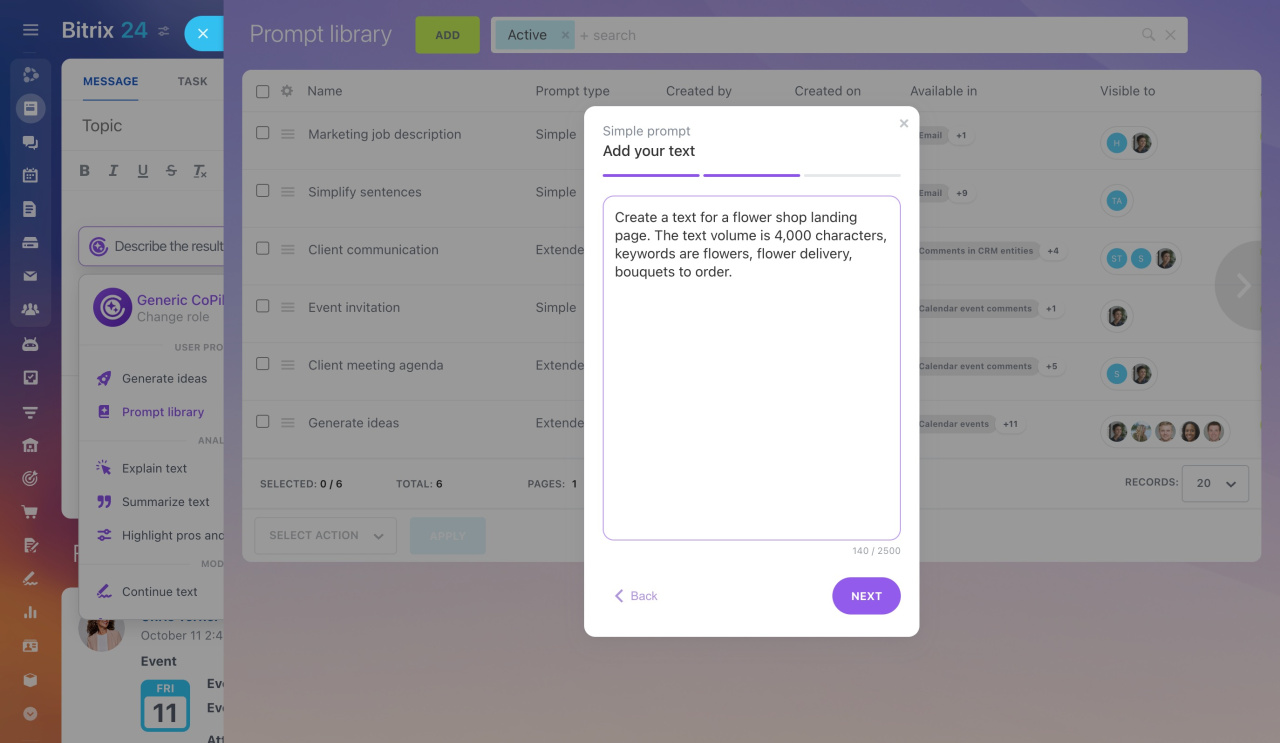
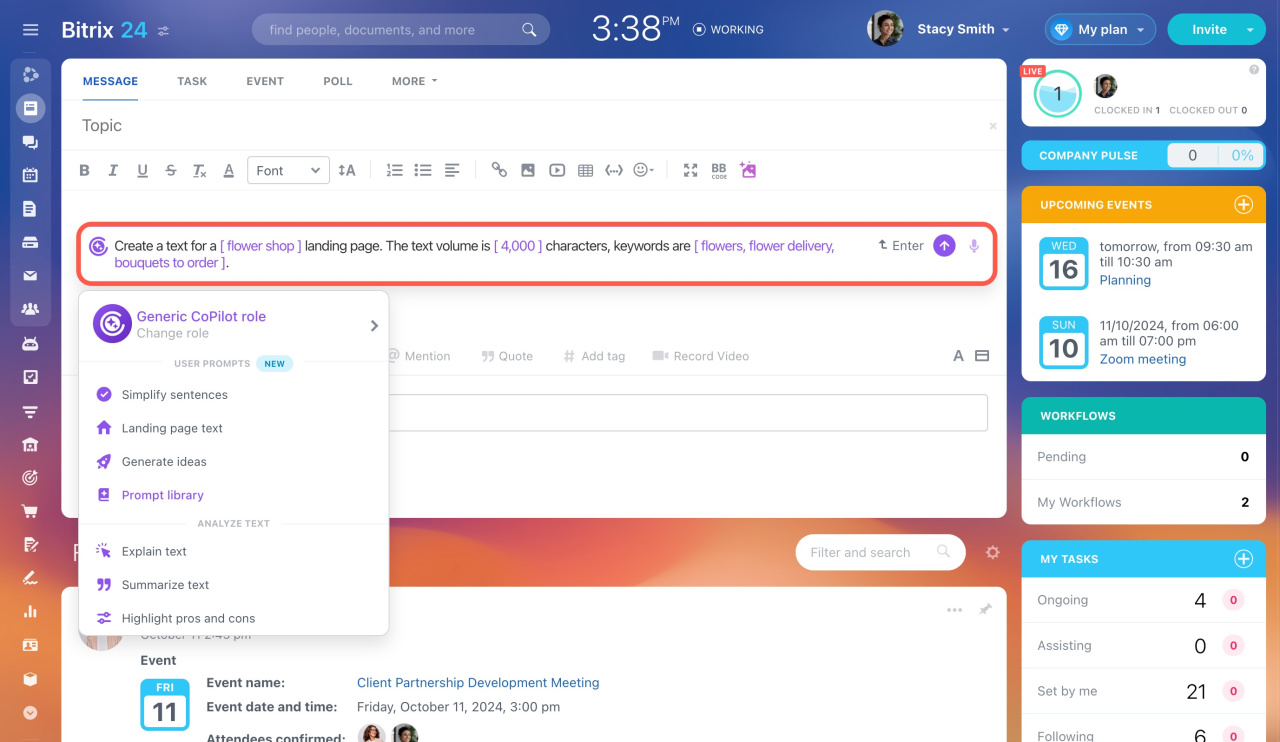
Example: Create a text for a flower shop landing page. The text length is 4,000 characters. Keywords: flowers, flower delivery, bouquets to order. -
Extended: A template with placeholders. Fill in the fields before running the prompt.
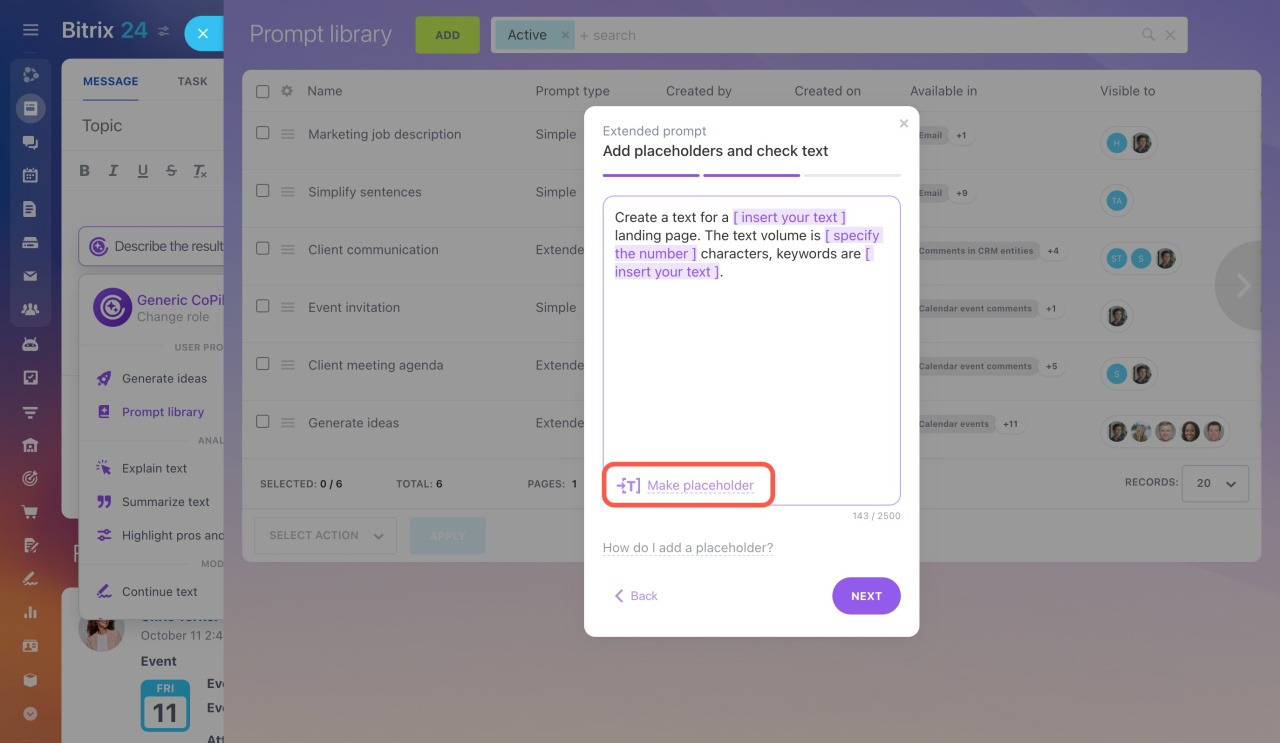
Example: Create a text for a [insert your text] landing page. The text length is [specify the number] characters. Keywords: [insert your text].
3. Enter the prompt text (up to 2,500 characters).
For a simple prompt, enter the full text. More detail usually improves results.
For an extended prompt, add placeholders:
- Place the cursor where needed or highlight text.
- Click Make placeholder.
- Edit the default text in brackets, for example, change [insert your text] to [specify the number].
Click Next when done.
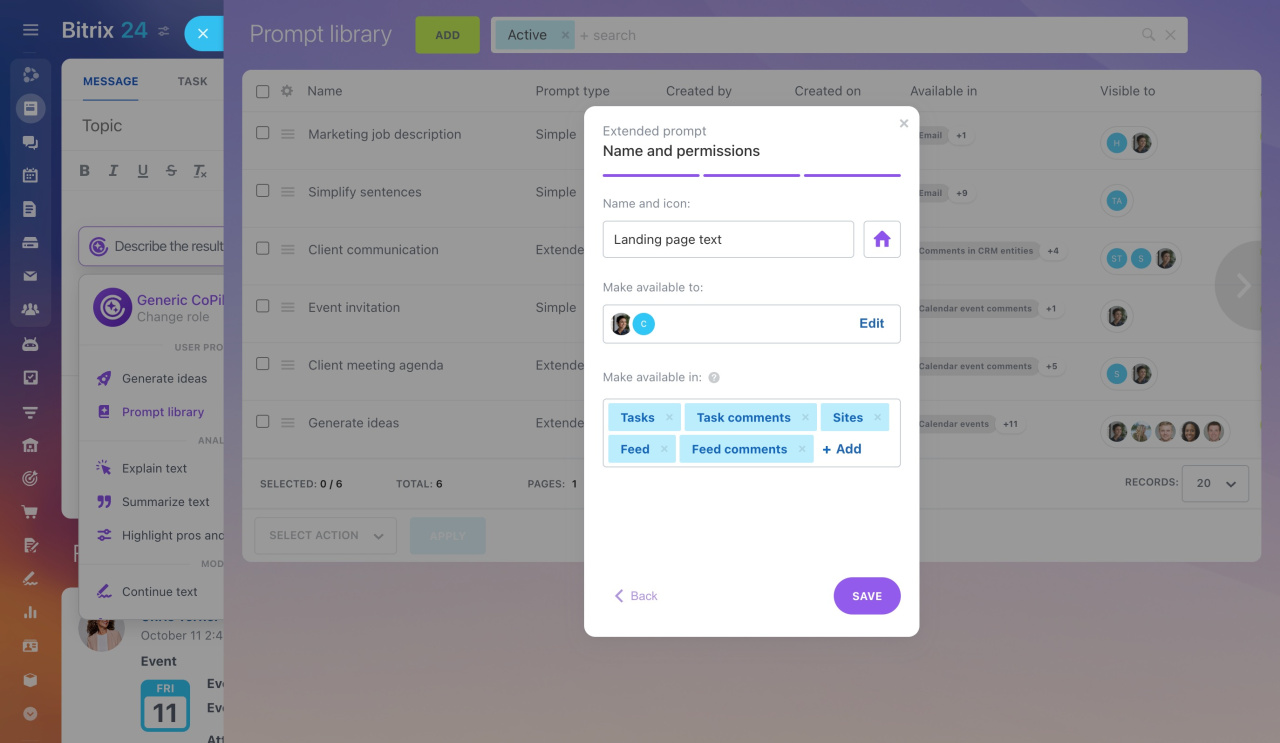
4. Configure the prompt.
-
Name and icon – how the prompt appears in the list.
-
Make available to – choose employees or departments who can use the prompt. By default, only you can access it.
-
Make available in – select the Bitrix24 tools where the prompt will appear.
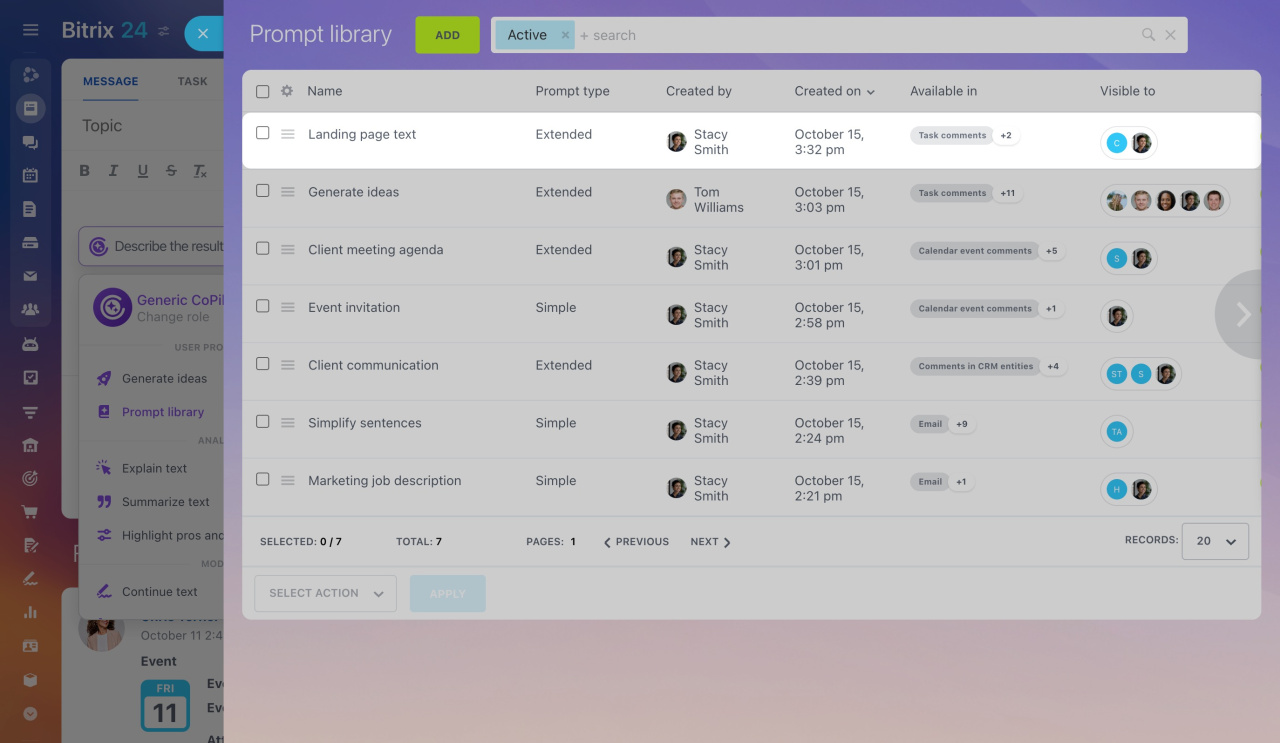
Click Save.
Use a prompt from the library
Open any Bitrix24 tool with CoPilot and click the CoPilot button. In the User prompts section, select a prompt from the list.
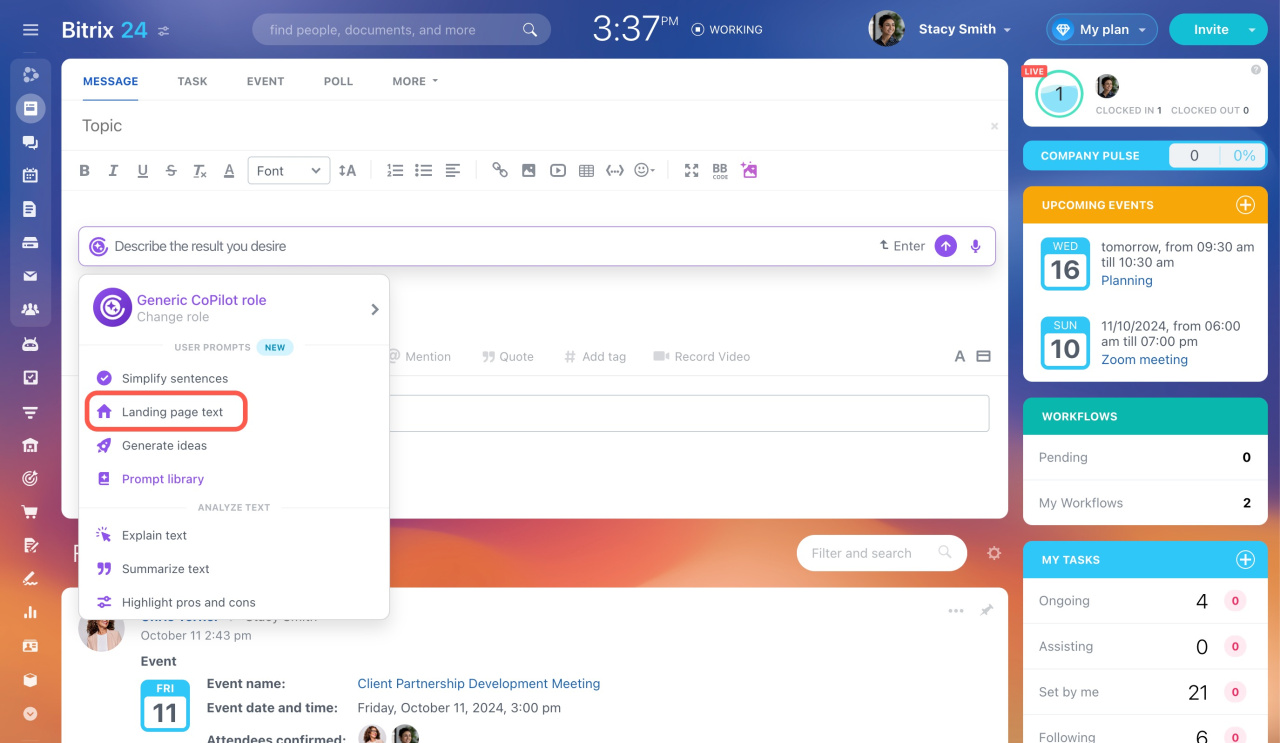
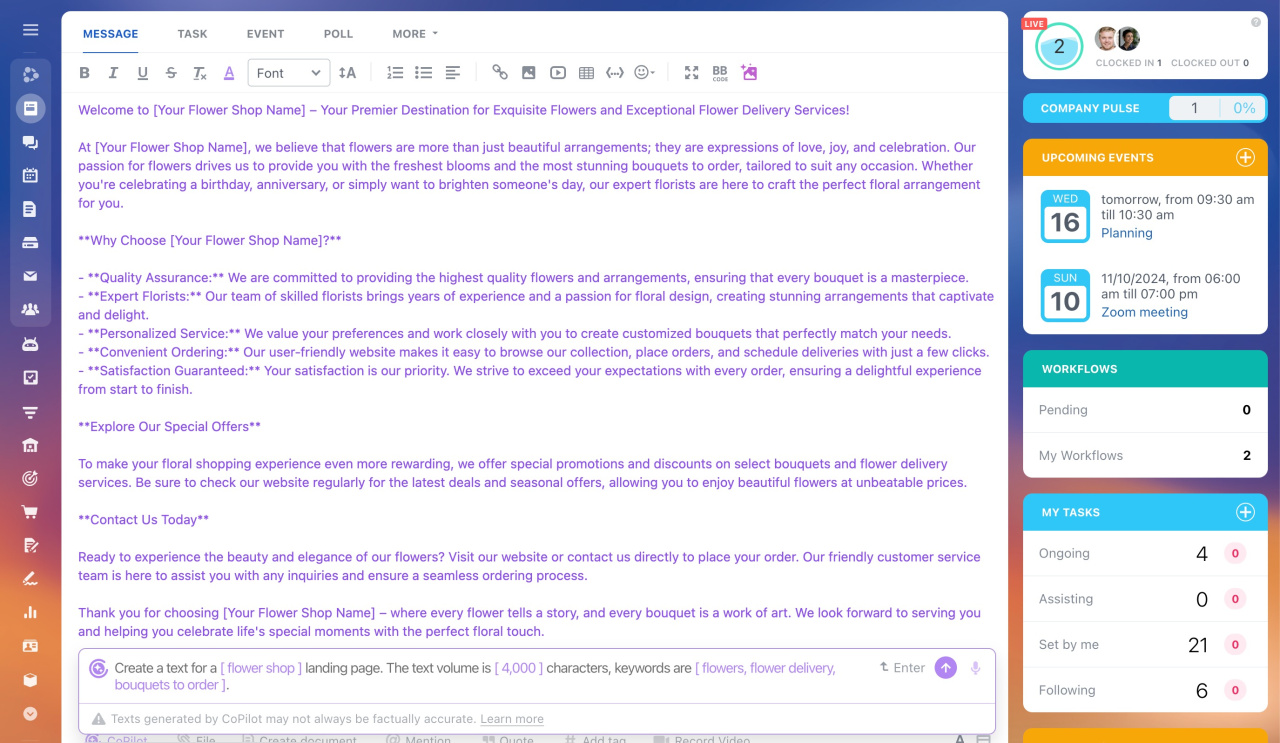
If you select an extended prompt, fill in the placeholders. CoPilot will then generate the content.
Manage the prompt library
By default, employees see all active prompts, including shared ones. You can adjust the list to fit your needs.
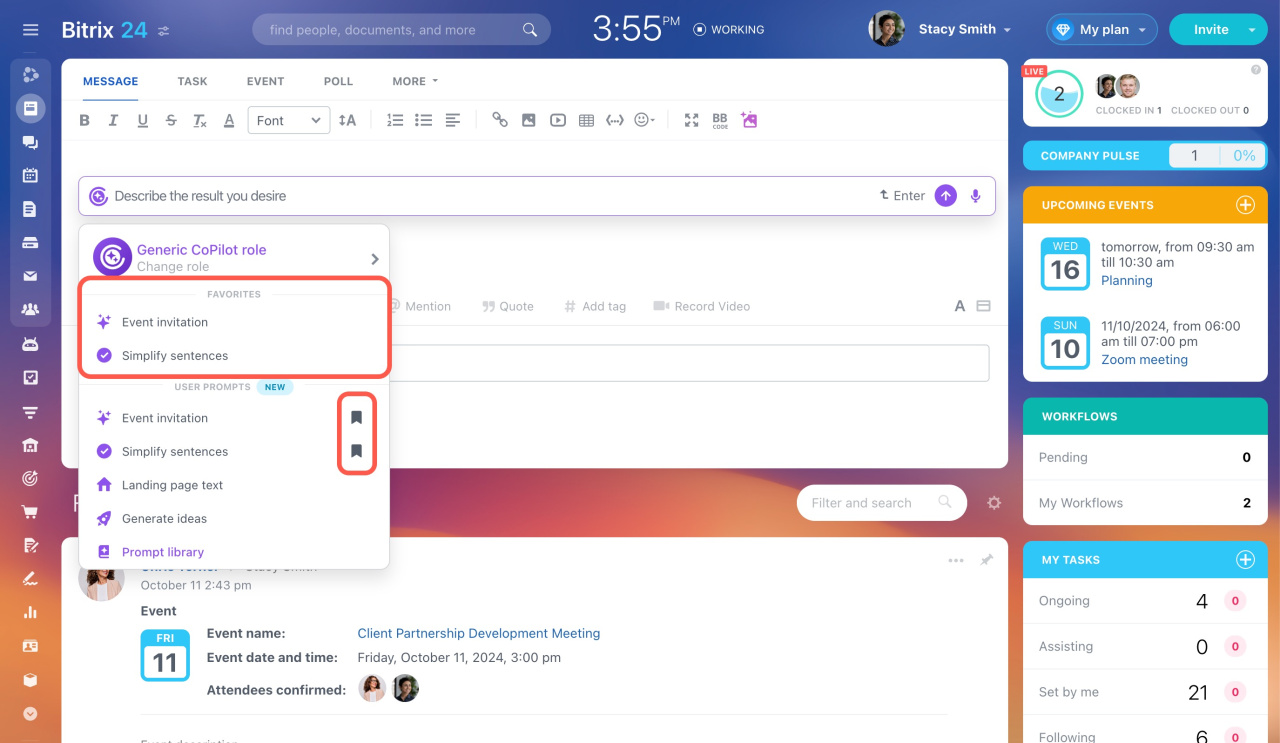
Add to Favorites. Mark frequently used prompts to keep them at the top of the list.
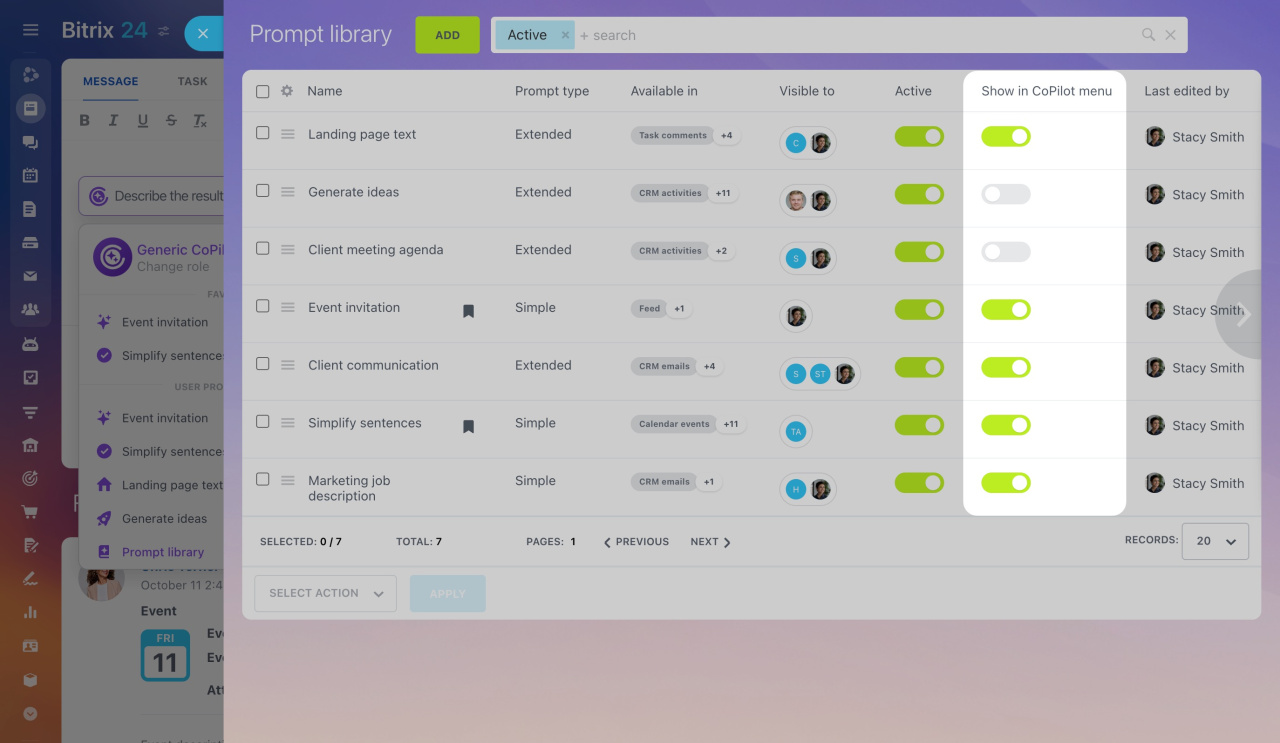
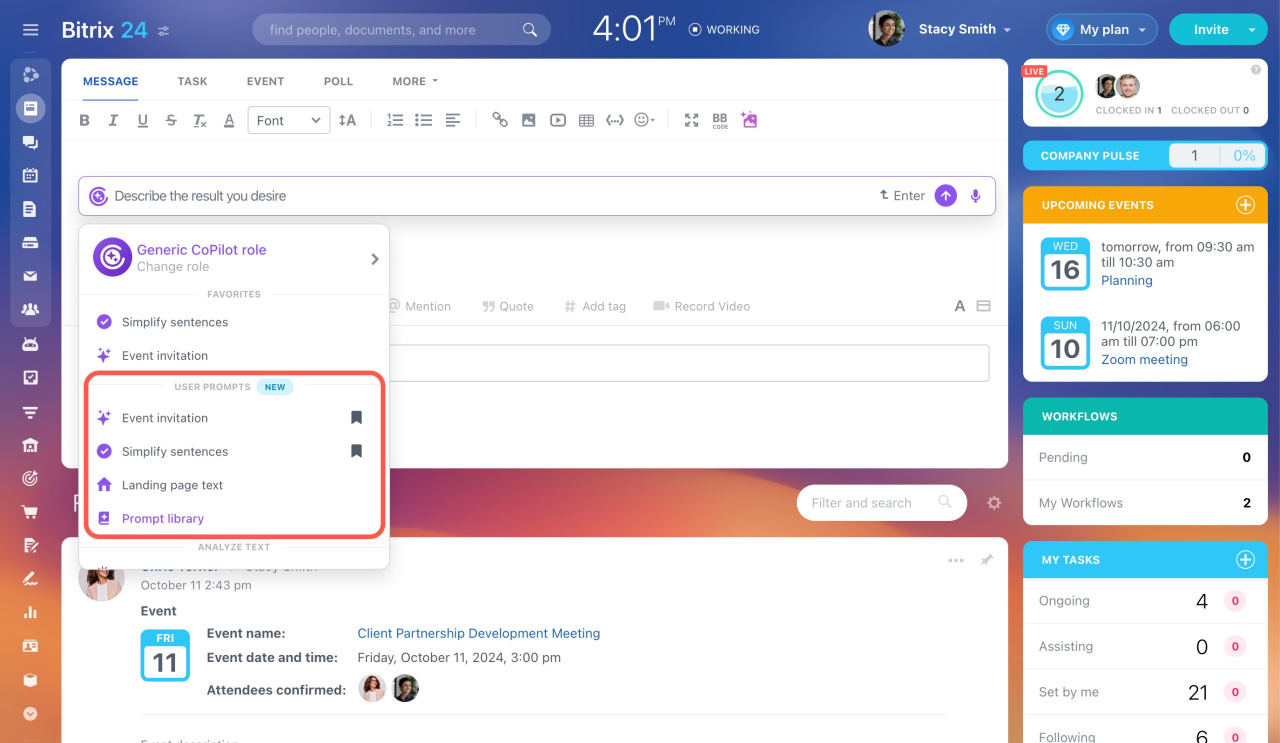
Don't show in CoPilot menu. Turn off Show in CoPilot menu to remove a prompt from your list. Others can still use it.
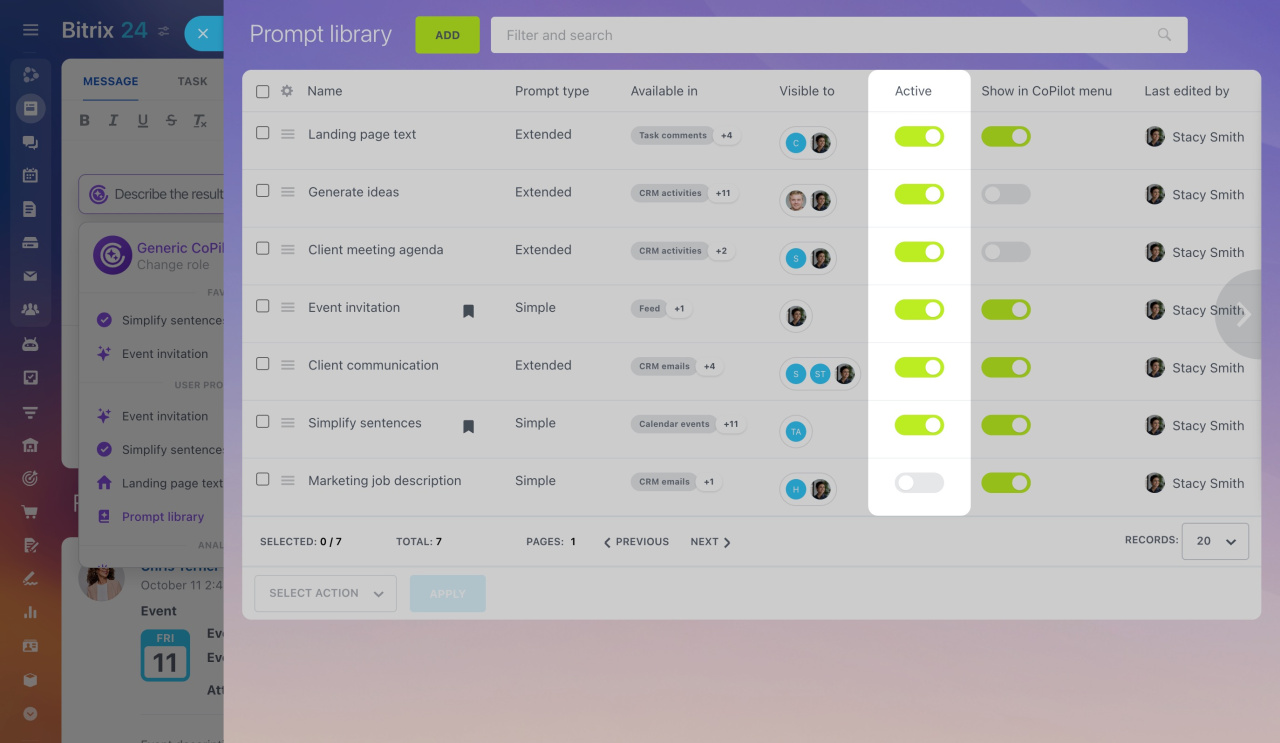
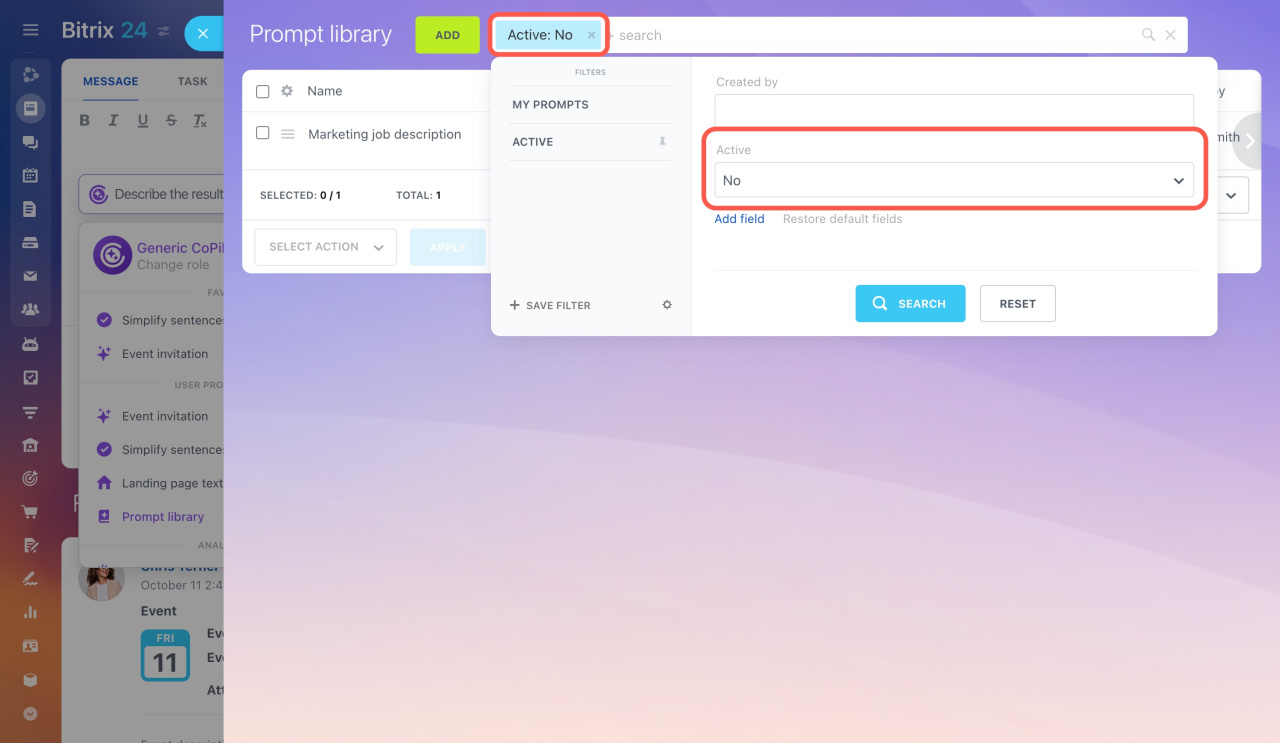
Deactivate. Turn off the Active option to hide a prompt for all users. You can reactivate it anytime. Use filters to find inactive prompts.
Edit a prompt
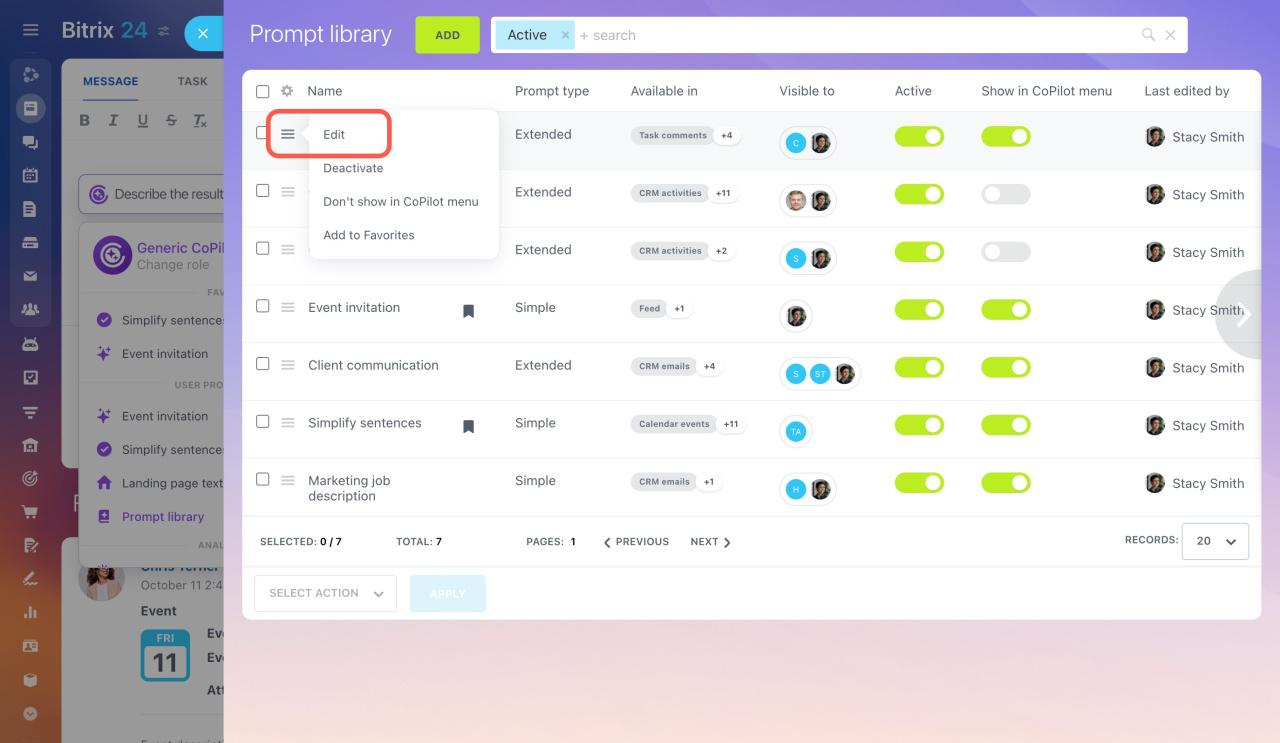
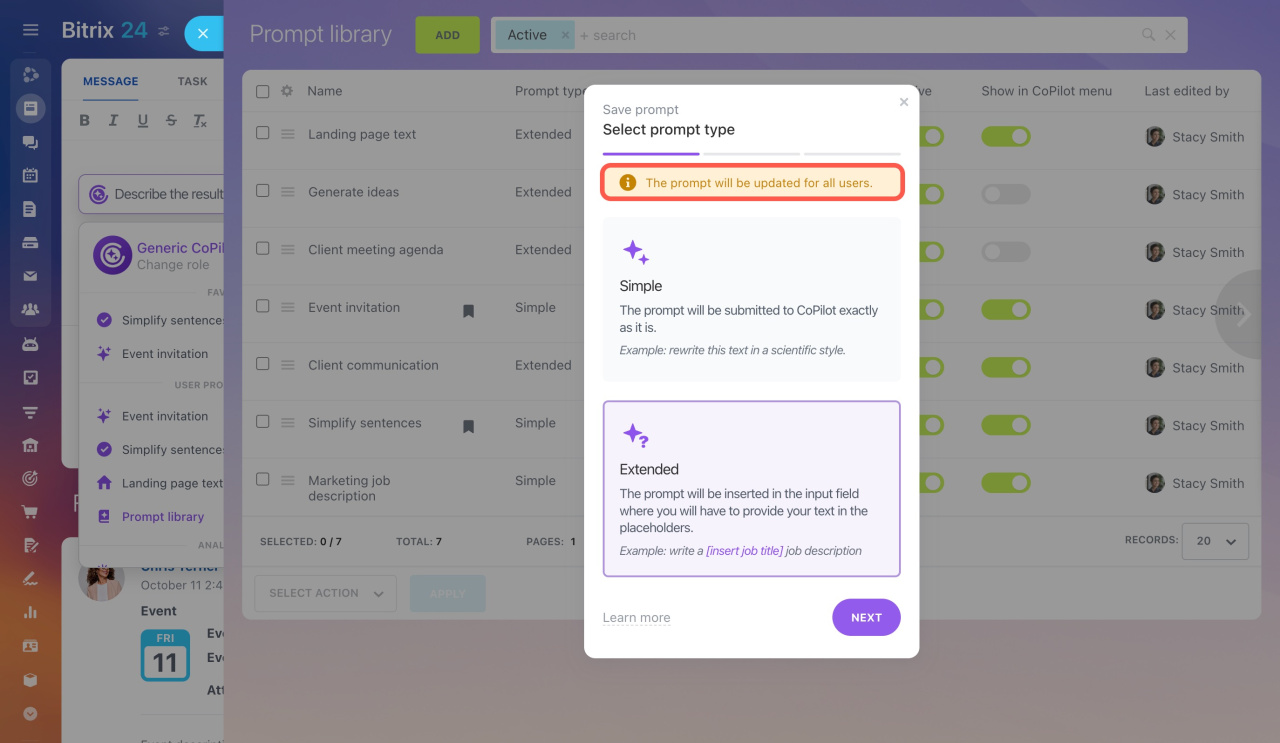
Go to any section with CoPilot and open CoPilot > Prompt library. Select a prompt, click Menu (≡), and choose Edit.
In brief
The prompt library stores and organizes CoPilot prompts. It helps you reuse queries and share them with your team.
- Open CoPilot > Prompt library > Add to create a prompt.
- Choose a simple or extended prompt type.
- Enter the text, set access permissions, and select where the prompt will be available.
- Users with access can edit prompts, and changes are visible to everyone.
- You can manage visibility with favorites, menu settings, and activation status.