
CoPilot in CRM analyzes calls, chats, and emails. It helps sales teams spend less time on routine work.
CoPilot can help you:
- Recall conversation details. It transcribes call recordings and creates summaries for calls, chats, and emails. You do not need to replay recordings or scroll through message history.
- Fill in CRM item forms. After analysis, CoPilot adds details from the conversation to lead or deal fields.
- Catch important inquiries. It creates an activity based on the conversation or marks an inquiry as irrelevant.
Inquiry processing with CoPilot is available on commercial plans.
Bitrix24 pricing page
In this article:
How CoPilot processes data in CRM
CoPilot analyzes client communication across calls, chats, and email. Depending on the channel, it can complete three or four steps.
CoPilot in CRM: Call transcription and automatic field updates
CoPilot in CRM: Chat summary and automatic field updates
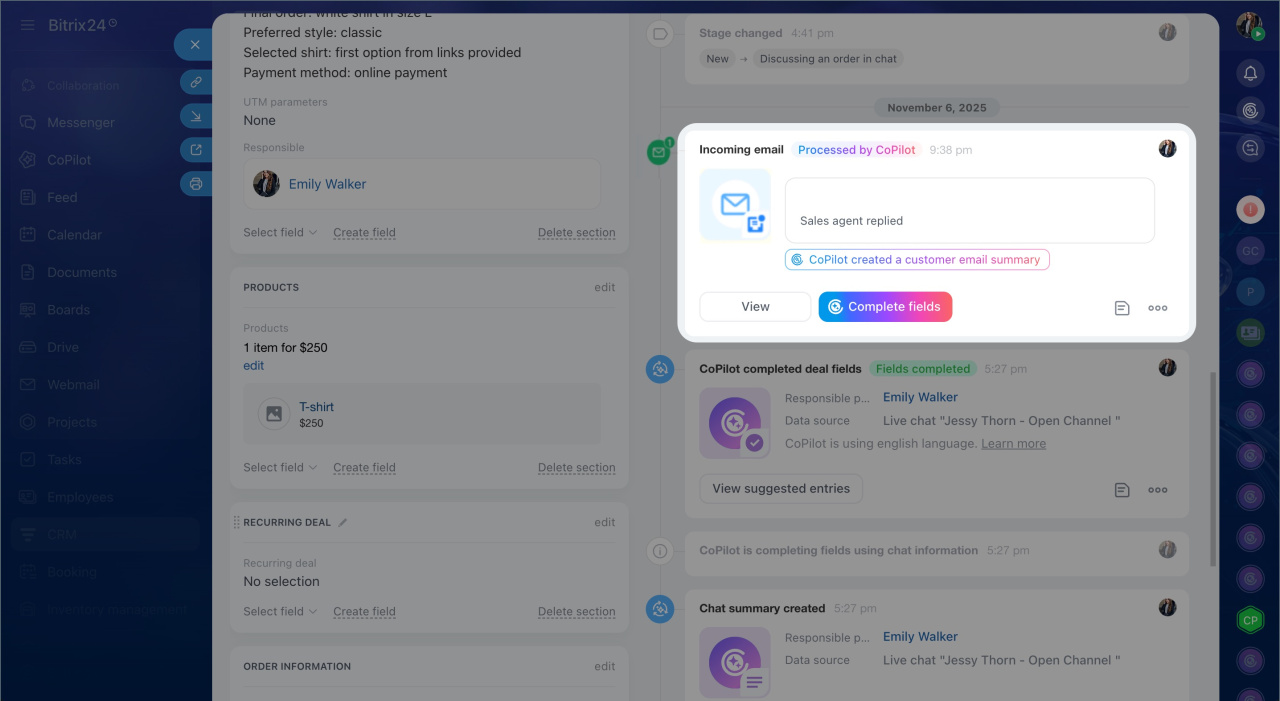
CoPilot in CRM: How to process an email
- Call transcription. CoPilot converts the conversation into text. Managers can open the transcript and search for specific details without listening to the full recording.
- Call, chat, or email summary. CoPilot highlights the key points and creates a short summary of the conversation. Managers can open the summary to quickly see what was discussed.
- CRM field fill. CoPilot adds data from the call, chat, or email to empty fields. If a field already has a value, CoPilot lets you keep it or replace it.
- Activity creation. CoPilot analyzes the call, chat, or email and creates an activity with a short summary and rating. For relevant inquiries, it suggests the next step. For irrelevant inquiries, such as spam, it offers to add the contact to exceptions.
Enable CoPilot in CRM
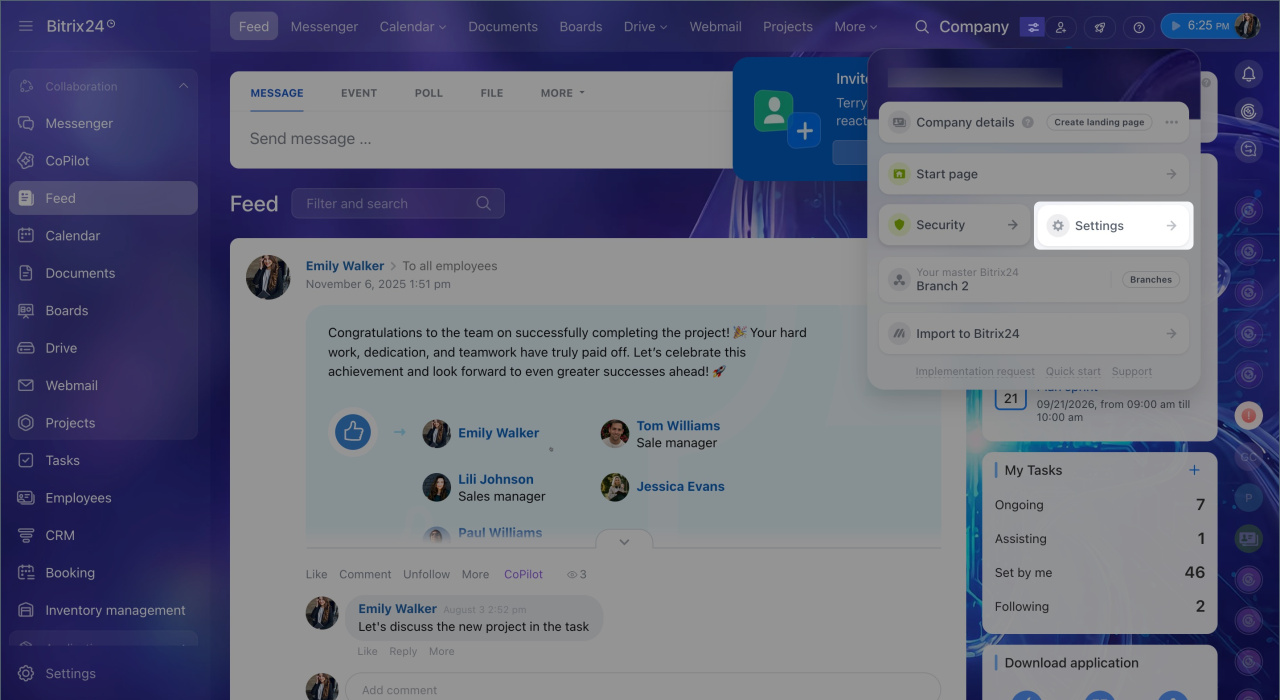
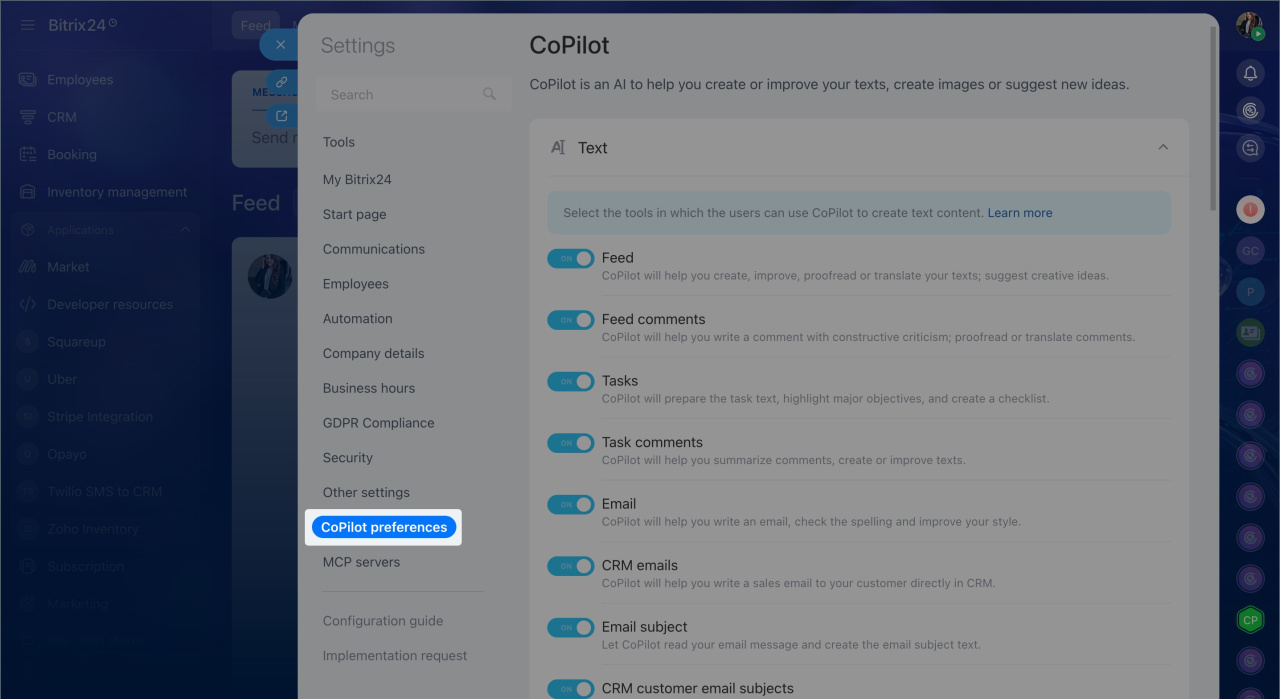
Enable CoPilot in CRM in Bitrix24 settings so employees can process client inquiries with AI.
1. Click the settings icon next to your Bitrix24 logo or name and select Settings (⚙️).
2. Open CoPilot preferences > CoPilot in CRM and enable the scenarios you want to use.
3. Save your changes.
Configure CoPilot in CRM
You can set the CoPilot response language in a separate settings panel.
Role-based access permissions in CRM
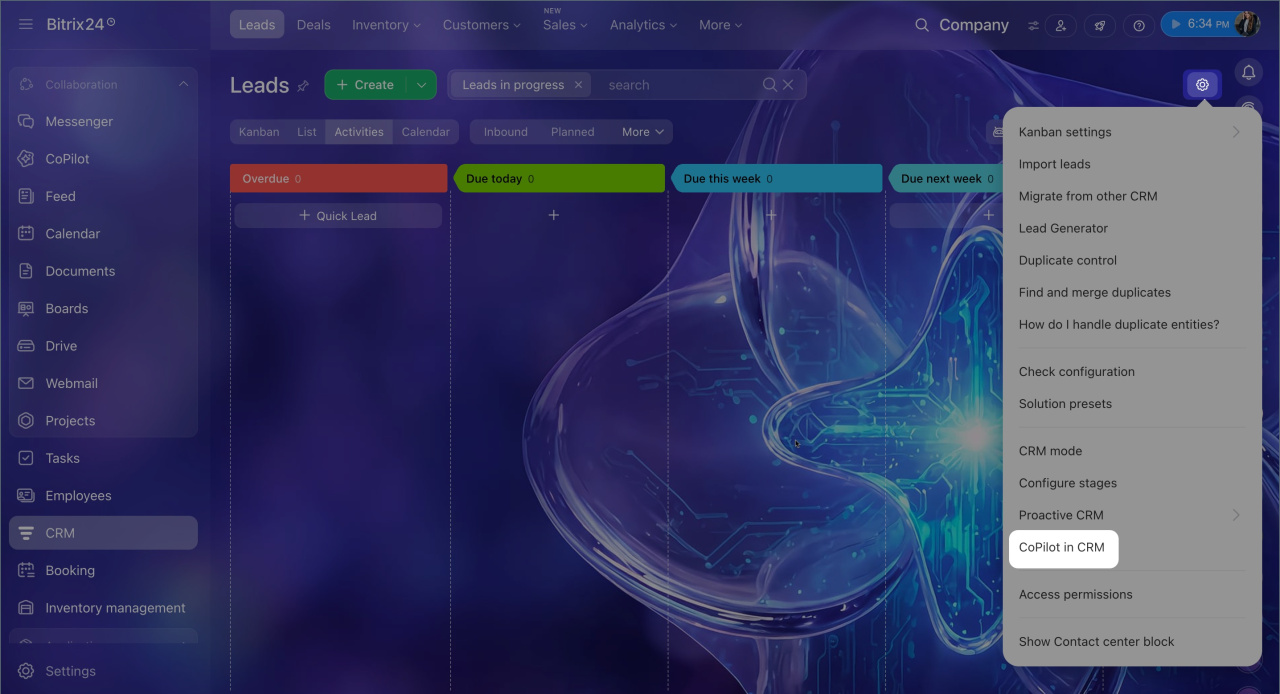
Open CoPilot in CRM settings.
1. In the left menu, go to CRM.
2. Open the Leads or Deals tab.
3. For deals, select a pipeline at the top of the page.
4. In the upper-right corner, click Settings (⚙️) and select CoPilot in CRM.
5. The settings panel opens for the current section: leads or the selected deal pipeline.
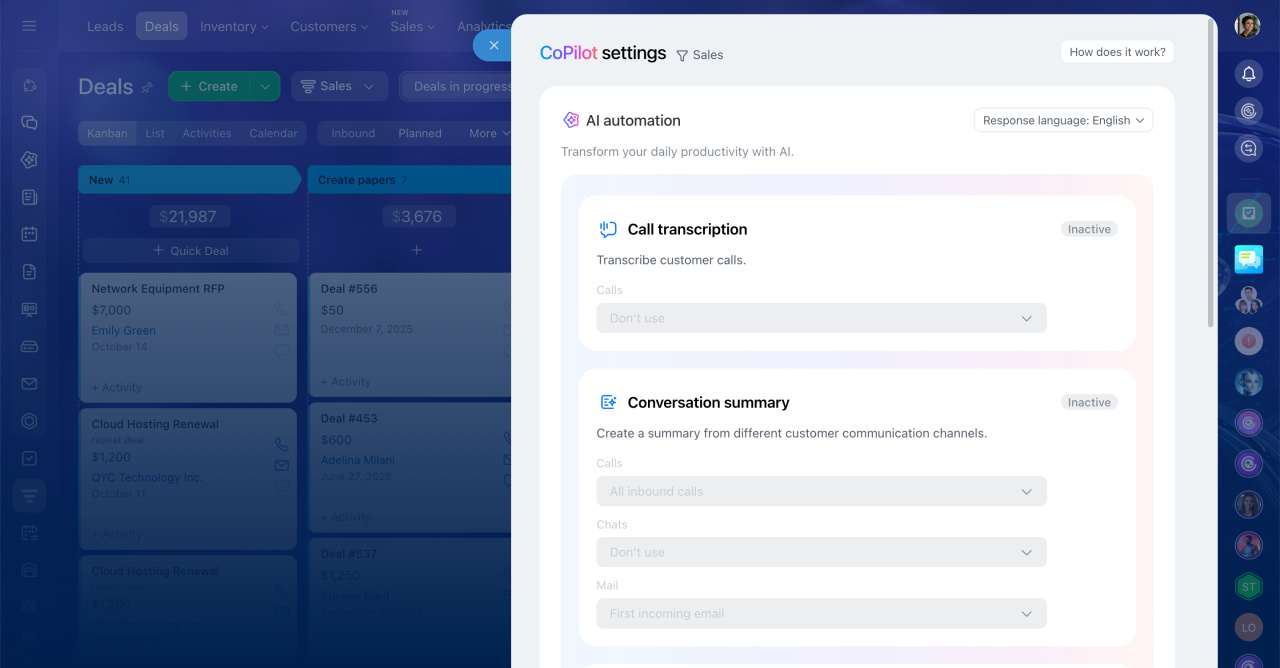
Select the response language. Choose the language CoPilot uses for call, chat, or email summaries and for CRM fields. This setting does not affect call transcripts. Transcripts always use the language spoken during the call.
This is useful when your clients and employees speak different languages. For example, a sales rep can speak with a client in English while CoPilot fills in CRM fields in another language.
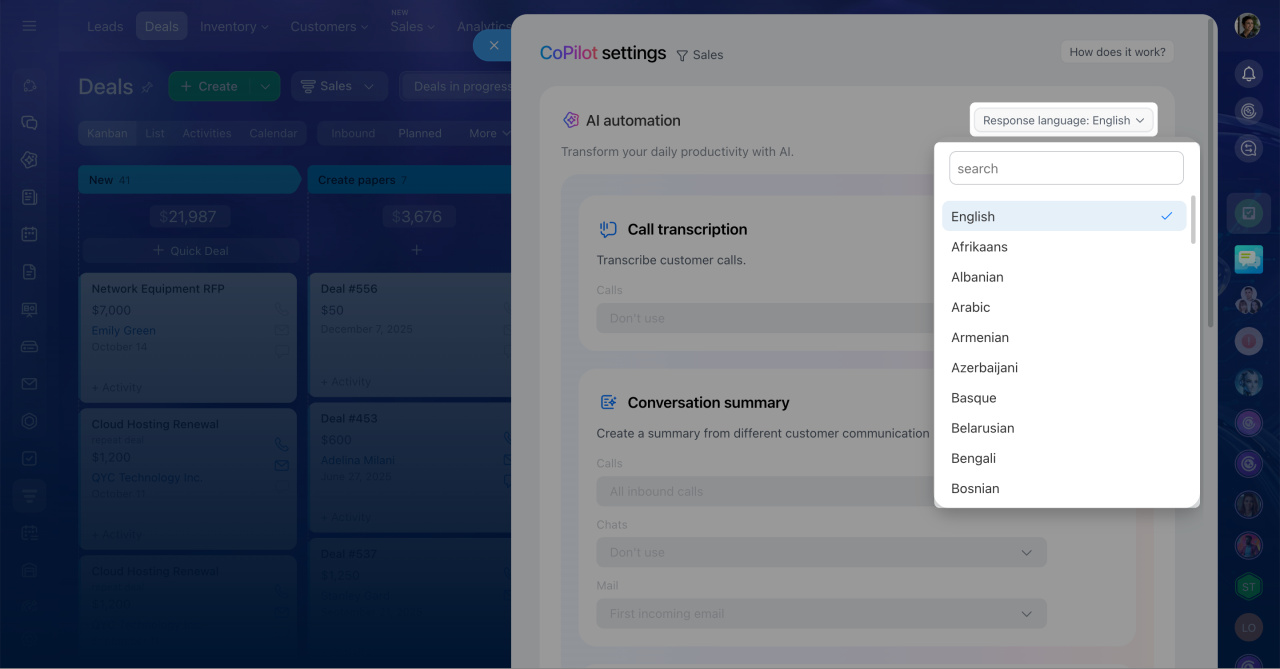
1. In the upper-right corner of the panel, click the current language setting, for example, Summary language: English.
2. Search for a language or select one from the list.
In brief
- CoPilot in CRM analyzes calls, chats, and emails. It transcribes calls, creates summaries, fills in CRM fields, and creates activities.
- To let employees process client inquiries with CoPilot, the administrator must enable this in Bitrix24 settings.
- To configure CoPilot in CRM, go to CRM > Leads or Deals > Settings (⚙️) > CoPilot in CRM.
- Each user with access to CoPilot settings chooses their own language for summaries and CRM fields. Call transcripts stay in the language spoken during the call.