
Bitrix24 lets you connect to external AI systems like ChatGPT or Manus AI using the MCP server. This setup allows you to manage CRM, tasks, and other tools directly from a chat with an AI assistant.
For example, you can create a work plan in ChatGPT and immediately ask the assistant to create tasks in Bitrix24 with names, deadlines, and assignees. You don’t need to switch between apps: the tasks are created in Bitrix24 automatically.
This integration helps you move faster and work in the tool that’s most convenient for you.
In this article:
Enable or disable integration with external AI systems
By default, Bitrix24 does not allow access from external AI tools. An administrator can turn this option on.
To enable integration:
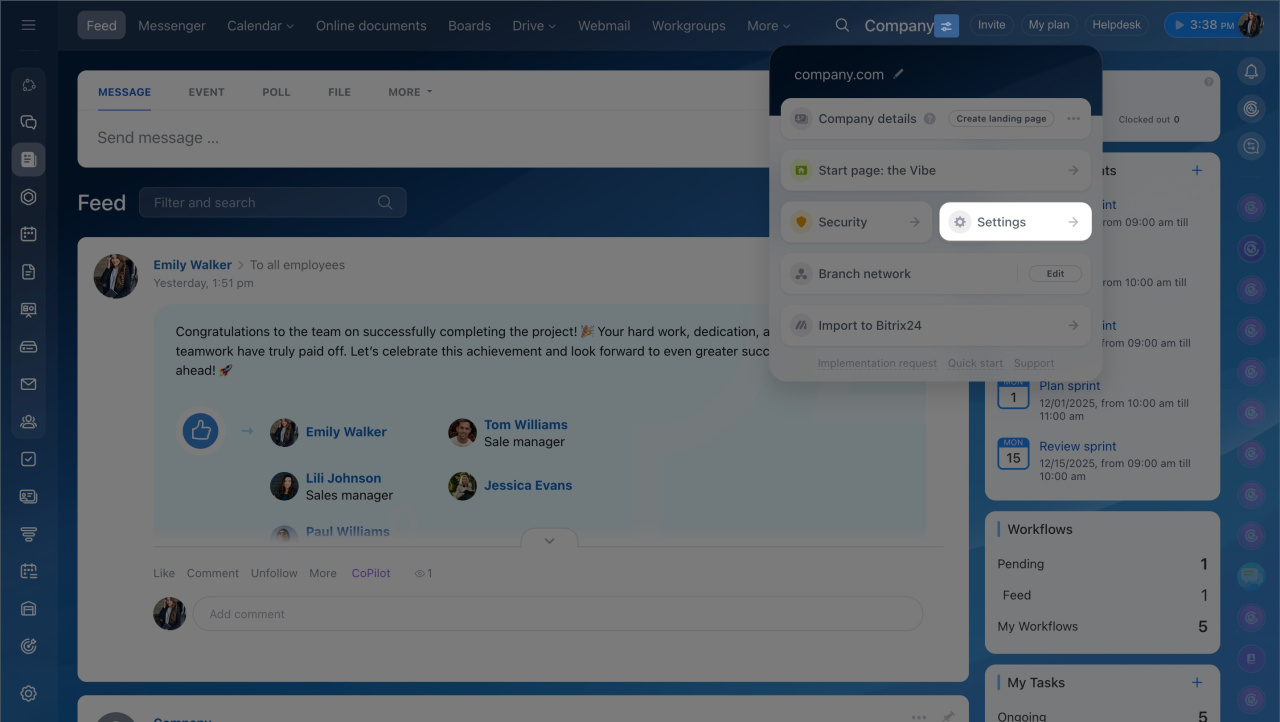
- Open the menu next to your account name.
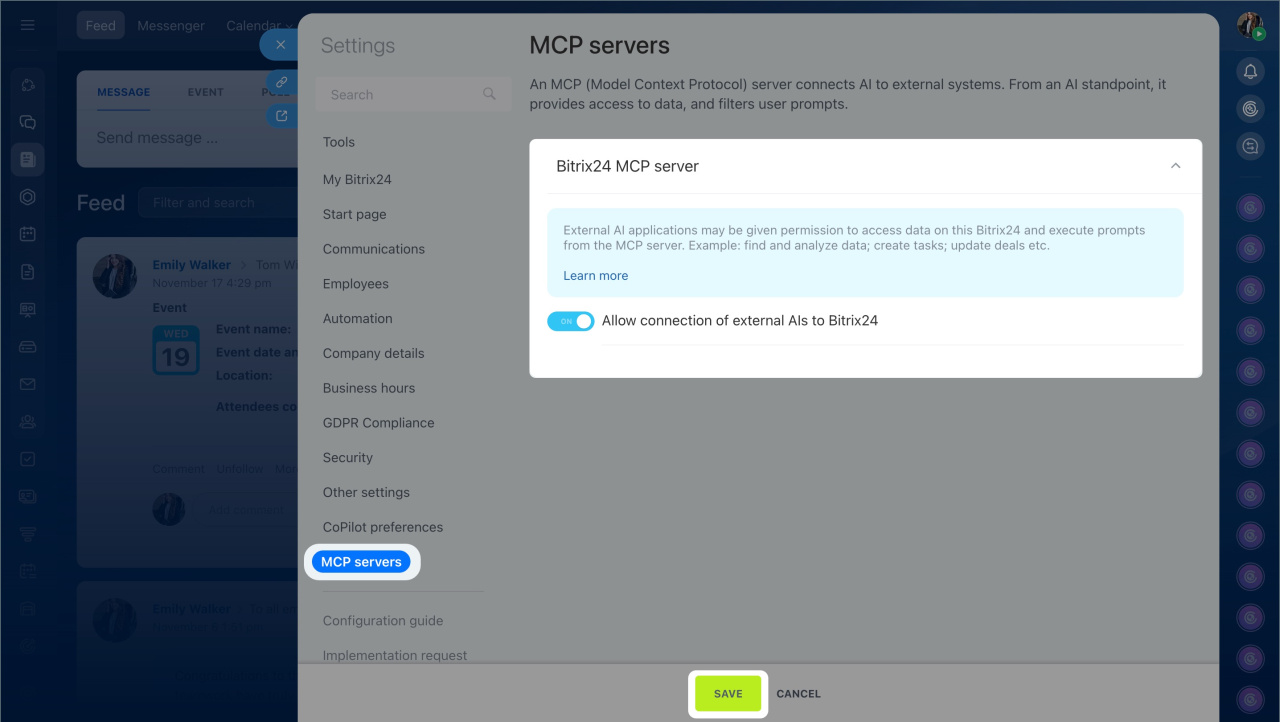
- Go to Settings (⚙️) > MCP servers.
- Turn on Allow connection of external AIs to Bitrix24.
- Click Save.
After you enable the option, employees can connect their AI assistants and manage Bitrix24 tools directly from an AI assistant chat.
To disable integration, turn off the same option. Existing connections will stay in place, but employees will not be able to use them until you enable access again. Items that were already created will remain in Bitrix24.
Connect Bitrix24 to an external AI system
You can manage CRM, tasks, company structure, invitations, and emails in Bitrix24 directly from a chat with tools like ChatGPT or Manus AI. More integrations, features, and supported actions will become available over time.
The setup depends on the AI tool. Some assistants use OAuth, while others require a connection token.
Connect using OAuth
This example shows how to connect Bitrix24 to ChatGPT. This option is available for ChatGPT Plus and Pro plans.
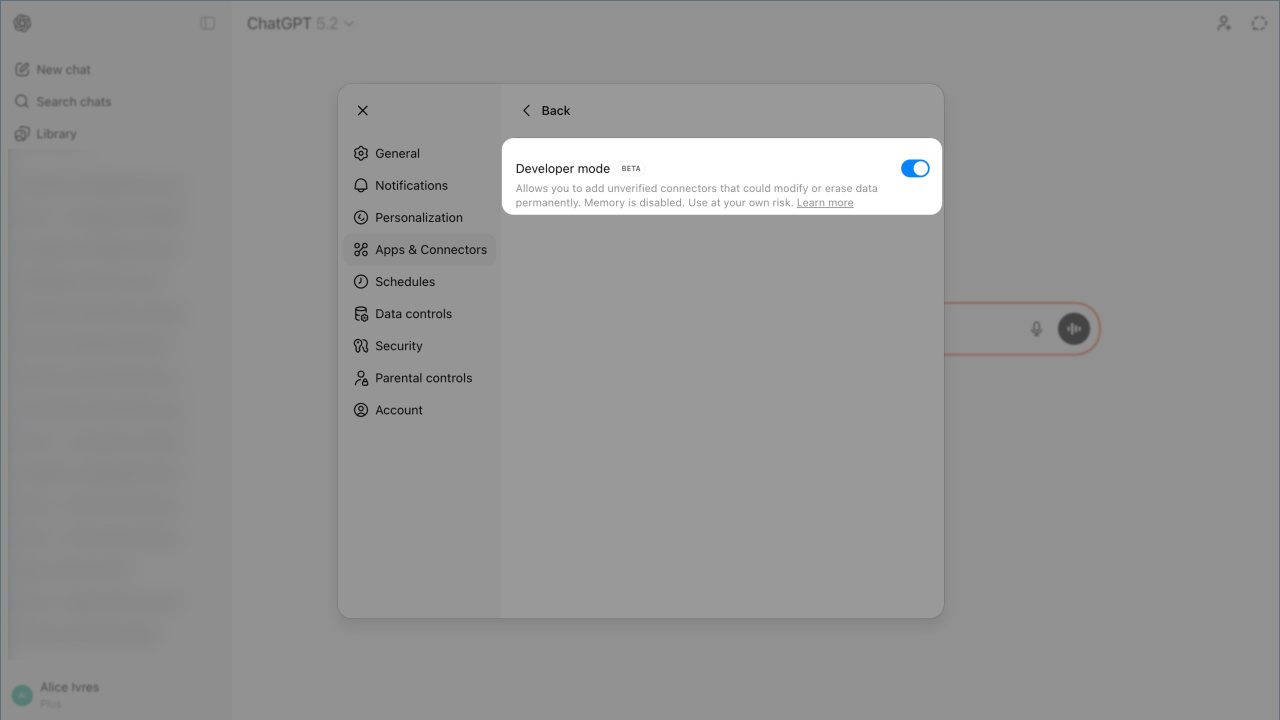
Step 1. Enable developer mode
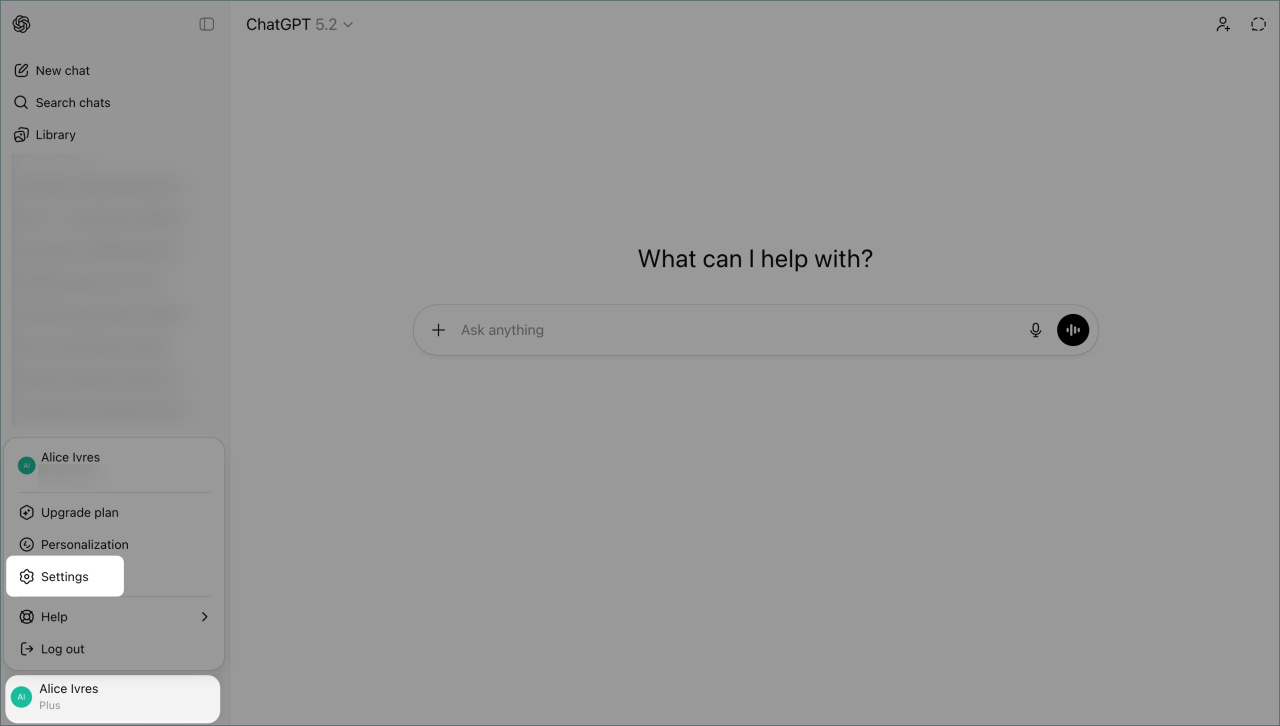
- Open ChatGPT and go to your profile.
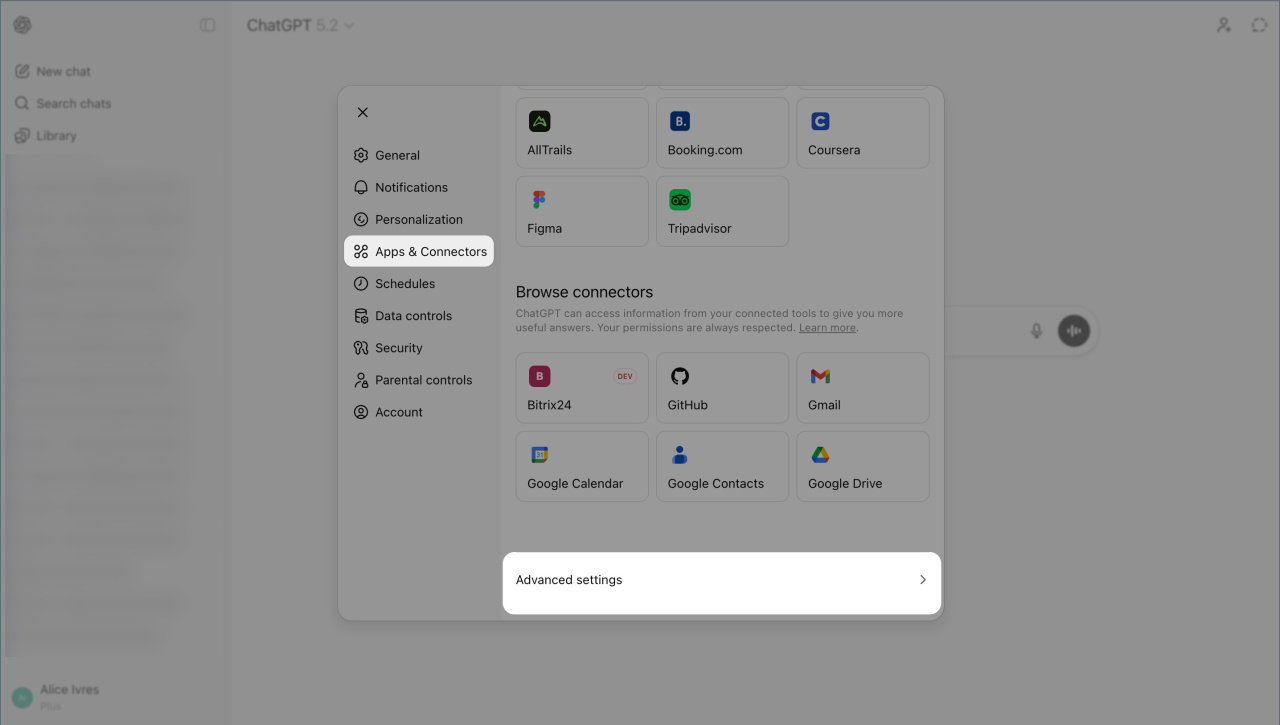
- Click Settings (⚙️) > Apps and connectors > Advanced settings.
- Turn on Developer mode.
- Click Back to return to the connector list.
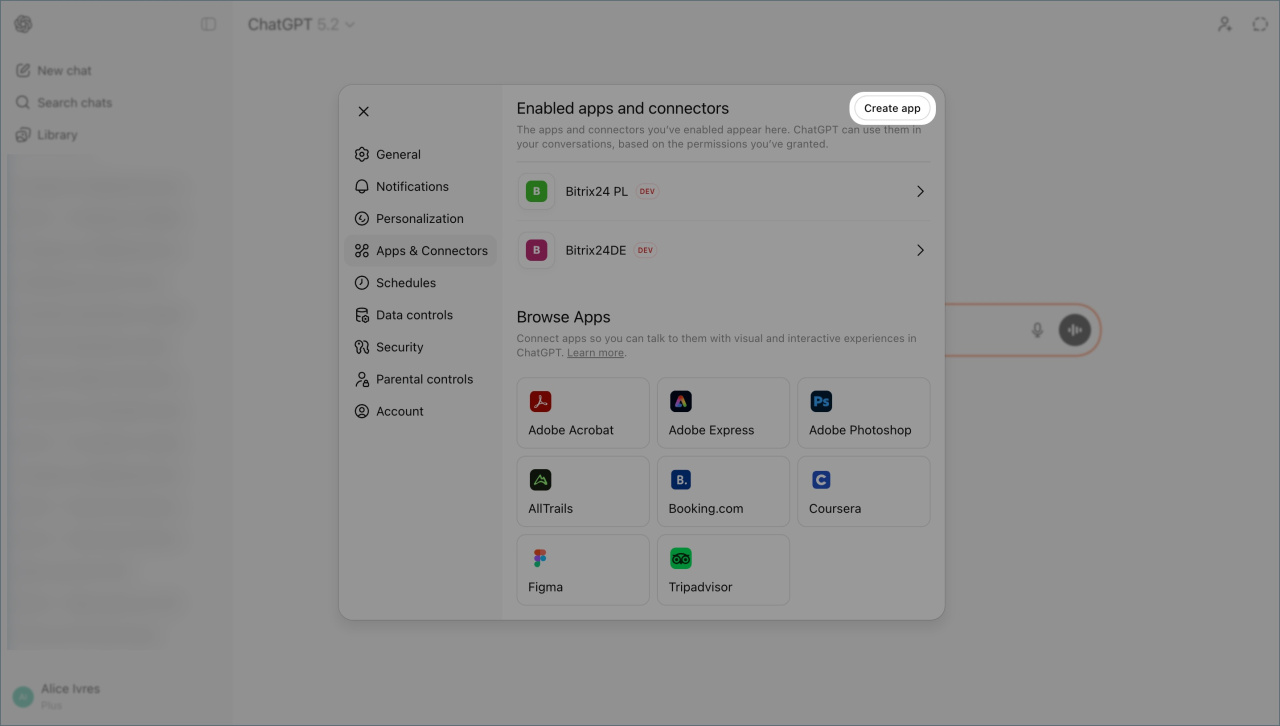
Step 2. Create a connector
- Click Create app.
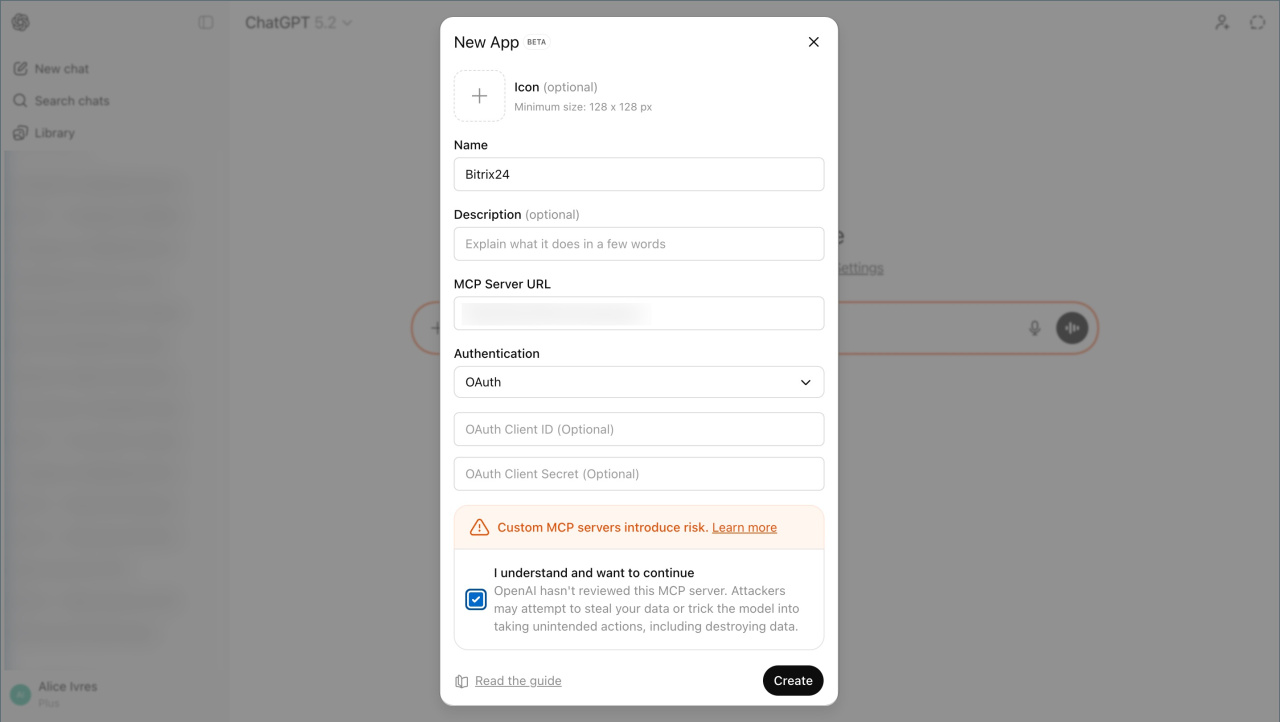
- Enter the connection details:
- Name — include your Bitrix24 account if you use more than one.
- MCP server URL —
https://mcp.bitrix24.com/mcp/. - Authorization type — OAuth.
- Accept the security terms.
- Click Create.
A Bitrix24 authorization window will open.
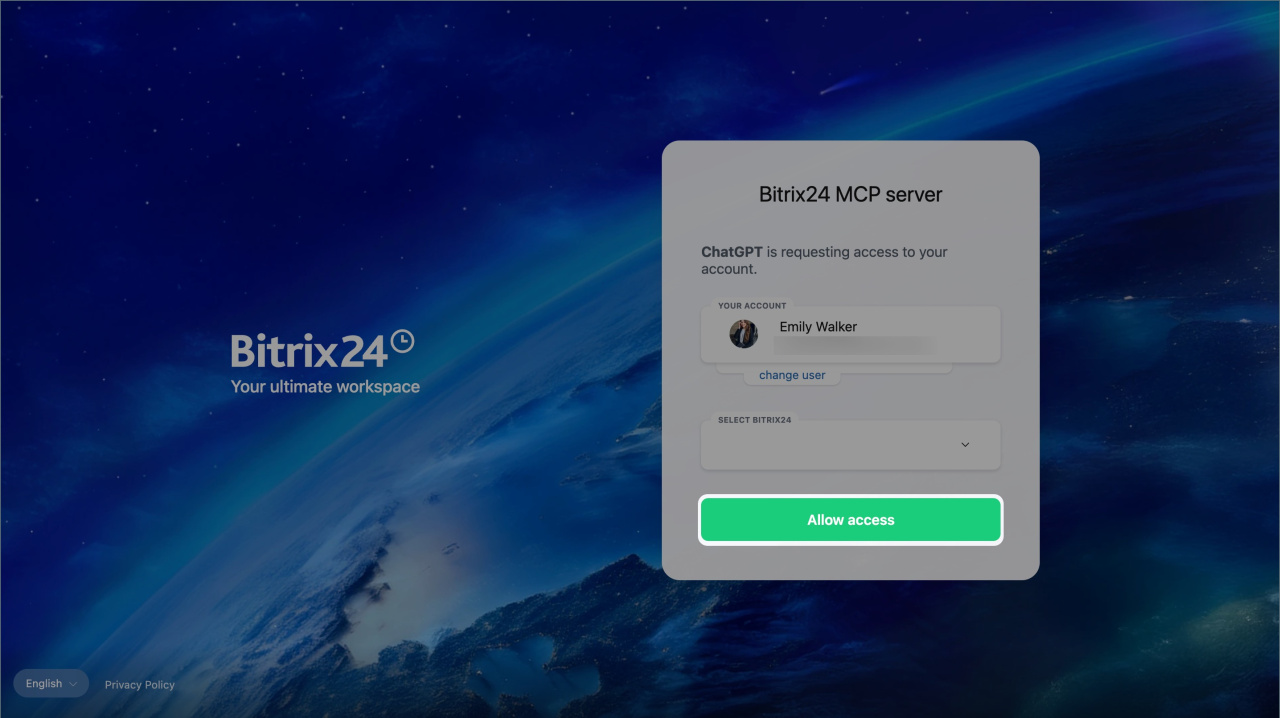
Step 3. Authorize in Bitrix24
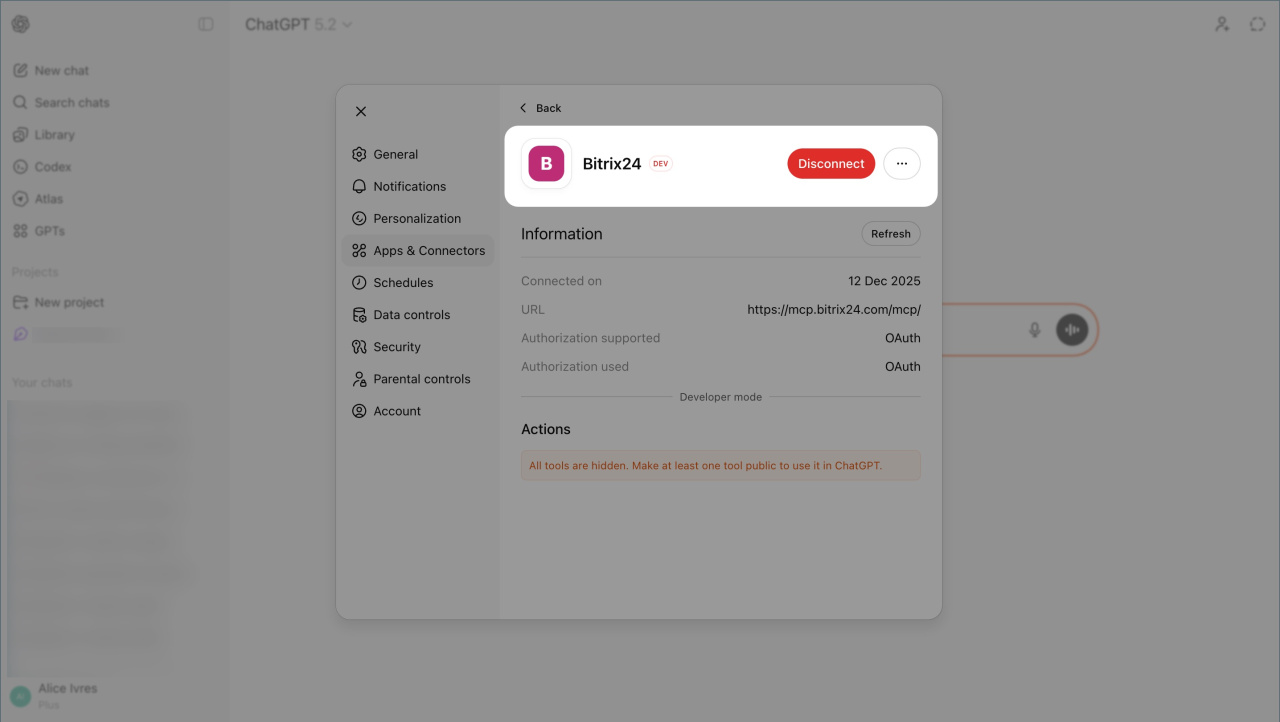
Log in to your Bitrix24 account. After you log in, ChatGPT will connect to Bitrix24, and you can manage Bitrix24 tools from the chat.
Connect using a token
This example shows how to connect Bitrix24 to Manus AI.
Step 1. Get a connection token
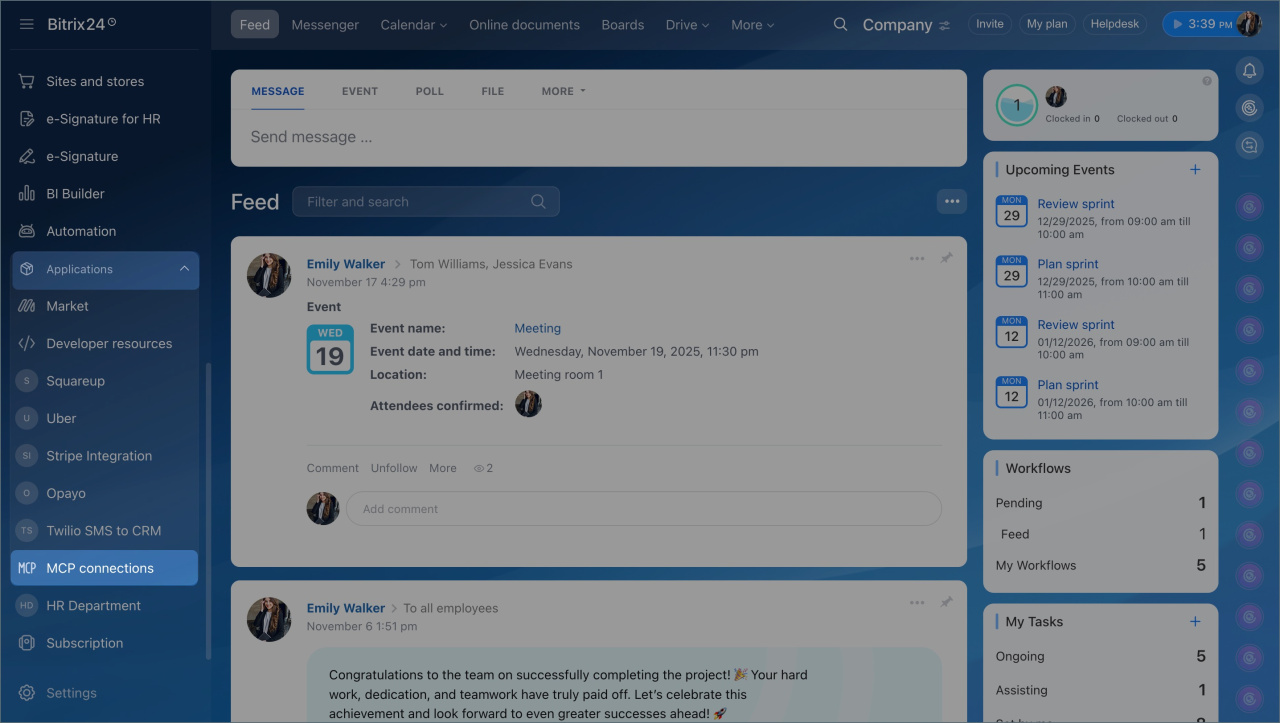
- Go to Applications > MCP connections.
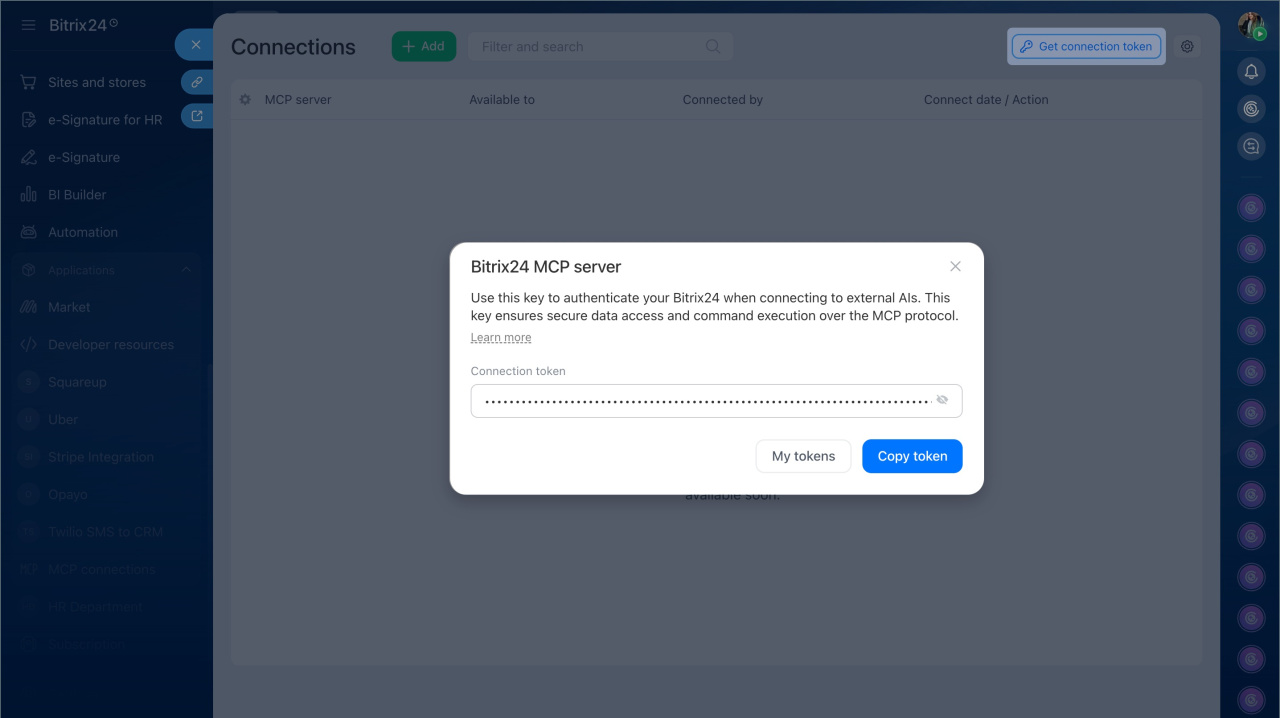
- Click Get connection token.
- If the button is inactive, the administrator has disabled integration.
- Click Copy token and save it.
You will need this token in the next step.
Step 2. Add the connection in the AI tool
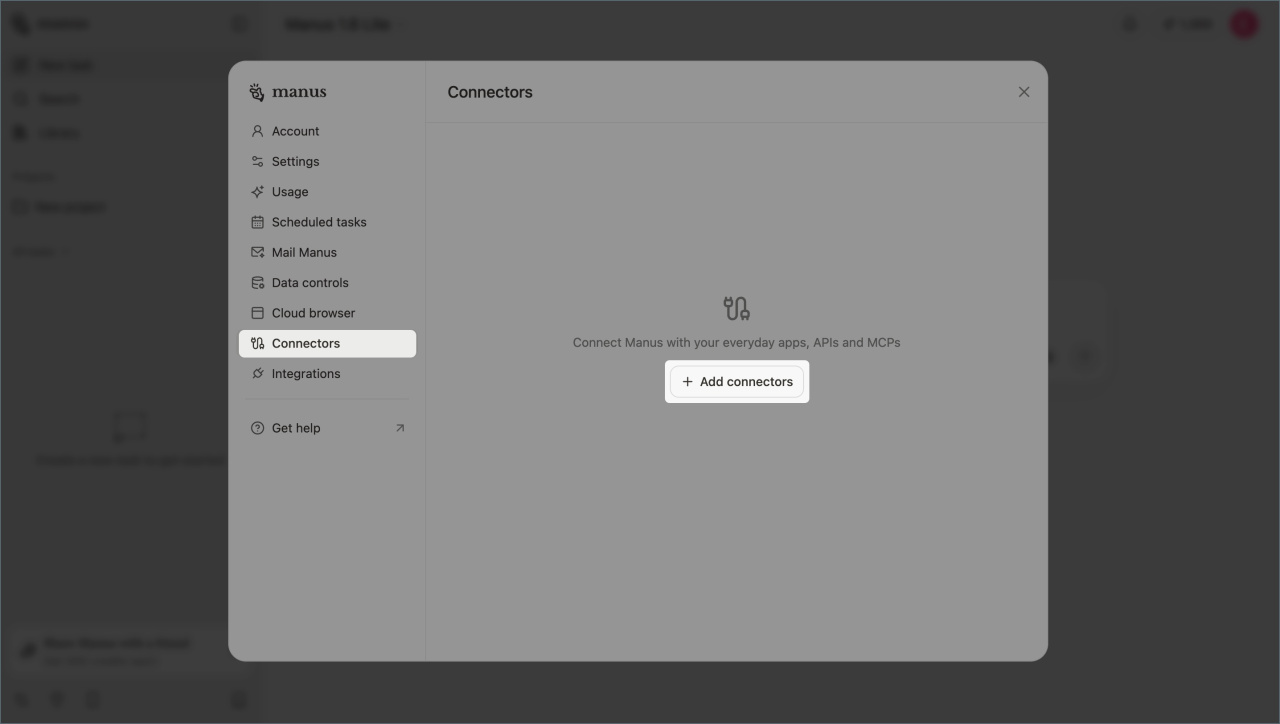
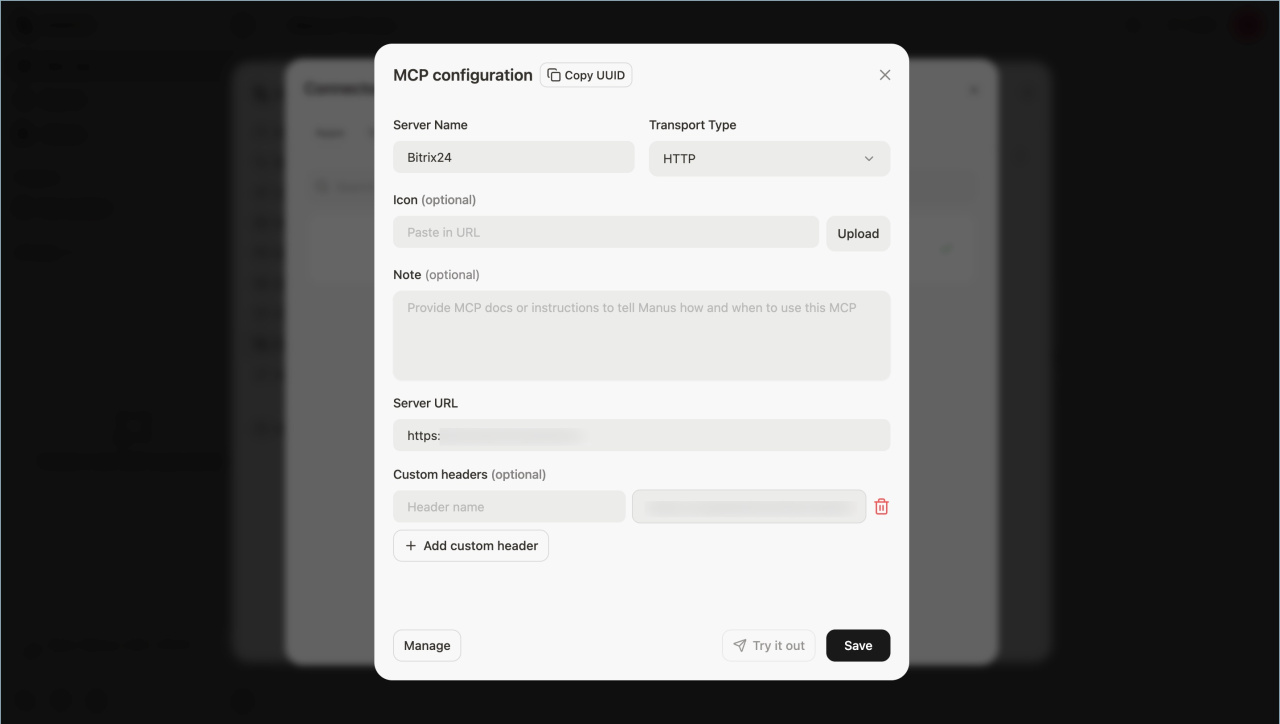
- Open the external AI system and go to Settings > Connectors.
- Click Add connectors.
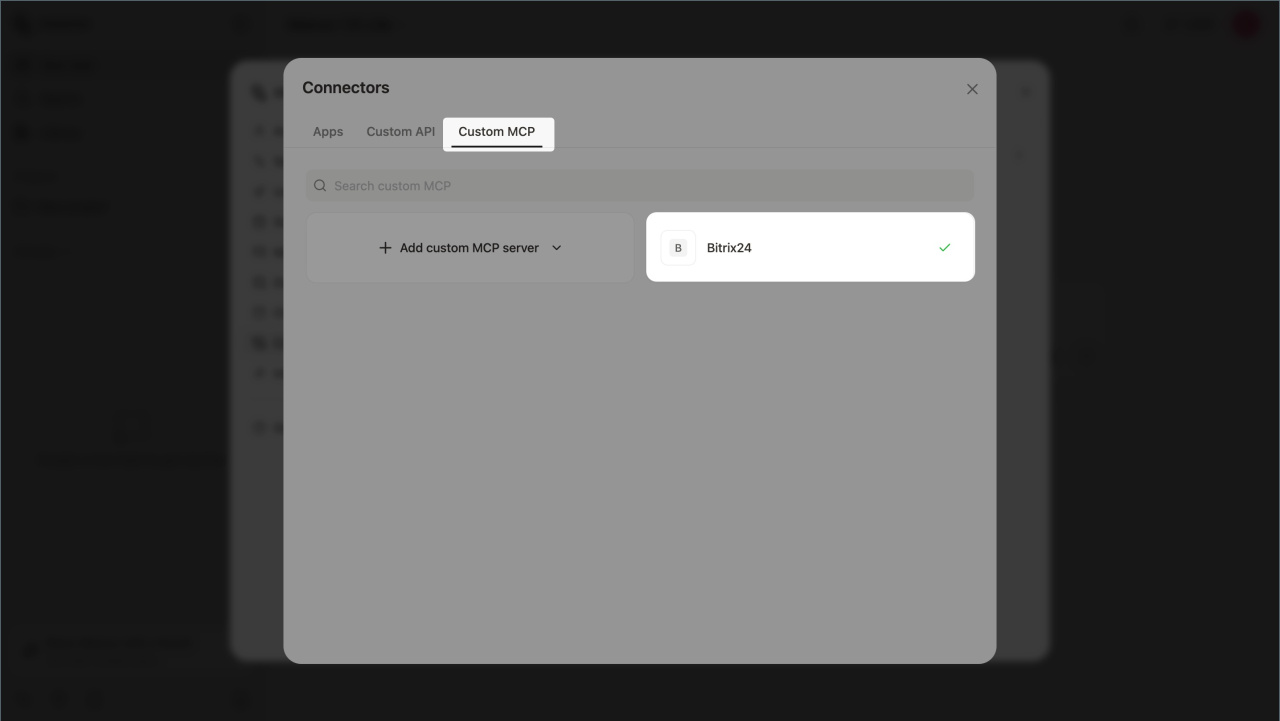
- Select Custom MCP > Add custom MCP.
- Choose Direct configuration.
- Enter the following:
- Transport type — HTTP.
- URL —
https://mcp.bitrix24.com/mcp/. - Authorization type — access token.
- Header value — paste the copied token.
- Save the changes.
After setup, you can manage Bitrix24 directly from the AI assistant chat.
How the integration works
The Bitrix24 MCP server connects your AI assistant to Bitrix24. This lets you manage CRM, tasks, company structure, invitations, and emails directly from chat.
The assistant performs actions only when you request them. It also follows your access permissions, so you stay in control.
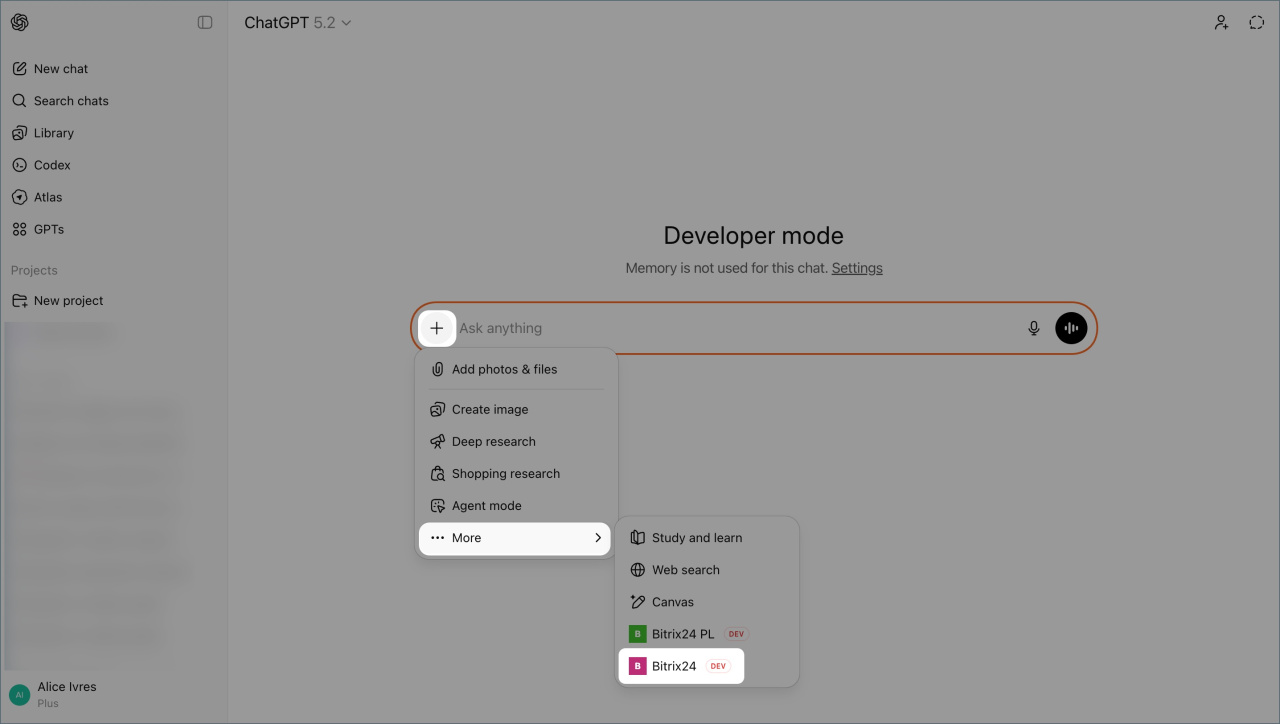
Here’s how it works in ChatGPT:
- In the message field, click ➕ > More (...).
- Select the Bitrix24 integration.
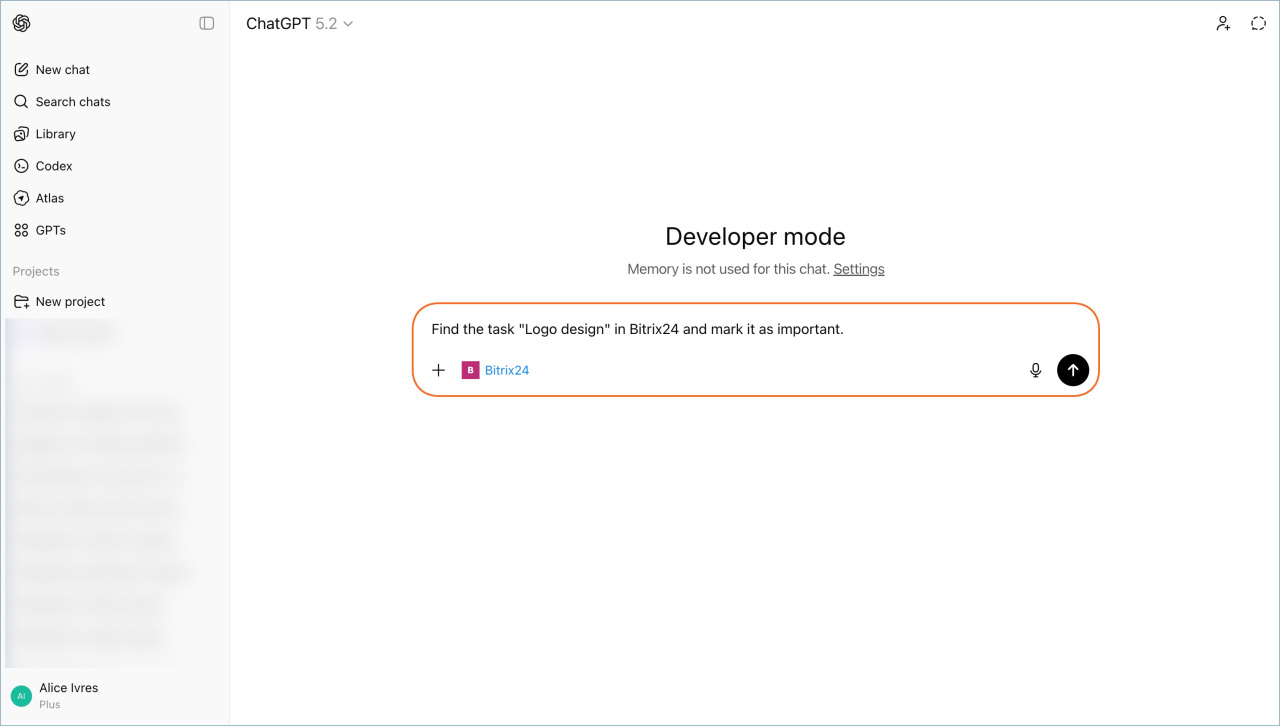
- Enter your request.
ChatGPT will process your request, ask for confirmation, and then complete the action. It will also show the result in the chat.
For example, you can ask the AI assistant to:
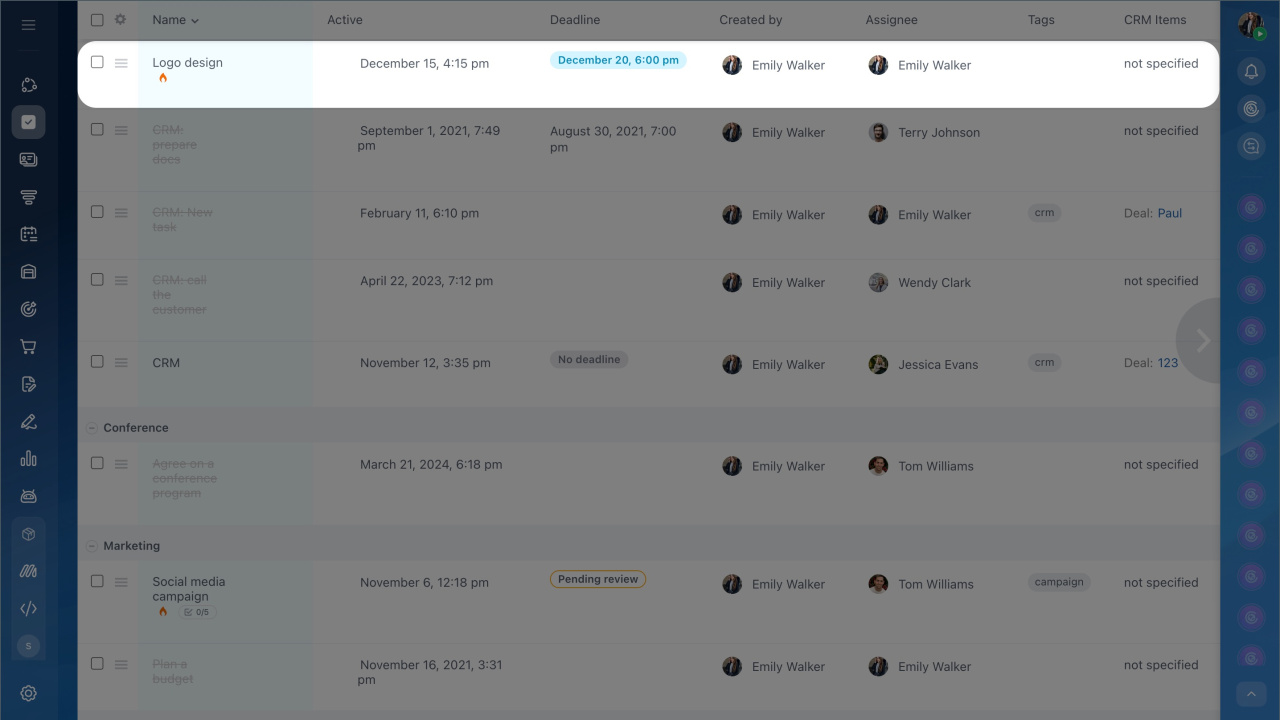
- Find, create, or edit a task
- Move a deal to another stage
- Create a sales pipeline
- Add a stage or edit an existing one
- View or update a subdepartment or cross-functional team
- Invite an employee or change their invitation status
- Find, read, or send an email
- Create an event, chat, or post in Feed from an email
Disconnect Bitrix24 from an external AI system
You can remove the connection at any time. Items created through the integration will remain in Bitrix24.
To disconnect:
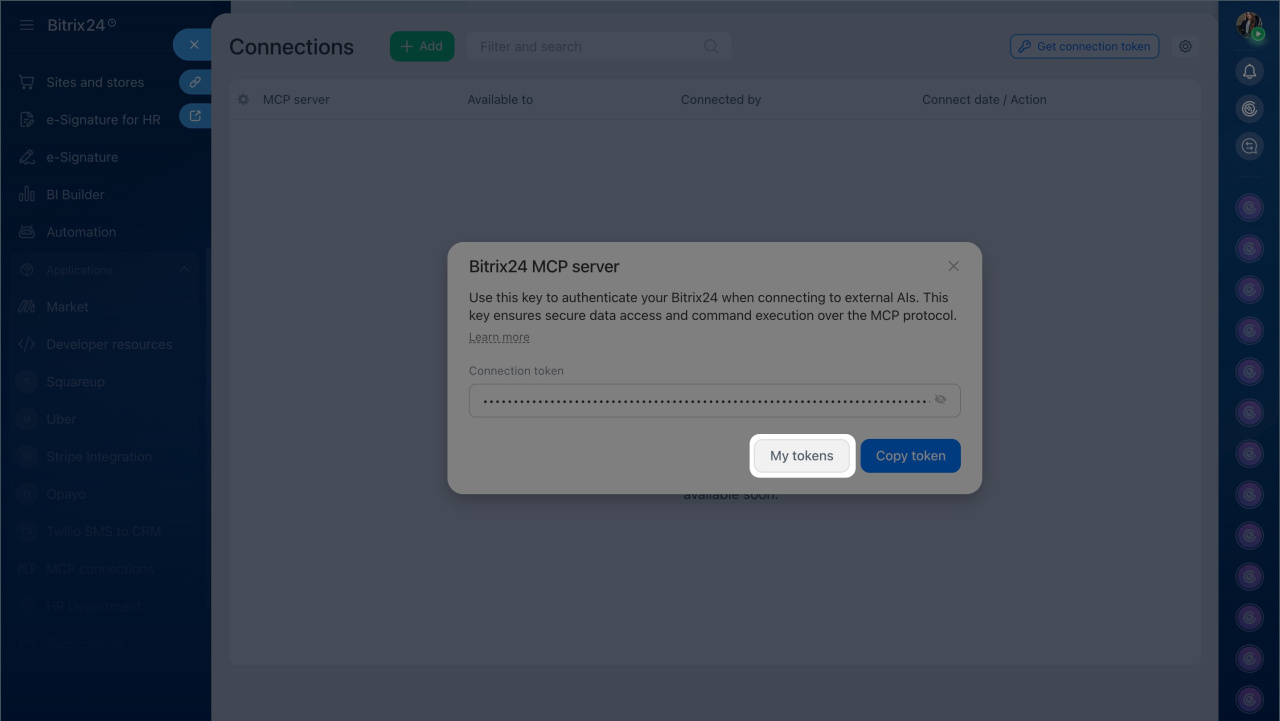
- Go to Applications > MCP connections > Get connection token > My tokens.
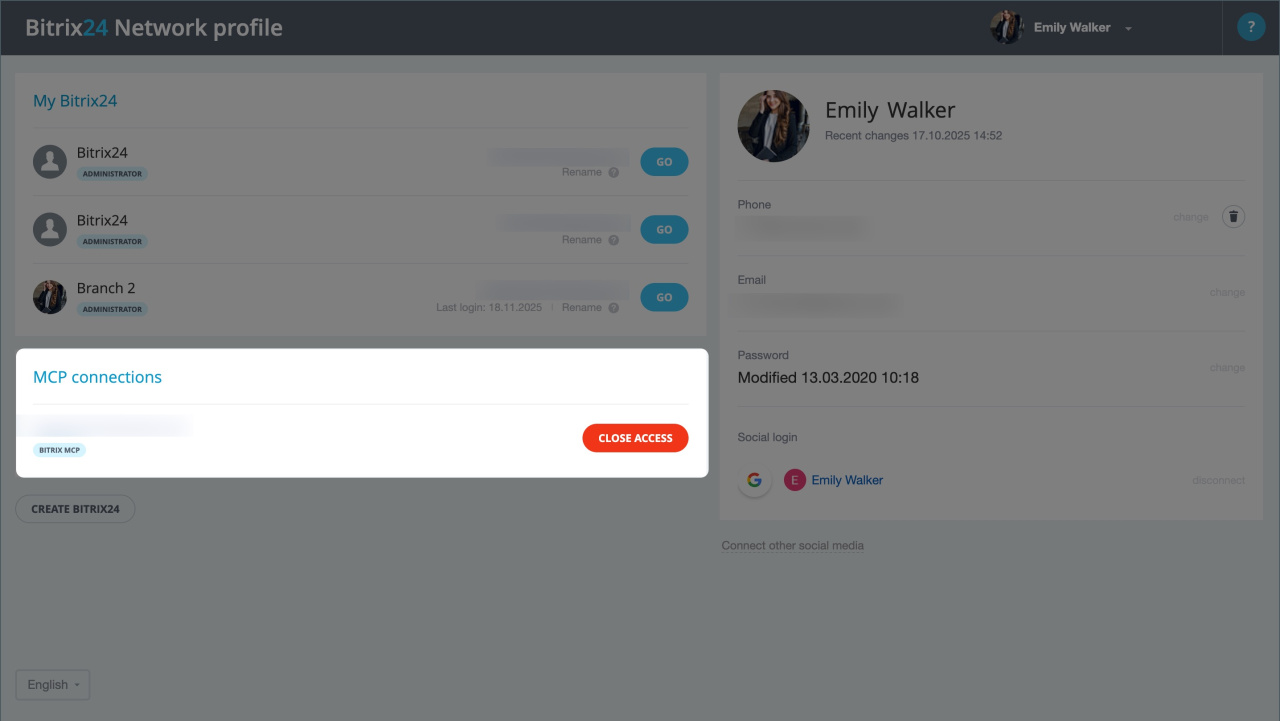
- Open your Bitrix24 Network profile.
- In the MCP connections section, find the integration.
- Click Close access.
In brief
- You can connect Bitrix24 to external AI tools like ChatGPT or Manus AI using the MCP server. This lets you manage CRM, tasks, company structure, invitations, and email right from an AI assistant chat. Available actions depend on the Bitrix24 tool, and more actions will become available over time.
- By default, this feature is turned off. An administrator must enable it in Settings (⚙️) > MCP servers by turning on Allow connection of external AIs to Bitrix24.
- The setup depends on the AI tool:
- Use OAuth by creating a connector and entering the MCP server URL:
https://mcp.bitrix24.com/mcp/. - Or use a token from Applications > MCP connections > Get connection token.
- Use OAuth by creating a connector and entering the MCP server URL:
- After setup, select the Bitrix24 integration in your AI assistant and enter a request. The assistant will ask for confirmation, complete the action, and show the result in chat.
- To disconnect an AI system, go to Applications > MCP connections > Get connection token > My tokens, find the connection, and click Close access.