
Kanban is a visual project board. It helps you track tasks within a project. Each column represents a task stage. You can create tasks in any stage and assign colors to make work easier to scan.
Customize stages in Kanban view
To start working with tasks in Kanban:
- Go to Tasks and Projects.
- Open the Projects tab.
- Select a project and create tasks.
Tasks appear as cards on the board. By default, there are three stages:
- New
- In progress
- Finished
All project members can see tasks and their current status.
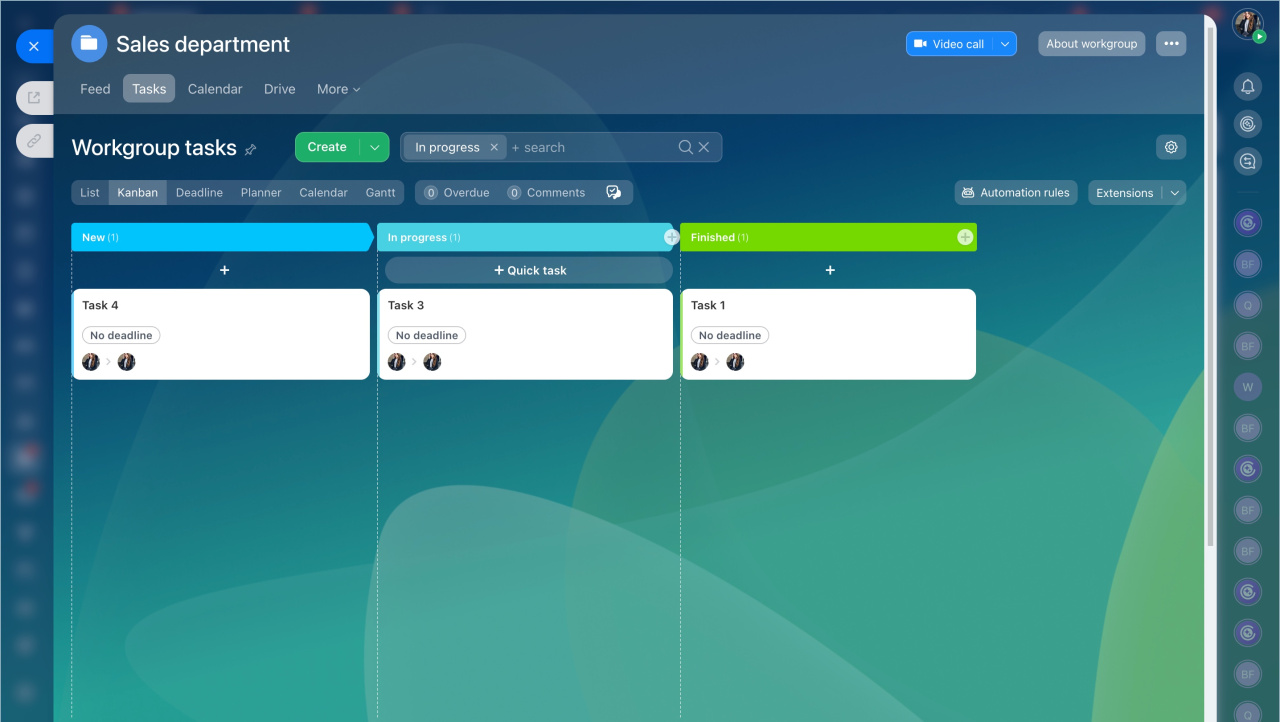
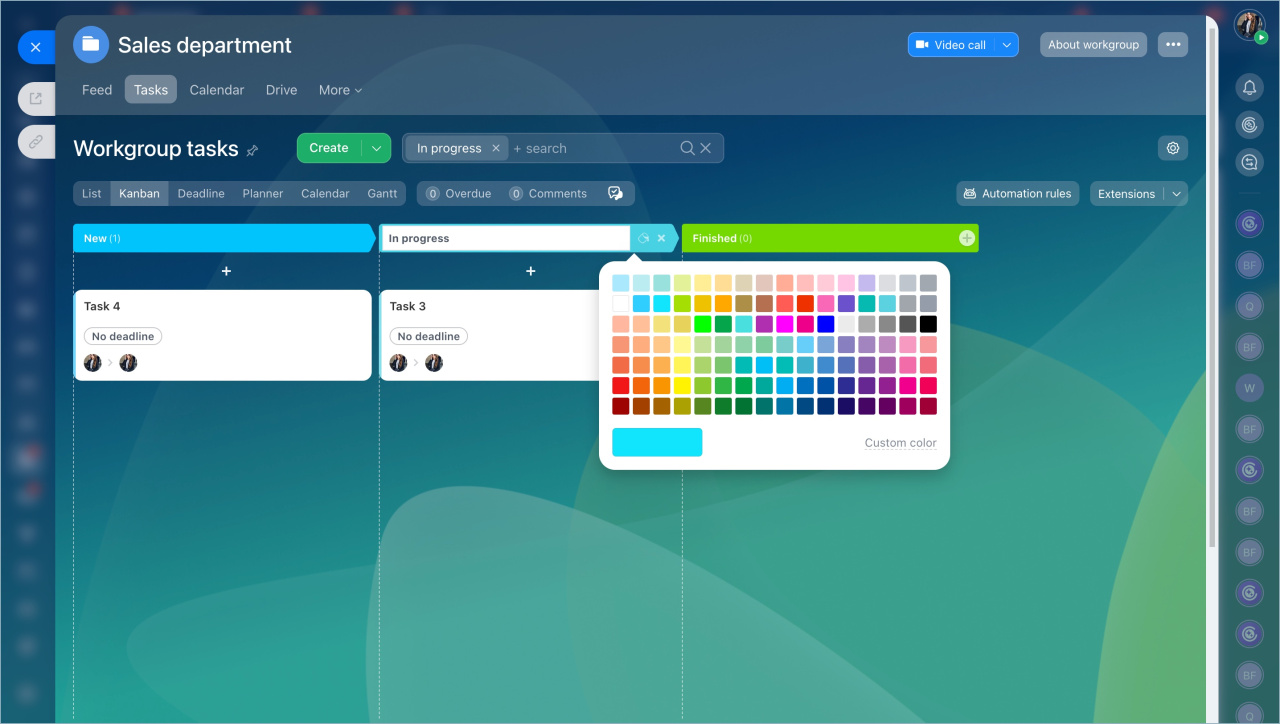
To edit a stage, hover over its name and click the pencil icon. You can change the color, rename the stage, or delete it.
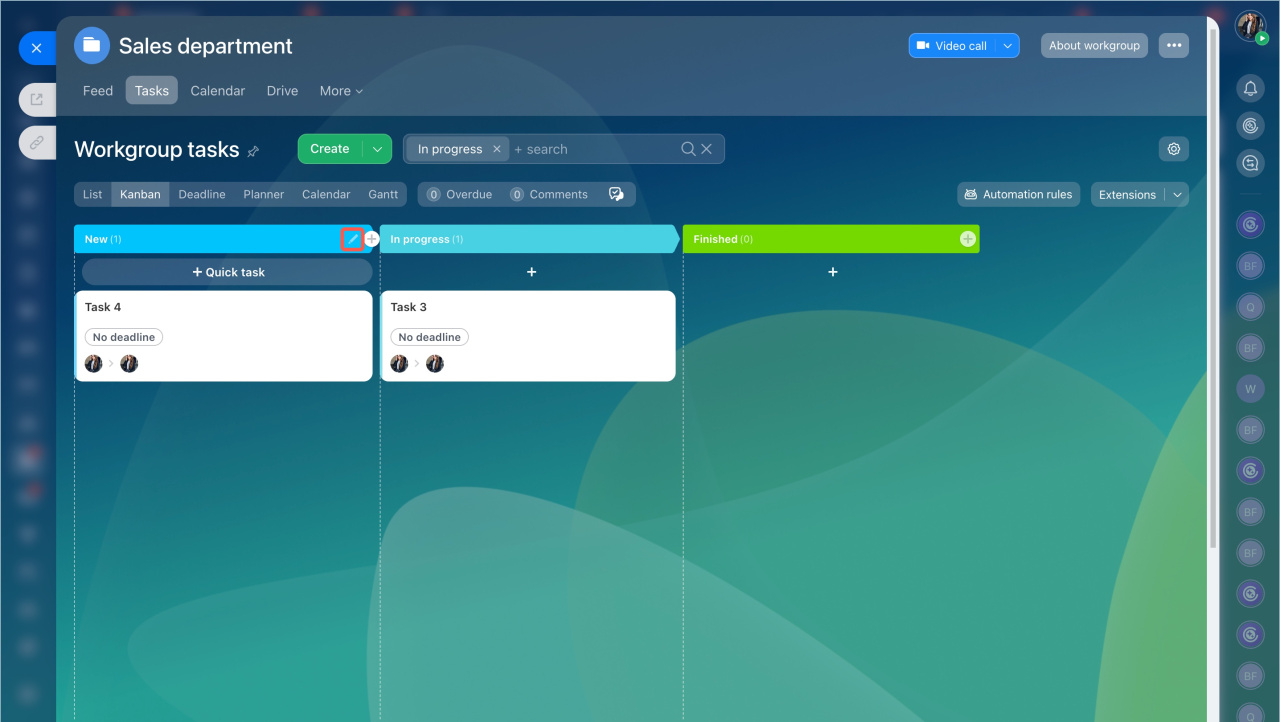
Then, you can change its color, rename or delete it.
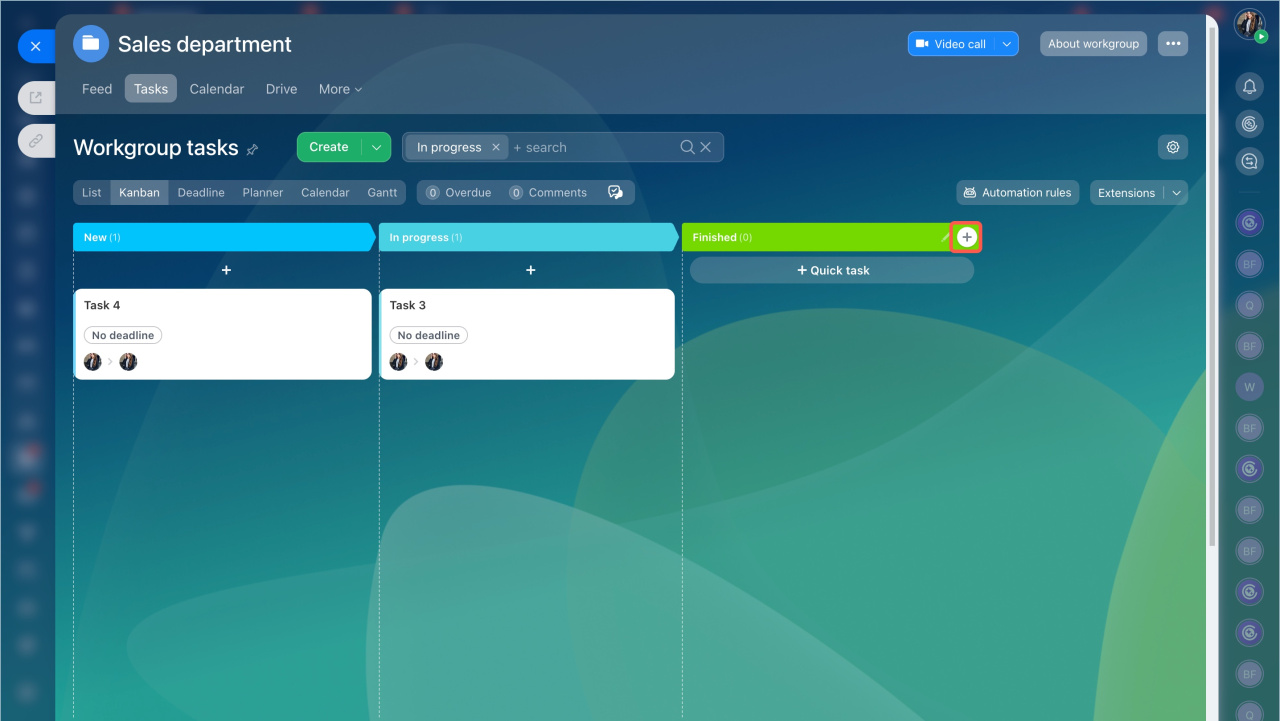
To add a new stage, click the + button on the right. Enter a name and choose a color.
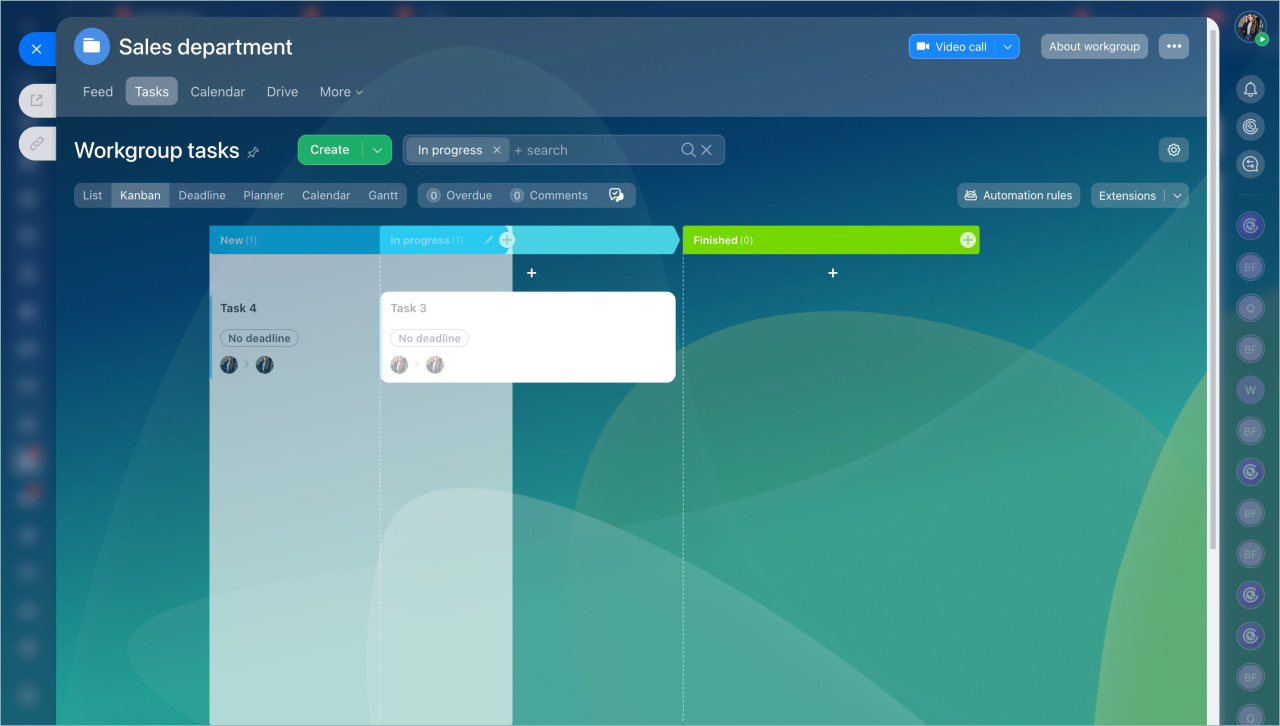
To reorder stages, drag columns to a new position.
Manage tasks in Kanban view
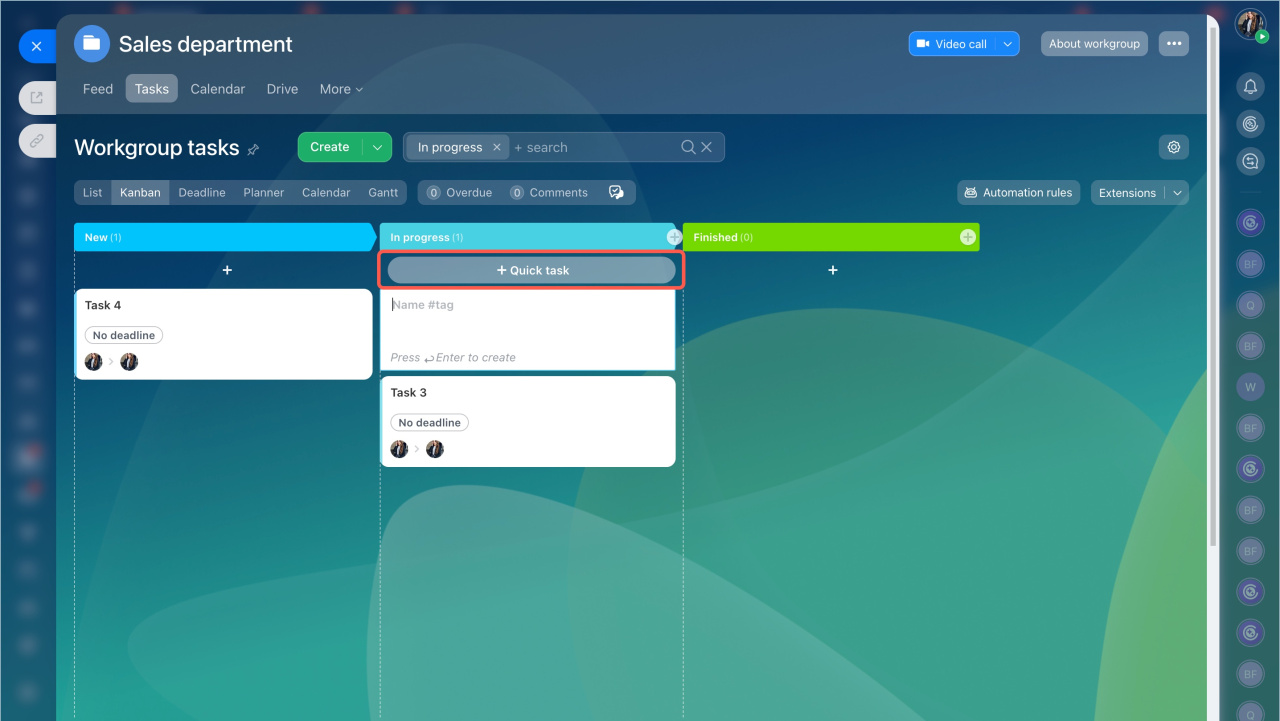
Create and organize tasks directly on the board. Click Quick task under a column and enter a task name.
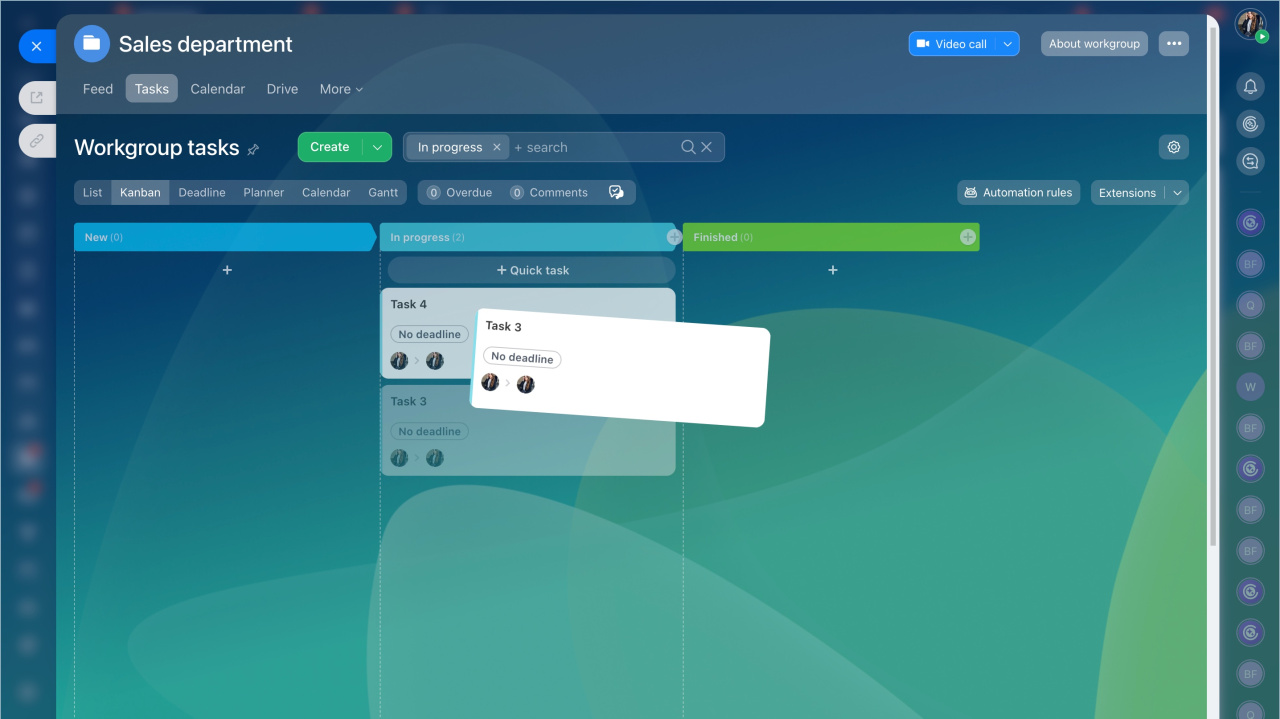
Move tasks between columns to update their status.
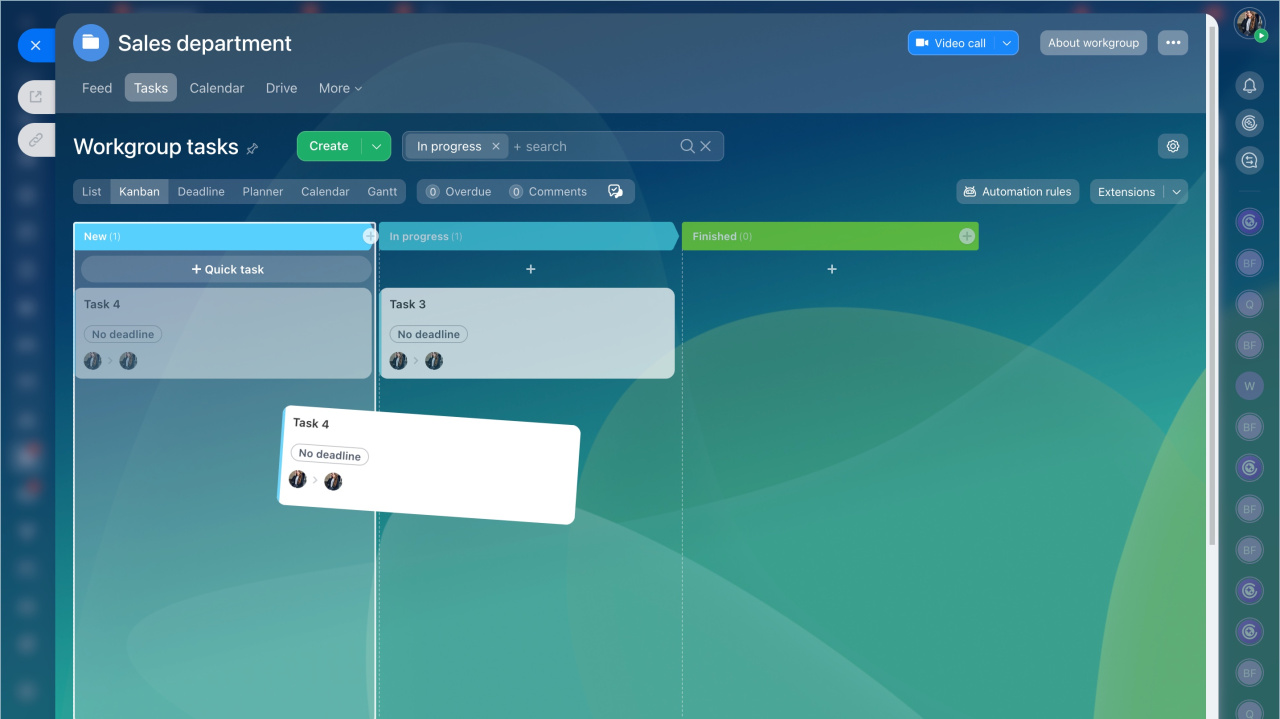
To prioritize a task, drag it to the top of the column.
In brief
- Use Kanban to manage tasks in projects and workgroups.
- Customize stages for each project. Changes are visible to all members.
- Add tasks quickly from the Kanban board.
- Move tasks between stages to track progress.