
Call recording helps teams monitor service quality, review conversations, and capture important details. Managers can use recordings to evaluate employee performance and improve customer communication.
Learn how to enable call recording, call transcription, and customer call ratings in Bitrix24 Telephony.
Enable call recording
Configure call recording separately for each rented number or connected SIP PBX.
To enable call recording:
- Go to CRM > Sales > Sales channels > Telephony.
- Open the Connection page.
- Click Configure numbers.
- Select a rented number or connected SIP PBX.
- Open the Recordings and ratings tab.
- Enable Save recordings of all calls.
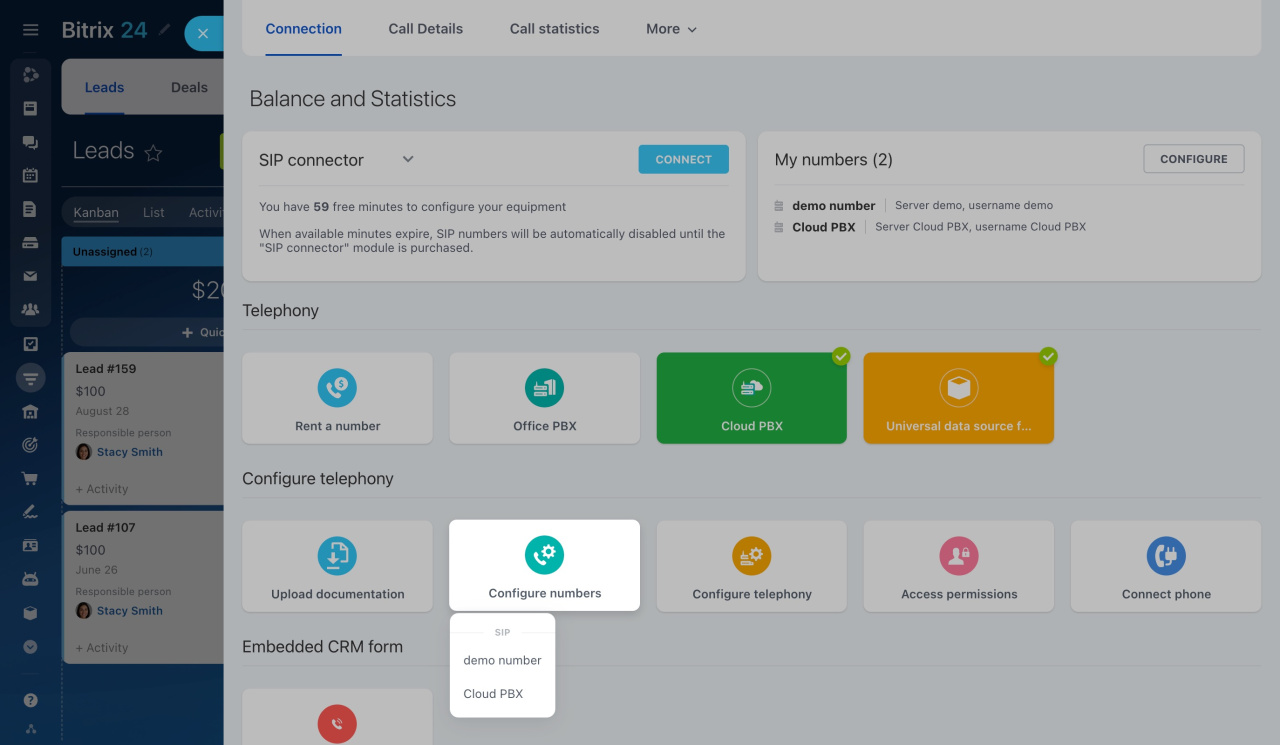
Before enabling call recording, make sure it complies with your company policy and local laws.
The audio file is stored in the Music and sounds section. You can replace it with your own file if needed.
Learn how to customize hold music
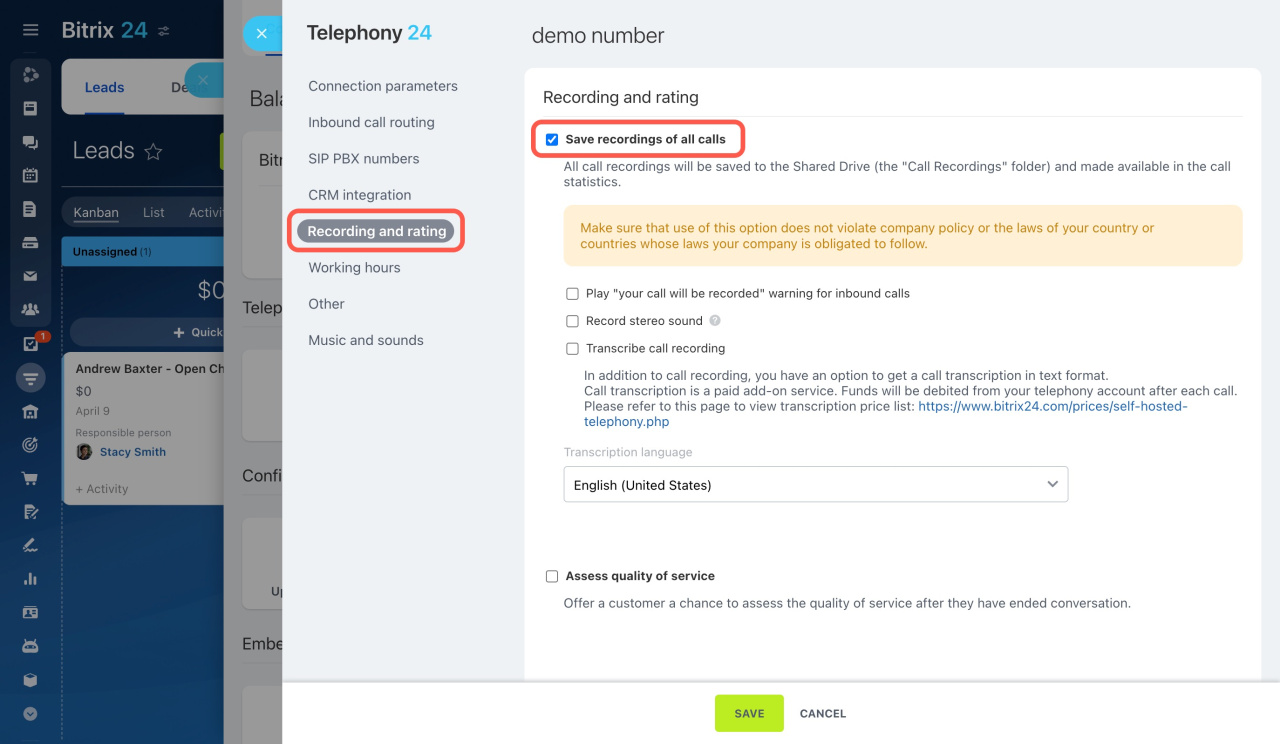
Configure call transcription and call ratings
Additional options are available in the Recordings and ratings section.
Transcribe call recordings
Enable Transcribe call recording to save call transcripts as text. You can also select the default transcription language.
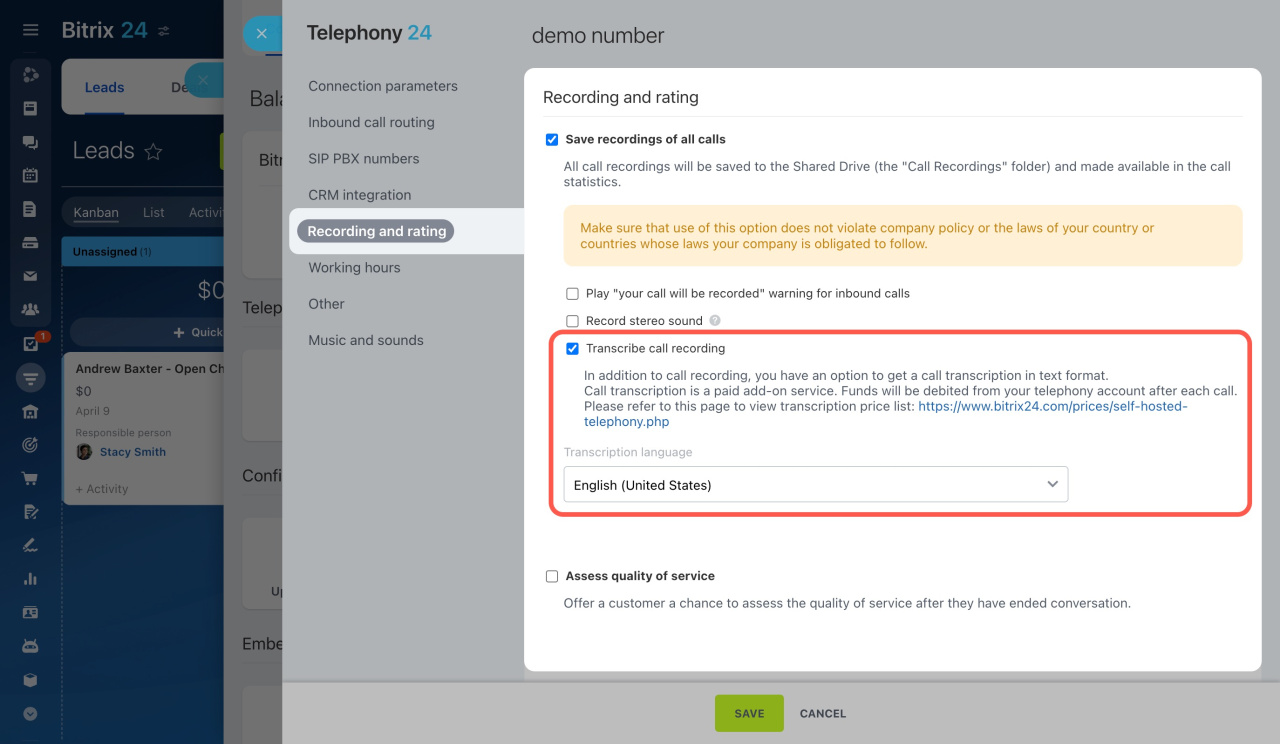
Call transcription may take from 20 seconds to several minutes, depending on the call length. After you enable this option, transcription applies to all new calls automatically.
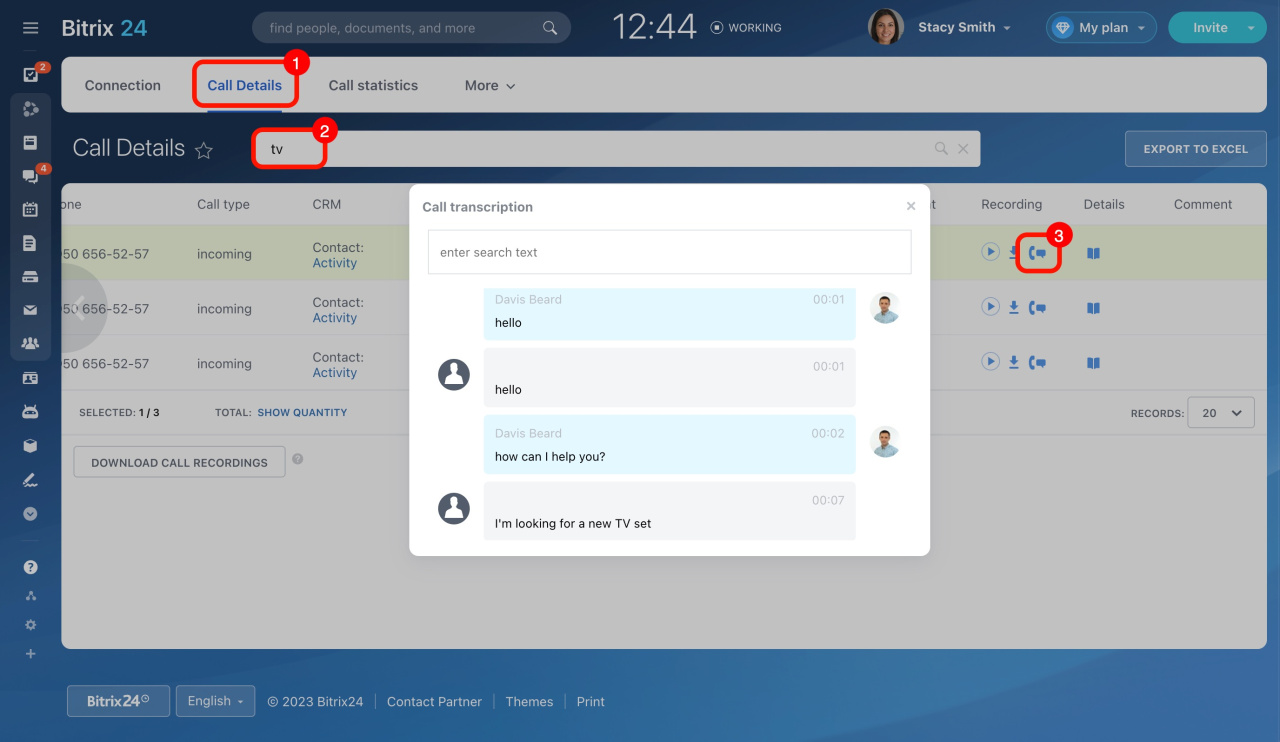
To open a transcript:
- Go to Call Details.
- Find the call in the list.
- Click the phone icon in the Recording column.
The transcript separates customer and agent speech into different sections.
Transcripts are searchable. You can find calls by keywords or phrases.
For example, if a customer discussed purchasing a TV, search for “TV” to find all calls that include this word.
Call transcription applies to all new calls. You cannot enable it for selected calls only.
Record stereo sound
Enable Record stereo sound to save recordings in stereo format.
Collect customer ratings
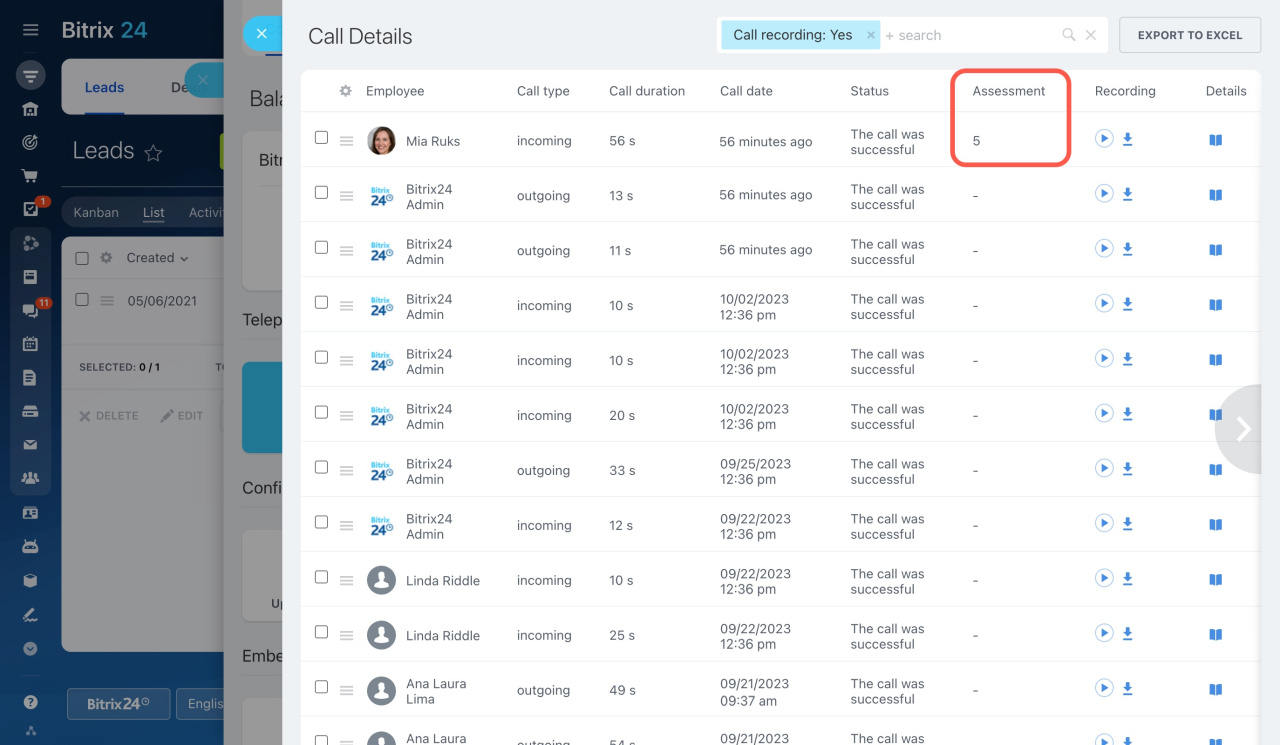
Enable Assess quality of service to let customers rate service quality after the call ends. You can view ratings later in the Call Details section.
Call details
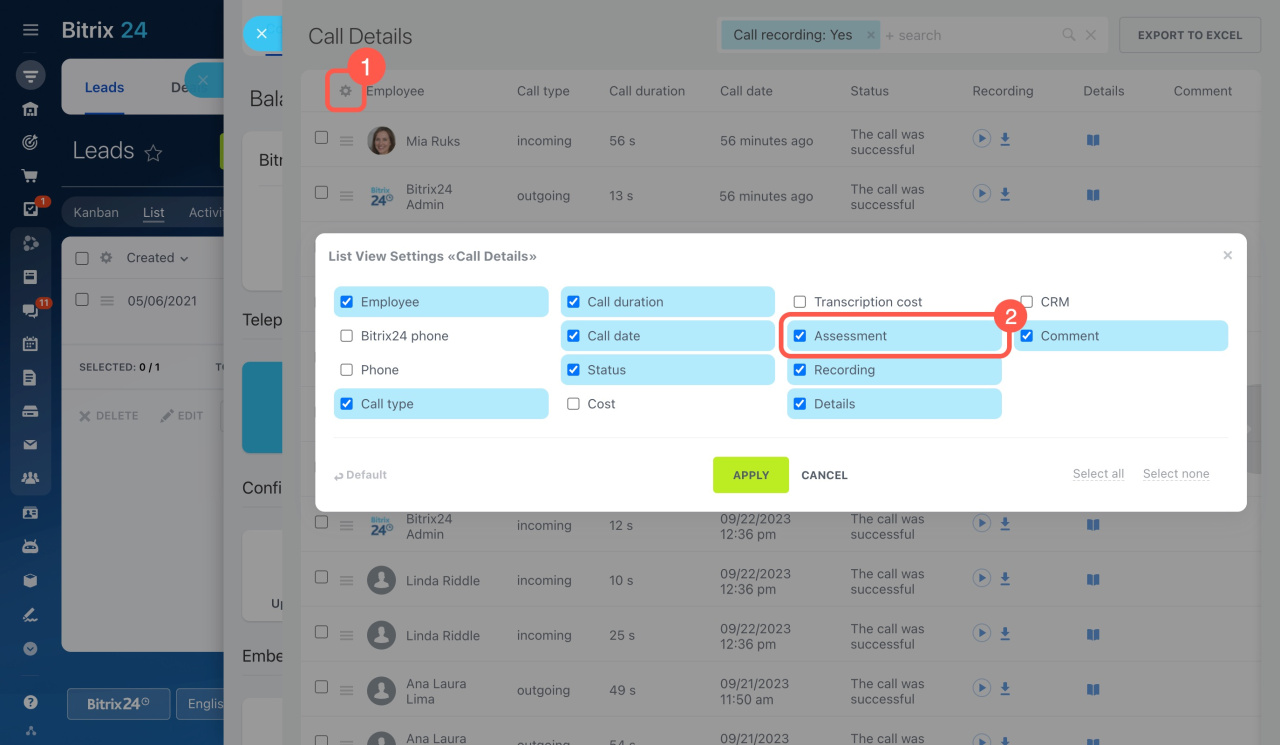
If the Assessment column is hidden:
- Click the gear icon (⚙️) in the list view.
- Select Assessment.
Find call recordings
Call recordings are stored in two places:
- Call Details: Go to CRM > Sales > Sales channels > Telephony > Call Details.
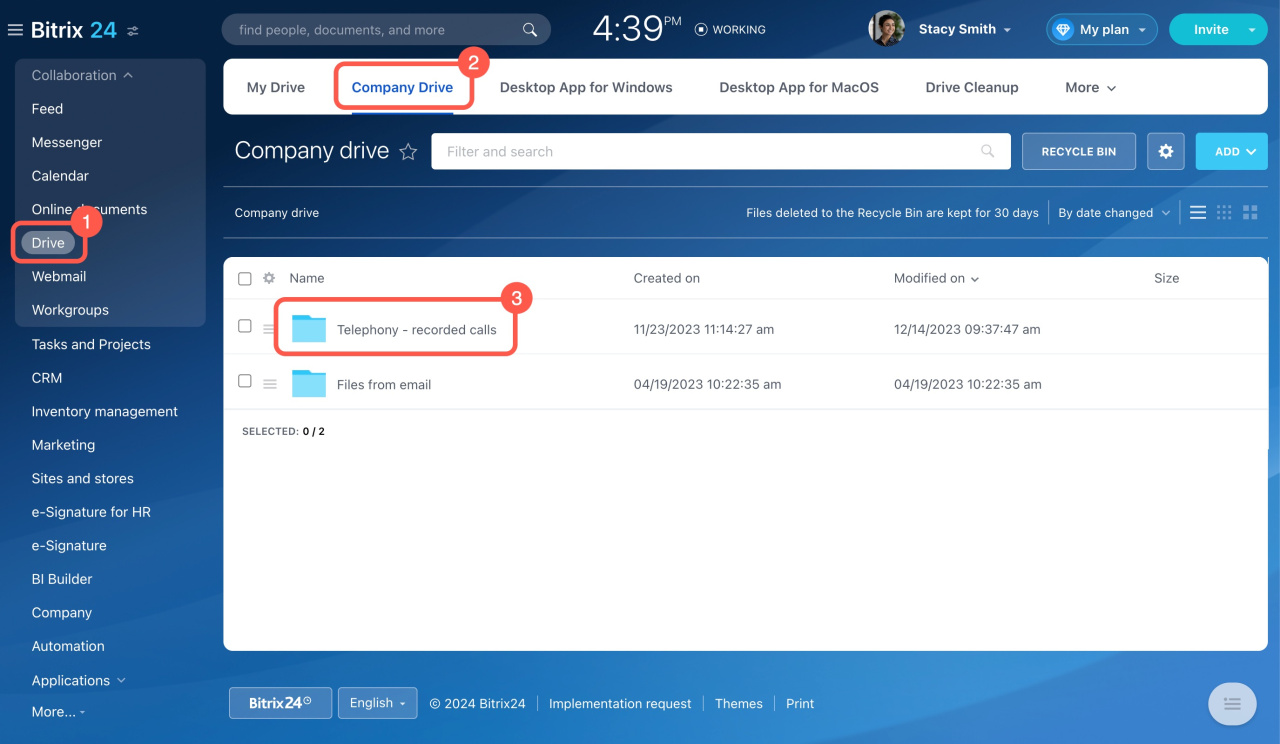
- Company Drive: Go to Drive > Company Drive > Telephony – recorded calls. This system folder is created automatically after the first recorded call. You can configure folder permissions to control employee access.
Configure access permissions in Company Drive
Delete call recordings
Bitrix24 does not automatically delete call recordings. Files remain stored until you remove them manually.
Delete recordings separately from:
- Company Drive
- Call Details
Delete recordings from Company Drive
If you move a recording to the Drive Recycle Bin, it still remains available in Call Details and related CRM items. If you permanently delete the file from the Recycle Bin, the recording is removed from Bitrix24 permanently.
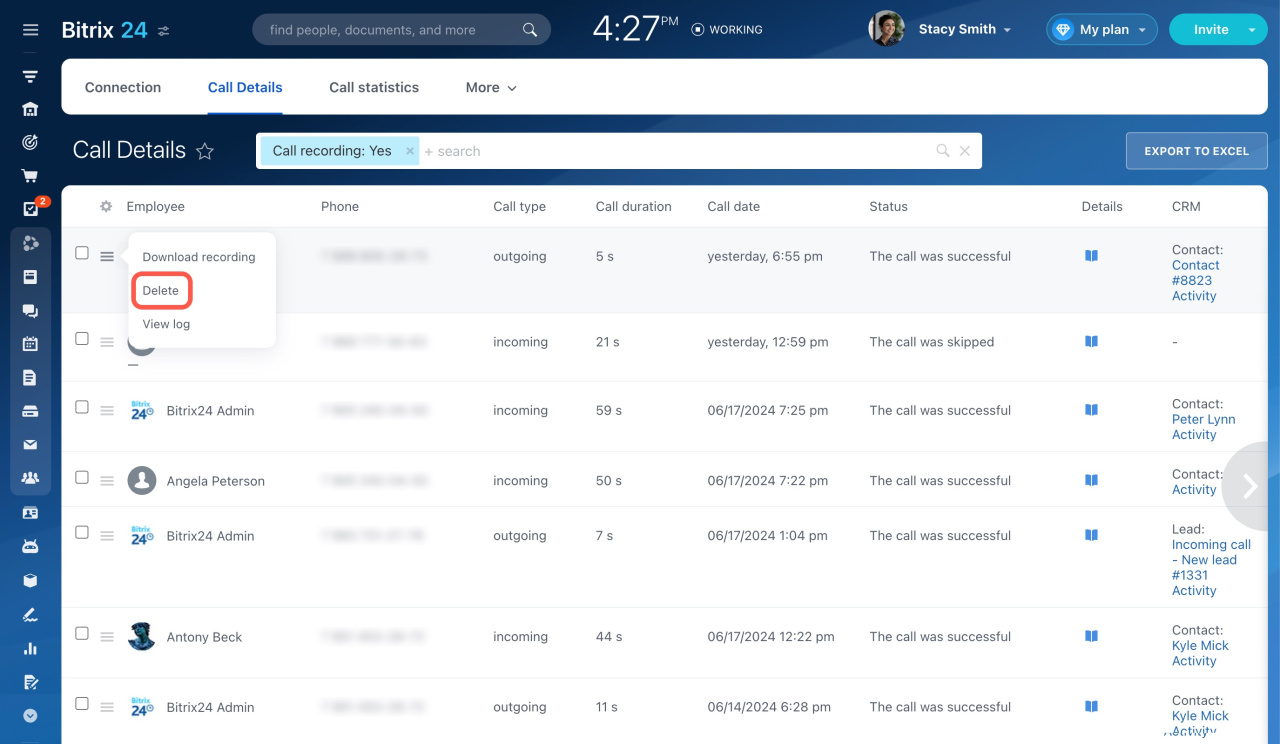
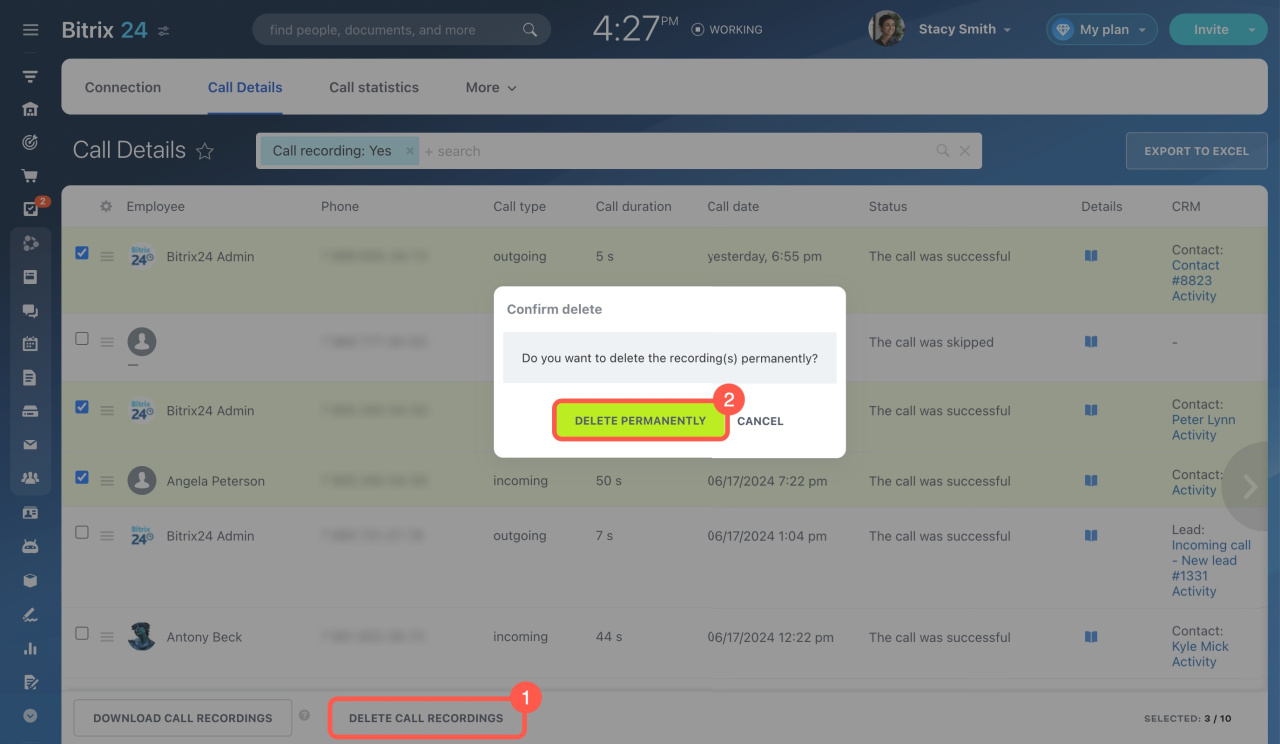
Delete recordings from Call Details
Select one or more recordings and click Delete. Deleted recordings cannot be restored from Call Details. There is no Recycle Bin in this section.
Listen to call recordings
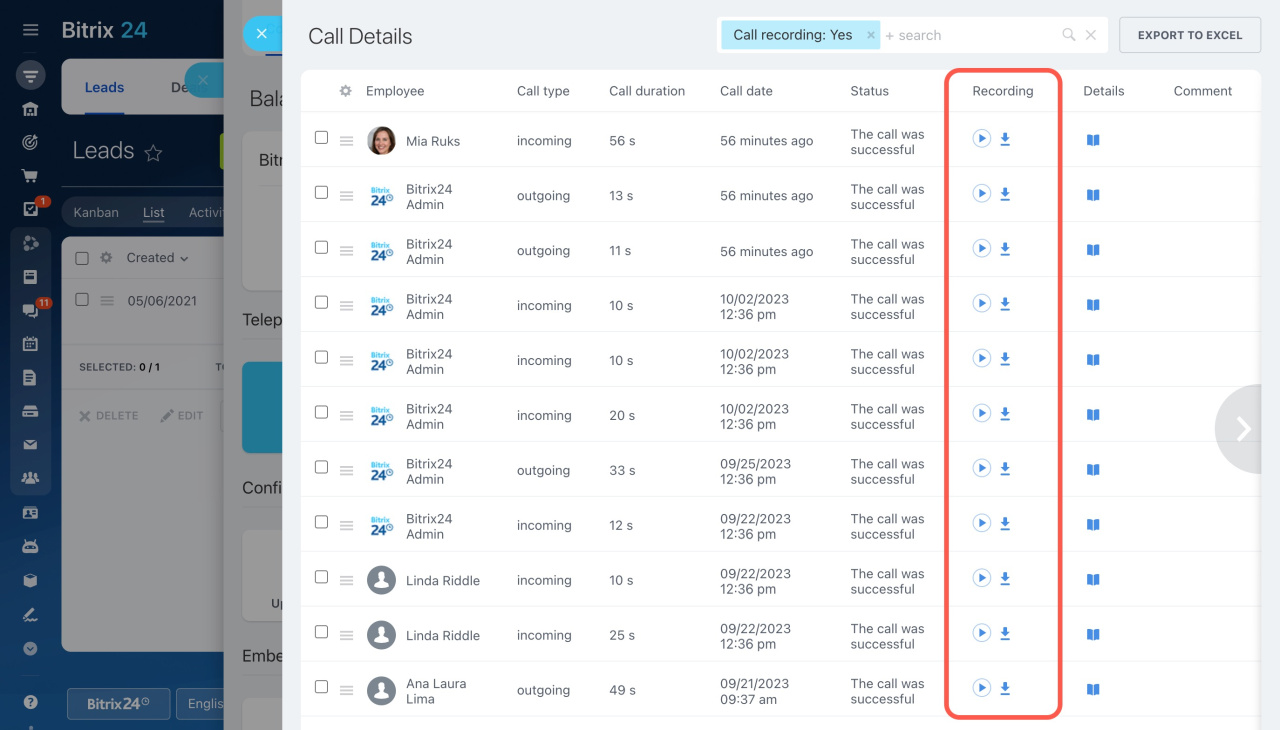
To play or download recordings:
- Open Telephony.
- Go to Call Details.
Account administrators can access all call recordings. Regular users can only download their own call recordings and listen to recordings they have permission to access.
Configure access permissions to Telephony
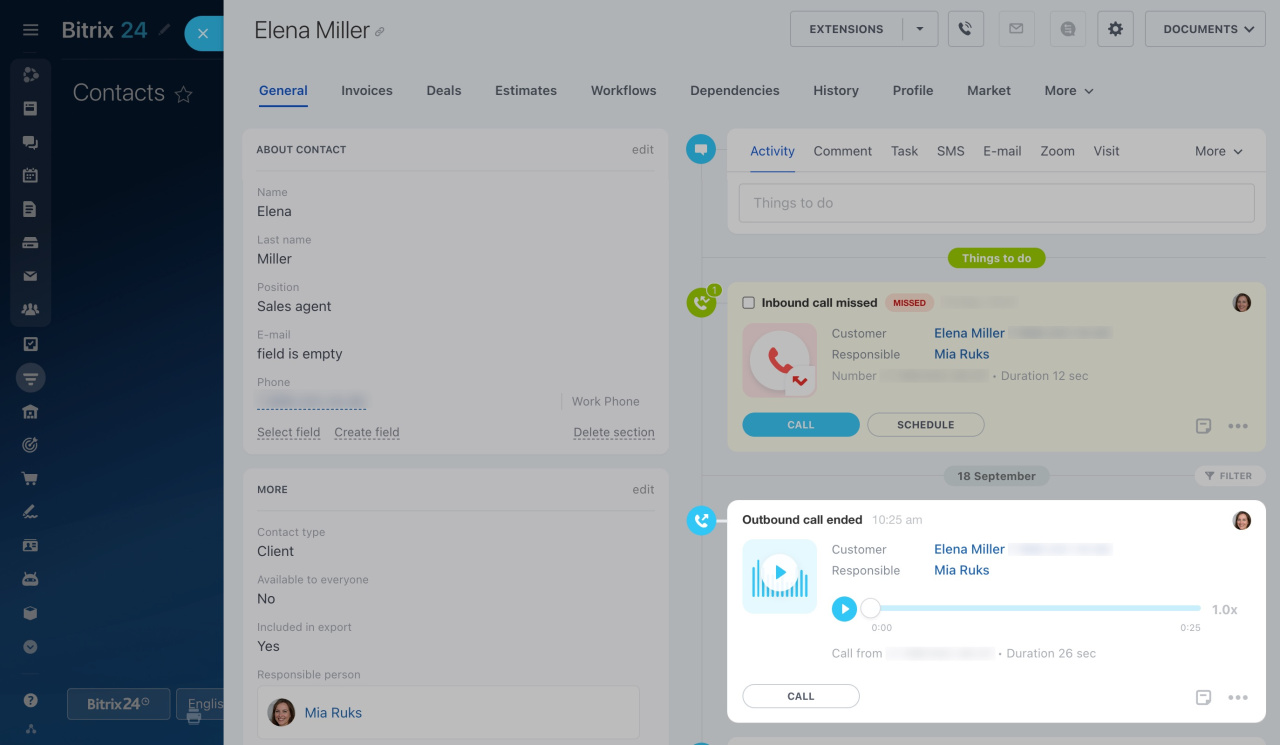
You can also play recordings from CRM entity records if the calls were saved as activities. Regular users can access these recordings only if they have permission to view the related CRM item.
Configure access permissions to activities
In brief
- Enable call recording separately for each rented number or connected SIP PBX.
- Make sure call recording complies with company policy and local laws.
- Use a recording warning to notify customers before calls begin.
- Enable call transcription to convert conversations into searchable text.
- Use customer ratings to monitor service quality.
- Find recordings in Call Details and in the Telephony – recorded calls folder on Company Drive.
- Account administrators can access all recordings and manage permissions for other users.
- Call recordings remain stored until you delete them manually.