
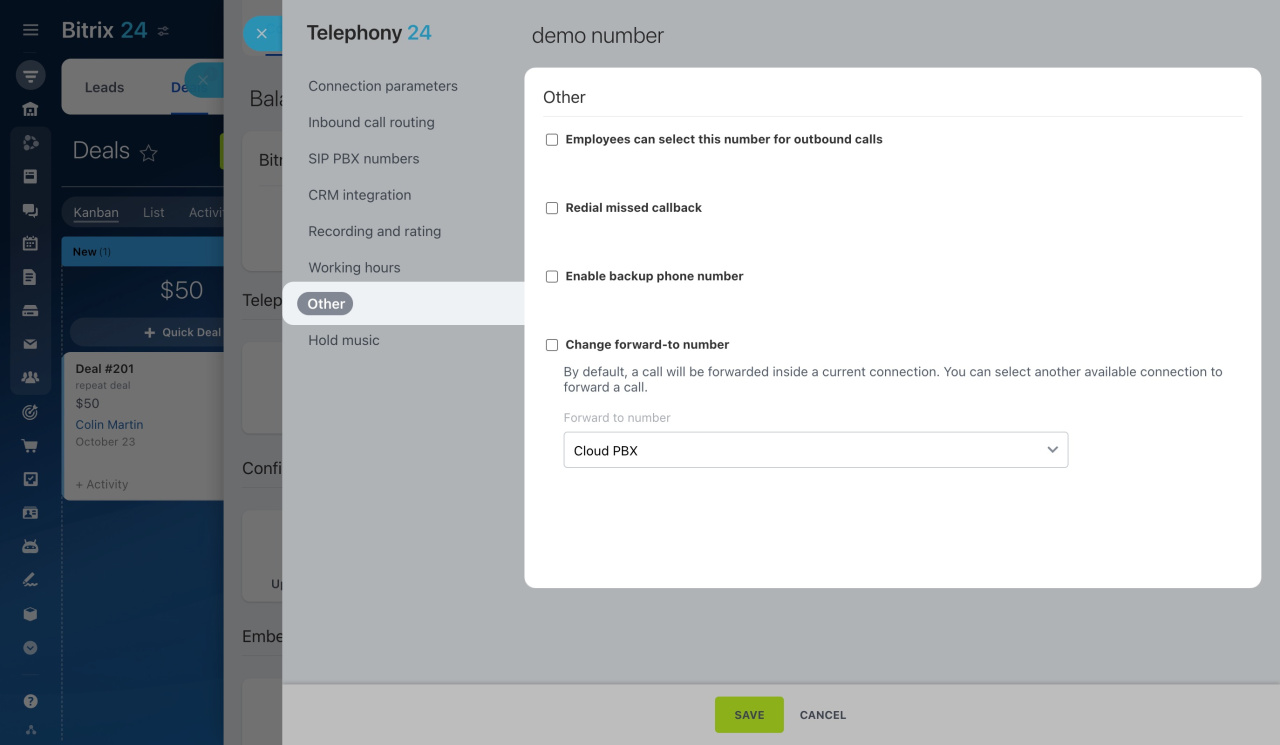
When you configure a rented number or SIP PBX, you can manage additional options in the Other section. These settings let you:
- Choose which employees can use the number for outbound calls
- Automatically redial missed callbacks
- Set up a backup phone number
- Pass the caller’s ID during forwarded calls
- Change the forward-to number
To open these settings:
-
Go to CRM > Add-ons > Telephony.
-
On the Connection page, click Configure numbers and select a rented number or SIP PBX.
-
Open the Other tab.
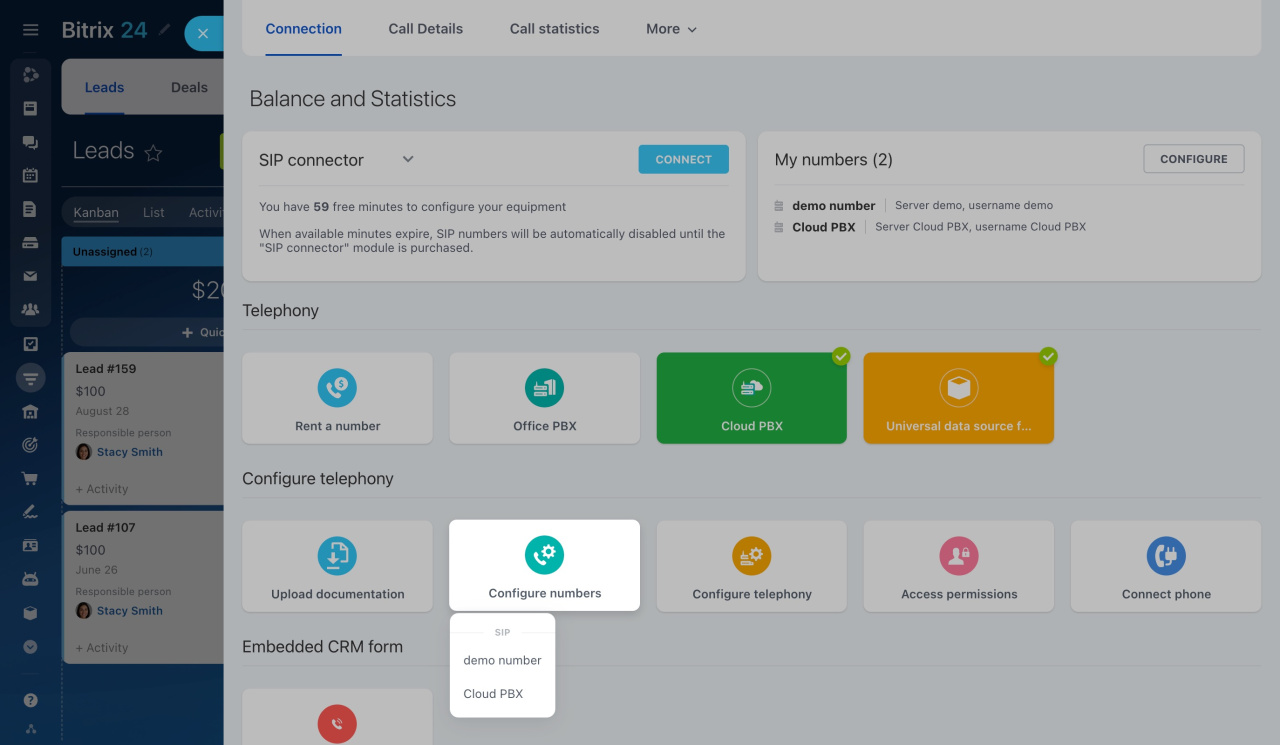
Open the Other tab on the left.
Learn how to configure access permissions to Telephony
Employees can select this number for outbound calls
In Bitrix24, you can set the outbound phone number in several ways:
- In Telephony settings, you can set a default outbound number for all employees.
- In Telephony users, you can configure a separate outbound number for each user.
- In the Other tab, you can allow selected employees to use a specific rented number or SIP PBX for outbound calls.
Click here to learn more
To allow employees to use a specific number for outbound calls:
-
Activate this option: .
-
Specify the prefix for calls via this number. If an employee uses a SIP phone, they can dial this prefix before the client's phone number to make a call. The system checks the first digits and characters of the dialed number. If they match the prefix from the number settings, the call is made via this number.
-
Then select users who can choose this number before making an outgoing call from Bitrix24 Messenger or a SIP phone using the specified prefix.
*123, 456#, or 803 as a prefix, but not +1.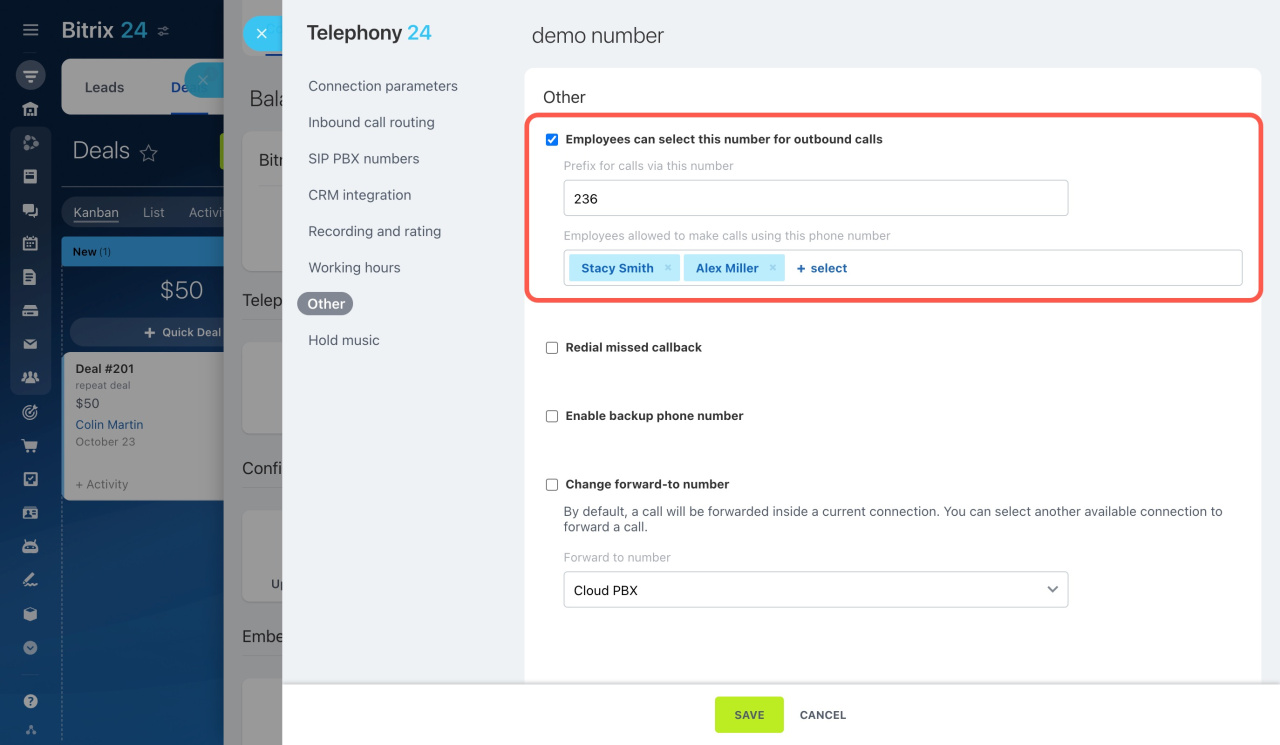 Based on the screenshot above, if Alex Miller dials 23615553333333 on his SIP phone, he will make a call from the demo number to 15553333333.
Redial missed callback
It may be that a customer schedules a callback using the form on your site, but does not pick up the phone. In this case, you can make the system redial on its own.
To set up a repeated callback,
-
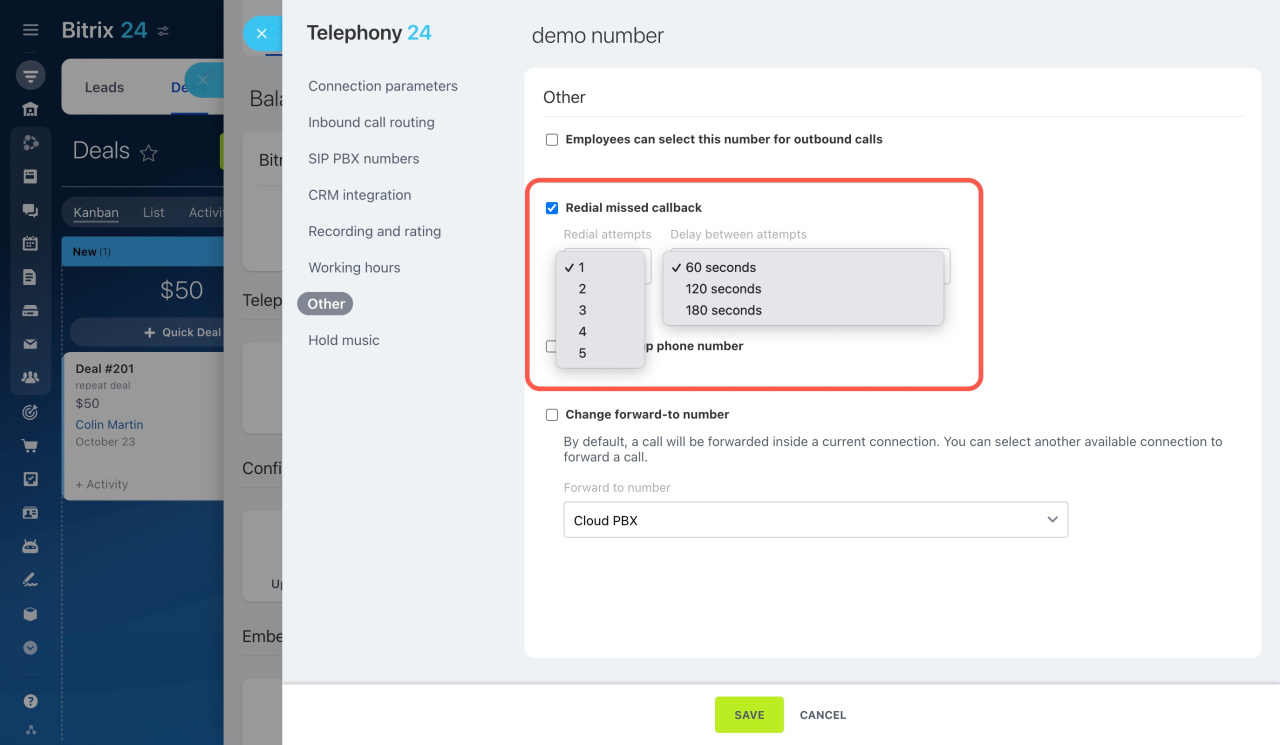
Activate this option: .
-
Specify the number of redial attempts.
-
Select the preferred interval between attempts.
Learn more about the Callback form
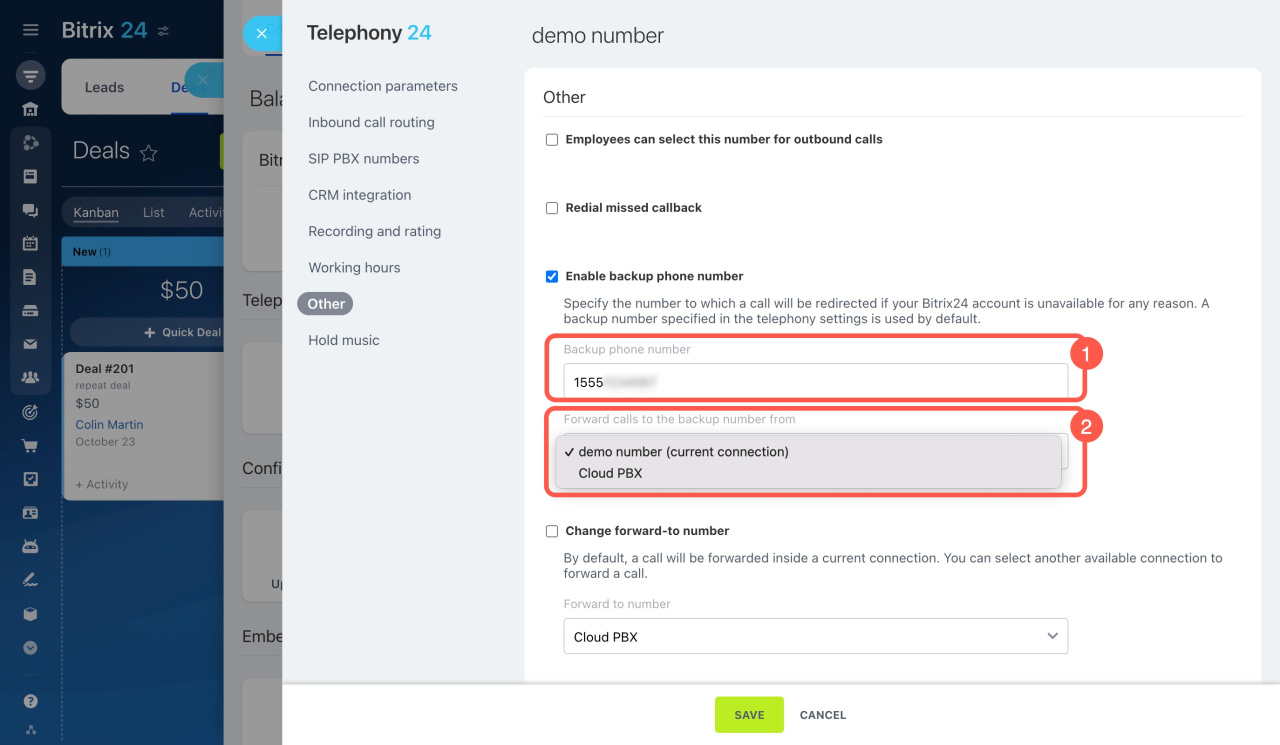
Enable backup phone number
Enable backup phone number
You can configure a backup phone number for cases when your main number or PBX is unavailable.
To set up a backup number:
- Enable Enable backup phone number.
- Enter a phone number that is not connected to your Bitrix24 account.
- Select the rented number or SIP PBX that will forward calls to the backup number.
If Bitrix24 cannot connect to your PBX, it redirects the call to the backup number instead.
Learn how to set a backup phone number under Telephony settings
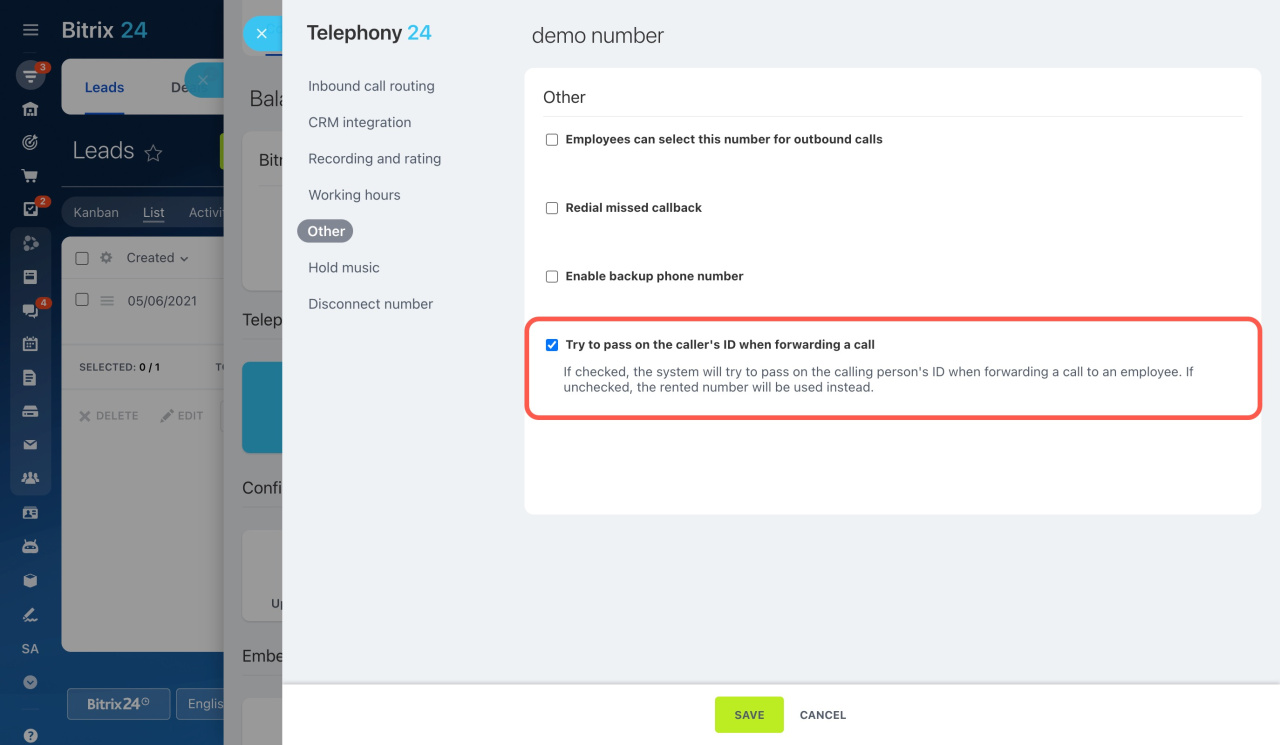
Try to pass on the caller's ID when forwarding a call
By default, employees see the number that the customer dialed when they answer a forwarded call.
To show the customer’s actual phone number instead, enable Try to pass on the caller's ID when forwarding a call.
Learn how to configure call forwarding
Change forward-to number
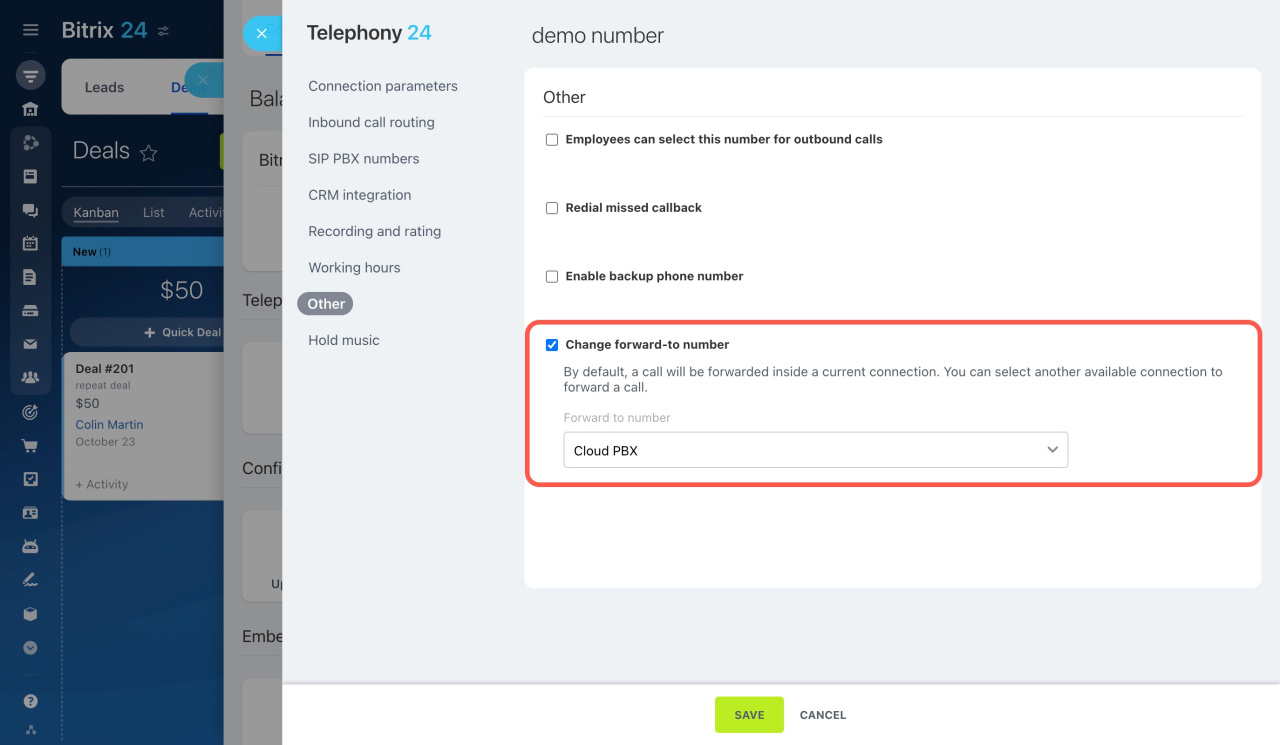
You can change the forwarding channel for a SIP PBX connection. In this case, Bitrix24 redirects incoming calls through another available connection before forwarding them to the final destination.
This option is useful when:
- Outbound or forwarded calls do not work correctly through the connected PBX
- You want to receive incoming calls through one PBX and make outbound calls through another
- You want to receive calls through a PBX but make outbound calls through a rented number
In the last case, outbound calls use the provider’s standard rates, and you do not need a SIP connector subscription.
The SIP connector is a Bitrix24 module that routes outbound and forwarded calls from Bitrix24 to your SIP PBX.
To change the forwarding channel:
- Enable Change forward-to number.
- Select the rented number or SIP PBX that will handle forwarded calls.
In brief
-
Manage additional number settings in the Other section. Only admins can edit these settings, but you can give regular users access too.
-
Change the forward-to number in the SIP PBX Other settings.
-
Activate passing on the caller's ID when forwarding a call from rented numbers.
-
Specify a backup phone number, enable auto redial, and decide which employees are allowed to make calls via this number when configuring your rented number or SIP PBX.