
Learn how to set up call forwarding in Bitrix24 Telephony. Use this feature to redirect incoming calls to another phone number when employees are unavailable. This helps you avoid missed calls and stay connected with clients.
Configure access permissions to Telephony
Before you start
You can set up call forwarding for rented numbers and SIP PBX connections. Before you configure forwarding, check the following settings in the Telephony section.
Check your telephony balance or SIP connector subscription
Forwarded calls count as outbound calls. Make sure outbound calls are available for your number or PBX.
- If you use a rented number, make sure your telephony balance has enough funds.
Payments for Bitrix24 Telephony - If you use a SIP PBX, make sure your SIP connector subscription is active.
SIP connector
Use the correct phone number format
Enter forwarding numbers in the international format: country code, area code, and phone number.
Enable call recording
Turn on call recording in the number settings if you want to save forwarded calls. If a client hangs up before an employee answers, the call will not be recorded.
Record calls
Check working hours settings
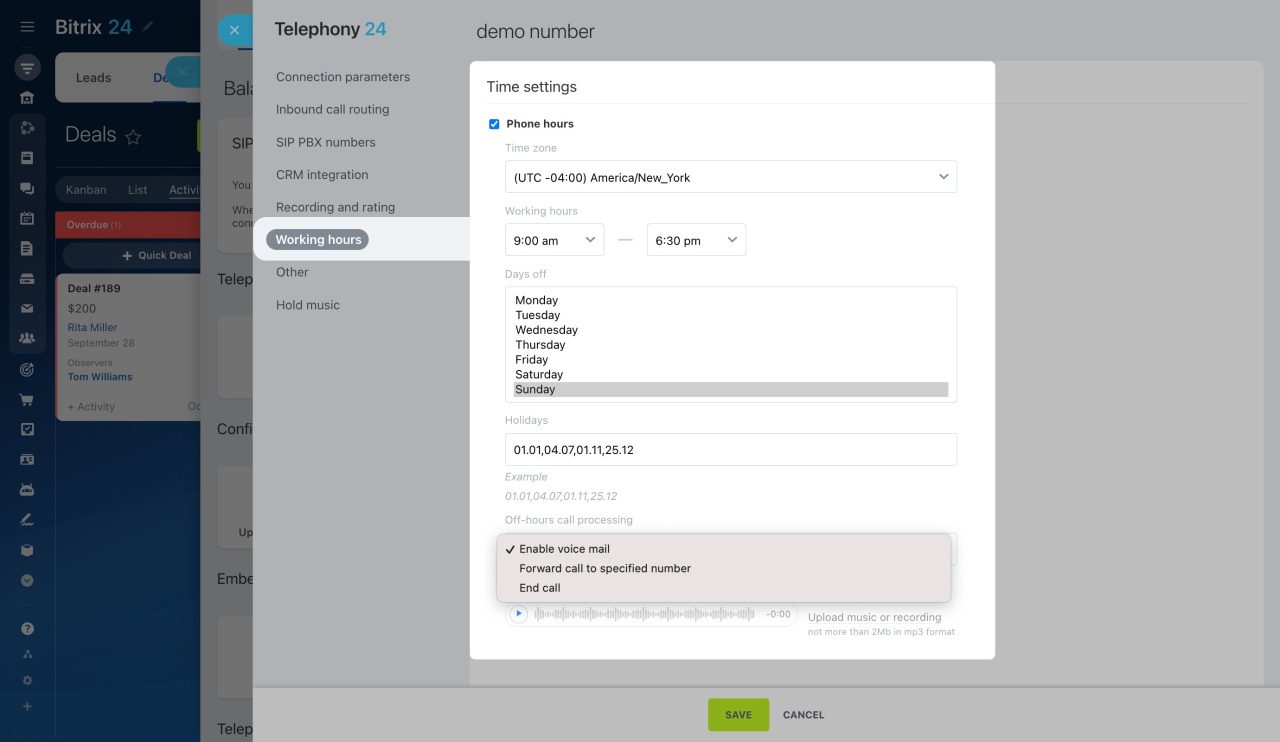
Working hours settings have priority over call forwarding settings. If you set working hours for a number, calls outside business hours follow the scenario selected in Off-hours call processing.
Enable caller ID forwarding
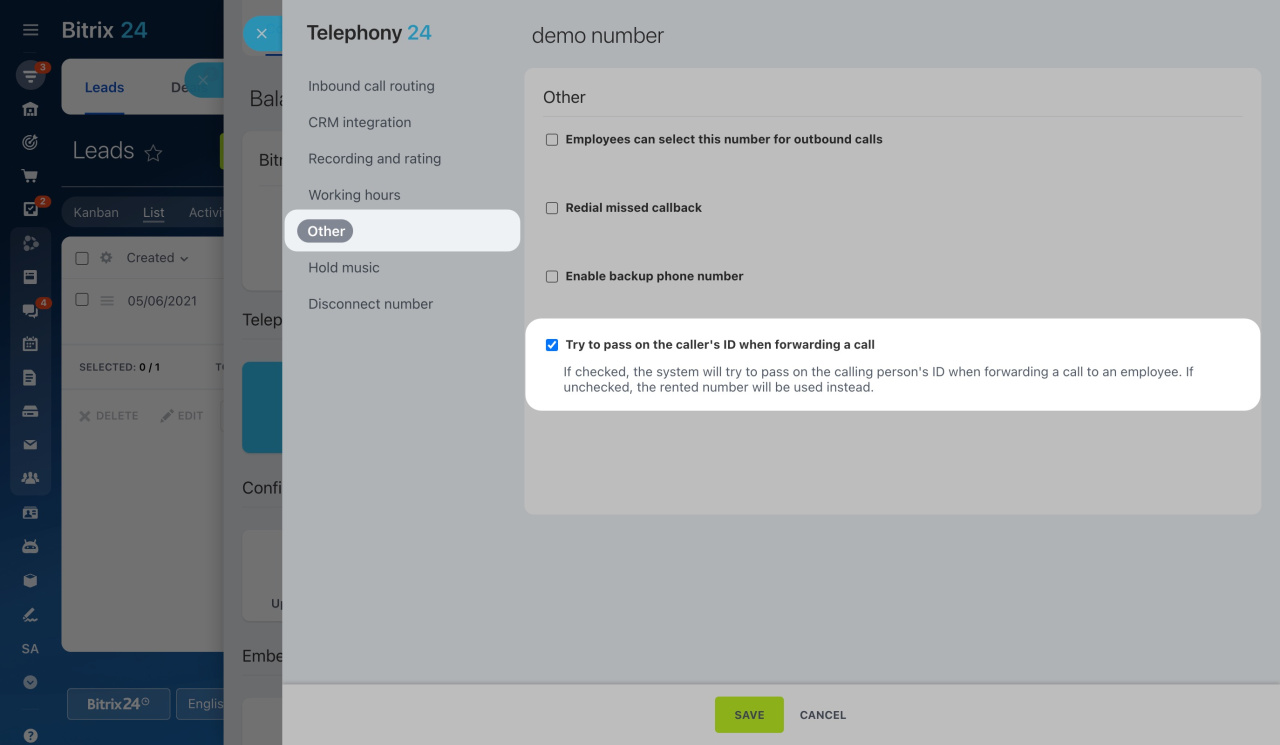
Enable the Try to pass on the caller's ID when forwarding a call option if you want the recipient of the forwarded call to see the caller’s phone number. This option works only for rented numbers.
Number settings
Set up call forwarding
To configure call forwarding in Bitrix24 telephony,
- Go to CRM > Sales > Sales channels > Telephony.
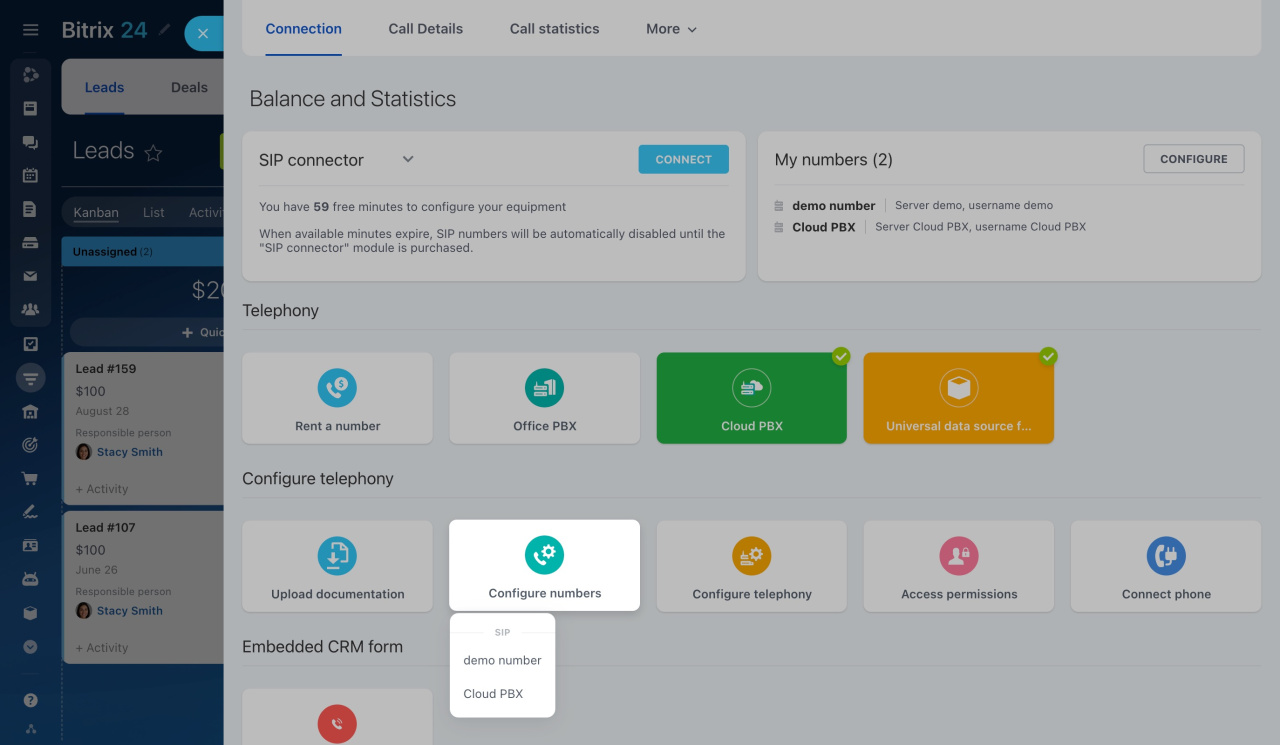
- On the Connection page, click Configure numbers.
- Select a rented number or SIP PBX.
You can configure call forwarding for different scenarios:
- A client enters an employee’s extension number, but the employee does not answer.
- A client selects an option in the IVR menu that redirects the call to another number.
- An incoming call is routed to the responsible employee in CRM, but the employee does not answer.
- Call forwarding is configured in the queue group settings.
- A client calls outside business hours.
- You want to use unconditional forwarding to immediately redirect all incoming calls to another number.
Forward calls after entering an employee extension number
Use this option when a client enters an employee extension number, but the employee does not answer.
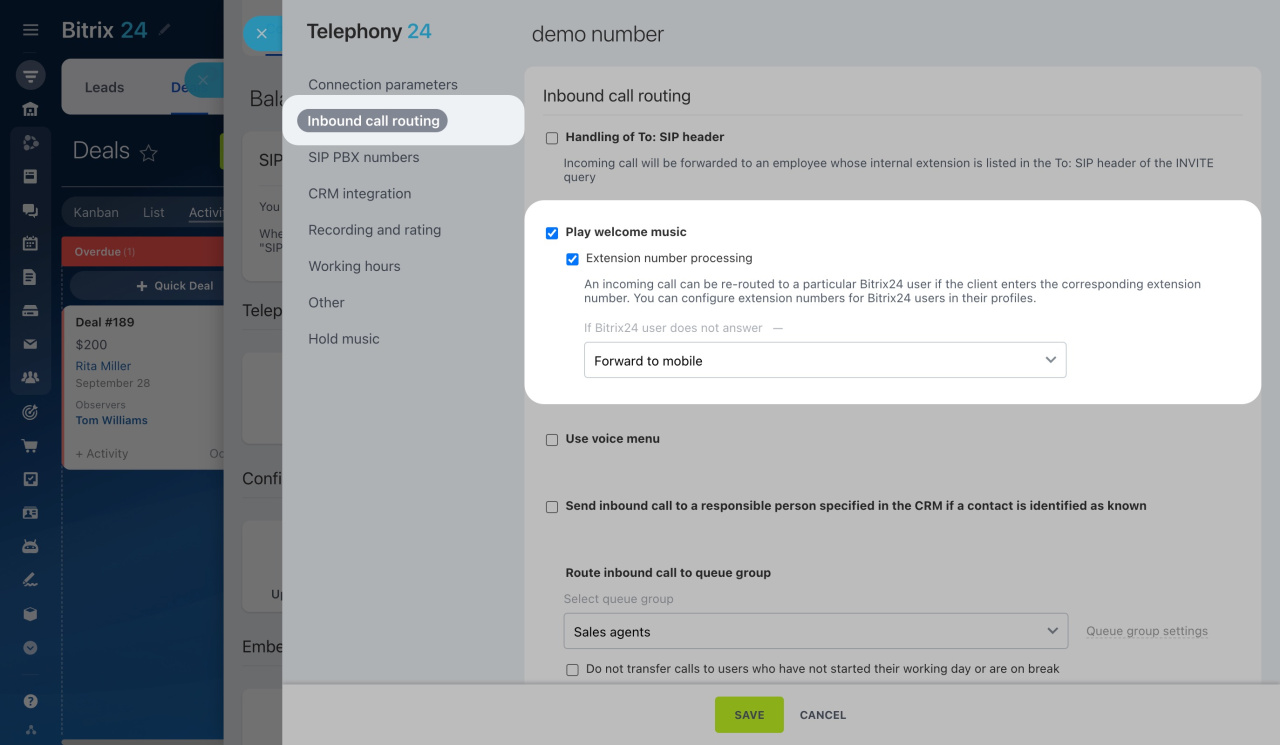
- Open the Inbound call routing tab.
- Enable these options:
- Play welcome music
- Extension number processing
- Select Forward to mobile from the list.
If the employee does not answer, Bitrix24 forwards the call to their mobile phone.
To use this feature, the employee must add a mobile number to their profile.
Calls to extension numbers
Forward calls from the voice menu (IVR)
Use this option to forward calls based on a client’s selection in the voice menu.
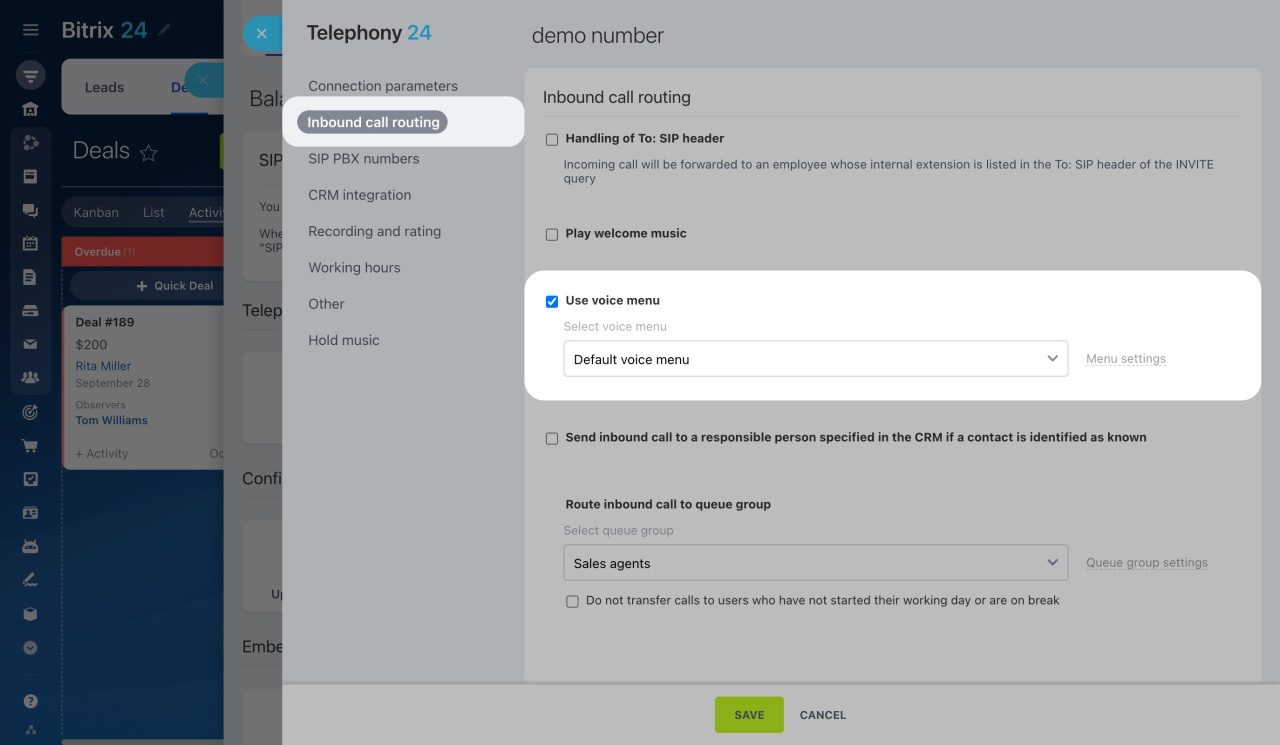
- Open the Inbound call routing tab.
- Enable Use voice menu.
- Select a voice menu.
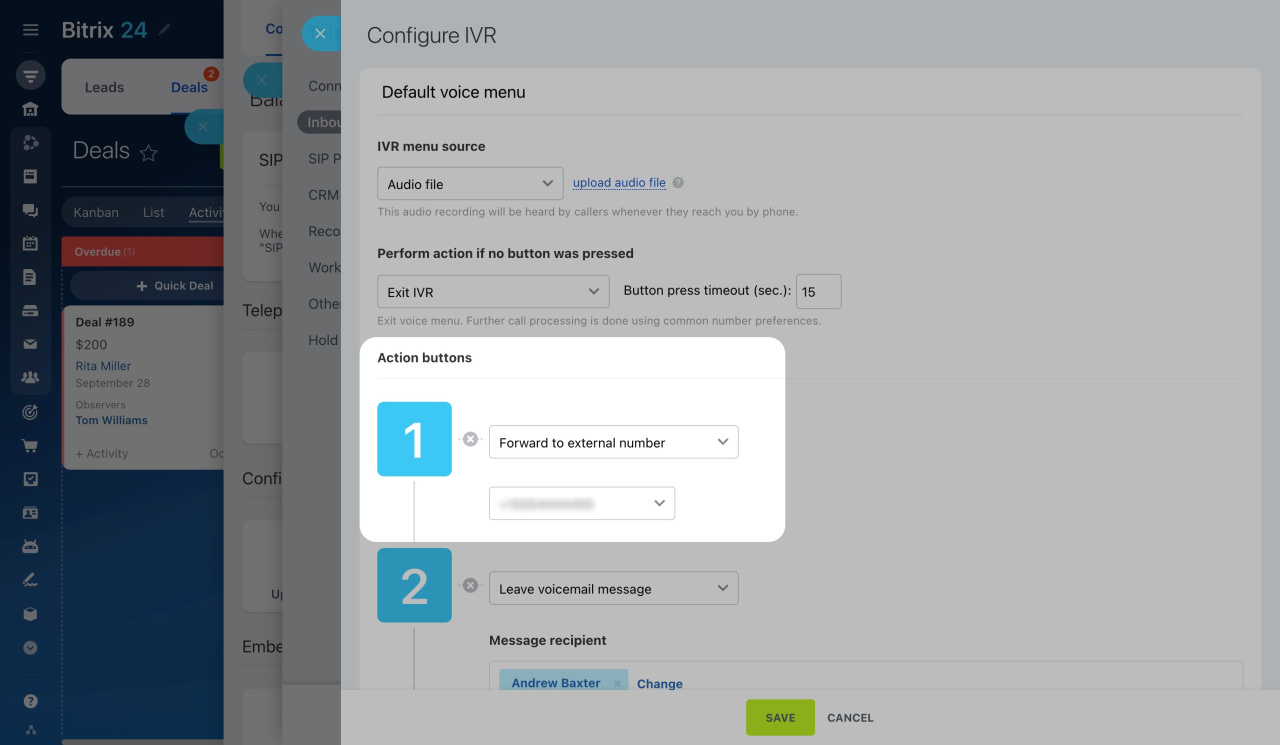
- Open the voice menu settings.
- Assign the Forward to external number action to the required button.
When a client presses the selected number, the call is redirected to the specified external number.
Configure voice menu (IVR)
Forward calls to the responsible employee’s mobile phone
Use this option when Bitrix24 identifies a known client and routes the call to the responsible employee.
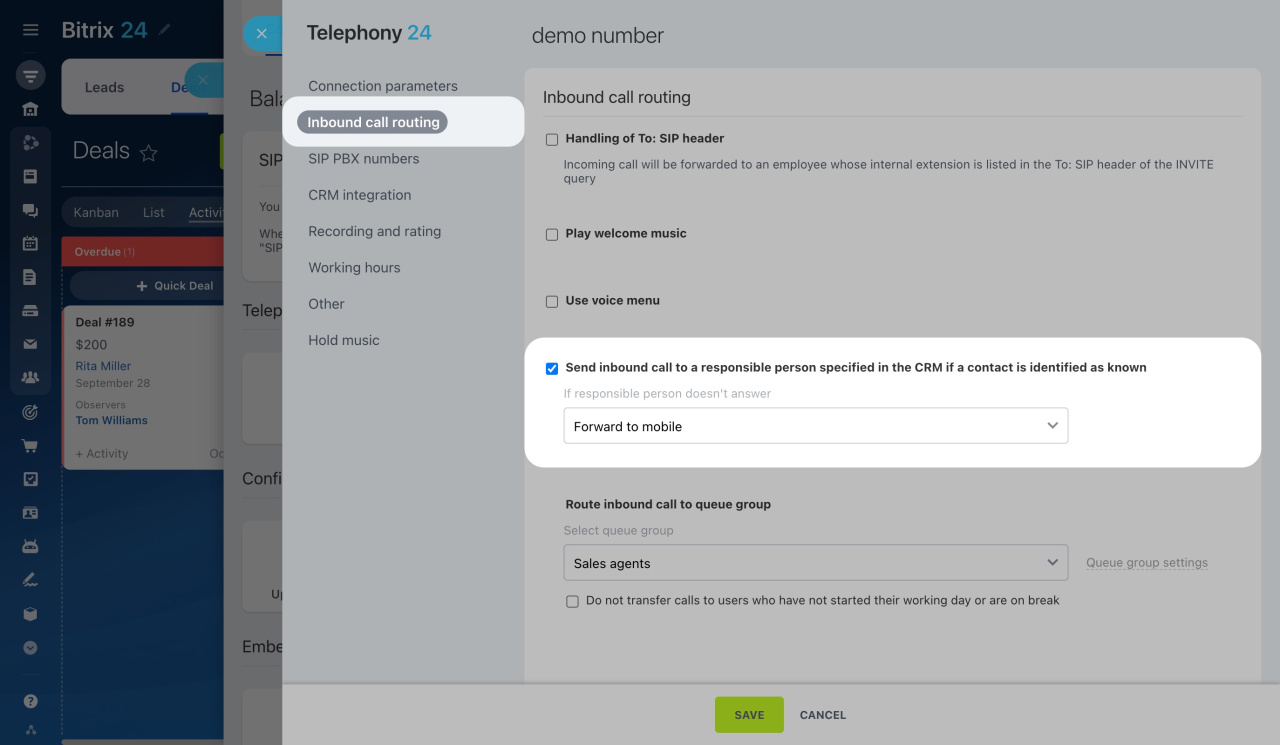
- Open the Inbound call routing tab.
- Enable this option: Send inbound call to a responsible person specified in the CRM if a contact is identified as known.
- Select Forward to mobile.
If the employee does not answer, the call is forwarded to their mobile phone.
To use this option, the employee must add a mobile number to their profile.
Telephony & CRM integration
Configure forwarding in queue group settings
Queue groups include employees who answer incoming calls.
You can forward missed calls from a queue group to a mobile phone or an external number.
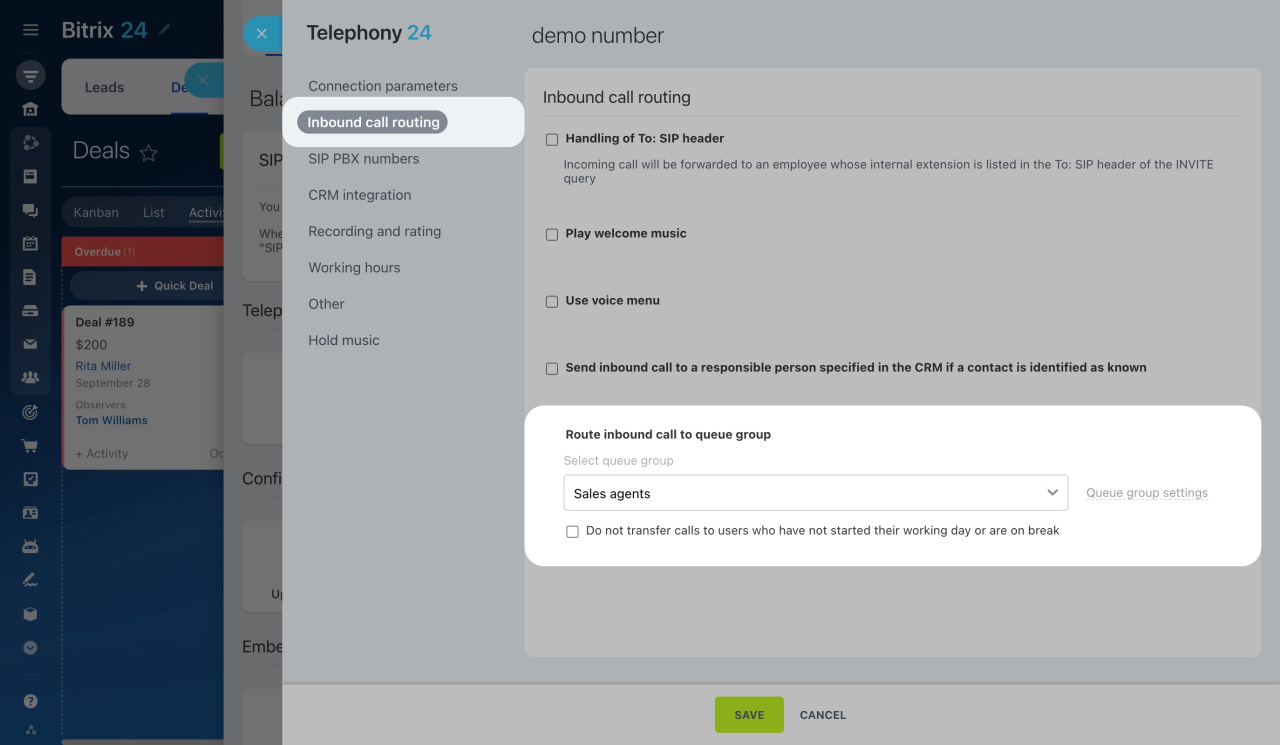
- Open the Inbound call routing tab.
- Select a queue group and open its settings.
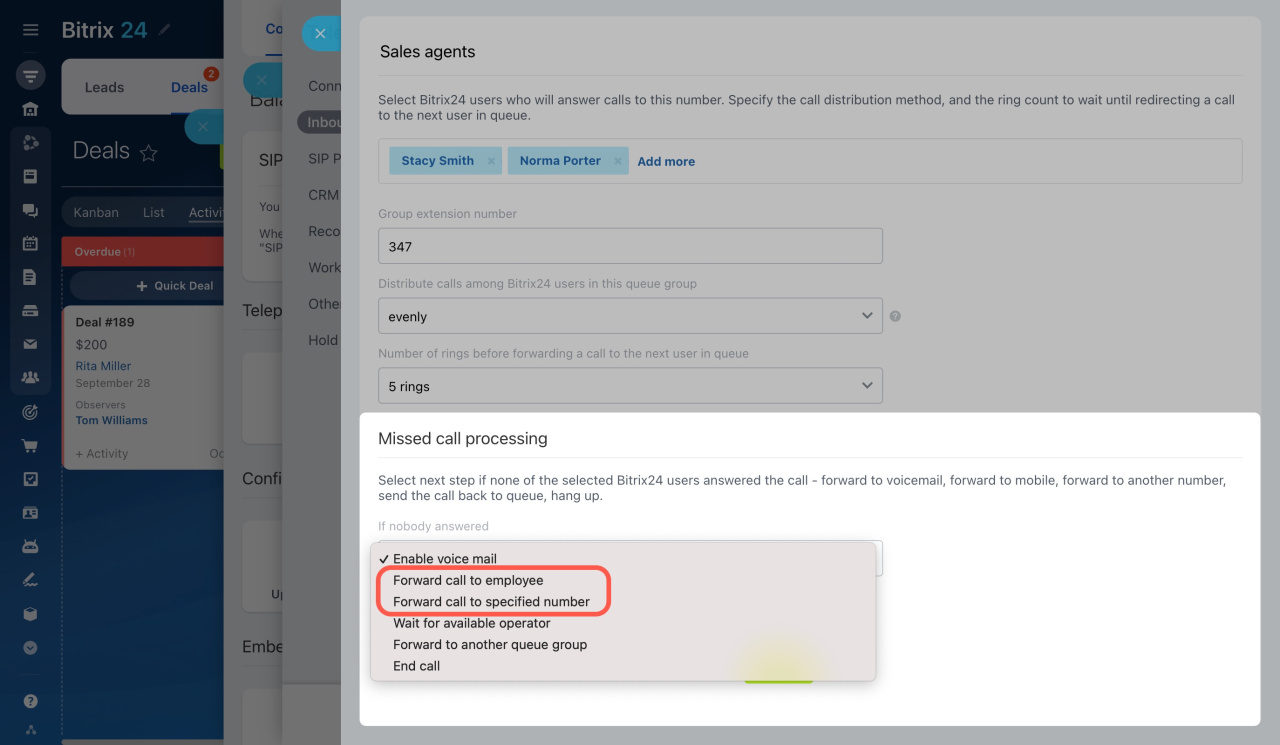
- In the Missed call processing section, choose one of these options:
- Forward call to employee: Bitrix24 forwards the call to the mobile number of any employee in the queue group.
- Forward call to specified number: Bitrix24 forwards the call to the number entered in the Redirect to number field.
Forward calls during off-hours
Use this option to forward calls outside business hours.
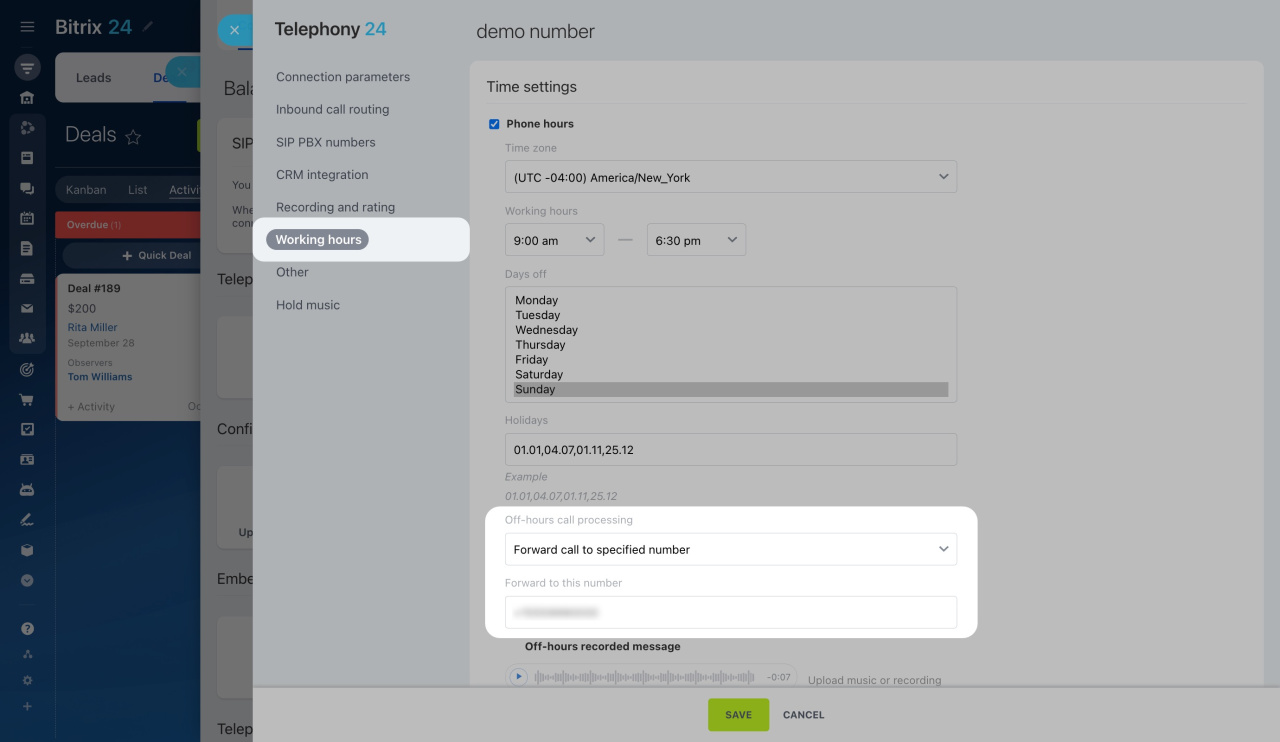
- Open the Working hours tab.
- Enable Phone hours.
- Under Off-hours call processing, select Forward call to specified number.
- Enter a phone number.
Bitrix24 forwards all off-hours calls to the specified number.
Set up unconditional call forwarding
With unconditional forwarding, Bitrix24 immediately redirects all incoming calls to another number.
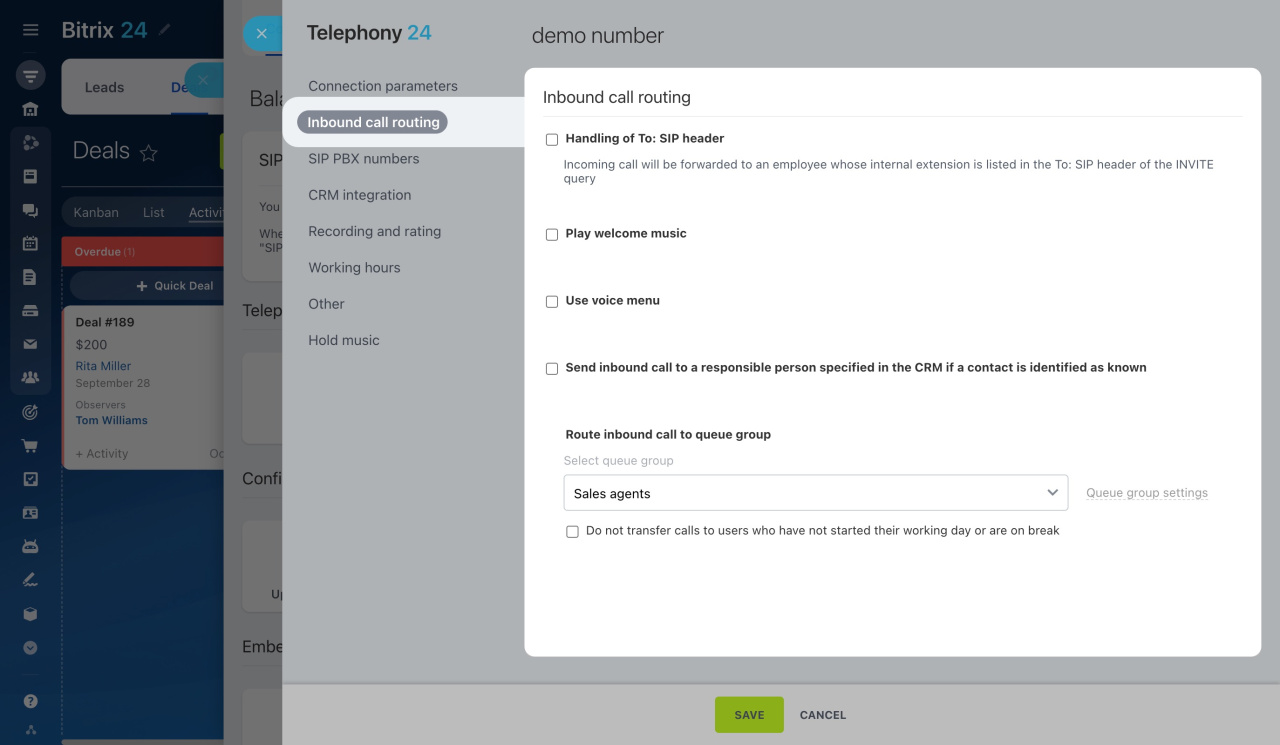
- Open the Inbound call routing tab.
- Disable these options:
- Play welcome music
- Use voice menu
- Send inbound call to a responsible person specified in the CRM if a contact is identified as known
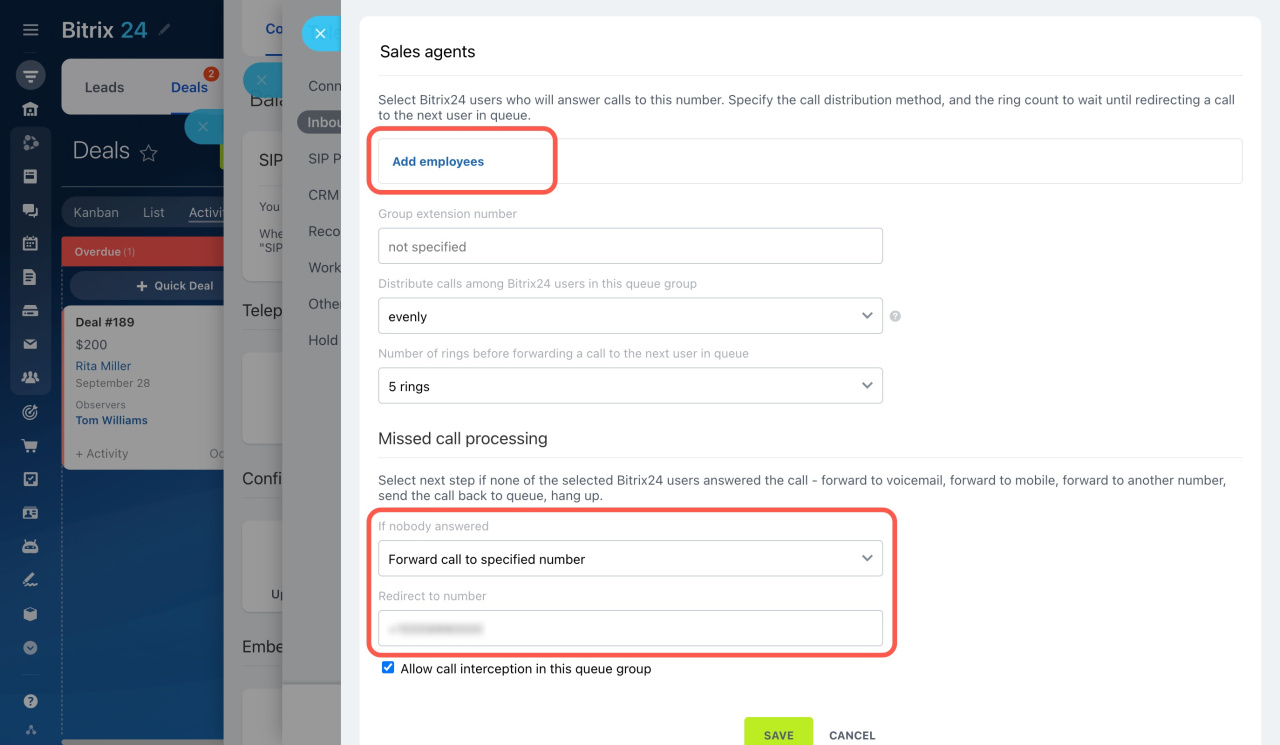
Incoming calls will route directly to the selected queue group. - Remove all employees from the queue group.
- Enter an external phone number in the Redirect to number field.
Keep these points in mind when using unconditional call forwarding:
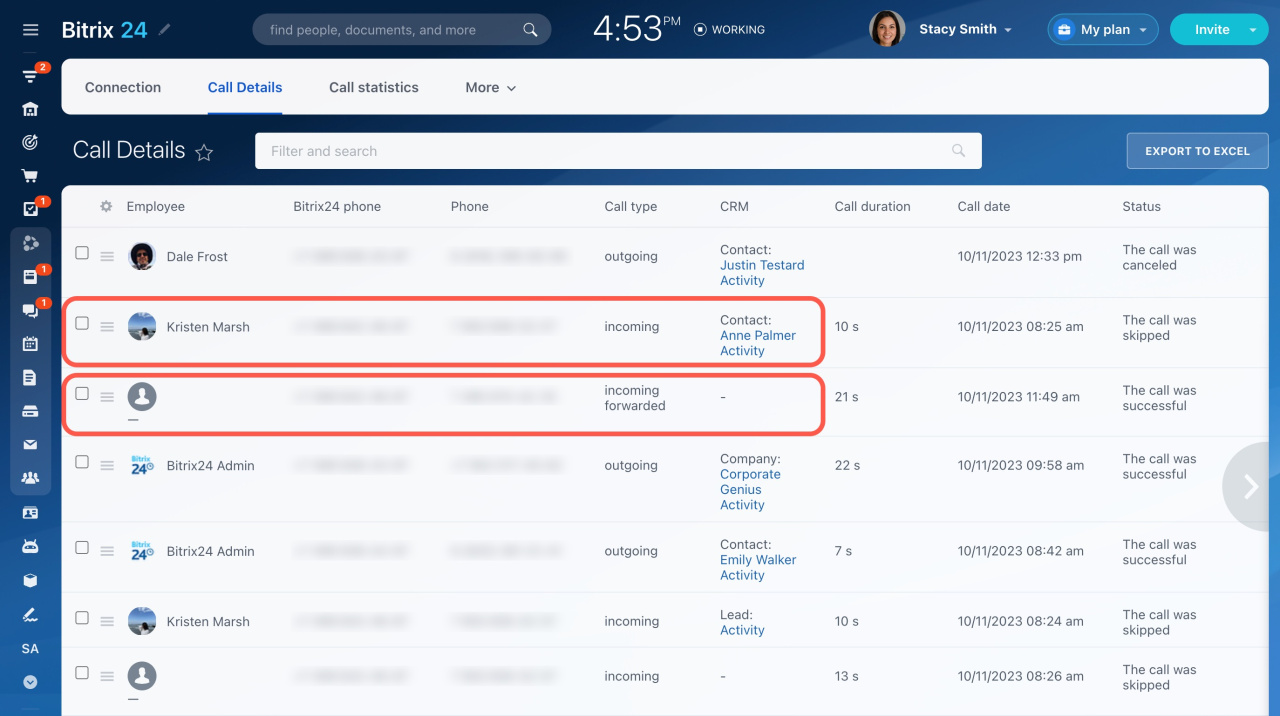
- If a client calls from an unknown number, no Bitrix24 user receives the call and the call is not saved in CRM. In Call Details, the call appears without an assigned employee.
- If a client calls from a phone number saved in CRM, Bitrix24 links the call to the related CRM record and assigns it to the responsible employee.
In brief
-
Configure call forwarding in Bitrix24 Telephony to manage incoming calls more efficiently. Use this feature to redirect calls to another phone number when employees are unavailable.
-
For rented numbers, verify sufficient funds on your telephony balance. For SIP PBX, renew your SIP connector subscription. Also, ensure to specify your forwarding number in the international phone number format.
-
You can use call forwarding for calls routed to specific employees, queue groups, IVR menus, or off-hours processing. Configure the required options in the corresponding call routing settings.