
Use Bitrix24 Telephony to manage customer calls in CRM. You can automatically create CRM items for new callers and save calls from existing customers in their related CRM records.
Configure access permissions for Telephony
- Go to CRM > Sales > Sales channels > Telephony.
- Click Configure numbers and select a rented number or PBX.
- Open the CRM integration tab.
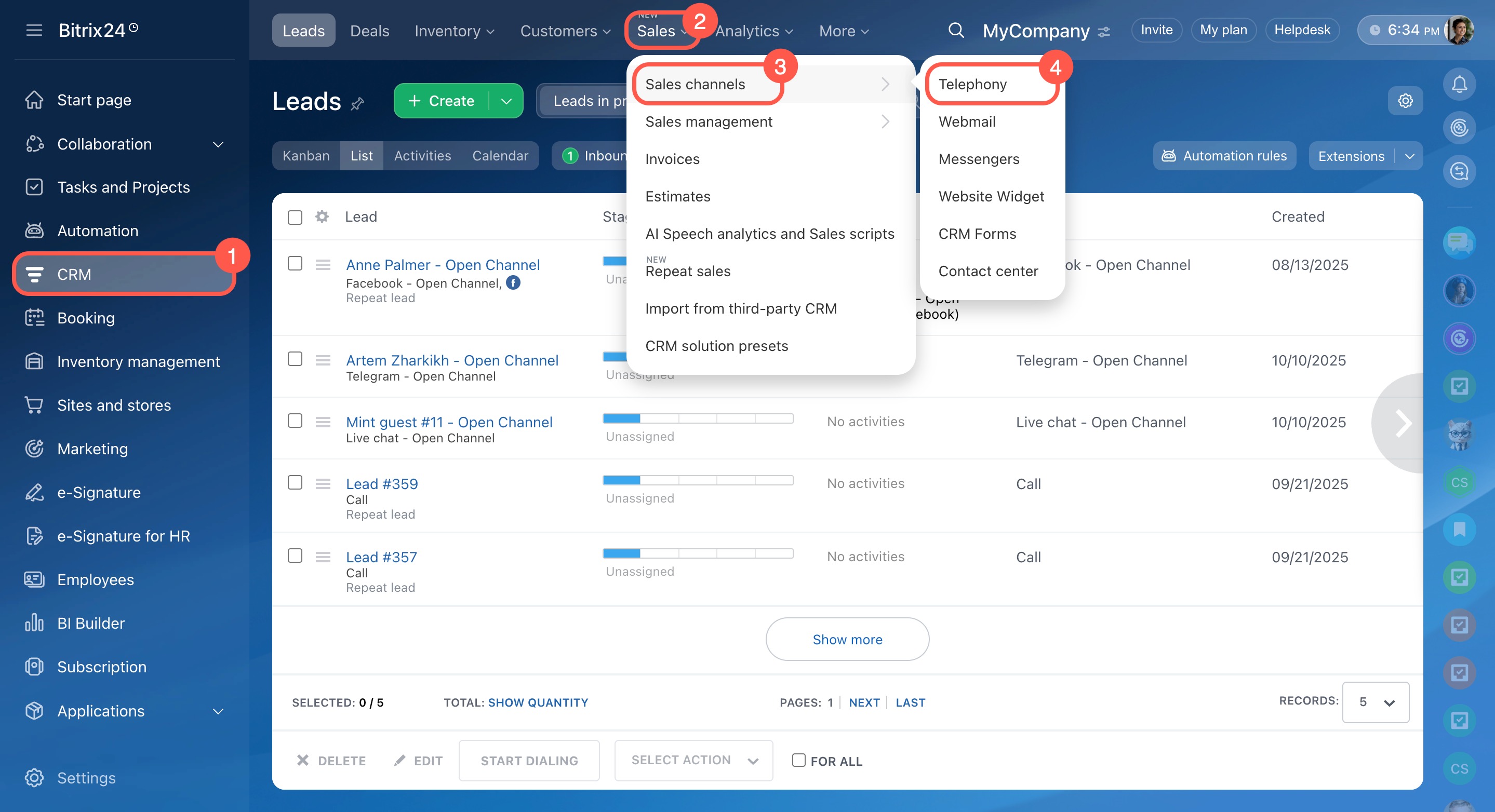
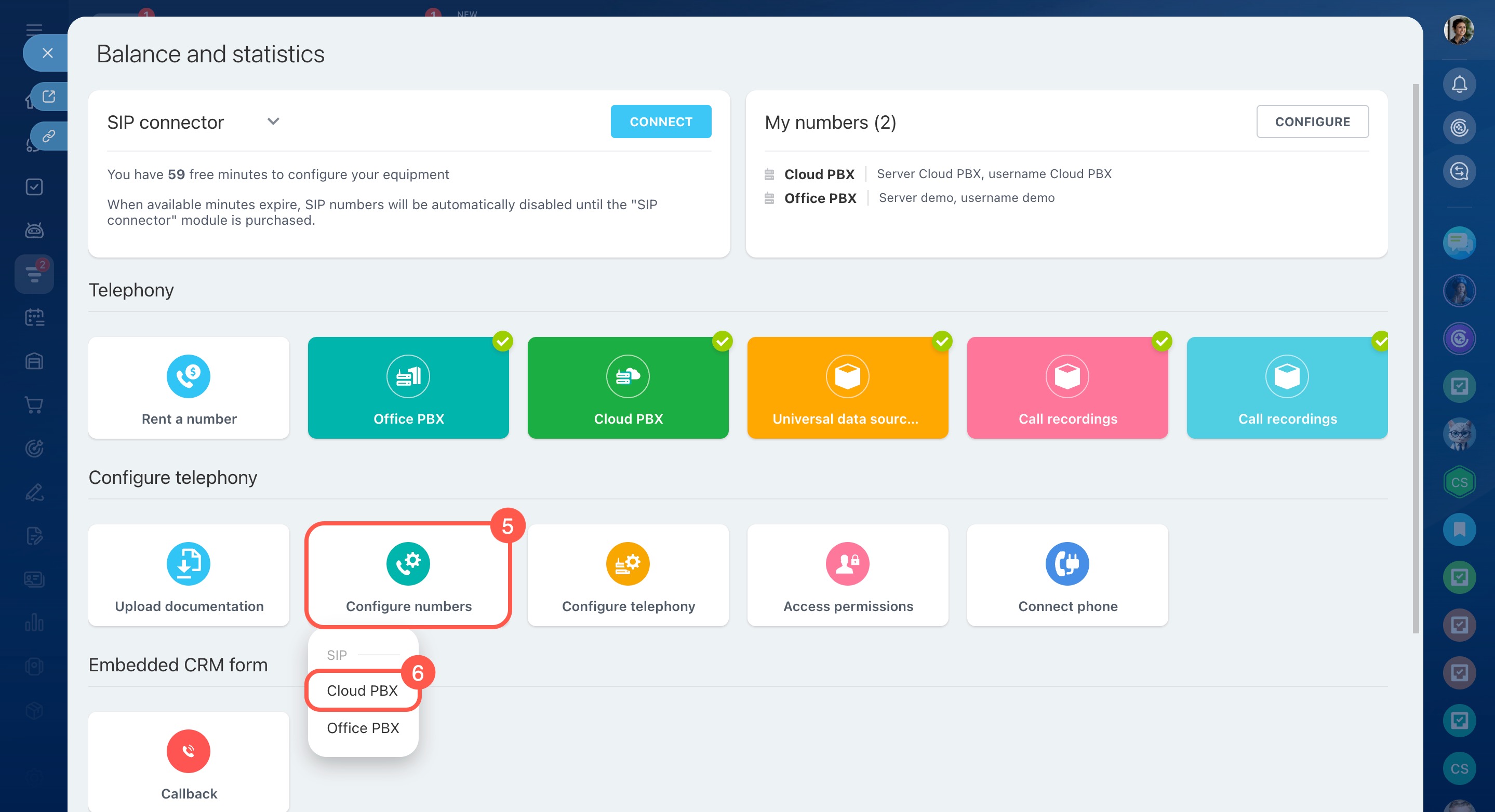
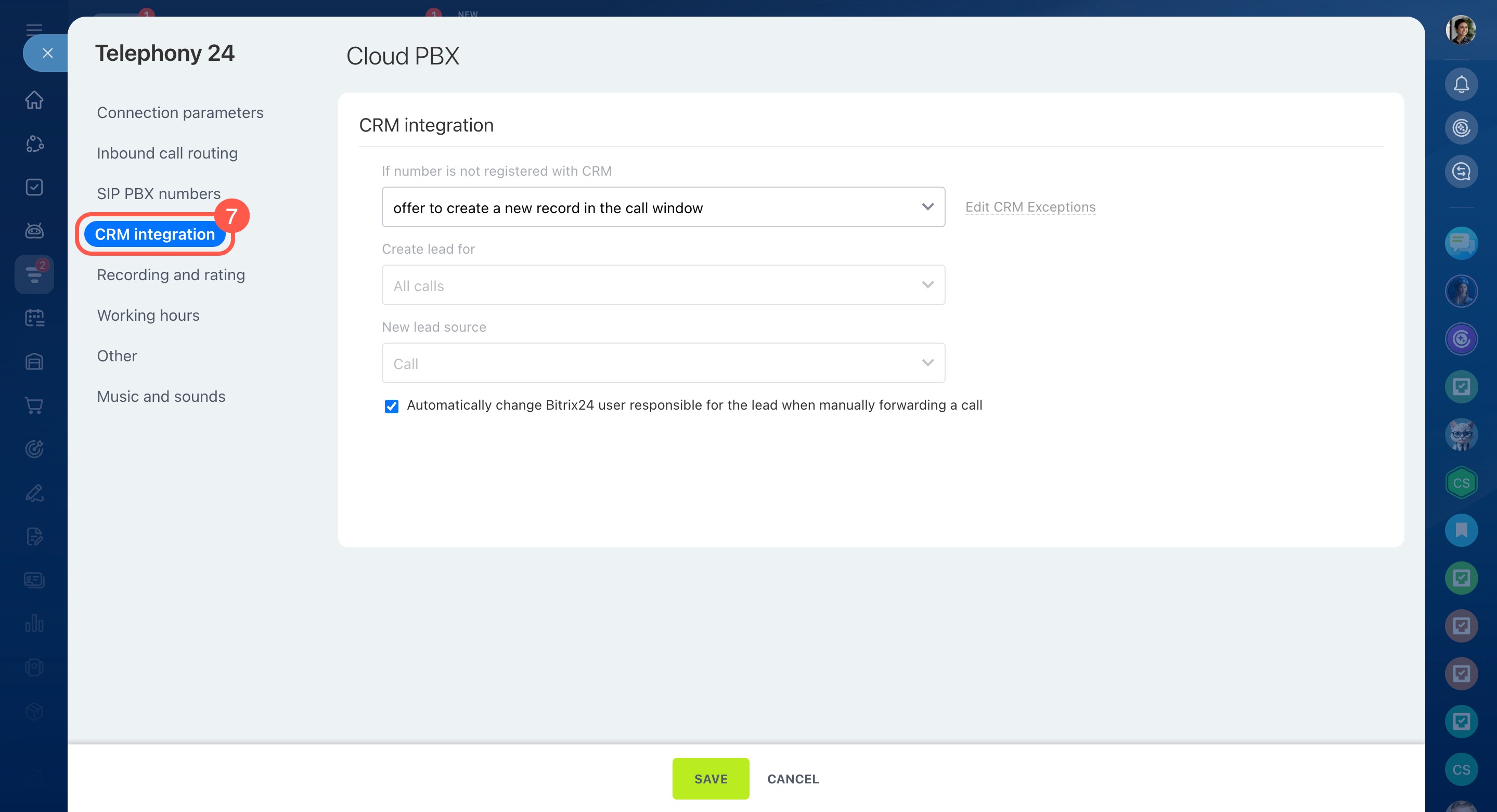
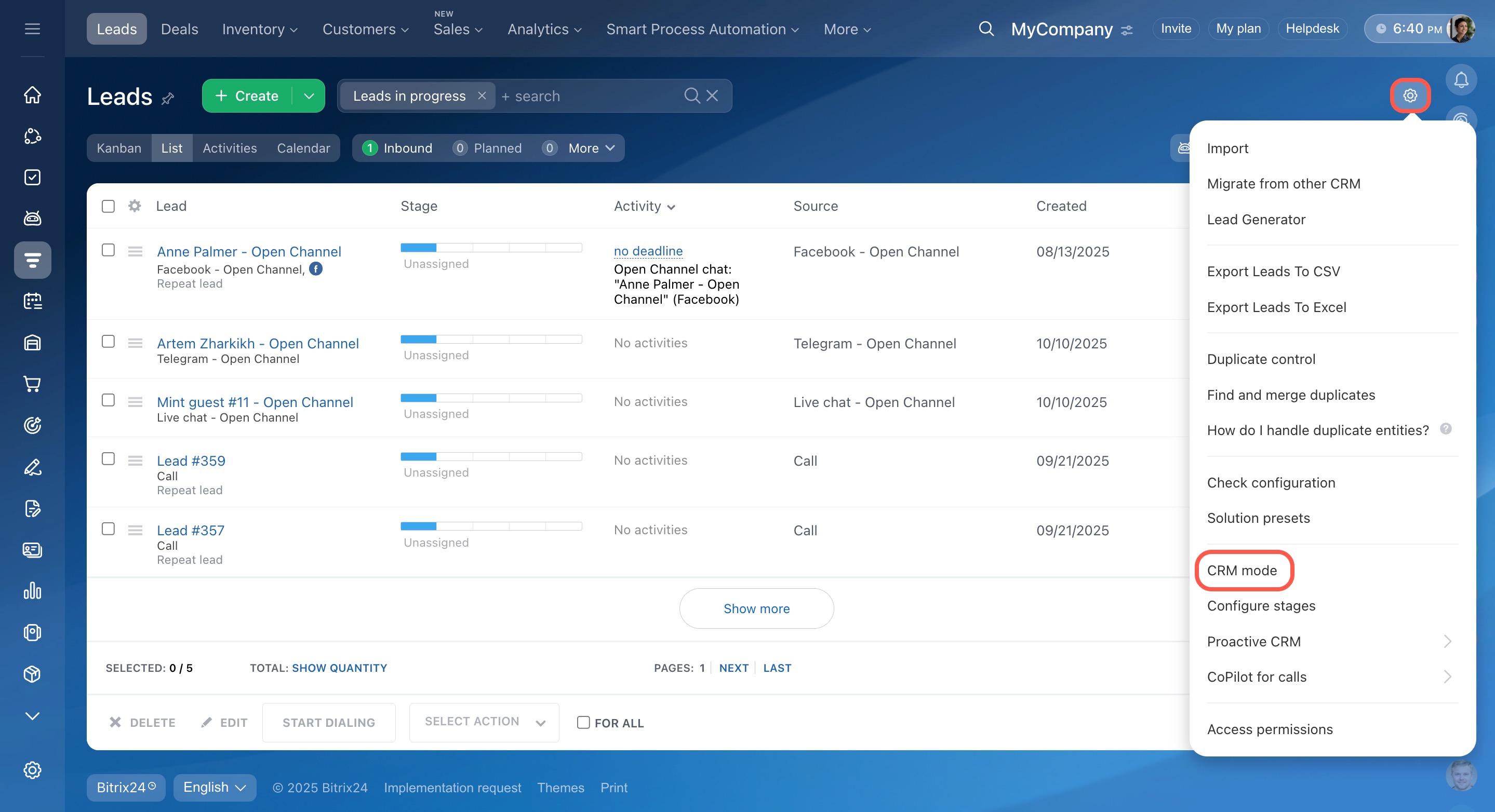
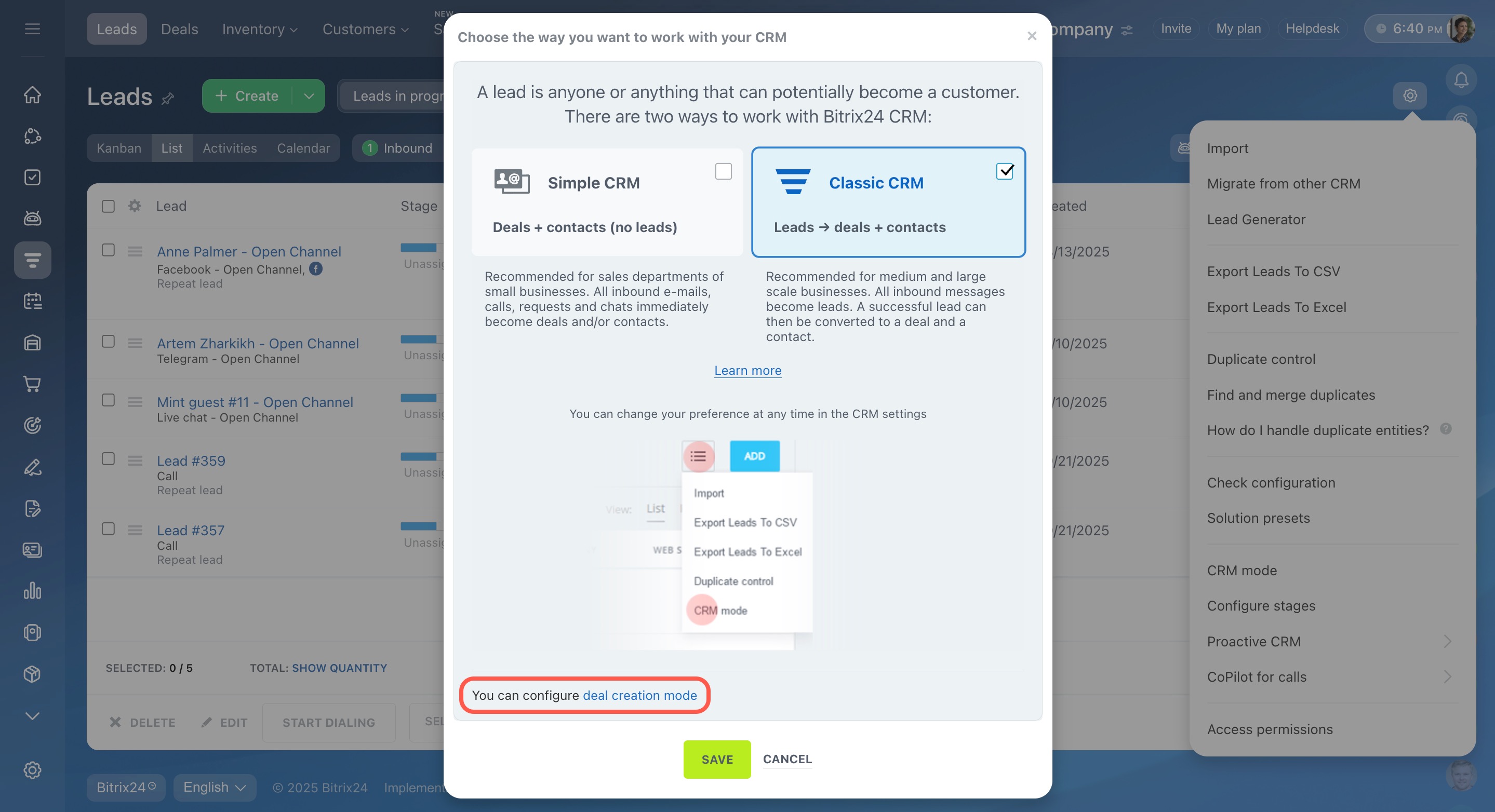
Choose a CRM mode for telephony integration
Bitrix24 CRM supports two modes:
- Simple CRM — without leads
- Classic CRM — with leads
In Classic CRM, Bitrix24 creates a lead from a call. You can later convert the lead into a contact, company, or deal manually.
In Simple CRM, Bitrix24 also creates a lead first, but converts it into a contact, company, and deal automatically.
Learn more:
Convert a lead
CRM modes
Integrate telephony with Classic CRM
Follow these steps to configure telephony integration in Classic CRM mode.
Step 1. Choose how to create leads
You can either create leads automatically or let employees create CRM items from the active call window.
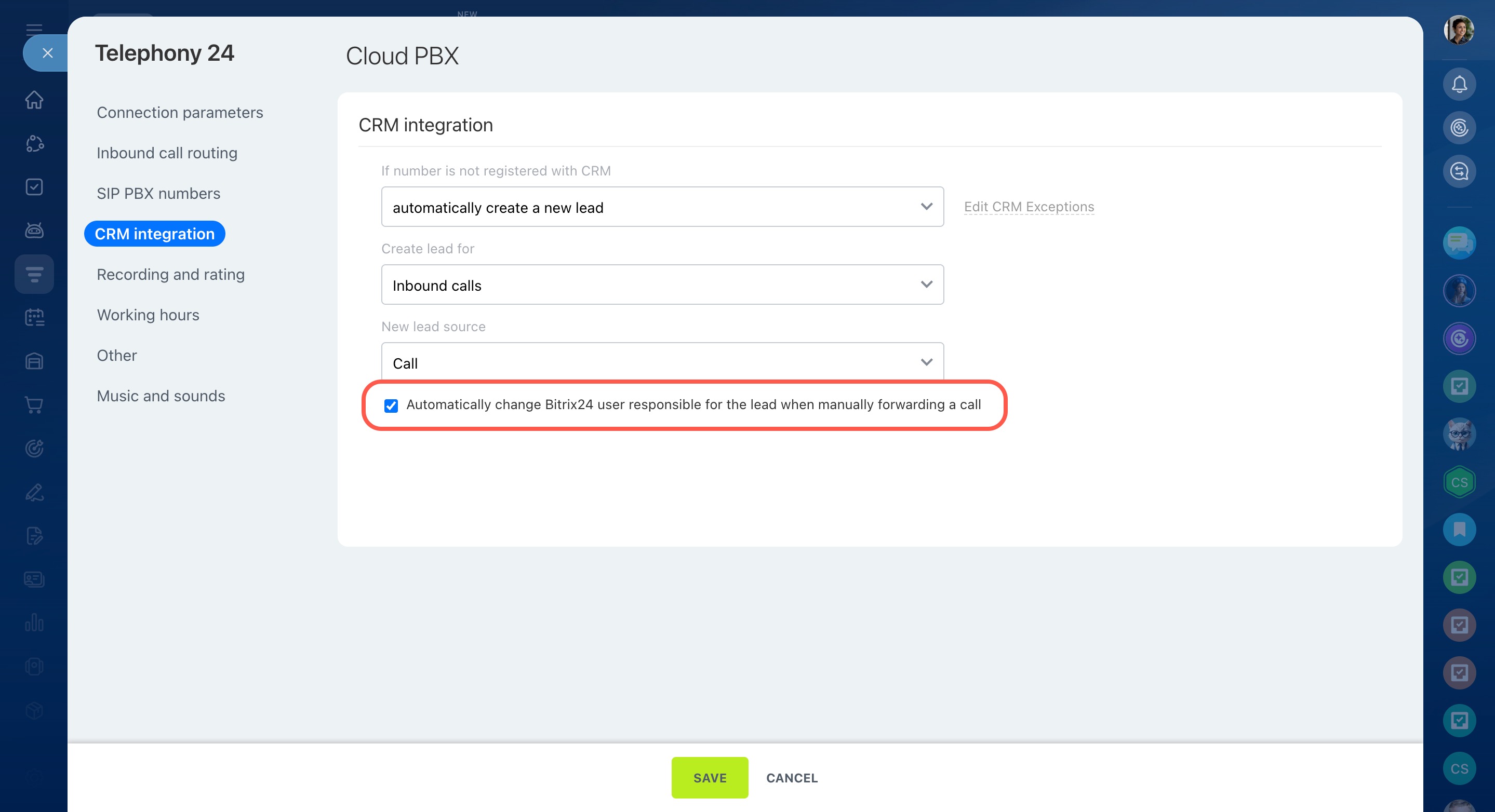
Under If the number is not found in CRM, select one of these options:
- Automatically create a new lead — Bitrix24 creates a lead during the call.
- Offer to create a new record in the call window — employees can manually create a lead or contact from the call window.
You can also route inbound calls to the employee responsible for the CRM record. To enable this option, open the Inbound call routing tab in the number settings.
Route inbound calls to a responsible person
To stop Bitrix24 from creating CRM items for specific phone numbers, add them to the exceptionsExceptions contain phone numbers and email addresses that Bitrix24 ignores when creating CRM records. list.
To do this:
- Click Edit CRM Exceptions.
- Add the phone numbers you want to exclude.
Calls from these numbers will not be saved in CRM.
Exceptions in CRM

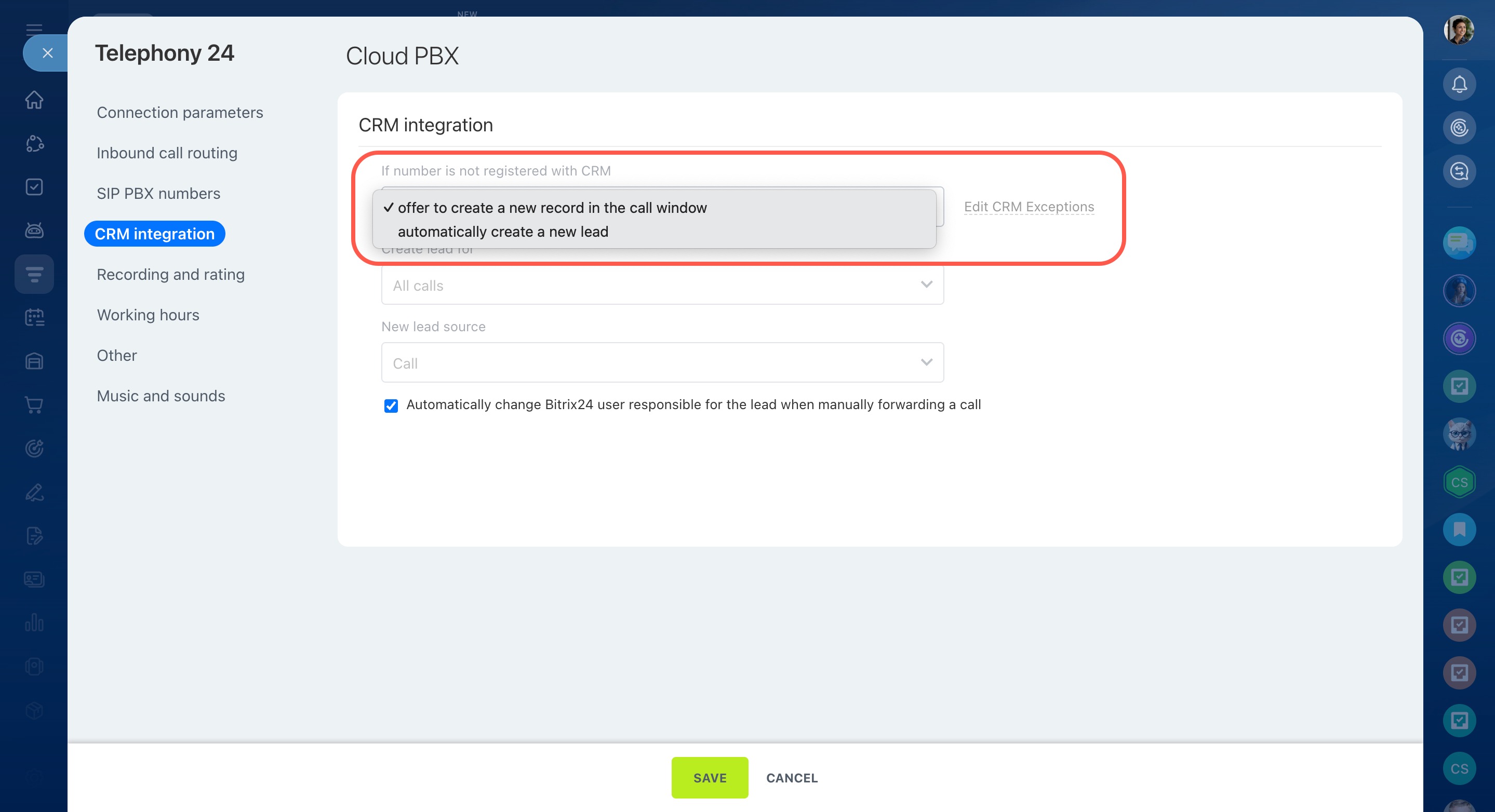
Step 2. Choose which calls create leads
Select whether Bitrix24 should create leads for:
- inbound calls
- outbound calls
- all calls

Step 3. Set a source for new leads
Select the sourceThe Source field shows where a customer came from. For example, CRM items created from calls use the Call source. for CRM items created from calls.
You can use standard sources or create custom ones. If you use multiple rented numbers or SIP PBXs, you can assign a separate source to each one.
Configure sources in CRM

Step 4. Automatically change the responsible employee
When automatic lead creation is enabled, Bitrix24 creates a lead for calls from new customers. By default, the first employee in the queue becomes responsible for the lead.
You can configure call queues in the Queue groups section.
If you manually forward a call to another employee, you can automatically assign the lead to that employee. Enable this option:
Automatically change the Bitrix24 user responsible for the lead when manually forwarding a call
Integrate telephony with Simple CRM
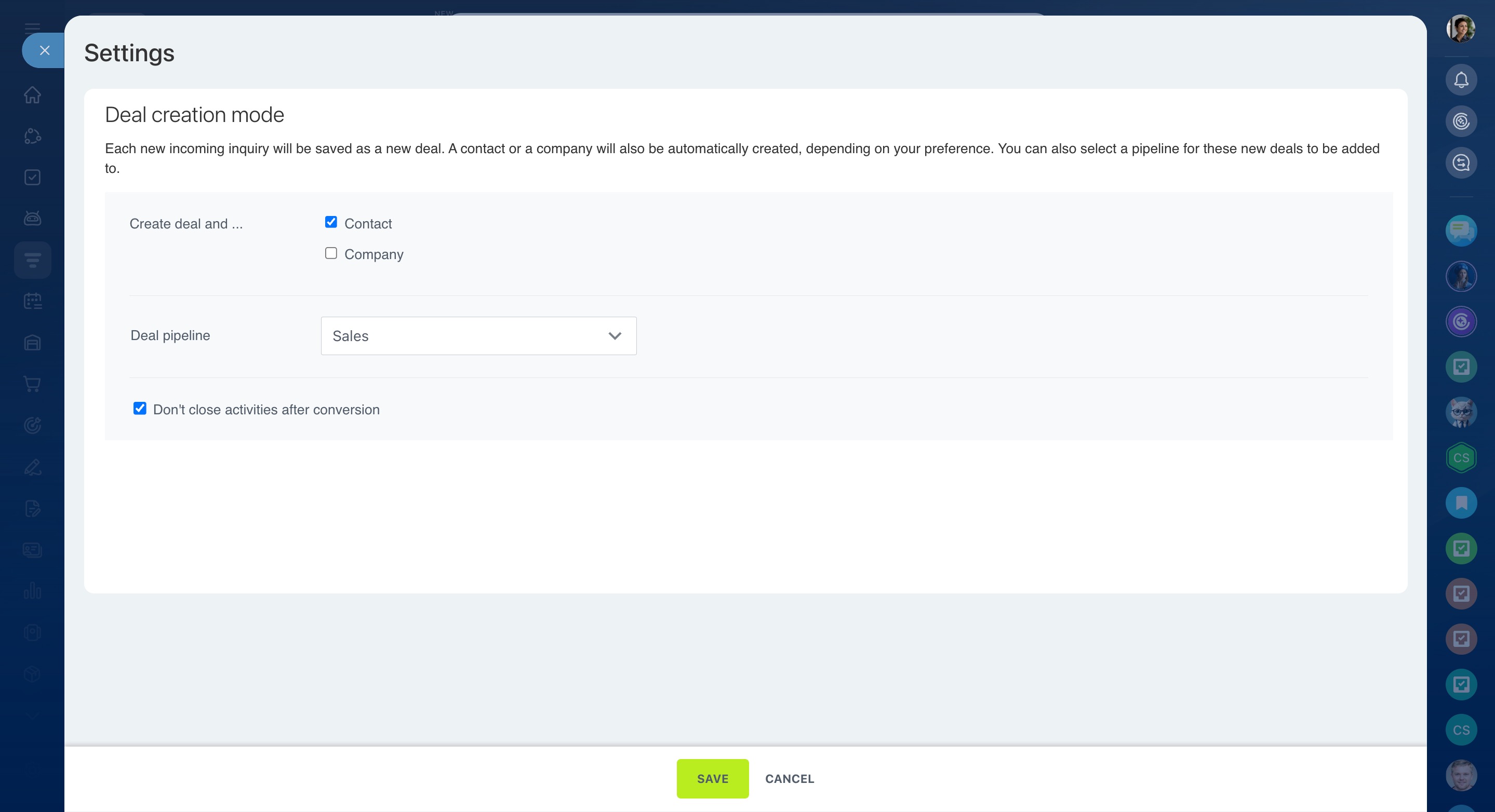
In Simple CRM mode, calls from new customers create deals automatically.
New deals always appear in the general pipeline. You can select a different pipeline in the CRM mode settings. To distribute deals between pipelines automatically, configure CRM automation.
Change deal pipelines with automation rules and triggers
You can also choose whether Bitrix24 should create a contact or company together with the deal.
Select the options you need in the Deal creation mode section.
In brief
- Use Bitrix24 Telephony with CRM to process customer calls automatically.
- Go to Telephony > Connection > Configure numbers > CRM integration to configure the integration.
- Choose whether Bitrix24 should create leads automatically or offer to create CRM items from the call window.
- Select whether leads should be created for inbound calls, outbound calls, or all calls.
- Route inbound calls from existing customers to the responsible employee in CRM.
- Add phone numbers to exceptions to prevent CRM item creation.
- In Classic CRM mode, calls create leads that you can manage manually.
- In Simple CRM mode, calls create deals automatically. You can also create contacts and companies together with deals.