
Use call tracking in Bitrix24 to measure how effective your ad sources are. For example, if you run campaigns on Google Ads, Instagram, and Facebook, you can assign a unique phone number to each source. Then you can see which channel brings in more customers.
Call Tracking
Call tracking setup depends on your telephony connection:
- Rented numbers: no setup needed. Call tracking works by default.
- Market apps: may require extra setup in the app.
- SIP PBX via SIP connector: requires setup in both Bitrix24 and your PBX.
To use SIP PBX numbers for call tracking, complete three steps.
Step 1. Configure your PBX to send the destination number
To connect your SIP PBX to Bitrix24, you need a SIP account. Your PBX provider gives you the server, login, and password.
You can use one SIP account with multiple phone numbers. When customers call any of these numbers, all calls go through the same SIP account on your PBX.
In Bitrix24, the PBX connection settings include the server, login, and password. You cannot specify a phone number there. Because of this, Bitrix24 cannot show which number the customer dialed in Call Details.
To fix this, send the destination number from your PBX to Bitrix24 using SIP headers. Bitrix24 reads this number and uses it for call tracking.
SIP uses headersThe SIP header is a part of the SIP (Session Initiation Protocol) protocol that transmits call details. For example, SIP headers contain information about the caller and receiver. to pass call data:
- To — the number the customer dialed
- Diversion — used for call forwarding
Some PBXs do not send these headers by default. Contact your provider or administrator to enable them.
Step 2. Check SIP connection settings in Bitrix24
To route calls with different numbers to Bitrix24, set up your PBX connection.
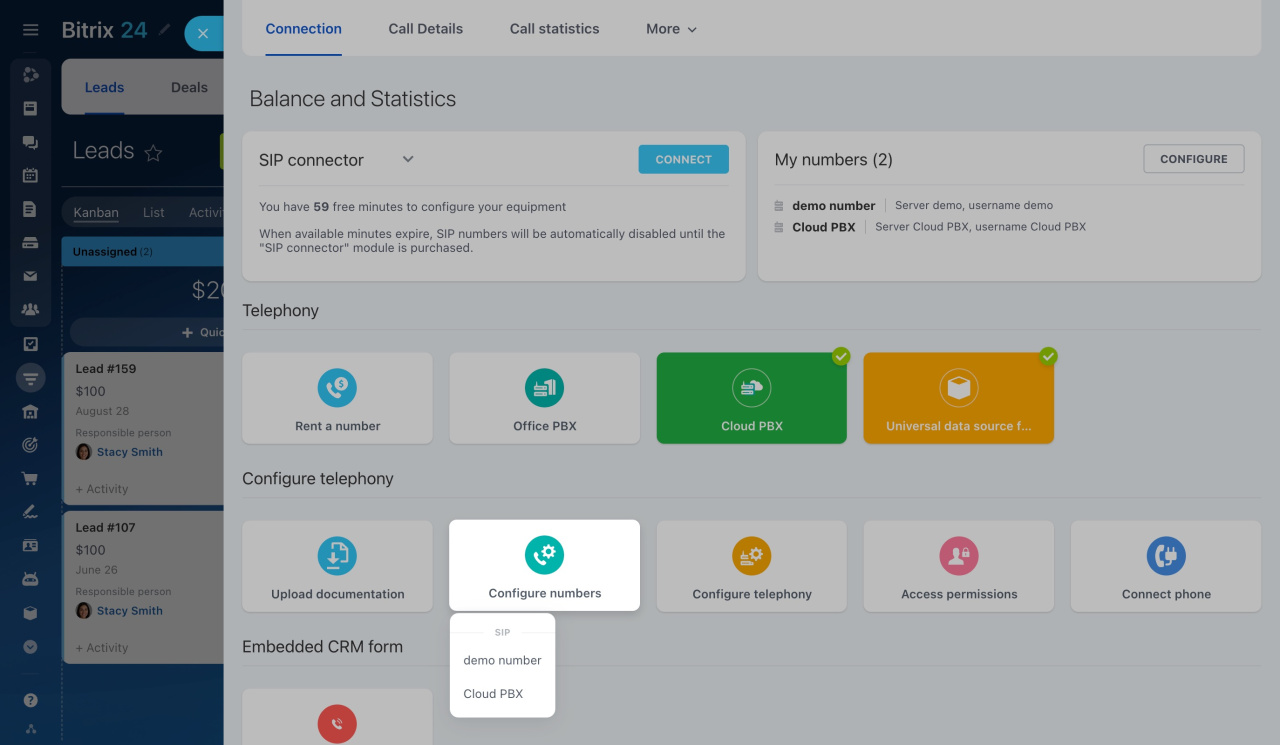
- Go to CRM > Sales > Sales channels > Telephony.
- Open the Connection page.
- Click Configure numbers and select your PBX.
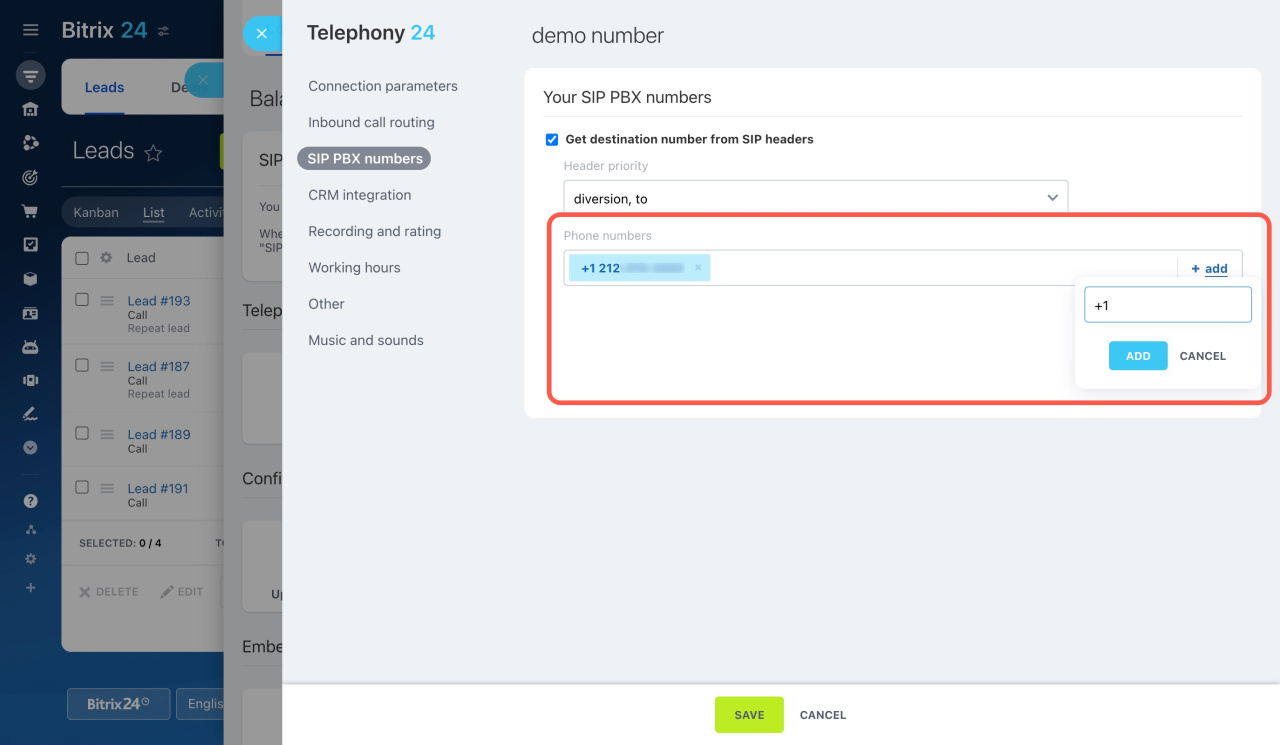
- Open the SIP PBX numbers tab.
Configure access permissions to Telephony
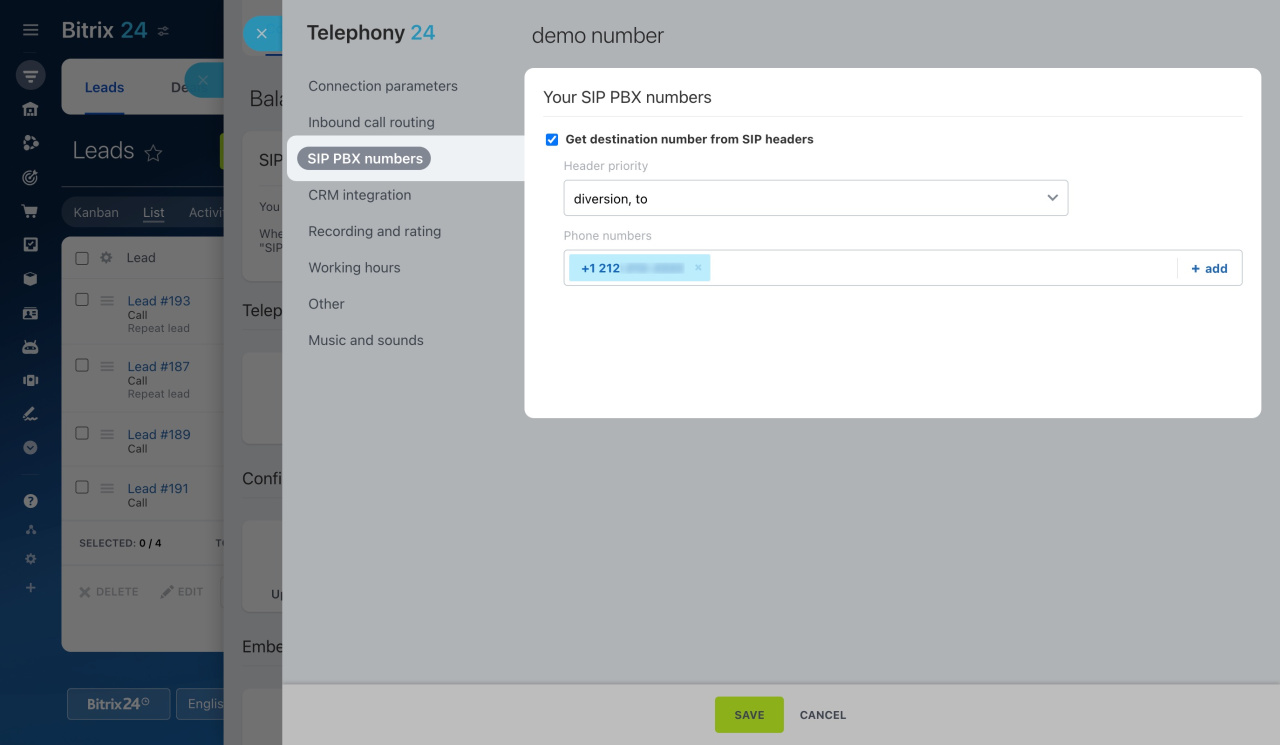
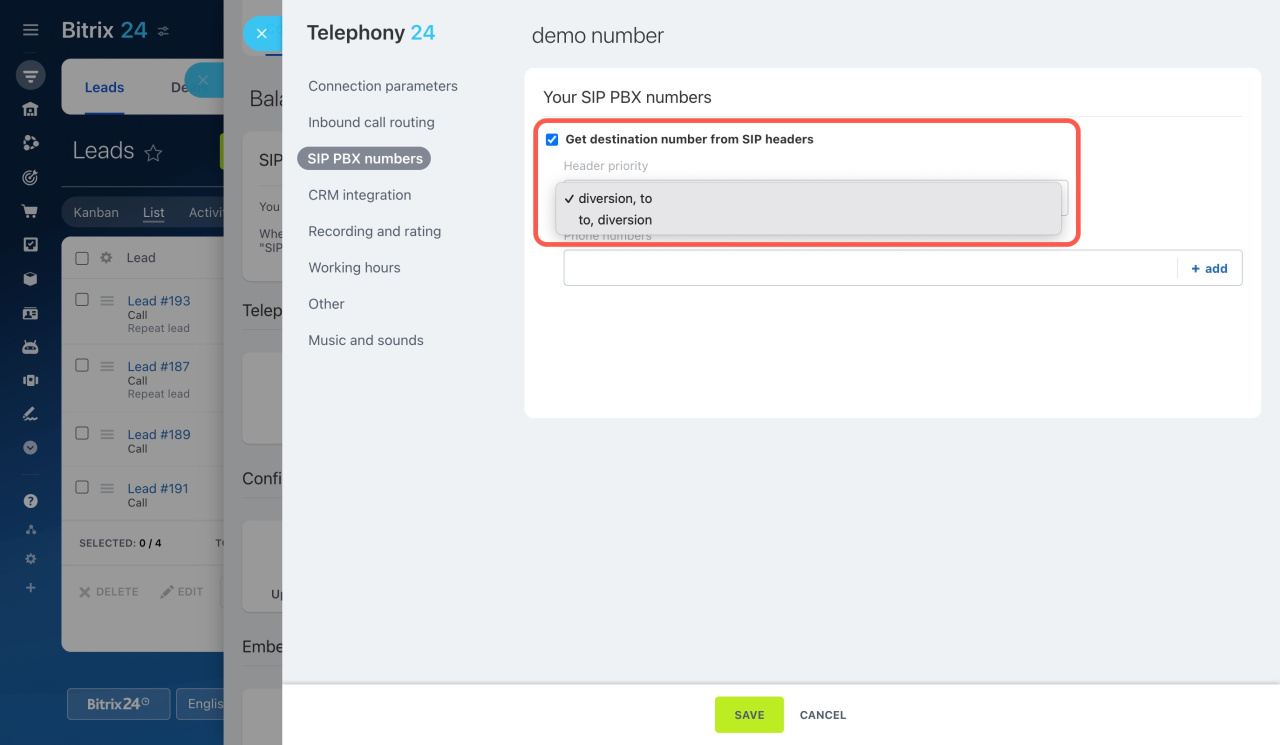
Enable .
Header data depends on your PBX setup. Set the Header priority to define the order Bitrix24 uses to check headers. For example, if you set diversion, to, Bitrix24 checks the diversion header first.
How SIP headers are processed
- A customer calls your SIP PBX number.
- The PBX receives the call and creates a request.
- The PBX adds the destination number to the To or Diversion header.
- The PBX routes the call to Bitrix24.
- Bitrix24 reads the number from the header and uses it for call tracking.
To check if the headers are working, open Call Details. If the number is not in the diversion or to fields, your PBX is not sending it.
View call logs
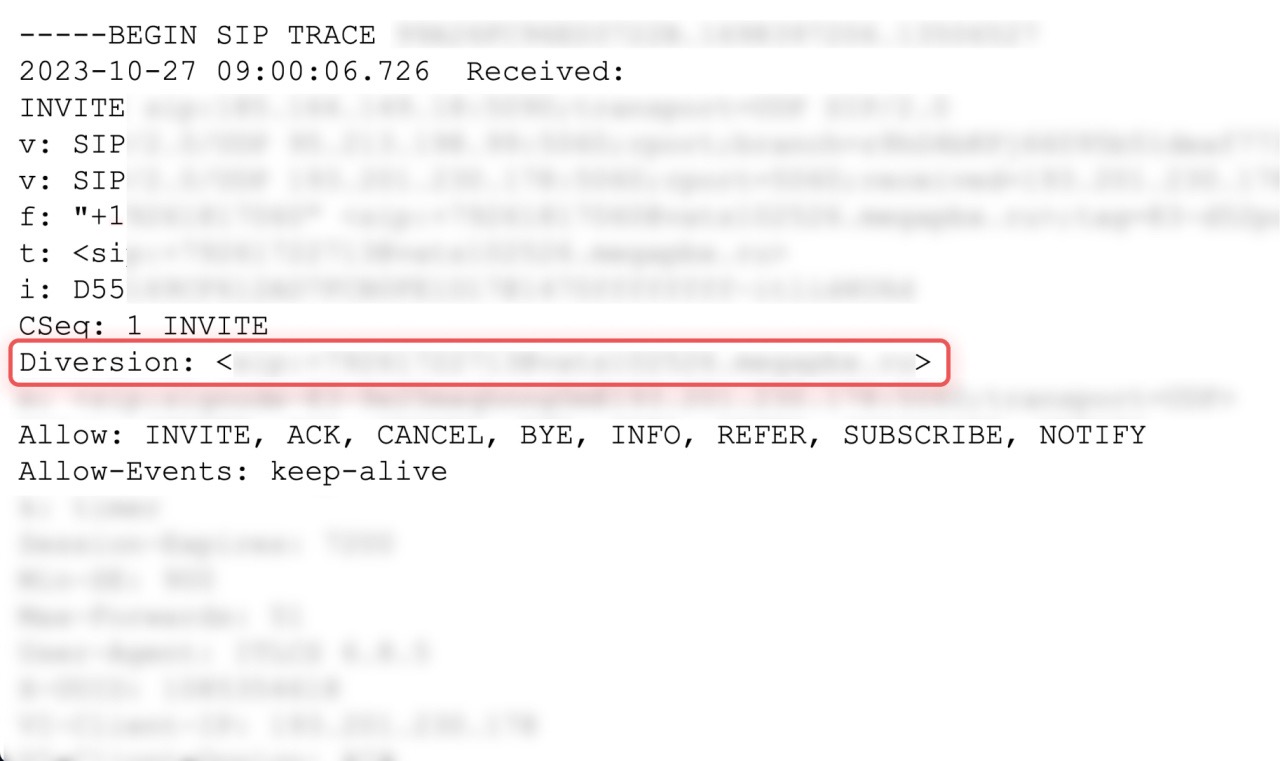 The diversion field in the log is the header in which the PBX transmits the number.
Bitrix24 automatically saves numbers from headers in the Phone numbers section.
- If a number has no inbound calls yet, you can add it manually.
- You can delete manually added numbers.
- You cannot delete numbers added automatically.
Step 3. Assign SIP PBX numbers to ad sources
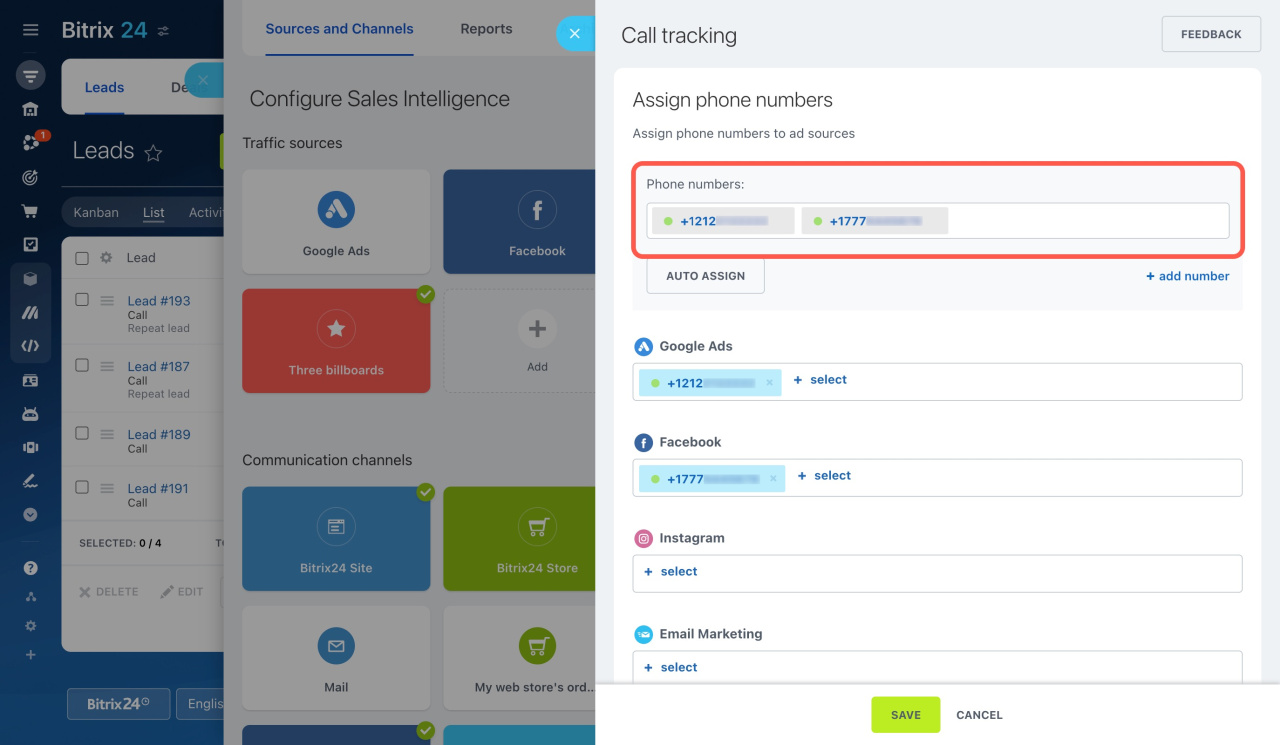
After the first inbound call, the number appears in CRM > Analytics > Sales Intelligence > Call Tracking > Phone numbers.
Assign each number to a specific ad source. This lets you track where your customers found your business.
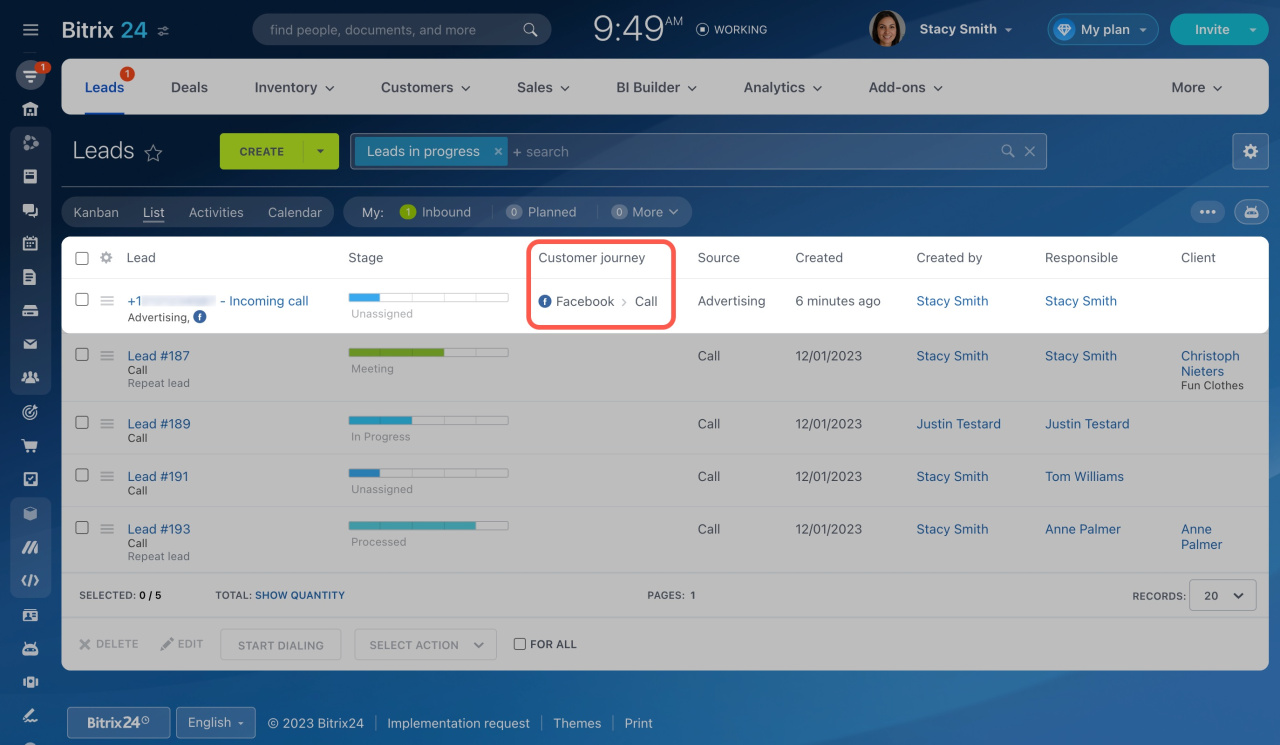
In the CRM item list, you can see the ad source in the Customer journey column.
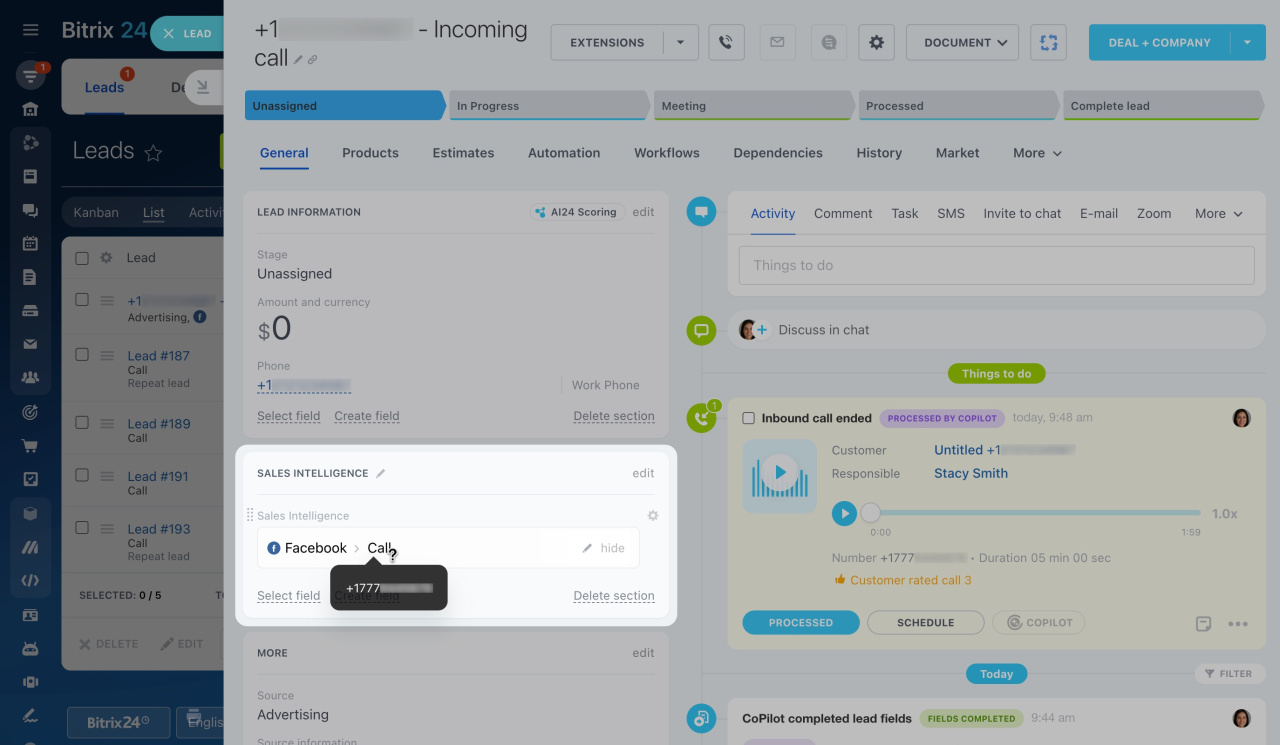
Open the CRM item form and view details:
- Check the ad source in the Sales Intelligence field.
- Hover over the source to see the destination number.
The Source information field shows only the name of the SIP connection that received the call.
Assign phone numbers to traffic sources and use call tracking to analyze performance.
Assign phone numbers to traffic sources
Check call tracking support
In brief
- Use call tracking to measure the performance of your ad sources. Send destination numbers through SIP headers so Bitrix24 can detect your SIP PBX numbers automatically.
- SIP uses Diversion and To headers to pass the destination number to Bitrix24.
- After the first inbound call, the number appears in CRM > Analytics > Sales Intelligence > Call Tracking > Phone numbers.
- Assign each number to a different ad source. Then track in CRM where your customers discovered your business.