
A collab is a workspace for clients and external teams. Tasks let you turn discussions into clear next steps.
How employees work with tasks in a collab
Create a task
You can create a task in several ways.
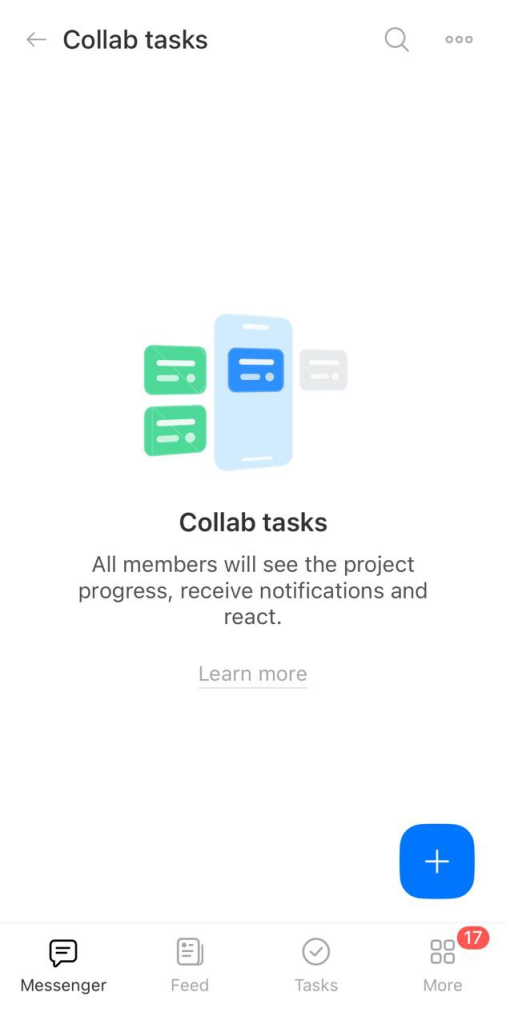
From collab tasks. Open collab tasks and tap Add (+).
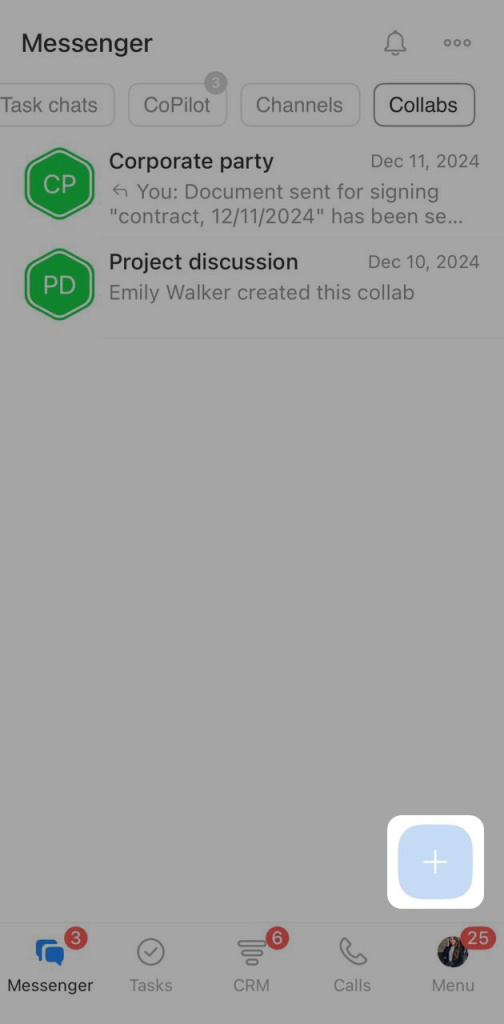
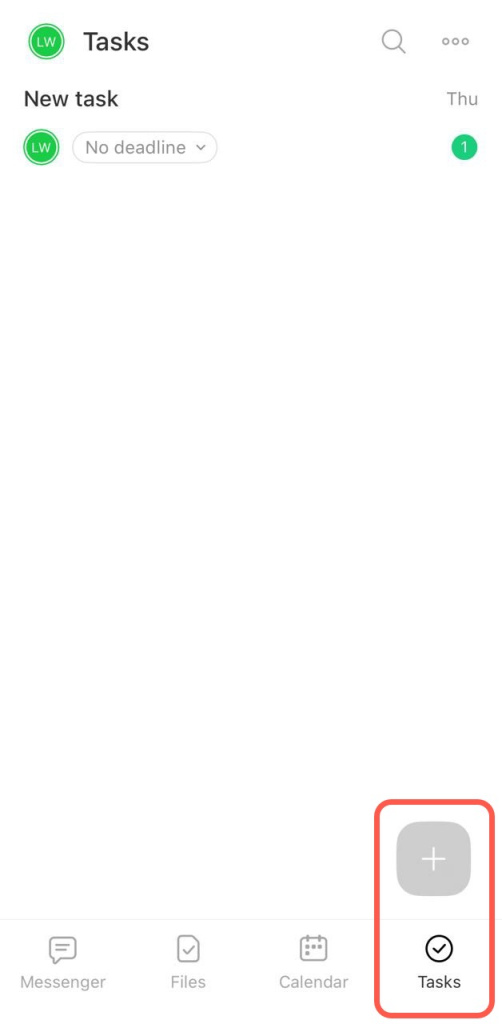
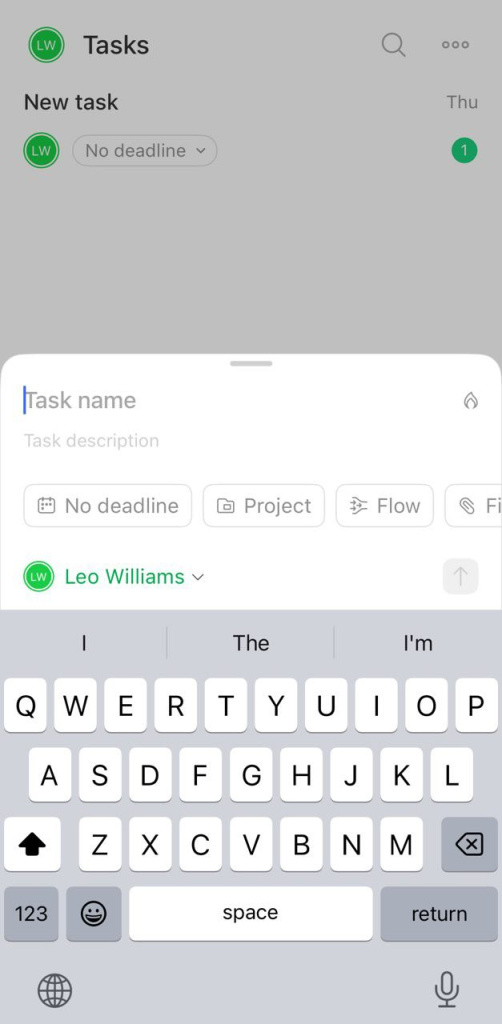
From the task list. Go to Tasks and tap Add (+).
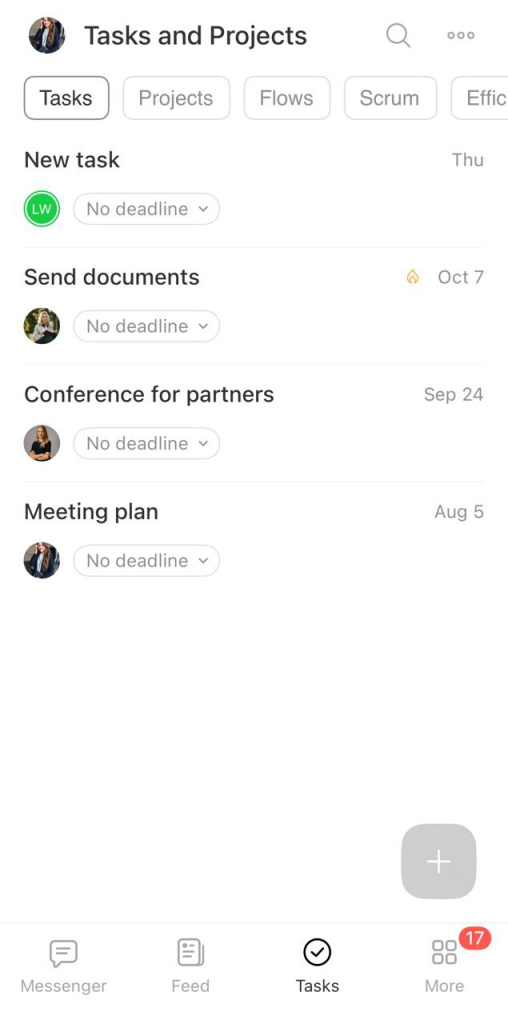
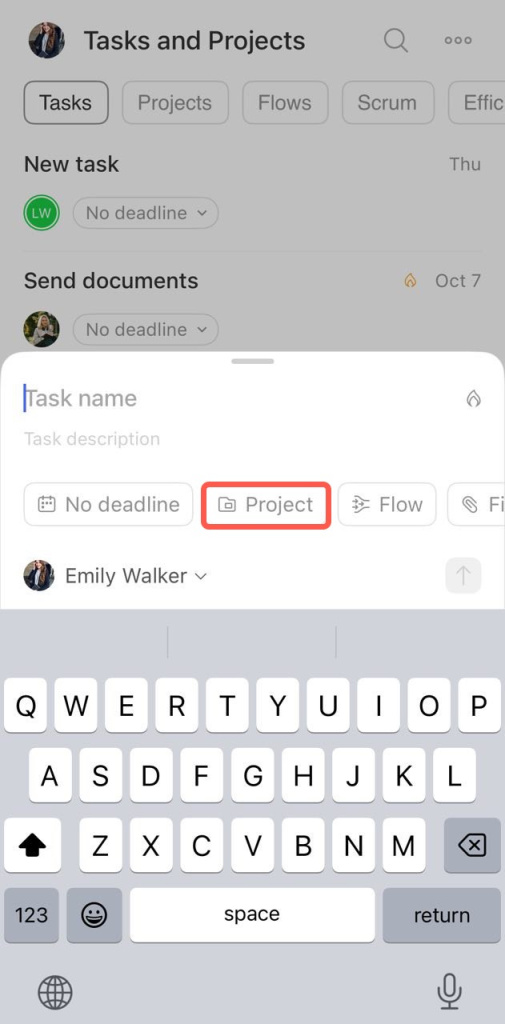
Select the collab in the Project field.
From a message. In the collab chat, tap and hold a message. Select Create task.
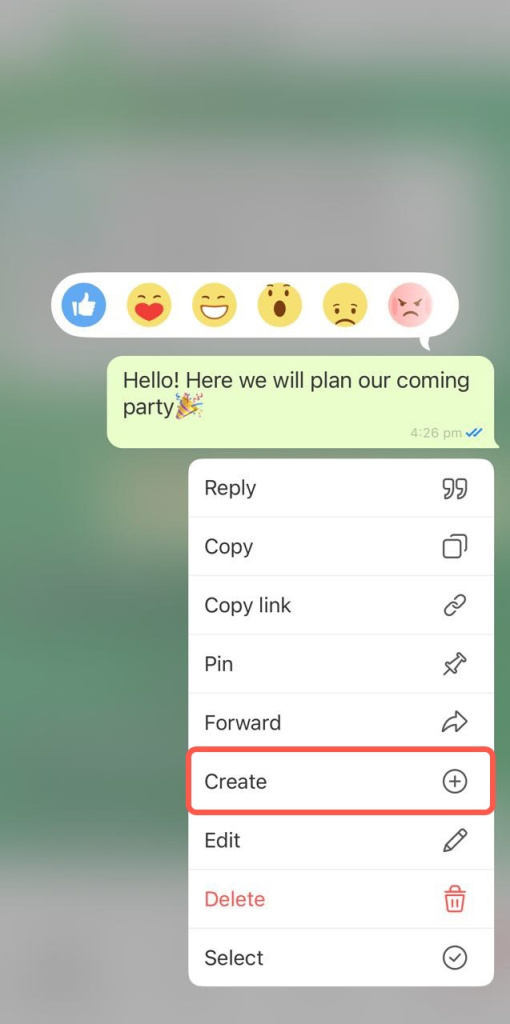
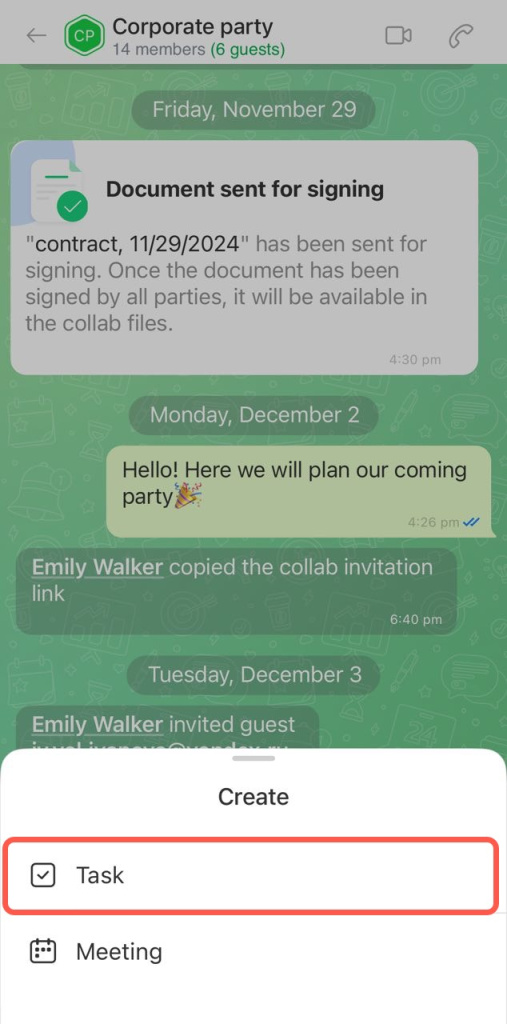
The message text becomes the task title. The chat and author appear in the description.
Enter a task name and description. Add details like a deadline or checklist. By default, the task creator is the assignee, but you can change it. Guests are marked in green so you can easily identify them.
Track task progress
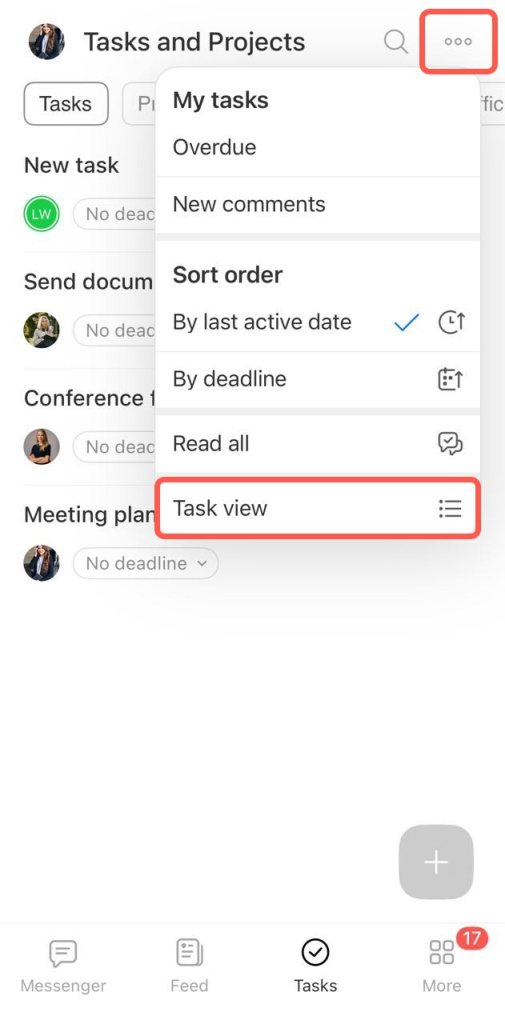
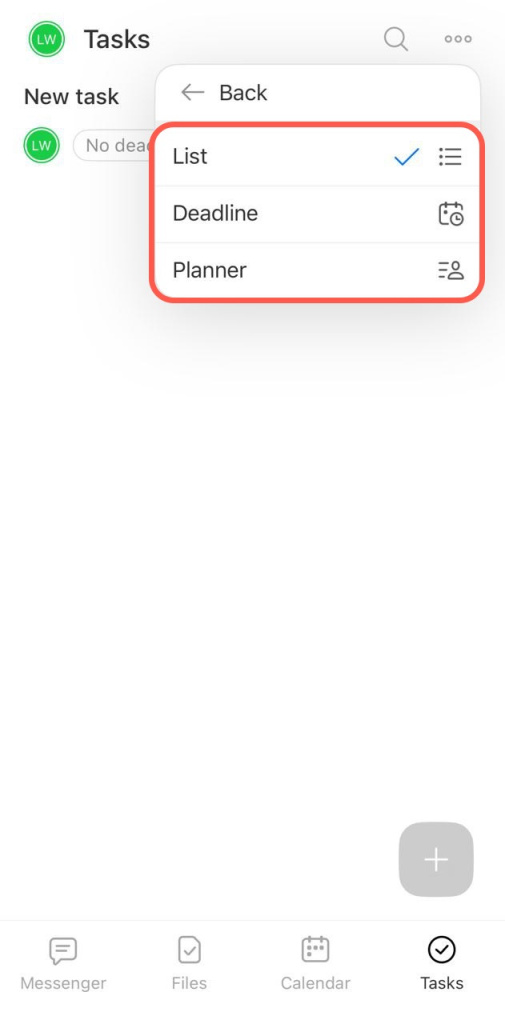
Open the Collab Tasks section to track progress. Choose a view: List, Deadline, or Planner.
How guests work with tasks in a collab
In the mobile app, you can create tasks in three ways.
From collab tasks. Tap Add (+).
From the task list. Go to Tasks and tap Add (+). The Project field shows the collab you are invited to. If you have multiple collabs, it shows the last one you used. All members can see the task.
From a message. In the collab chat, tap and hold a message. Tap Create task.
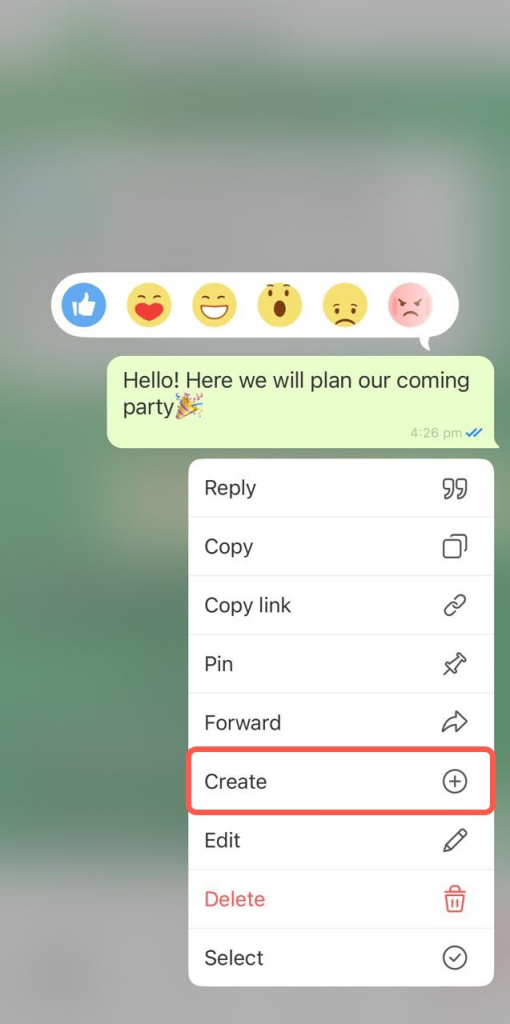
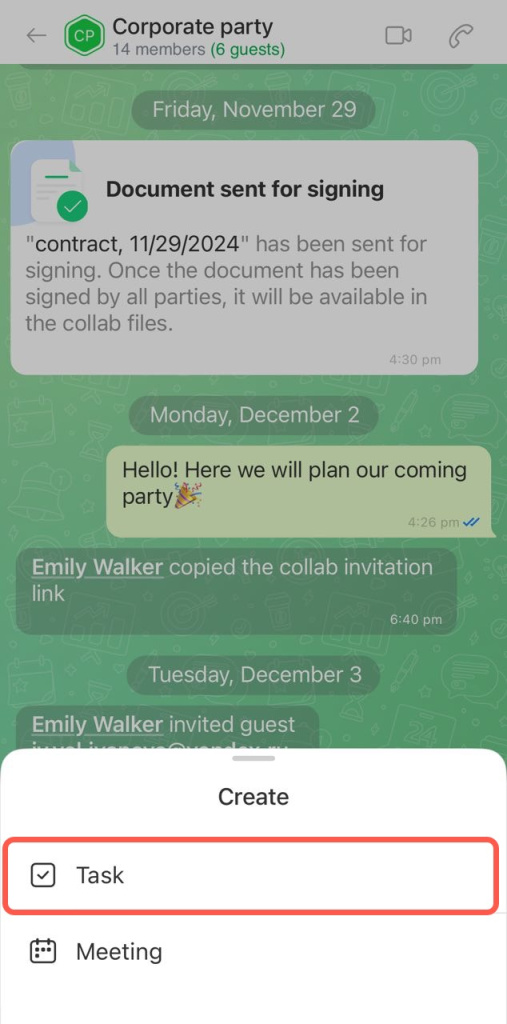
The message text becomes the task title. The chat and author appear in the description.
Enter a task name and description. Add details like a deadline or checklist. The task creator is the assignee by default.
All tasks appear in one list. You can sort them by different parameters.
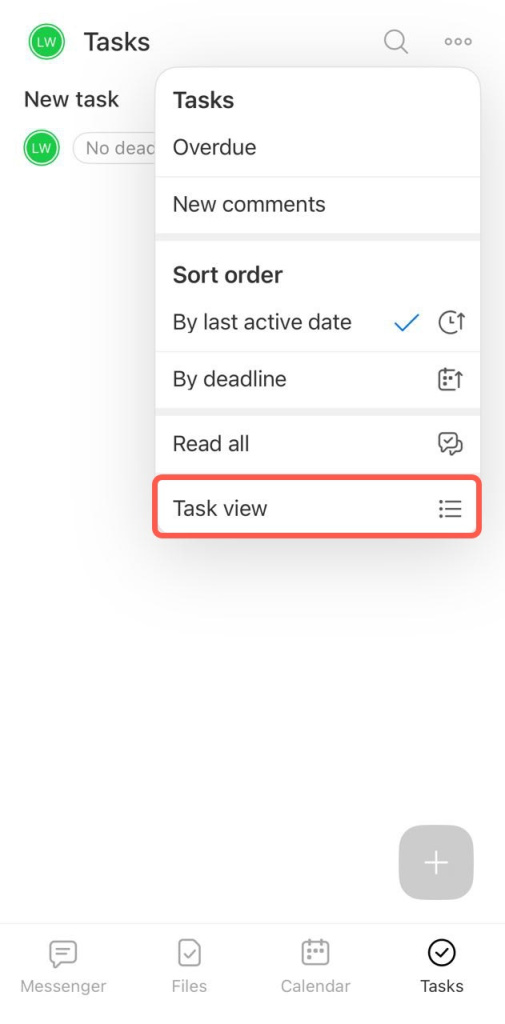
Use these views to manage tasks:
- List — shows detailed task information such as activity, title, status, and deadlines.
- Deadline — groups tasks by their deadlines.
- Planner — lets you create personal columns that only you can see.
Collab tasks in the mobile app make it easier to work with clients and external users. The collab owner can set who can view, edit, and delete tasks. Different views help you stay organized and meet deadlines.