
Use CardDAV to sync contacts on iOS devices. This protocol lets you access and share contact data stored on a server.
First, set up a CardDAV account on your device and connect it to your Bitrix24 account. Your contacts will sync automatically with the iOS Contacts app.
In Bitrix24, go to Employees > Settings (⚙️) > Synchronize with CardDAV.
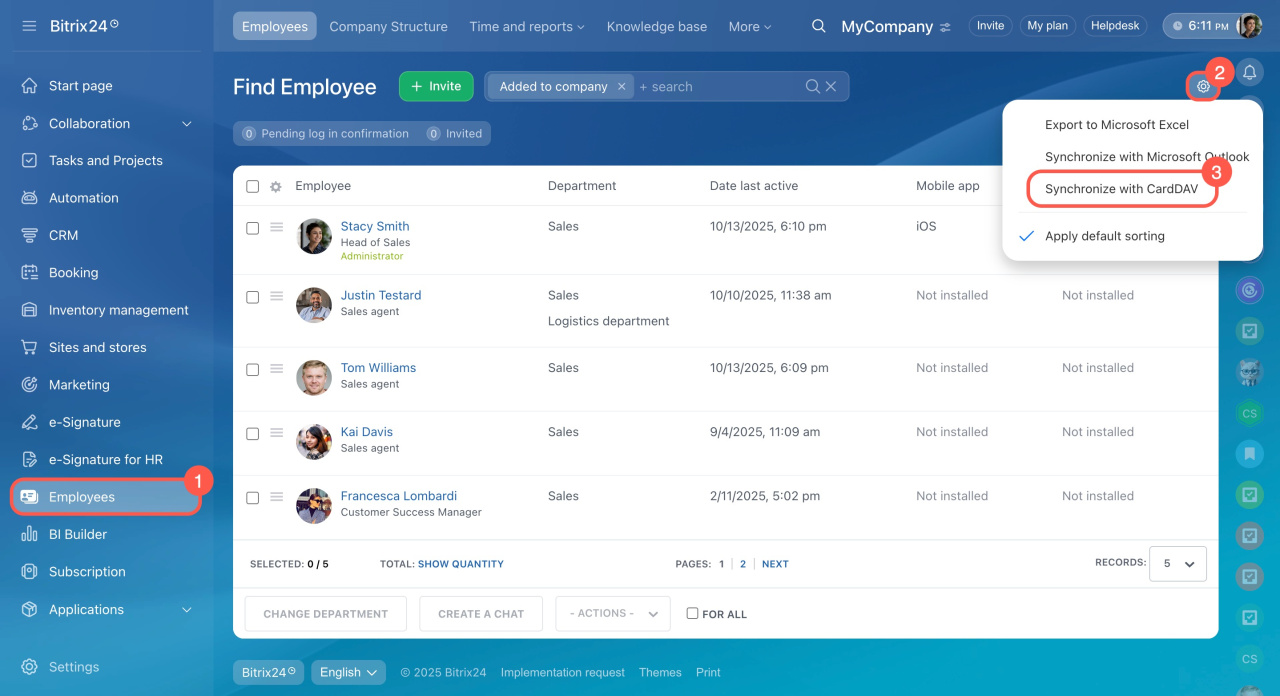
Follow these steps to set up CardDAV on your device.
Synchronize manually
Synchronize using the mobile app
- Open Settings on your iPhone.
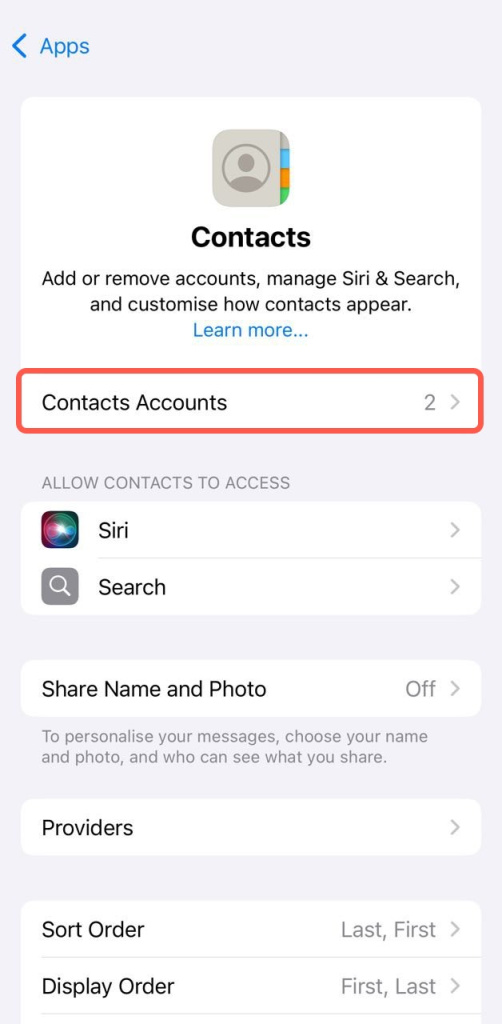
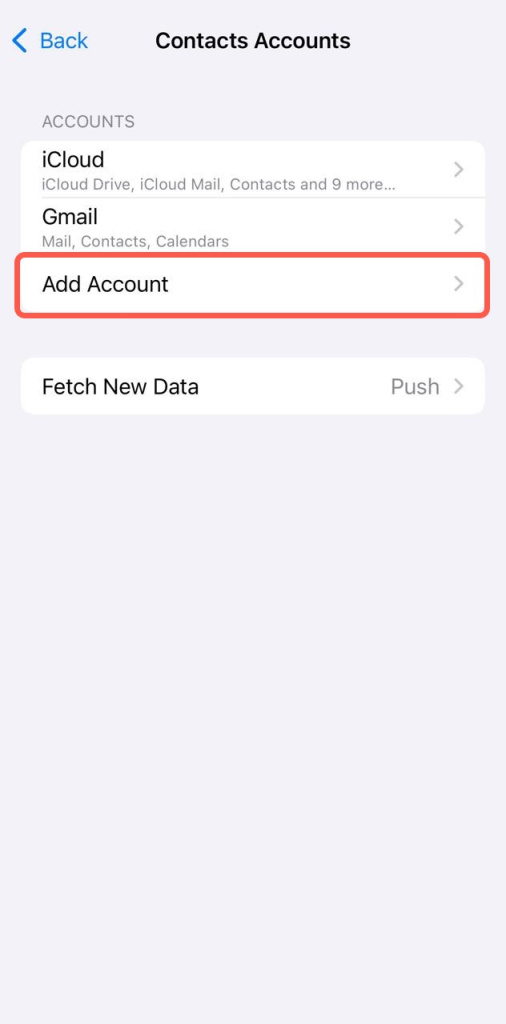
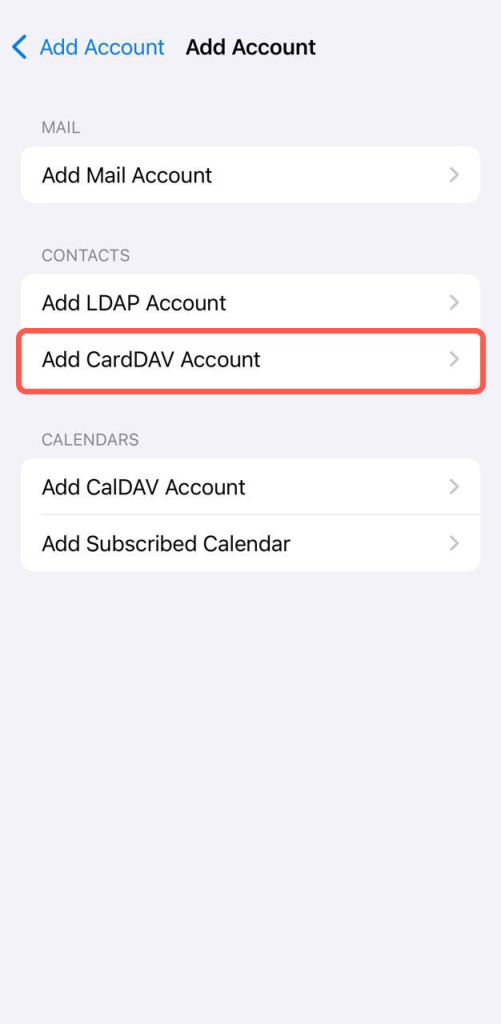
- Go to Contacts > Accounts > Add Account.
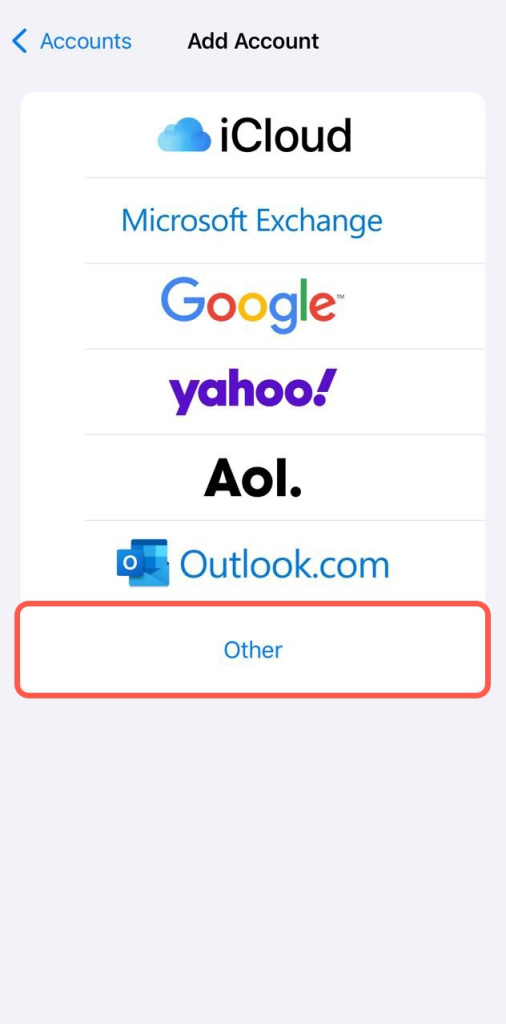
- Tap Other, then select Add CardDAV Account.
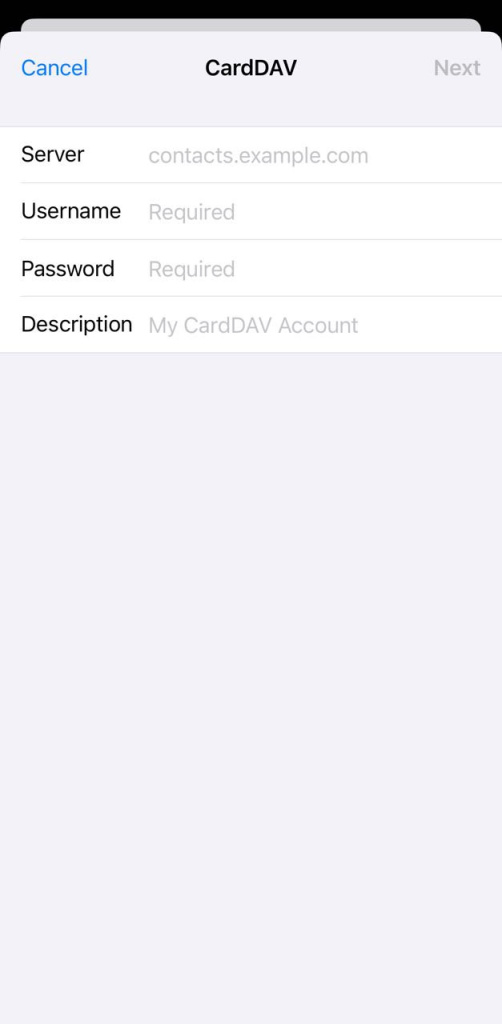
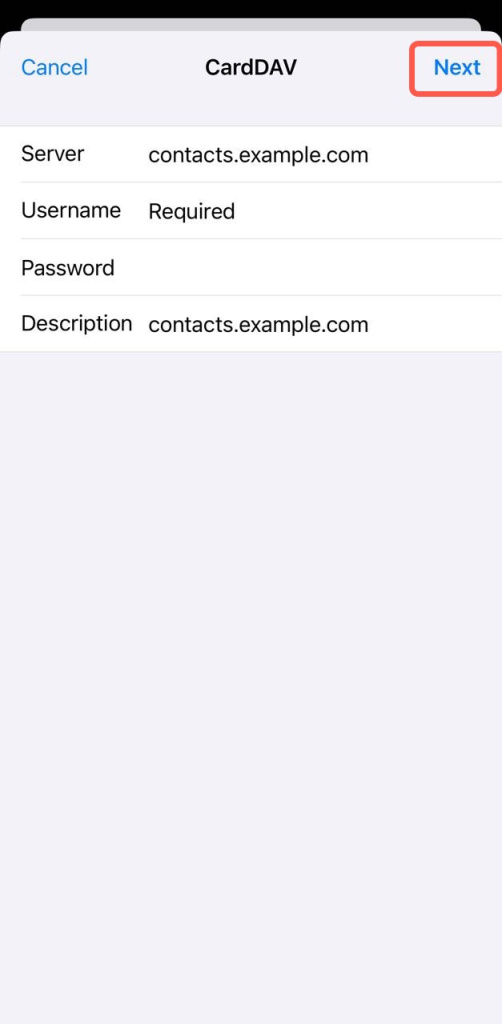
- Enter your Bitrix24 account address, login, and password.
If you use two-step verification, enter the password from your profile: Application passwords > Contacts. - Tap Next to finish setup.
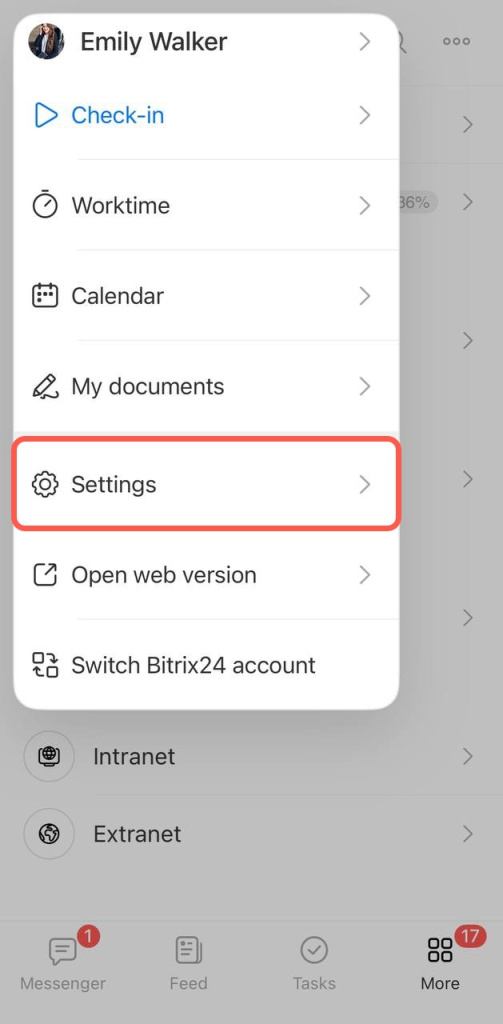
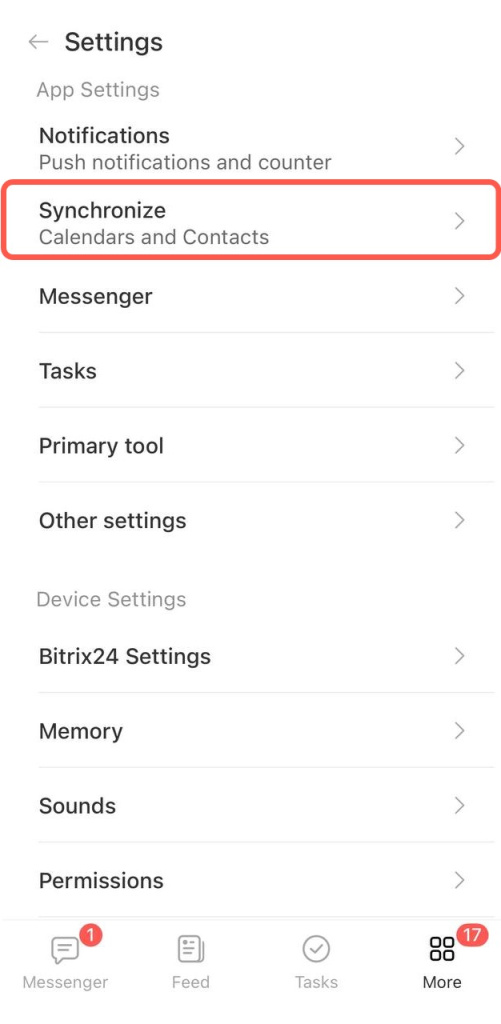
- Open the Bitrix24 mobile app and go to More.
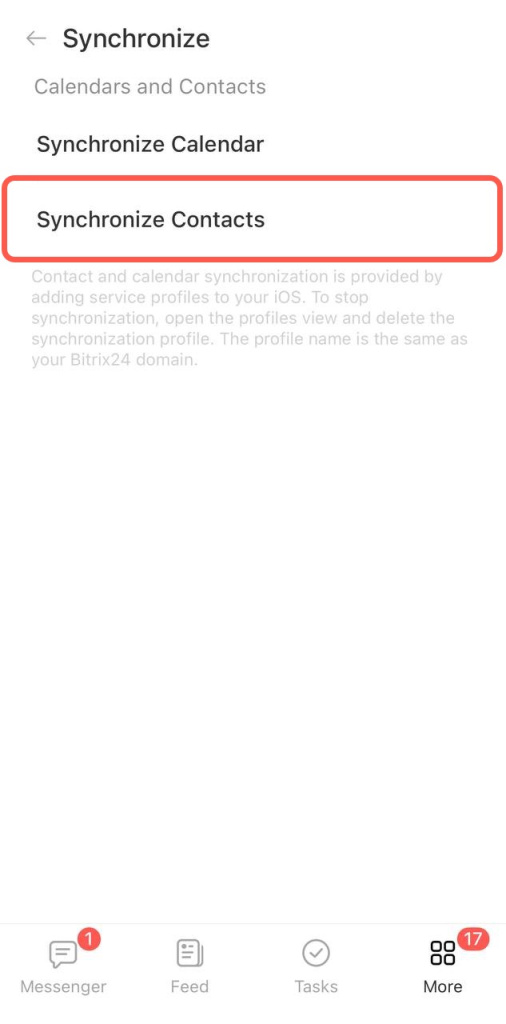
- Tap Settings > Synchronize.
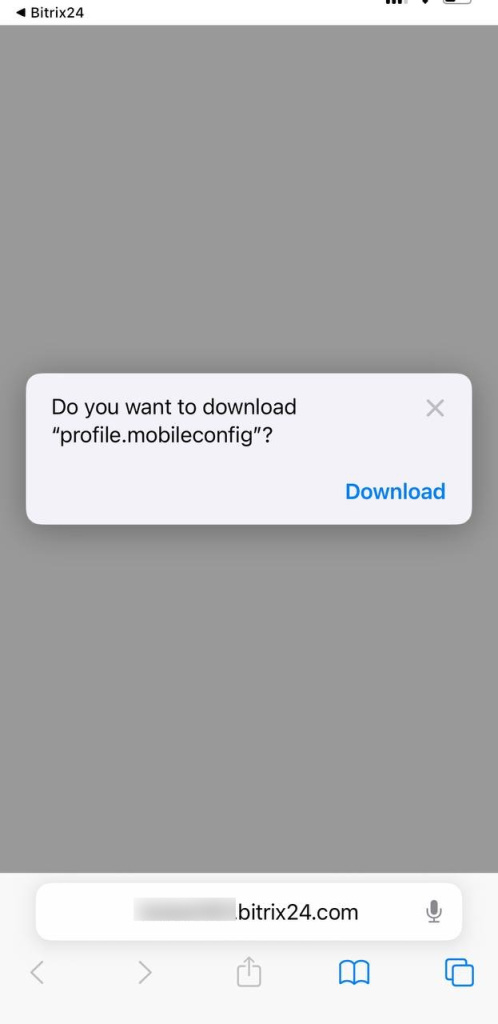
- Select Synchronize contacts and allow the configuration profile to download.
- On your device, go to Settings > Profile Downloaded > Install.
Edit or turn off the account
- Open Settings.
- Go to Contacts > Accounts.
- Select your Bitrix24 account.
- Make changes or turn off the account toggle.
Remove the account
- Open Settings.
- Go to General > VPN & Device Management.
- Select your Bitrix24 configuration profile.
- Tap Remove Profile.