
You can sync colleague and client contacts from Bitrix24 to your phone's address book. After that, they appear in the Contacts section on your device, so you do not need to open Bitrix24 to find them. This is helpful if you often call clients or coworkers from your phone.
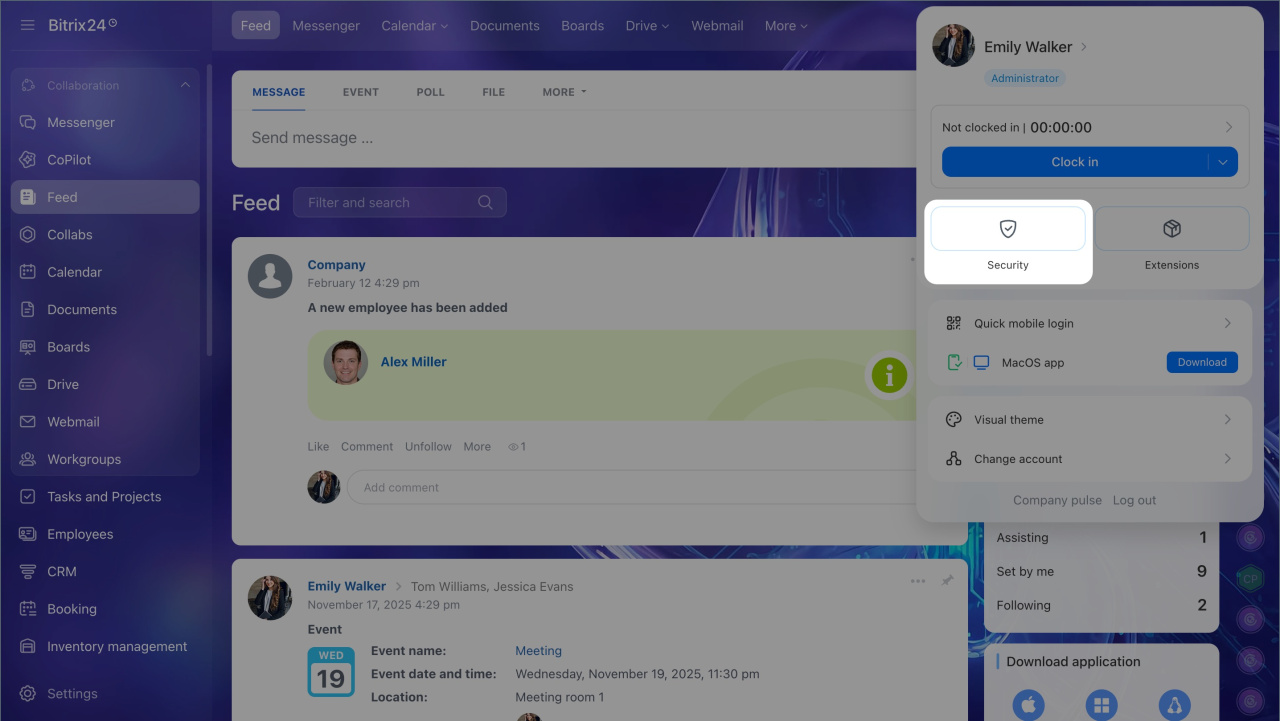
1. Click your photo to open the employee widget.
2. Click Security.
3. Open the Syncronize section.
4. Choose which contacts you want to sync.
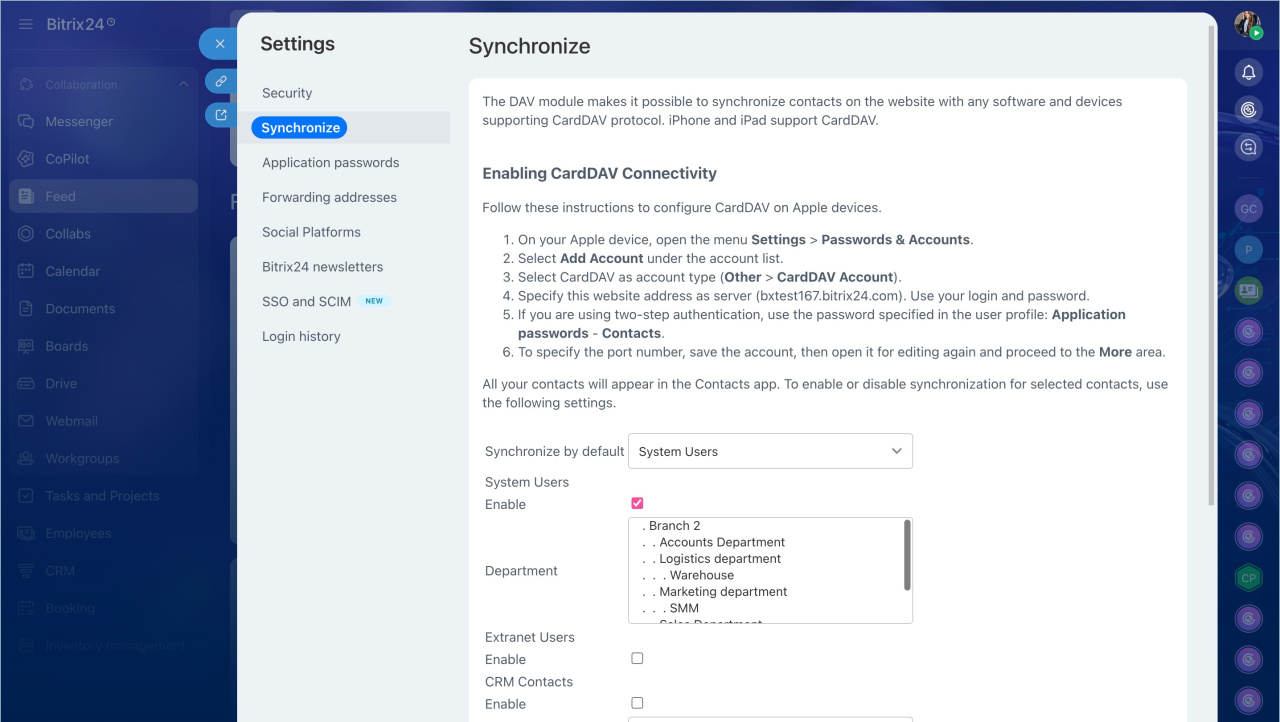
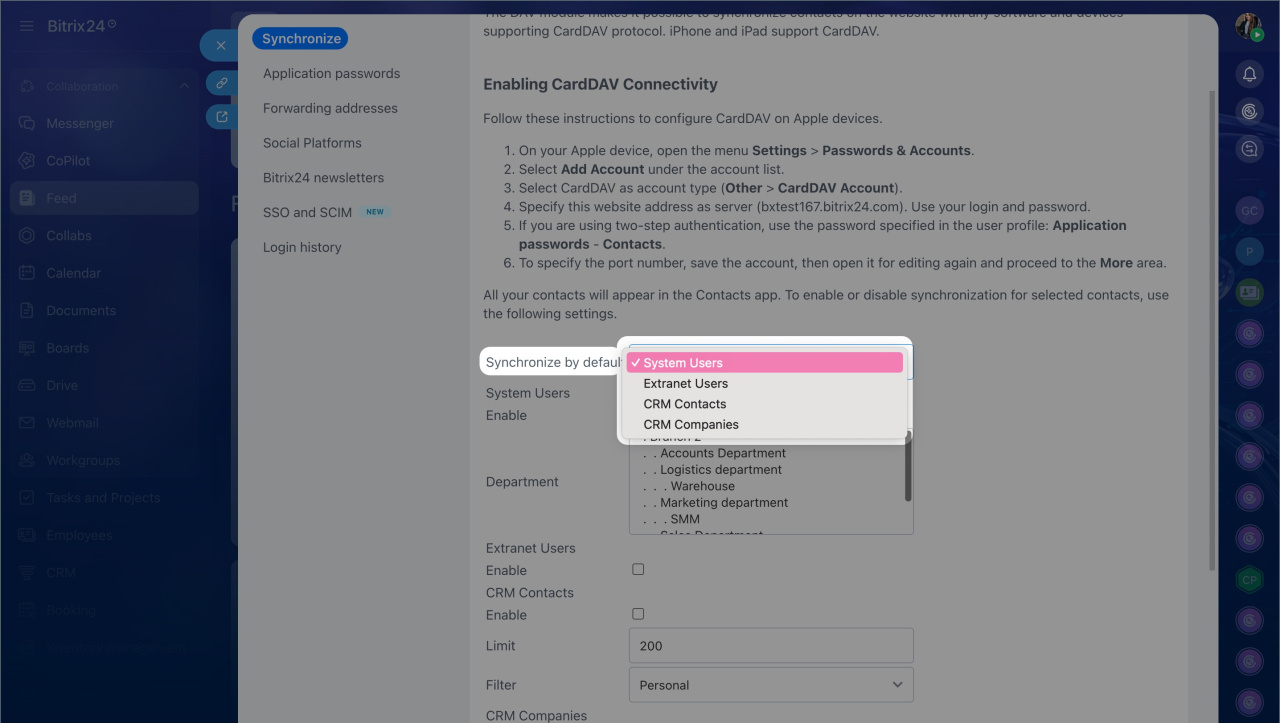
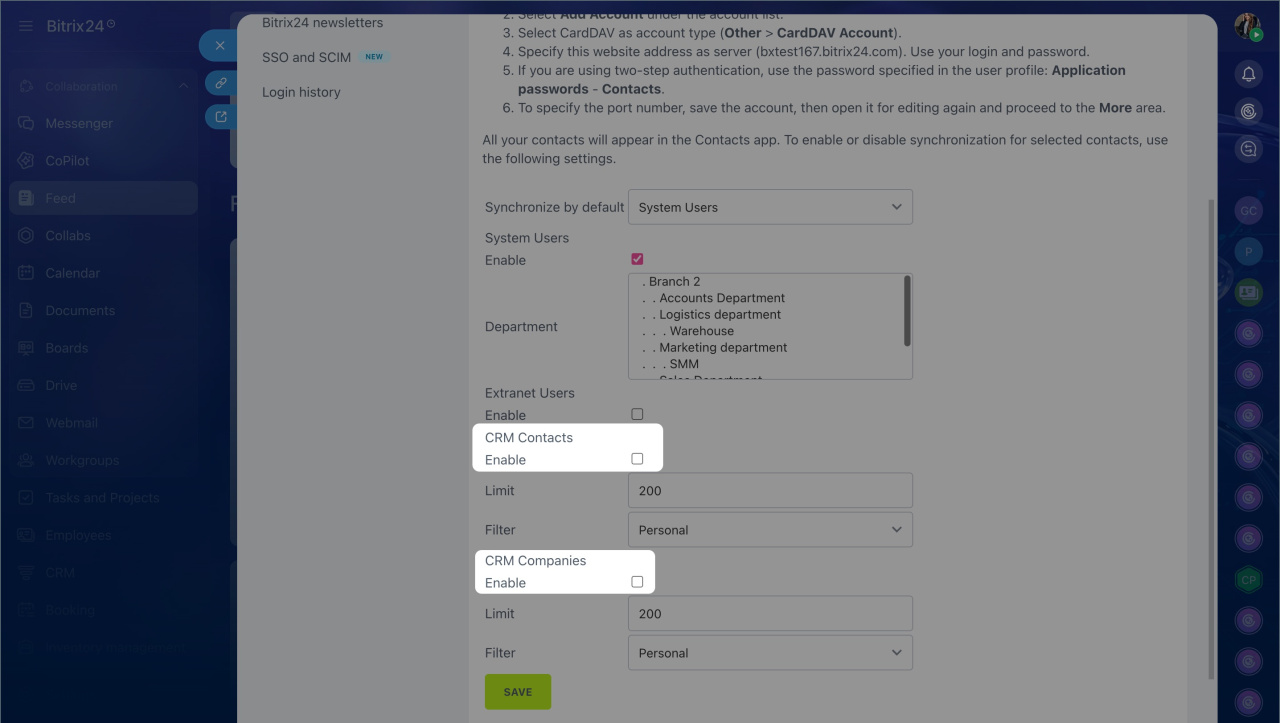
Sync by default is the contact group that syncs automatically if your device does not specify which contacts it needs during transfer. This can happen on some Mac devices.
You can choose one of these options: System Users, Extranet Users, CRM Contacts, CRM Companies. You can also turn on specific groups individually below.
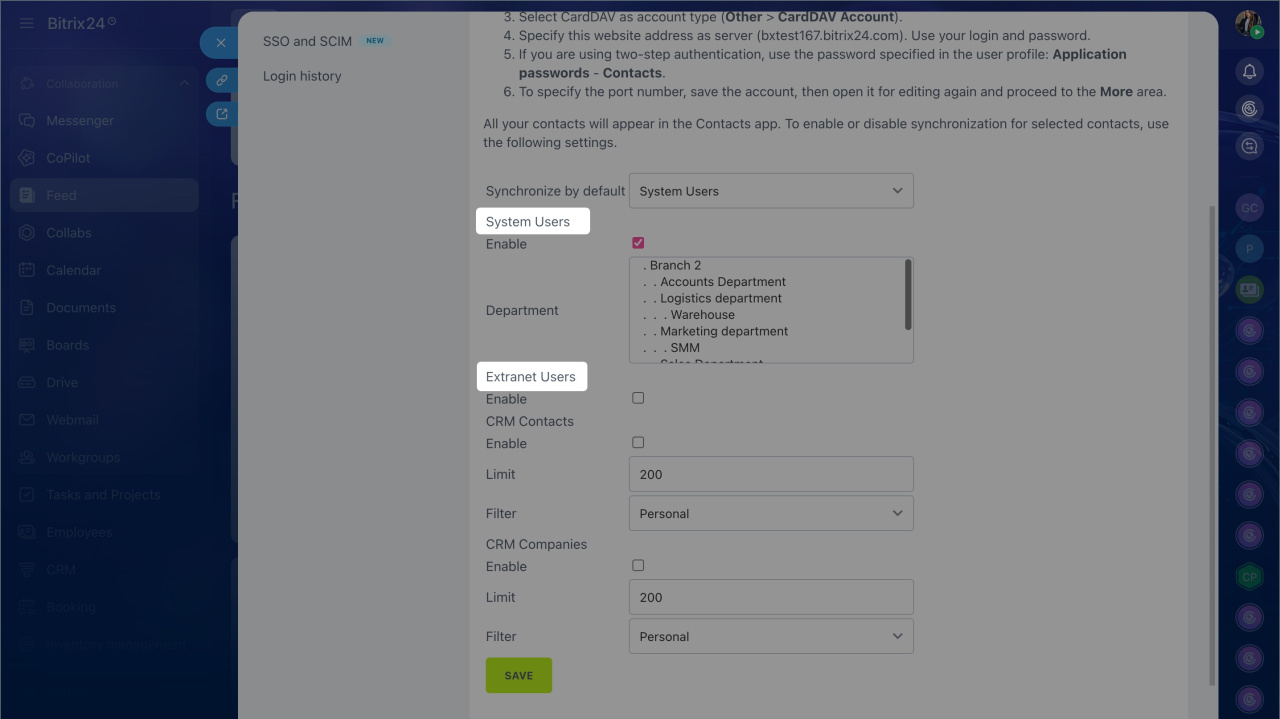
System Users. Sync employee contacts from your company structure. Select the checkbox and choose one or more departments. Contacts from employees in the selected subdepartments will also appear on the device. To select multiple departments, hold Ctrl on Windows or Command on Mac.
Extranet Users. Guests and external users invited to Extranet groups. Select the checkbox next to Enable to sync their contacts.
Role-based access permissions in CRM
CRM Contacts. Sync contacts from CRM. Select the checkbox to enable sync. Then set the maximum number of contacts to transfer to the device. In the Filter field, choose: Mine — only contacts assigned to you, or All — all CRM contacts.
CRM Companies. Sync company contacts from CRM. Select the checkbox to enable sync. Then set the maximum number of contacts to transfer to the device. In the Filter field, choose: Mine — only contacts from companies assigned to you, or All — contacts from all CRM companies.
When you finish configuring all settings, click Save.
After you save your changes, the contacts appear in your device's address book automatically. To update the contact list later, return to this page and select or clear the checkboxes.