
Booking lets you schedule client appointments with specialists and reserve equipment. If all time slots are full, add the client to a waitlist.
The waitlist helps you:
- Store client contacts and preferences.
- Quickly offer open time slots when an appointment is canceled.
- Keep your schedule full and avoid losing clients.
To add a client to the waitlist:
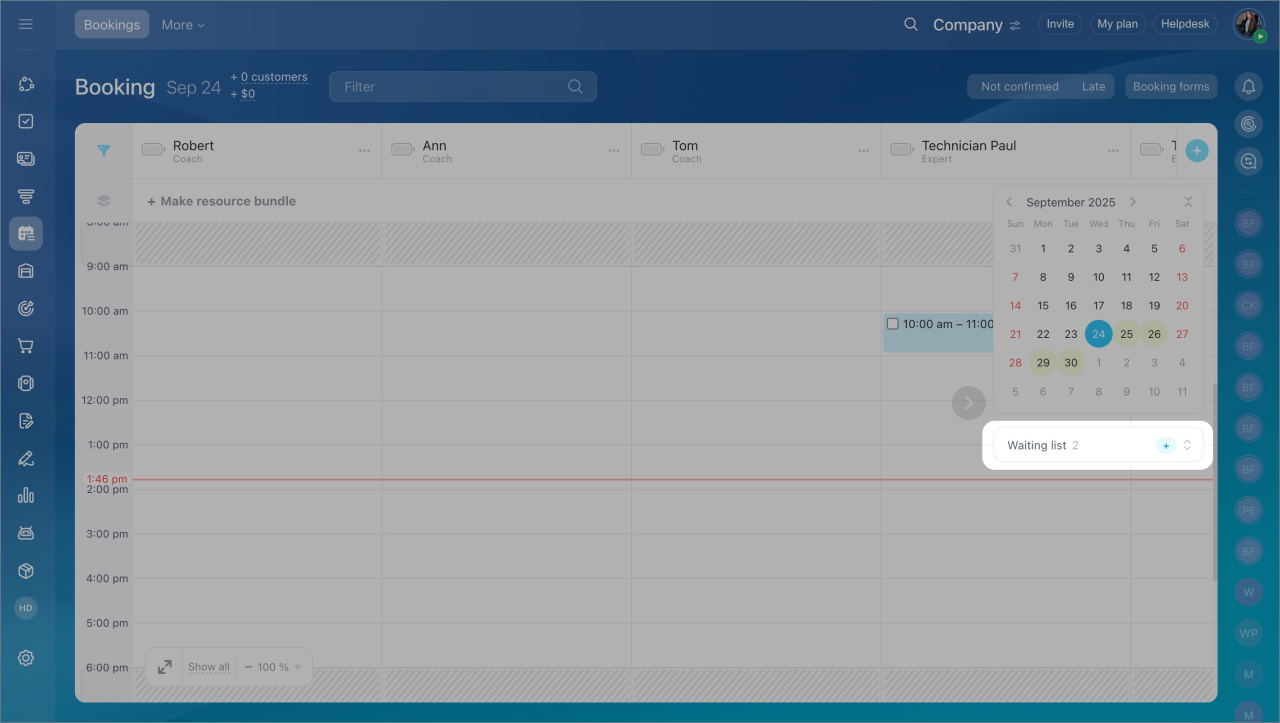
- Go to the Booking section.
- Click + Add in the Waitlist block.
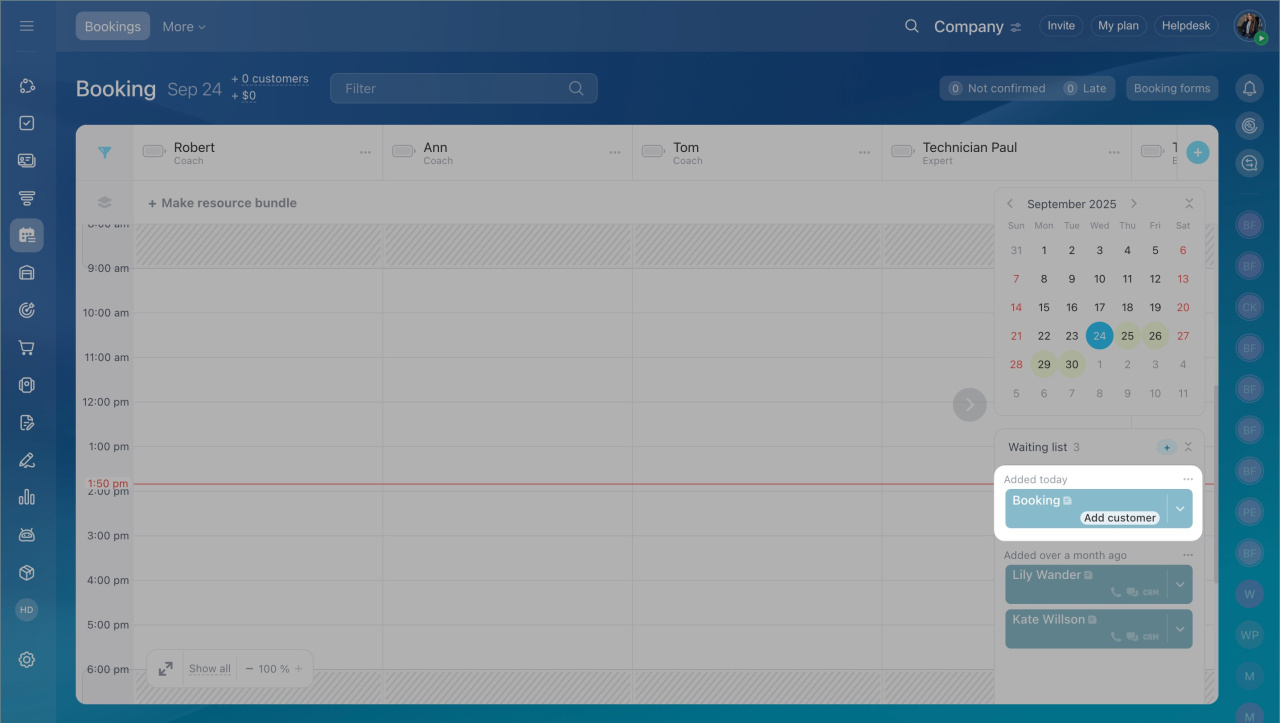
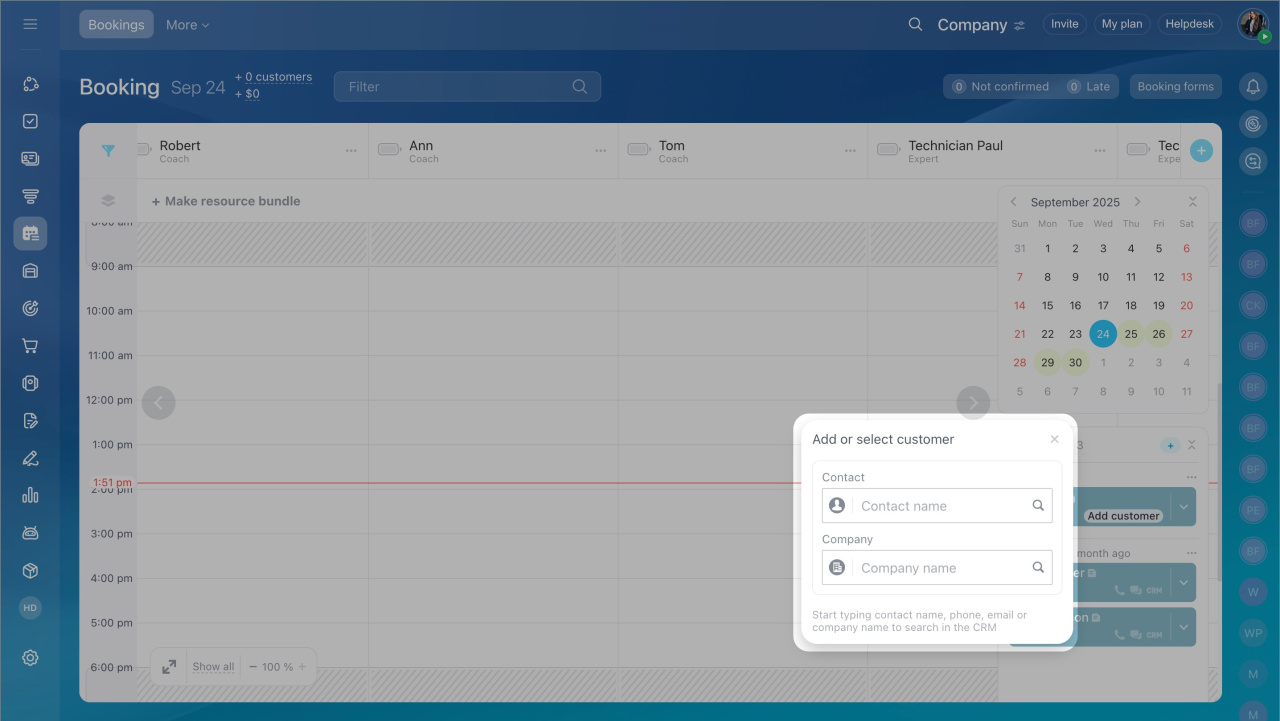
- Open the entry and click Add or select.
- Enter the client’s name, company, phone, or email to find them in the CRM.
- If the client is not in the CRM, click Create new contact. The system saves the contact automatically.
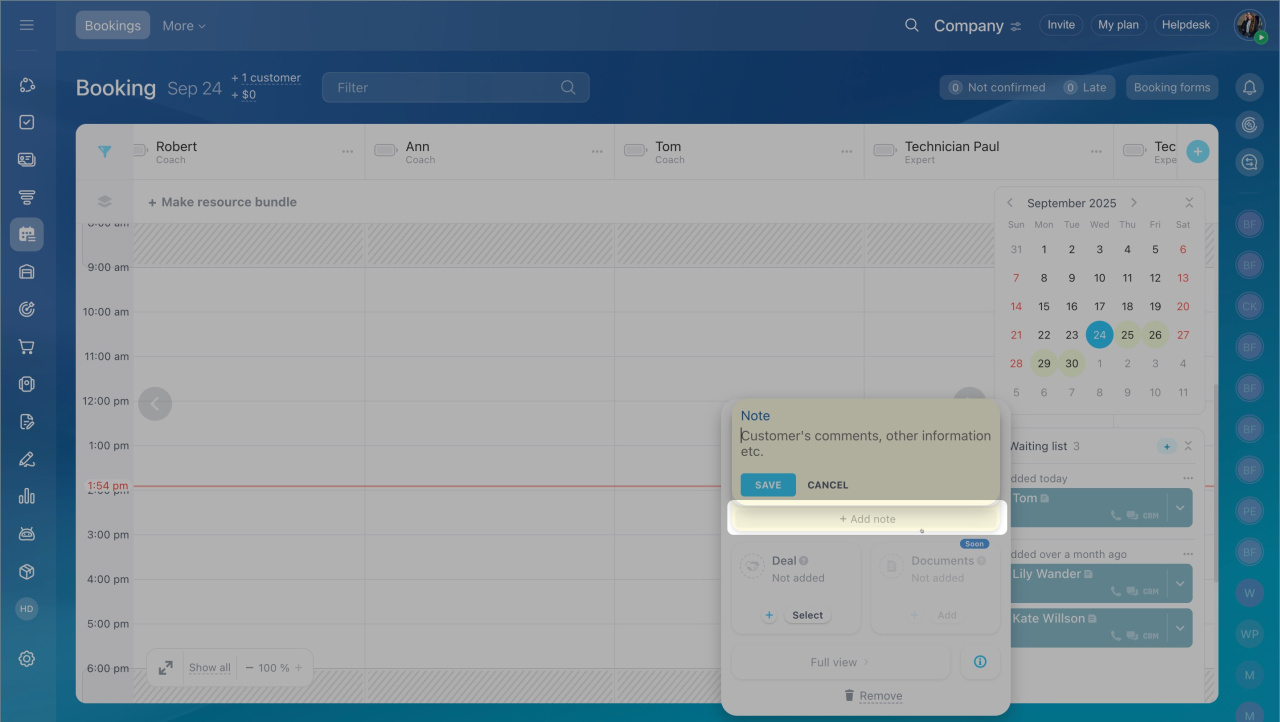
- To add details, select Add a note to the entry. Include preferences such as date, time, or other useful information.
- Save your changes.
Waitlist entries are sorted by when they were added: today, this week, or last week. This helps you track clients who have been waiting longer and reduces the risk of losing them.
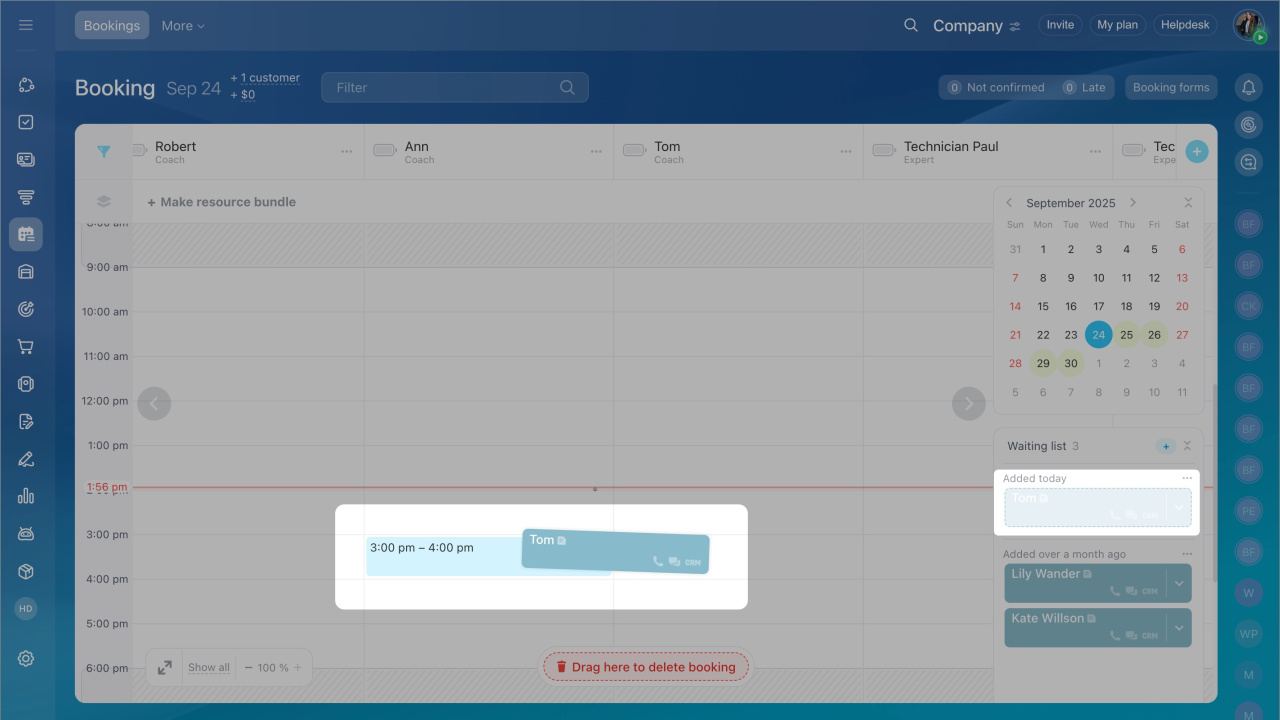
To schedule a client, move the entry from the waitlist to an open time slot. If you no longer need the entry, delete it.
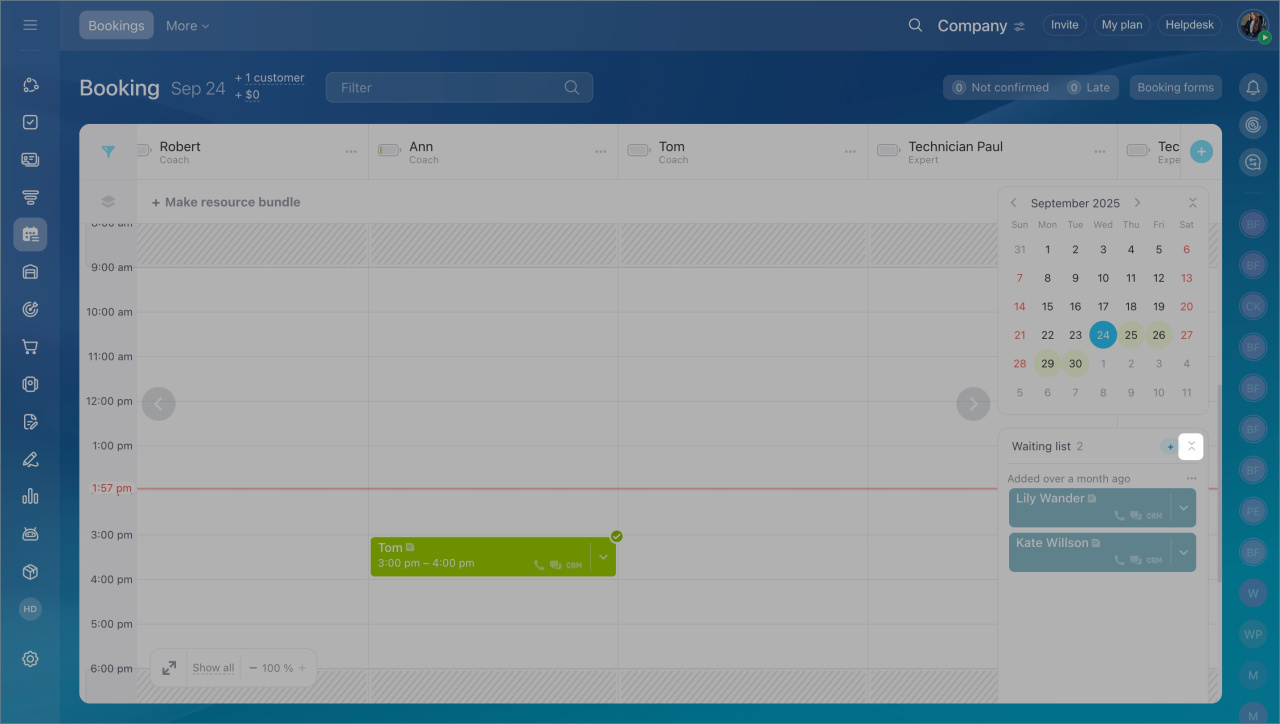
To hide the waitlist, click Collapse. To show it again, click the clock icon in the calendar panel.
In brief
- Booking schedules appointments and reserves equipment.
- Use the waitlist when no time slots are available.
- The waitlist helps you manage client data and fill canceled slots.
- Entries are sorted by when they were added, so you can prioritize clients.
- Move an entry to the schedule to book a client.