
Invite your team to Bitrix24 by email. You can send invitations in two ways:
- Use an email app installed on your computer, such as Outlook or Apple Mail.
- Use the Bitrix24 mailing service if you don’t have an email app set up.
The number of users you can invite depends on your Bitrix24 plan.
Bitrix24 plans and pricing
Number of users on Bitrix24 Cloud plans
Bitrix24 plans and pricing
Number of users on Bitrix24 Cloud plans
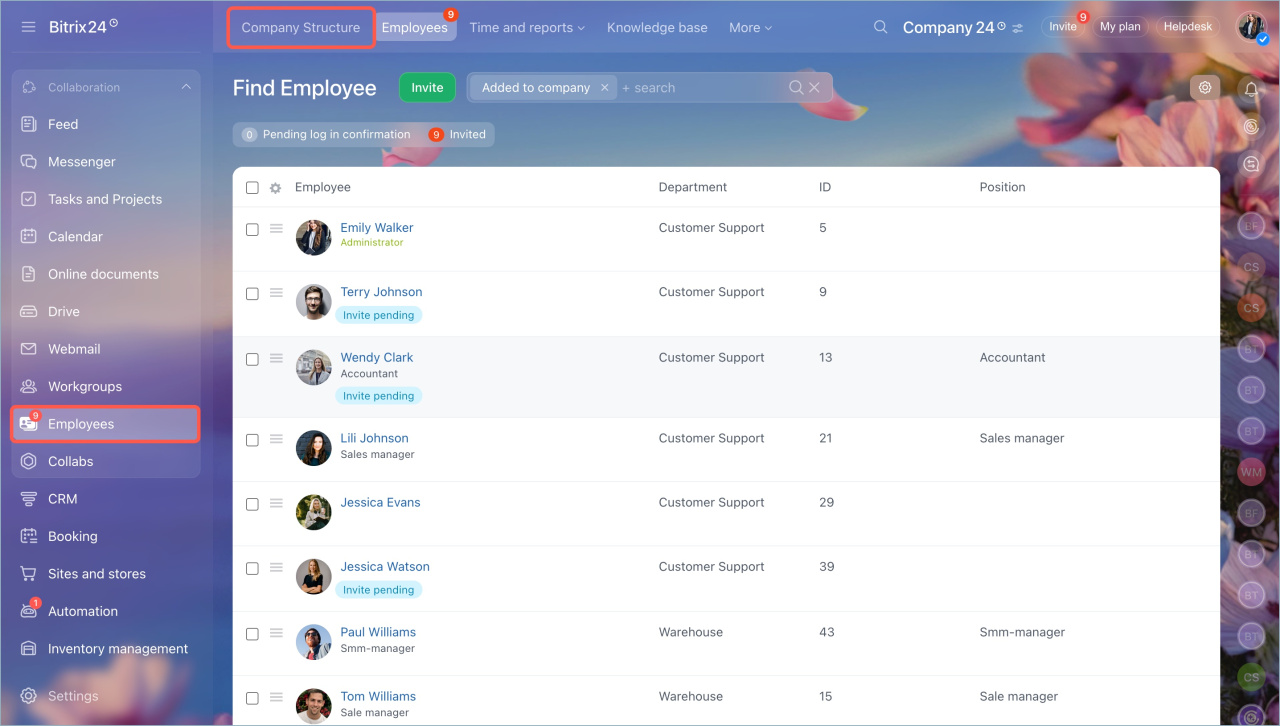
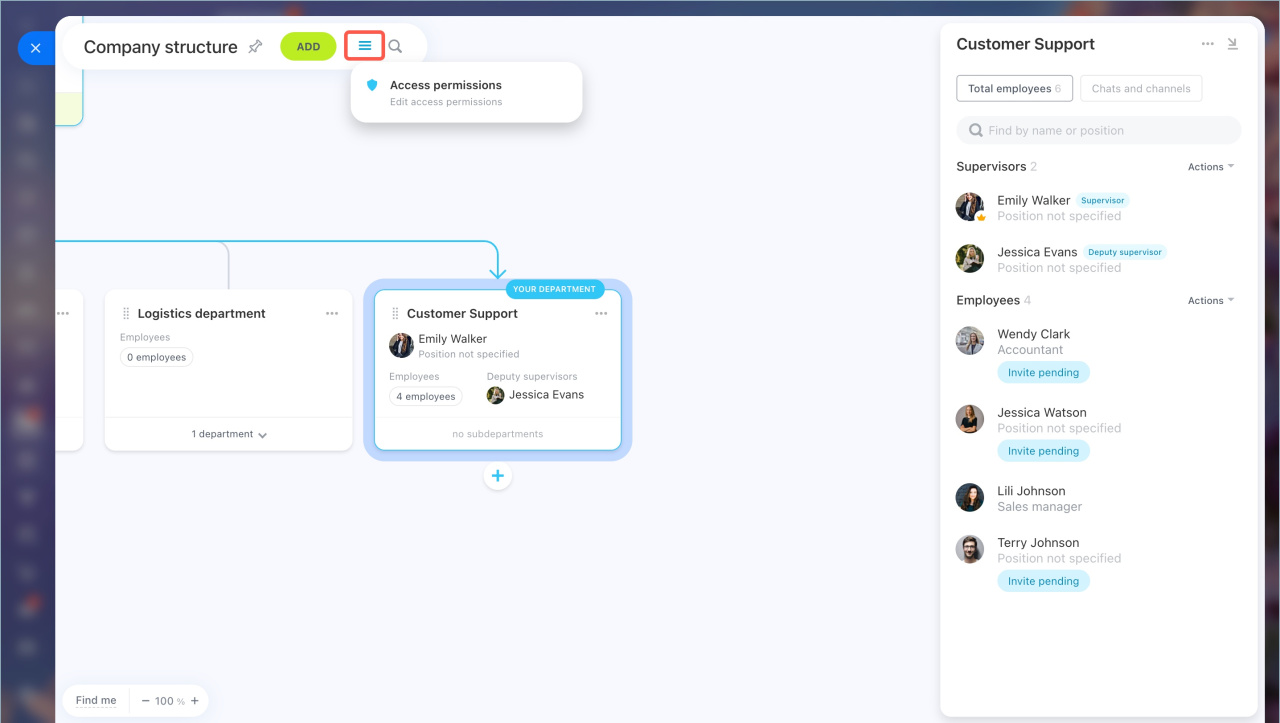
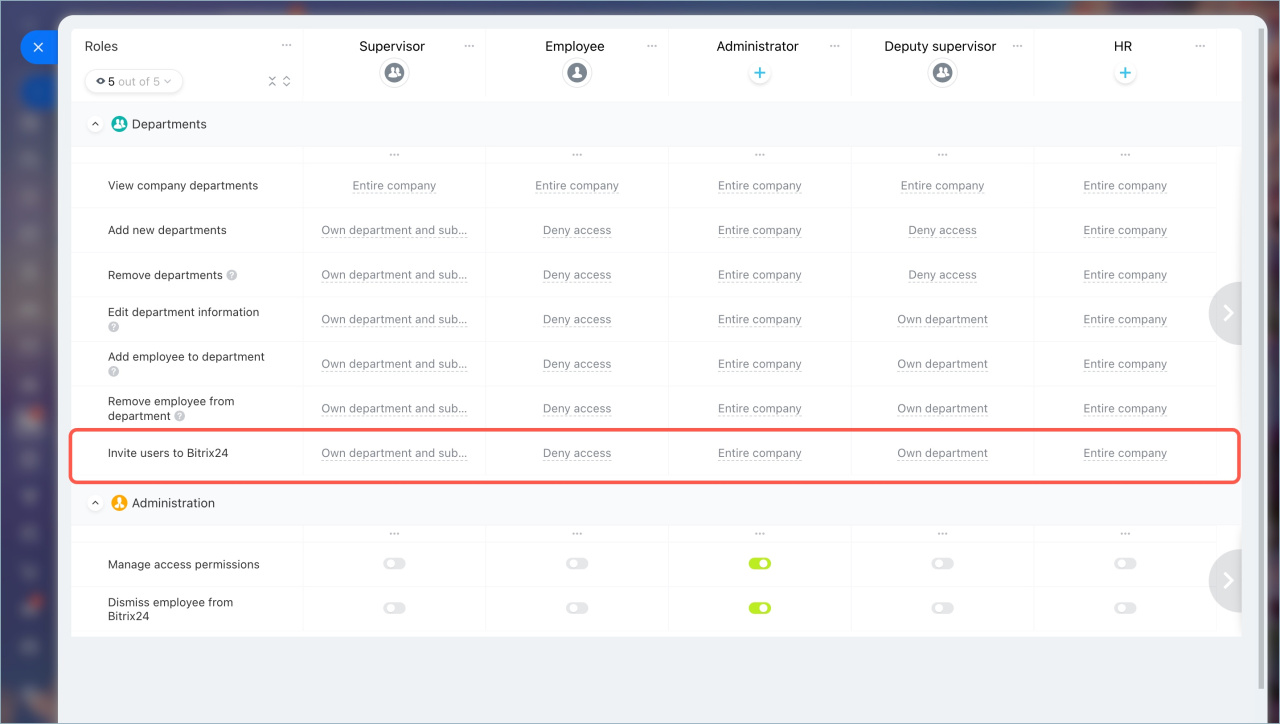
By default, all users can invite employees. An administrator can restrict this in Employees > Company structure > Access permissions.
Web version
Mobile app
Invite via the email app
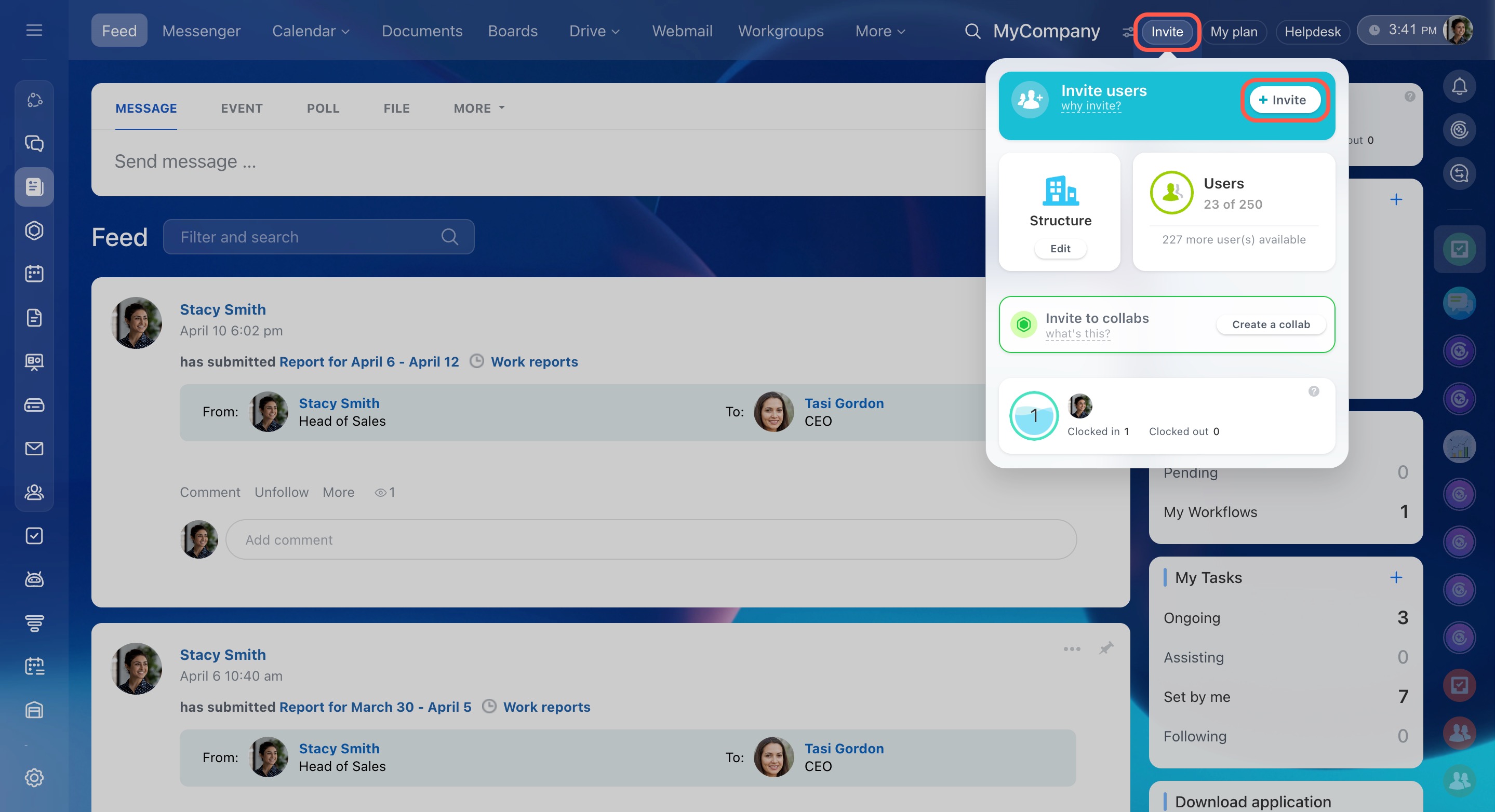
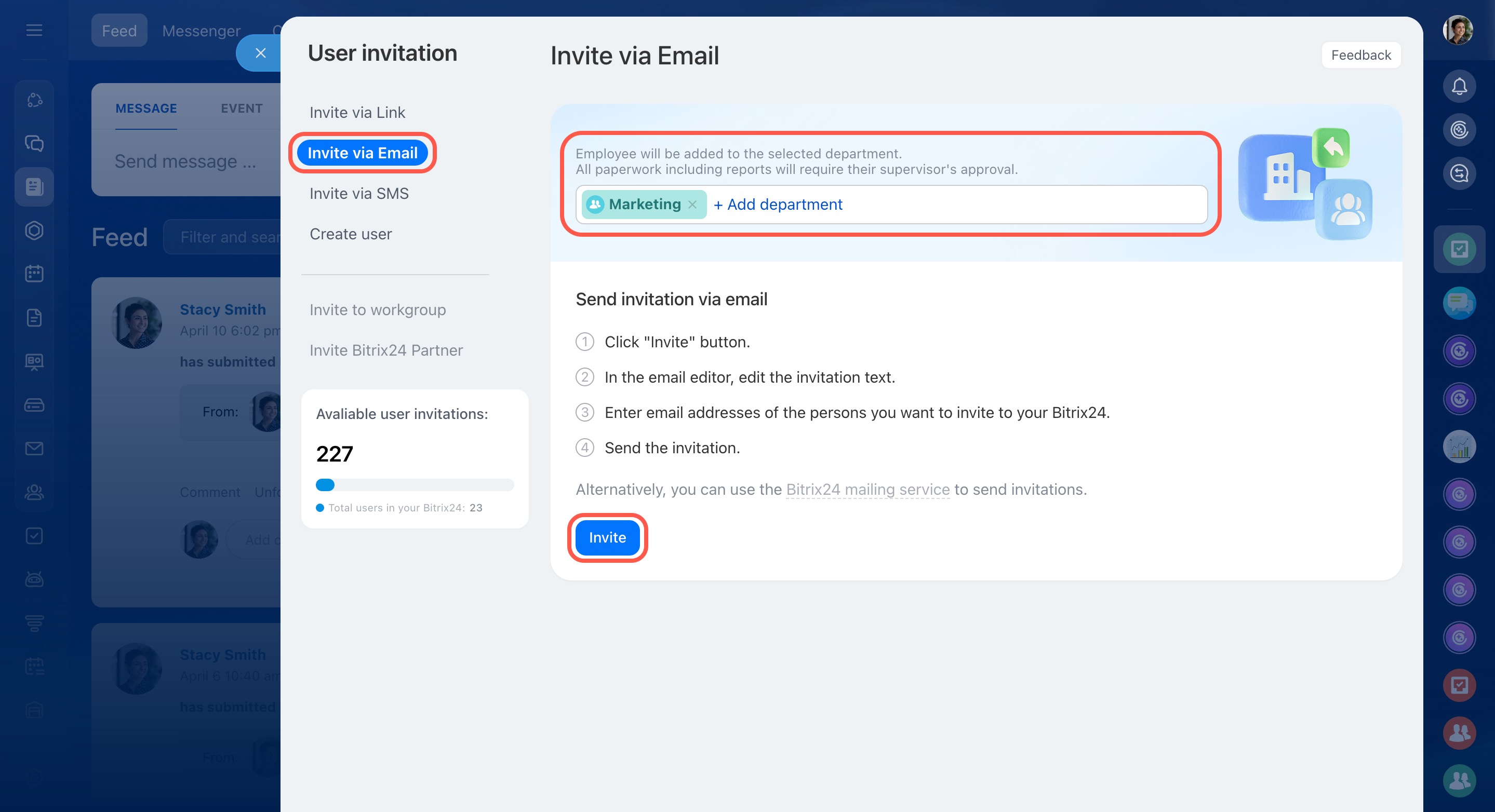
- Open the Invite widget and click Invite.
- Select Invite by email.
- Choose a department. New users will be added there after they accept the invite.
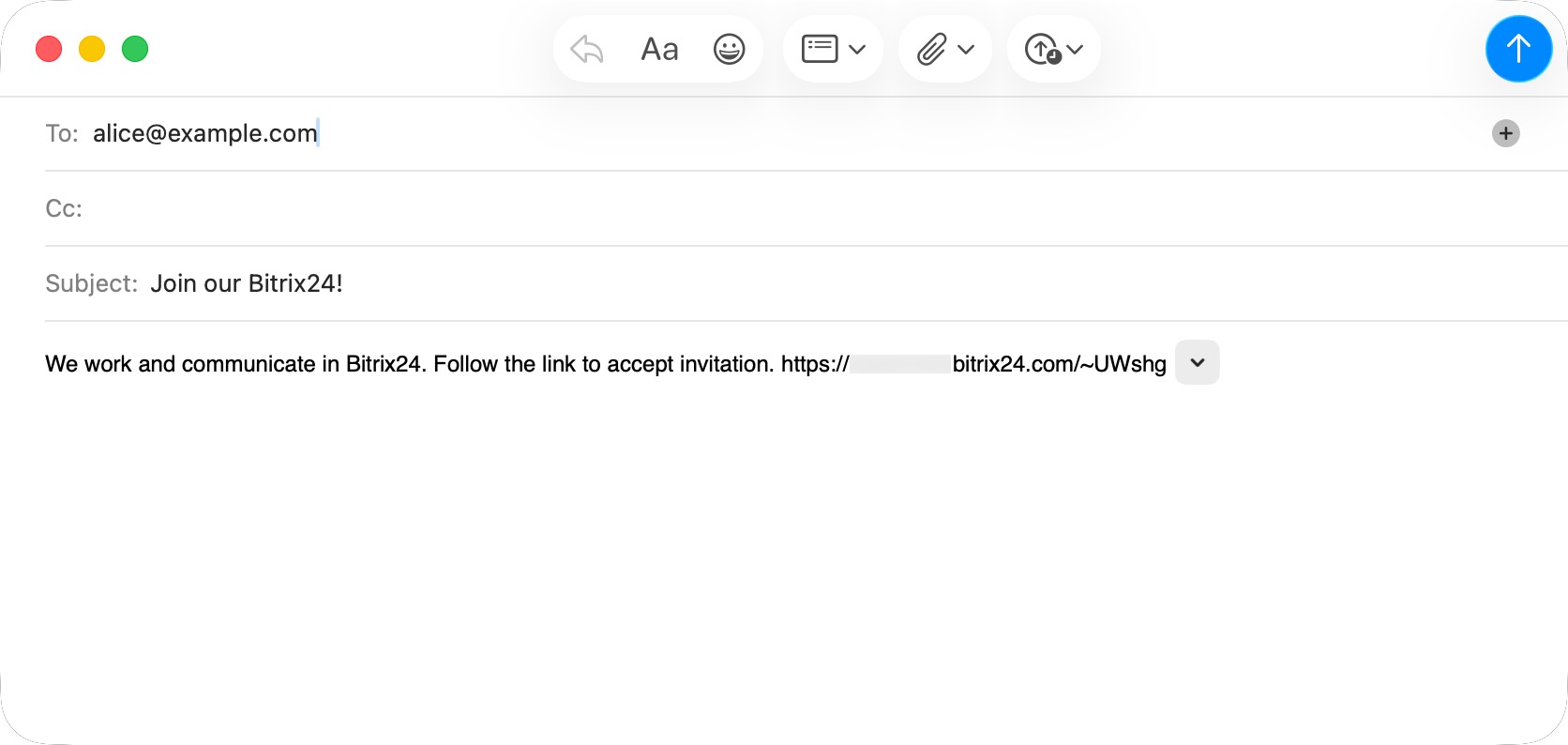
- Click Invite again to open your email app.
- Enter the recipients’ email addresses. You can edit the message.
- Send the email.
Invite via the Bitrix24 mailing service
If you do not have an email app set up on your computer, use a different invite method or send invitations with the Bitrix24 mail service.
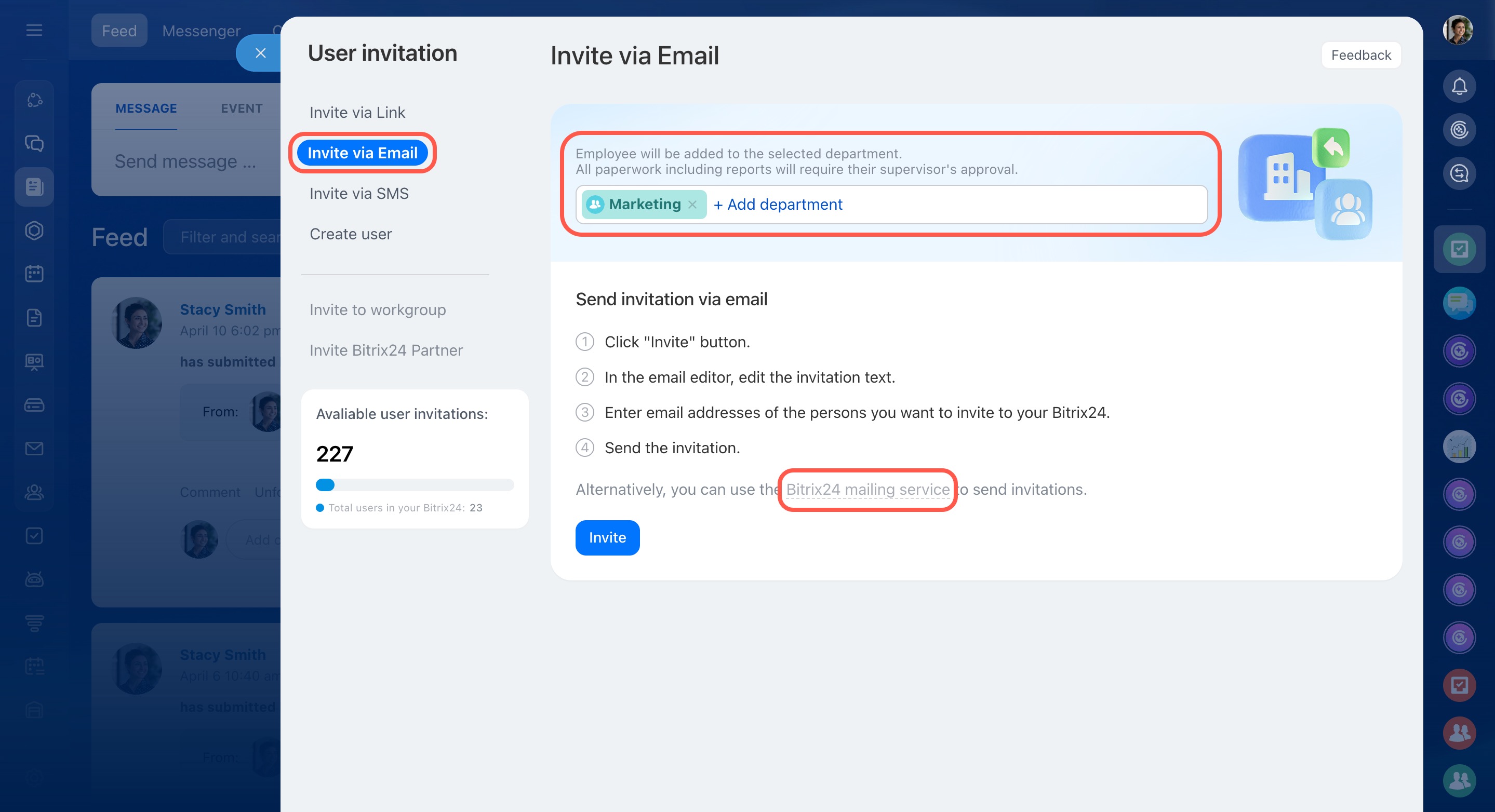
- Open the Invite widget and click Invite.
- Select Invite by email.
- Choose a department.
- Click Bitrix24 mailing service.
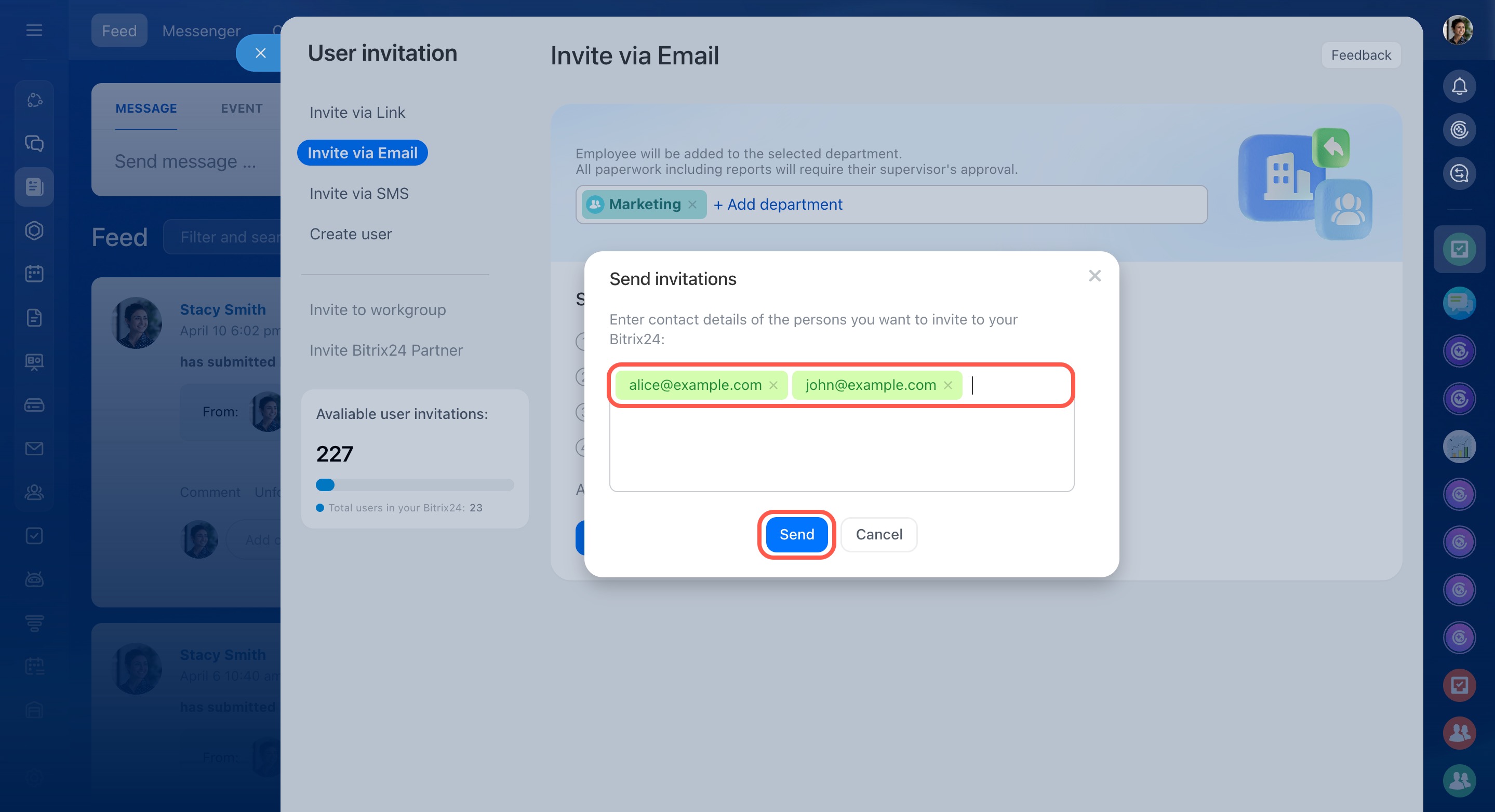
- Enter email addresses.
- Click Send.
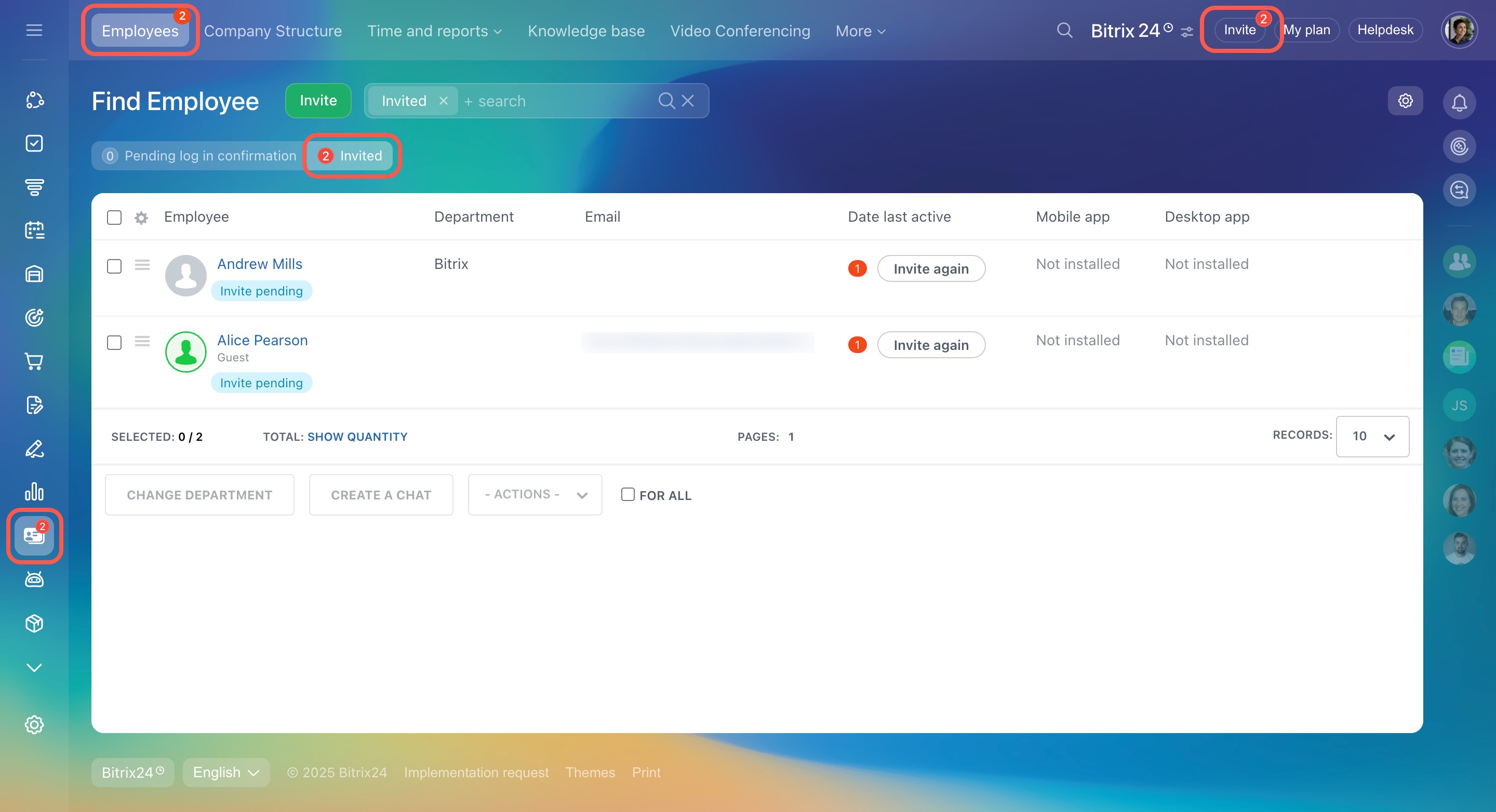
You can track invitation status in the Employees section.
- Go to Employees.
- Select the Invited filter.
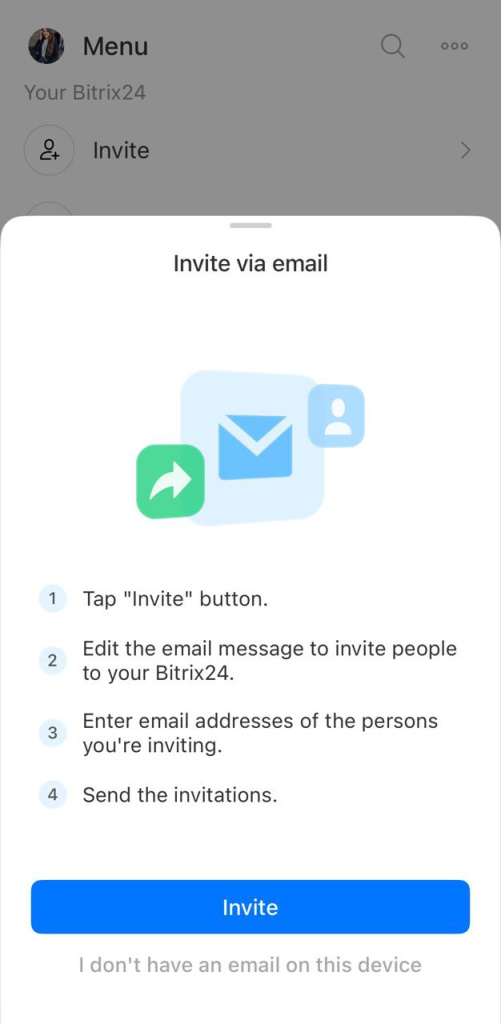
Invite via the email app
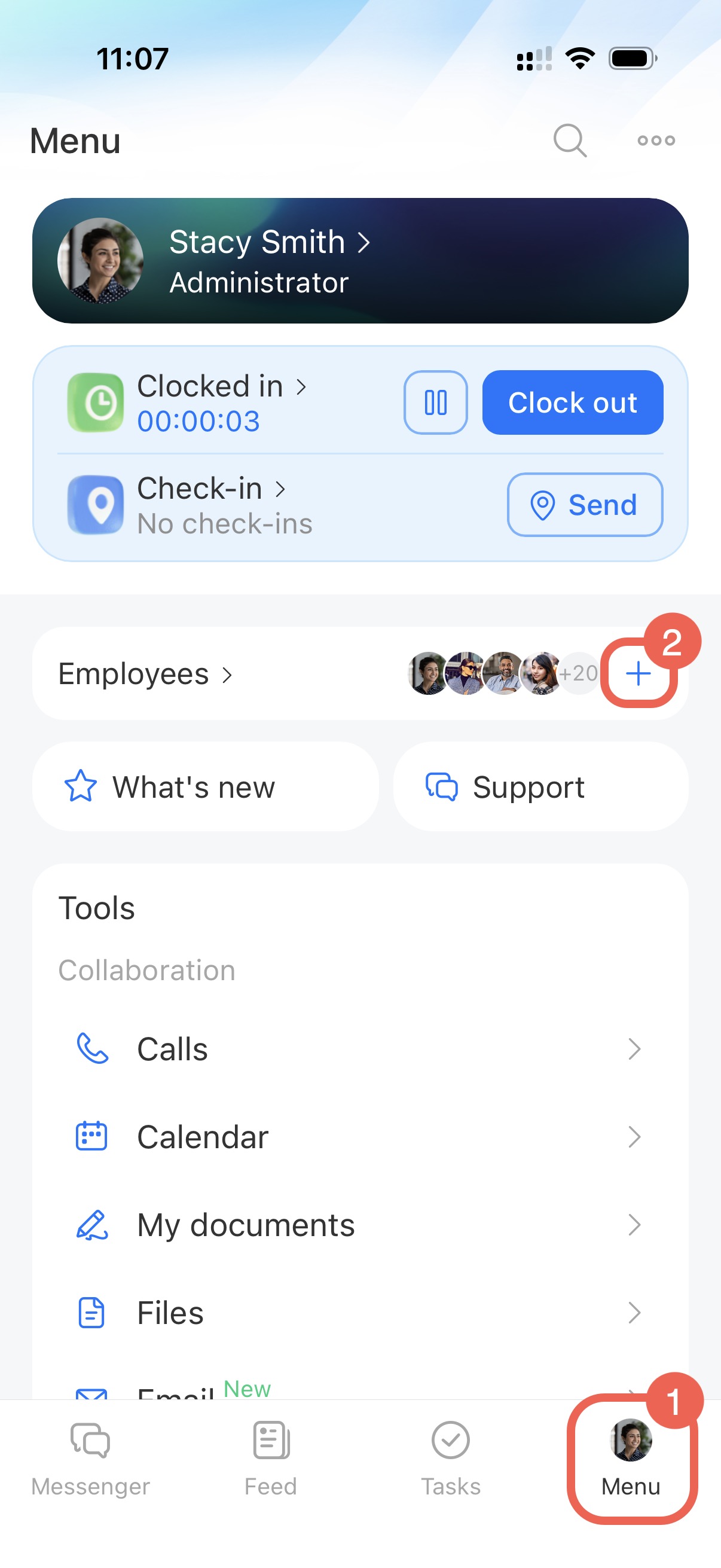
- Go to Menu and tap Plus (+).
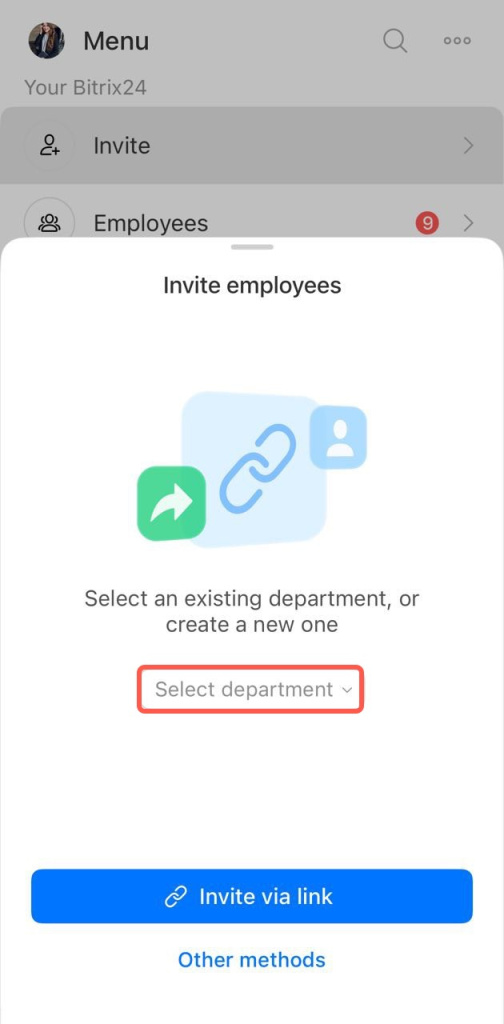
- Select a department.
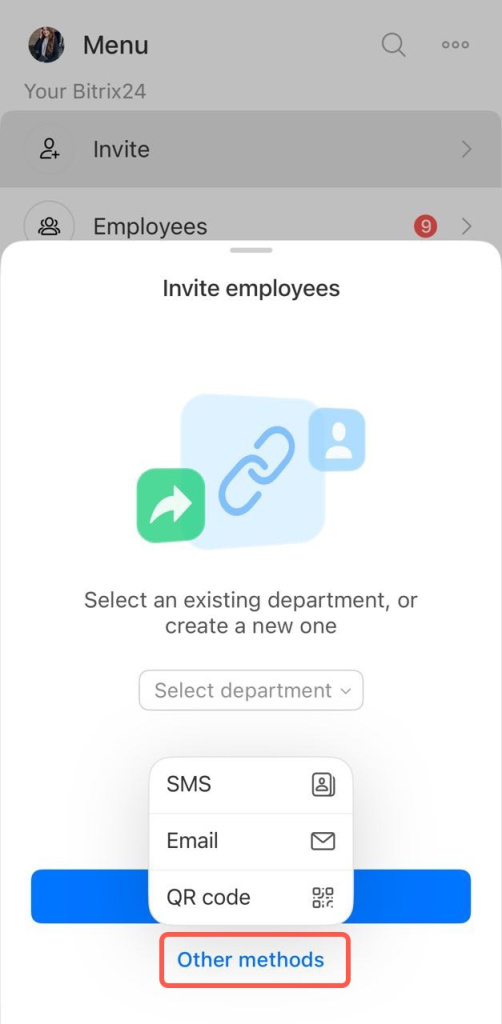
- Tap Other methods > Email.
- Tap Invite to open your email app.
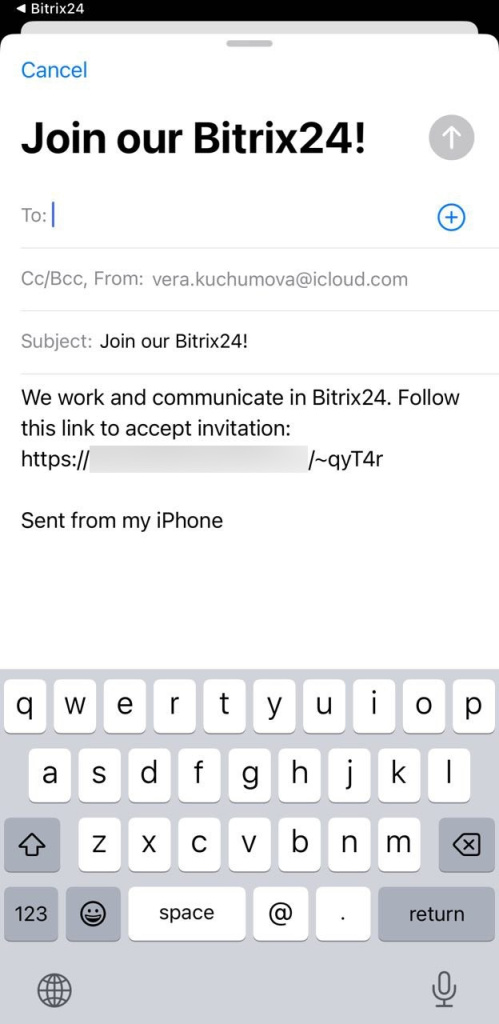
- Enter email addresses.
- Send the email.
Invite via the Bitrix24 mailing service
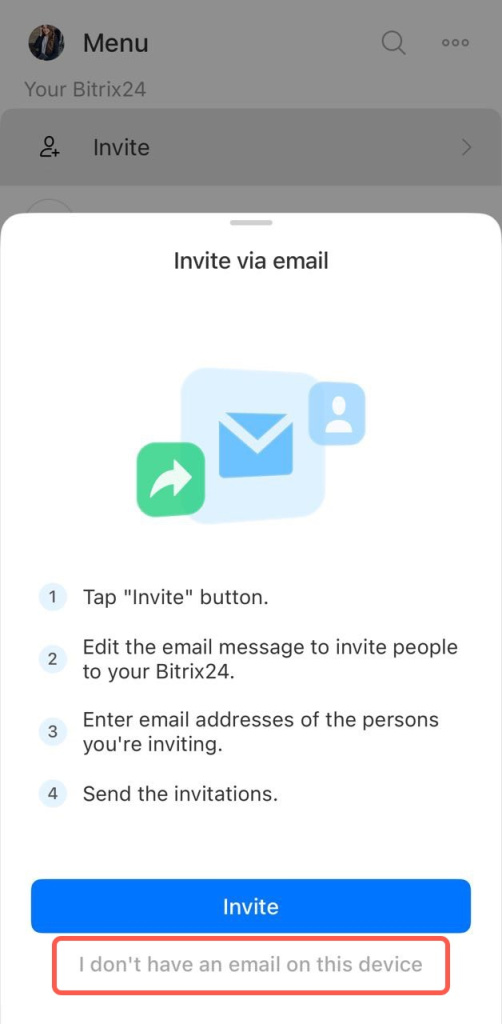
- Tap I don't have an email on this device.
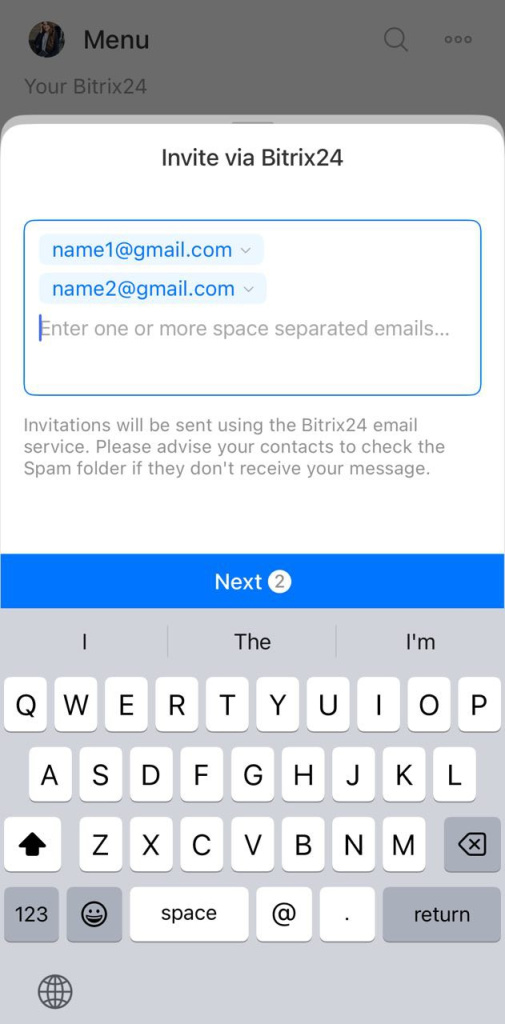
- Enter one or more email addresses (separate with spaces). Tap Next.
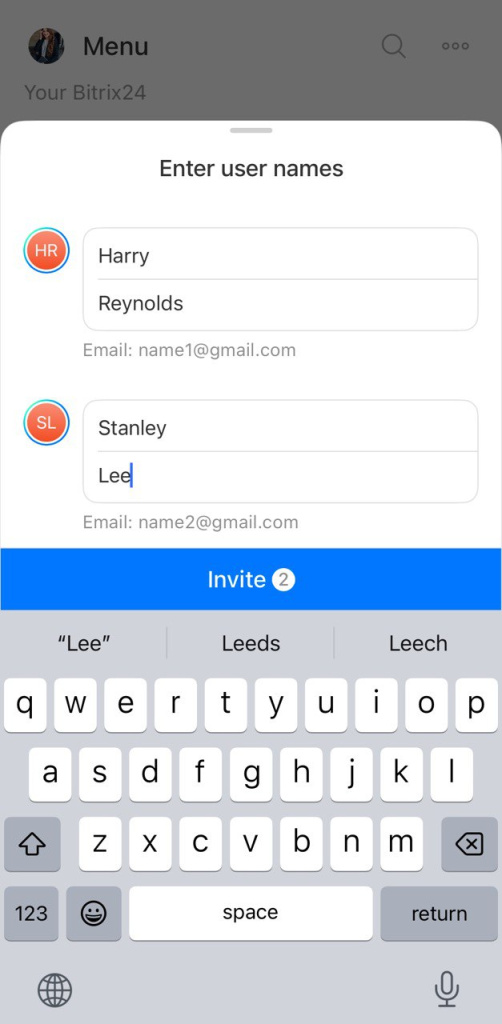
- Enter names and tap Invite.
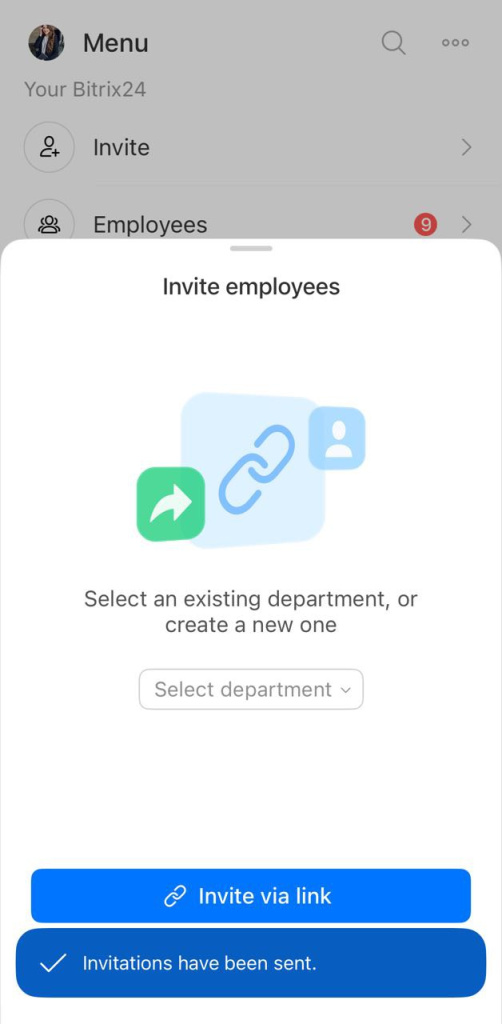
You can track the status of invitations in the Employees section.
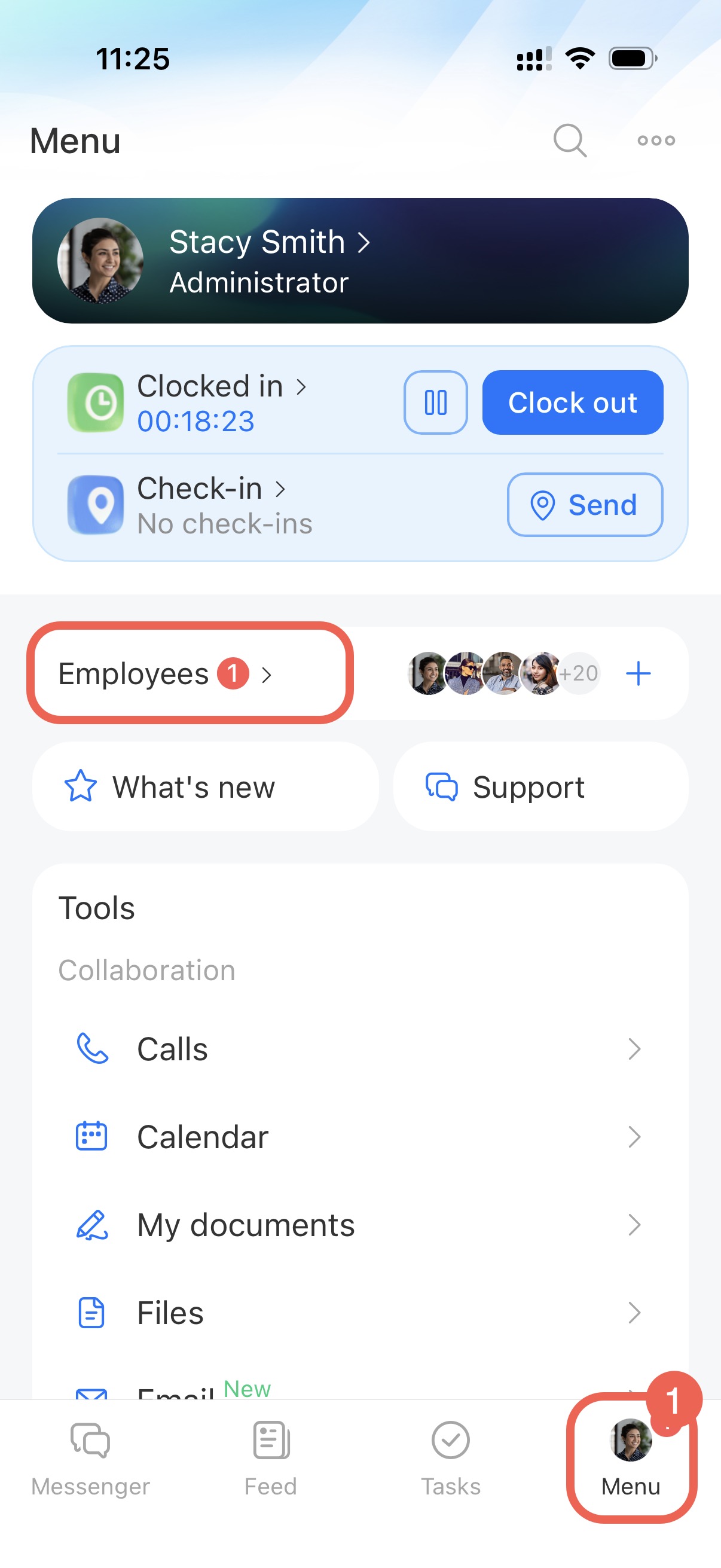
- Go to Menu > Employees.
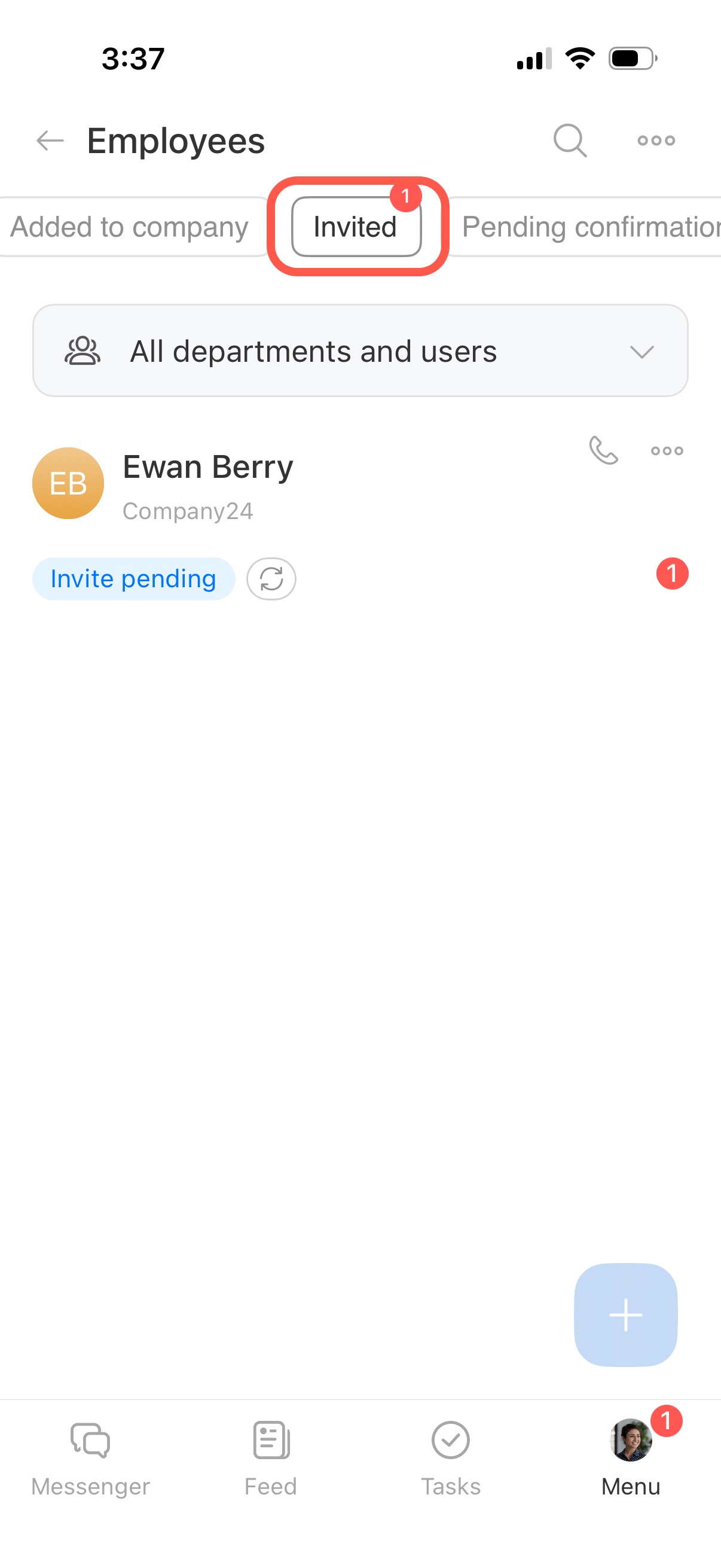
- Select the Invited filter.
In brief
- You can invite employees by email using your email app or the Bitrix24 mailing service.
- Invitations are available in both the web version and the mobile app.
- Open the Invite widget, choose Invite by email, enter email addresses, and send the invite.
- Use the Bitrix24 mailing service if no email app is configured.
- Check invitation status in the Employees section.