
Knowledge base 2.0 in Bitrix24 helps you store instructions, training articles, and other useful materials. You can create separate knowledge bases for different departments, set up the structure, manage access, and work on articles with your team.
Bitrix24 plans and pricing
In this article:
Open Knowledge base 2.0
By default, Knowledge base 2.0 is available only to Bitrix24 administrators. To let other employees work in this section, grant them the right access permissions.
Configure access permissions to Knowledge base 2.0
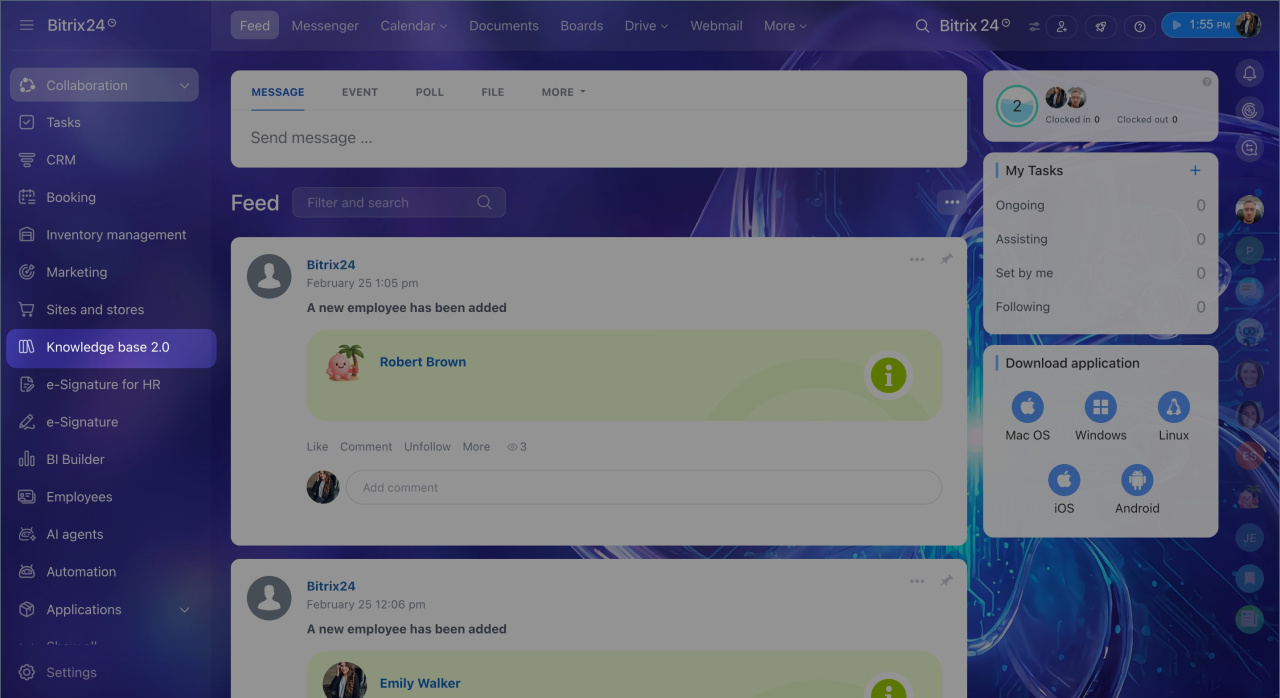
Go to Knowledge base 2.0 from the main menu.
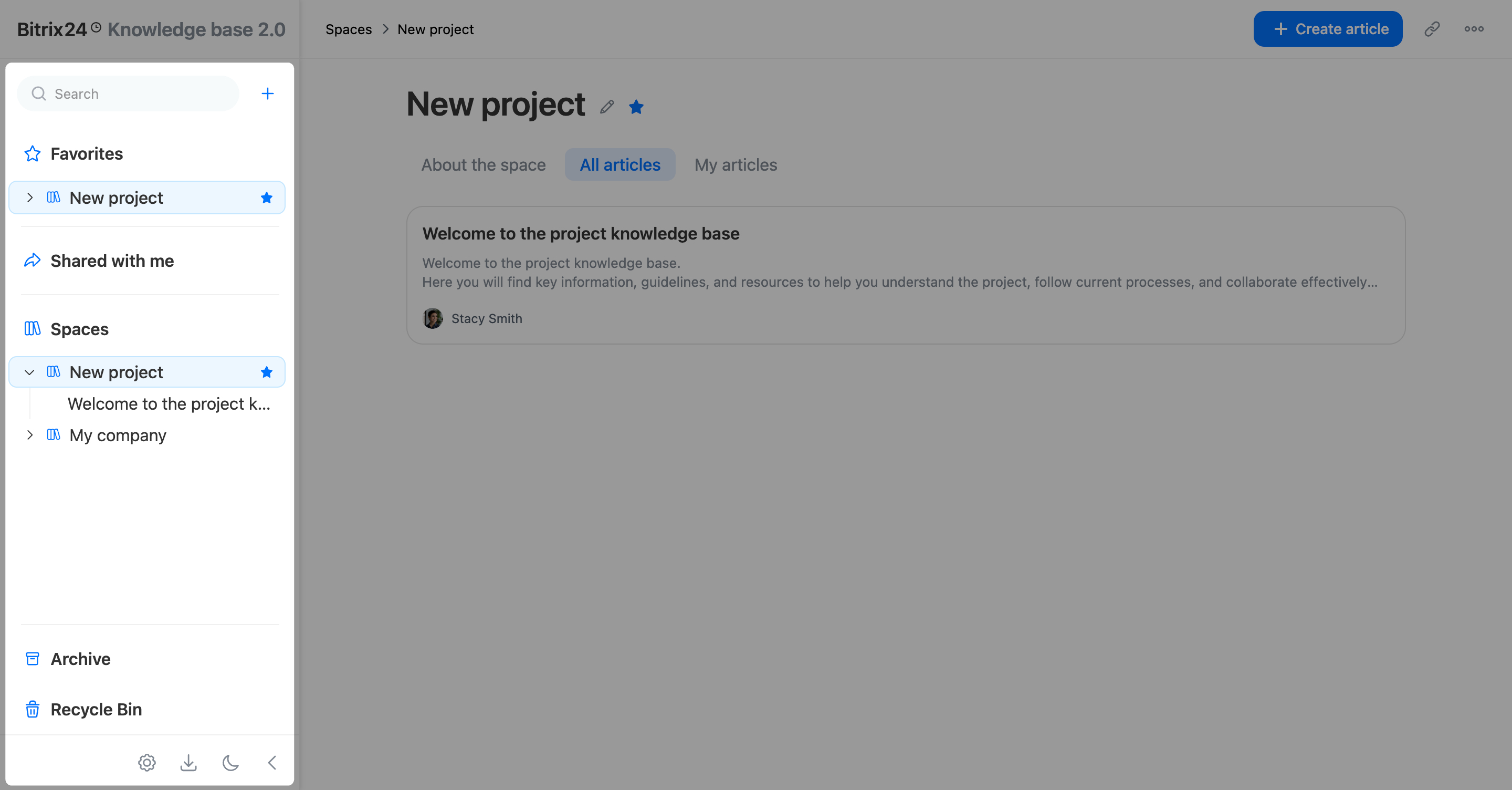
Go to Menu > Knowledge base 2.0.
Use the control panel
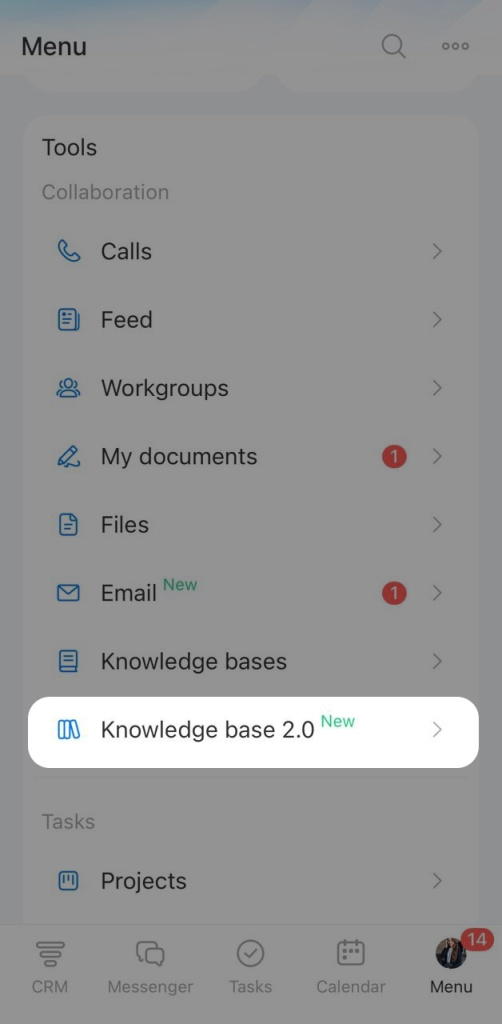
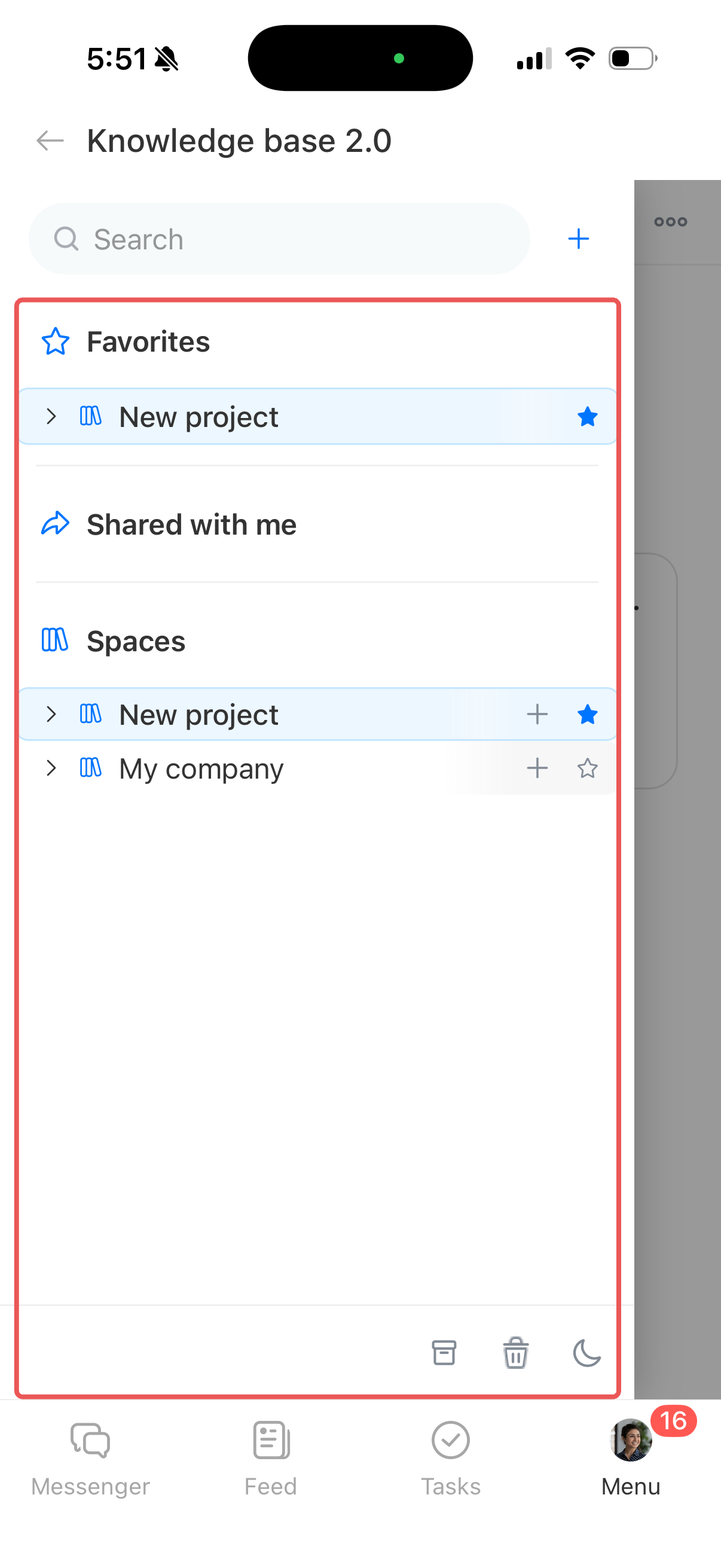
The control panel is on the left. Use it to switch between spaces, search for articles, manage items, and change the theme.
The control panel is on the left side of the screen.
Search bar  — Find articles by keyword. Enter a search term and select an article from the results. To see all matching articles, click Show all results or press Enter.
Search includes only active spaces and articles. Archived and deleted content does not appear in search results.
Favorites  — Quickly access your favorite articles and spaces. This section appears after you add at least one item to Favorites.
Plus  — Create a new article or space.
Create a knowledge base
Shared with me  — View articles that coworkers shared directly with you.
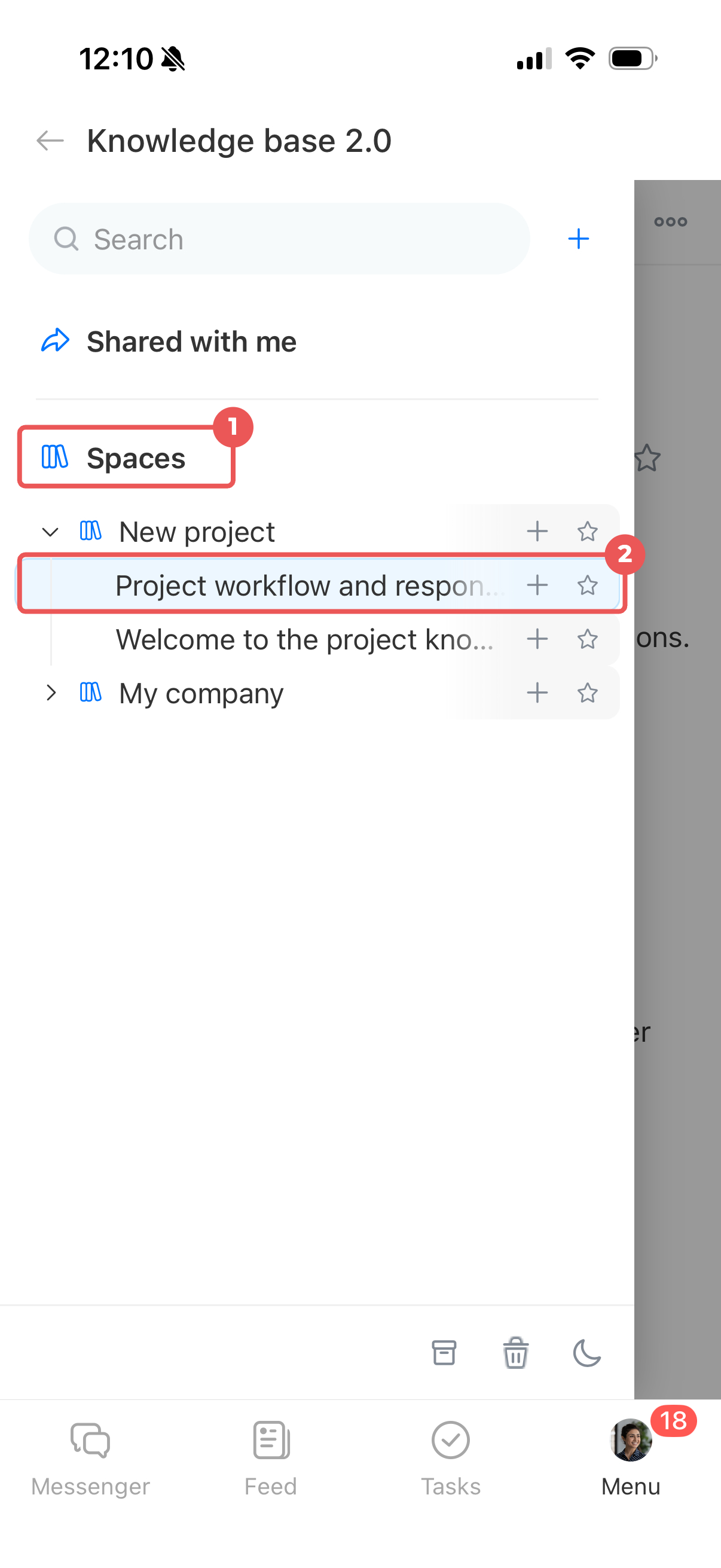
Spaces  — View all spaces you have access to. Click the section name to collapse or expand the list.
Archive  — View archived spaces and articles. You can restore them at any time.
Recycle Bin  — View deleted articles. Bitrix24 keeps them for 30 days before deleting them permanently.
Access permissions  — Choose who can create, edit, view, and import knowledge bases.
Configure access permissions to Knowledge base 2.0
Import knowledge base  — Import a knowledge base from an external source, such as Outline.
Moon or sun icon  — Switch between dark and light themes. This setting affects only your view.
Arrow icon  — Collapse the panel to free up screen space.
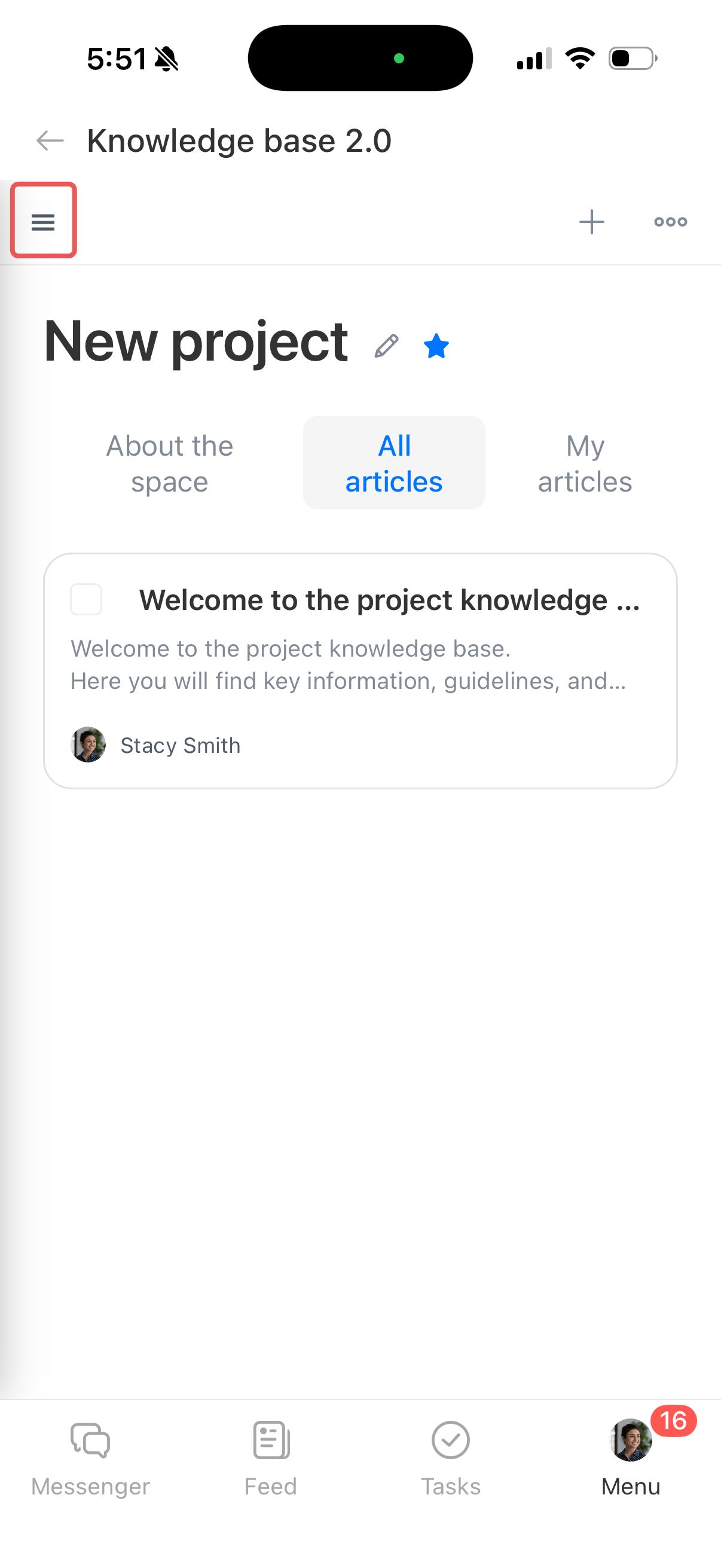
In the mobile app, you can use a knowledge base much like you do on a computer. Create spaces and articles, search by keyword, and switch between dark and light themes.
Tap Menu (≡) in the upper-left corner to open the control panel. Then select the tab or tool you need.
Manage a space
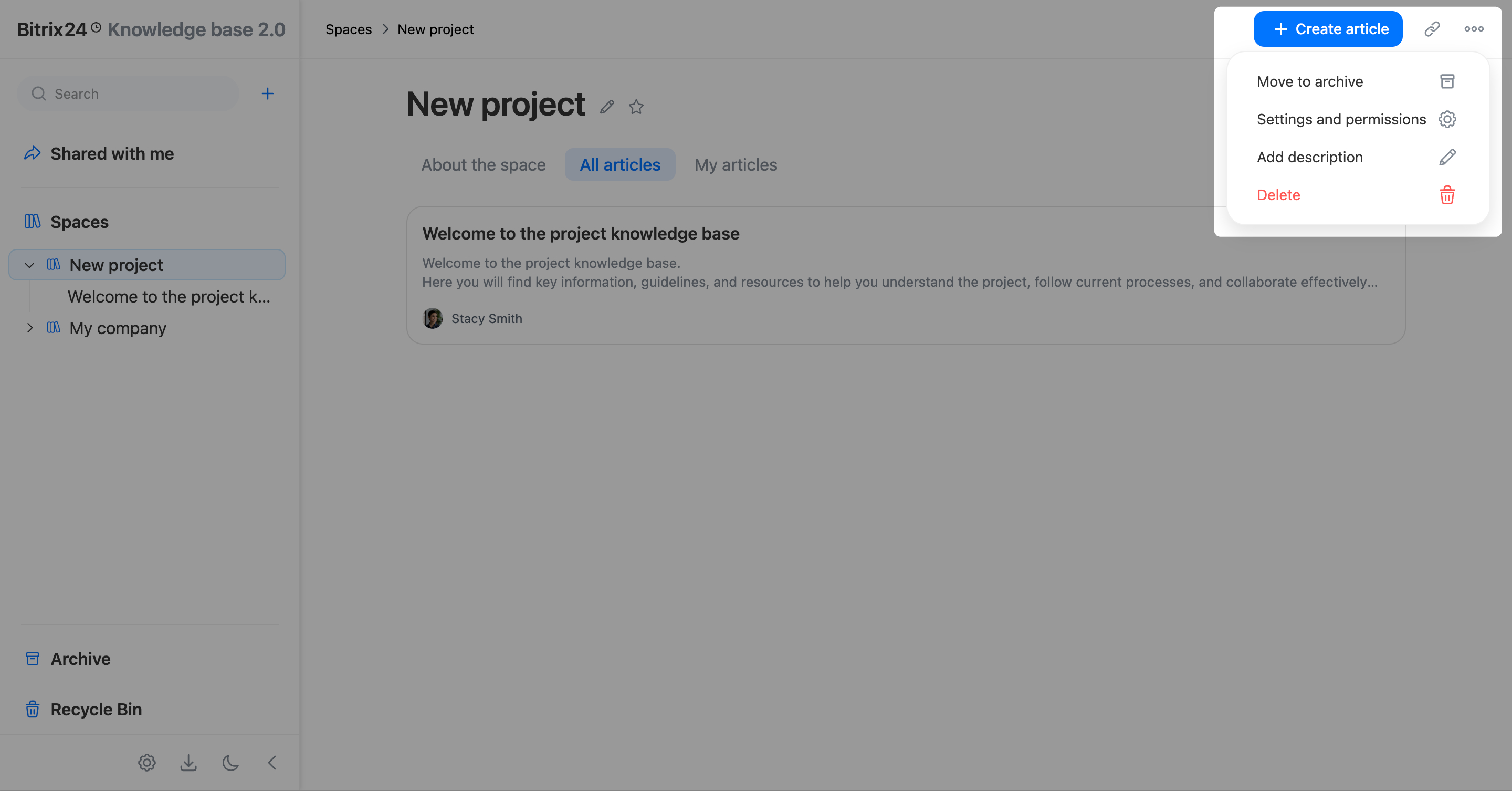
Use the top bar and the icons next to the space name to manage the space and view its details.
Space top bar
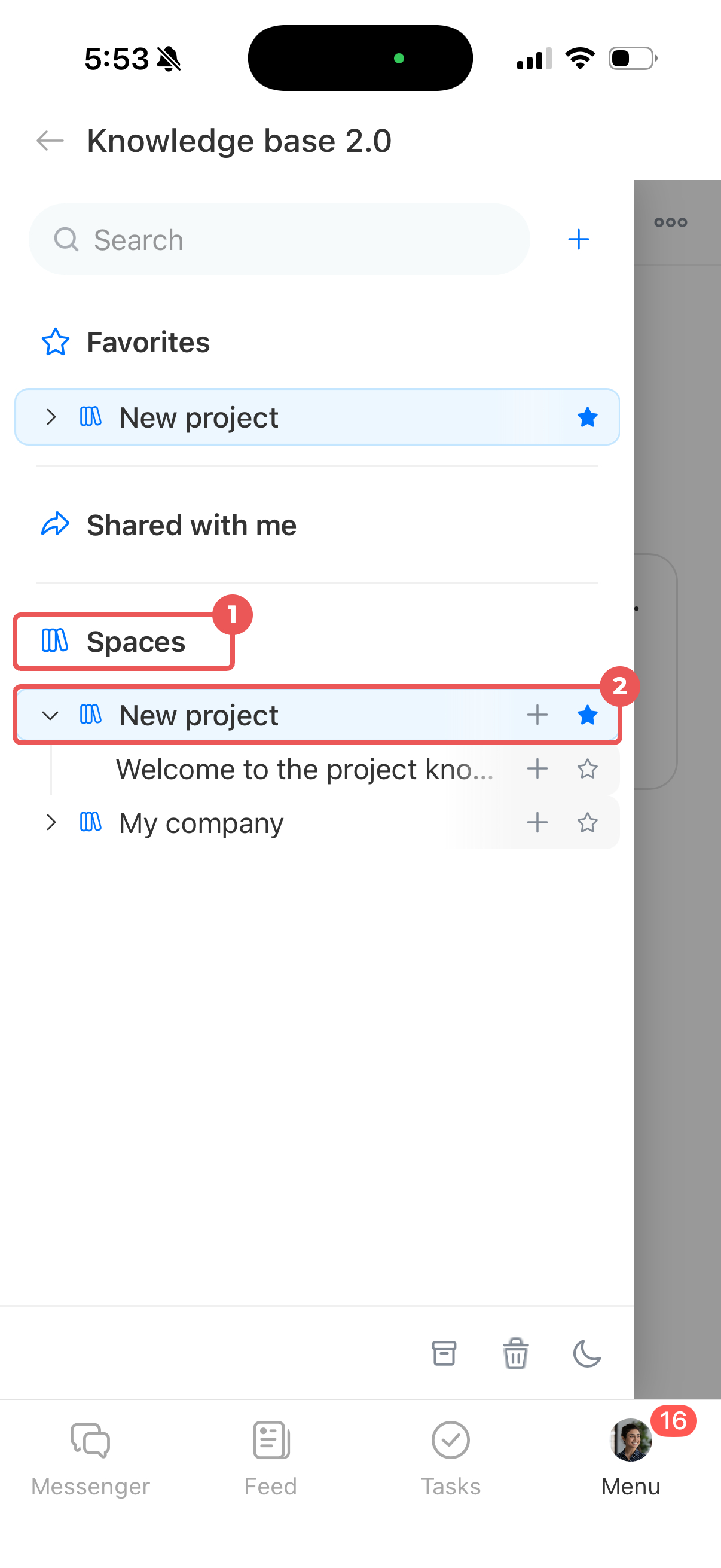
Expand the Spaces tab and select a space from the list.
Create an article. Click + Create article in the top-right corner. A new article opens in edit mode and is added to the space.
Create an article in Knowledge Base 2.0
Copy a link to the space. Click the link icon  in the top-right corner. The link is copied to your clipboard. You can share it with colleagues who have access to the space.
Open the space menu. Click Three dots (...) and select an action:
- Move to archive — Move the space to the Archive.
- Settings and permissions — Set up access permissions for the space.
- Add description or Edit description — Add or update the description shown on the About the space tab.
- Delete — Move all articles in the space to the Recycle Bin.
Expand the Spaces tab and select a space from the list.
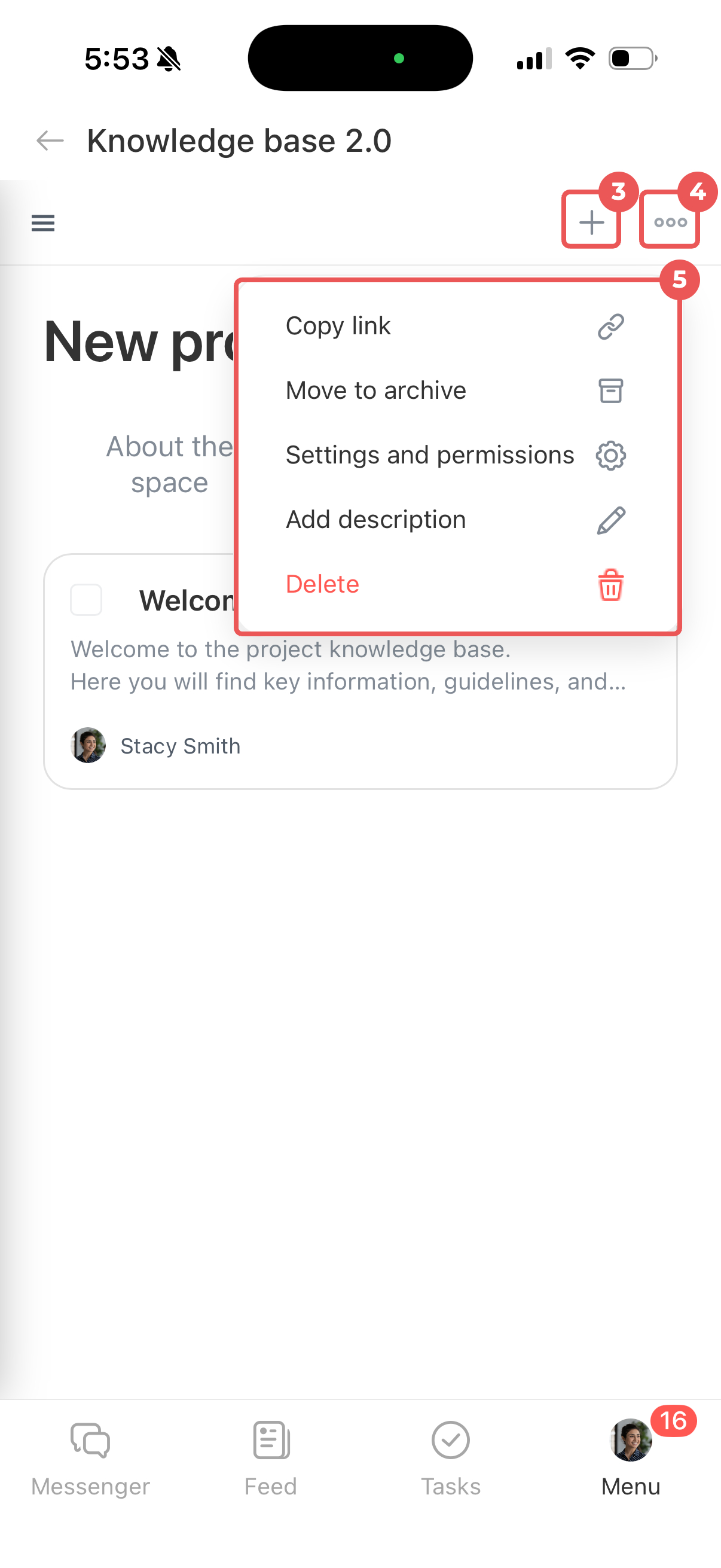
Create an article. Tap Plus (+) in the top-right corner. A new article opens in edit mode and is added to the space.
Open the space menu. Tap Three dots (...) and select an action:
- Copy link — Send it in a message or attach it to a task, board, or another item. Your colleagues can open the space based on their access permissions.
- Move to archive — Move the space to the Archive.
- Settings and permissions — Set up access permissions for the space.
- Add description or Edit description — Add or update the description shown on the About the space tab.
- Delete — Move all articles in the space to the Recycle Bin.
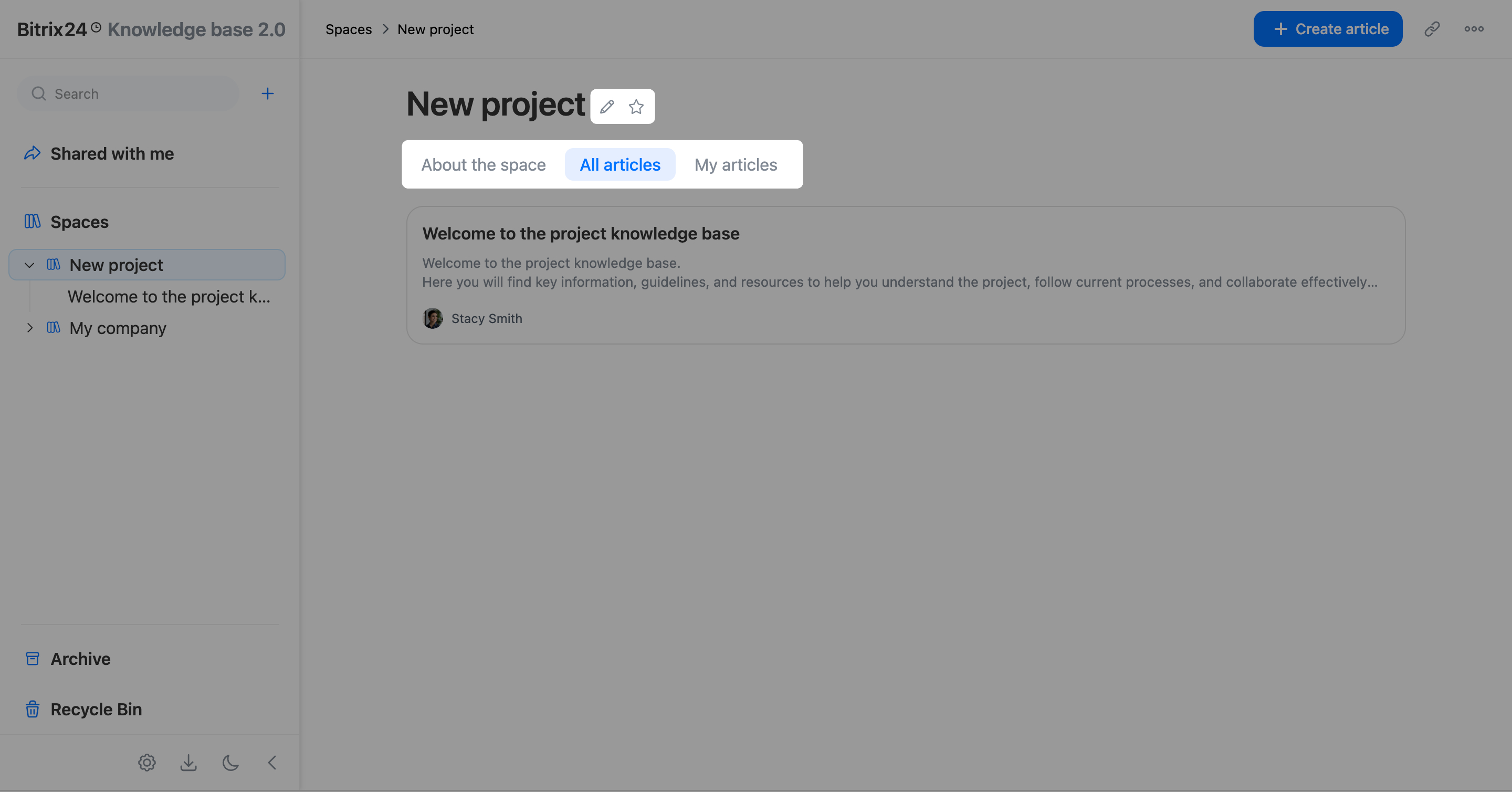
Space title bar
Rename the space. Click the pencil icon next to its name, enter a new name, and click outside the field. Your changes are saved automatically.
Add to Favorites. Click the star icon next to the space name.
View the space details. Open the About the space tab to read its description. Open the All articles tab to view all materials, or My articles to view only the articles you created.
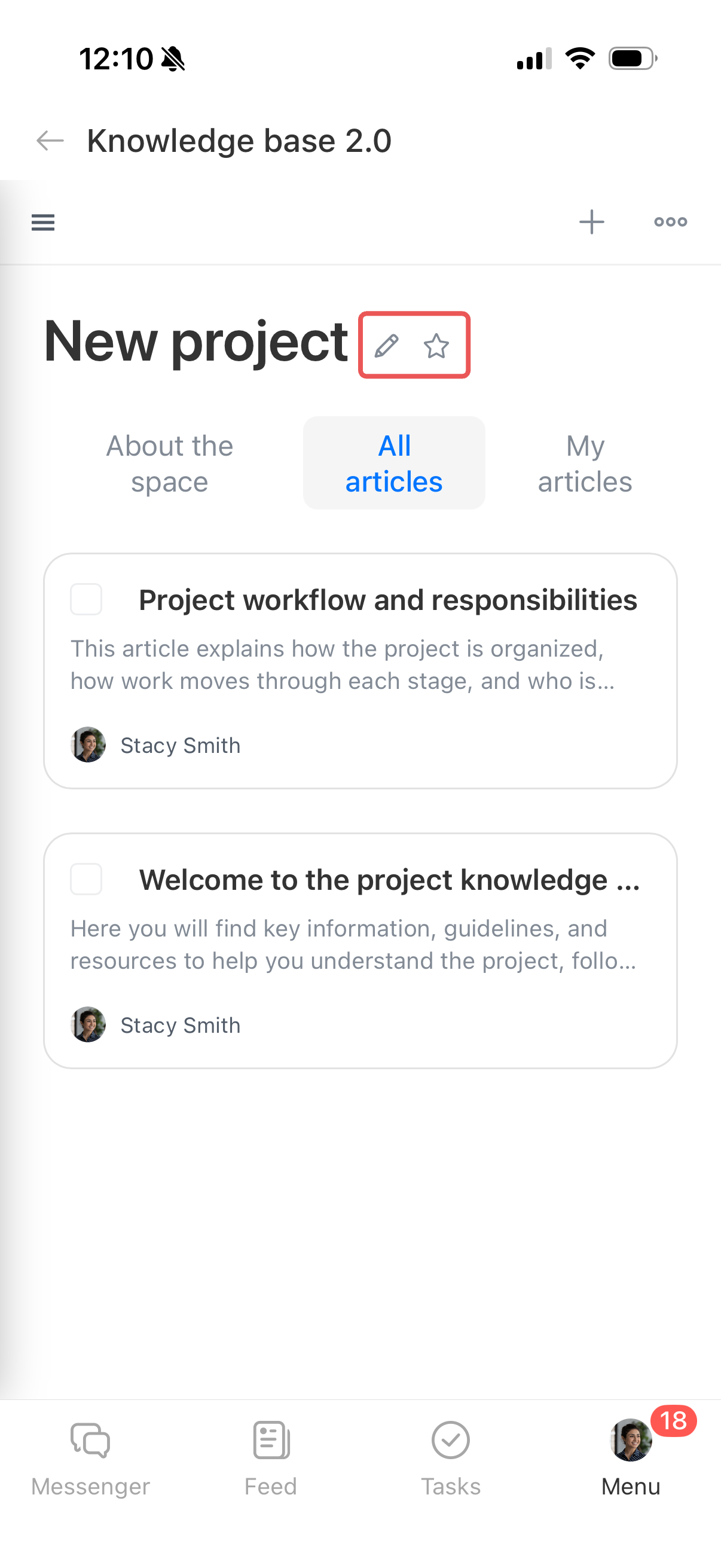
Rename the space. Tap the pencil icon next to the space name. Enter a new name and confirm.
Add to Favorites. Tap the star icon next to the space name.
View the space details. Open the About the space tab to read its description. Open the All articles tab to view all materials, or My articles to view only the articles you created.
Manage an article
Use the top bar and the icons below the article name to manage the article and view its details.
Article top bar
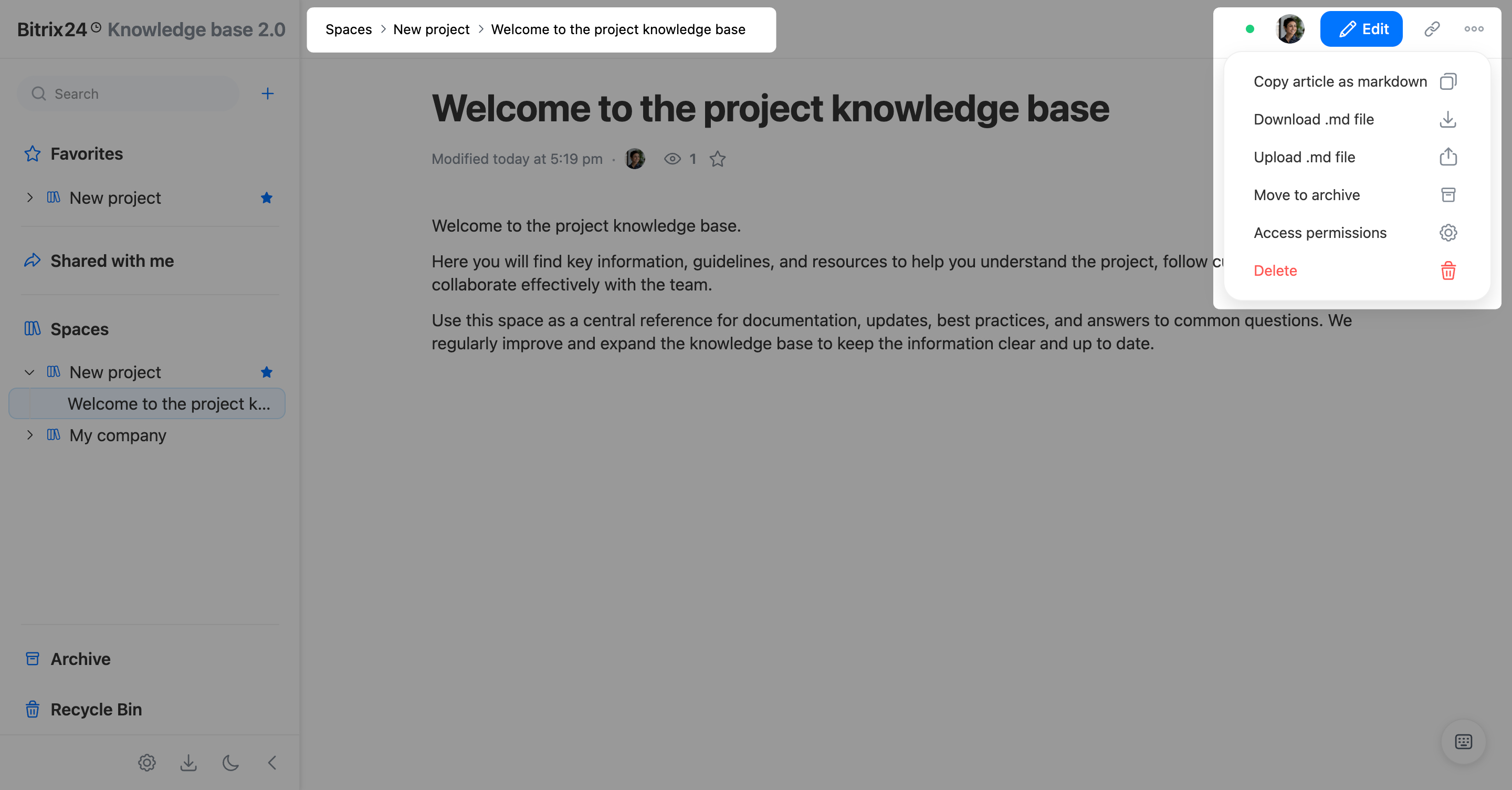
Expand the Spaces tab and select an article. Use the top bar to perform the following actions.
Navigate between articles. View the article's location in the space and click a link in the path to go to a higher level.
See who is working on the article. Avatars of colleagues currently working on the article appear in the top-right corner. Click an avatar to open their Bitrix24 profile in a new tab.
Edit the article. Click Edit in the top-right corner to make changes.
Copy a link to the article. Click the link icon in the top-right corner to copy the link to the clipboard. You can share it in a chat or add it to a task, board, or another item. Colleagues can open the article if they have access.
Open the article menu. Click Three dots (...) and select an action:
- Copy article as markdown — Save the page content without nested articles to the clipboard. To add the content to another page, open it and paste the data.
- Download .md file — Download the article and its attachments in Markdown (.md) format.
- Upload .md file — Replace the article content with content from an uploaded Markdown (.md) file.
- Move to archive — Move the article to the Archive.
- Access permissions — Set up access permissions for the article.
- Delete — Move the article to the Recycle Bin.
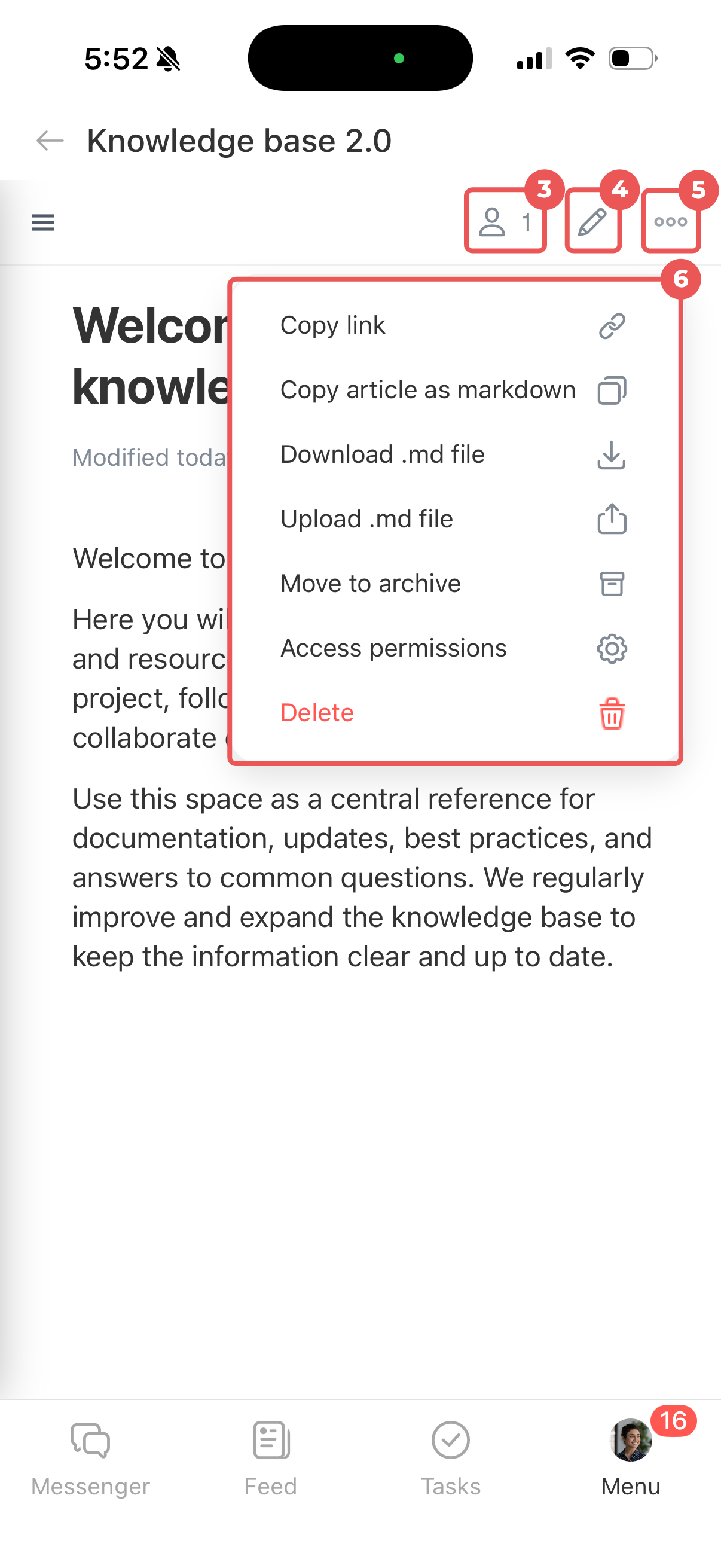
Expand the Spaces tab and select an article. Use the top bar to perform the following actions.
See who is working on the article. Tap the user icon in the top-right corner to see which colleagues are working on the article.
Edit the article. Tap the pencil icon in the top-right corner to make changes.
Open the article menu. Tap Three dots (...) and select an action:
- Copy link — Send it in a message or attach it to a task, board, or another item. Your colleagues can open the article based on their access permissions.
- Copy article as markdown — Save the page content without nested articles to the clipboard. To add the content to another page, open it and paste the data.
- Download .md file — Download the article with all attachments in Markdown (.md) format.
- Upload .md file — Replace the article content with content from an uploaded Markdown (.md) file.
- Move to archive — Move the article to the Archive.
- Access permissions — Set up access permissions for the article.
- Delete — Move the article to the Recycle Bin.
Article title bar
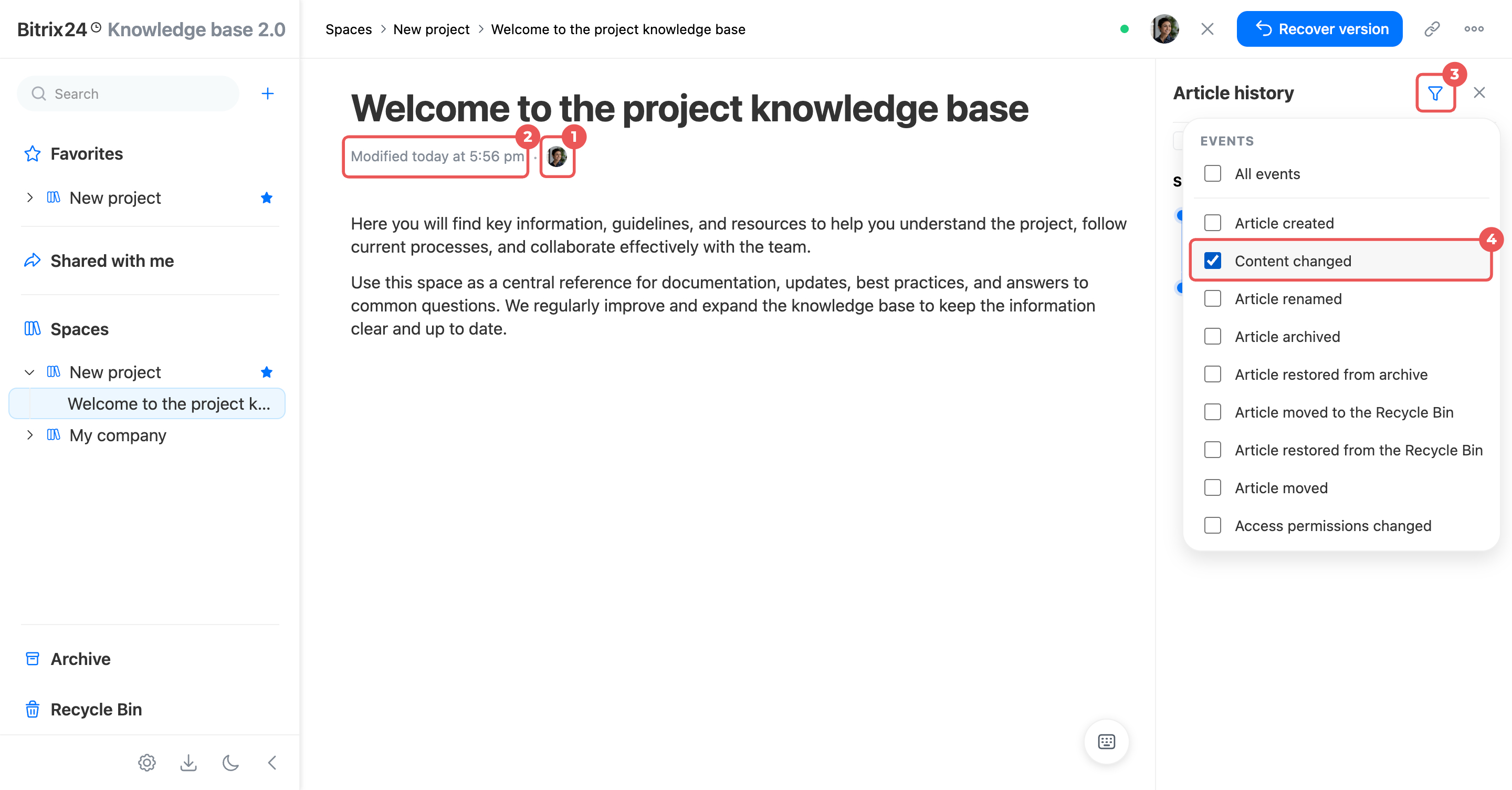
View the revision history. Below the article name, you can see who last edited the article and when. Open the revision history to review changes, compare versions, or restore an earlier version.
1. Click the avatar below the article name to open the profile of the colleague who last edited it.
2. Click the latest activity record to open the revision history panel.
3–4. Click the pipeline icon in the top-right corner to filter the changes. Select which events to display.
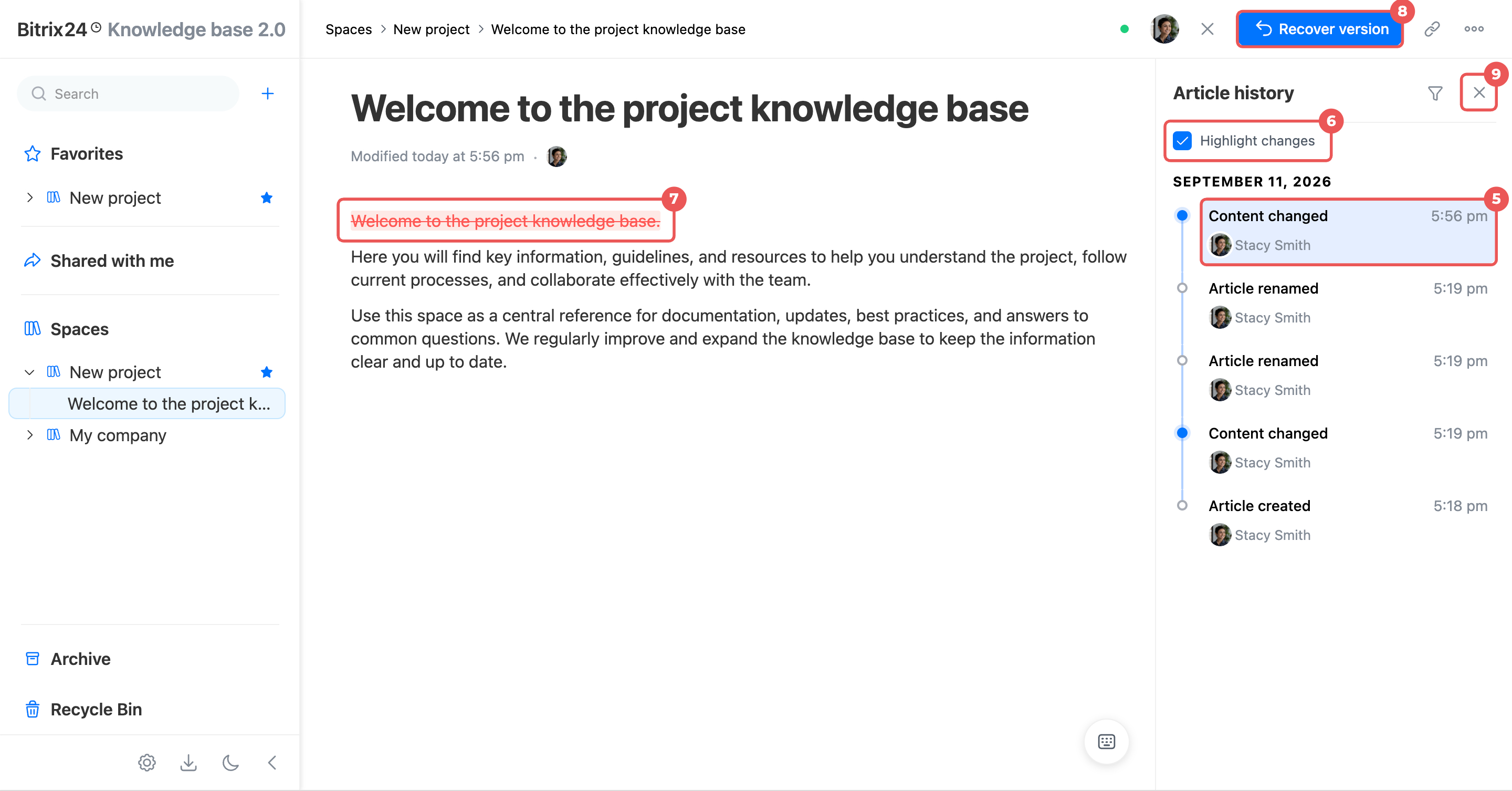
5. Select an article version.
6–7. Select Highlight changes to track edits. Deleted content appears in red, and added content appears in green.
8. Click Restore version to display the selected version of the article.
9. Click the X in the top-right corner to close the revision history panel.
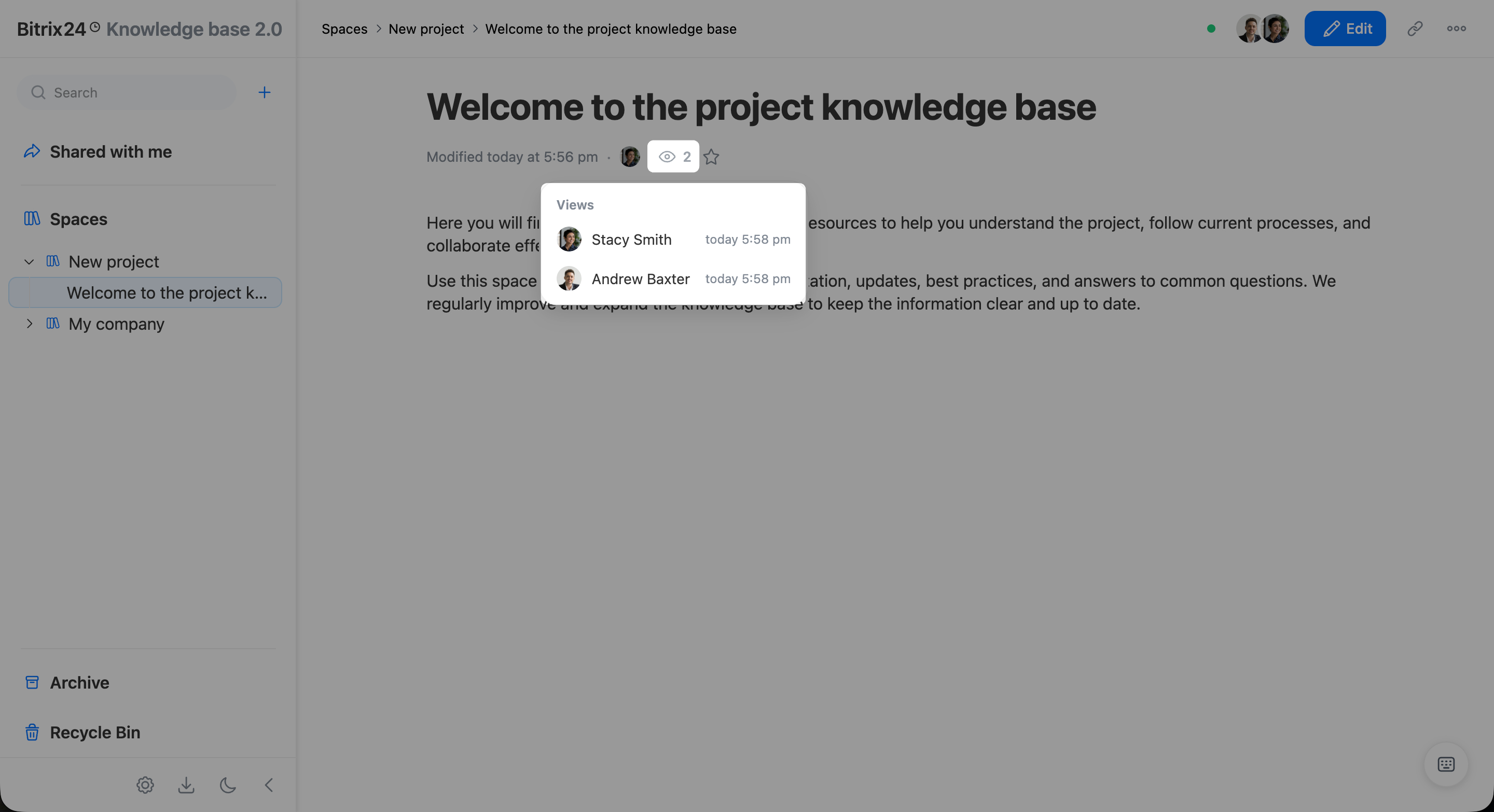
Check the view count. The number next to the eye icon below the article name shows the number of unique visitors. Multiple visits from the same user count as one view.
Click the eye icon to see who last viewed the article and when. Click a user's avatar to open their Bitrix24 profile.
View related articles. Click the link icon to see which articles link to the current one. Click an article in the list to open it.
Add to Favorites. Click the star icon below the article name. The article appears in the Favorites section.
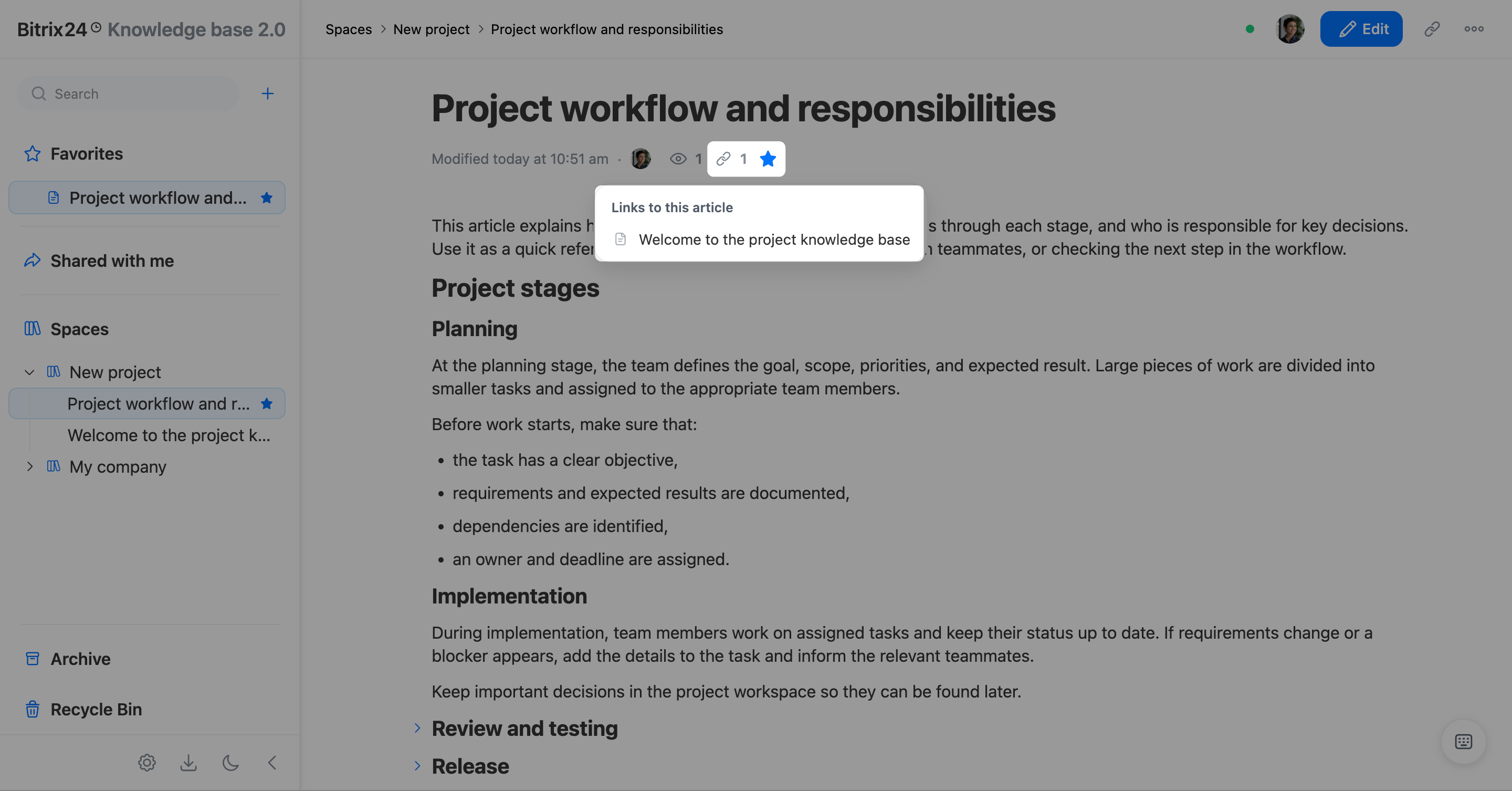
View the revision history. This information appears below the article name.
1. Tap the avatar below the article name to open the profile of the colleague who last edited it.
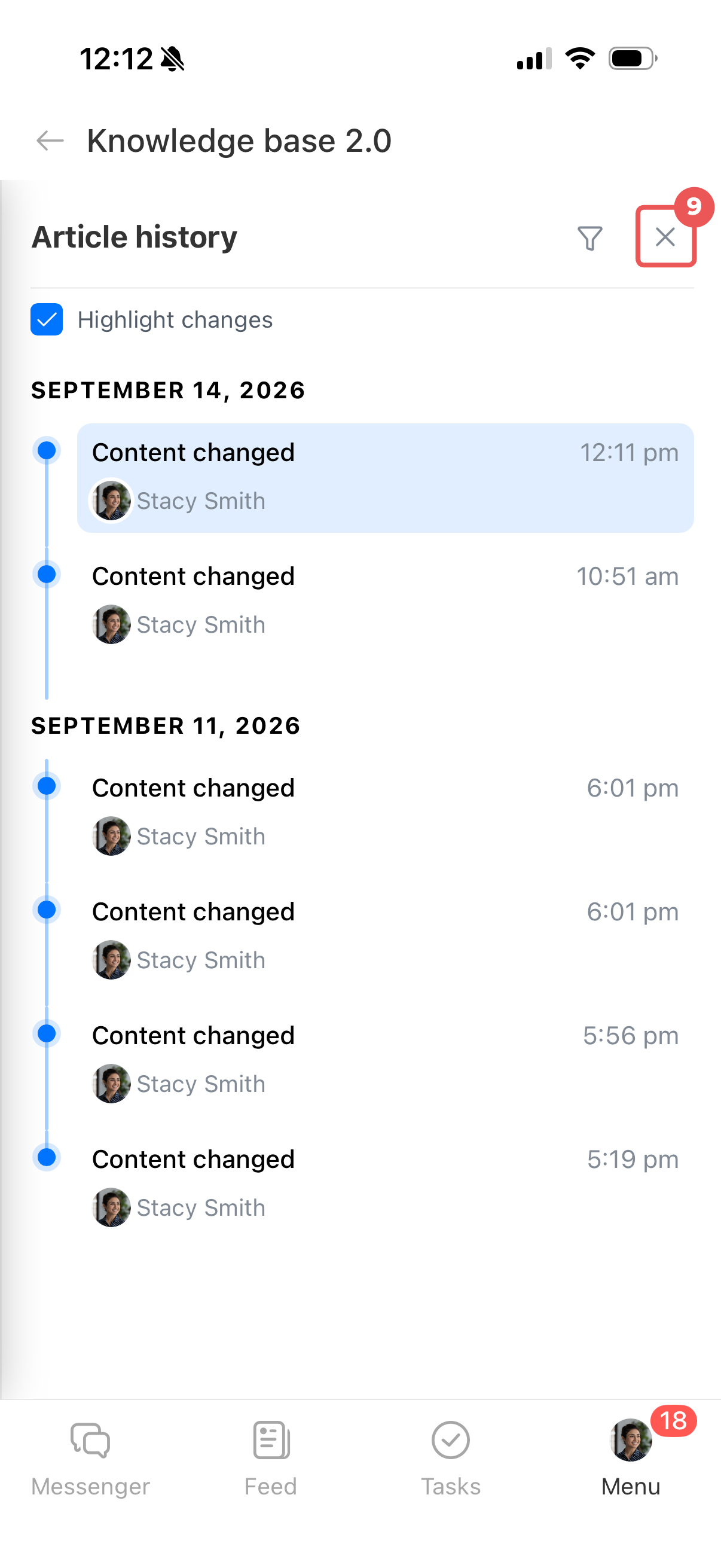
2. Tap the latest activity record to open the revision history panel.
3–4. Tap the pipeline icon in the top-right corner to filter the list of changes. Select the events to display.
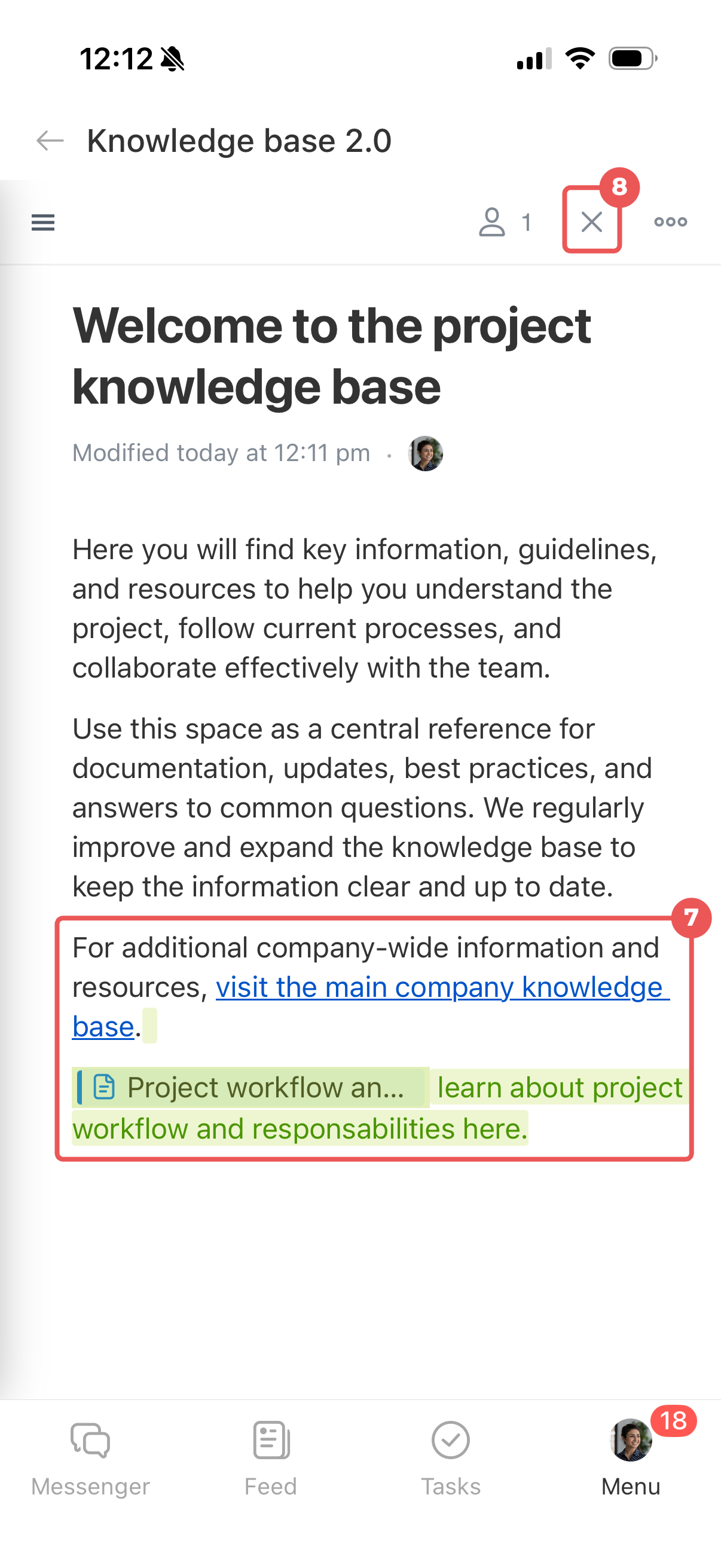
5–7. Select Highlight changes to track edits, and select an article version. Deleted content appears in red, and added content appears in green.
8. Tap the X in the top-right corner to close the article version and return to the revision history panel.
9. Tap the X in the top-right corner of the revision history panel to return to the article.
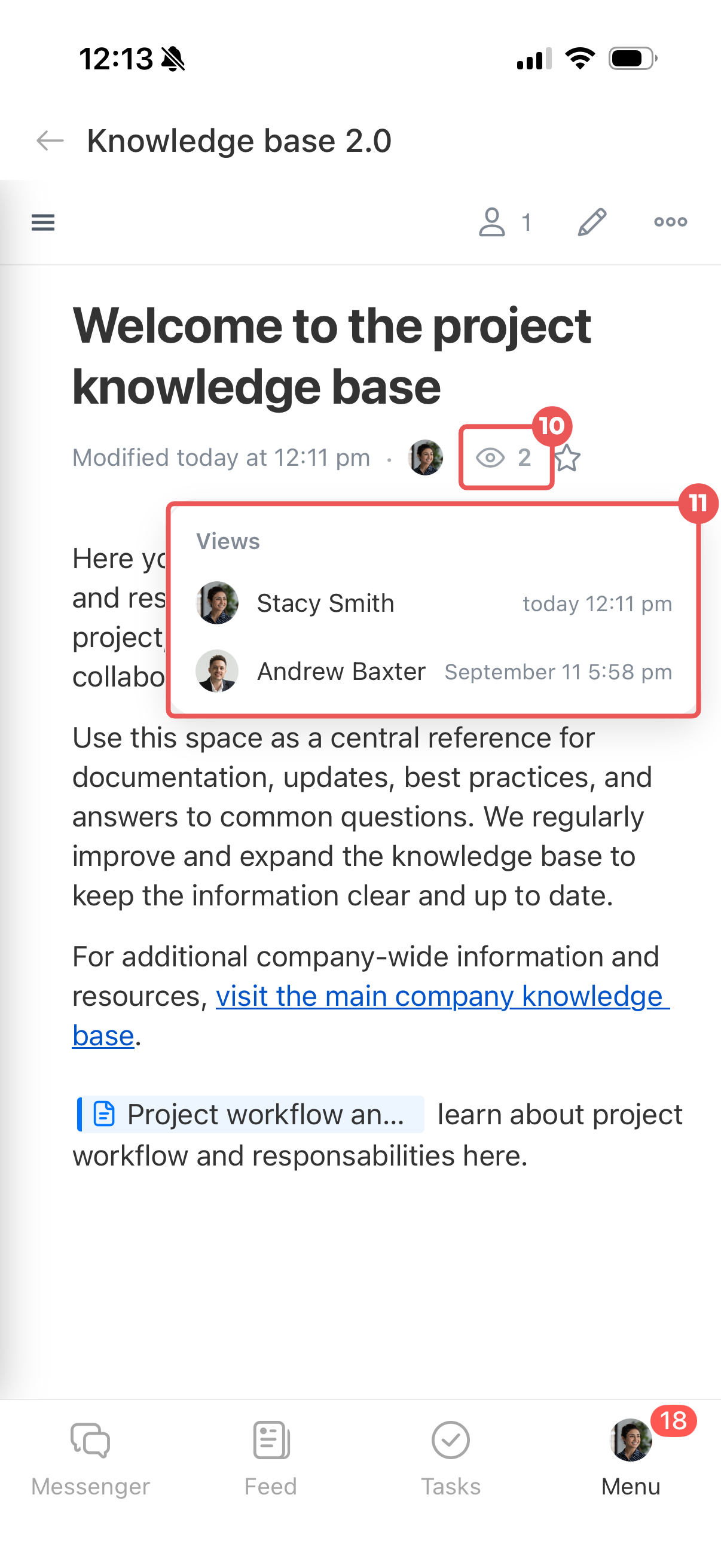
10–11. The number next to the eye icon shows how many employees viewed the article. Tap this icon to open the list.
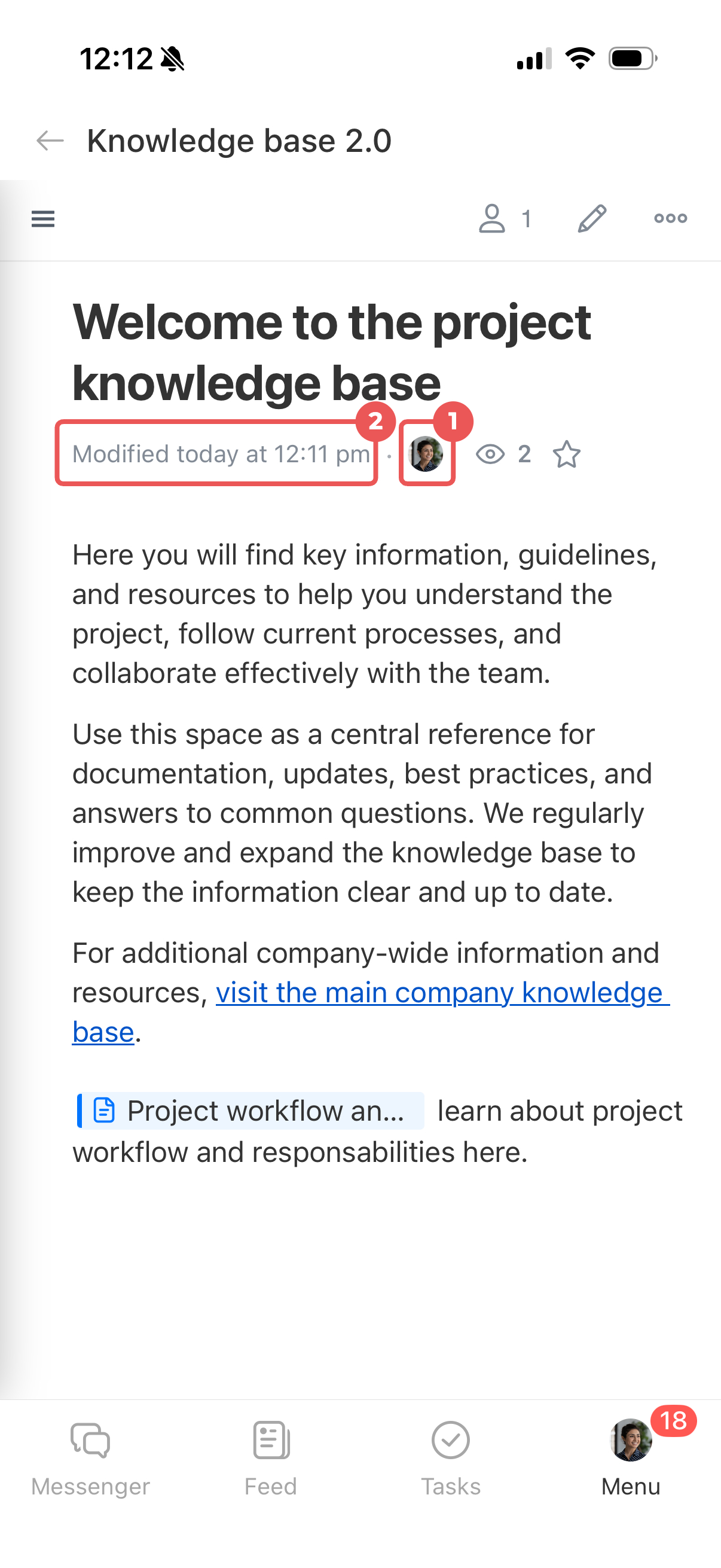
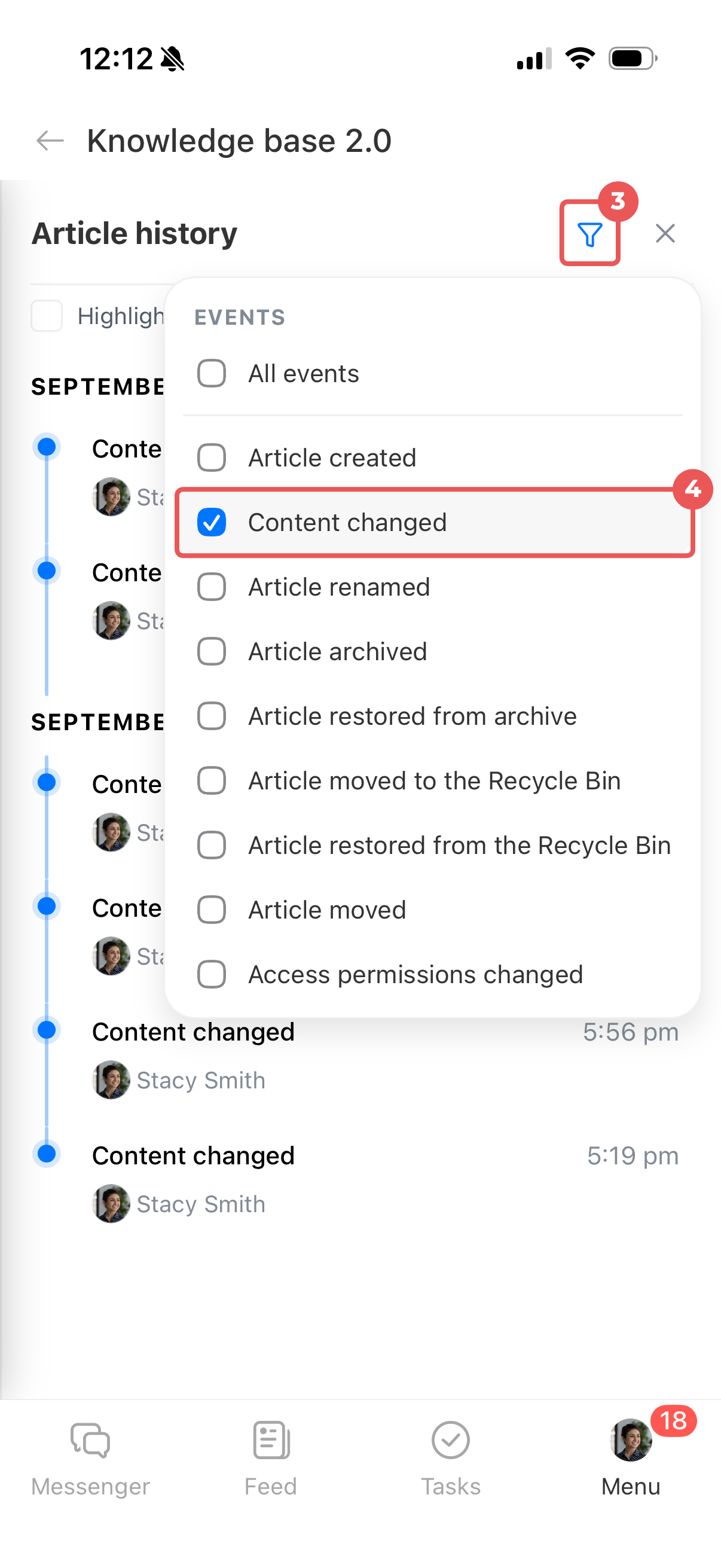
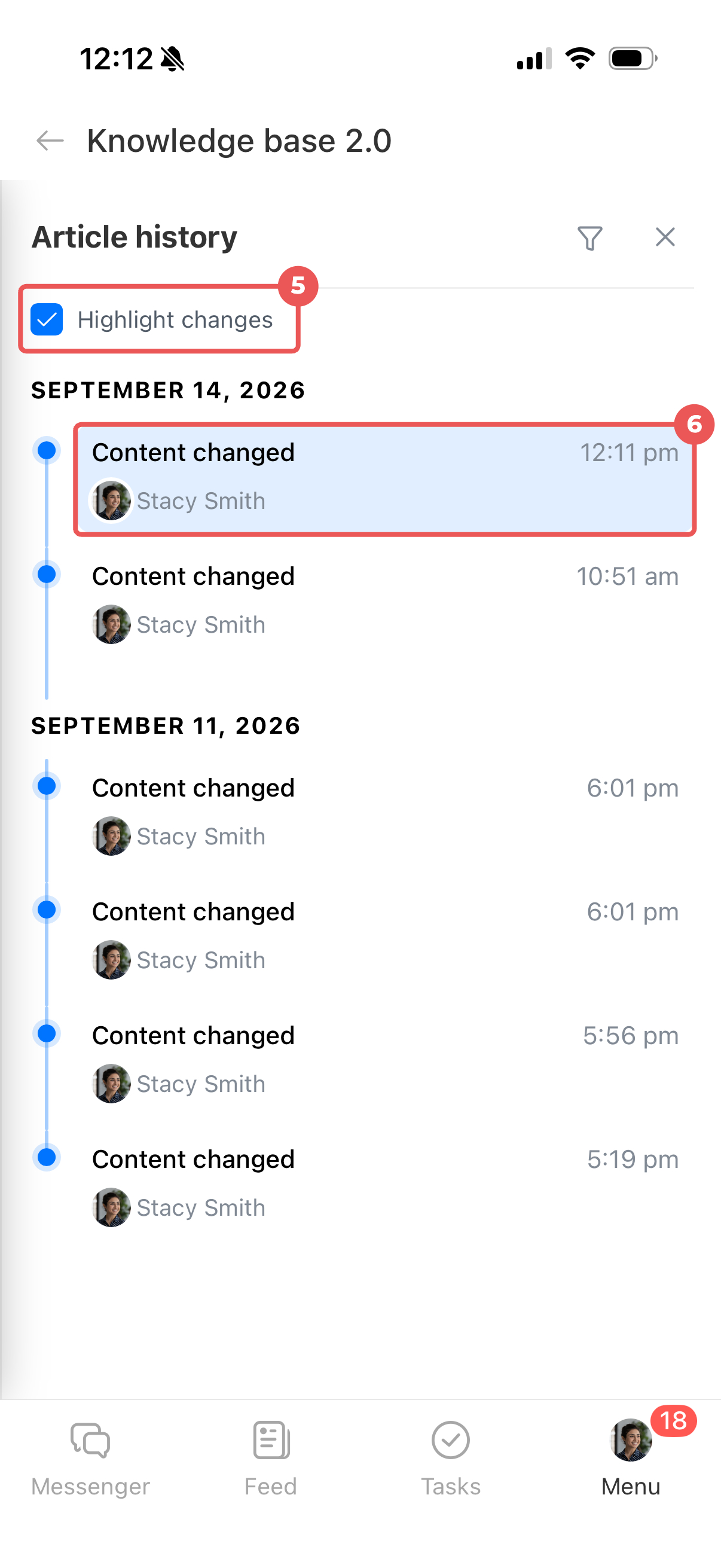
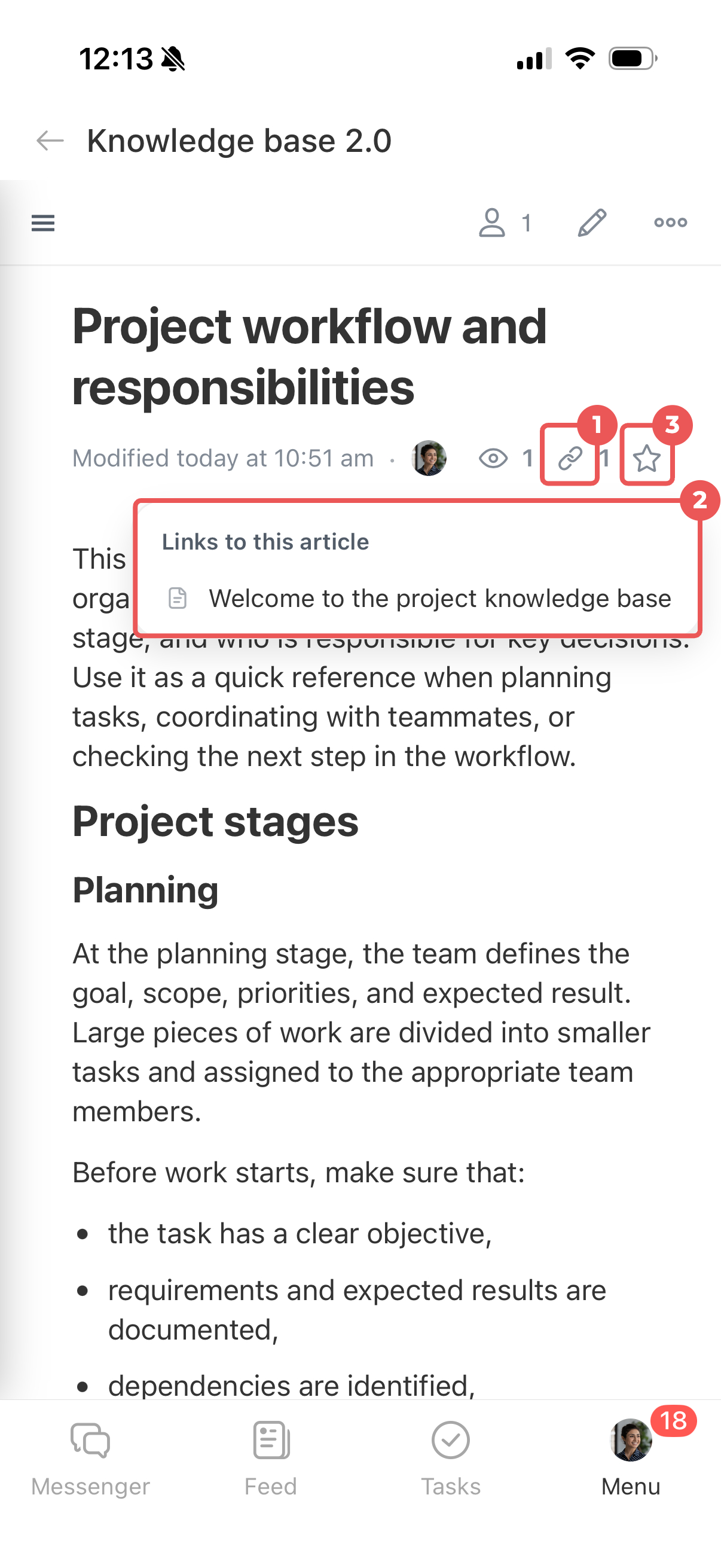
View related articles. Tap the link icon to see which articles link to the current one. Tap an article in the list to open it.
Add to Favorites. Tap the star icon below the name. The article appears in the Favorites section.
Article structure
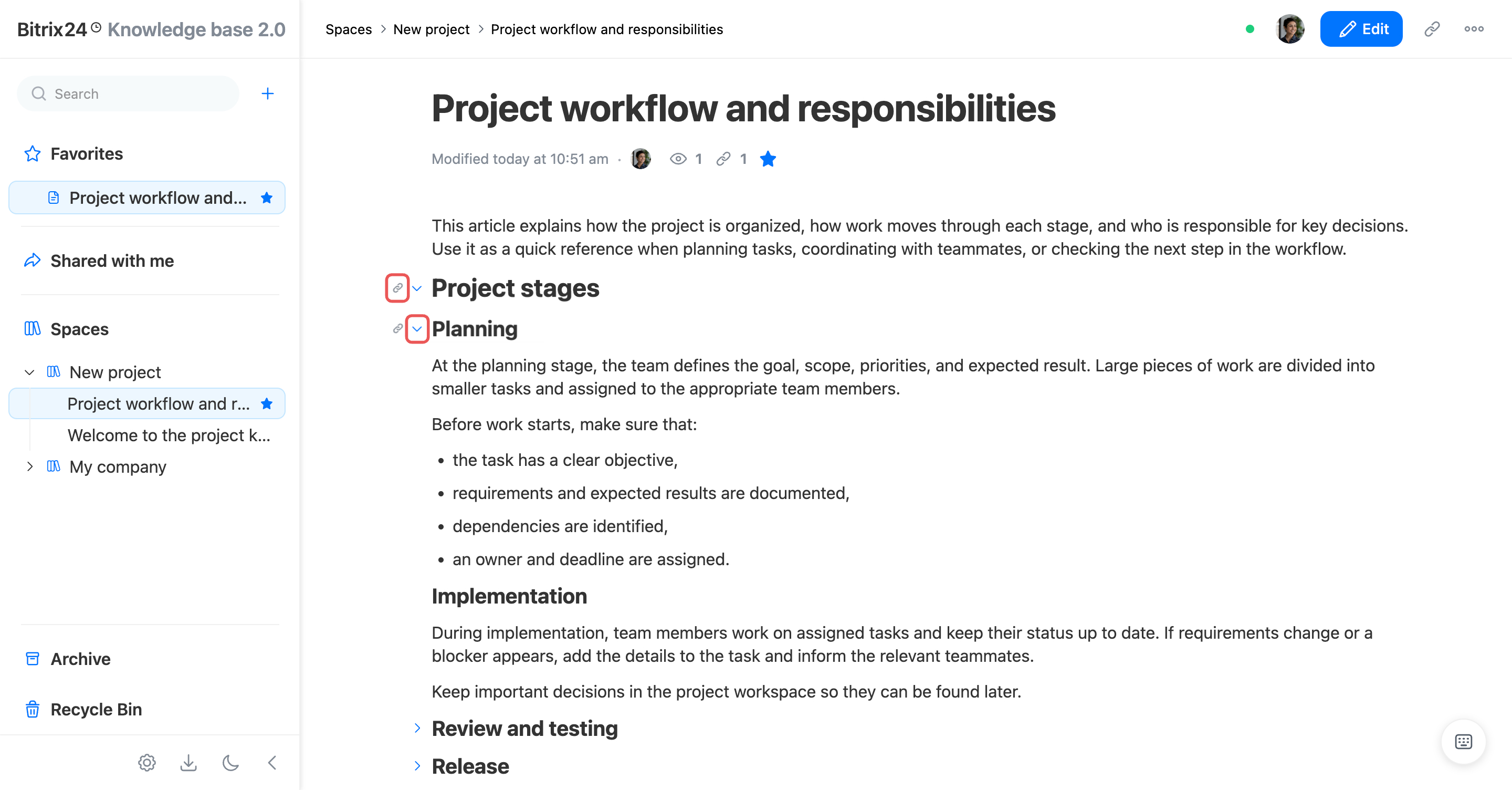
Copy a link to a section. Hover over a section heading and click the paperclip icon. The link is copied to your clipboard. Send it to a colleague or add it to the same article or another article. Users who follow the link see the relevant information if they have access.
Collapse or expand a section. Hover over a section heading and click the arrow next to it to hide the content. Click the arrow again to show it. This helps you focus on specific sections in long articles.
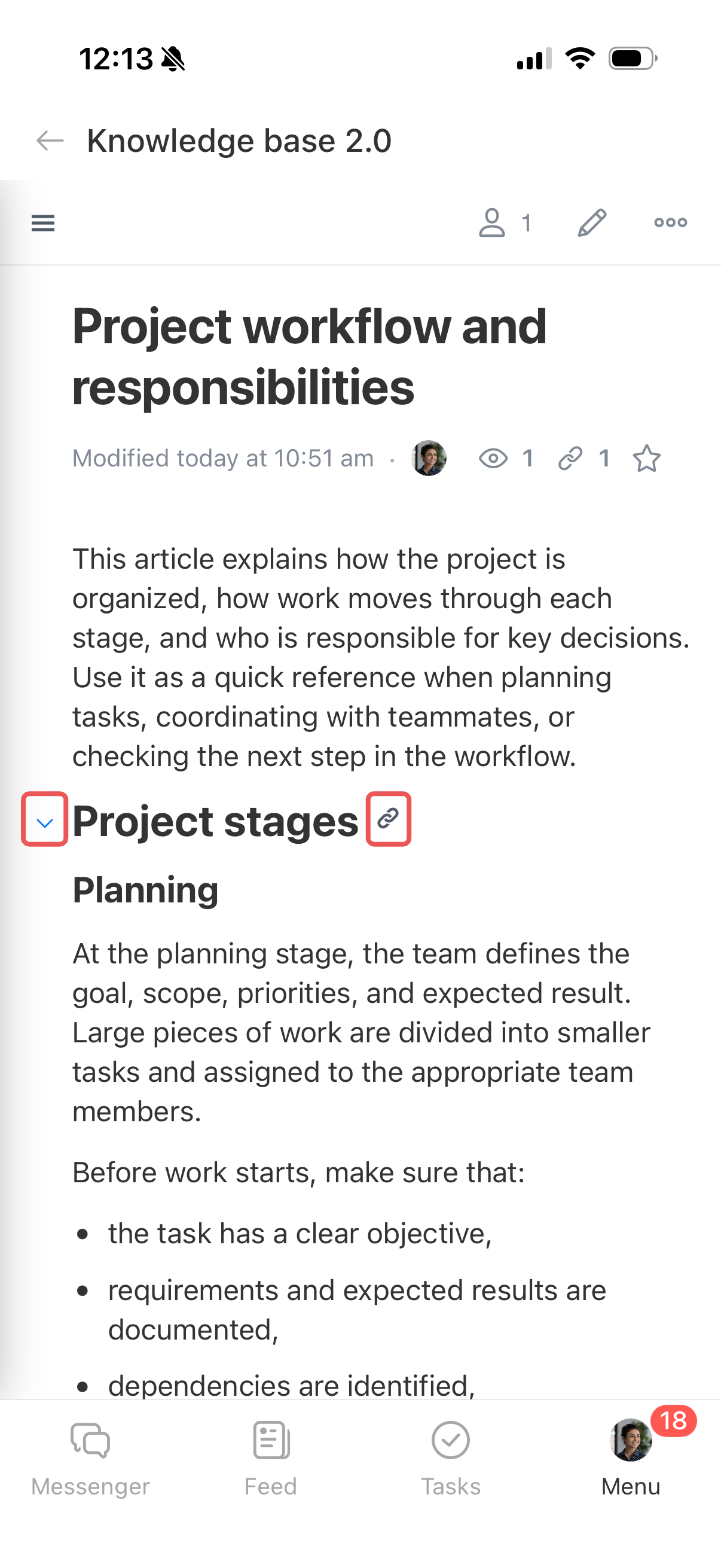
Copy a link to a section. Tap a section heading, then tap the paperclip icon to its right. The link is copied to your clipboard.
Collapse or expand a section. Tap a section heading, then tap the arrow to its left to hide the content. Tap the arrow again to show it.
Manage a group of articles
In Knowledge Base 2.0, you can move multiple articles to another space, archive them, delete them, or restore them at once.
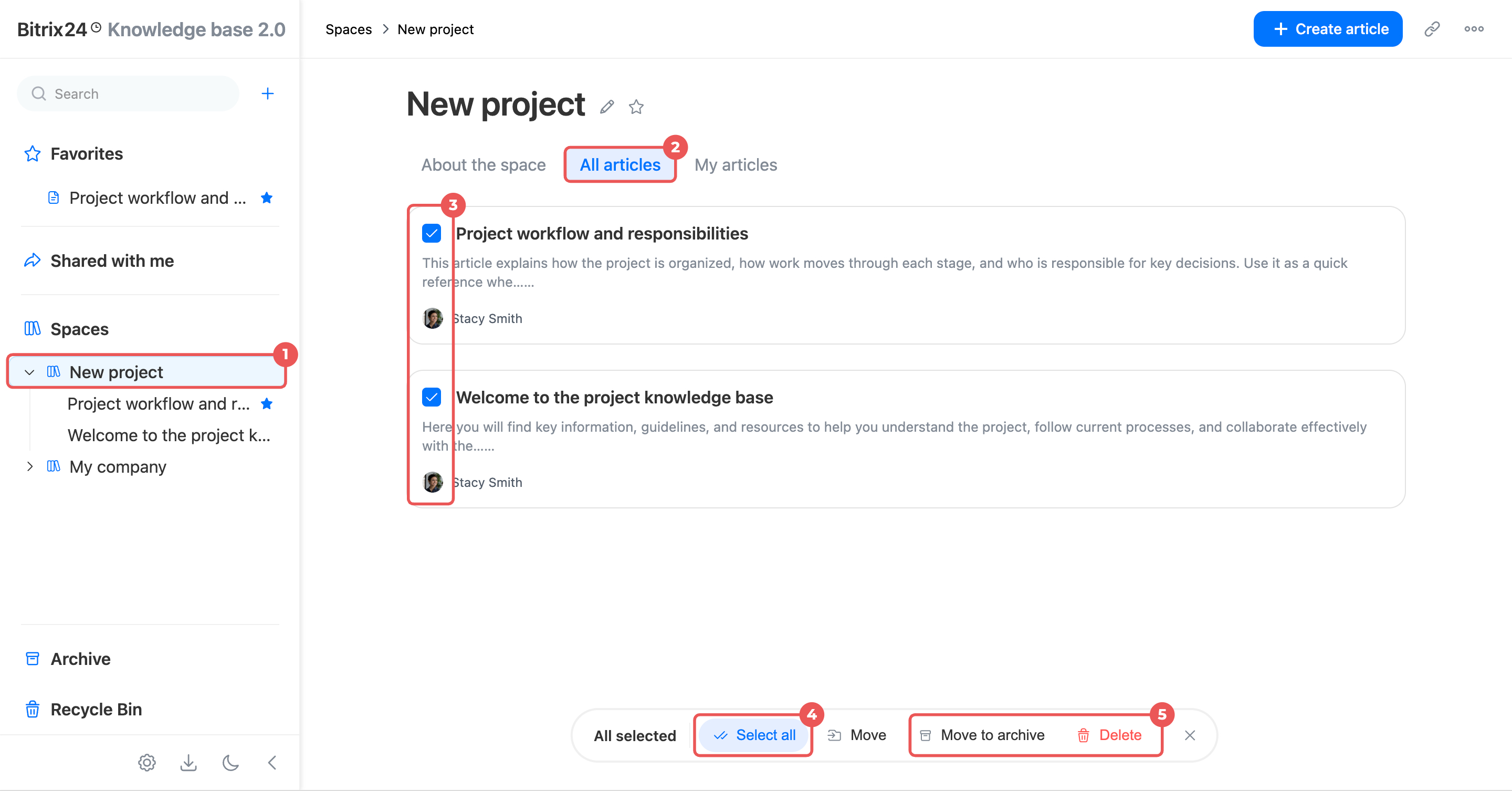
1. Open a space or an article that contains nested articles.
2. Go to the All articles or My articles tab.
3. Hover over an article to show its checkbox. Select the articles you want to manage.
4. Click Select all at the bottom of the screen to select all articles in the list or clear your selection.
5–6. Click Move to archive or Delete to move the articles to the Archive or Recycle Bin. Confirm the action.
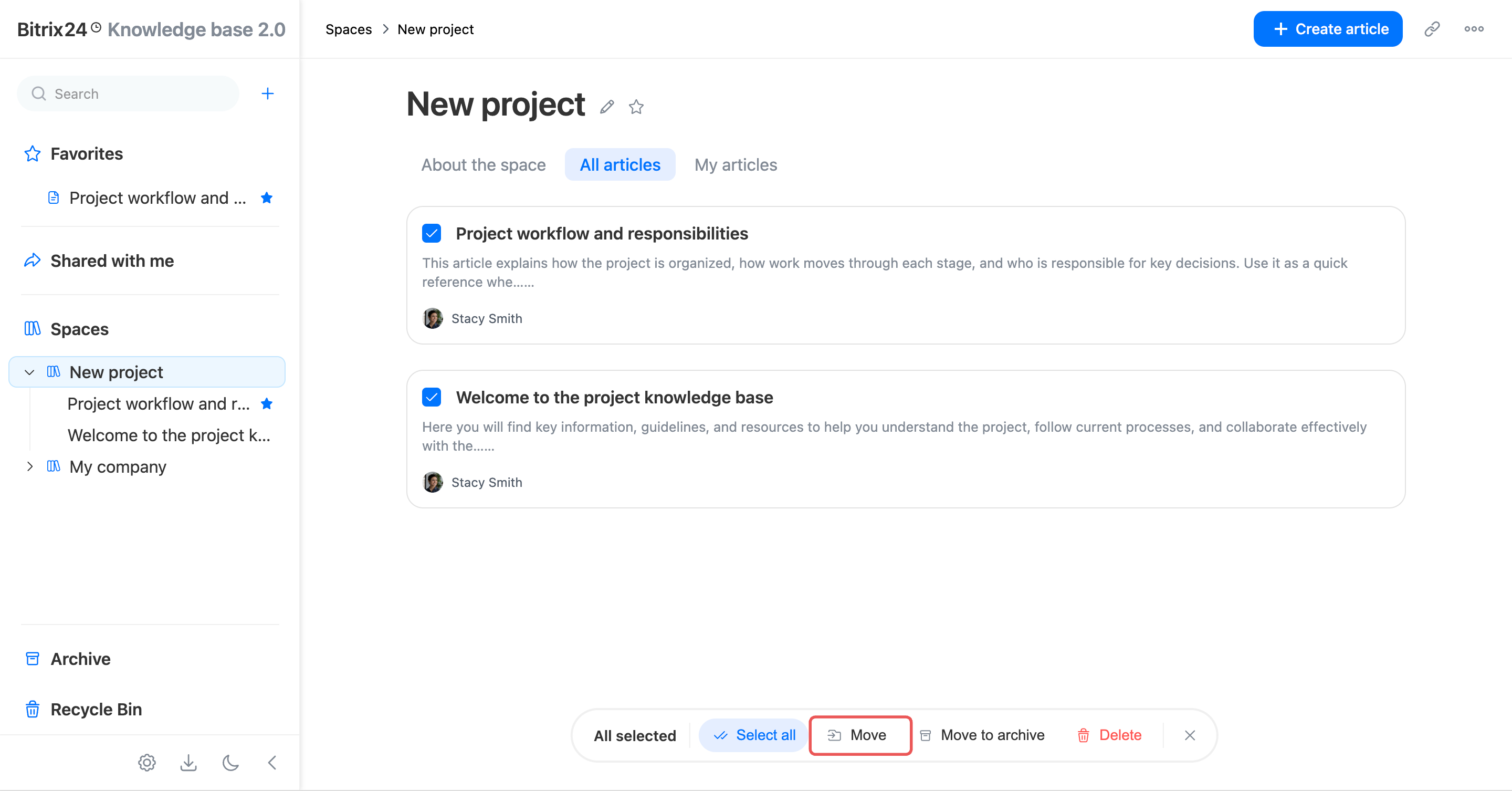
To move the articles to another space, click Move > Add at the bottom of the screen. Select the destination space and click Move. The articles appear at the top level of the selected space.
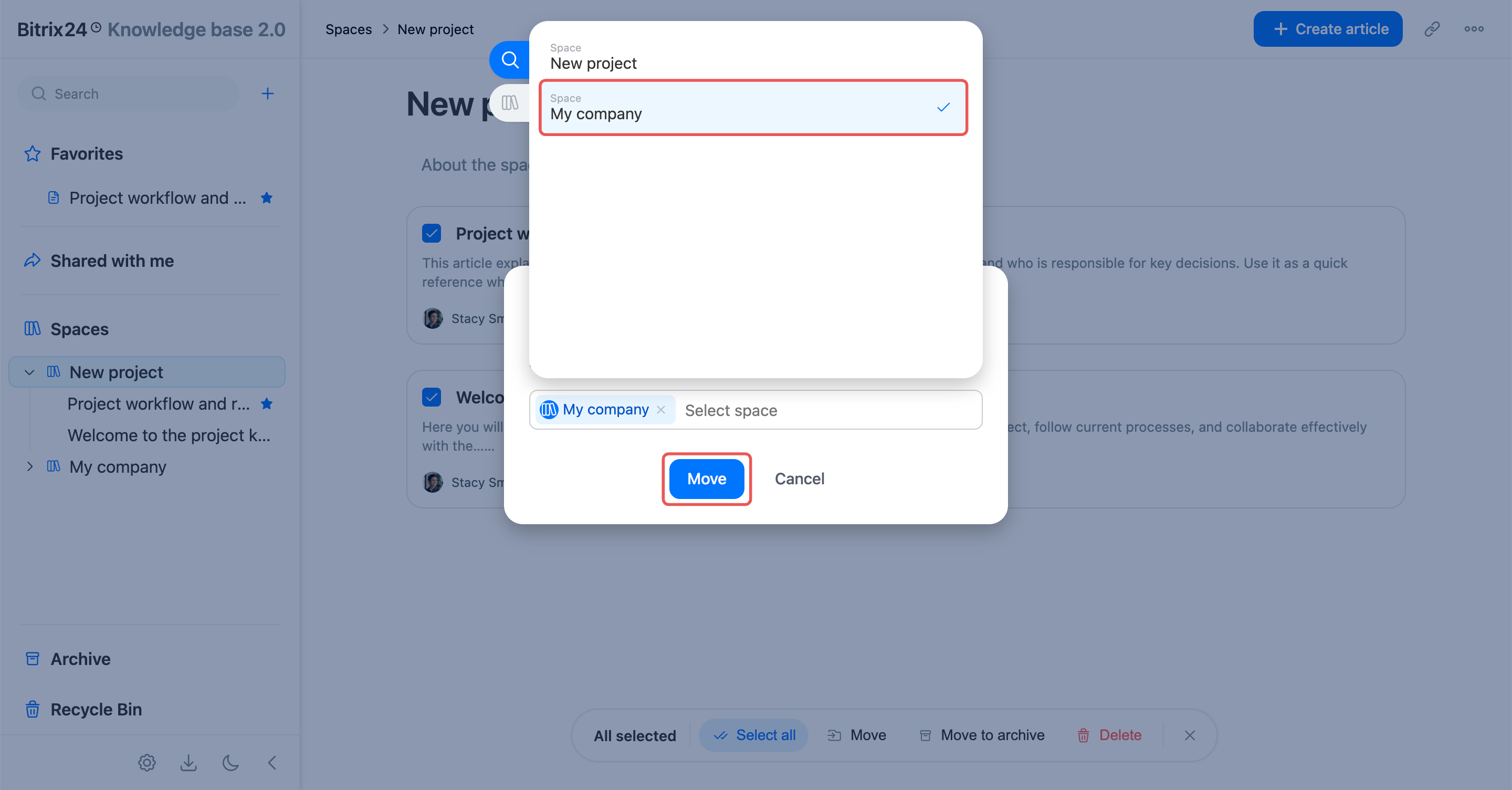
1. Open a space or an article that contains nested articles.
2. Go to the All articles or My articles tab.
3. Select the articles you need.
4. Tap the double checkmark icon at the bottom of the screen to select all articles in the list or clear your selections
5–6. Tap the archive or recycle bin icon to move the articles to the Archive or Recycle Bin. Confirm the action.
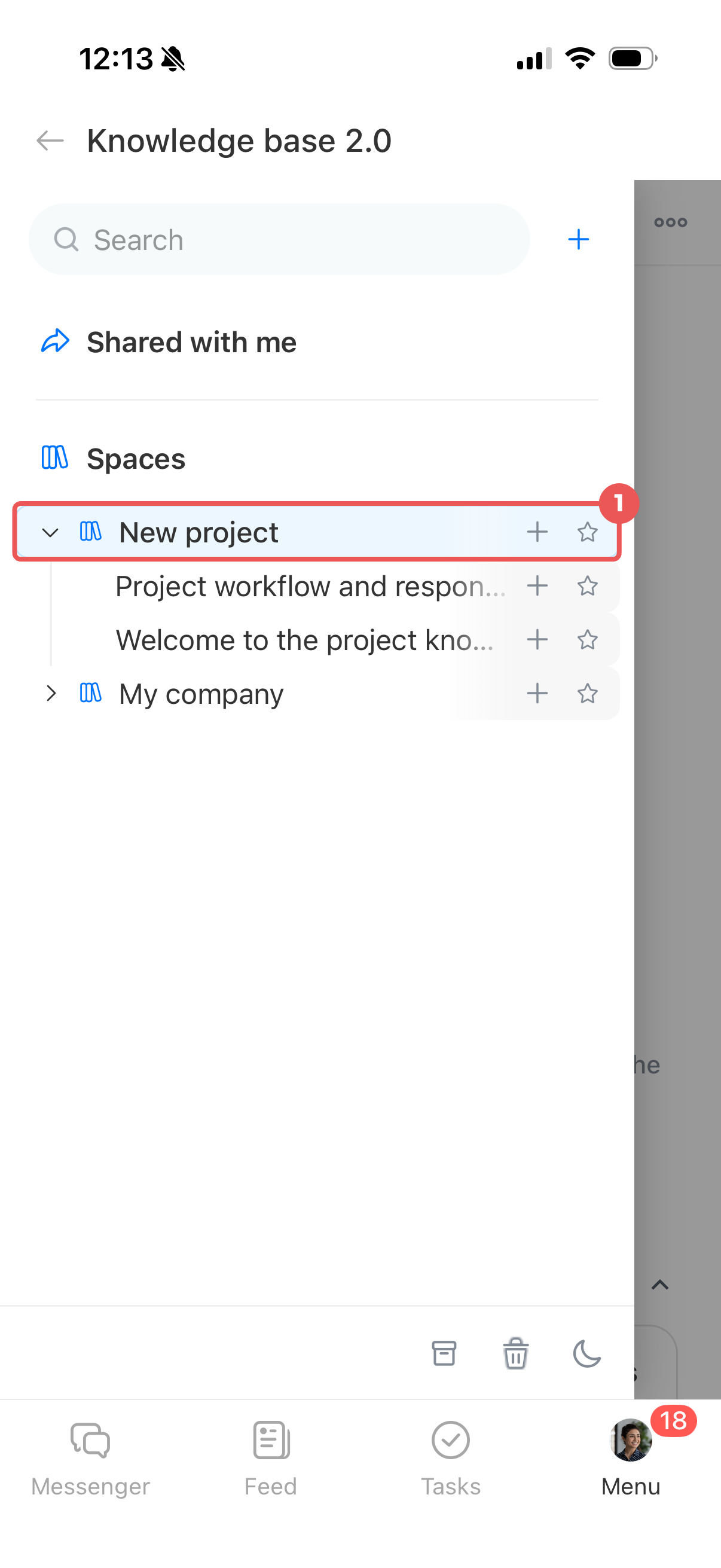
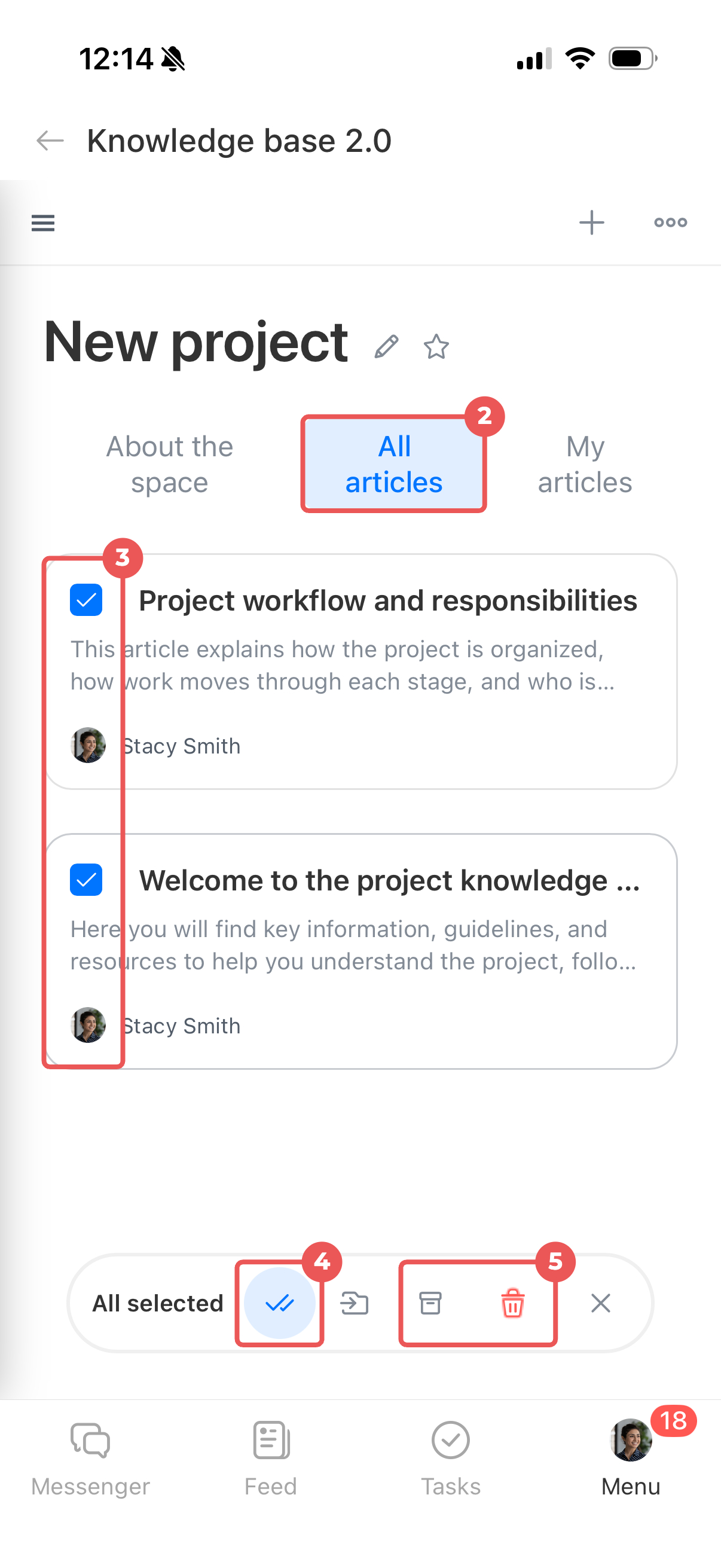
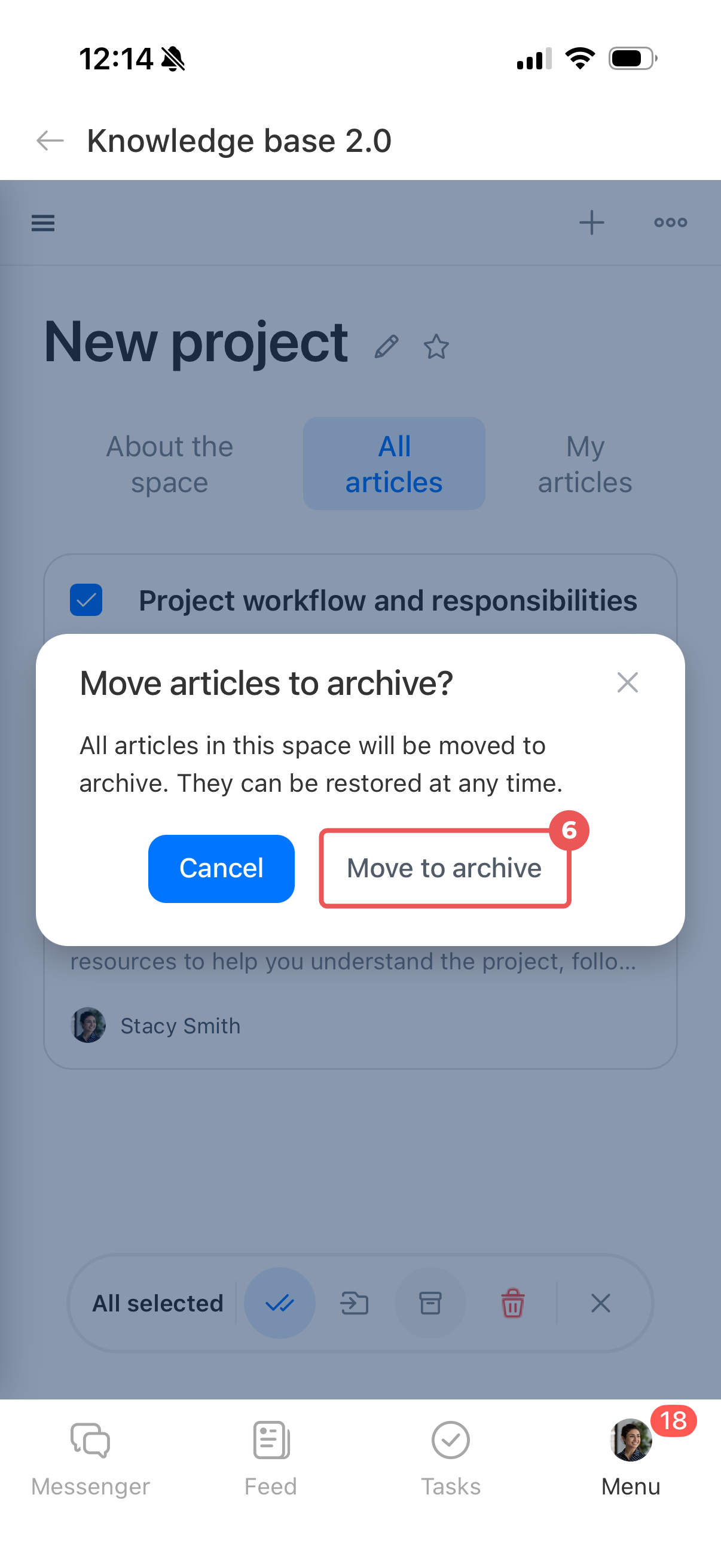
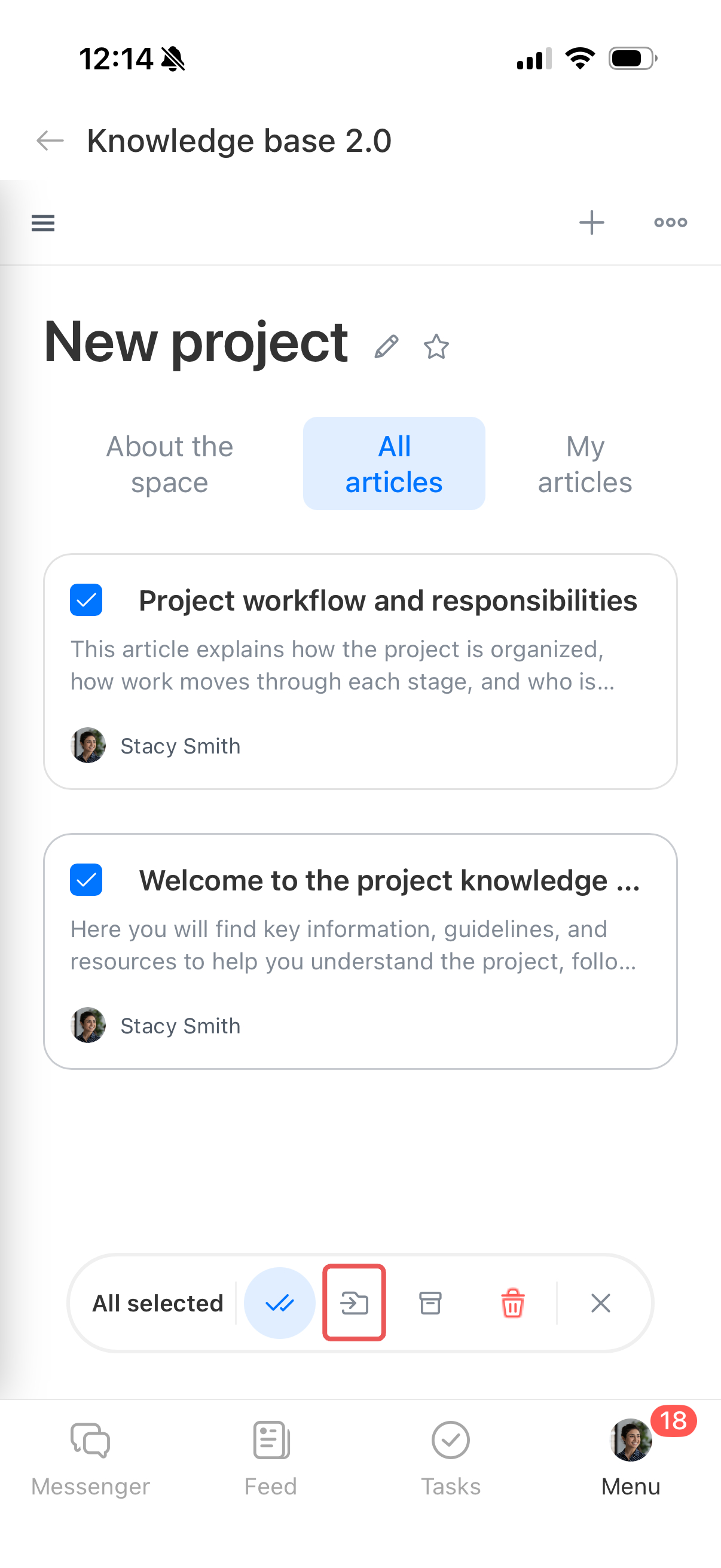
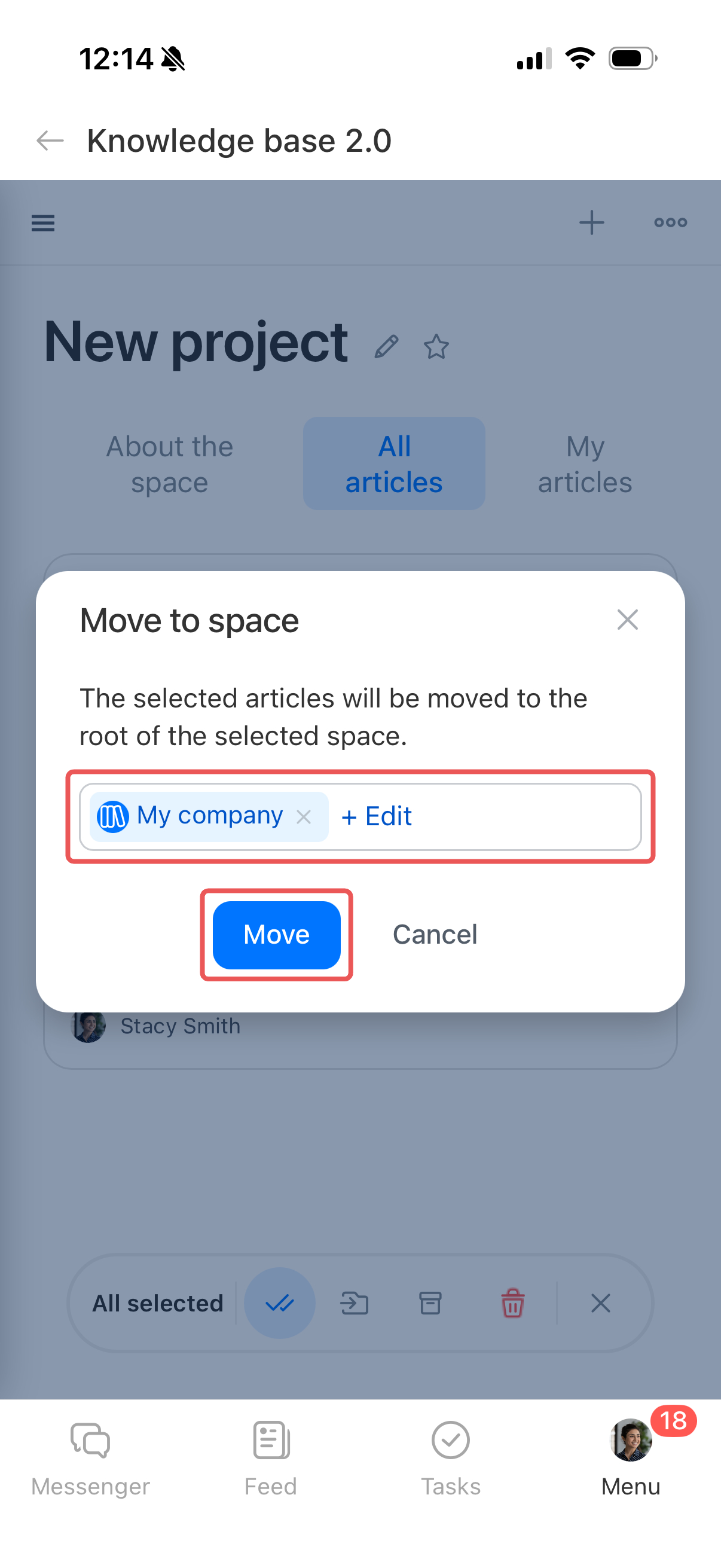
To move the articles to another space, tap Move > Add at the bottom of the screen. Select the destination space and tap Move. The articles appear at the top level of the selected space.
In brief
- In Knowledge base 2.0, you can create separate spaces for different departments, set up their structure, manage access permissions, and edit articles with colleagues.
- Use the control panel on the left to search across all materials, create and view spaces and articles, and configure access permissions and the theme.
- When working with a space or article, you can copy its link, configure access permissions, archive it, or delete it.
- You can upload or download articles in Markdown (.md) format.
- Below the article title, you can see who made the latest edits and when, and how many users viewed the materials.
- To manage multiple articles, open a space or an article that contains nested articles. Hover over an article and select the ones you need. At the bottom of the screen, select an option: Move, Move to archive, or Delete.