
You can connect Telegram to a Bitrix24 Open Channel in a few steps using a Telegram chat bot. After you connect the bot, customers can contact you through Telegram, and you can reply in Bitrix24 Messenger. Bitrix24 saves the chat history in the related CRM record.
To connect a Telegram bot, you need an access token. You can get it when you create a new bot or request it for an existing bot. You can do this in the Telegram web app or mobile app.
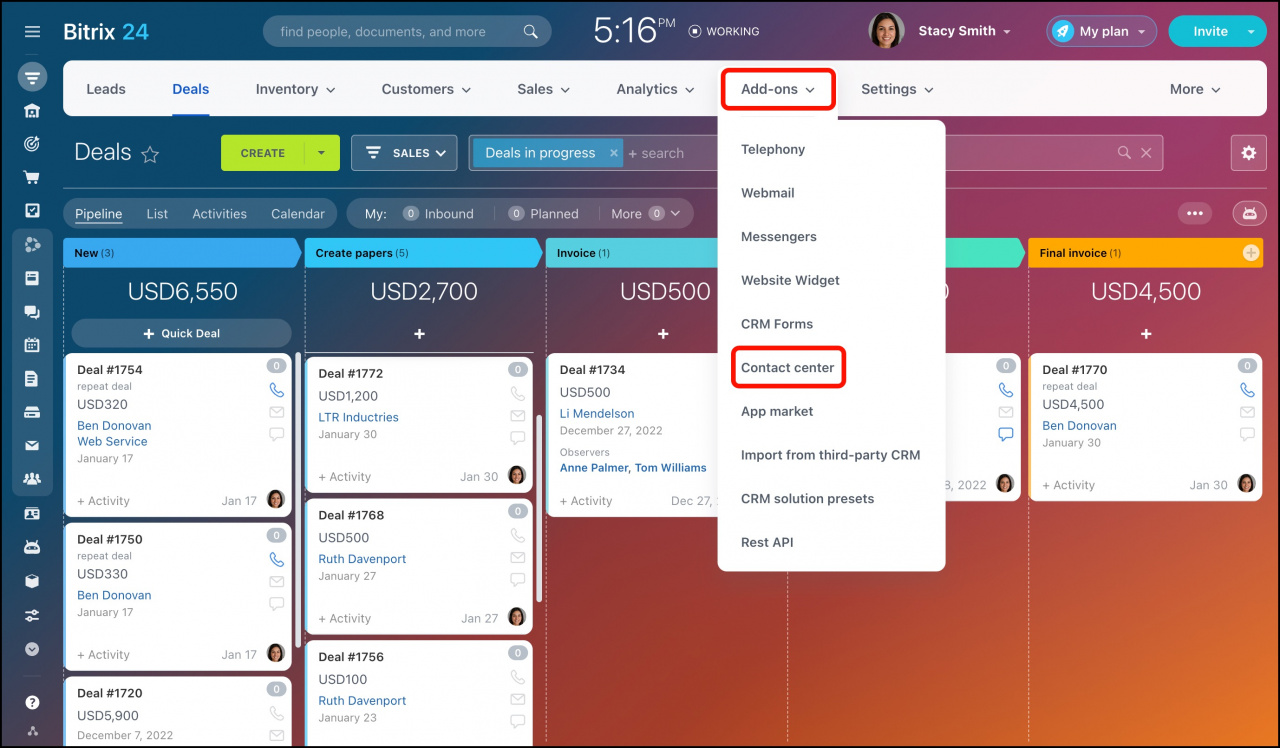
- Go to CRM > Contacts > Contact Center.
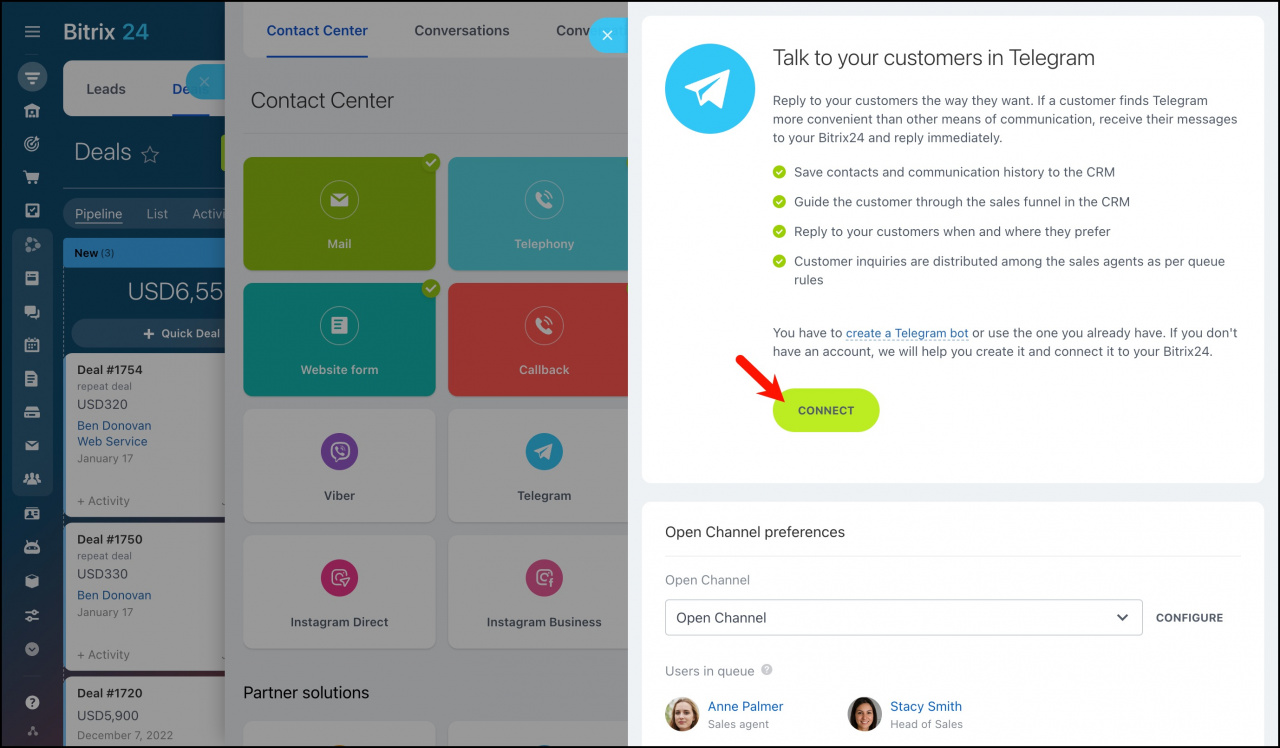
- Select Telegram and click Connect.
Create a new bot
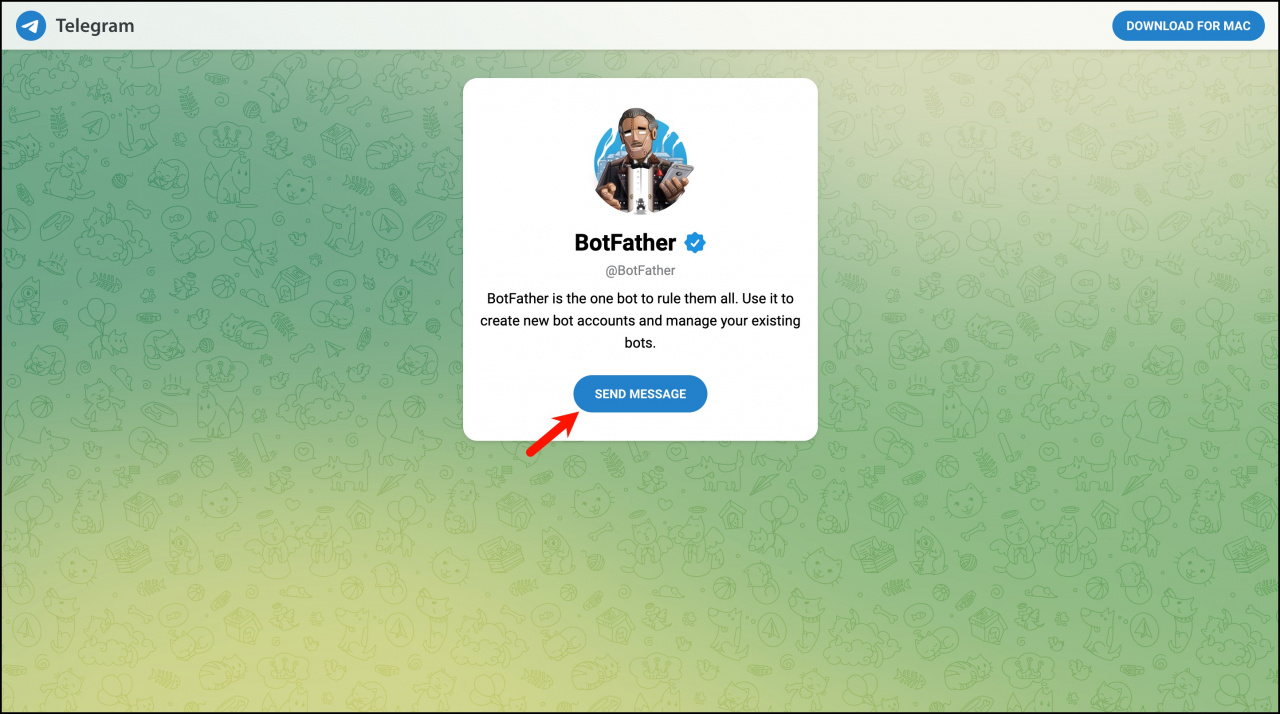
- Open the Telegram BotFather link and click Send Message.
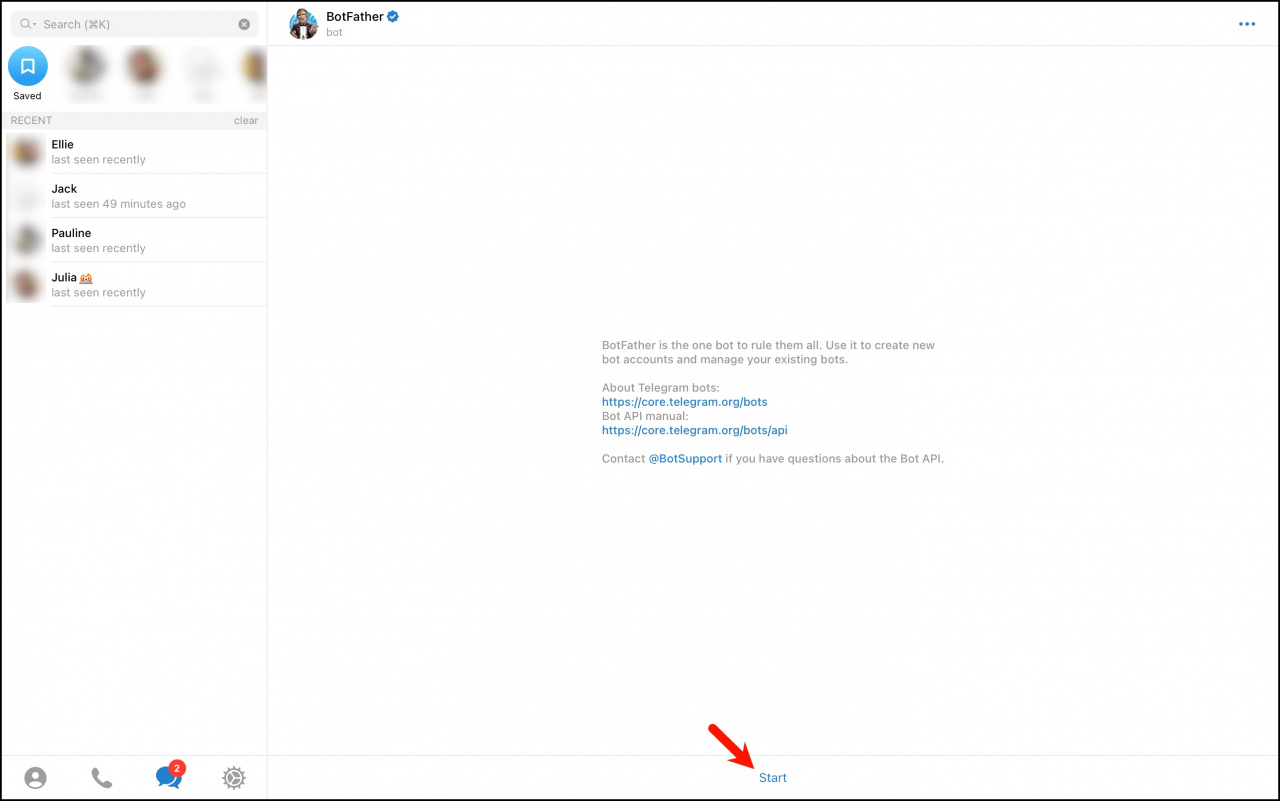
- Click Start.
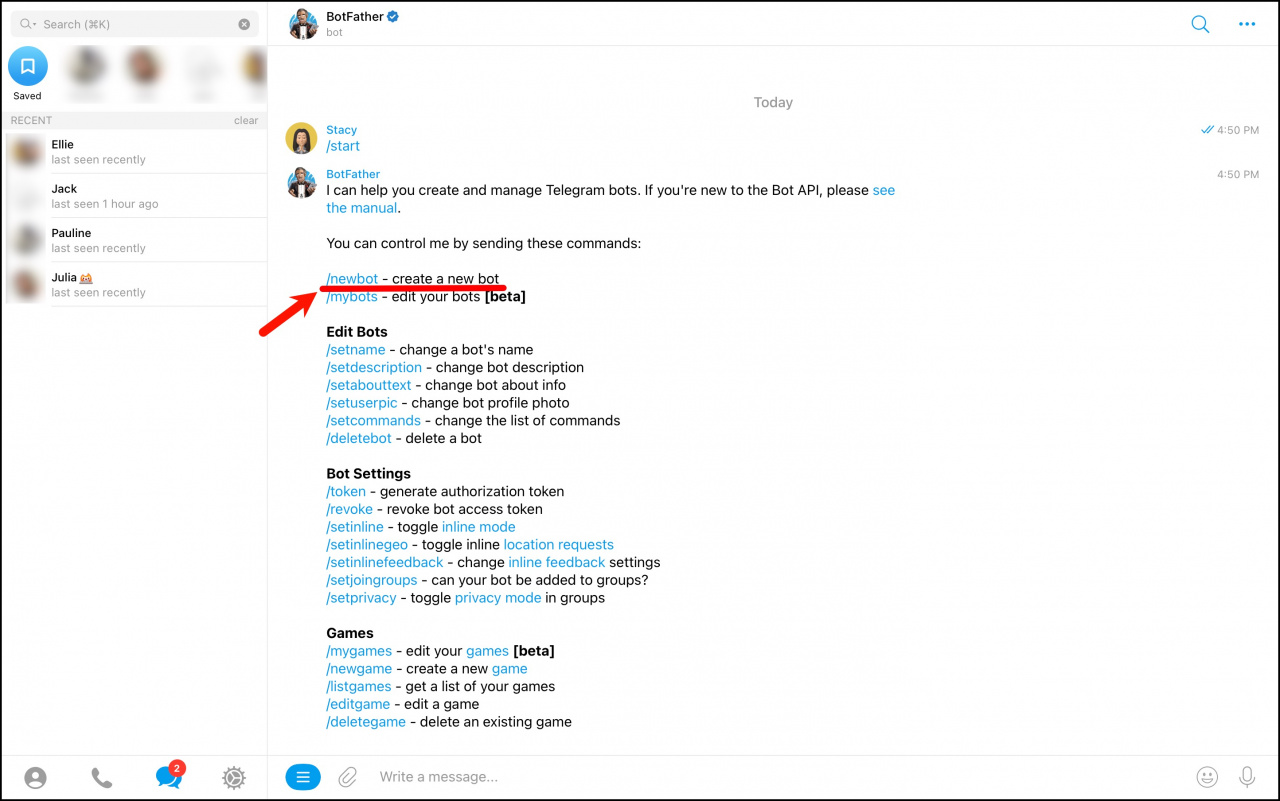
- Enter the
/newbotcommand.
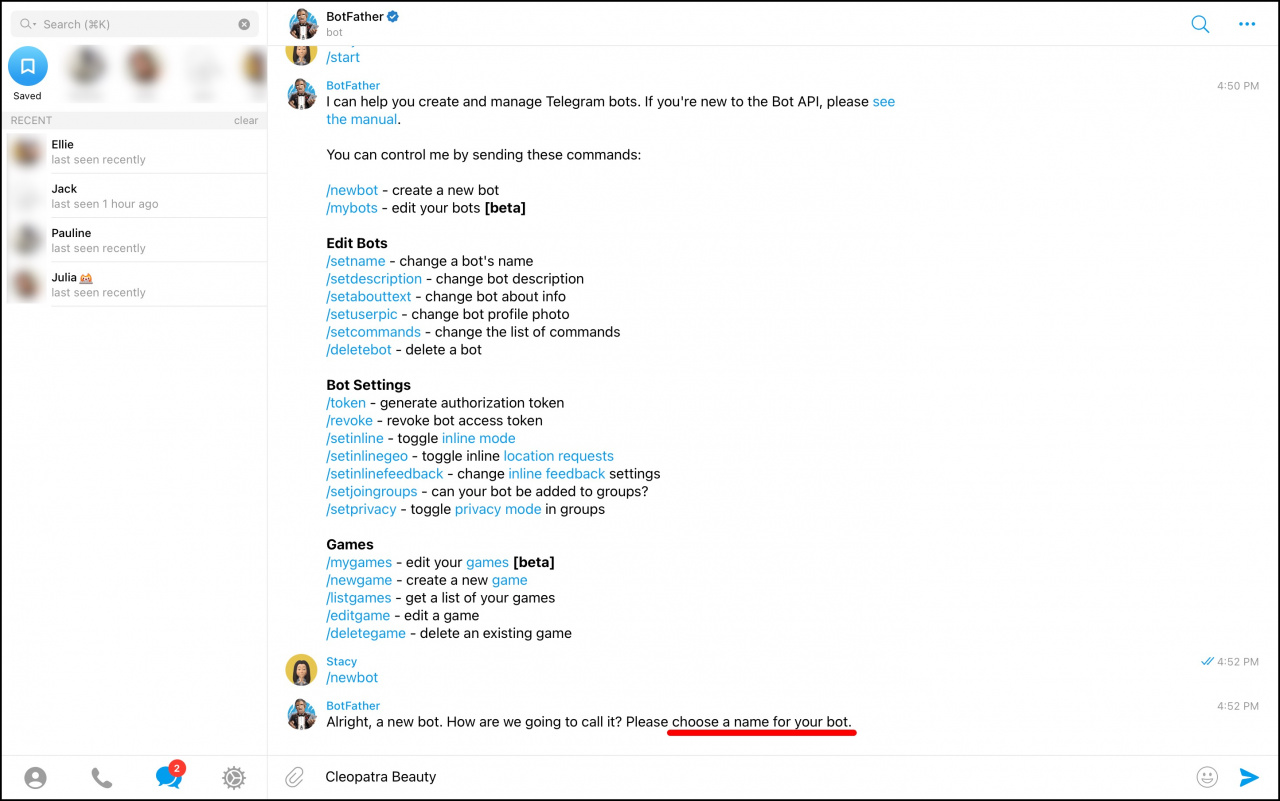
Enter a name for your bot. Customers will see this name in Telegram. It also appears in the contact and channel lists.
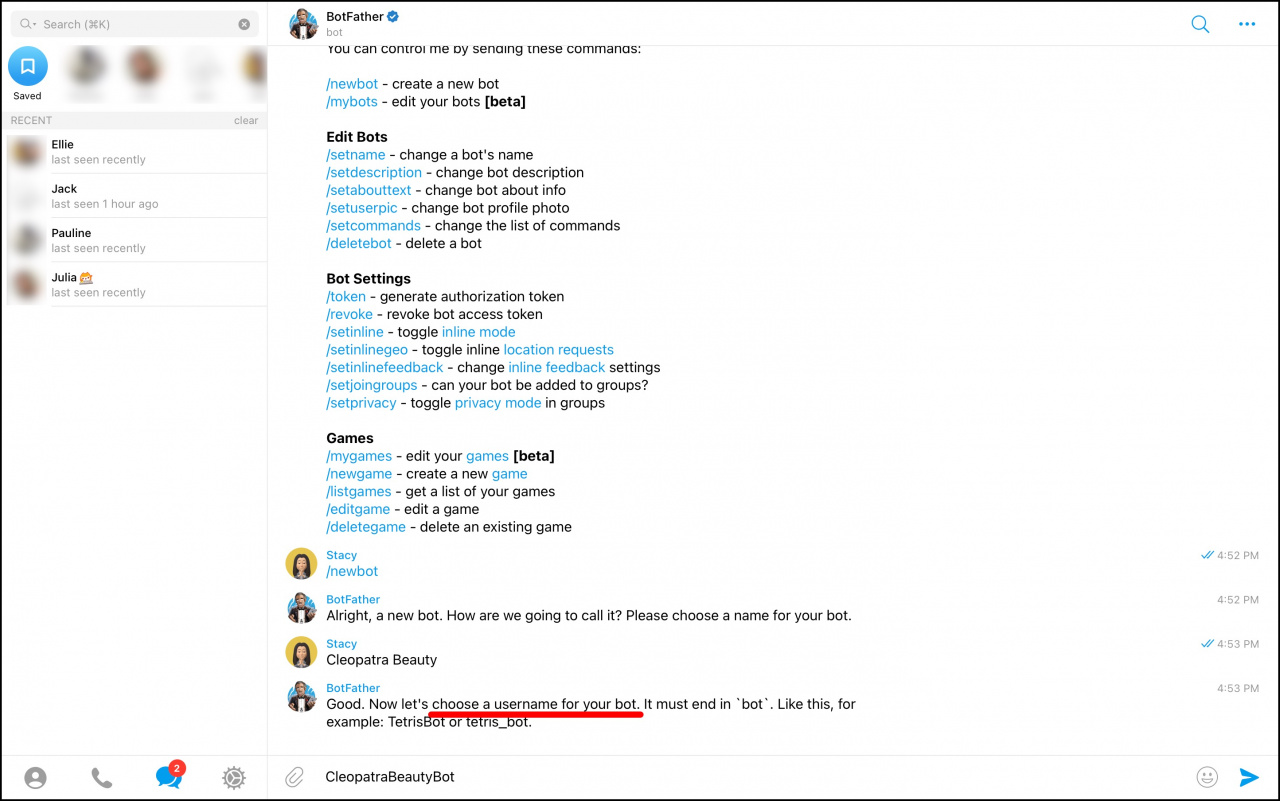
Enter a username for the bot. The username must end with bot.
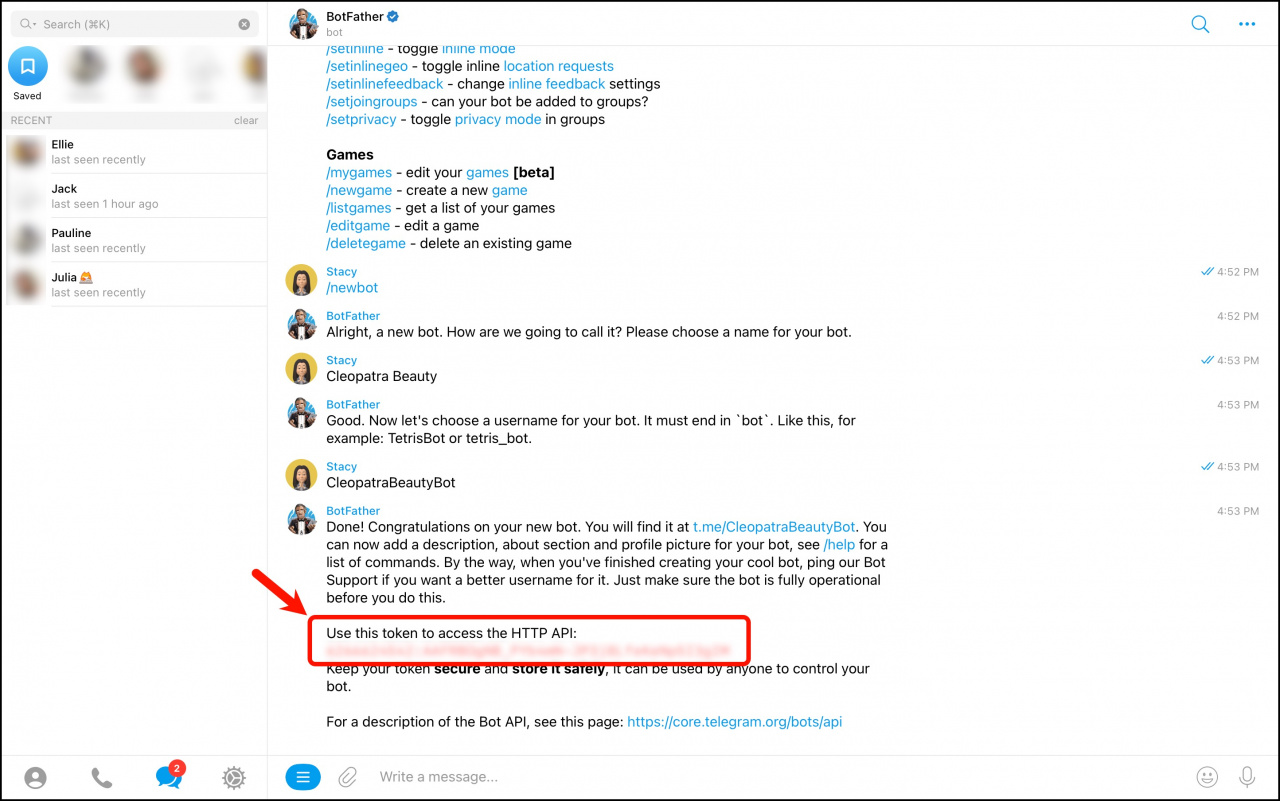
After the bot is created, copy the access token.
Telegram bots support one-on-one chats only. We recommend disabling groups so users cannot add your bot to group chats.
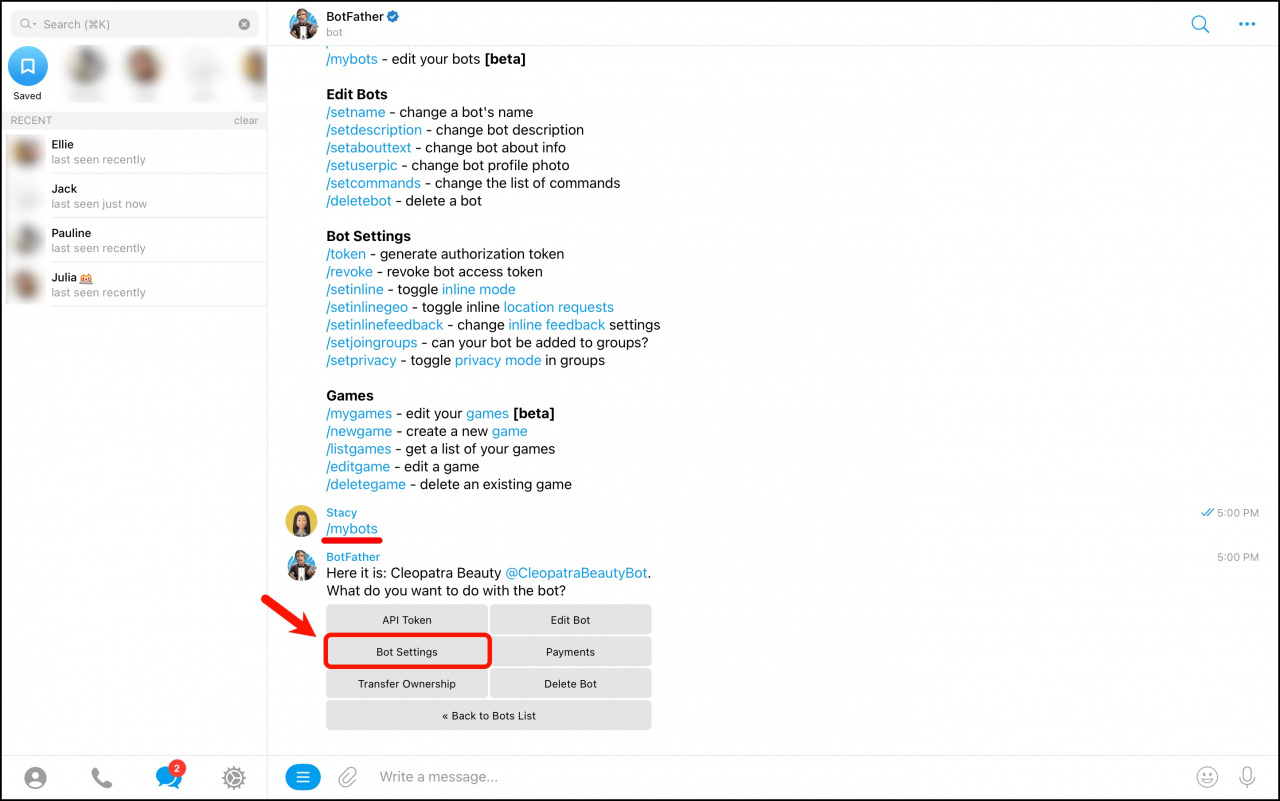
- Enter the
/mybotscommand. - Select your bot from the list.
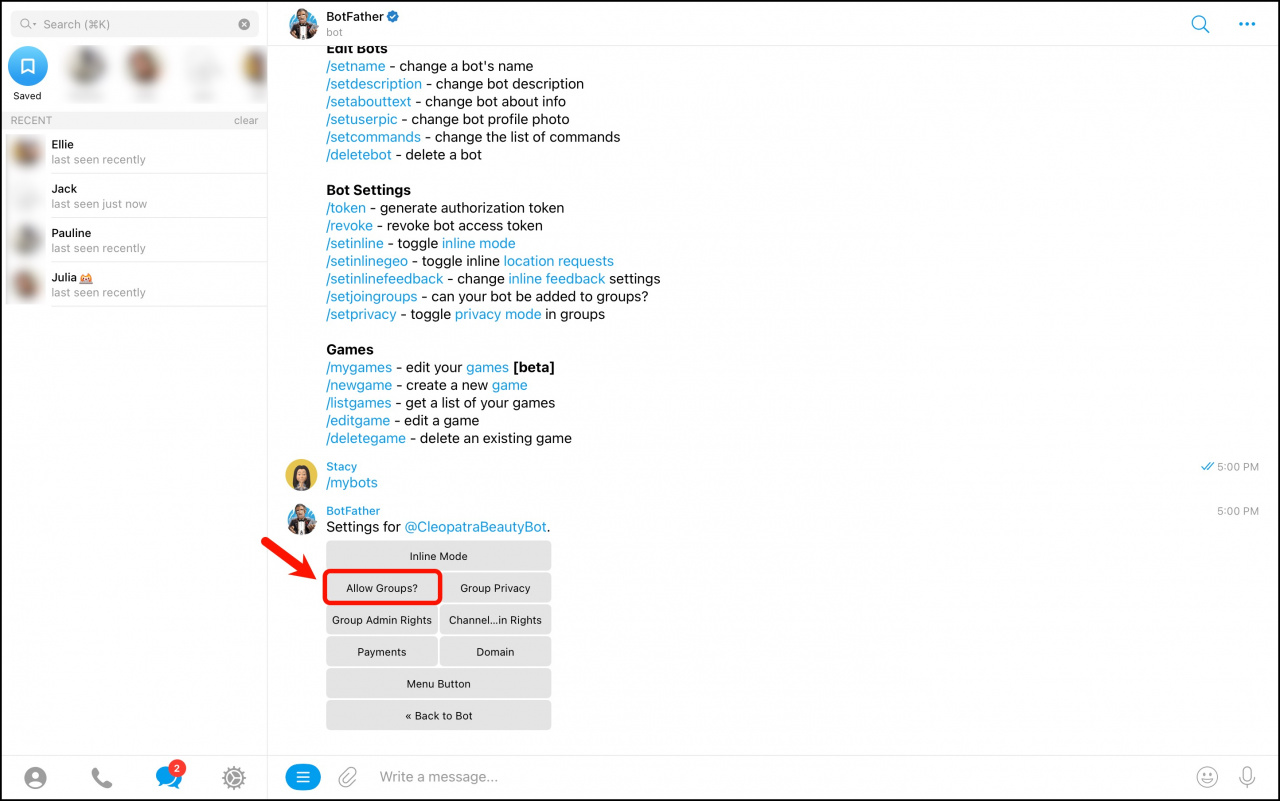
- Open Bot Settings.
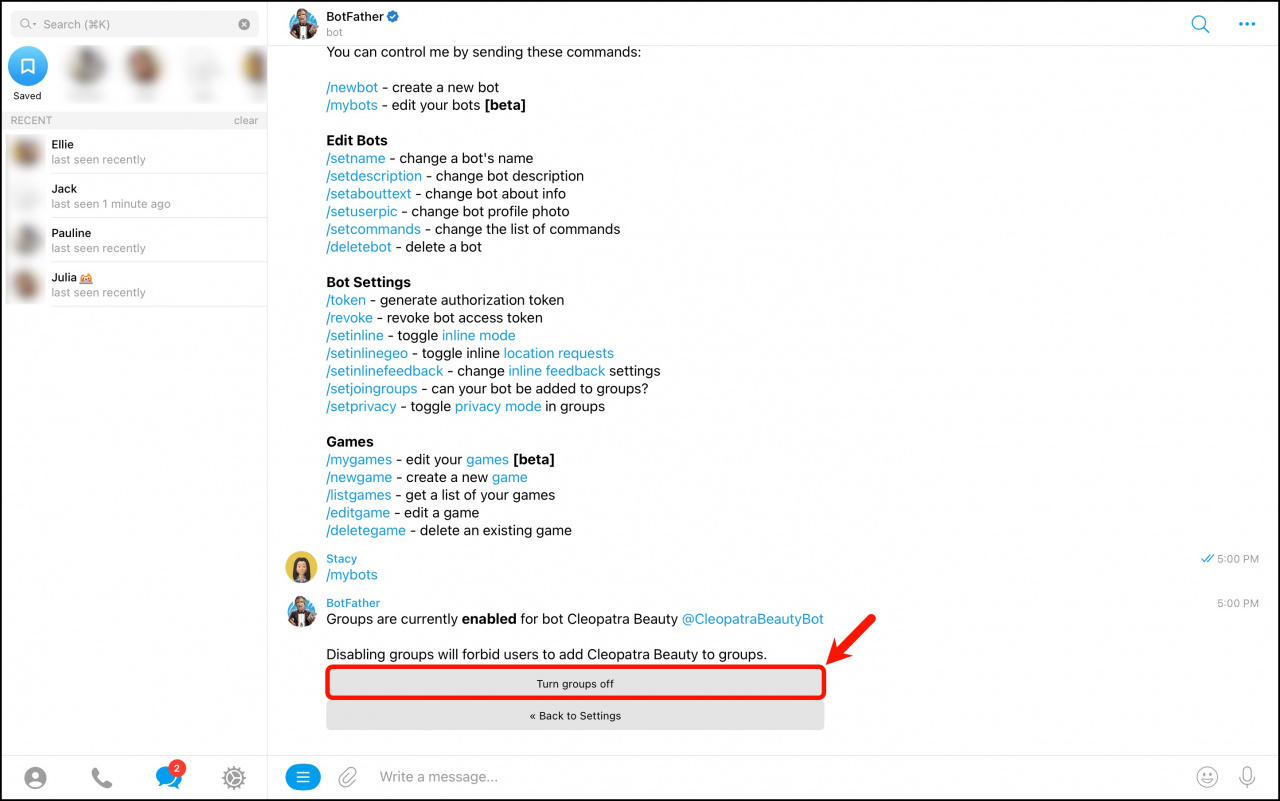
- Click Allow Groups?
- Click Turn groups off.
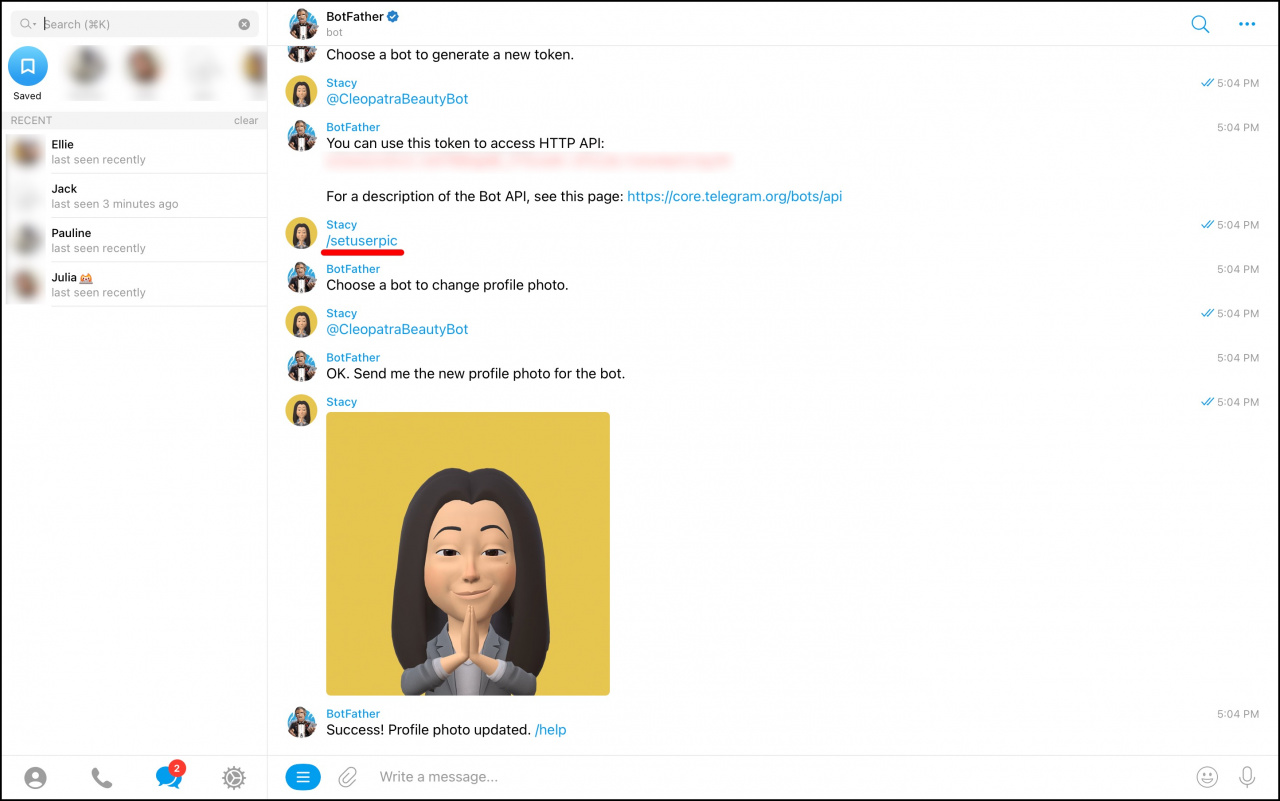
To add a profile picture for the bot:
- Enter the
/setuserpiccommand. - Select the bot.
- Send an image in the chat.
Get an access token for an existing bot
If you already have a Telegram bot but do not know the access token:
- Open BotFather.
- Enter the
/tokencommand. - Select the bot you want to connect to Bitrix24.
- Copy the access token.
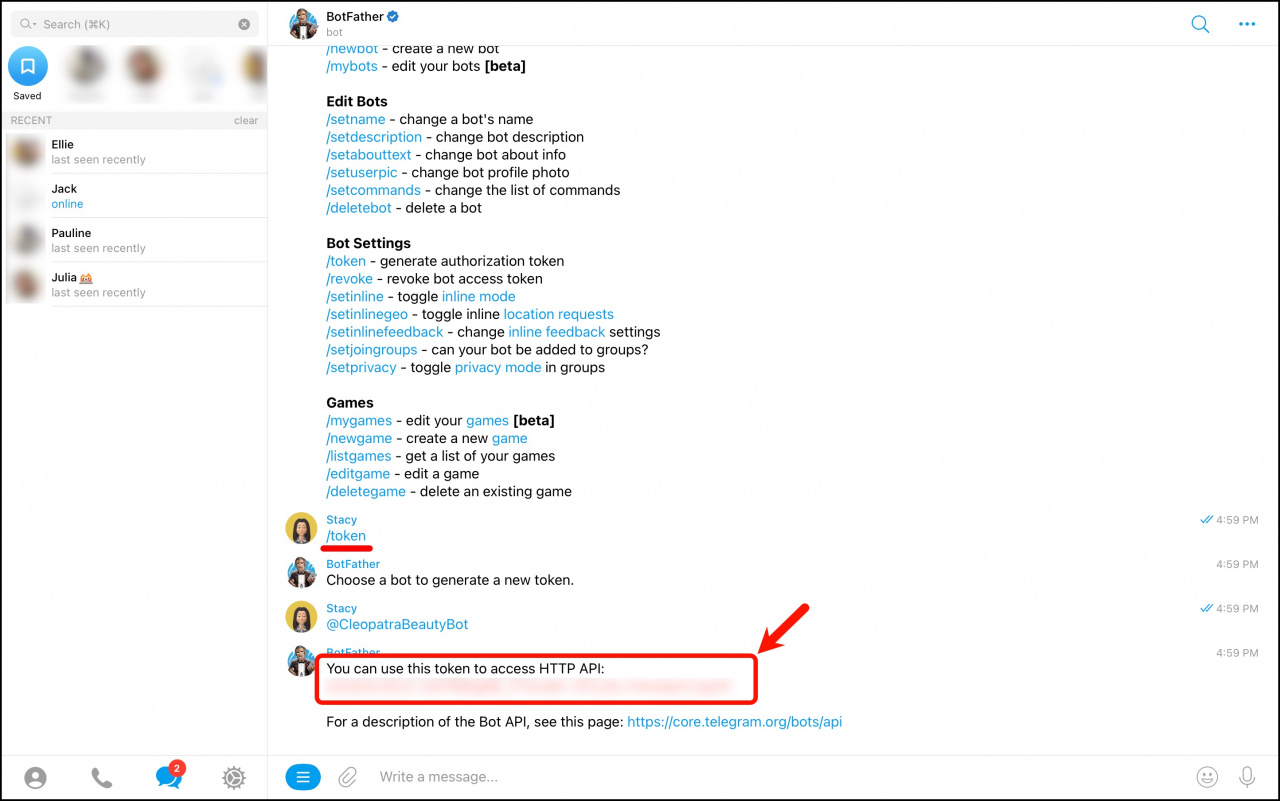
To revoke the current token and create a new one:
- Enter the
/revokecommand. - Select your bot.
- Copy the new access token.
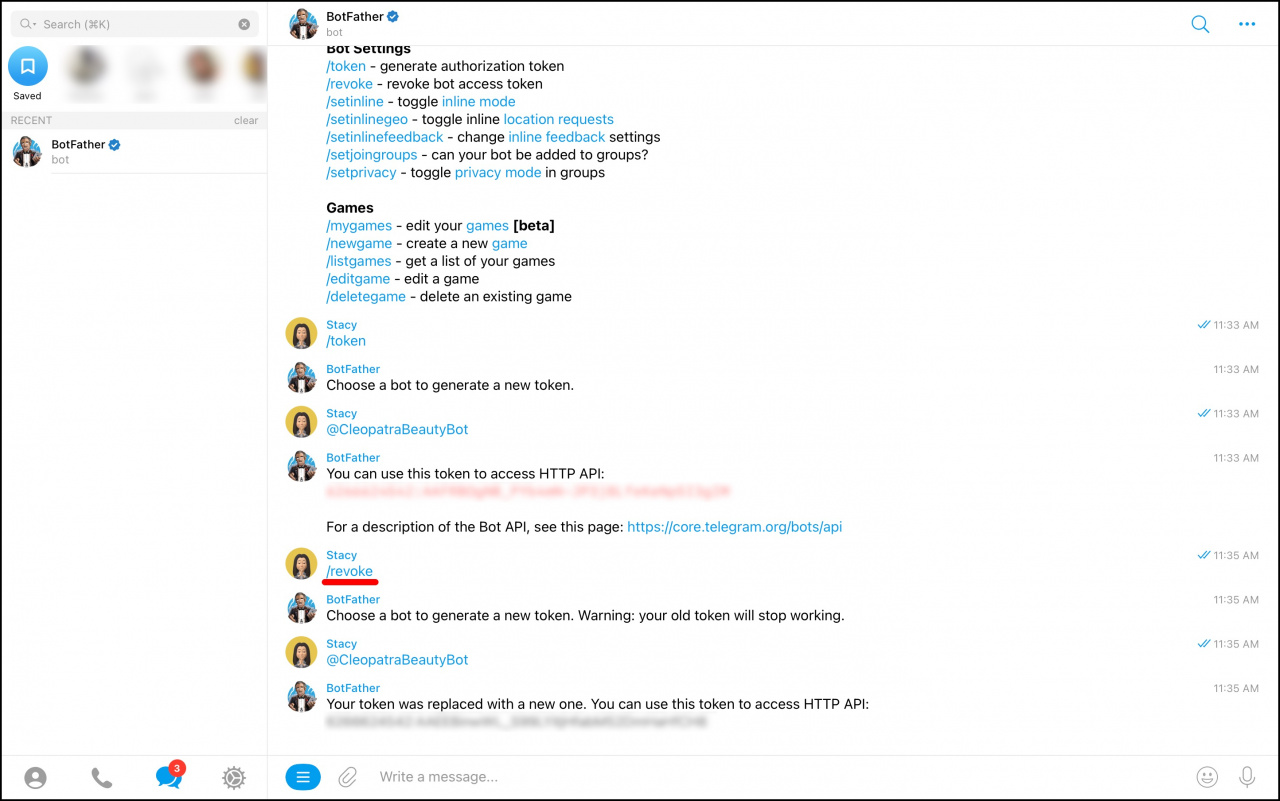
/revoke command. Update the token in the Telegram channel settings in Bitrix24.Finish the connection
- Paste the access token into the communication channel settings in Bitrix24.
- If you want to connect your online store to the Telegram bot, enable the related option and click Connect.
- Configure the Open Channel and agent queue in the Open Channel preferences section.
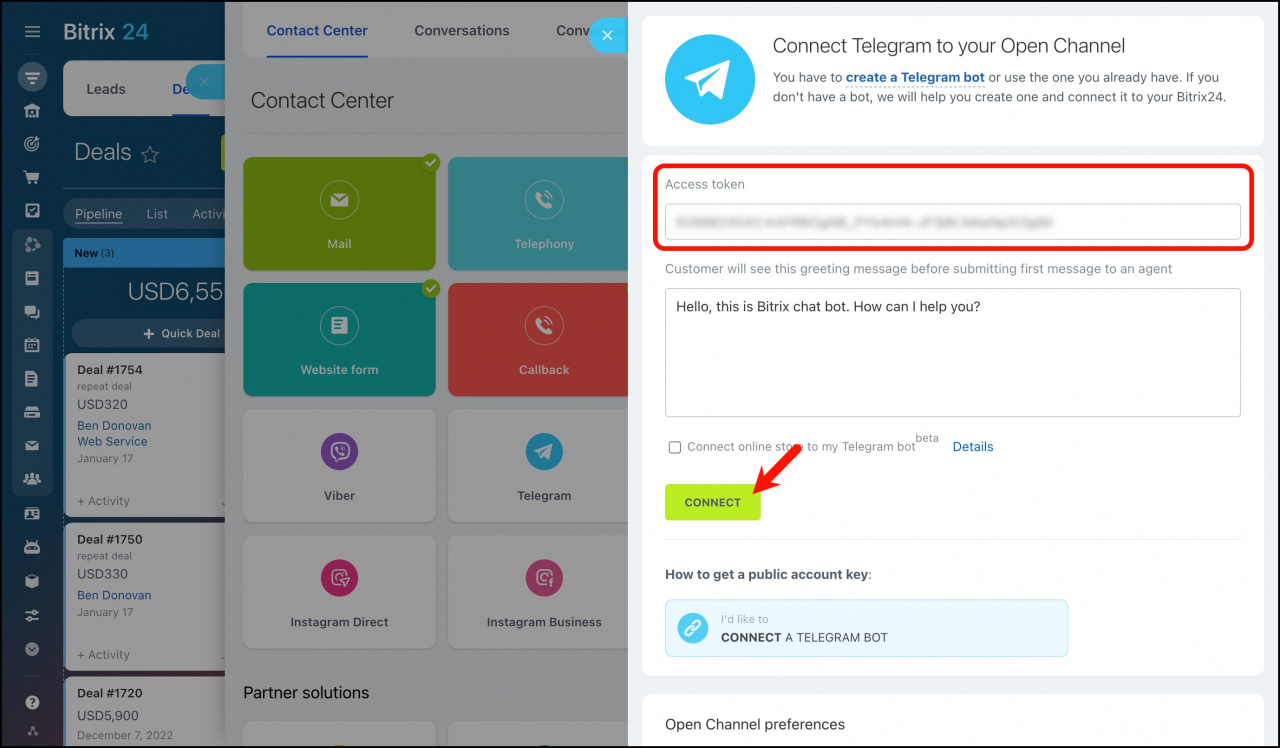
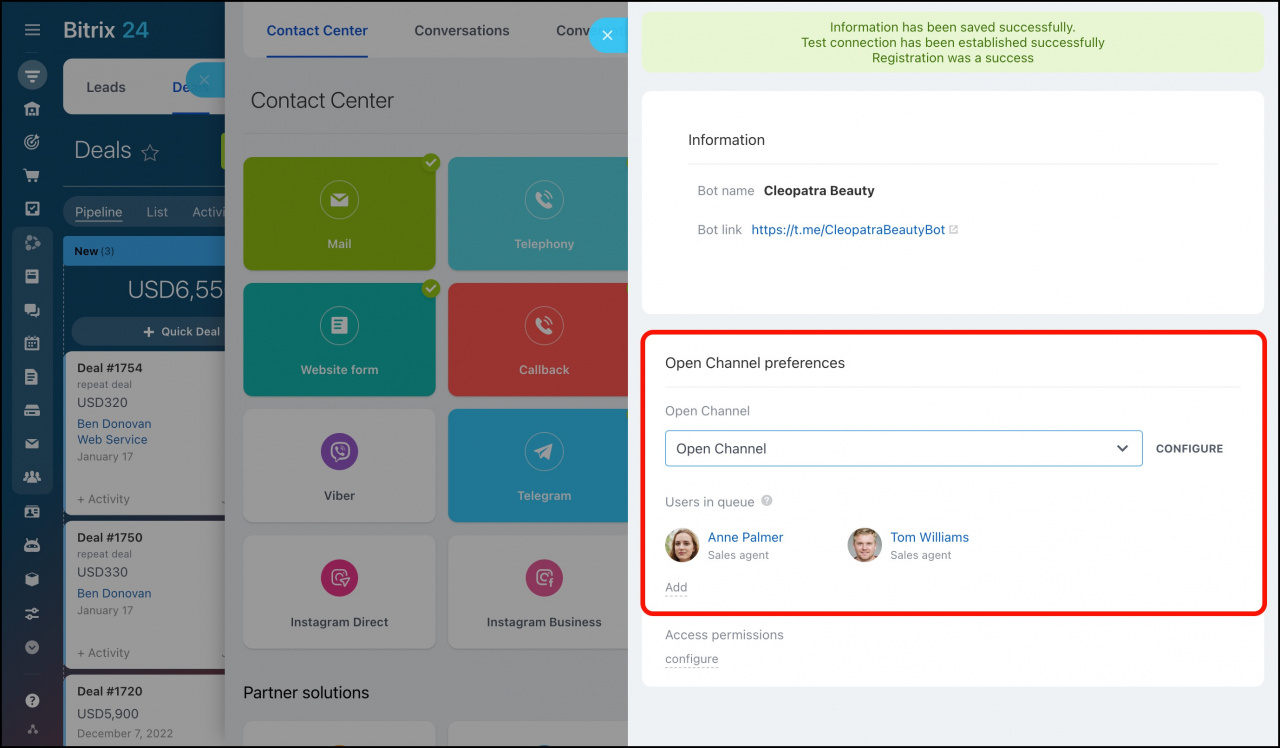
Done. Telegram is now connected to Bitrix24, and you can communicate with customers in Bitrix24 Messenger.
How it works
- A customer opens the website widget and sends a message through Telegram.
- You receive the message in Bitrix24 Messenger.
- If the customer does not exist in CRM, Bitrix24 creates a new lead automatically.
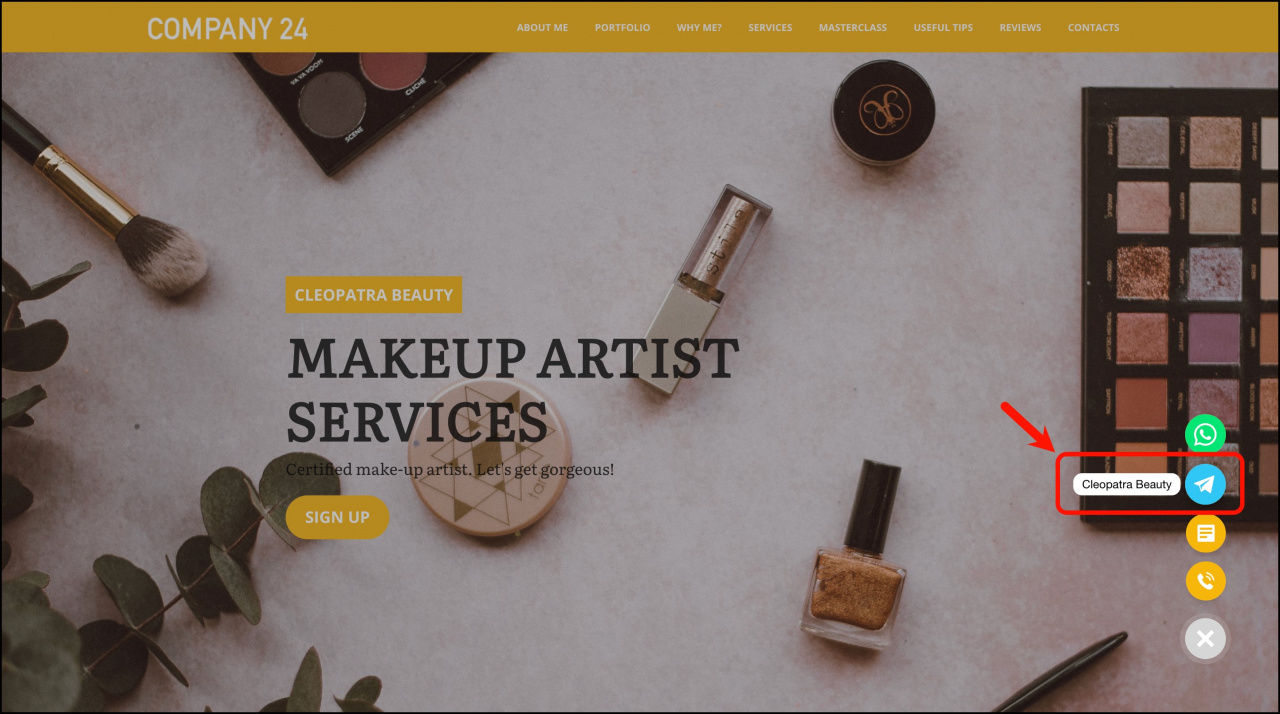
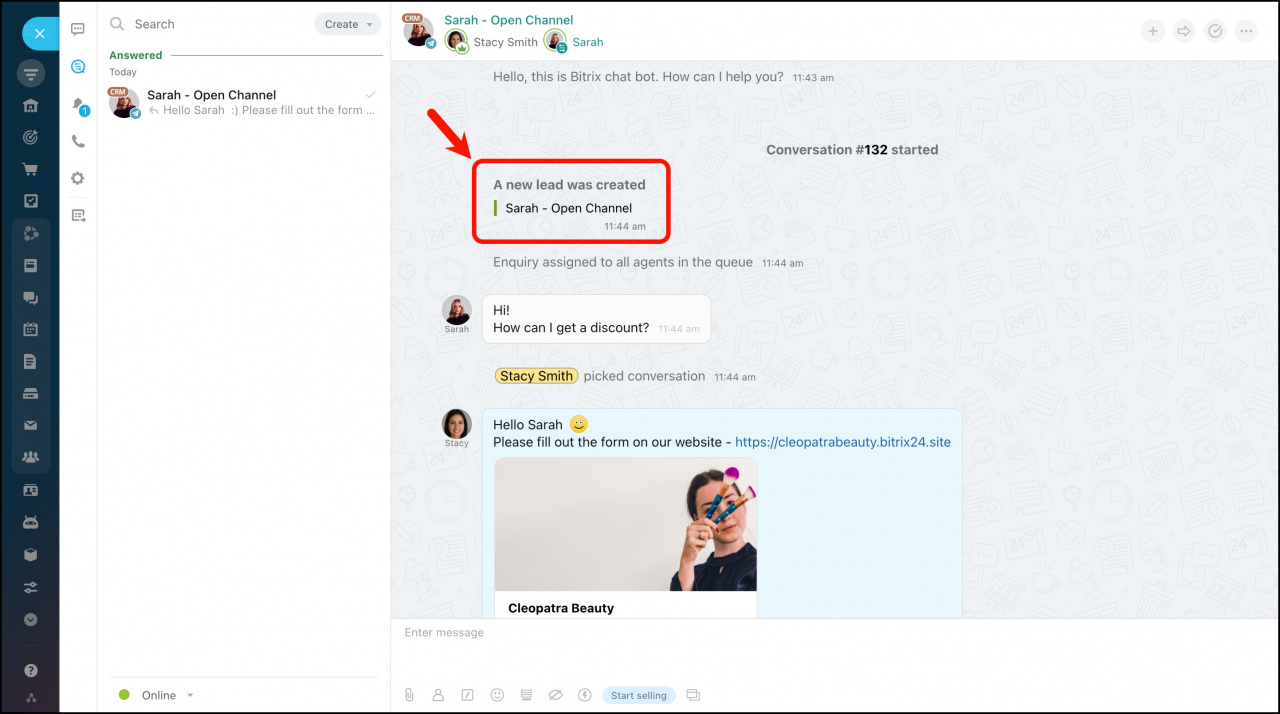
Open Channel settings
Important notes
- You can create up to 20 bots for one Telegram account.
- Telegram API restrictions prevent sending files larger than 50 MB.
- If you use the same Telegram bot token in multiple Bitrix24 accounts, the bot works only with the account that connected it most recently.
- You can edit messages in Telegram chats connected to Bitrix24.
- Telegram does not share the customer’s phone number automatically. Bitrix24 saves the phone number to CRM only if the customer sends it in a message.
You can connect a Telegram bot to Bitrix24 in the mobile app and invite customers to chat directly from your phone.
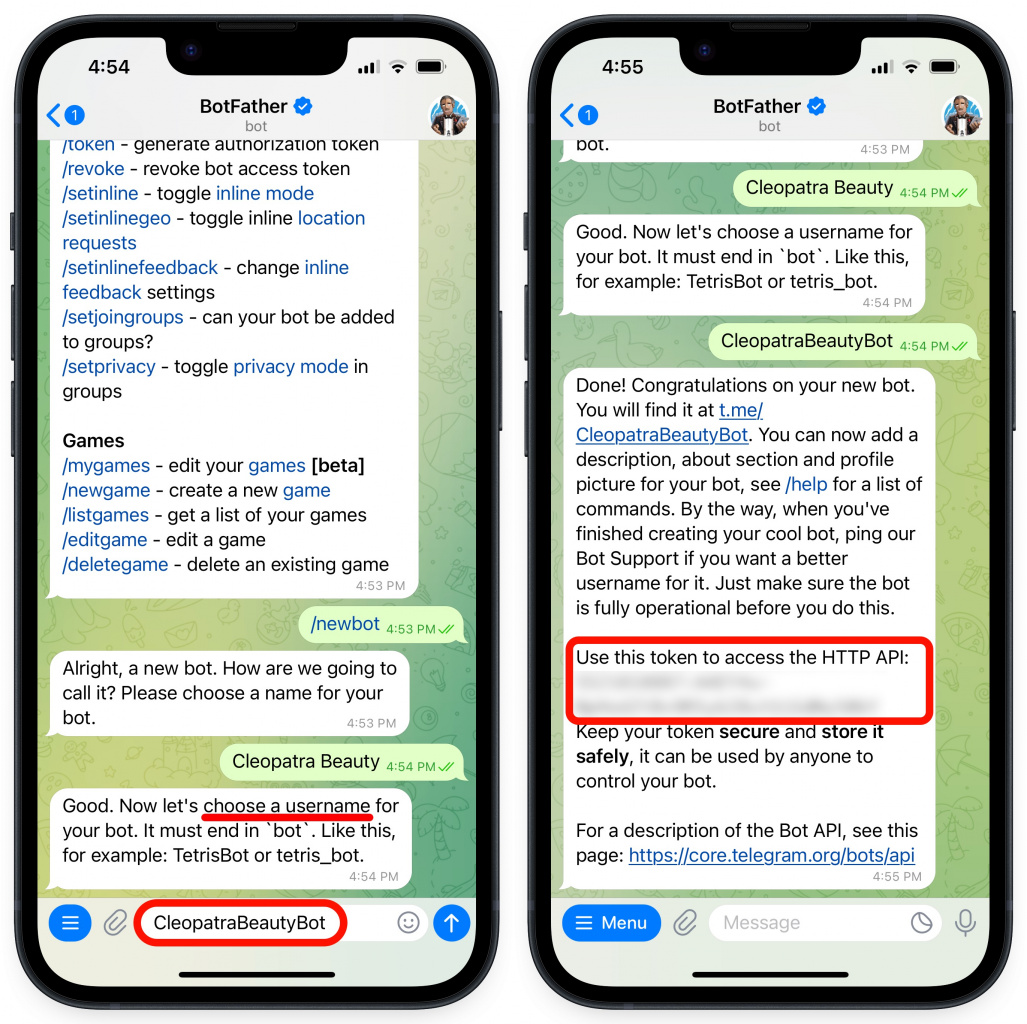
Create a new Telegram bot
- Open the Telegram mobile app.
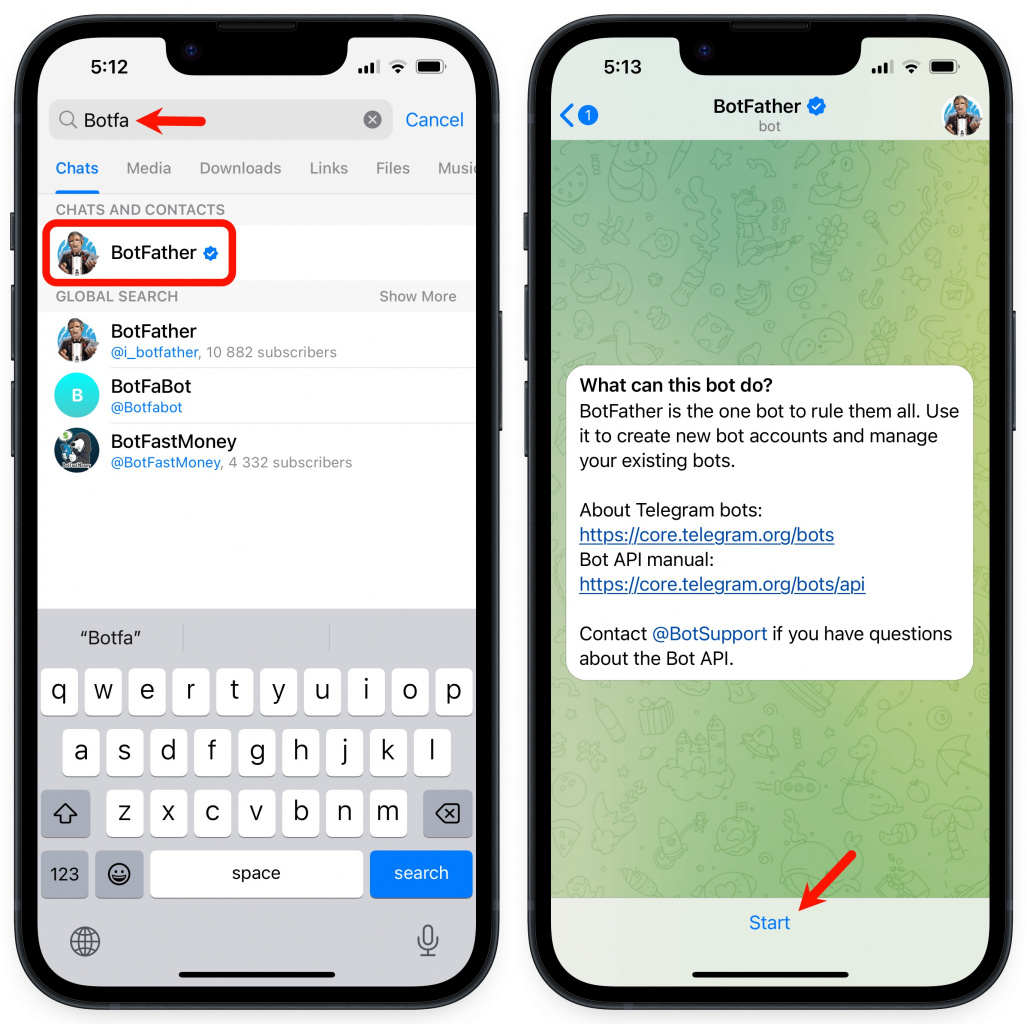
- Find BotFather and tap Start.
- Enter the
/newbotcommand. - Enter a name for your bot. This name appears in the Telegram contact and channel lists.
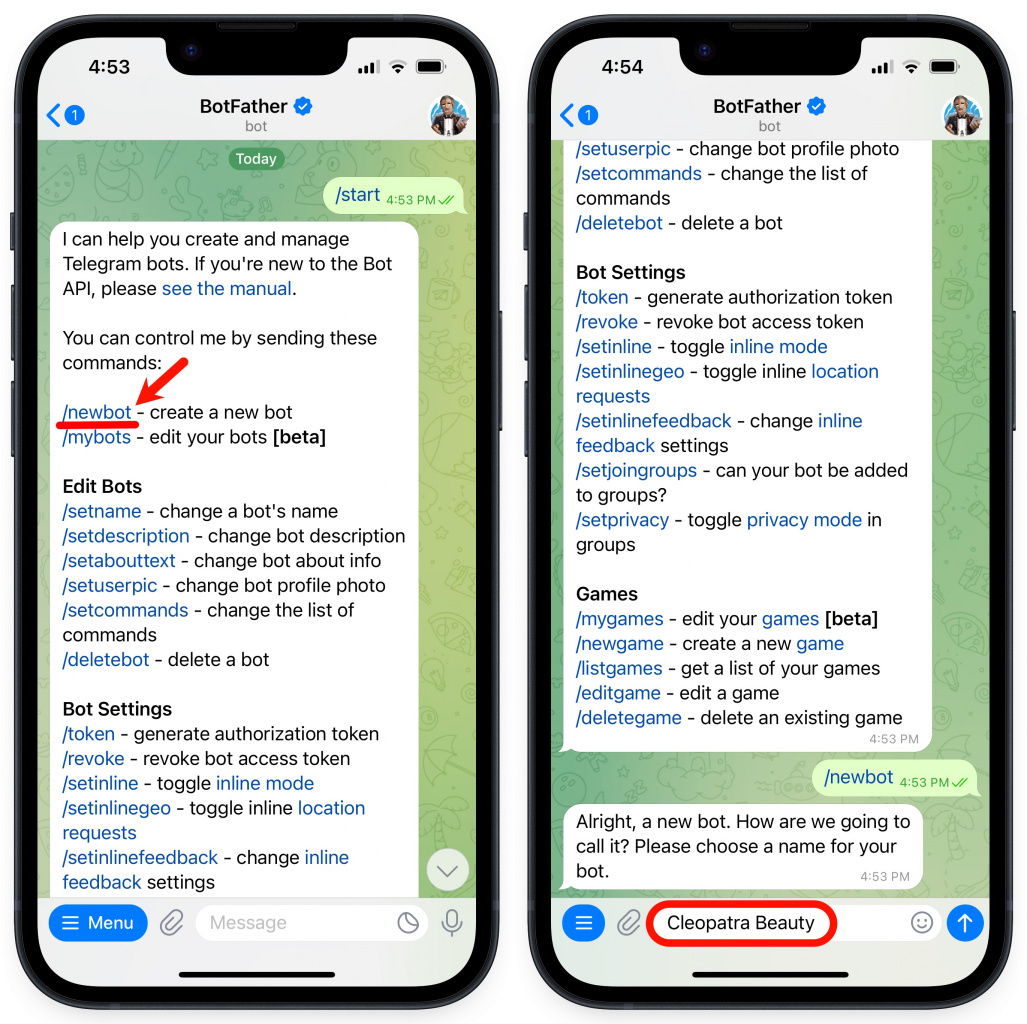
Enter a username for the bot. The username must end with bot.
Customers can find your bot in Telegram by this username. If the username is already in use, enter a different one.
After the bot is created, Telegram generates an access token. Tap the token to copy it.
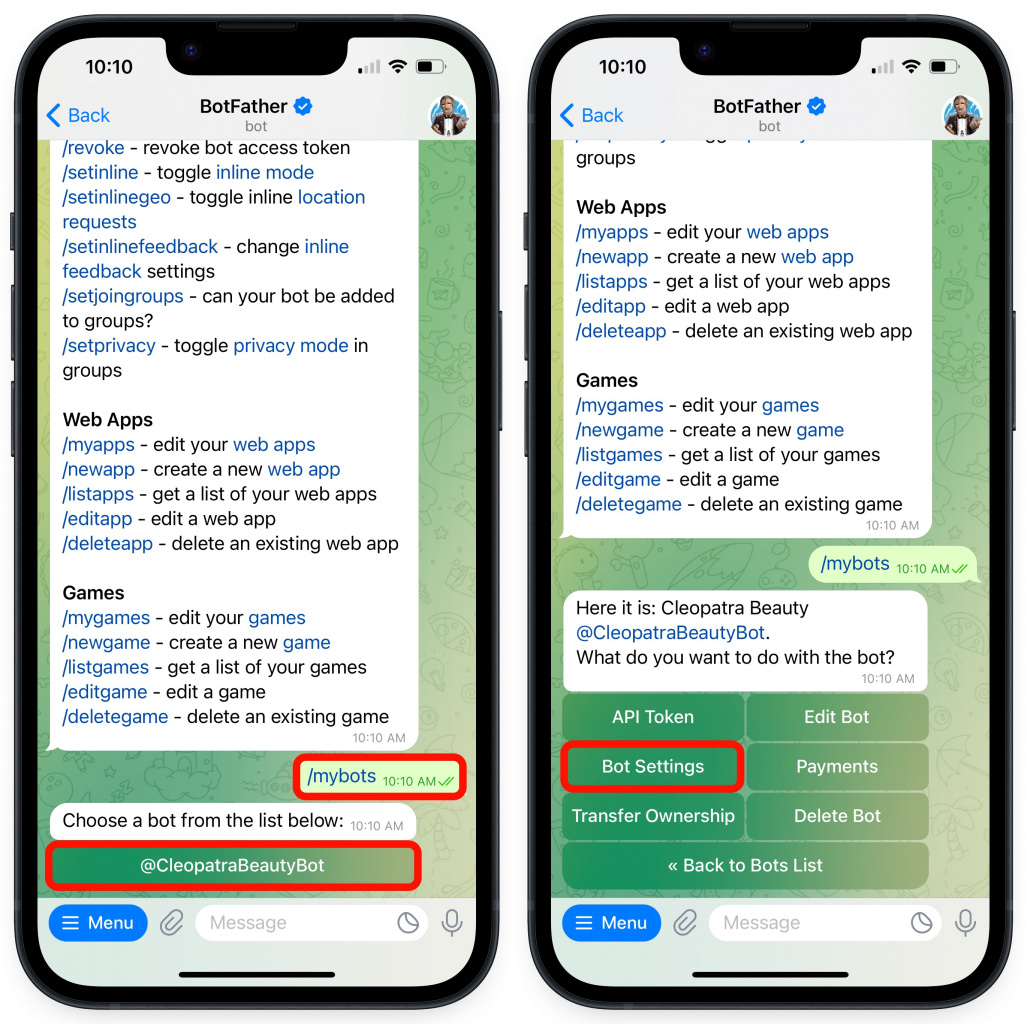
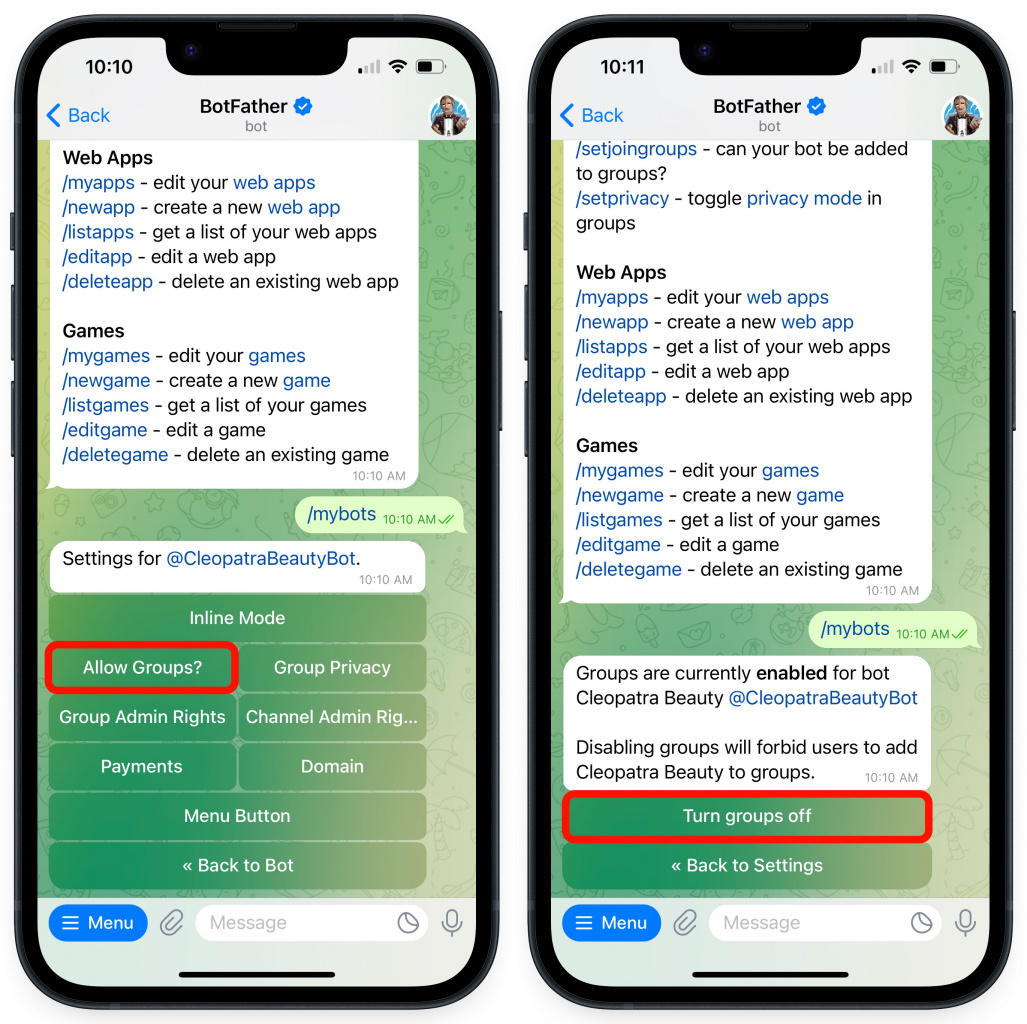
Telegram bots support one-on-one chats only. We recommend disabling groups so users cannot add your bot to group chats.
- Enter the
/mybotscommand. - Select your bot from the list.
- Tap Bot Settings.
- Tap Allow Groups?
- Tap Turn groups off.
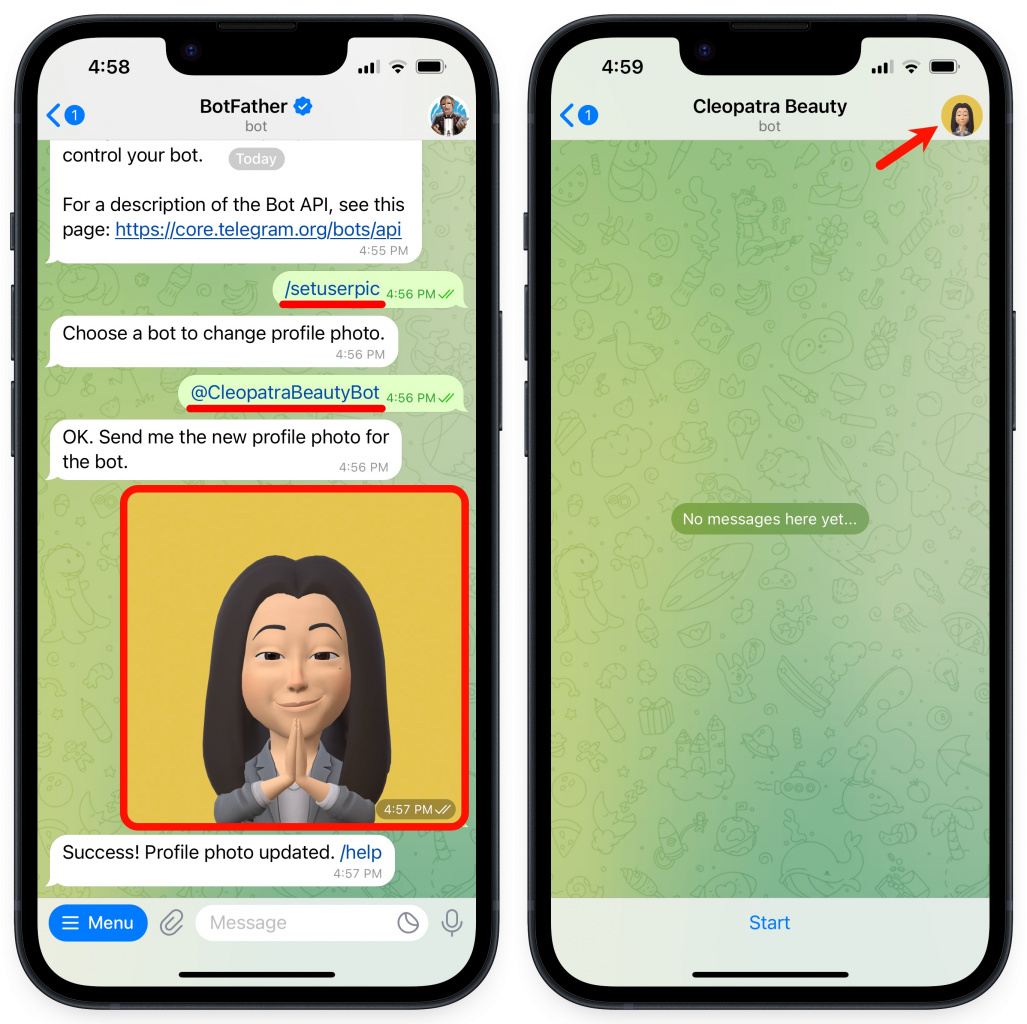
To add a profile picture for the bot:
- Enter the
/setuserpiccommand. - Select the bot.
- Send an image in the chat.
Get an access token for an existing bot
If you already have a Telegram bot but do not know the access token:
- Open the Telegram mobile app.
- Find BotFather.
- Enter the
/tokencommand. - Select your bot and copy the access token.
To revoke the current token and create a new one:
- Enter the
/revokecommand. - Select your bot.
- Copy the new access token.
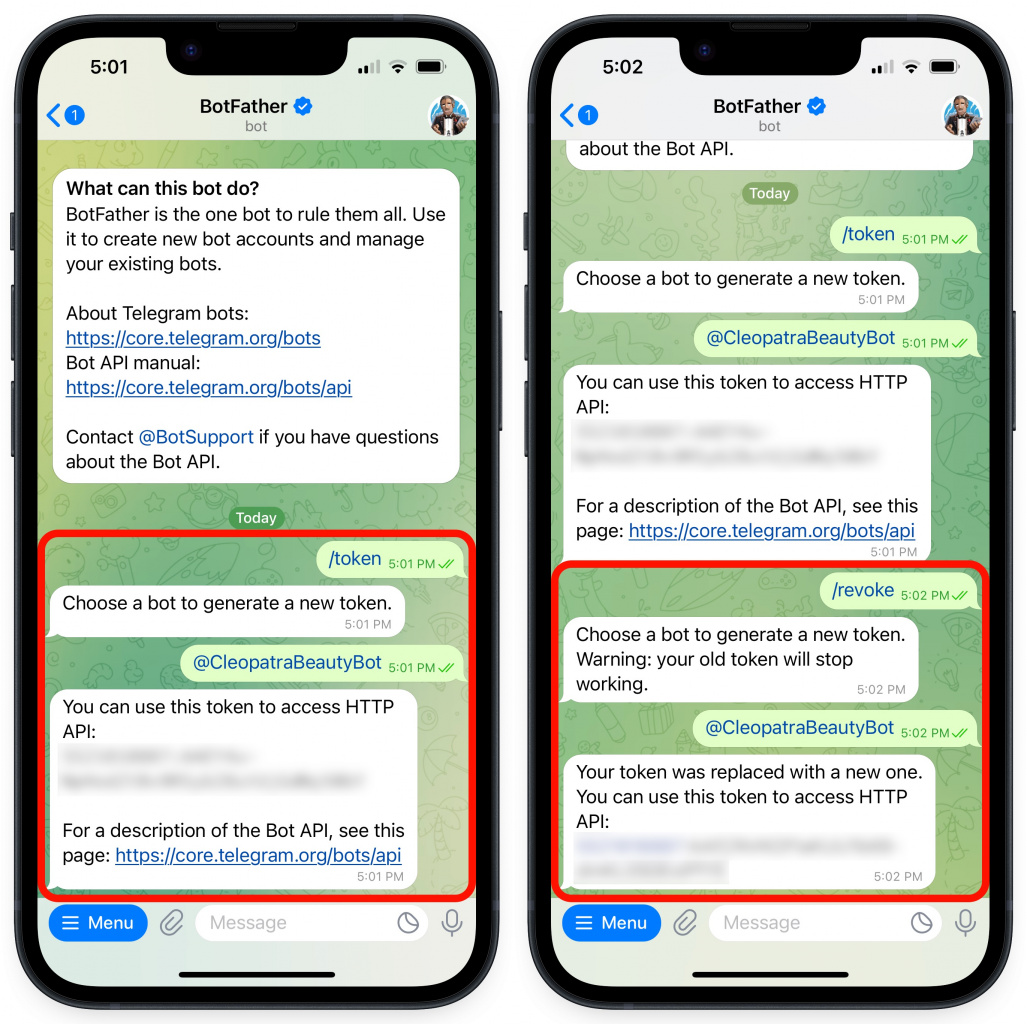
/revoke command. Update the token in the Telegram channel settings.Finish the connection
- Paste the access token into the Telegram channel settings in the Bitrix24 mobile app.
- Tap Connect.
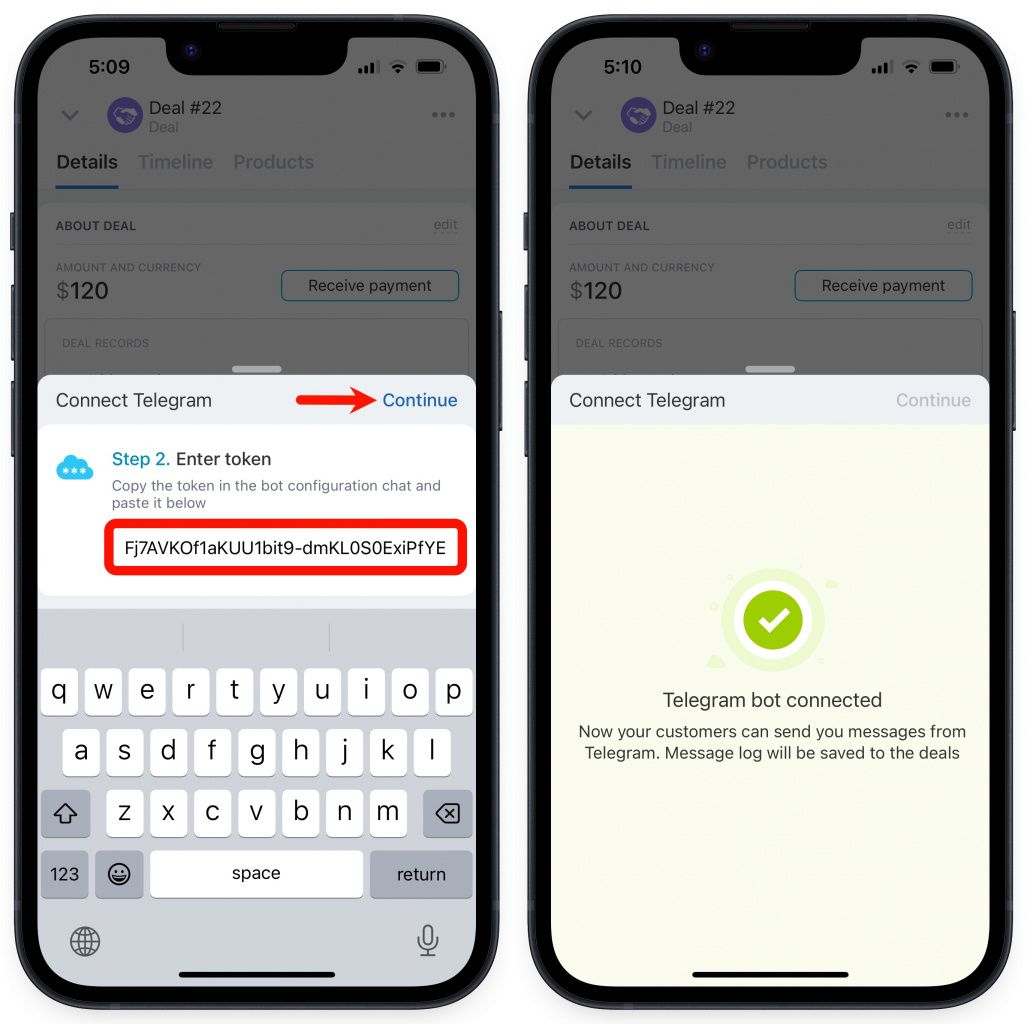
Done. Telegram is now connected to Bitrix24, and you can invite customers to chat. Bitrix24 saves the chat history in the related CRM item.
Important notes
- You can create up to 20 bots for one Telegram account.
- Telegram API restrictions prevent sending files larger than 50 MB.
- If you use the same Telegram bot token in multiple Bitrix24 accounts, the bot works only with the account that connected it most recently.
- You can edit messages in Telegram chats connected to Bitrix24.