
In Bitrix24, you can connect multiple companies into a single branch network. This is useful for businesses with regional offices, subsidiaries, dealers, or franchisees that each have their own Bitrix24 account but need centralized management.
To use a branch network, the following requirements must be met:
- The primary Bitrix24 account must be on the Enterprise plan.
- Each branch must have a paid plan.
- All accounts in the network must be in the same domain zone, such as com or eu.
In this article:
How a branch network works
A branch network consists of one primary Bitrix24 account and branches connected to it. Each branch must be on a paid plan. The number of branches is unlimited.
Each branch is an independent Bitrix24 account with its own structure, CRM, tasks, chats, and integrations. Data isn't shared between accounts. You can switch between accounts in the network using the widget.
Only an administrator can connect a branch to the primary Bitrix24 account. You can connect a new or existing Bitrix24 account as a branch.
Configure Bitrix24 for a branch network
Connect an existing Bitrix24 account to a branch network
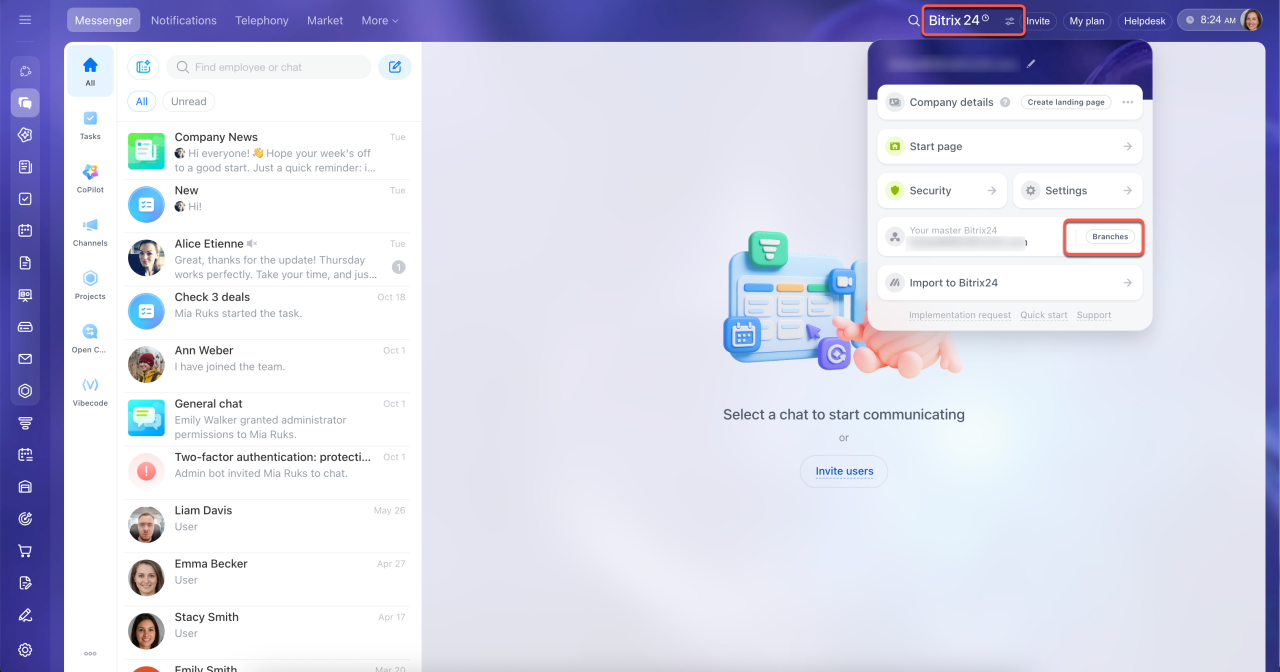

Each branch has a menu with the following actions:
- Open the branch account.
- Copy the branch address.
- Invite new employees.
- View the list of employees.
- View the branch structure.
- Disconnect the branch account from the network.
By default, the administrator of the primary Bitrix24 account can see all branches in the network, while other employees can see only their own branch. To give an employee access to multiple accounts, invite them to each of those accounts separately.
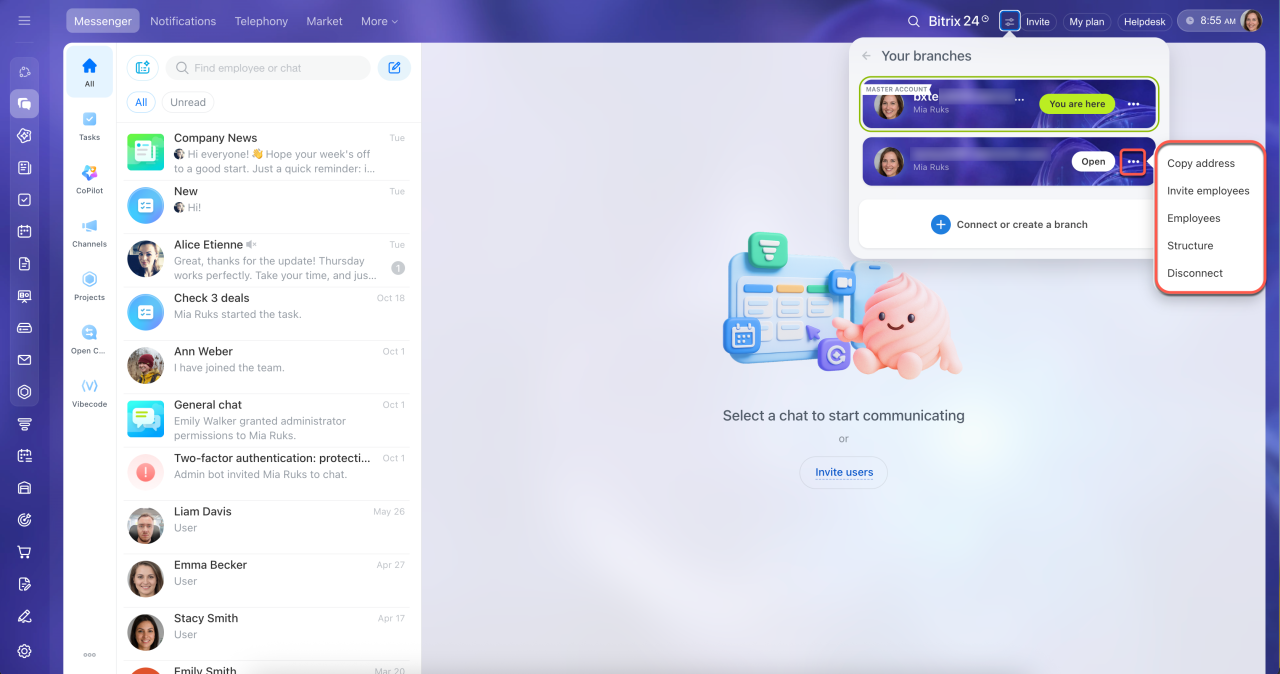
What you need to know about plans
If a branch uses the Free plan. A 15-day trial starts automatically when you connect the branch.
- If the account has already used the trial but has never been connected to a branch network, the trial starts again.
- If the account was previously part of a branch network, you can't connect it again until you upgrade it to a paid plan.
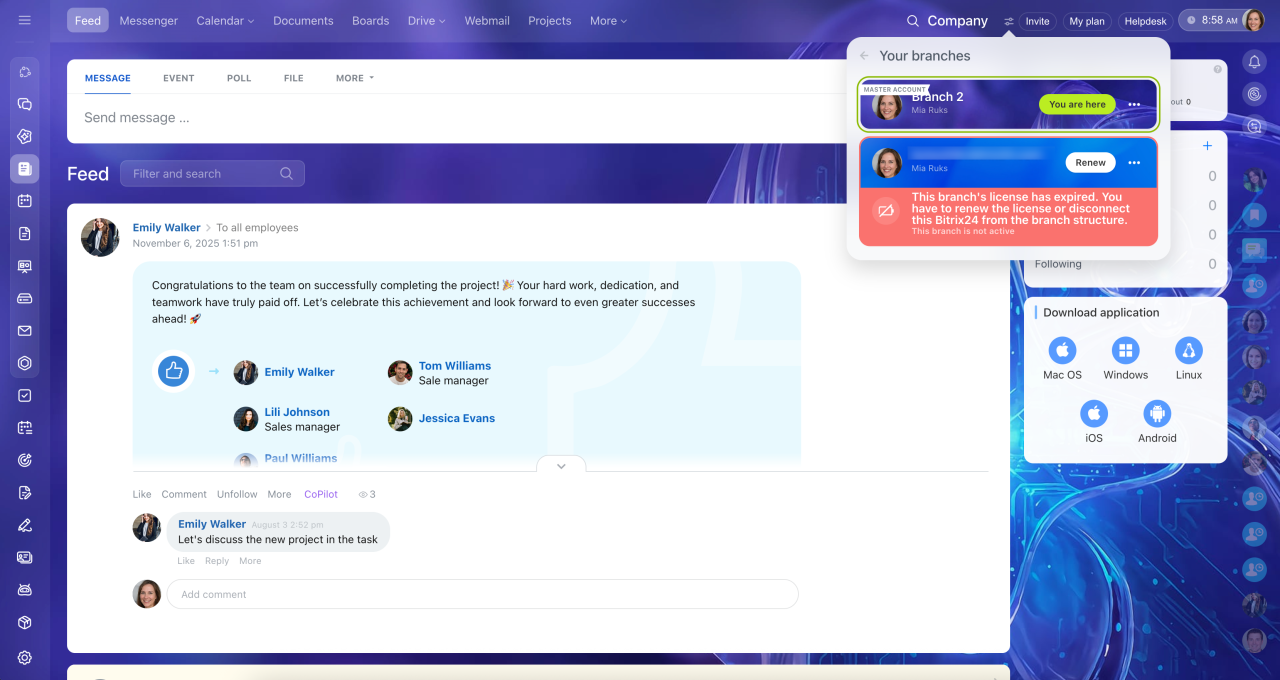
If a branch switches to the Free plan. The account is automatically disconnected from the network and turns red in the widget.
You have 15 days to switch back to a paid plan or disconnect the account from the network. Otherwise, the Plan compatibility check blocks the Bitrix24 account. Once you switch back to a paid plan, the branch returns to the list of connected accounts.
If the primary Bitrix24 account's plan changes. If you switch from the Enterprise plan to the Free plan, the widget disappears from all accounts in the network. To resume work, switch back to the Enterprise plan. If you don't pay for the Enterprise plan within 15 days, the Plan compatibility check blocks the primary Bitrix24 account.
If multiple accounts in the network use the Enterprise plan. Only one Bitrix24 account can be primary. Any other account on the Enterprise plan that joins the network becomes a branch.
If you need to change the primary account. First, disconnect all branches from the current primary account, then connect them to the new one.
If you need to move a branch to another network. A branch can belong to only one network at a time. First, disconnect it from the current network, then connect it to the new one.
In brief
- A branch network connects multiple Bitrix24 accounts in a single network: a primary account on the Enterprise plan and branches on any paid plan.
- Each branch is an independent Bitrix24 account with its own data and employees. You can switch between accounts using the widget.
- Only an administrator can connect a branch to the primary Bitrix24 account.
- If a branch switches to the Free plan, it disconnects from the network. Switch the branch to any paid plan within 15 days, or the Plan compatibility check blocks its Bitrix24 account.
- To switch from the Enterprise plan to another paid plan, disconnect all branches.