
Use a branch network in Bitrix24 to connect multiple companies in one structure. This works well for businesses with regional offices, subsidiaries, dealers, or franchisees. Each company can have its own Bitrix24, while the main account manages everything from one place.
In this article, you'll learn how to create a new Bitrix24 and connect it to a branch network.
Bitrix24 plans and pricing
Only an administrator of the main Bitrix24 can connect a new Bitrix24 to a branch network.
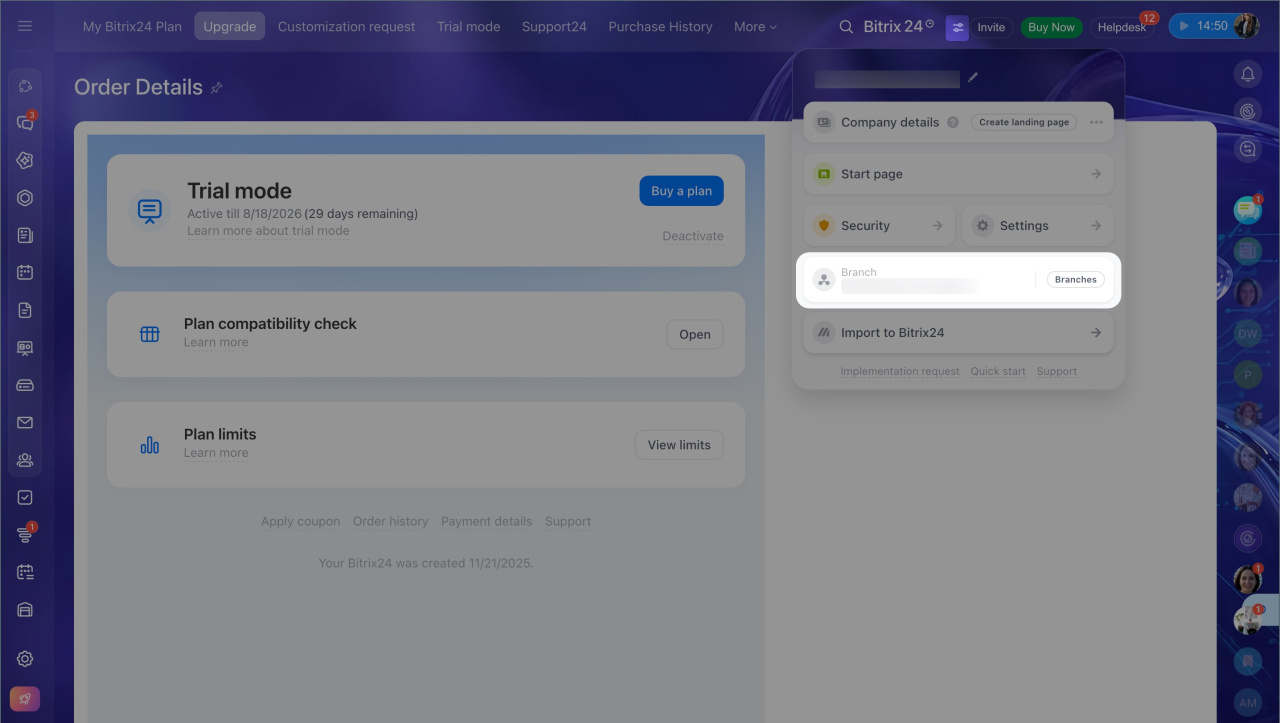
- Open Bitrix24 Settings and click the special icon.
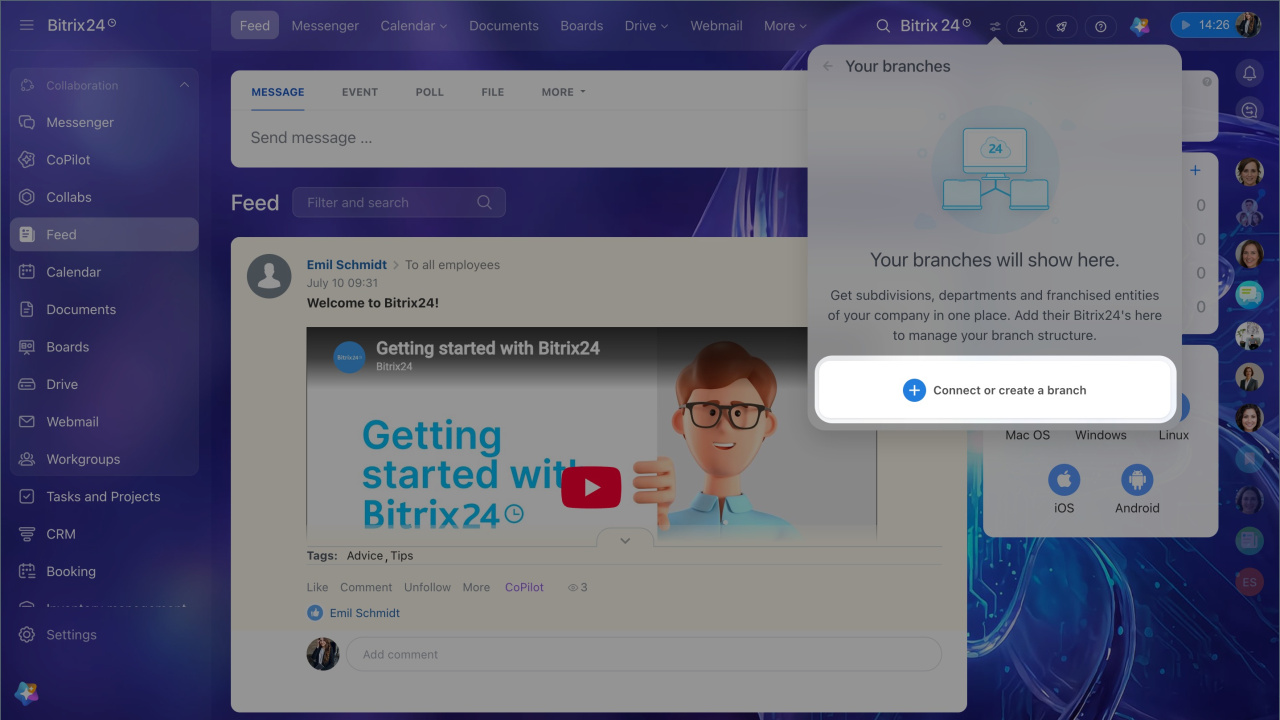
- Select Branches.
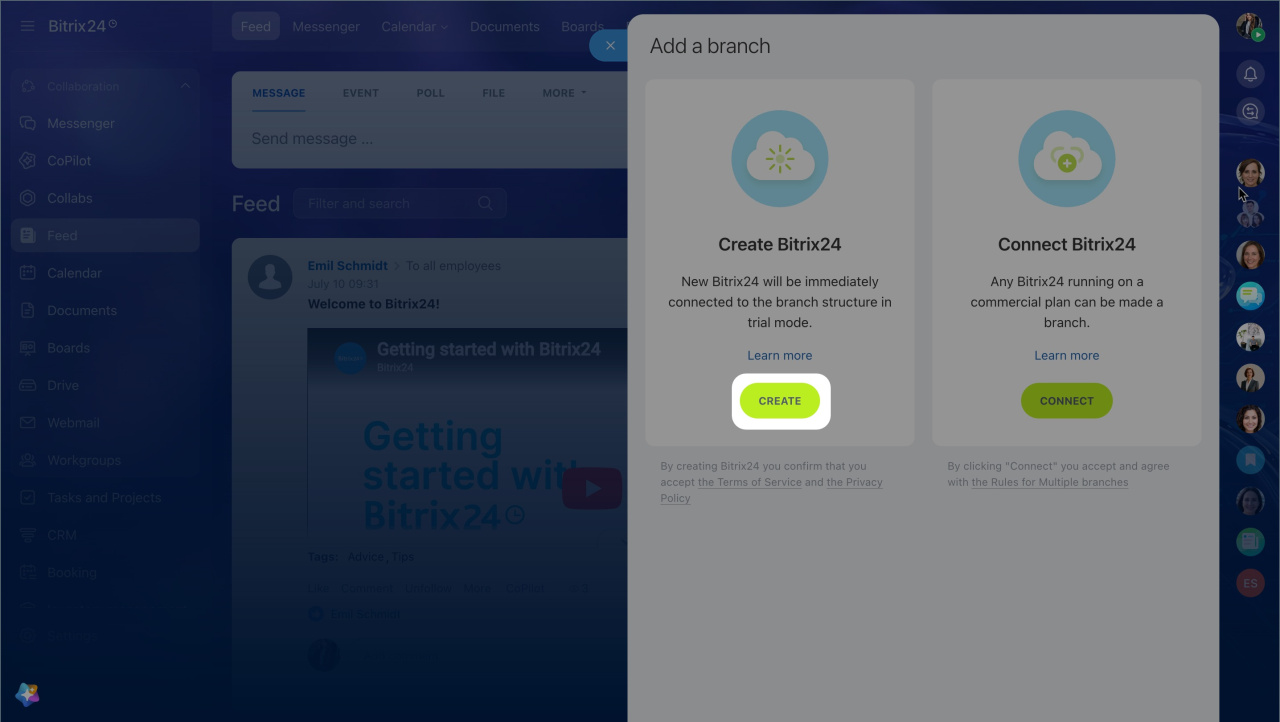
- Click Create.
Bitrix24 will send an email to the address you used during registration. Open the link in the email. The new Bitrix24 will connect to the branch network automatically.
The new Bitrix24 starts on the Trial mode plan. You have 15 days to upgrade the branch to a paid plan and keep working without restrictions.
When Trial mode ends, the branch is blocked. To unblock it, pay for a plan or disconnect the Bitrix24 from the branch network.
Free 15-day trial
You can see all branches of your Bitrix24 in the settings widget.
If you have questions, submit a request , and a manager will contact you.
In brief
- A branch network in Bitrix24 lets you connect multiple companies in one structure. This is useful for businesses with several offices or divisions.
- Only an administrator can create a new branch. Go to Bitrix24 Settings > Branches > Create.
- After you connect a new Bitrix24, it starts in Trial mode for 15 days.