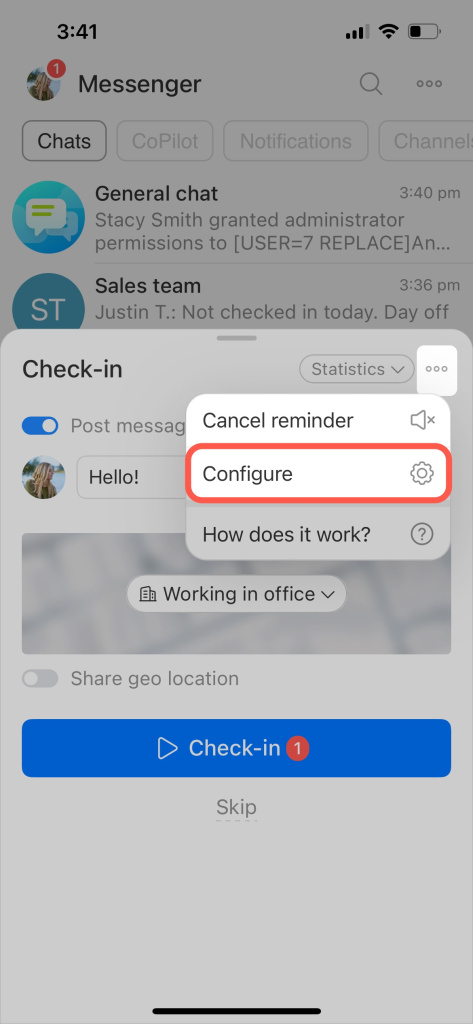
Check-in is a new ritual to start your team's working day. It is a way to feel part of the team, even from a distance. It shows the place and the time the colleagues started the day.
How it works
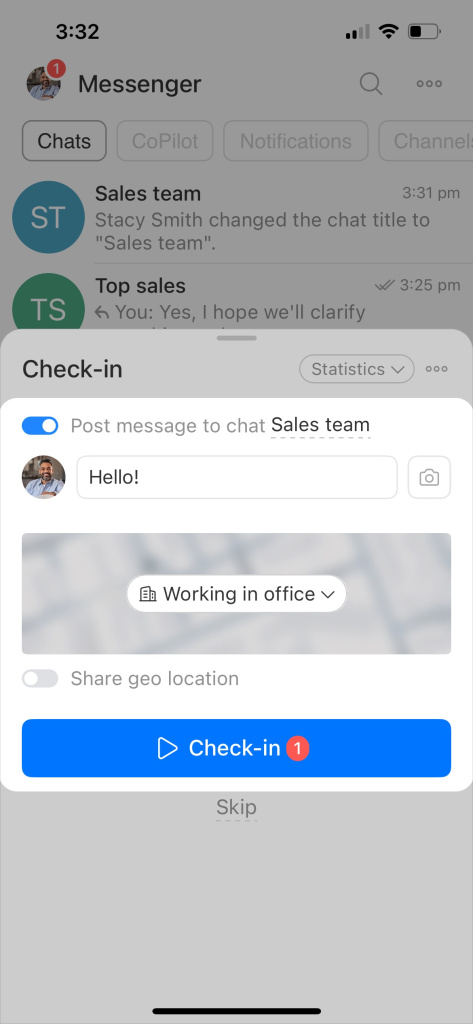
Before you start your workday, choose what information to include in the chat.
Post message to chat. Slide the switch to send a message to the chat or to a specific user. Enter the text. If you check in without this option, the workday will be counted without chat notifications.
Add an image. Take a picture of your workplace or upload a mood picture.
Share geo location. Specify your workplace manually, or enable the automatic option.
Then tap Check-in.
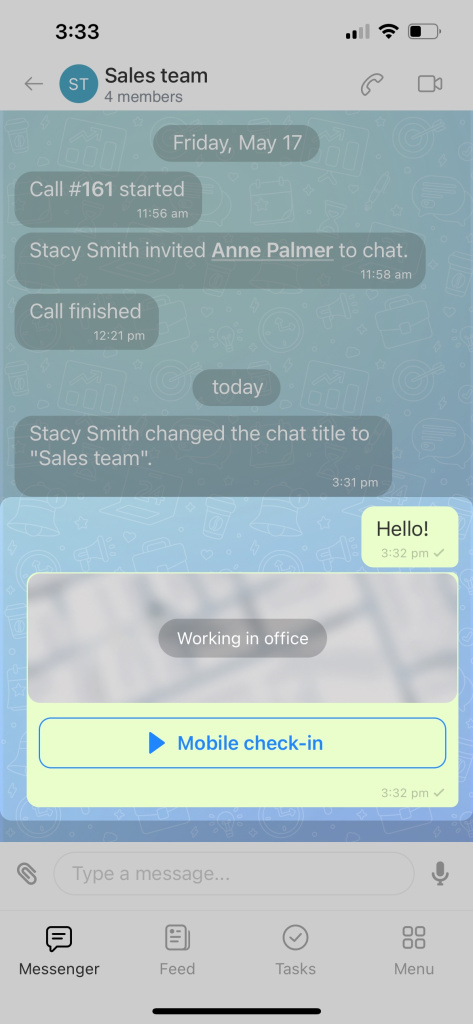
When the first chat participant starts the work day, a message will be sent to the chat. Other users can leave a reaction to the message.
Cancel check-in
If you need to leave your workplace urgently, inform your colleagues. Tap Cancel check-in and specify a reason.
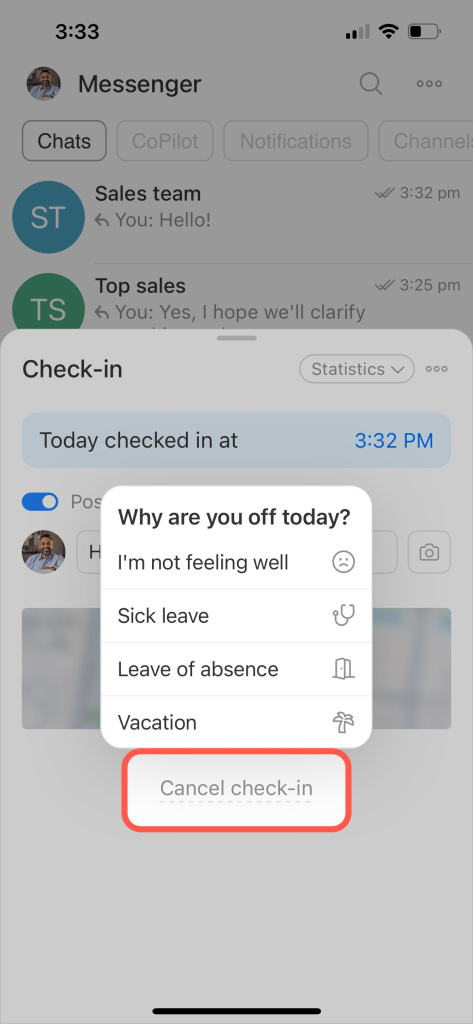
How to mark absence from work
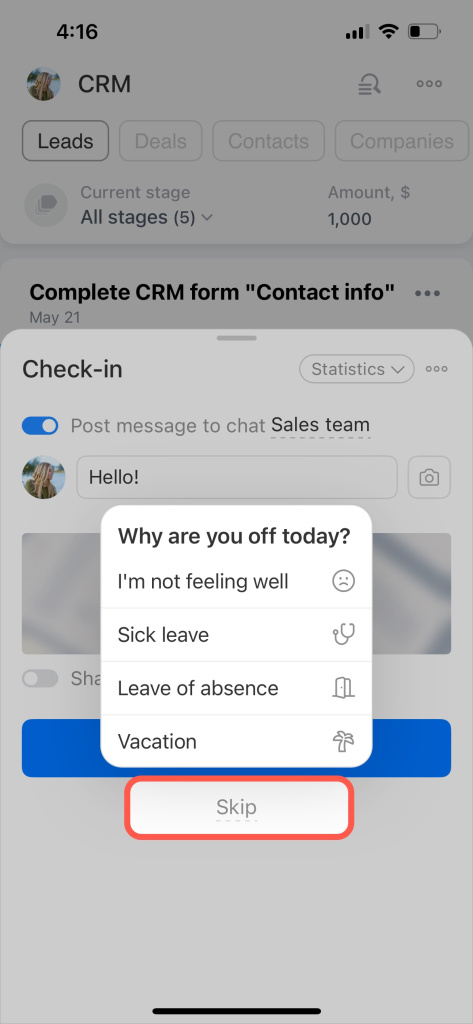
If you are not at work, tap Skip and specify a reason.
Statistics
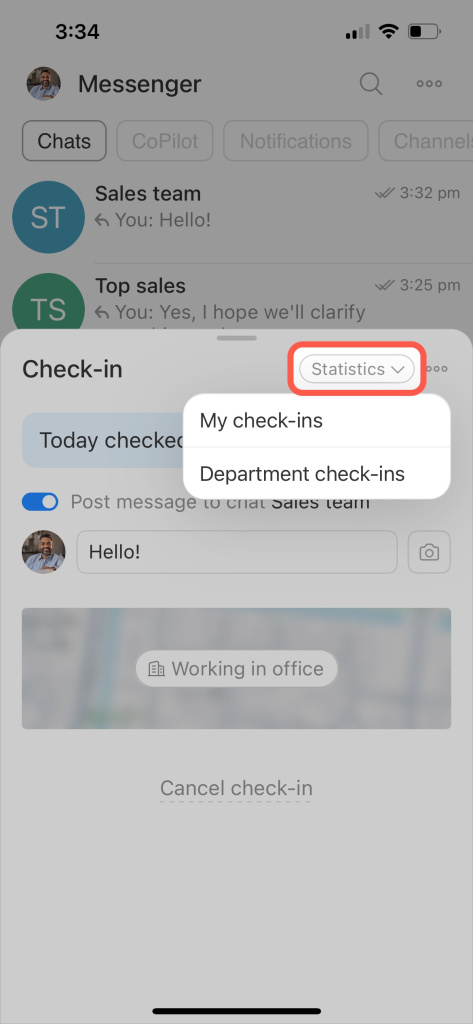
Tap Statistics and select:
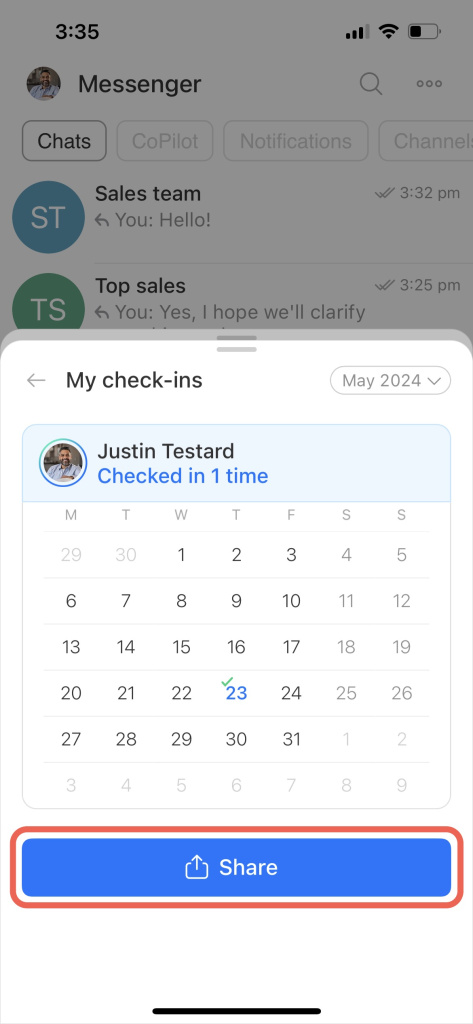
- My check-ins
- Department check-ins
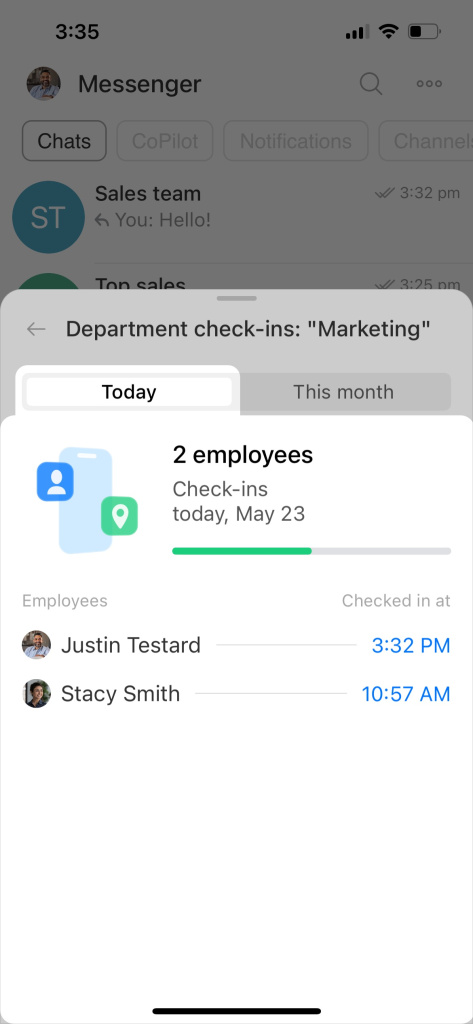
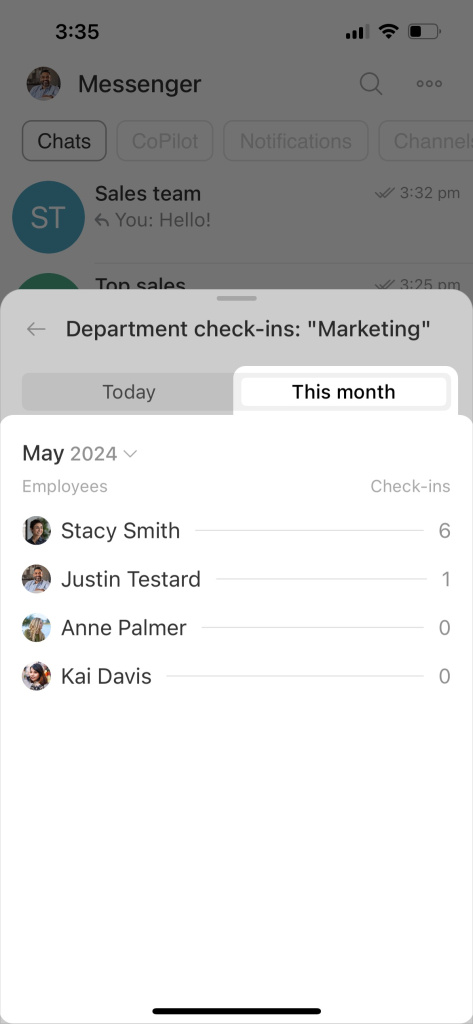
There are two types of statistics: today and for this month.
Today's statistics show the users who started working and their starting time.
The monthly statistics display the number of check-ins for each employee.
Send your check-in statistics to your manager or colleagues. Tap Share and select a chat or a user.
Disable Check-in
If Check-in's notifications are distracting, they can be muted. Tap dots and select Cancel reminder.
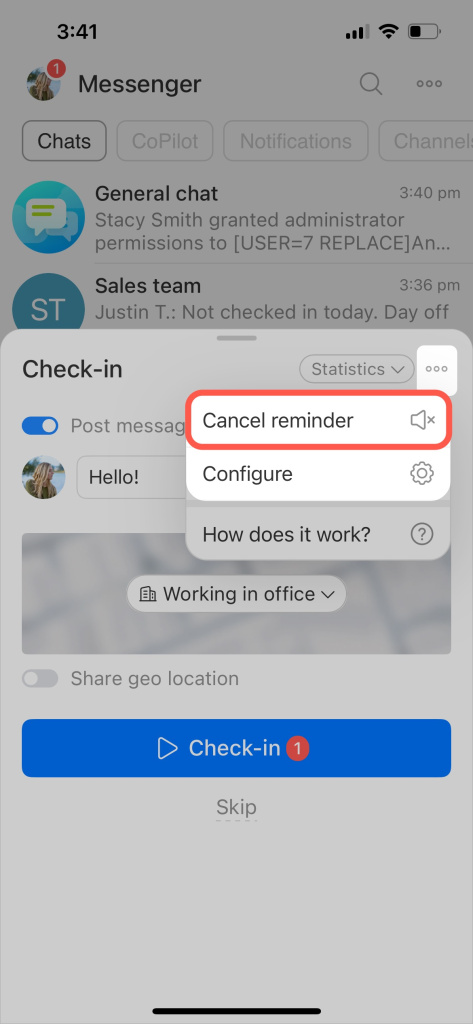
If you don't need the Check-in tool, the administrator can disable it for all employees: dots - Configure.