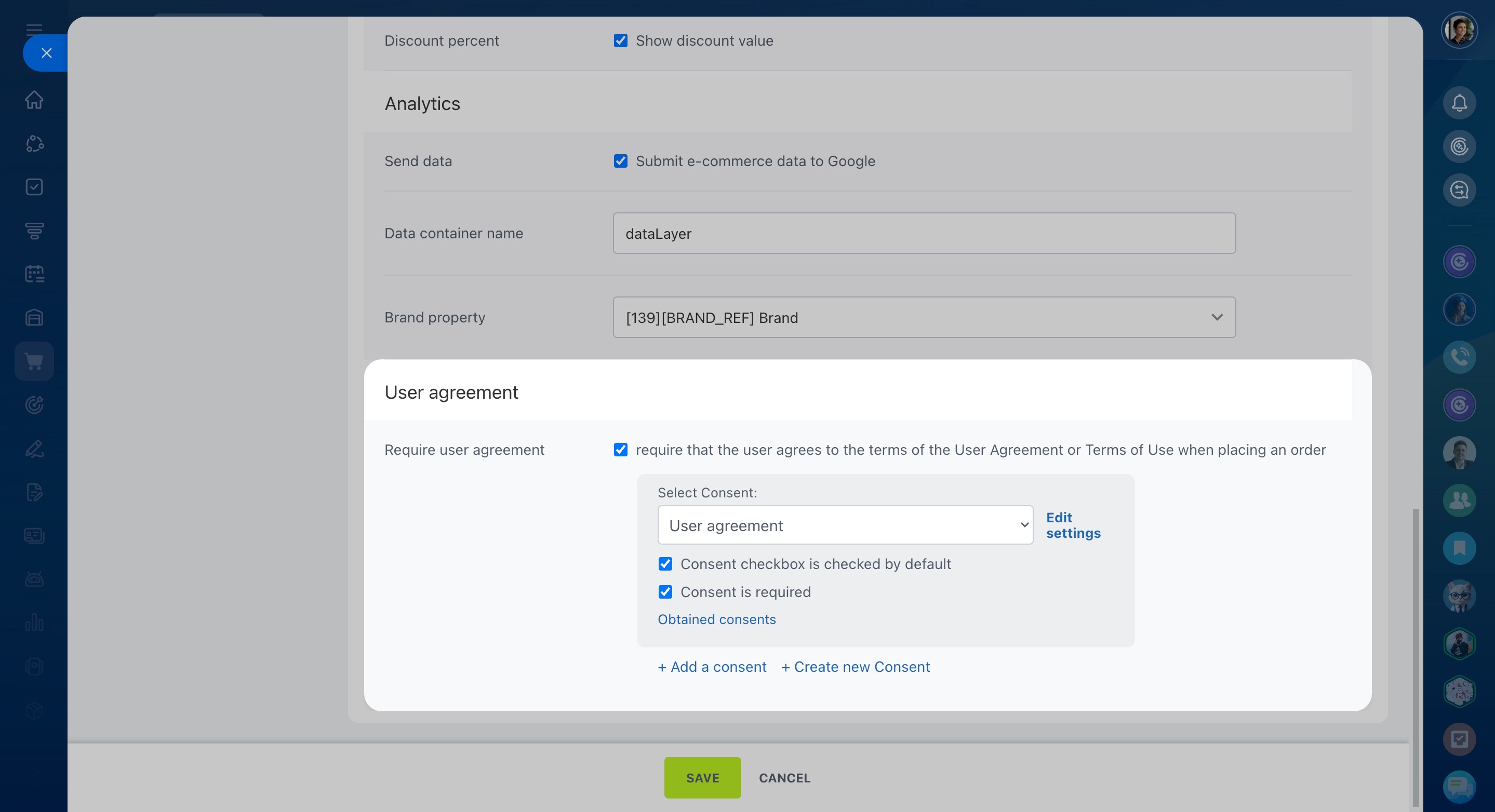
In Catalog settings, you can choose how unavailable products appear, decide whether prices include tax, set up a user agreement, and configure other catalog options.
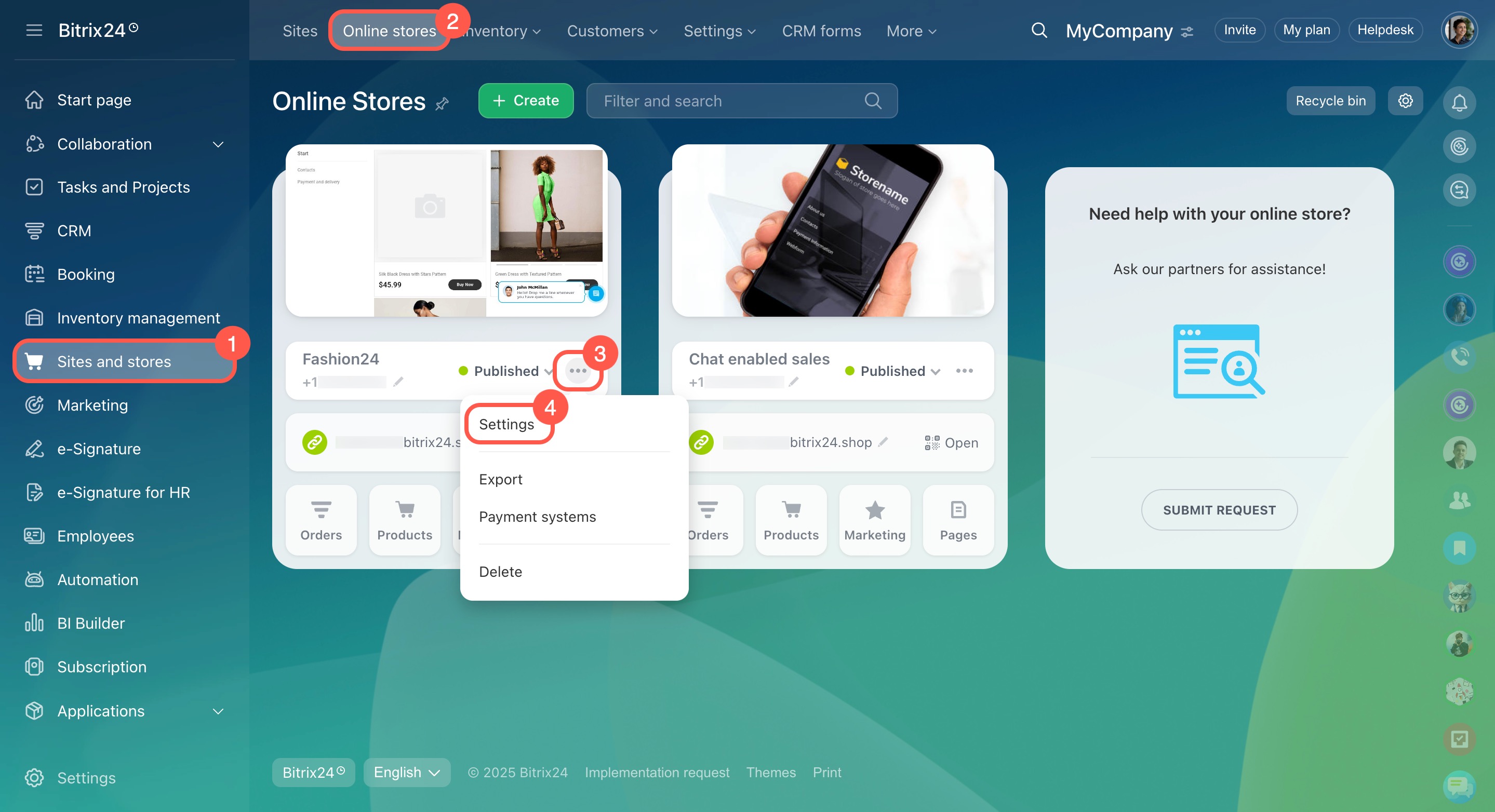
To open catalog settings:
- Go to Sites and stores.
- Open the Online stores tab.
- Open the three-dot menu (...) next to your store.
- Select Settings.
- In the left menu, select Catalog settings.
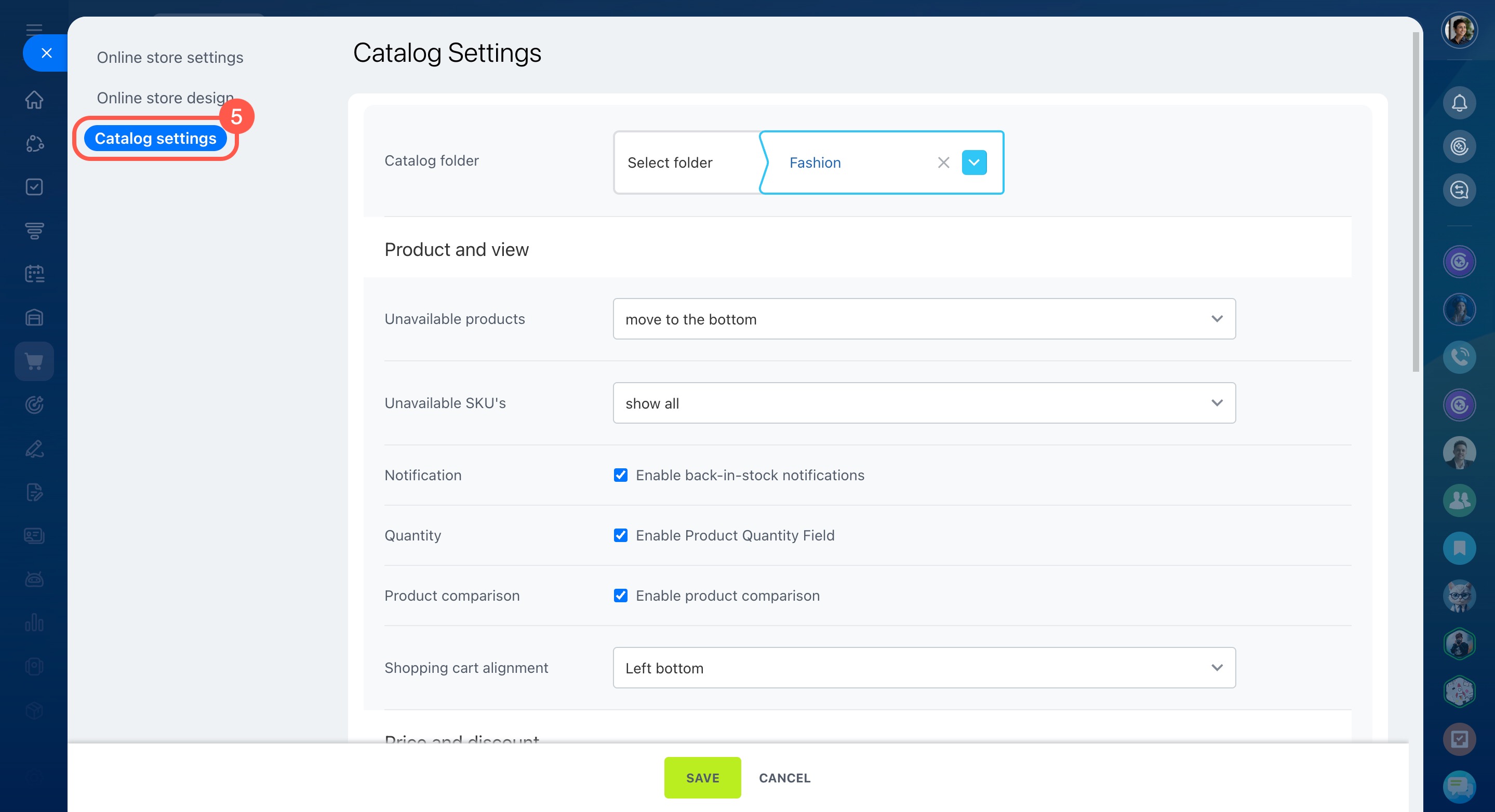
Catalog settings
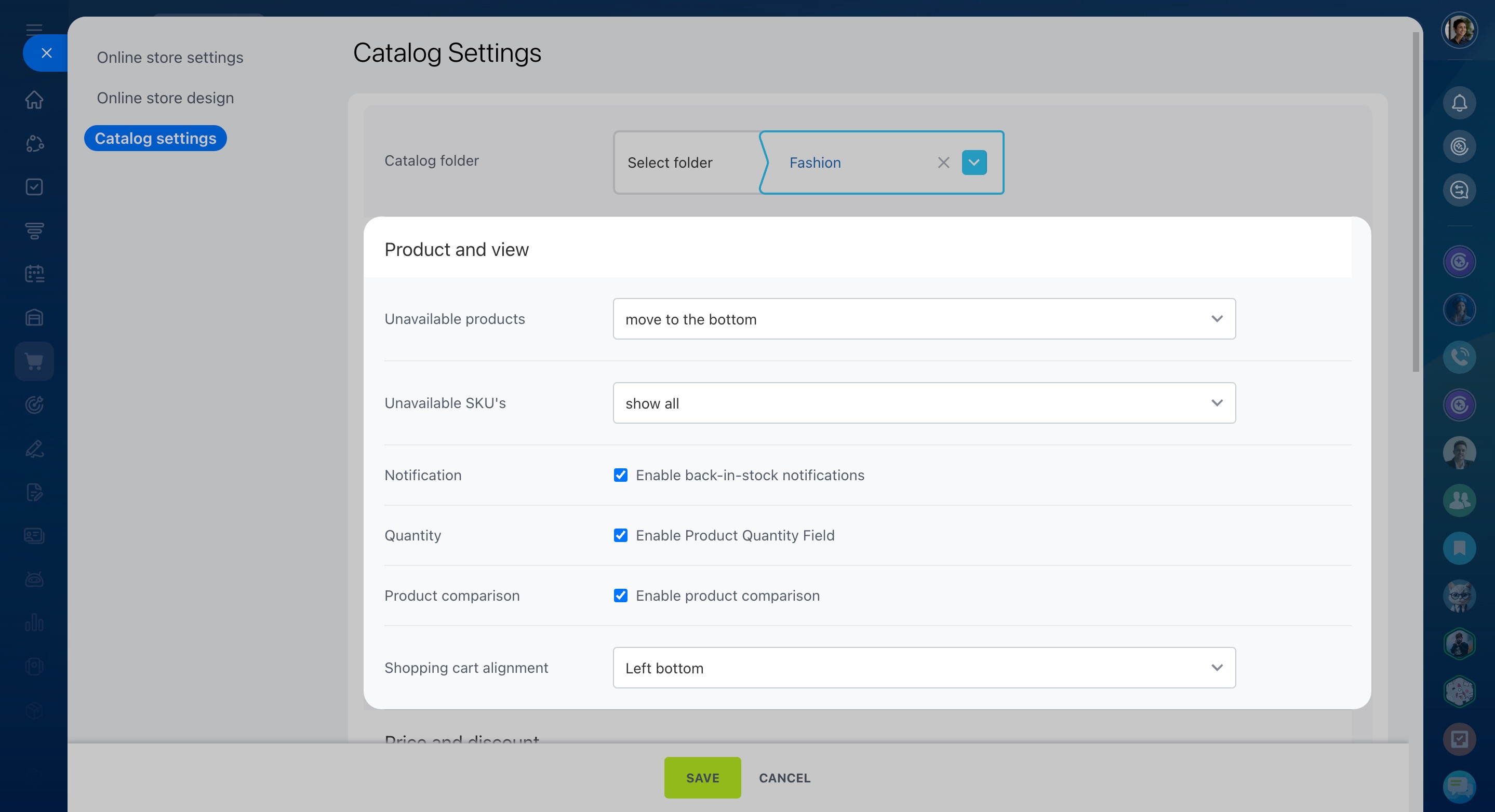
First, select the product category to show on the page in the Catalog folder field.
Create products and configure product catalog
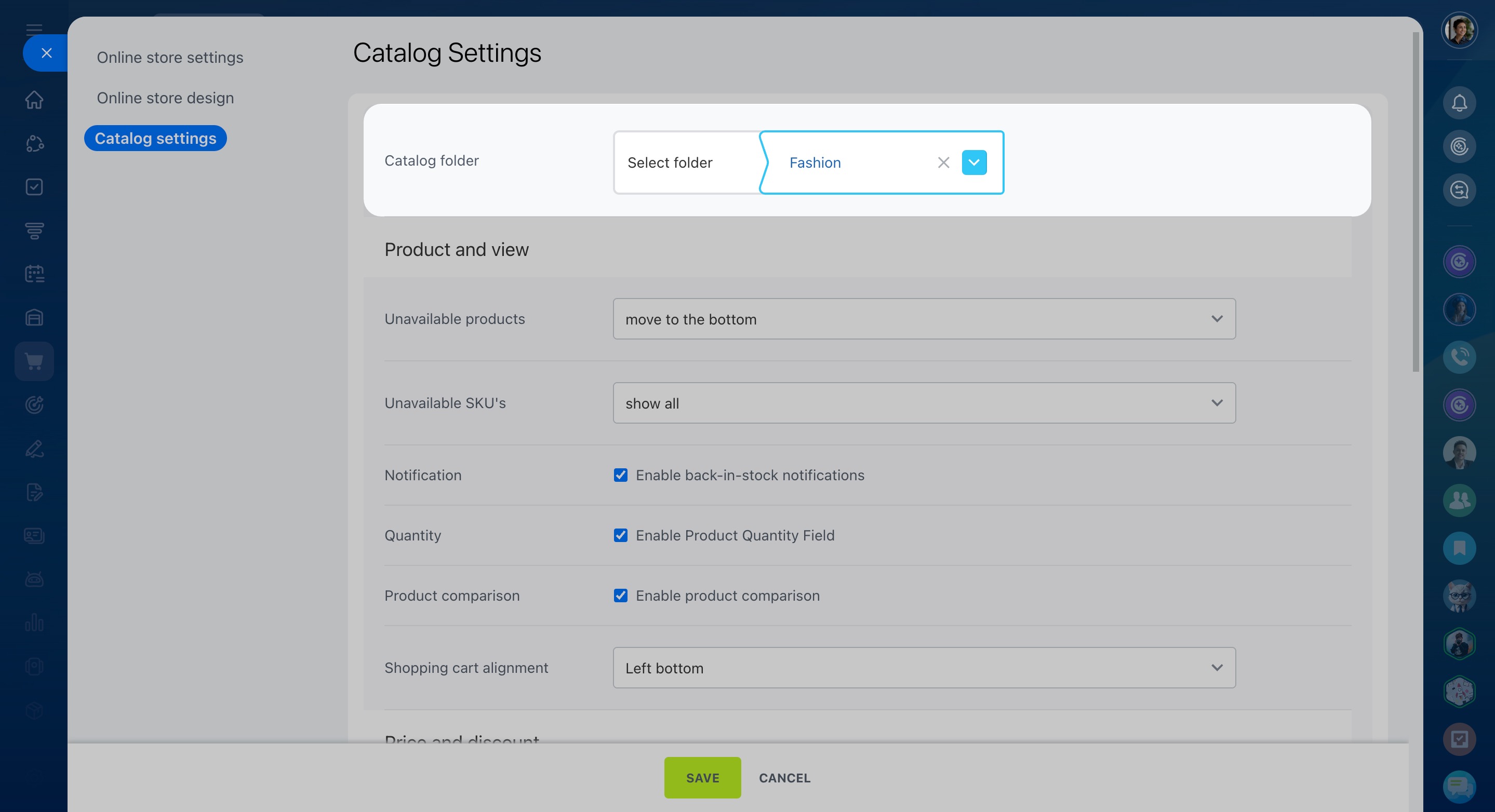
Then configure the settings in four sections:
Product and view
Unavailable products: Choose how to show products that are out of stock.
Unavailable SKUs: Choose how to show SKUs that are out of stock.
Notification: Turn on back-in-stock notifications.
Product subscription
Quantity: Allow customers to choose how many items to buy, or require them to buy one item at a time.
Product comparison: Turn on product comparison.
Place an order on the website
Shopping cart alignment: Choose where the shopping cart appears on your website.
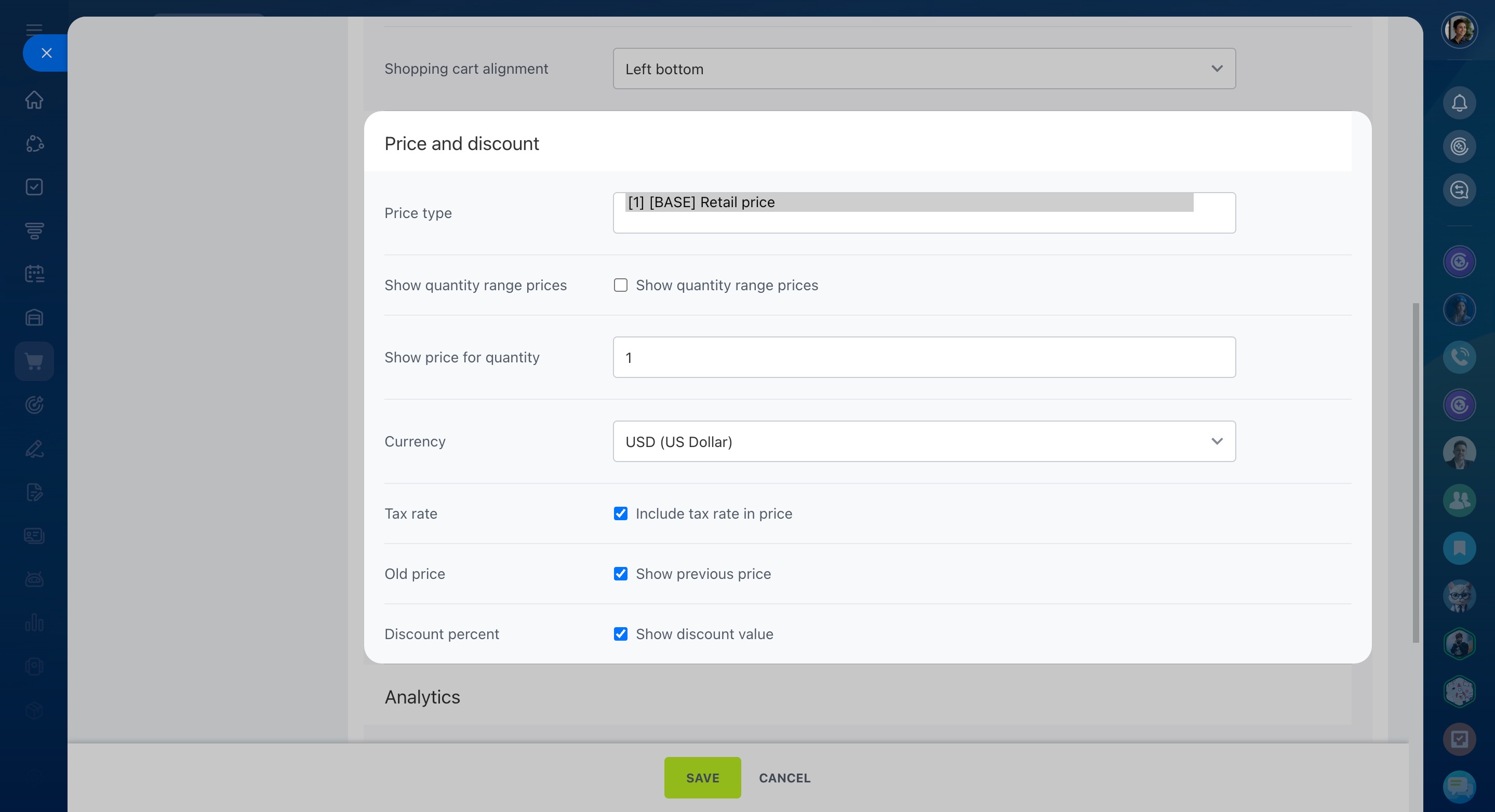
Price and discount
Price type: Select the price type to show in the catalog.
Show quantity range prices: Turn on this option to show all price types.
Show price for quantity: Enter the quantity used to show the price.
Tax rate: Specify whether VAT is included in the product price.
Old price: Turn on this option to show the previous price.
Discount percent: Turn on this option to show the discount value in the catalog.
Analytics
Send data: Turn on this option to send e-commerce data to Google.
Leave the other fields unchanged.
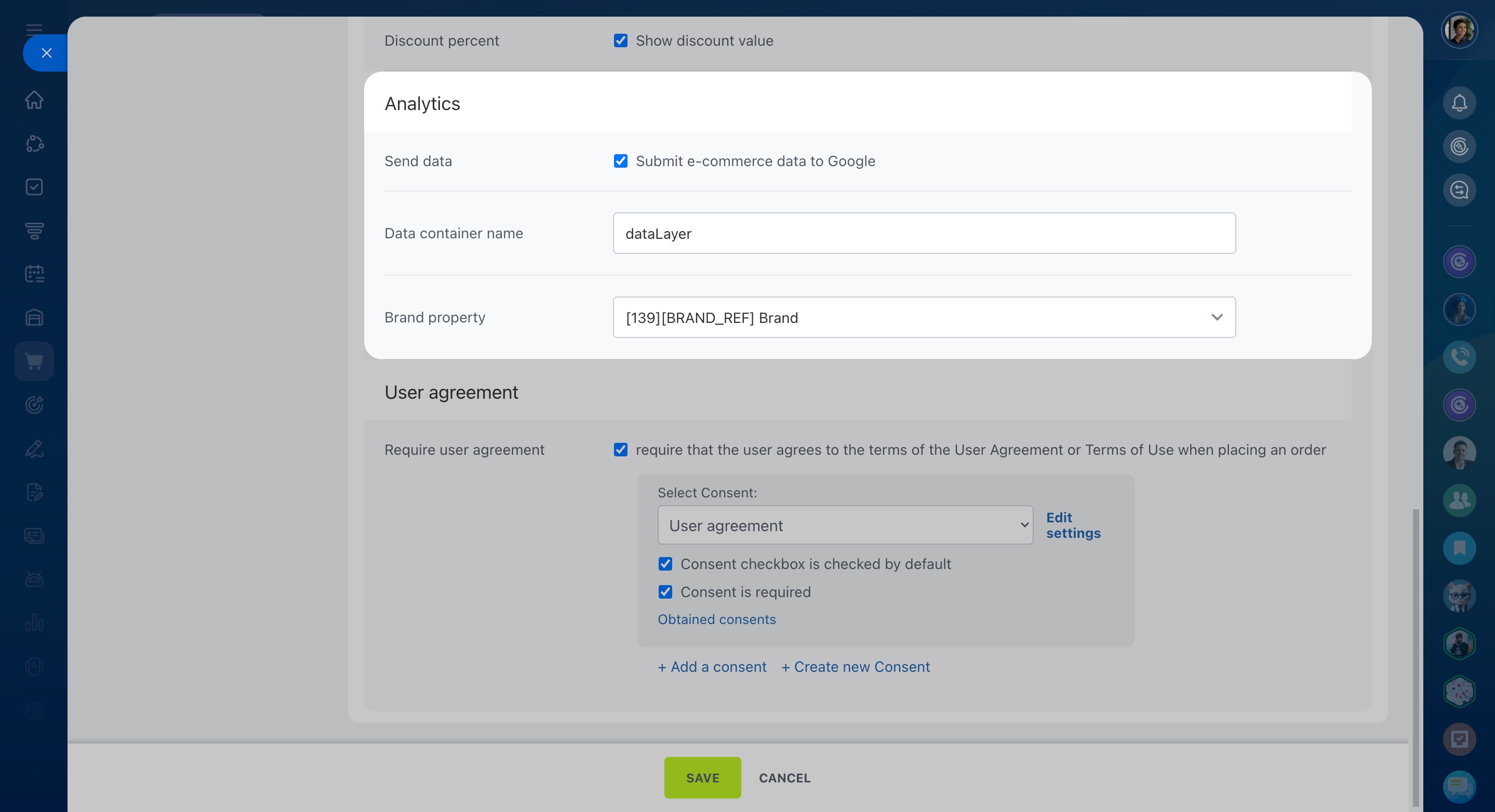
User agreement
Require user agreement: Turn on this option and select the consent that customers must accept when they place an order.