
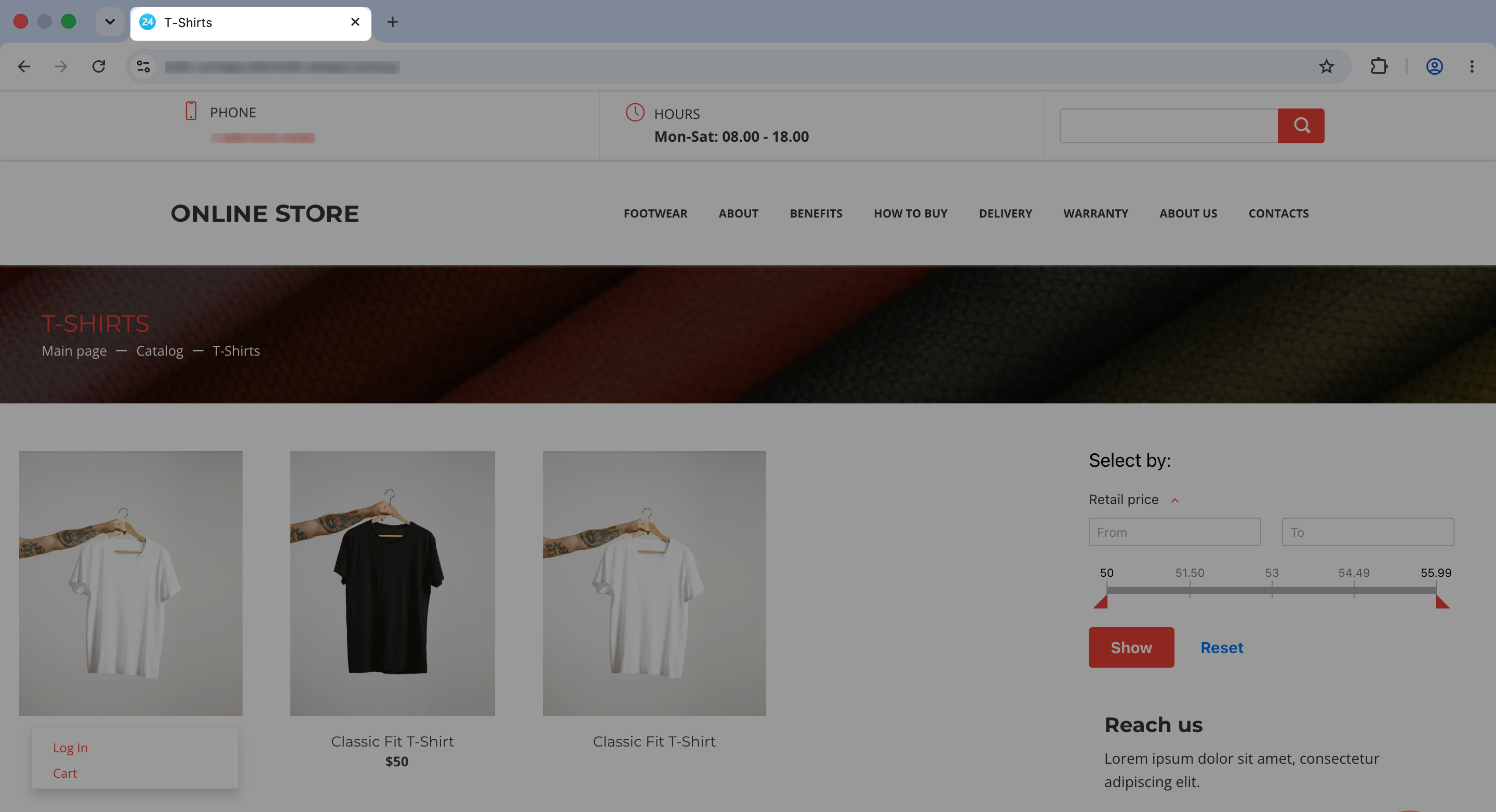
When a customer opens your online store product catalog, the browser tab shows a default title, such as Catalog. Search engines use this title to understand what the page is about. You can change it to improve how the page appears in search results. For example, a sneaker catalog could use the title Original Sneakers at Low Prices.
In this article:
Change the title in the product catalog
To change the title, edit the section SEO settings. Use this option when you want to set a title for a specific section or subsection, such as Laptops, Smartphones, or Accessories.
Inventory access permissions
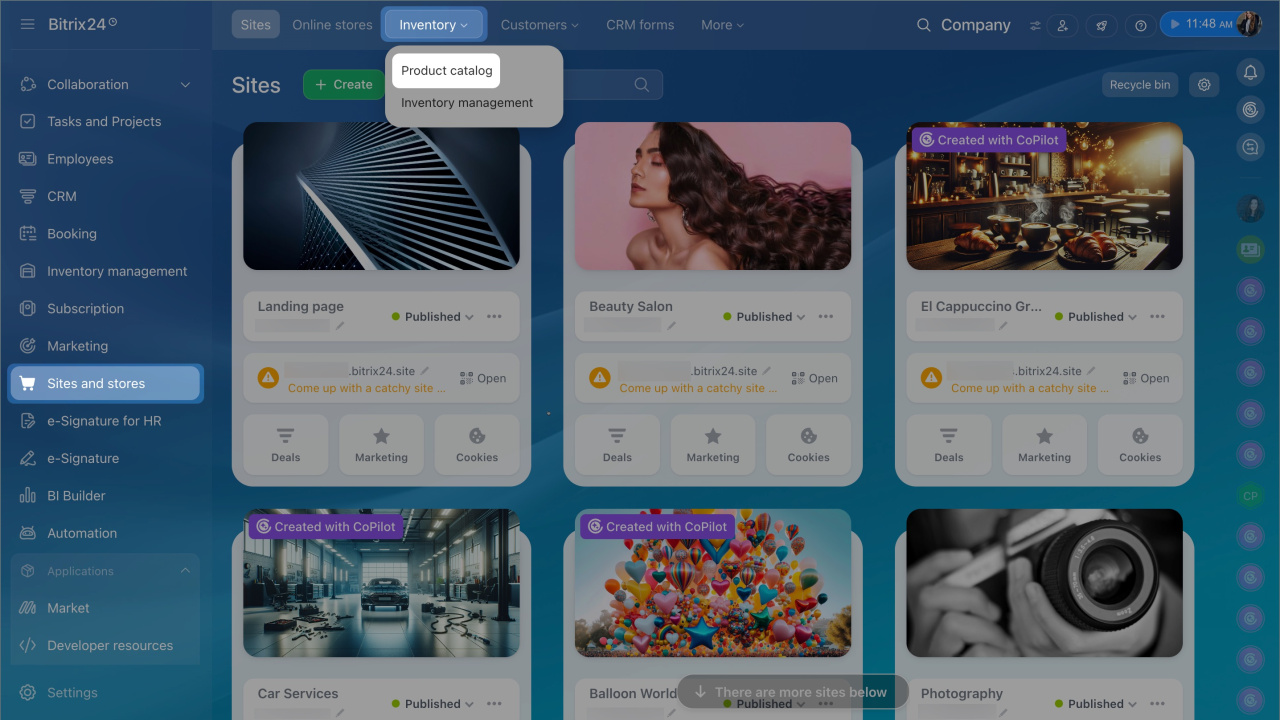
1–3. Go to Sites and stores > Inventory > Product catalog.
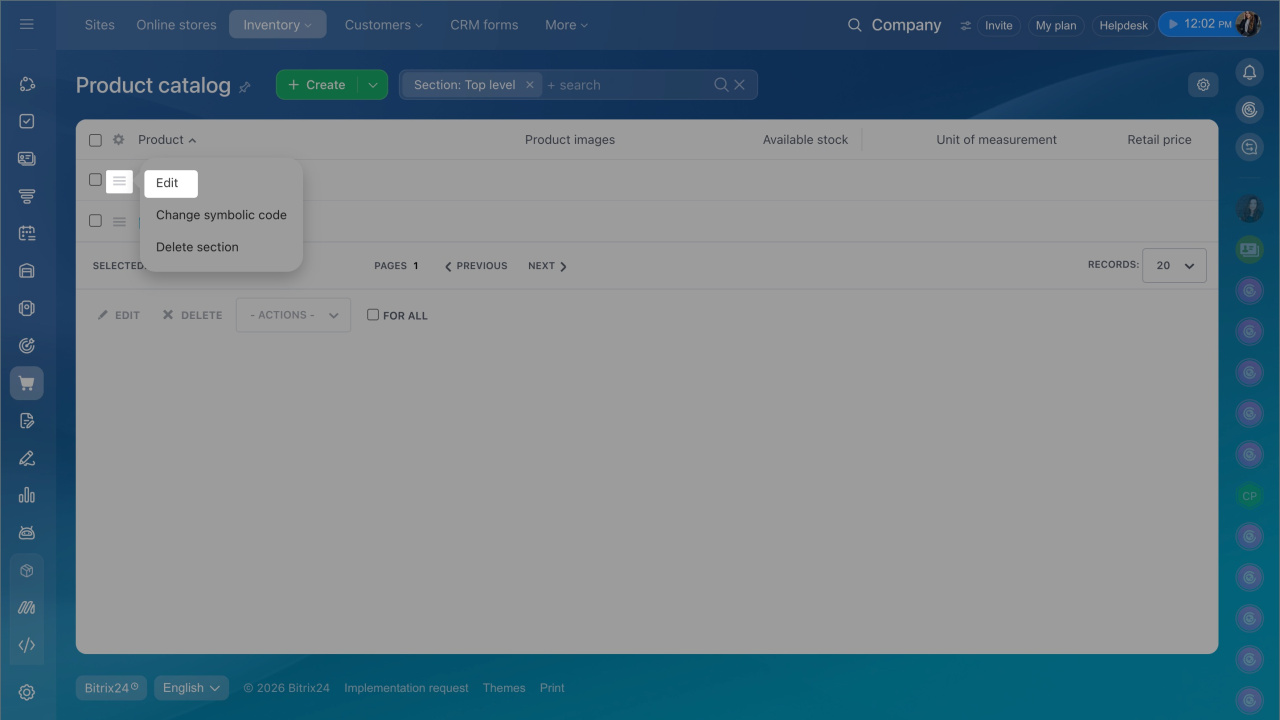
4–5. Click Menu (≡) next to the section or subsection name and select Edit.
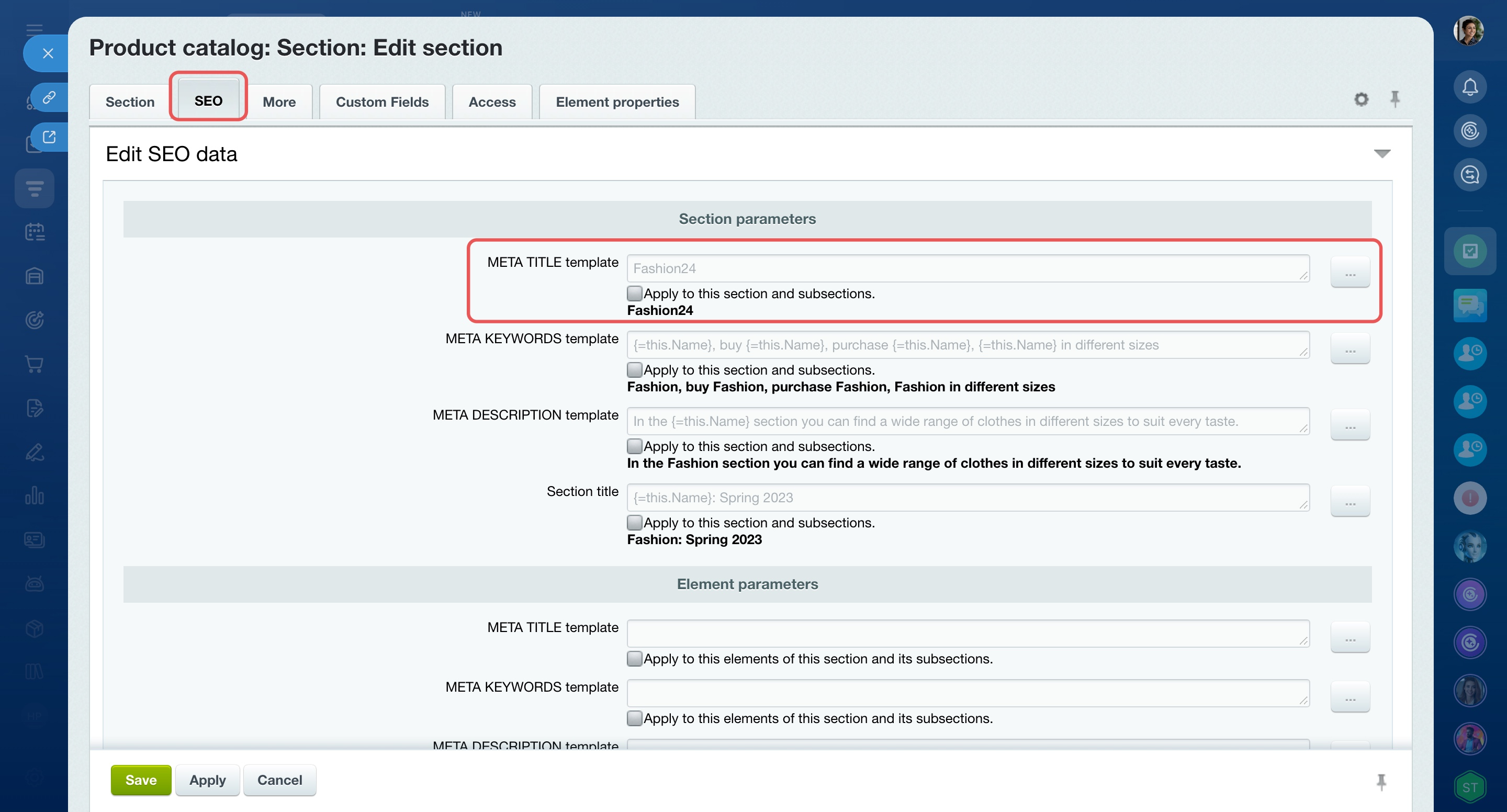
6–7. Open the SEO tab. Use the META TITLE template field to set the browser tab title.
Setting up SEO parameters for the product catalog
You can change the title in two ways.
Enter the title manually. Enter a title in the META TITLE template field and save your changes. Use this option when you need a unique title for a specific section.
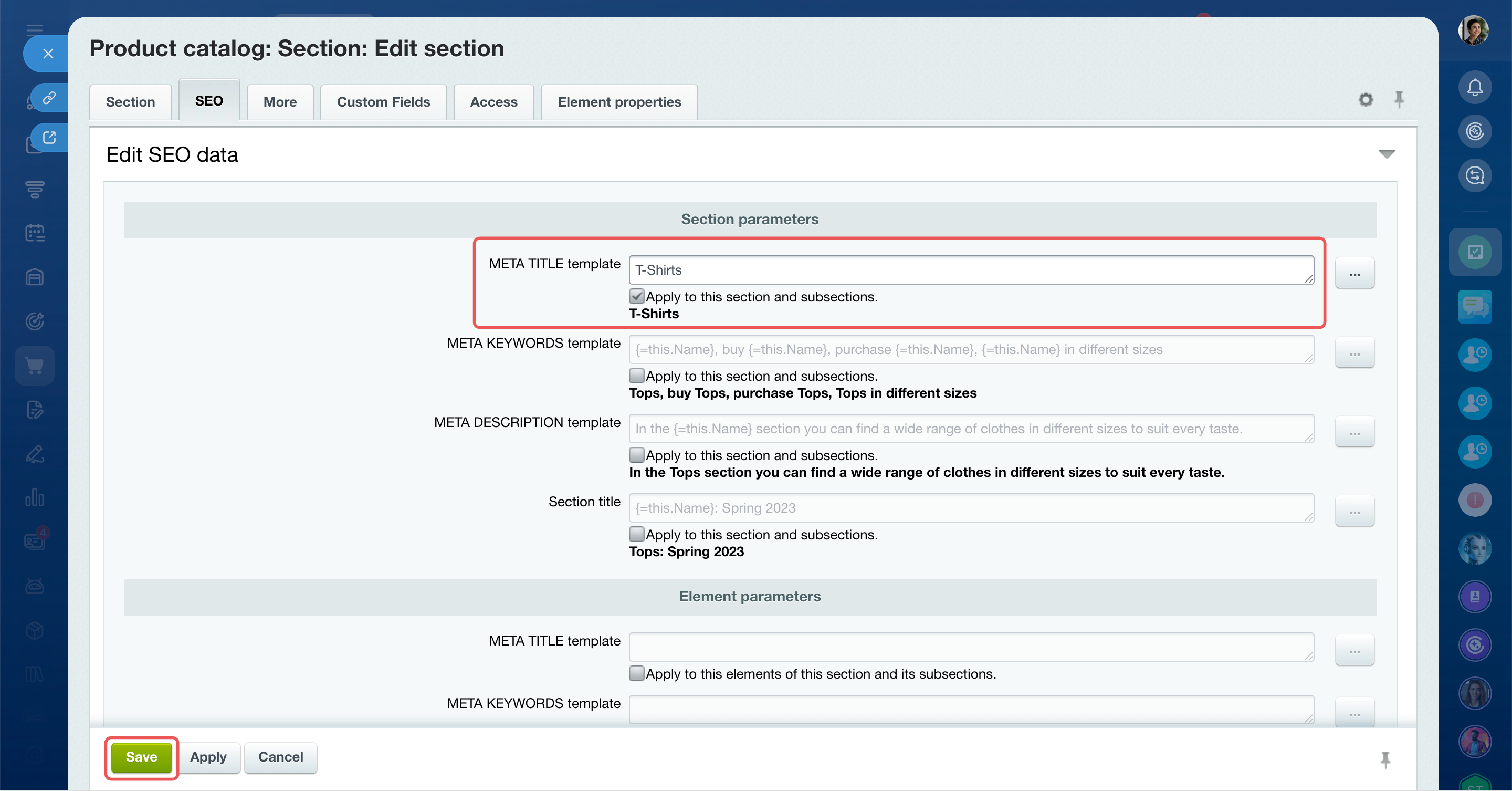
Fill the title automatically from the section name. Use this option when the browser tab title should match the section name.
Click the three dots (...) to the right of the META TITLE template field and select Section fields > Current section name. The formula {=this.Name} will appear in the field and insert the section name automatically. Save your changes.
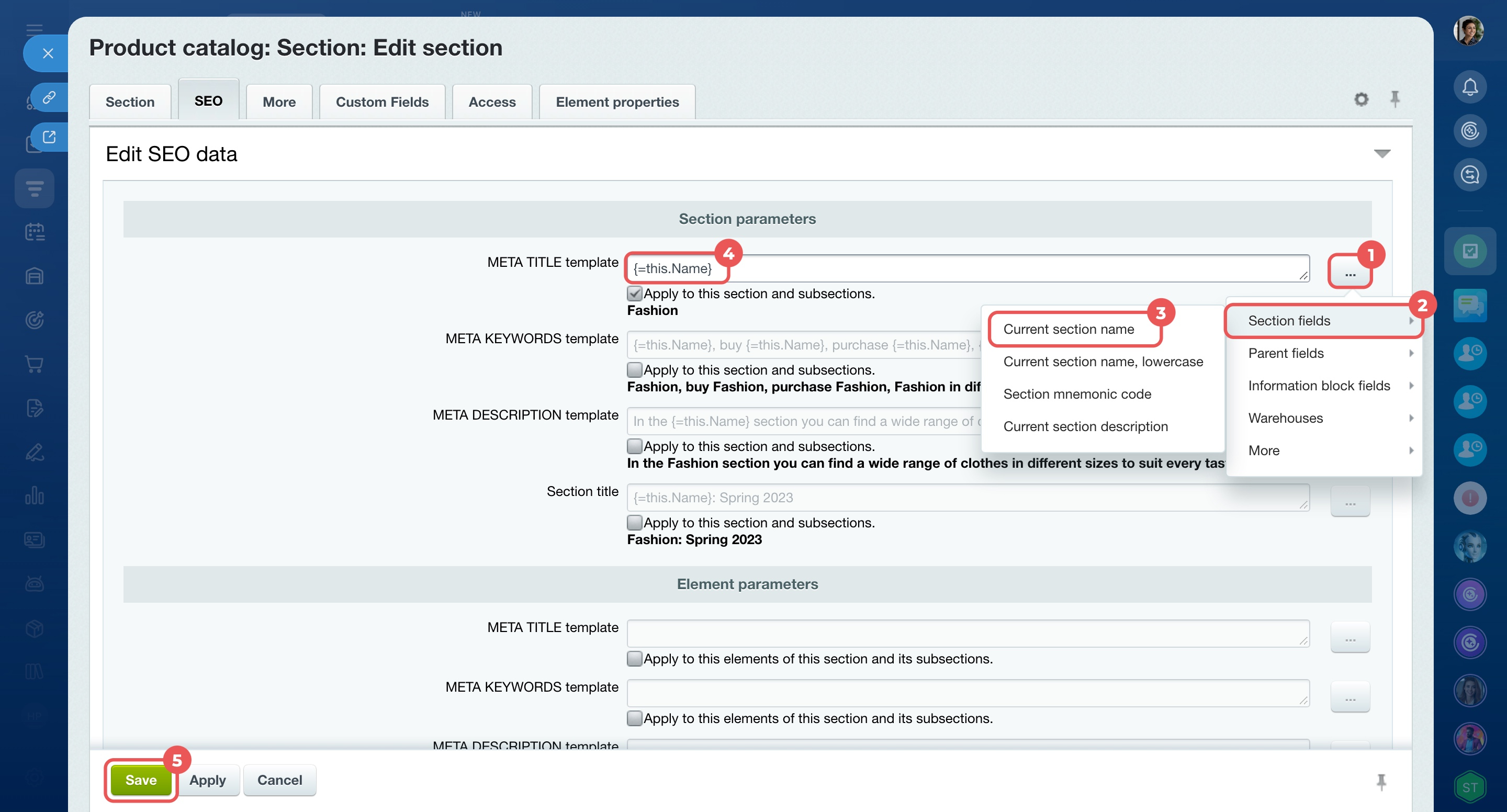 After you save your changes, the new title appears in the browser tab.
Change the title in the store page settings
In the store page settings, you can set the title that appears in the browser tab. Use this option when you want to change the title for the entire catalog page, for example, to something like Online Store Product Catalog.
Site access permissions
If you set a title both in the product catalog and in the page settings, the catalog title takes priority.
To use the title from the page settings, clear the META TITLE template field in the product catalog section settings.
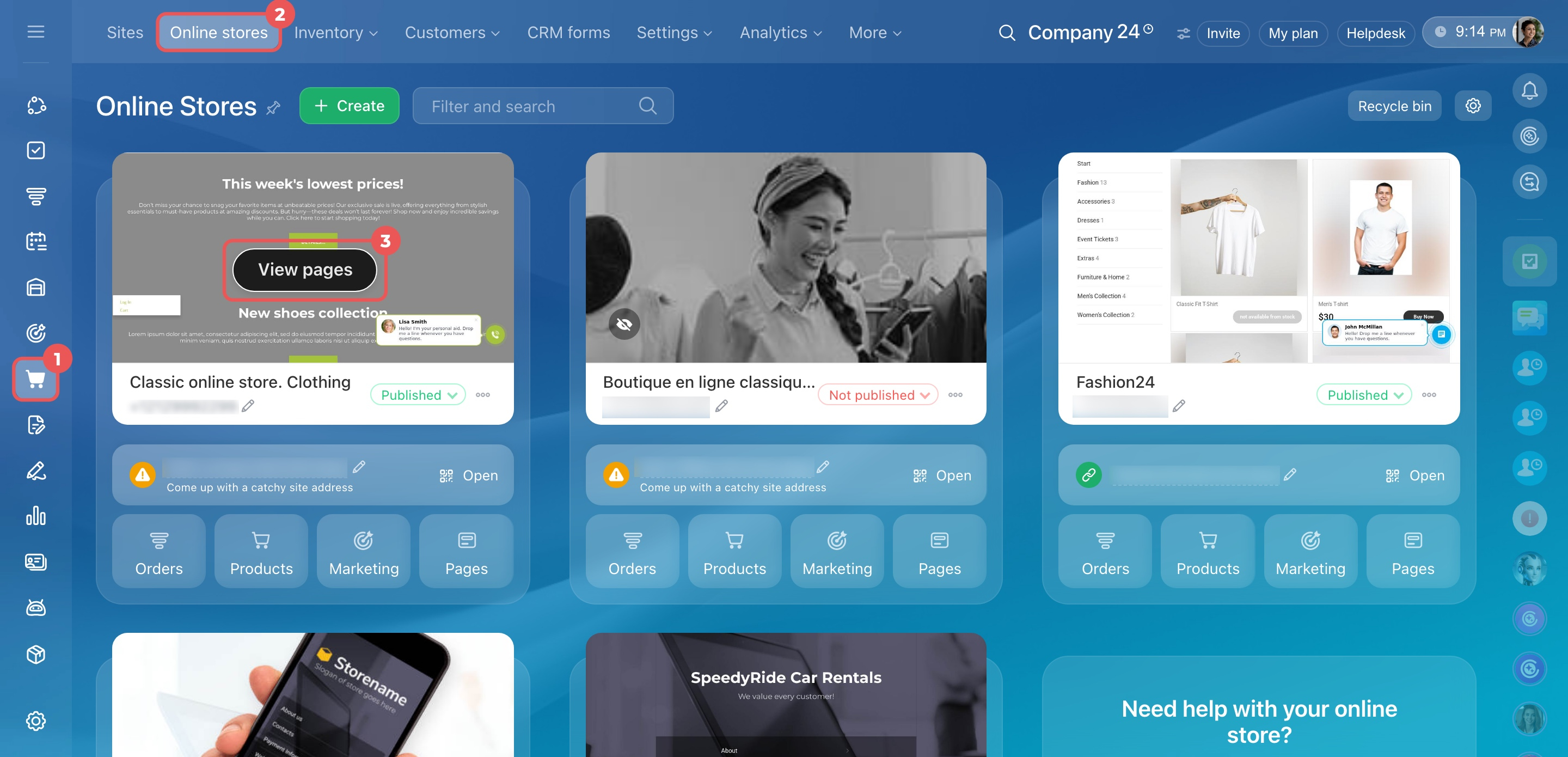
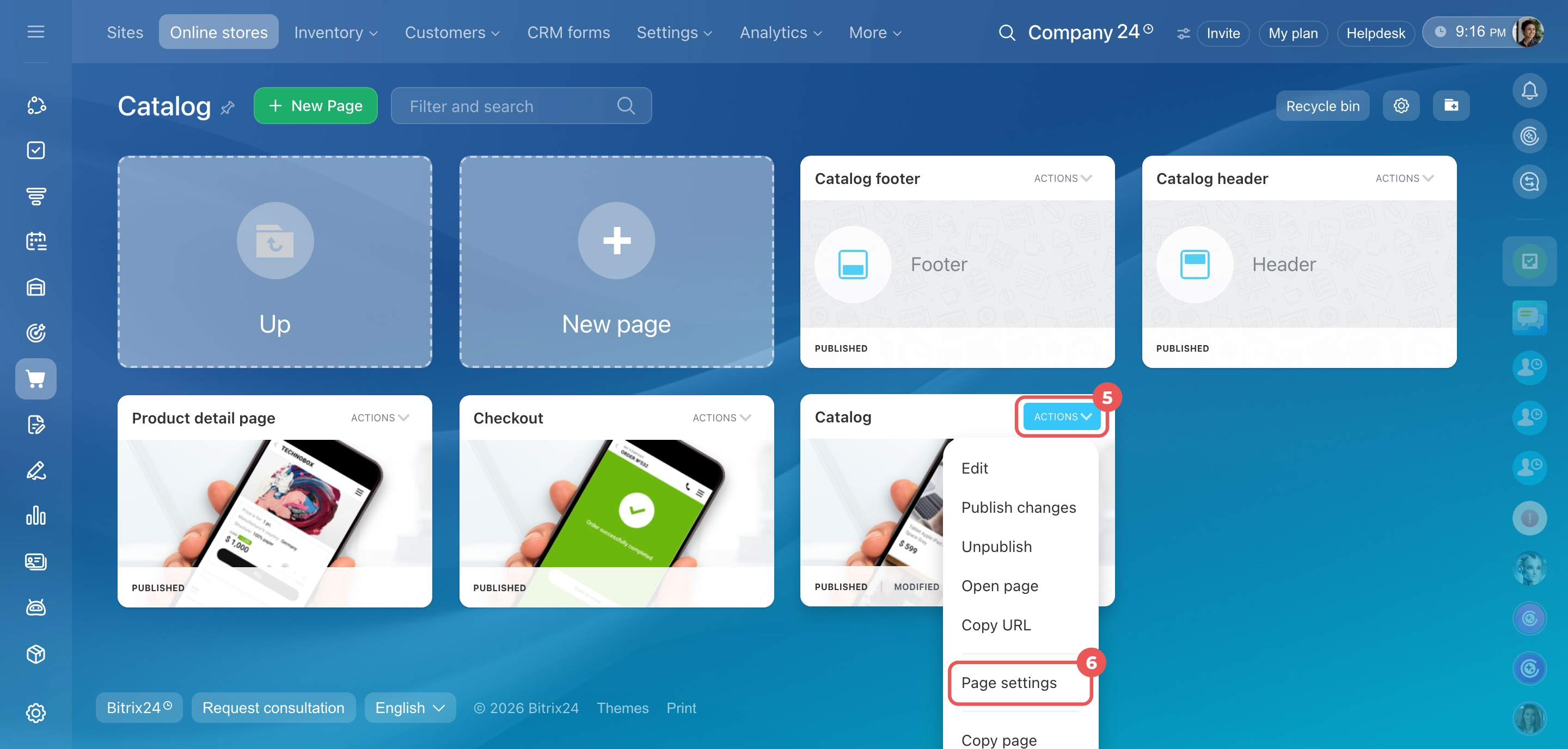
1–3. Go to Sites and stores > Online stores. Hover over the store and click View pages.
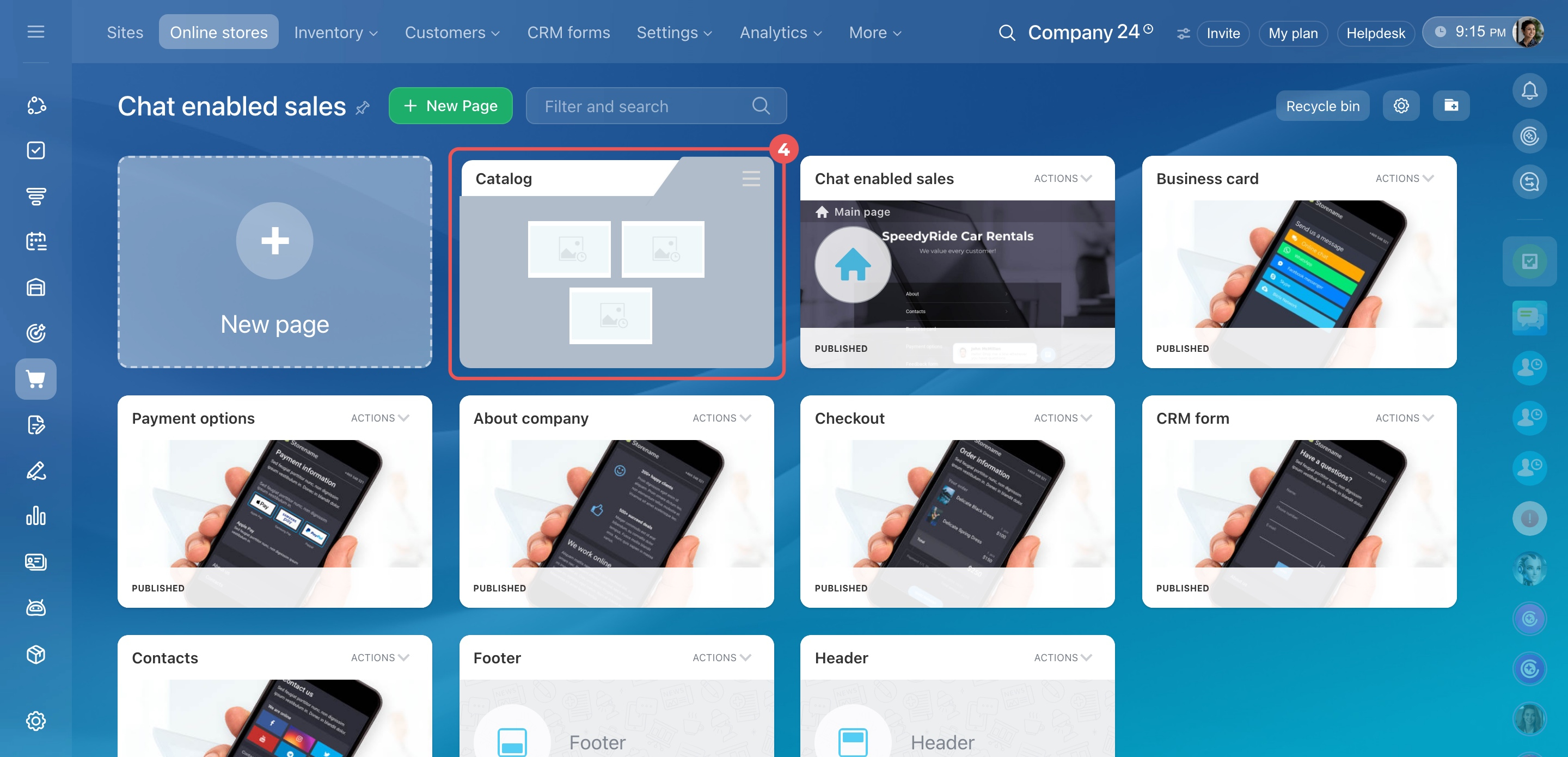
4–6. Open the Catalog folder. Find the Catalog page and click Actions > Page settings.
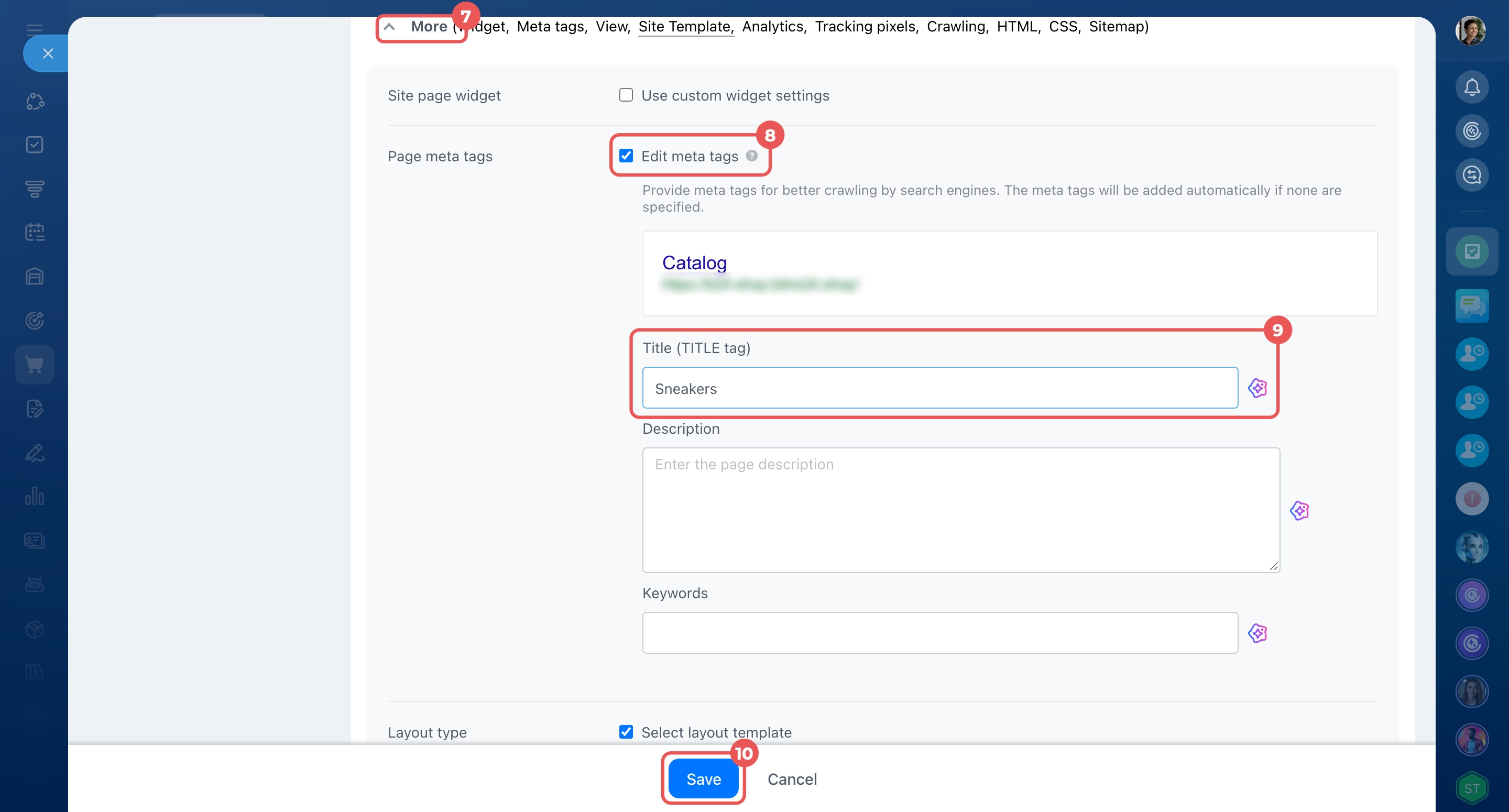
7–9. In the Page settings section, click the arrow next to More. Select the Edit meta tags checkbox and enter the title in the Title, title tag field.
10. Save your changes. The browser tab will show the title from the Title (TITLE tag) field.
Webpage title
In brief
- When a customer opens a product catalog in your online store, the browser tab shows a default title, such as Catalog.
- You can change this title to improve how the page appears in search results. You can do this in the product catalog or in the store page settings.
- To change the title for a specific catalog section or subsection, go to Sites and stores > Inventory > Product catalog. Click Menu (≡) next to the section and select Edit. Open the SEO tab and enter a title in the META TITLE template field, or fill it automatically from the section name by selecting Section fields > Current section name.
- To change the title for the entire catalog page, go to Sites and stores > Online stores > View pages. Open the Catalog folder, configure the Catalog page, and enter a value in the Title (TITLE tag) field.
- If both titles are set, the title from the product catalog overrides the title from the page settings.