In the mobile CRM, you can create documents using templates, such as invoices, contracts, or estimates.
Documents are generated from CRM item forms, and data like customer details, amounts, and products are automatically filled in from the fields of these forms.
Create a document
You can create a document in the deal, invoice, or other CRM item forms.
Using More.
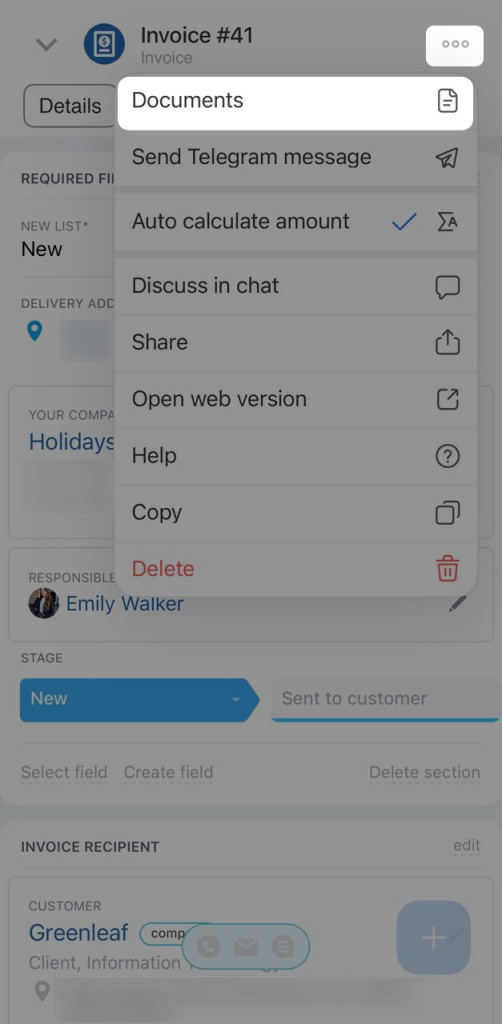
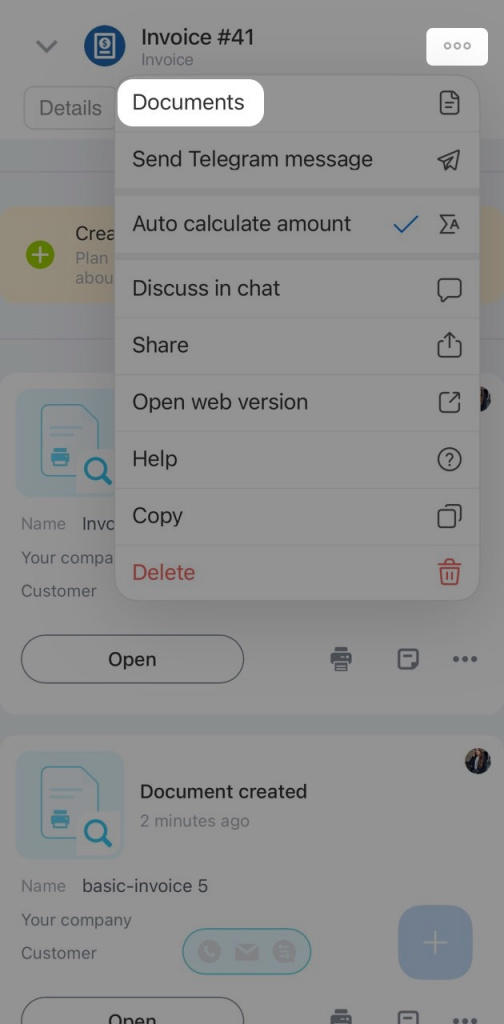
1. Tap More (...) > Documents.
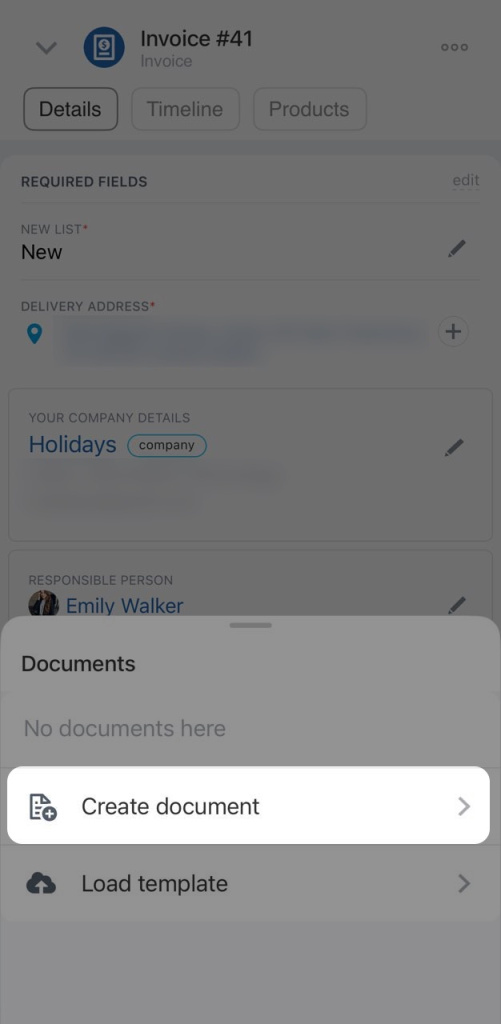
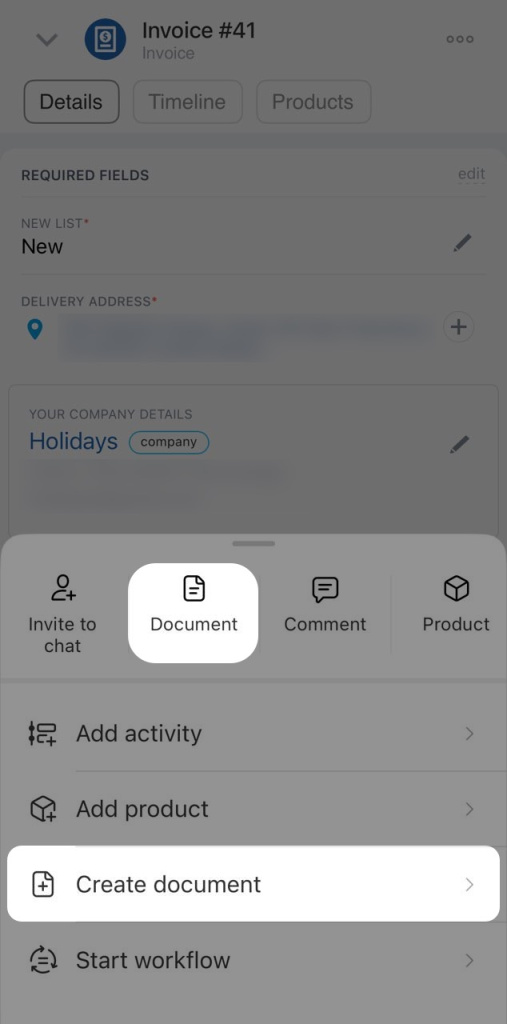
2. Tap Create document.
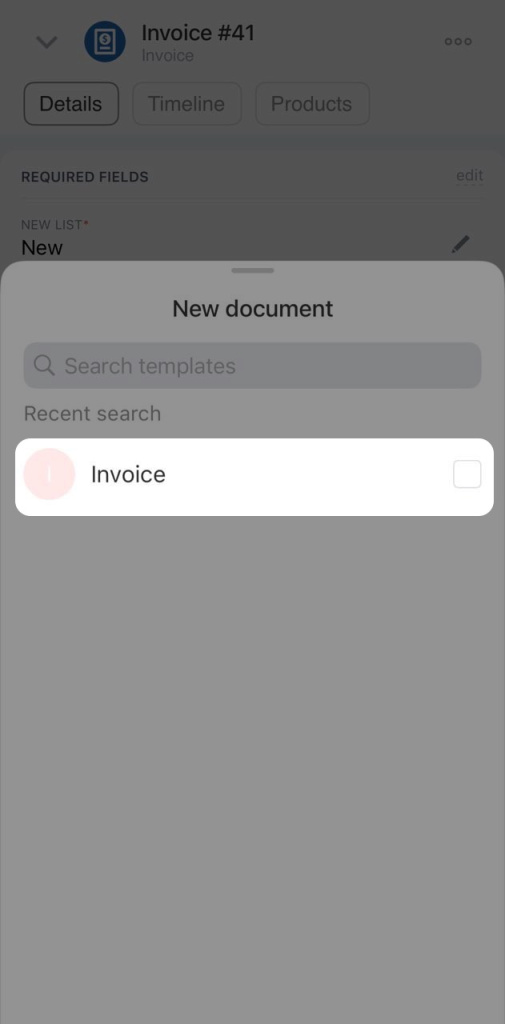
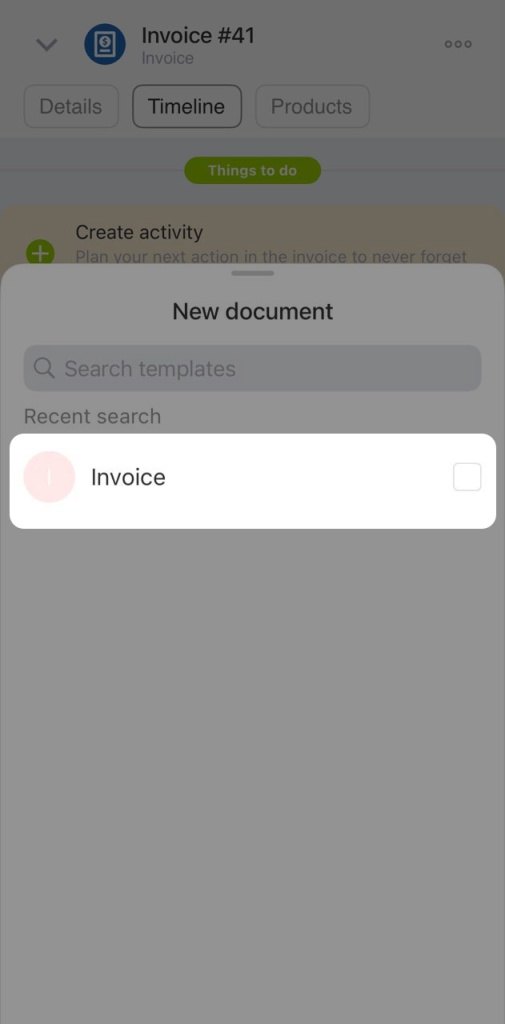
3. Select the required template. New templates can only be uploaded in Bitrix24 on a computer.
Using Plus (+).
1. Tap Plus (+) in the Details or Timeline tab.
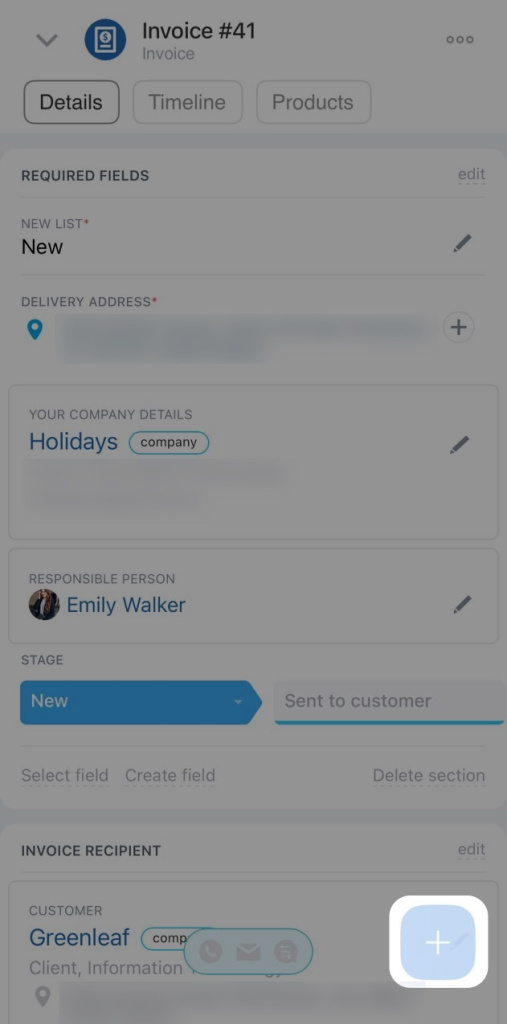
2. Select Document or Create document.
3. Select the required template. New templates can only be uploaded in Bitrix24 on a computer.
All created documents are saved in the More (...) > Documents section.
Edit or download a document
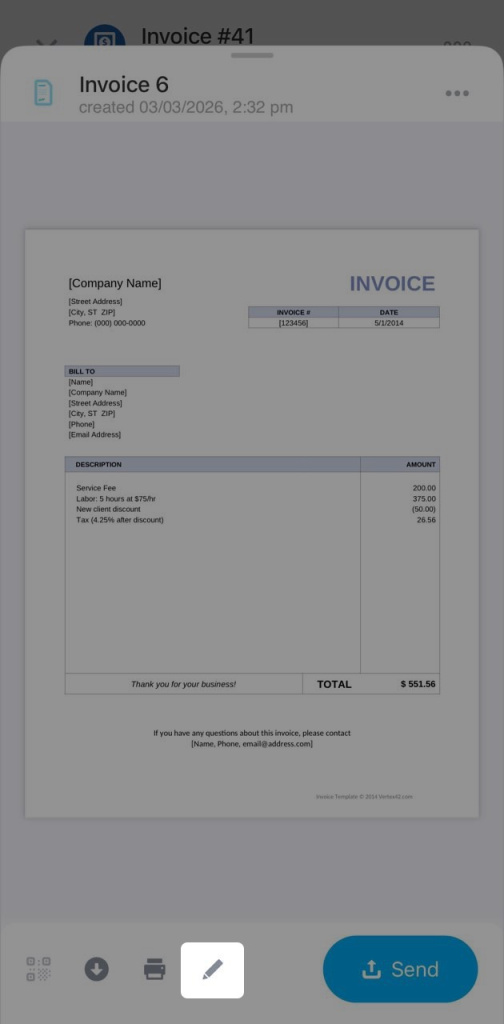
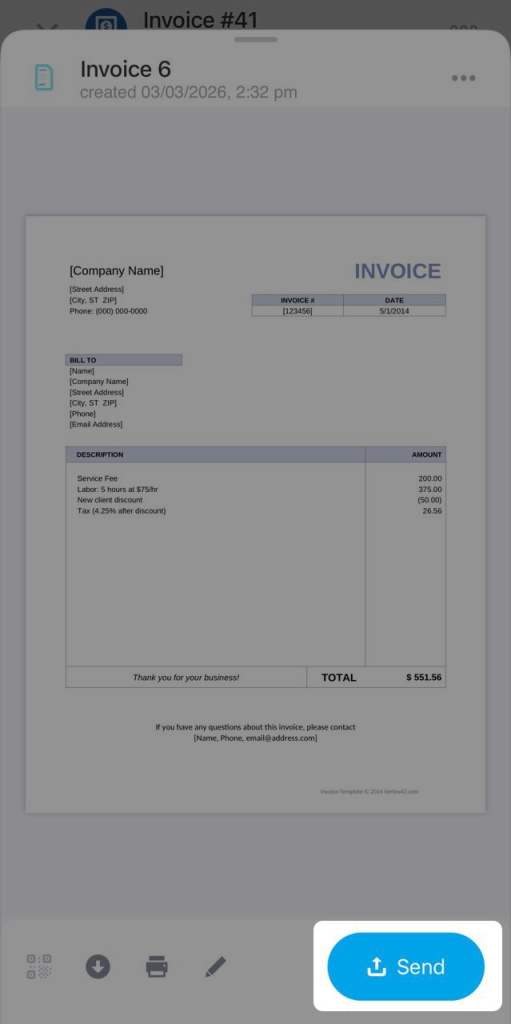
If you need to make changes after creating a document, tap the pencil icon on the bottom panel, for example, to update details.
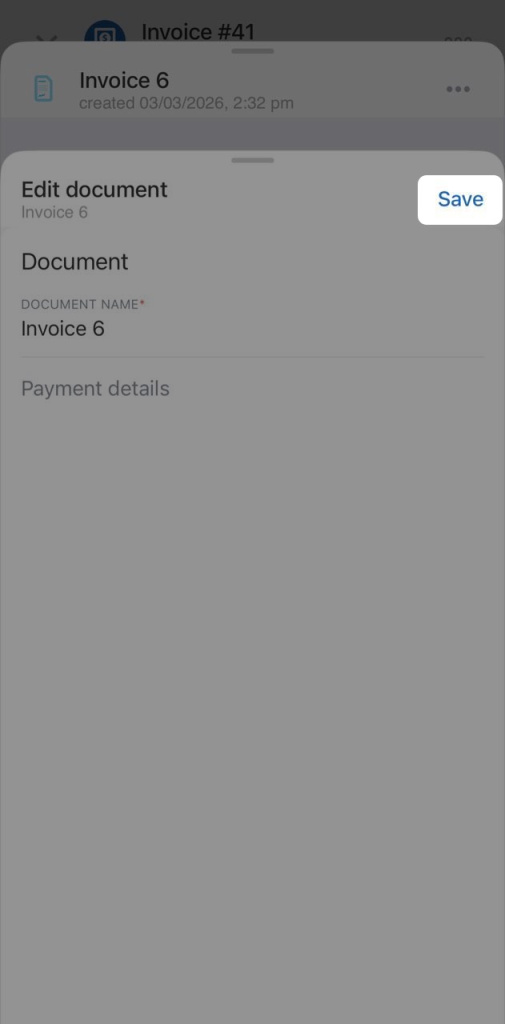
Tap Save. The document data will be updated.
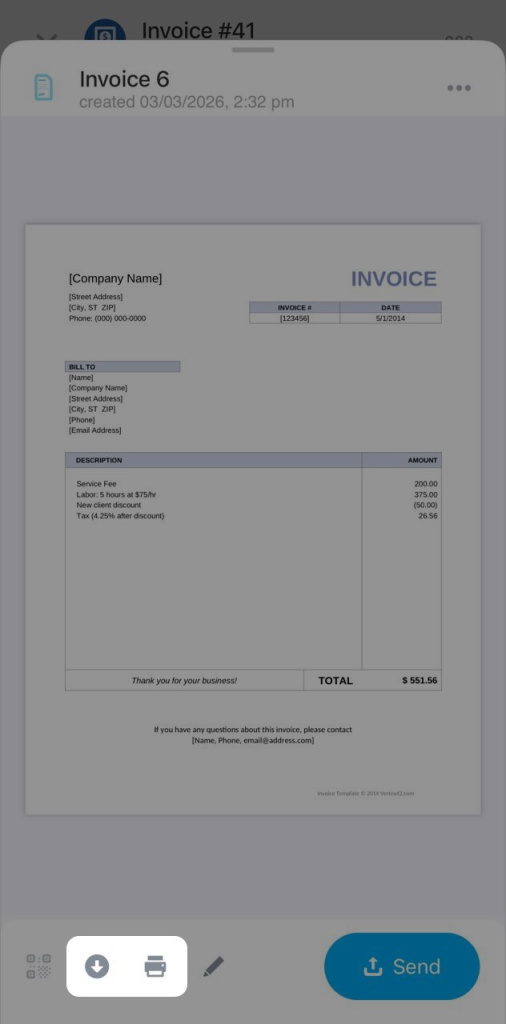
The completed document can be:
- Downloaded in docx or pdf format
- Printed if a hard copy is needed
Add a stamp and signature to a document
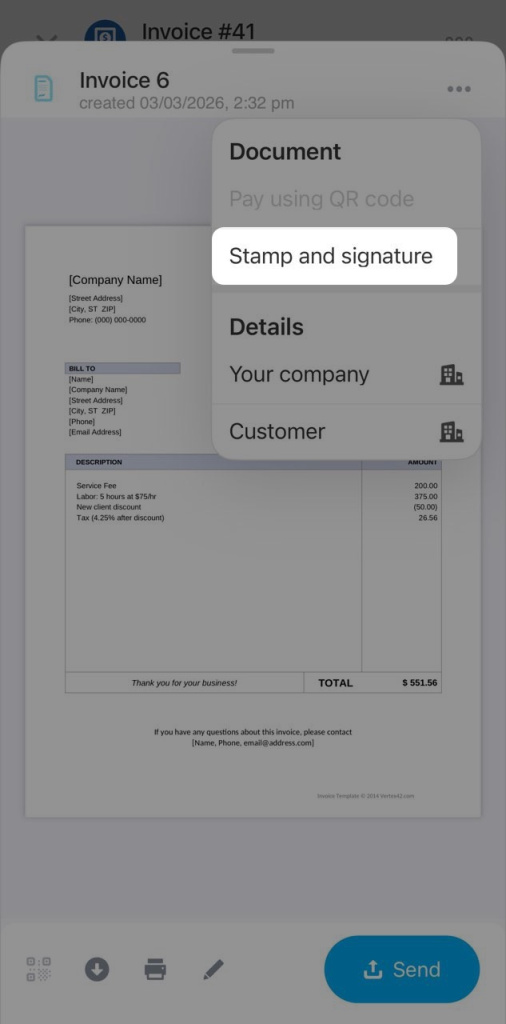
If your company details include uploaded stamp and signature images, you can add them to the document.
Tap More (...) > Stamp and signature. The system will add the stamp and signature to the document.
Send a document to a customer
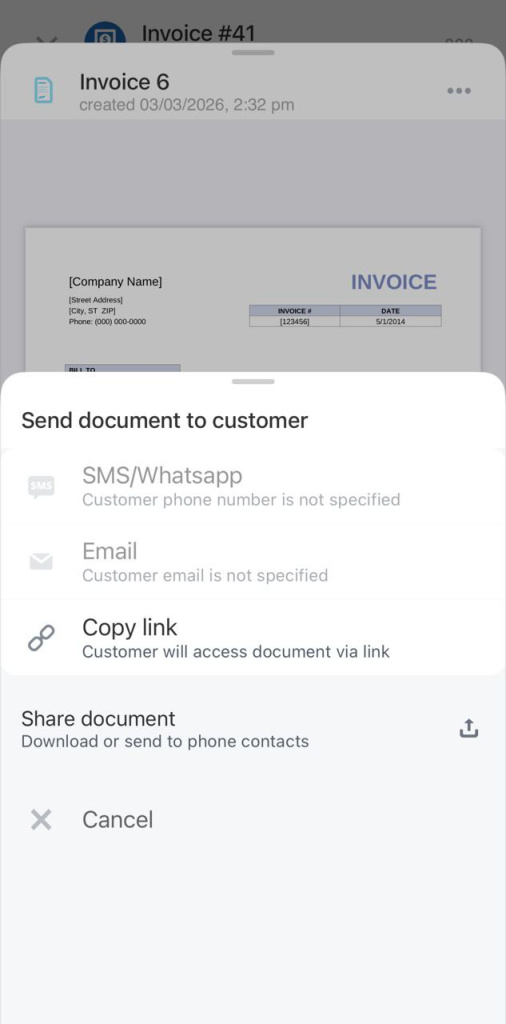
To send a document to a customer, tap Send.
Select the sending method:
- Via SMS — if an SMS provider is connected and the customer’s phone number is specified. The customer will receive a link to the document.
- Via email — if a mailbox is connected in Bitrix24 and the customer’s email is specified. The customer will receive the document in pdf format.
- Share the document. The file can be sent through any app on your phone, such as a messenger or email.
You can also copy the public link to the document and send it to the customer in any way.