
If you experience email issues in Bitrix24, our support team may ask you to send the message as an EML file.
This helps us investigate issues like:
- The email won't open
- Attachments are missing
- The email appears differently in Bitrix24 compared to your email provider
An EML file is a saved copy of an email. It includes:
- Message content
- Sender and recipient details
- Subject
- Date
- Attachments
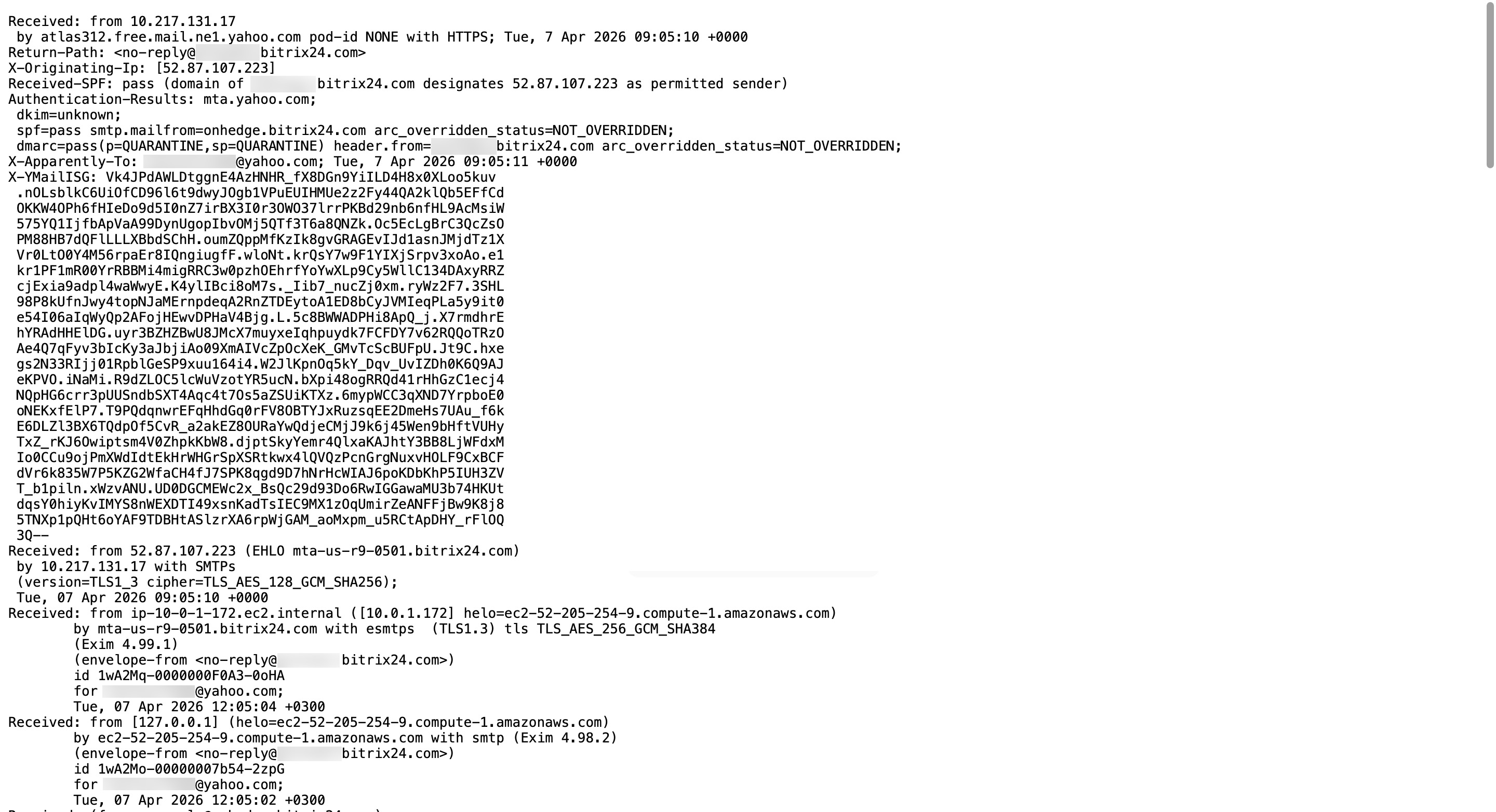 Example of an EML file
Learn how to save an EML file in common email services:
If your email provider is not listed here or does not support the EML format, use Thunderbird as a universal option.
Yahoo!
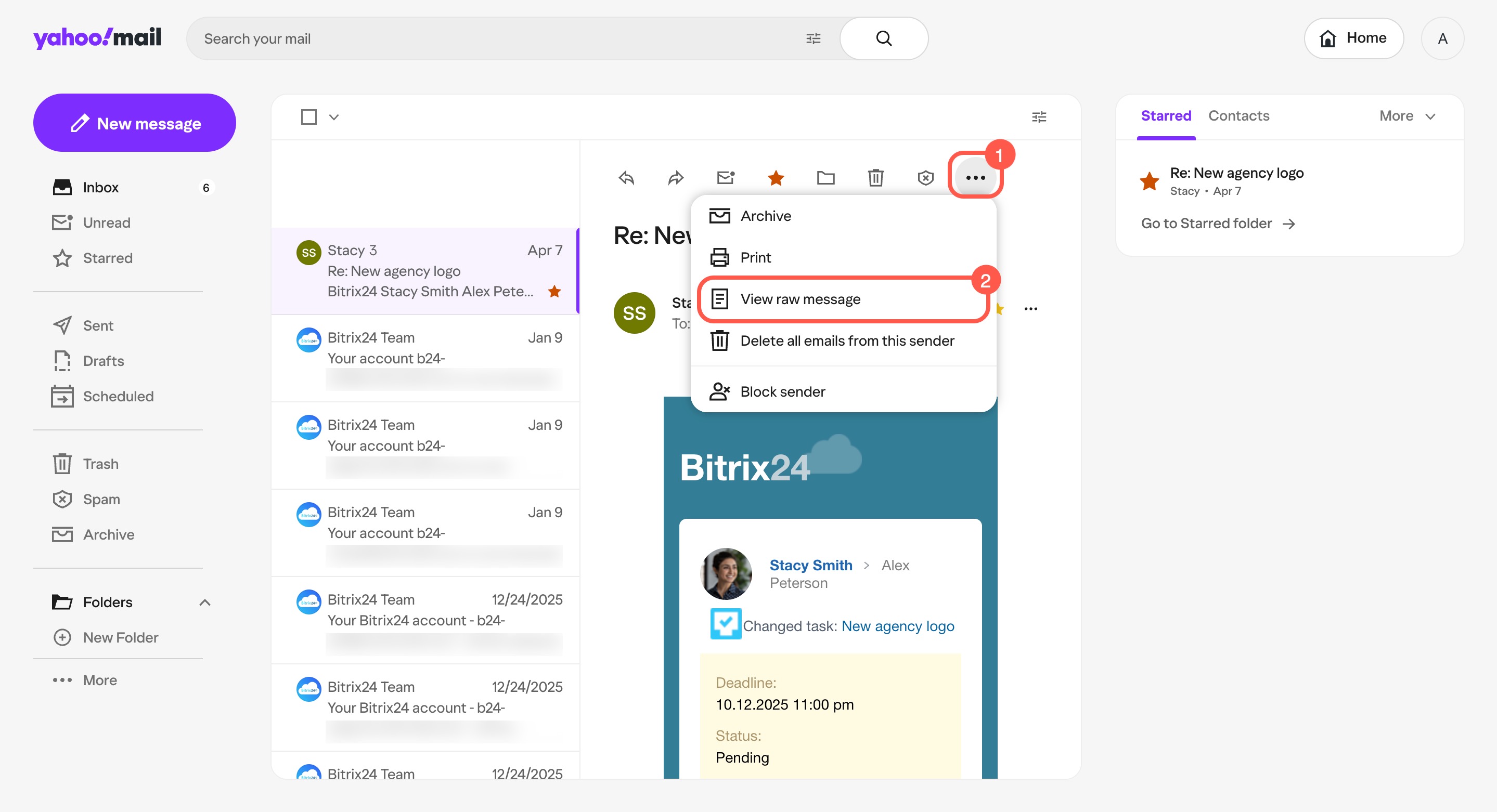
Open the email in your mailbox.
- Click Three dots (...) on the right side of the top toolbar.
- Select View raw message. The message opens in a new window.
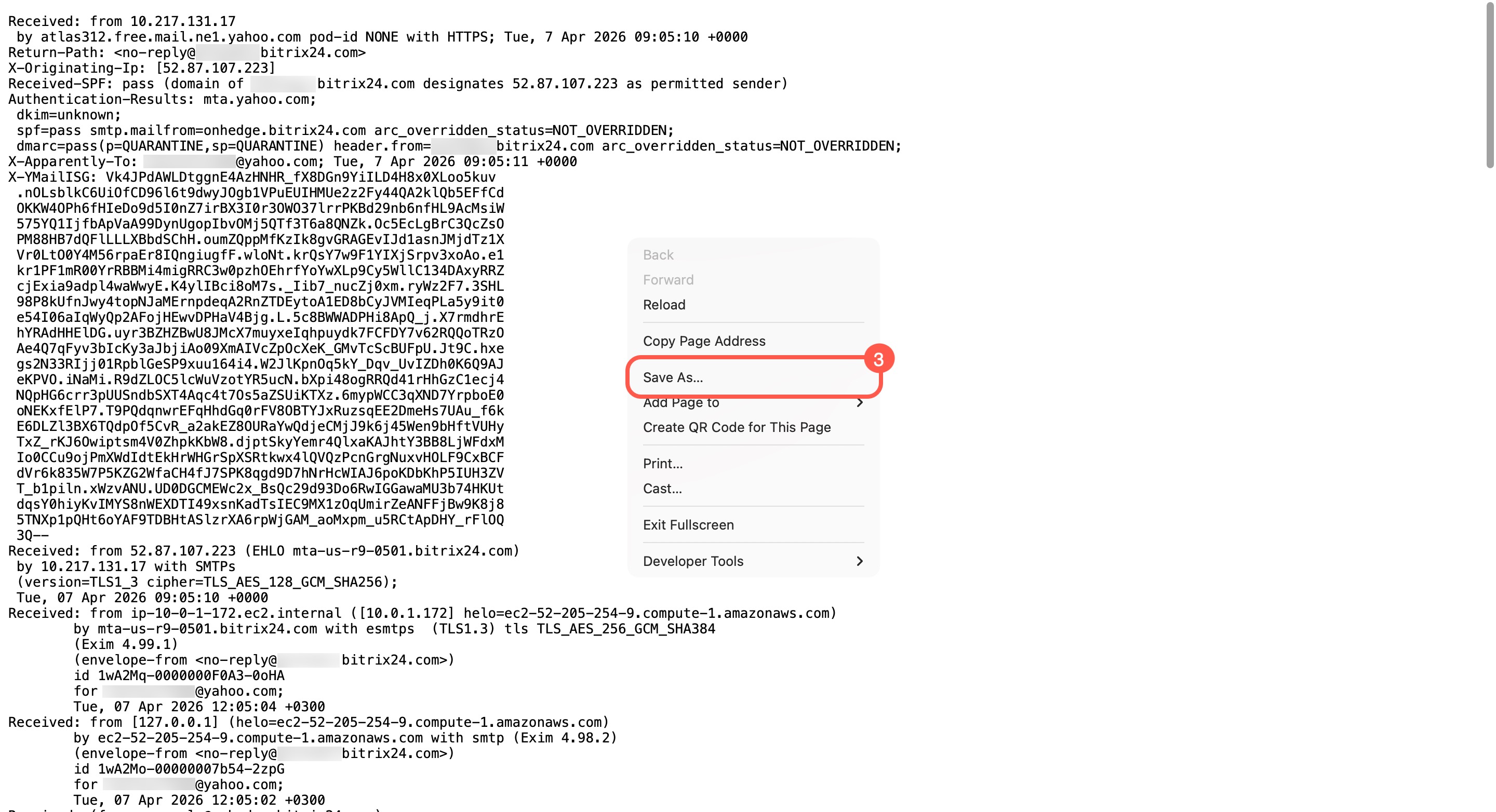
- Right-click and select Save as. The file is saved in TXT format.
Gmail
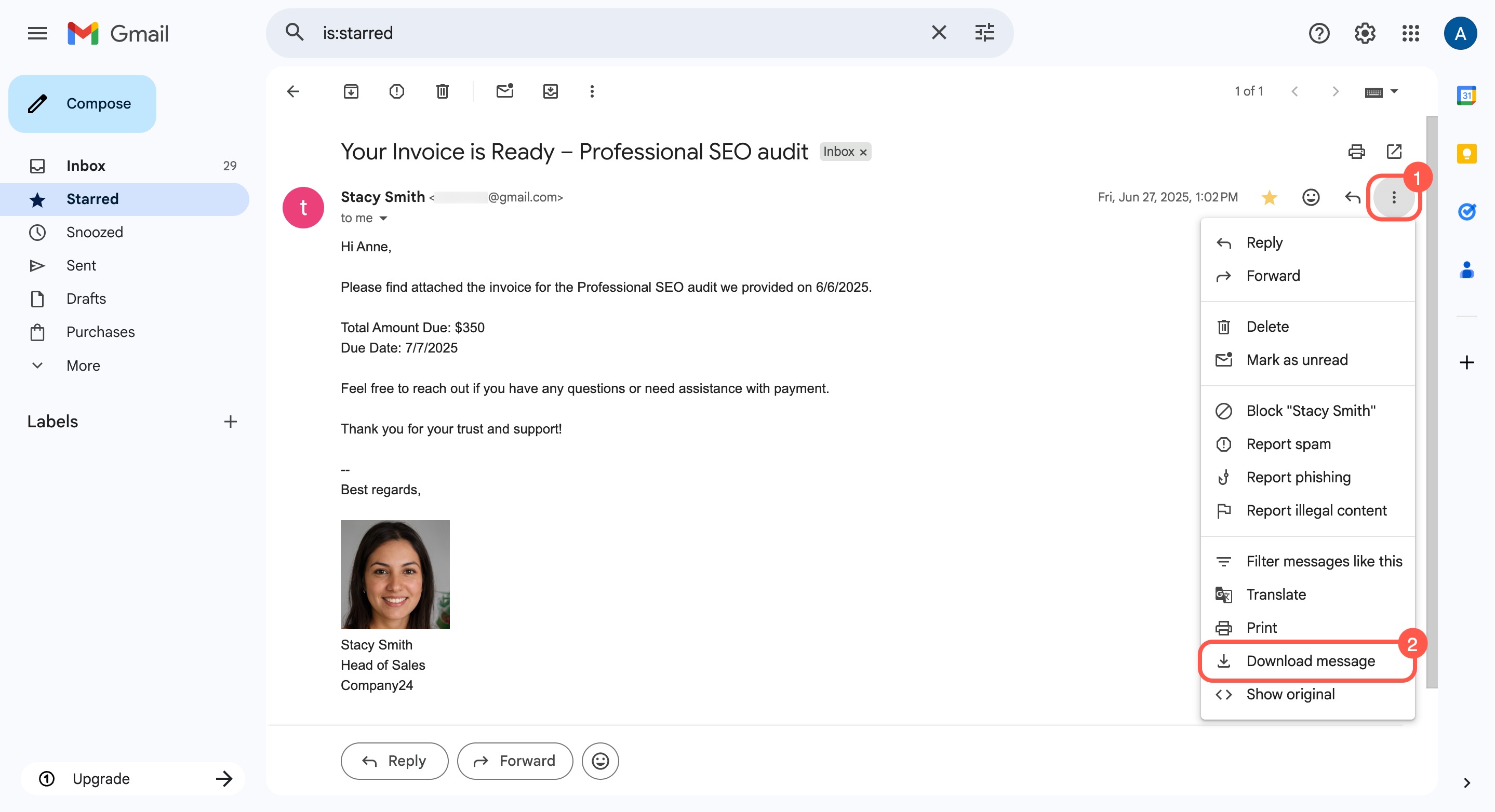
Open the email in your mailbox.
- Click Three dots to the right of the email.
- Select Download message. The email is saved automatically in EML format.
Outlook
Open your mailbox in the web version or the desktop app.
Web version
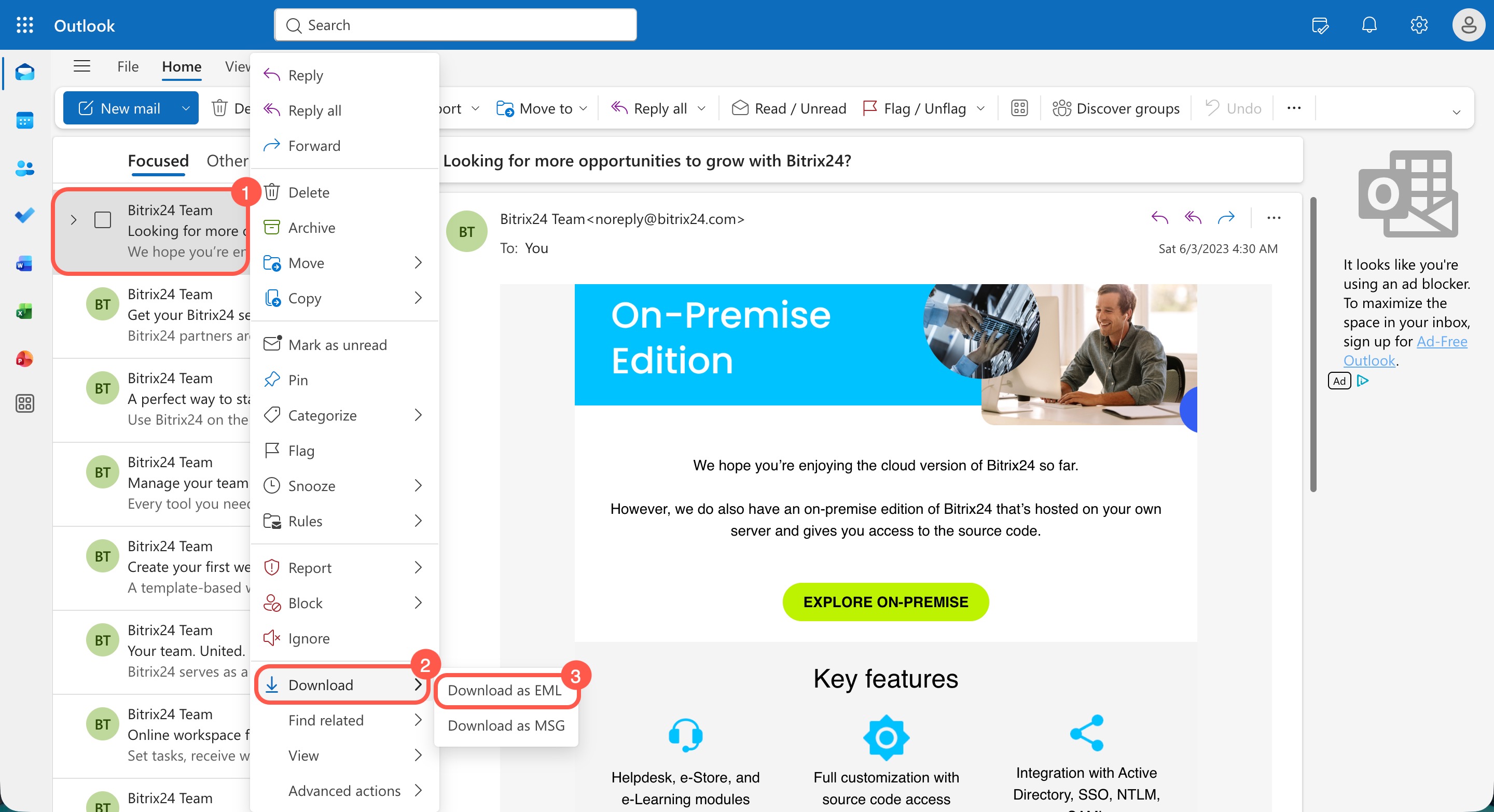
- Right-click the email.
- Click Download.
- Select Download as EML. The email is saved automatically in EML format.
Desktop app (new Outlook)
- Right-click the email.
- Click Save as.
- Select Save as EML. The email is saved automatically in EML format.
Some older versions of Outlook do not support EML files. In this case, save the email in MSG format and send it to Support instead.
Save an email as MSG in an older version of Outlook
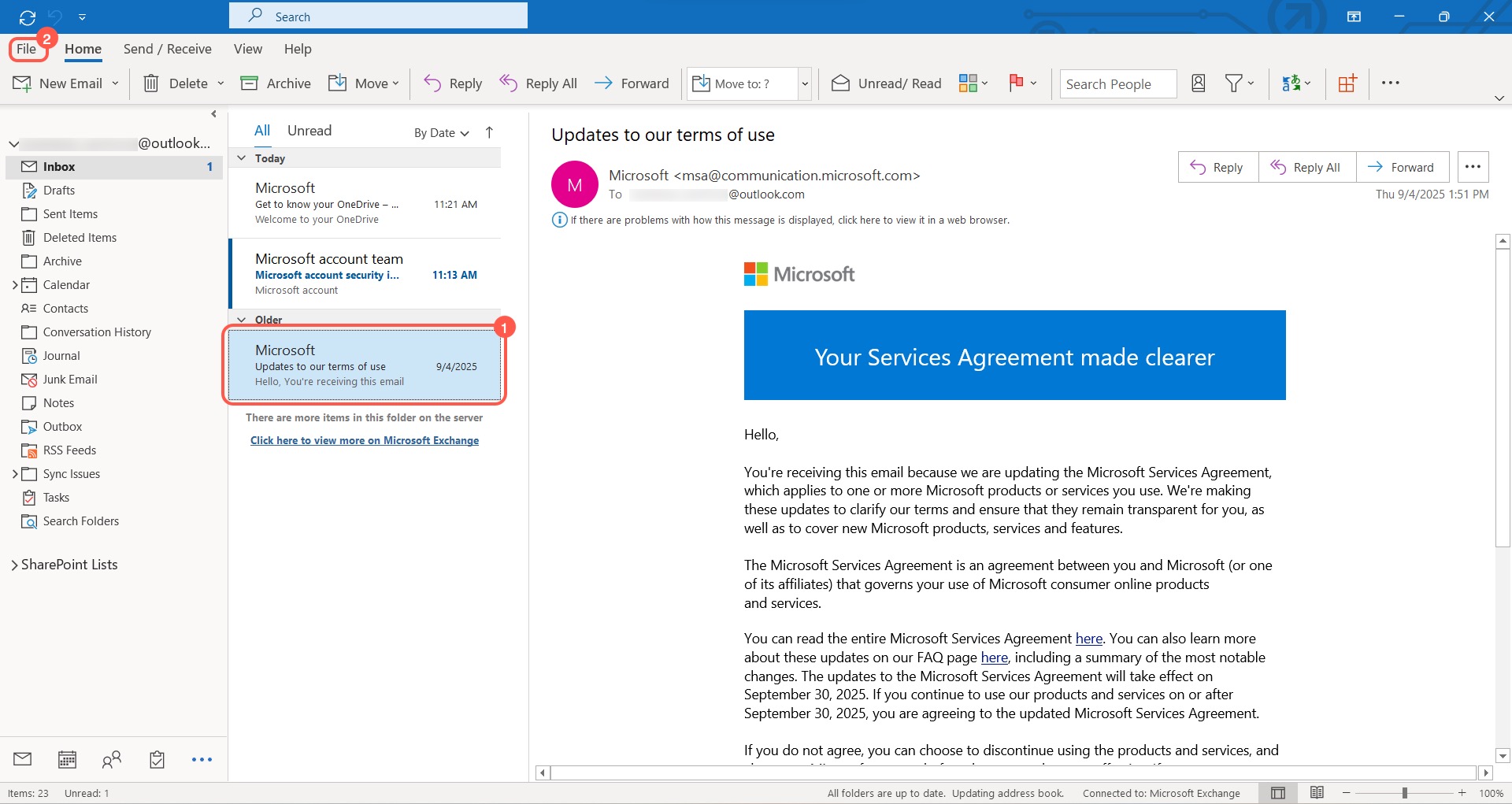
- Open your mailbox and select the email.
- Click File in the top-left corner.
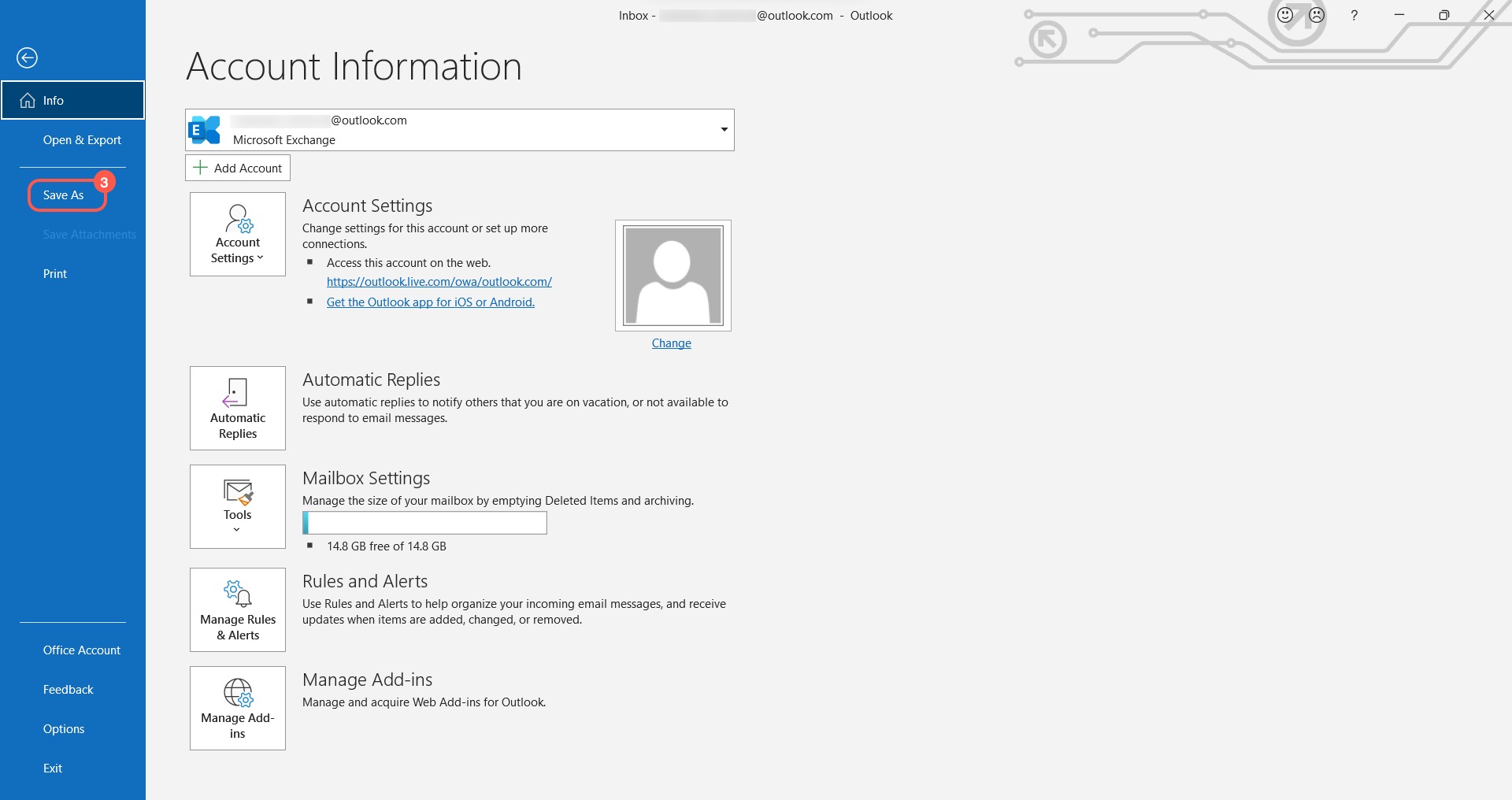
- Select Save as.
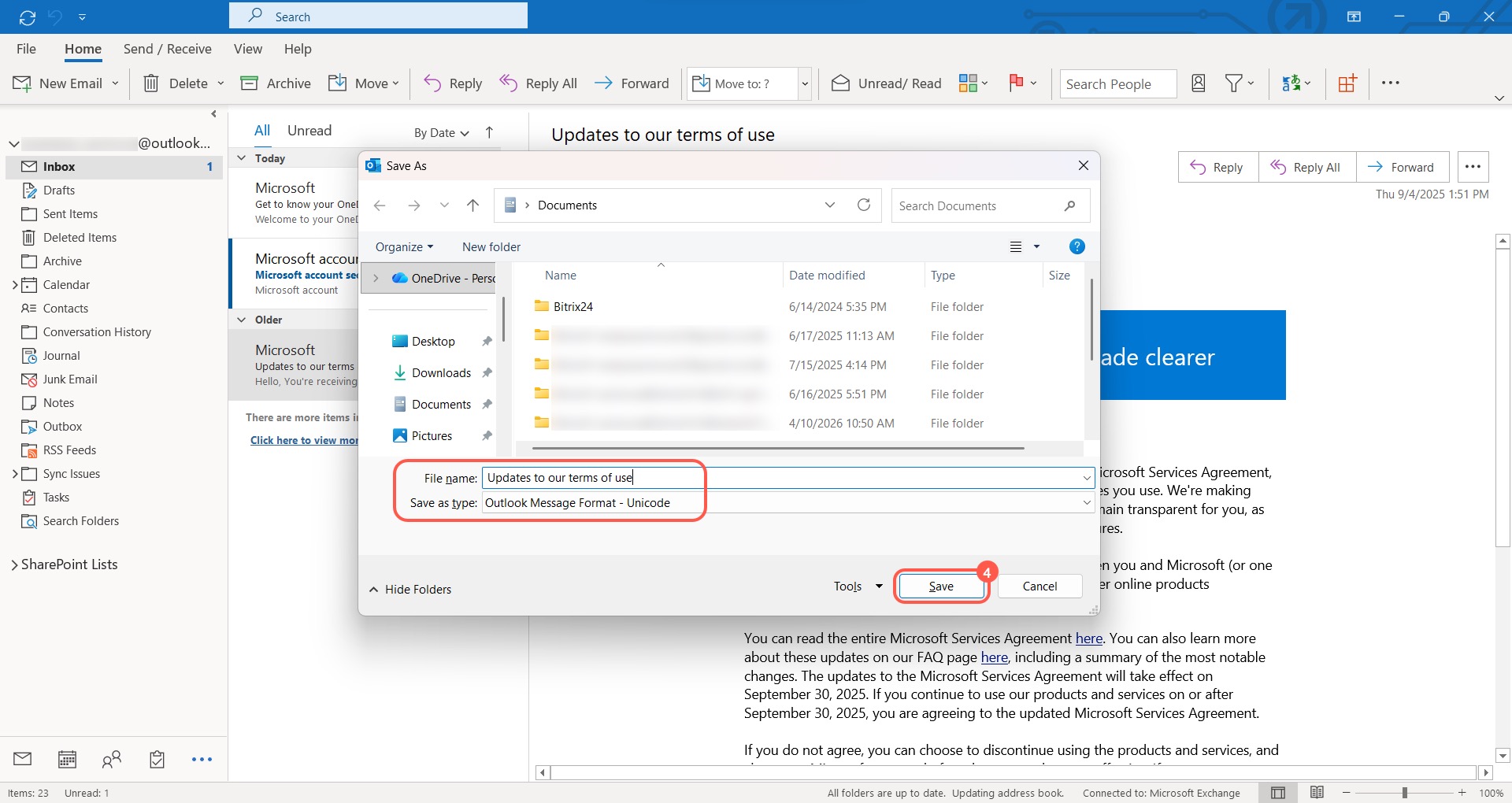
- Save the file.
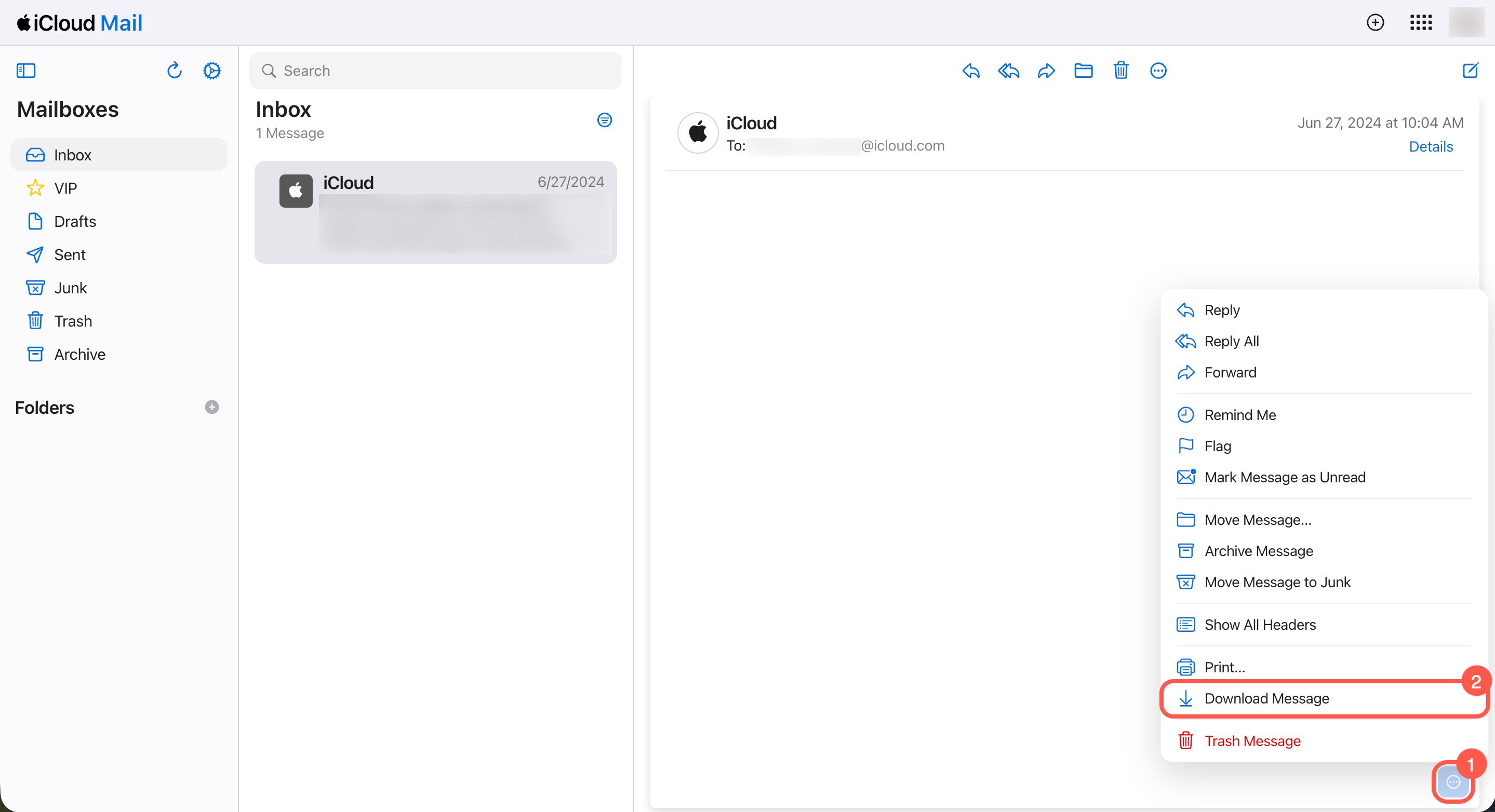
iCloud
Open the email in your mailbox.
- Click Three dots (...) in the bottom-right corner.
- Select Download Message. The email is saved automatically in EML format.
Thunderbird
If your email service does not support EML files, connect your email account to Outlook or Thunderbird. Both apps allow you to save emails in this format.
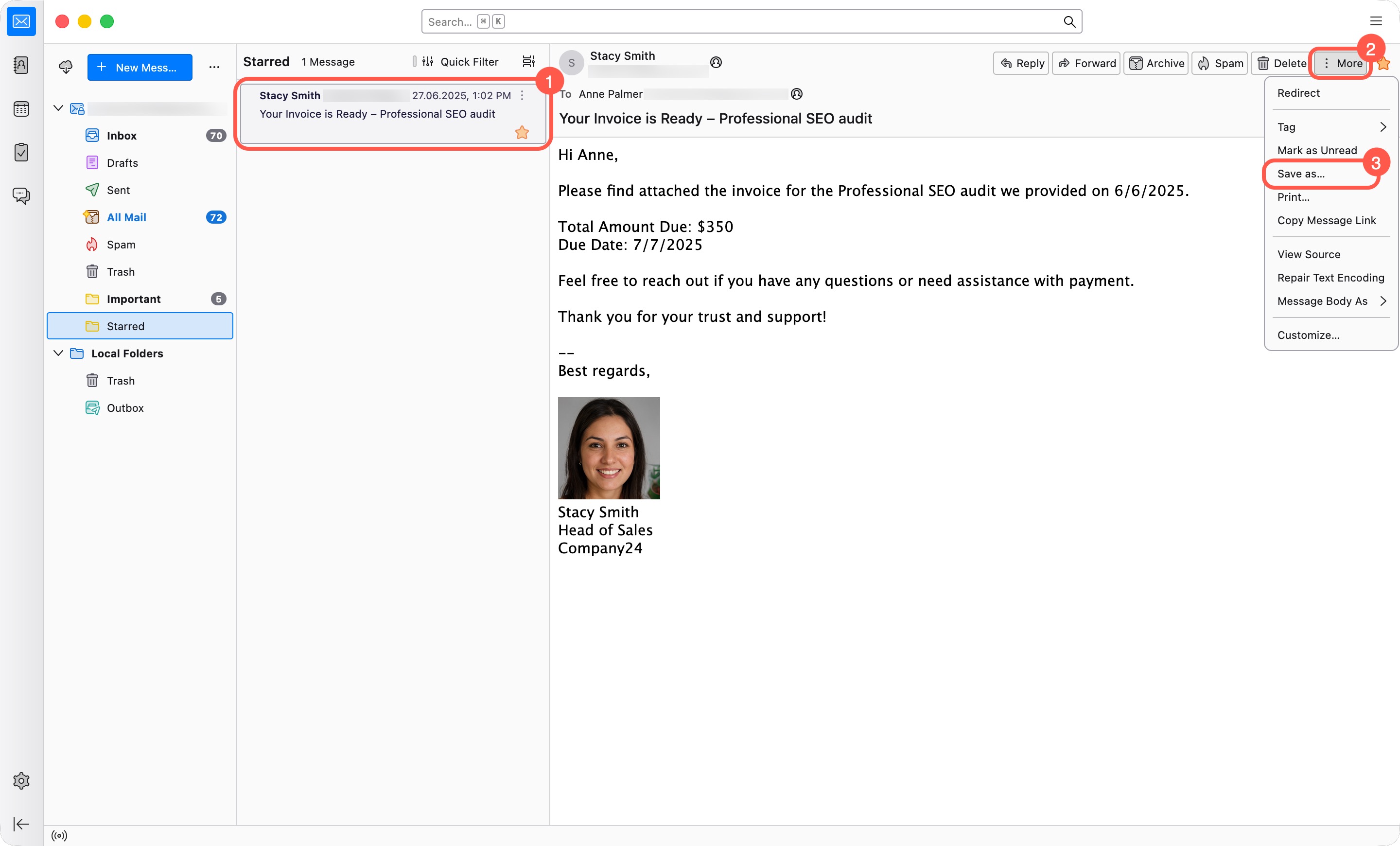
To save an email as an EML file in Thunderbird:
- Open the app and select the email.
- Click More in the top-right corner.
- Select Save as.
Save the email in EML format or in a similar format, such as MSG, and send the file to Bitrix24 Support. This helps us resolve the issue faster.