
In Bitrix24 Mail, you can create email templates with HTMLHTML defines the structure of web pages. You can use HTML tags to add and format text, images, tables, and videos in your emails. tags.
Use HTML tags to:
- Customize the appearance of your email (fonts, colors, styles)
- Add elements such as tables, lists, and images (for example, a company logo)
Bitrix24 plans
How HTML tags work
HTML tags can be single or paired:
- Single tags use one element (for example,
<br>). - Paired tags include an opening and a closing tag.
Example:
<p>— opens a paragraph.</p>— closes a paragraph.
Some tags include attributes. Attributes define how the tag behaves. They are added inside the opening tag as name/value pairs.
Example:
The tag <img> has an attribute src and alt: <img src="image.jpg" alt="Image description">. An attribute src specifies the path to the file, and alt shows the name of the image if it fails to load.
Tags for email structure
<html>– defines the HTML document (attribute: xmlns)<head>– contains metadata and styles<body>– contains all visible content such as a text, images, and links.
Tags for metadata
<meta>– stores page information (description, keywords)<title>– sets the page title
Tags for styles
<style>– defines internal styles<link>connects external style files (attributes: type, rel, href)
Tags for text formatting
<a>– creates a link (attributes: href, title, name, style, id, class, shape, coords, alt, target)<b>,<strong>– bold text (attributes: style, id, class)<i>– italic text (attributes: style, id, class)<u>– underlined text (attributes: style, id, class)<small>– smaller text (attributes: style, id, class)<big>– larger text (attributes: style, id, class)<br>– line break (attributes: style, id, class)<blockquote>– quoted text (attributes: title, style, id, class)
Tags for structure and grouping
<div>– groups content blocks (attributes: title, style, id, class, align)<span>– formats inline text (attributes: title, style, id, class, align)<p>– creates a paragraph (attributes: style, id, class, align)
Tags to create lists
<ul>– unordered list (attributes: style, id, class)<ol>– ordered list (attributes: style, id, class)<li>– list item (attributes: style, id, class)
Tags for tables
<table>– creates a table (attributes: border, width, style, id, class, cellspacing, cellpadding)<tr>– table row (attributes: align, valign, style, id, class)<td>– table cell (attributes: width, height, style, id, class, align, valign, colspan, rowspan, bgcolor)<th>– table header (attributes: width, height, style, id, class, colspan, rowspan)<thead>,<tbody>,<tfoot>– table sections (attributes: align, valign, style, id, class)
Tags for images
<img>– inserts an image (attributes: src, alt, height, width, title)
Tags for code and advanced formatting
<code>– formats code (attributes: style, id, class)<del>– shows deleted text (attributes: style, id, class)<ins>– shows inserted text (attributes: style, id, class)<map>– defines clickable areas in an image (attributes: shape, coords, href, alt, title, style, id, class, name)<php>– inserts PHP code (attributes: id)
To use HTML in your email:
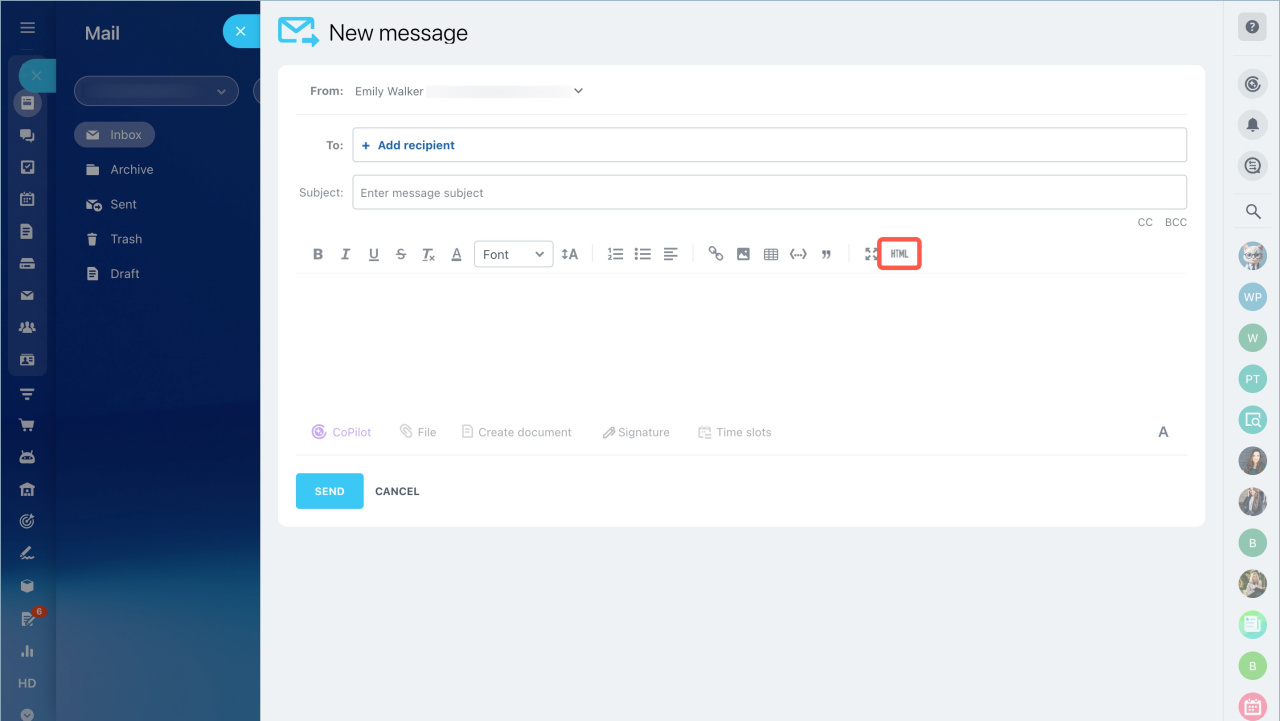
- Go to Webmail.
- Click New message.
- Select HTML.
- Add your tags and send the email.
In brief
- HTML tags define the structure and formatting of email content.
- Use them to customize layout and add elements like images or tables.
- Only the supported tags listed above work in Bitrix24 Mail.