
Integrate your mailbox with Bitrix24 to manage email and communicate with your team. Before you start, connect your mailbox to Bitrix24.
Connect mailboxes to Bitrix24
Bitrix24 pricing page
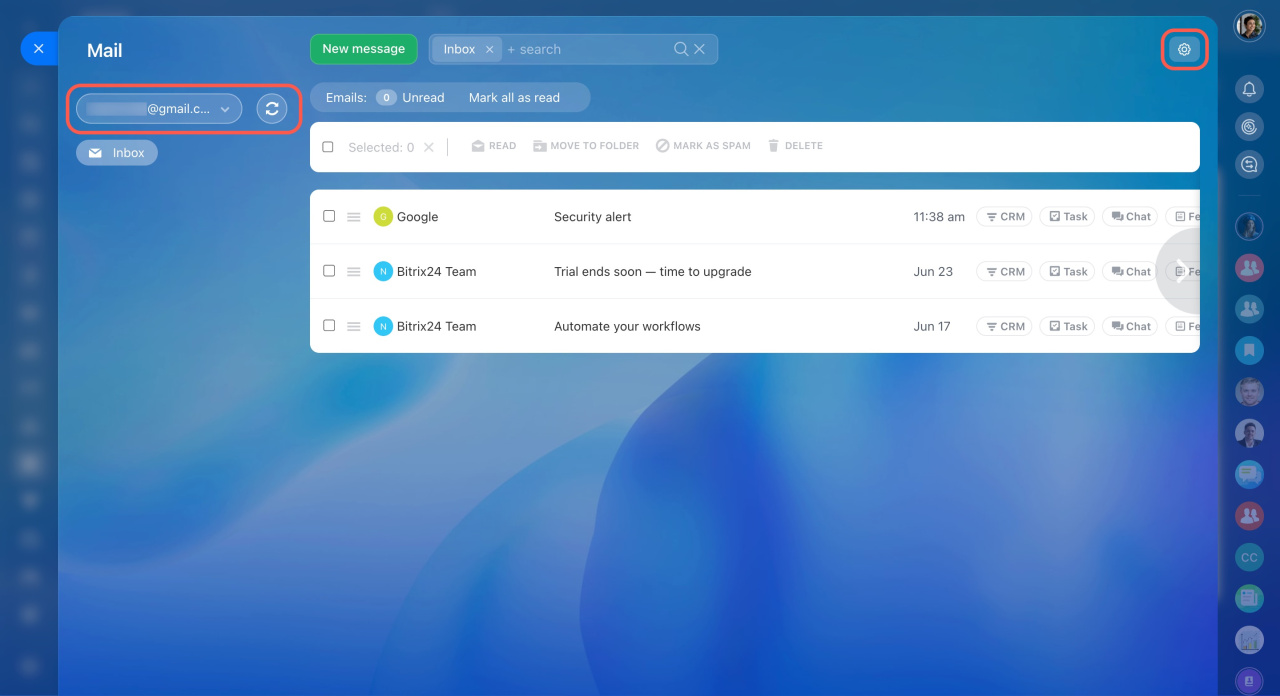
Open Webmail in the left menu. Click the gear icon (⚙️) in the top-right corner to configure your mailbox.
Mailbox settings
If you have multiple connected mailboxes, a red dot appears above the current mailbox. This means there are unread messages in other mailboxes.
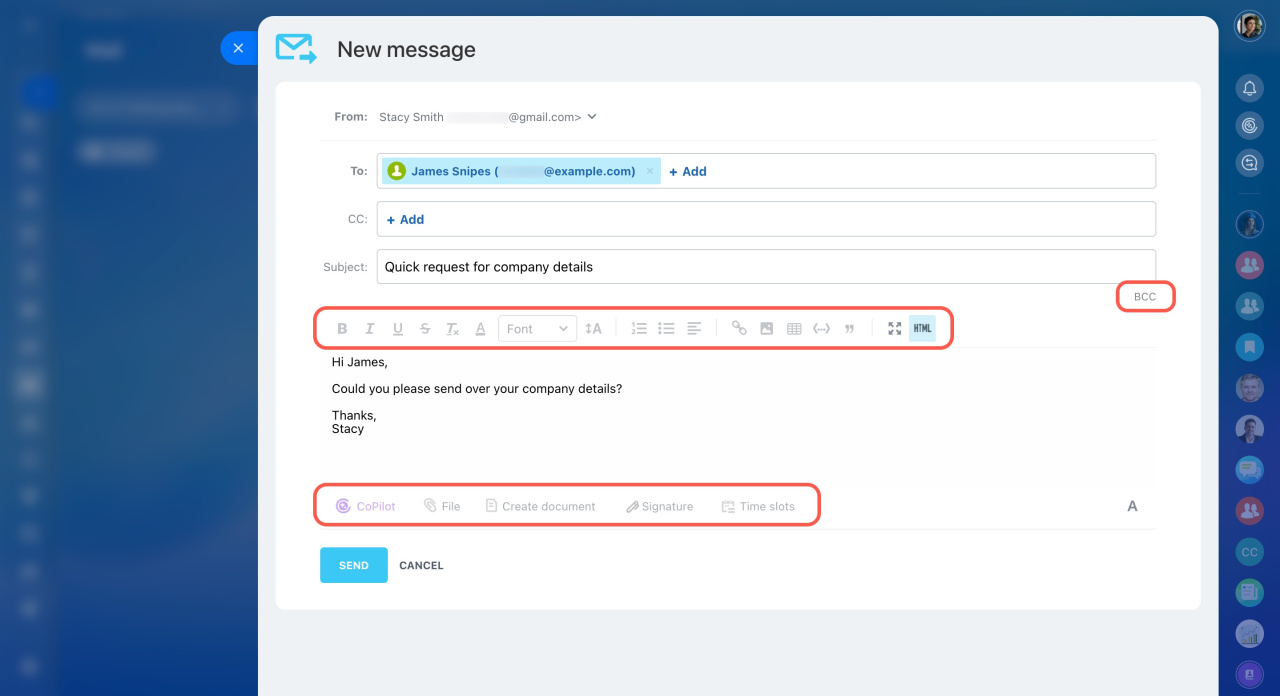
The email compose window lets you add recipients, enter a subject and message, format text, attach files, and more.
Filter emails
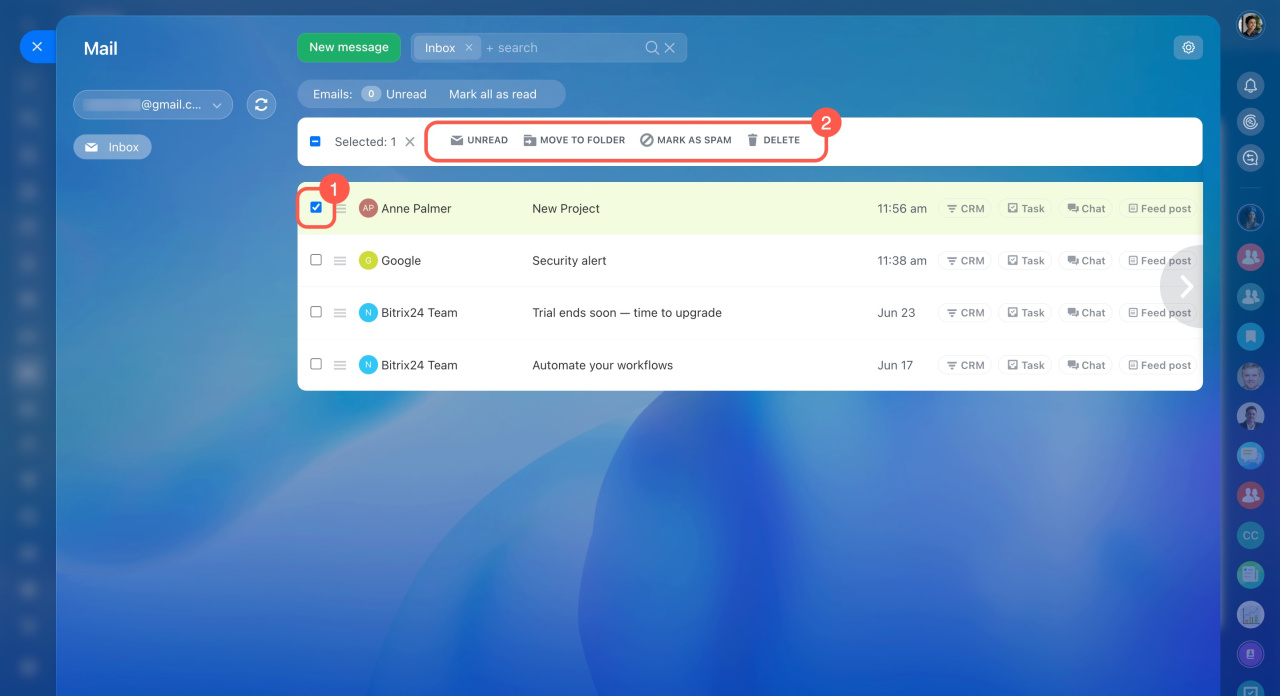
Select the checkboxes next to emails (1) to open the top menu. From there, you can mark emails as read, unread, or spam, move them to another folder, or delete them (2).
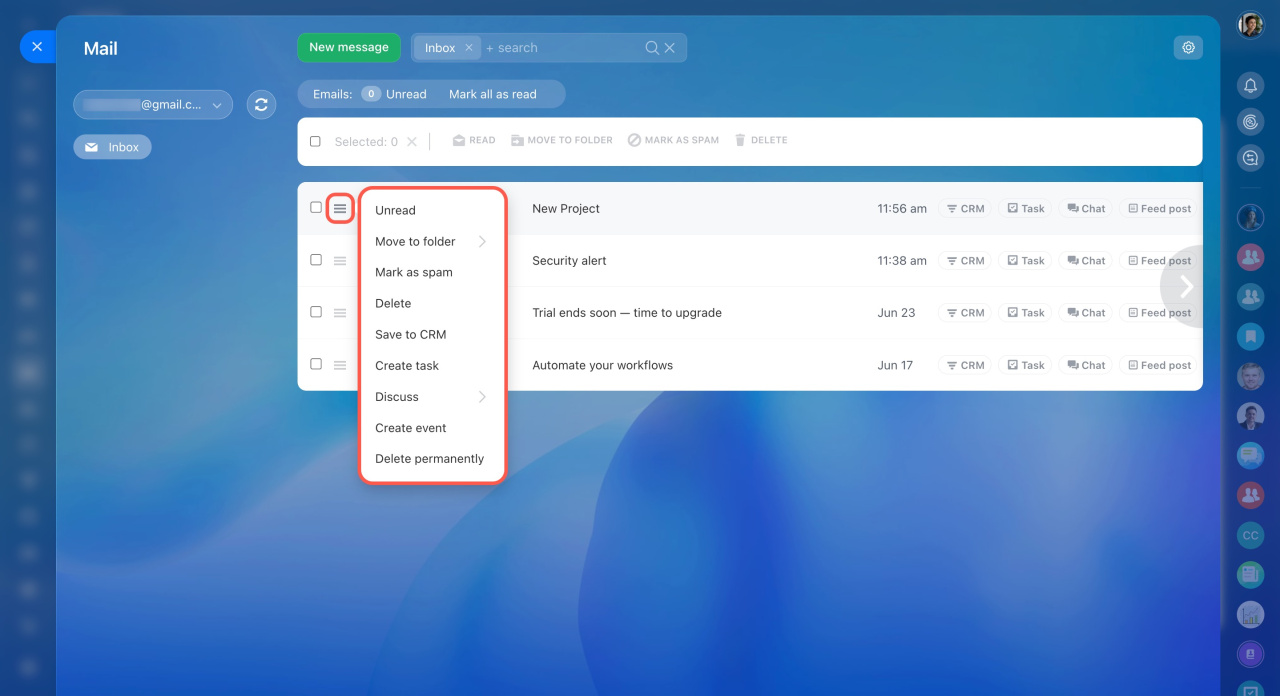
You can also open the same actions from the button next to the email sender.
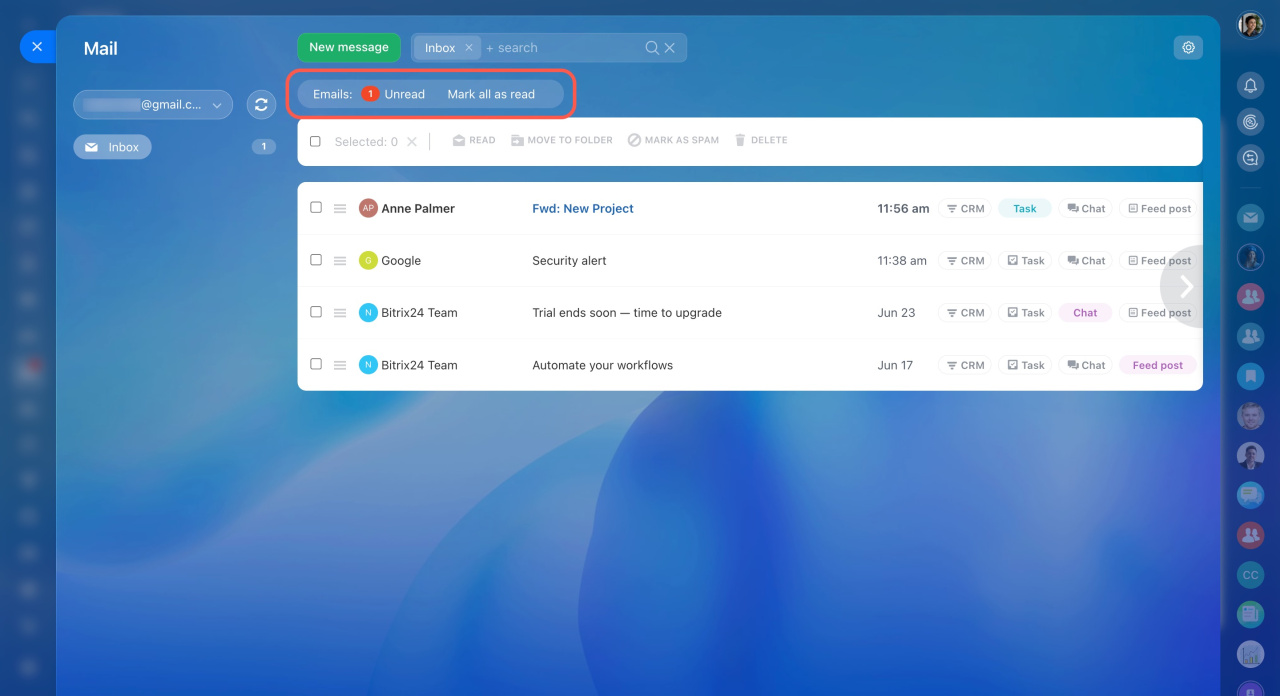
Counters at the top of the message list show how many unread messages you have.
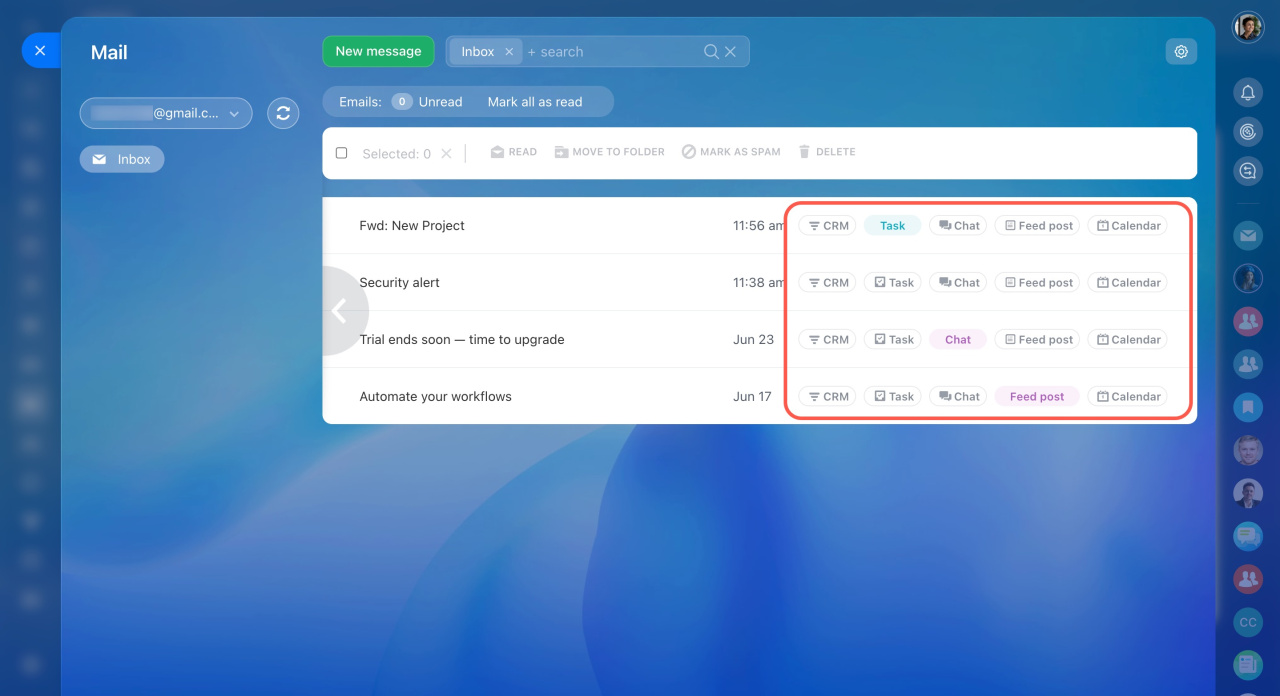
You can create tasks or events from emails, save emails to CRM, or discuss them with colleagues in chats or Feed.
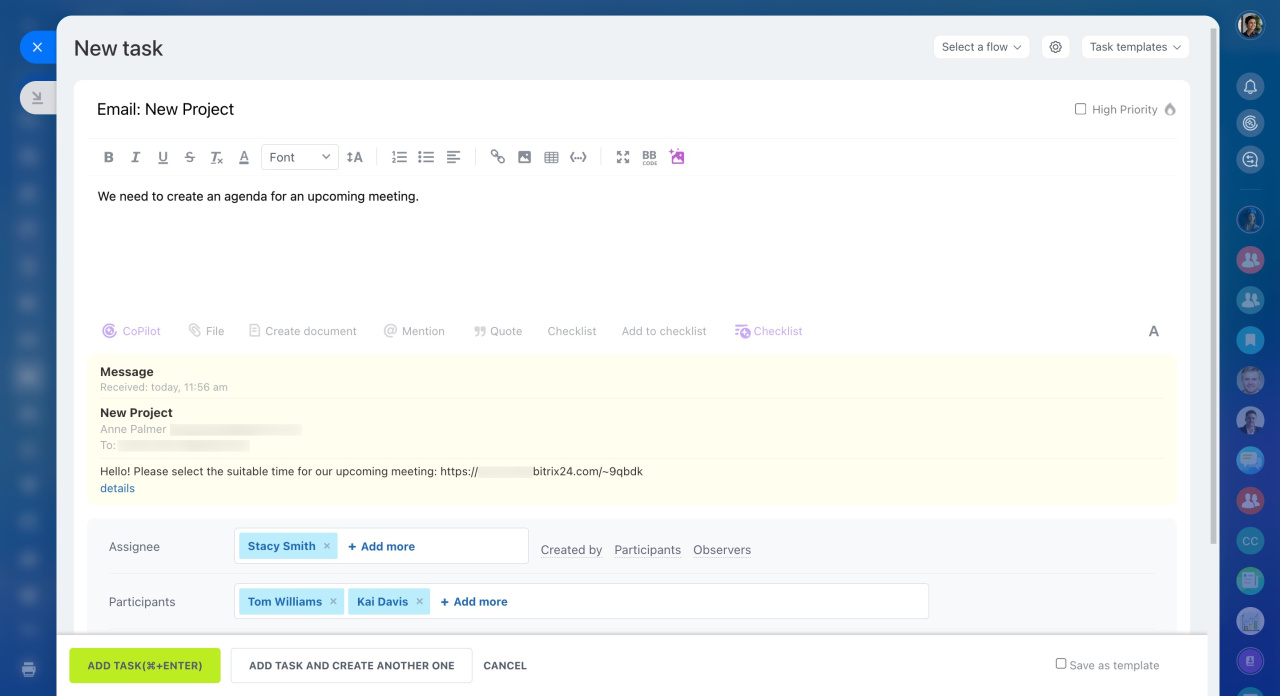
For example, when you receive an email from a partner, you can create a task from it so you do not forget to reply. You can also create a chat to discuss the topic with your colleagues.
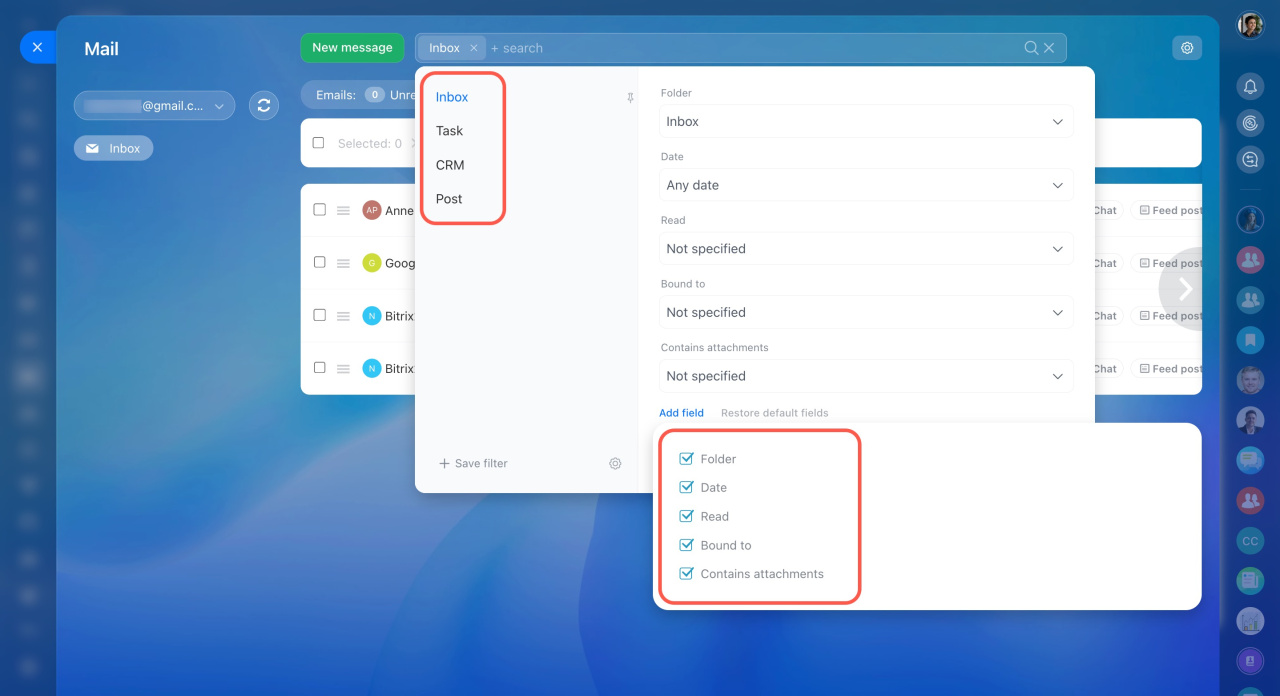
Use filters to find emails faster. You can filter emails by standard fields, such as date or status. You can also filter emails by the items they are linked to.
Email synchronization
Mailbox content syncs automatically between mail agents. To start sync manually, click the Sync icon next to your mailbox.
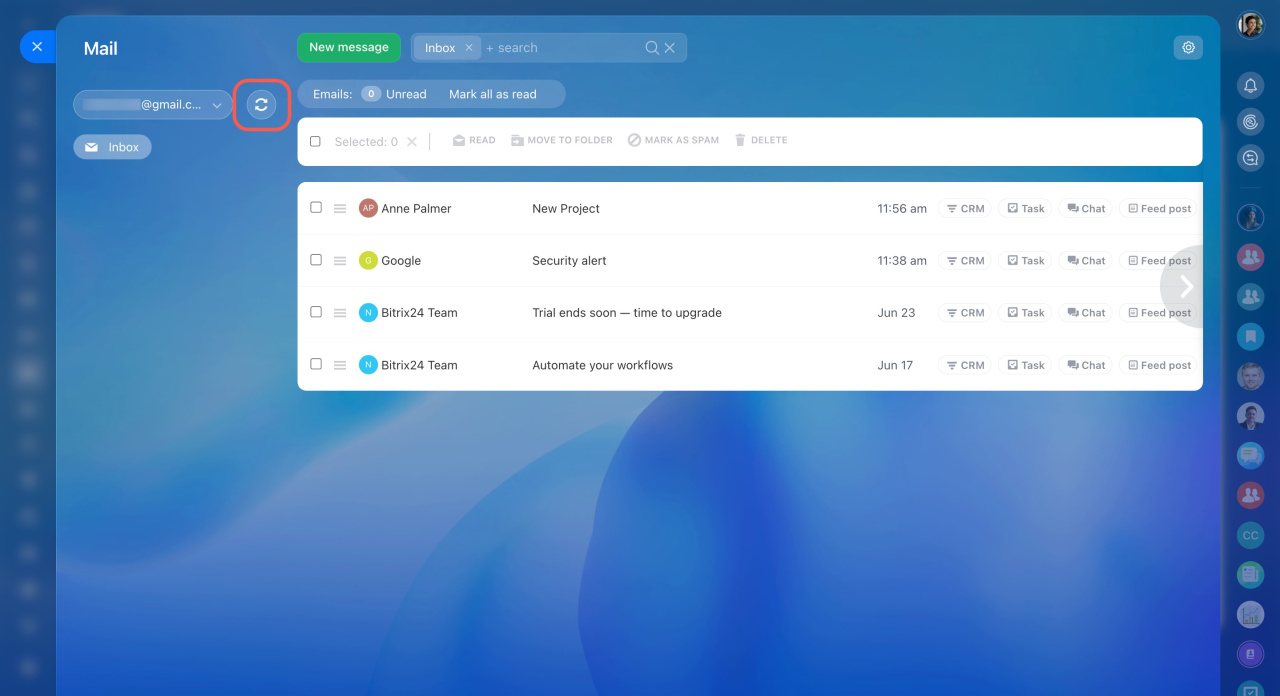
Mailbox sync depends on user activity. Bitrix24 checks mail when a user is online and active, for example, when they reload pages, open sections, or perform actions in Bitrix24 Messenger or the mobile app. A collapsed browser tab with your Bitrix24 account does not count as user activity.
Bitrix24 syncs emails:
-
Every 10 minutes if the mailbox owner is online.
-
Every 10 minutes if the Route emails from existing clients to assigned CRM managers option is enabled and any user has logged in to the account.
-
Once a day if any user has logged in to the account and the Route emails from existing clients to assigned CRM managers option is disabled.
-
Right after you open the Webmail section.
Mail is not synchronized if no users log in to your Bitrix24 account.
In brief
-
Connect your mailbox to Bitrix24 before working with mail.
-
Save emails to CRM, add them to tasks or meetings, or discuss them in a chat or Feed.
-
Use filters to find emails faster.
-
Email sync between mail agents is automatic.