You can write emails, read them, attach them to tasks, and save them to CRM. You can also create a chat with colleagues or schedule a calendar event based on an email. This article answers common questions about email in Bitrix24.
In this article:
- How the "Route emails from existing clients to assigned CRM managers" works
- Why Bitrix24 sends an email to the spam folder
- Who can configure a mailbox
- Why a number is added to the email attachment name
- Why you are getting an email copy
- Why emails from subfolders aren't syncing
- Can a Bitrix24 administrator read other users' emails
- Why the "Email message has been canceled" error occurs when sending an email
- Can DKIM and SPF records be added in Bitrix24 webmail settings
- How to connect your email domain
- Why emails are sent slowly
- Can you know if a client read the email
- Why emails are sent from noreply@bitrix24_address
- Why you can't connect Gmail
- Why some emails arrive with a delay
- How to add an image to the email text or signature
How the "Route emails from existing clients to assigned CRM managers" option works
If an email comes from a client that already exists in CRM, Bitrix24 attaches it to an existing CRM item when this option is enabled.
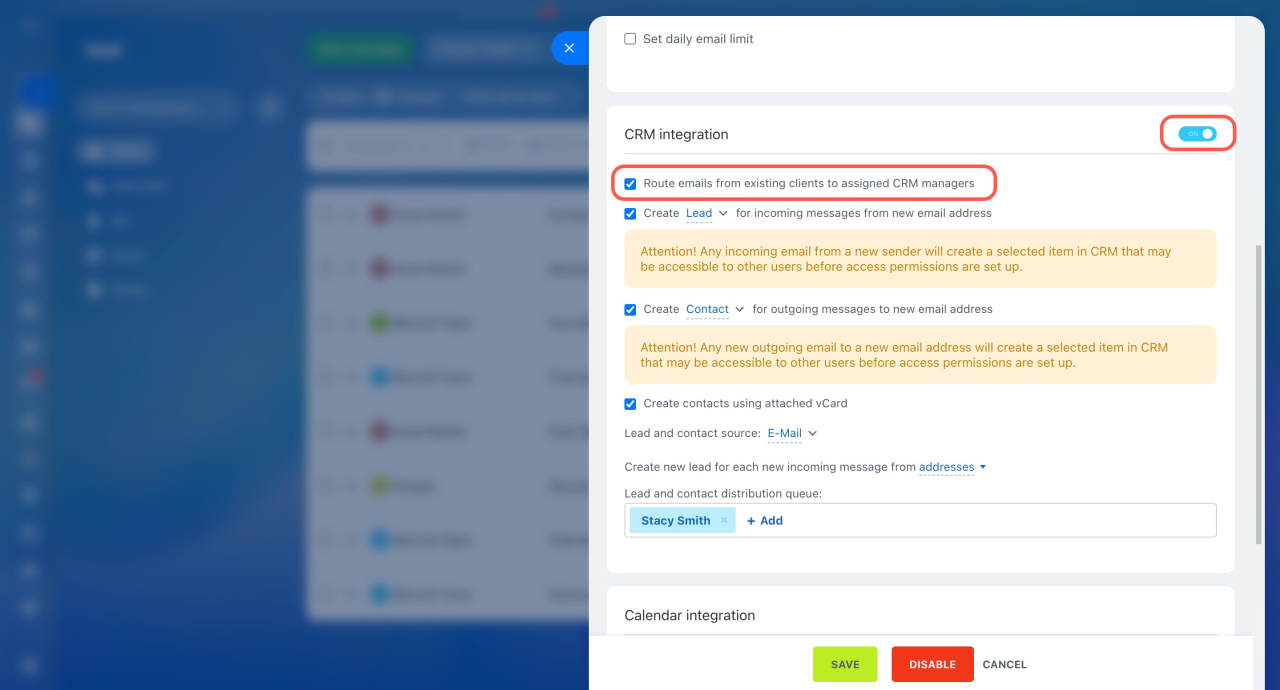
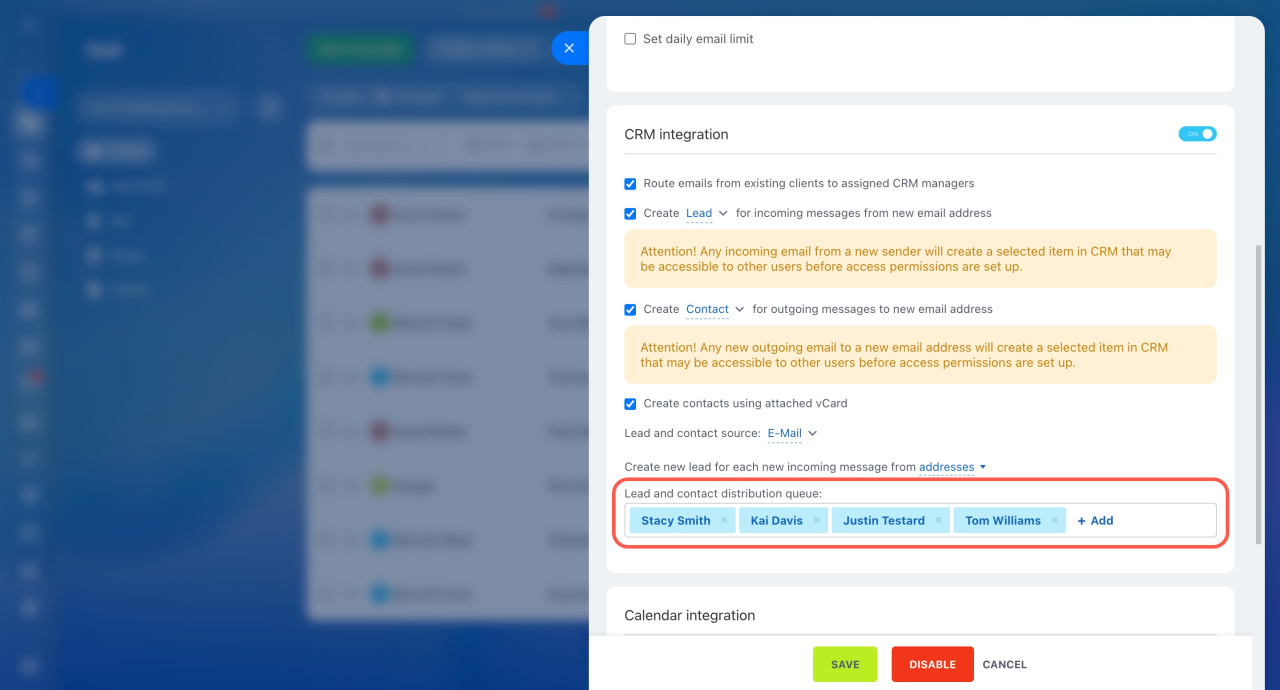
If a responsible employee is set in the Leads and Contacts distribution queue, the email is added to the existing item.
If no responsible employee is set, Bitrix24 creates a new lead for each email. The system assigns it to an employee from the queue. As a result, multiple items for the same client may appear in CRM with different responsible employees.
Why Bitrix24 sends an email to the spam folder
If you add a sender to the blacklist, Bitrix24 automatically sends their emails to spam—even if they appear in your inbox in the mail service.
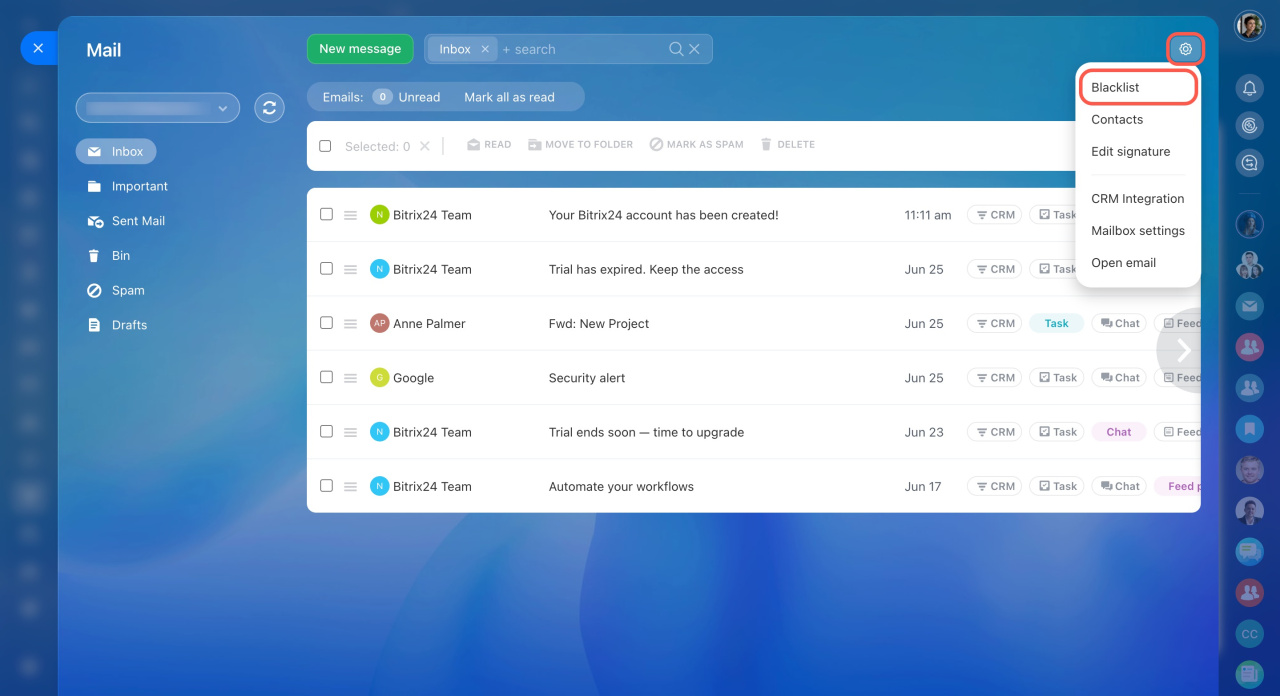
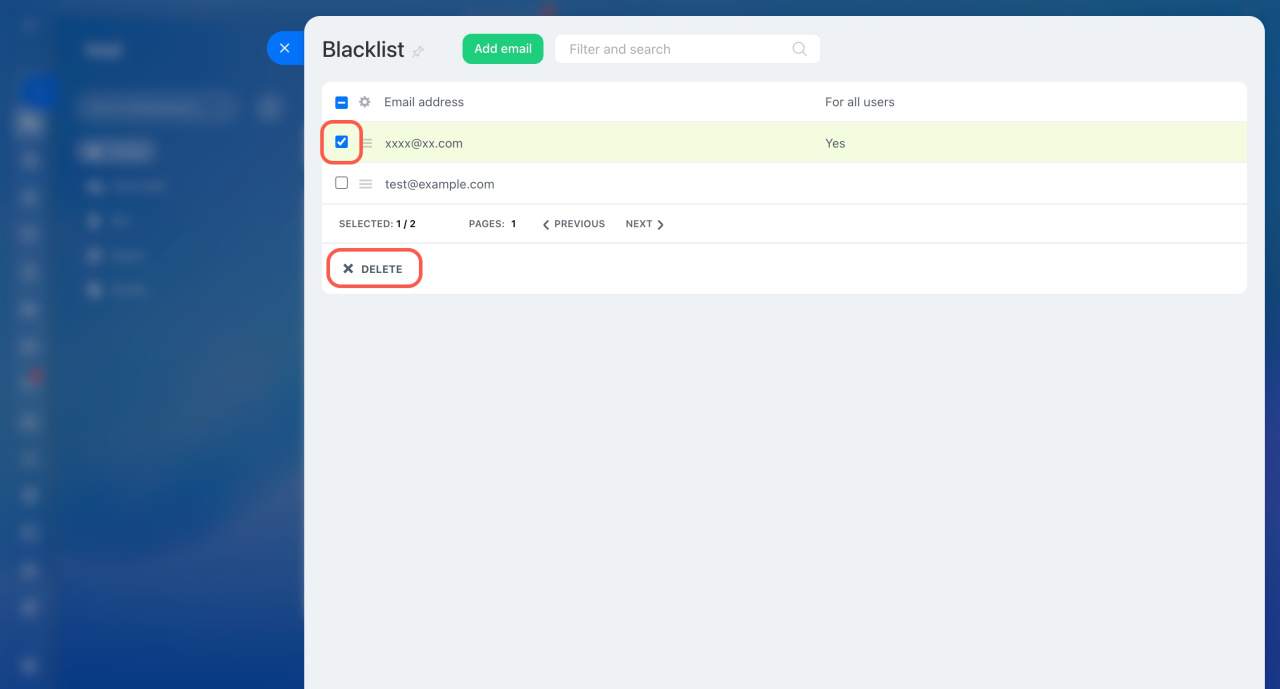
To remove an address from the blacklist:
- Go to Webmail.
- Click Settings (⚙️) in the top right corner.
- Select Blacklist.
- Check the box next to the address you want to remove.
- Click Delete.
Who can configure a mailbox
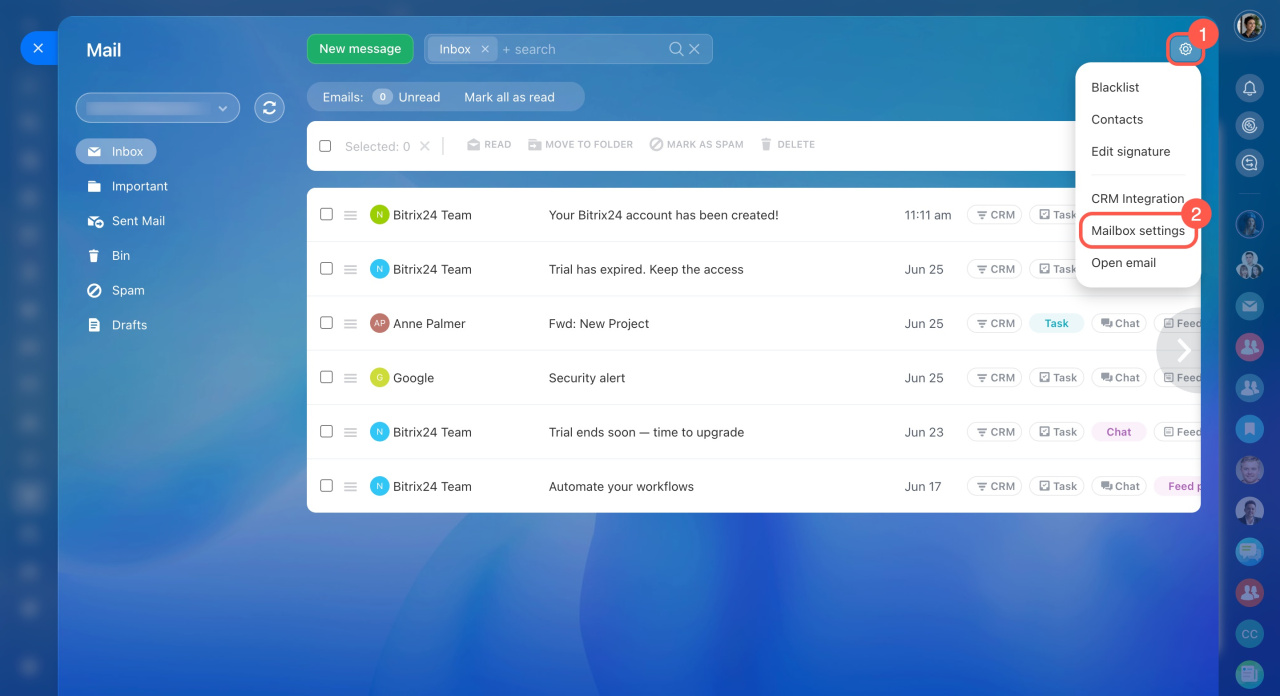
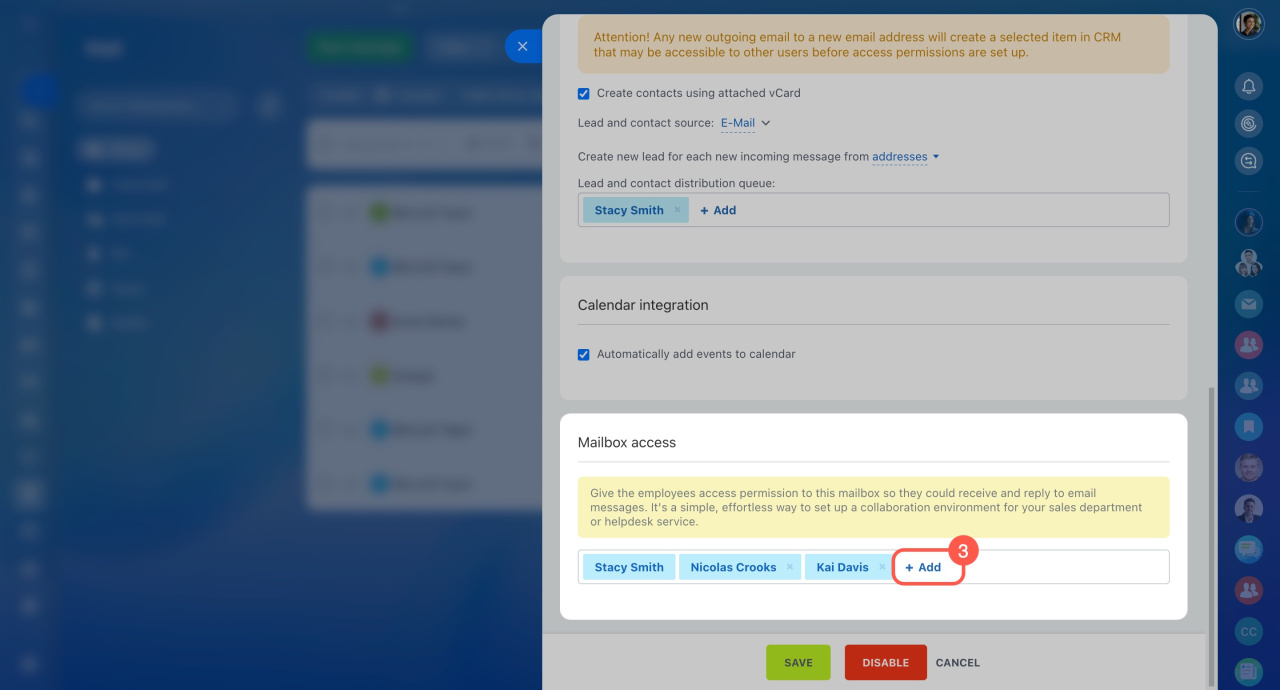
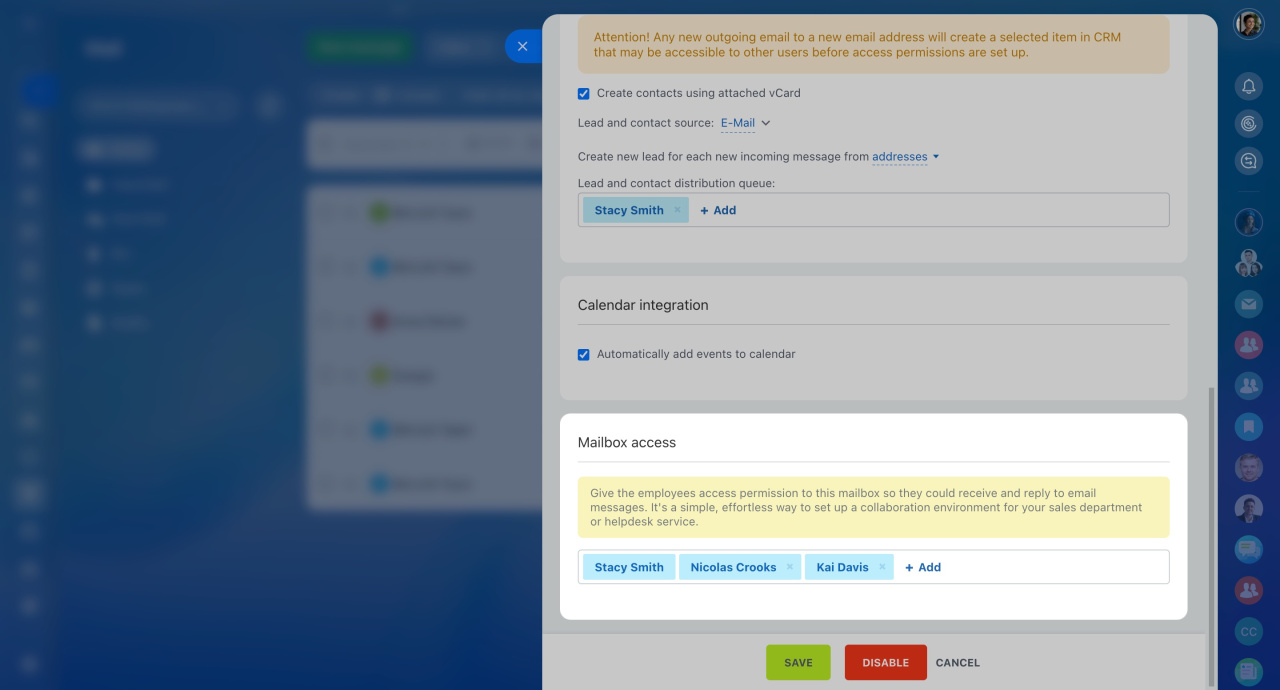
The mailbox owner manages its settings. They can also grant access to other employees.
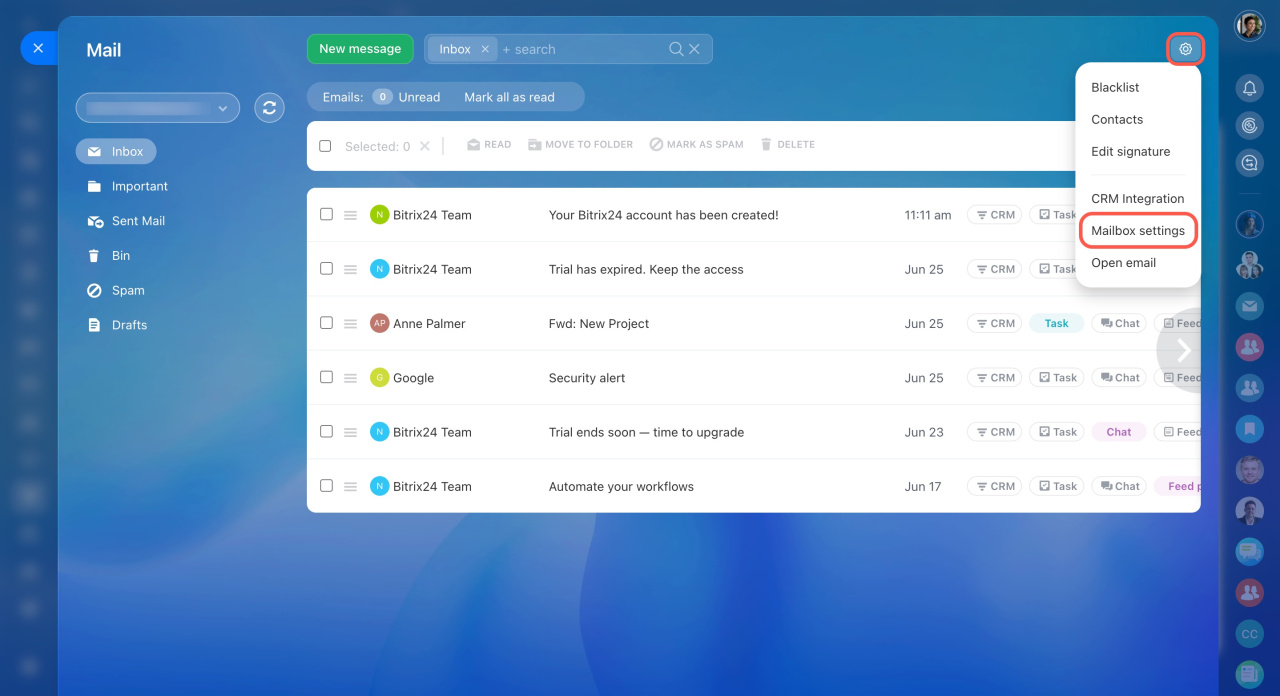
- Go to Webmail.
- Click Settings (⚙️) in the top right corner.
- Select Mailbox settings.
- In the Mailbox access section, click Add and select the desired employee.
Why a number is added to the email attachment name
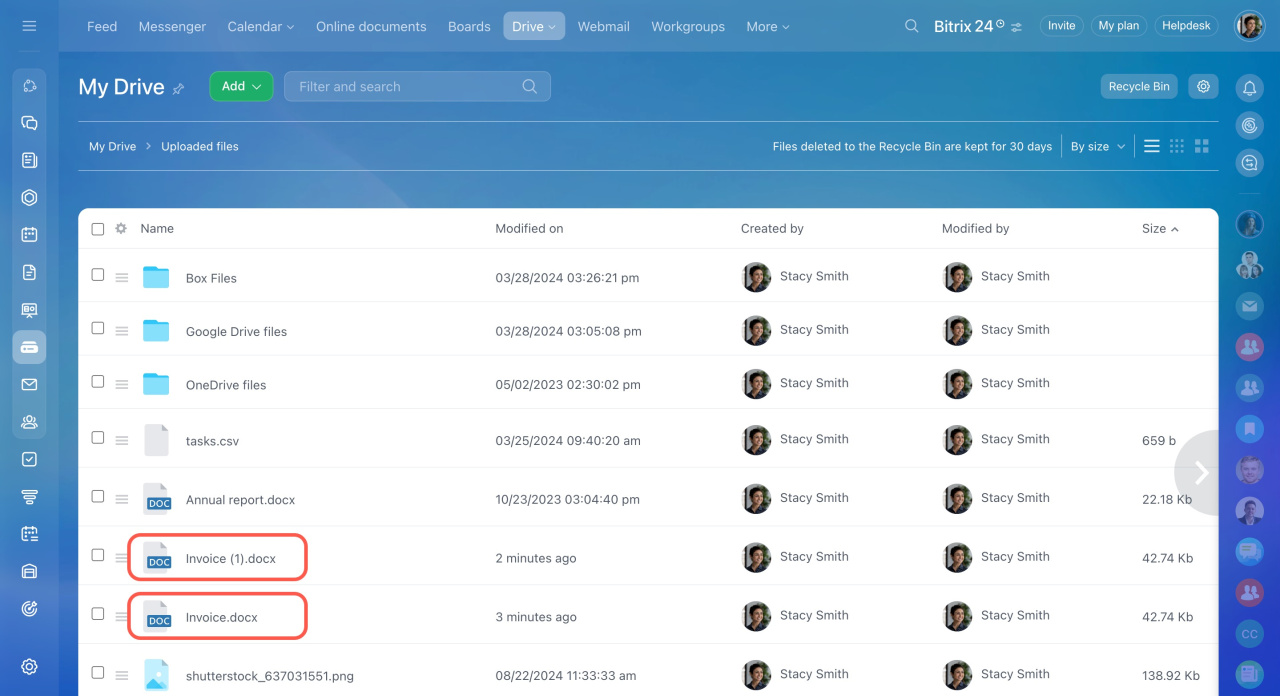
If you attach a file that already exists on Bitrix24 Drive, the system adds a number to the file name. This happens when the file has already been uploaded—for example, to a task.
To avoid adding numbers to the file name, give files unique names or place them in different folders on the Bitrix24 Drive.
Why you are getting an email copy
Check whether email forwarding is enabled in your mailbox settings.
Why emails from subfolders aren't syncing
Bitrix24 does not sync emails from subfolders in services like Gmail or Outlook. Move emails to main folders to sync them.
Can a Bitrix24 administrator read other users' emails
They can view emails only if the mailbox owner grants access.
Why the "Email message has been canceled" error occurs when sending an email
This error can happen for a couple of reasons:
- The recipient's address doesn't exist.
- The recipient's address is added to the blacklist.
Why some emails end up on the blacklist when sending a campaign
Can DKIM and SPF records be added into the Bitrix24 webmail settings
You cannot add DKIM or SPF records in Bitrix24 webmail settings. Configure them on your mail server instead.
To do this:
- Register your email domain.
- Set up your mail server: add DKIM records, configure SPF, and check DMARC policies.
- Connect an SMTP server in Bitrix24 for sending emails.
How to connect your email domain
You cannot connect a domain directly to Bitrix24. First connect it to an email service, then set up webmail in Bitrix24.
Why do emails take a long time to send?
An email can take up to an hour to reach the recipient. During delivery, the message goes through queues on both the sender's and recipient's mail servers.
Exact delivery times are not guaranteed. Under RFC 5321, section 6.1, email delivery can be delayed by technical issues related to how the internet and mail servers work.
RFC 5321 standard
If the issue continues, contact Bitrix24 Technical Support or your email service provider.
AI support agent in Bitrix24 Support chat
You can also use other Bitrix24 tools to communicate with clients, such as Open Channels and Telephony.
Communication channels in Contact Center
Telephony connection options overview
Can you know if a client read the email
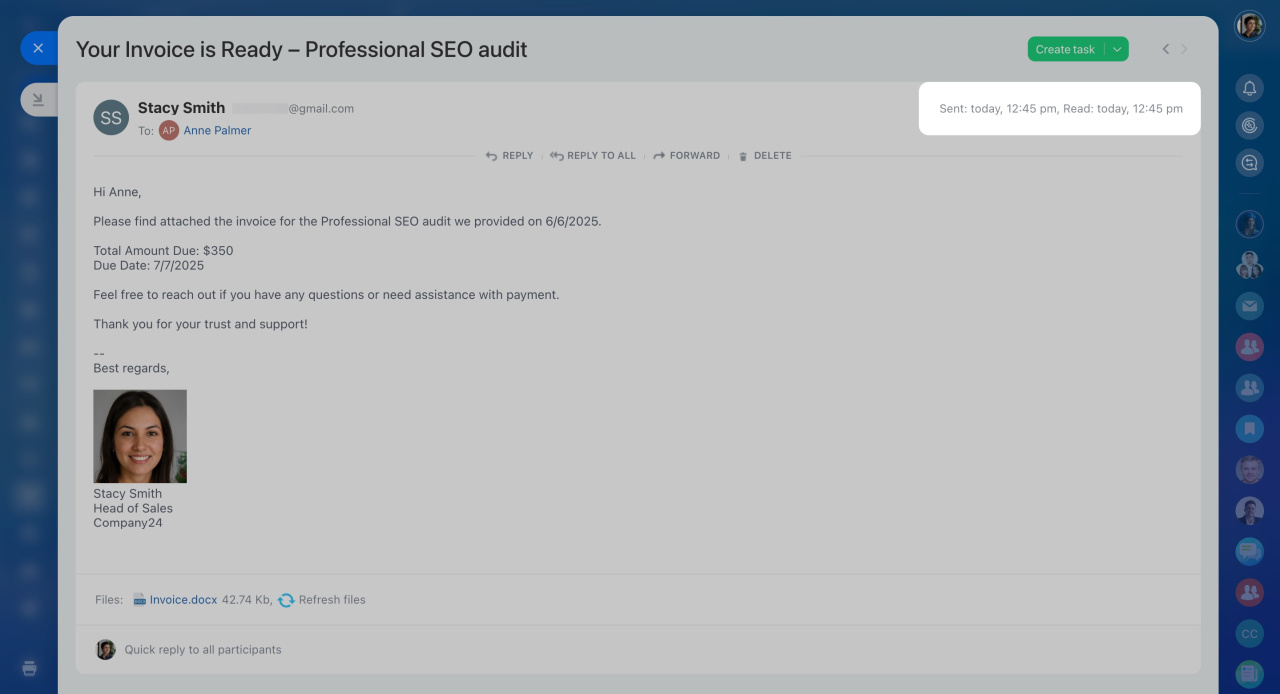
If the recipient allows automatic data loading, Bitrix24 shows a read receipt in the email.
Why emails are sent from noreply@bitrix24_address
Issue. Emails to clients are sent from noreply@bitrix24_address instead of the employee's connected email.
Reason. An external SMTP server is not set up for sending emails.
By default, Bitrix24 uses its own servers to send emails. That's why the From field shows noreply@bitrix24_address.
What this means:
-
If a client replies to the email, Bitrix24 will forward the message to your real email address (for example,
stacysmith@example.com). -
If a client sends a new message to
noreply@bitrix24_address, it won't be delivered. This address doesn't receive incoming emails.
Solution. To show your real email address in the From field, set up an external SMTP server. After that, your emails will be sent from the correct address.
Use SMTP server to send emails
Why you can't connect Gmail
Possible reasons and solutions:
Incorrect password.
- Make sure you are using the correct SMTP password.
- The password should include only Latin letters and numbers. Avoid special characters like # or ^.
Two-step verification is enabled. If you use two-step verification, you need to create an app password in your Google account settings for SMTP.
Turn on 2-Step Verification
Login blocked by Google. Sometimes Google temporarily blocks login attempts from unknown apps or locations. To resolve this issue, contact Google Support.
Why some emails arrive with a delay
Bitrix24 automatically checks for new emails at regular intervals. How often your mailbox syncs depends on user activity. Activity means having Bitrix24 open and actively working in it—either in the browser, Bitrix24 Messenger, or mobile app. If the Bitrix24 browser tab is minimized, email synchronization won’t occur.
Here’s how syncing works:
- If the mailbox owner is actively working in Bitrix24, emails sync every 10 minutes.
- If the Route emails from existing clients to assigned CRM managers option is enabled, Bitrix24 syncs emails every 10 minutes—even if another user is active in Bitrix24.
- If that option is disabled but any user logs in to Bitrix24, emails sync once every 24 hours.
- Opening the Webmail section starts an immediate synchronization.
- If no one logs in to Bitrix24, emails are not updated.
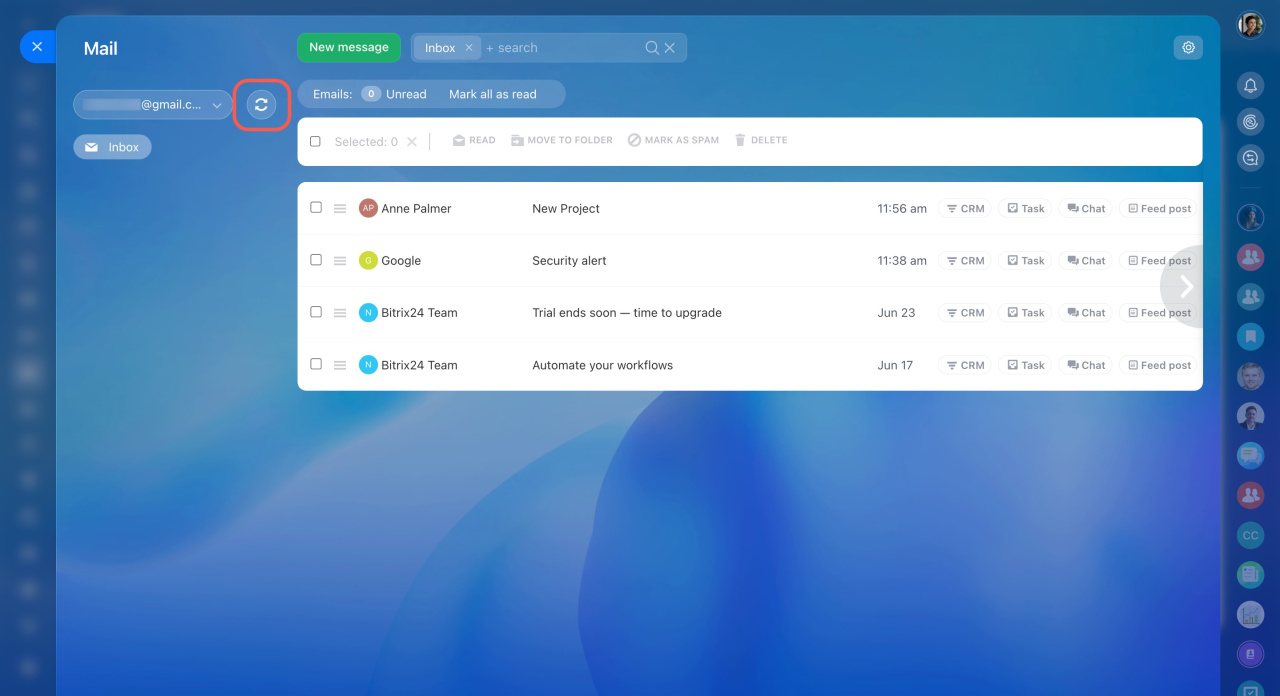
You can also sync your mailbox manually at any time by clicking the Sync button.
How to add an image to the email text or signature
You can easily add an image to your email message or signature.
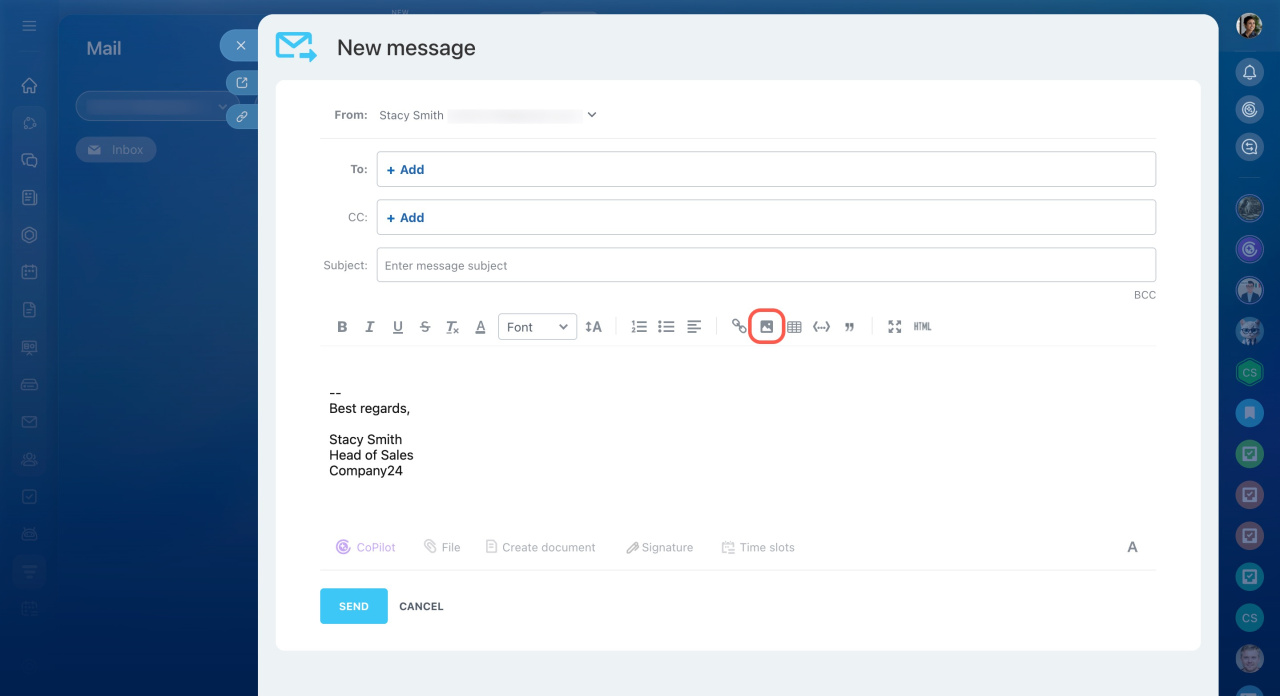
- Click the
 icon.
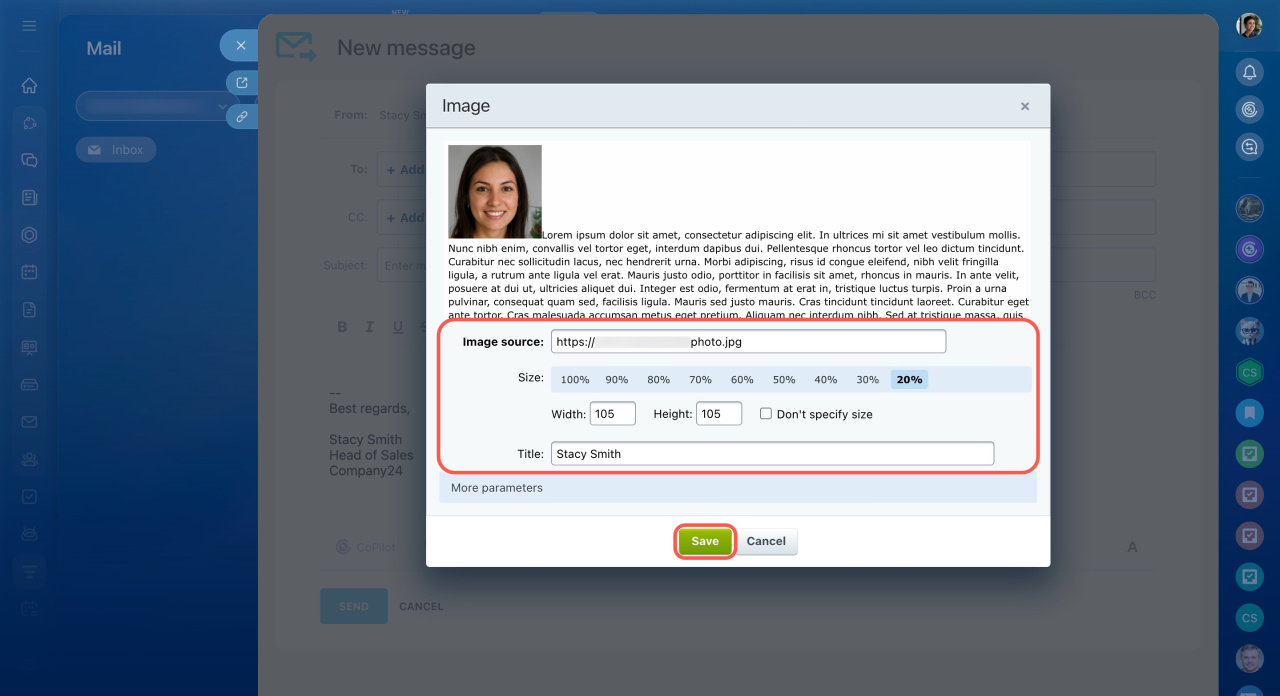
icon. - In the Image source field, paste the link to your image, then enter the file name and size. The link must be public and accessible without logging in to Bitrix24. Use external hosting services that provide direct public links to files. Services like Bitrix24 Drive or Google Drive aren’t suitable for this purpose.
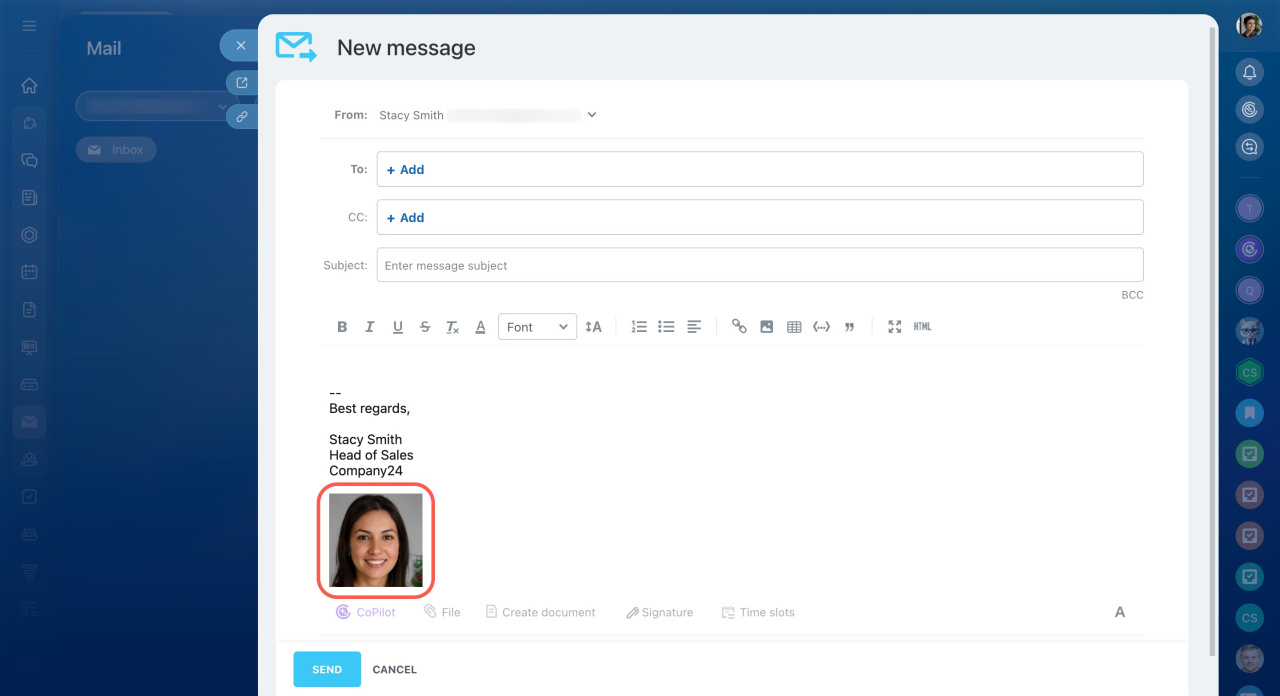
- Save your changes. The image will appear in your email text.
Mailbox settings: Edit signature