
The Contact Center helps you manage customer conversations from messaging apps, social media, live chat, and other channels. All messages are received in Bitrix24 and saved in CRM.
Your team does not need to switch between different apps or browser tabs. All conversations stay in Bitrix24, so agents can reply to customers, confirm deal details, and review message history in one place.
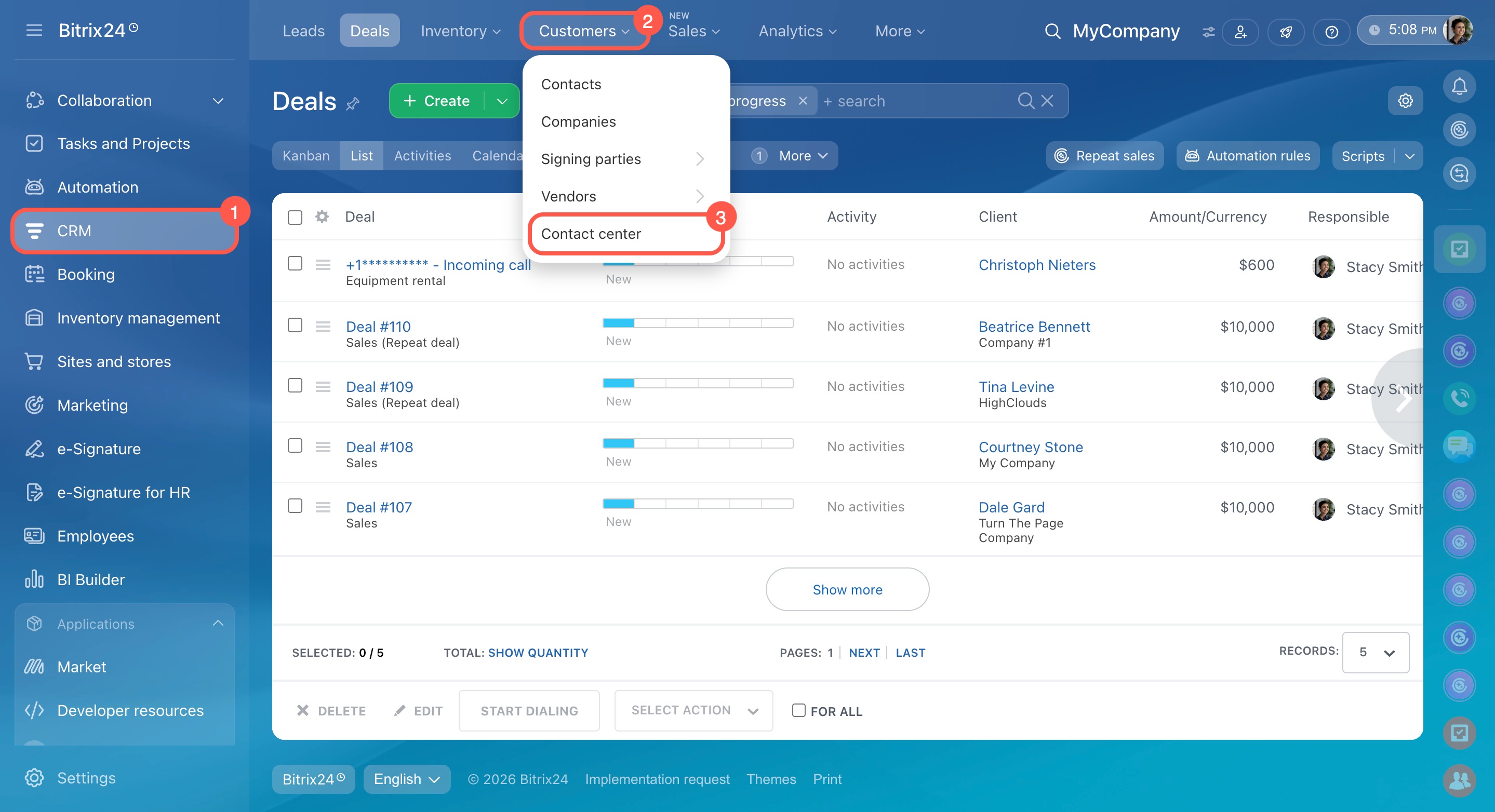
To connect channels, go to CRM > Customers > Contact Center.
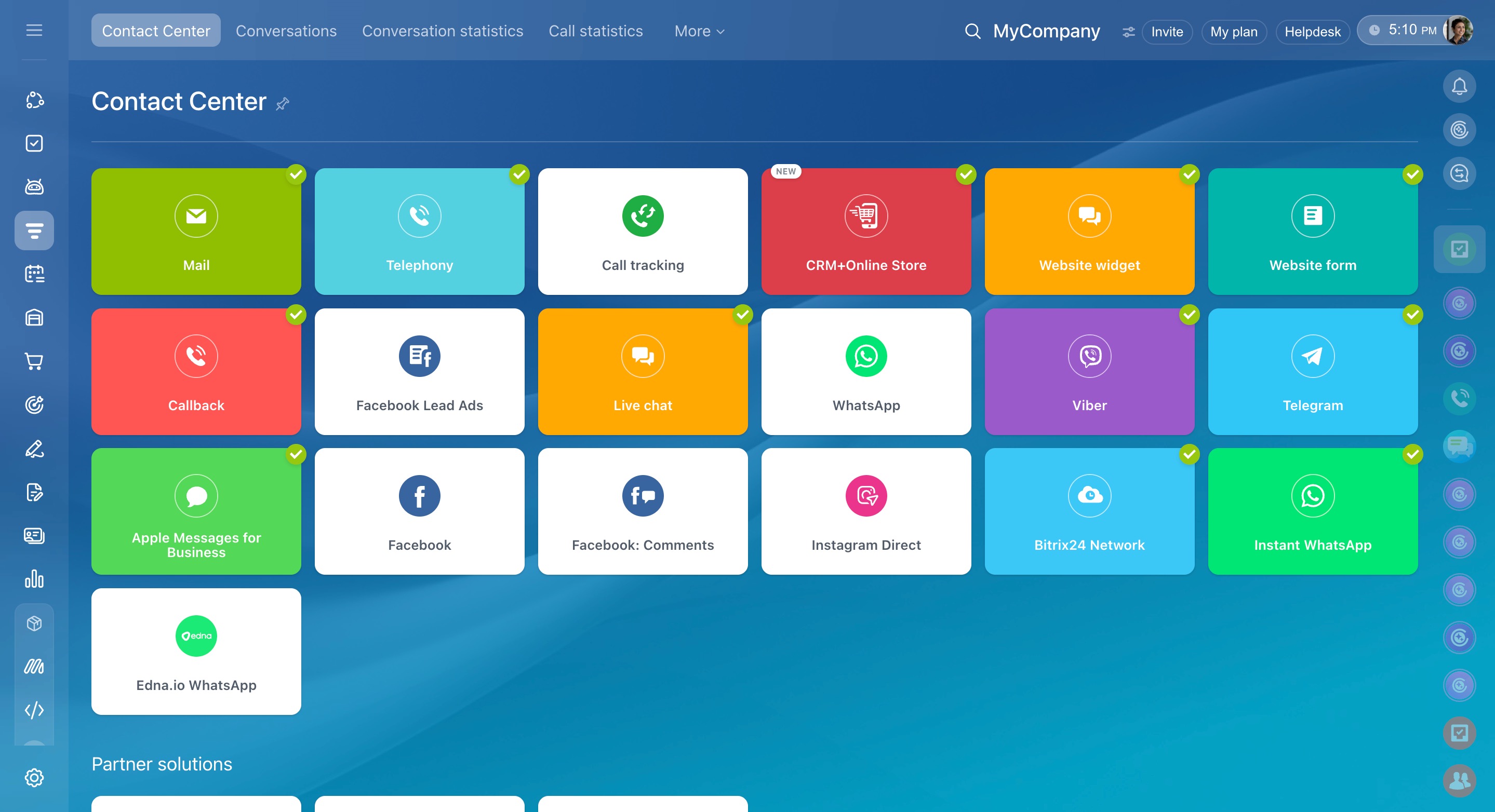
This article covers these channels:
There are three ways to connect WhatsApp to Bitrix24:
- Via Twilio
- Via Edna.io
- Via Instant WhatsApp
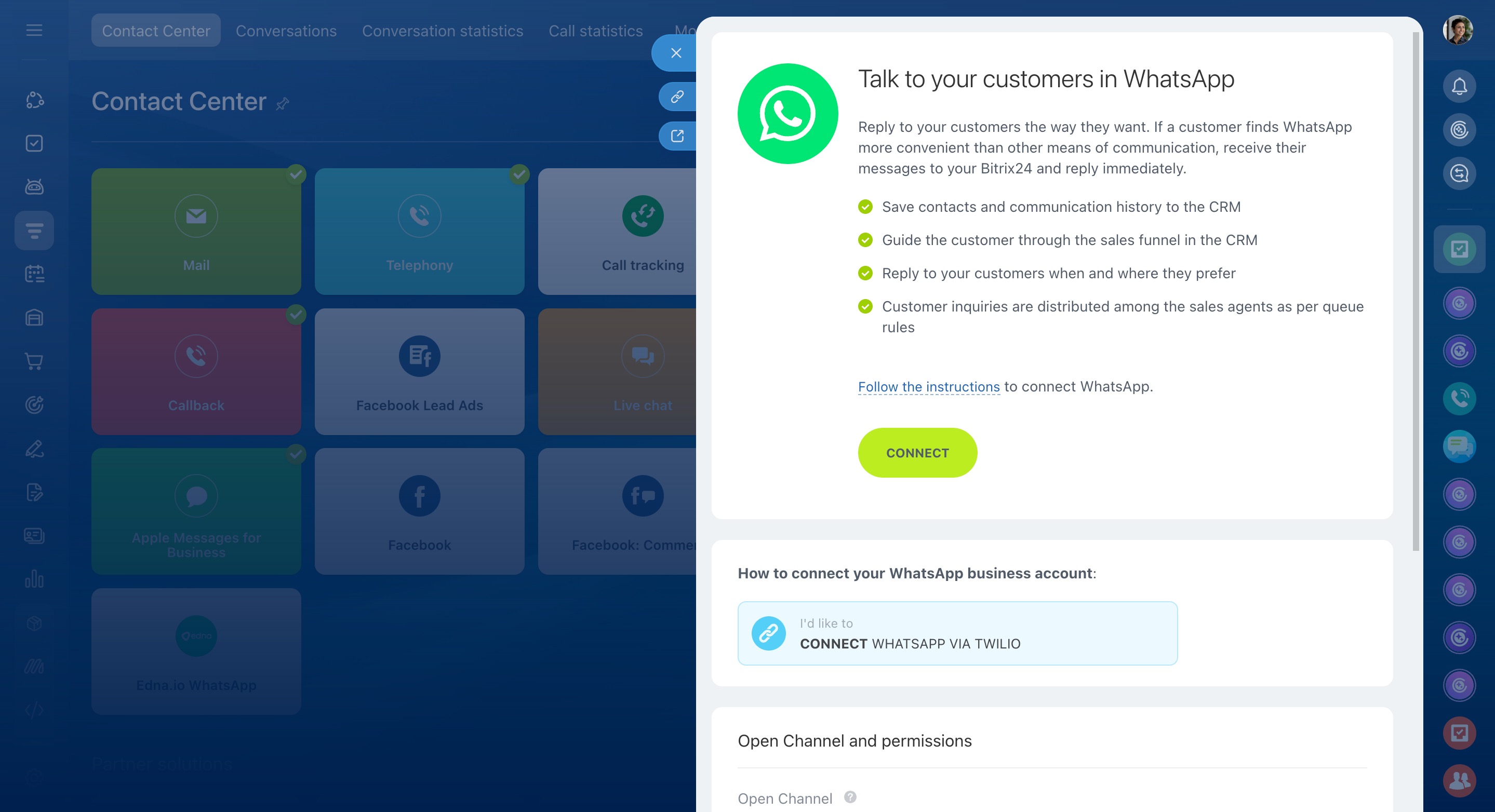
Connect WhatsApp via Twilio. Rent a dedicated number from Twilio and connect WhatsApp to Bitrix24 in a few steps.
Connect WhatsApp
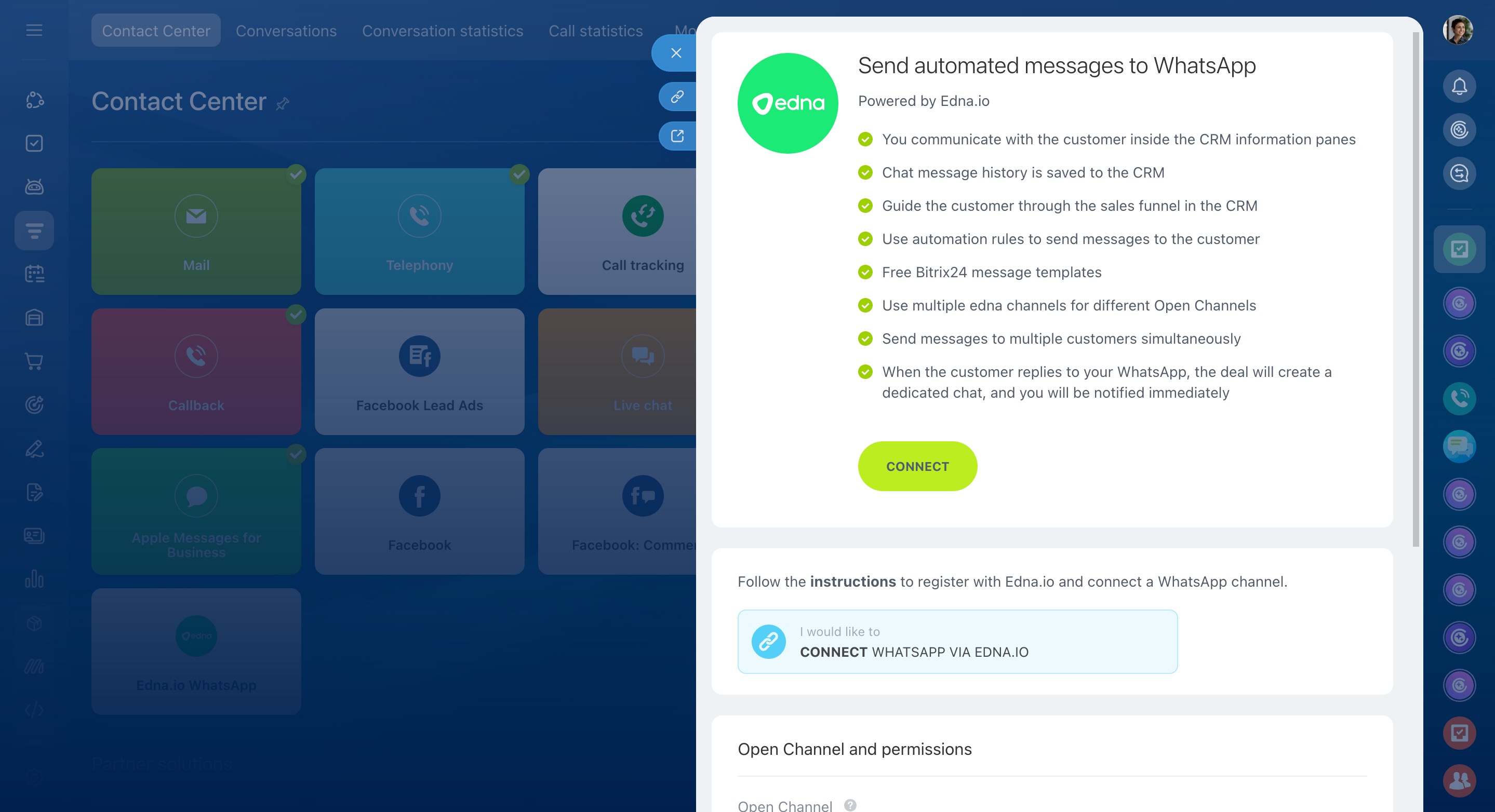
Connect WhatsApp via Edna.io. This option works best for service messages such as order updates or appointment reminders.
According to WhatsApp rules, customers usually need to start the conversation. An exception is template messages, which companies can send to customers first.
To use template messages, connect the Edna.io WhatsApp channel in Bitrix24. Sign up for edna Pulse, create a Facebook Business Manager account, and set up the channel and message templates in the provider account.
After setup, your team can send template messages from CRM. Customers can reply to those messages or contact you through a website widget, and the conversation will appear in Bitrix24.
Contact Center: Edna.io WhatsApp
Connect Instant WhatsApp. This method lets you connect WhatsApp to Bitrix24 without registering your business with WhatsApp. You can add this channel to your website widget. When a customer visits your site and chooses WhatsApp, they can message you from a desktop or mobile device. The message then appears in Bitrix24.
Contact Center: Instant WhatsApp
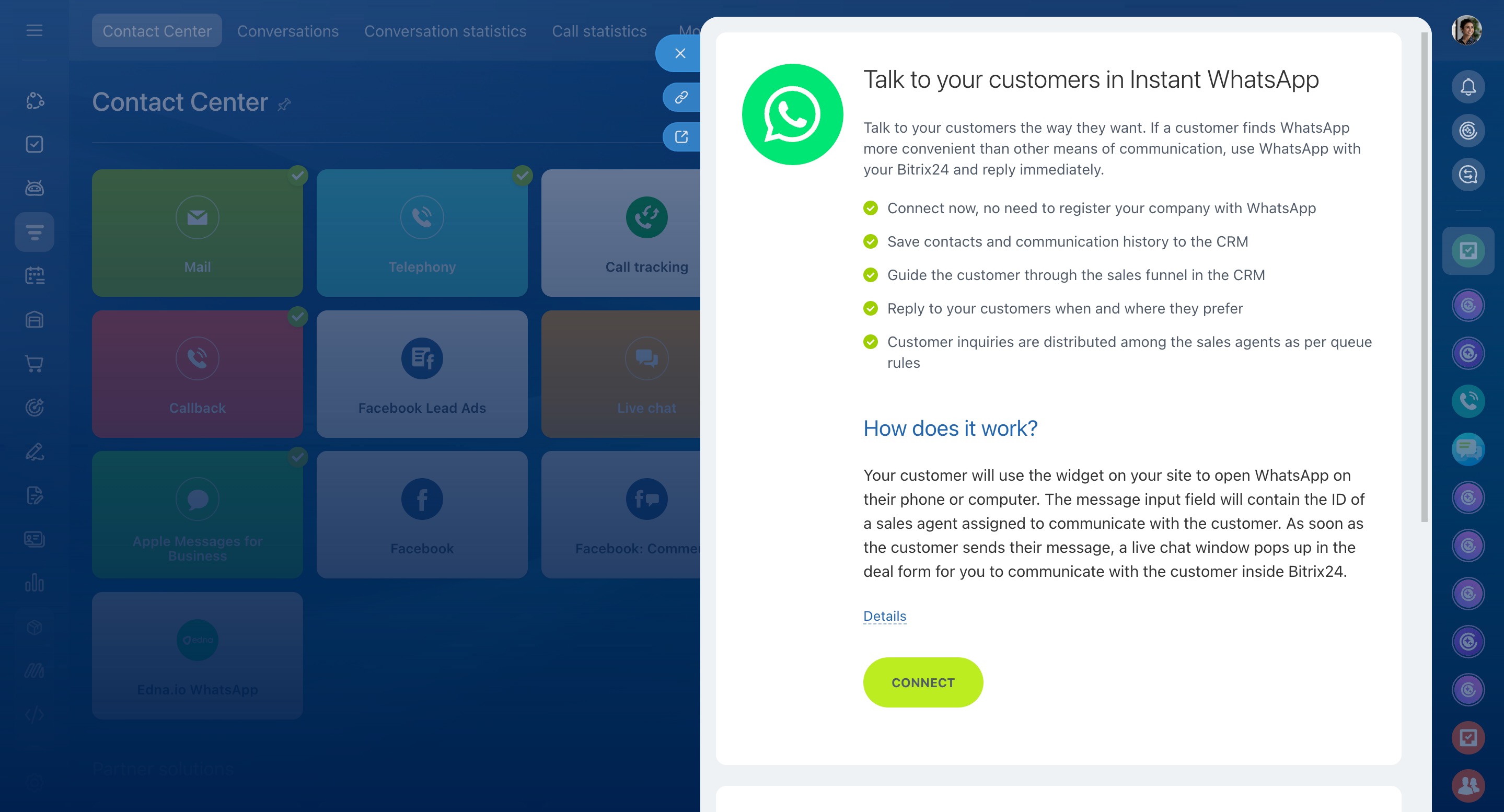
Live chat
Live chat helps you communicate with website visitors. A customer can send a message through your website widget or through a public chat page. The conversation then appears in your Open Channel.
Connect Bitrix24 Live Chat to your site
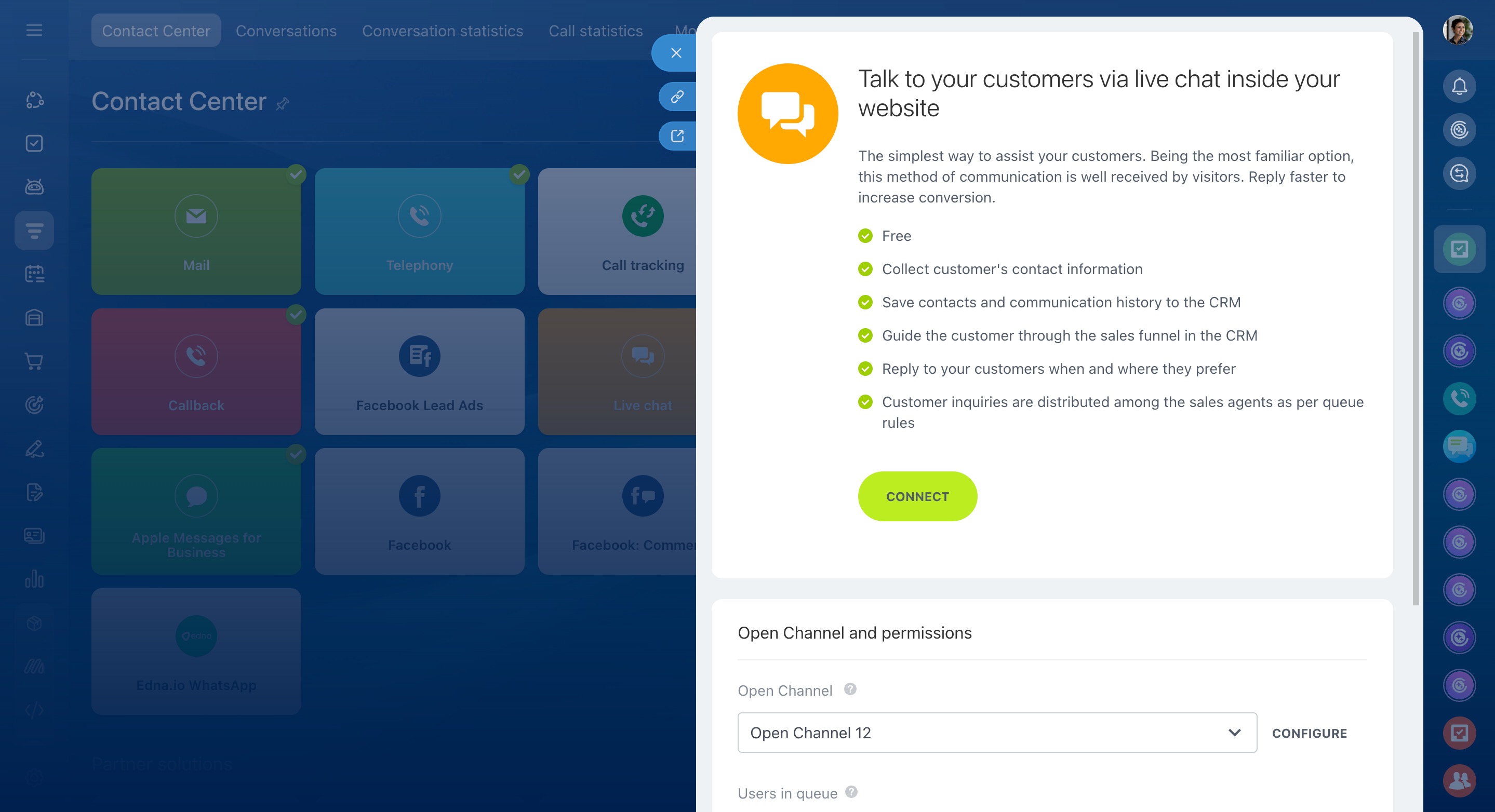
Bitrix24 Network
Bitrix24 Network lets you communicate with people who use a different Bitrix24 account. This is useful when working with colleagues, customers, or partners outside your account.
This channel delivers messages between Bitrix24 accounts. A user sends a message from their Bitrix24 account, and you receive it in yours.
Connect Bitrix24 Network
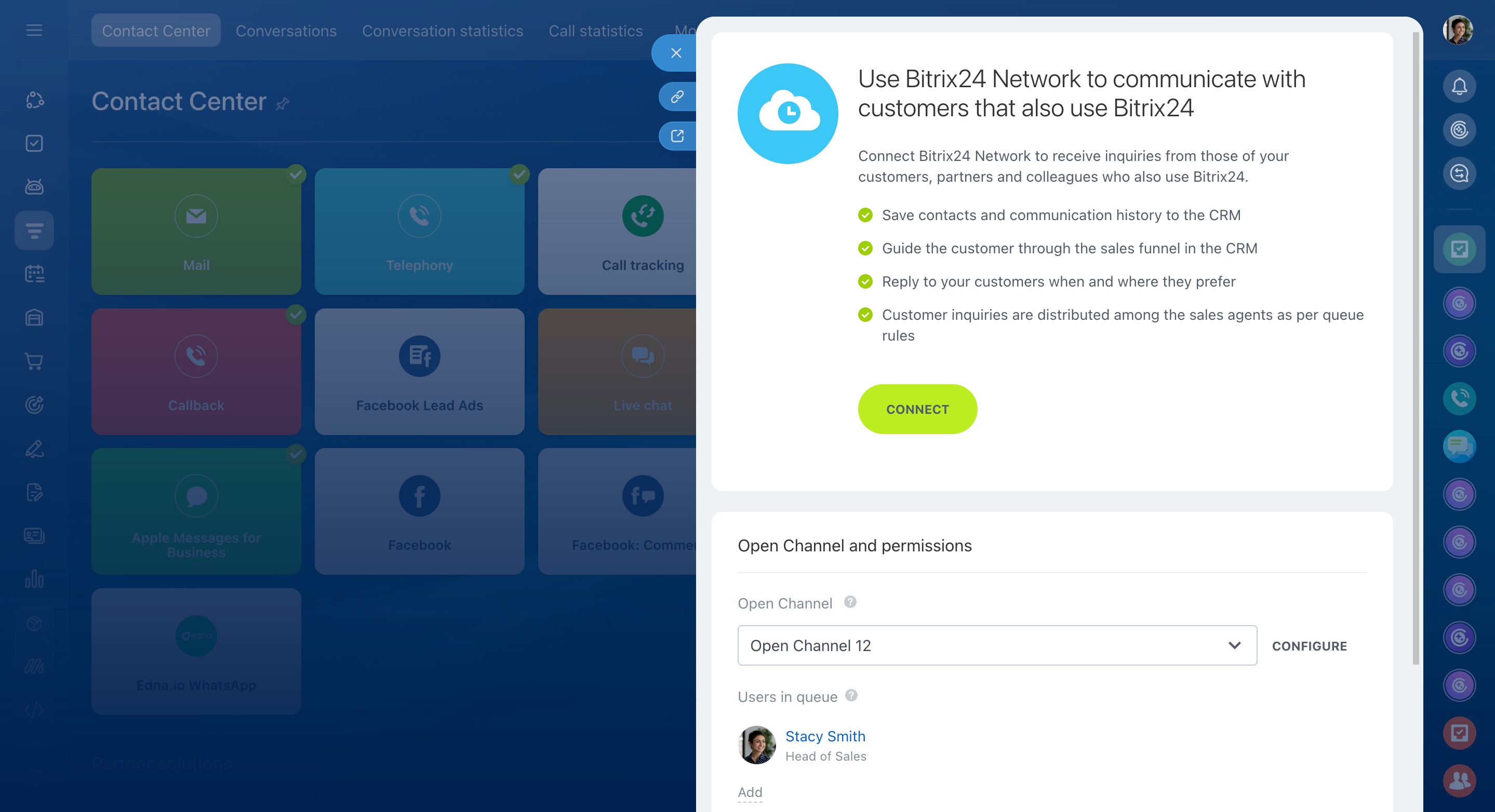
You can connect an Instagram account to Bitrix24. To do this, you need an Instagram business account linked to a Facebook Page.
When a customer sends you a direct message on Instagram, the conversation appears in Bitrix24. If the customer is not yet in CRM, Bitrix24 creates a new contact automatically. Your reply is sent back to the customer as an Instagram direct message.
When a customer comments on your Instagram post, a conversation also appears in Bitrix24. It includes a hidden message with a link to the post. The agent replies from Bitrix24, and the customer receives that reply as a direct message in Instagram.
Instagram Direct: Connect messages and comments
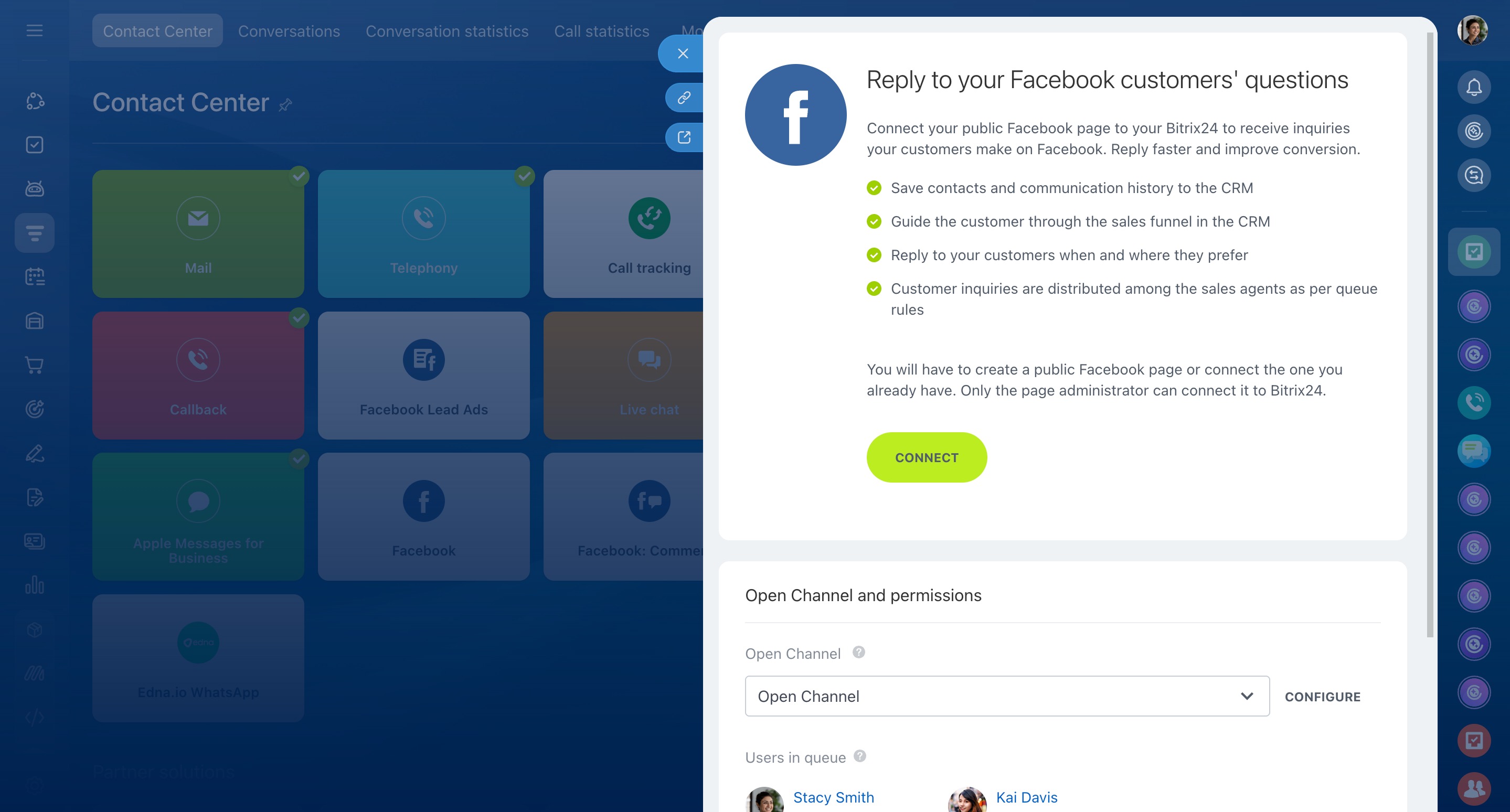
Connect a Facebook Page to Bitrix24 to receive direct messages and post comments.
Before you connect the page, link it to a business portfolio in Meta Business Manager. A page admin must do this. That person needs Facebook-level access to the page and full access to the business portfolio.
Create a business portfolio in Meta Business Manager
Select a business account
When a customer sends a direct message to your Facebook Page, the conversation appears in Bitrix24. Your replies are sent back as Facebook direct messages.
When a customer comments on a post on your Facebook Page, a chat is created in Bitrix24. Replies sent from Bitrix24 appear as comments under the post.
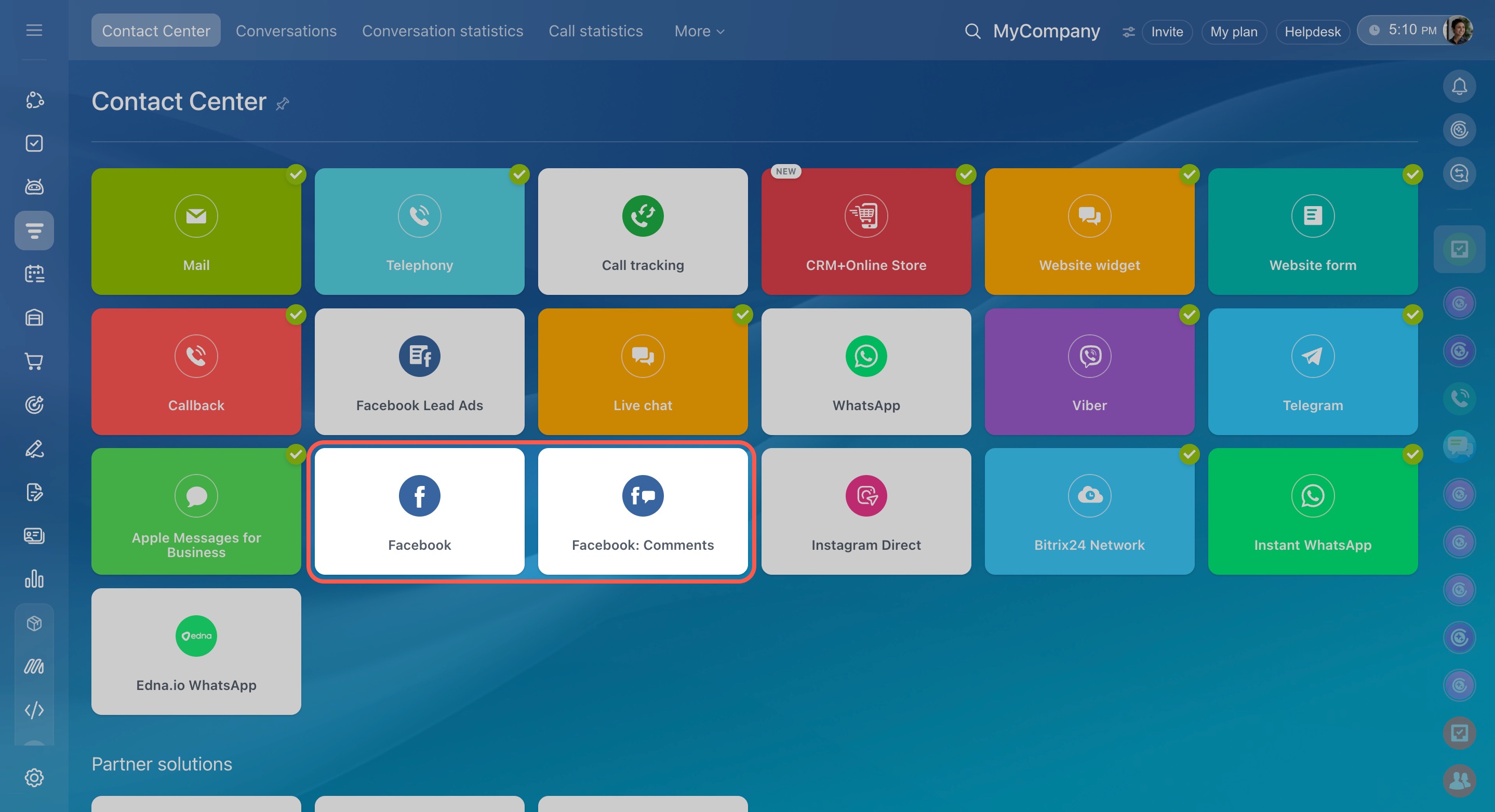
Facebook messages and comments are set up as separate channels: Facebook and Facebook: Comments.
Facebook: Connect messages
Facebook: Connect comments
Viber
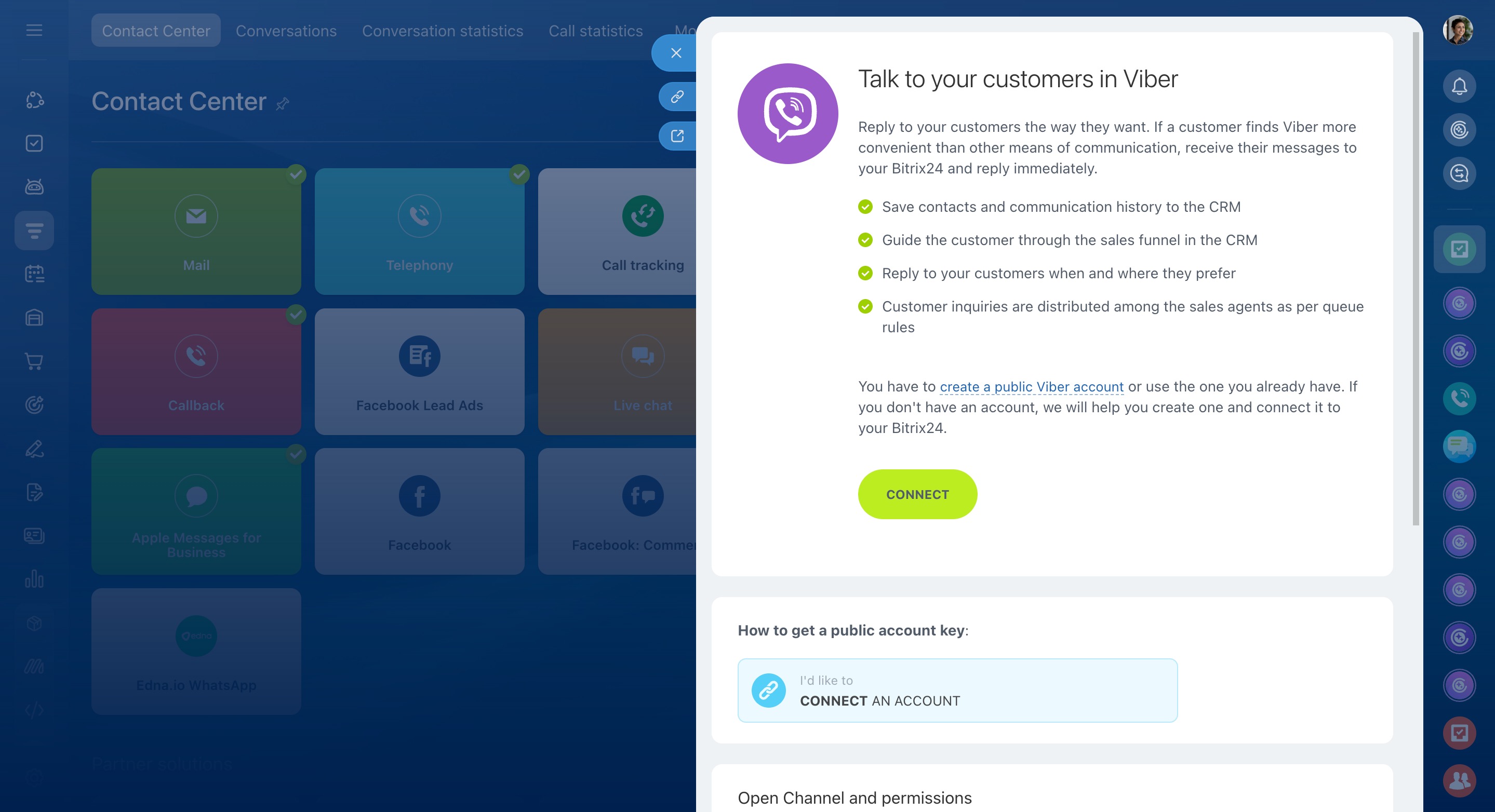
You can connect a Viber chatbot to Bitrix24. To add it to your site, connect it through the Bitrix24 widget. A customer visits your site, chooses Viber, and sends a message. The message then appears in your Open Channel.
To connect Viber to Bitrix24, send a request to Viber directly. If Viber approves it, you will receive a key to enter in the Viber connection settings in Bitrix24.
Connect Viber chatbot to Bitrix24
Telegram
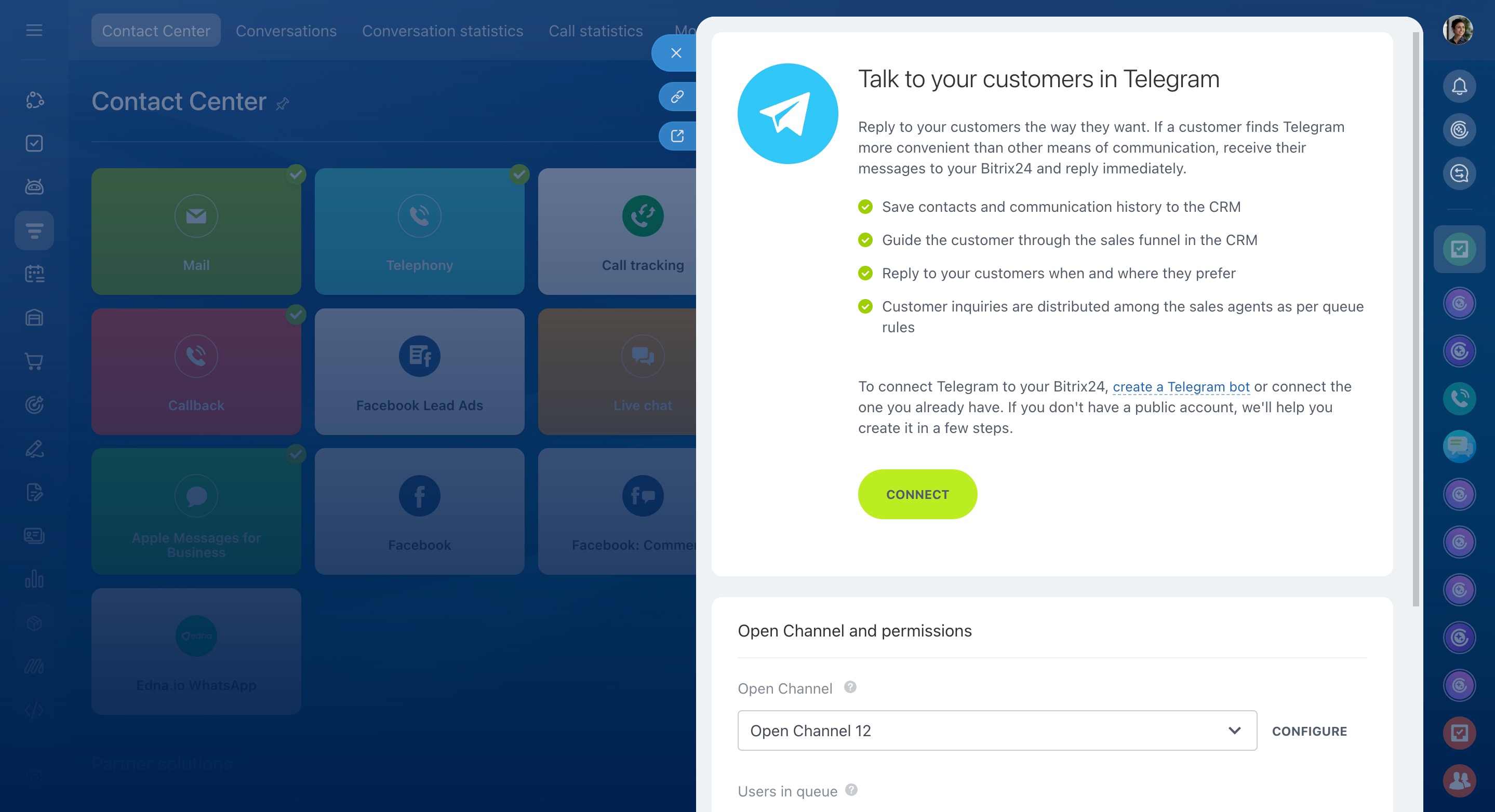
You can connect your Telegram bot to Bitrix24. Create or use an existing bot, get a token from the @BotFather bot in Telegram, and add that token when you connect the channel in Bitrix24.
Customers can find your bot in Telegram search, or you can send them a direct link. Once they open the chat and send a message, it will appear in Bitrix24.
Connect Telegram bot
The Contact Center brings all customer conversations into one place. Choose the channels your customers use most, and add more later if needed.
This keeps all customer communication in Bitrix24, so nothing gets lost across different services.